How to Use Microsoft Excel In 4 Basic Steps

Excel forms part of the Microsoft suite and allows you to store, organize and analyze data on your Windows or Mac. Excel has built-in features such as formulas, charts, and more which makes working with data much easier.

If you haven’t used Excel before, it might be intimidating at first. However, if you follow this guide, you can familiarize yourself with the basics.

  1. Understand the Excel Ribbon and Bottom Controls

    How to Use Microsoft Excel

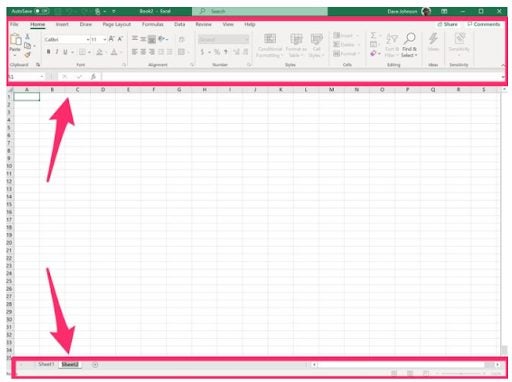
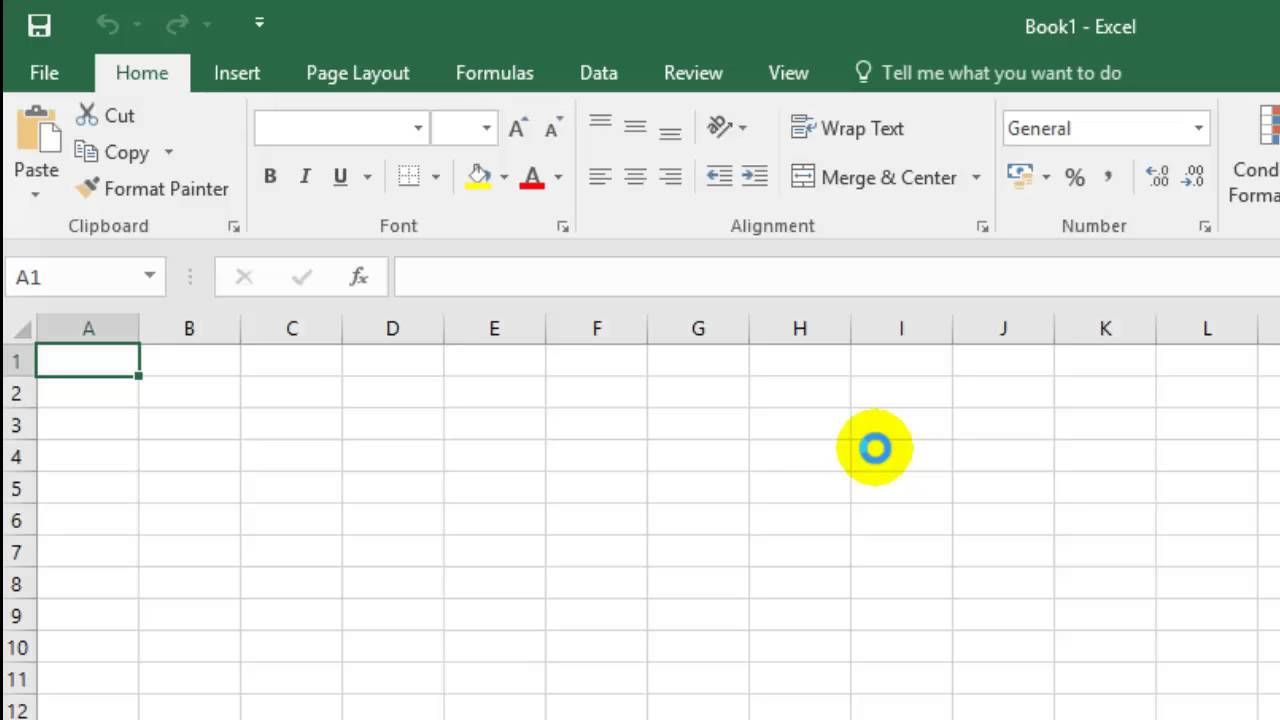
    When you’ve launched the program and started a blank project, you will be directed to the Excel spreadsheet. At the top of the screen, you will see the ribbon, which houses all the controls and functions you can use, such as inserting graphs, changing the format, and more. At the bottom are controls to switch between different spreadsheets within the same workbook or project.

  2. Basic Grid

    How to Use Microsoft Excel

    When looking at your spreadsheet you will see a grid, the blocks in the grid are referred to as cells. The cells each have an individual name that is identified by the X (top) and Y (left) coordinates. These coordinates will be A1 (for the first cell) and so on.

  3. Formatting Cells

    How to Use Microsoft Excel

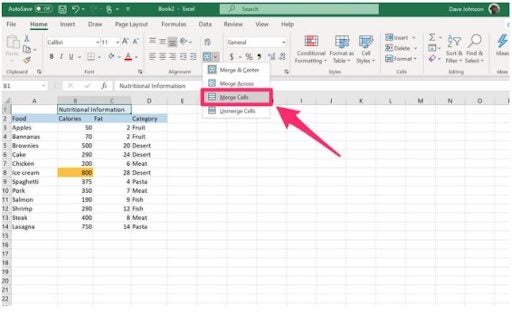
    Formatting options include changing the font and font size, making text appear in bold, or italic, or underlined, and more. These are found in the ribbon of Excel. One of the more useful formatting features is the ability to merge two or more cells to form only one cell. You can do this by selecting the cells you want to merge, and then under ‘Alignment’ in the ribbon, choose the merge dropdown list and choose the appropriate option.

  4. Performing Simple Calculations in Excel

    How to Use Microsoft Excel

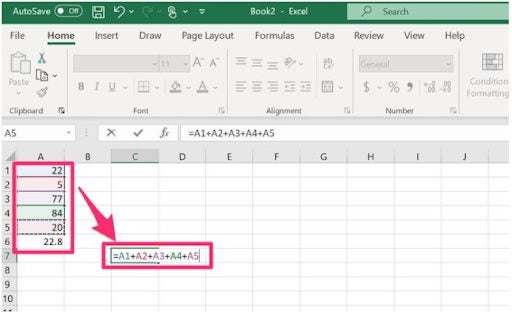
    Click on the cell you want to add a formula to and type in ‘=’ to start the formula. Now you can simply type your equation and click on the cell to use that cell’s value. Alternatively, a list of options will pop up that you can use, hover over the options to see what they are if you are unsure.

Analyze Data With Excel

Excel offers many different ways that you can work with different types of data. From simple equations to complex business financial analysis, Excel has the tools needed.

Instagram and Facebook Let You Hide Post Likes

Hide You Facebook and Instragam ‘Like’ Count

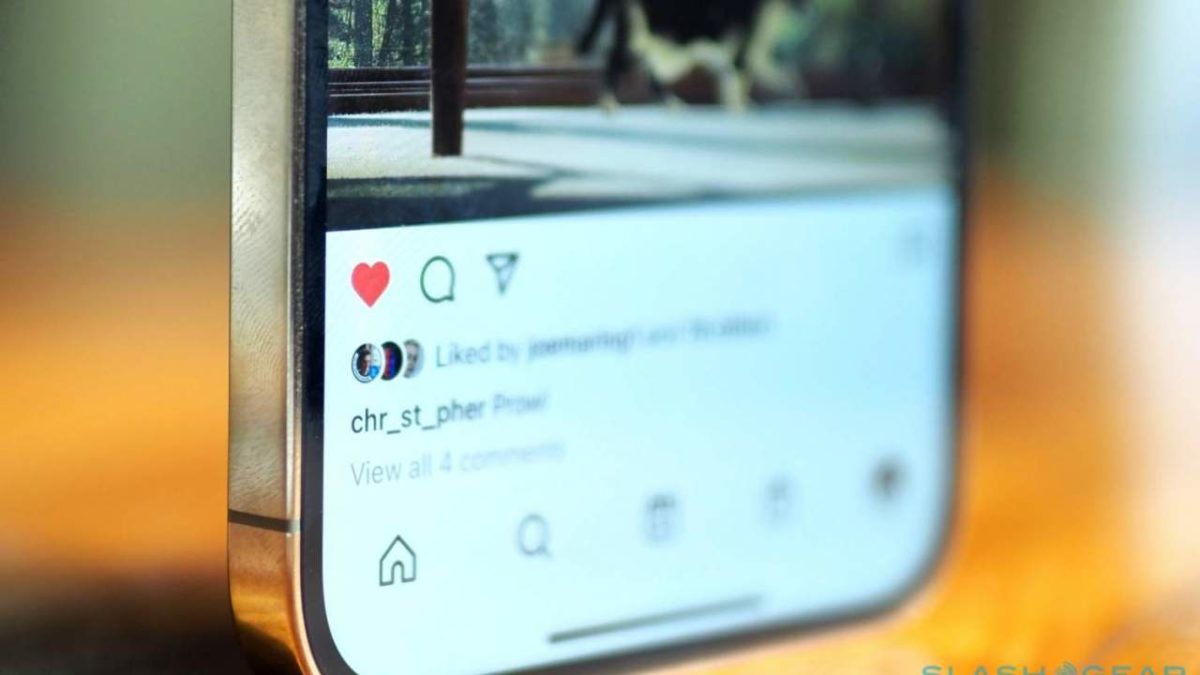
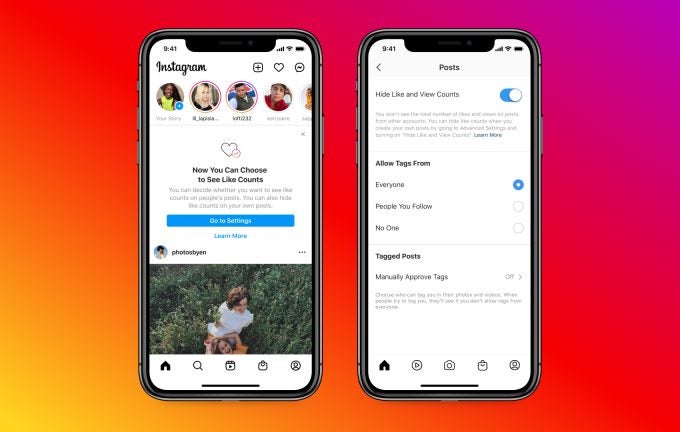
Last month, Instagram started testing a new feature whereby you can turn post likes on and off. It arrived due to many community members complaining about how it impacted the number of followers and mental health. Well, it seems as if the testing went well, as it’s rolling out for both IG and Facebook

You’ll have the power in your hands for whether people can see how much likes you have. For many, a low count doesn’t favor more likes. Others go through embarrassment and anxiety when no one seems to care about their content. Some will even remove posts if there aren’t enough looks. 

The developers hope that this tool will relieve some of the pressure of post performance. Unfortunately, the problem stems from chasing likes that takes away any valuable experience. You’ll also see content will less quality merely to see how many people engage with it. 

Instagram and Facebook Let You Hide Post Likes

It’s not what social media is supposed to be about, especially for youngsters. It gives them the wrong idea that peer approval means more than sharing news and excitement with the world.

While there was support for like to be removed completely, it would have a negative effect on influencers and brands who need to showcase the engagement for their posts. Hiding the ability to view the insights instead was by far the better decision for all parties.

Microsoft Says Edge Is “Best Performing Browser”

Is Microsoft Edge The Best Browser for Windows 10?

A week after Microsoft announced it would discontinue support for Internet Explorer, it’s now claiming that Edge is the top-performing browser for Windows 10. Of course, it’s easy for a developer to indicate that its software is the best there is available. Perhaps it’s wise to first have a look at the features it provides before accepting such a bold statement.

Firstly, you’ll have a function called Sleeping Tabs. If you have any tabs open in the background, Edge won’t allocate system resources to them in the browser. It’ll mostly focus on the one you’re currently using. In this way, the feature frees up memory usage and stops background ads from appearing, giving you faster performance.

We’re not saying this hasn’t been done before, as you’ll see with Chrome, Opera, and Firefox. However, you can make some changes to the settings that give it better functionality. 

Microsoft Says Edge Is “Best Performing Browser”

One unique feature is called Startup Boost. When Windows startup, Microsoft Edge will have some coding running in the background to be ready for when you need the browser. As soon as you open it up, you won’t have to wait for it to get started.

While there are a few other tools added to the browser, can Microsoft really claim that Edge is the best on the market? While we’re not ready to support the notion yet, we are rather fond of the efforts to speed up the internet experience.

Adobe Photoshop How to Merge Layers in 3 Easy Methods

Layers in Adobe Photoshop can get confusing if you have a lot of them and add to the file’s “weight.” While the program is full of complex concepts, merging is pretty straightforward.

We have three methods for dummies to reach a flat image.

  1. Merge two layers

    Adobe Photoshop How to Merge Layers

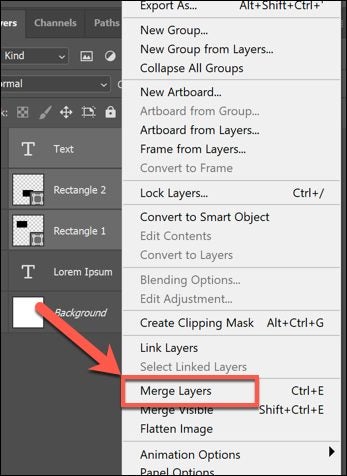
    You have the option to merge two layers in Photoshop. Just select the top one on the layers panel, go to the menu, and click “Merge Layers.” This action will join the top and bottom ones into one image.

  2. Flatten layers

    Adobe Photoshop How to Merge Layers

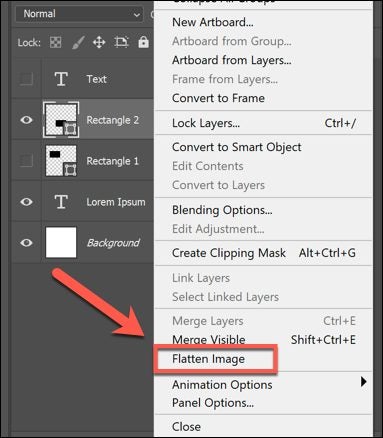
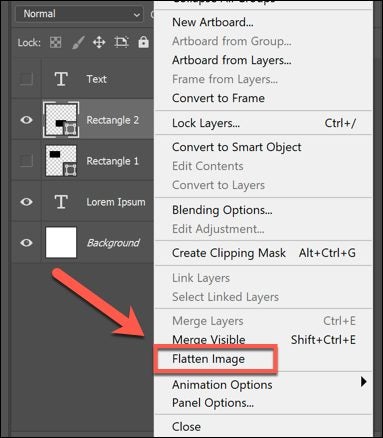
    Flattening is automatically done while saving the image in .jpg or .png. Still, you might want to do it manually. Flattening merges all the layers on the document without the trace of the original ones. Before it does, you’re prompted to answer if you want to keep the hidden layers or discard them.

    Keep in mind that this is a one-way process. You can’t undo it later (only immediately after the action by clicking Ctrl + Z and no later).

  3. Stamp layers

    Adobe Photoshop How to Merge Layers

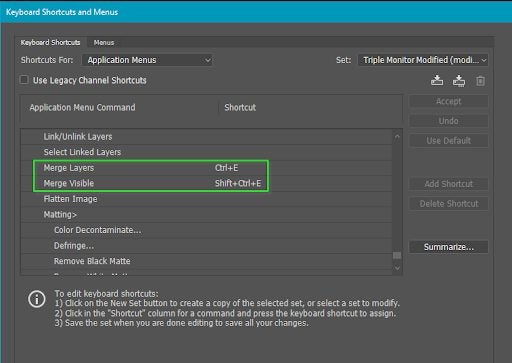
    Compared to the one mentioned above, this superior method saves the layers in a new one without disturbing the originals. Reach out for the Ctrl+Alt+E (Windows) or Command+Option+E (Mac OS) shortcuts to merge all the layers and Shift+Ctrl+Alt+E (Windows) or Shift+Command+Option+E (Mac OS) to stamp the visible ones.

Keep the original file

All merge types get rid of layers. If you’re going to use the same file later, you might need the initial layering as well. One method is to save the document as a duplicate in .psd or .tiff. Suppose you can’t use the “Stamp Layers” option for some reason. In that case, you can retain the original work by creating a duplicate layer group in the same document and make it invisible. Once you do the merge from the selected layers, the group will stay unchanged. Don’t forget to save the .psd file with its latest changes.

How to Add an Image to a Layer in Adobe Photoshop In 3 Steps

Adobe Photoshop has made photo and image editing a much simpler process on your Windows or Mac computer. With all the features you could possibly hope for in an image editing program, adding new images is just a simple process.

Photoshop image editing works in layers that allow you to edit and make adjustments to each layer individually. You can read our useful guide for tips and tricks on using layers. Let’s look at how you can add an image or multiple images to a layer in Adobe Photoshop.

  1. Drag and Drop Image

    How to Add an Image to a Layer in Adobe Photoshop

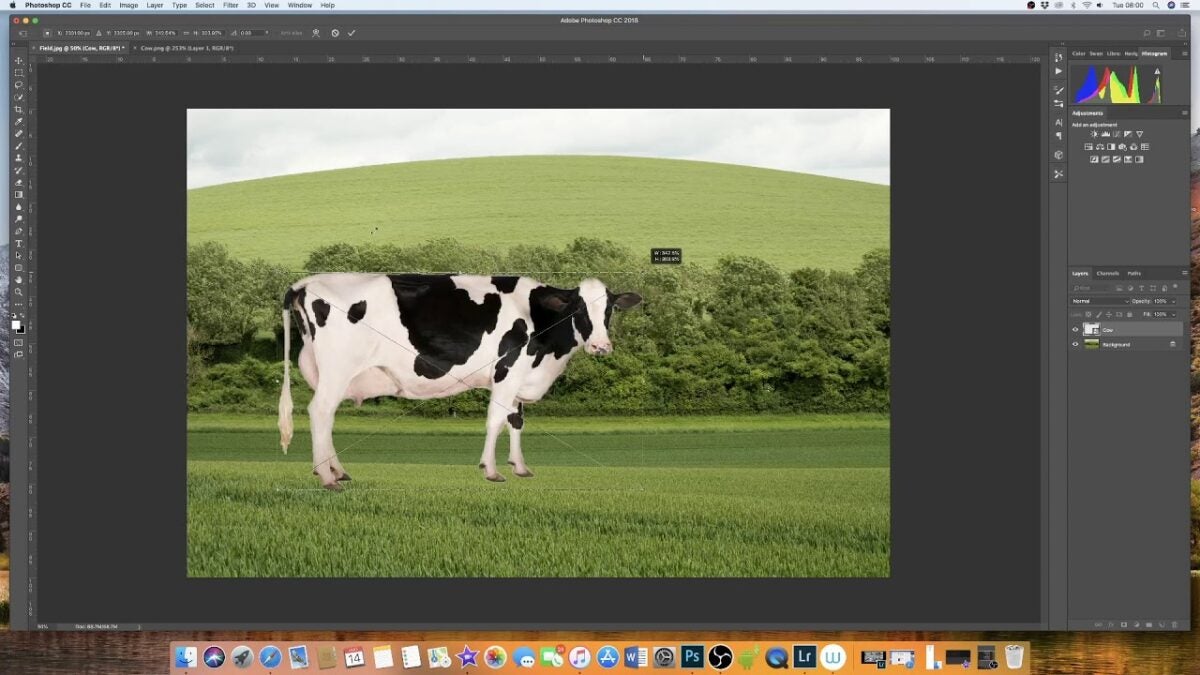
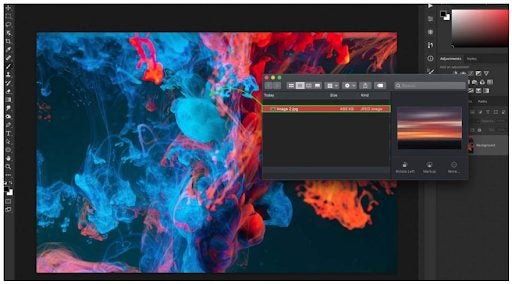
    Run the program from your computer by clicking on the icon on your desktop, in your app menu, or your dock. Open the folder on your computer that contains the image you want to add to your project. Drag-and-drop the image from the destination folder to your Photoshop project.

  2. Make Adjustments

    How to Add an Image to a Layer in Adobe Photoshop

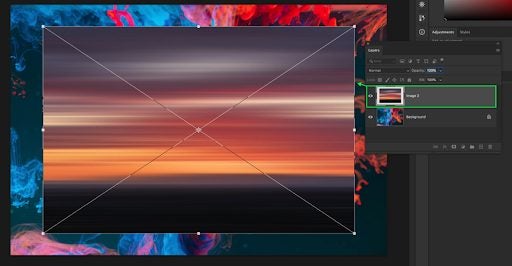
    Now you can scale, move and adjust the image to the way you want it to appear and once you are happy, press ‘Enter.’ By doing this, the image will be added to its own new layer. This will allow you to make any additional adjustments without affecting other layers until you are ready.

  3. Make Further Adjustments or Merge Images

    How to Add an Image to a Layer in Adobe Photoshop

    Now you can decide to leave the layers separate, which is good if you will still be editing the images. Or you can choose to merge them if you are happy with how they look. Merging your layers is useful when you start adding multiple images and the number of layers in your project becomes a lot.

Add Images and Layer for More Effect

With Adobe Photoshop, you can easily add other photos or images to layers in your existing projects. This feature makes it possible to create truly unique and inspiring projects with this fully loaded image editing program.

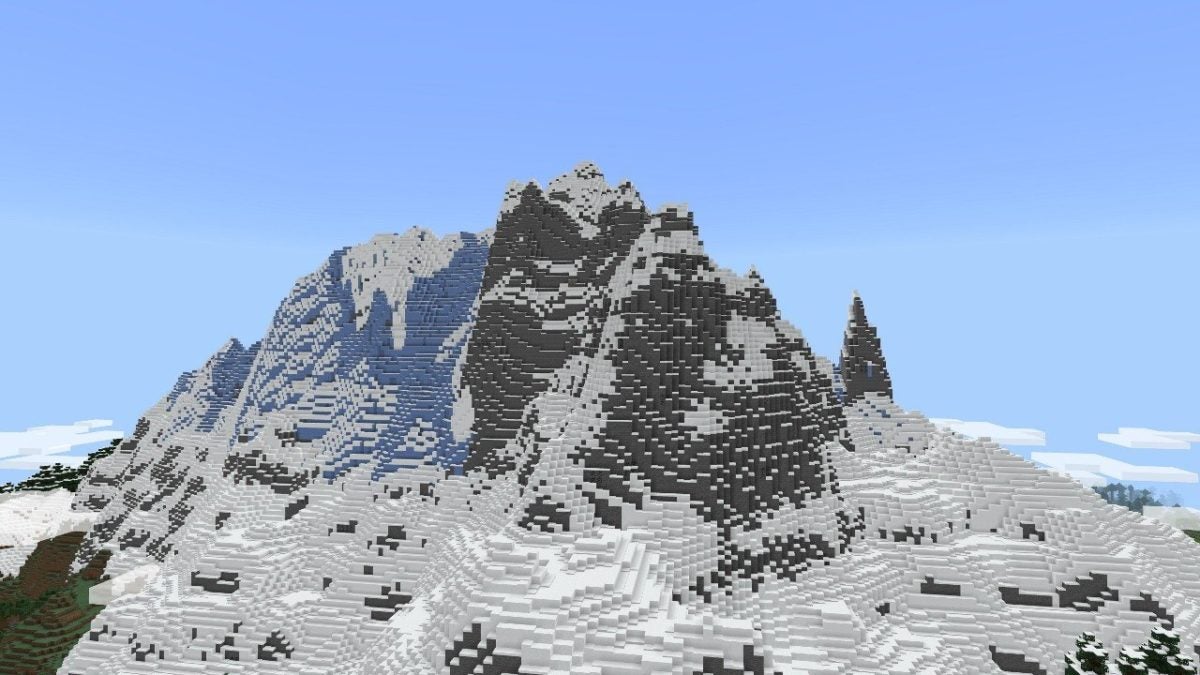
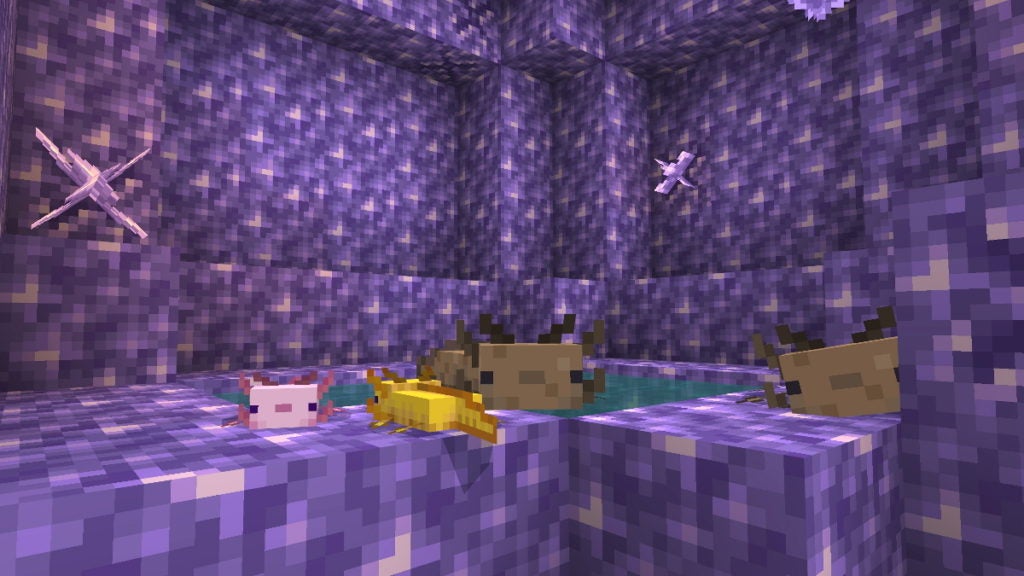
Minecraft Beta Opens For Caves and Cliffs Update

Minecraft’s Massive Caves and Cliffs Update Is Almost Here!

Last month, Mojang Studios announced that Minecraft: Bedrock Edition will receive two massive updates for caves and cliffs. The spread over two patches will make it easier to test and distribute the content without destroying the game. Well, the time has finally come for gamers like you to try the Beta version before it becomes an official release.

With the first update appearing soon, there will be lots for you to test in the Beta version. You’ll see new mobs and ores, while there are a few tweaks to the character creation and dressing room features. Of course, all of the excitement takes place with the cave revamp.

Minecraft Beta Opens For Caves and Cliffs Update

However, there are some warnings you should be aware of. Your official version of Minecraft will vanish, and you’ll receive the Beta version instead. That means you won’t have access to your save worlds while you do the testing. You also won’t be able to join online servers or play with your friends.

Sadly, PlayStation and iOS gamers will miss out on the Minecraft Beta testing until further notice. It’s only available for Windows, Android, and Xbox One, which does put a damper on things for some of us. 

Still, we’re looking forward to the promised 91 new blocks in the first Caves and Cliffs release. The second part that focuses on world generation will appear later in the year.

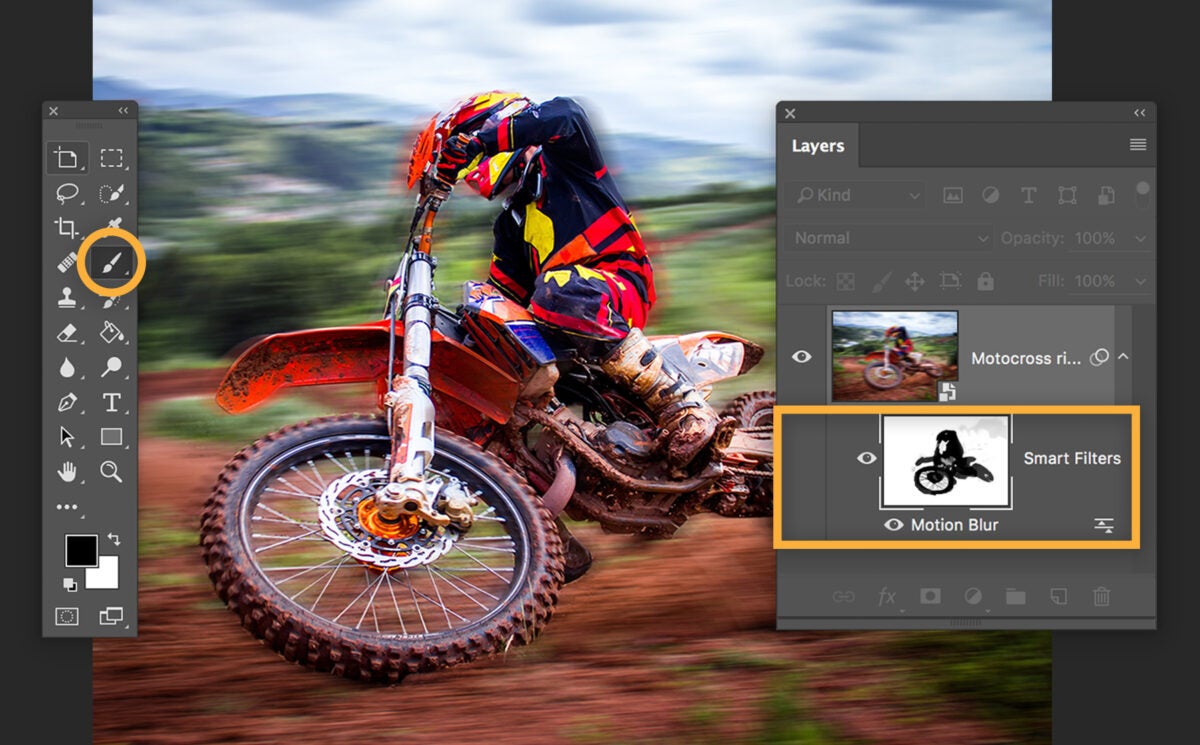
How to Blur the Background in Adobe Photoshop

Do you ever get jealous of photos with crisp focal points and blurred backgrounds? You don’t need too much knowledge of Adobe Photoshop to get it on your photos! This article dives into one of the methods of blurring a background using this powerful program.

First of all, of course, you need to open the photo from File > Open. For a first try, you can choose an image with a crisp foreground and background distinction. A person or an object closer to a lens and a lovely backdrop will work. Using this technique requires a basic knowledge of layers and masks in Photoshop.

  1. Duplicate the picture on a new layer

    How to Blur the Background in Adobe Photoshop

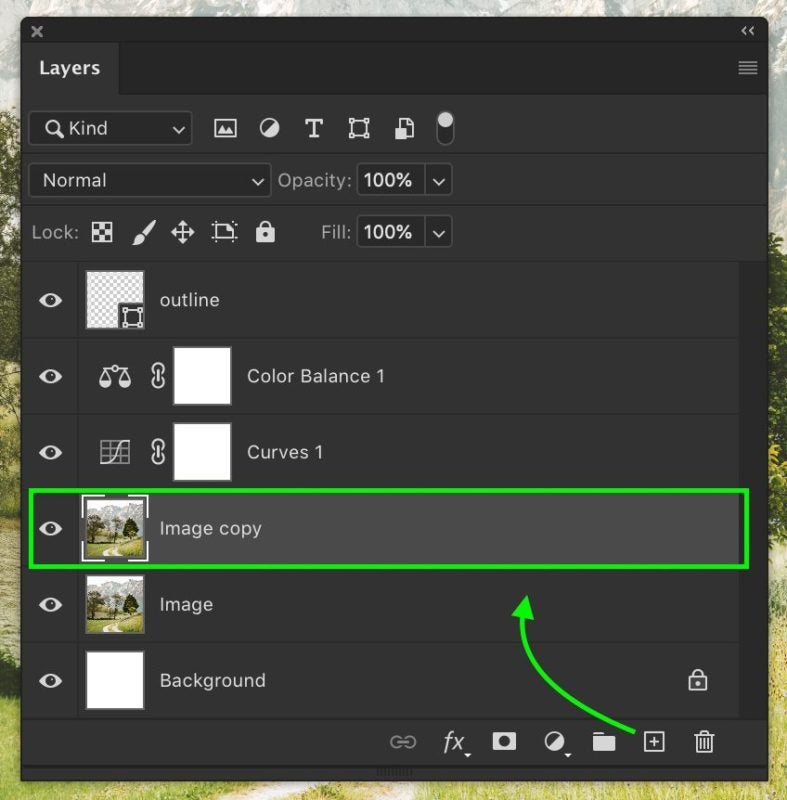
    Once you have the picture open, make a copy layer of the photo. This way, you’ll be able to make a different set of changes on each layer and put the whole thing together for the finished product.

  2. Mask the subject on the top layer

    How to Blur the Background in Adobe Photoshop

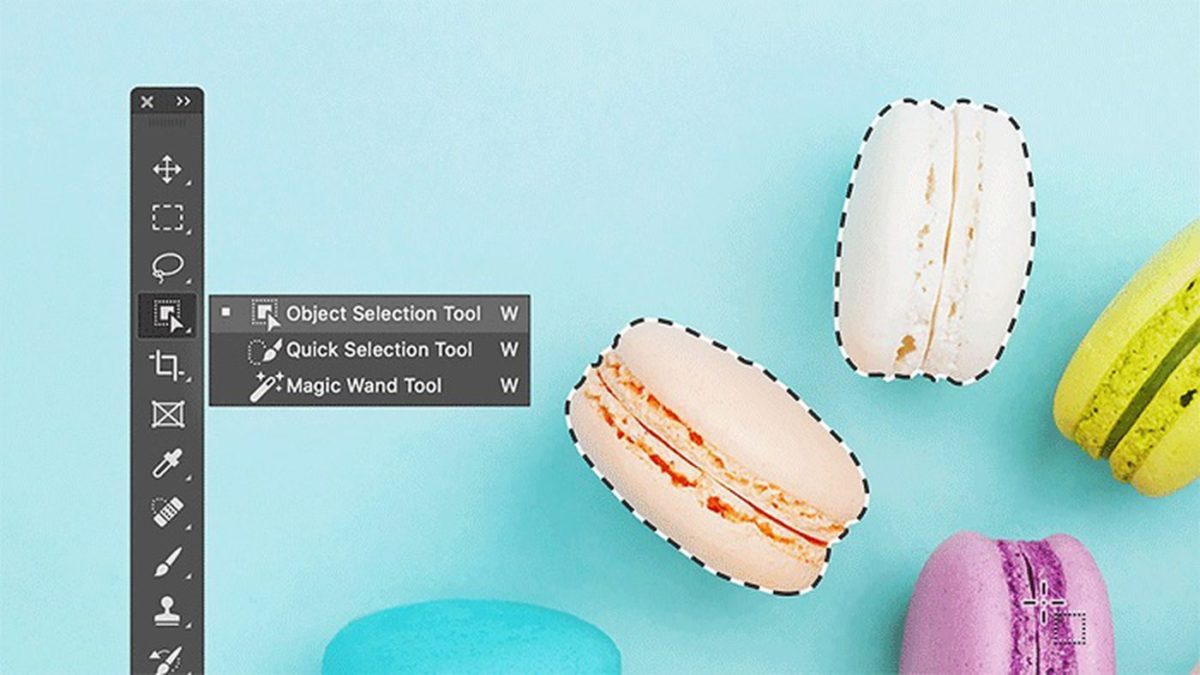
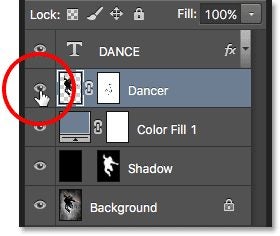
    After the previous step, you’re left with two identical layers. Turn off the one on the bottom to have it out of the way. On the one that’s on top, select the subject you want to stay sharp.

    This step can be accomplished using one of the selection tools: Quick Mask, Lasso, Magnetic Lasso, Magic Wand, or ultimately, the Pen. Once done, invert the selection and delete the rest of the layer and refine the edges. You can make the remaining picture a tad larger and apply blur on the edges to ensure its smooth transition to the background when you turn on the bottom layer.

  3. Blur the second layer

    How to Blur the Background in Adobe Photoshop

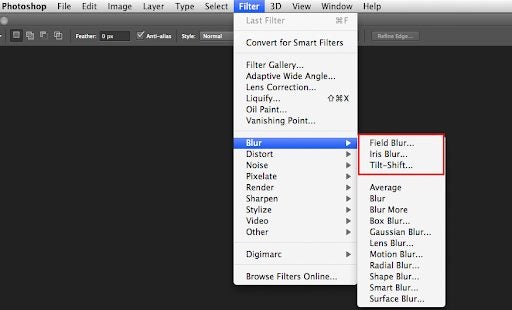
    Use one of the blur options (Tilt Shift, Field Blur, Gaussian blur, etc.) to apply the desired effect on the bottom layer. Photoshop gives you more than a dozen filters you can play with. Once you reach the desired effect, it’s time to move to the next step.

  4. Turn on the foreground layer and adjust

    How to Blur the Background in Adobe Photoshop

    The finished product will come together as you turn on the mask layer. You’re likely to see some imperfections there. Make the last touches and export.

Getting it right

There are many ways you can apply a blurred background in Adobe Photoshop, each with a varying degree of control and mastery. While you can play around with any of them for different results, the above approach is the easiest. One of the most challenging effects you can apply is obtaining real lens blur.

The factors that play a role in realistic lens blur are focal length, aperture shape and size, and subject distance. The distance effect is probably the most difficult to attain correctly, especially when you’re working with backgrounds. 

Fortunately, Photoshop resolves this issue with its blur effects. It lets you indicate which objects are close and far for you to obtain that ideal lens blur. In other words, the items that you mark as further away will have more blur than closer objects.

While using a camera will have more realism, there’s no reason you can’t achieve the effect with Adobe Photoshop. Despite the two-dimensional plane, it still helps to imitate lens blur by incorporating a virtual distance in the background. As long as you identify the subject, you can adjust the distance or blur range as you wish until you acquire the desired effect.

Bear in mind, there are also other effects you can apply in conjunction with blurring the background, such as noise and lighting. However, we’ll make these the topics of future articles.

Have fun!

While we recommend one of the most straightforward options of background blurring in this article, you can still have fun with finetuning your image. While the selection tools are pretty great due to intelligent pixel calculations and AI, you can also mask the layer with the Pen tool if it’s more convenient.

Whichever blur filter or selection method you choose, the idea is to be creative and have some fun. If you don’t have Adobe Photoshop as yet, you can try it out for free.

How to Add Text in Adobe Photoshop in 4 Fast Steps

What is Photoshop? You’re not the only one who’s wondered about this. Photoshop is a very comprehensive photo and image editing tool for Windows and Mac computers. Many professional and beginner photographers use Photoshop to edit and adjust their photos after they’ve been taken.

Photoshop is part of Adobe’s range of products known as the Creative Cloud, and to use these products, you will have to buy a subscription. However, the features and tools included in these programs are well worth the price to use the software.

With Photoshop, you don’t only have the essential editing tools, like with some free options. You can also add layers to images, blur the background, and even create panoramic photos.

Another useful feature of Photoshop is adding and manipulating text to make your images even more striking or add context. Let’s take a look at how to add text to your photos in Photoshop.

How to Add Text to Images in Photoshop

Adding text in Photoshop is one of the more basic features to use. However, this does not mean it is limited in any way. There are many ways that you can adjust and manipulate the text to match the mood and feeling of your image.

  1. Open Photoshop and Import the Image

    How to Add Text in Adobe Photoshop

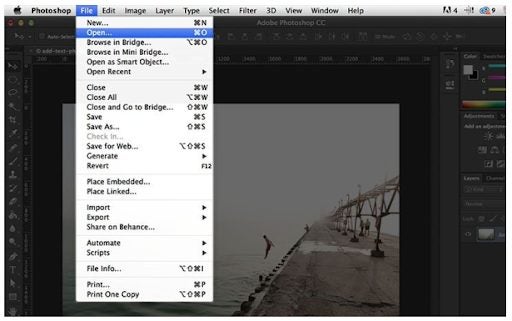
    First, you need to launch Photoshop and then import the image you want to add text to. To import the image, you can click on ‘File’ in the main menu and then select ‘Open’ to select a photo you’ve worked on or ‘Import’ to select a new project.

  2. Select the Text Tool

    How to Add Text in Adobe Photoshop

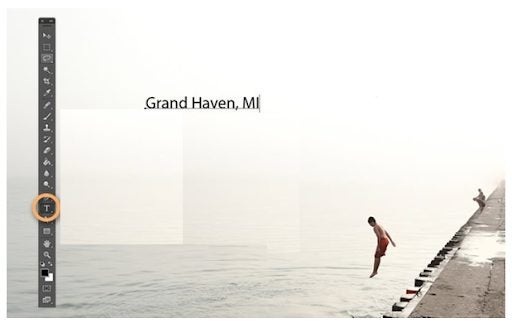
    Now you can select the text tool from the tools panel at the left of your screen. The text tool is represented by a capital ‘T’ icon. With the tool selected, you can add text anywhere in the image that you click. You can also use the keyboard shortcut by pressing ‘T’ to select the tool.

  3. Set Your Text Settings

    How to Add Text in Adobe Photoshop

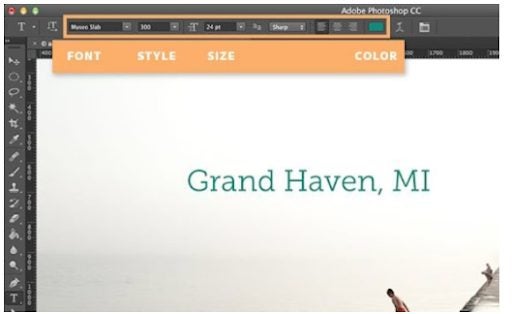
    With the text tool selected, a new options menu will appear below your usual menu. Here you can adjust the different settings for your text. From here, you can easily adjust the font, font size, alignment and font color. If you want to use a font that is not included in Photoshop, you can upload new fonts.

  4. Click on Your Image to Start Adding Text
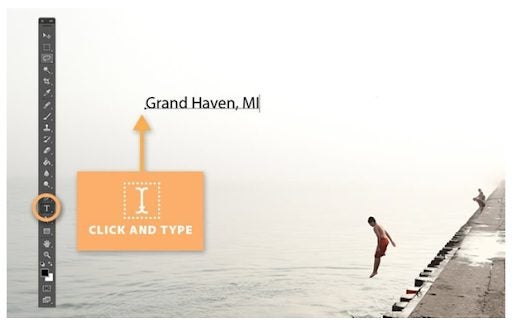
    How to Add Text in Adobe Photoshop

    Now you’re ready to start adding the text to your image. To do this, you simply click where you want to start adding text. Don’t worry if it’s not in the exact spot as you will be able to move the text if needed. You will see a cursor appear after clicking. This is where the first word will appear. You can now start typing your text with the keyboard.

How to Use More Advanced Text Techniques

There are also a few more advanced text techniques you may want to use in Photoshop.

Click and Hold the Text Icon for More Text Options

By clicking and holding the text button in your toolbox, you will see a list with more options appear. These options include horizontal and vertical type tools that change the direction of your text, as well as horizontal and vertical text masking tools.

Use the Paragraph and Character Menus to Change Line Spacing and More

For complete control over your text, you need to open the Paragraph and Character panels. To do this, you click on ‘Window’ in the menu and then select ‘Character’ and ‘Paragraph.’ With these panels open, you can change the line spacing, kerning and more.

Use Text Blending for Professional Effects

If you’re looking for more professional effects for your text, you can right-click on your text. Then in the drop-down menu, select ‘Blending Options. This will give you access to more text effects such as bevel and emboss, stroke, overlay and drop-shadows.

More Photoshop Text Tips

Here are a few more text tips that you can use in Photoshop.

  • To move your text, you’ll have to select the move tool from your toolbox. Then you can click on the text and drag it to the correct position.
  • By clicking and dragging a text box, you will create an area for your text to appear in. Your text will only stay in this area, and any text that is too big to fit the space will be cut off, and you’ll have to adjust the font size to see all the text.
  • If you cannot see the blending options after right-clicking on your text, you can try selecting ‘Layer Style’ first and then clicking on ‘Blending Options.
  • You can also edit text layers. To do this, you have to double click on the layer icon found in the ‘Layers’ panel. Once you’ve selected the layer, you can start editing the text, changing the size of the text box or choosing a new font or alignment.

More Helpful Guides for Photoshop

If you need some extra help with Photoshop, here are a few more helpful guides to get you started:

The text field is yours!

Sometimes as designers, photographers and artists, it is necessary to add text to your photos and images. With Photoshop, this is simple enough to do, and you have a range of text options available to make the text professional and striking.
How to Fix Adobe Photoshop Error 16 in 2 Easy Ways

Errors are very frustrating to deal with, especially if they pop up out of the blue when you plan to work or do a project. Unfortunately, Adobe Photoshop is not free from errors. Adobe Photoshop is linked to the Creative Cloud, and this may cause an error 16 to pop up. 

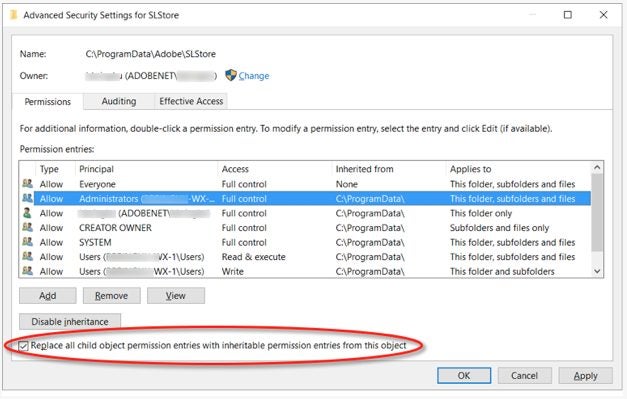
This error usually refers to permission issues and asks users to uninstall and reinstall the program on their Windows or Mac computer. However, there is a way you can solve this error without having to uninstall and reinstall the program.

  1. On Windows 10

    How to Fix Adobe Photoshop Error 16

    – Open ‘File Explorer.

    – Click on the ‘View’ tab, and then select ‘Hidden Items.’

    – Right-click on ‘Adobe PCD.’

    – Click ‘Security and then choose ‘Edit.

    – Now set administrator’s permissions to ‘Full Control’ and click on ‘OK.’

    – Now click the ‘Advanced tab’.

    – Select ‘Replace all child object permission entries with inheritable permission entries from this object,’ and click on ‘OK’ and then ‘Yes’ to save the settings.

    – Go back to the ‘File Explorer.’

    • Repeat steps three to seven with the SLStore folder.
  2. On Mac

    How to Fix Adobe Photoshop Error 16

    – Use the finder to go to Library/Application Support/Adobe/SLStore.

    – Control-click the folder and select ‘Get Info’.

    – Expand ‘Sharing and Permissions’.

    – Click the lock icon at the bottom, type in your password when asked and click on ‘OK.’

    – Set system permissions to ‘Read/Write, admin to ‘Read/Write,’ and finally everyone to ‘Read/Write.’

    – Click the gear icon and select ‘Apply to enclosed items.

    – Close the ‘Get Info’ window.

    • Repeat steps one to seven for the Library/Application Support/Adobe/Adobe PCD folder.

Quickly fix the error by granting permissions

This error doesn’t necessarily have to mean that you need to uninstall and reinstall Adobe Photoshop. Using the above steps and setting the permissions should fix the error 16 quickly, and you can get back to work.

How to Get Adobe Photoshop for Free 3 Different Ways

Adobe Photoshop is one of the best photo editing programs on Windows and Mac. One of the downsides of Photoshop is that it can be pricey, especially if you are not a professional where the program can pay for itself.

So, what are your options for a free version of Photoshop? There are three ways you can use it without paying for it, depending on the features and version you’d like to use. Keep reading if you’d like to see which tools to look forward to.

  1. Free Trial Version

    How to Get Adobe Photoshop for Free

    You can use the trial version of Adobe Photoshop for free for seven days. This is an excellent option for you to test out the program and get a feel for it before deciding to pay for the subscription. The trial included all the features of the paid version. You will also need to sign up with the Creative Cloud, which is free to do, and links between all the Adobe programs and syncs your designs to the cloud so you can access them easily from anywhere.

  2. Download and Use Version CS2

    How to Get Adobe Photoshop for Free

    Adobe releases all the version CS2 of their programs for free, so you can download and use this version, Adobe Photoshop 7, for free. It is important to note that this version is over ten years old and does not contain all the features and functions of the newer version. Also, you will not be able to contact Adobe with any issue or problem you experience when using the older version as there is no support available for this software anymore.

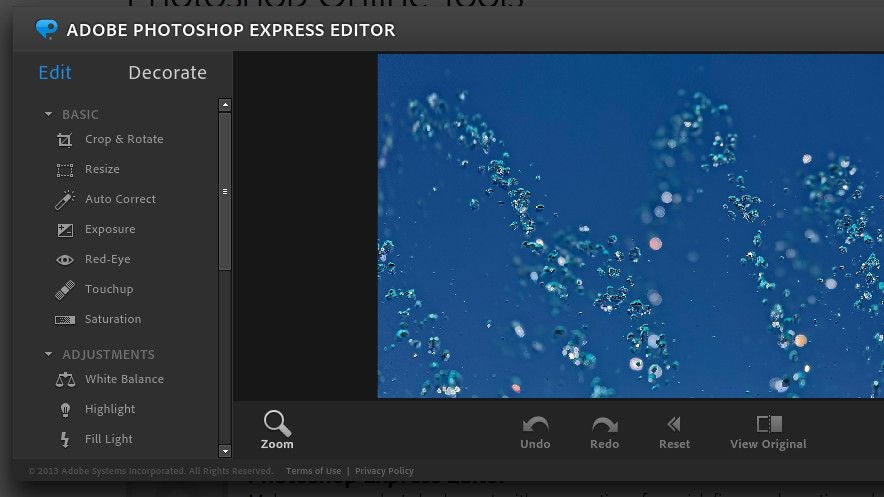
  3. Photoshop Express

    How to Get Adobe Photoshop for Free

    This free option is more directed to individuals who work on their smartphones. It might not be as fully featured as the full desktop version, but it is still very versatile and comprehensive for a phone app. Photoshop Express also links to the Creative Cloud and has its own cloud storage as well. In terms of features, this app more closely resembles Photoshop Elements, a simplified version of Photoshop for those looking for a cheaper option for more basic editing requirements.

Free Photoshop Options for Your Editing Needs

There are free Adobe Photoshop options available. Choosing which one to use will be based on what you need to do and how many features you require. Try these options, and you may be pleasantly surprised.

For instance, you can create or modify brushes to achieve different effects and results based on your desired outcome. It doesn’t matter if you’re working from scratch or modifying an existing photo. There are plenty of tools for you to enhance your content, making them stand out from the rest.

If you’re keen on sharing your work on social media, Adobe Photoshop lets you save the dimensions you need for the applicable platform. You can also synchronize Lightroom files if you want to improve your editing workflow. There are also fine-tuning options, such as adjustment sliders and layered filters.

Don’t worry about making mistakes or correcting effects on photos. There are quick-fix tools you can use to make some fast adjustments, such as noise correction, photo repair, and quality restoration. You’ll also have the opportunity to work on animations, GIFs, and videos, even in the free versions.

Grab your Copy and Get Editing!

You can see why Adobe Photoshop is so popular worldwide as one of the top photo and video editors. While you can use many ways to use it for free, we recommend unlocking all of the tools to their full potential.