The Super Bowl for nerds has already crowned its winner: it's impossible for you to know more than him about Excel

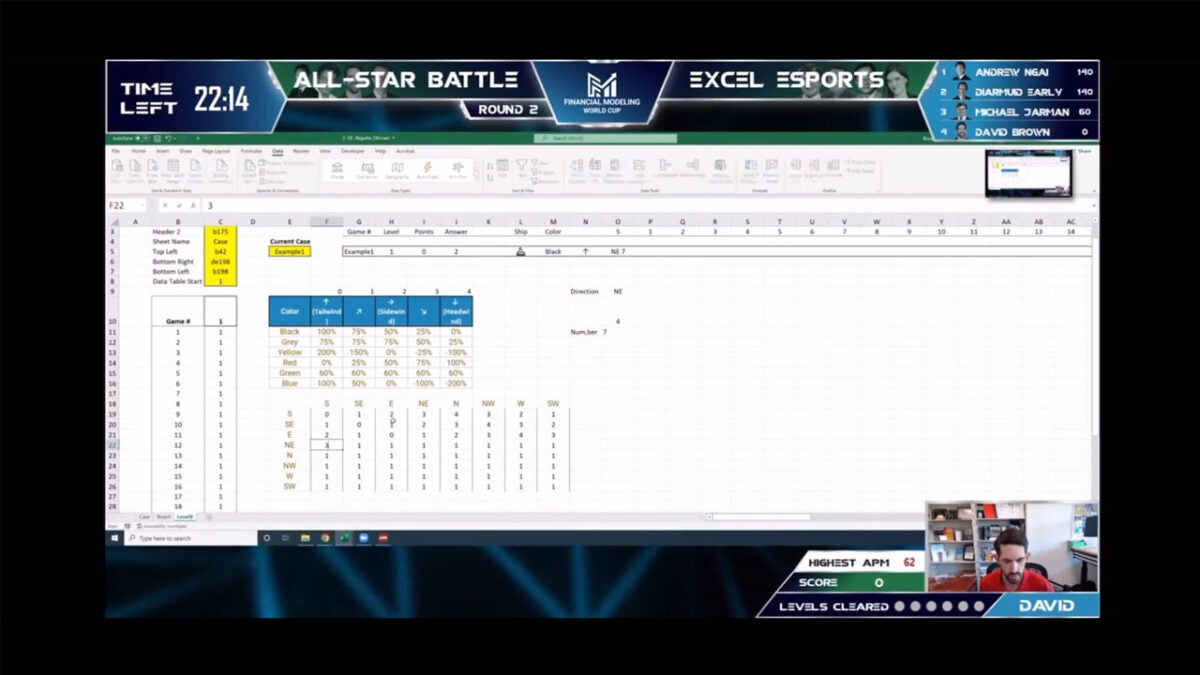
No matter how good you think you are at something, there will always be someone willing to surpass you. Don’t believe me? Well, pay attention, because we’re going to talk about the World Excel Championship. Yes. Just as it sounds. Held in December at a colossal esports arena in Las Vegas, this year’s edition marked a milestone as the first in-person edition of this event, which has gained popularity for its uniqueness. Described as the “Super Bowl for Excel nerds,” the tournament attracted dozens of enthusiasts who celebrated an atmosphere of camaraderie and friendly competition. Will they manage to make a number not […]

No matter how good you think you are at something, there will always be someone willing to surpass you. Don’t believe me? Well, pay attention, because we’re going to talk about the World Excel Championship. Yes. Just as it sounds. Held in December in a colossal esports arena in Las Vegas, this year’s edition marked a milestone as the first in-person edition of this event, which has gained popularity for its uniqueness. Described as the “Super Bowl for Excel nerds”, the tournament attracted dozens of enthusiasts who celebrated an atmosphere of camaraderie and friendly competition.

Microsoft Excel DOWNLOAD

Will they manage to prevent a number from appearing as a date?

The event brought together the best competitors, who were challenged with complex puzzles created by designers specialized in Excel. Among the most notable participants were Diarmud Early, referred to as the “LeBron James of Excel,” and Andrew Ngai, nicknamed “The Annihilator.” The competition offered a prize of 5000 dollars and the coveted champion’s “belt,” for which they battled to the death. Well, so to speak.

One of the most striking aspects of the championship was its musical theme: a soft rock ballad generated by artificial intelligence that seems to be performed by a human. With lyrics that humorously mention Excel, the song became an additional attraction of the event. The festive atmosphere was heightened with the audience cheering and sharing moments of tension and excitement with the competitors, an unusual experience for a program related to office software.

Despite (or precisely because of) being an unconventional field, commentators struggled to explain the intricate maneuvers of the competitors, highlighting the unorthodox nature of Excel as a sport. However, the implication that Excel could transform from a mere office tool to a vibrant form of entertainment seems to be on its way to becoming a reality. With expectations for future competitions in 2025, the Excel community is excited about the future of this unusual event.

Microsoft Excel DOWNLOAD

Microsoft ends Excel’s science data nightmare

In 2020, researchers opted to modify the alphanumeric symbols representing genes to circumvent an Excel feature that mistakenly recognized their names as dates, automatically reformatting them. Recently, an Excel team member announced that an update is being introduced for both Windows and macOS to address this issue.

Excel’s auto-conversion feature aims to simplify the entry of common data types, like numbers and dates. However, for scientists using shorthand for clarity, this feature could inadvertently distort published, peer-reviewed data, as highlighted in a 2016 study.

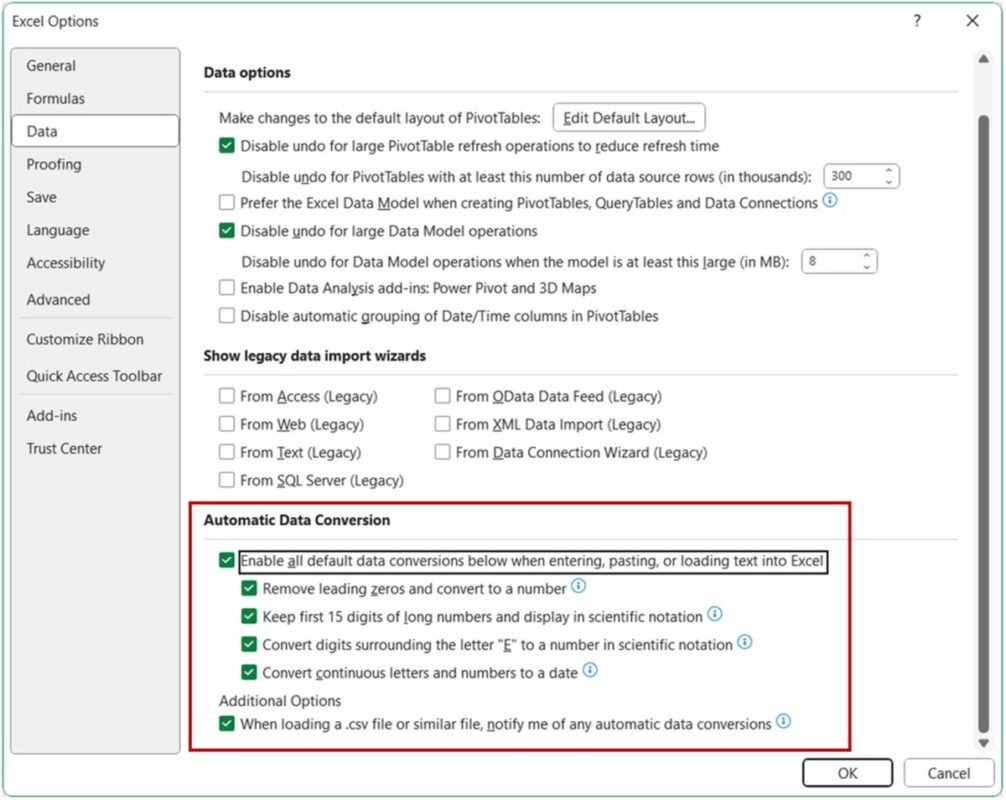
Microsoft elaborated on this update in a recent blog post, introducing a checkbox titled “Convert continuous letters and numbers to a date.”

Microsoft Excel DOWNLOAD

Its function is self-explanatory. This enhancement complements the Automatic Data Conversions settings introduced the previous year. These settings alert users before Excel’s auto-conversion kicks in, allowing them to open their files without the automatic conversion, ensuring data integrity.

How does it work?

Microsoft has taken steps to alleviate user frustrations stemming from Excel’s tendency to auto-convert data into specific formats. Users now have the flexibility to modify Excel’s default settings and deactivate certain automatic data conversions as required.

To implement these changes, navigate to File > Options > Data > Automatic Data Conversion. From there, you can select which conversion(s) you wish to deactivate.

Additionally, Microsoft has provided some useful pointers:

  • Users have the option to enable or disable the following features:
    • Remove leading zeros from text-based numbers and transform them into numerical format.
    • Limit numerical data to 15 digits of precision and, if necessary, convert it into a number that might be represented in scientific notation.
    • Transform numerical data containing the letter “E” into a format displayed in scientific notation.
    • Change a continuous combination of letters and numbers into a date format.
  • By selecting the “When loading a .csv file or similar file, notify me of any automatic number conversions” option, Excel will prompt a warning if it identifies that any of the optional auto-conversions are activated and about to be applied when opening a .csv or .txt file. This alert offers users the choice to open the file once without executing the data conversion.

To truly grasp the enhanced control over data conversions based on the settings you’ve adjusted, it’s recommended to experiment with the following scenarios:

  • Enter data directly into an Excel cell.
  • Copy data from external sources, such as a website, and then paste it into Excel.
  • Open files with extensions .csv or .txt in Excel.
  • Execute ‘Find and Replace‘ operations within Excel.
  • Navigate to Data > Text to Columns and utilize the Convert Text to Columns Wizard.

Given that this feature retains the input data in a text format, you might encounter a green triangle indicating a “Number stored as text” error. This is a standard notification. Should you wish to dismiss this error, simply choose “Ignore error” from the dropdown menu. It’s also worth noting that, due to the data being stored as text, you might face limitations when attempting to use it in mathematical functions.

This enhanced feature is accessible to users with the following versions or later:

  • For Windows users: Version 2309 (Build 16808.10000)
  • For Mac users: Version 16.77 (Build 23091003)

In Microsoft’s recent blog post, they highlighted certain limitations associated with the new Excel feature. Specifically, to prevent unwanted data conversions, Excel saves the data as text.

This approach, while effective in preserving the original data format, means that users might encounter challenges when attempting to use this data in subsequent calculations.

Microsoft Excel DOWNLOAD

Additionally, there’s a recognized limitation: when executing macros, users cannot deactivate these automatic data conversions. This is an important consideration for those who frequently rely on macros for their Excel operations.

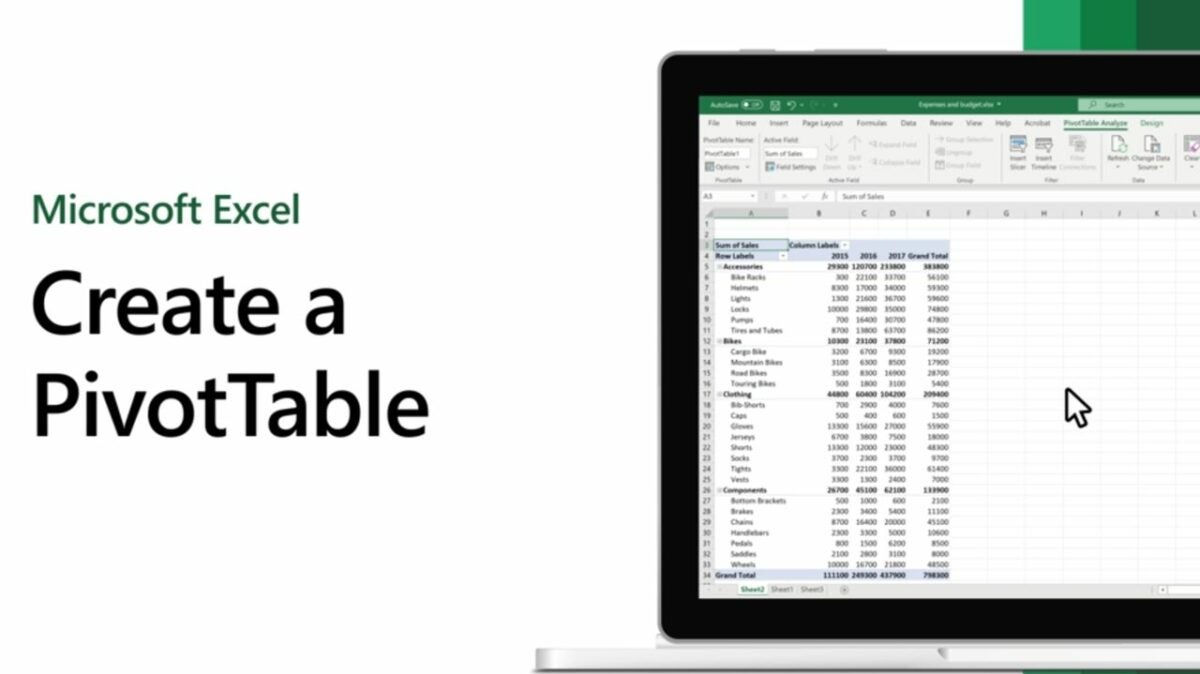
How to create a pivot table in Excel

At a glance, Microsoft Excel often seems very simple. However, there are a lot of hidden tips and tricks that make this program very versatile. A pivot table in Excel is one of the most powerful techniques to know about. Once you understand how a pivot table on Excel works, you are able to easily analyze, sort, and summarize huge amounts of data.

Microsoft Excel Download

Ready to give it a try? Check out our pivot table how-to guide to learn all the details.

  1. Enter your basic data to get started

    Build your base table

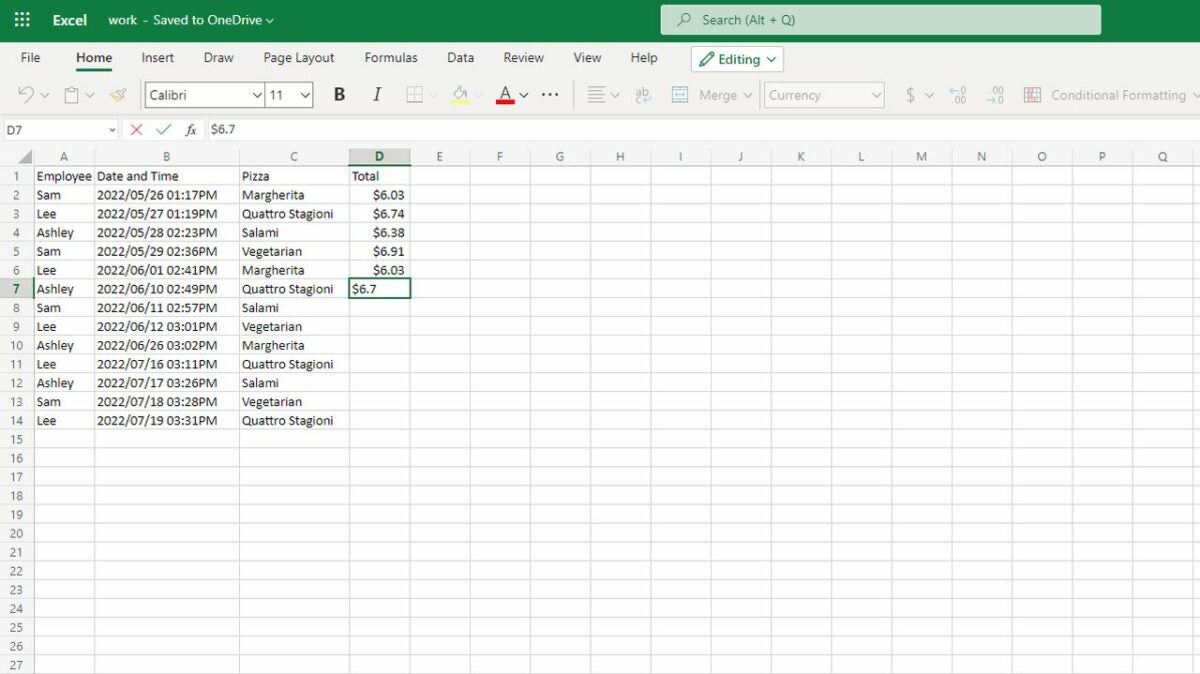
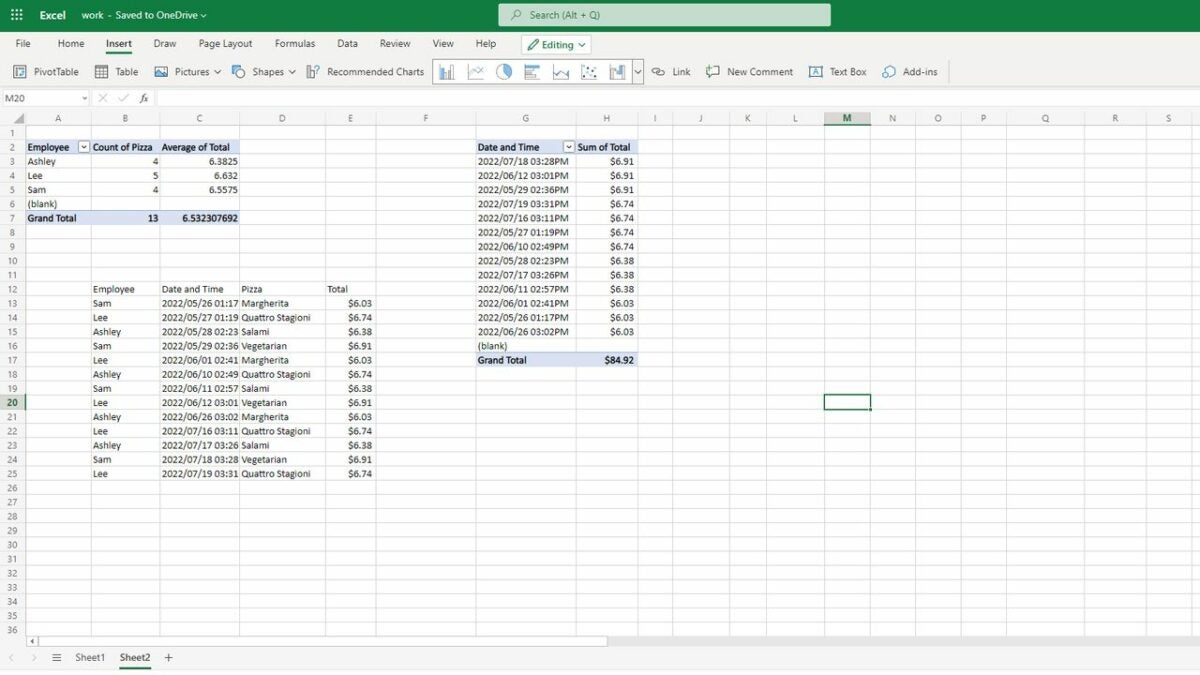
    The first step in any pivot table how-to is entering your data. The method of entry will depend on your situation. Some users will simply type all their data in manually. If you have an existing document, you also have the option of using the File and Open tabs to upload a document. For ease of use, ensure the first row or column of your data has labels that explain what the data is. For example, if you’re tracking employee sales at your pizza restaurant, make sure you have an “Employee name” label above where you list each name.

  2. Highlight your cells and open the pivot table creation box

    Create your pivot table

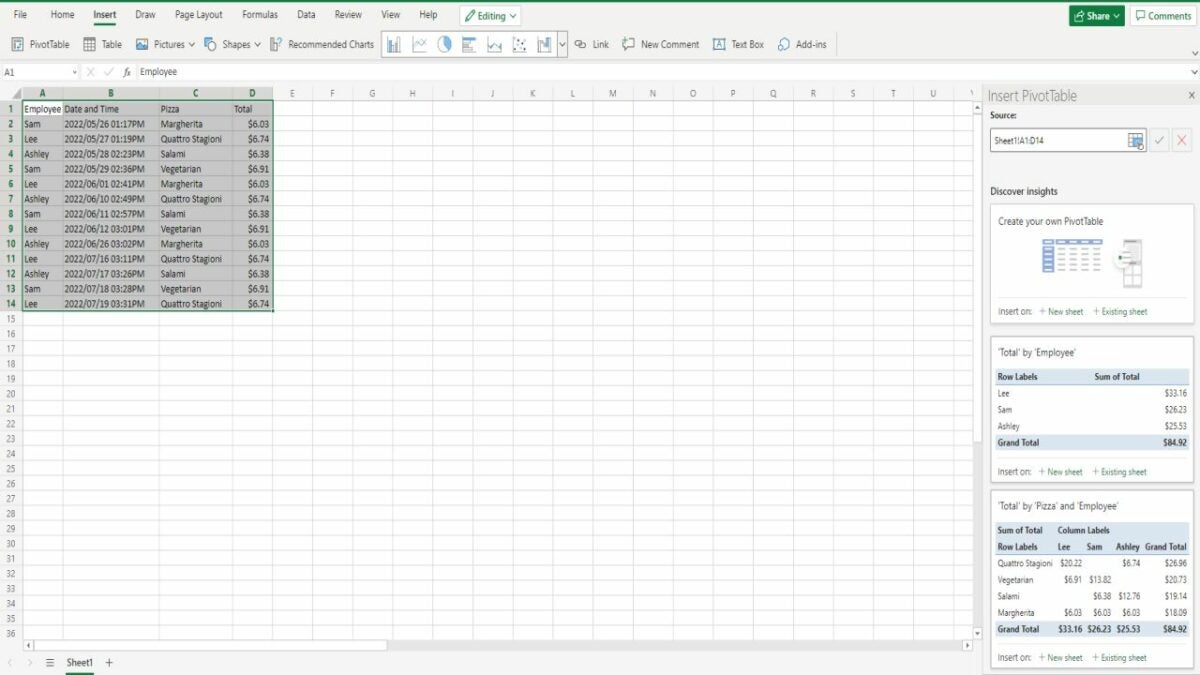
    Use your mouse or keyboard keys to highlight the complete range of cells you want to turn into a pivot table. Then go to the Insert tab at the top of the page and click the PivotTable icon. This opens up a whole option box on the side of your Excel document. Your first option will be to create your own custom pivot table with all your own desired parameters. However, scrolling down will show a whole list of recommended pivot tables. They aren’t always useful, but it’s worthwhile to check them out. There’s a chance the recommended pivot table will have everything you need.

    Whatever option you choose, you’ll be able to pick between launching your new table on your current sheet or on a new sheet.

  3. Choose how you want your data arranged

    Drag fields to arrange your data

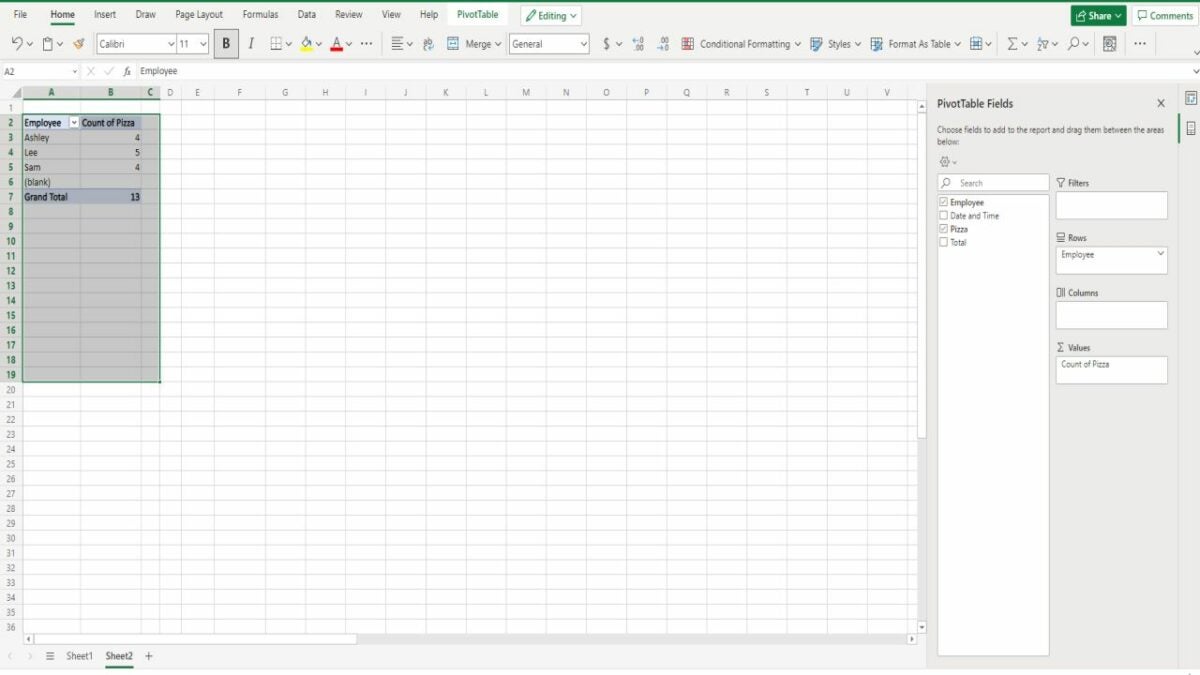
    Once you create the pivot table, you have many different ways of looking at your data. You’re able to select one of your labeled fields as either the new column or row label by dragging the label to the Rows or Columns section. Another very helpful arrangement is dragging your fields into the Values section. This allows you to count and summarize large amounts of data. For example, dragging “Employee” into the Rows section and “Pizza” into the Values section tells you how many pizzas each employee sold.

  4. Alter settings to get even more nuanced pivot tables in Excel

    Adjust settings to perform other calculations

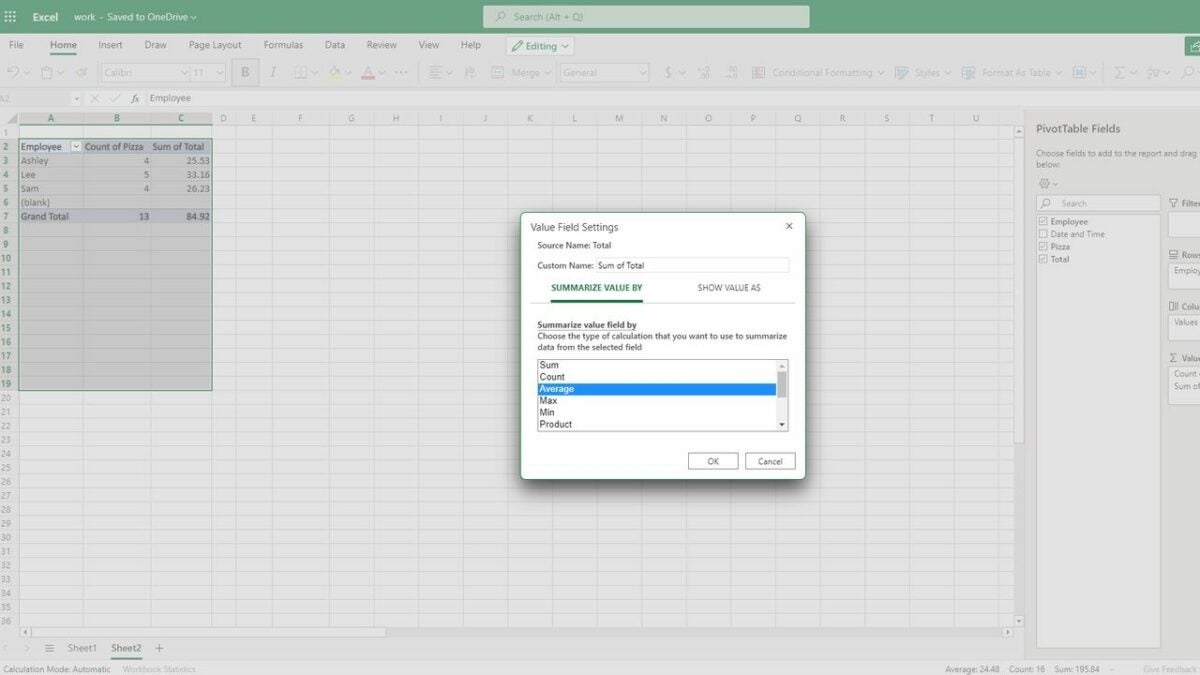
    The Values section is one of the most useful parts of a pivot table in Excel. Once you drag and drop a field into the values area, you have the option of hovering over the field and clicking a drop-down menu. Selecting the Value Field Settings allows you to adjust how your data is calculated. Excel defaults to adding your numbers together, but it will also perform other calculations. It will do things like rank from largest to smallest. So for our pizza example, we would use the settings to find the average amount each employee makes for each sale.

  5. Learn how to navigate between various types of pivot tables in Excel

    Incorporate pivot tables into your document

    Once you’ve figured out the basics of creating a pivot table in Excel, the only thing left to do is integrate it into the rest of your spreadsheet. You are able to close the pivot table option box by clicking on any blank cell or reopen it by clicking on the existing pivot table. Excel always saves all data associated with that table, so you have the option of going back to the table and adjusting it to show previously hidden data. You also have the option of adding multiple pivot tables to a single document or adding plain data to another area of the document.

Final thoughts on Excel pivot tables

Ultimately, when it comes to pivot tables in Excel, your options are almost endless. Now that our pivot table Excel tutorial has explained the essentials, we suggest playing around with Excel yourself. You’ll find that there are countless interesting applications for a pivot table in Excel. We also have plenty of fantastic Excel tutorials, so check them out if you have any other questions about working with the program.

Microsoft plays catch up with Google for once with this neat update for Excel

With more and more people working from home these days, there is fierce competition between Microsoft Office and Google Workspace to capture the growing market. Normally, we report on Google Workspace updates that play catch up with Microsoft’s Office productivity suite. Today, however, it is different as Excel is getting a very useful update that Google Sheets has had for a long time.

Microsoft Excel Download Now

Microsoft likes to unveil updates to Office programs via its Microsoft 365 roadmap homepage. A recent update to the roadmap shows that Excel is going to get @ mentions, which will allow users to tag their colleagues in comments on their spreadsheets.

As is typical with these roadmap entries, this update is very brief and to the point. There are some details we can report, however. The first is that the feature will be released on a General Availability basis, meaning all Excel users will get access to it, the second is that it should start rolling out in October 2022 and the third is that it will be released on a Worldwide (Standard Multi-Tenant) cloud instance.

This minor teak for Excel should mark a major boon for remote Excel workers who collaborate on documents with colleagues, team members, contractors, and clients. Being able to tag colleagues both within your organization and also external collaborators offers a massive boost for teamwork productivity. Mentioning a specific colleague can call for direct action on a certain point, whether that be editing, explaining, adding, or deleting information.

It is easy to think Microsoft Office is the undisputed champion when it comes to productivity but as today’s news reminds us, Google has innovated the space a lot in recent years.

In other recent productivity news, Google Workspace is now more compatible with Microsoft Office files, and Microsoft is pursuing a campaign against malware wrapped up in macro files.

In a blow to the Super Bowl and FIFA World Cup, the Microsoft Excel Championships is becoming increasingly popular

It is a common meme these days that the entire Global economy and pretty much all of human civilization is propped up by Microsoft Excel. The no-nonsense powerful spreadsheet tool competently handles all the business work needed to manage companies and organize projects. Did you know, however, that spread sheeting is an adrenaline-pumping Esport that has its own set of grand world championships? Well, it does, and we are here to tell you all about it.

Microsoft Excel Download Now

The Microsoft Excel World Championship took place at the weekend and was shown on ESPN 2. Incredibly, the event even went viral on Twitter as well, as viewers took to tweeting about the events and sharing videos of the epic battles.

The Excel event is a part of the Financial Modeling World Cup (FMWC), which organizes what they call educational, fun, and exciting competitions in Excel. After confirming that Excel Esports events are actually a thing, the organizes say:

“Participants solve unusual game tasks in Excel. No finance, just Excel and logical thinking skills. Use IFS, XLOOKUP, SUM, VBA, Power Query: anything is allowed, and the strategy is up to you. All battles are live-streamed and can be spectated on our Youtube channel.”

It is exciting stuff too, with some of the events participants taking to the FMWC site to offer testimonials about the event. Cecelia Rieb, who was a participant in the FMWC Open in 2021 said:

“Never have I been so stressed and so excited at the same time! The bracket-style competition is really fun and watching the best-of-the-best go head-to-head was both educational and validating. I can’t wait for the next one!”

If this sounds like something that you would like to see you can watch the whole event below:

If, however, you want a piece of the action and think you could take on the best-of-the-best, you too can sign up for the FMWC Open 2022. All you have to do is head over to the event’s homepage and hit the Enter the Competition button. To help you take the gold, we’ve put together a guide to 12 essential Excel formulas that will help you become a pro.

Scammers are still able to use Microsoft Excel to push malware

Excel macros can help you save time by doing repetitive tasks for you on your spreadsheets. These actions include types of data manipulation you do frequently when compiling reports. Unfortunately, however, malicious actors have also been using Excel macros as vectors for passing on malware. To fight this, earlier this year, Microsoft disabled Excel macros 4.0 by default but it looks like scammers are still able to target Excel users via macros, let’s dig into this a little more.

Microsoft Excel Download Now

Researchers at cybersecurity specialists Netskope have released a report that outlines how Excel files are still being used for malicious reasons. They stated that they have discovered a lot of dangerous Excel documents that can target users of older and, therefore, unprotected versions of Microsoft Excel.

The infected macros they discovered are carrying a well-known trojan called Emotet, which is capable of stealing the victim’s information and then dropping further instances of malware onto the device.

Gustavo Palazolo, the lead researcher at Netskope, who published the report, had this to say on the extent of the vulnerability:

“we found 776 malicious spreadsheets submitted between June 9, 2022 and June 21, 2022, which abuse Excel 4.0 (XLM) macros to download and execute Emotet’s payload. Most of the files share the same URLs and some metadata. We extracted 18 URLs out of the 776 samples, four of which were online and delivering Emotet.”

Basically, this all means that scammers are sending out Excel spreadsheets that are infected with a trojan malware called Emotet that infects devices and networks it finds its way onto. This means that once again, we are talking about a phishing scam and the best way to defend against it, as well as ensuring you’re running the latest version of Excel, is to stop it from infecting your device in the first place.

Phishing scams try to catch you out with fake links. In this particular case, potential victims receive emails containing attachments like payment forms or other types of spreadsheet. This means that to stay alert to this scam you need to know how to spot phishing scams. To learn how to do so, check out our guide to spotting fake email scams.

Microsoft is going to cut these features from Excel

Microsoft Excel is one of the most popular spreadsheet apps in the world, which makes it one of the most useful apps for both personal and professional use going. To keep Excel on top, Microsoft constantly works to update it with new features but, in the same vein, the tech giant will also strip away older features too if they are deemed to be no longer necessary. This is exactly the case here as we bring you news of three features Microsoft is stripping away from Excel.

Microsoft Excel Download Now

It is worth mentioning here that these changes only relate to Microsoft 365 users, which is the subscription model Microsoft offers access to its productivity suite. If you have purchased a license to a definitive version of Excel or Office, these changes won’t affect you.

The first feature Microsoft is cutting from Excel is Money. The Money feature allows users to securely sync all of their bank’s data with a spreadsheet, creating unique spreadsheets of users’ financial information automatically. Microsoft announced in an Office support post that the feature will stop live syncing data on June 30 2023. Frustratingly, Microsoft is ending the Money feature so it can focus more on its Tiller feature, which offers more features than Money alone, but comes with an additional premium subscription.

Another feature to go is the use of Wolfram Data Types, which were added due to a partnership with Wolfram a few years ago. Microsoft is going to focus on in-house data types from here on out. The final thing that Microsoft is cutting is access to partner offers. This means that if you sign up for any third-party offers, come June 30 next year you may no longer be able to access them.

It is important for Microsoft to keep the world’s flagship spreadsheet app up to date and this also means cutting away features that may no longer be popular and so go underused. It will be interesting to see whether many users will kick up a fuss over losing these features. For a full rundown of what Microsoft Excel is capable of check out our Microsoft Excel review.

Microsoft Excel review | Spectacular spreadsheets

Microsoft Excel is one of the top spreadsheet programs that’s been around since 1985 when it was developed for Apple devices. We used to see different versions listed by year, and they were usually launched to meet a new operating system’s requirements. All of that has changed with Microsoft 365, where you can instead download and install the primary app for Windows 11.

What was once used for simple data manipulation has advanced to macros and complicated formulas. There are so many advanced features in Microsoft Excel, that it’s easy to become lost. Therefore, I’ll supply some handy tips in this detailed review.

Getting started with Microsoft Excel

It’s better to begin this Microsoft Excel review with the basics as easier to show what’s available without getting into the technical details. Here’s what you can expect when you open your first spreadsheet.

Creating new spreadsheets

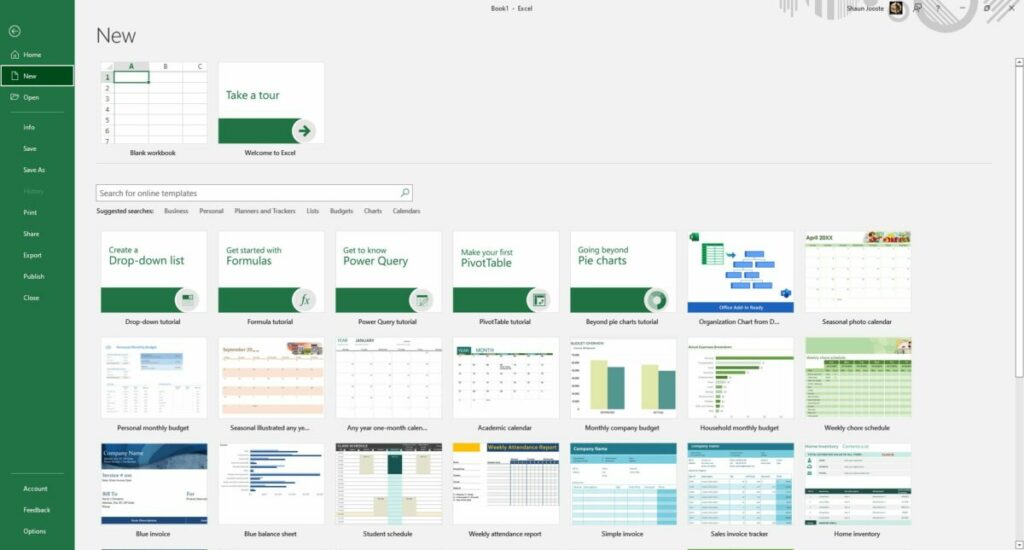
Starting your first spreadsheet is as easy as clicking on File and New. Microsoft Excel will ask you if you want a blank sheet or one of the included templates. There’s also a tour you can view so that you can try many of the features. I recommend you spend some time on it if you’re never used the program before. 

Microsoft Excel Review

Establishing ribbon shortcuts

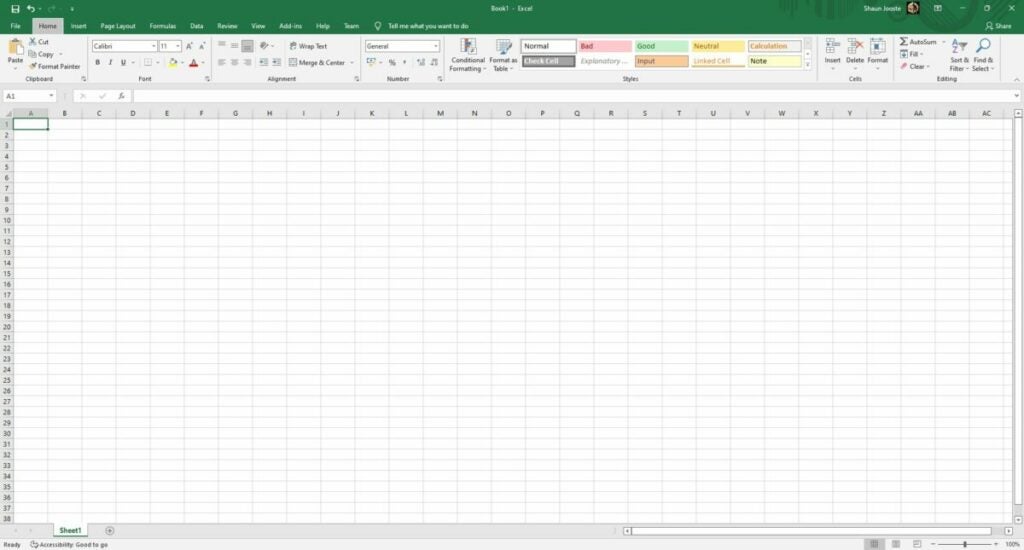
Before you begin inserting data into the cells, it may be beneficial to take a look at the ribbons in the top menu. There are many tabs, so browse through them so you can see where all the functions are. You don’t need to study them; it’s just to get a general idea of the layout.

Microsoft Excel uses most of the basic shortcuts you’ll find in other 365 apps, such as copy, paste, and undo. However, the spreadsheet also has unique shortcuts for the ribbon items. When you press the Alt key, you’ll see small buttons appear, revealing which shortcuts you can use when combined with the Alt key. It’s an excellent way to save time from moving the mouse around.

Become familiar with the spreadsheet grid

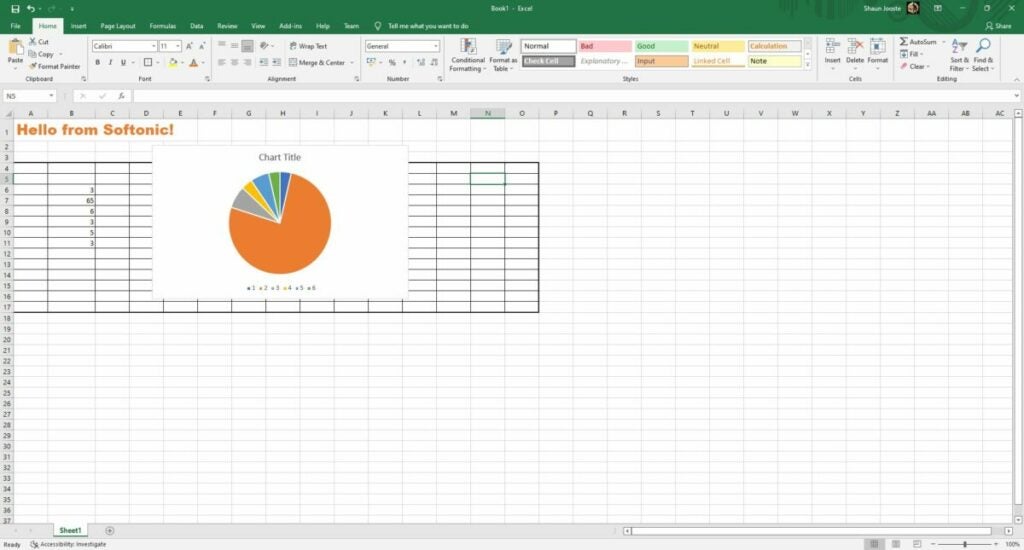
Now that you know what the menu holds for Microsoft Excel, let’s head to the main sheet. Each block is called a cell, which is where you’ll insert your data and formulas. If you move across one line horizontally, it’s called a Row. From top to bottom is referred to as a Column. Rows have numbers and Columns have alphabetical letters. You’ll need to learn how to identify a cell on the grid for more advanced functions. For example, the first one on the top left is called A1.

Microsoft Excel Review

Change font sizes and styles

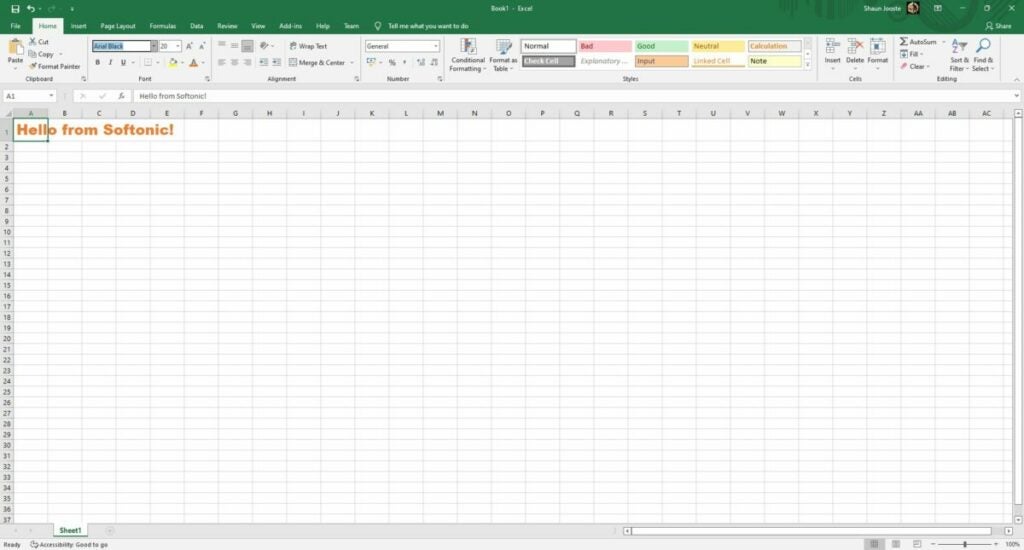
When you’re creating spreadsheets for companies and detailed reports, you’ll want to change some font aspects to make certain areas stand out more. You don’t need to settle for the default black Arial 12 text. Head to the font ribbon, and you can change the color, size, type, and so much more.

Microsoft Excel Review

Creating borders

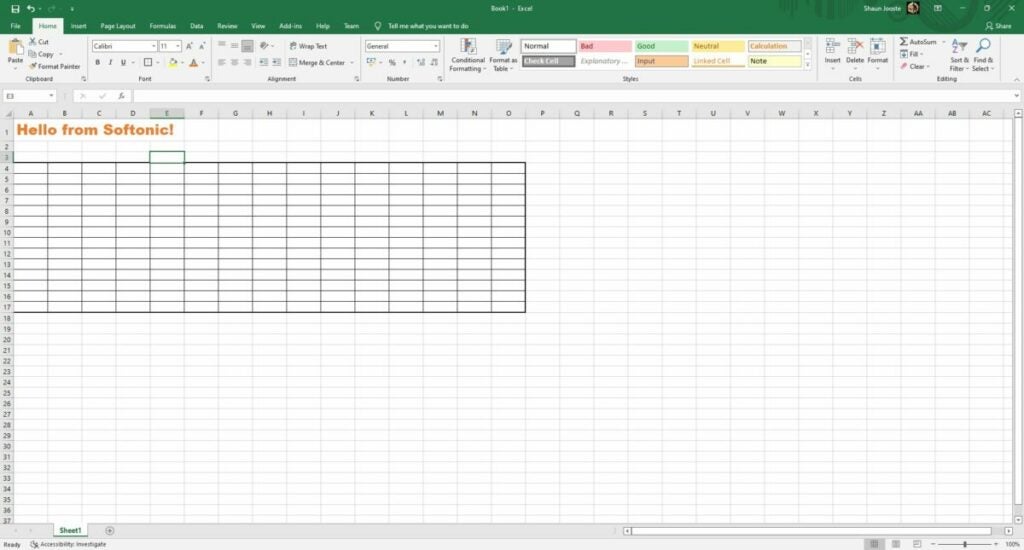
One of the unique features that sets Microsoft Excel apart from the other 365 apps is how easily you can create borders. You can select multiple cells and then head to the font ribbon again. You’ll notice a drop-down box for various border types. There’s also an option to change line colors, which means you can become creative in your design.

Microsoft Excel Review

Freezing and unfreezing rows

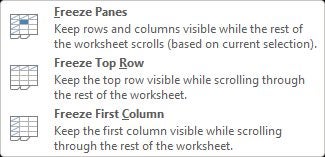
Here’s a handy trick that will help you when you have so much data to work through. If you want to keep the top rows while you scroll down, especially when you want to keep them in view, you can freeze rows and columns. It’s easy to undo when you’re done, so don’t panic when you see it worked. You can check out our guide on the top 2 methods to freeze rows in Microsoft Excel for more advice.

Microsoft Excel Review

Resizing cells for loads of text

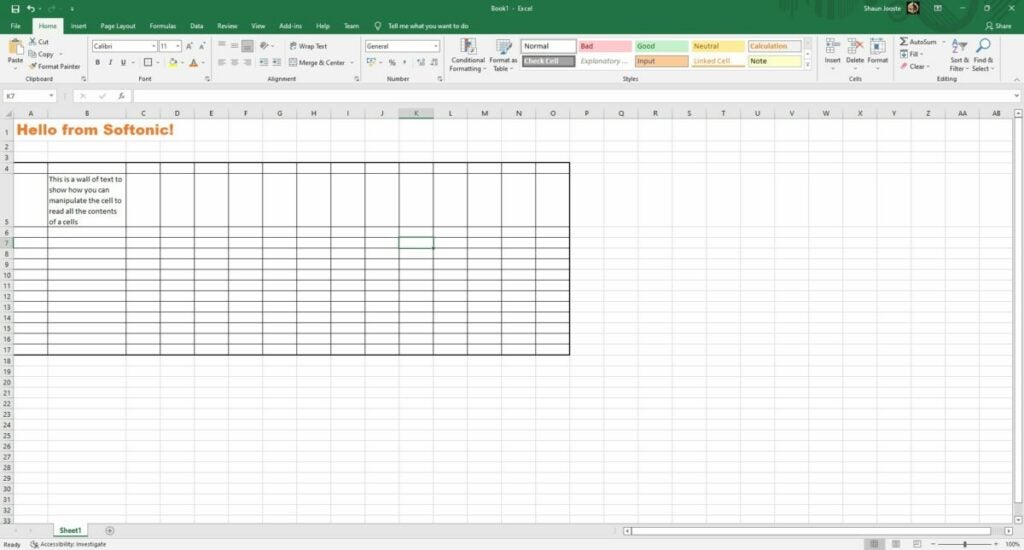
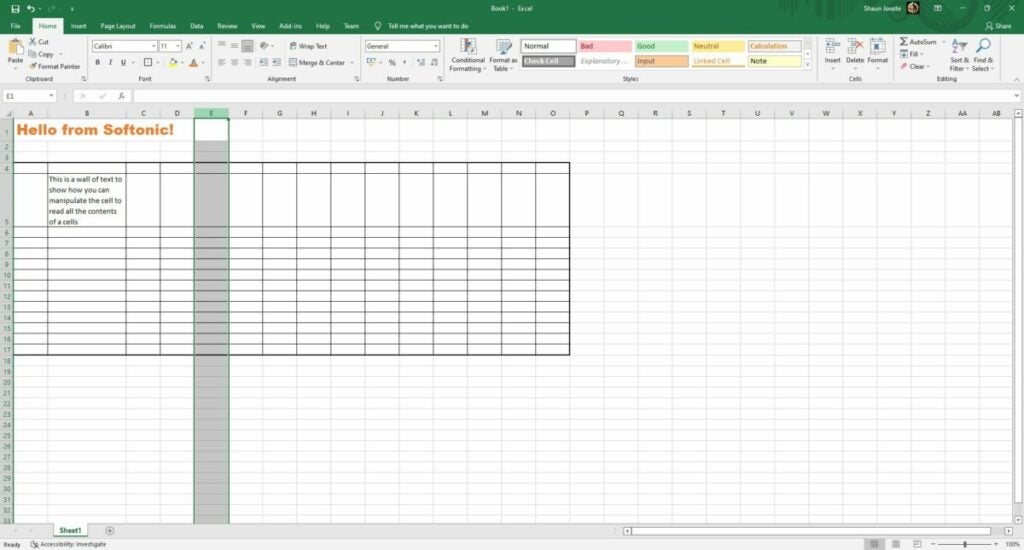
If you’re well on your way to using Microsoft Excel for work, you’ve probably reached a point where you’ve needed to enter a lot of text in a cell. The issue is that it stretches over other cells or you can’t see all of it. 

Fortunately, you can widen cells or wrap text to make it look better for your reports. Here are some tips for presenting loads of text in a single cell in Microsoft Excel.

Microsoft Excel Review

Moving rows and columns around

Another handy feature to learn is that you can move rows and columns around to save you time. For example, you can click on the column letter if you want to shift all the content between other columns. The same rule applies to rows. There’s also an option to relocate the contents of individual cells wherever you want, but just be careful when it comes to formulas.

Microsoft Excel Review

Keeping Microsoft Excel updated

One last basic aspect of Microsoft Excel I want to touch on for this review is keeping Microsoft Excel updated. While most of the features and functions will still work and you can use the program when offline, you may lose out on some new functionality with an update. Also, patches help to fix bugs. More importantly, outdated software programs make your PC an easy target for malware and spyware.

Exciting Microsoft Excel functions

Many competitors have arisen over the past few years to offer an alternative to Microsoft Excel. Some prime examples include Google Sheets, OpenOffice, and WPS Office. Here are some of the top functions that many people still praise Excel for.

Using Microsoft Excel formulas

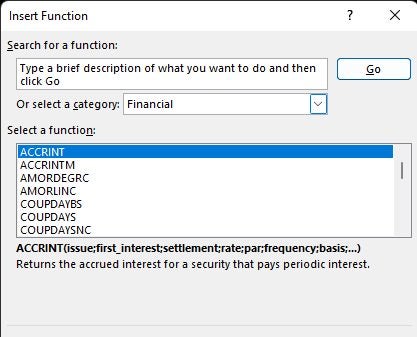
The number one reason most people use Microsoft Excel is for its advanced formulas. When you go to the Insert menu, you’ll see several categories of formulas. Even if you spend months using them, you won’t really master everything there is to learn about them. It’s incredible just how many there are and how powerful they can be.

Check our quick tutorial on how to use Microsoft Excel formulas, as there are too many to write about to fit in one review guide. The most common one is the Sum formula, but there are many other ways you can manipulate data and obtain results.

I would like to just caution you again about moving cells around with formulas in them. It may change the results depending on the formula you used. If you want to repeat the same one over multiple cells, you can just drag it down from the main cell.

Microsoft Excel Review

Search and replace

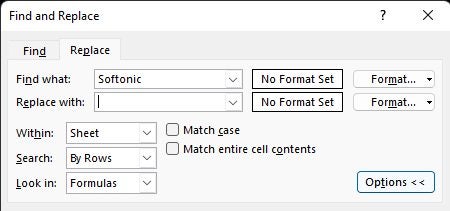
One tip of advice I can give you from experience is how valuable the search and replace button is. Every year, I spend time doing my accounting across several spreadsheet tabs. While I use a template, I sometimes need to replace the same information in all of them.

The search and replace function saves you time and helps with productivity. You don’t only need to search cells, but can also dig deeper into formulas. So, if you need to change the year in all tabs, you can do so with one click.

Microsoft Excel Review

Mastering conditional formatting

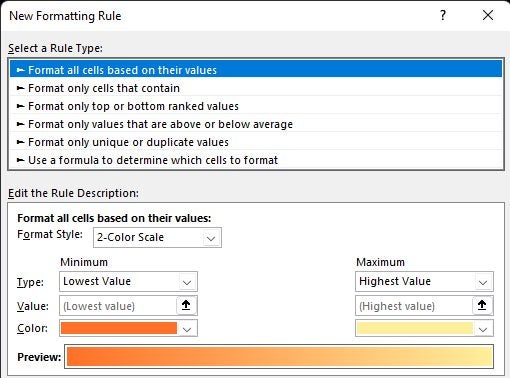
Sometimes, it helps if Microsoft Excel can alert you when the results of a formula meet a specific condition. To aid in this situation, you can assign conditional formatting. Basically, you set an “if-then” rule for a cell to change color and style should it meet the right specifications. You can read more about this and other advice in our top Microsoft Excel tips.

Microsoft Excel Review

Splitting and combining data

You may reach a scenario where your boss or client sends you loads of data in one cell or email. It wastes time and is less efficient when you go into the cell and cut and paste each one individually. Two ways you can deal with this is via Flash Fill or Delimiters, which separates the information into various cells.

On the opposite side of that coin is when you have data in different cells, but you need to combine them into one. Fortunately, the Concatenate formula works well in this regard. Just make sure you include spaces where text is concerned.

Tables, graphs, and charts

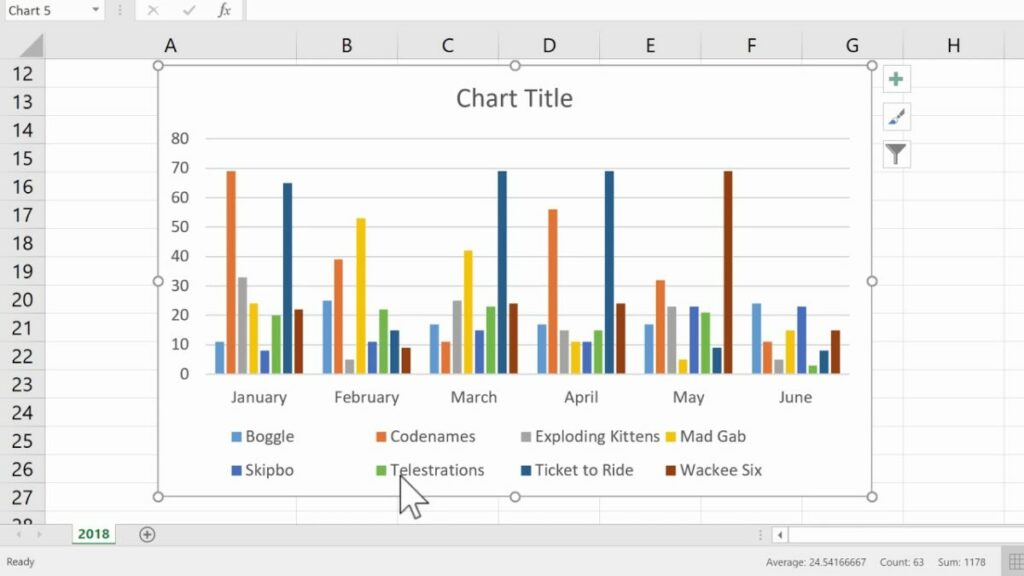
Reports really stand out when you show data in graphical form. Microsoft Excel has several ways you can present it, such as tables, bars, pie charts, and so much more. You’ll find them in the Insert menu under the Charts ribbon. You’ll need to give the sheet a location for the source data; otherwise, you’ll end up with a blank window. 

For more detailed information, check our guide on how to make a graph in Microsoft Excel.

Microsoft Excel Review

Transposing cell information

Now that you have the hang of tables, you might run into a situation where you want the content in your rows to go to the columns or vice versa. To help you be more productive and safe time, there’s a simple transpose function you can use. It’s as easy as copying the information and then using a special paste condition to transpose the data around.

Interactive cells

Your colleagues might need to select answers from a drop-down list that will feed into your report or survey. It also helps when you’re dealing with loads of data and you need interactive cells to help sort them. When you head to the Data menu, look for the Data Validation function in the Data Tools ribbon. Follow the steps and you can make the cell more engaging for others to use.

Understanding how Microsoft Excel macros work

My final tip for improved productivity in Microsoft Excel is to set macros. This function records keystrokes and actions you perform to replicate at a later stage. You’ll save it in a workbook so that Excel can call the function later. The option is available in View and then the Macros ribbon.

It’s essential that you study at length how macros function. One small mistake can destroy your entire spreadsheet. You need to ensure that the conditions are right for your recorded macro before you apply it to your document.

Enhance Microsoft Excel with add-ins

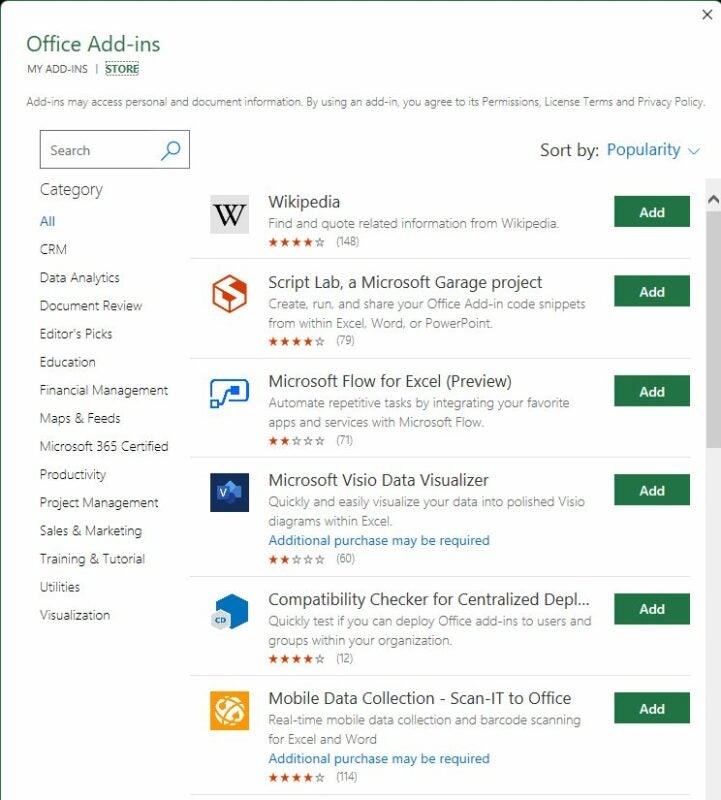
Fortunately, you don’t need to start from scratch in Microsoft Excel. I’m not only referring to the templates but there are also add-ins you can install. These are located under Insert in the Add-ins ribbon

A small Microsoft store will open with all plug-ins that work with Microsoft Excel. You’ll notice various categories on the left to make browsing easier. There are so many available, it’s not possible to cover them in one article. Some of the top ones include Wikipedia integration for references, budget creators, and data mining tools.

Microsoft Excel Review

Working online with Microsoft Excel sheets

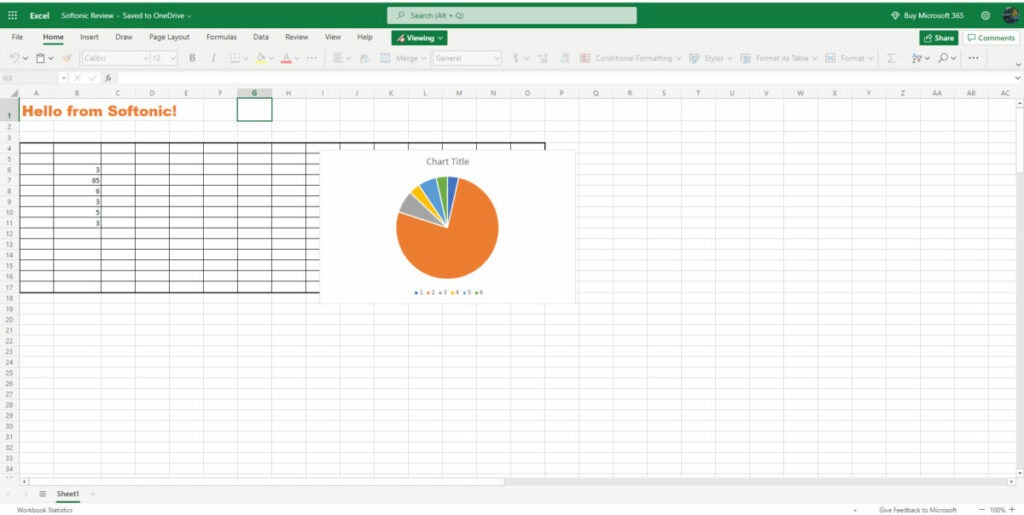
The last aspect I want to cover in my Microsoft Excel review is the online capabilities. If you’re away from your computer that has the app installed, you can still access your spreadsheets with Microsoft 365 online. The best part is that you can switch between docs, sheets, and presentations you have saved in the Office family.

Opening your Microsoft Excel spreadsheets online

When you head to your Microsoft account on your browser, you’ll have a list of applications on the left. You’ll notice the green one that represents Excel. When you click on it, you’ll see a pane open with the latest sheets you’ve worked on. You’ll see I managed to open the same sheet I created for this review in Avast Secure Browser.

Microsoft Excel Review

Dangers of working online

Before you follow this route, I need to mention some dangers of working with spreadsheets online. If you don’t have malware protection installed or a secure browser, hackers may be able to view or access your sensitive data. It can be devastating if you’re working with financial or confidential information that can get your company into trouble.

Converting to other formats

Finally, let’s discuss changing formats and transferring Microsoft Excel files. If you need to send a report in a protected format, you can easily save it as a PDF directly from the program. There’s also a way you can convert Microsoft Excel sheets to Google Sheets if you prefer that medium.

Microsoft Excel: Top spreadsheet functionality

It’s undeniable that Microsoft Excel is an incredibly powerful spreadsheet program. It can be easy for beginners to feel daunted by all that it has to offer, but there are many basic features that are easy to use. Companies will often request experience in this program when looking for someone to develop reports and spreadsheets for them. Fortunately, it’s easy to learn how to use it.

Pros

  • Plenty of functions
  • Easy to move columns and rows
  • Stunning visual elements
  • Macros can record keystrokes
  • Saves to the cloud
  • Connects to the central Microsoft account
  • Ribbons are well organized

Cons

  • Can be daunting for beginners
  • Doesn’t synchronize with the cloud when offline

Developer: Microsoft

Publisher: Microsoft

Top features: data manipulation, graphs and charts, macros, conditional formatting, formulas

Platform reviewed: Windows 11

Microsoft limits macros in Excel 4.0 to protect against malware attacks

With malware and online security leading the headlines for 2022, Microsoft has decided to disable macros for Excel 4.0 by default. The action is in response to malicious code in sheet macros causing attacks to be executed from the documents. There’s a chance your macros won’t function until you enable them.

Usually, macros are excellent for when you want to create codes for repetitive tasks. You can develop pivot sheets or unleash a horde of executions with a simple function so you don’t need to spend hours doing it again. Well, hackers have found a way to hide malicious code in Excel that causes damage to your content and device.

Microsoft limits macros in Excel 4.0 to protect against malware attacks

To protect against these malevolent attacks, Microsoft moved to make the macro function disabled by default. Your coding or functions for them won’t work until you enable them again. You’ll also receive a stern warning if you try to turn them on, stating that there’s a significant risk to your online security.

Microsoft isn’t the only one taking action, as Google has also taken steps to defend against malware attacks. Google Drive issues warnings for unsecure files on any of the Google applications, such as Sheets and Docs. We get the feeling that both companies are simply covering themselves, ensuring that no one blames them for their devices becoming infected.

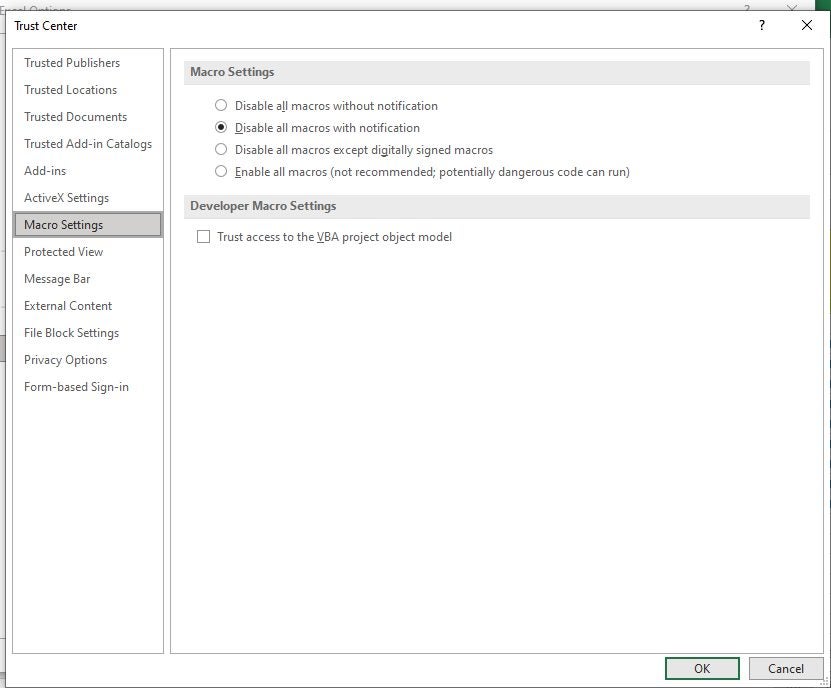
After all, you can still enable the functions they disabled, which makes you accountable for any security issues. It’s a smart move from Microsoft, but at least you know your Excel 4.0 app will remain safe. If you need to enable the macro function again, you can do so via the Trust Center Settings, when the warning banner appears, or temporarily in the Microsoft Office Security Options section.

What Is Excel and How it Works

Microsoft Excel is a strong spreadsheet program that helps you analyze and understand your data. Excel forms part of the Microsoft 365 suite (previously called Office 365) and remains one of the most popular spreadsheets to use.

Sometimes it seems that there is nothing Excel can’t do with your data. If you need to merge two sheets with similar data, Excel can do it. If you need to work out complex budgets and financial plans for your business, Excel can do it. If you have to do a simple calculation, Excel can do it. 

What Is Excel?

Excel is a powerful software used to analyze data and documentation. It is a spreadsheet program that consists of several columns and rows. So, what is a cell in Excel? The block formed by each intersection is known as a cell. In basic principle, each cell contains one piece of data or information. Arranging information in this way makes it easier to find specific data and manipulate or analyze it using functions and formulas.

Microsoft Excel DOWNLOAD IT NOW
9

Your Windows PC will require 4GB RAM and 4GB available disk space to run Excel efficiently. On Mac, you would need 4GB RAM and 10GB of open disk space. You will also have to buy the Microsoft 365 bundle, which includes a few other Microsoft products. You can use the web version of Excel Online for free via their website, but it is more limited than the full version and requires a stable internet connection.

Excel’s Main Features

Let’s have a look at a few of Excel’s main features.

Spreadsheet Cells and Cell References

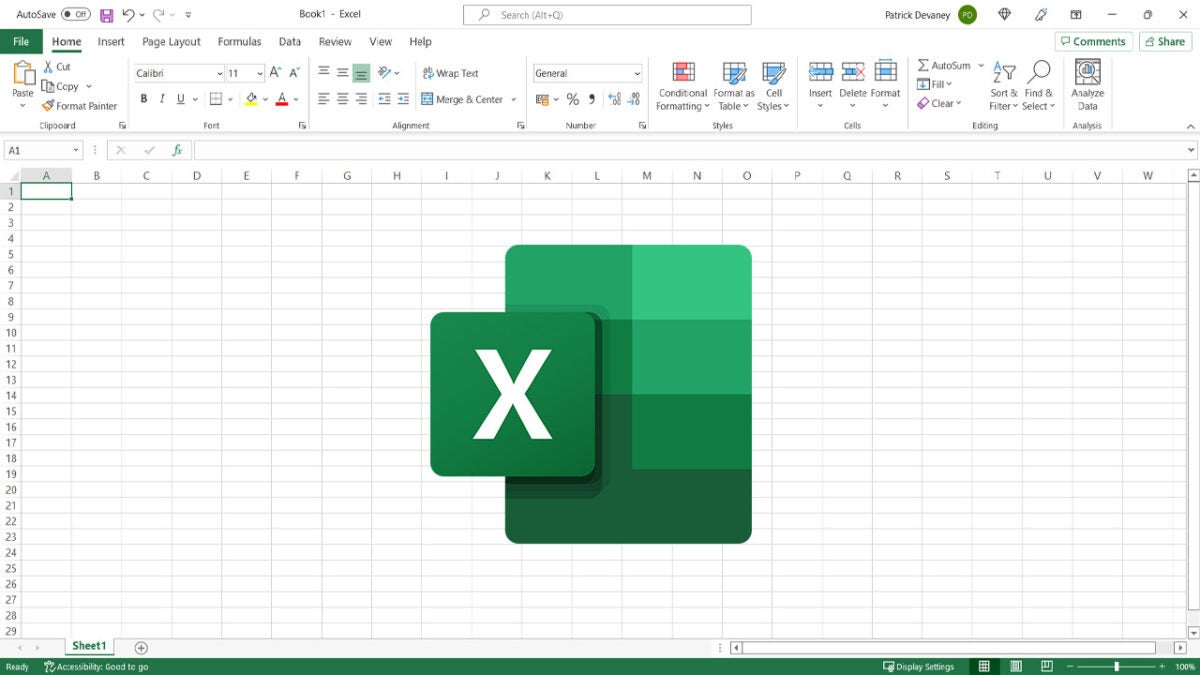
When you look at the spreadsheet, you will see a grid. This grid consists of a number of columns and rows. Cells are the intersection where the columns and rows meet. The horizontal rows are identified by numbers, whereas the vertical columns are identified by letters of the alphabet. This makes identifying the cell with your information easier as it will be located on the column and row intersection, ie. B7 or E12. This is known as the cell reference and points to the information found within the cell at the intersection of that row and column.

Data Type, Formulas, and Functions

Cells can contain the following types of data:

  • Numbers
  • Text
  • Dates
  • Times
  • Boolean Values
  • Formulas

Formulas are used for calculations and usually use values from other cells or even other workbooks or spreadsheets. There’s a multitude of formulas that can be used in Excel. From simple addition calculations (SUM) or more complex IF-functions. They all have their part in analyzing the information in spreadsheets.

To start a formula, you must type the equal sign (=) into the cell where you need the answer displayed. This indicates to the program that you will be entering a formula. You can include cell references in these formulas if you need the program to take the information from that cell.

Functions and formulas in Excel have a specific format, and these are built into the program. There is a wizard to help guide you in using these formulas. By using them, you will unlock a whole new world of data interpretation. 

Sorting and Filling

Excel also makes it easy to sort and fill large amounts of data. Once you’ve entered all your data, you can choose to sort it to make it easier to find the information you are looking for. How you sort data in Excel depends on what you need to use the data for. For example, suppose you are working with staff. In that case, you may choose to sort the information alphabetically according to staff members’ names, or you might prefer sorting it according to when the employees started at the company. To sort your data in Excel, you right-click on the column you want to be sorted and choose how to sort the information.

Autofill is also easy enough to do, and Excel recognizes patterns which makes it very convenient. Say you want to allocate a number to each entry. You can type the number into the appropriate cell. Then click on the cell and hover in the bottom right corner with your mouse pointer. You will see a handle appear. Now click and drag across the columns you want to fill, and the program will automatically fill them. 

Graphs and Charts

Microsoft Excel also lets you add charts and graphs to your spreadsheets. This is a great way to present the data in a visual manner that is easier to understand. You can use the information collected in your spreadsheet and incorporate them into your chart or graph. There are many different types of charts and graphs, ranging from super simple bar graphs to more complex comparative 3D graphs.

What Is Excel and how it works

What Is Excel Used For?

Excel is used to store, organize and analyze data. It can be used across all business functions in companies ranging in size. Here are some of the primary uses of Excel:

  • Data entry and storage
  • Data management
  • Accounting and financial analysis
  • Charting and graphing
  • Programming
  • Time and task management
  • Financial modeling
  • Customer relationship management
  • More

Excel and Financial Data

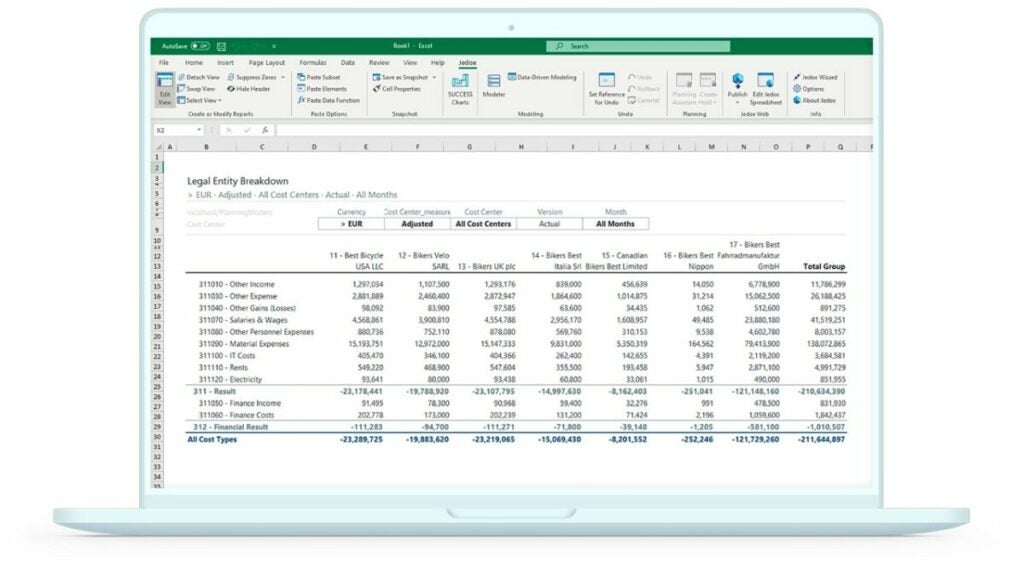
One of the most popular uses of Excel is working with financial data. Whether that means accounting, financial analysis, or financial modeling, Excel is a handy tool. A spreadsheet can be used to calculate profits and losses or repayment plans for loans and mortgages. This program can also be used to find statistical values in a range of data; this can be averages, maximums, or minimums.

Other Uses of Excel

Here are a few other uses for Excel that you might not have thought of:

  • Graphs and charts can be used to identify trends.
  • You can format data to make sure the important information becomes apparent.
  • Spreadsheets can be used in reports and presentations.
  • You can sort and filter data to find the information you are looking for.
  • You can link worksheets and data between programs such as Excel and Word.
  • You can import data from other sources for analysis.
What Is Excel and how it works

Guides, Tutorials, and Tips to Get the Most Out of Microsoft Excel

Now that we’ve explained what Microsoft Excel is and what it can be used for, we’d like to share some tips and tricks on using Excel.

Excel is a very powerful tool when it comes to collecting, storing, and analyzing data. It has many uses, from calculating complex mortgage repayments to setting up a personal budget and even creating charts for business presentations. 

What is your favorite use of Excel? Let us know in the comments if you have a favorite use of Excel.