How to Play Avatar: Frontiers of Pandora

Ubisoft made a few surprise announcements at E3 2021, and one of the biggest surprises was Avatar: Frontiers of Pandora. Scheduled for release on PlayStation 5, Xbox Series X, Windows, Stadia, and Luna, gamers were excited to finally see proof that the game is indeed heading our way.

While there’s no demo as yet, you can register for updates and add the game to your wishlist on the Ubisoft website. For now, here’s what we know about how you’ll be able to play Avatar: Frontiers of Pandora.

  1. The Trailer

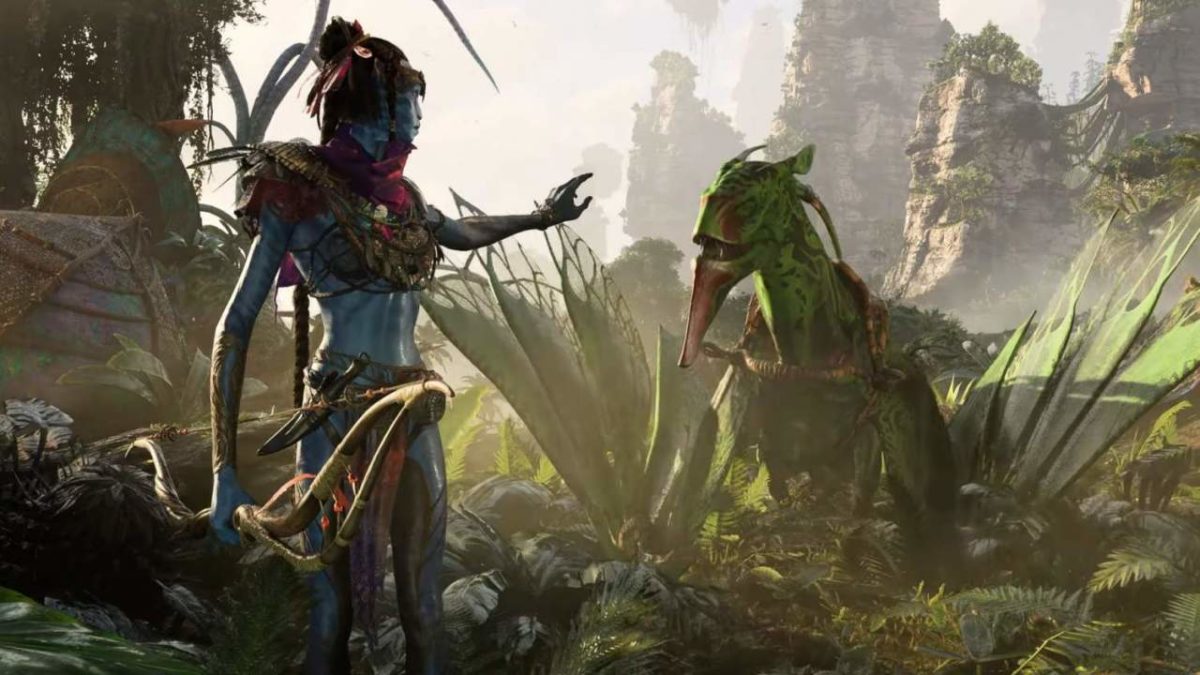
    The Avatar: Frontiers of Pandora trailer gives us a slight taste of what we can expect. Most of it contains cinematic visuals, but there are moments where you can see a first-person perspective. You can see how stunning the visuals look, and how objects respond when you approach them.

    What the trailer also reveals are the mechs of the opposing forces, which will serve as the main plot. The gameplay will involve riding beasts and using weapons at your disposal to ensure your survival. However, what’s missing is the actual details of the storyline.

  2. Possible Release Date

    All we know so far is that the game is slated for release in 2022. It doesn’t take much for us to take some guesses, though. Since the movie Avatar 2 is expected to release on 16 December 2022, we’re wondering if Avatar: Frontiers of Pandora will appear at the same time. 

    It wouldn’t be the first time film producers and game developers chose to do this to ensure optimal sales numbers.

  3. Expected Gameplay

    While the trailer is slightly silent about the story and gameplay, there are a few facts we know about playing Avatar: Frontiers of Pandora. You’ll play as the Na’vi, the natives of the beautiful land. It’s also clear you’ll be fighting the RDA from the first movie, or are back to take your home from you.

    We also know that you’ll play in a first-person perspective, wielding weapons and riding the wild beasts of Pandora. The game will also be set as an open world, so you’ll be able to explore as you please in between missions. We have yet to find out how many NPCs will look familiar from the movies.

    It’s also uncertain how much of the Avatar 2 movie will have an influence on the game. There’ll be a new region in Avatar: Frontiers of Pandora not seen before, which will be a delight for all fans. The whole drive for the game is to provide players with a completely immersive, interactive world.

Can you save your people?

There’s still a long time before we see the title launch, and gamers worldwide are already becoming excited about it. We’re sure we’ll see a demo land in the next few months, and you can count on us to provide you with helpful tips on how to play Avatar: Frontiers of Pandora when it releases.

How To Beat Garland/Chaos In Stranger Of Paradise Final Fantasy Origin

The latest demo from Square Enix has led many players to download Stranger of Paradise – Final Fantasy Origin. While it has the intense gameplay we expect from a title like this, there’s also a challenging boss that has everyone crying over their controllers. 

Don’t worry; we’re going to show you how to defeat Garland, a.k.a. Chaos., so that you can brag to your friends that you’ve finally attained this achievement.

  1. Prepare for battle

    How To Beat Garland Chaos In Stranger Of Paradise Final Fantasy Origin

    Before you head in to defeat Garland/Chaos in Stranger of Paradise – Final Fantasy Origin, we recommend you prepare for the fight. Head out and kill a few minions until your mana bar is full, as you’ll need those magic attacks. There’s also a cube waiting for you near the entrance that will refill your potions and health.

    You should also spend as much time grinding as possible so you can max out the class you like the most. We also suggest you find the best armor in the game to withstand as much damage as possible.

  2. Garland Battle Phase 1

    How To Beat Garland Chaos In Stranger Of Paradise Final Fantasy Origin

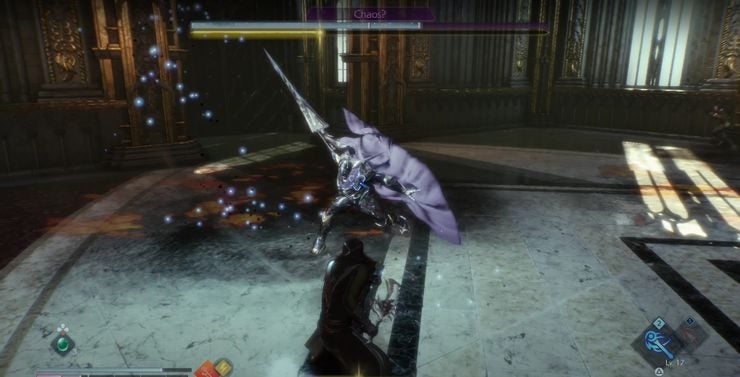
    When you meet Garland, you’ll enter the first phase of the battle. He has some basic attacks that are relatively easy to avoid if you pay attention to the movements. One move has him jumping back and firing ice spikes at you, which may be challenging to dodge at first.

    At this stage, there are two abilities you need to consider:

    – Blaze: A fireball will blast your way, which you can learn if you block it with Soul Guard

    – Inferno: A massive Area-of-Effect (AoE) fire attack

    • Firebringer: wraps the blade in fire, causing more damage
  3. Garland Battle Phase 2

    How To Beat Garland Chaos In Stranger Of Paradise Final Fantasy Origin

    The second phase kicks in when you bring Garland’s health down to half. He’s desperate now to stop you in your tracks, and it may become more challenging to land an attack

    To make matters worse, his current powers have developed and he has some new moves to use on you:

    – Blaze: You’ll have two fireballs heading your way

    – Blizzaga: Previously Inferno, the AoE is larger with more damage

    – Ice Sword: Formerly Firebringer, Garland has a longer reach with multiple hits

    – Fiery Hold: This attack is unblockable, and you’ll need to dodge to avoid the charged attack

    • Chaosbringer: Garland buffs himself with dark energy to release massive damage in a huge AoE
  4. How to beat Garland

    How To Beat Garland Chaos In Stranger Of Paradise Final Fantasy Origin

    So now that you know what to expect, it’s time to show you how to defeat Garland. You’ll notice that he has a Break Gauge, just like all your other opponents. If you time your attacks correctly, you can deplete it and deal severe damage with Soul Crush.

    You should also use Soul Shield as often as possible. It sends back some of the spells, while you can parry and strike back after a melee attack. Other than that, hang back and wait for the opportunity to send some magic attacks his way to hurt his health.

Bringing order to chaos!

If defeating Garland/Chaos in Stranger of Paradise – Final Fantasy Origin is this challenging, can you imagine how the full game will play out? We’re all excited for the full release, with a certain air of expectation for what’s to come. We hope this guide has helped you finally complete the demo.

How to Speed Up Games With Lulubox in 3 Steps

One of the top features you get after you download Lulubox on your Android phone is the ability to boost gaming speed. You’ll see less lagging, improved performance, and a more enjoyable experience. You can apply it to a single game, or across all of the apps on your device.

Here’s how you can speed up games with Lulubox quickly and easily.

  1. Update the game with the latest patch

    How to Speed Up Games With Lulubox

    Sometimes, the game may be slow due to internal issues that the developers need to fix. There are times when they release patches to improve performance and remove glitches. You should ensure that you have the latest update for the game before you apply the booster.
  2. Locate the game

    How to Speed Up Games With Lulubox

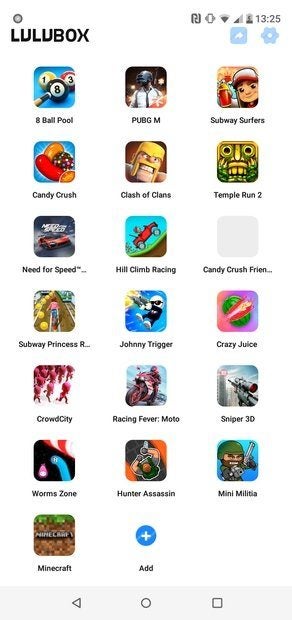
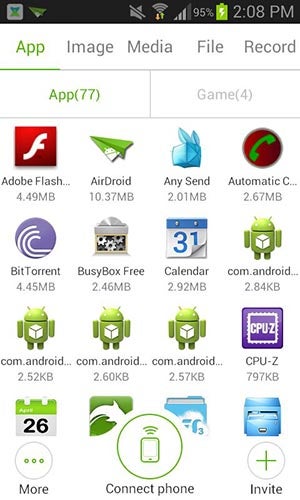
    Next, you’ll need to enter Lulubox and access your game library. You’ll see all the apk files in a list, where you’ll be able to select the one you want to boost. We recommend only boosting the one you plan on playing next and not others for the time being. It will prevent potential conflicts and issues.
  3. Apply Game Booster

    How to Speed Up Games With Lulubox

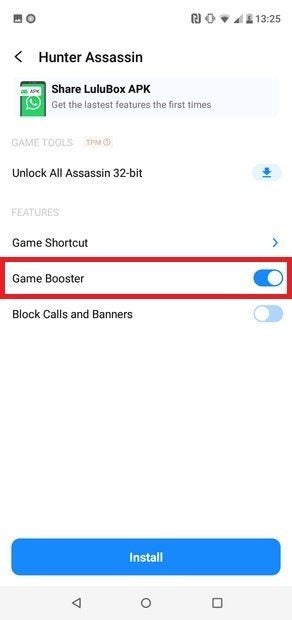
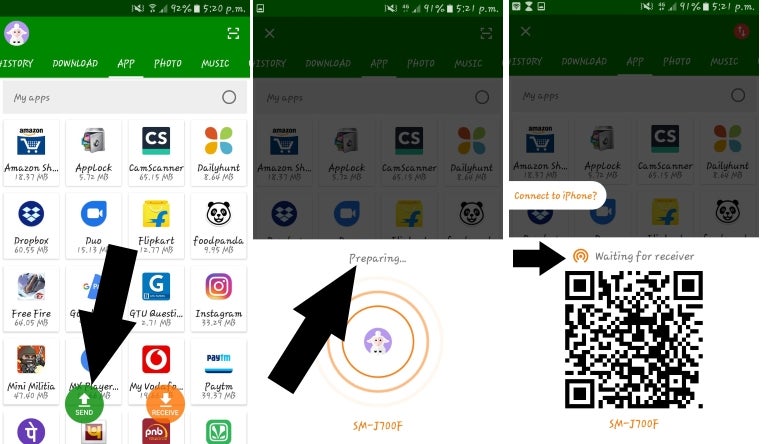
    When you select the icon, you’ll see a list of options appear. Right near the bottom, you’ll see a slide for Game Booster. You’ll need to switch this on if you want to improve performance for the selected title. If you won’t be playing it again for a while, remember to turn it off.

Fast and furious gaming

Now that you know how to speed up games with Lulubox, you’ll be shooting and racing with smooth performance on your Android device. You may have an advantage over other players who haven’t learned this method yet. Be a good pal and let your friends know, though.

First Tests of Facebook’s Live Audio Rooms Go Live

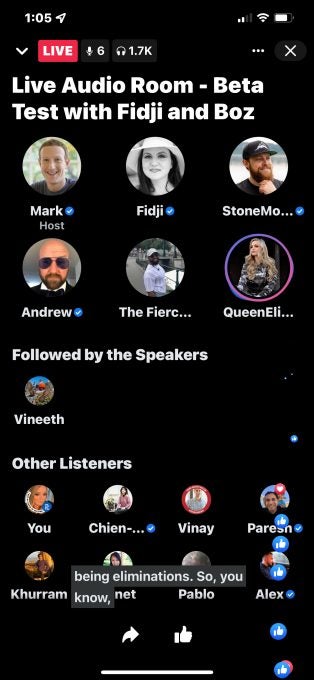
Mark Zuckerberg, CEO of Facebook, Hosts the First US Live Audio Rooms Test 

In April earlier this year, Facebook announced a new feature called Live Audio Rooms that will let you create professional audio content. There’s been some testing in Taiwan during May, which included some leading public figures. Recently, Mark Zuckerberg stepped up as CEO to host the first live testing for the United States.

What the live audio testing revealed is that there’s a massive focus on gaming at the moment. Zuckerberg spent a massive amount of time chatting to fellow Facebook officials about what’s trending in the gaming industry and which titles they were streaming. 

Even when it came to discussing new FB features, the team analyzed a new post called “Looking for Players” that would reach out to other gamers in the community. If you’re a partnered creator on the Facebook Gaming platform, you’ll enjoy the new Fan Groups feature. 

First Tests of Facebook’s Live Audio Rooms Go Live

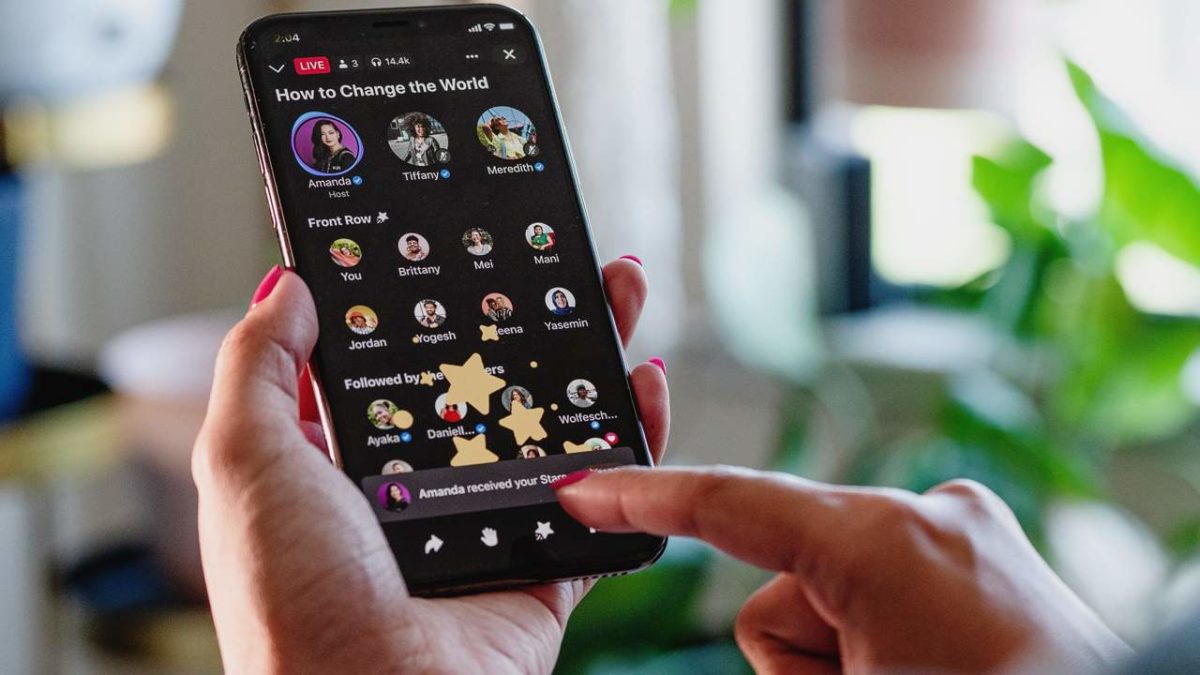
Back to the Live Audio Room testing, the platform played out much like Twitter Spaces or Clubhouse. You’ll see the event hosts at the top of the screen in adorable round icons, while everyone else will appear at the bottom. There’s also a space in the center between the two sections that showcases the top followers.

When someone is speaking, a glowing ring will appear around the icon. One of the FB badge features that appears is a blue tick by a verified profile. All in all, Facebook seems to have brought a decent live meeting area to challenge its competitors.

Luca: Pixar’s refreshingly adorable film on Disney+

Who doesn’t fondly remember that summer when, between ice cream, laughter and the occasional tear, when you spent some of the happiest days of your childhood? With this premise comes Luca, the new Disney Pixar film that, as of June 18, is available to Disney+ subscribers. In it you’ll travel to Porto Rosso, a tiny fishing village on the coast of Italy where Luca and Alberto will have the greatest adventure of their lives… which comes as no surprise because these two kids are actually sea monsters!

A beautiful story of friendship and acceptance

Clearly reminiscent of The Little Mermaid with a touch of Pippi Longstocking, Luca is a lovely tale where being different is no reason to hide, but a wonderful motive to teach the world about the beauty of diversity. With all the magic of Disney Pixar, the film introduces us to Luca, a tiny sea monster who’s thirsty to discover what lies outside of the water. However, his overprotective parents won’t approve of any of the little monster’s attempts to explore the surface.

After befriending the crazy Alberto, Luca will discover how his species are capable of transforming into humans when not in contact with the water. With dreams of being free and traveling the world on a Vespa, the two kids will run away to Porto Rosso, a small fishing village terrified by the ancient legends about sea monsters. Like two fish out of water, literally, Luca and Alberto will have the summer of their lives with Giulia, a young girl considered strange by the rest of the children of the town.

Light and refreshing with a valuable message

Disney Pixar makes a splash once again with a beautiful, entertaining story that transmits a truly important message for viewers young and old: it’s okay to be different. Now that summer vacation is here, Luca is a must-see movie that you can enjoy with the little ones at home. Don’t miss it!

How to Change the Download Order of Tubemate

When you download Tubemate videos from YouTube on Android, it sets the list in the order of when you requested the files. However, there may come a time when you have so many selected, and you prefer a different order. Perhaps you want the smallest files first, or you want it to download alphabetically.

If you already know how to use Tubemate as a YouTube downloader, then changing the download order should be easy.

  1. Find the download list

    How to Change the Download Order of Tubemate

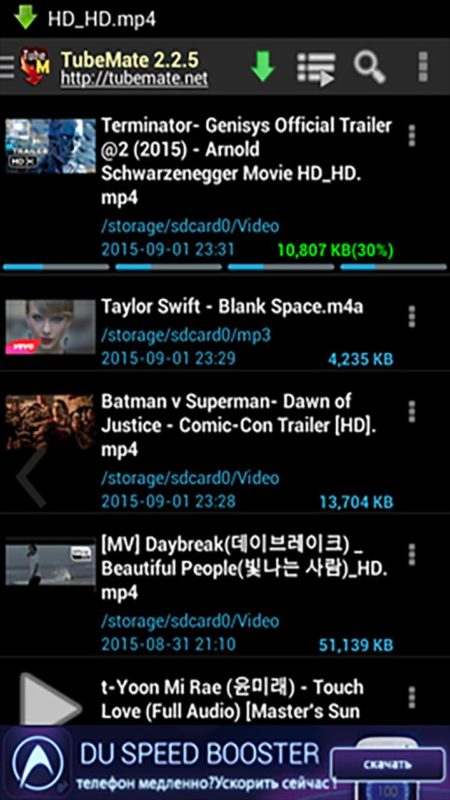
    When you open Tubemate, you’ll usually land on the main screen. In the menu, look for the tab “Download list.” You’ll see all the YouTube videos you are currently downloading. It also shows you the order in which you’ll receive the files.

  2. Select Menu

    How to Change the Download Order of Tubemate

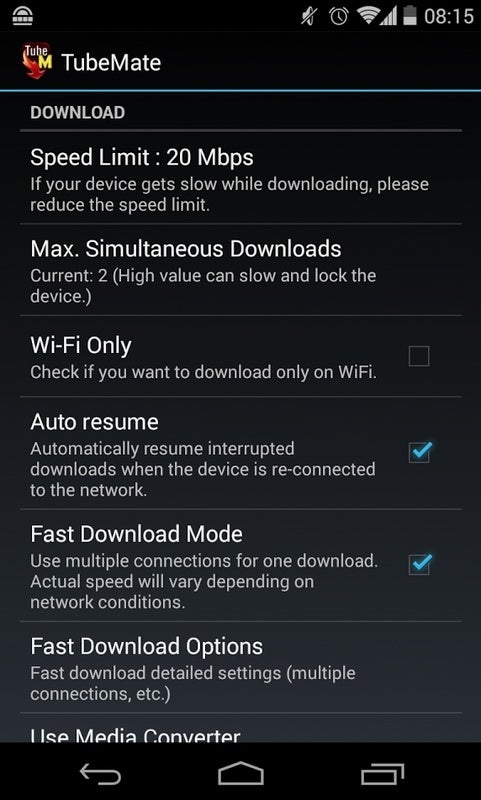
    In the download list, you’ll see a Menu option too. There are some features you can work through here to optimize the download speed if you want. Read through all of the options to see how you can improve your experience.

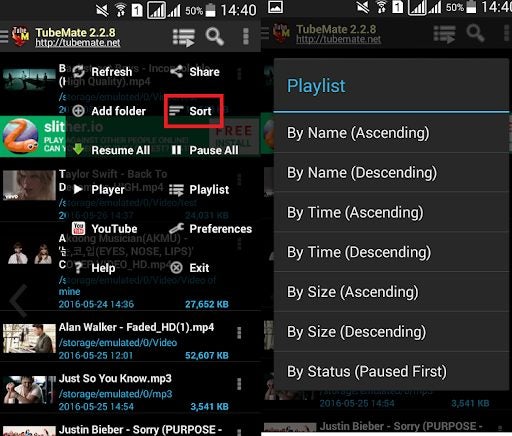
  3. Choose the order you want

    How to Change the Download Order of Tubemate

    Within the Menu option, you’ll see that you can change the downloading order. There are selections for name, paused, and time, which you can sort in ascending or descending order. Feel free to also shift any around manually if you wish.

The way you like it

Now that you know how to change the download order of YouTube, the online video world is your oyster. We don’t recommend adding too many to your list, as it may affect the outcome or performance of your device. Still, it’s a handy tool to have if you want some movies to appear first before others.

How Do I Download from YouTube Using Tubemate

After you download Tubemate, you can easily save YouTube videos while in an area with Wi-Fi to watch later when you don’t have access to the internet. Not only that, but you also have more control over the videos you download. You can choose the quality, file size, and even if you want to download the audio-only. 

You may want to look at our guide on using Tubemate in three fast steps. For now, let’s go over what you need to do to download from YouTube using Tubemate.

  1. Download Tubemate

    How Do I Download from YouTube

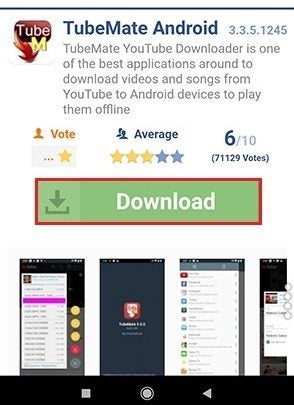
    First things first, you will need to download the Tubemate APK file on your Android device. Unfortunately, Tubemate is not on the Play Store, so you will need to look at third parties to download the app file. Remember only to use reputable sources such as Softonic when downloading APK files.

  2. Install Tubemate

    How Do I Download from YouTube

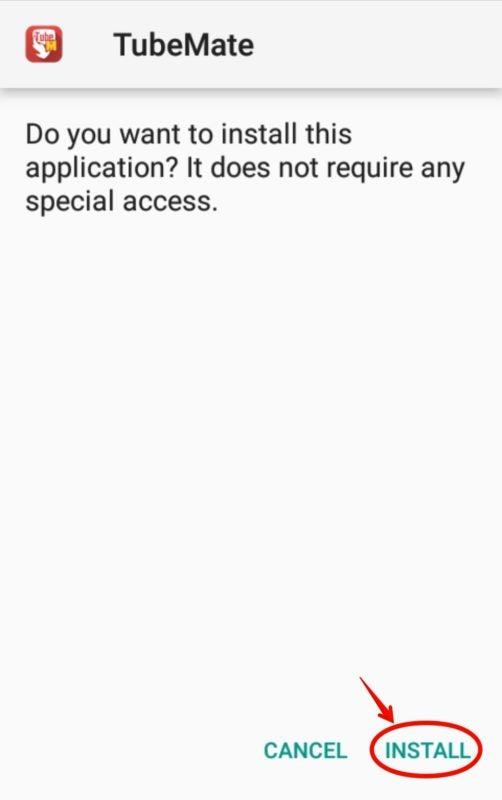
    Find the Tubemate APK file in your downloads, and tap it to install on your Android device. You may need to allow your device to install apps from different sources during the installation.

  3. Download the Video

    How Do I Download from YouTube

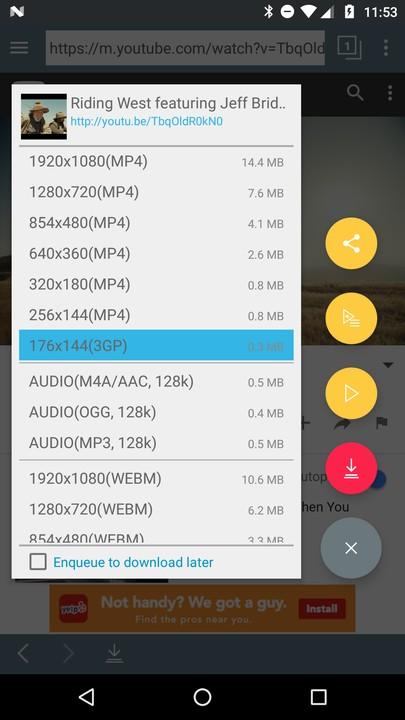
    Open the Tubemate app by tapping on the icon in the app menu on your mobile device. Once Tubemate has opened, search for the video you want by typing the search words into the search bar. Tap on the download button and then choose the video quality you want to start the download. Once the download has finished, you will be able to watch the video from your phone without having to use Youtube or an internet connection.

Downloading With Tubemate Is Quick and Simple

Using Tubemate to download your favorite Youtube videos easily is a quick process. And, by using this app, you can now watch all your favorite Youtubers, channels, and videos anytime without an internet connection. So why not try Tubemate now?

How to Download TubeMate 3 for Android in 3 Steps

TubeMate is an easy-to-use downloader tool that allows you to store YouTube videos on your Android phone, among other devices, so that you can watch them whenever you like without connecting to the Internet. 

You need Android 4.0.3 or higher to download TubeMate. It uses multiple connections, which enable you to download videos very fast.

  1. Where You Can Get TubeMate

    How to Download TubeMate for Android

    You may not go to Google Play Store to download TubeMate, as it is not available there. To install it on your phone, you have to download an executable file with the .apk (Android Package Kit) extension.

  2. Change Your Security Settings

    How to Download TubeMate for Android

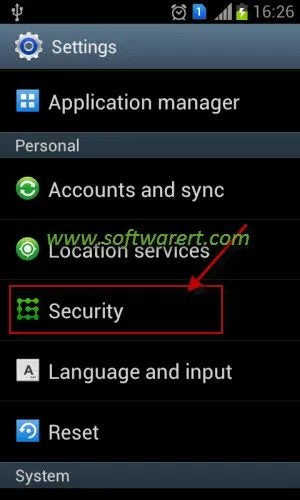
    To install an apk file from outside the Google Play Store, you have to change your phone’s security settings to allow App installation from other sources. Under the Security heading in your Settings menu, you have to check the box Unknown Sources. This will allow you to download Apps from outside the Play Store, including APK files.

  3. Specify Which Factors You Want

    How to Download TubeMate for Android

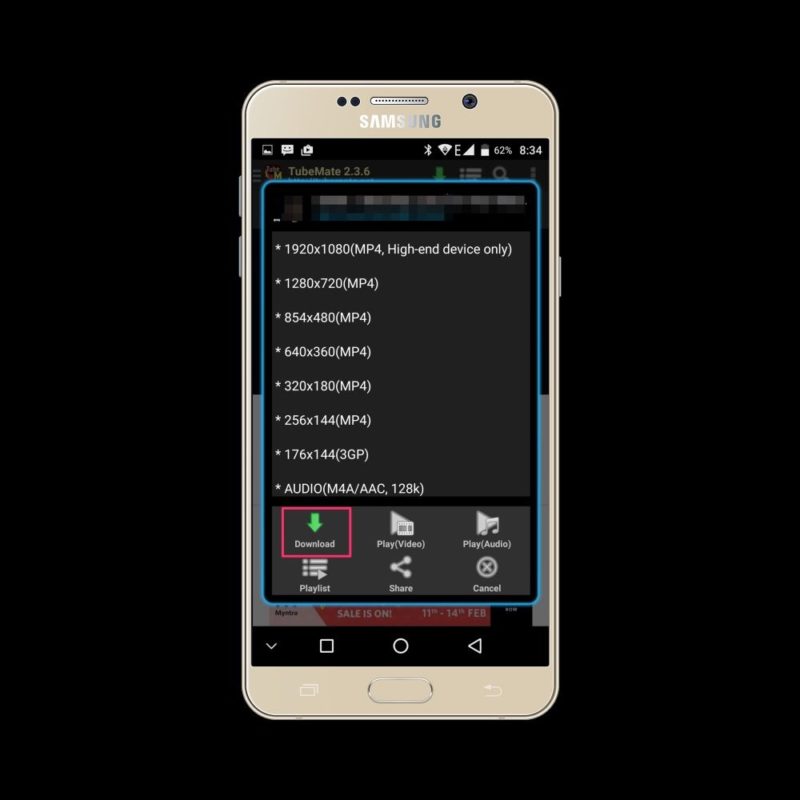
    When you download TubeMate 3, you can select the factors you want. These include the video quality and resolution. You will be able to choose from: 1920×1080, 1280×720, 640×360,176x 44, and more. You can also designate which file format you would like your videos to be in, such as MP3, MP4, WEBM, OGG and others.

Why you should use TubeMate

TubeMate is a top-rated App for downloading and storing videos on your phone’s system memory or a memory card. The latest version of the App has an excellent interface that’s much better than its earlier versions.

It now supports Facebook and Instagram, where you can find any video you like. TubeMate keeps your search history, and you can bookmark your favorite sites. Please note that you cannot connect to it on 3G.

Now that you have TubeMate, learn how to use it to download YouTube videos.

How Do I Use Lulubox on My PC

Lulubox has its own set of patches for specific games that the user can download, making this type of software very unpopular with the game designers, as it can strip away their money-making options. 

While it usually resides on an Android device, you can download Lulubox onto a PC or Mac, provided it is done under an Android emulator. To find out how to do so, read on and follow our few straightforward steps.

  1. Download and Install an Android Emulator

    How Do I Use Lulubox on My PC

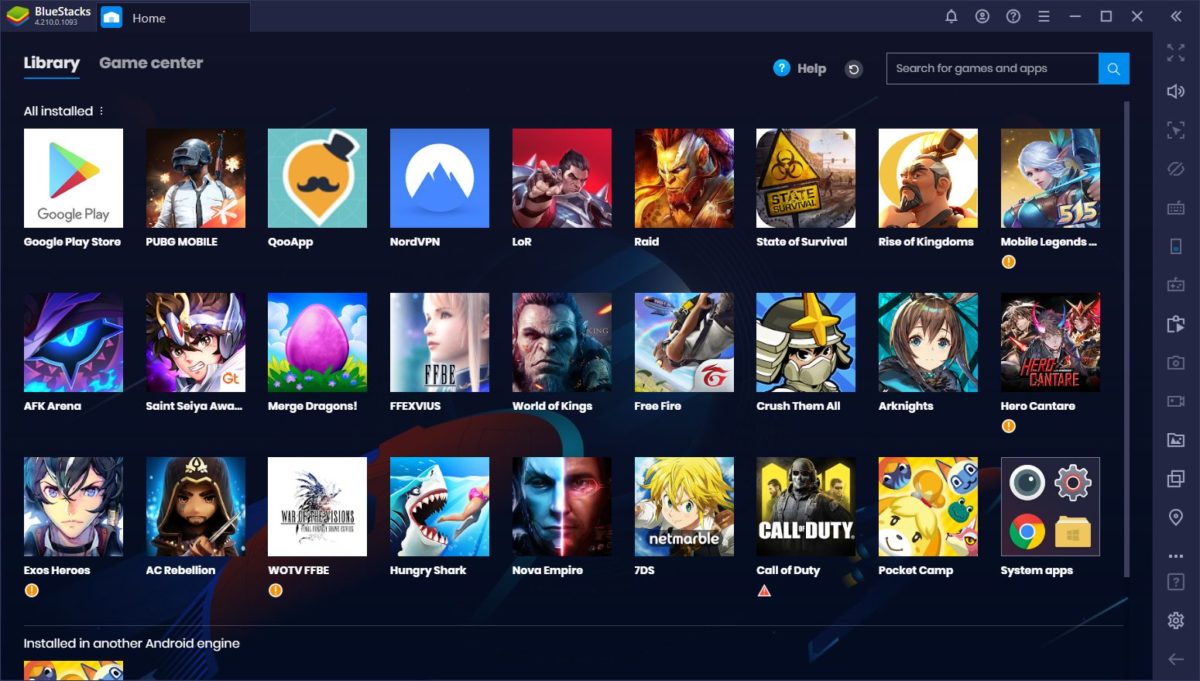
    It is impossible to load an Android app onto a PC without first having an Android emulator. The best-known Android emulators for the PC are Bluestacks, LDPlayer, Nox, MeMu, and KoPlayer

    Select any of the Android Emulators and install the software on your PC.

    For this article, we have used Bluestacks. Everywhere you see Bluestacks, you can substitute the emulator that you use.

  2. Download Lulubox for the PC

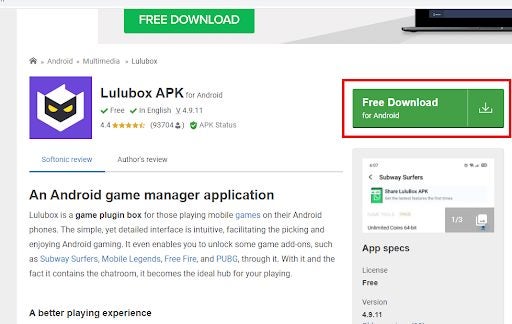
    Now, you will need to download the Lulubox apk file to install it into Bluestacks. 

    Please do not click on the downloaded file; you will install it through Bluestacks.

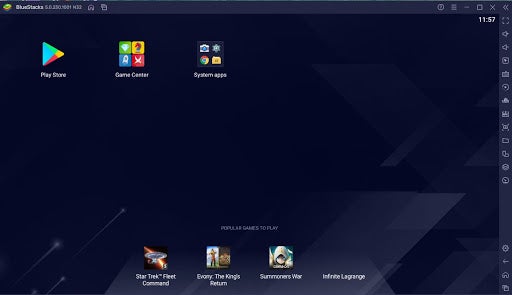
  3. Open Bluestacks

    How Do I Use Lulubox on My PC

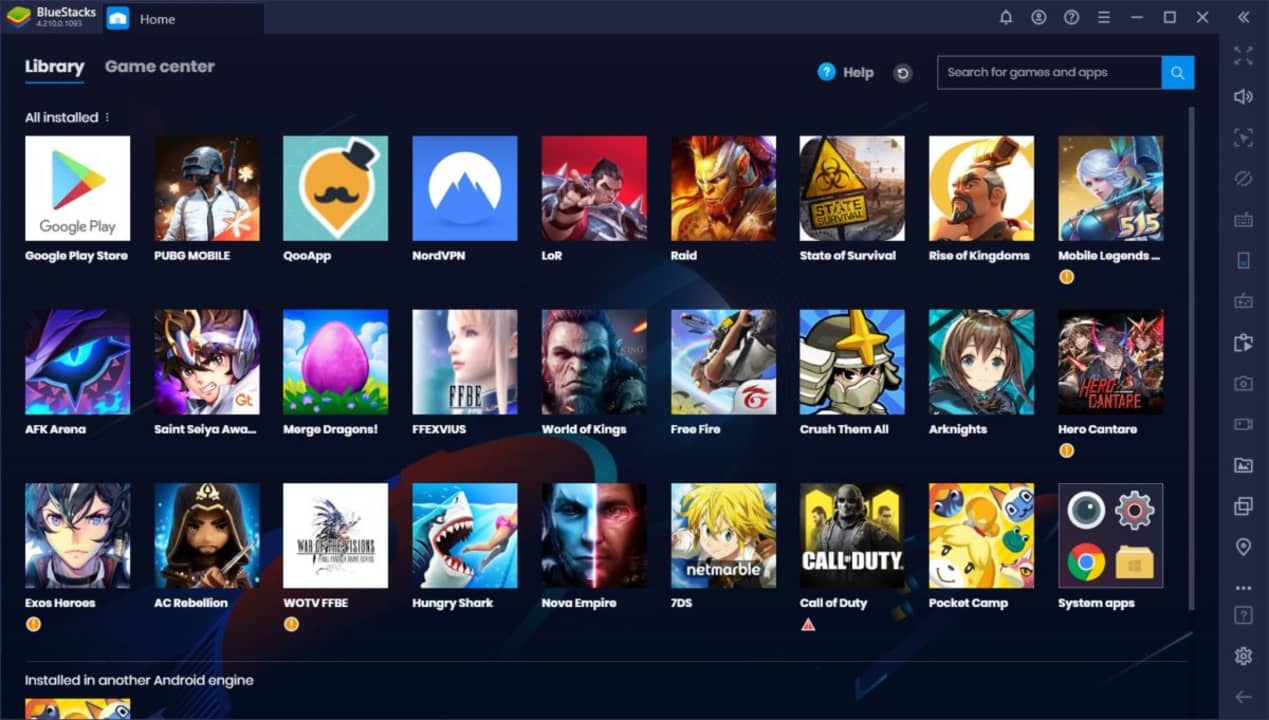
    Open Bluestacks and click on the ‘Install APK’ button.

    Find the downloaded file for Lulubox.apk. On most PCs, all your downloaded files will sit in the Downloads folder, but if you have used a different folder, go to that folder to find the correct file.

  4. Open Lulubox and Select Your Game

    How Do I Use Lulubox on My PC

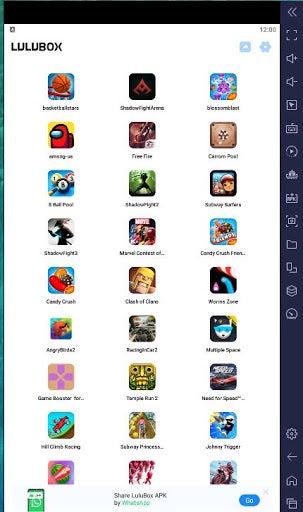
    Lulubox is now installed under your Android emulator on your PC. You can go ahead and select the game that you wish to use.

Use Lulubox wisely

Be aware that Lulubox is not welcome with many popular game sites because you can bypass many of the features of the game by using it. 

Game sites make it clear that using third-party software to change the game’s features will result in the complete cancellation of your account. They see the use of this software as the equivalent of cheating, and as Lulubox is clearly third-party software, use it at your own discretion.

How to Share File With Xender Application

Xender is a lightning-fast file transfer app available cross-platform on Android, iPhone, Windows, and Mac. Using Xender makes it easy to send music, videos, files, and more from your device to another one. Similar to how Bluetooth used to transfer files, but faster and more secure. 

You may be wondering how to use the app after you download Xender? First, let’s look at the steps you need to take to share a file with Xender.

  1. Android to Android

    How to Share File With Xender Application

    – Before using the app, you will need to install it on your Android device.

    – Start the app by tapping on the Xender icon in your Android app menu.

    – Tap on the ‘+’ icon to add the person you want to share the files with and create a group. Once you have made the group, the person you will be sharing files with will need to join the group from their device by tapping on the ‘+’ icon.

    – Choose the device that you want to share the files with by searching for the user.

    Now you can transfer files to your chosen contact.

  2. Android to Other Devices

    How to Share File With Xender Application

    – Start the app by tapping on the Xender icon in your app menu.

    – Tap on the ‘+’ icon and choose to ‘Connect WP.’

    – Open WP and go to Wi-Fi settings, and set up a hotspot. Then, make sure to connect the other device to the same Wi-Fi hotspot.

    – Choose the device that you want to share the files with by searching for the user.

    – Now you can transfer files to your chosen contact.

Send Files Fast and Secure With Xender

Using Xender to transfer files, music, and videos is easy to do, and even better, it is fast and secure. To transfer files has never been easier or quicker than it is with Xender.