How to Get Microsoft Office for Free 4 Different Ways

Microsoft Office is a bundle of software programs for word processing, spreadsheets, presentations, and more. They have different bundles available geared to different users and support Windows, Mac, and mobile devices. 

However, the premium version of Microsoft Office does come with a hefty price tag and subscription. No wonder people have wondered how to get Office for free.

  1. Use Office.com

    How to Get Microsoft Office for Free 4 Different Ways

    Microsoft offers the basics of their programs for free on their official site. Unfortunately, this is not the full-featured version of the programs, but if you only need the basics, this will be enough for you. Another consideration with this option is that you will have to be online and have an active internet connection to use the programs and work on your documents.

  2. Microsoft Apps

    How to Get Microsoft Office for Free 4 Different Ways

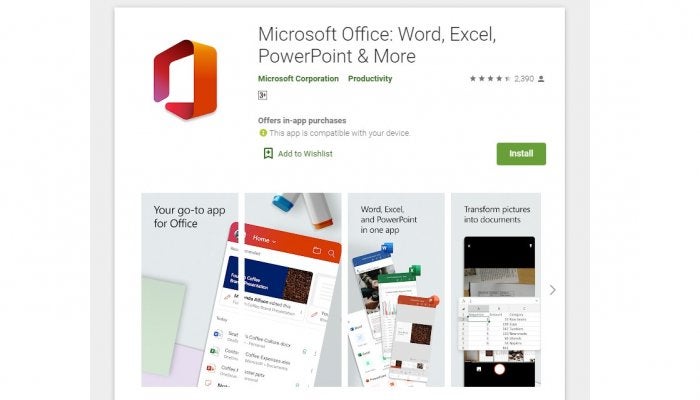
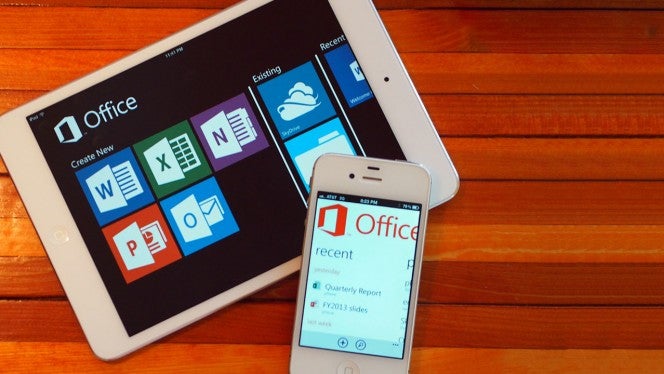
    Microsoft Office has also released app versions of their programs for free on the app store. Similar to the versions on Office.com, these are not full of the features you would find on the premium paid-for version. However, if you just need the programs for essential Word, Excel and Powerpoint, using the mobile version is sufficient and free.

  3. Enrol in Office 365 Education

    How to Get Microsoft Office for Free 4 Different Ways

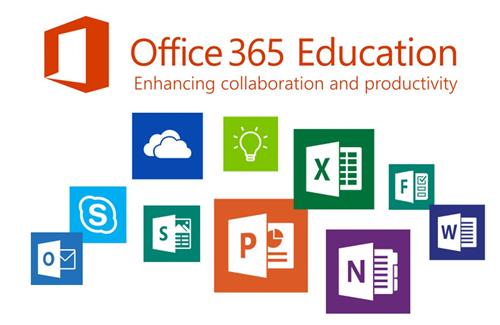
    Students and educators can access a few of the Office programs for free by signing in with a valid school email address. The programs included with this offer are Word, Excel, Powerpoint and One Note. This enables students to use the full versions of these programs to enhance and improve their education.

  4. Make Use of the Trial Version

    How to Get Microsoft Office for Free 4 Different Ways

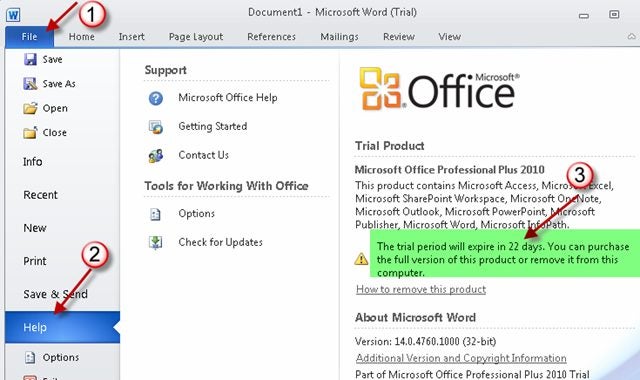
    Microsoft Office offers a one-month trial to all users to use the full versions of the programs for one month before committing to a subscription. So, if you only need all the features for a single project or a few projects that can be completed within a month, then this might be a worthwhile option for you.

Use Microsoft Office for Free

As you can see, there are a few different ways that you can use Microsoft Office for free. These all come with their considerations, such as the internet connection needed or not having all the features, but give them a try and see which one works best for you.

Easily fix 3 problems with VLC Media Player

VLC Media Player is one of the most powerful and capable media player tools available for Windows. This utility is usually the utility of choice when it comes to formats of video playback files that Windows Media Player simply doesn’t support. In fact, many users end up making VLC Media PLayer their default media player.

VLC Media Player DOWNLOAD

While VLC Media Player usually delivers outstanding quality playback of various video and audio formats, the tool is not completely exempt from error. In the article below, we’ll highlight the three most prevalent issues that you may encounter while using VLC Media Player. We’ll also show you how to fix them and prevent them from happening again in the future.

The 3 most prevalent VLC Media Player Issues

It would be pointless to give you a guide on how to fix the various issues we’ve found with VLC Media Player without first giving you an overview of what those issues are. We won’t spend long on this section, though. 

All three of these issues may present themselves while you’re trying to play a media file, which makes them even more frustrating. The three issues are:

  • VLC Media Player causing media files to lag, skip, or stutter.
  • Media files in VLC Media Player becoming scrambled.
  • VLC Media Player crashing during playback or simply not starting at all. 

Below, we’ll take a look at how to fix these issues and ensure that they never plague your VLC Media Player playback experience again. We’ve got multiple solutions for each failure, so if one doesn’t work, just go ahead and try the others. You should find at least one solution that works for whichever instance of failure you’re experiencing.

How to fix these 3 VLC Media Player problems

  1. Stuttering, Lagging and Skipping

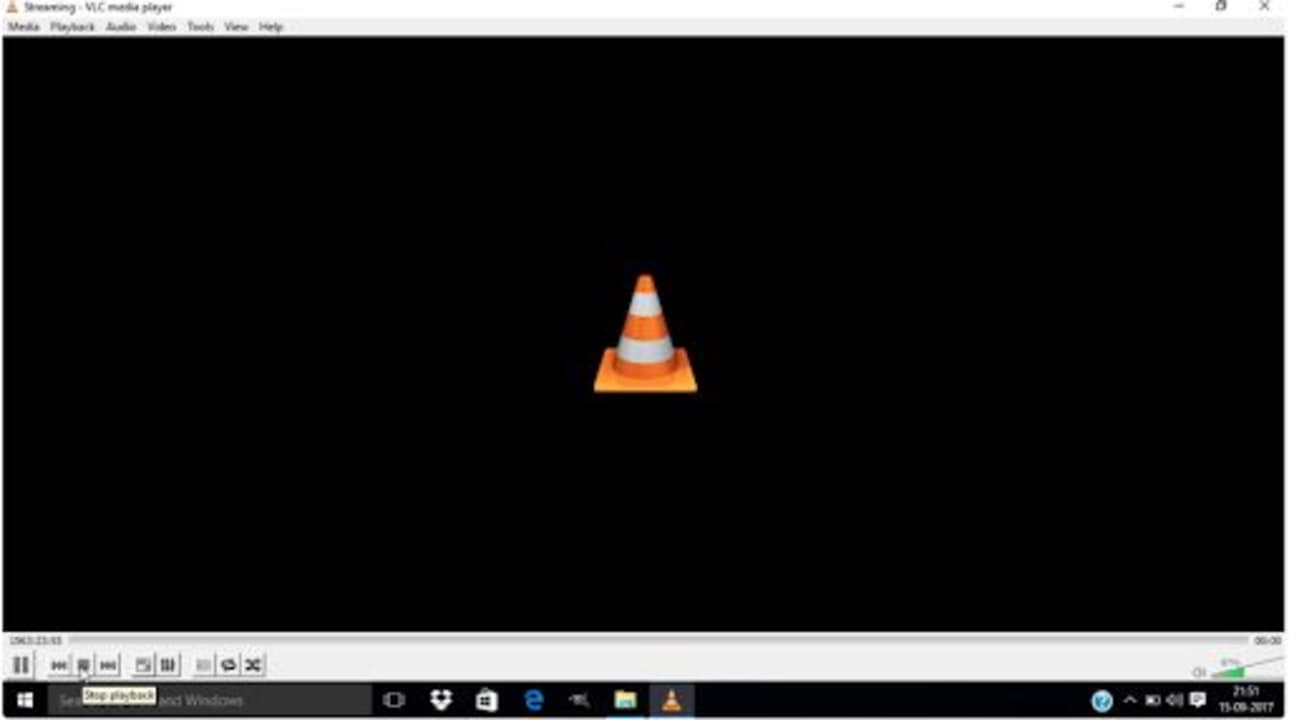
    How to Fix 3 Problems With VLC Media Player

    – First solution: Look for the File Caching option in Settings under Input/Codecs. Change the value from 300 to 1000 and save.

    – Second solution: Open the VLC media player, press CTRL + P to show Settings. Select All. Go to Input/Codecs. Disable hardware-accelerated decoding.

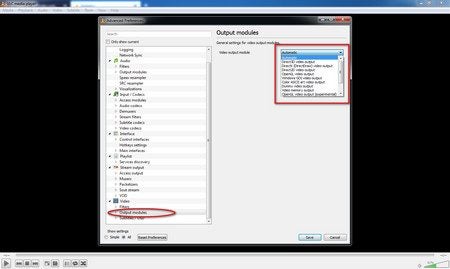
    – Third solution: Open the VLC player, press CTRL + P to show Settings. Go to the Video Output module and try the options until you find one you like.


  2. If Video Playback is Scrambled

    How to Fix 3 Problems With VLC Media Player

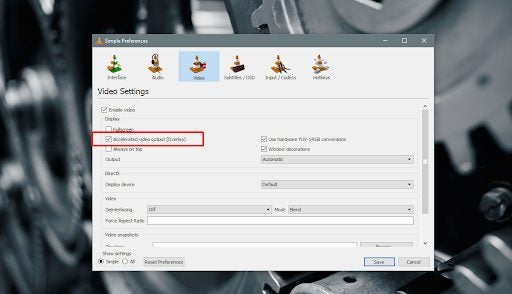
    – First solution: Open the VLC media player and press CTRL + P to open Preferences. Select Video. Under Display turn off Accelerated video output and save.

    – Second solution: Open the VLC player, press CTRL + P to show Settings. Select Input/Codecs. Find Advanced and Network Caching. Increase the caching value.

    – Third solution: Instead of playing the video from a network drive or DVD, copy it onto your desktop. This often works if nothing else will.


  3. The VLC Player Crashes

    How to Fix 3 Problems With VLC Media Player

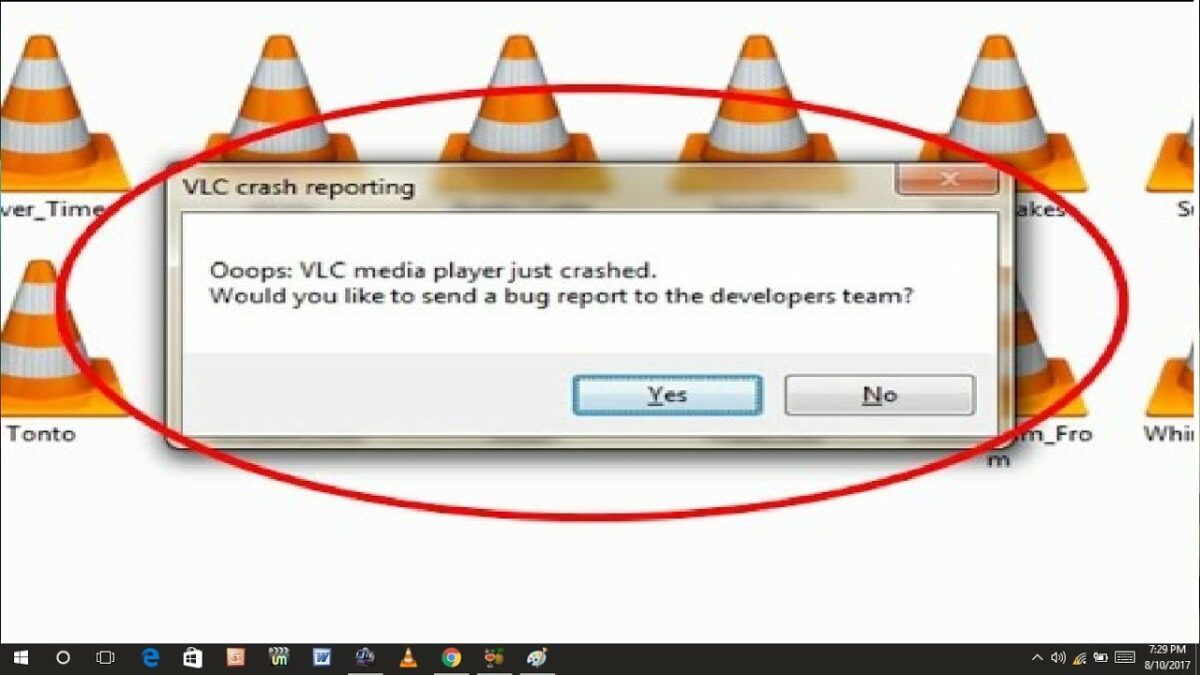
    – First solution: Exit the VLC. Double click This PC/My Computer. Click View and Check for Hidden files. Open C:\User\User_Name\AppData\Roaming\VLC. Right-click VLCC and rename it.

    – Solution 2: In File Explorer in Windows 10, find the right 64-bit or 32-bit Program File, click on exe, select Properties and run it in Compatibility Mode.

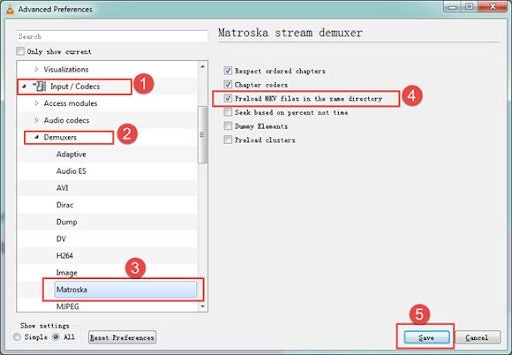
    – Solution 3: Try Disabling Pre-loading MKV Files. If that fails, reinstall the VLC player. Uninstall it in Apps and Features, reboot your computer and reinstall the VLC setup from the official website.


Keep Your VLC Player Operating Smoothly

VLC Media Player has become somewhat of a staple for people who need a tool that can play various media formats. Even though the tool works well most of the time, it has been known to present users with issues every now and again.

Despite this, VLC Media Player has been around for quite a while and is still one of the most reliable such programs for Windows. You can even record with VLC Media Player these days.

If you run into any issues, try the solutions we’ve outlined above, and you should be good to go again. If you’re looking for other guides for VLC Media Player usage, try our guide on how to edit videos within VLC Media Player.

How to Edit Video in VLC Media Player READ MORE

What Can You Make with Copper in Minecraft?

Thanks to the Minecraft Caves and Cliffs update, we now have copper to mine and refine in the open-world building game. Of course, it means that you can now craft new items and buildings, giving your home or factory a steampunk appearance.

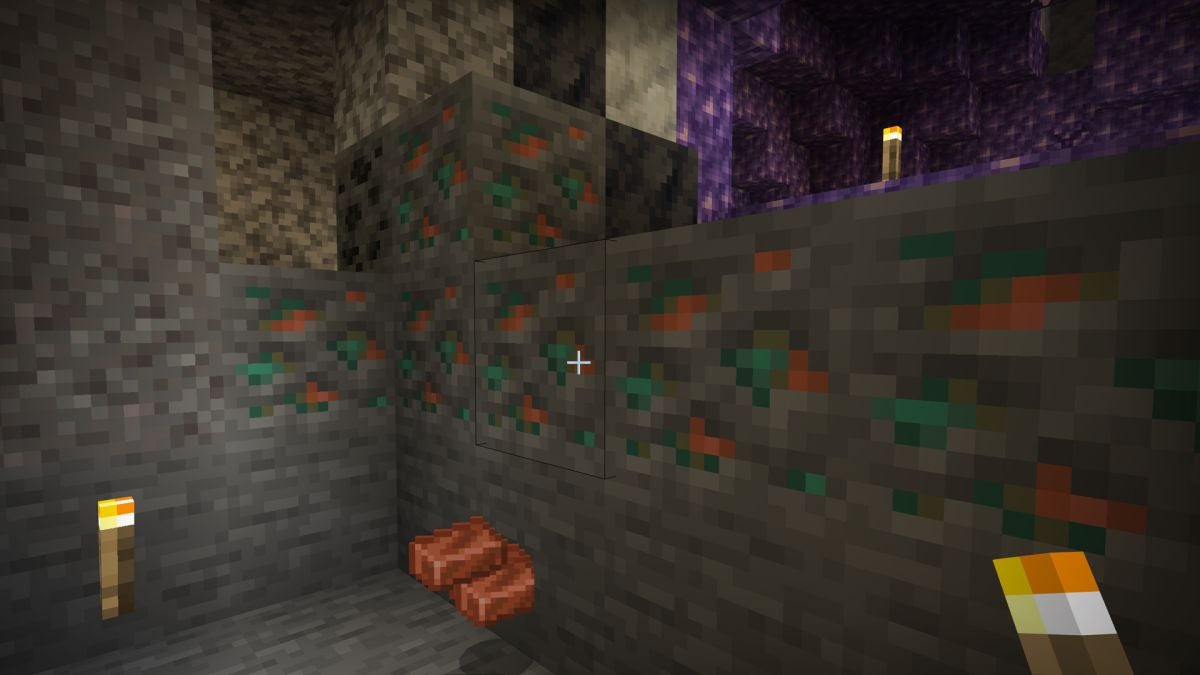
Once you’ve found some raw copper in the caves and transformed it into ingots, you can use it to make the following items.

  1. Copper block

    What Can You Make with Copper in Minecraft

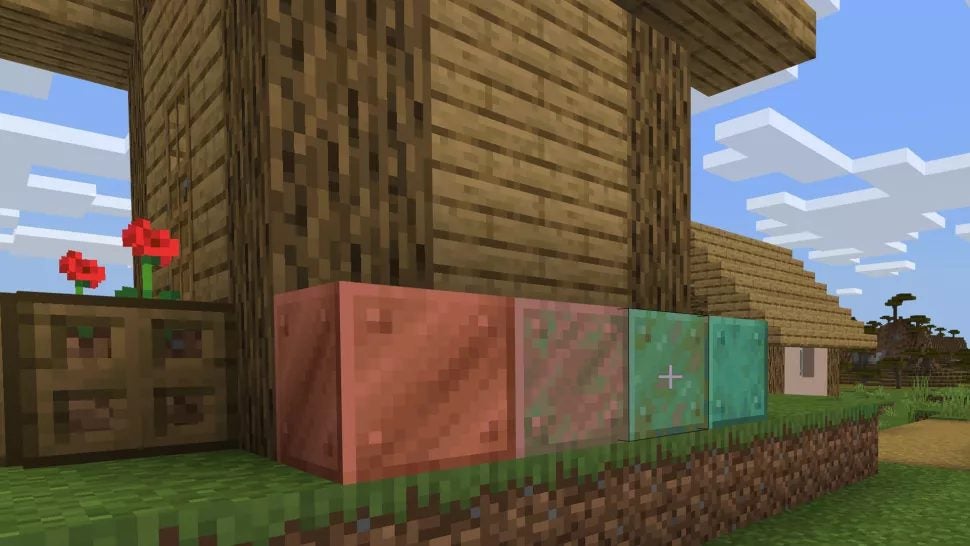
    The most obvious use is to create a copper block. This item is useful if you want to build a factory with that authentic, rustic appearance. You can use a honeycomb to polish the block or an axe to return it to an oxidated surface.

  2. Tools and weapons

    What Can You Make with Copper in Minecraft

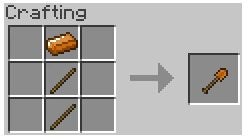
    Copper in Minecraft also presents a new range of tools and weapons. Basically, it’s stronger than wood and similar in strength to stone. You’ll be able to chop the same items as Stone tools, so the only real difference is in the material and appearance. The copper sword has the same damage as a stone one.

  3. Lighting Rod

    What Can You Make with Copper in Minecraft

    Are you tired of lightning striking your Minecraft home and causing damage? Well, you can now make a lightning rod with copper. If you place it above your home during a storm, you’ll see the lightning streak towards it for a marvellous effect. As fans of lightning, we love this new feature.

  4. Spyglass

    What Can You Make with Copper in Minecraft

    Copper joins with another new item to create the spyglass, namely, an amethyst gem. The spyglass lets you zoom in and out so you can see further away. It helps you find valuable resources from home instead of running like a wild child through the forests.

The copper age is upon us!

We’ve been waiting for new items for a long time, and Minecraft doesn’t fail to deliver. It’s going strong with the addition of copper, which lets you mine and craft with new tools. 

You can now feel like an ancient soldier with a copper sword, striking down skeletons and spiders just for the fun of it. Remember to spend some time enchanting it for more effects.

How to Get a Blue Axolotl in Minecraft in 4 Easy Ways

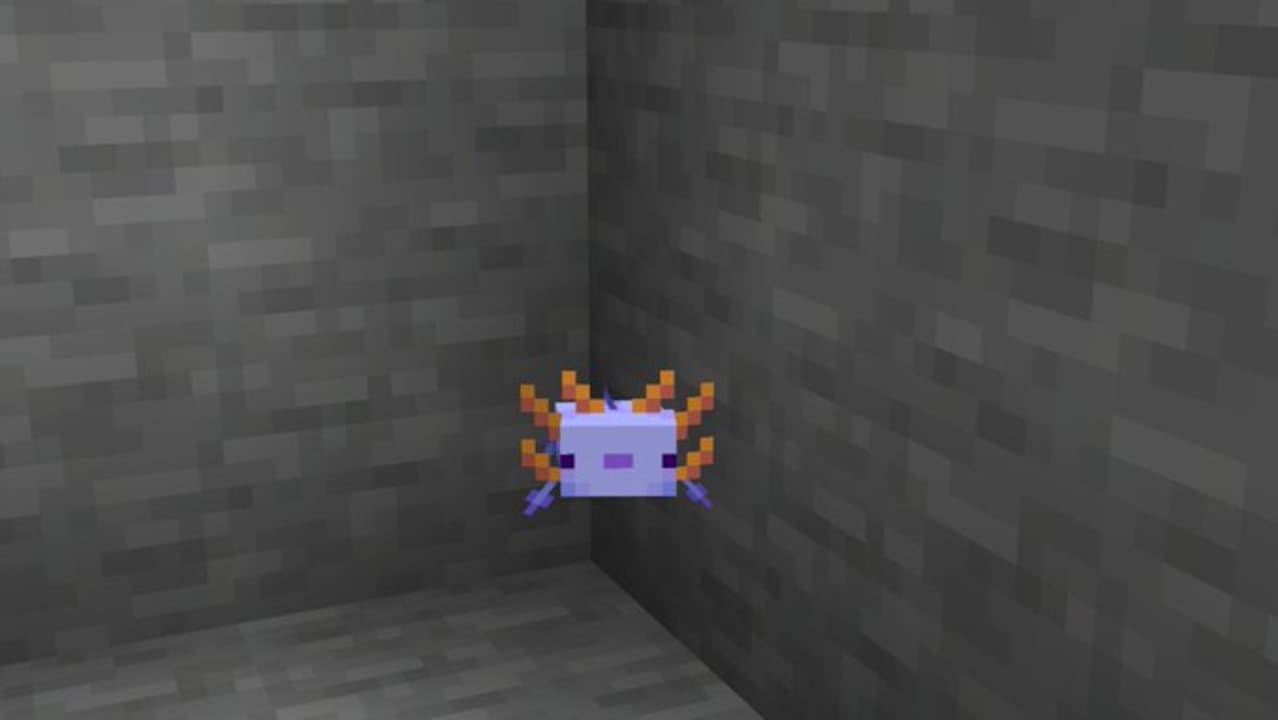
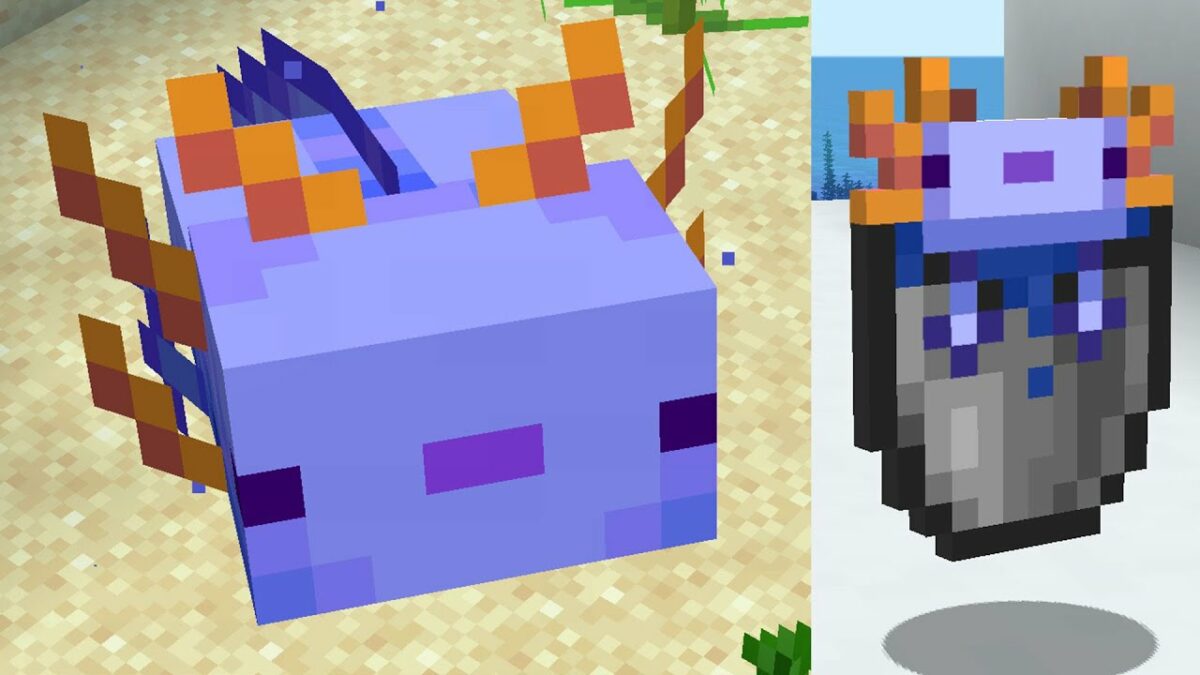
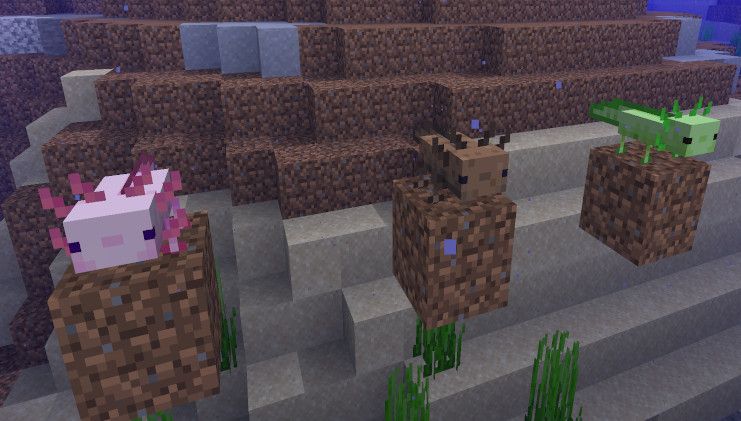
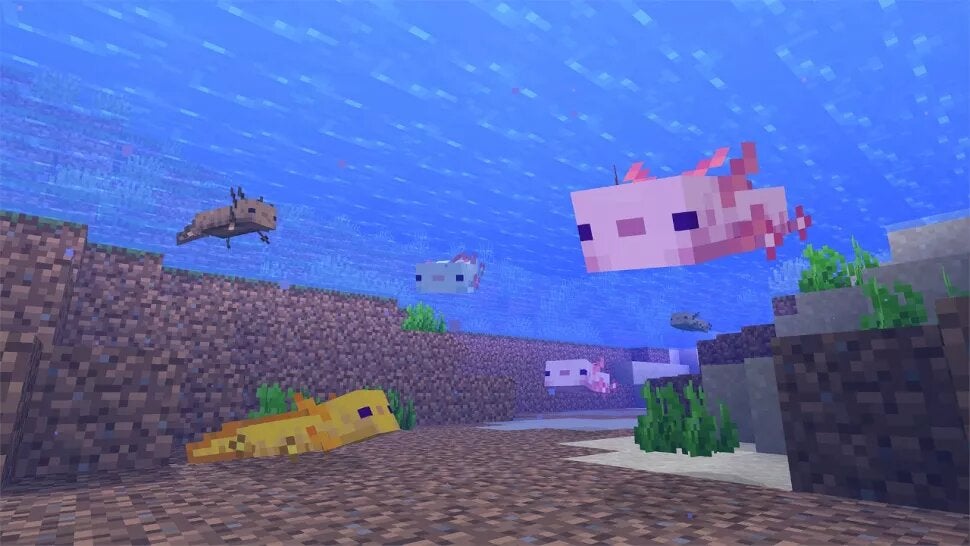
If you’ve been playing Minecraft after the latest Caves and Cliffs update, you’ll notice there are plenty more mobs around. One of these is the Axolotl, which you can find in five different colors. The rarest one is the Blue Axolotl, which has a 0.083% chance of spawning in the game.

Don’t worry. We’re about to show you how you can get your hands on several of them.

  1. Find any Axolotl

    How to Get a Blue Axolotl in Minecraft

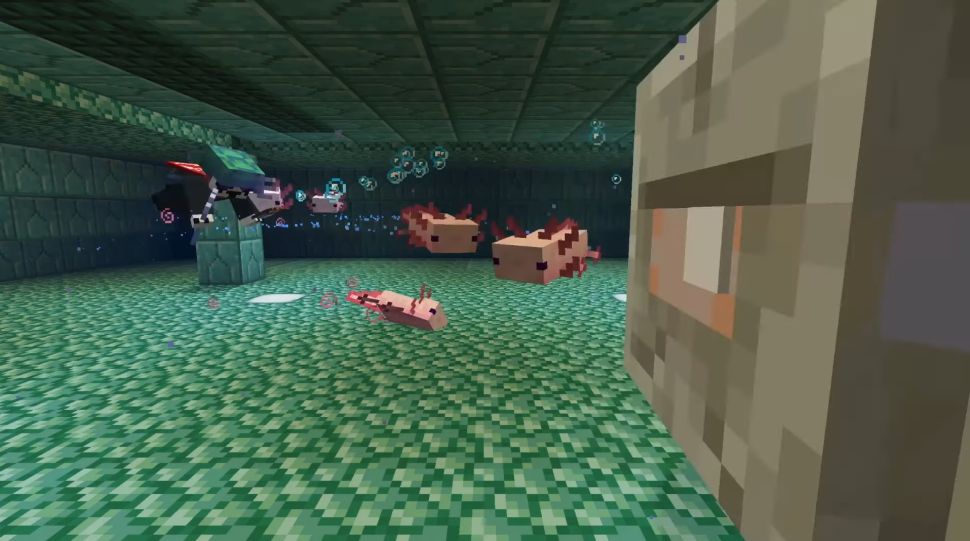
    The Axolotls spawn in Lush Caves in underground water levels. You’ll need to dig down until you find small pools inside caves, where these cute little animals will be waiting for you. There’s a low chance you’ll find a blue one among them, though, but it’s worth the try.

  2. Breed the Axolotl

    How to Get a Blue Axolotl in Minecraft

    When you feed two Axoltls buckets of tropical fish, they will fall in love and start breeding. The offspring generally combines the colors of the parents or have a 50% chance of spawning the same color. This task may take you a few hours, but gamers have obtained a Blue Axolotl this way.

  3. Farm Axolotl

    How to Get a Blue Axolotl in Minecraft

    You don’t need to breed the Axolotls at home. You can carry them in a bucket to your pool or lake at home, dropping them off to farm them as much as you wish. Once you have two Blue Axolotls, you can keep breeding them for more until you get bored of it.

  4. Cheat

    How to Get a Blue Axolotl in Minecraft

    If you have no patience and don’t care about achievements, you can cheat. Simply access the cheat command and input the following: /summon minecraft:axolotl ~ ~ ~ {Variant:4}. Do this twice, and you’ll have a breed to breed as you wish.

There something fishy going on here

The Axolotl is one of the most adorable creatures to enter the Minecraft world, and it helps that they attack other water mobs. It can become handy when you find strange monsters roaming the rivers around your home. We’re sure collectors will go out of their way to obtain one as soon as possible.

Slack To Roll Out With Scheduled Messages Feature

You’ll Be Able To Schedule Slack Messages Shortly

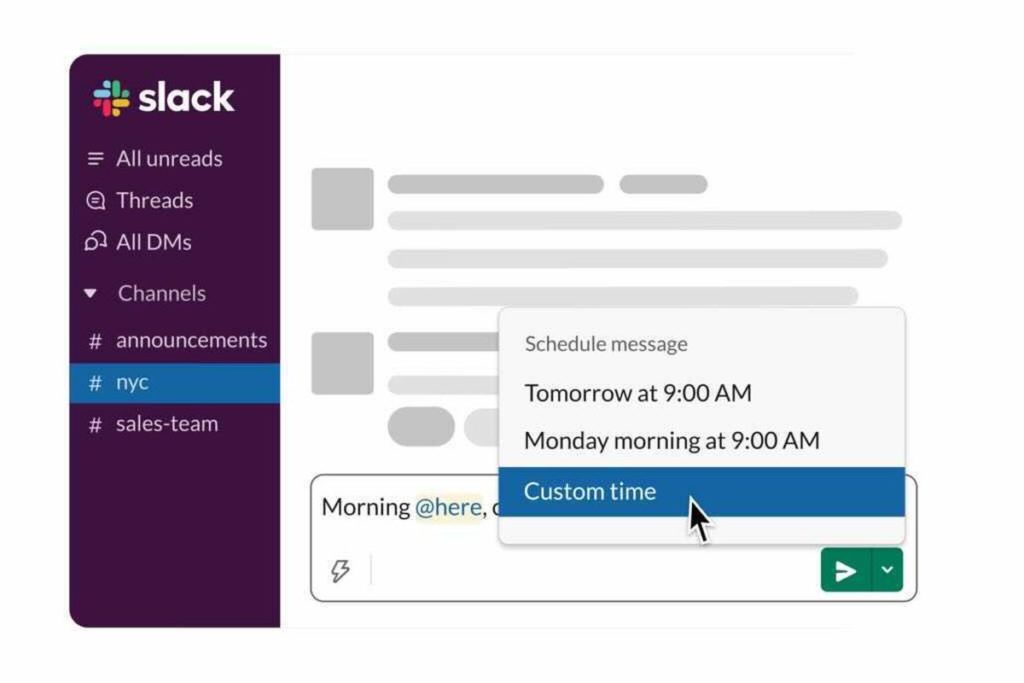
One aspect that Slack users have been sorely missing is the ability to schedule messages. Since teams have members that work remotely worldwide, it isn’t always appropriate to send one when you’re working past midnight. Fortunately, the developer is adding a new feature to add your post at a scheduled time.

Not everyone will receive the update at the same time. Slack will release it gradually, testing the new feature in each region as it rolls out. In this way, it can detect and fix any issues along the way instead of receiving hundreds of complaints from various countries. 

While we don’t know yet what the roadmap is for official launches, the developers have indicated it will take place on desktop and mobile. The best way to know if you have the new function is to accept any new updates in Slack and see if you can schedule a message.

Slack To Roll Out With Scheduled Messages Feature

So, how will it work? Well, the mobile and desktop versions vary. On smartphones, the opportunity to set the posting time appears after you try to send the message. When it comes to computers, you can set the schedule before you post a message.

We haven’t seen this feature in many other messaging apps, so Slack may be setting a new trend here. We’ll be keeping an eye to see when others start providing the same feature for group chats.

How to Connect Among Us to Twitch in 3 Steps

Steaming Among Us on Twitch has become all the rage as gamers want to show off their skills in this social detection game. Last year saw Twitch Rivals host a tournament where you could unlock a Glitch pet for Among Us. 

Fortunately, you can stream straight from your mobile device to your Twitch account, and we’ll show you how.

  1. Meet the requirements

    How to Connect Among Us to Twitch

    Firstly, you’ll need to make sure you meet the strict requirements before you can connect Among Us to Twitch. Here’s what you’ll need:

    – Among Us and Twitch registered accounts
    Not be a minor

  2. Login to your account

    How to Connect Among Us to Twitch

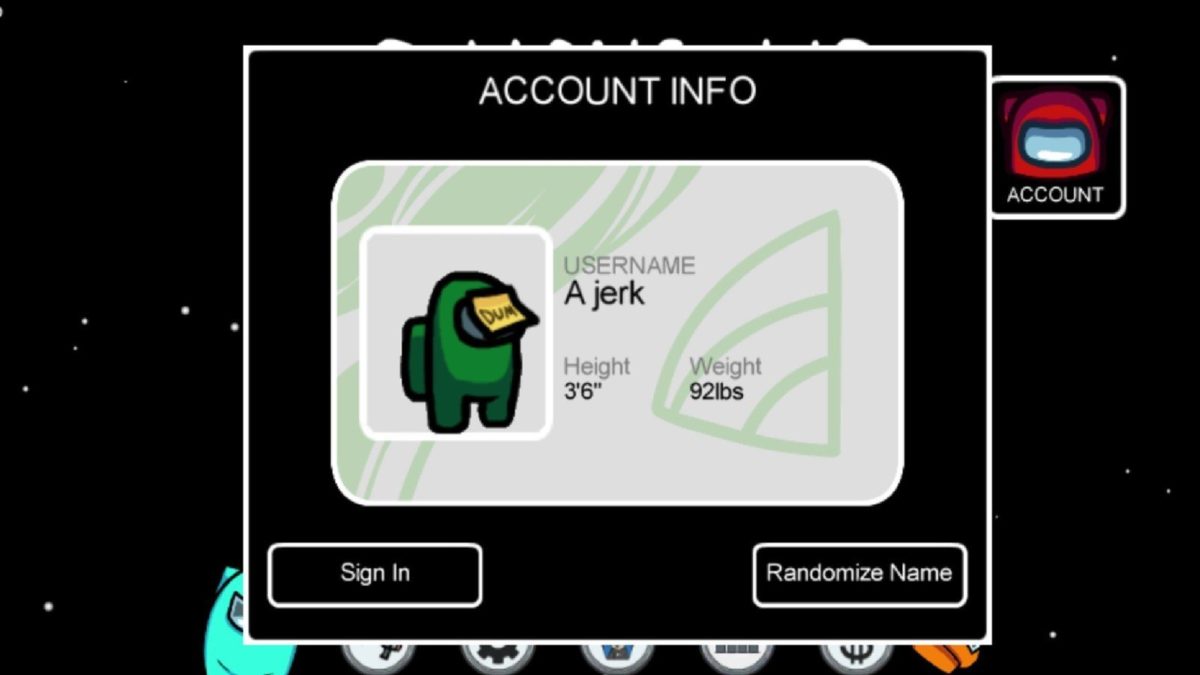
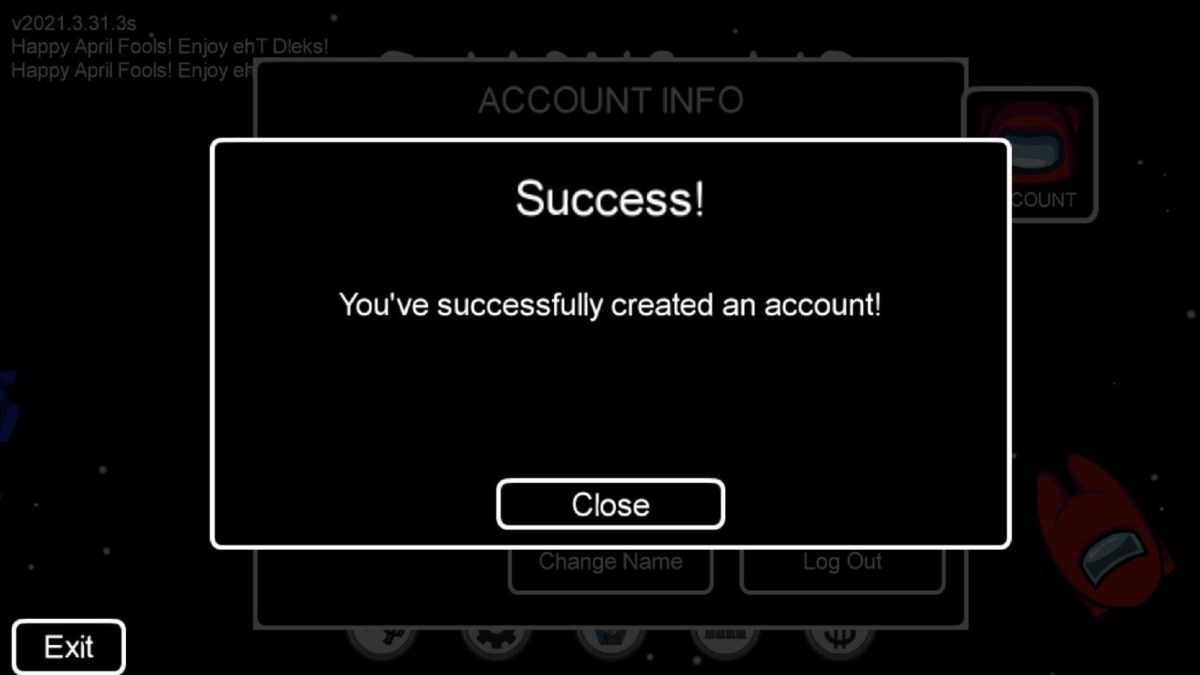
    If you comply with the requirements, you’ll need to log into your Among Us account in the game. If you don’t have one, you’ll need to create a new account. Please note that the option to connect Among Us to Twitch will not appear if you’re a minor.

  3. Authorize connection to Twitch

    How to Connect Among Us to Twitch

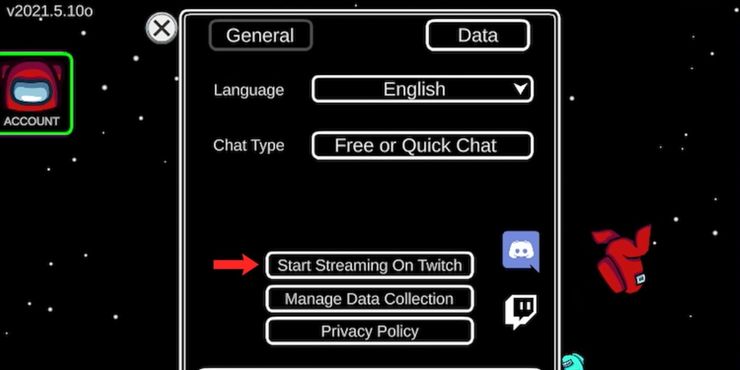
    Once you’re in your account, head to settings. You’ll see a button that says “Start Streaming On Twitch” that you’ll need to tap. It will ask you to authorize the connection and then sign into your Twitch account. When you’ve completed this step, you can start streaming from your phone.

Stream your Impostor moves

We’ve seen many gamers connect Among Us to their Twitch accounts to show their skills to their followers. It has been highly entertaining, and we’ve had a few laughs at failed Impostor moves. If you’re planning to live stream your game, remember to let everyone know so we can join in on the fun.

What do Glow Berries do in Minecraft?

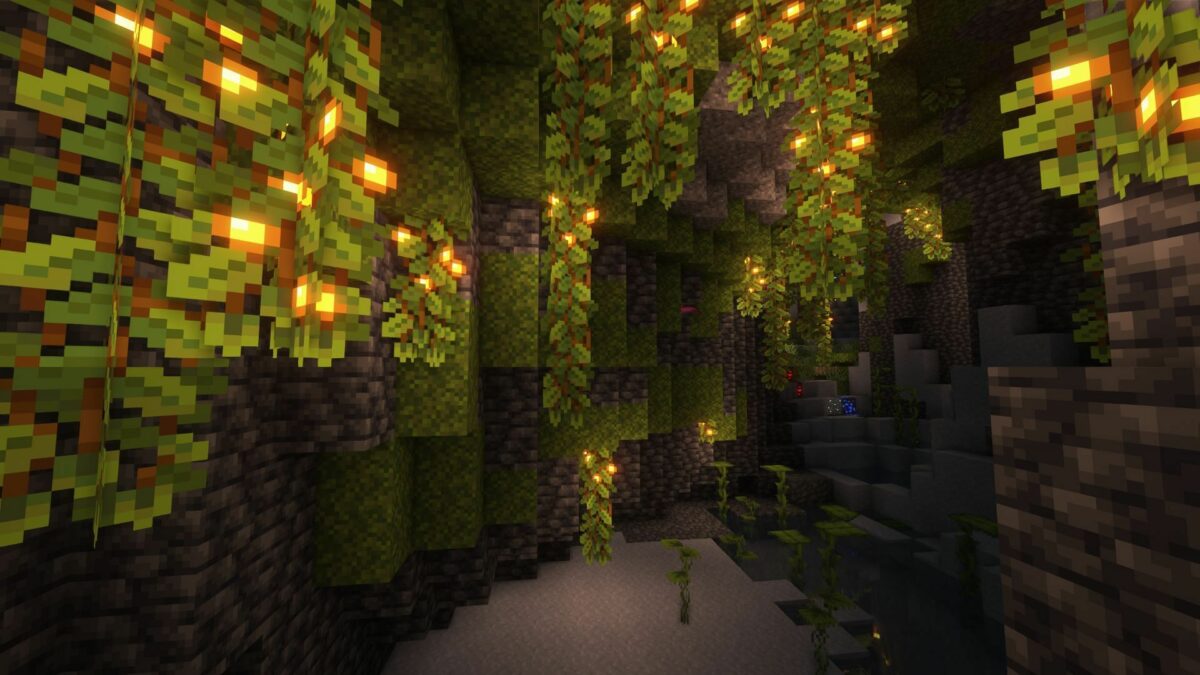
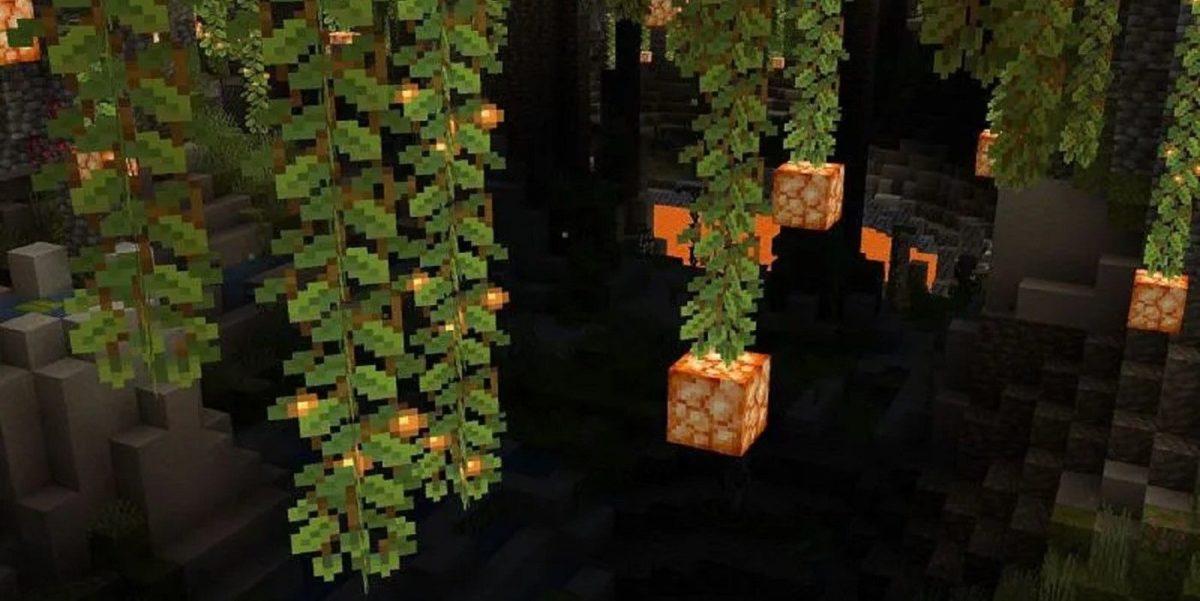
One of the latest additions that arrived with the Minecraft Caves and Cliffs update is glow berries. They appear in lush caves, dropping down from the bottom of blocks and emitting level 14 light. 

If you’ve only started playing the new update on Minecraft, here’s what you can use glow berries for in this fantastic sandbox crafting game.

  1. Farming

    What do Glow Berries do in Minecraft

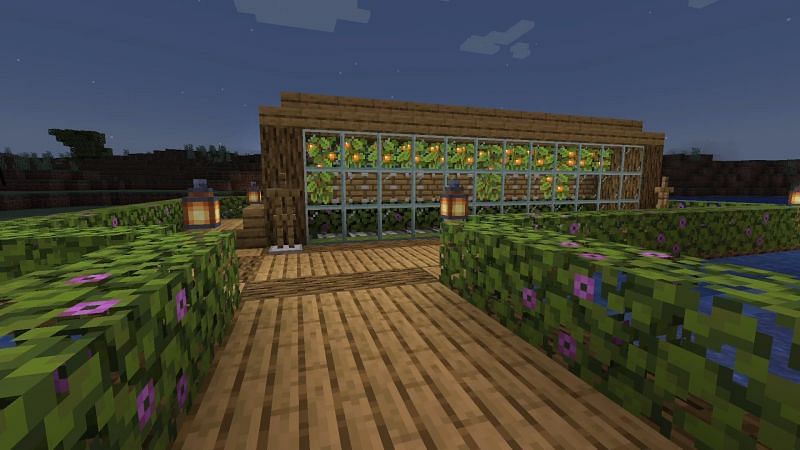
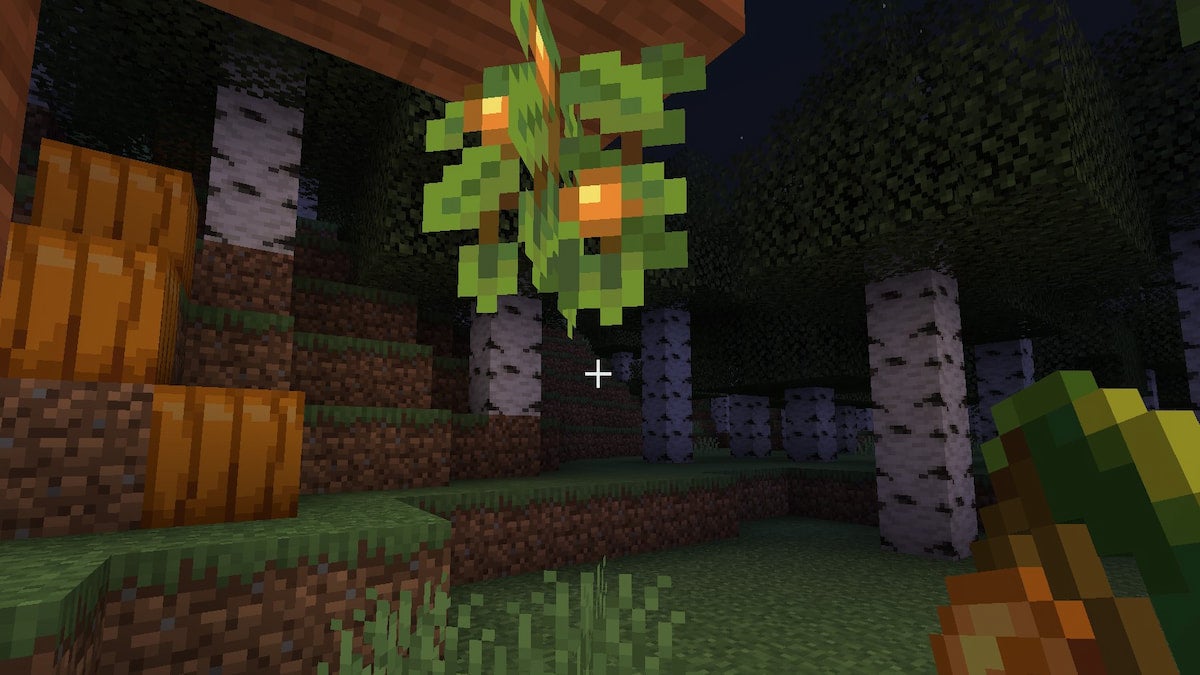
    As with most fruit in Minecraft, you can plant glow berries to obtain more of them. You’ll need to plant them at the bottom of blocks in caves for them to grow correctly, which forms vines that drop downwards. The berries will develop over time, or you can use bonemeal to make the process go faster.

  2. Food

    What do Glow Berries do in Minecraft

    Another use of glow berries in Minecraft is to fill your tummy. Much like sweet berries, it will restore two hunger points. When you’re playing survival mode and are in desperate need of food, feel free to pop a few in your mouth.

  3. Lighting

    What do Glow Berries do in Minecraft

    One of the best uses of glow berries is for lighting. You don’t want to know how much time we had spent in the past popping candles over cave walls while mining for raw metals. Now, you can grow these in any of your cave homes for a more natural lighting solution.

  4. Breeding Foxes

    What do Glow Berries do in Minecraft

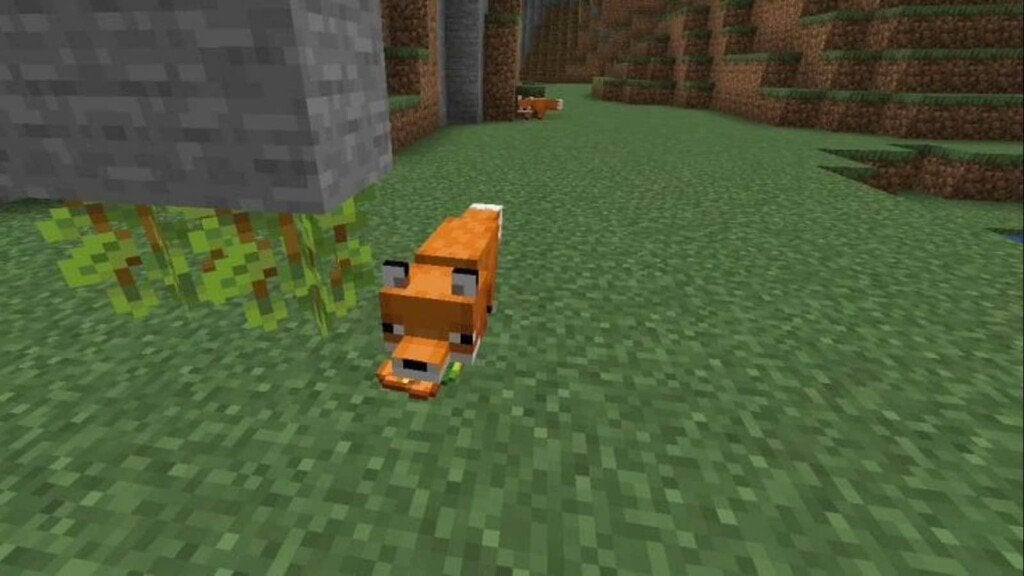
    If you’re a lover of animals, the glow berry is the only fruit in Minecraft that will let you breed foxes. You can also feed them for some affection, but only the pups from breeding will belong to you. Much like with sweet berries, this is the only way to tame foxes in the game.

The caves are aglow with the sight of berries

The Minecraft Caves and Cliffs update has brought many sweet, delicious treats to the game, and the glow berry is only one of them. If you’re planning a home in the caves, make sure you farm as many of them as possible so you can avoid using candle and other crafted light sources.

How to Take a Screenshot on VLC Media Player

VLC Media Player’s attraction is that it is a free and open-source media player that you can use to take screenshots. You might want to share a specific screen with someone, especially if you’re collaborating.

If you are playing a vid and want to take a snapshot of a particular frame, it is straightforward to do in VLC Media Player. Read on to see how it’s possible with just two keys and one tap of the keyboard.

  1. Start your video playing

    How to Take a Screenshot on VLC Media Player

    First of all, you need something to capture. You can begin playing your video up to the required position.

  2. Take your Screenshot

    How to Take a Screenshot on VLC Media Player

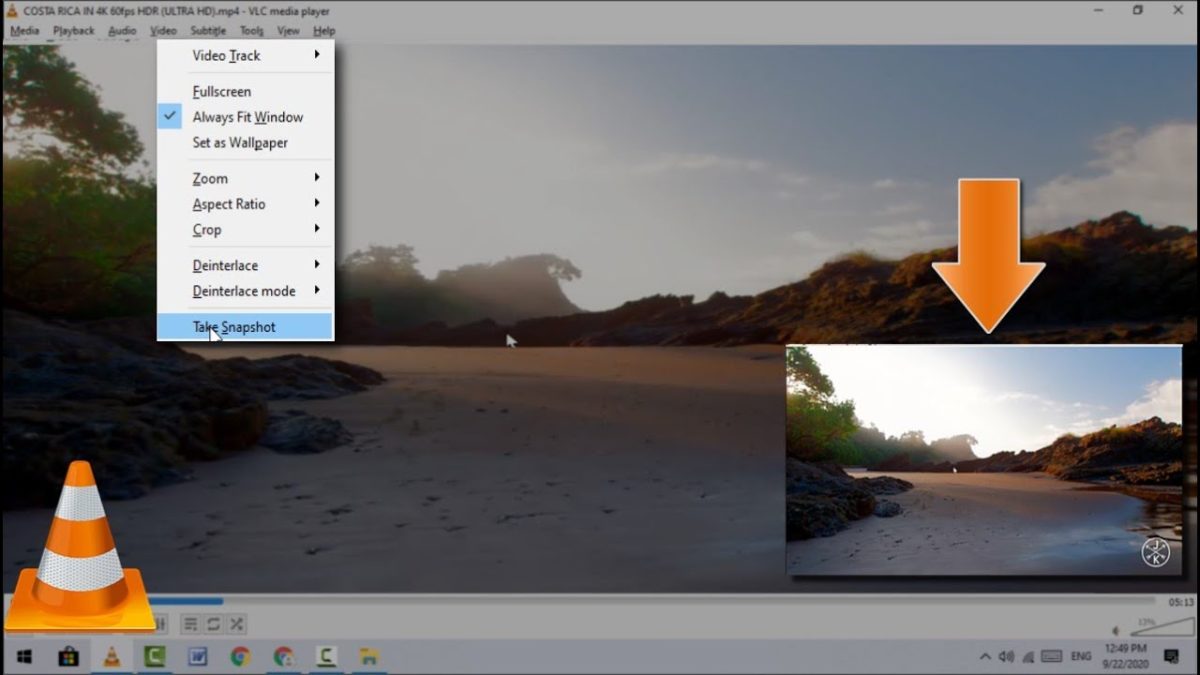
    When you get to the frame you want to keep, press Shift+S, and voila, the image on the screen is saved.

    Tip: If you open VLC Player and start taking screenshots, they will default to being saved in your Pictures folder. It is better to create a new folder within your Pictures folder and then go to Tools/Preferences/Video and set the download folder to the new folder you have made.

    All your screenshots will then be in one folder and will not get muddled up with other pictures.

Capture that screen!

Now you know how easy it is to take a screenshot from your favorite vid is a two-key, one-tap process. It’s fabulous for new wallpapers or funny memes, so let your creative drive go wild!

How to Loop Video on VLC Media Player

VLC Media Player has the ability to loop videos on various platforms. By looping videos, you can set multiple videos to play one after another in a continuous loop. Or you can just put a single video to play in a loop. 

Although this is not a new feature, but rather one that has been around for a while, it is still a very useful function to have. Let’s look at how you can set your video to loop on VLC Media Player in Windows and Mac.

  1. Create a Simple Loop

    VLC Media Player - How to Loop Video

    – Run VLC Media Player on your Windows or Mac computer.

    – Open the video you want to loop. If you want to loop multiple videos, you have to add all the videos to the playlist.

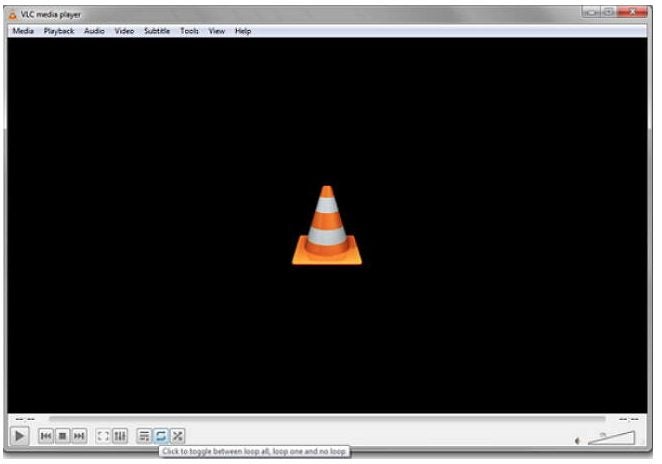
    – With your videos ready, you can now press the ‘Loop’ button at the bottom of the screen. The ‘Loop’ button is represented by the two arrows completing a loop.

    • Tap the icon until you have the right setting between no loop, loop one or loop all. Your video or videos will continue to run in this loop until you stop the loop
  2. Loop a Specific Section in a Video

    VLC Media Player - How to Loop Video

    – Run VLC Media Player on your Windows or Mac computer and open the video.

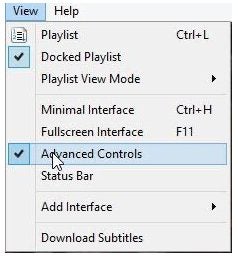
    – Click on ‘View.’

    – Click on ‘Advanced Controls.

    – Move the video to the starting point of the loop and click on the loop icon.

    • Now move the video to the endpoint and click the loop button again. Now when you press play, it will only loop the selected section.

Loop Videos Easily With VLC Media Player

Sometimes, people loop videos just for a good laugh or to repeat sections to make the video stand out more. While not available on all video editors, we’re glad that VLC Video Player has this option.

How to Edit Video in VLC Media Player

Not only is VLC Media Player able to play most video and audio formats, but it also has video editing features that make it a beneficial program. With the built-in video editing tools, you can cut a video and delete parts you don’t want and many other features. 

Let’s look at how you can use the basic editing tools in VLC to edit a video.

  1. Activate Advanced Controls

    How to Edit Video in VLC Media Player

    Run the media player on your chosen device and start your video. To start video editing, you will need to activate the advanced controls.

    – Click ‘View’ from the menu bar.

    • In the drop-down menu, choose ‘Advanced Controls.’ You will see a new toolbar at the bottom of the window, including a red recording button.
  2. Cut and Crop the Video

    How to Edit Video in VLC Media Player

    You can now cut or trim the video any way you want.

    – Drag the sliding bar to the start point of the section you want to keep.

    – Now press the ‘Record’ and ‘Play’ buttons to start recording the section you want to keep.

    – Press the ‘Record’ button once again to stop the recording at your chosen point.

    Feel free to also crop if you need to: 

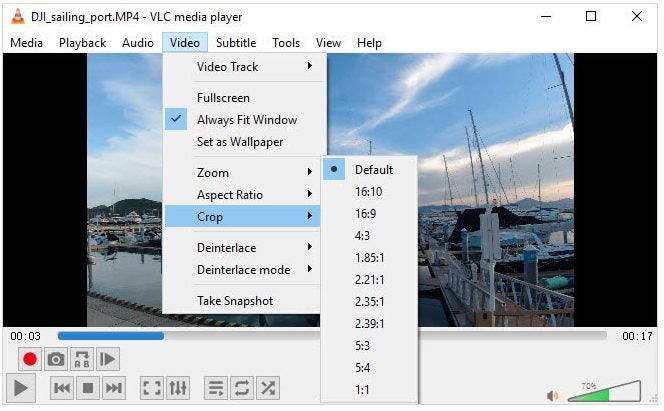
    – Click ‘Video’ in the top menu bar.

    • Now click on ‘Crop,’ and choose the aspect ratio you want to crop in the drop-down list.
  3. Rotate Video

    How to Edit Video in VLC Media Player

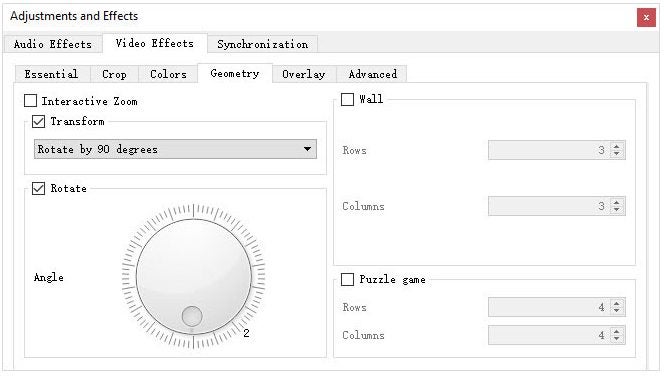
    – Navigate to ‘Adjustments and Effects.’

    – Click on ‘Transform.’

    • Choose how you want to rotate your video.

Start Editing Videos Simply With VLC

VLC has many hidden bonus features that add further value to the program. Video editing is one of these bonus features. As you can see from the steps above, learning how to use the video editing tools in VLC is easy.