Playing word games in an industry filled with action and adventure titles may not seem exciting, but you’d be surprised how entertaining a few letters can be. It seems like Wordle is rising in popularity, as more and more people are sharing their victories on social media.
The best part is that you can play Wordle freeon your browser. While we showcased the English version before, you can also play it in other languages too.
Free Wordle game in different languages
It doesn’t matter which language you play Wordle in, as the same rules apply. Insert five letters to make a word, and the game will show you which ones are green (right letter and placement), yellow (right letter, incorrect placement), and gray (incorrect letter and placement). You’ll need to use these clues to solve the word.
Wordle in English
We first discovered Wordle in the English version, which is the one you’ll see a lot of on platforms like Twitter. As you can see from the screenshot below for today’s puzzle, we spent all of our clues trying to decipher it. It’s probably not one of our best attempts, but at least we had fun trying to complete it, followed by the default “Phew” message when you win.
Wordle in German
While we’re certainly good at completing the English version, the German Wordle may be a tougher nut to crack. There were many times the game informed us that the letter we inserted didn’t make a word. We’ll leave this one to the German experts out there.
Wordle in French
Fortunately, one of our team members is extremely fluent in the French Wordle game and managed to succeed on her first attempt. As you can see, she managed to complete it in fewer tries than the English version today. If you enjoy these types of puzzles, you may want to try some other programs like Wordle on our French site.
Wordle in Spanish
The Spanish community has quickly taken up the new Wordle version in their language. The same rules apply, of course, but the browser won’t accept any words not in Spanish. We tested it, and it quickly gave us an error, informing us that the word doesn’t exist. We hope your Spanish vocabulary is up to scratch.
Wordle in Italian
If you’re in Italy, you can also enjoy the Italian version of Wordle. The developer used Github for the browser game, but it plays out the same way. If you’re stuck finding Italian words with five letters, we suggest you use Google or an online dictionary to help you out. Remember, you can use the same letter twice, as long as the color isn’t gray.
Wordle in Portuguese
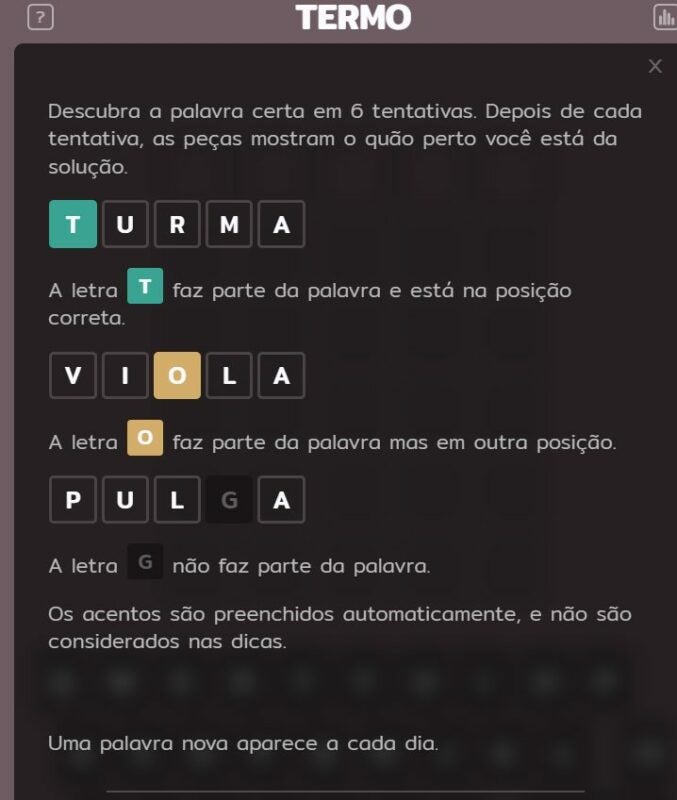
Finally, there’s the Portuguese Wordleversion. What we like about this one is that it has a completely different color scheme, which plays quite nicely on the eyes. There aren’t any special characters on the virtual keyboard, but somehow the game still knows what you mean.
Can you discover the mysterious word?
Wordle has become so popular that the original developer was surprised to see how much profit it made. Despite being five years old, somehow it’s the latest hottest trending title in various languages.
Even celebrities like Jimmy Fallon are hooked on it. And instead of keeping all the profit, Steven Cravotta has decided to donate some of it to charity. Such an amazing inspiration to us all.
Here’s how a mobile game I built 5 years ago suddenly got blown up by The New York Times, Wall Street Journal, and Jimmy Fallon.
Classroom Live’s mission is to help teachers worldwide upgrade their skills to become adept at using virtual classrooms and thriving in a relatively new environment. The developers see Classroom Live as a tool to help educators and learners move towards the recent trend of working in a virtual space.
They want Classroom Live to become the ultimate partner to help teachers develop and manage their virtual education sessions better and for students to learn more easily and comfortably.
What is Classroom Live?
A virtual classroom designed specifically to deliver education, Classroom Live reduces the teacher’s workload. This allows the teacher to give more personalized attention to students and enhance their learning outcomes. Classroom Live is involved with over 150 institutions, 2,500 educators, and 25,000 students.
Teaching anywhere at any time
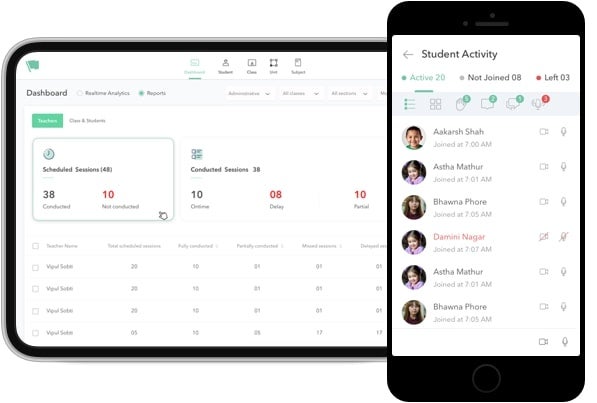
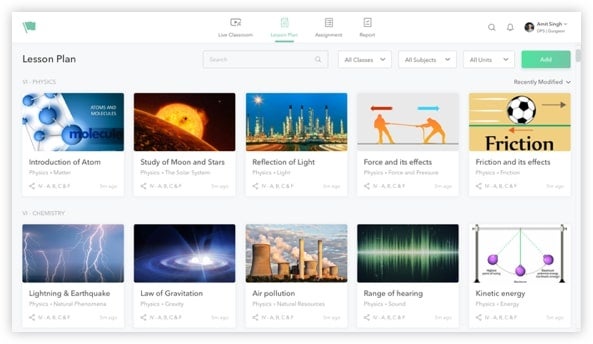
Classroom Live aims to be the ultimate teacher’s partner. It has a content generator that allows teachers to create lessons that will make an impact. There’s also an assignment and assessment module that will enable teachers to intervene speedily and accurately to remedy any problem a learner might encounter. Monitoring attendance and assignments are also easy.
Teaching sessions are recorded and available with study materials to students 24/7. Teachers can create interactive presentations using videos, YouTube links, web URLs, pictures, and their own notes. It automatically keeps attendance records.
Students can learn more easily
Classroom Live believes educated students are the pillars of a better future. It aims to offer learners of all ages the opportunity to acquire knowledge more easily. Students who have missed virtual sessions can view them later. They can learn at their own pace, in their own space, and in their own time.
There’s a single virtual classroom that is free of distractions. Every student gets personal attention from the teacher in the live sessions.
What makes Classroom Live different?
Classroom Live has many competitors in the virtual education field. How does it compare to some of them? What are its advantages over other applications that offer online virtual education? Let’s look at three of them.
Zoom
On its website, the popular video conferencing software,Zoom, states that classroom learning, education administration, staff and school board meetings, as well as parent-teacher conferences, have all moved into the virtual sphere. No one can be sure when the world will be able to return to traditional classroom learning.
Many believe that the future of education will lie in a combination of traditional and virtual learning modalities. Classroom Live is well-placed to give Zoom a run for its money in the virtual education marketplace.
Google Classroom
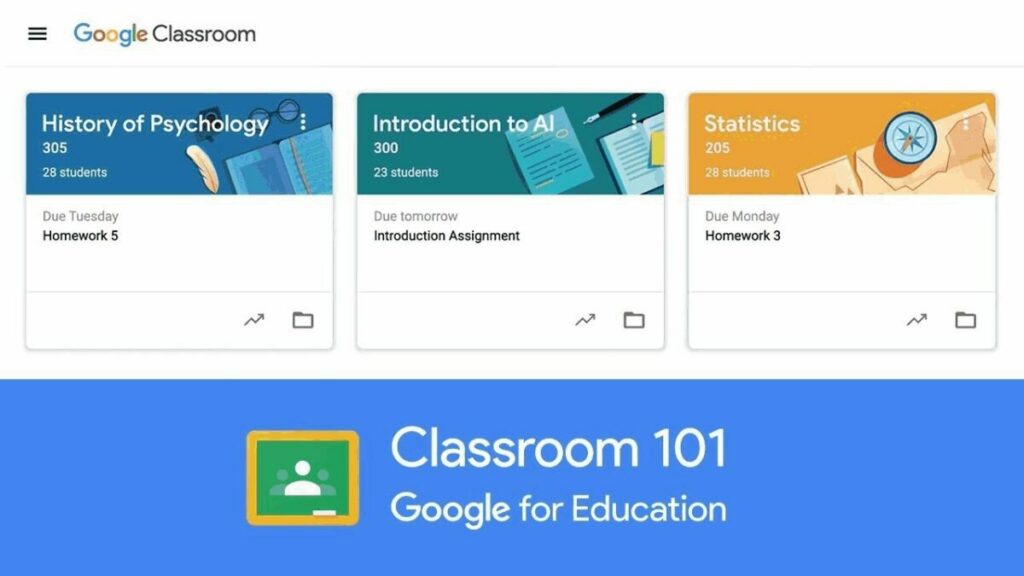
A suite of online tools, Google Classroom allows educators to teach students online. They can set assignments, have work submitted by students, mark, and return graded papers. The idea behind it is to eliminate paper-logged classes and make digital learning possible.
The advent of the Covid pandemic strengthened this idea and forced millions of students worldwide out of classrooms and into online learning. Like Classroom Live, it offers education online to the benefit of teachers and learners. Both get the job done.
Microsoft Teams
The new Windows 11 comes with Microsoft Teams for online teaching and learning. The idea is to cater to the new era of digital education that arrived very quickly two years ago. Some students struggle with the lack of face-to-face interaction that’s part of online teaching and learning.
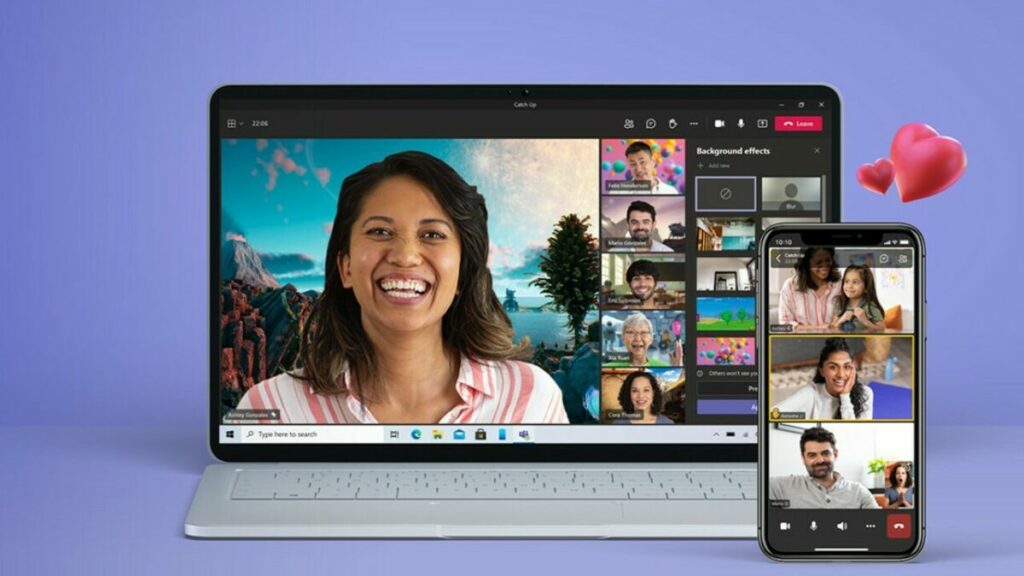
Microsoft Teams allows teachers and learners to “get together” online to do group projects or have one-on-one sessions with instructors. Classroom Live also offers all these features.
The company behind Classroom Live
Unthinkable Solutions LLP is a company within Daffodil Softwares Pvt Ltd. Daffodil is a software engineering group that partners with more than 100 organizations across the globe. It helps them make their software products more robust, their workforce more productive, and their processes more efficient. Unthinkable Solutions has developed many technologies to enrich the quality of education. The company works closely with more than 400 schools.
Who are the people involved?
A team of more than 150 enthusiasts, developers, and designers, who believe in bringing about change in education are behind Classroom Live. They are driven to create quality education, solve problems, provide customer satisfaction, innovate, and get results that benefit online teachers and learners in virtual classrooms.
Are you ready for a new live classroom experience?
Since the start of the pandemic, education has moved towards virtual classrooms to keep students and teachers safe from devastating illnesses. During that process, people discovered the advantages of educating in this way, and it’s becoming an unstoppable trend.
Classroom Live is at the forefront of this development and offers the best in virtual education for students worldwide as well as their teachers.
Take back the ability to keep your identity private on the internet. If you’re tired of letting companies and prying eyes make a catalog of your personal information, Crumbs is here to help.
What is Crumbs?
Crumbs is a privacy utility that fits right into your browser. It’s built to prevent trackers, cookies, and malicious attempts to document your personal information while online. Online, countless websites are happy to give advertisers free rein over your information in order to target you for ads and offers. Crumbs is a new, advanced way to negate these tracking efforts.
Versatility and flexibility towards user preferences
While there have been many other attempts to create privacy utilities that offer specific protection against individual trackers and cookies, Crumbs combines the protection of all of these utilities. It gives users the ability to make all of their information anonymous from advertisers and completely block out any form of tracking at all. With Crumbs users can customize which of their interests they want to keep private and which they want to share with advertisers.
Whether you want to block out advertisement tracking completely or just hide some personal information that you’d rather not share, Crumbs is here to shield exactly what you want it to and nothing that you don’t.
How does Crumbs protect your privacy?
The Crumbs extension actually has a variety of uses and a number of different methods it uses to protect your identity online. Here are three ways you can expect Crumbs to protect your privacy.
Email masking
Your email is one of the key components to your identity online. Advertisers are all too keen to collect your email address so they can identify you and your activity on their pages. With Crumbs Email Relay, you have the benefit of keeping your email address anonymous. Even if there’s a data breach, your email address will remain safe from advertisers.
When using Crumbs Email Relay, you can generate email aliases and share those instead of your real email address. All received messages will appear in your inbox without the sender knowing what the correct destination is. The message is forwarded to your own personal email.
Advertising proxies
Another way Crumbs protects is by creating proxies for advertising requests. When your system is met with a request from an advertiser to allow an ad to display, Crumbs will create a proxy that will hide the user’s real IP address from advertisers This way, the advertiser would not have access to the location and other identifying details about the user.
Blocking tool
And, of course, Crumbs’ main attraction. Crumbs is an all-in-one blocker for cookies, trackers, and pop-ups. While browsing, you can entirely forego ever having to worry about these intrusive trackers and information collectors attaching themselves to you while online.
Crumbs repels them and prevents them from bothering you at any time.
Easy setup, excellent services
Crumbs can be installed at the click of a button on your web browser. Once you’ve got it, that’s it. There’s no maintenance, no subscription plan, nothing. Crumbs is 100% free and extremely simple to get started with.
With Crumbs only anonymous general information related to your overall preferences is shared. Without it, you’re exposed to micro-targeting that is irreversibly connected to your personal identity. While the first is healthy for the value exchange with content creators that you appreciate, the latter tends to abuse your weakest spots. With granular control over your online identity, established by Crumbs Interests, Crumbs makes sure you remain purposefully anonymous.
All the privacy you need, quick and easy
That’s all there is to it. No hidden fees or subscription plans, and no strings attached. All it takes is a visit and a click to enable Crumbs, and you can enjoy a shield between you and advertisers to keep intrusive ads out of your online experience.
In early December 2021, we finally saw the release of Fortnite Chapter 3 by Epic Games. We’ve been playing the battle royale’s new season since then, enjoying every moment that the action-shooter has to offer.
With that gaming experience under our belt, here’s what you can expect if you have yet to join Fortnite Chapter 3 Season 1. We’ve already unlocked all ten pages of the new Battle Pass, so you have a lot to catch up to do. See you on the flip side!
Fortnite Chapter 3: A whole new world
Speaking of which, Fortnite Chapter 3 completely flips the world upside down. When you start the new story, you’ll see that the world has two sides with a beautiful poster. You wake up on an island where someone from The Foundation explains that you need to save the world, voice-acted by none other than Dwayne “The Rock” Johnson.
Of course, that means you have new areas to explore and unlock. If this is your first time in the Fortnite world, you’ll notice your map is gray. You’ll need to land on Named Locations and landmarks to open the areas, giving you access to new vaults, gas stations, and other exotic spaces.
Survive the winter
On one side of the island, you’ll notice that there’s snow everywhere. Sadly, you’ve missed the Christmas and New Year’s events that went up into early January 2022. We had so much fun with the Lodge and Santa Claus handing out special gifts and items.
The wintery areas are still available to investigate in Fortnite Chapter 3. There are ice machines you can check out, while you can slide down the snowy hills for maximum effect. It adds new color to the island, but you’ll have many summer sections to have a look at too.
Friendly neighborhood Spider-Man
There are two Marvel-ous surprises in Fortnite Chapter 3, although you may have guessed it from the main poster for the season. The first is that Spider-Man makes an appearance as one of the new playable characters. You’ll need to make it to page 9 of the Battle Pass to unlock his skin, while the bonus tiers have other suits you can wear.
The second surprise is that you can use his web-shooters with any character you play as. Just lookout for any web trampolines you find on the map, as there may be a Spidey backpack hidden on a tree or building. The Daily Bugle area of the map is littered with them, which contains shooters you can use to swing quickly across locations.
There are also other new characters you can unlock, such as Ronin the samurai, Harlowe the outlaw, and so much more. Some of them have special quests, which we’ll cover in a moment. As you work through the Battle Pass tiers, you’ll receive new skins and equipment for each of them.
Creative experience
As you may know as an experienced battle royale shooter, Fortnite usually rewards you for completing quests and milestones. Well, Chapter 3 Season 1 also gives you XP when playing Creator games. These are other modes developers have created, such as ones similar to Among Us and Roblox gauntlets.
Earning XP differs for the different modes. Sometimes you just need to survive or complete the levels, while others reward you for playing for a specific time. We really enjoyed the Zoo Simulation game, where you need to defend and upgrade your zoo while stealing the other teams’ Llamas. The team with the highest number of kills and score wins.
Various biomes
The island has so many biomes you can explore, each one with different traits and themes. You can jump into a stunt vehicle in the rocky plains and ramp up through fiery hoops. There are also stunning islands, one of which has a Sanctuary with the massive Foundation statue on it.
Wherever you go, you’ll almost forget you’re playing a battle royale game. One of the fun quests is catching fish at different locations. All you need to do is pick up a fishing rod and head to a spot with fish swimming in a circle. You may even pick up legendary and healing items!
Camping out
One of the new features to enter Fortnite Chapter 3 is the camping tent. You’ll find them rolled up in chests or open in the wild. You can claim one at any time, even if it belongs to someone else. If you rest in it, your health will recover, and you can stash items in it.
The best part is that you can leave it on the island for future matches. If you manage to locate your tent before anyone else, you can claim the items you stashed in it. Your squad can also use the same tent and rest while healing.
Wearing the crown
When you win a match in Fortnite Chapter 3, you and you’re squad members will earn crowns. It gives you extra XP in the next match you play. The catch is that it shines for everyone else to see, which means you’ll have a target on your back.
You can show off your number of victories to other players in the main lobby when waiting for a game to start. There’s an emote with a crown on a pillow, which you’ll need to add to your loadout. When you activate it, your character will whip out the crown with your number of wins above it.
Watch the storm
A new feature that entered Fortnite Chapter 3 last week was a storm effect. There are two aspects you need to watch out for to survive. The first is the lightning storm, which destroys everything in its path. You’ll notice small lightning markers near you when it’s about to hit, so make sure you get out the way.
The second feature is a massive hurricane. You can’t miss it, as it literally fills the skies with its fury. However, this effect is your friend. If you jump into it, it will send you into the skies, where you can use your parachute, glider, or board to quickly move to a new location.
The Foundation is coming
We mentioned that Dwayne Johnson is in Fortnite Chapter 3 as a member of The Foundation. We have yet to see this feature release as yet, at which time we suspect his skin may become available. If you haven’t joined the fight yet, we recommend you join as soon as possible so you don’t miss the start of this adventure.
New quests, milestones, and bounties
With Fortnite Chapter 3 Season 1, there are plenty of new quests and milestones to complete. First of all, you have your daily quests, and completing 3 of these gives you a huge XP boost. You’ll also have season quests, which tier up whenever you complete a set. The higher the tiers, the more the experience.
Next up, you have milestones to complete that also have higher tiers. For instance, you have different stages for thanking the bus driver, and you have higher levels for harvesting materials. Simply playing the game will generally unlock these. Finally, there are some special quests for Shanta items, and you can complete bounties by killing specific players.
Don’t miss out on Fortnite Crew
One element you may have missed out on is Fortnite Crew. It’s the official monthly membership you can sign up for if you want extra rewards. You’ll automatically receive the Battle Pass, while there are special crew skins and items that no one else can get without the subscription service.
If you already have the Battle Pass, you’ll earn V-bucks instead to help you along the tiers and unlock more pages. It’s linked to your account, so you can access it no matter which platform you play on.
Will you survive the battle in Fortnite Chapter 3 Season 1?
And there you have it: our in-depth analysis of Fortnite Chapter 3 Season 1. As you can tell, we’ve invested a lot of time playing the game over the last month, and we’re excited to see what else is coming soon. So now, if you’ll excuse us, we have some web-slinging to do before The Rock arrives. Nuff said…..
We all thought that Apple banning Fortnite from the iOS app store in 2020 signed the end of the battle royale game from iPhones. However, it seems Epic Games has found a way to surpass the tech giant. It’s partnered with GeForce Now so that both Android and iPhone gamers can enjoy the shooting spectacle.
Apple had originally banned Fortnite from its app store when Epic Games attempted to accept in-game transactions while circumventing Apple’s payment system. In other words, they wouldn’t receive a cut from the transactions. As soon as this ban was put in place, Epic Game issued a lawsuit.
Enter 2022, and Epic Games now has a beta version of Fortnite Mobile available on GeForce Now. Whether you have a free or paid membership, you’ll be able to test the new features. It’s not available in all countries as yet, and only Android phones can download the GeForce Now app. If you’re on iPhone, you can use your Safari browser to check it out.
One of the new features is touchscreen playability. Previously, you needed to have a controller or keyboard and mouse connected. Now you can tap and slide your way into victory, but your Safari browser needs to be the latest version. Also, there’s limited space, so you may not get entry as yet.
To register, you need to go to the GeForce Now site and create a free account. If it’s not available for you just yet, you can join the waiting list. You’ll receive an email as soon as you can join the Fortnite Mobile beta. You can also sign up for a notification when the app becomes available in your country.
One of the most important features of Adobe Acrobat Pro is the ability to create a digital signature. Also called a digital ID, it offers the highest level of security and compliance through signer identity authentication and signature encryption.
Digital signatures are often required in highly regulated industries with legal documents that must guarantee the signer’s identity. This differs from an electronic signature, which requires less authentication but is still acceptable for most types of documents. You can create and use both types of signatures in Adobe Acrobat Pro.
How do I create a digital signature in Adobe Acrobat?
While a digital signature needs extra authentication via password protection, Adobe Acrobat Pro makes the process easy. We’ve boiled it down to these five quick steps:
Navigate to preferences
After you’ve opened Adobe Acrobat Pro, select Preferences from the Edit menu at the top of the screen. You’ll then click Signatures from the list of categories to the left.
Add your ID
In the box titled Identities and Trusted Certificates, click More. A small window will appear; click Add ID. In the next window, select A new digital ID I want to create now, then click Next.
Choose where to store your ID
You’ll have two options for storing your digital ID: New PKCS#12 Digital ID File or Windows Certificate Store. A digital ID file can be used on both Windows and Mac OS. By choosing Windows Certificate Store, you will store your digital ID to a common location where it will also be available to other Windows applications.
Create your signature
In the window that appears, enter the information asked, including your name and email address, while leaving the default options for Country/Region, Key Algorithm, and Digital ID. After you click Next, another window will appear. Leave the file name untouched, enter a safe password for your digital signature, and click Finish.
Use your saved signature
You’ll find your digital signature saved in the Digital ID and Trusted Certificate Settings. To use your signature within a document, simply select File > Open > Sign > Place Signature. You’ll then be able to drop the signature in the document wherever you want.
Adobe Acrobat Pro makes digital signatures easy
Adobe Acrobat Pro is used to convert images, PDFs, and other scanned files into more manageable documents that can be edited and signed without a pen or paper. While Acrobat is generally user-friendly, the process for creating digital signatures may be confusing if you’re new to the program. By taking just a few simple steps within the program, you can create a new digital signature for all your most important documents.
Microsoft Teams allows people to connect remotely and host meetings of up to 250 participants. Despite the large number of people that can be hosted, there are a few issues that pop up. Many people have complained that during meetings with multiple participants they are only able to see the people who are actively talking, instead of all the individuals in the meeting.
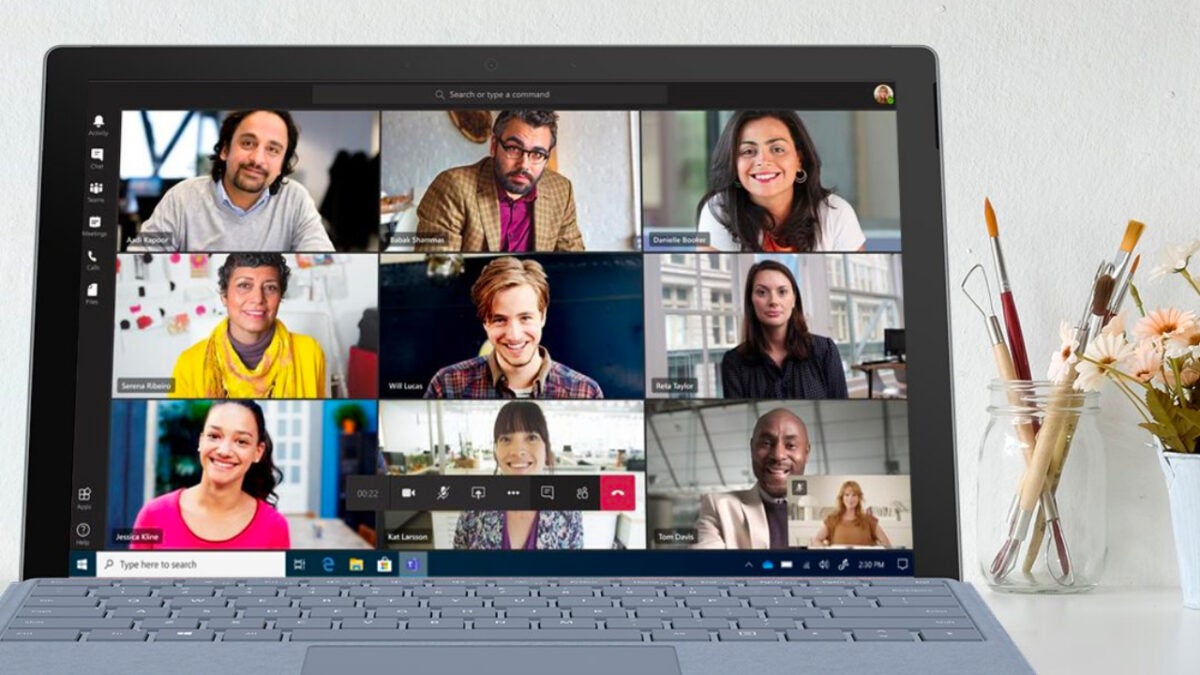
Unfortunately, there’s no way to see all 250 participants with Microsoft Teams. The recent update included the “Large Gallery” feature which allows users to see 49 guests simultaneously on the screen. This is a big improvement from the previous cap of only seeing nine participants.
How to see all participants on Microsoft Teams
Launch Microsoft Teams
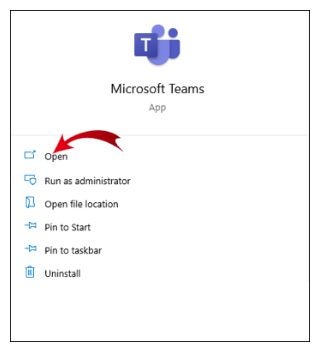
The first thing to do is to launch Microsoft Teams on your preferred device. This can be either your computer, mobile device or even in your browser if you prefer not installing an app. On your computer, double-click on the app icon on your desktop, or find the program in your start menu and click on it to launch the program. On your mobile device, scroll through your app menu until you find the Microsoft Teams app and tap on it.
Join or host a meeting
To change the settings to see more participants, you’ll first need to host or join a meeting. This is because the setting can only be activated within a meeting. To do this you can click on the Calendar app and then choose “Meet Now.” Alternatively, you can also click on the link found in your meeting invitation. This setting will have to be enabled for each individual meeting as all meetings start with the default setting that shows a maximum of nine people on the screen.
Click or tap on “more options”
Click on the more options button that is represented by three dots. On your computer or in your browser, you’ll find these three dots in the top-right of your meeting screen. On your mobile device you’ll find the three dot button at the center of the meeting screen.
Select “Large gallery”
From this option menu scroll down and select “Large gallery” to display up to 49 participants. This feature will only be available if there are at least ten active cameras in your meeting. The default setting is “Gallery” and this will display up to nine people, with no minimum guest required. Alternatively, you can also select “Together Mode,” this is a playful feature that is available for a minimum of five participants and will place the guests together in a scene, such as a boardroom or auditorium.
See more people in your meetings
While it may not let you see all participants in your Microsoft Teams meeting, the steps above certainly help view more of them than is usually visible. You can still do a role call for your meeting if you want to make sure everyone is present, as you never know when someone is trying to skip your online conference.
Microsoft Teams is an excellent platform for facilitating, hosting, and organizing visual meetings. However, as with any program, there are some bugs that may crop up. One of these is the idle time status. The idle feature allows the user to put the application to a sleep state when not in use.
If you use Teams on your smartphone, the Teams app will change to idle mode whenever your phone goes into sleep mode. By interacting with the Teams app, you can reset the idle status to active. Sometimes your Teams status would change to idle when you don’t want it to. In this case, it’s nice to know how to change your idle time status.
How to change idle time in Microsoft Teams
Open Microsoft Teams
First, you’ll want to open the app. The app is available on computers and mobile devices, so all you need to do is look for the app in the application or program menu on the device you’re using. If you don’t have the app yet, simply head to the Microsoft Teams download page on our website.
Downloads on our website are 100% safe and screened for viruses. You’ll be presented with an additional app download, if you don’t require this app, simply skip it and continue to the Microsoft Teams download.
Click on your profile
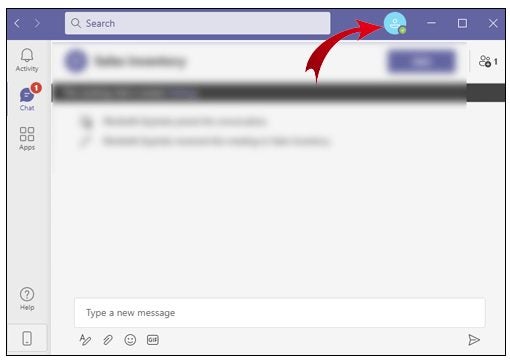
Once the Microsoft Teams app has opened on your computer, click on your display photo to open up your profile. If you haven’t set a display photo yet, you’re looking for the little person icon at the top right-hand side of the screen, directly next to the Minimize button.
You can access your profile on your mobile device by tapping on the hamburger menu (three horizontal lines) found at the top-left corner of your screen.
Select your status
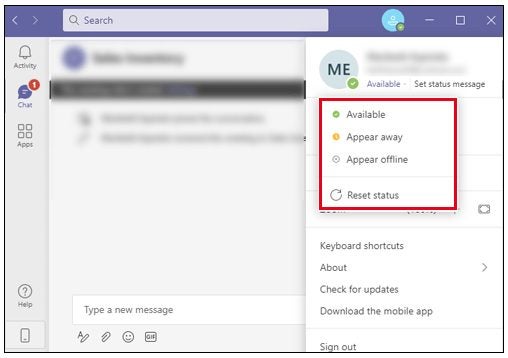
Once in your Microsoft Teams profile, select your current status.
Available: You’re online and ready to receive and respond to messages and requests.
Busy: You’re online but busy with something such as a call or meeting. You’ll still be able to receive messages and notifications.
Do Not Disturb: You’re online but cannot be disturbed. This status will turn off all notifications to avoid any disruptions.
Be Right Back: You’re away from your computer and will return shortly.
Away: You’re not available. This status will appear automatically on the mobile app if you close the app or move it to the background.
Offline: Appears when you log out or turn off your device.
Click on duration
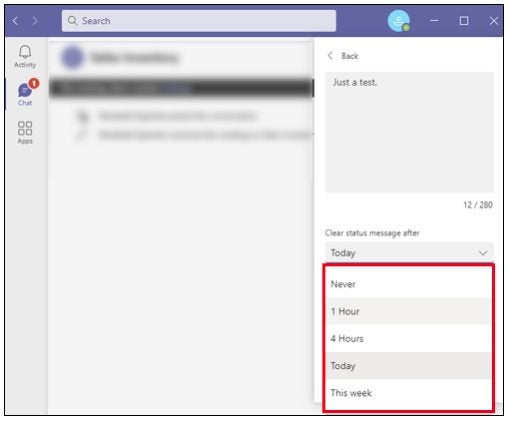
Now, we’re going to set the duration for which your status will appear as you selected in the previous step. Next to your status, click on the arrow below the “Clear Status Message After” option to set the duration of your current status. You should now see a drop-down list of available options. These options allow you to set your current status for 30 minutes, a few hours, the whole day, or a custom time.
Setting the duration can be very helpful in situations where you know how long you’ll need. For example, if you know you’ll be presenting a class for two hours, you can set the “Do Not Disturb” status for those two hours and avoid any premature interruptions.
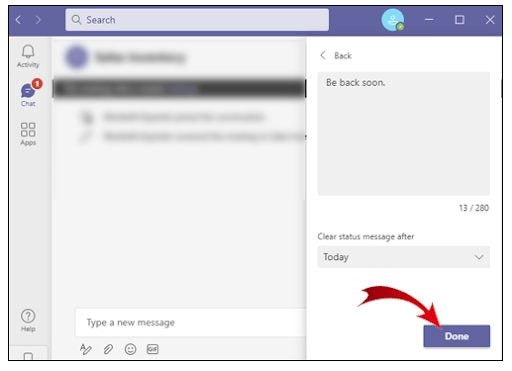
You can also add a custom message that will appear to anyone trying to contact you when you aren’t available. Between this option and the color-changing indicators, no one has any reason to try and reach out to you on Microsoft Teams when you’re not in a position to answer calls.
Click on “Done”
This is the last and easiest step of all. Once you’ve set your status and duration to whichever options are most applicable in your current situation, all you need to do is click Done, and you’ll be – for lack of a better word – done!
No time for being idle
Let’s face it, we all know what’s expected of us. However, with the world in the state that it is, it’s sometimes really difficult to focus on what needs to be done. In those cases, it’s okay to take a short break to get yourself back into a productive space. Get up, move around, have a drink of water, and breathe deeply. Once you’ve got your mind back in that productive space, return to your obligations and do your level best.
Now that you know how to change idle time, you’ll be able to step away from your desk without your co-workers wondering why you aren’t answering calls. Simply set your status, do what you need to do, and return when you’re back to your best. That’s, of course, if you’re not having to fix error code 500 in Microsoft Teams.
If you’re still new to this platform, we suggest you learn more about what Microsoft Teams is and how to use it. Be sure to also check out some of the latest updates, like how Microsoft Teams has a new section like Facebook.
The Holidays may be over, but 2022 starts with the best music thanks to Disney Plus and The Real Queens of Hip-Hop: The Women Who Changed the Game. The long-awaited documentary premieres on the streaming service this January 14, aiming to show the world what a big impact female artists have had across the history of rap and hip-hop.
If you’re a hip-hop fan but you still don’t have a Disney Plus membership, then make sure you don’t miss out on their exclusive deal to get 20% off your annual membership. This way you’ll get 12 months of the best movies, series and documentaries while only paying for 10!
Produced by ABC News, The Real Queens of Hip-Hop: The Women Who Changed the Game is a real treat for music fans. This one-hour long special offers a clear and intimate look at the influence female rappers have had on the evolution of hip-hop.
Through a series of candid interviews, the documentary narrates the life, hopes, dreams and handicaps that this group of brave women had to face to make a name for themselves in the world of music. Thanks to their tales, we’ll discover the growth of their careers as well as how their songs helped to shape the musical empire that hip-hop has become nowadays.
Get to know the greatest divas of the genre
With an amazing all-female interview lineup and narration provided by the talented Salt-N-Peppa, The Real Queens of Hip-Hop: The Women Who Changed the Game recovers some of the most representative female rappers from the ’80s, ’90s and ’00s such as Mc Sha-Rock, Da Brat, Eve, Trina and Yo-Yo. The one-hour program will revisit the most important moments of their careers mixed with never before shared personal anecdotes that will show us the human side of these amazing divas.
One of the highlights of this special are the intergenerational conversations that the radio presenter and rapper Angie Martinez has with stars such as Lakeyah, Lil Mama, and Roxanne Shanté. These priceless chats help us understand and discover how these hip-hop pioneers managed, with a lot of work and hardships, to burst in an industry dominated by men.
The documentary also shows us how the path to stardom is not as easy or glamorous as one might think. These women share their career experiences, highlighting how the industry put a lot of pressure on them to emphasize their beauty and bodies, as well as how the arrival of the internet and social media changed rap forever.
That’s not all, The Real Queens of Hip-Hop: The Women Who Changed the Game wouldn’t be complete without the live perfomances of the legendary MC Lyte or an original score composed by WondaGurl. Are you ready to feel the music?
How can I watch The Real Queens of Hip-Hop: The Women Who Changed the Game?
To be able to watch this documentary as many times as you want, you only need to have an active subscription with Disney Plus.
If you still don’t own a membership, you can join the platform by choosing one of its convenient plans. Disney Plus offers both a $7.99 monthly subscription and a $79.99 annual subscription. The latter is much more convenient since it’s almost 20% less of what you’d pay for the monthly fee over the year.
Start the year with the best music only on Disney Plus
Month on month, Disney+ keeps improving its already amazing catalog. January isn’t just bringing long-awaited documentaries like The Real Queens of Hip-Hop: The Women Who Changed the Game, you’ll also find some of the best movies and exclusive TV shows. Don’t miss out on them!
Fans of the PlayStation hit God of War are excited for the PC launch on January 12, 2022. The single-player adventure campaign follows the original trilogy with superb graphics that are only about to get better.
However, there are a few things you should know about the God of War PC version that sets it apart from the original. It’s bound to provide an enhanced experience for a game that’s already spectacular.
1. Optimized elements for PC
Fortunately, the God of War PC version isn’t a direct port. The developer didn’t simply transfer the files and expect it to work on Windows. You can expect to see vast improvements that only PC can provide, such as higher framerates and resolution. It supports NVIDIA DLSS and low-latency reflex technology, while you can access the settings to boost the performance even more.
What this means is that you won’t need to deal with outdated graphics and gameplay mechanics from 2018 when the PS4 version was released. Instead, you’ll have modern technology giving you the best God of War experience to date.
2. Free God of War items for PC
As a special treat to those of you who buy God of War for PC, you’ll receive unique items that weren’t available on the PlayStation. Of course, we love bonus goodies in any size and form. Here’s what you can expect in your inventory:
Death’s Vow Armor Sets (Atreus and Kratos)
Buckler of the Forge Shield Skin
Exile’s Guardian Shield Skin
Dökkenshieldr Shield Skin
Shining Elven Soul Shield Skin
3. Different requirements for the best flexibility
Where the PlayStation quality and performance only had one setting for the console, the developer had to keep in mind that not everyone has the same computer system. Therefore, God of War for PC has different requirements for various setups to make it available for everyone.
The top system categories include the following, from lowest to highest performance:
Minimum: 30fps, 720p
Recommended: 30fps, 1080p
High: 60fps, 1080p
Performance: 60fps, 1440p
Ultra: 60fps, 4K
4. Controller customization
Playing God of War for PC with a keyboard and mouse may be tricky, especially with all the button allocations. Fortunately, you can use DualSense and DualShock controllers connected to your computer with the right drivers. You can even use an Xbox control if you wish, as the game lets you set the button configurations.
5. Widescreen support
Many top-end gamers have wide monitors or curved screens, while some have connected their massive 65” UHD televisions to their PCs. To ensure that the image doesn’t distort, God of War PC has support for widescreens, even for ultrawide 21:9 ratios. It automatically adjusts it for you so you can see the full glory of Kratos destroying his Norse enemies.
Are you ready to unleash war?
For those of you that don’t know this, the God of War PC port is a massive deal in the gaming community. The franchise has long been limited to PlayStation only, so it’s exciting to finally see it come to the computer. While the free goodies are enticing, we’re more exhilarated to see how well it performs in all the glory of ultra-high definition.
Now, excuse us as we get ready to become the God of War….again!