There are different reasons why you might want to export your emails from Microsoft Outlook in Microsoft 365 or from Outlook for Macs. You might want to store your emails or access them in other programs or operating systems. Outlook efficiently manages emails, so sending them to different destinations is not difficult.
One way to do it from your PC is to send emails to a .PST (personal storage) file. You can also send them from Outlook to Gmail or Microsoft Excel. From Outlook for Mac you can put them in a .OLM file and store or send them as you wish. Here’s a guide to how to do it.
Exporting Microsoft Outlook emails
Export emails from Outlook on Windows
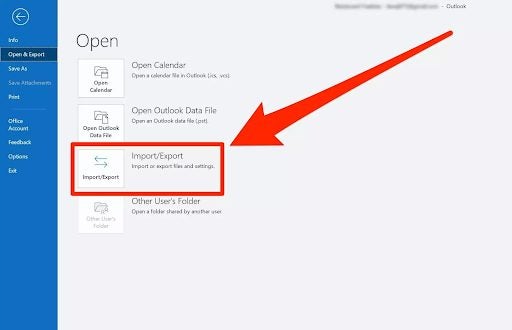
– In Outlook, click File. In the side pane, click Open & Export. Click Import/Export.
– Under Import and Export, choose Export to a file and click Next.
– Click Outlook Data File (.PST) and click Next.
– Click o the account from which you want to export emails. Check Include subfolders. Then click Next.
– Decide where to save your new.PST file.
– Click Finish.
To put a .PST file onto your hard drive, go to Info in Outlook. Then select Account Settings > Account Settings. Go to the Data or Data Files tab in the dialogue box, name the file or account, then select Open Folder Location or Open File Location. Copy the .PST file to your hard drive. In Windows File Explorer, copy the .PST file to a location of your choice on your PC or onto a flash drive.
You can then copy the file to Outlook on a different PC, another version of Outlook, or another operating system.
Note: No matter which version of Outlook you are using, the export process might take a while, especially if you want to transfer a large volume of emails.
Export to Gmail
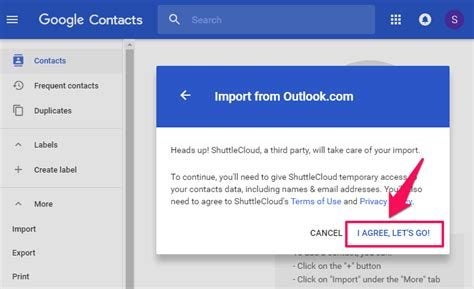
You can export emails from Outlook to a Gmail account. First, you have to add your Gmail account to Outlook. You can do this by creating a folder, copying and pasting all the emails you want to export into the folder, and then copying them into Gmail. It’s advantageous to have emails you want to keep in two accounts or to save them on an external hard drive or a memory stick.
Export to Microsoft Excel
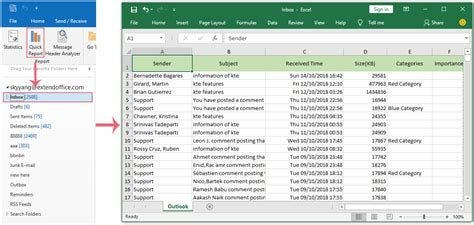
Another way to export your Outlook emails is to put them into an Excel spreadsheet. You can create the spreadsheet with various columns like From, Subject, Message etc, so that you file your mails where you can easily find them once you have saved them. You can also save your spreadsheets wherever you like on your hard drive, on an external hard drive or on a flash drive so that you can access them easily.
Export emails from Outlook on a Mac
– In Outlook, go into the account from which you wish to export emails.
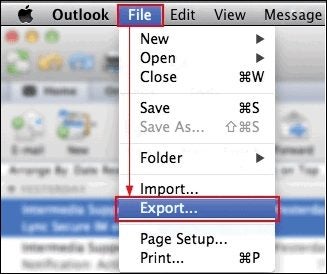
– Under File at the top of your screen, choose Export.
– Select all the emails you want to export.
– Decide where you want to save your .OLM file and what you want to name it.
– Save the file.
Note: If you want to access your saved Mac Outlook emails in Windows Outlook, the best way is to use an OLM to PST converter.
Outlook makes exporting easy
You’ll see from the above that there are as many options for exporting and saving your emails as there are reasons for doing so. The PC or Mac versions of Microsoft Outlook are both versatile and user-friendly. You should have no trouble in using it, whatever version of Outlook you happen to be using. If your version differs slightly from the latest one, you can still pick up the basics of how to do it from this guide.
Microsoft Wordhas changed a lot over the decades since it first launched in 1989. We’ve seen many versions since then, which were usually related to a new Windows operating system. Fortunately, there’s onlyone app now that receives updates instead of a new edition every few years.
Today, you can install Microsoft Word as part of the Microsoft Office 365package. It’s a subscription service that integrates with OneDrive and Sharepoint. In this review, I’ll show you some of the basic features, following up with tips, tricks, and advanced functions.
The basics of Microsoft Word
Let’s start with the most fundamental elements of Microsoft Word. You can find similar features on apps like Google Docs, OpenOffice, and LibreOffice. However, few of them beat the processing power of the original Microsoft product.
Creating new documents
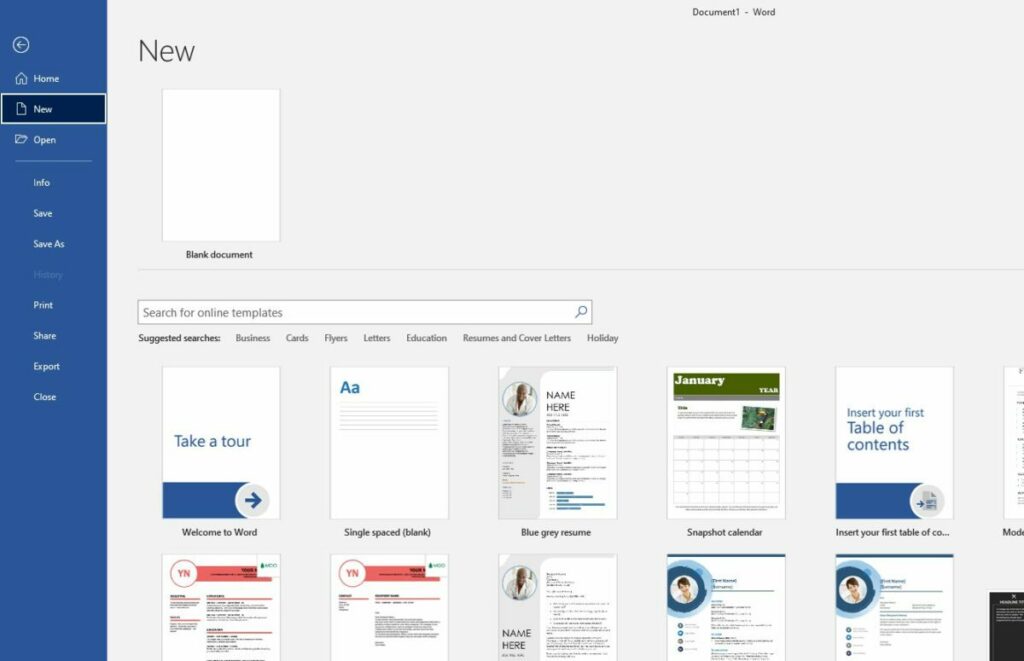
At the core of Microsoft Word is the creation of documents. You don’t simply receive a blank document when you start, as there are many suggestions and recommendations that appear on the side of the interface. They help when you have something specific in mind you want to create so you don’t have to reinvent the wheel.
I recommend you learn how to change the default language in Microsoft Word. When you install the app, it’s usually set to English. However, the are plenty of others you can change it to so you can work in your native language.
Some essential shortcuts
The next aspect you’ll want to learn is which keyboard shortcuts work best for Microsoft Word. You’ll save an incredible amount of time if you quickly press buttons together instead of moving your mouse to click on one of the tabs. Some of the shortcuts are different from other platforms, and you won’t want to become frustrated when your document does something strange. Fortunately, you can quickly undo an error with Ctrl+Z.
Change font styles
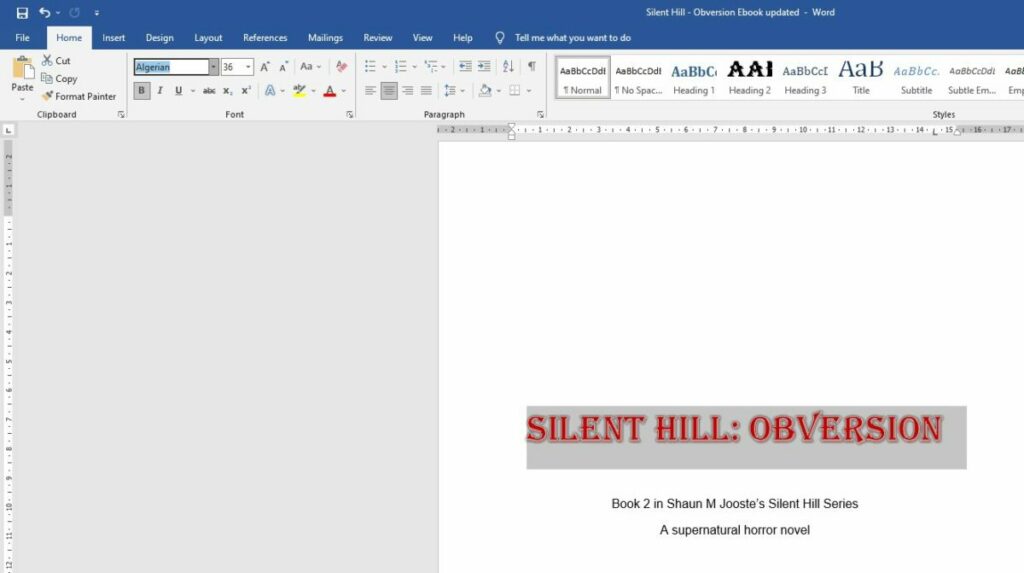
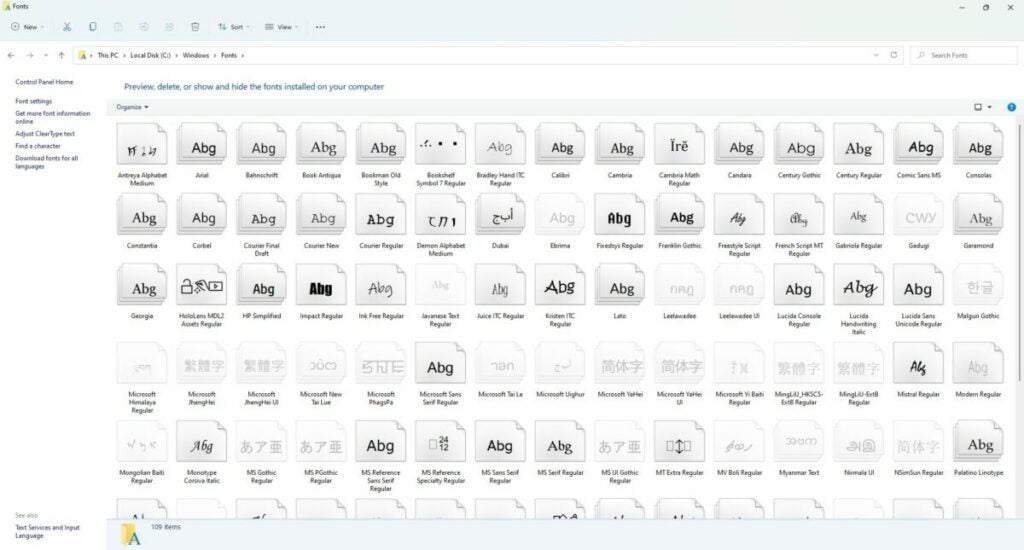
You’ll be surprised at the difference a font style can make to a document. While the default is usually Arial, you can change it to any of the listed ones on the font ribbon. However, the alteration only applies to the selected text, and you’ll have to try a different approach if you want to change the default font when opening Microsoft Word. Some of the other adjustments you can make to the font are size, color, outline, and format.
Insert tables and images
Sometimes, you’ll have to go beyond only working with text. Most companies and freelance authors enjoy inserting images and tables to show some facts or break the line of words. Other objects include charts, smart objects, screenshots, and shapes.
You can also copy and paste tables and images from other sources and platforms, but you may need to work on the formatting to make it look professional in your document. To this end, check out our guide on how to align images perfectly in Microsoft Word to avoid a jumble of pictures. There’s nothing worse than wasting an hour or more trying to get the alignment right.
Placing bookmarks
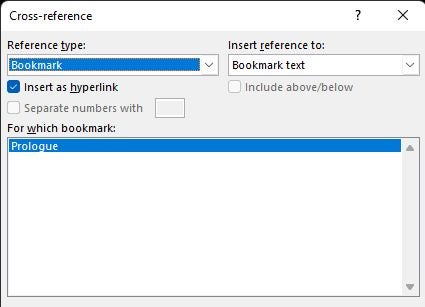
One of the most useful features is placing a bookmark in Microsoft Word. Many people use them when creating ebooks or PDFs, which makes a cross-reference link to a different part of the article. Even if the reader is busy with the document on a tablet, they can tap on the link to quickly head to where they want to be instead of scrolling down.
Drawing on Microsoft Word
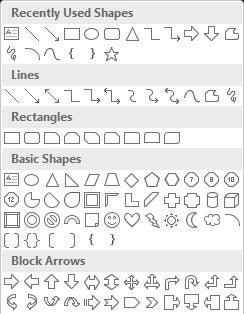
While most people might use an image editor like Photoshop or MS Paint, there’s a way you can draw in Microsoft Word too. The process mostly consists of shapes, but you can also insert flowcharts or draw freely as you please. You won’t be able to craft masterful artistic pieces, but it helps with basic designs.
Using document templates
The word processor tries to make life easier for you by supplying ready-made templates that you can adjust for your needs. You can create a restaurant menu, make tickets for events, or craft brochures in Microsoft Word. I recommend you spend some time seeing what’s available instead of making a completely new document and wasting valuable time.
Tips and tricks for Microsoft Word
The basics mentioned above are enough to get you started, but there’s so much more to Microsoft Word that will help you with more advanced documents. Here are some tips and tricks when you want to make your work look more impressive or professional.
Working with custom fonts
While Microsoft Word has a default list of fonts, you don’t need to settle for what’s available. There are many creators out there who develop new styles, especially when they’re unique for their projects. For instance, I’m busy creating content for an upcoming MMORPG where we’re crafting three new languages. To insert the script on signs and books in the game, we needed to design the fonts on a different program.
Microsoft Word makes it easy for you to add new fonts to the list. It basically works off the operating system, so you’ll need to place the font file in the default font folder. When you right-click on the file, you select “Install Font”. When you reopen or refresh your Word document, the new font will appear if it’s compatible.
Inserting headers and footers
Headers and footers are ideal if you want the same information to appear at the top or bottom of your pages. You can also indicate if you only want them to appear on odd or even pages. There are some default layouts, but you can change them to suit your company’s brand.
Authors and publishing companies usually use this method when creating paperback novels to show the book and author information or remind you what chapter you’re on. Businesses generally include contact details, but there may also be document labels to remind them of specific references. The most common use is for page numbering.
Standardize heading styles
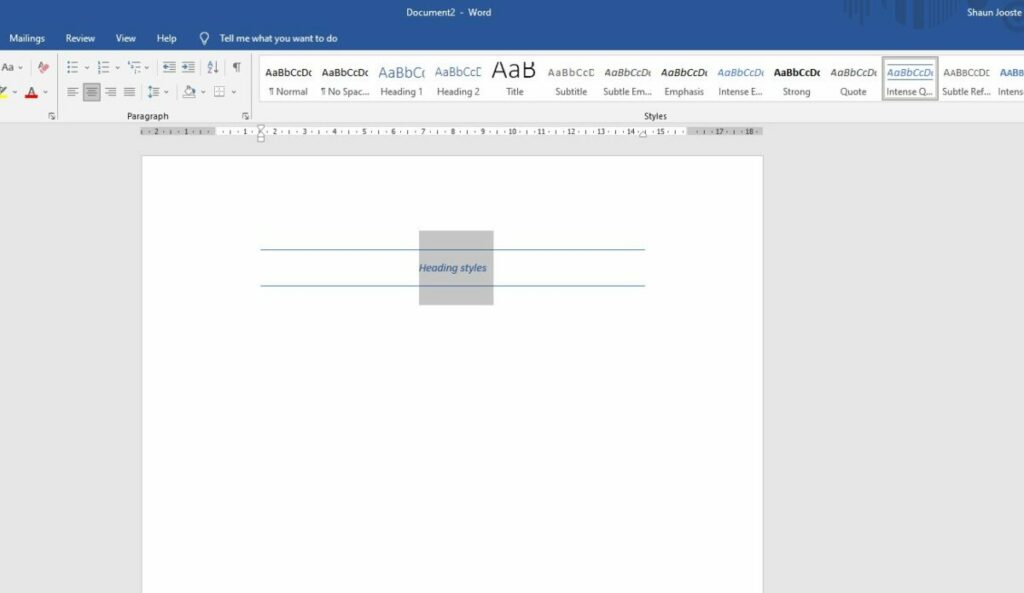
When it comes to corporate or professional documents, you’ll want various headings to remain the same throughout the content. It would look strange if a Heading 2 had a style and size in one spot, but then it looks completely different elsewhere. Fortunately, Microsoft Work offers a simple button to make all your different heading structures look the same.
Alter the color theme
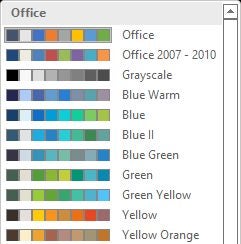
Colors can play an essential role in making your content stand out, especially when you’re busy with marketing campaigns. As part of saving you time, there’s a section in the Design ribbon where you can play with various themes and color palettes. Once you select one of them, it will change for the entire document, so choose carefully.
Adjust margins and page layouts
Microsoft Work usually opens with the standard A4 paper layout. It also has set margins that work for most industries. However, you may want to adjust them to work for your needs. For example, Amazon requires specific formatting when uploading ebooks and paperback documents. You have the option to either select one of the page layout defaults or change each setting to match what you need.
Spelling and grammar check
Proofreading is vital if you want anyone to take your work seriously. You have two options to assist you in Microsoft Word. The first one is a Spelling & Grammar function, which scans your document for errors. You also have a Thesaurus to check the spelling of complicated words.
However, I feel there are better apps for this task. For example, you can download Grammarly onto Windows and then let it integrate with Microsoft Word. Not only will it check the correct localization, but it offers suggestions for improved sentences and tone.
Converting to PDF
Saving your document as a PDF safeguards it against anyone else editing it. You can also create the document in such a way on Microsoft Word that the recipient can sign and complete fields on thePDF version. The process is as easy as saving the file as a PDF when you’re ready. However, any changes you make to the Word doc afterward won’t reflect in the PDF. You’ll need to save a new version.
Advanced Microsoft Word features for productivity and efficiency
The word processor has plenty of other features that can help you work efficiently without repeating mundane tasks. Since we have a complete guide on productivity tips for Microsoft Word, I won’t repeat it here. Suffice it to say that there’s so much you can do to make your life easier with your documents.
How to install and use Microsoft Word add-ins
Microsoft Word doesn’t need to work in isolation. Much like Google Chrome, there are plug-ins you can install to integrate other apps and functions. Let’s take a quick look at how it works.
How Microsoft Word add-ins work
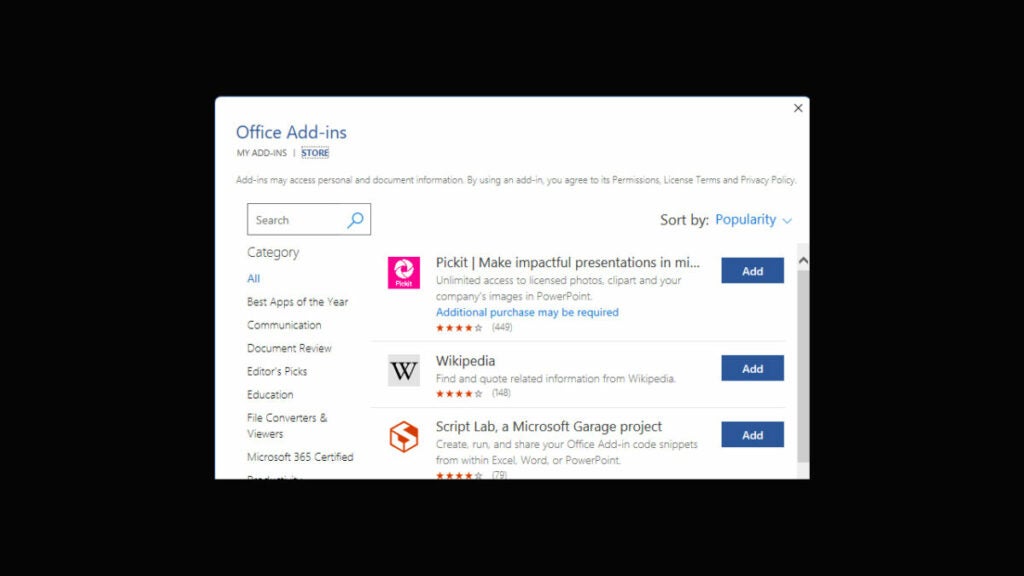
When you open the Insert menu, you’ll see the Add-ins ribbon. There are two options: get new ones or manage existing ones. When you click on the first one, a small store window opens showing you the latest plug-ins you can install. They add extra functionality to your documents, making them more powerful and professional.
The best plug-ins for Microsoft Word
There’s a wide variety of add-ins available, so take your time reading through them and seeing which one will suit your needs. We’ve also compiled a list of the best plug-ins for Microsoft Word, but you’ll need to cater it to your project. They won’t always apply to all situations or industries.
Working online with Microsoft Word documents
One final aspect I need to mention in my Microsoft Word review is the online aspect. Working offline with the app is fine, but you might want to work on a different device while you’re away from the office or home.
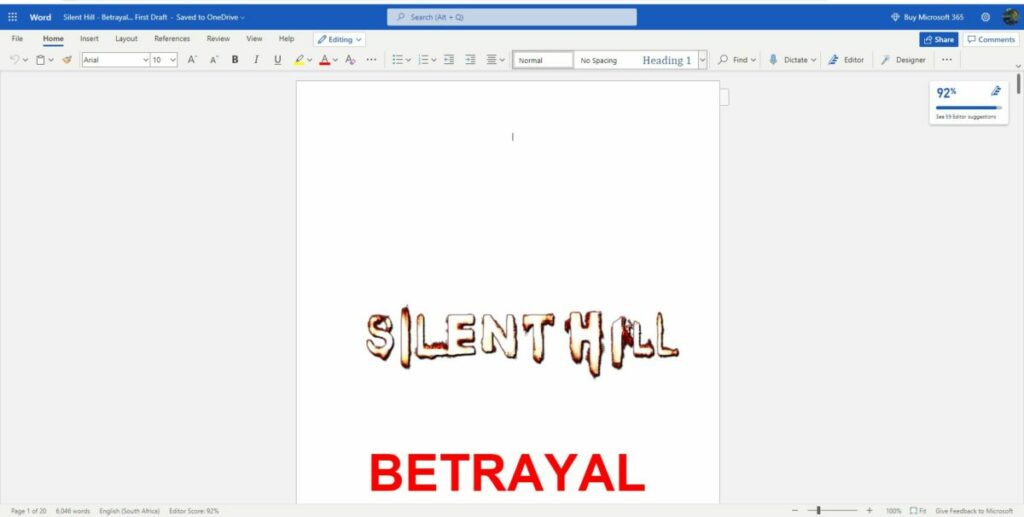
You should already have a Microsoft 365 account if you’ve downloaded Microsoft Word. If not, you’ll need to head to the site and create an account. It’s usually linked to the account you use on Windows, so try signing in with those credentials. Once you’re in, you’ll see a list of Microsoft icons on the left, one of which is Word.
Opening your local documents online
Whether you open a new document or an existing one you saved, you can work on it online. Most of the menu features are the same, albeit they have a slightly different appearance. There are also some extra features you can play with, such as dictating or using the design wizard.
Synchronizing with Windows 11
The online version synchronizes any documents you’re created on your desktop, as long as you’ve synchronized with the OneDrive account. You can also make a new document online, which you can open later at home from your Windows PC app. It works both ways.
Microsoft Word: Word processing at its best
Microsoft Word is excellent for creating complicated documents that you can then convert to other formats. It has basic and advanced features, but it doesn’t have as many collaboration items as some competitors. Still, it’s powerful at what it does, and many modern alternatives are based on it. Its legacy still lives on among those that prefer this platform. I definitely recommend it for creating novels or short stories, whereas it has plenty of benefits for companies too.
If you’re more interested in spreadsheets, make sure you don’t miss my Microsoft Excel review. You can also check out the opinions on Google Docs and Microsoft Outlook.
Pros
Plenty of tools and features
Install add-ins for more functionality
Helps with productivity
Integrates with other platforms
The basis for most documents
Easy to use
Many colors and themes
Includes automated functions
Cons
Formatting and image alignment can be tricky
Spelling and grammar checks not very advanced
Developer: Microsoft
Publisher: Microsoft
Top features: documents, format conversion, images, tables, colors, add-ins
LogMeIn Hamachi is an easy-to-use hosted VPN service by LogMeIn that takes the work out of securely extending LAN-like networks for personal or professional use. Hamachi markets itself as a full–service VPN utility offering an impressive range of features and functions. Included in these are On-demand networking capabilities, letting you create virtual networks as you need them, and easier management of your networks from anywhere via the internet.
But what if Hamachi suddenly stops working? What if you’re trying to establish a secure connection or access another device on your virtual private network, and all that you see is the dreaded yellow triangle of death? Below, we’ll take you through a few ways to rectify the issue. If you need to fix the issue on a remote machine, all you need to do first is ensure you have access to the machine through either LogMeIn’s dedicated remote access service or a free-to-use alternative such as TeamViewer.
Restart LogMeIn Hamachi on a remote machine
Verify any issue with your VPN
Before we can recommend a solution to your VPN woes, we must first ensure that it is indeed what is faulty. Here’s how:
Step 1: Diagnose
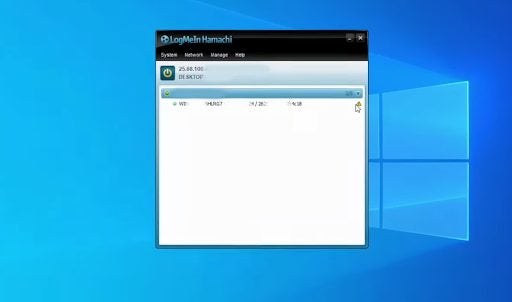
The first thing you’ll want to do is verify what the issue is. For this, all you need to do is open up your LogMeIn Hamachi dashboard and check your networks. If a network is faulty, you’ll see a yellow triangle, aptly named the yellow triangle of death.
Step 2: Check Details
Click on the place you see the yellow triangle of death. This should be one level deeper than your network’s main directory entry. From here, click Details, and you should see an interface giving you an overview of your network’s status. Next to the option VPN Status, you should see the word Error. You now know that your VPN is out of order.
If you see no such triangle or error message, the problem does not lie with your VPN. If you do, however, you’re reading the right article. Now we can spring into action and sort your Hamachi VPN troubles out.
Restart Hamachi’s tunneling engine service
You’ll need some basic familiarity with your computer’s more out-of-the-way features for this, but we’ll explain everything in detail.
Step 1: Start a Dialog
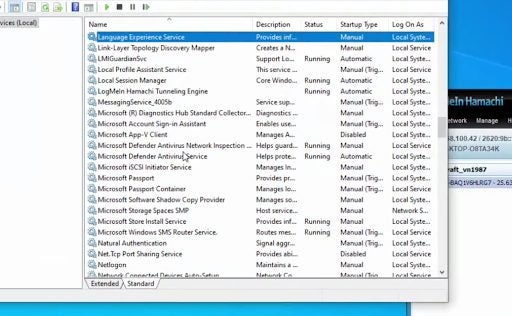
The first thing you need to do is hit the Windows key + R and then type services.msc into the Run dialog box. Now press Ok. All you’re really doing here is using your computer’s built-in directory tool to get to a specific interface.
Step 2: Where’s Hamachi?
Now, you’ll be whisked away to a new interface with a rather long list of programs and functions, most of them bearing the name Microsoft. Search amongst the many shameless plugs, and look for the Hamachi Tunneling Engine. It should simply say LogMeIn Hamachi Tunneling Engine. Click on it.
Step 3: Stop!
Head down to the lower portion of the new window that presents itself and hit the Stop button. Just above the Stop button, you’ll see a label that says Service Running. The issue here is that the service isn’t running correctly. Therefore we must stop it and restart it later.
Step 4: Start
You’ll see a green progress bar flash across the screen momentarily; depending on your computer’s speed, it might take a few seconds to reach completion. Just above where you clicked Stop, you’ll see Start Type and a drop-down menu. Drop the menu down and select Automatic. And then hit Start, next to where Stop was.
Step 5: Done!
All that’s left to do is to click Ok, head back to the LogMeIn dashboard, and make sure that the yellow triangle of death is a thing of the past. You’ve just successfully repaired your Hamachi VPN utility! If you did all this with remote access using LogMeIn or TeamViewer, you deserve even more brownie points.
A quick note
The average internet user doesn’t really know much about VPNs. Even those who use them are often sadly misled by VPN providers promising total security, which essentially makes it sound like you’ll be able to browse anything and be invisible. This simply isn’t the case. Depending on how your State, Nation, or Sovereign territory is organized, your IP address most commonly applies to either your street, block, or in some cases, even suburb. This means your web activity isn’t recorded as separate entities for each person in your neighborhood but rather as one packet for all the users in the area currently accessing the internet.
Your research is traveling through the world wide web in the same packet as your neighbor’s cat videos or social media updates. All a VPN does is make it look like this packet you’re bundled into is coming from somewhere far, far away. You’re still not completely secure, especially if your VPN provider is shady. All you’re doing is taking direct access to your web activity away from your service provider and putting it directly into the hands of a third-party utility.
Here are the basics of a VPN:
If you connect two computers with a cable, you have a network (N). Take the cable away and connect those two devices to each other over the internet, and you have a virtual network (VN). Add some encryption and passwords to the mix, and you have a virtual private network (VPN). Once you connect those dots, it’s easy to see the flaws in the promises.
Make sure your device is secure
Make sure your VPN provider is trustworthy; you’re handing them your entire internet-based life. Do your research on acronyms marketed to you; VPN is nothing more than a secure connection between two or more devices or systems. Any added security promises or total anonymity are likely unfounded. Lastly, yes, end-to-end encryption is a very real concept in digital security; Just make sure you know where the other end is and whether it can be trusted.
Death Stranding Director’s Cut is a science fiction role-playing walking simulation game with a third-person perspective. It was developed by Kojima Productions, with 505 Games publishing it on the Steam platform. The original title was launched in 2019, while this new version releases on March 30, 2022.
There’s a long story behind how Death Stranding Director’s Cut came to be that’s almost as enticing as the game’s story itself. You’ll spend plenty of hours walking around the post-apocalyptic terrain of America, looking for a way to save it from the Beached Things (BTs). Join me as I show you my gameplay experience in this review.
The history and story of Death Stranding Director’s Cut
If there’s one aspect that shines in Death Stranding Director’s Cut, it’s the lengthy story. As a matter of fact, you’ll spend many hours simply watching the video cutscenes in between playing. There are many times you’ll wonder when you can start playing again. Let’s have a look at all the story elements.
From Silent Hill to Death Stranding
One can’t discuss Death Stranding without looking into the fascinating background that gave life to the game. As many fans know, Kojima Productions had teased the world with a new Silent Hill Playable Trailer (Silent Hill P.T.) that had the gaming world in a buzz. It was set to be the franchise’s first proper first-person horror journey with many tantalizing elements. It also starred Norman Reedus as an introduction to what was meant to become Silent Hills.
Sadly, Hideo Kojima and Konami parted ways in 2015, the reasons for which aren’t important for this review. Kojima Productions took with them Norman Reedus and Guillermo Del Toro, while adding a stellar cast for the newly announced horror adventure game, Death Stranding. It would be four years before we finally saw the original game launch.
The story of Sam Porter Bridges
While it’s a complete divergence from Silent Hill, Death Stranding Director’s Cut has a detailed story that’s the heart of the game. You play as Sam Porter Bridges, although later it seems he was a Strand at some point. The entire plot revolves around him and his ability to revive himself when he dies.
You now live in a post-apocalyptic America. As the story unfolds, it becomes clear that there was an event called Death Stranding where a gateway opened between the dead and the living. Dead bodies washed up everywhere, but now their souls haunt you from the afterlife.
When the rain touches anything, time seems to rapidly accelerate and can lead to death within a few minutes. It only seems to affect living humans and creatures, as the trees and environment seem fine. During a time void, a massive creature sucks up anyone that’s recently died and creates a massive creator when it explodes.
I won’t ruin more of the story for you, but the plot does thicken many times along the way. There are definitely many exciting twists along the way, and you can see the foreshadowing with the BB’s memories and what’s to come later when you meet one of the other main characters.
Become a glorified delivery man
While the story behind Sam in Death Stranding Director’s Cut is quite fascinating, in the end, you’re mostly a delivery man for a company called Bridges. You’ll soon learn why the connection is important, especially with your ties to the president and someone you’ll need to rescue later.
However, you’ll play most of the game as a delivery man, picking up cargo and taking them to various destinations. The plot is entwined with this mission, but that’s why so many of us gamers call it a walking simulator. Still, I love how the story points appear while you’re walking across the wasteland.
Reconstructing America
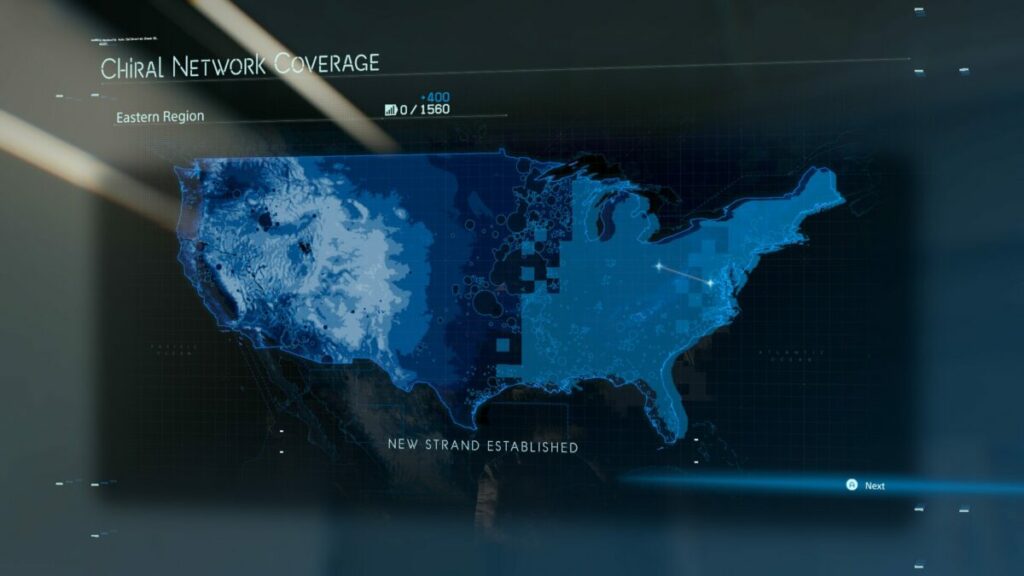
The overall mission that becomes more obvious later in Death Stranding Director’s Cut is that you need to reconstruct America. Sure, they tell you to rescue your sister on the other side of the continent. However, you’ll need to upload specific sites to the chiral network, which you’ll do while you deliver cargo to them. The bulk of the game is spent traveling across the States and reconnecting them while delivering packages.
Some missions on the side
There are also quests you can complete on the side. When you activate a terminal at a site, you have orders to accept. One of them is usually the main mission, while the others are additional objectives. Not only are they entertaining to complete, but they help you level up and obtain useful resources.
How long is Death Stranding Director’s Cut?
The length of Death Stranding Director’s Cut depends on how many missions you choose to complete. If you only want to do the main story, it will take you about 35 hours. Completionists can enjoy over 100 hours, while only focusing on some side objectives will tally about 65 hours.
Exciting gameplay features of Death Stranding Director’s Cut
What I love about Death Stranding Director’s Cut is how well it integrates the story with the gameplay. There are so many elements where you can see how well they’re fused together.
Is there a tutorial in Death Stranding Director’s Cut?
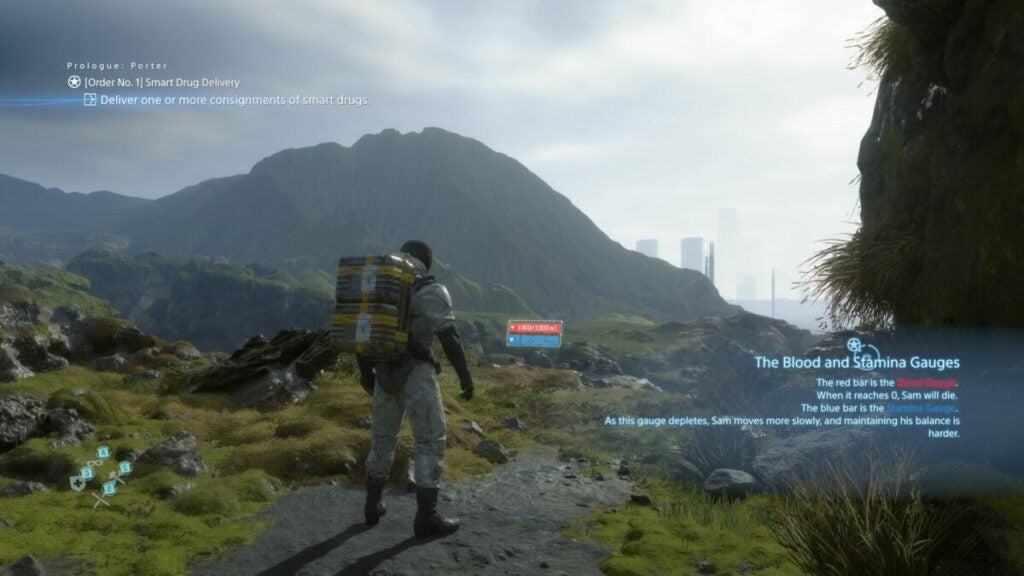
One of the best mechanics of Death Stranding Director’s Cut is that the tutorial is woven in as you play the game. When you encounter something new along the way, the game will quickly explain how it works. What’s remarkable is that it works well with the main character that’s never experienced some of the aspects, such as the cuff links that provide all the information.
There’s also an in-game manual that provides advice, but only when you unlock them. As you come across something new that needs an explanation, a notification will appear that you’re manual has a new update. It’s hard to go wrong with such detailed instructions.
Keyboard and mouse vs. controller
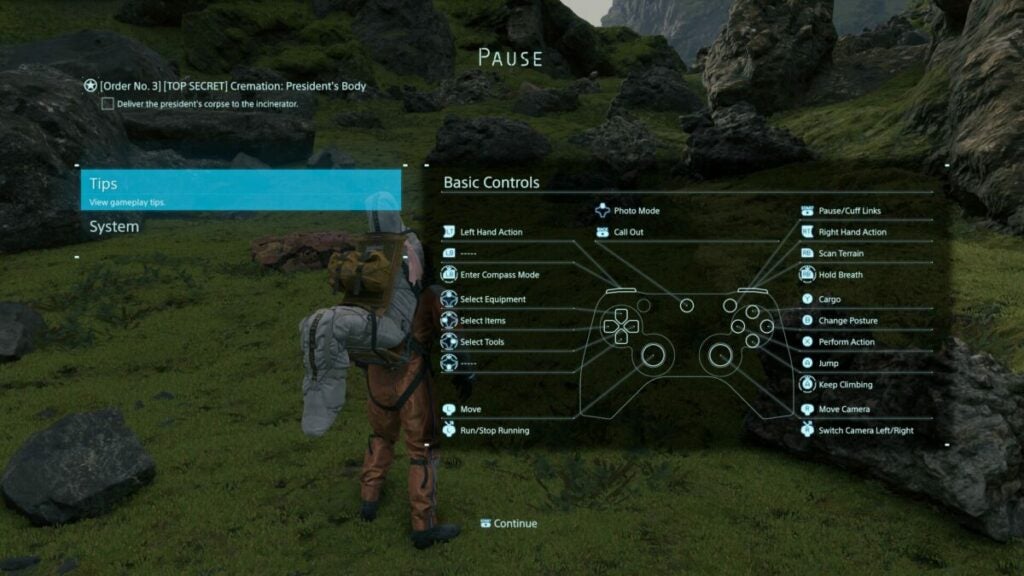
When I first started the game for my Death Stranding Director’s Cut review, I connected my Xbox controller. It was challenging at first, as the button notifications that appeared on-screen for specific actions showed keyboard controls. It meant I still had to use the keyboard in most scenarios.
As soon as I became annoyed, I switched to the keyboard for a few hours, which I don’t like playing with when gaming. It motivated me to analyze the settings until I discovered you can change to controller notifications. Sadly, it doesn’t switch automatically like most games I’ve played on PC.
Happily moving back to the controller, it’s easy to say that it’s the better option for Death Stranding Director’s Cut. You can manage your walking speed with the left stick, while the keyboard just makes Sam run all the time. The shortcuts are also easier to manage with the buttons than with the keyboard.
Collecting and packing items
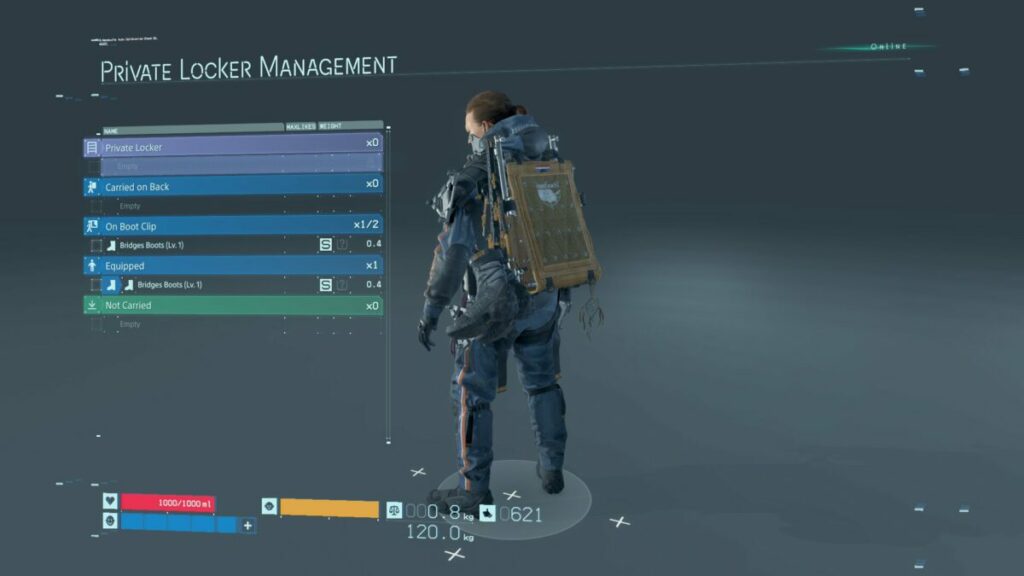
As you’re a glorified delivery man, the one aspect you’ll need to master in Death Stranding Director’s Cut is picking up items and placing them in your backpack. As with games like Resident Evil 7 and Silent Hill 4, you’ll need to deal with inventory management. You can only carry so much, which is upgraded at a later point.
The game simplifies the process but auto-arranging items for you if you’re struggling. There are attachments to your suit for other items, but you won’t really need to worry about placement if you use this auto-pack function. As you collect lost cargo on your journey, Sam will just slot them in the next available space.
Looking after your Bridge Baby (BB)
Not long after you start Death Stranding Director’s Cut, you’ll receive a BB unit. It attaches to the front of your suit and shares emotions and memories with you. You’ll need to care for it and make sure it doesn’t become too stressed; otherwise, it won’t be able to warn you when BTs are nearby or other dangers. It reaches a point when it just shuts down and you’ll need to rejuvenate it.
Crossing the perilous terrainin Death Stranding Director’s Cut
The terrain in the new America is dangerous. The lost BT souls appear whenever there’s rain, which is when you’re in danger of being killed. However, the environment has plenty of other risks you need to watch out for.
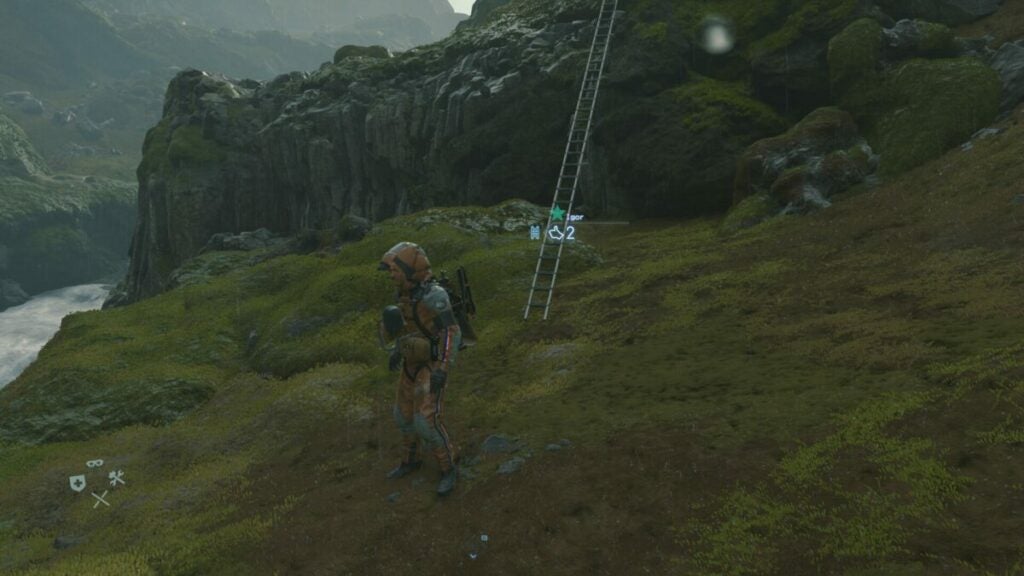
For example, the rocks and cliffs may make you stumble and lose all your cargo, which you’ll need to collect again. Also, you’ll lose points for any damage they incur and your BB unit stresses out. The rivers and streams also pose dangers, as you’ll lose stamina and possibly your footing if you’re not careful. You’ll need to use both triggers to adjust cargo weight if the balance shifts to either side.
Fortunately, the online element comes into play here. Other players can leave ladders, ropes, and other helpful tools to cross rivers or climb mountains. You can also do the same, and other gamers can leave a like for you doing so when they discover it. It’s an excellent way to play a solo game with others without actually seeing them in the game. Later, you’ll unlock vehicles to travel faster.
Repatriation is the new resurrection
Sam is a repatriate with DOOMs. What that means is, that he has the ability to revive himself when he dies. You then play as your soul, drifting in the afterlife, searching for your body. When you find it, you can resurrect yourself, with a cute image of a baby giving you a thumbs up. At first, it’s a creepy experience, but it grows on you.
Accepting orders
You can’t perform deliveries without accepting orders. As you unlock new sites in Death Stranding Director’s Cut, the terminals will give you new objectives to complete. You can either accept them all or one at a time. One factor to note is that they’ll stock your backpack with what you need, so it’s best to choose one or two that are manageable.
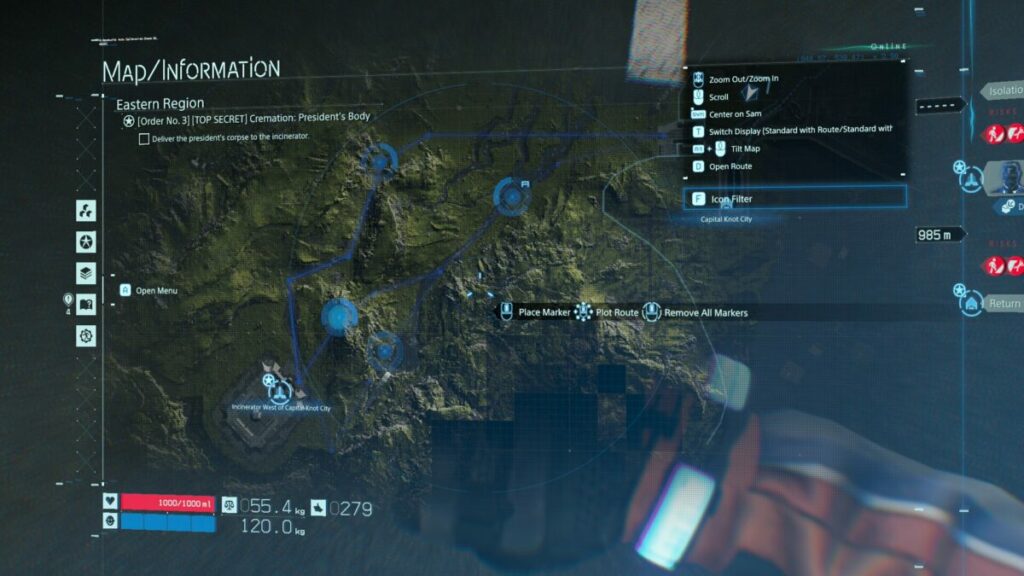
Once you accept an order, your map is updated with where the objective is. You’ll need to study the map and terrain to see which would be the best route. You can set waypoints, which you can then view while walking using your virtual compass. It’s a system that works really well.
Improving your stats
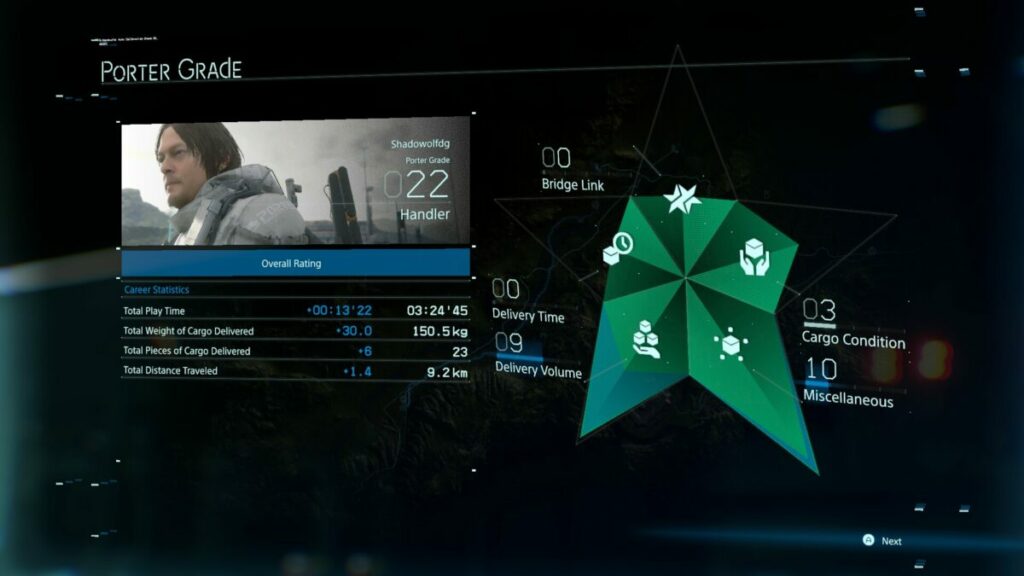
The reason you need to look after your cargo is that you’ll receive likes and points for delivering them with less damage. There are different stats that increase in levels every time you finish missions. Your character also has his own level, which updates in relation to these stats.
Some private time
When you’re not crossing treacherous terrains or battling BTs, you can spend some quiet time in your private room. When you take a shower or use the toilet, a scientist analyzes the waste to see if you have any toxins in your body. You can care for your BB, while there’s an interactive map on the wall where you can read emails and messages. It’s a safe area where you can prepare for the next journey.
What are the Death Stranding Director’s Cut PC requirements?
Once you see how immense Death Stranding Director’s Cut is, you’ll understand why the PC requirements are so high. I’ve placed the recommended hardware and software here below, as I don’t believe the minimum requirements are good enough:
While I didn’t experience any lagging or performance issues, there did seem to be a slight conflict with GeForce taking screenshots. It may just be because of the high-quality visuals, but there was definitely some lag while recording the images. Other than that, Death Stranding Director’s Cut plays beautifully.
What’s different in Death Stranding Director’s Cut?
There are a few changes and additions in Death Stranding Director’s Cut. For one, you’ll have plenty of new gear to equip. There’s also a new location you can investigate, and you’ll also see some new cargo. The most exciting alteration is the new Buddy Bot that you unlock later in the game, making it easier for you to travel across the terrain.
Death Stranding Director’s gorgeous graphics and stunning sounds
The visuals and sound effects of Death Stranding Director’s Cut are incredibly outstanding. With so many video cutscenes, it’s really impressive how much work Kojima Productions put into it. The only annoying aspect is that some narrative videos took 30 minutes, if not longer, leaving you itching to play but not wanting to miss the story.
World design and beauty
Walking through the post-apocalyptic American lands is absolutely stunning. The environment looks ultra-realistic, and you can almost feel the spray on your face from the rivers or rain. You’ll want to spend moments simply looking at the beauty around you.
There are few games that can mimic the glory of the graphics, with GTA V not even coming close. The only issue I did come across is when your character and the scenery sometimes glitched when climbing off a ladder at the top, and it takes some flicking of the controller stick to get it right.
Brilliant character and creature designs
Even the characters look immaculate. You’ll notice how many times Death Stranding Director’s Cut does close-ups of characters’ faces, just to show off. It’s hard not to praise the beauty of every visual element on their bodies, especially when wind and rain interact with them. The creatures have outstanding designs too, all from the minds of the developers. The BB is the most adorable aspect, though, despite its horrible background.
The horror effectin Death Stranding Director’s Cut
I love the way Death Stranding Director’s Cut brings suspense with many of its horror aspects. Instead of jump scares, it builds tension with rain and environmental elements. The footprints of a creature that you can’t see create foreshadowing across the story, which just adds to the mystery.
Stunning sounds and music
Finally, the sound and music of Death Stranding Director’s Cut add a wonderful ambiance to the game. As you travel across the terrain, a new song may appear that is added to your music player. You can also unlock songs by collecting them along your travels. Sound effects also create tension, and you’ll need to stop breathing so the BTs can’t hear that you’re alive.
Death Stranding Director’s Cut: Is it better than the original?
Death Stranding Director’s Cut brings many new aspects to the game. There’s some new narrative you can enjoy, plus you have a new location to visit. It offers improved gear and bots to make traveling easier, which is welcome for those who have finished the original version. Overall, it still presents outstanding gameplay, story elements, graphics, and sound that players love about it. In my opinion, it’s a better version than the original and now includes the digital artbook as part of the download.
The Google System updates—which are collectively Google updates to the Android operating system, Google Play Store, and Google Play services—will soon be rolling out a boatload of new features and system fixes for the month of April. These include new stuff for the Play Pass and Play Points programs and improvements to the Play-as-you-download feature.
While it’s gearing up for the beta test of Google Play Games’ PC version, Google Play isn’t just limited to its mobile game service. It also covers apps from different platforms, as well as device system features unique to Google. That’s why April 2022’s planned update comes with a variety of content for all users to appreciate.
The major updates to Google Play Store are new features for the Play Pass and Play Points programs, letting users access apps through various means. There are also new ways to discover apps and games on the Play Store, and the Play-as-you-download feature’s waiting times have improved. Other optimizations for the Play Store include faster and stable downloads and installations, enhancements to Google Billing and Play Protect, and various bug fixes.
Meanwhile, other parts of the update cover critical fixes for security and system management services for some devices, and new developer features for Google and third-party app developers. The last one is for ad support, accessibility, security, and the like in their apps. All of these will roll out by April 1, and users must ensure that their Google Play services version is v22.12 while their Play Store version is v29.9.
The bigger updates here aren’t too groundbreaking for most users, but they’ll definitely be handy for those who frequently use the Google Play Store app. Just be sure to always stay alert regarding the apps you download, as some can still slip through the Play Store’s policies. One app, in particular, can maliciously steal Google Play users’ credentials.
Windows 11 burst onto the operating system scene in October 2021. Then a young, slightly unstable, starry-eyed operating system with designs on revolutionizing the way we work, play, and interact with technology, the OS has come a long way in a few short months. With a few updates, non-feature feature updates, and bug fixes out of the way; we now come to the more comprehensive future Patch Tuesday offering; Windows 11 build KB5011563.
The latest build of Windows 11 is now officially available but as an optional update. Fear not; however, Microsoft plans on making this update a feature of their Patch Tuesday release cycle initiative and releasing it to all devices sometime within the next two weeks. Along with the optional update for now, however, Microsoft has also released an extensive list of bug fixes implemented in this latest Windows 11 build. We’ll mention a few highlights, but at the risk of TL;DR, the following list is not exhaustive:
Fixed an issue that causes SystemSettings.exe to stop working.
Fixed an issue that affects searchindexer.exe and prevents Microsoft Outlook’s offline search from returning recent emails.
Fixed an issue that increases the startup time for Windows. This issue occurs because a UI thread in a networking API stops responding when a 5G wireless wide area network (WWAN) device is slow to wake up.
Fixed an issue that might cause a Microsoft OneDrive file to lose focus after you rename it and press the Enter key.
Returned the corresponding Settings page when you search for the word widgets.
Fixed an issue that causes the Move-ADObject command to fail when you move computer accounts across domains. The error message is, “Multiple values were specified for an attribute that can have only one value.”
Microsoft has also, however, isolated one issue that users should take note of:
‘After installing the Windows updates released January 11, 2022, or later Windows versions on an affected version of Windows, recovery discs (CD or DVD) created by using the Backup and Restore (Windows 7) app in Control Panel might be unable to start.
Recovery discs that were created by using the Backup and Restore (Windows 7) app on devices that have installed Windows updates released before January 11, 2022 are not affected by this issue and should start as expected.
Note: No third-party backup or recovery apps are currently known to be affected by this issue.’
Microsoft has yet to issue a workaround or fix for the above-mentioned issue. This update does, however, seem to instill confidence within users that Windows 11 is becoming a more stable ecosystem within which to conduct business and interact with the world. We’re excited for many more updates to come, such as moving tabs in Windows 11 File Explorer.
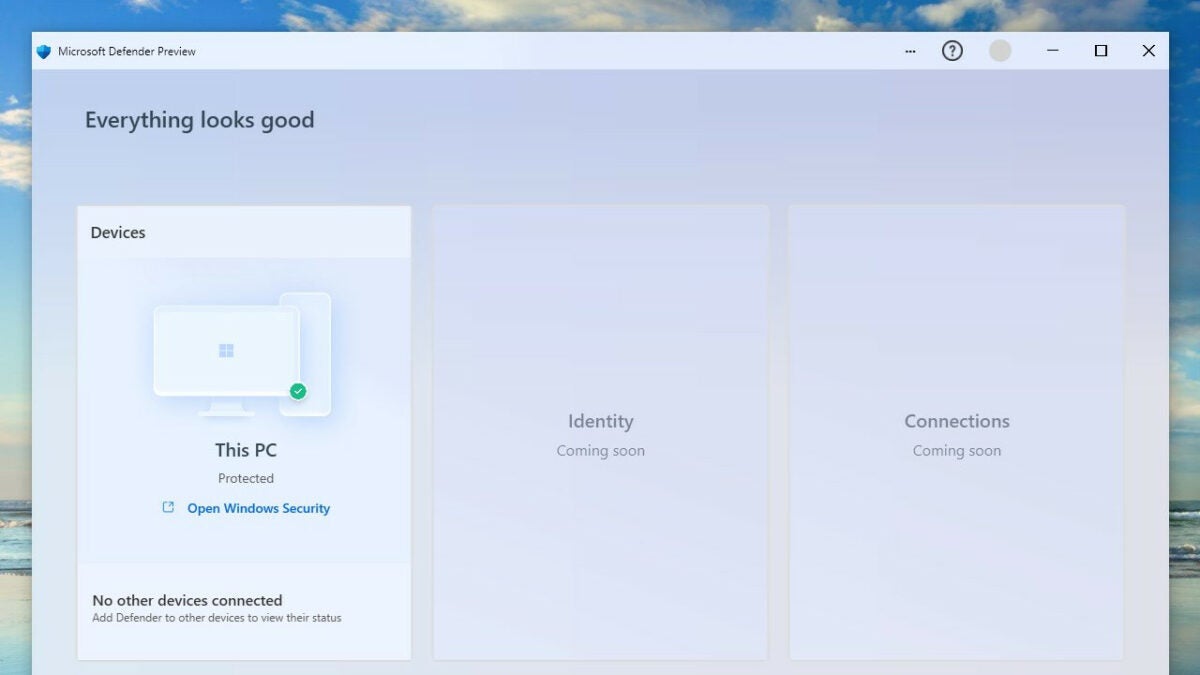
Microsoft Defender (Windows Defender) is a free-with-purchase security utility that ships with Windows 11 and 10. It runs in the background most of the time, and the only time most users come in contact with this protective shield is when their activity, either online or off, unearths a vulnerability. Microsoft Defender receives new features every now and then, often without a massive reveal or so much as a changelog, but each new feature further increases the protection users have on their Windows 11 or 10 devices. One such feature now blocks drivers that have been flagged as having security vulnerabilities from running on your devices.
This new feature is an option in the Defender settings interface that lets you either activate or deactivate increased driver scrutiny. Security vulnerabilities in your Windows ecosystem are something you’ll likely want to avoid at all times. This new feature gives you the option to do just that by employing a ‘better safe than sorry’ default approach when dealing with third-party drivers. Not all third-party drivers carry security vulnerabilities, and not all security vulnerabilities are cause for significant alarm, but when the security of your online or offline digital real estate is concerned, it’s always better to carry more protection than less.
Microsoft released a support document containing further, more comprehensive details as to the nature of the new addition. Within the document, Microsoft specifically mentioned two types of system configurations within which the new addition would be enabled by default. The two systems are:
The document goes into considerable detail as to the how’s and why’s that more technologically-minded users of its Windows 11 and 10 operating systems would find illuminating. However, for those who simply use the product during daily professional or personal operations and who have no interest in the deeper development of such features, the core concept is this: Microsoft Defender can now protect your system better from drivers and applications that may have malicious intent in their coding.
Microsoft seems to be on the very cutting, leading, or even bleeding edge of technological advancement and how we might interact with tech in the not-so-distant future. Consult our writings on the latest news pertaining to the Windows 11 beta build 22581 to see what features might be heading to the long-awaited Windows 11 version 22H2 expected in the fall.
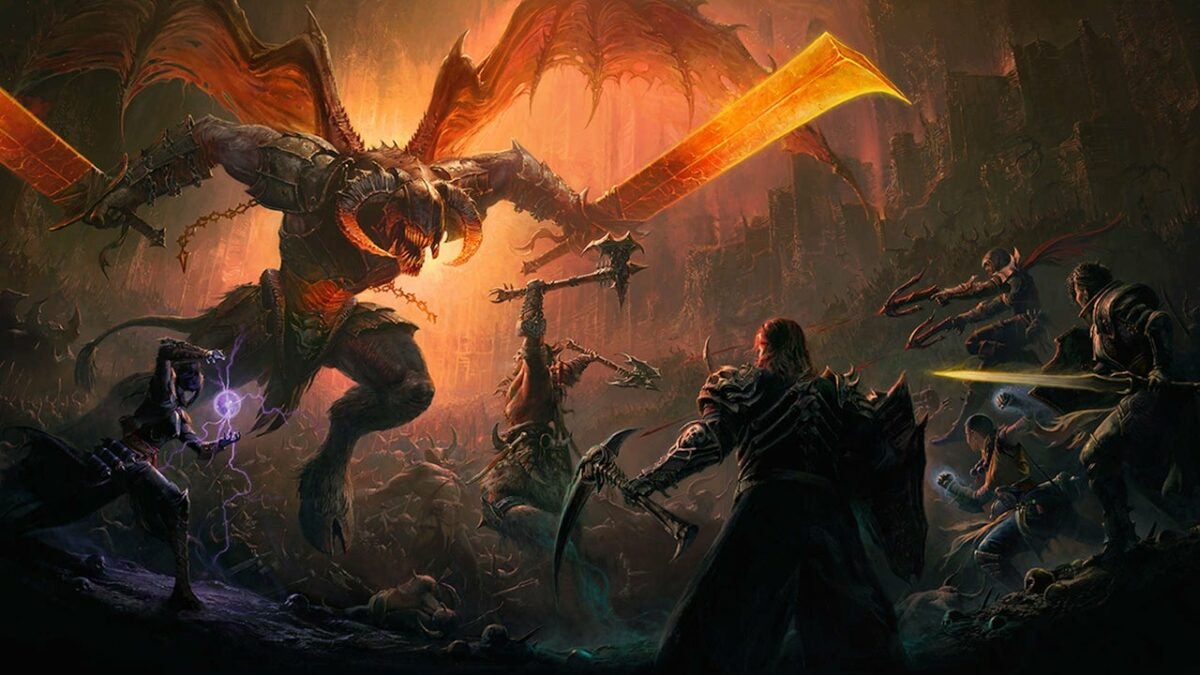
There is light at the end of the tunnel as it seems a Diablo Immortalrelease date is on the horizon. With pre-orders and pre-registration for Android and iOS devices now available, we’ve finally received an official release date for this popular Blizzard game now adapted for mobile.
This mobile version of the beloved Diablo game was first announced in 2018. Since then, fans of the franchise have been waiting patiently for any news on when we can expect this game’s release. The release has been delayed a few times to address issues discovered during testing. However, it seems we’re making some headway now.
The game has been available for pre-registration on Android devices for a while now. However, the iOS pre-order option just went live. We also receive the first official release date along with the chance to pre-order the game for your Apple mobile device.
The app stores currently list Diablo Immortal for a June 30th release date. However, this date should be seen as a placeholder as it may still change if issues are discovered with the iOS version or if other delays occur. For now, franchise fans can just pre-order or pre-register for the game from their applicable app stores and wait patiently for the countdown to June 30th to begin.
Genshin Impact version 2.6 is just around the corner, with the official release data and maintenance countdown announced. We’ve also received leaks regarding the release of two new protagonists, Kuki Shinobu and Yelan, in version 2.7, along with this release date. The excitement builds as we get ready for the newest release and future releases.
The update and maintenance time for Genshin Impact 2.6 is on March 29th at 15:00 PT, 18:00 ET, and 23:00 BST. The maintenance period will follow immediately after the update and will start at 06:00 UTC+8 on March 30th. As with all updates on maintenance periods on Genshin Impact, the game will not be available during this period.
The developers, miHoYo, have calculated that the update and maintenance period should last five hours. While the game may be available sooner or later than these five hours, it’s very unlikely, based on previous releases, that it came out on time. All players will receive 300 Primogems as compensation for their patience during the maintenance period.
The first banner we’ll see for the upcoming release is a new character Kamisato Ayato. There will also be a rerun of Venti. Ayaka will also be treated to a rerun which we’ll see on April 19th. This date is also when the Venti and Ayaka event wishes will end, so ensure you’ve got all the four-star companions before then.
The developers, miHoYo, keep the game exciting with frequent updates and releases of new characters. Version 2.6 doesn’t disappoint, and soon we’ll be able to experience the newest release and meet the new character Kamisato Ayato. There were also leaks of a chasm boss for Genshin Impact.
Kairosoft is well known for producing addictive management games for mobile devices. Their games like Game Dev Story and Dream House Days can keep Android and iOS users entertained for hours. This Japanese studio has released numerous management-style games following different stories, from running an apartment complex to a game development studio and more. Now, the company has released some even more good news.
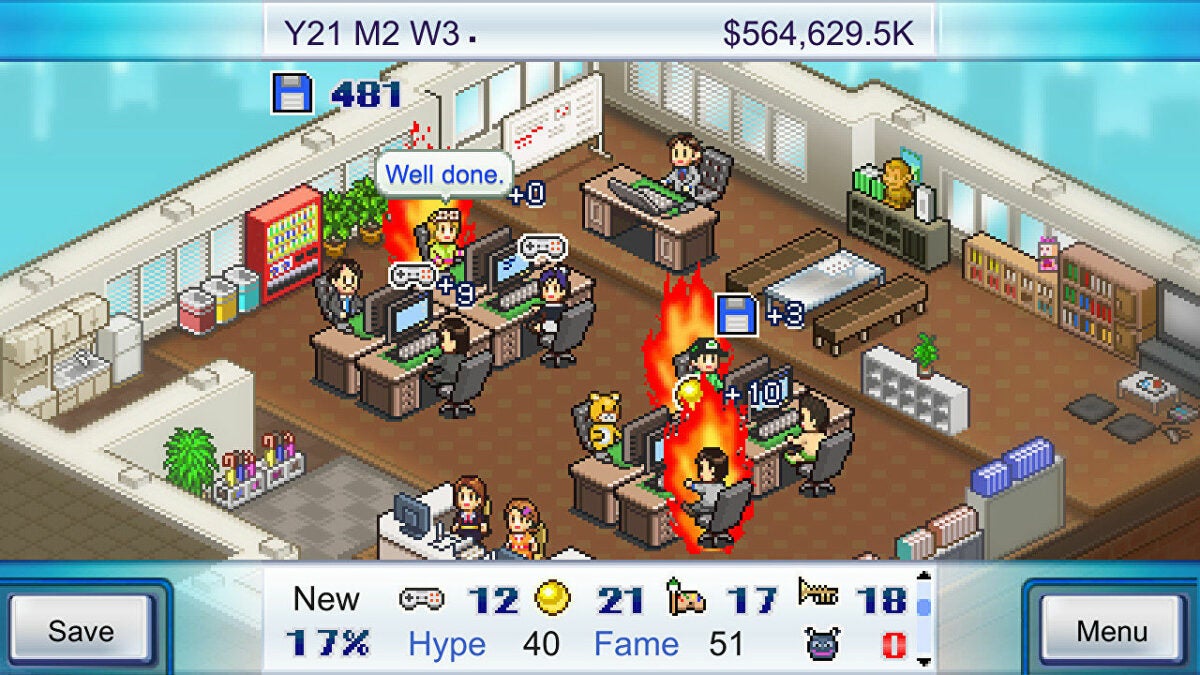
Game Dev Story, one of the first and most popular games in the Kairosoft collection of management games, is coming to Steam. Most of the releases have been for mobile, with a few Windows ports available. However, this will be the first release on Steam. This will allow a whole range of players to try out the highly addictive game and see what they make of it.
While it may not boast the best graphics, with their pixelated artwork, and it’s quite apparent that the game wasn’t developed for desktop as it lacks some depth, the essence of what makes these games great is still intact. The game keeps its crunchy numbers and heart, which attracts players to the franchise in the first place.
So far, it’s just Game Dev Story being released on Steam, but we’re hoping they’ll also start adding more of the already translated-to-English games, such as Mega Mall Story and Dream Home Days, after a warm reception, to the gaming platform as well. Maybe this will also urge the developers to start translating more of the games.