Firefox vs Ubuntu – a new mobile platform war begins

Firefox OS and Ubuntu Phone have captured most of the headlines at the Mobile World Congress 2013. We already knew a bit about each but the Barcelona show has seen both platforms step into the limelight.

We had the opportunity to experience both new operating systems first hand to expose their differences and similarities. Read on and find out what we thought about the two new mobile OSs on the block. Continue reading “Firefox vs Ubuntu – a new mobile platform war begins”

Hide Facebook messages and chats using NQ Vault

Ever wonder what would happen if Facebook messages and chats could be seen by someone else? The thought of it is a little terrifying, right?

If you’re concerned about your privacy when chatting on Facebook Messenger on your phone then make sure you check out the new Facebook message encryption feature within NQ Mobile Vault, which we took a look at when we caught up with NQ Mobile at this week’s Mobile World Congress 2013.

Continue reading “Hide Facebook messages and chats using NQ Vault”

Atooma wins best app prize at Mobile Premier Awards 2013

An app which can automatically post to Facebook, send emails, and change settings on your phone based on certain conditions has won the best app award at the Mobile Premier Awards in Barcelona.

Atooma lets you set up conditional events that automatically trigger certain actions on your phone. For example, when it’s a friend’s birthday on Facebook you could automatically post a greeting to their wall, if your battery is running low you could change the screen’s brightness or turn flight mode one, or automatically reply to received tweets on Twitter.

Continue reading “Atooma wins best app prize at Mobile Premier Awards 2013”

Follow the Mobile World Congress with Softonic

Next Monday 25th February, the eyes of the tech world will be on Barcelona for the start of the world’s biggest mobile tech event, the GSMA Mobile World Congress (MWC).

Softonic, which is headquartered in the Catalan capital, will be present at the show to bring you the latest up-to-the minute coverage. When we spot any interesting new apps or discover some cool piece of technology you’ll be the first to know. You can follow all the action here on OnSoftware, as well as through our Twitter and Facebook pages. For details of what delights to expect at the show check out our MWC 2013 rumor round-up post.

Continue reading “Follow the Mobile World Congress with Softonic”

Mobile app of the week: SwiftKey Keyboard 4

The latest version of SwiftKey Keyboard, released today, is the fastest Android virtual keyboard that we’ve tried.

The new version’s SwiftKey Flow technology makes this keyboard replacement even smarter than ever. The gesture-based input system means you just need to drag your finger across the position of the letters on the keyboard in order to make words – you literally don’t have to lift a finger.

Continue reading “Mobile app of the week: SwiftKey Keyboard 4”

MWC 2013 rumors round up – what to get excited about

The world’s biggest mobile trade show, the GSMA Mobile World Congress (MWC) kicks-off in Barcelona on 25th February. As always, Softonic will be there in force to bring you all the news from the ground on the big announcements, and to share with you some of the weird and wonderful new mobile technology on display.

As is the norm before this annual event, tech news sites and blogs have been rife with rumors about what will be hot at MWC 2013. Predictably, most of the rumors are focused around what cool new devices we’ll see from the big handset manufacturers. The buzz around the big boys of the handset world has already been rounded up over at sites such as Digital Trends and T3, where speculation is rife over new devices such as the Galaxy Note 8.0, a new range of Nokia Lumia Windows Phone devices, a Nokia Windows RT tablet and the HTC H7.

Continue reading “MWC 2013 rumors round up – what to get excited about”

How to play Flash on Android devices

Want to access Flash content on an Android device? As you might have noticed, it’s not as easy as it used to be, since Adobe stopped development of its Flash Player for Android, back in November 2011.

So, what do you do if you want to play Flash games, watch Flash video, or enjoy interactive Flash web sites on an Android device? There are a few different ways to access Flash on Android, though none of them are as effective as the days when Flash was ubiquitous across the Android platform.

Still, if you’re desperate to access Flash content on and Android device these will do the job for you:

1. Legacy version of Flash Player for Android

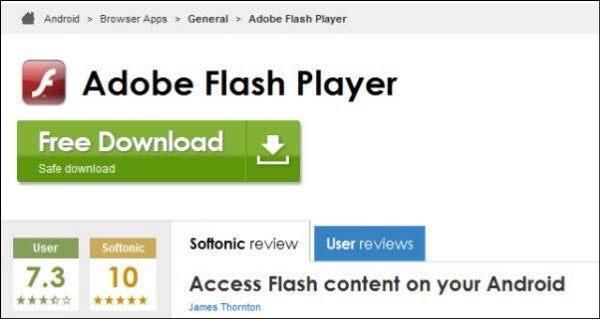
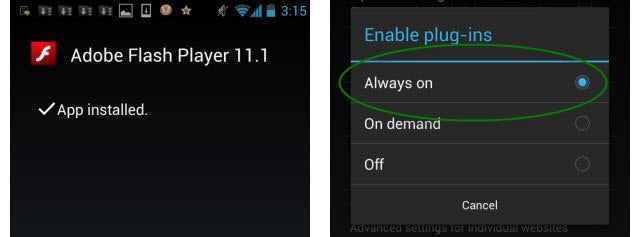
It’s still possible to get hold of the last version of Flash for Android and install this on your device.You can download the Flash Player for Android APK from Softonic then transfer it to a folder on your device.
Before you start to install you need to tell the operating system that it’s OK to install applications from outside of Google Play.

To do this go to Settings > Security and check the Unknown sources box to allow installation of apps from sources other than the Play store.
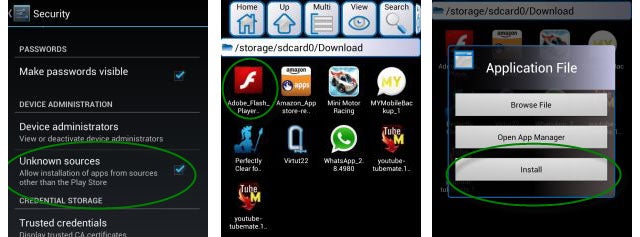
Browse to the Flash Player installer on your device and tap the icon to open it, before hitting Install. Click Done once installation has been completed.

Now open up your Android browser and go to Settings > Advanced. Make sure that the Enable plug-ins box is set to Always on.
Advantages of Flash Player:

  • Supports all kinds of Flash content
  • Free

Disadvantages of Flash Player:

  • There are no more stability updates for Flash Player for Android and it’s not officially supported by Adobe anymore, meaning there’s nothing to protect you if it goes wrong. In particular, running Flash on Android 4.1 (Jelly Bean) can cause some stability issues.
  • The fact that the security issues are not updated anymore, means that your device could be exposed to attack through malicious Flash content. Although rare, it’s something that could happen.

2. Puffin Browser

An alternative route to take is to install Puffin Browser on your Android device. This handy web browser includes Flash support, allowing you to run all kinds of Flash content through the browser.

The experience of running Flash through Puffin Browser is pretty smooth, even on lower end device. That’s because Puffin uses remote Flash technology, running Flash on the developers servers to enable the experience on your device.
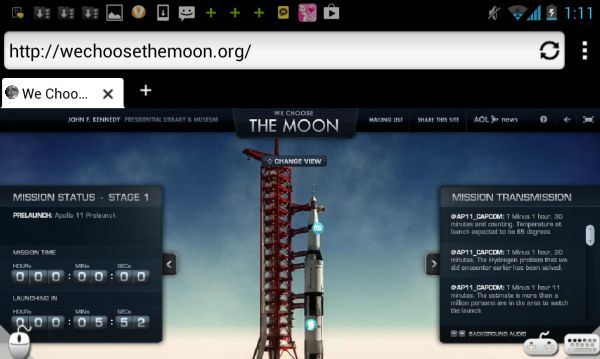
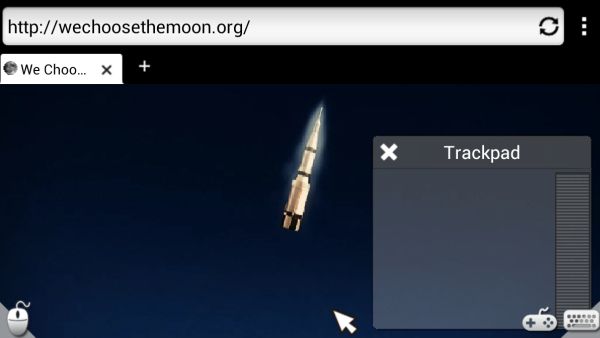
Puffin Browser is a pretty good alternative to the default Android browser anyway. The app renders pages very quickly, and includes a unique virtual mouse, which replicates the behavior of a desktop browser by placing a cursor on the screen and allowing you to move this with an on-screen track pad.
There’s a two-week trial of the Adobe Flash support in the free version of Puffin Browser, but if you want to retain this feature you’ll need to upgrade to the full version, currently priced at $2.99.
Advantages of Puffin Browser:

  • Handles a variety of different Flash content (video, games, interactive content, etc.)
  • Fast and stable

Disadvantages of Puffin Browser:

  • You have to pay for Flash support (two week free trial available)

3. Skyfire

Skyfire is another Android browser with Flash capabilities. The application allows you to freely watch Flash video on your device, although unlike  it doesn’t support other types of Flash content, like games or some Flash interfaces on web sites.

Skyfire does have a premium video service whereby you can load and play Flash video on your device more quickly. It can also save you money on your data plan since videos are compressed by Skyfire by up to 75%.

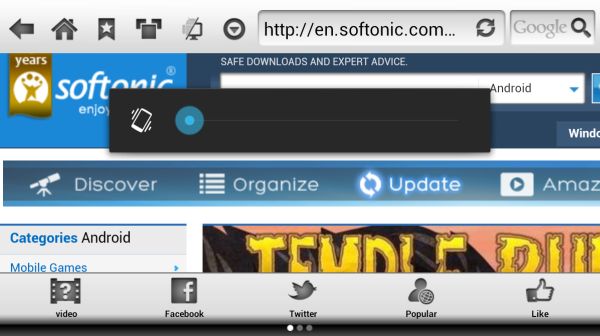
Aside from the Flash video support, Skyfire has some other useful features that give it an edge over the built-in Android web browser. It includes user agent switching, quick access to popular sites, and lots of social networking features, including a Facebook QuickView and a ‘Like‘ button. It looks nice and is easy to use too, and even if you’re not interested in Flash video, I would recommend switching to Skyfire.
Advantages of Skyfire:

  • Enables Flash video for free
  • Some innovative web browsing features

Disadvantages of Skyfire:

  • Doesn’t handle other types of Flash content, other than video

4. Adobe Air

One of the reasons mooted by experts why Adobe ditched support for Flash for Android is that it wanted to push its Air platform to mobile developers. Just like Flash and HTML 5, Adobe Air is a platform for rich interactive media content, and there are an increasing number of apps and games that use the technology.

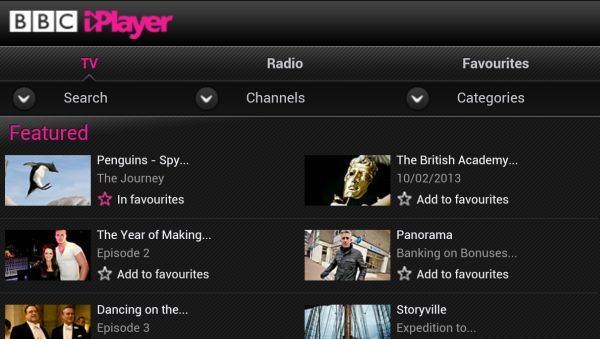
Adobe Air won’t let you play Flash content on your Android device but it will allow you to access web apps created using the Air environment, such as the BBC iPlayer. What’s more, it works natively outside of the browser, so you can enjoy content directly through the app. You can download Adobe Air free from Google Play.
Advantages of Adobe Air:

  • Lets you enjoy some great web apps and games built with the Air platform
  • Works natively outside of the Android web browser

Disadvantages of Adobe Air:

  • Doesn’t let you play Flash content
  • Amount of content for Adobe Air is still limited compared with Flash

Mobile game of the week: Zombie Smasher

Not another zombie game, I hear you scream! Well yes, Zombie Smasher is another zombie game for Android but it’s so much fun that it warrants a look.

The great thing about Zombie Smasher is its simplicity. To destroy the moronic hoards of undead you don’t need to cultivate an elaborate garden like you do in Plants vs Zombies, hunt them with guns like in Dead Trigger, or run for your life as you do in Zombie Dash. In Zombie Smasher, all you need to do is squish soulless corpses with your finger.

Continue reading “Mobile game of the week: Zombie Smasher”

BlackBerry 10: success or failure?

Will BB10 make or break BlackBerry?

BlackBerry 10 was launched last week and as the world waits for the new devices to hit the shelves, we’ve had a chance to tinker a bit with the new OS.

A revamped gesture-based interface, a supersonic browser, an intelligent keyboard and a sleek new design are just some of the highlights of BlackBerry 10. There’s no question that the new OS is a step forward, but the debate flying around the office here is: will BlackBerry 10 be a success?

Two of the most vocal Softonic editors on the subject are Alberto (Softonic Spain) and Marina (Softonic Italy) who agreed to share their thoughts on the potential for BlackBerry 10:

Continue reading “BlackBerry 10: success or failure?”

How to save WhatsApp profile pictures to your phone

Want to use a person’s WhatsApp profile picture as their contact image on your phone? Unfortunately, there’s no option built into WhatsApp for doing this. In fact, you can’t even save a WhatsApp profile picture from the app to your phone.

However, with a bit of trickery it is possible to save a friend’s WhatsApp profile picture to your phone then use this as your contact picture for that person. Here’s how you do it on an Android phone. It’s a similar process for iPhone but remember that to make a screen capture on an iPhone you need to hold the center button and power button simultaneously.

Set a WhatsApp profile picture as a contact picture on your phone

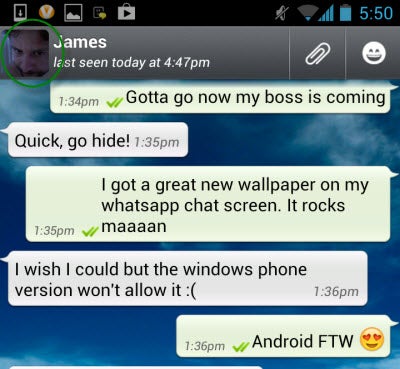
1. You can load up a full size version of a contact’s WhatsApp profile image simply by clicking on their name in the chat window.

2. Now take a screenshot of the image by pressing the Power and Volume down buttons simultaneously on your device. This will only work if you have version 4.0 or higher of the Android operating system.

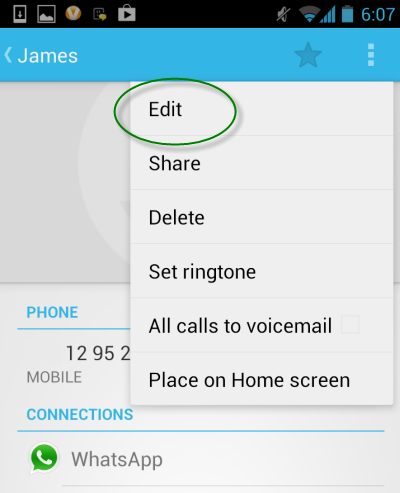
3. Quit out of WhatsApp and open the Android contacts app. Tap the name of the contact you wish to add the picture to and choose ‘Edit’ from the options menu.

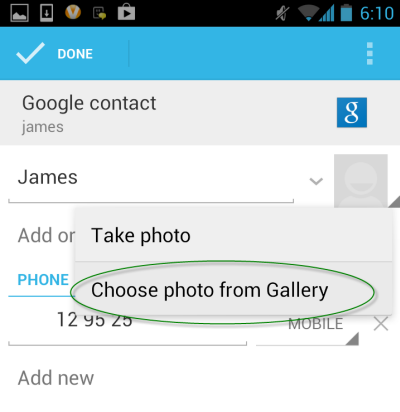
4. Now tap on the person’s profile image (or the silhouette) and tap ‘Choose photo from Gallery‘. Select the image you just captured from your Screenshots folder.

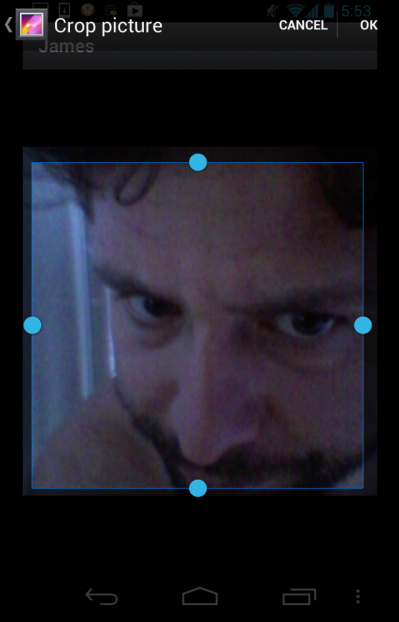
5. You can now crop the WhatsApp profile picture that you took so that it fits the profile picture aspect. Do this by holding and dragging the lines of the square. When you’re done, click OK.

6. Your friend’s WhatsApp profile picture will now be set as their contact photo on your phone.

Wrap-up

That’s all there is to saving your WhatsApp profile pictures to your phone. Hopefully this guide has helped you clean up your contacts list a bit with contact profile pictures.