Nokia revealed its new maps application this week, called Nokia Here. This revamped version of Nokia Maps adds a host of interesting new features designed to make it easier to get around.
Nokia Here is a cloud-based maps service, centered around helping you find interesting places to go, with an increased focus on community-driven content. You can create collections of places you’ve been and share them with others, explore interesting places around you with the click of a button, and even create your own maps, helping Nokia to mark places of note and new roads on its maps. Nokia is also ramping up its support for 3D maps in Here.
Traditionally, Google Maps has been the go-to service for finding places but Nokia Here now represents a worthy alternative. But is it better?
We took a look at some of the most important features in Nokia Here and Google Maps, using them to help us travel around central London and get the maximum enjoyment out of our trip. We used the desktop version of Google Chrome, which supports the WebGL technology needed to run the 3D mapping in both.
Map view
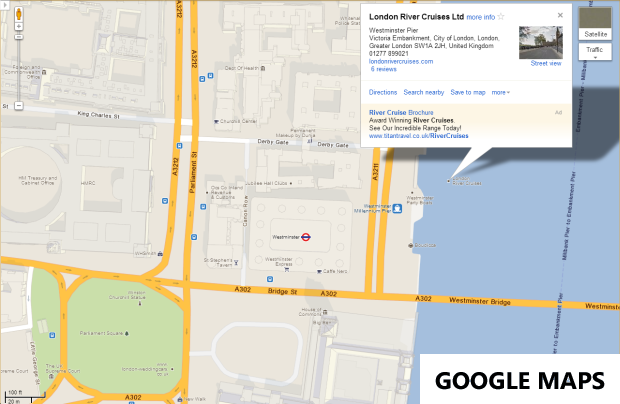
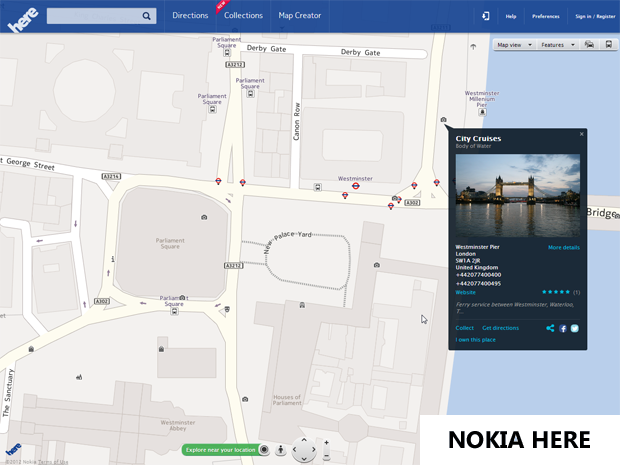
The classic map views in both Google Maps and Nokia Here are both very easy to navigate. Moving around maps is done by dragging around or using the directional pad. Zooming in both applications is controlled by double-tapping the screen, or using the slider. I would argue that Google Maps is slightly easier to work with since the movement and zoom controls are in a more comfortable position on the interface than Here, where they are tucked away at the bottom.
Google Maps also has the edge in terms of detail in its maps. In our tests in central London, the Google apps revealed more places of interest than Nokia Here, though if Nokia’s crowd-sourcing plans take off, we can expect to see more user-added businesses and interesting places.
When it comes to map design, the 3D-style view of the buildings in Google Maps makes it easier to spot places (and it looks nicer!) Nokia Here displays less street name information at the same level of zoom as Google Maps.
Winner: Google Maps
3D view
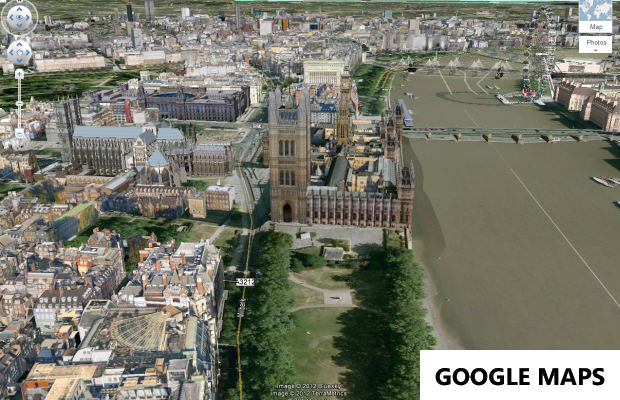
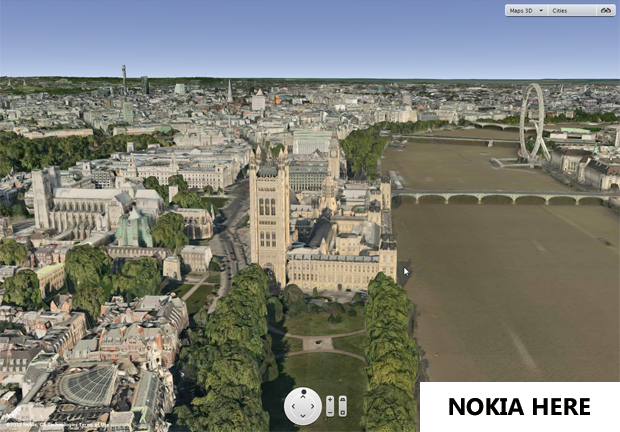
Nokia has acquired the 3D mapping company, Earthmine, which promises to deliver slick 3D exploration capabilities. For now, several cities are mapped in 3D and the effect is very impressive. Enter the ‘Maps 3D’ view in Nokia Here and you’ll be able to traverse 25 cities in three dimensions, viewing realistic representations of buildings, objects and landscapes. There’s some warping in a lot of the imagery where textures have been wrapped around, but the overall effect is very impressive.
Nokia Here also includes a fun ‘3D glasses’ mode, where fans of old-school 3D can don their glasses and watch satellite maps come to life in front of them.
Google has had 3D for a while in its Google Earth software, and slowly cities in its Maps app are being realized in three dimensions. The 3D effect in the Google Earth view within Google Maps isn’t as impressive as that of Nokia Here, which has a more realistic feel to it.
Winner: Nokia Here
Street view
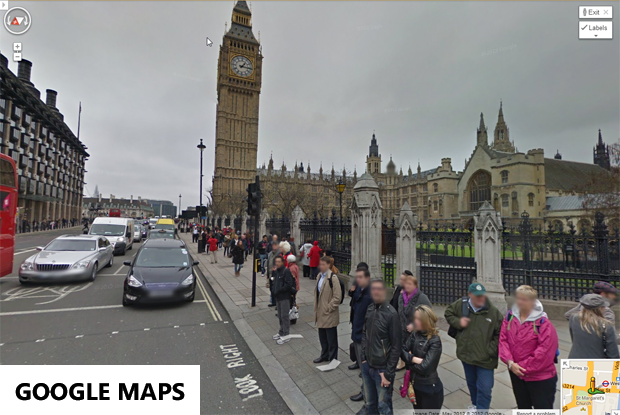
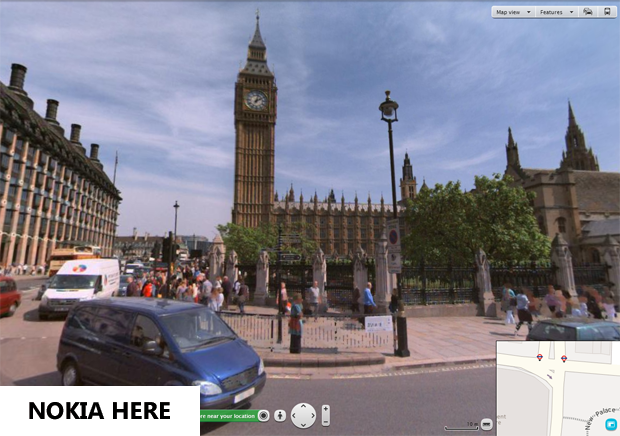
Both Google Maps and Nokia Here offer street-level views. These work in a similar way by dragging a little man onto one of the compatible streets in the map, then using the command controls to travel the streets.
When it comes to getting a pedestrian’s-eye view of a city, Google Street View is still ahead of Nokia’s alternative. Of the area of Central London we were studying, Street View covered all but a few small roads and lanes. Nokia’s street-snapping cars are not quite as prolific as Google Street View, but Here’s coverage is impressive nonetheless.
In terms of image quality, Google Street View wins out here too. The resolution of the photography is higher than that of Nokia Here and color and tones are more lifelike. Street View has the added advantage of using photographs uploaded by users to create panoramic tours of pertinent places, such as Big Ben, The Tower of London and Westminster Abbey.
Winner: Google Maps
Directions
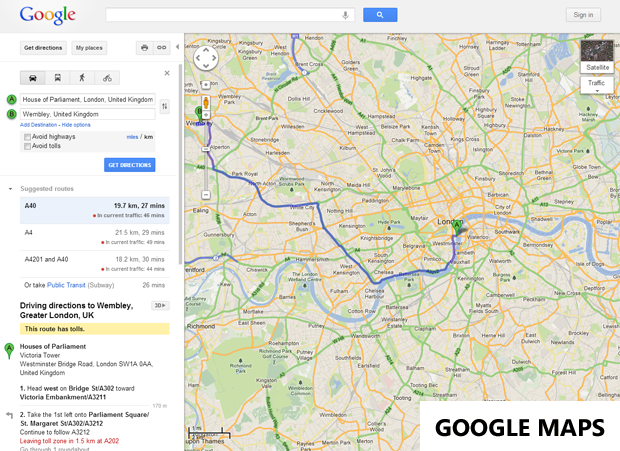
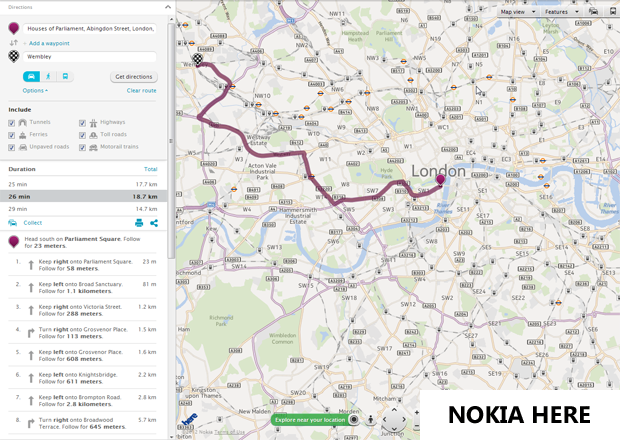
Nokia Here and Google Maps both provide good directions. They offer a choice of alternative routes, showing information about route length in terms of distance and travel time based on walking, car (Google Maps takes current traffic conditions taken into account), and public transport. Google Maps even includes >bicycling directions, which aren’t offered in Nokia Here.
Interestingly, the suggested routes for the directions we asked for were all different between Google Maps and Nokia Here, with the Nokia service finding us the quickest route overall (but only by one minute!)
We found the clarity of the directions a little <strong>easier to follow in Nokia Here</strong>, which guide you through the route in list format and on the map. Both Here and Google Maps allow you to tweak the route by clicking and dragging it on the map, in case you want to cut a particular part out.
Winner: tie
Local information
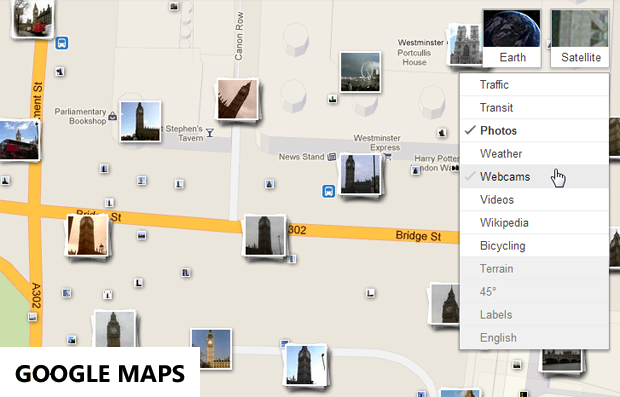
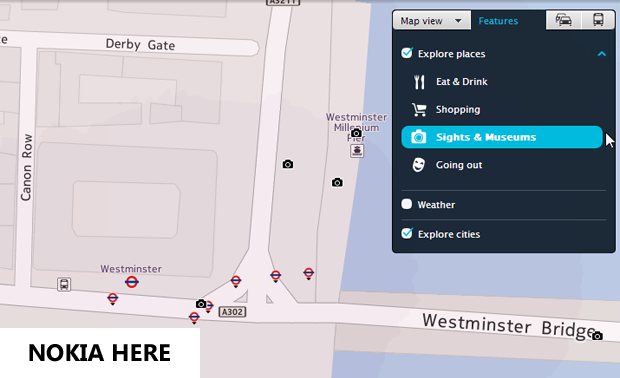
When it comes to displaying local information on a map, Nokia Here still lags behind Google Maps – although it is catching up. Here offers the ability to explore cafes and restuarants, shops, sights and places to out. It also shows you the current weather and forecast.
Google Maps does all of this and more. You can display all kinds of different information and content on your maps, including webcams, Wikipedia entries, videos and cycle lanes. As I mentioned before, there are more businesses and places listed on Google Maps than in Nokia Here.
Winner: Google Maps
Traffic
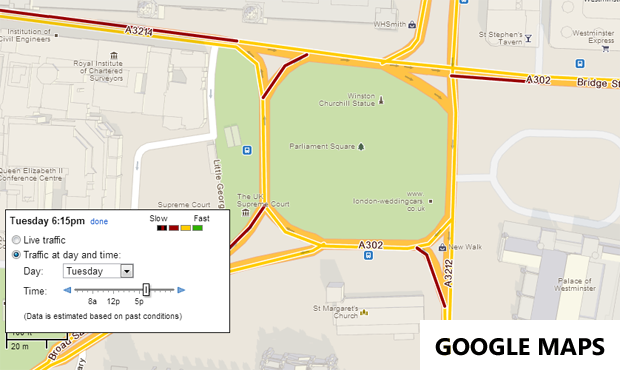
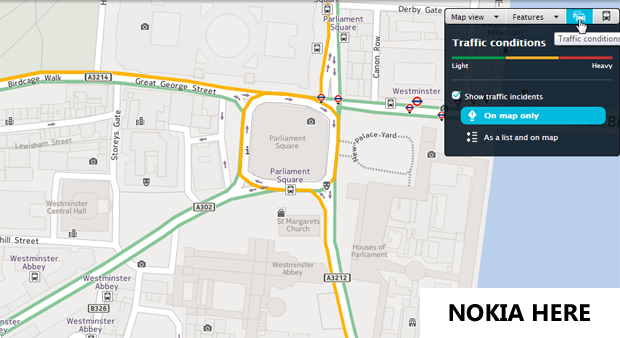
I find that traffic information on Nokia Here is clearer and better presented than it is in Google Maps. Its light to heavy scale is easy to follow by looking at the corresponding colored lines on the map. You can view current traffic incidents in list format, giving you an at-a-glance view of current congestion, accidents, roadworks and other events that might hold you up.
Google Maps offers traffic information too, and as well as seeing live information you can view estimates of the traffic density of an area on a particular time of a particular day of the week, which could be useful if you’re planning a trip somewhere in a few days.
Winner: Nokia Here
Public transport
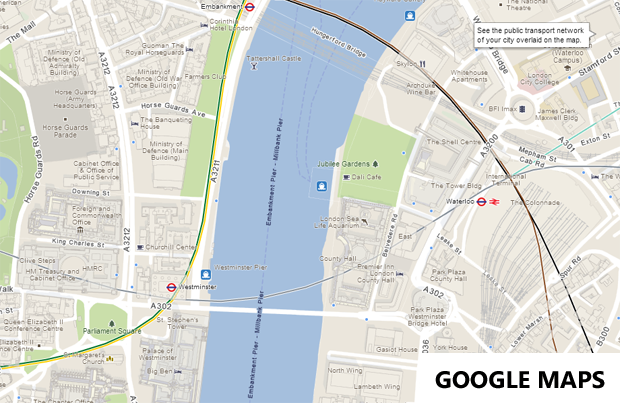
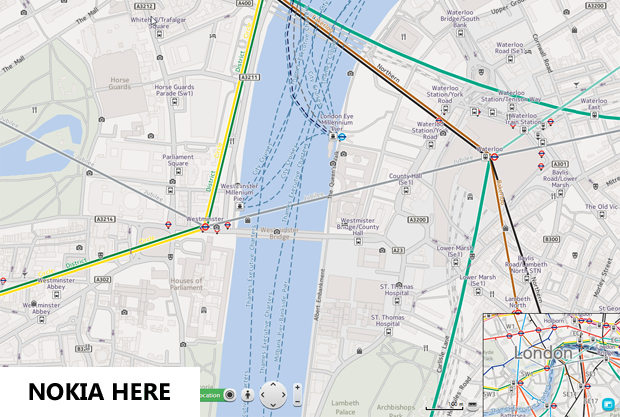
Both applications display information about London Underground and mainline routes on the maps, and also offer timetable information for trains, trams and buses within the directions menu.
Information about public transport systems proves to be <strong>clearer and more detailed using Nokia Here</strong> than it is with Google Maps. For example, the names of each tube line are displayed in parallel with Here, while in Google Maps they don’t appear. Nokia Here also offered us more Thames boat and ferry routes than its Google rival. Thumbs up for Nokia!
Winner: Nokia Here
Personalization and collaboration
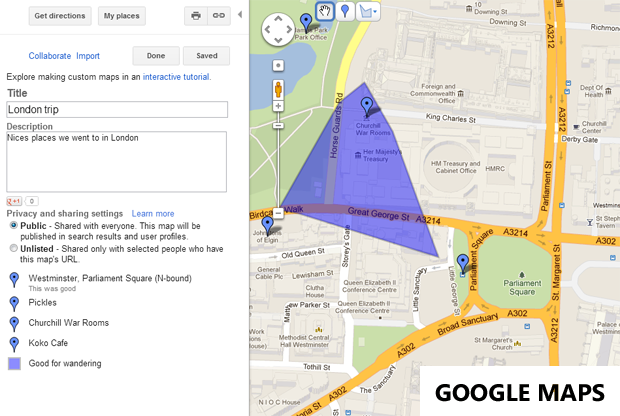
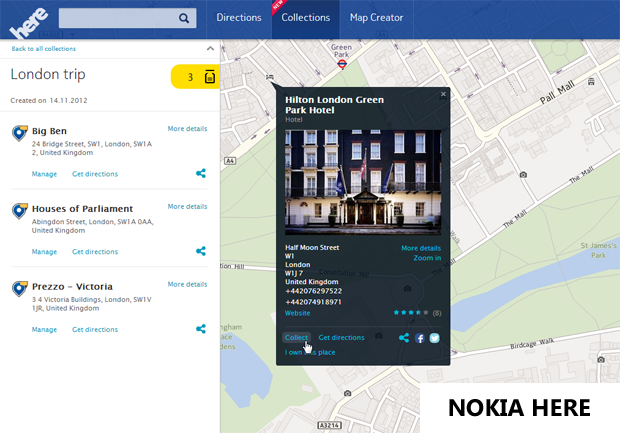
One of the major additions to Nokia Here is its new <strong>Collections</strong> feature. This allows you to ‘collect’ interesting places you’ve been and group them together, so you can remember where you’ve been and go back to them.
The feature is very well implemented and easy to use. An Nokia account is needed to use Collections, and places are accessible to you wherever you go, regardless of which device you’re using. You can easily share places in your Collections via Facebook, Twitter, email, etc.
Another interesting new feature of Nokia Here is its community-driven Map Creator tool. This allows users to edit maps themselves, adding details about points of interest, and even providing details of new roads that have yet to be mapped. Should certainly make Nokia’s job easier! The Map Creator is only available in a few countries at the moment, mostly in the developing world.
Google Maps already has its own cloud-based customization tools in the shape of My Places. Here you can not only save places you’ve been to and sync across devices, but it’s possible to make custom maps out of the places you’ve been, which you can share with others and collaborate on. This is great for making themed routes, or highlighting particular places of interest for a particular group of people. For instance, you could map biker bars in Bermuda or medieval museums in Medellin.
Winner: tie
Labs features
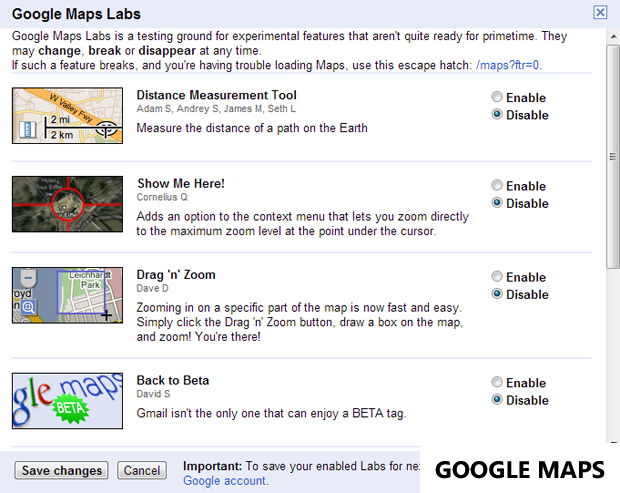
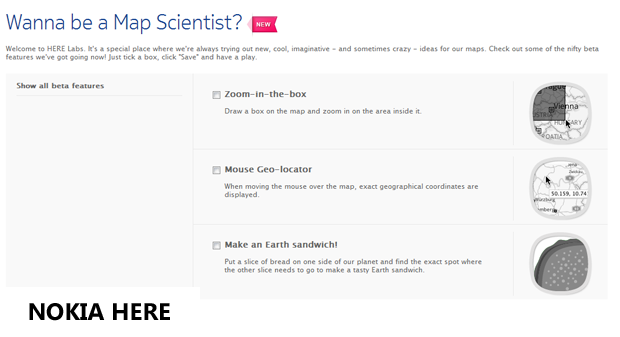
If you like to be one of the first to try new software features then be sure to check out some of the beta tools included within Nokia Here and Google Maps.
Head to the Maps Labs section of Google Maps (the link is at the bottom of the right-hand sidebar) to test out some of the interesting tools here. There’s a distance measurement tool, an auto-zoom function, drag ‘n’ zoom, and latitude/longitude tooltips, among others.
Nokia Here has three tools in beta at the moment, which are accessible from the My Preferences menu. There’s a zoom-in-the-box option, which allows you to draw an area to zoom into; a mouse geo-locator, which displays coordinates in a tooltip, and a fun ‘Earth sandwich’ tool to play with.
Winner: tie
Multi-platform support
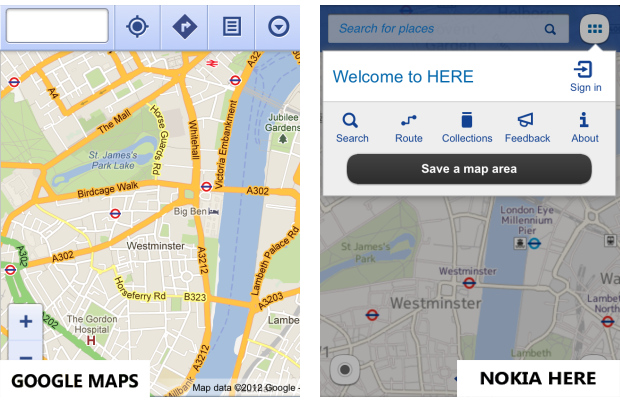
It has proved difficult to split the desktop browser version of Nokia Here and Google Maps on features – until this point the scores are level, so it looks like it’s going down to the wire. The decider in the match-up between the two map platforms is the availability and integration they have across all the various devices and platforms used today.
This is where Nokia Here sneaks an advantage. The Here web application is programmed in HTML 5, and works seamlessly across Android, iOS, Windows Phone and other smartphone platforms. Themobile version boasts many of the same functions as we’ve mentioned (Collections, live traffic, public transport, etc.). It also includes a ‘Save a map area’ tool that lets you select and certain part of a map to be downloaded then viewed offline whenever you like. This latter feature is great for those who have a data limits, or for exploring areas with limited internet coverage.
The Here platform will form the base for new mobile apps that Nokia plans to release for various operating systems: iOS<, Android, Windows Phone, Symbian and Firefox, among others.
The broad-reaching vision Nokia has with Here is refreshing to see, and is an example that Google Maps should follow if it wants to stay ahead. Its native iOS version was taken out of the Apple operating system and of all the smartphone platforms currently, only the Android has a dedicated Google Maps app (unless you count the limited Java mobile-based version).
The mobile web version of Google Maps works pretty well, however. You get access to My places, traffic information, public transport and directions, and the user interface is smart and easy to navigate.
Winner: Nokia Here
Observations
Make no mistake both Google Maps and Nokia Here are excellent tools for exploring the world around you. As our experiences proved each application has its own strengths. On the surface Google Maps is more appealing – it is more detailed, offers more information about places of interest and its Street View is unrivaled as an on-the-ground guide.
However, Nokia Here isn’t too far behind Google in these areas, and is bringing even more to the picture through its impressive 3D technology, customization options and crowd-sourced maps.
You feel that ultimately, the battle for supremacy will be won and lost in the mobile sphere, and it’s here that the Nokia solution could have the edge (it makes phones, remember?) With a slick, personalized mapping experience that’s consistent across devices, Nokia Here could change the landscape of navigation tools. Give it a try and let us know what you think.
 This Wednesday, January 30th, the new BlackBerry 10 operating system will be launched. Research in Motion (RIM), the company behind BlackBerry, is hoping the new OS will jump start the fortunes of the ailing platform to make up ground on Apple’s iOS and Google’s Android platforms.
 What are you going to give up in 2013? Smoking? Candy? Working too hard? How about you give up the software and apps that are making your life a misery or which just aren’t cool anymore?
 It’s been a very exciting year for Android users. 2012 has produced a smart new

 Nokia has got into the iOS maps game with the launch of its
  A new version of Opera Mini for

 Nokia Maps is one of the