Hands on preview of Pro Evolution Soccer 2014

Here at Softonic, we tried out PES 2014 (or Pro Evolution Soccer 2014, to give it it’s full title) a month before the release of the demo. This alpha preview gave us a good sense of what Konami will have in the full release of the game. While we’re certainly excited about the game in the San Francisco office, it doesn’t even compare to the fervor expressed by our Italian colleagues. That’s why we turned to the expertise of Daniel Barranger and Alessandro Licitra, who went toe-to-toe on the virtual field. The two expressed hugely different opinions about PES 2014, and we’ve chronicled their impressions of the updated gameplay, graphics, physics, tactics, and more.

Graphics and Sound

Alessandro approvesAlessandro – Pro Evolution Soccer’s new graphics engine, Fluidity, performs great. Close-ups of the players are awesome, with the virtual avatars really resembling their real-life counterparts. I also had the feeling that the spectators and banners in the stands, not to mention the photographers on the sideline, make the whole game more energetic. In short, PES has great scenery.

But what impressed me most in this first hands-on of PES 2014 are the sound effects. Konami has done a superb job, not only with the classic chanting from the stands, but because the audience actually rallies the teams: they incite, encourage, and increase in intensity as you approach the goal, giving support at critical stages of the match. They don’t miss the opportunity to boo dubious referee decisions or when the rival team is on the attack.

The crowd’s presence is constant throughout the match. My advice? Pump up the volume and enjoy the game: it feels like you’re really in the stadium!
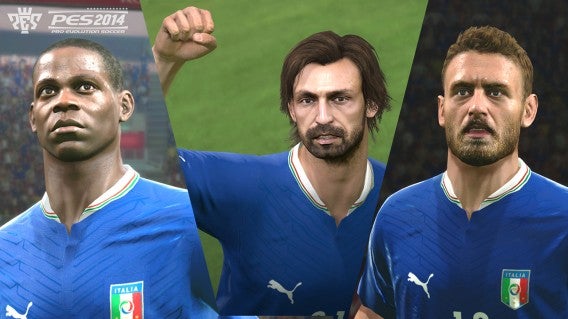

Daniel disapprovesDaniel – Honesty, there isn’t a lot to complain about. The graphics continue to improve, and the spectators and players still look much better than FIFA.

There are some flaws: players’ eyes seemed ill-defined. Practically only the pupil is visible, and making their faces less expressive. The transition to play after a foul also seems a bit lacking, but it’s probably due to the fact that the demo is an alpha build.

Despite being able to recreate a real stadium atmosphere, there is no denying that the artificial sounds get repetitive. Playing at home and four goals behind, we scored a consolation goal and the audience burst into a surreal roar: when would that happen in a real game?!

Physics and animations

Daniel ApprovesDaniel – Comparing PES 2014’s physics with Pro Evolution Soccer 2013 can be likened to effect of the Impact Engine in FIFA 12. On-pitch collisions are now much more realistic.

Another long-awaited feature is the new ball physics, especially noticeable when players run with the ball. That “bowling ball” effect where the ball made strange unrealistic bounces or slides is now gone. What’s more, the ball is no longer “glued” to the player’s foot and behaves much more naturally.

The animation of the players’ movements are more realistic than ever. Gone are the abrupt changes of direction – now movements are smooth and harmonious. The action on the field is becoming more like what you see in a real soccer stadium.
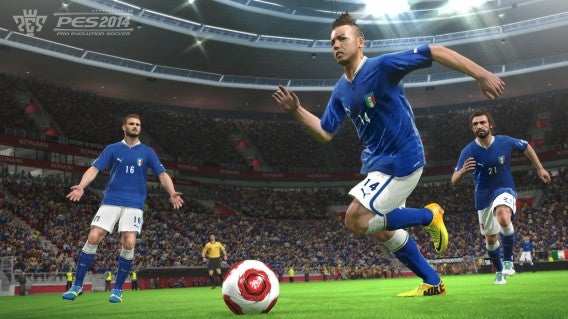

Alessandro disapprovesAlessandro – I agree with Daniel, but with some reservations. It is true, the physics and animations are an improvement on PES 2013, but sometimes after a collision, the ball remains almost stationary between the two characters. Though rare, it’s very jarring. Players falling to the ground is also rather unrealistic, comparable to falls we saw back in FIFA 12.

I agree with Daniel about changes of direction, even if sometimes the ‘gap’ between the run and the precision control is a bit too clear-cut and slows down the action. Then there are the shots: both the powerful and the precise ones look great, but sometimes the trajectories don’t make sense; I saw shots that were heading out turn towards the goal at the last second.

On the field

Daniel ApprovesDaniel – If I had to sum up Pro Evolution Soccer 2014 in two words, especially when compared to last year’s installment, I would say “elegance” and “spectacle.” The refined and precise controls (using the L2 or LT along with the joypad) have been greatly improved, and really allow you to dance around the field.

PES has always focused on the action on the field and on the players interacting, but this year Konami has really topped their previous efforts. During our test we saw many Philipp Lahm-style overlapping moves and some of our kicks had a real flavor of Xavi Hernandez about them.

Free kicks and cornering have improved thanks to a visual trajectory that’s adjustable with both sticks. In addition, you can always establish the direction where you want to send the ball with the right stick. With the left stick you can adjust the effect and height. The new system makes it easier to direct free kicks and corners, without abusing the system and scoring a goal every time.

pes 2014 in the field

Alessandro disapprovesAlessandro – Some movements seem a bit floaty and not always like you have control over the movements of the player.

PES 2014 highlights how moves look – and it is beautiful – but the actual gameplay is slow and sometimes cumbersome – though it’s still better than PES 2013.

The referees were unconvincing: they seemed strict and punished the players very easily. Disappointingly, they don’t apply the advantage rule correctly (a problem inherited from PES 2013. It’s surprising Konami didn’t solve this issue).

Goalkeepers

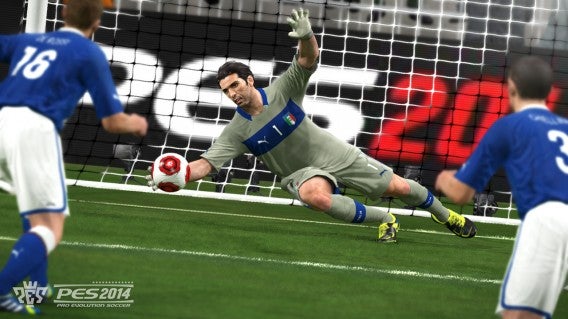
Daniel ApprovesDaniel – The big gap between PES and FIFA was because of the goalkeeper’s AI and abilities in the hands of players. Konami has made remarkable improvements this year. Goalies are no longer superhuman with impossible saves, having become much more consistent and realistic than in previous installments.

In PES 2014, goalkeepers will sometimes deflect the ball with almost imperceptible touches, preventing rampant scoring, while many other times they barely miss, letting the ball slip through their fingers and gifting a goal to the opposition.
PES 2014 goalies

Alessandro disapprovesAlessandro – That’s very true; some interventions are truly spectacular and I admit that my jaw dropped on several occasions.

But the real problem is when the goalies leave the 18-yard box: I saw high balls easily miss on crosses, and if you opt to manually exit the box (Y button on the Xbox joypad) to face a striker, the goalie moves slowly and clumsily. Yet, in modern soccer, a fast goalie is crucial.

Tactics and strategies

Alessandro approvesAlessandro – Managing tactics has always been one of PES’s strengths, but the 2014 version perfects this aspect further. You can tweak them however you like, modifying players’ moves in the excellent editor. You’ll also be able to choose which players to advance from the rear to aid in the attack (this is useful for taking advantage of attack-minded full-backs like Daniel Alves).

On the strategic side, you can change values such as pressure, height of the defensive line, the size of the team and more. But the real nice touch is the Strategy integrators. This feature, a configurable menu of tactics and strategies, visually divides the field into multiple regions. For each section, you can ask the players in that area to perform specific movements (diagonal cuts, overlapping, and so forth).

On the field, the Strategy indicator is activated by pressing LT twice (Xbox joypad), but only when the symbol appears on the monitor.

PES 2014 allows more experienced users to configure up to 3 strategic presets that can be used at any time during the game. Each preset combines tactical play and different strategies.

Too much? Don’t worry! If you’re not an expert in the field, PES 2014 also allows you to entrust the task of adapting the strategy to the AI, based on the evolution of the match.

Daniel disapprovesDaniel -PES has always had its strategy system and menus on its side. This year, however, I fear that the default tactics available are too few, especially when compared to those available in FIFA.

There appears to be only 11 formations, though you can also manually alter the position of the players and change the default tactics. While it might work for more experienced players, the system is very unwieldy for casual players who might be more comfortable with a greater range of default patterns.

In addition, the depth of the strategies is verging on too complex. It’s hard to constantly manage them all. My overall impression is that the tactical menus aren’t as immediately useful and as user-friendly as those in FIFA.

Remember, these were our first impressions playing with a preliminary version of Pro Evolution Soccer 2014 – we’ll still have to wait for the final release.

Do you think that PES 2014 has what it takes to unseat FIFA 14 as the top soccer simulator, maybe even beating it to the best of the year?

Apps to help you find and read comic books

Comic-con took place during this last week in San Diego and many major comic book publishers updated their mobile apps. Some of the changes were superficial or minor, while others were overhauls to make the browsing experience better and solve major bugs. Overall each of them offer ways to purchase digital comics or acquire a select of free ones, making it very handy to have a comic book collection on the go. Whether you’re into DC’s New 52, Marvel Now, Image’s The Walking Dead, or another brand we’ll show you how to make the best of digital comic apps for your Android and iOS devices.

Comixology

A good number of comic book store apps use Comixology as their backbone, having virtually the same interface and feel. Marvel, DC, and Image comics all have a Comixology app on iOS, while Marvel and DC also have one on Android as well. Before going into each publisher’s individual app, it’s worth checking out the main Comixology app. It’s content includes the mentioned publishers and access to other productions such as manga.

account and browsing

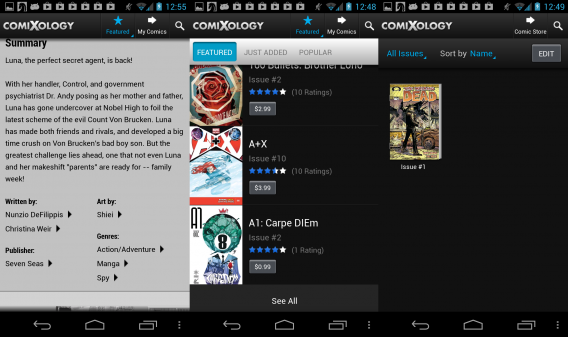
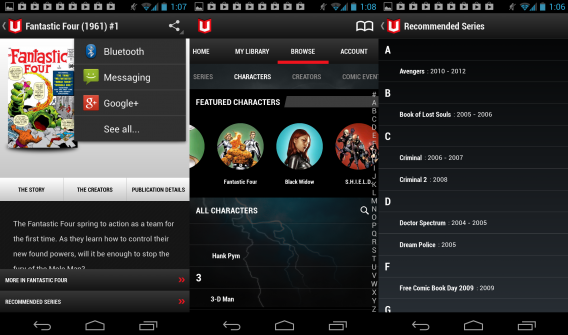
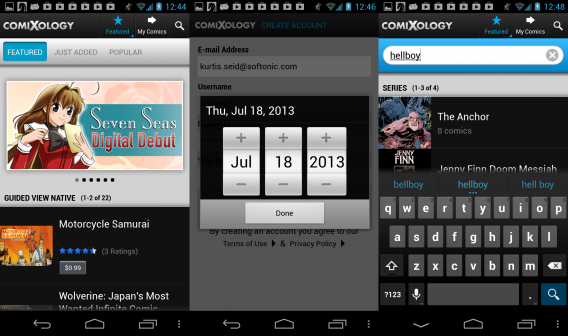
The main focus of Comixology is the purchase of comics or the discovery of free ones. From the main page tabs will allow browsing of featured, popular, and new releases. On the upper is a magnifying glass icon that allows for searches of specific titles, characters, publishers, and authors.

details and library

Before downloading any comics, you will need to create a Comixology account. Doing so will allow you to also access the content of the DC and Image apps, but a separate Marvel account is required for their corresponding app. Comics are listed out, allowing quick purchase and download, or you can tap on the title for a page containing more details. This expanded page includes several sample images, a summery, links to writers/artist and genres, the ability to rate the comic, and even share to social media such as Facebook.

viewing comics

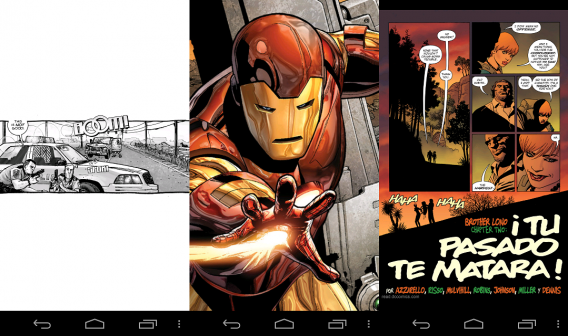
Once a comic is downloaded it can be viewed in the “My Comics” tab at the top. The comics can be sorted by issue, series, name, author, and publisher. By default a comic is shown in a dynamic and letterbox view, presenting individual panels with some minor animations to help direct focus and make the experience more lively. However, at any time the comic can be pinched or zoomed to see the entire comic page.

marvel_dc

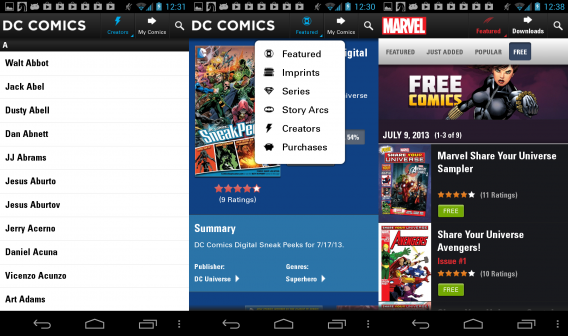
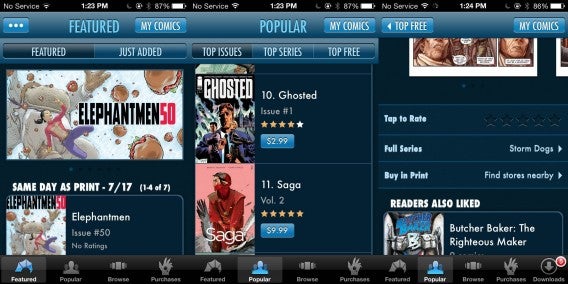
Marvel, DC, and Image have their own version of the Comixology app that only contains their library of content. They aren’t identical clones, though. For example the DC version allows even more browsing options including direct browsing of imprints, series, story arcs, and creators. The Image version likewise has an emphasis on browsing by story arcs and creators, and adds in a button to quickly check all of your purchases, even if they are currently not downloaded to your library.

image comics

The Marvel version of the app has a greater emphasis on pointing you towards free content, sharing on social media, and quickly accessing the app’s setting menu. This is more predominate in Marvel’s case, as they have a separate Marvel Unlimited app that doesn’t work as well.

Marvel Unlimited

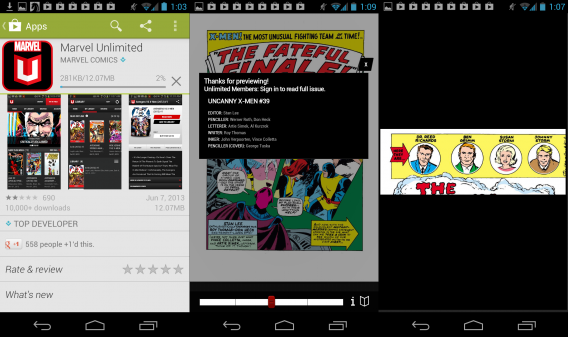
Marvel has a secondary app designed for their Unlimited subscribers. This one does not use the Comixology design, making it much harder to navigate. To even view free content requires a new account, and most of the content is stripped if you don’t opt into a paid subscription.

unlimited interface

Navigating for specific comics is a little hard, with a jumble of letters listed out on the right and series first being listed but expand with image previews upon tapping. The nice addition at least is that you can browse for items related to comic conventions, such as Comic-con and other events.

unlimted poor rating

The Unlimited app’s dynamic view does a worse job of highlighting important action in the comic, though its navigation bar makes it very simple and fast to swipe between pages. We ran into constant minor bugs such as random logouts, slowdown, and occasional crashing. As some users lamented in the Google Play Store, Marvel should really make the Marvel Unlimited app function more like their Comixology counterpart.

Dark Horse

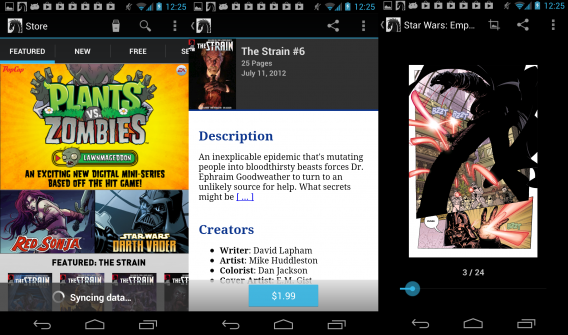
Dark Horse Comics has their own unique app. There is a larger emphasis on big banners for featured and bestselling comics, these take up a lot of room, requiring swiping to see what you’re really looking at. When you tap on a comic title it leads to a simple white and black page with a short summery and a list of creators. These credits don’t link to more of their work, and the lower half of the app is obstructed by the glaring purchase button.

darkhorse

Viewing a comic on the Dark Horse app is less exciting than with Comixology. You can zoom in and out, but the page quickly snaps back into a medium view, and there are no engaging animations to help guide the story; the page just sits there mundanely.

A reason for multiple apps?
At the end of the day it seems better to just stick with the primary Comixology app, as it allows access to all the big name publishers and even smaller and foreign labels. The separate DC, Marvel, and Image apps seem better suited for diehard fans who only follow a particular company, making it an odd fit to someone who wants to discovery something new. The biggest thing to take away is that Comixology also functions reliably, something that the Marvel Unlimited app still needs updates to fix. If you’re a long time comic reader, or just want a few issues on your device, there is a good selection.

What about you? Do you read comic books on your mobile device? Do you use the listed apps, or is there another that’s you’re favorite?

Search anonymously with these Google alternatives

Are you still worried that Google and Bing are sending your search data to the NSA, or just want more privacy? We’ve tried out four search engines that aren’t monitored by government agencies and allow for anonymous web browsing. These are just a few samples, and the folks at PRISM Break have an extensive list of anti-NSA apps and services. We’ll take a closer look at our favorites and share the best of the lot.

DuckDuckGo

duckduckgo-google-alternative1

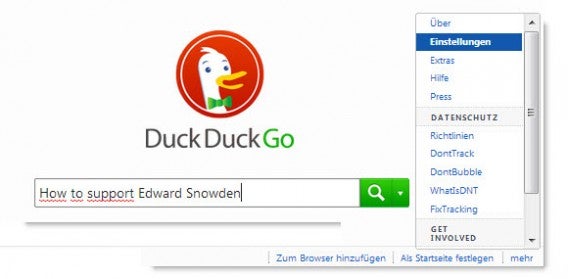
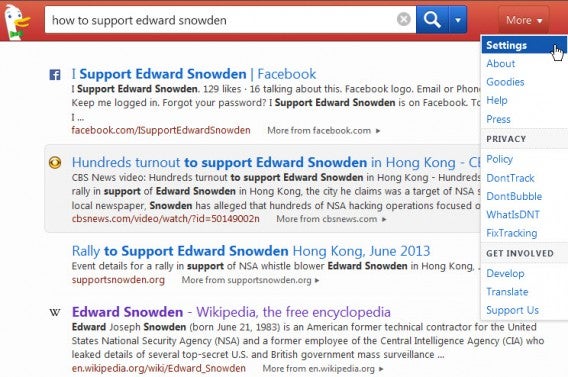
DuckDuckGo evaluates the meta search data of over 50 third-party search engines. This includes Yahoo! Search Boss, Wolfram Alpha, Bing, and even Wikipedia. It even has a web crawl that automatically searches the web to analyze web pages and help populate the search index.

duckduckgo-google-alternative21

DuckDuckGo claims that it stores no IP addresses and individual user searches. Cookies are rarely used as well. Within the options, you can enable HTTPS encryption and ensure that anonymous when clicking search results. The company even provides an amusing introduction video about its search functionality.

about duckduckgo

Seeks

seeks-google-alternative

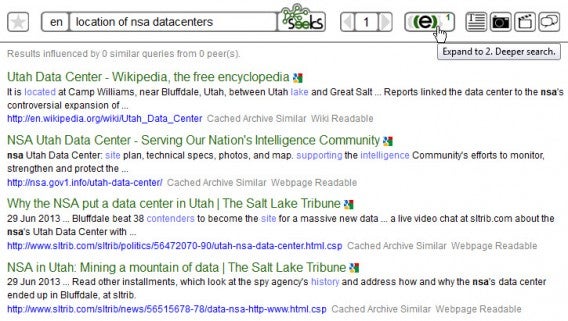
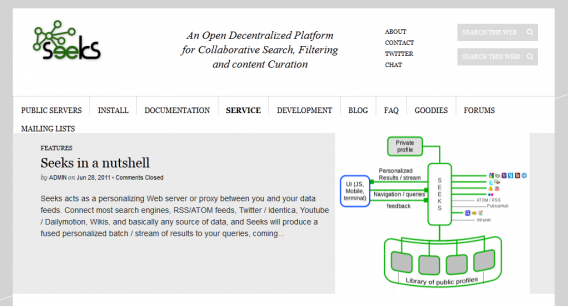
Seeks is another meta-search engine that uses OpenSearch, as well as results from Bing, Google, Yahoo!, YouTube, Wikipedia, and Blekko. Seeks acts as a buffer between the user’s search queries and the corresponding service, allowing for anonymous searches. Seeks then generates a combined overview of all the search results from each source.

seeks-google-alternative-ergebnisse1

In addition, the search provider is working on a so-called Web proxy network for searches. Once enabled, whenever the user access a search engine like Google directly, they will instantly see the Seek results. Seeks’ goal is on transparency and has an active community working on further developments. Their project page shares the technology they use and invites users to cooperate in making the searches even better.

seeks

Startpage

startpage-google-alternative1

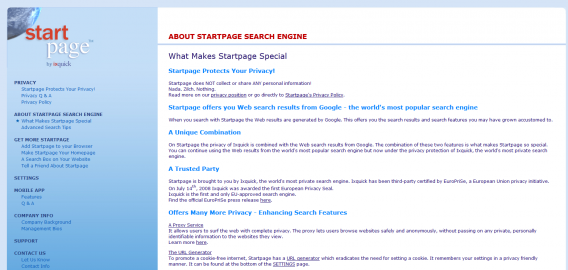
Startpage uses just the results of Google, but adds in a proxy between the user and the search giant. This prevents the company from gaining any form of personal data.

start page

The about page claims that Startpage does not log any data and actively encrypts all transactions. If you still want the power of Google, but want to maintain privacy, Startpage is an excellent choice.

YaCy

yacy-google-alternative

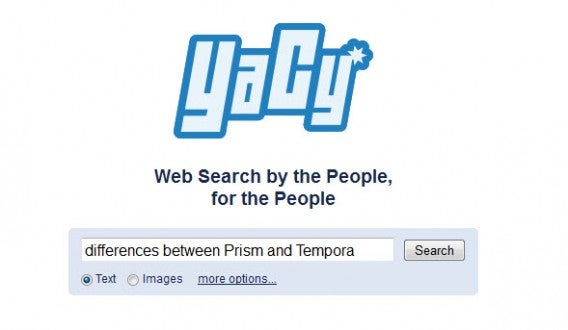
YaCy is a bit different than the other options, using P2P searches to index the web. YaCy uses a background client and creates a local search index directly on your hard drive. By connecting all of these indexes to each user, YaCy turns into a powerful but decentralized search provider.

yacy-google-alternative21

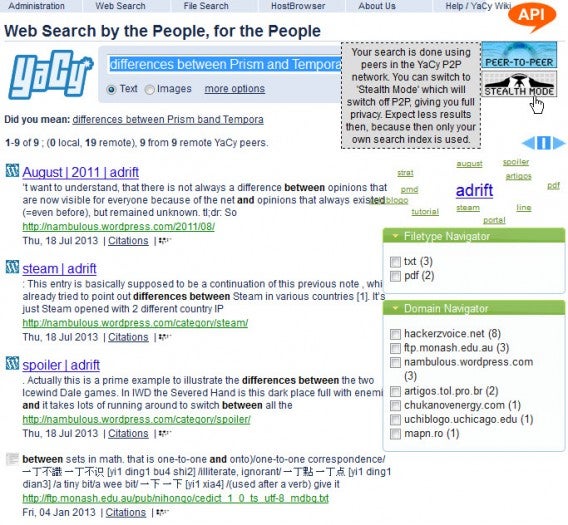
Each participant must install the software and allow it to run in the background. When you conduct a search, YaCy will look in its local database, not on servers of search providers. The safety factor of YaCy is very high. For absolute security, there is also a stealth mode that allows searching without sending additional data to the P2P network. The results are more limited, but can still be useful. It’s up to individual taste if you really want to connect directly to other users, though.

Film-based games for Android

The film industry loves tie-ins with major blockbusters, especially turning popular franchises into games. While some might be hesitant to spend money on a game, there are quite a few fun movie-related titles on Android and iOS. While these free games might seem like a giant promotion for the movies, they are fun in their own right. We’ll showcase five great free movie-based games available for Android tablets.

Despicable Me: Minion Rush

minions

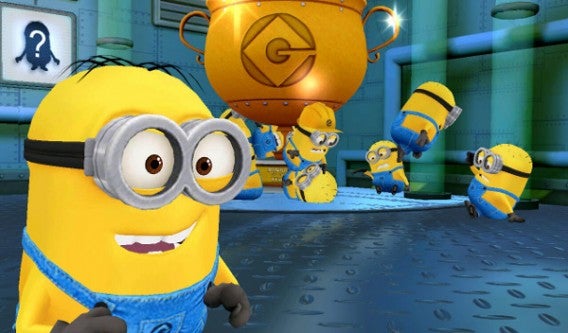
Despicable Me: Minion Rush is a free Android game based on the animated movie Despicable Me 2, focusing on the lovable Minion characters. Players mainly control the character Merry, a malicious Minion who will do anything to please their master, Gru. The main mode of the game is a typical runner, in the vein of Temple Run and its clones. Your goal is to run an obstacle course and collect items for bonus time. However, the designers decided to enrich the game with additional elements. There are lots of extra mini-games, and you can customize Minions with weapons and outfits. Although the gameplay isn’t new, Despicable Me: Minion Rush is fun enough to warrant a try.

Download Despicable Me: Minion Rush on Android

Men in Black 3

mib3

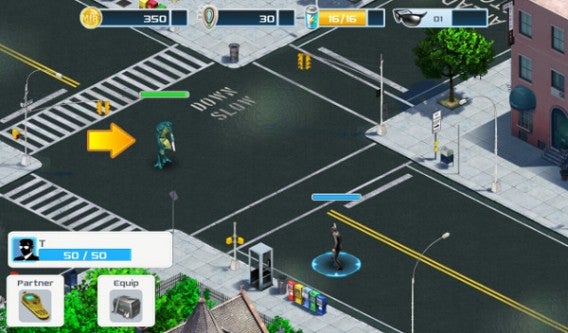
Men in Black 3 focuses on the mysterious MIB, most well-known for Agent J (Will Smith) and Agent K (Tommy Lee Jones, Josh Brolin). However, you instead take control of a rookie agent, who faces many challenges as a new recruit. However, you do help manage the MIB agency, requiring you to create new departments and purchase new building space, such as an armory. To better tie in with Men in Black 3, the game features missions in both the present day and the old 1960’s featured in the film. There are lots of fun puzzles and evil aliens to battle.

Download Men in Black 3 on Android

Pirates of the Caribbean: Master of the Seas

pirates

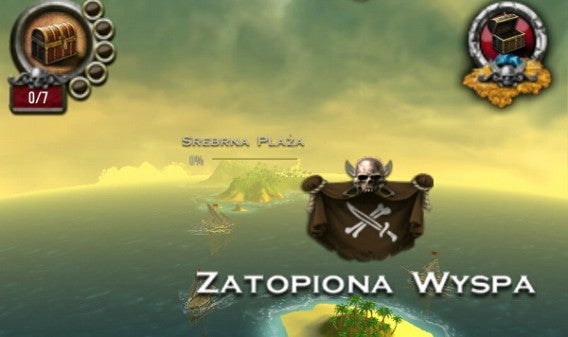
Did you dream of being a pirate as a kid? Pirates of the Caribbean is both a popular Disney ride and film franchise, making the appeal of pirates greater than ever. Disney also has a great Android game, allowing you to become the ruler of the seas. Gameplay allows you to explore the world, discovering new islands and looting the treasures on them. Being a pirate raider, expect a lot of exciting battles. The game is a dynamic and requires a bit of luck, as many encounters are random and cannot be fully planned or strategized. This creates the possibility of hours of gameplay. One down side though is that the graphics are a bit dated and lower quality than what we expect on Android tablets.

Download Pirates of the Caribbean: Master of the Seas on Android

Ice Age Village

ice age

It’s time to enter the distant past in an icy land. Ice Age Village on Android is a game that harks back to the animated franchise Ice Age. The goal of the game is to build a village community, but you won’t be alone. Characters such as Manny and Sid will be around to help construct and maintain your creation. The graphics are refined and beautiful, which is very nice on tablets. However, these intense graphics may be part of the reason why Ice Age Village is nearly 70 megabytes in size. It might be better to download the game over Wi-Fi if your data is limited.

Download Ice Age Village Android

Iron Man 3

iron man 3

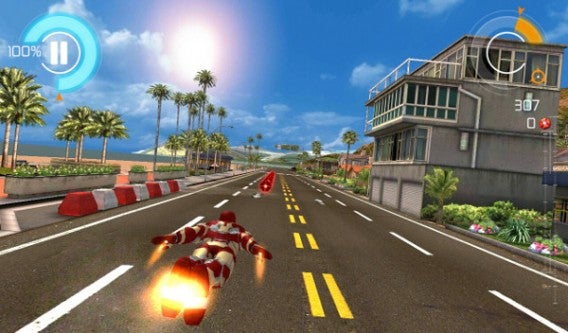
Take control of Tony Stark and his state-of-the-art armor in Iron Man 3 for Android. While your goal is to save the world, Iron Man 3 plays like another runner. Well, maybe a flyer is a more accurate term, as Stark uses his jet boots and hand repulsors to race around the world. This doesn’t change the basic gameplay, which is still avoiding obstacles and collecting points. After completing levels and gaining money you can purchase new armor and upgrade what you already own. The game’s graphics are fantastic, but we’ve experienced slowdown in some stages.

Download Iron Man 3 on Android

Do you own any of these games? Which is your favorite? Are there other movie-based games you love?

How to use BitTorrent Sync for Android

An Android version of BitTorrent Sync released recently, supporting Android 2.2 and later. Though still in beta, the mobile version allows users to sync between phones and Windows/Mac or share among Android devices. To gain the full effect of the Android app, you’ll also need the corresponding Windows or Mac versions. While BitTorrent Sync doesn’t have all the features of Dropbox and Google Drive, it’s a quick and easy way to share files across devices. We’ll show you how to use BitTorrent Sync for Android to transfer files from mobile to computer.

Sync mobile folders

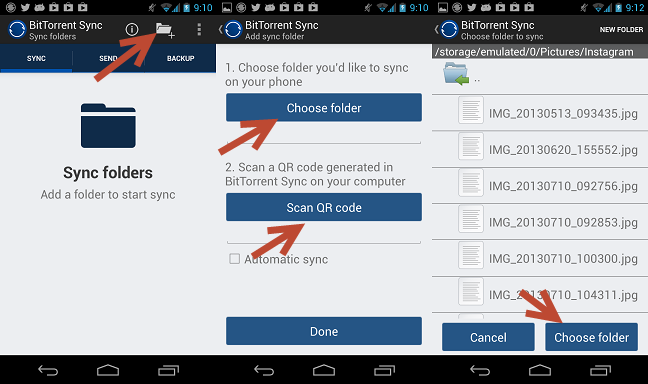
When you first open the app you’ll need to add folders to be synced. Select the add folder icon at the top bar to be taken to a new screen. Hit the “Choose folder” button and select a folder on your Android. Now you have two options for syncing files with your computer: either scan a QR code or type in the secret manually. In either case, you’ll need to switch over to your desktop version.

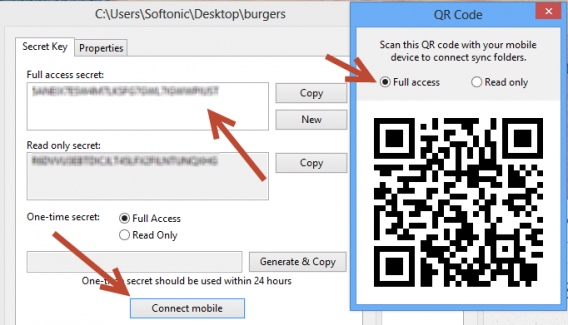
pc qr

Within the “Folders” tab of BitTorrent sync on PC/Mac, right-click on one of your files and enter “Preferences”. You can copy the code manually to sync files, but a faster way is to hit the “Connect mobile” button. This will display a QR code that can be scanned with your Android phone.

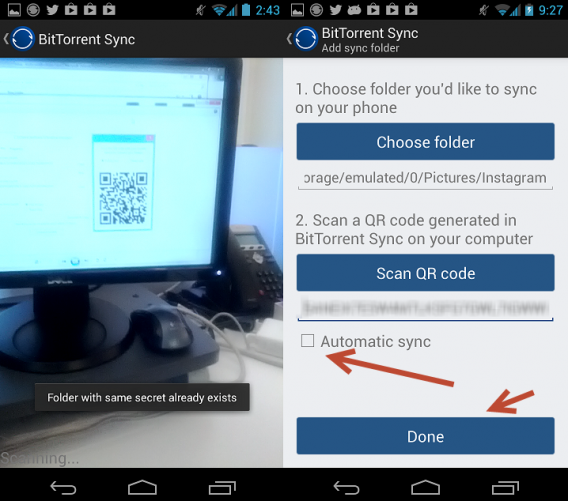
scanning

Back on your mobile device hit the “Scan QR code” button. This will switch to the camera, which you simply need to point at your monitor containing the QR. There’s no need for confirmation, the scan will complete as soon as the QR is in focus. When the secret has been scanned or manually entered, you can choose to toggle automatic syncing. Once you’re satisfied with the settings, hit the “Done” button to finish adding the folder.

Remote Download

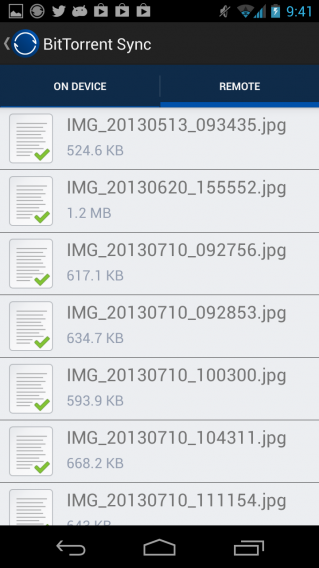
Once a folder is made and shared, tap on it to see the contents on your device. You can also switch to the “Remote” tab and see which files have not been synced (typically when you have opted out of automatic or have not a recent stable connection). Select the files you wish to download and hit the “Download” button.

Sending secret keys

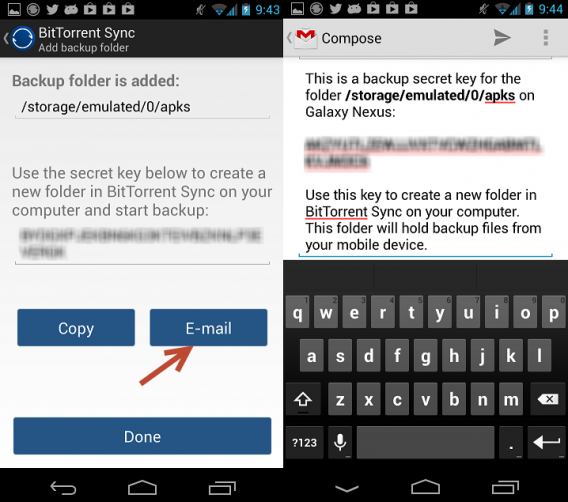
email code

While the previous walkthrough is best for transferring files to your device, generating keys is a faster means of sending Android files to your computer. Hit the “Backup” tab and add a folder, much like you did previously. This time a secret key will be directly generated. You have the option of copying it to your device’s clipboard or, even better, you can email it via an installed email client, such as Gmail.

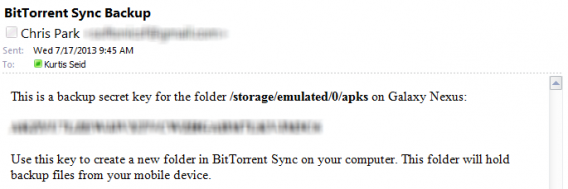
emailed code

Once you have the secret key, copy it and paste it into the “Full access secret” or “Read only secret” box within the Windows/Mac’s preferences tab.

Mobile to mobile

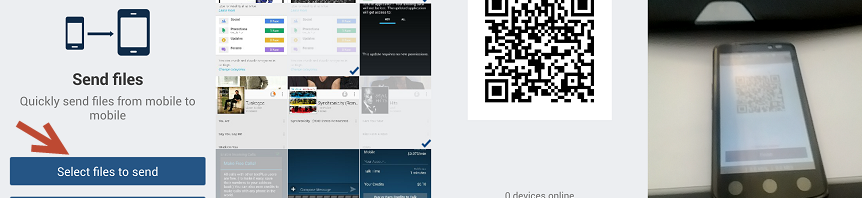
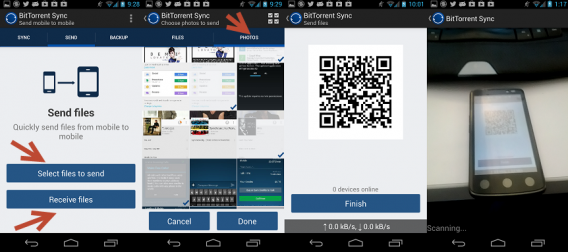
If you have two Android devices you can use the “Send” functionality to quickly transfer files between two devices.

mobile to mobile

On one device tap “Select files to send” under the “Send” tab which will allow you to explore your folders and choose the files you wish to send over. There is even an option to filter only pictures. This will generate a QR code. On the other Android device, select “Receive files” to once again switch to the device’s camera. Scan the QR code and the transfer will complete, depending on your connection speed and size of the files.

Quick backup

settings

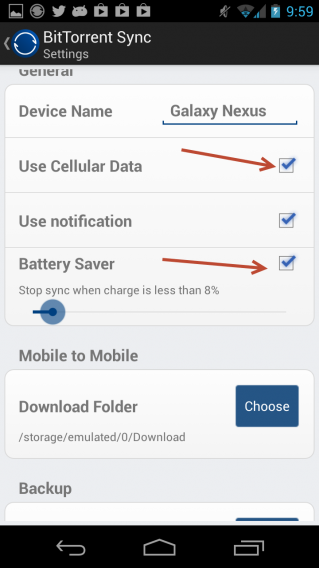
The Android release of BitTorrent Sync is a great means of quickly transferring files between phone and computers. It’s a great way to move photos, music, and movies around and have access no matter where you are. It’s worth noting that syncing can cause quite a bit of data use and drain your mobile battery. If you’re going to sync large numbers of files it might be a good idea to do so when you have access to Wi-Fi and a power outlet. That said, there are options in the settings menu to help alleviate this, such as turning off data or turning on the battery saving option to prevent unwanted syncs. Sync is still in beta and we look forward to the changes and improvements BitTorrent will release in the future.

Hands on with Google Maps 2.0 for iOS

Google Maps 2.0 has finally come to iOS devices, including iPad. The good news is there are lots of improvements, but with some caveats. The new Google Maps for iOS has a completely renovated look and feel, and the brand new Explore feature.

The new version on iOS contains features present on the web and Android versions – and Explore is among them. The main question is simple: is Google Maps the superior iOS map app? This of course depends on individual taste. It is at least obvious that the folks at Google worked hard to try to overcome any competition with Apple Maps or Nokia Here.

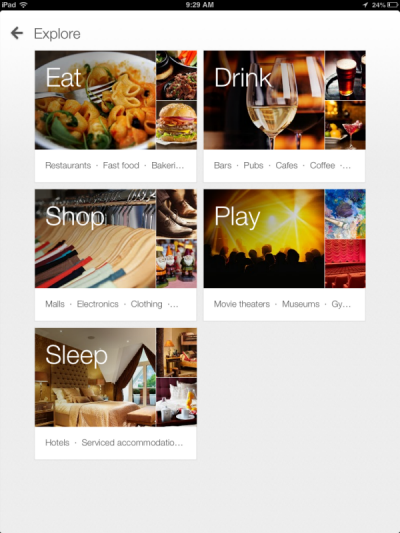
Explore Google Maps

For starters, Explore allows you to find different points of interest, including bars, restaurants, shops, hotels and entertainment. To activate this ability simply perform a search.

Incredibly intuitive

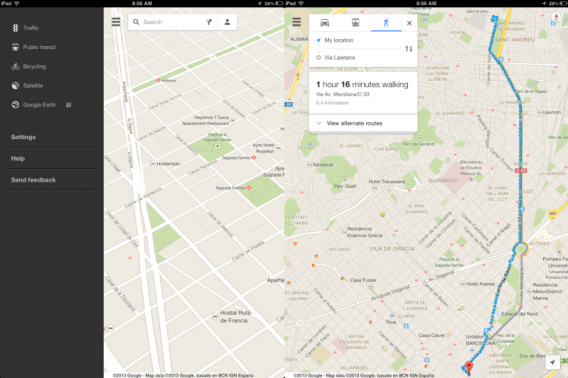
In Google Maps for iOS the options menu is located on the left side of the search bar, making it very easy to access. Selectable layers include “Traffic”, “Public Transportation”, “Bicycling”, “Satellite” and a link to “Google Earth“. In addition there are settings, help, and feedback options.

Google-Maps_Menus

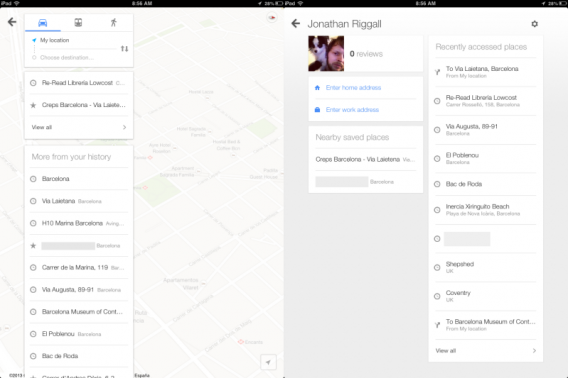
Next to the search bar on the right side is route menu and a link to your profile information. In the former, you enter the destination you want to go from your location and Maps offers the best commute options by car, public transport, or on foot. In addition to showing the best route for your travel, your route history is recorded, saving you time and avoiding repeated searches.

Google-Maps-Routes-History_profile

In your profile you can edit data for your home and work addressees. You can also review the places you’ve visited lately.

Google-Maps-Overview

Like the Android version, the Google Maps on iOS has a minimalist look, which is in line with other Google products such as Gmail.

Still there are some missing functions

The clear impression is that Google has set the goal of launching a working maps app for iOS, regardless of the amount of resources. If this was the idea, it worked: Google Maps for iOS certainly runs well. However, there are still some details: optimization for iPad is still not perfect, layers are only limited to satellite images and maps, there is a link for you to install Google Earth and little else.

Anyway, is it worth the download? Yes: there is no doubt that Google Maps is better than the maps app from Apple and any other rivals.

Have you already installed Google Maps on your iOS? Share your experience in the comments!

How to guard against unwanted Facebook Graph Searches

Facebook Graph Search released to everyone earlier this week. Previously in beta to a limited number of users, Graph Search allows users to search through Facebooks’ database to find people’s interests, photos, and likes. This makes it much easier for those in your network to search for Facebook activity you’ve made since creating your account, even if it’s not visible on your own timeline.

searching_for_photos

Graph Search raises possible privacy issues if your status, photos, likes, and tags are marked as public, especially if your friends have not properly set their own privacy settings. If you’ve ever liked or commented on something embarrassing on Facebook, now is the time to hide or delete those incriminating posts. We’ll show you a few steps to maintain your privacy against unwanted Facebook Graph Searches.

Adjust your profile

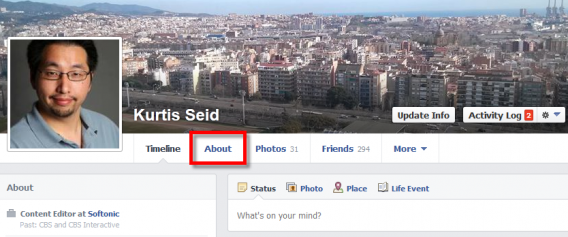
profile about

The first thing you will want to change is what’s visible on your own profile. It is possible that some of your privacy settings are set to public view, allowing anyone to see your information. The first step to change this is to go to your own page and hit the “About” button.

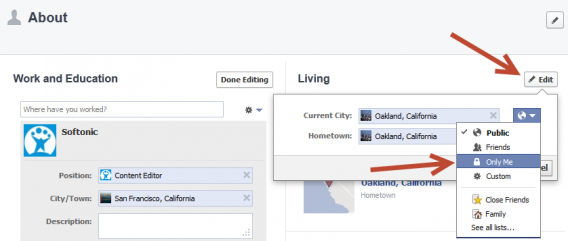
living edit

Edit your personal information such as Work, Education, Location, and relationship status. First hit the “Edit” button marked with a pencil icon. Underneath you can select the drop down menu to toggle between if the information is visible to the public, friends, only you, or a customized option.

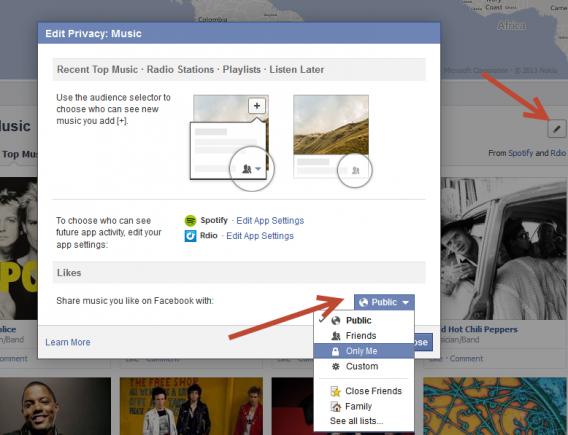
music privacy

Next scroll down to your Music, Books, and Movies. Hit the Edit button here and select “Edit Privacy”. You will see a separate overlaid menu that will allow you to set who sees your likes. Hit the drop-down menu and set the desired visibility.

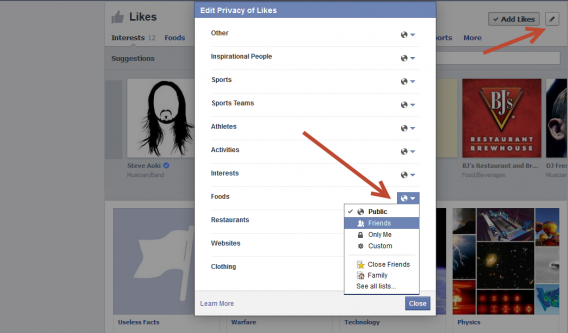
hide likes

Even further down is your “Likes” section. Once again hit the corresponding Edit button to bring up a new menu. Here you can select the privacy for individual categories such as Sports, Foods, and Websites. Adjust which you want to be found on your profile and through Graph Searches.

Your Activity Log

activity log

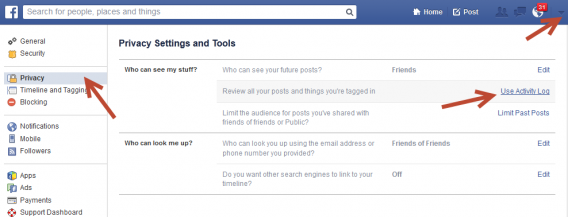
The Activity Log shows what you’ve liked, posts you’re tagged in, and comments you’ve made. It’s very important to audit your activity and see what is being shown to friends and the public. To access this menu first select “Settings” from the drop-down menu in the upper right of the header bar. Enter the “Privacy” tab and select “Use Activity Log”.

friend privacy

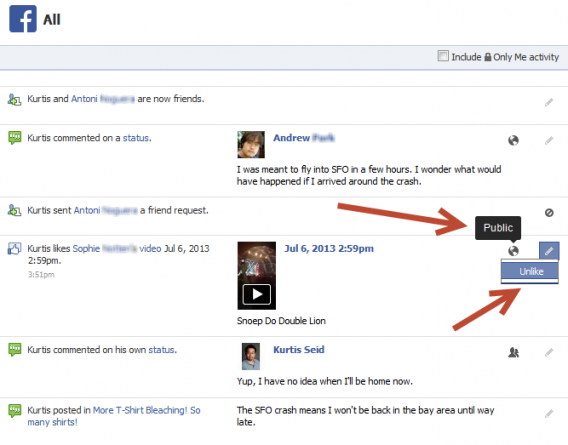
Enter the “All” category to see every bit of Facebook activity you’ve made. When you hover over the privacy icons (globe for public, two-heads for friends) you can see just who can view a status. Unfortunately you cannot adjust the privacy of your friends’ statuses; if they have public posts you commented on or liked they will show to anyone. Your best option is to hit the Edit button and “Unlike”, as well as inform your friend that their updates are public.

hide your updates

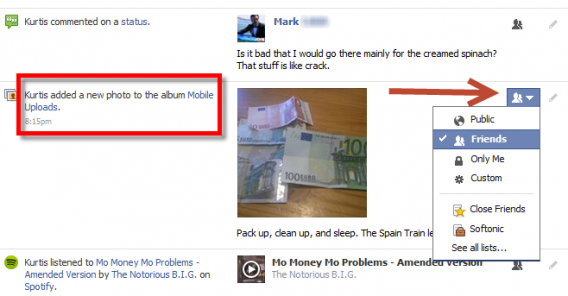
However, you can change the privacy of your own updates. Click on the privacy icon and set who can see your update. You have to do this with each post, comment, photo, and like which can be frustratingly laborious.

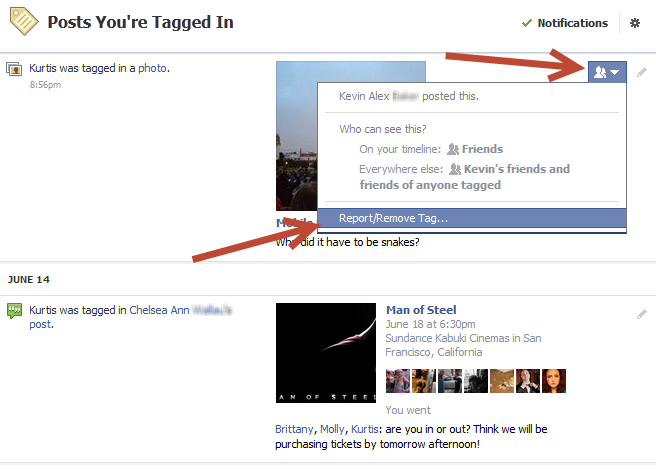
If you’ve been tagged in another user’s post you can request to be removed. Hit the privacy icon and hit the bottom option “Report/Remove Tag…”

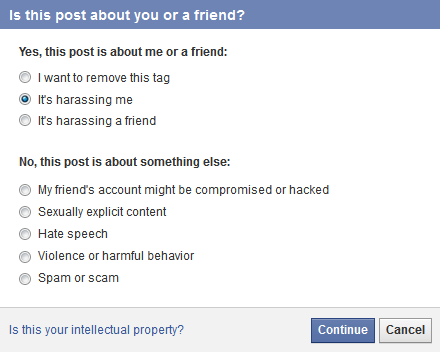
reason_for_removing_post

For status updates you’ve been tagged in you will need to give a reason why you should be removed.

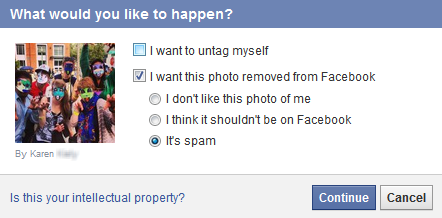
remove_a_photo_of_you

For pictures you’ll have a limited selection of options for why you want to be untagged.

Limit your future updates

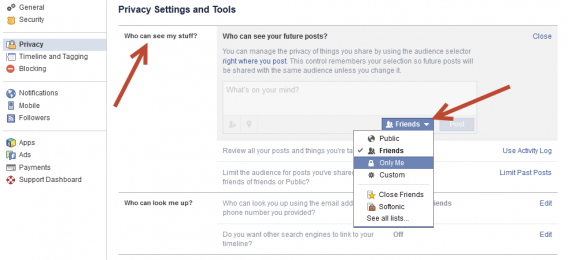
who_can_see_my_stuff

There are two more important options within your Privacy settings that will allow you to stay hidden. Both are under “Who can see my stuff?”, which will let you first set “Who can see your future posts?”. Set this to friends or whoever you want to see your status.

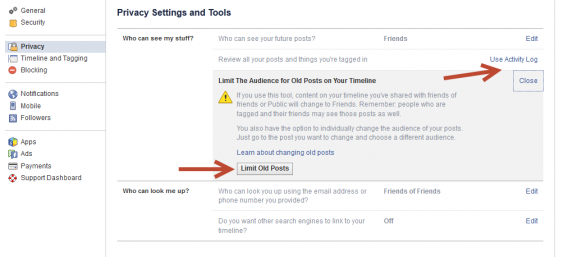
limit_old_posts

The second option is “Limit The Audience for Old Posts on Your Timeline”. Hit the “Limit Old Posts” button to turn content shared as public or friends of friends to friends only. This will greatly reduce the chance of your information showing on Graph Searches.

Check how others see you

check what other people see

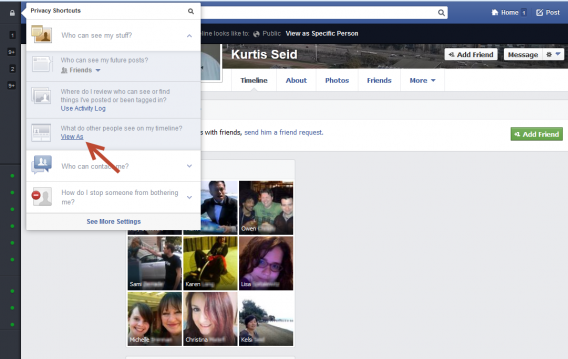
Now that you’ve made these adjustments to your profile and privacy it’s time to test out how you appear to the public. Hit the lock icon in the sidebar to show your “Privacy Shortcuts”. Select “What do other people see on my timeline?” and you’ll be taken to the public instance of your profile. If you made sufficient changes to your privacy your profile will look rather barren.

liked by pawel

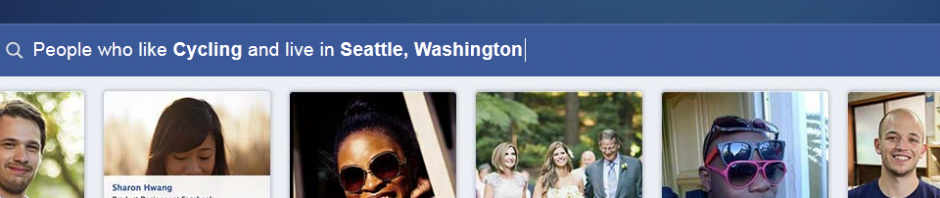
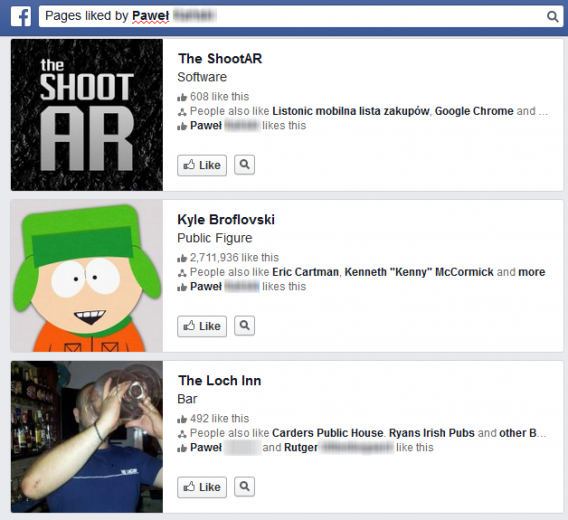
It’s also a good idea to Graph Search your own likes and photos to make sure nothing strange is showing up. If you are dissatisfied with what appears, you may need to unlike a few more pages.

Now you know how to retain your privacy and protect against unwanted Graph Searches. Still, Facebook is a social network and Graph Searches does have the power to connect you with people with similar interests so it might not be bad to share some things about yourself. In the right hands it can be a great tool to meet new friends, but if abused it can be used to spy and stalk others’ activity.

What are your feelings on Facebook Graph Search, do you want more discovery or less personal exposure?

Digg Reader vs AOL Reader vs Feedly

Google Reader is officially dead, but three powerful web-based RSS readers are vying for control of the news space. Digg Reader, Feedly, and AOL Reader all have their merits and we’ve tested them out to see what each excels at. While all of these readers are in beta, they function similarly to Google Reader and can be adapted as your new primary RSS reader.

Views and customization

digg reader views

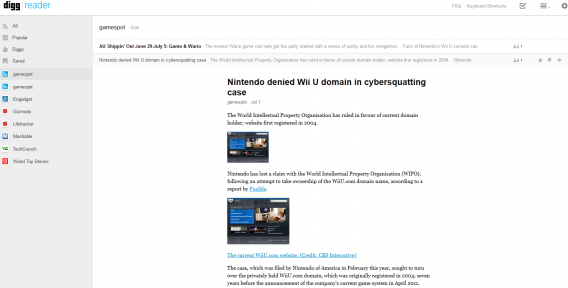
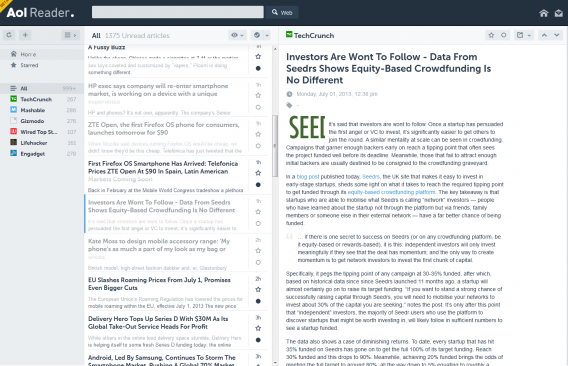
These Google Reader replacements have functionality and appearance similar to the former. Some of them are also expanding their customization to offer more than Google Reader ever provided. Digg Reader is the most basic of the three, featuring only two viewing options: List, which displays simple headlines, and Expanded which adds in the story’s first paragraph and art.

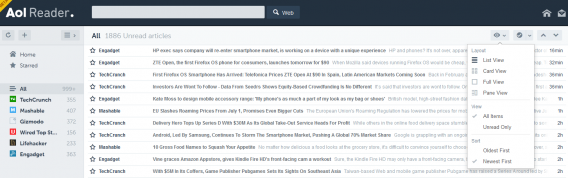
aol panes

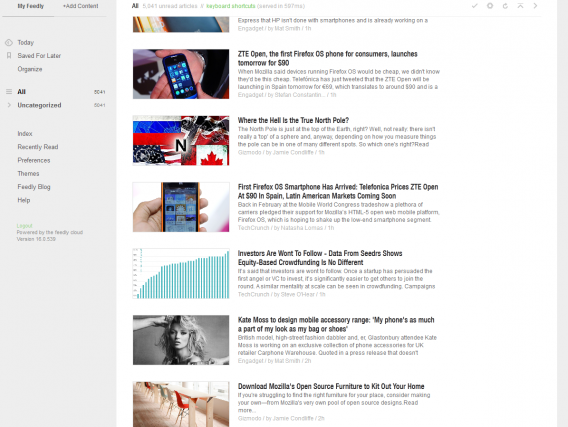
Both Feedly and AOL Reader have four total views. Besides List, both have Full which show the entire article unlike Digg’s shorter Expanded view. Feedly and AOL Reader also have Card views, which display story cards similarly to Pinterest; Feedly keeps all cards the same size regardless of content, while AOL Reader will stretch and squeeze cards depending on the story’s art. Feedly also has a Magazine view that is basically List view with a small picture and intro paragraph for each article, while AOL reader has a Pane view that turns that separates the list and article into panes similar to email.

feedly mag

Feedly edges out the view options simply because each can be toggled immediately from buttons at the top of the interface; both Digg Reader and AOL Reader require a dropdown menu, which AOL even hides when on the home screen. AOL Reader does have a lot of customization in other places, such as font sizes, visual themes, and organization of unread stories.

The lack of viewing options might seem to hurt Digg Reader, they gain points from the fact that you can rearrange feeds on the left module via drag-and-drop. Neither Feedly nor AOL Reader have this cool and convenient feature.

Finding and organizing stories

digg popular

Being connected to the larger Digg network, Digg Reader features a Popular tab that displays the hottest and most viewed stories on the internet. Although Digg’s popularity waned in 2010 to competitors such as Reddit, Digg was among the first and most used social news sites. With Digg Reader you can also directly Digg any story quickly and view all of your own Diggs at once. It’s a nice means of integrating social aspects and knowing what exactly people are interested in.

feedly bagel tag

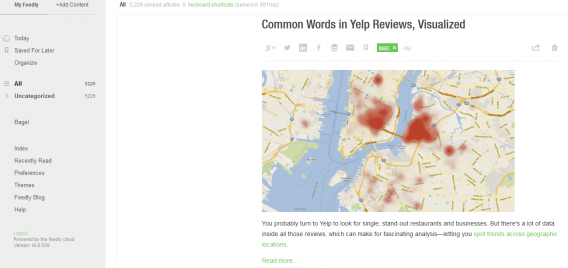
AOL and Feedly instead allow you to insert tags for any story, which will then display on the left-hand module. AOL Reader makes tags slightly more predominant and faster to add, but they function similarly in both readers. Unless you’re a power user that will be searching through old stories often, tags are more a novelty.

aol keyboard shortcuts

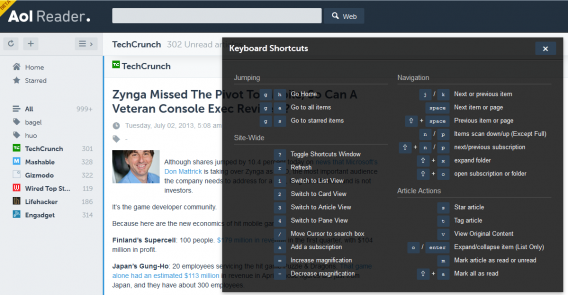
All three readers have keyboard shortcuts, though Feedly’s list is more hidden and and doesn’t show all of the shortcuts. For instance GH to go to the All section isn’t listed (though, the alternate GA also works). Both Digg Reader and AOL Reader have a large array of shortcuts allowing you to easily change views, tag, share, and find new stories. AOL Reader even has shortcuts to switch through folder and subscriptions, or expand lists. These shortcuts make it very quick to navigate without constantly clicking everywhere.

Clutter and downfalls

digg slower yesterday

Each reader has minor flaws that can start to be rather annoying after time. Both Digg Reader and Feedly tend to be laggy. In Feedly this likely comes from the amount of smooth animations everywhere, which while aesthetically pleasing aren’t necessary for an RSS reader. Digg Reader’s slowness comes when loading older stories that might be several days old, which is unlikely to occur unless you’ve missed reading your feed for a long amount of time.

aol extra menus

Feedly allows the quickest unsubscribing from unwanted feeds, while Digg Reader adds in an extra step of having to enter a sub menu on each feed individually to edit and remove feeds. AOL Reader goes even a step further by requiring you to enter a separate settings menu to delete and even rearrange your feeds. While the intention is likely to avoid accidentally deleting feeds, both Digg Reader and AOL Reader go a little overboard with the extra amount of clicks and menus.

The right reader

None of these RSS readers are perfect, nor are they an identical replacement for Google Reader. Each has appealing aspects that will feed the needs of different users depending on frequency of use and amount of control. Here’s a summary of which reader fits whom:

  • Digg Reader is the most like Google Reader, very basic without many extra features. Its connection with Digg does mean that it has a slight social aspect, but only if you use that service. Overall it should be your pick if you want a basic, no thrills RSS feed.
  • AOL Reader has a lot of customization. If you need control of how your feed looks, feels, and don’t mind juggling through menus than this is an excellent choice.
  • Feedly looks and feels different to Google Reader, making it a much fresher experience. It has more options than Digg Reader, but lacks both customization and fluff from AOL Reader. This should be your choice if you want balance and were tired of the old Google functionality.

This is how these RSS readers handle at the moment, but things are certainly bound to change. With the market filled with three big choices (along with other smaller ones), each company will be motivated to add in new features and make tweaks. These are only betas, so your own choice might quickly change in the future.

For now, which reader are you using?

How to: use Squawk Messenger

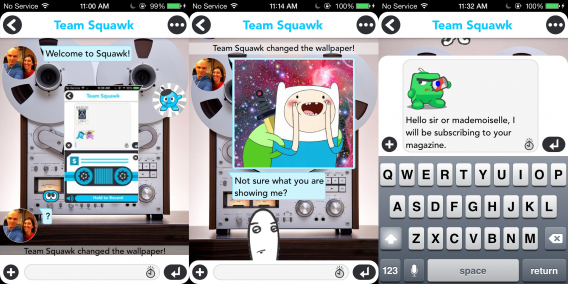
A new chat app – Squawk – exploded onto the scene earlier this week. The app is currently only for iOS, and is already getting lots of buzz for its ability to make pictures wild. Combining instant messaging with pictures isn’t new, thanks to apps such as Snapchat. However, Squawk targets a younger audience with the ability to attach memes, drawings, filters, animations, and emoji to any message. Whether you’ve stumbled upon the app or are a curious poser, we’ll show you how to get the best out of Squawk.

Setting up friends

signup

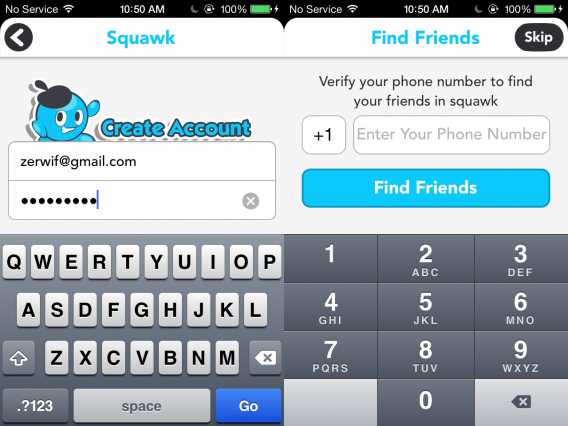
Squawk doesn’t connect via any other services, so you’ll need to create a new account. There is the option to auto-populate your friends list via your phone number. If you already know people using Squawk this is a great option. Enter your phone number and Squawk will send you an SMS text message. Enter the PIN number you receive in the text. If any of your friends from your address book use Squawk, a request will be sent to them.

friends

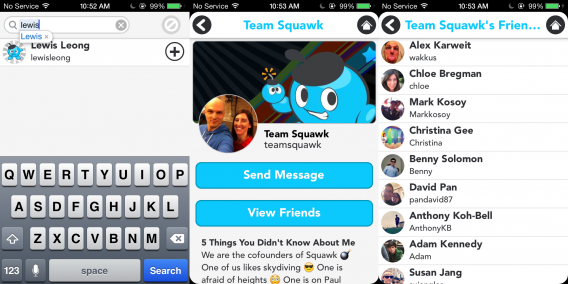
Maybe you don’t want to wait around for your friends to confirm or you don’t know who uses Squawk. Hit the “friends” button in the lower left to enter the friends menu. Here you can search for new friends, invite friends via email and SMS, and even start up group chats. You can also see friends of friends (or friends of strangers if you go down the rabbit hole) and send them friend requests. When a friend confirms your request or adds you, the friends button the front page will have a large red star next to it.

Chatting and images

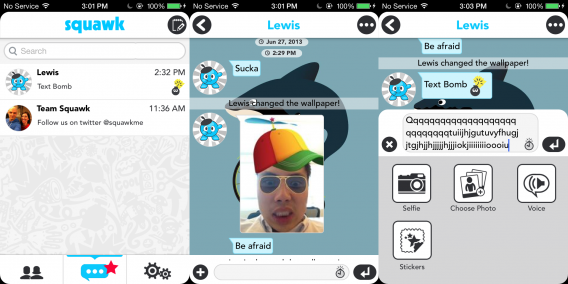
When you’re ready to interact and chat, hit the middle “squawk” button the main menu. This will bring up a list of friends that you can start chats with. You can write simple messages that don’t seem to have character limit (or the limit is high enough that we have yet to reach it).

messaging

The real fun of Squawk is adding images, stickers, and other funny features. First hit the “plus” icon on the lower left to show a menu with the options: “Selfie”, “Choose Photo”, “Voice”, and “Stickers”. Start by selecting a picture. Selfie will allow you to take a picture of yourself using your forward camera, while choosing a photo will let you pick one from your camera roll.

chat

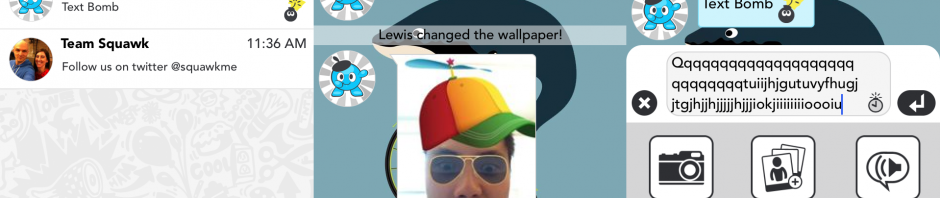
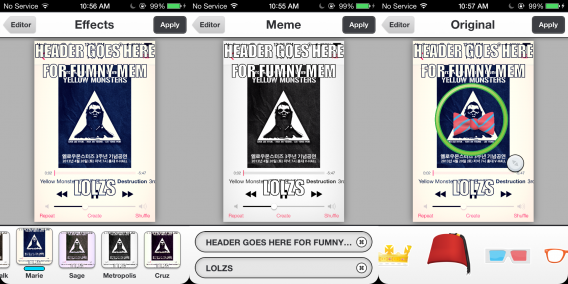
After you select a picture, you have four options to spice it up: “Effects”, “Stickers”, “Meme”, and “Drawing”. Effects are filters that will adjust the overall look of your picture, giving an appearance similar to Instagram pictures. Stickers will let you select from props such as hats, ties, and pipes. Simply drag and drop them on to your picture to place them where you want. You can also pinch to rotate and scale the size of the stickers.

bling it out

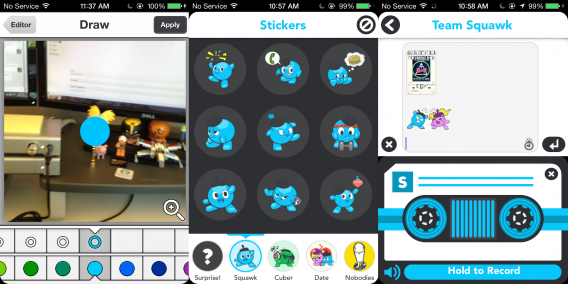
The meme option will allow you to place text on the top and bottom on the image, though you have no control of font size or color. Note that there isa character limit for your top and bottom memes, so your text can get cut off if it’s too long. Last, the drawing tool will allow you to paint over your image. You can select both the brush size at the top and the color in the bottom, and can even zoom in for more precise drawing.

drawing and stickers

Going back to the other chat options, you can also add emoji stickers (not to be confused with the stickers in the photo section) and record voice. The emojis are separated by characters, including the mascots Squawk and Cuber. You can also select “Surprise” to get a random emoji, though you can cancel out if you don’t like what it picks. For voice recording hold the record button to start. You only have one take and if you don’t like how it turns out, you’ll have to delete and restart.

A fun little chat

That’s about all the features of Squawk. While it isn’t a very complex chat app, it is very fun to turn pictures of yourself and friends into hilarious memes. The app hasn’t been out for very long and there currently isn’t an Android version, but we look forward to what cool and amusing features are added later.

Download Squawk Messenger for iOS here.

Build 2013: Windows 8.1 wrap-up

The Build 2013 conference kicked off yesterday, showcasing the capabilities of Windows 8.1 across PCs and tablets, and cohesion with Windows phones and even Xbox One. Many of Windows 8.1’s changes were teased last month, but Microsoft finally presented these features in motion. As promised, the Start button makes a return, along with new apps and integration with Bing. Microsoft also showed how Windows 8.1 is more developer-friendly and will help consumers find new apps. The announcement coincides with the beta preview of Microsoft 8.1, which contains most of what will be in the full retail version.


brightcove.createExperiences();

Start Screen and Desktop

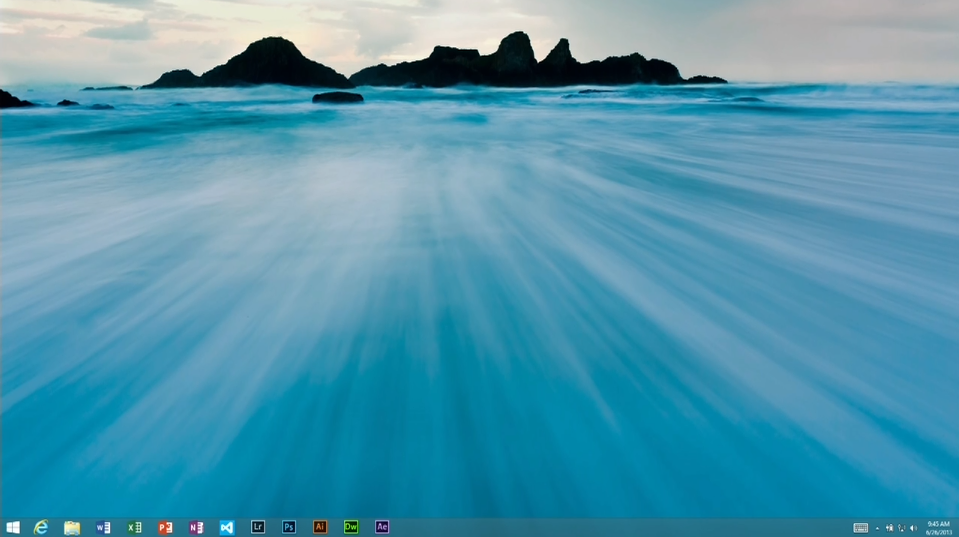
You can now boot straight to the desktop instead of the Start Screen. This is great, as the Windows 8.1 Desktop contains the most requested feature, the Start Button. It doesn’t open a compact menu like on Windows 7, but instead simply links to the Start Screen. Visually, this can look quite good if you set the same background on both interfaces, as Live Tiles will then appear to float onto the Desktop, instead of transitioning to a completely new menu. This is somewhat of an illusion; technically you are switching UI, it just makes it less noticeable.

boot from desktop

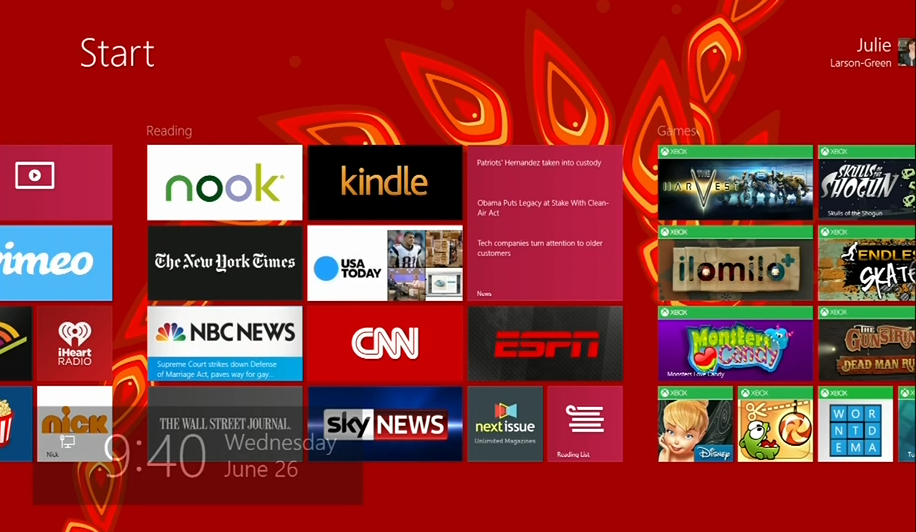
As mentioned, you can set the Start Screen background. While we prefer matching the Start Screen and Desktop backgrounds, there is a multitude of choice. There are even dynamic moving backgrounds that animate as you scroll across the interface. The Windows 8.1 preview doesn’t include all the ones shown during Build 2013 (most noticeably absent is the red dragon), but there is enough to play around with. In all, the Start Screen is much more customizable.

dragon start

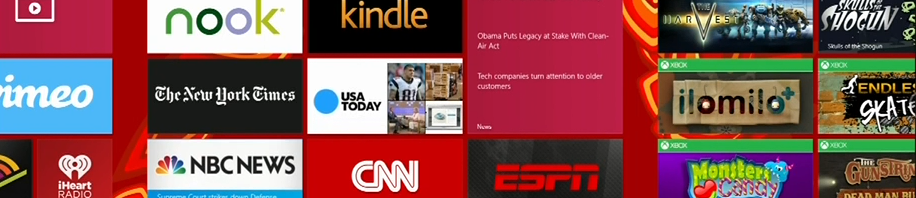
The Start Screen also has new tile sizes, extra large and extra small. Extra large is four times the size of normal size tiles, which makes it great for apps that constantly update with new data, such as weather or email. Extra small, on the other hand is one fourth the size of normal tiles, which is better suited for apps that are easily grouped, such as Office or media editing suites. It’s harder to move Live Tiles, as you need to press and hold on touchscreens and right click with a mouse. This works well to prevent accidentally moving tiles around, which was a major problem in the original Windows 8.

all apps improvements

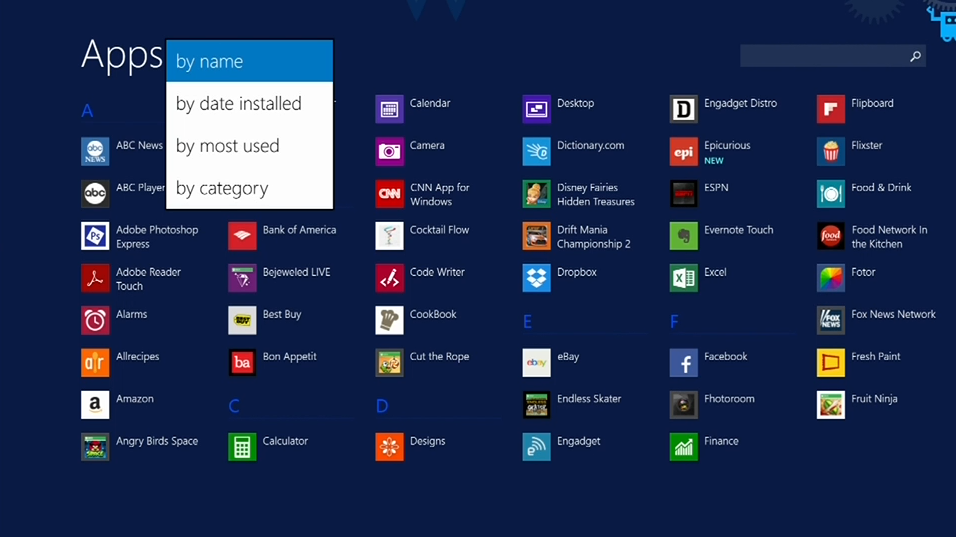
It’s now easier to organize apps by quickly accessing the All Apps view right from the desktop. While the view itself isn’t new, it has new functions to allow sorting by category, date installed, most used, and alphabetically. This makes it much faster to find the specific app you’re looking for, but thankfully you can also use this view to quickly pin apps to the Start Screen. All it takes is right clicking/holding an app and selecting the pin option. Even more conveniently, you can pin multiple apps in one go.

Lock down

skpe from lock screen

The lock screen has been improved for Windows 8.1, allowing greater functionality when not logged in. You can accept Skype calls right from the Lock Screen and can even take pictures. Unfortunately, you can’t open the photo library, so there’s no way to browse and edit photos you just snapped. You will however get a slideshow of photos from your device and on SkyDrive.

Monitoring the system

Multitasking-High-res_0130F94A

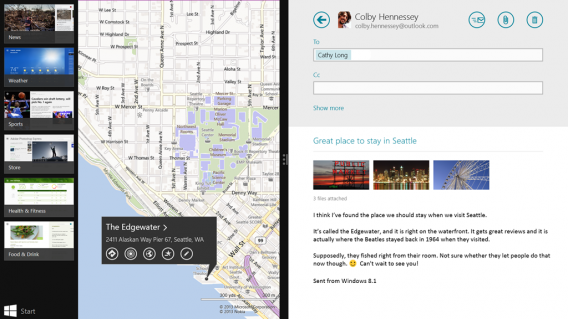
Windows 8.1 has a greater focus on the use of snap views. Previously, apps had a skewed 70/30 split, with emphasis always on one. In the Windows 8.1 preview, you can now set an even 50/50 view. You can also freely adjust this ratio, and on bigger monitors you can snap multiple apps together.

monitor scaling

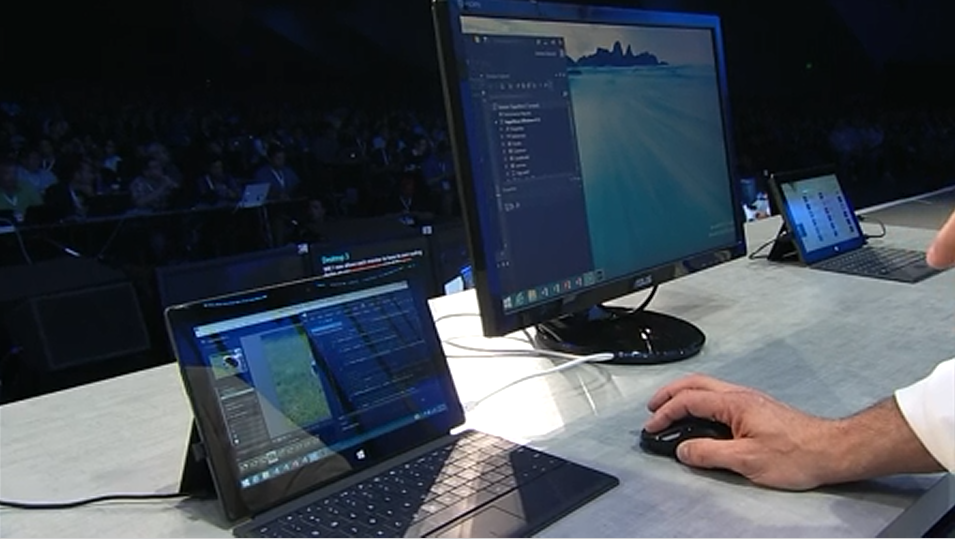
Moving apps across multiple screens has also been improved, including snapping apps to each screen. The Start Screen moves to the active monitor, which can make it a tad confusing when sorting. There is also Miracast functionality, which allows projecting your screen onto other compatible devices. This sounds like a wonderful idea when you want to get a larger view, especially for meetings and other presentations.

Bing-powered

Thanks to closer integration with Bing, search goes a lot deeper than just files and settings. You can type right in the Start Screen to quickly conduct web searches, display files, system settings, apps, and additional information. Searching for musicians will quickly link to songs on Xbox Music or search your local collection.

marilyn2k-1024x252

A great new feature is Bing Heroes, which displays in-depth information about popular people. This includes files, links, images, and videos on the web and on your own machine. There is also relevant news and links to data from Wikipedia. Bing Heroes are aggregated by Microsoft, so you might not be able to find pages about the people and subjects you search for if they are too obscure.

Bundled Apps

store

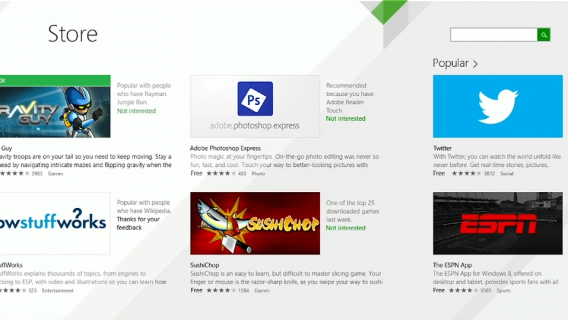
The Windows Store has been updated with detailed app listings and larger tiles. It’s faster and easier to find top apps, the best free apps, and better recommendations. Related apps are even displayed on download pages. Microsoft promises that this will help consumers discover the latest and best apps released by developers.

The apps included in Windows 8.1 have been updated too. Among the ones showcased at Build 2013 included the new Outlook mail app, Bing Food and Drink, and a redesigned Xbox Music. However, even more apps will be bundled in Windows 8.1.

sweep

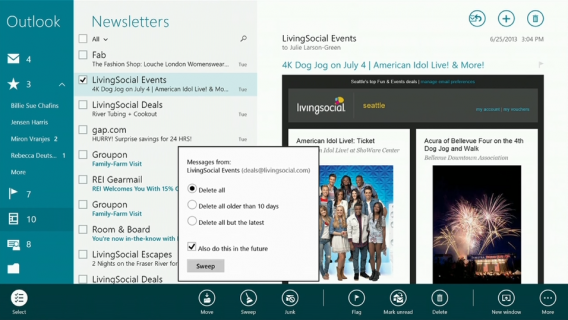
While the Mail map isn’t ready for the Windows 8.1 preview build, Microsoft showed it off extensively at Build 2013. One of the most striking features is the ability to “sweep away” emails, deleting large groups of spam in one swoop. You can sort through social mails and newsletters, and there are lots of drop and drag functions. The preview build doesn’t have these features, but they will appear in the final retail version.

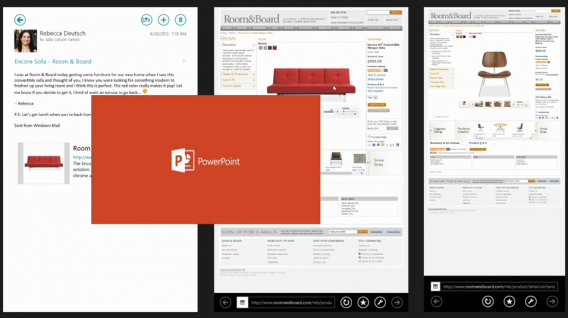
powerpoint

Speaking of teases, Microsoft showed off the Modern PowerPoint for Windows 8.1 tablets. It’s currently in alpha so there is very little information about how it will function. Microsoft will be showing more on Office 365 later in the conference, which might be a good time to highlight the rest of the suite. Otherwise, PowerPoint and the rest of Office will be bundled with Windows 8.1 tablets.

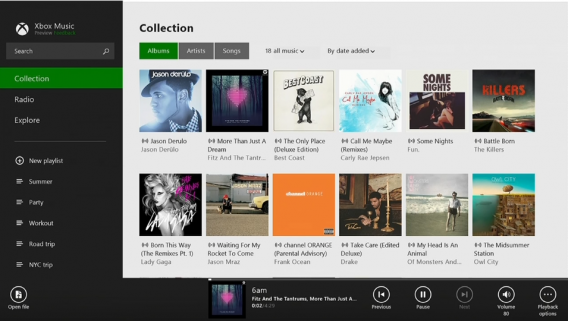
xbox music free song

The redesigned Xbox Music app has a new layout that focuses on music listening, rather than discovery. It’s easier to quickly find your albums and music. A great new feature is the ability to use the Share charm on websites with musical artists, which in turn populates a playlist in Xbox Music. Xbox Music now includes a radio, which allows you to recommend music even to non-subscribers. This makes Xbox Music even more competitive when compared with music streaming radios like Spotify.

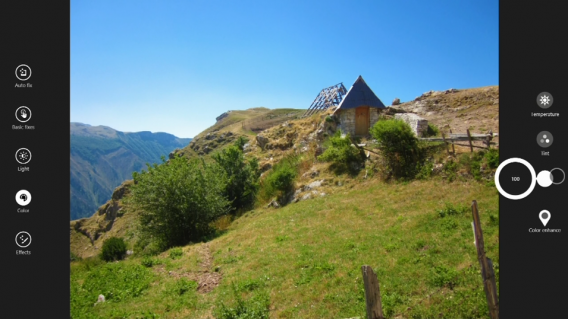
photo_saturation

The Camera app now has a new function dubbed Photosynth, which allows you to take larger pictures by moving your tablet around an area and scanning what’s nearby. The photo app has new circular controls to change the level of saturation and other editing tools.

hands free mode

The Bing Food and Drink app can help you find recipes, make a shopping list, and plan out meals. Designed with tablets in mind, the app includes a hands-free mode to keep your device clean while cooking. Instead of touching, you instead control menus via webcam.

Lastly, Internet Explorer 11 might look like IE 10, but has several new features. In the update, browser tabs are moved near the bottom, right by the address bar. You can have unlimited tabs, allowing IE to catch up with the rest of its competitors. Tabs can also sync between Windows 8.1 and Windows Phone for swift access across devices. IE 11 also has a reading list that will allow viewing bookmarks at a later time.

While these are the highlighted apps bundled and showcased so far, there are plenty more planned and coming. There are Modern-style apps for calculator, alarms, and sound recorder, for example. The Windows 8.1 maps app will have a 3D view to help it compete with Apple and Google’s similar features. Facebook and Flipboard also have plans to create Modern interface apps for their services.

Is it enough?

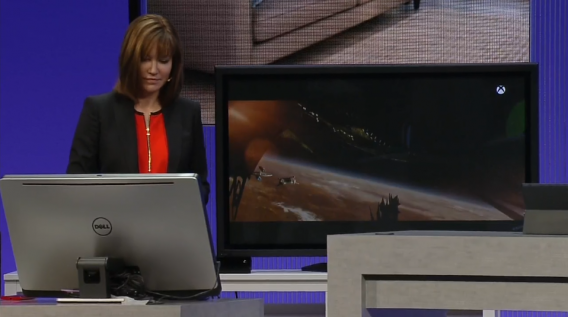
stream star trek to xbox one

Microsoft showed off more Windows 8.1 capabilities at Build 2013, though since we aren’t developers, not all of it was completely relevant or functional. That said, we really liked the idea of Windows 8.1 being a great space for developers on both Windows and Xbox One. We also would love to try out syncing videos to Xbox One when the console is released.

It’s nice that Microsoft has listened to consumers and made changes to their latest operating system. It still seems clear that Windows 8.1 focuses on tablets and touchscreens, though the keyboard isn’t completely abandoned. Returning features such as the Start Button are minor tweaks, and it’s unlikely to sway the current nay-sayers. Those still on Windows 7 (or XP or Vista) probably won’t be sufficiently excited about the improvements to upgrade to Windows 8.1. For now, though, it’s worth it to check out the beta preview and test all of its functions.

Check back as we continue to cover the news from Microsoft’s Build 2013 conference.