{
"de-DE": "",
"en-US": "My first computer was an Amstrad CPC 6128 and so began my love for gadgets. Besides tech and games I love music (I'm a singer in two bands of swing, jazz and blues), cinema (watching and writing about it), gastronomy (cooking... but above all eating!) and alternative fashion. Do you follow the cult of The Rocky Horror Picture Show? Great, I'm sure we can get along.",
"es-ES": "Mi primer ordenador fue un Amstrad CPC 6128 y así se inició mi amor por los gadgets. Además de la tecnología y los juegos me apasiona la música (soy cantante en dos bandas de swing, jazz y blues), el cine (verlo y escribir sobre él), la gastronomía (cocinar... ¡pero sobre todo comer!) y la moda alternativa. ¿Sigues el culto de The Rocky Horror Picture Show? Entonces seguro que podemos llevarnos bien.",
"fr-FR": "",
"it-IT": "",
"ja-JP": "",
"nl-NL": "",
"pl-PL": "",
"pt-BR": "",
"social": {
"email": "maria.baeta@softonic.com",
"facebook": "",
"twitter": "https://twitter.com/mariabaeta",
"linkedin": "https://www.linkedin.com/in/mariabaeta/"
}
}
WhatsApp just added an interesting feature to its Android version: now you can add a description to any group. This way, you’ll have space to define the subject of every group you’re in.
To enable this feature, just go to any group, tap on its name and then “Add a group description.” You’ll only have 500 characters, including emojis, to define the group. Click OK and the info will be saved and visible to all members of that group.
Unlike other features that only admins can edit in WhatsApp groups, the group description can be written by any member.
Needless to say, it’s best to play it safe and avoid phrases in bad taste or other descriptions that may be misinterpreted by other group members. And, of course, you should never share private info in this space, such as addresses, third-party phone numbers and other sensitive info.
Keep in mind that if you send the link of your group to a third party, he/she will also see the description, so you and your friends should be careful when sharing info using this new feature.
Do you like this new Whatsapp feature or is it a letdown?
Valentine’s Day is coming, so how about you surprise your partner with a good gift? You don’t need to suffer when buying gifts for your other half, and you don’t need to spend a fortune. Today we bring you 12 great gift ideas for much less than $30. Choose well and you will surely succeed!
Best gifts for Valentine’s Day
For romantics
The most romantic couples want to spend as much time together as possible. With these gifts for two, success is assured.
These cups are the perfect gift for those who cannot have breakfast without each other (and who cannot start the day without a good coffee or tea).
If your partner spends the day stuck to their phone, this Bluetooth headset will be well appreciated. Compatible with any device, it is the ideal complement for business calls and friendly chats.
Is your partner a fan of running, playing football or going to the gym? With these accessories, you will not only be getting in your partner’s good books, but you will be giving something useful and beneficial.
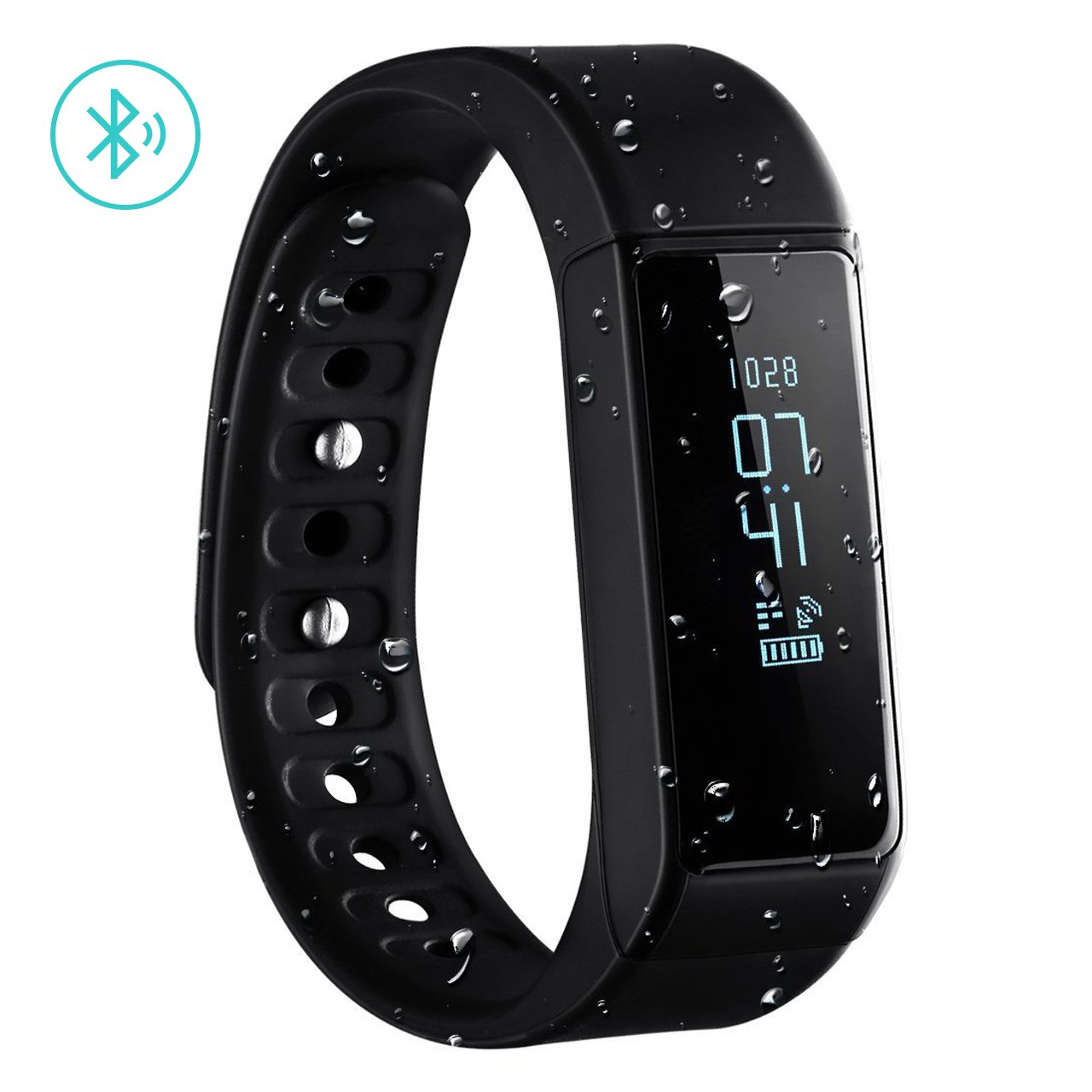
The essential activity tracker for all sports fans. It follows you 24 hours a day and helps you control your physical activity, sleep well, and create training plans via the synchronized app.
A basic but very stylish sports bag with plenty of space for sports equipment. Its size also makes it perfect for weekend getaways. A 2×1 at a scandalously low price.
On the internet, there are people who publish their creations in the form of photos or drawings … and there are people who save these images to use on their websites without the author’s permission. Yes, we’re talking about someone stealing photos of people without their knowledge or consent.
Do you want to know if you have been a victim of image theft? We’ll show you how to easily check if one of your images has been stolen, and what you can do to prevent this from harming you.
How to check if someone uses your photos without permission
Although there are many tools to search for images, there is nothing better than using Google Images, the reverse search option. Here’s how to do it:
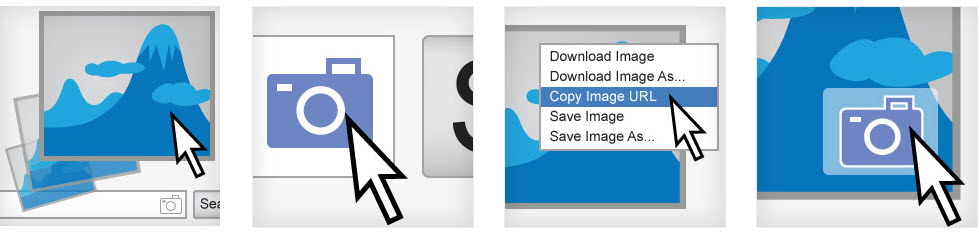
Enter the image that you want to check. There are four ways to do this:
The Paste image URL option: Click on the camera icon. Now copy the URL of an image you have posted on the internet. To get the URL, you just have to right-click in your browser and select copy image address. Copy that address in the search bar and finally click Search for image.
The Upload an image option: Click on the camera icon. Now click Select file; search on your PC, and select the image you want to check
Drag the image: you can drag an image from a folder on your PC to the Google Images window. This will perform the search automatically.
Use the Google Images Chrome extension.
3. Check similar images
Google will quickly create a report with all the images that are similar to the image you’ve searched for: if your image appears in several places it will show them to you, even the image has been touched up a bit.
Nothing suspicious? Fantastic. But if a site you don’t know is using your image, you might want to take action.
What to do if your images have been stolen
Are any of your images being used by a website without your permission? Act! Follow these steps in this order, stopping when the image has been removed.
1. Contact the person or site directly
Sometimes, somebody uses somebody else’s images without even knowing. There is a false belief that if something is easily found on the internet it can be used for benign purposes without permission. So, before moving on, if you see that someone has used a photo of you, look for a way to contact this person directly.
Tell them kindly that the image belongs to you and that they should remove it. Another option is to tell them they can use it if they give you credit (putting your name, your website, your social profiles, etc). If they listen to you, great. If not, you can tell them that you will report them if they don’t remove the image.
If they ignore your warning, continue to step 2.
2. Complain to the platform
If the person who stole your image does not remove it, or if you can see that they do not intend to do so (for example, if they use your personal photos for a social network profile or contact app), report them directly to the platform where you found the photo hosted.
Facebook, Twitter, Instagram and other social networks have an option to report any publications. Select it and choose the option of identity theft or violation of intellectual property (as applicable).
For more information about this option, we recommend that you look for the Help or Support option of the platform in question.
3. Report it to the police
If the complaint to the platform goes unheeded, you can always make a formal complaint to the police. This is reserved for extreme cases (for example, someone who is making a profit from your work) because it could result in a long judicial process and costs may quickly rise (lawyers, etc).
Better to prevent …
If you’ve created an image you’re proud of, through illustration or photography, it is always advisable to use watermarks. A watermark placed in a strategic location means that if someone wants to use your photo, it’ll be clear that you are the author whoever sees it will recognize your work (if your watermark shows your Instagram or your website, even better). A watermark will dissuade thieves from stealing your images in the first place
Every day we visit dozens of web pages. Even if we take steps to protect ourselves and regularly try to keep on top of our online security, there is still a potential vulnerability: our browser. Did you know that you can reduce the risks associated with browsing the internet by making small adjustments to your browser? Here are eight tricks you can apply to Chrome to reduce these risks.
How to improve security in Google Chrome
1. Limit synchronization
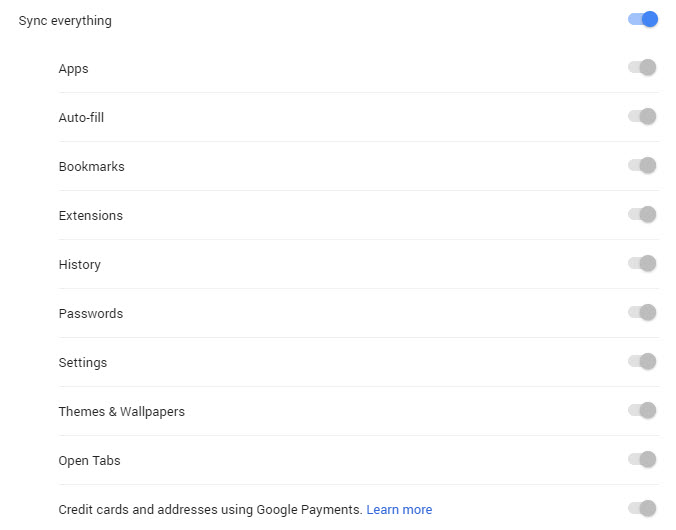
One of the strengths of Google Chrome is that you can have synchronized data (logins and passwords, bookmarks, etc.) between devices – for example, your PC and your phone. However, this continuous sending of data can put your security at risk, so we recommend limiting the synchronization.
To do this, click Settings (the three dots on the upper right side of Chrome) and then Settings > Synchronization.
As you see in the example, Synchronize everything is set by default. We recommend deactivating the options you use less frequently.
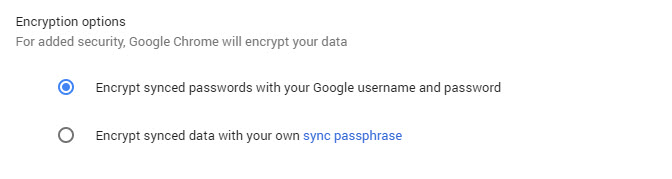
2. Encrypt synchronized data
Without leaving this menu, you will also find the Encryption options. Activate the option Encrypt synced data with your own sync passphrase. Next, choose a password that you remember (different from your Google account password).
You’ll then be asked for the password every time Google Chrome wants to synchronize your data, adding an extra layer of security.
3. Disable web services
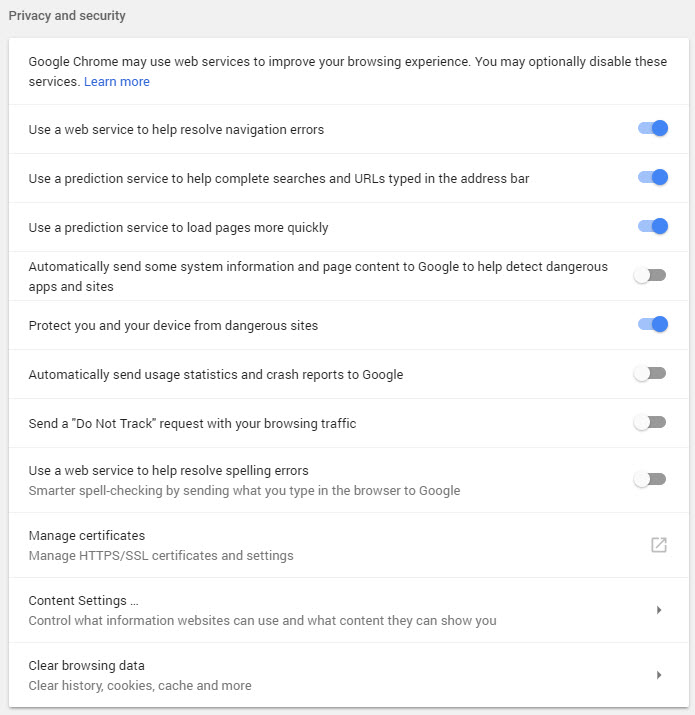
Google Chrome uses several external services to improve your browsing, like the one that checks your spelling. These make the browser constantly send information about your browsing or the text you write. Disable these options to reduce the amount of your data that is constantly being sent. Ideally, disable them all and keep the option Send a non-tracking request with your navigation traffic activated. With this option, you automatically send to the pages that you visit a Do Not Track request so that they do not track you while you browse. Unfortunately, not all sites respect it, but it is still a good option to activate.
To activate or deactivate services, go to Settings > Configuration and this time go to the Advanced Configuration.
4. Limit cookies
Although some cookies are necessary to navigate and most of them are encrypted, their excessive use can also put your security at risk.
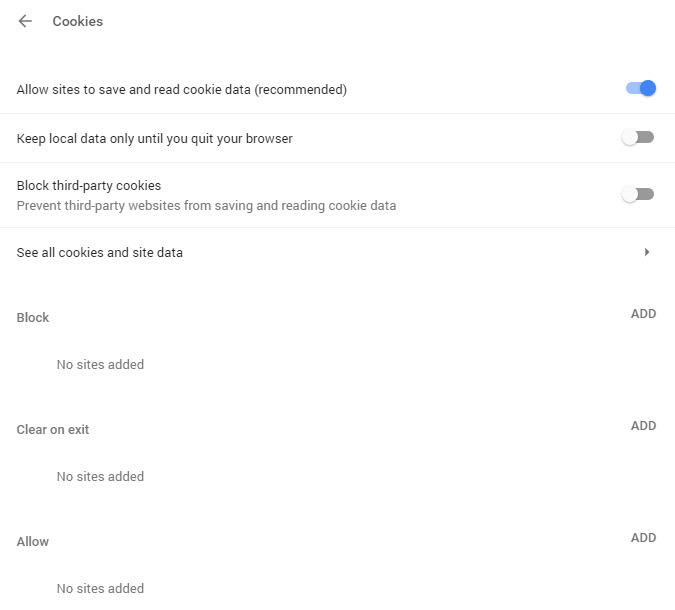
To limit cookies, go to Settings > Settings > Advanced settings and click Content settings > Cookies. The ideal option would be to not accept any cookies, but some pages need them to use certain services, so leave Enable sites to save and read cookie data (recommended) activated. Also activate the options Block cookies from third parties and Keep local data only until you leave the browser, an option that deletes cookies every time you log out.
5. Use Ask before access for almost everything
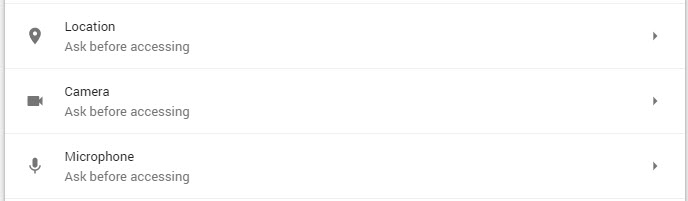
Also in the menu under Settings > Settings > Advanced settings > Content settings, you can spend a little time on how you have set up the add-ons such as location, camera, and phone. We recommend that you activate the Ask before accessing option. This means that if a web page needs access to your webcam, microphone or other devices, you will be notified. This will prevent, for example, your camera being used to spy on you.
The same can be applied to add-ons such as Flash, which is no longer in use.
6. Turn off Google Activity Control
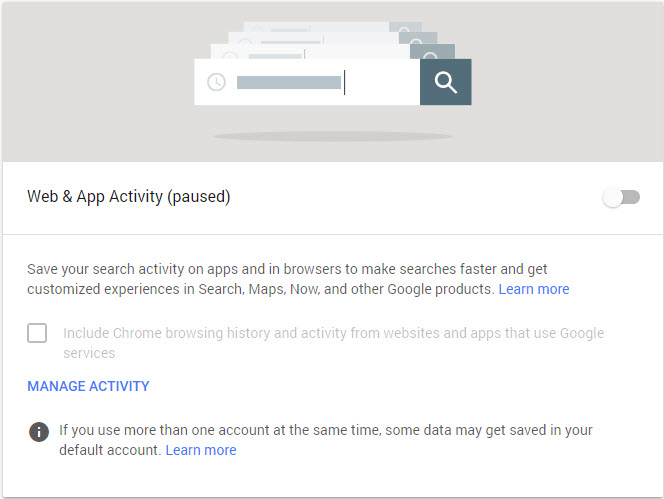
Not only does Chrome save your browsing data, but so does Google itself every time you’re logged in to your Google account. This option, activated by default, can be easily deactivated. To do this, access the option Activity controls of your account from this link, and deactivate the switch.
In addition, here you can configure many other aspects related to your activity. If you have time, take an in-depth look, because it is really interesting (and you’ll be surprised to know just how much Google knows about you).
7. Periodically “clean” your extensions
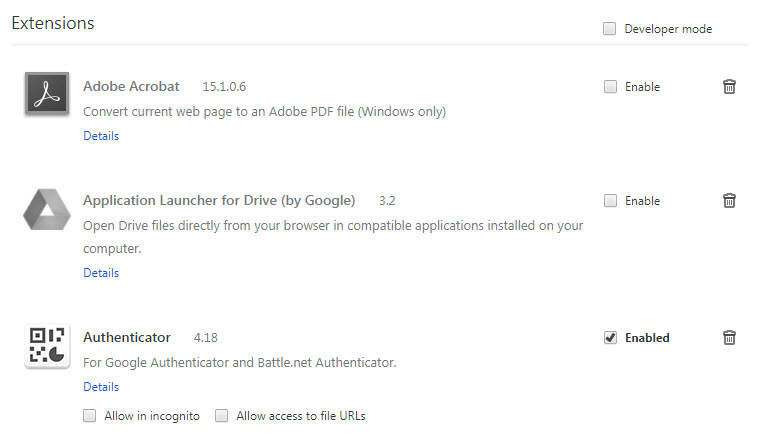
We all love Chrome extensions, but often we install them, use them for a few days, and then forget about them. What is the point of having plugins installed that are constantly sending data to an external server? It is advisable to review the extensions we have installed from time to time and clean them up.
To do this, go to Settings > More tools > Extensions or directly from chrome: // extensions / in the navigation bar.
8. Install extensions that increase security
Now that you’ve removed useless extensions, it’s a good time to add some practical extensions. In the Google Chrome Store there are many useful extensions to boost your security. Here are some of the best:
Unshorten.link analyzes links generated with shorteners to detect the real address before we click. Perfect for avoiding malware.
Click & Clean has multiple functions, from erasing our history with a single a click to searching for malware or even free space on the hard drive.
HTTPS Everywhere: Pages that use HTTPS are more secure since all the information is transmitted in encrypted form. This extension gives us access to all HTTPS for pages, although not by default.
Privacy Badger blocks third-party crawlers who intend to keep our data.
Instagram, the image and video social network owned by Facebook, will soon add three new features that you’ll have already seen on other apps: GIFs, stickers and “last time online.” This information comes to us thanks to WABetaInfo, the number one source of news about WhatsApp and its Facebook-owned cousins.
Hmm.. seems Instagram will support GIFs from GIPHY (for Stories), Stickers and Last seen in Direct like WhatsApp (and other…). WhatsApp has Status (Stories) and Stickers like Instagram. WhatsApp and Instagram have very similar features.
As you can see from their tweet, the folks at WABetaInfo are quite critical of these new features, noting that WhatsApp and Instagram are becoming increasingly similar. Let’s bypass that issue and look at the features in more detail.
Regarding GIFs, apparently they will be available in Instagram Stories. To use them, simply search through the GIPHY search engine, which will be included in the app, and find the GIF you want.
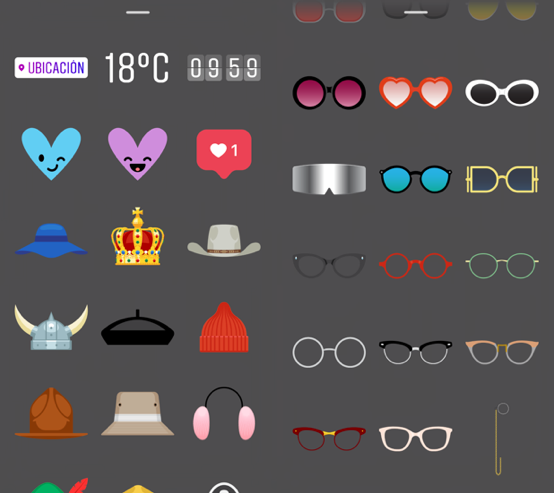
As for stickers, indications are that they will be similar to Facebook Messenger stickers and Telegram: icons, somewhat larger than emojis and animated. These stickers can be used in direct messages and in comments on posts and we can give them a “like” (like the rest of the comments). For now, IG has stickers in the stories, but they’re now getting a more extensive rollout.
“Last online” is the final new feature coming to Instagram, and it works the same as it does on WhatsApp. Instagram users will now be able to see when their friends were last online, although it will only apply to direct messages.
With this new update, two things are clear. First, Instagram is betting heavily on the use of direct messages. For now, they are available to everyone, but they haven’t been widely picked up like other features, such as Stories.
Second, Facebook is increasingly replicating more features across all of their products, making them more and more similar. Maybe this portends a future merger between WhatsApp, Instagram, Facebook, and Messenger? Facebook has told the European Commission that it isn’t considering such a merger, but with Facebook, but you never know (Facebook has already lied about the purchase of WhatsApp).
What do you think about the Instagram news? Do you like that it is becoming more like WhatsApp and Facebook?
Google Chrome extensions are a great way to add useful features to your browser. But beware: Although most are reliable, the Chrome store has been known to have one or two false extensions that contain malware. To help you avoid these potential hazards, we’re going to show you how to differentiate between a legitimate extension and one that is garbage.
How to check if a Chrome extension is legitimate
1. Identify impostor extensions
One of the most common practices of hackers is to create apps and extensions that pretend to be famous programs that people trust. This recently happened when over a million people downloaded a fake version of WhatsApp, but it also happens with other popular Chrome extensions, like ad blockers. To find out if an extension is fake, ask yourself these questions:
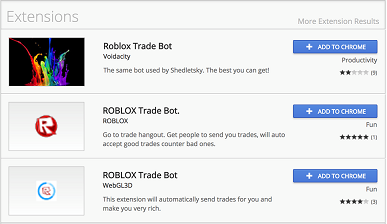
Does the extension have a decent rating and number of reviews?
Is the developer listed who you would expect?
If you can answer “no” to either of these questions, don’t download it.
2. Read the opinions of other users
The best way to check the reliability of any extension is to look at what other people who are using it are saying. If nobody has anything good to say, or if there are people complaining that it doesn’t do what it is supposed to do, then you should think twice.
3. Check the permissions
Even if you’ve already downloaded an extension, it is not too late to determine whether or not it is legit. A good way to check is to look at the permissions it asks for as you install it. If an extension asks for too many permissions, be wary — especially if they are permissions relating to your private data, like activity tracking or file access.
4. Control automatic updates
Sometimes an extension isn’t malicious to begin with, but it later gets an update that adds malicious lines of code. This new code will then act as malware and make money for the developer using your data or through displaying ads. To avoid this, keep track of which extensions are updated automatically.
We recommend that you only allow fully reliable extensions to update automatically. That way, if you see something weird, you can uninstall the suspicious extensions without further ado.
5. Beware of the “Applications” tab
Be careful when you enter the Chrome Web Store, because by default applications will show first when you search, not the extensions. Some developers take advantage of this by creating applications that mimic a specific extension. This places them in a higher position than the original extensions and can capture clueless users.
So check that what you are going to download is an extension and not an application.
Keep data thieves at bay!
All these tricks should be enough to keep you safe from the big threats out there. When in doubt, put yourself in detective mode and follow these tricks to keep clear of scams and data thieves.
Want more security tips? Check out the video below.
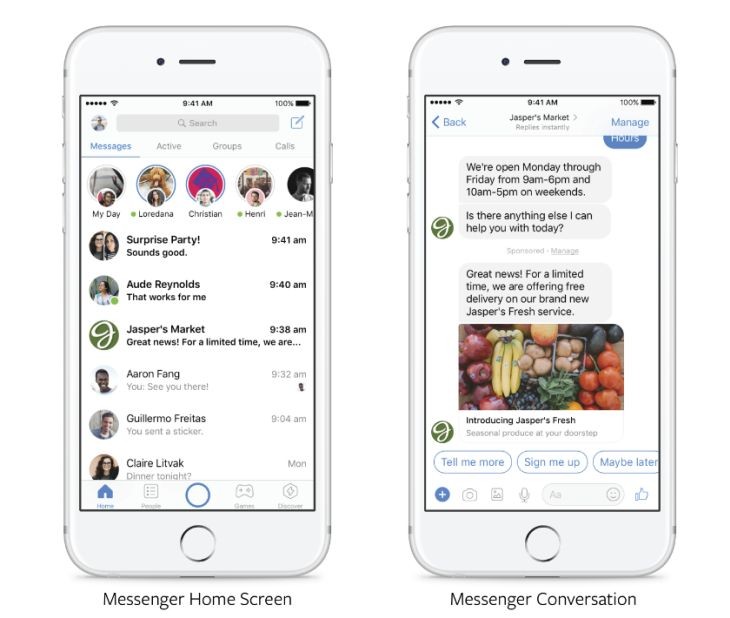
In a move that won’t shock anybody, Facebook is bringing advertising to Messenger. It has begun to test allowing companies using Facebook to send out sponsored messages from their clients. Is this another intrusion from the social network? No, and let us tell you why.
Companies can only send these sponsored messages to users with whom they’ve communicated before. For example, if you contacted a store to ask about a special deal they were offering, the store would then be able to consider you a potential customer and could send you messages including promotions and offers. Messenger will allow messages to be sent from companies no more frequently than every 24 hours.
For now, Messenger is testing this system with a small group of brands. It hopes to be able to enable a wider implementation across all businesses in the coming months.
Private messaging is the future of marketing
The first tests of these sponsored messages seem to show that rather than users being bothered by them, users are happy to receive them. According to several studies, users are much happier communicating with companies via messaging services than other means of communication.
Messenger isn’t the only service looking to get in on the action. WhatsApp, which is owned by Facebook, also recently released WA Business in beta. This will connect users with official business WhatsApp accounts when it gets its full release.
What do you think about this new feature? Tell us in the comments.
It’s obvious that security is very important when we use our computer or smartphone. You’ll find numerous tutorials on the internet explaining at great length the security protocols that you should follow to keep yourself protected. We’ve often talked about this here at Softonic, so today we’re just going to into the most important stuff without going on and on. Lucky you!
Let’s have a look at how to keep you and your files safe from ransomware and other nasty security problems.
7 tips for a healthy security diet
1. Always use Incognito Mode on public computers
Once while traveling, I went to use the hotel’s public computer and came upon the open Facebook session of a previous guest. I’m not a troll, so I closed it without looking, but imagine if the person who’d found it had been somebody who wanted to mess around… Enough said.
How to enable private browsing mode on different browsers
Whenever you’re on a computer that is not your own, use the browser’s Incognito Mode. This includes computers at colleges or universities, libraries, hotels, or any public area and even at your friend’s houses. Even if they are trustworthy, their computer might have a virus or malware. This will also save you the trouble of having to remember to log out when you’re finished.
2. Don’t obsess over antiviruses
Yes, this point seems counterintuitive. When we buy a new computer, we tend to go overboard by downloading multiple antivirus and anti-spyware apps. But it’s generally unnecessary to have more than one antivirus app, and computers with Windows 10 already come with their own antivirus software. If you don’t like it, you can use another, but only one other!
Most current antivirus software (such as Avast, AVG, and Panda) includes protection for all kinds of threats, even in the basic or free versions. Choose one and let it do its job. If you have a specific problem, there are many programs on the internet for resolving it. If this happens, you can take action by installing specific solutions.
3. Never skip an update
Many programs often ask to be updated. This means they will take longer to start up, but is it worth the wait? Yes! Software publishers often use these updates to patch critical flaws that could leave your PC vulnerable. So keep your favorite programs up-to-date, and if they ask to be updated, don’t skip them, poor things! Besides, unless we’re talking about games, PC programs take only a few minutes to update. Get up and make yourself a coffee or get some fresh air; when you return, your software will be ready.
It’s the same with Windows updates. Updates aren’t designed to pester you, but to improve performance. The problem is that, unlike programs, when Windows updates it takes a while. To avoid losing time, program Windows 10 so that it updates when you’re not using the PC.
4. Change your passwords regularly
Yes, I know it’s annoying having to change info, but it’s not smart to use the same Gmail password that you had when you opened your account in 2004. Change passwords for the main services you use every 6 months to 1 year. In some cases, the platform itself forces you to do so, but others won’t.
If they don’t, use your favorite reminder service and calendar (Google Calendar, or a to-do list program, for example) to notify you to make these changes regularly.
Also, use a password manager so you don’t forget anything. Google Chrome has its own password manager, but if you want extra security, use an external program. To help you out, we’ve put together a selection of our top 5 password managers. Choose the one that best suits your needs.
Ransomware gives the hacker power, because you are worried about losing your data and will pay to get it back. When you have backups of all your data then you’ll have a lot less to worry about if somebody asks you for money to access the files to which they’ve blocked access.
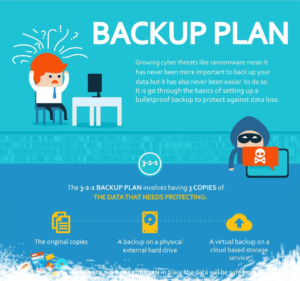
Security experts agree that the 3-2-1 rule is the only guarantee that your data will be truly protected. The 3-2-1 rule involves having three copies of all the data you want to back up: the original copy, a physical back up on an external hard-drive, and a virtual backup on a cloud-based service. With such backups in place, you would be able to get your data back even if somebody holds the original copies ransom.
We’ve put together a handy infographic on the 3-2-1 backup plan:
Click to see how to implement the 3-2-1 Backup Plan
6. Be wary of how you pay for things
How many times a month do you shop online? I shop online a little too often. If you’re like me, you have to be careful about how you pay for things online. Never use dubious methods for payment and always choose PayPal or Google Wallet when they’re available. If you’re paying with a credit card, ensure that the vendor uses a “payment gateway,” an intermediary between your card and the vendor, which makes sure your info can’t be directly accessed. Avoid paying by bank transfer if possible, since if there’s an issue with your purchase it could be difficult to get your money back.
Are you buying from an individual and the seller is insisting that you pay by banking transfer? If the amount is small and the person is trustworthy (for example, there is positive feedback on the website where you’re buying it), it might be okay to risk it; otherwise, you should encourage them to use PayPal, since it’s free between individuals, and setting up an account is very simple: you only have to add your bank account.
7. Slam the door on Facebook, WhatsApp or email rumors
We’ve all seen unfounded rumors spread like wildfire across social media. There is a term for it in the modern vernacular: Fake News. Don’t contribute to the spread of fake news; at the very least it creates noise and confusion, but it can also have much more serious consequences. For example, sometimes photos of so-called “criminals” shared on social media are just normal people. Their photos had the bad luck of falling into the hands of bad people. Would you want that to happen to you?
Before sharing any status, post, or image on Facebook or WhatsApp from an unfamiliar website, briefly confirm it using news sources you know to be legitimate and, above all, use common sense. For example, before sharing the photo of a missing person, click the original link and do a little research. Has the person already been found? Is the info coming from an official organization? If it looks fishy, think twice before posting it.
Your daily security diet
The security advice in this article is like a healthy diet: It’s ok to skip a day, but if every day you slip up and eat junk food, you’ll be nourished by only by pizza and pastries. So, try not to skip your daily security diet; with a little effort, you and your devices will stay safe.
The original version of this article was published on June 27th 2017
November 24 is Black Friday, one of the most infamous holiday traditions. If you can’t get into the festive spirit without feeling like you have managed to get a few deals between Black Friday and Cyber Monday, then we have some tips for you.
Most of these tips apply mostly to shopping online, but if you follow them all you’ll have a solid plan for all types of shopping come the big day. The main tactic for getting that deal of the century is to prepare, prepare, prepare! Let’s get to work.
How to get the best Black Friday deals
1. Save what you want to buy in your Favorites before the excitement begins
If you have an interest in specific products, go to different shops and save the links. Then, you will be ready to check everything you are interested in the moment the sales start. You can even check which is cheapest by store.
2. Always check the original price
Before clicking Buy, check the original store price. The shop is required to show it and, if it doesn´t, that’s a bit fishy – so it is worth double checking the price against a competitor.
3. Organize a “path”
Do you want to buy a number of different things? Make a list of the different shops/sites you want to visit so as not to forget anything and cross them off as you go. If a store’s server fails under the inevitable onslaught of shoppers, keep moving and leave it on your list – you can always come back later.
4. Buy from stores with a good return policy
Although you should go in with a clear list, you will probably end up buying a few things unexpectedly. While all shops are required to accept returns, some make it easier than others. Try to buy in shops that make returns simple. That way, if you regret something, you’ve only lost time and not money.
5. Follow your favorite shops’ social networks
Do you love certain brands of makeup, fashion, electronics, or collectibles? The best way to know which deals are on Black Friday is to follow their various social networks. Facebook is great for this, as most shops will promote their various discounts there.
Remember: you can also make sure these posts can be seen first on your timeline, so you never miss a deal. Just go to their page and select how you want posts displayed in your news feed – in this case, See first. Remember to turn this off after the sales, though.
6. Use price comparison sites
We know some shops and products are great, but if you are on an uncontrolled shopping spree, then it can pay to be safe. With sites like Ciao or Google Shopping, you can get useful reviews of stores, products, and prices to make sure your purchases will be hassle-free.
7. Have a spending limit… and try to stick to it
Cap your budget and try to stick to it. Yes, it’s hard, but so is not eating for the rest of the month. One way you can manage this is to transfer your sale budget to Paypal – then when you run out, call it a day.
We love to shop! Do you have any other tips to maximize the sales? Tell us in the comments.
WhatsApp Web has an error that allows anybody with certain a computer know-how, to partially spy on you. By partially I mean that he/she can find out when you go to bed and when you get up.
Engineer Rob Heaton has discovered this error and shared it on his blog. The error is the legendary “online” status that is visible when you’re connected. You can disable the time you were last online so it no longer displays, but the “online” status can’t be removed.
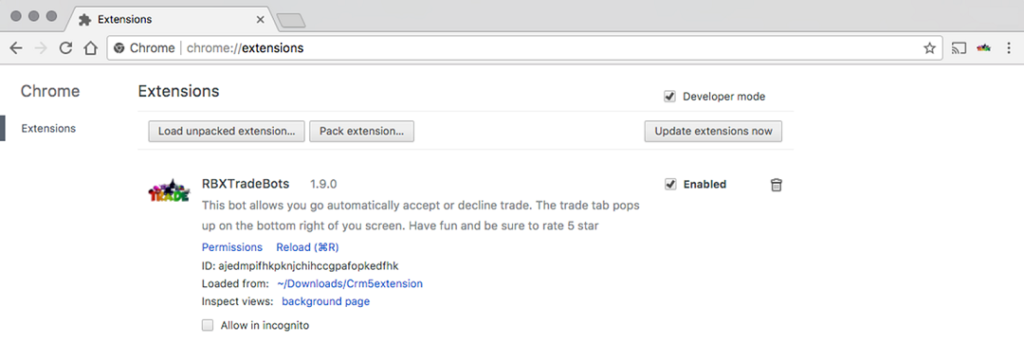
Rob Heaton demonstrates, on his blog, how easy it is to create a Chrome extension in order to monitor every time a contact from your WhatsApp appears “online.” Then, you leave your computer turned on with WhatsApp Web enabled, get on with your life and within a few hours, or even a week, you can come back and see the results.
The code thatthe extension needs to collect everybody’s connectivity times is very straightforward:
By knowing the last time that a WhatsApp contact was “online” the day before and the first time that he/she was “online” the next day, you’ll know more or less how many hours they slept. This way, a jealous person could find out if his/her partner has a busier nightlife than they’re letting on, so to speak.
Heaton goes one step further and even explains that with this info it would be easy to know when two people are talking to each other. Their connectivity times would just have to match.
The danger here isn’t just that an ordinary person could use this, but also somebody with more malicious intentions could gather all this info and sell it to third parties.
It’s unclear if Heaton has passed along his findings to WhatsApp to prevent this info from being given away by WhatsApp Web.
Do you think this is a huge mistake or no big deal?
















 2. Enter your image