Regularly, WhatsApp stops working on older phones. This move is part of its update cycle and results in ending support for older operating systems. As discovered by WABetaInfo, WhatsApp is preparing a warning message for some iPhones. These are the affected devices and the deadline: WhatsApp has announced that starting from May 5, 2025, it will not work on devices with versions earlier than iOS 15.1, which directly affects some Apple phones that, although they continue to function normally, will not be able to access WhatsApp. Specifically, […]
Regularly, WhatsApp stops working on old phones. This move is part of its update cycle and results in dropping support for older operating systems. As discovered by WABetaInfo, WhatsApp is preparing a warning message for some iPhones.
WhatsApp has announced that as of May 5, 2025, it will not work on devices with versions earlier than iOS 15.1, which directly affects some Apple phones that, although they continue to function normally, will not be able to access WhatsApp. Specifically, we are talking about the iPhone 5s, iPhone 6, and iPhone 6 Plus, which will no longer receive support from Facebook.
The main reason for this change is that the new features and updates of WhatsApp require the technologies offered by the latest versions of iOS. According to Apple’s data, only 9% of iPhones are running iOS 16 or earlier versions, so the impact of WhatsApp’s decision will be minimal.
We can check if we are on an iOS version compatible with WhatsApp. We just need to go to Settings > General > Software Update. If our device supports iOS 15.1 or later, the solution is as simple as updating the system.
For older models that can no longer be updated, the end of WhatsApp support marks a turning point. Although we can now rely on RCS to send messages to any device for free and without the need for third-party apps —as long as our carrier supports it—, it is true that some groups are still only available on the Facebook app.
The move by WhatsApp reminds us of the importance of keeping our devices up to date. In a dynamic ecosystem like Apple’s, these updates ensure that we continue to enjoy the best that technology can offer us.
WhatsApp Webis an online messaging application you can use on a browser. You can link it to your mobile account to synchronize your chats. However, you’ll need a phone number for it to connect and work. There’s a WhatsApp beta update in development that will let you use the web version without your phone.
For now, there are plenty of features to enjoy with the WhatsApp Web version. It’s more convenient when you’re working on your computer and you don’t want to use your phone to attend to messages. There are also various ways you can use WhatsApp to be more productive. Let’s take a look at all it has to offer in this review.
WhatsApp Web chat features
Primarily, WhatsApp Web is used to chat with your friends, family, and groups. There are some features that enhance communication, and I’ll evaluate each of these below.
Text communication
Most people use WhatsApp web to send texts to their contacts. It’s easier to type on a physical keyboard than the screen option that the WhatsApp mobileversion offers. Out of all the communication options available, texting is the best on the PC version.
The only issue is that you’ll need a constant internet connection to synchronize your messages. You can type to your heart’s content, but it won’t send any chats until the internet connection is restored. With your phone, you can still use mobile data if the WiFi kicks out.
Voice messages
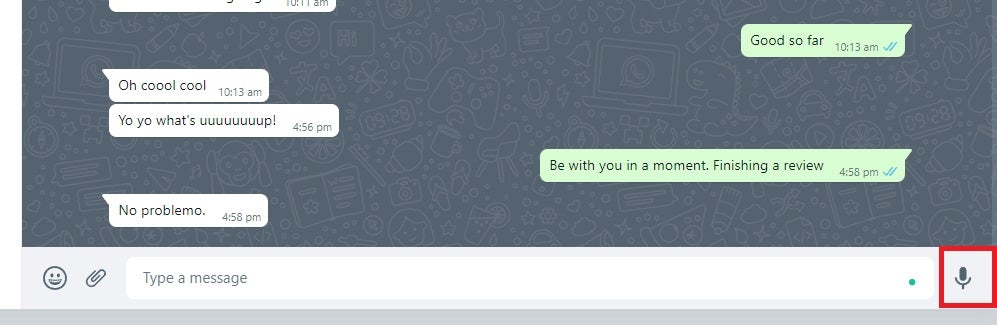
If you have a decent microphone attached to your computer, you can get away with sending voice notes on WhatsApp Web. When I tested it for this review, my contact told me it’s actually clearer than my Huawei P Smart 2021 phone, which says a lot. Using the function is as easy as clicking on the small mic icon on the chat screen. You can also use a mic that’s built into your laptop or PC webcam.
Voice and video calls
Despite having a webcam that allows me to make video and voice calls on the WhatsApp Windows desktop app, I don’t see the functionality on the web version. It’s an odd absence, considering I can attend video meetings on Zoom and Microsoft TeamsonAvast Secure Browser. Hopefully, we’ll see this feature included in future updates.
Creating groups
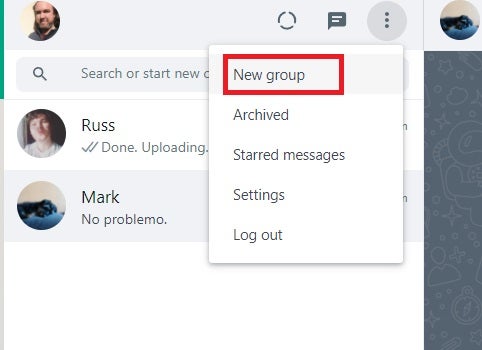
One feature that is included is the ability to create groups on WhatsApp Web. You can click on the three dots on the left pane, select New Group, and then choose the members you want to place in it. When done, you can name the group, and it will synchronize to your phone.
Reactions and replies
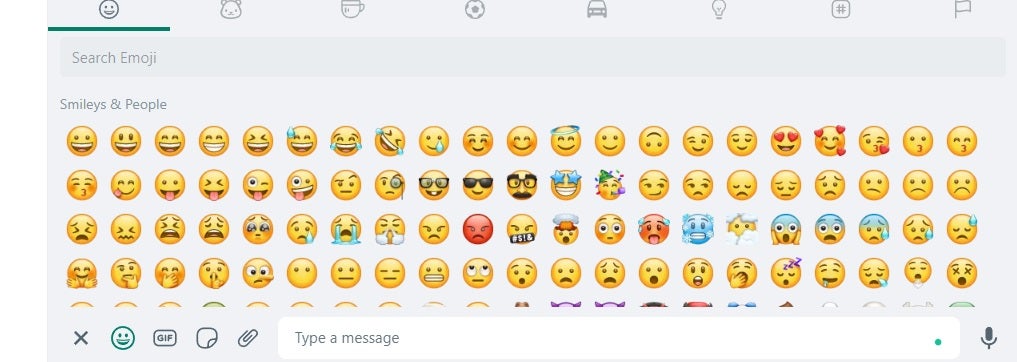
It’s easy to react and reply to messages on the WhatsApp web. While the functionality differs slightly from the mobile version, you can click on a message and select “Reply”. There’s also a small face you can click on next to the chatbox for when you want to add emojis.
Sharing media on WhatsApp Web
Besides chatting, you can also share files and media with your contacts. Only specific formats are allowed, but most of them usually go through. You can access the option to send media with the attachment icon next to the chatbox.
Sending images, contacts, documents, and videos
As soon as you click on the attachment icon, WhatsApp Web will reveal a few colorful buttons. In order from top to bottom, they consist of contacts, documents, camera, stickers, photos, and videos. When you select documents, photos, or videos, the browser will attempt to access your computer’s storage so you can upload them.
For contacts, you simply need to tell the app which contact details to send. You can also take a photo directly with your webcam to send a selfie. Finally, you can attach stickers, which is an upgraded version of emojis and brings life to the app.
Sharing links
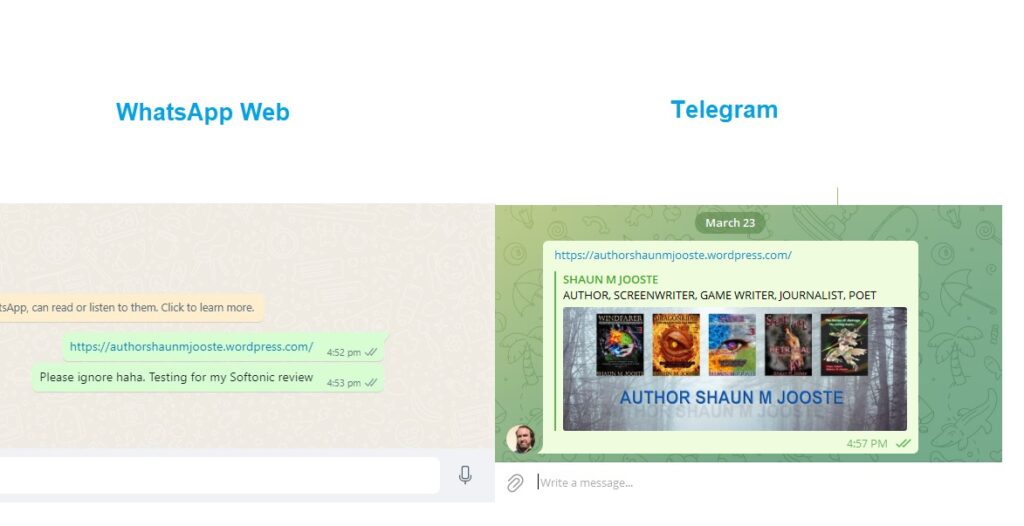
If you’ve discovered content online that you want to share with your contacts, you can simply paste the link in the chatbox. They can click on it and head straight to the site. Sadly, it doesn’t present a preview of the site like some other apps do, such as Telegram.
Showing your and location
The occasion might arise where you’ll want to let someone know where you are so they can meet up with you. If you grab the location link from Google Maps or a similar app, you can paste it into WhatsApp Web and send it. Your contact will get a link with directions of how to get to you or vice versa.
Other WhatsApp Web features
So, now you’ve seen the chat and share functions in my WhatsApp review, but there are more features available on the browser version. It’s worth taking a quick peek behind the scenes so you know what you can do compared to the desktop and mobile apps.
Updating your status
One of the features that arrived on WhatsApp mobile is the ability to update your status and view those of your contacts. As far as WhatsApp Web goes, you can certainly see the status of others by clicking on the circular icon in line with your profile photo. Unfortunately, there’s no button for updating your own status, which matches the functionality of the Windows desktop app. You can only do so on your phone.
WhatsApp Web security aspects
WhatsApp Web offers end-to-end encryption to keep your chats secure, much like the desktop and mobile counterparts. Signalis slightly more secure with vanishing messages, but that becomes frustrating over time. However, your contacts can delete all messages and media between you two, but it doesn’t stop anyone from taking screenshots and sharing them.
One other concern I should mention in this WhatsApp Web review is that the app stands the risk of being hacked. If you aren’t using a secure browser or spyware protection, someone with malicious intent can view your conversations or see your video conversation.
Online presence
No matter which platform you use, you’ll be able to see when yourcontactwas last online if they’ve enabled it on their profile. When you open the chat on WhatsApp web, you’ll see a time under their name showing you the last time they were online, or if they are currently online.
Integration with other browser applications or extensions
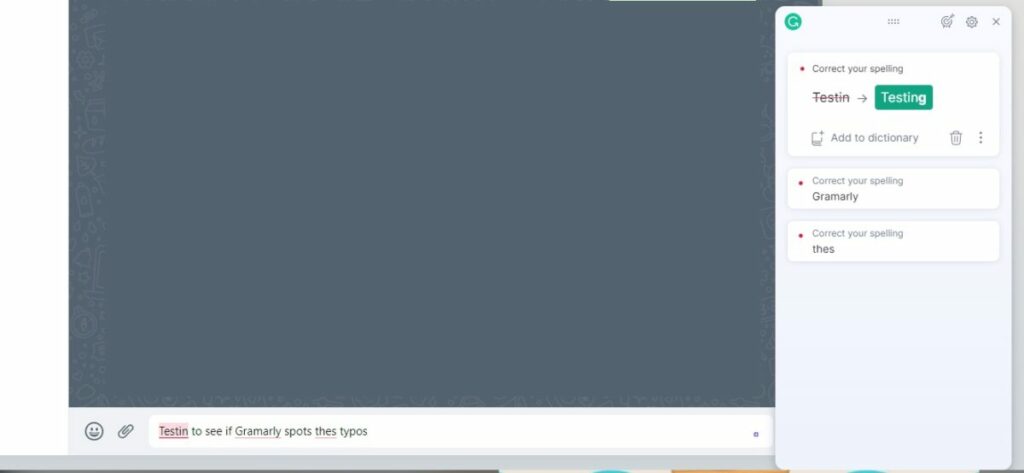
The one outstanding benefit that WhatsApp web has over the desktop and mobile counterparts is that it integrates with browser extensions. For instance, I have my Grammarly Premium account connected to Avast Secure Browser. There’s a small Grammarly icon in the chatbox if I want to make sure I don’t have any typing errors. Of course, it’s a chat, so it’s not like I care. But it’s handy for when I want to have a professional discussion.
What’s in the settings?
Finally, it’s worthwhile taking a look at what the settings have to offer on WhatsApp Web. For the most part, there are similar features you’d find compared to the desktop and mobile versions. The settings include Notifications, Privacy, Security, Theme, Chat Wallpaper, Keyboard Shortcuts, and Help. There are some obvious absences, such as Storage and Data, as they don’t apply to the web version.
How WhatsApp Web looks and sounds
In my last section for this WhatsApp Web review, I want to cover the visual and sound effects. They aren’t overly impressive, but there are some aspects I liked.
Using the interface
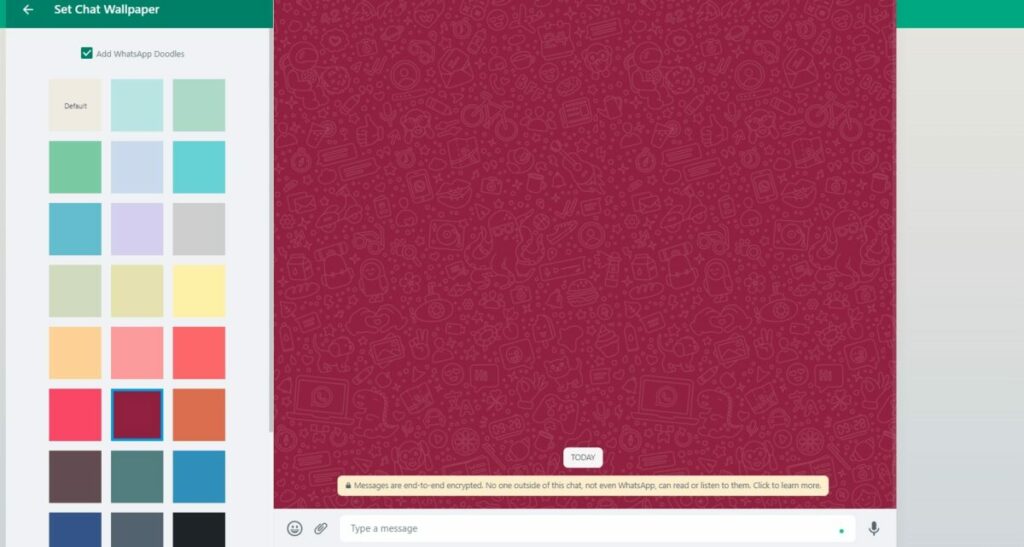
The interface is incredibly minimal and tries to copy the mobile and desktop apps completely. Sure, you’ll have a larger screen to type on than your smartphone, but the theme and visual features are mostly the same. You can alter the wallpaper so that it doesn’t look like everyone else’s, which it stores in the browser cache.
The web background doesn’t sync with your phone, so you can make it look different. However, you can only select a default background and not upload an image as on the phone version.
Listening to music and contactson WhatsApp Web
The sound quality is outstanding and outperforms the mobile version by far. Since I have speakers connected to my PC, WhatsApp Web plays voice notes and music that my contacts send beautifully. It’s just sad that you can’t make voice calls, as it would be so much better.
WhatsApp Web: is it worth using?
WhatsApp Web is ideal if you’re working or busy on the internet and you want to have chats on your browser. There are some missing functions, but you’ll be able to live without them for the time being. The mobile and desktop versions are more advanced, but it’s still worth using when you need them. There are some better apps for specific functions, such as a conference or video calls.
Of course, Whatsapp is constantly updating its features, so keep updated by reading the latest news in the WhatsApp Communities.
Pros
Fantastic sound quality
Send a variety of media
Can attach files
Easy to send voice notes
Easier to type on keyboard
Syncs messages with phone and desktop app
Easy-to-use interface
Cons
Relies on internet connection
Doesn’t allow voice or video calls
Links don’t present site previews
Can’t update your status
Only default backgrounds allowed
Developer: Meta
Publisher: Meta
Features: Chats, groups, media sharing, voice and video calls
Platform reviewed: Windows 11 – Avast Secure Browser
WhatsApp is working on adding calls to WhatsApp Web.
The Facebook Developer Conference kicks off today in San Jose. It is fair to say that Facebook has had a very bad year with scandal after scandal rocking the social media giant. The annual F8 conference then could be a good way for Facebook to divert eyes away from its shady past and towards its future.
In truth, however, this year’s Facebook Developer Conference doesn’t seem likely to include a headline-grabbing announcement that could distract the masses. There’ll likely be talks on AI, as well as privacy and encryption. There’ll also likely be news on an Oculus update and new takes on augmented reality, and we’ll likely see something about what Facebook is doing with blockchain. Nothing too exciting, though.
What we’re hoping for, however, is nothing to do with Facebook itself, but rather Facebook-owned WhatsApp. What we’d most like to hear at F8 this year is confirmation of some of the many WhatsApp updates we’ve seen added to the WhatsApp beta over the last weeks and months. These include a new dark mode, improved security features, stickers 2.0, and a vacation mode. On top of these, however, we’d love to hear about another feature we’ve only just learned has been added to the beta.
WhatsApp is working on adding calls to WhatsApp Web
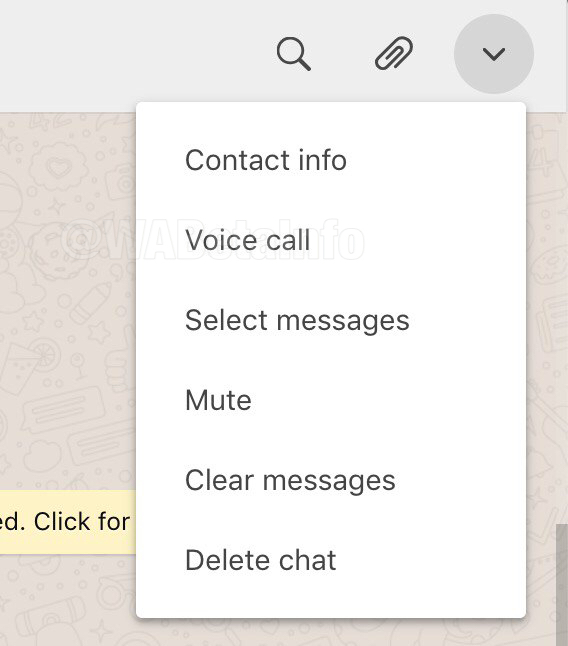
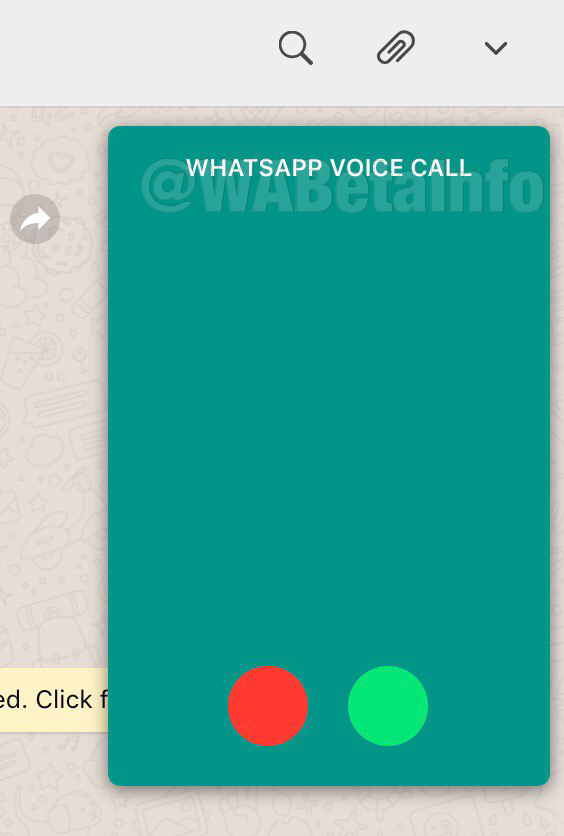
The new calls feature for WhatsApp Web is still in the very early stages of development, but a few screenshots of the feature in action have been leaked onto the internet thanks to WABetaInfo. These are only images of the voice call feature, however, as the video call feature for WhatsApp Web is still in the alpha development stage.
The calls feature on WhatsApp Web will be activated by clicking the settings menu icon found in the top-right of any chats screen. You’ll simply open the chat of the contact you want to call, click the icon in the top-right, and then hit voice call. It is a safe assumption that once it moves further along the development path the video call feature will also be found here.
This feature is still a long way off from a general roll-out, however, as the screenshots show. Even the voice call feature is incomplete as WhatsApp still has work to do before it can release a full version to the beta community.
Even though the new calls feature is still a way off from completion, there is still a chance it might come up at the Facebook Developer Conference. Should we hear anything from the conference on calls or any of the other WhatsApp features we’ve reported on over the last few months, we’ll make sure you hear about it first.
How to try new features on WhatsApp before anybody else
WhatsApp Web has an error that allows anybody with certain a computer know-how, to partially spy on you. By partially I mean that he/she can find out when you go to bed and when you get up.
Engineer Rob Heaton has discovered this error and shared it on his blog. The error is the legendary “online” status that is visible when you’re connected. You can disable the time you were last online so it no longer displays, but the “online” status can’t be removed.
Rob Heaton demonstrates, on his blog, how easy it is to create a Chrome extension in order to monitor every time a contact from your WhatsApp appears “online.” Then, you leave your computer turned on with WhatsApp Web enabled, get on with your life and within a few hours, or even a week, you can come back and see the results.
The code thatthe extension needs to collect everybody’s connectivity times is very straightforward:
By knowing the last time that a WhatsApp contact was “online” the day before and the first time that he/she was “online” the next day, you’ll know more or less how many hours they slept. This way, a jealous person could find out if his/her partner has a busier nightlife than they’re letting on, so to speak.
Heaton goes one step further and even explains that with this info it would be easy to know when two people are talking to each other. Their connectivity times would just have to match.
The danger here isn’t just that an ordinary person could use this, but also somebody with more malicious intentions could gather all this info and sell it to third parties.
It’s unclear if Heaton has passed along his findings to WhatsApp to prevent this info from being given away by WhatsApp Web.
Do you think this is a huge mistake or no big deal?
Are you a bit of a gossip? Do you love knowing anything and everything that is going on in all your friend’s lives? Well, if you are, you might be interested in this little trick for WhatsApp Web. This trick, which only works on the browser version of WhatsApp, allows you to discover exactly when a message has been read. It could be particularly useful for group messages.
There are two ways you can check the time that each contact has read a message.
The first involves double-clicking the two blue ticks of the message in question. This will open a window where you can see who has read the message and at what time.
The second consists of pressing the button that appears above the date the message was sent and clicking message information. This will show the same window from before.
So there you have two quick and simple ways to find out who has read your message and when, and you don’t even have to get your phone out of your pocket to use them.
You can finally use WhatsApp on your computer. The messaging app has always been mobile focused, but that doesn’t mean users want to be glued to their phones all the time.
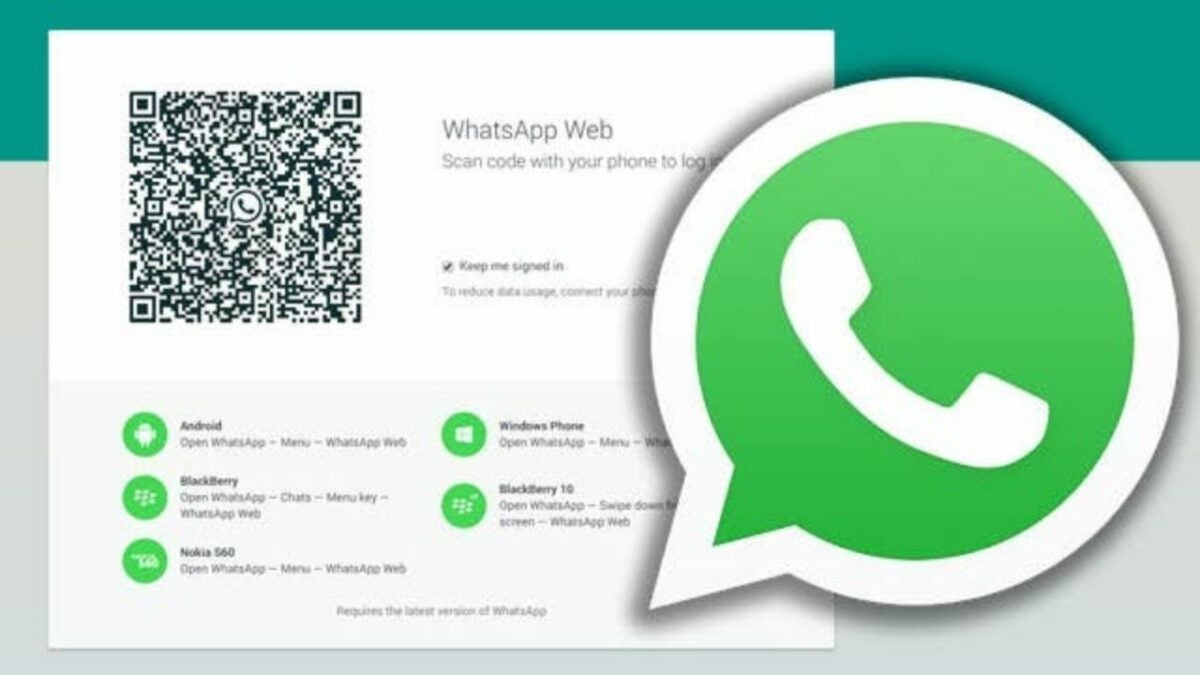
To get WhatsApp working on your computer, you have to be running the latest version of WhatsApp. In Chrome, navigate to https://web.whatsapp.com and you’ll see your personalized QR code. Open up the app on your phone and tap on the menu button (three dots on Android) and then tap WhatsApp Web. This will bring up a QR code scanner and will pair your phone with your browser.
The web app relies on the app running on your phone. This means that if the battery dies on your device, the web app stops working.
WhatsApp recommends having your phone connected to Wi-Fi to reduce data usage, which can build up if you share a lot of images using WhatsApp.
[UPDATE: Did you know WhatsApp for Windows and Mac operating systems is finally here? Download WhatsApp for PC]
Note: this story was originally published on January 21st 2015 and updated on May 12nd 2016