Instagram now lets live streamers add moderators to their streams

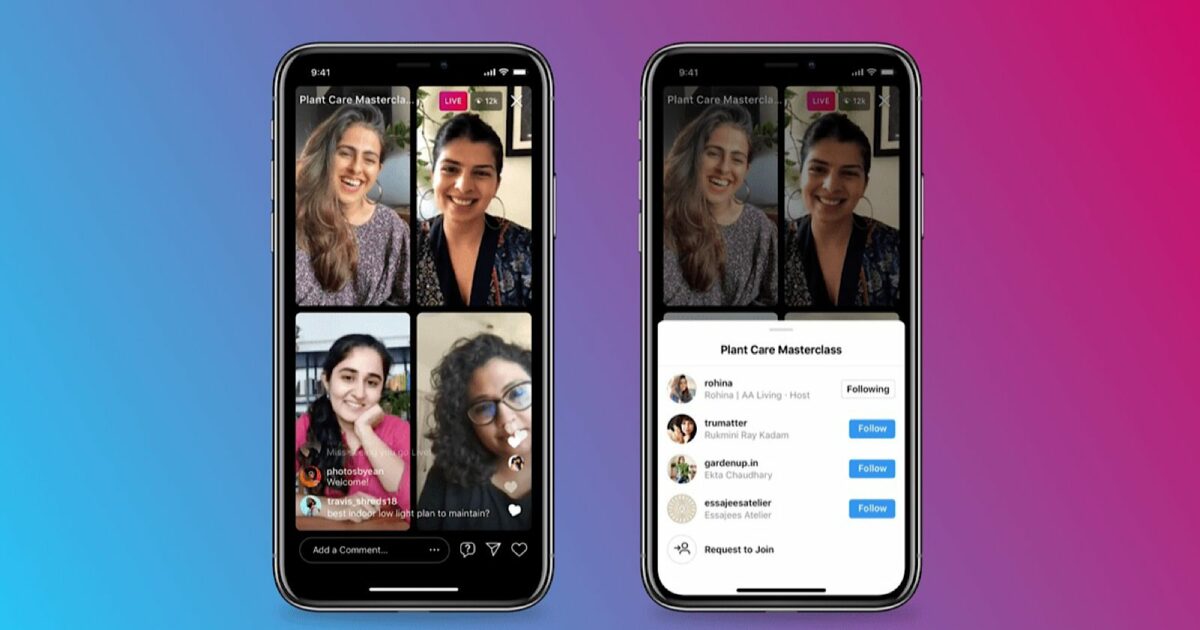
Streamers rejoice as Instagram finally sets up the necessary framework to allow moderators to be an active part of the live streaming landscape. Live streamers will now have the option to appoint moderators to monitor their streams. Mods will be able to report offensive comments, turn off users’ ability to comment, and even boot users from a stream. 

According to Instagram, creators can appoint moderators during a Live stream by hitting the kebab menu in the comments bar. From there, they’ll get a list of suggested moderators, but they’ll also be able to search for specific accounts. As of yet, it’s not clear whether the suggested moderators will be accounts you interact with often or accounts that eventually receive high request rates as moderators and therefore become ‘professional’ mods. It would be interesting if Instagram added a rating system for mods, but it’s most likely going to be a list of users’ friends. 

Moderators will likely become an indispensable asset in the Instagram Live landscape, and they’ll have a list of functions their accounts will be able to perform during live streams once listed as a mod. Moderators will be able to moderate and monitor users’ comment interactions and block users’ ability to comment if their comments are deemed offensive to either the mods or creators. Mods will also be able to report comments and boot users’ from streams entirely. This is bound to positively impact how people interact with creators during streams on Instagram Live. 

It’s surprising that Instagram has waited this long to introduce the framework for moderation during live streams, given that Live has been a prominent feature and selling point of Instagram since its introduction in 2016. It comes as even more of a surprise when you realize that Instagram’s sister social media giant, Facebook, has already had moderators in place for a long time. The same can be said for gamer live stream staple, Twitch, and YouTube, where comments tend to get nasty if not monitored.

Shock and awe aside, it’s high time Instagram hops on the moderator band-wagon and it’s a good thing they have. We’ll hopefully see a few more updates to this functionality in the future making live streaming an even more enjoyable place for creators and viewers alike. If you feel you’re behind on the platform drama, catch up with how Instagram said goodbye to IGTV.

For Honor finally gets cross-play five years later

There’s a massive new release of the 2017 hit RPG For Honor, and it’s rumored to be coming on March 17th. The new release is part of a plan to celebrate kicking off For Honor’s sixth year of existence and promises loads of new and updated features. The update is expected to kick off in two phases and will feature a cross-play mechanic for most of the game’s major modes. 

Phase one is due to kick off on March 17th, with phase two’s release still to be announced, but confirmed to be in active development and expected to arrive sometime this year as part of the sixth-year festivities. The most exciting feature in phase one has to be cross-play, letting people on numerous devices across platforms play together. Upon its initial rollout, cross-play will combine PC, PlayStation, and Xbox matchmaking pools into one interface. This will make matchmaking easier and more streamlined. 

One drawback is that Ubisoft says players will have no choice but to re-establish their skill ratings once the new rollout comes. Another is that voice chat will be temporarily disabled for the initial launch on all cross-play matches. This makes a lot of sense as cross-play is a new feature of the game, and it will take a little time for the system to be smoothly integrated for all players across all platforms. Luckily, this is just a temporary thing, and cross-play voice chat will be reintroduced. 

As touched on above, cross-play will be a feature of almost all the main game modes, including PvP and PvE. Unfortunately, it won’t feature as a mechanic in the Campaign, Ranked, Arcade, or Training modes. Custom mode is also not getting the cross-play treatment, at least initially. However, Ubisoft has said that phase two will address this. Another thing to note is that as of the new release, cross-play will be the game’s default setting for supported modes, but you will be able to opt-out of this experience in your settings.

If you’re a fan of games set in the medieval era, check out our reviews for Chivalry: Medieval Warfare and Hellish Quart while you wait for the new release of For Honor.

Twitter’s default chronological timeline is a relic of the past

Twitter came under heavy criticism when it made the decision to drop the default chronological timeline feature for a more suggestion-driven system. But thanks to a new update currently rolling out to iOS, you’ll soon be able to see the most recent Tweets in your feed again; You just won’t be able to see them by default like in the good old days. 

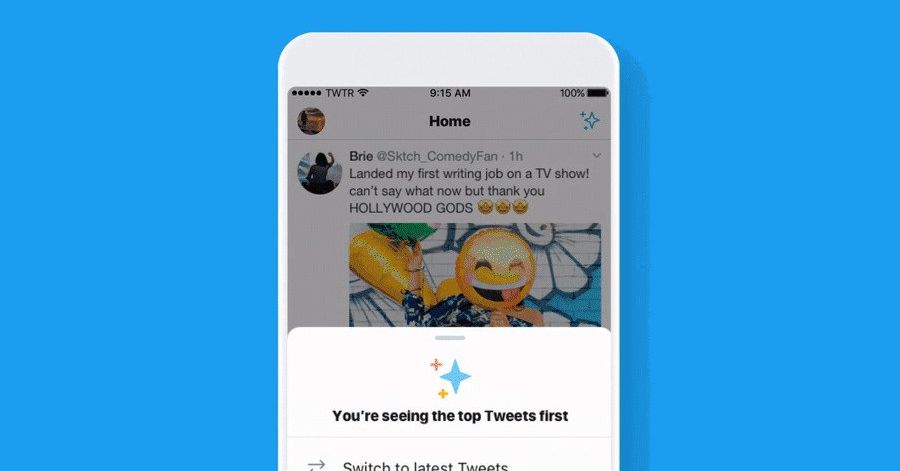
The update is due to be available on Android shortly after the iOS rollout is complete, and following that, it will hit the web. As spotted on Twitter’s official support account, the new interface will feature two new tabs at the top of users’ screens; Home and Latest Tweets. Home will host the company’s suggested tweets while flipping over to the Latest Tweets tab will let users see the most recent tweets in chronological order. 

While users will still be able to see their Tweets in chronological order following the new update, the ‘Latest Tweets’ option being the default is a relic of the social media giant’s more user-driven past. Luckily, a Twitter spokesperson has brought to light the likelihood that this system will change again, hopefully back to what it was.

The issue with social media companies making such drastic changes to how users’ feed is presented to them is that it ends up being more of a confusion than anything else. iOS users who have already received the update say they are constantly checking whether they’re on the right tab, and in most cases, the ‘right tab’ is not the one showing Twitter’s suggestions. 

Instagram is also a culprit of changing things up to the dismay of its users. The popular image-sharing social media app was also criticized from dizzying heights after switching to suggested posts opposed to chronological order. While Instagram is currently testing new interface options that bring back a chronological feed without suggestions, it’s unclear whether Twitter will bend to public pressure and follow suit.

Let us know how you feel about Twitter’s latest update in the comments, and stick around to read up on how you can set up Twitter warnings for sensitive content. For other platforms removing features, you can see how Instagram has said goodbye to IGTV.

Square Enix drops what might be the final Stranger of Paradise demo

Fans are struggling to contain their excitement as Square Enix announces the imminent release of yet another tantalizing demo for their upcoming title, Stranger of Paradise: Final Fantasy Origin. It’s a darker, alternative take on the 1987’s original Final Fantasy game. The renowned video game publisher based in Japan also dropped a whole lot of new info on future titles such as Valkyrie Elysium. And it seems as if there will be a new Stranger of Paradise demo available.

Sony’s State of Play broadcast on March 9th this year was Square Enix’s chosen platform to announce the new demo for Stranger of Paradise. Many players had already shared suspicions of a new demo inbound after an earlier leak all but confirmed Square Enix’s plan.

The third demo comes hot on the heels of two others, both serving as opportunities for Square Enix to gather community feedback, likely to perfect the game before its official launch later this month. With the demos releasing so close to the official launch, there definitely seem to be a few tweaks the publisher wants to make before the game is playable worldwide. 

Square Enix describes Stranger of Paradise as a ‘bold new vision’ for the Final Fantasy franchise. Square Enix further explains that even though the game has a similar feel to the standard game-building formula employed in previous Final Fantasy games, it’s also a twist on what has already been done, bringing a fresh new outlook on what the future of Final Fantasy could be.

This twist is definitely felt in the demos, with players expressing a general fondness for the intriguing storyline and gameplay aspects. If players have had any complaints, they’ve mostly been centered around what they feel to be unpolished aesthetics and general performance inadequacies. Hopefully, the new demo fixes many of these issues and leads to a flawless stable release come March 18th.

We have a little over a week of waiting left before the highly-anticipated Final Fantasy spinoff hits the shelves. In the meantime, you can check out the details of other Square Enix content, such as the launch of Babylon’s Fall.

Be careful: this Android antivirus app is hiding malware

Android is one of the most widely used and best-loved mobile operating systems. Unfortunately, that honor doesn’t come without its risks. While competitor iOS has had its share of struggles when it comes to malware and trojans on its App Store, Android’s Google Play Store is plagued by far more and far more serious malicious software. The latest is an ‘antivirus app’ called Antivirus, Super Cleaner. 

This trojan app, published by Zbynek Adamcik and listed in the tools category on Google Play, contains SharkBot banking app malicious software. SharkBot is incredibly advanced in comparison with its contemporaries like TeaBot because it doesn’t require third-party control and automates a slew of malware properties. Specifically targeting banking apps, this malware can trick you into entering your sensitive banking credentials into a third-party app by creating an exact clone of your screen interface on an overlay.

It does this to collect touch and type input to relay to hackers. Once it has infected your phone, the malware can also install third-party apps without your knowledge or permission, possibly infecting your phone with even more malware. SharkBot also has defenses built into its code that prevents easy uninstallation. 

The biggest problem with this malware disguising itself as an antivirus app is that so many people are looking for antivirus apps these days. The other thing is that any kind of ‘free’ antivirus and phone cleaner utility is going to be more appealing due to the price tag attached to the big-name apps. Nonetheless, to protect yourself from threats like this, it’s always wise to invest in trusted antivirus software. 

Norton 360 Premium offer UP TO 61% DISCOUNT
9

Stick around to read up on the industry-leading antivirus, malware detection, and phone cleaner utilities, and remember, don’t just install any app from any play store utility. Do your research, check out comments, watch reviews, and look at the community ratings. A quick internet search also sometimes provides clarity on whether an app is suspicious or not.

Latest Windows 11 is feature-loaded, but it’s not a feature update

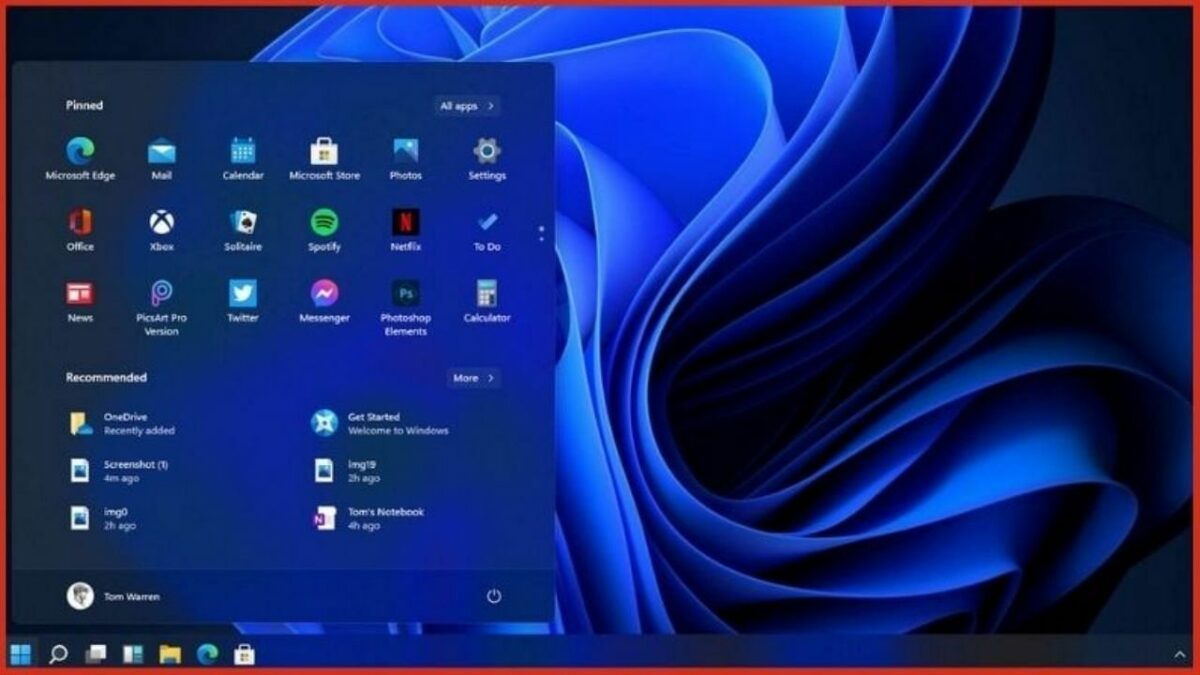
Windows 11 is Microsoft’s brand new flagship operating system, replacing the old-reliable Windows 10. While the new OS has completely changed the Windows experience with a fresh new look and underlying infrastructure built for the personal computers of tomorrow, Windows 11 has been light on any actual increase in functionality over Windows 10. Microsoft has attempted to improve this by releasing an update crammed with features, but that doesn’t seem to identify as a feature update. 

One of the most highly-anticipated features is WSA or the Windows Subsystem for Android. This is a feature that lets Windows 11 users use Android apps on their Windows 11 devices. While it sounds impressive, it’s more of a preview feature at this stage. The feature isn’t automatically installed with the latest update, and it only lets you download and install a curated list of apps. Curated in this case means limited.

Don’t get too excited about content from Google Play Store either; you can only download Android apps from the Amazon Appstore at this stage. The Windows Subsystem for Android gives users an exciting look into the future of what might be possible on Windows 11, but for now, it’s not much to write home about. 

The next feature is one that we’ve covered quite comprehensively thanks to earlier previews and snapshots; an updated taskbar. The Windows 11 taskbar is the hub of most of your operations, but in previous releases, the taskbar has been light on features. The new update adds a weather icon to where the Windows 10 Start icon used to be. The weather icon shows you the current weather at a glance, with the temperature and a brief forecast. Clicking on the icon opens up the Widgets panel for a more detailed look at the weather. If you don’t want widgets or weather, you can turn off the widgets option in your taskbar settings. 

There are a host of small bug fixes, like your clock, which now appears on additional monitors you have set up, and other new mini-features like dark mode in the Notepad app. All in all, though, while necessary for updates to the taskbar, this update is rather light on how heavily the many features have been updated. 

If you’d like to read more about the Windows 11 taskbar update and subsequent bug fixes, head over to our articles. If the introduction of Android and Windows 11 cross-functionality excites you more, we have a few articles about that too.

GTA 6 might be the most ambitious project in gaming history

Rumors have been circulating for years about the next installment of Rockstar’s Grand Theft Auto video game series. The most prevalent theory, of course, has been that GTA 6 will take gamers back to Vice City for a good old hit of classic gaming nostalgia. However, the latest rumors concerning the highly-anticipated follow-up to the wildly successful GTA V is that it might be more ambitious than any game ever has been before.

According to Micheal Pachter, an industry analyst and insider, Grand Theft Auto 6 will be set in Vice City, a fictional city based in Miami, but it will also see players traveling to other iconic GTA locations. Pachter mentioned Liberty City, San Andreas, and Europe, which presumably takes the franchise back to the 1999 London expansion of the original game.

Pachter hasn’t indicated Los Santos, a city-based on Los Angeles and the main location for much of Grand Theft Auto San Andreas and GTA V, but as the location is so iconic within the franchise, we can theorize it will be included in the game’s extensive location list. 

Pachter also noted that the new game would be anywhere between 400 to 500 hours long. By comparison, GTA San Andreas took around 80 hours to finish, and Grand Theft Auto V can be completed in around 79. If the 400-500 hour duration is correct, it will make GTA 6 the longest game in existence. It would also suggest that each location will have the content and gameplay equivalent to a standalone game, deepening the experience even further. 

Pachter hints that we could see Grand Theft Auto 6, or VI, sometime in 2024. He goes further to say that Rockstar may not have been busy with hard coding or plotlines in 2014, but they have been working on the game since at least that year. Many players have had doubts about Rockstar working on the next installment, given that GTA V still sees so much new content, but it would be naive to think that Rockstar would be cramming all their golden eggs into one basket.

If you’d like to read more about the current version of the game, we have a comprehensive guide on how to play Grand Theft Auto V.

Chrome outruns Safari with the M99 release

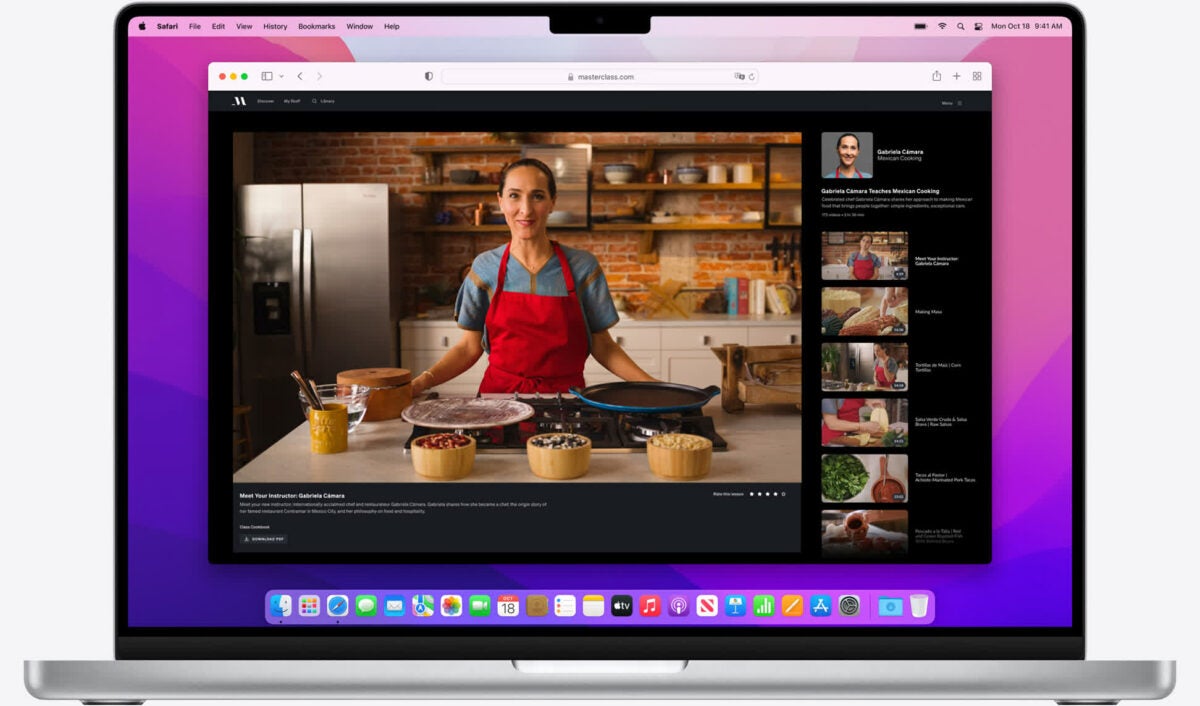
According to Google, its latest browser, Chrome 99, is leaving Safari in its dust. More than outperforming any former version of the legendary Google Chrome browser, the latest version is an even better browser to use on Macintosh systems than Apple’s resident browser, Safari. A post spotted on the Chromium Blog gets into the nitty-gritty concerning the improvements that have been made to Chrome’s speed over the past year. The blog focuses particularly on browser speed when rendering graphics or compiling JavaScript. 

Google has said that all of the information analyzed for the blog adds up to its Chrome browser being the fastest browser on M1 Macs, performing around 7 percent faster and more efficiently than Safari. Google’s best and brightest have more to brag about, though, as their plucky web browser apparently set a new browsing speed record, scoring an incredible 300 points on a benchmark that Apple’s WebKit team created. According to the brilliant minds behind it, the Speedometer is designed to accurately simulate the experience of using a web app by leveraging various technologies to gauge how responsive the overall experience is. 

Google ran all of its tests on a 14-inch Macbook Pro containing a 10-core M1 Max chip and 64 GB of RAM. On lower-end systems, the variability would be even higher with Safari. Although, on lower-end systems with weaker processes, you wouldn’t be able to replicate Google’s findings. 

While this is all very exciting if you’re in the industry, ultimately, what matters most is which browser you prefer to use. Most people use multiple browsers such as Microsoft Edge on Windows 11 and Chrome or Safari on mobile. It’s incredible to have access to findings like these to base your choices on, however, and it’s good to know that you’d get such stellar performance out of Chrome on a Macbook.


Why not check out your other options when it comes to browsing the internet, and see how our experts have experienced and graded each? While you’re around, read up on what the big deal is about the upcoming Microsoft Edge 100 update and why some people in the tech-sphere view it as the possible next Y2K.

SharkBot Banking malware masquerades as Android antivirus app

Malware analysts have uncovered a threat actor behind a particularly nasty Android banking app trojan named SharkBot. SharkBot has evaded Google Play Store’s security framework for a while, hiding within the coding of deceptive antivirus apps. 

Similar to its contemporaries, TeaBot, Oscorp (UBEL), and FluBot, SharkBot belongs to a virulent category of financially-centered malicious software designed to gain access to users’ banking information. It is able to achieve this by circumventing complex authentication mechanisms and thus siphon banking app credentials and initiating financial transfers from infected devices.

SharkBot does, however, have a few key differences to its contemporaries that make it a far more dangerous trojan. While other malicious software like TeaBot requires a live operator to remotely interact with the compromised device, SharkBot is capable of leveraging Automatic Transfer Systems. This means that it can carry out unauthorized financial transactions without a third party interacting with infected devices. 

In a recent report, malware analysts at the NCC Group cybersecurity firm said the following: ‘The ATS features allow the malware to receive a list of events to be simulated, and they will be simulated in order to do the money transfers. Since these features can be used to simulate touches/clicks and button presses, it can be used to not only automatically transfer money but also install other malicious applications or components.’

What this means is that once SharkBot has infiltrated a user’s device, it can virtually do anything. It’s able to record touches and keystrokes, create false overlays to trick you into interacting with it instead of your legitimate apps, and even install other malware without your knowledge. 

Four apps have been identified on Google Play as containing the trojan. All four are antivirus apps:

  • Super Cleaner
  • Atom Clean-Booster
  • Alpha Antivirus
  • Powerful Cleaner

Combined, these apps have been installed around 57,000 times since SharkBot was released. 

The worst aspect about this virus being injected into fake antivirus apps is that they’re apps that antivirus protection is a class of application every Android user should have. So how do you know which antivirus to trust? 

The best precaution is to go with a name you trust. Luckily, antivirus providers like Avast, Norton, and Malwarebytes have mobile clients. Android phones also usually come preloaded with antivirus software, most often supported by Avast. Why not check out our verdict on the mobile clients of your favorite antivirus providers?

Malwarebytes cyberprotection FREE DOWNLOAD
9

How to schedule automatic shutdown in Windows 10 and 11

Windows 10 introduced the world to simplicity as a means of achieving success. It didn’t just build on the achievements of the OS’s past; it completely wiped the failure that was Windows 8 and 8.1 from users’ minds. Rumor has it that’s why there was never a Windows 9; Microsoft wanted to show the world that it was reinventing the OS, not just trying to fix the Windows 8 ‘optimized for touch screen’ mess. With it shipped all sorts of new utilities to make life easier. One of them was the ability to schedule an automatic shutdown. 

Recently, Windows 11 has arrived with its sleek, new, almost transparent look. An OS truly built for the devices of the future, not just the technology of now. Windows 11 promises a brand new look and feel for Microsoft users, but luckily, it hasn’t done away with the functionality of Windows 10. Therefore, most of the utilities, like scheduling an automatic shutdown, are in the same place they were on Windows 10. 

Automatic shutdown in Windows 10 and 11

Below we’ll take you through three ways to achieve an automatically scheduled shutdown on both Windows 10 and Windows 11. You’ll truly have your pick of processes and utilities when you reach the end of this article. Luckily, much like the processes themselves, this article isn’t all that long. No TL: DR necessary!

  1. Method 1: Task scheduler

    How to schedule automatic shutdown in Windows 10 and 11

    We’ve included screenshots of how to do this in Windows 11, but the Windows 10 procedure is identical. Follow the instructions just as you would in Windows 11, and you’ll achieve the same results. 

    Step 1: Open an App

    Select Start, search for Task Scheduler, and hit Enter to run the app. 

    Step 2: Create Basic Task

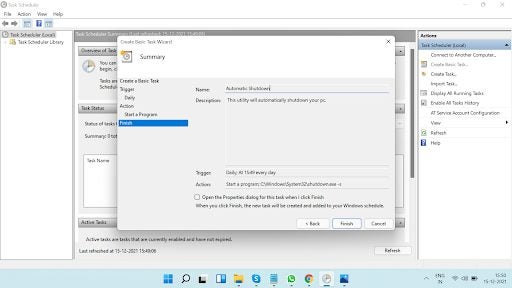
    Select Create Basic Task and then give it a name and description. We’d suggest something simple like ‘Automatic Shutdown’ and ‘This utility will automatically shutdown this device.’ 

    Step 3: Tweaks

    Now you need to choose when you want the process to start. Then, simply instruct Task Scheduler how frequently you’d like the utility to run.

    Step 4: Date and Time

    Next, you’ll choose the date and time the task should start. Confirm by clicking Next.

    Step 5: Pick a Function

    Now head to Start a Program from the list of actions provided, and click Next. 

    Step 6: Pick a Program

    Hit Browse and search for C/Windows/System32/shutdown.exe. Type’  -s’ into Add Arguments and then hit Next. 

    Step 7: Finish

    Select Finish to complete the setup of your brand new task.

  2. Method 2: Command prompt

    How to schedule automatic shutdown in Windows 10 and 11

    Step 1: Open Command Prompt

    To start off, you’ll need to open the Command Prompt utility. Simply hit Start and search for Command Prompt in the dialogue box. 

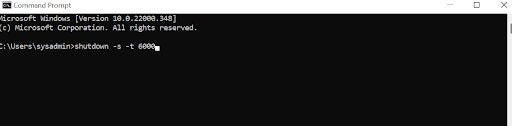
    Step 2: Type a Command

    Once you’ve opened Command Prompt, type in ‘shutdown -s -t <number of seconds>’ and hit Enter. You need to use the number of seconds exactly, so if you want to shut your device down automatically after 100 minutes, type in ‘shutdown -s -t 6000’.

  3. Use a desktop shortcut

    How to schedule automatic shutdown in Windows 10 and 11

    Step 1: Right-click Anywhere

    The first thing you need to do is right-click on an empty section of your screen. This will open up a menu interface. Hover your cursor over New and then click on Shortcut when the second menu interface appears. 

    Step 2: Type a String of Commands

    You’ll see a pop-up next asking what item you’d like to create a shortcut for. In the dialogue box, type ‘C:\Windows\System32\Shutdown.exe‘, then hit Next. 

    Step 3: Name Your Shortcut

    It’s now time to name your Shortcut. We’d suggest something obvious like Automatic Shutdown. Click Finish, and you’ll have created a shortcut!

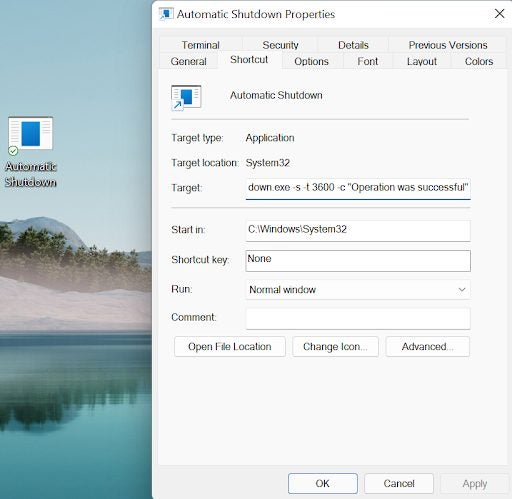
    Step 4: Tweak a Few Properties

    You’ll see your new Shortcut appear somewhere on the left-hand side of your screen, complete with the snappy name you chose in step 3. Beam with pride for a few seconds, and then right-click on it and hit Properties. You’ll notice a few blank spots in the new box. In the Target input box, type’ -s -t 3600 -c “Operation was successful”‘, this means that Operation was Successful is the text that you’ll see when the task is complete. If you’d like, you can replace 3600 with any length of time, for instance, 100 minutes, 6000 seconds, that we used in method 1.

Take your pick

Microsoft gives you quite a few options for the many tasks and processes its OSs let you perform. This is one way Windows 10 and 11 let you take control of your productivity. The best thing about Microsoft’s most successful operating system ever, and its younger contemporary, is that both systems are still so similar in their execution. 

Yes, Windows 11 introduces a new look and increased productivity integration to the Microsoft stable. Still, most of its core processes, commands, and utilities are the same as the ‘old reliable’ Windows 10. This means users can upgrade Windows 10 to Windows 11 with ease, and rest assured that they’ll be able to initiate all the processes they’re used to.