The Truth about Spying in Video Chat Apps

In recent months, the COVID-19 pandemic has forced us to make widespread use of a variety of video chat apps. They have enabled us to connect face-to-face with our friends and families and to attend classes, work meetings, and even job interviews without leaving our homes. These apps are great for staying in touch, but are they secure?

We are living in the information age, and hackers and cybercriminals are well aware of the amount of personal data we share through video chats. That’s why privacy should be a concern whenever you install an app on our device. Nobody wants to be spied on or see their personal data fall into the wrong hands.

Lupa en teléfono móvil

In today’s article, we’re going to talk about security in video chat apps. We’ll analyze the most popular ones to identify vulnerabilities and give you some tips to prevent unpleasant experiences.

Are video chat apps secure?

Like any app, or even the operating system on your device, video chat apps are not 100% secure. We don’t mean to say they are potentially dangerous, but they can have security holes and vulnerabilities that could be used for malicious purposes. You have probably heard of the notorious case in which Zoom was accused of leaking personal data to Facebook, including the data of users who didn’t have an account on the social media platform. Another case was far worse, also involving Zoom, and it concerned a vulnerability in its UNC links that allowed hackers to steal their victims’ Windows credentials.

Although these two examples concern Zoom, many other video chat apps have been found to have similar problems. Does that mean you should stop using them? No, but it does mean you need to choose your video chat app carefully instead of blindly following the trends. Always do your research before installing an app that could compromise your privacy and that of your data.

What problems could I have if I use an unsecure video chat app?

Actividad hacker

As we mentioned, most video chat apps have security holes that can cause a headache or two. Here are some of the typical problems that can be caused by these vulnerabilities:

  • They can undermine your privacy and that of your data– Some video chat apps don’t encrypt the data you share, which means hackers can hear whatever you say or access any files you share. They can even distort the message you are transmitting.
  • They can change the access to your video chat– Security holes often prevent you from controlling who can access your conversation or meeting. That’s why there have been so many cases of online trolls “bombing” video conferences and even taking over calls that are underway.
  • They can create fake problems with your computer– Another security hole makes it seem like you’re having problems with your PC’s microphone or camera, and as a result, you inadvertently hand over control of them to third parties.
  • They can take control of your PC– In the worst-case scenario, hackers can use vulnerabilities in video chat apps to gain full access to your computer. Fortunately, these problems are less common, and the vast majority of video chat apps are immune to them.

How can I protect myself during a video chat?

Chico haciendo una videollamada

Before you have a video chat, it’s important to take a few simple steps to ensure your cybersecurity. That way, you’ll protect your privacy and data and enjoy your video chats with total peace of mind.

  1. Make sure your video chat app is up-to-date– As we stated above, video chat apps have vulnerabilities that are repaired every time these apps are updated. Regardless of whether you use a mobile or a desktop app, make sure it is always the latest version.
  2. Always protect your meetings with a password– If you are hosting an online work meeting or conference, never forget to add a password and activate a waiting room. That way, you can make sure that the only participants in your meeting are invited guests.
  3. Switch off your guests’ microphones and cameras– In addition to the above, if you’re going to give a chat, don’t forget to mute the microphones and switch off the cameras of your guests.
  4. Beware of uninvited guests– If you are hosting a work meeting, do a headcount to make sure that you have no unwanted visitors. This is frequent at large conferences: it seems like someone who’s not supposed to be there always manages to sneak in.
  5. Be mindful of who you’re chatting with– Never share sensitive information with someone you don’t know or trust 100%.
  6. Don’t video chat with strangers– Never accept a video chat invitation from someone you don’t know, and avoid using features available on some apps such as random video chat.
  7. Don’t click on any links you receive– As a general rule, you should never click on any links you are sent during a chat. They could redirect you to a malicious website that uses the security holes in your video chat app to gain access to your computer.
  8. Activate two-step verification– If the app you’re using has two-step verification, activate it. This makes it harder for hackers to gain access to your accounts.
  9. Never make video calls on open Wi-Fi networks– Avoid using public or open Wi-Fi networks, because you run the risk of hackers intercepting your conversations.

Are the most popular video chat apps secure?

WhatsApp

Logo de WhatsApp

WhatsApp is one of the world’s most popular messaging apps for texts, phone calls, and video chats. One might think that since it now belongs to Facebook, it might not be secure. However, all chats, voice messages, and video chats on WhatsApp are 100% encrypted, so only you and the person on the other end of the line can access their content. In fact, the company can’t even access your content. WhatsApp uses the Signal Protocol system from Open Whisper, one of the best in the world, for encryption. WhatsApp is therefore a secure app for video conferencing. If you’re interested, you can download it below.

  • WhatsApp for Android
WhatsApp (Android) DOWNLOAD
8
  • WhatsApp for iOS
WhatsApp (iOS) DOWNLOAD
8

Zoom

Logo de Zoom

Zoom has been the star app of the COVID-19 confinement season. It has allowed families separated by the pandemic to stay in touch and students to attend classes from home. However, it’s not an airtight app. In fact, Zoom has been at the center of multiple security-related scandals in recent months. Fortunately, the company has been updating the app systematically and fixing each vulnerability detected, although it’s likely that some have yet to be identified. That’s why if you use Zoom, it’s a good idea to take the security steps above.

  • Zoom for PC
Zoom Meetings DOWNLOAD
9
  • Zoom for Android
Zoom Meetings (Android) DOWNLOAD
8
  • Zoom for iOS
Zoom Meetings (iOS) DOWNLOAD
8

Messenger

Logo de Messenger

Messenger is Facebook’s messaging and chat app. You can use it to chat with friends on the social media platform or on the convenient mobile app. Although Messenger wasn’t a very secure app in the past, it has since gained a number of features that protect your privacy. Among them are Secret Conversations, which are 100% encrypted in a similar way to WhatsApp. Therefore, when configured correctly, Messenger is a relatively secure app.

  • Messenger for PC
Messenger (PC) DOWNLOAD
7
  • Messenger for Android
Messenger (Android) DOWNLOAD
8
  • Messenger for iOS
Messenger (iOS) DESCARGAR
8

Google Duo

Logo de Google Duo

Google Duo is the perfect app for video chat fans who are concerned about privacy. It encrypts calls by default, so only the person you’re chatting with can see or hear you. In addition, the app is optimized to run smoothly regardless of the kind of connection you are using. Google Duo is therefore one of the best apps to guarantee privacy in your video chats.

  • Google Duo for Android
Google Duo (Android) DOWNLOAD
8
  • Google Duo for iOS
Google Duo (iOS) DOWNLOAD
8

Snapchat

Logo de Snapchat

Snapchat is one of the most popular apps for young people and teens all over the world. Users of this social media platform can share all kinds of multimedia content and have video chats. Among its biggest attractions are its many filters and fun effects that can be added to these video chats. Although videoconferences on Snapchat are said to be encrypted, they rely on symmetric key encryption within the app itself. This makes them very vulnerable to potential hacker attacks. If you want to have a confidential video call, it’s best to avoid Snapchat.

  • Snapchat for Android
Snapchat DOWNLOAD
6
  • Snapchat for iOS
Snapchat DOWNLOAD
6

We hope our article has helped you to protect your video chats. Do you use any apps that we didn’t include on our list? Tell us about them in the comments section!

Comparing the Top Video Chat Apps

They’ve been around for years, but these days, video chat apps have become absolutely essential. They let you connect in a much warmer way than a text or a phone call, because there’s nothing like seeing the other person and chatting face-to-face. Many messaging apps now have integrated video chat, while other apps have been developed exclusively for this purpose. Do you know which one is best for you?

Mujer haciendo una videollamada

In today’s article, we’re going to compare the most popular video chat apps for PC and mobile devices. We hope it helps you to choose the best app to meet your needs. Let’s have a look!

WhatsApp

Logo de WhatsApp

  • Available for: Android, iOS, Windows Mobile.
  • What you need: A smartphone with a SIM card.
  • Contact info it needs: Your contact’s phone number.
  • Types of calls: Audio and video.
  • Group chats?: Yes.

Messenger

Logo de Messenger

  • Available for: Android, iOS, Windows Mobile.
  • What you need: A Facebook account.
  • Contact info it needs: Your contact’s Facebook account.
  • Types of calls: Audio and video.
  • Group chats?: Yes.

FaceTime

Logo de FaceTime

  • Available for: iOS or MacOS.
  • What you need: iPhone or Mac with Apple ID.
  • Contact info it needs: Your contact’s email address or Apple ID.
  • Types of calls: Audio and video.
  • Group chats?: Yes.

Zoom

Logo de Zoom

  • Available for: PC, Mac, Android, iOS.
  • What you need: A registered Zoom account.
  • Contact info it needs: Meeting ID, Zoom account, meeting URL.
  • Types of calls: Audio and video.
  • Group chats?: Yes.

Skype

Logo de Skype

  • Available for: PC, Mac, Android, iOS.
  • What you need: A Microsoft account or Skype account.
  • Contact info it needs: Skype user ID.
  • Types of calls: Audio and video.
  • Group chats?: Yes.

Google Duo

Logo de Google Duo

  • Available for: PC, Mac, Android, iOS.
  • What you need: A Google account.
  • Contact info it needs: Your contact’s Google account.
  • Types of calls: Audio and video.
  • Group chats?: No.

Which video chat app is the most reliable?

One of the most important qualities of any video chat app is a stable connection that won’t crash. Unfortunately, it’s common for these apps to have perfect video quality but be out-of-sync with your internet connection, so they lag, drop calls or constantly freeze.

All of the above-mentioned apps offer decent stability; that is, you can have video chats without significant glitches where audio or video are concerned. Google Duo and FaceTime definitely stand out as the most stable, because regardless of whether you’re using Wi-Fi or your phone’s data plan, they are incredibly smooth.

Skype is also reliable, and we have never found it to freeze. That said, its smooth connection is due basically to its inferior video quality. Similarly, Messenger has significantly lower video quality than the rest of the apps, especially in group chats. The least-reliable option is WhatsApp, because it can sometimes freeze for a few seconds. That said, its performance is still more than satisfactory.

The best: Google Duo (Android and Windows) and FaceTime (iOS, MacOS).

Which video chat app is the best to use on my phone?

Since it’s so convenient, you’ll probably want to use your phone for video chats. Although the above category already gives you an idea of the best app for phones, there’s one factor that it doesn’t consider: what happens when you’re not connected to Wi-Fi? Unless you have an unlimited data plan, you need to be sure that a video chat won’t eat through all your data. That’s why it’s also important to determine which app consumes the least data.

After testing the apps on our list, we found that they use, on average, 10 MB per minute during video chats. Some are very data-hungry, such as WhatsApp, which uses 20 MB, while others are more moderate consumers and therefore more advisable for phones. Again, this is the case of Google Duo and FaceTime, which use 7 MB and 4.5 MB, respectively. That’s why we recommend both for video chats using your phone’s data plan.

The best: Google Duo (Android and Windows) and FaceTime (iOS, MacOS)

Which app is the best for group chats?

This time the answer is easy, because it only depends on how many people you want to invite to your video chat. Below are the numbers of participants allowed by each app.

  • WhatsApp- eight participants.
  • Messenger- 50 participants.
  • FaceTime- 33 participants.
  • Zoom- 100 participants in the free version, 1,000 in the paid version.
  • Skype- 50 participants.
  • Google Duo- It doesn’t allow group calls.

As you can see, most of these video chat apps make it possible to have group chats. Again, one of the best options is FaceTime because it allows a large number of participants and is very reliable. The only drawback is that you and your contacts need to be Apple users. Otherwise, Messenger and Skype are your best bets, because both are reliable and smoother than WhatsApp. Finally, we recommend Zoom for group chats, classes, and conferences.

Which video chat app is the most secure?

Another key point when having video chats is to make sure the app doesn’t have security holes and your data won’t be intercepted by third parties.

Among the apps we’ve mentioned, the safest is definitely WhatsApp, because your entire conversation is encrypted on both devices using the Signal Protocol system from Open Peer. Another standout is Google Duo, which uses the same encryption system to prevent potential hackers from stealing your data.

Messenger, on the other hand, is a safe app, but if you want 100% encrypted conversations, you have to activate Secret Conversations mode. Finally, we don’t recommend using Zoom for video calls about any important or personal matters, or if you’re planning to share confidential data. This app has run into some serious security issues, and although it has gotten much better, it still has a lot of room for improvement.

The best: WhatsApp and Google Duo.

Which app is the best for video chats with filters?

Filters are one of the most in-demand features because they make video chats so much fun. By adding real-time effects to our conversations, they can lighten up the mood when we’re chatting with family and friends. We looked at the apps on this list to find the best video chat filters, and only three have them: Google Duo, Skype, and Messenger.

Google Duo offers lots of original, creative filters that will make you the center of attention, for example, a dinosaur, a flower, or an adorable cat. Skype also has a decent number of video filters: you can add hearts or floating teddy bears, or distort your face in funny ways. Finally, Messenger deserves special mention, because this app has a huge collection of filters that are constantly updated. For this reason, we consider Messenger to be the best of the main video chat apps when it comes to filters.

The best: Messenger.

Which video chat app should I choose?

There is no quick answer to this question. To choose the best video chat app, you need to stop and consider the kind of video conferencing you want to do (calling your parents, a virtual conference, a meetup with a group of friends, etc.). Then it’s important to think about the device you’ll be using for the video chat (desktop, laptop, phone, tablet, etc.), and finally, the kind of connection you’ll be using (cable, Wi-Fi, phone data plan, etc.). This will make it easier to identify the perfect app to enjoy your video chats to the fullest.

Where can I download the most popular video chat apps?

Once you’ve decided which video chat apps to use, it’s important to download them from their official websites, Google Play, the App Store, or a trusted website. Below you can find the links to download all of the video chat apps we have analyzed in this article. All of these downloads are verified and completely safe, so don’t be afraid to install them on your device.

WhatsApp

  • WhatsApp for Android
WhatsApp (Android) DOWNLOAD
8
  • WhatsApp for iOS
WhatsApp (iOS) DOWNLOAD
8

Messenger

  • Messenger for PC
Messenger (PC) DOWNLOAD
7
  • Messenger for Android
Messenger (Android) DOWNLOAD
8
  • Messenger for iOS
Messenger (iOS) DOWNLOAD
8

FaceTime

  • FaceTime for Mac
FaceTime (Mac) DOWNLOAD
6
  • FaceTime for iOS
FaceTime (iOS) DOWNLOAD
8

Zoom

  • Zoom for PC
Zoom Meetings DOWNLOAD
9
  • Zoom for Android
Zoom Meetings (Android) DOWNLOAD
8
  • Zoom for iOS
Zoom Meetings (iOS) DOWNLOAD
8

Skype

  • Skype for PC
Skype (PC) DOWNLOAD
8
  • Skype for Android
Skype (Android) DOWNLOAD
8
  • Skype for iOS
Skype (iOS) DOWNLOAD
8

Google Duo

  • Google Duo for Android
Google Duo (Android) DOWNLOAD
8
  • Google Duo for iOS
Google Duo (iOS) DOWNLOAD
8

Don’t forget to keep your device secure by updating your video chat app regularly to fix any security holes it might have.

We hope you’ve found our comparison of the best video chat apps useful. Do you use an app that isn’t on our list? Tell us about it in the comments section!

The best tricks and tips for Facebook Messenger

Who could have predicted it? After what has seemed like forever, Facebook’s exclusive messaging service, Facebook Messenger, has finally taken off. Although it’s been on the social media platform from the start, it wasn’t until a few years ago that the app finally earned a place on the phones of millions of people around the world.

That milestone didn’t come easy. First it had to make lots of improvements and go through a necessary transition: letting people use the Messenger app independently of the Facebook app (something many users had been clamoring for).

So if you’ve fallen under its spell to the point where you’re a frequent Facebook Messenger user, check out our top tricks and tips to improve your app experience on Android or iOS.

Messenger iOS DOWNLOAD FREE

8
Facebook for iPad or iPhone

Get a bigger “Like” button

Many of us have a love-hate relationship with the “Like” button. But beyond the controversy that has surrounded this aspect of the social media platform for years, this icon has a hidden feature in Facebook’s messaging service. If you want to send a big thumbs up to a friend, one that will occupy almost a quarter of their display, just tap it, hold it, and the icon will get bigger. Pretty cool, huh?

Change your default emoji

When Emojis arrived a long time ago… it was clear that they were here to stay. They’re all over social media, websites, forums (in fact, that’s where they originally came from), and above all, messaging services. Emojis are especially useful on the latter platforms, and Facebook Messenger is no exception.

If you want to change the default emoji in the app (which is always the “Like” button), follow these two steps. First, tap the “Information” button in the upper right-hand corner of your chat (or the person’s name, depending on how it appears; it all depends on the Messenger version you have installed). Next, tap “Emoji” to select the one you prefer. How easy is that? From now on, instead of the “Like” button, the emoji of your choice will appear on the right.

GIFs galore

We’re big fans of looped animated images, popularly known as GIFs, on social media and messaging platforms. Who would have predicted they would become so popular? They were created almost two decades ago, but they’re gaining more fans by the day… so let’s make the most of them!

To send a GIF, tap the emoji button and select the tab clearly marked “GIFs.” Using the search bar that appears, you can search Facebook’s huge database for the best GIF for your chat at any given moment. See? It’s not that hard.

Facebook DOWNLOAD
9
The Most Important Social Network

Hidden games

Did you know Facebook Messenger has a ton of hidden games you can play by yourself or with one of your friends? These games are also popular on other apps and programs, since they’re an easy way to stay entertained in any situation (and they’re sure to raise a smile).

This isn’t the first time we’ve discussed them on Softonic. Check out this post to find out how to unlock them all. We promise that they’re easy to access!

Create a room

One of Facebook’s latest major additions in terms of messaging has been video chat rooms. Well, they’re not exactly new, but they have become one of Facebook’s most exciting features in these times of confinement because of their potential to connect millions of people around the world through their cameras.

Messenger Rooms are video conferencing rooms where you can connect with other people through links. And that’s the key (quite literally): you need a link to join a group chat, otherwise, we’re sorry to say you won’t be able to access it.

The best thing about video chat rooms is that people can join them whether or not they have a Messenger account. They don’t need to download the app, log into a Facebook account or anything like that. That said, the room creator needs to be signed into Messenger or Facebook, logically.

To create a room on your smartphone, tap the option at the bottom called “People” The first thing you’ll see is “Create a room.” Tap it, followed by the “Try it” button and “Share link.” That’s all there is to it! Now you can share the link with whomever you want to invite into your room for some fun conversation.

Keep in mind that a Messenger Room can be locked or unlocked once a call starts. Also, the room creator can remove any unwanted participants, any participant can leave the room if they feel uncomfortable, and participants can report the room name if they believe it violates Facebook’s community standards. If you have blocked someone on Facebook or Messenger, they won’t be able to join a room you create, and you won’t be able to join theirs if they are logged into their Facebook or Messenger account.

Also, the rooms feature lets you choose from two types of sessions: for anyone with the link (anybody who has the link can join your room, even if they don’t have Facebook or Messenger) and only for Facebook users (only people with a Facebook account can join your room).

Set nicknames

We’ve all had a nickname at some point of our lives, and in fact, many of us probably still do. When we were kids, it was normal for friends to call each other by names that will probably stick with us until the day we die. The Facebook Messenger app remembers nicknames, so if you want to assign your old friend the nickname you called him in grade school, or around the neighborhood, you can.

Just find the “Information” button or tap that person’s name to access the chat options. Then look for the option clearly marked “Nicknames.” It’s a piece of cake. You can change that person’s name to their old nickname. Oh, and you can even assign yourself a nickname!

Search in conversation

Every so often, the person you’re chatting with shares some vital information, the kind that you know you’re going to need in the future. But life gets in the way, you forget to write it down, and you end up kicking yourself, because as your conversation with that person continues, the information gets lost in the chat. If you ever need to recover information from your conversations, there’s a very easy way to do it.

Just go into the chat and tap the “Information” button on the upper right side (or tap the person’s name). Under that field, look for the “Search in Conversation” option. The chat will display a search bar that you can use to find all the information you need. Our advice: make sure your search terms are as specific as possible, avoiding general words. That’s all there is to it.

Facebook Lite DOWNLOAD
8

Enable dark mode

We always say dark mode is the best option for any chat. You’ll not only extend your battery life, but also reduce eyestrain and headaches from too much glare, etc. In short, there are only advantages.

A growing number of apps have night mode as the predetermined setting from the operating system. In other words, if you enable it there, you don’t need to enable it in the app. However, if you have any issues, Messenger has integrated it as an option as well.

To enable it, just open Messenger and tap your profile photo (upper left side). “Dark Mode” is one of the first options that will appear. Here, you’ll be able to choose from three modes: “Enable,” “Disable” and “Use system setting.” The latter field will appear if you have enabled it from your operating system. But if your firmware doesn’t allow it, just select “Enable.”

Change the color

If for some reason your smartphone doesn’t let you enable night mode with the above options (you get an error message or have some other issue, which can happen), you can always change the color of your chat.

This process is easier than it may seem. Just tap “Information” or the person’s username and then “Color.” Then you can choose your favorite tone, such as black to simulate night mode, or pink to make your chat more eye-popping than ever. The choice is yours.

Partial blocking

In general, when you block someone on a social media platform, that person can no longer contact you. And they can no longer see your content, profile picture, information, etc., either. That’s the usual when you block someone, isn’t it? Well, on Facebook Messenger, it’s a bit different.

This app has an interesting blocking feature, one you might find useful. Facebook Messenger lets you partially block users; in other words, you can make your profile invisible to a person, but they can still contact you. Tap “Information” again and look for the last option on the list, called “Block.” When you open it, you’ll see the two options we mentioned.

The first one is “Block on Messenger.” When you block someone on the messaging app, they’ll only be blocked on Facebook Messenger, not on the social media platform itself. So you will no longer be able to receive calls or messages from this user (and if you unblock them in the future, the good news is that any messages sent while they were blocked won’t be resent). Another thing to keep in mind: you and the blocked person can still view each other’s profiles, exchange messages on posts and communicate through group calls (because in the end, other people are involved).

And the second option is “Block on Facebook.” This is a bit more categorical and definitive, as we mentioned above. If you select this option, you will no longer be friends with that person on the platform. And this user will be blocked on Facebook Messenger too. In short, option one only blocks them on Messenger (not on Facebook), and option two blocks them on both.

Hide your status

One of the most controversial aspects of messaging services is how “nosy” they are. Let us explain. These apps are constantly sharing information about every little thing you do: when you open the app, a green dot appears; it shows how long ago you were active; if you’ve read your messages, etc. But you can get away from prying eyes on Facebook Messenger.

Just tap your profile picture again and look for “Active Status.” In general, it should appear as “On” by default, but you can modify this option by moving the slider to “Off.”

When you turn it “Off,” your friends and contacts will no longer see when you’re online or if you were recently active; in other words, they won’t have any information. In turn, you won’t be able to see whether your friends or contacts are active (the typical law of reciprocity in these apps). By the way, you need to disable that option on Facebook as well. Otherwise, you’ll appear as “Active” on the platform.

See shared media

Have you ever stopped and thought about how many videos, photos and other files your contacts send you? We’re sure the answer is “a lot,” since messaging services are always blowing up our phones.

WhatsApp makes it really easy to go back and view all the files a person has sent us… and Facebook Messenger is no different! Just tap the “Information” icon (username) and go to one of the last options on the list: “Shared Media.” Tap it and you’ll see all the items you have shared to date.

Switch accounts

If you’re a “normal” user, this option probably won’t interest you. However, if you have a business with a separate account or a professional profile, having more than one Facebook account is pretty standard. In these situations, Facebook’s got you covered.

On Messenger, you can switch accounts without having to enter your email and password over and over. Just tap your profile picture (upper left side) and scroll down to the bottom. There you’ll see the “Switch account” option. If you tap on it, “Create new account” and “Add account” will appear. Once you enter your email and password, the account will be saved on Messenger forever, and you only have to tap on it to switch accounts.

Enable secret conversations

Our final trick/tip (or however you want to call it) is perfect for anyone who’s a bit guarded about their personal information: secret conversations. Messenger can enable these types of conversations with any user, to the point where Facebook itself won’t even know your chat exists.

To enable a secret conversation with another user, you don’t need to use any strange settings. Just tap the person’s username (or the “Information” button) and scroll down to “Go to secret conversation.” When you tap it, Messenger will start a new conversation with that person, and everything you type will be absolutely secret.

And that brings us to the end of our review of the best tricks and tips for Facebook’s instant messaging service. We hope these features make your experience on Facebook Messenger faster and easier, because in the end, that’s what counts, isn’t it?

Messenger iOS DOWNLOAD FREE
8
Facebook for iPad or iPhone

Facebook Messenger tips and tricks

Do you use Facebook Messenger a lot? These tips and tricks will help you get a lot more out of the Facebook messaging app.

Facebook Messenger has been around for years now and has grown into a truly monumental app. It can do all sorts from shopping to games and is now so much more than a mere messaging app. The thing is though, with so many headline-grabbing features these days, it is easy to miss some of the more nuanced little Facebook Messenger tips that will make it a much better app to use day in and day out.

Today we’re going to go through some of the best less well-known features and tools for Facebook Messenger. Quick and simple tips that will make your life on Messenger much easier. Let’s begin

Facebook Messenger tips

These Facebook Messenger app tips and tricks will all help you get more out of the app and enjoy using it more.

Messenger Lite

Yep, our first Messenger tip actually involves downloading a different app. The Messenger Lite app cuts out all the advanced features fluff so that if you only ever use Messenger to send and receive messages, this is the app for you. Messenger Lite will only take up minimal space on your phone and will need a lot less processing power and system memory to run properly. Downloading Messenger for anybody who only uses the app for its core functions, but it is particularly useful for anybody using an older or less powerful Android smartphone or iPhone. The only thing to remember, however, is that some of the tips we share below might not apply to Messenger Lite.

Messenger Lite Download Now
9

Mute notifications

This little trick allows you to stop annoying notifications breaking up your day all the time. If you’re working, watching a film, reading a book, or simply doing anything that requires concentration, muting notifications on Facebook Messenger is a necessity. This particular tip is targeted at particular contacts, meaning if you have a particular guilty party who messages you all the time, you can silence their pings for a limited amount of time or until you activate them again. To do so hit their name in your contacts list, go to notifications, and hit Mute.

Pin group chats

If like us, you’re on group chats a lot talking to a lot of people at once, you’ll find this little tip very useful indeed. Messenger allows you to pin your group conversations to the top of your inbox so that they’re always there sitting at the top of your messages. To do so all you need to do is find the group chats you’re looking to pin, select it, and then hit the pin icon. You can even assign these pinned conversations special names or give them group photos so they’re even easier to identify.

Share music

With Facebook being such a huge global company, there’s no surprise that it has plenty of collaborative partnerships with other online sites and services. One industry that pairs particularly well with Messenger is the music industry as you’re always looking to share that last track you love with your friends. Step up all the major streaming sites like Spotify, Amazon Music, and Apple Music. Messenger is paired with all of them, meaning when you’re listening to track on any of those networks, all you have to do is hit Share and the option to ping it to your contacts on Messenger will appear.

Block someone

We’ve all wanted to do it at some point, most of us probably have on one network or another. Blocking contacts is almost like a last resort that comes when people are just too annoying, or in some even worse situations, downright abusive. To block a contact on Messenger, go to the People tab and tap on the name of the contact you want to block. From here you’ll see the Block option, which will give you the chance to block just their messages or to enact a complete block across all of Facebook. Be careful with this one though, because people are sensitive creatures at the end of the day, and we should all try to protect the mental health of our fellow internet users.

Create a poll

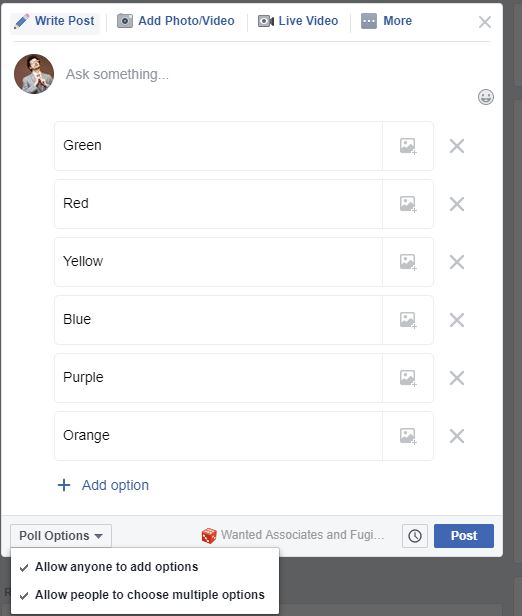
Polls are useful tools for everyone and aren’t just the playthings of political strategists. Asking your Messenger contacts to take part in a quick poll is a quick way to ask for many opinions on a single issue you’re dealing with. Obviously, however, polls are a group only function so to start a poll you need to select the group you want to poll and then hit options button that lies in the bottom left of the screen. From there hit the Polls button, type out your question, and then hit Create Poll.

Take back the messages you sent by mistake

This is another trick born of something that we’ve all done. Whether it be a simple typo or sending a full message to the wrong person, every single one of us has sent a message that we’d like to take back. Fortunately, Facebook understands this need and has built a delete message feature into Messenger. Now, whenever you send a message on Messenger you have 10 minutes to undo sending so that nobody who hasn’t seen it will ever see it. To do this all you need to do is hold your finger down on the message you want to delete and then select Remove for Everyone. You can then rest assured that your message has been wiped. You’ll be left with a short message saying You removed a message but you can then get rid of that too by holding your finger down on that and clicking Remove.

Best Android apps to create avatars

These apps will help you make your own fun avatars to use as your profile image on all your social media and messaging apps

Android avatar apps

We live in a modern world where information and data flow freely. We can post videos online, talk to relatives on the other side of the planet, and communicate quickly and easily with many friends at once in group chats. In such a world, do you really think a mere username or phone number is enough? These days, if you want an online identity that says something about you before you do, you need an avatar.

Today we’re going to walk you through some of the best apps you can download on your Android phone to help you make your own avatar. With a well-designed avatar, you can display your personality without showing off your actual face. As well as being fun to make, avatars can also help keep you safe online. Let’s get started then. These are the best Android avatar maker apps

The best Android apps to make avatars

Boomoji

Boomoji for Android

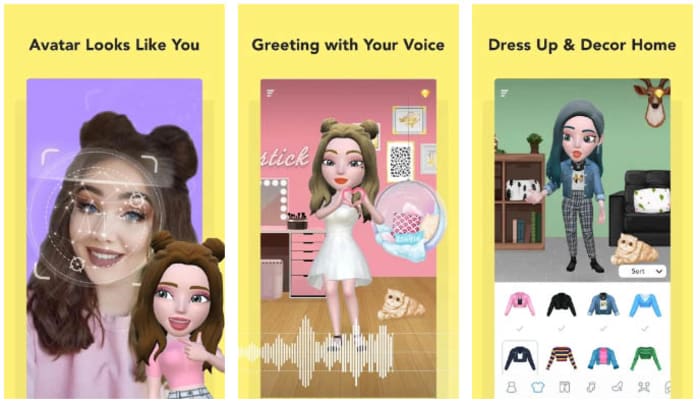
Boomoji could be the best avatar maker app on our list. This app will actually scan your face through a selfie and then build a 3D avatar that looks just like you. So far so good, but Boomoji goes even further by allowing you to then tailor the resulting avatar even further. You can tweak things like hair color, hair style, eye color, skin tone, and more.

Boomoji is so much more than an avatar builder though. Once you’ve built your avatar you can then use the app to film mini animated avatar movies using in-app scenes with your avatar and also your friend’s avatars as the stars. The app also has AR features, which means you can see what your avatar looks like in the real world too. On top of all of that, Boomoji also has a massive collection of animated stickers and emojis and games too, which you play as your avatar.

Boomoji Download now
9

FaceQ

FaceQ is a great little app that you can easily lose hours to. This app is about creating cute, cartoon avatars and it easy to use, even if you can’t draw. You simply choose your gender and then model on various other facial features like eyes, nose, lips, and stuff like hair and eyebrows too. You can also tailor things like clothing and emotions, and you can play around with the background and add text, if you’d like. The other cool thing about FaceQ is that it is free and doesn’t show you ads.

FaceQ Download now
8

SuperMii

SuperMii

If you’re an anime or comic book fan, then you might want to check out the SuperMii app. SuperMii gives you all the usual avatar customization options but does so in a bright and vibrant anime style. This is definitely one of the edgier avatar creator apps we’re featuring today. As well as designing the facial features, SuperMii also gives you the power to control facial expressions too. There’s also a lot of other cool features here for you to play around with.

SuperMii - Make Comic Stiker Download now
8

Bitmoji

If you want to download one of the most popular Android avatar apps, you should look at Bitmoji. What’s cool about Bitmoji is that it can connect with a lot of apps straight out the box, which means it is very easy to use your avatar across all your online services. You’ll no doubt already be familiar with the Bitmoji avatar style if you use Snapchat. What’s even better is that you can link the app to your Gboard keyboard app, which means you can easily add your avatar to third-party apps, with the simple press of a button on your on-screen keyboard.

Bitmoji Download now
9

Androidify

Androidify

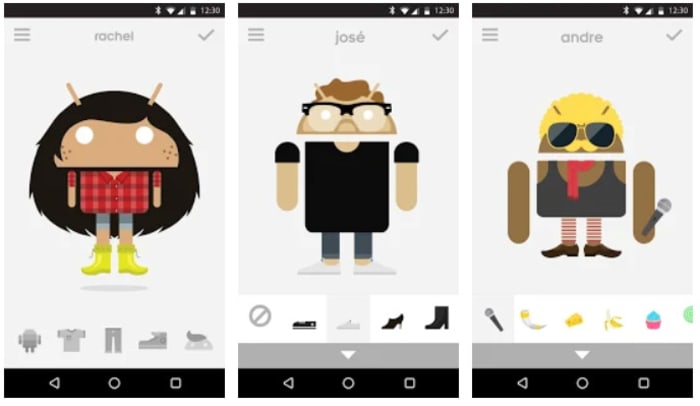
Androidify adds an interesting new aspect to your avatar creation. Basically, Androidify gives you the chance to create an avatar out of the Android logo. You can take the logo from the little green alien looking robot everybody knows and loves, and then really go to town giving it a makeover. Think cameras, smartwatches, hipster outfits, and all manner of weird accessory from smoker’s pipe to rubber duck. What’s even better about this app is that it comes from Google directly, which means it is completely free to use, doesn’t have any in-app purchases, and won’t show you any ads.

Androidify Download now
7

Cartoon Maker

The final app we’re featuring today is Cartoon Maker, which is another app that focuses on creating fun avatars with comic-like features. This is a little similar to what FaceQ offers. If you go with this avatar app, you won’t be trying to recreate something that looks just like you, rather you’ll be picking an app that will help you show off a fun and outgoing side of your personality.

Cartoon Maker - Avatar Creator Download now
8

Wrapping up

You’ve now got some really great options for creating yourself a unique and personalized avatar to use on your online accounts. If you’re a parent who is worried about their children using online social media apps like Facebook and Snapchat or messaging apps like WhatsApp, the apps we’ve outlined above could offer you some peace of mind. Furthermore, as well as offering you a way to allow your children to access the internet, these apps will also give you a fun activity to do with your kids too, as you design their avatar together.

Telegram: The best groups and channels in English

Check out or guide for finding new Telegram groups and then all our favorite Telegram Channels for you to join.

Top Telegram Channels

Telegram channels are fantastic tools for broadcasting information to lots of people at once. You can set up a new channel and then add an unlimited number of subscribers, with people also able to join your your channel via an invite link known as a channel link. This sets them apart from WhatsApp Broadcast messages, which need to be built up using personal contacts by the user looking to broadcast the information. You can also start public or private channels and other channels are manned by Telegram bots that post automatically.

With Telegram channels being such useful tools for sharing information to lots of people at once, it follows that they’re also great places to receive high-quality information too. There are lots of public channels out there sharing all sorts of information like news, sports, upcoming movies you need to see, motivational talks, cryptocurrency information, and pretty much anything else you could think of. Today, we’re going to walk you through some of the best Telegram Channels you should join.

8

How to Find Telegram Channels

First off, let’s show you various ways to find Telegram Channels on your own. The easiest way to do so is to search for Telegram Channels in the Telegram app. Telegram has a very useful search bar that not only allows you to search through your messages but also through available channels too. This is the easiest way to look for Telegram Channels, but it isn’t the best and you’d do better to search elsewhere, if the Telegram search bar doesn’t find what you’re looking for. The main thing to remember when searching for channels using the Telegram search bar is to be specific with your search terms.

Another great way to find Telegram Channels is searching on social media. Places like Reddit offer lots of discussion on the best Telegram Channels, which means there are plenty of forums and pages like r/TelegramChannels where you’ll find plenty of interesting Telegram Channels that have been posted by other users.

The Reddit channel for Telegram channels

Finally, there are sites out there like TelegramChannels.me that are dedicated to listing and categorizing all the different Telegram Channels you can join. On top of these sites there are also editorial sites like Softonic that will offer their top picks of Telegram Channels, like we’re doing today with this article. Let’s crack on then and get into the best Telegram Channels.

Reddit: The Official App Download Free ►
8

List of Telegram Channels

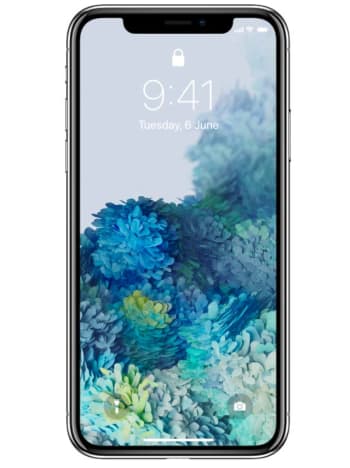
Wallpapers Central

Telegram Wallpaper channel

Like we started off by saying, there are Telegram Channels for everything, so we thought we’d start with something to catch you off guard. This channel isn’t about news or information or anything like that. This Telegram Channel shares new backgrounds and wallpapers that you can then save and use on your own mobile Android or iOS device. Simple and effective.

Love of Food

Nothing has taken the internet by storm quite so much in recent years as food porn. Is there anything more satisfying than images and videos of incredible dishes. All the best food these days comes with oozing, melting cheese and is probably better to look at than it is to actually eat. That is what this Telegram Channel serves up, food you eat with your eyes.

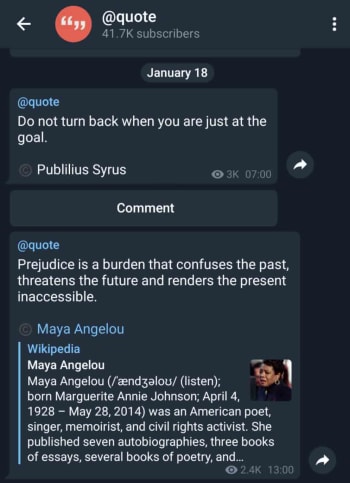
Quote

quotes on Telegram

This very simple Telegram will send you regular famous quotes from global luminaries and celebrities. Some of these will be funny and some will be inspirational. Others though, will be neither and then every now and then you’ll get the odd song lyric thrown in too.

Magazines & NewsPapers in PDF

This channel does exactly what its title suggests. It updates regularly and gives you PDF versions of many different newspapers from all around the world. What’s also great about Telegram Channels is that you can also search back through posts that were made to the channel before you joined. This means you can access all the newspapers and magazines that have ever been added to this channel no matter when you join.

You can search through posts in Telegram Channels by clicking the ellipsis menu icon in the top-right corner of the channel.

Netflix

Netflix on Telegram

The Netflix Telegram Channel is a pretty standard corporate affair that sends out information from the company’s marketing department. It is useful, however, if you have a Netflix subscription, for learning about upcoming programs and movies that are about to land on the streaming platform.


BBC Breaking

The BBC Breaking News Telegram channel will share with you all news that the BBC adds to its rss news feed. This means it is a quick, simple and effective way to keep yourself up to date with all the breaking news that is going on around the world.

Telegram Worldwide Language Hub

learn languages on Telegram

This channel acts like a central conduit for all language learners and language learner groups that are currently active on Telegram. If you’re a student of any language, join this channel and put yourself in contact with like minded students and teachers who will be able to help you along on your language learning journey.


Audio Books Archive

As we already mentioned, you can search back through channel posts that were made before you entered the channel. This means Telegram Channels can also be effective libraries containing archives of information that have been built up over time. This channel is exactly this. It is the biggest archive of audio books you’ll find on Telegram.

Increase Your IQ

Great riddles and puzzles

The Increase Your IQ Telegram Channel is here to bring you regular riddles that will give your brain a decent work out. These don’t come through every day, which means you can have this channel set up for push notifications and you won’t be bothered too much. What you’ll get is the occasional message including a tough riddle that will get you thinking outside the box.

This lady’s cat

This Telegram channel has been created by a lady who thinks her cat is cute and that everyone should know it. Yep, the A pic of my cat everyday forever has been posting pictures and videos of this lady’s cats for years. The channel isn’t as active as it used to be, but then you can search back through all the old posts to see this lady’s in all its glory.

How to know if somebody has blocked you on Facebook, WhatsApp, and Instagram

This is how to find out if somebody has blocked you on Facebook, WhatsApp, and Instagram

Have I been blocked on social media

Do you want to know? That’s the question you should be asking yourself now. You’re here because you want to find out who has blocked you on either Facebook, Instagram, or WhatsApp. Maybe you think they’ve blocked you on all three. We’re going to show you how to find out, which means this is your last chance to ask yourself. Do you really want to know?

Have you taken a second? You want to go on. OK, let’s do this then. Let’s go through how to find out if somebody has blocked you on social media. We won’t be able to get them to unblock you, but at least you’ll know what’s going on.

How to know who blocked me on Instagram

Have I been blocked on Instagram?

If you get blocked on Instagram, you won’t receive any notification telling you it has happened. All that will happen is that the person will disappear from your feed and you won’t see any new posts from them. Now of course, this could just be a case of them not posting anything, but if your suspicions have been raised and you think the person may have blocked, you’ll be glad to know that there are a few ways you can find out.

Instagram Download Now ►
7

The first thing you need to do on iOS iPhones or Android devices is search for the account on the Instagram app. Then, if you can’t find the person’s profile page, then there is a good chance you’ve been blocked. If, however, you find that the account is set to public, but you can’t see their profile picture, post count, following or follower count, and it says No Posts Yet, you have definitely blocked.

If you’re using a Windows PC or Mac, you need to type www.instagram.com/… and add the account name you think might have blocked you after the dash. If the page says, Sorry, this page isn’t available then again, it looks like you’ve been blocked. They might have deleted their account but chances are they’ve blocked you.

You can confirm that you’ve been blocked by looking for an Instagram account you know the person follows and looking through their posts. If you see that they’ve commented on any of the posts, then you know you’ve been blocked.

How to find out who blocked me on Facebook

Like on Instagram, to find a Facebook user who has blocked you you’re going to have to do a little digging. The first thing you need to do is search for the friend who you think has blocked you using the Facebook Search bar at the top of the page or app. You then want to click the People tab to remove stuff like pages and groups from your search results. If you can’t see the person’s profile image or account in the results, there is a good chance you’ve been blocked.

7

When you’re not friends with somebody on Facebook you can see some of their profile in your search results. If a person has blocked you, however, they won’t turn up in your search results at all.

If you’ve done all that and you still think you’ve been blocked, you can confirm your suspicions by going to a mutual Facebook friend’s account and searching through their friends list. If you find them, you haven’t been blocked. If you can’t, you’ve either been blocked or they’ve deactivated their whole account, which, you know, might not actually be you fault alone.

The other way to try and confirm you’ve been blocked is to search out any past communications between you both. When you find them; whether they be birthday greetings, direct messages, or whatever, you won’t be able to see their profile picture, if you’ve been blocked.

As you’re probably guessing, none of these methods can tell you definitively 100% whether you’ve been blocked or not. They can give you a very good idea, but nothing certain. To know for certain there is only one foolproof method, but it might actually be worse than being blocked. The only way to know for certain if somebody has blocked you on Facebook, is to ask them.

How to find out who blocked me on WhatsApp

Have I been blocked on WhatsApp?

Much like with Facebook and Instagram, WhatsApp doesn’t have an official way to discover who has blocked you. Not to worry though, as with a little digging you can get a very good idea of whether you’ve been blocked or not.

WhatsApp Messenger Download Now ►
8

The first thing you can do to see if you’ve been blocked by a contact on WhatsApp is search out their profile and open it. What you’re looking for here is their profile picture. If you know that you used to be able to see their profile picture but now you can’t, there is a very high chance that they’ve blocked you on WhatsApp. Of course, there is a chance that they’ve simply deleted their profile picture.

The other thing you can do is send some messages to the contact and then keep an eye on the message ticks. If the messages stay with only one tick for a long period of time, then there is a very high chance you’ve been blocked. If your had two grey ticks, they’d simply be ignoring them, but one tick means the messages aren’t even getting to their phone,  so you’ve probably been blocked. You could confirm this by asking a mutual friend to send them a message and seeing how many ticks their messages get.

Wrapping up

So, there you have guides for finding out who has blocked you on Facebook, WhatsApp, and Instagram. The only certain way to do so is to ask the person and see what they say. If you’re not up to task, however, the methods we’ve outlined above will give you a pretty good idea. The important thing to remember though, is that no matter how important you think this is, you will be able to get over it, if the person has actually blocked you. There’s always a way back and there will always be another chance for a brighter tomorrow. No matter what your investigations find, you’ve got this, friend.

How to record your calls: Skype, Hangouts and WhatsApp

Here is our guide for recording audio and video calls on Skype, Hangouts, and WhatsApp

How to record video calls skype whatsapp hangouts

Recording conversations that take place over voice or video calls is no longer the reserve of spy movies and dodgy cops. Now, anybody can do it and it is easier than ever. Think about it, pretty much all types of long-distance conversation are easier than ever so it makes sense that recording them would be too. Just think, thanks to Skype, WhatsApp, Google Hangouts, and other programs too, you can now video call friends, family, and colleagues all over the world for free.

Now there could be many reasons why you want to record your calls. You could be interviewing somebody for a podcast or need a record of certain important information. As we always say here at Softonic, we’re not concerned about the why. We’re here to help you with the how. Without further ado then, let’s get started on how to record video calls on WhatsApp on Apple and Android devices, and Hangouts and Skype on a Windows PC or Mac.

How to record video calls on Skype

Skype has a call recording function built into the app as standard. This means that recording your Skype calls is as simple as pressing a couple of buttons. There is no need to install any third-party apps.


The Skype video call function only works for Skype-to-Skype calls. The other thing you need to consider is that, in the interests of privacy, all participants in a call will be notified that somebody is recording the call, as soon as they hit record. The recording will then be posted in the call chat box once the call ends or the recording function is switched off. You can record Skype calls for up to 24 hours, with longer calls being broken up into multiple files, and all recordings will be saved to the cloud meaning you don’t need to worry about local storage space on your device. Once the call has been posted to the calls chat box, you’ll have 30 days to download the recording.

This is how to record audio and video calls on Skype

1 – During your Skype call hit the ellipsis (three vertical dots) menu icon to open the Options menu.

2 – On Skype for desktop you’ll see a button labelled Start recording. Hit this to begin recording your call. If you’re using Skype on a mobile device, look for the button with a circular record icon next to the words Start recording. Pressing this will begin the recording.

How to record video calls on Google Hangouts

google hangouts calling

Google Hangouts also has a built-in call recording function, which means you won’t need to install any third-party apps or programs to record calls. The problem, however, is that the function is only available for certain types of G Suite subscriptions. This means it is only available for G Suite Enterprise and G Suite Education users. If this applies to you, follow our instructions below. If it doesn’t, scroll down to the instructions we’ll give on recording WhatsApp calls and calls from other video call apps where we’ll tell you how to record calls using a third-party screen recording app.

Hangouts Download now
6

This is how to record calls on Google Hangouts

1 – Start or join a video call either by clicking the meeting link or going to Hangouts and hitting the VIDEO CALL option.

2 – Once all members of the meeting have joined the call, click the ellipsis menu icon in the bottom-right corner of the screen to open the options menu.

3 – Hit the Record meeting option at the top of the menu and wait for your recording to start. To finish the recording hit the ellipsis menu icon again and then press Stop recording.

NB – Like with Skype, all members of the call will receive a notification telling them the call is being recorded. The call will then be saved on the Google Drive of the meeting admin in a folder called Meet Recordings. The admin will also receive an email containing a download link.

How to record WhatsApp video calls

Whatsapp group video calls 4 people

To record a video call on WhatsApp you’re going to need to download a third-party video call recorder app that will record everything happening on your device’s screen. If you have an iPhone running iOS 11 then your phone already has a screen recording feature. If not, then you need to download a screen recording app and we recommend Go Record: Screen Recorder as an excellent option. If you are using WhatsApp on an Android phone, we recommend you download and install ADV Screen Recorder.

It is worth noting that once you have either of the apps we’ve listed or are using an iPhone running iOS 11 or above, you can follow the instructions below to record calls on any video call apps you have on your mobile device.

WhatsApp Messenger Download Now ►
8
Go Record: Screen Recorder for iPhone Download now
7
ADV Screen Recorder for Android Download now
8

This is how to record calls on WhatsApp

1 – Open your screen recorder app or feature.

2 – Minimize the app and then open WhatsApp too.

3 – Start your video call with your selected contact/contacts.

4 – Open up your screen recording app and hit the record button.

5 – Go back to your call and have your conversation as you normally would. You can end the recording any time by going back to your app and terminating the record function.

NB – This method for recording calls is a little more discreet than the two official methods outlined above for Skype and Hangouts. There are no automatic notifications sent here so it could be a good idea to let everybody who is involved in the call know that you’re recording the conversation. The other thing to consider with this method is that your recording will be saved in among all the other recordings you make with your screen recording app. This means it would be a good idea to immediately rename your call recording so that it doesn’t get lost in all the other video files.

All the best new features that came to social media in 2019

These are all the major changes that came to social networks in 2019.

Best social media features 2019

It wasn’t long ago that social media didn’t even exist. Then MySpace came along and before too long Facebook changed the world. Now, well the world is chock full of social networks offering us all sorts of different types of connections to people spread out all over the world. As to whether this is a good thing or not, we’re not going to get into and we’re definitely not going to comment on whether the world is a better place now than it was then.

What we’re here for today is to talk about the nuts and bolts of the aforementioned social networks. Each year, social media platforms, mobile apps, and websites get brand-new features and today we’re going to tell you about all the best new social media features that landed in 2019.

New social media features 2019

Google+ gone forever

We’ll start our 2019 list with the opposite of an update. With so many social networks knocking about, not all of them catch on. Google+ was one such social platform that failed miserably. In April 2019, Google put its mistake to bed forever by deleting all Google+ pages and profiles permanently. Although it never really felt like it was here anyway, it’s definitely gone for good now.

Greater control over Facebook notifications

Facebook is like that annoying friend that just won’t quit. You look away and then you hear a ping drawing your attention back again. There’s actually a lot of science behind Facebook notifications that have defined social media marketing strategies around the world. Traditionally certain types of video content have been more likely to register a ping on your Facebook, and Facebook Group messages have been more likely to trigger a push notification. In 2019, however, this changed when Facebook introduced greater controls over your own notifications. You can now clear everything and control what will reach out and try to grab your attention.

The Twitter desktop redesign

2019 saw Twitter completely redesign its desktop social networking interface. The navigation bar is now on the left-hand side of the page and includes Bookmarks, Lists, Messages, Notifications, and the brand-new Explore option, which works like an updated search page showing trends etc. Your profile is also found at the bottom of the navigation bar just above the Tweet button. The Trends for you and Who to follow sidebars are now on the right of the screen giving you easy access to influencers and trending current affairs.

Facebook Dating

Facebook Dating

In September 2019, Facebook finally launched Facebook Dating to help you find your soul mate. If you think about who you are as a series of data points with your soul mate matching up more data points than anybody else on the planet, then Facebook Dating is probably the best way for you to find love. Let’s face it, whether you want it to or not, Facebook probably knows more about you than even your own mother so why not put your love life in its hands? If everything else has failed in this regard, try Facebook Dating now.

Snapchat considers bringing in permanent snaps

OK, this isn’t an actual update, but it is so major that we thought we’d add to it our list anyway. In 2019, reports started circulating that Snapchat is considering introducing permanent snaps rather than the here one minute gone the next content that made the social media network what it is today. If Snapchat goes ahead with this change, it will completely change what it means to be a Snapchat user.

Instagram now hides likes

Instagram has been taking a lead on protecting its users with massive pushes against online bullying across the network and also efforts to protect the mental health of Instagram users. The biggest such move Instagram made in 2019 was removing the like counter from Instagram posts. Users can still see how many likes their own posts get, but the rest of the world remains oblivious. Instagram just became a little bit less about comparing yourself to others.

Twitter allows users to hide replies to tweets

A similar move to protect users came from Twitter, which has increasingly attracted criticism for not preventing abuse on the network. Users can now choose to hide replies to their tweets, which cuts out a potential new avenue for incoming abuse. The hope is that by protecting users in this way, Twitter users will feel emboldened to share more across the network.

LinkedIn live streaming

LinkedIn Live Launches Beta

It might not be as fun as Facebook or Tik Tok, but LinkedIn is still a social network. With its primary focus being on fostering professional networks rather than social ones the introduction of live video streaming has added a whole new element to LinkedIn. As well as the obvious marketing capabilities, professional live streaming can now cover events such as training courses and industry seminars.

Why am I seeing this Facebook ad?

Another feature that Facebook has given users better control over is ads. Now, when you see an ad on your news feed you can hit the ellipsis menu icon in the top-right corner of the ad and then select the Why am I seeing this ad? Option to open up a new menu that gives you control over your ad preferences. This new menu allows you to hide ads from that particular advertiser as well as control the influences that are behind the ad choices Facebook shows you. Of course, you can’t stop Facebook showing you ads altogether, but you can try to make the ones you do see a little less annoying.

All the new WhatsApp features from 2019

These are all the biggest features that came to WhatsApp in 2019.

WhatsApp is the biggest smartphone messaging app on the planet with over 1.5 billion active users. Being free no doubt has a lot to do with WhatsApp’s massive popularity but there are a lot of cool features behind WhatsApp’s success too. The Facebook-owned app is constantly updating itself and adding new features that make it better than it used to be.

It can be hard keeping up with WhatsApp updates, however, which is why today we’re going to walk you through all the cool new features the app got in 2019. This is strictly about features that did land on the messaging platform in 2019, so we won’t be talking about features that still on the horizon like the much talked about dark mode or anything else that is still only in the beta version of WhatsApp.

WhatsApp Messenger Download Now ►
8

All WhatsApp updates for Android and iPhone from 2019

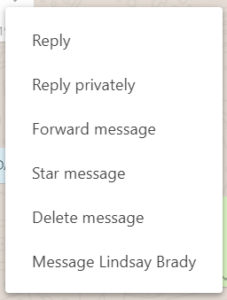
Reply Privately

At the beginning of 2019 iPhone WhatsApp users had the new Reply Privately feature added to their app. The new feature is a WhatsApp Group’s feature and allows users to privately respond to a message they received in a group chat. You can use Reply Privately by opening the settings menu for any group chat message and selecting the Reply Privately option. Doing so will open your private chat with the user and start with a quoted reply to the message in the group chat. The feature is now live for Android users too.

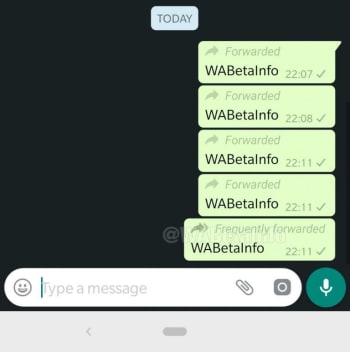
Frequently forwarded label

WhatsApp has been battling a fake news problem that has had some terrible repercussions around the world. One such fake news fighting measure introduced in 2019 was an updated Frequently Forwarded label that is now added to messages that have been forwarded more than five times. Another similar measure prevents users from forwarding messages to more than five users at any one time.

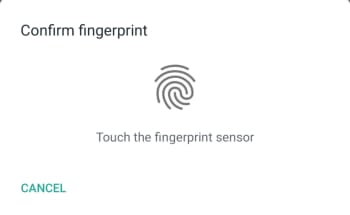
Fingerprint authentication

Fingerprint security

Another WhatsApp feature that came to iPhone first but is now available on Android devices too is fingerprint authentication. Users can now set WhatsApp to lock automatically and then only be opened again using an authorized fingerprint. Apple fans can also use Face ID to unlock their WhatsApp, if their iPhone has the feature.

New Group Privacy Settings

New WhatsApp group privacy settings

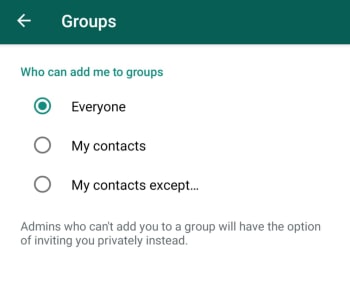
WhatsApp also updated its Group Privacy Settings in 2019. The update is designed to give you more control over the groups you’re added to by allowing you control which of your contacts can add you to a group. To take advantage of this new feature you need to go Account, then Privacy, and then Groups. Here you’ll find the My Contacts Except… below Everyone and My Contacts. Using this new option will allow you to block contacts you have saved on your phone from adding you to new group chats.

Consecutive voice messages

This is a small update, but it is one that makes hands free use much easier. When you receive multiple voice notes consecutively in a single chat WhatsApp will automatically play them one after the other. You won’t have to tap the play button every time one note finishes, and you want to move onto the next one.

Share WhatsApp Status Updates to Facebook Stories

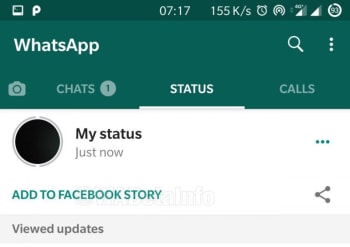
2019 was the year we learned about Facebook’s grand plan to merge Facebook, WhatsApp, and Instagram. Each will remain its own separate app offering its own separate experience, but it’ll be much easier for users of each app to communicate with each other across them. The first major step in this direction, which we saw in 2019 was the ability for users to share their WhatsApp Status Updates to their Facebook Stories. Now, whenever a WhatsApp user posts a Status Update a new button will appear under the Status tab, which gives the option to share the update to Facebook. It really is a brave new world.

Netflix trailer support for iOS

WhatsApp users on iOS have a handy new feature that allows them to watch Netflix trailers from right there in the chat window. When they receive a compatible Netflix link in a WhatsApp message and click on it, the video will start playing in a large thumbnail window like it does whenever you click on a YouTube link. Unfortunately, for Android users, this feature isn’t live on Android and there is no indication that it will roll out any time soon.

Improved Picture-in-Picture (PiP) mode for Android

The official name for the video thumbnail outlined above is WhatsApp’s Picture-in-Picture mode, commonly referred to as PiP. When PiP was first launched on Android it was limited to single chats. If you received a compatible video link in a chat, you could click it and then view the video while you continued chatting away. If you left that chat, however, your PiP video would disappear. In 2019, WhatsApp updated this feature and you can now switch between different chats while continuing to watch your PiP video. The feature also landed on WhatsApp Web and desktop in 2019 too. As always, however, the feature has been live for iOS for quite some time already.

Group Calls on Android

Group Chats on Android now has a new button that makes it very easy to launch a group call. When you click the icon, which is found in the top-right corner of the chat you’ll see a new pop-up window appear, which allows you to choose the participants of the group call. You can then select up to three participants and decide whether it will be a group video call or a group voice call. This feature is also available for iOS users too.

Wrapping up

As we started out by saying, WhatsApp is a constantly evolving messaging app, even if it feels like it never really changes. With the core feature simply being a way to contact your friends and family it can be easy to miss the new updates if you’re happily chatting away in the same way you always have. We’ve outlined above all the biggest changes to come to the main app in 2019 and avoided WhatsApp beta. There were other smaller updates too, but as long as you know about the features we’ve outlined above you’ll be up to speed with all the important features.