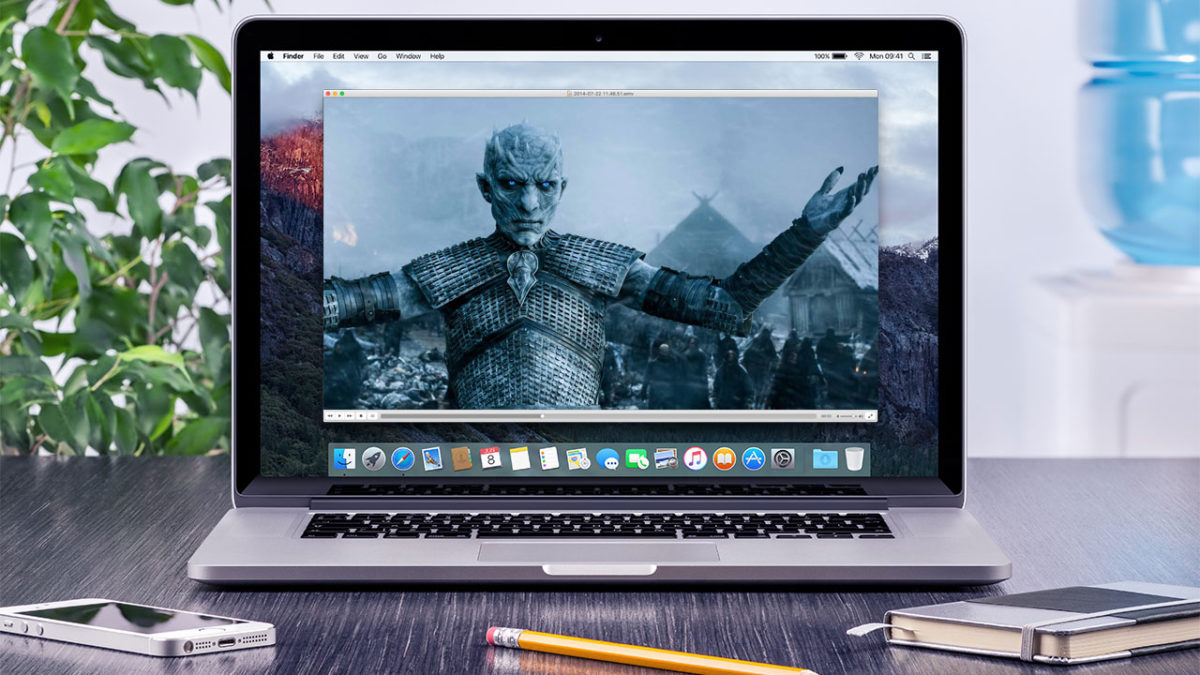
How to watch WMV files on Mac

A very common problem Mac users have is playing Windows Media Video (WMV) files. When your Mac attempts to open and play WMV files by default in QuickTime, you’ll commonly receive an error message along the lines of ‘This is not a movie file’.

The reason behind this it the fact that WMV files use Microsoft proprietary codecs that don’t work in OS X. This gets really annoying if you come across a WMV file and want to watch it on your Mac.

Microsoft discontinued Windows Media Player for Mac way back in 2006, meaning there’s no longer a tailor-made player for the WMV format for OS X. Fortunately, there are a few free and easy solutions.

Option 1 – Use a Mac Video Player that Supports WMV

The good news is that there are plenty of simple and useful choices when looking for a wmv player for Mac. There are dozens to choose from in our catalog, but below we’ve selected the top 3 WMV compatible players for you.

flip4macFlip4Mac Plugin

This is probably the easiest solution to watch WMV files because it enables QuickTime playback of WMV files.  This plugin, created by Telestream, allows you to import, export and play Windows Media video and audio files on your Mac. The Flip4Mac WMV plug-in also works with other QuickTime based apps like iMovie and Final Cut Pro, meaning you can even edit WMV files on your Mac too.

Download Flip4Mac Plugin

VLC-media-player-iconVLC Media Player

The most versatile player out there, VLC media players lets you play WMV files without the Flip4Mac Plugin, although it’s only a playback solution; it doesn’t let you edit WMV files in QuickTime supported apps including iMovie and Final Cut. The great thing about VLC Media Player, however, is that it’s lightweight, fast, and can handle almost any media format you throw at it.

Download VLC Media Player

Get More With These 5 Expert Hacks for VLC Player

MPlayerOSX

MPlayer OSX

This player emerged out of the Google Codes project as an attempt to create an all-round player. MPlayer OSX is a simple but powerful video player designed specifically for Mac and can handle WMV playback. It features more options and preferences than VLC Player, with the only drawback being that the first time it plays a video, it has to build a font cache, which can take a while. Luckily, it only has to be done once.

Download MPlayer OSX

Option 2 – Convert the WMV file to a Different Format

Another option, and one that is equally good is to use a tool to convert wmv to mp4 or another popular format supported on the Mac. This is a particularly good option if you’re going to want to share the video with other Mac users. Once again, there are a lot of wmv converters for the Mac in our catalog. To save you some time, we’ve hand-picked some of the best ones right here.

VLC-media-player-iconVLC Media Player

Oh, VLC, what would we do without you? Yes, if you’ve read this far then you know that VLC Media Player already shows up on our list of WMV Video Players.

But VLC is also a killer tool for converting videos of all formats, and it’s hands-down the best tool of the bunch for converting WMV to MP4 or any other major video format supported by the Mac.

Download VLC Media Player

VLC-media-player-iconTotal Video Converter Lite

Another top-notch option for converting WMV files on your Mac to another format is Total Video Converter. It features a friendly user interface that will be more comfortable to some Mac users than VLC and it supports conversions of over 160+ video format types.

The unregistered lite version is limited to converting just the first 30% of your file, however, and you’ll need to upgrade to the Pro version of Total Video Converter to complete the job.

But VLC is also a killer tool for converting videos of all formats, and it’s hands-down the best tool of the bunch for converting WMV to MP4 or any other major video format supported by the Mac.

Download Total Video Converter Lite
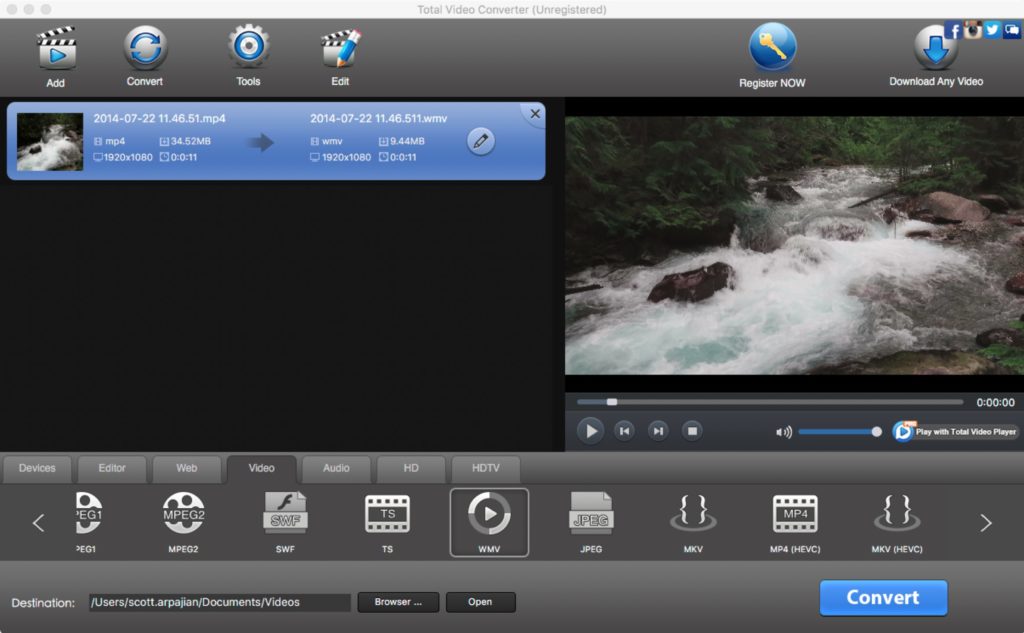
Total Video Converter Lite for Mac

Original article published on July 6, 2009.
What you need to know about syncing photos in iCloud

What happens when you sync your photos using Photo Stream, the new iCloud Photo Library, or iCloud backup? Where do they go, what happens if you stop syncing, and what are your options?

Apple’s known for its generally easy to use OS X and iOS operating systems, but services like iCloud Backup, your Photo Stream, and the most recently added iCloud Photo Library (still in beta) can be a bit of a grey area for many iPhone owners (especially celebrities, apparently).

Sure, they may be useful features, but you might not want to save every photo you take in the cloud. Recent celebrity attacks may have come from a vulnerability in iCloud (albeit one that Apple already patched), but that doesn’t mean that you shouldn’t have some control over where your photos are going when they’re being sent to the ominous sounding ‘cloud’. Consider Photo Stream, iCloud Backup, and iOS 8.1’s newest addition, iCloud Photo Library, along with the alternatives, to see what’ll work best for you.

Photo Stream

First thing to note: Apple is hoping you’ll replace your Photo Stream and Camera Roll with the consolidated iCloud Photo Library (I’ll explain more below), but it’s not mandatory. Secondly, your Photo Stream and Camera Roll are not the same thing. Your Camera Roll is in your iPhone’s local storage, while your Photo Stream contains photos synced across all your iOS devices via iCloud. Delete a photo from your Camera Roll, and it sticks around in your Photo Stream. The same is true for the reverse.

Your Photo Stream isn’t necessarily a traditional back-up though: if you have multiple iOS devices, you’ll be able to access your photos from every device, as long as your Photo Stream is turned on for both.

Photo Stream

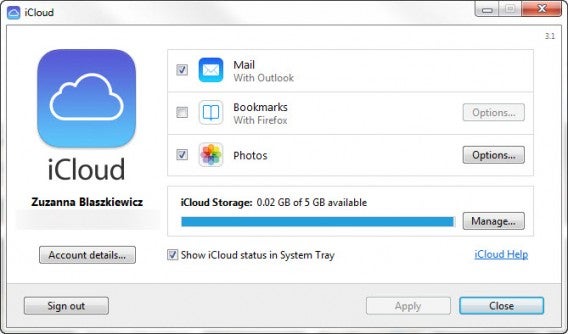
What some people might not know, is that you can access your photos via desktop too. If you’re using Windows, you’ll have to download the iCloud Control Panel, while Mac users can access their photos in a forthcoming OS x Yosemite update that’ll include a new photo app, a replacement for the soon to be discontinued iPhoto and Aperture.

iCloud

In your Photo Stream, your photos aren’t stored in the traditional sense of a cloud service with one central, online hub. Rather, photos are available only between devices and your desktop computer. Notably, your Photo Stream doesn’t save all your photos, only 1000 at a time, deleting older ones as space fills up.

iCloud Photo Library

With iCloud Photo Library (which is still in beta), you can now automatically sync all your photos from what was previously your Photo Stream and Camera Roll. The iCloud Photo Library will sync your photos across all your Apple devices, like Photo Stream. But unlike Photo Stream, which you can only access through the iCloud Control Panel, the iCloud Photo Library automatically stores the original, high-res photos in iCloud and resizes them for every device, making them accessible through iCloud.com. Again, it’ll also be accessible to Mac users through the forthcoming photos app. Another bonus is that any edit you make on one device will be automatically saved on all other devices.

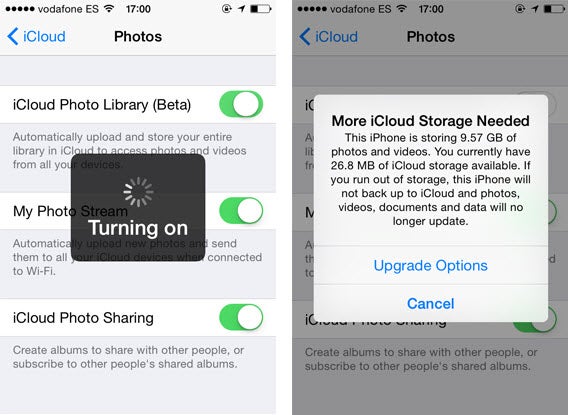
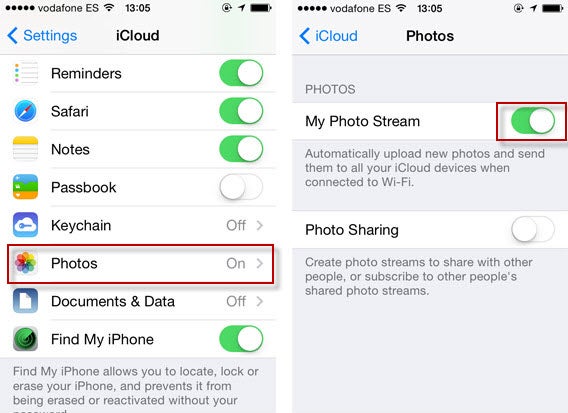
You can activate the iCloud Photo Library by going to Settings > Photos and making sure it’s turned on.

iCloud Photo Library

It seems like the perfect solution, considering that the Camera Roll doesn’t automatically sync photos, and Photo Stream only keeps up to 1000 photos or for 30 days, whichever comes first. The biggest caveat, of course, is that your iCloud backup only comes with 5GB of free storage, so if you have more than that and want to automatically backup all your photos, you’ll have to pay for additional storage.

Another downside is that it makes it more difficult to curate your photos because they’re all automatically backed up.

Storage & Backup

Backing up your device using iCloud is more comprehensive than simply the Photo Stream, letting you backup your accounts, documents, and basically your entire iPhone’s settings.

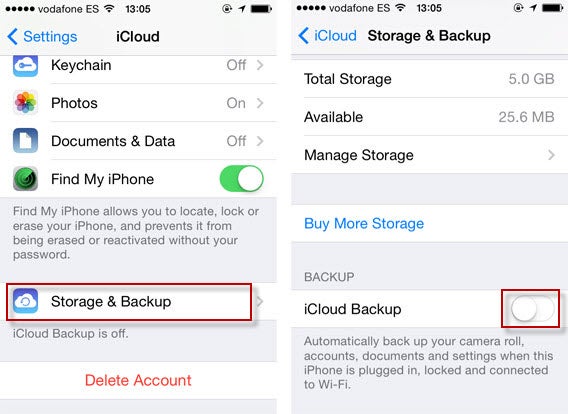
To access Storage & Backup, go to Settings, and then to iCloud. Keep scrolling until you reach Storage & Backup. If you scroll down, you’ll see the option for iCloud Backup, which automatically backs up your files and settings when your iPhone is charging and connected to Wi-Fi. To turn it off, simply swipe left.

iCloud Storage

Curiously, the iCloud Backup is actually less accessible than the iCloud Photo Library or Photo Stream. There’s no online resource for you to access the data that’s been backed up; it’s only accessible when you restore an iPhone and log into your iCloud account.

Doing an iCloud backup of your phone is not to be confused with the newly introduced iCloud Drive, which similar to other cloud storage services, can be accessed online and only saves files, documents, and photos, not the entirety of your iPhone’s apps and settings.

Notably, your iCloud Backup and your Photo Stream can be used independently of each other. You can turn on your Photo Stream without having the iCloud Backup enabled and access your photos, while turning on your iCloud Backup and turning off your Photo Stream will still give you backups of your photos, although it’ll be the ones from your Camera Roll. Using the iCloud Photo Library means they’ll sync and save everywhere. Either way, there is still cloud access to your photos.

Alternative solutions

I must admit, I don’t think iCloud is the best backup service for me, mainly because I’m limited to 5GB of free space, which barely scrapes the surface of my Camera Roll.

Still, whether you insist on using iCloud or not, there are ways to protect the photos on your iOS device.

Two-Step verification

Apple ID offers two-step verification, which sends an SMS code to your mobile device in order to manage your account. Setting it up can do wonders for your protection.

iTunes Backup

It may not be as easy or convenient as the cloud, but the old classic iTunes backup is always a good option. It might be easy to forget (I learned the hard way after getting into the habit of using an external charger without plugging my iPhone into my computer, forgetting to do a backup before attempting (and failing) to update to iOS 7.1.1, and subsequently getting all my data wiped without having done an iTunes backup in 4 months), but getting into the habit of plugging your phone into your computer and setting up automatic backup upon connection is definitely worth it. There’s also the option of setting up Wi-Fi Sync between your iPhone and PC connected on the same network.

Third-party storage services

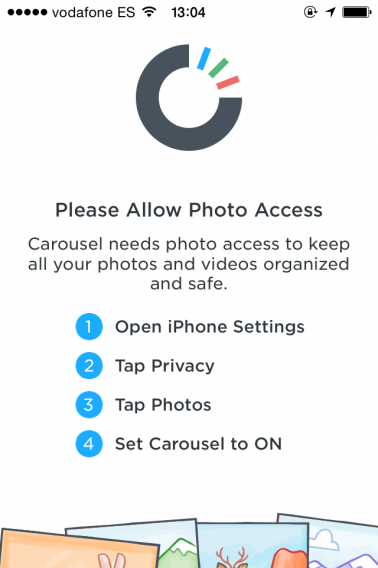
Most notably, Carousel by Dropbox will automatically sync all the photos from your Camera Roll. All you have to do is turn on the photo permissions for the app to have all your photos sync, giving you an actual storage space for your photos that can be accessed online. For added safety, you can encrypt files in cloud storage with services like Boxcryptor and Cloudfogger.

Carousel

Curate your photos

It’s not hard to understand why many people prefer the cloud as a storage space. It’s convenient, usually syncs automatically, can be accessed from almost anywhere, and can provide huge amounts of storage space at little or no cost. Despite known targeted celebrity attacks, it’s also generally safe.

Regardless, the best thing you can do is manage your personal collection of photos and where they’re stored. If you don’t want something out there in some hypothetical cloud, delete if from you Photo Stream, turn off your iCloud backup, or use two-step verification. That, or just use Snapchat.

If you want to know about cloud storage services, check out our article on creating the best backups for you.

Original article published on September 2nd, 2014.

Follow me on Twitter @suzieblaszqwicz

Top 5 karaoke software for Macs

Doing karaoke at home doesn’t mean you have to buy SingStar or spend lots of money. If you’ve got a Mac, you can turn it into a karaoke machine. Although there is a definite lack of decent karaoke apps on Mac, here’s a selection of some of the better ones!

SingSong KaraokeSingSong Karaoke

A SingStar-style app without the SingStar style price tag? SingSong Karaoke might not be as powerful but it is more fun by allowing you to measure your voice against the original artist of tracks. The app is a fun karaoke game that claims to allow you to sing to any song in the world and SingSong will rate you based on how well you sing.

Dowbload SingSong Karaoke for Mac

TunePrompterTunePrompter

In contrast to more complicated programs like kJams, TunePrompter makes creating your own Karaoke videos an absolute cinch. Best of all, its absolutely free and a pleasure to use. It is supposed to be designed for use with Griffin Technologies iKaraoke hardware which unfortunately, is discontinued. However, there’s absolutely nothing to stop you creating your videos, exporting them to iPod, iPhone, QuickTime or AppleTV format.

Download TunePrompter for Mac

MidiCo Karaoke Player and MakerMidiCo Karaoke Player and Maker

This app organizes and plays many types of media files, including MDC (MidiCo File Format), KAR, MID, MP3, CDG and Zipped MP3+G. It displays karaoke and movie content in full screen mode, even on a second monitor. Karaoke Maker MidiCo is designed to be as easy-to-use as possible; you may syncronize, re-syncronize or modify synced lyrics in few minutes.

Download MidiCo Karaoke Player and Maker for Mac

QMidiQMidi

QMidi can organize and play many types of media files, including movies and CDG, and allows easy text and chords editing/synchronization. It features real time pitch shifting, time stretching and the ability to display karaoke and movie content in full screen mode, even on a second monitor.

Download QMidi for Mac

AriaAria

Aria is a slick-looking, new generation karaoke app. It’s not just a karaoke app though – it’s actually DJ software, media player and karaoke machine all in one. The app claims to have a huge library of classics and pop hits to choose from, and if you need a little help hitting the notes, Aria lets you change the key of the song to accommodate your vocal range.

Download Aria for Mac

If you’re having a karaoke party at home, your Mac is a great place to start. It’s easy to read lyrics on screen, and you can take easy advantage of your music library via iTunes. Download these apps, call your friends over, and sing your hearts out. We think you’re going to have a lot of fun!

If you like making music on iOS, check out some of the best iPad apps for the job


This article was originally published in January 2010. It has been updated to remove apps that are no longer available.

Top 5 free MP3 converters for Mac

MP3 is by far the most common format for audio files. However, there are times when you need to convert MP3 into another format on your Mac. There are also people who enjoy listening to different audio file formats, but iTunes doesn’t have a lot of options for converting other than MP3 or AAC.

If you need to format a MP3 to a different format, you should also be aware that there is a possibility of quality loss because of the compression on MP3 files. So while you are getting a new format, it might sound worse than the original file.

These apps are some options to convert MP3 to different formats.

ffmpegxffmpegX is probably the fastest and flexible video and audio encoder for Mac. It can convert just about anything and also includes a rather basic but useful media player so you can preview your converted audio.

If you delve into the settings you’ll see you can perform all sorts of advanced functions like joining, fixing or authoring audio as well as set bitrate.

HandbrakeHandBrake is another hugely popular video and audio converter and includes a very handy bitrate calculator so that you can control the quality of your converted MP3s.

It’s mainly used for video conversions but it’s just as suitable for audio including MP3. The only drawback you might find is that it can be a bit slow.

SwitchSwitch has the advantage of being dedicated to audio conversions and allows you to quickly batch convert audio tracks. It has a huge number of output formats including MP3, WMA and AAC.

You can also set the bitrate and there’s also a handy “error protection” feature which ensures conversions are error free.

All2MP3All2MP3 is dedicated specifically to MP3 conversions and uses AppleScript to perform fast and efficient conversions. It’s easy to use thanks to a simple drag and drop interface and all you have to do is click on the All2MP3 button to start converting.

The program converts conversion from MP3 to MPC, APE, WV, FLAC, OGG, WMA, AIFF, and WAV.

Kigo Video ConverterKigo Video Converter is designed mainly for video conversion but is also suitable for MP3 needs. It’s especially designed with the needs of iPods, iPhones, Archos and other major portable audio devices in mind.

The pre-defined settings for each device are one of the stand-out features of Kigo Video Converter because it saves so much hassle setting bitrates.

Remember that you can improve quality by converting into a different format. In most cases the quality will suffer. But if quality isn’t a big concern, then any of these apps will work.