The eyePhone and eyeOS has some crazy skills!

The biggest announcement from last week’s WWDC by Apple was undoubtedly iOS 12. Apple’s latest operating system for iPhones and iPads comes packed with plenty of new bells and whistles, but one developer, Matt Moss, noticed a particularly cool innovation.  ARkit 2.0 includes eye tracking, which means your phone will be able to follow your eye movements and understand exactly what you’re looking at. This cool video below shows you just how good the iPhone, or should we say eyePhone, will be at tracking your eye movements.

Some people took to Twitter to decry what this will mean for the types of ads we’ll see in the future, but Moss was keen to highlight what it’ll mean for accessibility.

This technology will make it a hell of a lot easier for people with disabilities interact with the digital world. If you add Microsoft’s recent Xbox gamepad designed for disabled gamers, it has been a good couple of weeks for progressive developments in tech.

So what happened at Apple’s WWDC?

Apple loves putting on a show, and the recent Worldwide Developer’s Conference was just that. The annual WWDC is Apple’s big chance to tell the world all about its plans for the next 12 months. This year’s edition brought with it a slew of updates across Apple’s various operating systems, so let’s waste no time at all in getting into the nuts and bolts of all the big updates.

iOS 12

iOS powers Apple’s most popular products: iPhones and iPads. This year, Apple has focused mainly on performance for its flagship operating system but has still added a few new features for users to sink their teeth into. Key features include:

  • A speed boost will see phones, all the way back to the iPhone 5S, running much faster. Apps will launch twice as fast, the camera will start 70% quicker, and the home screen should also be much more responsive.
  • Users will also have greater security and control over their privacy. Advertisers won’t be able to track behavior without permission, and there’ll be a new feature to prevent phones being hacked using external devices.
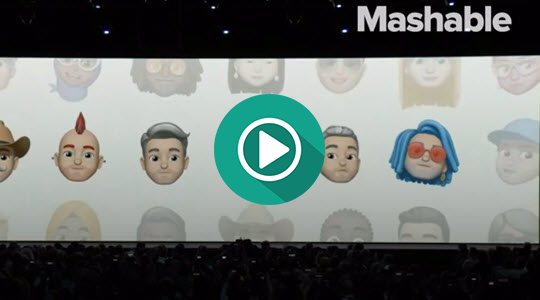
  • Emojis are expanding with more animated emojis available and brand new Meemojis offering users the chance to create personalized emojis.
  • App notifications will now be grouped together, in a bid to prevent screens from being overrun by hundreds of pings.
  • A new Screen Time function will help users track their phone usage and even set limits. A Do Not Disturb During Bedtime setting will keep phones clear from notifications until the morning.
  • Siri Shortcuts will be Apple’s versions of Alexa’s Skills. Siri should now respond to custom commands.
  • Apple is also opening up Car Play to third-party navigation apps, which mean users will be able to use Google Maps and Waze to navigate when driving.

watchOS 5

The latest version of Apple’s smartwatch operating system comes a dedicated podcast app, automatic workout detection, and a cool walkie-talkie feature. Bad news for early adopters is that first generation Apple Watches will not be getting the watchOS 5 update.

Siri on Apple Watches gets an update also as users will no longer have to say “Hey Siri” to get the attention of their wrist-based AI Assistant. Siri will also be able to work with third-party apps like CityMapper and Nike Run Club.

tvOS 12

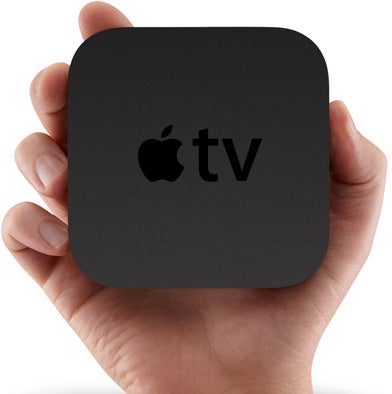
Apple TV gets an update with tvOS 12 bringing support for Dolby Atmos audio. All iTunes films will be updated to recognize this change without users facing an extra charge.

Another cool feature to come with tvOS 12 is the “Zero Sign-On” feature which allows users to automatically log in to their cable packages if logging on to their system via their cable company’s broadband.

Apple TV

macOS 10.14 Mojave

Last but not least, Apple unveiled the latest version of macOS, Mojave. It comes with an Apple News app, a Home app complete with Siri support and control of HomeKit devices. Other nice features include a redesigned Mac App store and an updated dark mode.

We’ll probably learn a lot more about macOS shortly as it is hotly rumored that Apple is about to announce a new top of the range Macbook Pro. Keep your eyes peeled for that one.

So there you have all the big news from this year’s WWDC. What are your thoughts? Let us know in the comments below. Is Apple simply playing catch up with Google or is it still the bold company of innovation that it was back when Steve Jobs was in charge. We’d love to hear your thoughts in the comments below.

Emojis are better at karaoke than you are

When the iPhone X first shipped one of the standout features was face tracking technology, akin to that found on the Xbox Kinect. To show it off Apple launched animojis, which tracked your facial movements and moved an emoji of your choice to match them. Once released it didn’t take long for users to start putting it to good use. Animoji karaoke was born.

Twitter quickly became awash with chickens, dogs, monkeys, and even poop singing along to karaoke classics like Queen.

Well now Animoji karaoke is back, and Apple has gone all out in a bid to build up hype for its Worldwide Developer’s Conference. The song getting the animoji treatment is Citizen Kane by Korean group Hyukoh.  As well as the face tracking bear, chicken, and dragon emojis Apple has produced a neon fused video to go with the pumping Korean beats. Check it out. Bets are you’ll love it.

Yes, Apple is now an emoji company

It is two emoji stories in one week for Apple, proving the hippest tech company really is out there pushing the world to where it needs to be. Where would we be, as a modern civilized society, if we weren’t able to make emojis sing along to our favorite songs? Fortunately, as we’ve seen, Apple has saved us from having to live in such a horrible place, and thanks to the biggest announcement from Apple’s Worldwide Developer’s Conference it’s gone one better. Emojis are dead. Long live the Memoji.

Source: Mashable

Yes, if you buy one of Apple’s incredibly expensive products, you’ll be able to put all of that tech to good use by turning yourself into an emoji.

You can tailor everything from skin color to accessories. As the live demo shows, you can even make sure your Memoji has “just the right amount of freckles.” The world truly is a better place thanks to Apple’s constant innovation. We must thank our Silicon Valley overlords for bestowing upon us such power. Memojis are so good, that is almost worth Apple paying hardly any tax on the billions of dollars they make every year. Almost. Try harder Apple, or maybe just pay your taxes, like the rest of us.

iPhone X vs Samsung S8 vs Google Pixel 2XL

If you’re like me, you can’t imagine living without your smartphone. For better or worse (we still remember you fondly, month-long Nokia 3210 battery), we’ve come to rely on the convenience of having a device in our pockets for work and play.

Back in 2007, Apple was the first company to envision the perfect combination of phone and personal computer, with the release of the iPhone. This device revolutionized our relationship with technology, proving you could carry a very capable computer in your pocket.

Compared to that first smartphone, today’s flagship devices are almost obscenely powerful. So if you’re looking to upgrade to a shiny new iPhone, or the most powerful Android smartphone on the market, we’ve got the scoop on the year’s hottest flagship devices from Apple, Samsung, and Google.

iPhone X

With its edge-to-edge “top-notched” screen and refined design, the new iPhone redefines what a luxury smartphone is.

Just like Apple’s other devices, software and hardware pair perfectly; everything just works. The processor is blazing fast, the camera is excellent as ever, and the battery life – while shorter than competitors – is decent. There are fun features like animojis, too, which uses face-tracking to animate your face on a monkey, pig, or… poop.

Downsides? This phone is expensive. Really, really expensive. At $1000+, every time you drop this phone could put another dent in your savings. It’s hardly something you want to hide away in a big, bulky case, so get insurance.

The other downside is Apple’s continued insistence on proprietary hardware. There’s no headphone jack, and if you want to fast charge, you have to buy a lightning USB-C cable and power brick for another $50.

Bottom line:

Best phone of the year? If you’re turned off by Apple, then no. But if you’re looking for the ultimate high-end smartphone, with a slick user experience to match, the iPhone X is the one for you.

Who it’s for:

Trend-conscious fashionistas, and turtle-neck wearing Chief Technology Officers.

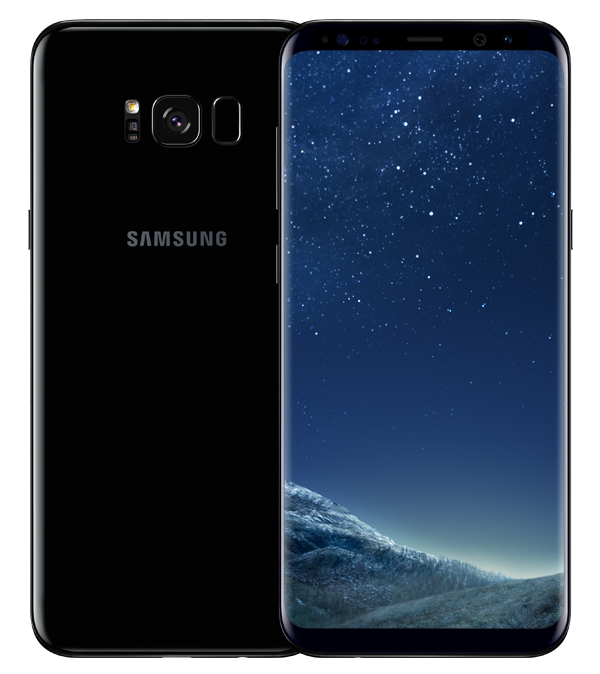
Samsung Galaxy S8

With an incredible edgeless screen, industry-leading hardware, and excellent battery life, the Galaxy S8 is constellations ahead of other smartphones.

Not only blazingly fast, the standout feature is that screen. The 5.8” infinity display is drop-dead gorgeous, with a higher resolution (1440 x 2960 pixels) than any other phone on this list. If that’s not enough, Samsung also offers the Galaxy S8+, which has a gigantic 6.2” screen.

The less good? The fingerprint scanner is located awkwardly next to the rear camera. Bixby, Samsung’s take on a virtual assistant, isn’t quite as slick as Google or Siri.

The bottom line:

When it comes to luxury Android phones, the Samsung S8 clearly leads the pack. Despite the niggles, not only will this phone turn heads, it’s got the brains to match those incredible looks.

Who it’s for:

People who hate being “contained” by screen edges, and Apple-hating hipsters.

Google Pixel 2XL
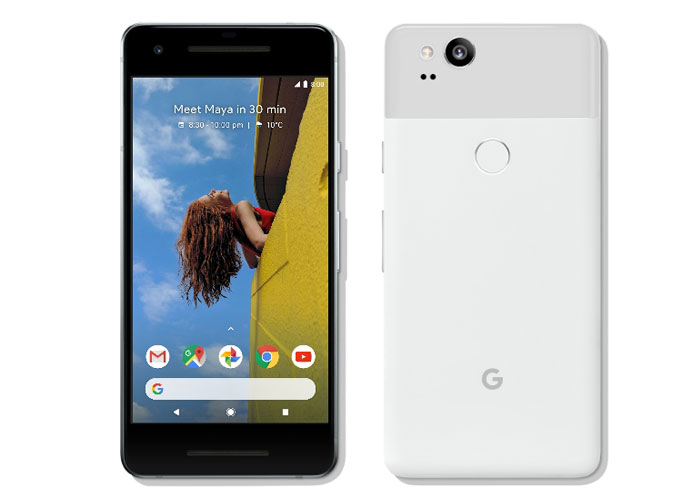
Direct from the original creators of Android, comes a smartphone with oodles of power, and a combination of software and hardware that work in perfect harmony. The Google Pixel 2XL is a purebred stallion in a stable full of donkeys.

This phone has the best version of Android, hands down. The bundled Google apps integrate seamlessly, and you get unlimited cloud storage for your photos with Google Photos. Good thing too, because the camera on this device is absolutely stunning. When paired with Google Lens, a unique app that contextualizes what it’s seeing, you can, amongst other things, point your camera at a Wi-Fi network name and password, and your phone will automatically connect.

Google Assistant is back too, and better than ever. Plus, this time, there’s no more shouting at your phone or struggling with gloves; you simply squeeze your phone to activate the helpful AI assistant.

The bad? The design isn’t quite as inspiring as those from Apple and Samsung. The metal and glass feel a bit plasticky in your hand, and the screen doesn’t stand out.

The bottom line:

While it might lack the immediate oomph of the iPhone X or S8, this phone is packed to the brim with great features. Add the game-changing camera, and you have the most well-rounded Android smartphone on the market.

Who it’s for:

Die-hard Android purists, and people who don’t want to have a heart-attack every time they drop their phone.

That completes our round-up. Best of luck finding the device that suits you, and when you do, enjoy that new phone smell. Just don’t drop it. Please.

Hollywood or home movie? How to get the most out of your smartphone content

Are you making the most of your smartphone?

Photos, videos, music – you name it, chances are your smartphone can do it. Heck, you can even film your own award-winning, critically-acclaimed movie with an iPhone 5S.

Your smartphone empowers you with all the tools you need to be creative, without the need to buy lots of expensive hardware. And while this is great, it’s only as good as the effort you put into it. No point in having a 12MP camera if you’re not going to use it, right?

So what do you do with your smartphone content? Share it on social media and wait for the likes to pour in? Why stop there? Why not take your content further and create ringtones from your favourite music, movies out of your happiest memories, or multimedia gifts for friends and family. Make use of your content in a meaningful way, or your creations will fade as quickly as the latest viral post.

At Softonic, we spend a lot of our time working with and reviewing creative software to help you get more out of your content. One of our favourites is this multimedia suite from AVS4U that includes five simple yet powerful tools to convert, edit, and rework audio and video.

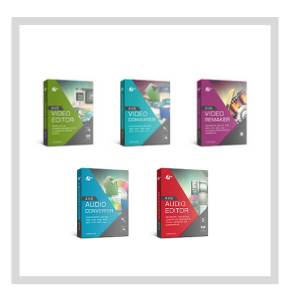
AVS4U’s suite includes the following five programs:

AVS Video Editor

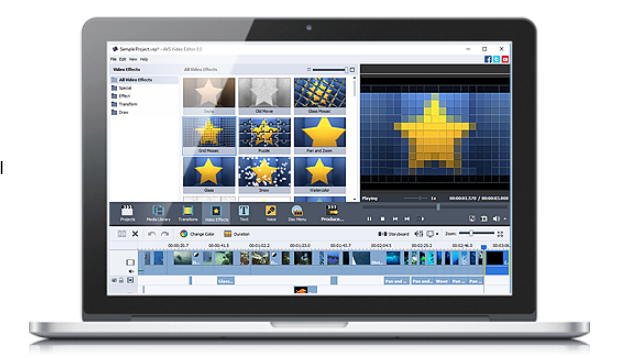
A versatile, feature-packed editor to splice, split, and enhance your smartphone videos. AVS Video Editor takes you through the entire movie-making process, from helping you storyboard your ideas to correcting hand-shake, exposure, and colour. Choose from over 300 effects to really make your video project stand out.

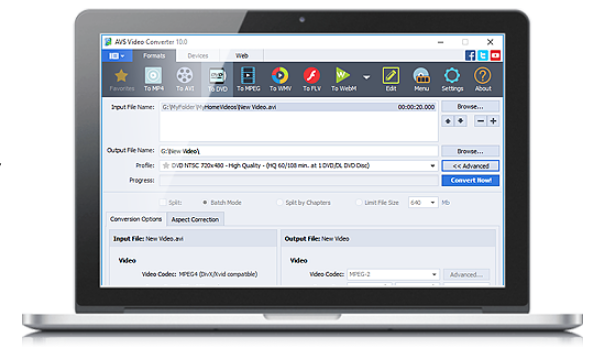
AVS Video Converter

AVS Video Converter does exactly what it says – takes virtually any file format and converts it into another of your choosing.

If you’re creating a wedding video, for example, and want to include guests’ smartphone footage, you might find them in different formats. AVS Video Converter solves this problem by converting video clips into a single format for easy editing and playback.

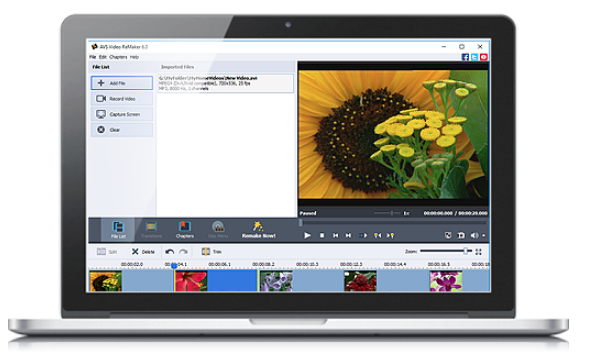
AVS Video Remaker

Imagine your friend sent you a video clip of her dancing at a party. She wants to upload the video to social media, but without the part where she trips over her heels and lands in the punch bowl. With AVS Video Remaker, you can remove the embarrassing moment and send the edited version back to your friend without reconversion. This ensures the original file remains compatible with her social media account.

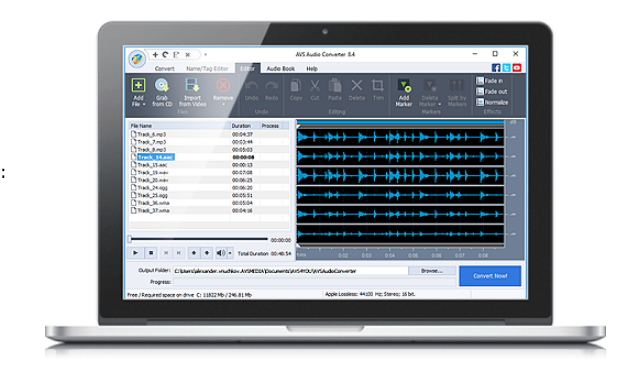
AVS Audio Converter

If your music library is filled with MP3s, FLACs, ALACs, and WAVs, but you’ve got a DJ playlist to create in less than an hour, you need AVS Audio Converter. It’ll take your preselected tracks and convert them to a single, universally-compatible file type and size (of your choosing), ensuring you can blow the roof off the party without fiddling with file types.

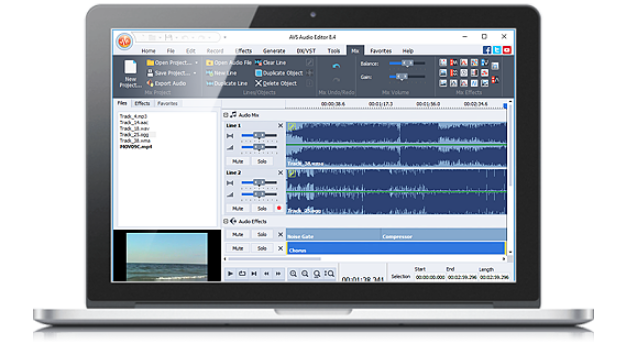
AVS Audio Editor

If you’re feeling creative, take that DJ playlist and add your own sounds, effects, and mix edits with the AVS Audio Editor. You can clean up interference, add echo or delay, cut, splice, and trim – even mix together several tracks at once like DJ Woody. It’ll even make ringtones out of your favourite tracks.

The AVS4U multimedia package costs just $29,50 (Introducing the coupon AVS-Softonic18), down from its original price of $59 (70% off ). That’s for the unlimited version. That’s excellent value for money, but don’t take our word for it – download and try it for yourself. But hurry – the discount ends soon, so avoid disappointment by downloading it today.

Google Maps on iOS now looks a little friendlier

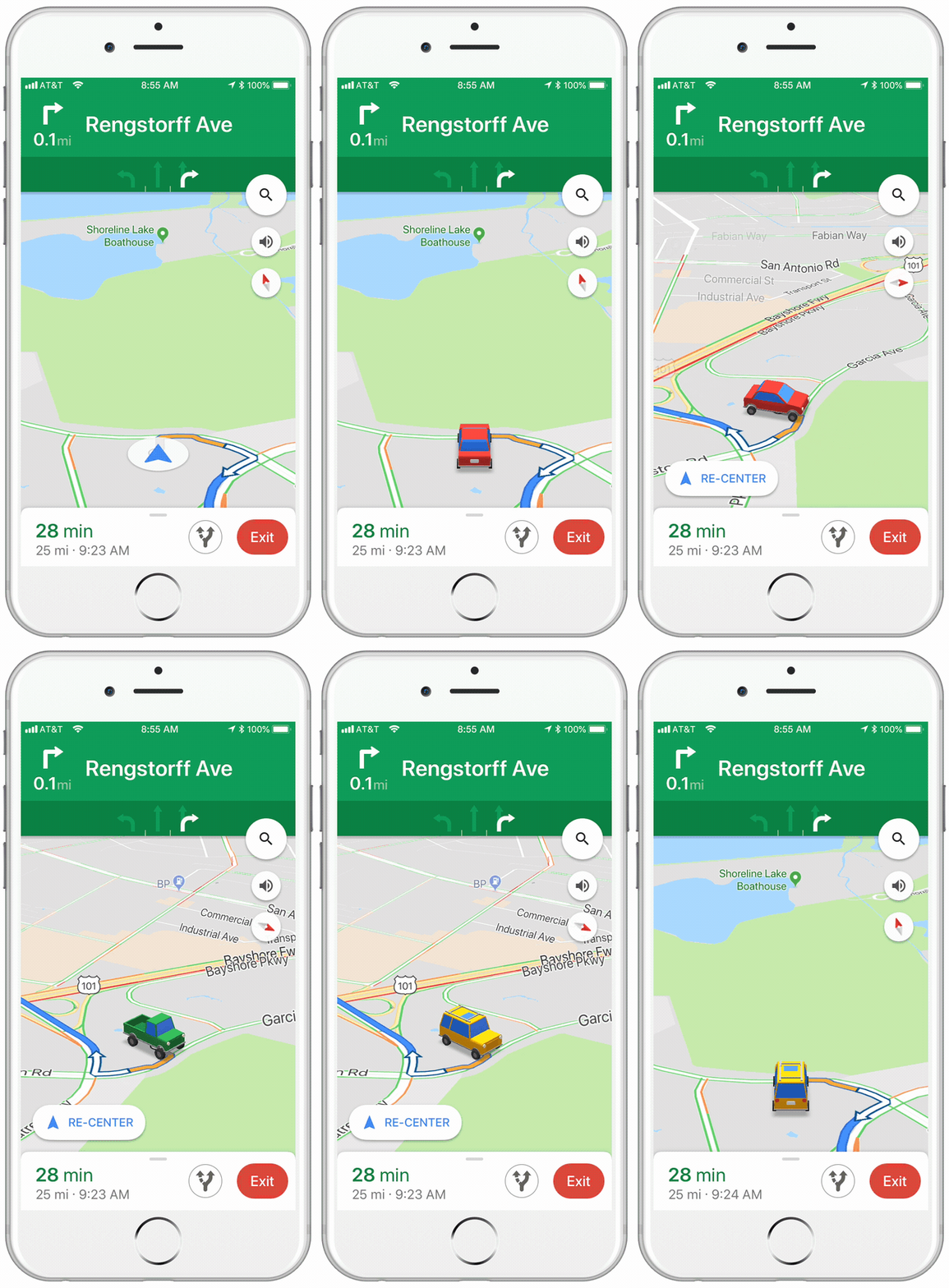
If you have an iPhone, this tiny little update to the iOS version of Google Maps, might just make your next car journey a little cheerier. Instead of the cold blue arrow that usually represents you on the map, when you’re receiving turn by turn directions, you can choose a car instead.

Image via: Google Keyword

The icons are a little cartoony, and there are only three options to choose from, but it makes a welcome change. You can choose from a sedan, a pickup truck, or an SUV.

All you have to do to select your vehicle is tap on the blue arrow, next time you’re in navigation mode.

Google Maps Download Google Maps
7

It wasn’t too long ago that Google allowed to drive around Google Maps as Super Mario in his Go Kart. That change was temporary, however, whereas this new one seems to be a more permanent addition to Google Maps. There is no word from Google about whether this feature will come to the Android version of the app.

Apple hedges its bets with new iPhones – including the biggest yet

Source: Luke MacGregor/Bloomberg

Given just how rich Apple is, it’s easy to forget that the much-hyped iPhone X’s sales have been a bit underwhelming. The reason could well be that the device was very pricey – without being that much larger than older models. 

Apple is going to cover both those bases later this year, according to media reports. As well as putting out a cheaper model, the company is betting big on bigness.

The screen for a new model is predicted to be about 6.5 inches, making it not only the largest iPhone ever, but also the biggest mainstream handheld on the market.

The company is hoping a significantly increased screen size can also make a visible difference to its already astronomical profits.

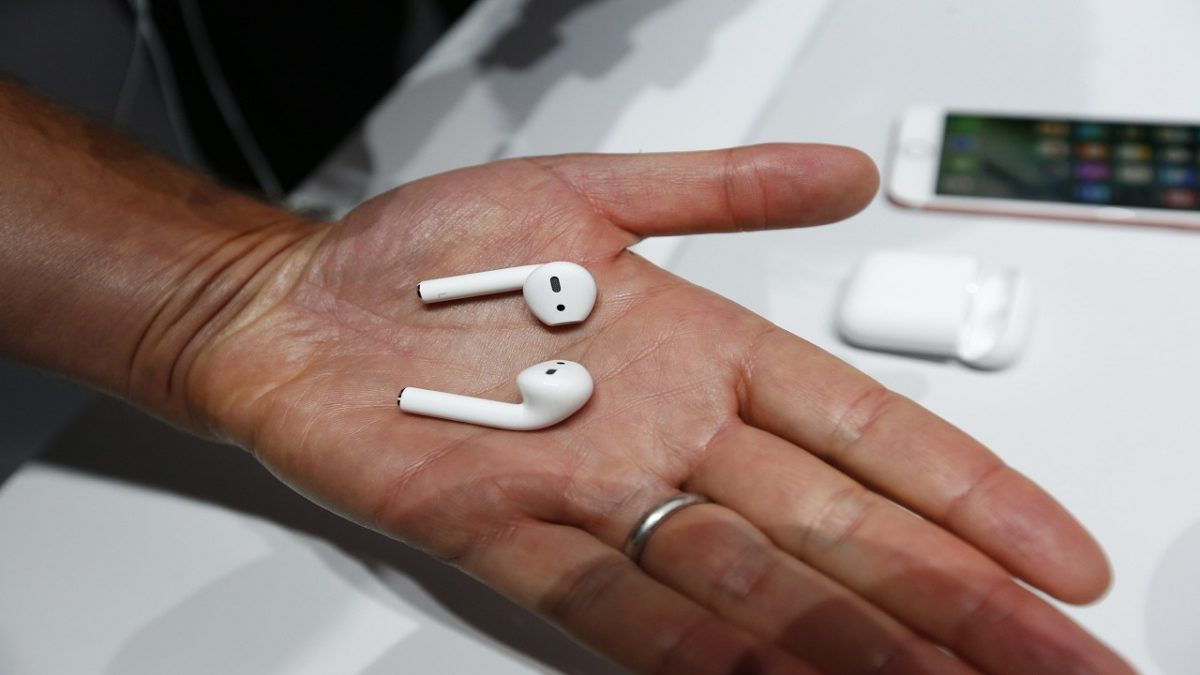
Did an Apple AirPod just explode?

Apple’s wireless ear jacks have been out for over a year now, and have proven very popular for joggers and gym bunnies who appreciate the lack of annoying cables.

But all that earplug love could turn to fear and loathing thanks to what Jason Colon said happened to him during a workout in Tampa, Florida.

According to the buff gym-goer, one of his AirPods started belching white smoke, caught fire, then exploded.

There are no corroborating witnesses, but take a look at the news report; Colon’s testimony seems pretty genuine, as does the damage to his ear jacks.

Apple is investigating the incident – but in the meantime, let’s hope listening to music won’t literally blow anyone’s ears off.

How to unsubscribe from push notifications (Chrome, Firefox, Edge and Safari)

Have you accidentally given permission to receive notifications from a website or are you tired of getting notification requests? Below, we’ll tell you how to disable them according to the browser you’re using.

Google Chrome (laptop)

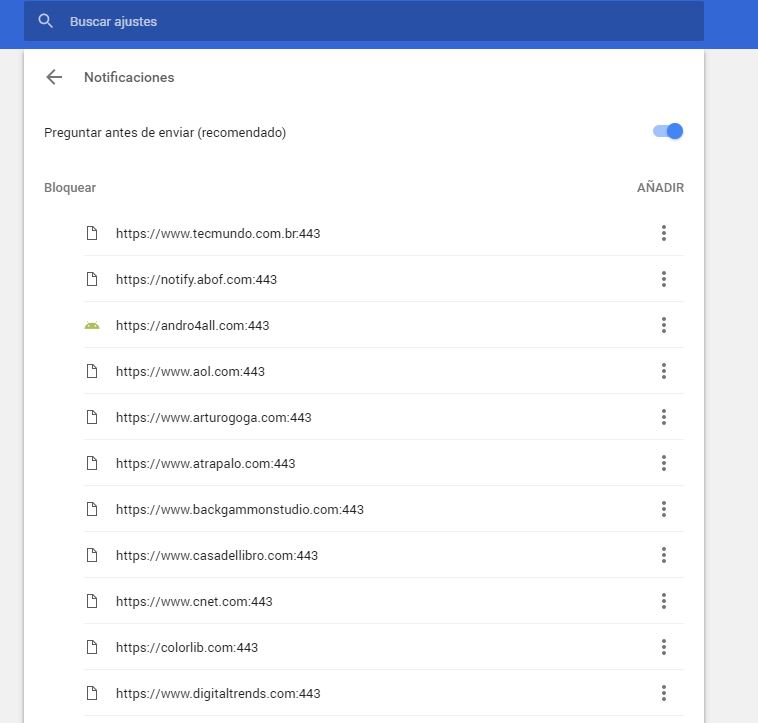
To disable Chrome notifications, copy this address chrome://settings/content/notifications and paste it in your browser. This way, you’ll go straight to the “Notifications” section of Chrome Settings.

461

If you want to stop receiving permission requests for notifications, disable the “Ask before sending (recommended)” option to “Block all.”

Want to block notifications for a specific website? You’ll see that you’ve got two options: “Block” and “Allow.” Under “Allow,” look for the web page you want to stop receiving notifications for, click on the three vertical dots beside it and then select “Block.” It’s that easy!

Google Chrome (cell phone)

Go to “Settings” (by tapping on the three vertical dots in the top right). Press “Web page settings” and then “Notifications.”

If you want to stop receiving permission requests for notifications, disable the “Ask before allowing websites to send notifications (recommended)” option to “Blocked.”

Want to disable specific notifications? Below, you’ll have two options: allowed and blocked notifications. Select one that is allowed and then the “Notifications” option to block it. Easy peasy.

Mozilla Firefox (laptop)

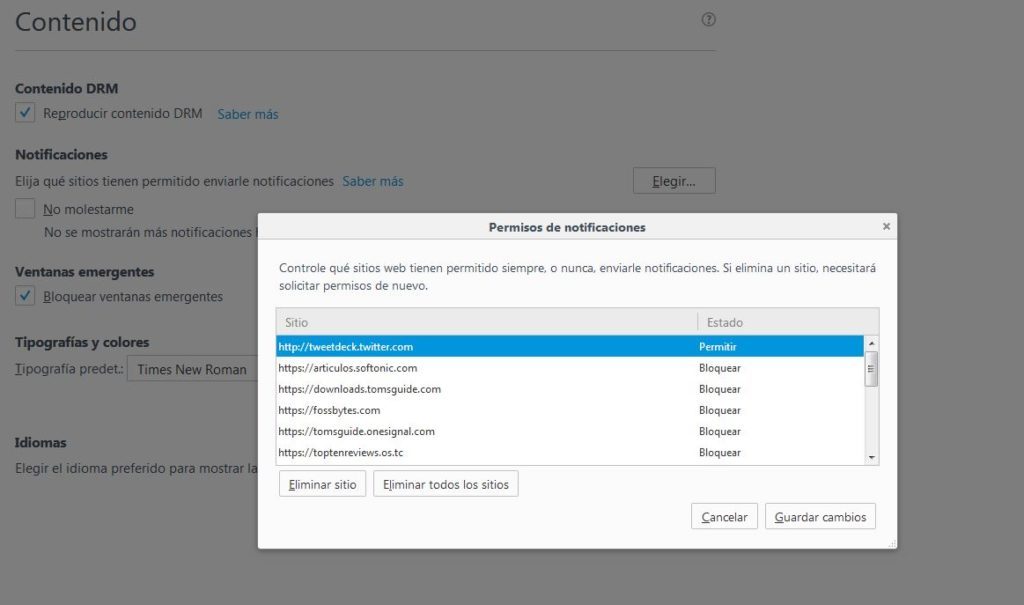
To disable notifications on Firefox, copy this address about:preferences#content and paste it in your browser to access the “Content” section of Firefox Options. Here you’ll see the “Notifications” subsection.

If you want to stop receiving so many permission requests for notifications and notifications themselves, enable the “Do not disturb me” option.

464634-1024x605

Want to block notifications for a specific web page? Click on “Select.” A list with all the notifications you’ve allowed or blocked to date will show up. Look for the website you no longer want to receive notifications from and select “Remove site.”

When you go to that page again, it will once again ask for permission to send you notifications (unless you’ve enabled the “Do not disturb me” option). Select that you don’t want to receive notifications. Case closed.

Unfortunately, there’s no easier way to block specific notifications on Firefox.

Mozilla Firefox (cell phone)

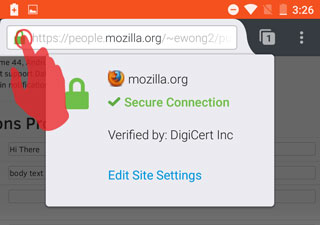
For now, there’s only one very basic way to disable notifications for this version of Firefox. You must go to the page that you want to disable notifications for and click on the Control Center (the green lock to the left of the URL).

2016-07-18-15-42-33-81e41b

Then select “Edit site settings.” Tap the white square to “check” it and then press “Clear.” This way, the website will stop sending you notifications unless you go back and give it permission.

Microsoft Edge (Windows 10)

To get started, click on the Over Edge section at the top right of the window. It’s a three-dot horizontal icon. Click Settings, and then click Advanced Settings.


Under Notifications, click Setup. Find the webpage you don’t want to be notified about and click the slider point to go to Disabled.

Apple Safari

To stop receiving notifications for a web page, go to “Preferences” and then click on “Notifications.” Look for the website on the list and select “Block.”

If you want to stop receiving permission requests for notifications, don’t leave the “Notifications” section; simply uncheck the box “Allow websites to ask for permission to send push notifications.”