

When you’re just trying to get some work done, or blow a few hours surfing the web, a slow-moving computer can throw a wrench in your plan.
Before throwing your computer out of the window in a fit of rage, try out these tips. There are plenty of quick, free, and easy methods to make your computer run faster.
How to fix a slow computer
Restart your computer/check start-up programs
Although this advice is annoying, there’s a lot of truth to it. It could be that your computer has been on for too long, and it needs to restart. Shut down your computer and start it back up. About 99% of the time, this will solve your problem.
If your computer is still running slow, it’s time to look at what programs automatically start when you log into your computer. It’s pretty common for antivirus programs and messaging apps like Skype to open automatically. Essentially, while you’re trying to open up something like your web browser or a program for work, your computer is too busy trying to open five other programs.
Here’s how to check your start-up programs on Windows 10:
- Go to your Start menu and type “run.”
- Choose the “Run” app.
- In the window that pops up, type “msconfig” and hit “open.”
- In the next window that pops up, you’ll be able to see what programs start automatically, and disable them.
Here’s how to do it on Mac:
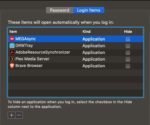
- Open System Preferences
- Click to “Users & Groups”
- Choose your nickname on the left
- Choose the “Login” tab
- Click the startup programs you want to remove
- Press the “–” sign

How to speed up uTorrent for faster downloads
Read now ►This is also a good opportunity to reinstall Windows. All versions of Windows get regular updates unless they’ve been discontinued, so updating or reinstalling periodically will keep your computer running smoothly.
Regularly scan for viruses
Maybe you downloaded something you shouldn’t have downloaded. Maybe you went to a shady website. Maybe you clicked on something with malicious intent. Whatever happened, there’s a good chance that you have a virus.
Luckily, most of the time, getting rid of a virus is both quick and free. Download an anti-virus program like Malwarebytes and scan your computer.

Malwarebytes will scan your computer entirely and will quarantine off everything that might be harmful.
To be completely honest, you should run a weekly virus scan anyway. A lot of the time, there are viruses that are running in the background of your computer. They are stealing personal information like passwords and are sending them to hackers. Weekly virus scans can solve this problem easily.
Check to see how many programs are running
Your computer is capable of running all sorts of programs, but it can be difficult to run multiple programs at once, especially if you have an older model.
If you have a Mac, go to Force Quit (under the Apple menu in the upper left corner) and you’ll see every program you have open. If you run Windows 10, hit Ctrl+Alt+Delete and open the Task Manager to see everything that’s open.
If your computer is running Steam, Photoshop, Google Chrome, Microsoft Word, InDesign, Microsoft Excel, and VLC all at once, you should probably close some of those.

How to fix slow internet
Read Now ►Check your computer’s memory/storage

Check your computer’s storage. If you are full or nearly full, it can cause your computer to run a little slow. If you can’t or don’t want to delete anything, find a cloud service to store your files. You can also use Google Drive! If you REALLY want to, you can buy an external hard drive, but why do that when there are free options!

There’s a bit of a misconception with this tip.
If you have a bunch of small photos from your trip to Cancun or Word documents from your English 105 class, those probably aren’t going to slow down your computer.
Your computer probably has a minimum of 100 gigabytes of storage, so deleting a file that’s 20 kilobytes is not going to make a difference at all.
However, if you have a lot of huge game files, HD video files, and a ton of useless programs, you might want to consider dropping some of those. Don’t worry about temp files; worry about large files and your drive space.
Run disk defragment and disk repair
Disk defragment and disk repair can keep your computer running properly and make it run quicker.
To run disk defragment on Windows 10, follow these steps:
- Go to “This PC.”
- From there, right-click your hard drive and click “Properties.”
- Go to “Tools.”
- Click “Optimize,” and then click “Optimize” again.
Mac doesn’t have a built-in tool for defragment, but a third-party app like this one can help you!

Disk clean-up is really easy to do on Windows 10:
- Type “Disk Cleanup” in your search bar, and click the app with the corresponding name.
- Click the option to clean up system files.
- Once the scan is done, delete the files the app suggests you delete.
Once again, Mac doesn’t have a built-in tool, but we have another third-party app that can help you out:

Bite the bullet and buy a new computer
Although expensive, computers are very disposable.
You can buy a pricey, fancy-schmancy computer and it could be considered low-tech garbage in just a few years. If you’ve been using the same computer for a few years, it might be time to put some money aside to get a new one.
Yeah, yeah, yeah. That’s easier said than done. If you need some help managing your money to buy a computer, that’s a whole different story.
Wrapping up
Hopefully, by the end of this article, your computer is running faster. If you tried something else and it worked, let us know in the comments below!
‘



 If your screen issues require more than just using a cloth, there is another option. JScreenFix