
How to fix a slow computer

Is your slow computer driving you crazy? Try out these tricks to make it run faster!

Slow computer

When you’re just trying to get some work done, or blow a few hours surfing the web, a slow-moving computer can throw a wrench in your plan.

Before throwing your computer out of the window in a fit of rage, try out these tips. There are plenty of quick, free, and easy methods to make your computer run faster. 

How to fix a slow computer

Restart your computer/check start-up programs

Although this advice is annoying, there’s a lot of truth to it. It could be that your computer has been on for too long, and it needs to restart. Shut down your computer and start it back up. About 99% of the time, this will solve your problem.

If your computer is still running slow, it’s time to look at what programs automatically start when you log into your computer. It’s pretty common for antivirus programs and messaging apps like Skype to open automatically. Essentially, while you’re trying to open up something like your web browser or a program for work, your computer is too busy trying to open five other programs.

Here’s how to check your start-up programs on Windows 10:

  1. Go to your Start menu and type “run.”
  2. Choose the “Run” app.
  3. In the window that pops up, type “msconfig” and hit “open.”
  4. In the next window that pops up, you’ll be able to see what programs start automatically, and disable them.

Here’s how to do it on Mac:
Mac Login Items

  1. Open System Preferences
  2. Click to “Users & Groups”
  3. Choose your nickname on the left
  4. Choose the “Login” tab
  5. Click the startup programs you want to remove
  6. Press the “–” sign

This is also a good opportunity to reinstall Windows. All versions of Windows get regular updates unless they’ve been discontinued, so updating or reinstalling periodically will keep your computer running smoothly.

Regularly scan for viruses

Maybe you downloaded something you shouldn’t have downloaded. Maybe you went to a shady website. Maybe you clicked on something with malicious intent. Whatever happened, there’s a good chance that you have a virus. 

Luckily, most of the time, getting rid of a virus is both quick and free. Download an anti-virus program like Malwarebytes and scan your computer.

Malwarebytes Download now ►
8

Malwarebytes will scan your computer entirely and will quarantine off everything that might be harmful.

To be completely honest, you should run a weekly virus scan anyway. A lot of the time, there are viruses that are running in the background of your computer. They are stealing personal information like passwords and are sending them to hackers. Weekly virus scans can solve this problem easily.

Check to see how many programs are running

Multiple programs

Your computer is capable of running all sorts of programs, but it can be difficult to run multiple programs at once, especially if you have an older model. 

If you have a Mac, go to Force Quit (under the Apple menu in the upper left corner) and you’ll see every program you have open. If you run Windows 10, hit Ctrl+Alt+Delete and open the Task Manager to see everything that’s open.

If your computer is running Steam, Photoshop, Google Chrome, Microsoft Word, InDesign, Microsoft Excel, and VLC all at once, you should probably close some of those.

Check your computer’s memory/storage

computer memory

Check your computer’s storage. If you are full or nearly full, it can cause your computer to run a little slow. If you can’t or don’t want to delete anything, find a cloud service to store your files. You can also use Google Drive! If you REALLY want to, you can buy an external hard drive, but why do that when there are free options!

7

There’s a bit of a misconception with this tip.

If you have a bunch of small photos from your trip to Cancun or Word documents from your English 105 class, those probably aren’t going to slow down your computer.

Your computer probably has a minimum of 100 gigabytes of storage, so deleting a file that’s 20 kilobytes is not going to make a difference at all. 

However, if you have a lot of huge game files, HD video files, and a ton of useless programs, you might want to consider dropping some of those. Don’t worry about temp files; worry about large files and your drive space.

Run disk defragment and disk repair

Disk defragment and disk repair can keep your computer running properly and make it run quicker. 

To run disk defragment on Windows 10, follow these steps:

  1. Go to “This PC.”
  2. From there, right-click your hard drive and click “Properties.”
  3. Go to “Tools.”
  4. Click “Optimize,” and then click “Optimize” again.

Mac doesn’t have a built-in tool for defragment, but a third-party app like this one can help you!

7

Disk clean-up is really easy to do on Windows 10:

  1. Type “Disk Cleanup” in your search bar, and click the app with the corresponding name.
  2. Click the option to clean up system files.
  3. Once the scan is done, delete the files the app suggests you delete.

Once again, Mac doesn’t have a built-in tool, but we have another third-party app that can help you out:

Disk Cleanup Pro for Mac Download now ►
9

Bite the bullet and buy a new computer
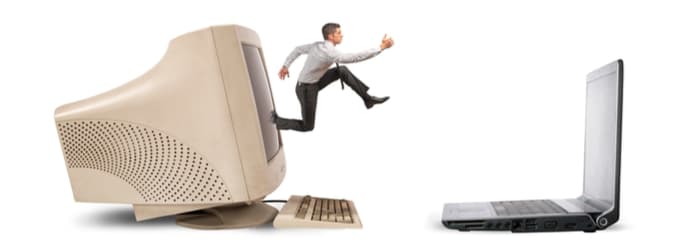
New computer

Although expensive, computers are very disposable.

You can buy a pricey, fancy-schmancy computer and it could be considered low-tech garbage in just a few years. If you’ve been using the same computer for a few years, it might be time to put some money aside to get a new one. 

Yeah, yeah, yeah. That’s easier said than done. If you need some help managing your money to buy a computer, that’s a whole different story. 

Wrapping up

Hopefully, by the end of this article, your computer is running faster. If you tried something else and it worked, let us know in the comments below!

How to clear your cache on Android (4 simple steps with pictures)

Are some of your apps running slow, or are they behaving weirdly? Clearing the cache can help!

Android

Though it may sound a bit drastic, clearing your phone’s cache might be a good idea for a few reasons. The cache is where your phone stores data associated with the applications that you have installed, such as images, so you don’t need to wait as long for the app to load when you open it.

That said, if an app starts behaving strangely, clearing the cache might be one way to get things back to normal. You may also want to clear your cache to free up some more memory on your phone. Whatever the reason may be, here’s how to clear your Android phone’s cache in a few quick and easy steps.

How to clear your cache on Android

First off, there are apps that you can download to clear your cache for you. You can download one of the best ones for the job below. However, you can also do it manually yourself, so we also have the following step-by-step instructions.

Clean Master Download now ►
8

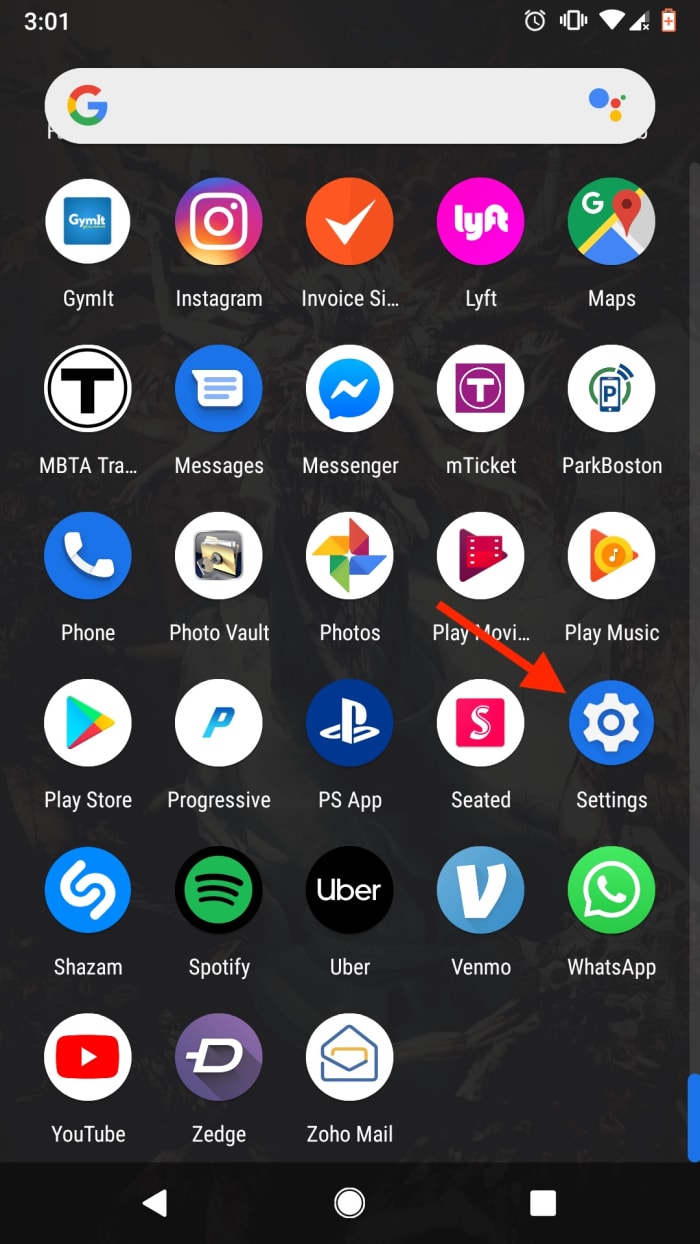
1. Open the Settings menu

android cache clear settings

From your phone’s home screen, head over to the Settings menu. This usually appears as a small gear icon in the top right corner of your phone’s dashboard, and can also be accessed via an icon in the app menu.

2. Open the Storage menu

android cache storage menu

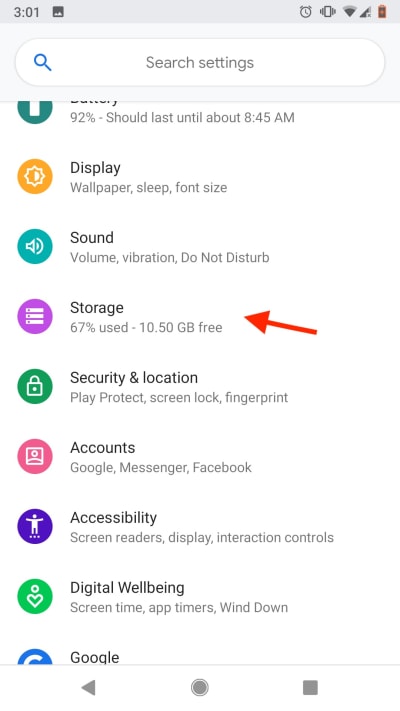
Once in the Settings menu, you’ll see a variety of options.

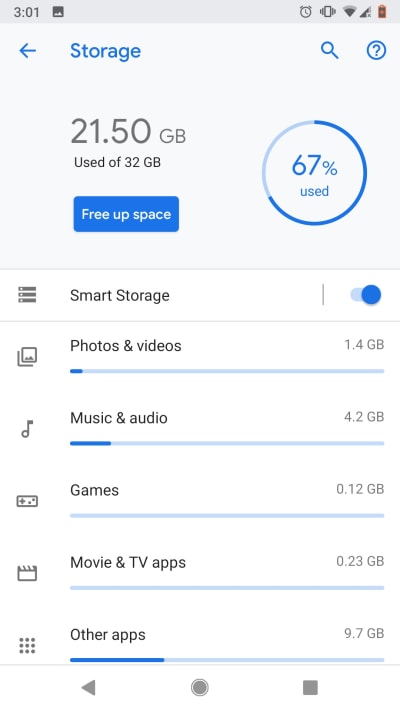
Scroll until you see the Storage menu, then tap it to access it. Here, you’ll see a detailed breakdown of exactly how your phone’s data is allocated. You’ll also see your installed apps broken down into different categories based on their function, such as “Games,” “Movie and TV,” or “Other apps.”

From this top menu, you’ll also see a shortcut labeled “Free up space.” If you want to quickly free up some of your phone’s memory, tapping this key will automatically purge any cache data that your phone considers to be unnecessary.

This can be a great option if you’ve noticed that your phone’s acting a little sluggish or if you just need to make a bit more space. If you’re having problems with a specific app or you want to have some more control over what data gets cleared, head to Step 3.

3. Choose your category

android cache storage breakdown

As stated above, all your apps are subdivided into certain categories. In general, most apps can be found in the “Other apps” tab. Click through the different categories until you find the app that you want to clear, then select it.

4. Choose how much data you want to clear

android app cache

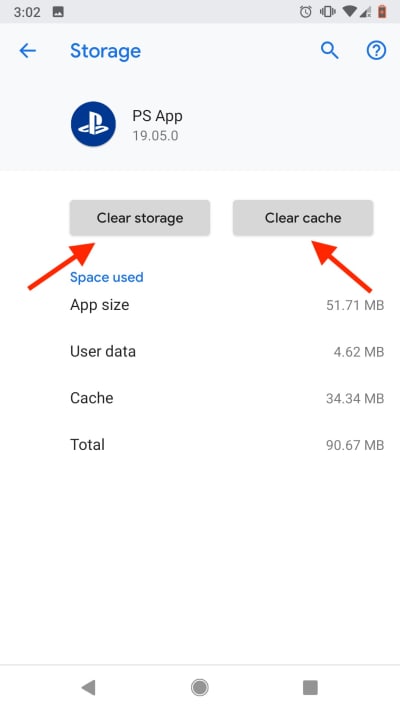
Once you’ve selected the specific app, a new menu will open displaying cache data pertaining to the app you’ve selected. At the top of the menu, you’ll see two buttons: “Clear Storage” and “Clear Cache.”

Tapping “Clear Cache” will get rid of any cache data associated with the app. This includes images and other saved content, meaning that the next time you use the app, it will need to connect to the internet to re-download any content it needs to function.

Usually, clearing the cache and re-downloading data like this will solve any problems if you notice an app behaving strangely.

“Clear Storage” will get rid of any and all data associated with the app, including data such as saved passwords or, in the case of mobile games, save data. If you have dozens of things unlocked in a game like Knife Hit, this probably isn’t the best option.

Wrapping up

Whatever the reason may be, clearing your cache is easier than it sounds. Whether you’re trying to clear space or fix a problem app, following these quick steps should clear things up in no time.

How to scan for hidden cameras at your Airbnb

Worried about spying eyes while staying at your Airbnb? These tips can help you out!

Hidden camera

Airbnb has changed the way we travel, offering the comforts of home and the ability to experience life as the locals do.

In recent months, an increasing number of reports have made headlines involving guests finding hidden cameras in their Airbnb accommodations. And no, that information was not disclosed to guests up front.

Most recently, a New Zealand family made headlines for spotting a hidden camera after noticing the device on the Wi-Fi network.

Creepy, right?

While it’s unlikely that most Airbnb hosts spy on their guests, reports like these do make the case for erring on the side of caution.

7

What does Airbnb allow — camera-wise?

Airbnb

Airbnb’s policy states that if you are a host and you have any type of security camera, active or not, it needs to be indicated in the House Rules section of your profile.

They also require that any recording taking place during a guest’s stay must be disclosed. Should the guest report an active recording, they can cancel the reservation and receive a full refund.

What’s more, Airbnb added an extra layer of disclosure before booking.

As of early last year, guests receive a pop-up before confirming the booking, informing them of any cameras on the premises and where they are located.

Guests must actively opt-in indicating that they understand that they will be filmed during their stay.

Hidden camera

The rule applies to any camera ranging from nanny cams to Wi-Fi cameras like Nest or Dropcam.

9

Violators may be subject to penalties, though the website doesn’t exactly lay out what those penalties are.

Airbnb’s trust and safety rep told The Atlantic that the company does try to filter out hosts who might engage in suspicious behavior. Airbnb runs their information through felony and sex-offender records before they can start hosting guests.

How can you scan for cameras?

There are a few things you can do to check for hidden cameras in your Airbnb rental.

Make a habit of following these few steps before checking for bedbugs to ensure that you’re not being watched during your next vacation:

Look for objects that seem out of place

Bear on shelf

Let’s start out with a low-tech tip taken from old school sleuthing. Scan your Airbnb for anything that seems “off” or out of place. This could be as obvious as a can of soda placed in the middle of the room or something more subtle.

Assuming your hosts are at least somewhat savvy, here are some common places you might find a hidden camera:

  • Smoke detectors
  • Stuffed animals
  • Shelves
  • Power strips
  • Night lights
  • Books or DVDs
  • Computers and their accessories
  • Holes in the wall

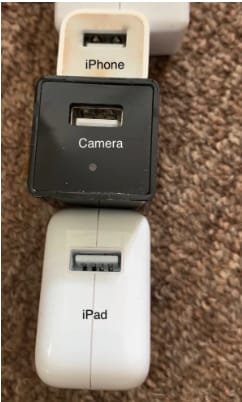
Do a sweep of these “everyday items” to see if anything seems sort of bulky or odd-looking. In this example below, you’ll notice that this USB plug seems a little bit larger than the norm — and what do you know — there’s a hidden camera attached.

Hidden camera in USB Consider the “best” angles for covering the room

Generally speaking, corners are the best place to place a camera, as you’ll get the widest view of the space.

The Barker family, from the aforementioned article, found their Airbnb’s camera in prime position, that wide angled corner.

barker family airbnb camera

You’ll also want to use common sense when scoping out the scene.

If you’re worried that someone is spying on you in the kitchen, chances are they’ll be viewing from above rather than in the baseboard.

If they’re trying to catch you in the living room, you might want to spend time looking at anything stored near the television or pointing at the couch.

Shine a light to pick up the reflection of any hidden lenses

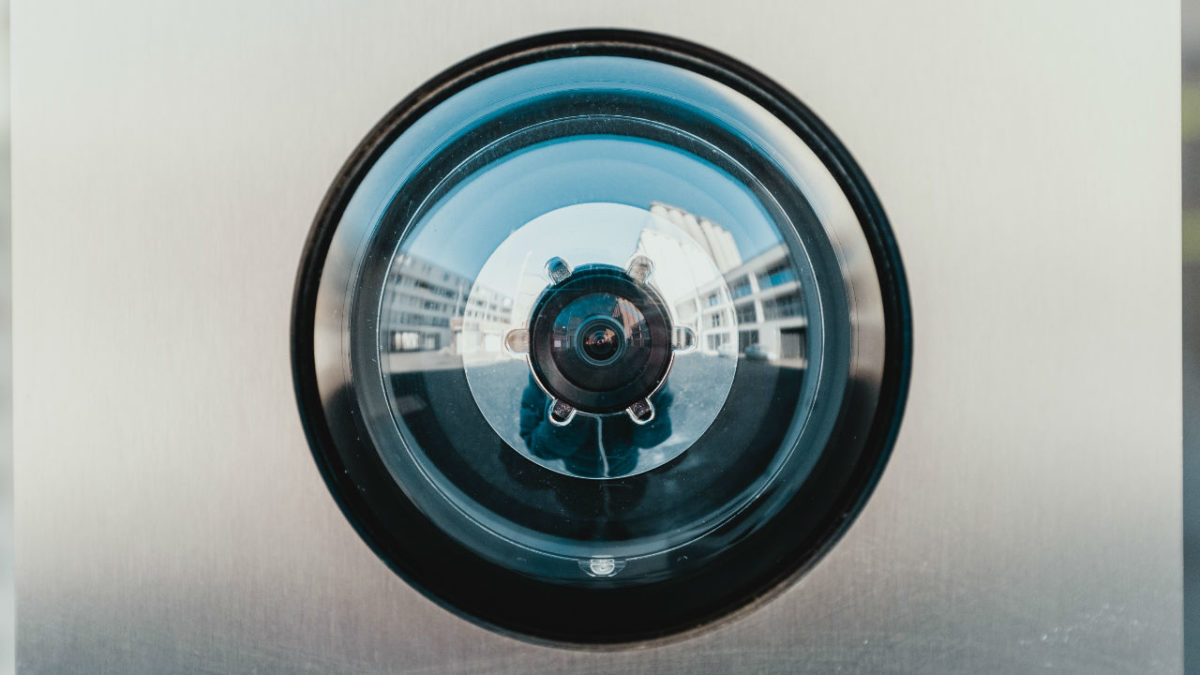
Lenses, being made out of glass, reflect light. Try doing a sweep of the room by shining a flashlight to scan for reflections.

Turn off the lights

Turn off the lights to check for hidden night vision cameras. Most hidden cameras have red or green LED lights that blink or shine in low light conditions, in an effort to supply lighting for better images.

Spot hidden smart devices by scanning for Wi- Fi connections

If you connect to the house Wi-Fi — chances are, the host has provided you with a network name and password. Once you’re in, open the network to see what other devices are connected.

Unfortunately, the camera will not be discoverable if it is not connected to the same network you’ve logged into.

Use a Wi-Fi checking app

Unfortunately, scanning with your eyes and flashlights alone won’t catch every hidden camera.

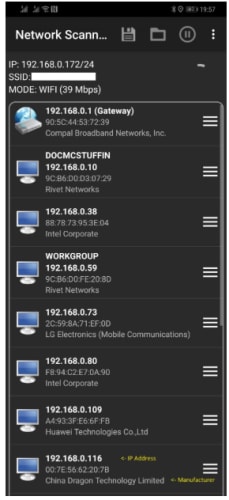
Luckily, there are plenty of apps designed for this express purpose. One example is Network Scanner, which displays IP and MAC addresses, as well as the names of the hosts on the local network.

network scanner find unknown devices

Or, another called Angry IP scanner, which also scans the network for devices, security threats, and more.

Angry IP Scanner Download Free ►
7

Just about every hidden camera the average person can buy relies on wireless technology to stream the footage to a remote location.

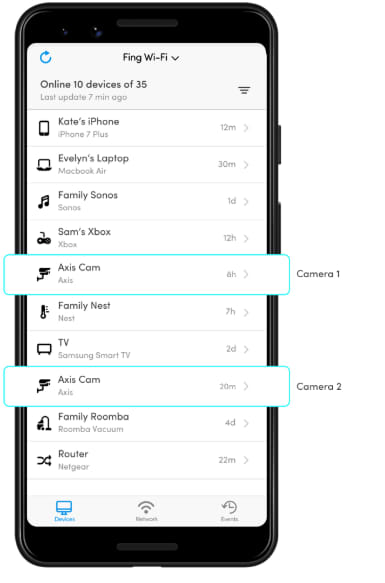
Smartphone users can download an app called Fing (available on iOS and Android) which is designed to help users “control their digital environment.”

While the app is primarily designed to help you troubleshoot network issues and keep your own devices secure, it can also clue you into peeping hosts.

Fing App

What should you do if you find a hidden camera in your Airbnb?

Any undisclosed cameras must be reported to both Airbnb and the host. Make sure you don’t move the devices and take pictures documenting the findings.

In the U.S., it’s fully within your rights to get the police involved, as undisclosed cameras are a criminal offense.

Still, hidden camera laws vary by country. If you’re traveling abroad, read up on local laws to find out if any recourse is available.

Wherever you are, hidden cameras violate the terms of the Airbnb host agreement, so make sure you report all you find.

Airport charging stations could give your phone malware

Think twice before charging your device in public.

Airport charging station

By 2019, you probably know it’s not safe to hop on the internet without a safety net in place: Anti-malware protection, a firewall, a solid VPN, and a secure password manager. We create quintillions of bytes of data every day, and it’s easy to make an innocent mistake that puts it at risk. Now that innocent mistake can include plugging your phone into a charger at an airport.

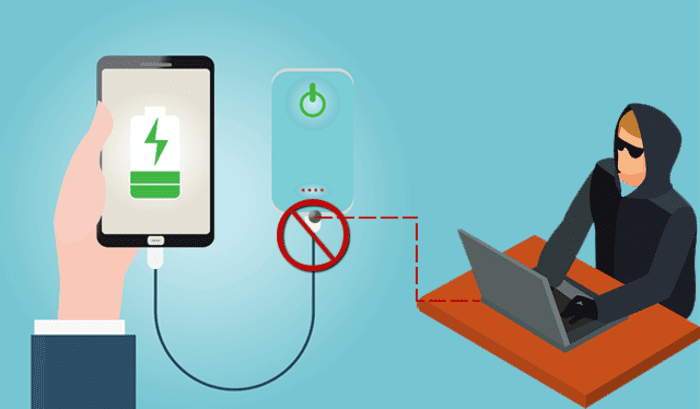
It’s no secret that public Wi-Fi can be sketchy at best, and while it’s convenient to charge your phone at the nearest port, it’s not necessarily safe. Free public phone chargers can be used to secretly install malware on your device, malware that can eat up your data in a process called “juice jacking.”

What’s juice jacking?

It sounds like tinfoil hat propaganda, but in reality, it’s an underrated but serious security threat. ‘Juice jacking’ was coined back in 2011, and refers to a hack attempt that uses public charging terminals to install malware on your device. It does so covertly via USB charging port, and it copies your phone’s data, pictures, and email into someone else’s hands.

juice jacking
Hackers can use public USB charging terminals to copy your personal data

“All they really need to do is load malware on the USB port,” explains IBM cybersecurity expert Charles Henderson. It’s unlikely you’ll even know it’s happened until it’s too late. “There’s really no way to tell,” says Henderson. “You really have to be extremely technologically savvy to detect such an attack.”

3 easy solutions to stay safe in airports

1. Use a portable charger

The best thing you can do is avoid airport charging terminals altogether. These days it’s not too hard to get your hands on a cheap, reliable portable charger. It’s a safe, convenient way to keep your phone charged and ready to go without putting your data at risk with a public outlet.

2. Use an electrical outlet instead

It should also be noted juice jacking can’t be done unless it’s via USB, so as long as you opt for an electrical outlet instead you’ll be safe.

3. Turn off your phone first

Lastly, if you’re in a situation where you’ve got no choice but to charge with a public USB port, completely powering off the device beforehand will prevent the download and transfer of your data.

Luckily, preventing your phone from being juice jacked is pretty easy. Just remember that any time you use public charging stations or Wi-Fi, your online activity could be at risk. Follow these easy steps, and stay informed!

5 apps to help you reduce your carbon footprint

With the ever-present threat of climate change, here are some things you can do to reduce your carbon footprint.

Polar bear

Sometimes we need a kick in the pants to inspire us to do more to save the planet. Sadly, sometimes it can be something like a clip from “Our Planet,” a new Netflix documentary series.

The clip below shows a walrus trying to climb a cliff to reach other walruses. The walruses don’t have much ice to live on anymore, so it has to settle for the cliffs. Viewer discretion is advised for this video:

Whether you consider yourself an environmentalist or not, we can all agree that we want to keep the planet healthy. Unfortunately, parts of our day-to-day lives have negative repercussions to our climate.

We compiled a list of some of our favorite apps that can help you reduce your carbon footprint and more.

JouleBug

Joulebug appIt’s sometimes hard to know where to start when it comes to reducing your carbon footprint. Most of us know that recycling and car-pooling are good options, but where do you go from there?


JouleBug offers different tips and tricks on how you can form more sustainable habits and better utilize resources.

You can also track your results to see the impact you’ve made to your carbon footprint and the money you’ve saved.

8

CleanSpace

You’re in your car out for a drive when suddenly a smell slaps you in the face. As you pass a refinery, you now have to deal with breathing in noxious fumes.

CleanSpace lets you know the amount of pollution in the air, whether you’re indoors or outdoors. It will also show you the best route to take in order to avoid highly polluted areas.

Where the app truly helps the planet is by showing you the amount of pollutants you are adding to the air from your own commute. 

CleanSpace Download today ►
7

HappyCow

Happy Cow

If you’re looking for eco-friendly food, finding a restaurant or store that vegan options can be difficult. HappyCow alleviates that burden by finding them for you.

Whether you’re looking for a quick fast-food meal or if you need a hotel with vegan accommodations, HappyCow is there for you.

HappyCow is essentially the Yelp of the vegan community. You can leave your own reviews and tips for the next patron to better their experience. The app also helps you plan your diet or weight-loss journey.

Carbon Footprint Calculator

From your home’s central heating to the emissions from your car, you are producing a lot of carbon dioxide. The problem is that it’s hard to tell just how much.

Enter the Carbon Footprint Calculator app. Through this app, you enter your information to determine your carbon output. You enter info like what kind of car you drive, how often you drive it, and information on how much you spend on heating.

The app also sets goals for you to reach as well as tips to reduce your carbon footprint. Tips can be as simple as making sure your lights are turned off. 

Carbon Footprint Calculator Download Free ►
7

PaperKarma

PaperKarma

Wanna know what’s cool? Saving the planet. Wanna know what’s also cool? No longer getting junk mail.

Every year 85 billion pieces of junk mail end up in landfills across the country. PaperKarma offers the solution to lighten the load so you can stop getting unwanted junk mail.

Simply snap a picture of the mail and PaperKarma will automatically get you off that company’s mailing list.

PaperKarma can stop magazines, fake offers, catalogs, and even the Yellow Pages from showing up in your mailbox.

Say goodbye to unwanted credit card offers, and hello to your empty trash bin.

Wrapping up

If you are looking for more information about climate change and what you can do, we have the solution. Click here to see our solutions for reinforcing good habits on climate change. 

The fight against climate change is ongoing, and it needs your support. Using these apps can give you a leg-up, as well as help with your own personal self-improvement.