
How to fix a slow computer

Is your slow computer driving you crazy? Try out these tricks to make it run faster!

Slow computer

When you’re just trying to get some work done, or blow a few hours surfing the web, a slow-moving computer can throw a wrench in your plan.

Before throwing your computer out of the window in a fit of rage, try out these tips. There are plenty of quick, free, and easy methods to make your computer run faster. 

How to fix a slow computer

Restart your computer/check start-up programs

Although this advice is annoying, there’s a lot of truth to it. It could be that your computer has been on for too long, and it needs to restart. Shut down your computer and start it back up. About 99% of the time, this will solve your problem.

If your computer is still running slow, it’s time to look at what programs automatically start when you log into your computer. It’s pretty common for antivirus programs and messaging apps like Skype to open automatically. Essentially, while you’re trying to open up something like your web browser or a program for work, your computer is too busy trying to open five other programs.

Here’s how to check your start-up programs on Windows 10:

  1. Go to your Start menu and type “run.”
  2. Choose the “Run” app.
  3. In the window that pops up, type “msconfig” and hit “open.”
  4. In the next window that pops up, you’ll be able to see what programs start automatically, and disable them.

Here’s how to do it on Mac:
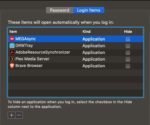
Mac Login Items

  1. Open System Preferences
  2. Click to “Users & Groups”
  3. Choose your nickname on the left
  4. Choose the “Login” tab
  5. Click the startup programs you want to remove
  6. Press the “–” sign

This is also a good opportunity to reinstall Windows. All versions of Windows get regular updates unless they’ve been discontinued, so updating or reinstalling periodically will keep your computer running smoothly.

Regularly scan for viruses

Maybe you downloaded something you shouldn’t have downloaded. Maybe you went to a shady website. Maybe you clicked on something with malicious intent. Whatever happened, there’s a good chance that you have a virus. 

Luckily, most of the time, getting rid of a virus is both quick and free. Download an anti-virus program like Malwarebytes and scan your computer.

Malwarebytes Download now ►
8

Malwarebytes will scan your computer entirely and will quarantine off everything that might be harmful.

To be completely honest, you should run a weekly virus scan anyway. A lot of the time, there are viruses that are running in the background of your computer. They are stealing personal information like passwords and are sending them to hackers. Weekly virus scans can solve this problem easily.

Check to see how many programs are running
Multiple programs

Your computer is capable of running all sorts of programs, but it can be difficult to run multiple programs at once, especially if you have an older model. 

If you have a Mac, go to Force Quit (under the Apple menu in the upper left corner) and you’ll see every program you have open. If you run Windows 10, hit Ctrl+Alt+Delete and open the Task Manager to see everything that’s open.

If your computer is running Steam, Photoshop, Google Chrome, Microsoft Word, InDesign, Microsoft Excel, and VLC all at once, you should probably close some of those.

Check your computer’s memory/storage

computer memory

Check your computer’s storage. If you are full or nearly full, it can cause your computer to run a little slow. If you can’t or don’t want to delete anything, find a cloud service to store your files. You can also use Google Drive! If you REALLY want to, you can buy an external hard drive, but why do that when there are free options!

7

There’s a bit of a misconception with this tip.

If you have a bunch of small photos from your trip to Cancun or Word documents from your English 105 class, those probably aren’t going to slow down your computer.

Your computer probably has a minimum of 100 gigabytes of storage, so deleting a file that’s 20 kilobytes is not going to make a difference at all. 

However, if you have a lot of huge game files, HD video files, and a ton of useless programs, you might want to consider dropping some of those. Don’t worry about temp files; worry about large files and your drive space.

Run disk defragment and disk repair

Disk defragment and disk repair can keep your computer running properly and make it run quicker. 

To run disk defragment on Windows 10, follow these steps:

  1. Go to “This PC.”
  2. From there, right-click your hard drive and click “Properties.”
  3. Go to “Tools.”
  4. Click “Optimize,” and then click “Optimize” again.

Mac doesn’t have a built-in tool for defragment, but a third-party app like this one can help you!

7

Disk clean-up is really easy to do on Windows 10:

  1. Type “Disk Cleanup” in your search bar, and click the app with the corresponding name.
  2. Click the option to clean up system files.
  3. Once the scan is done, delete the files the app suggests you delete.

Once again, Mac doesn’t have a built-in tool, but we have another third-party app that can help you out:

Disk Cleanup Pro for Mac Download now ►
9

Bite the bullet and buy a new computer
New computer

Although expensive, computers are very disposable.

You can buy a pricey, fancy-schmancy computer and it could be considered low-tech garbage in just a few years. If you’ve been using the same computer for a few years, it might be time to put some money aside to get a new one. 

Yeah, yeah, yeah. That’s easier said than done. If you need some help managing your money to buy a computer, that’s a whole different story. 

Wrapping up

Hopefully, by the end of this article, your computer is running faster. If you tried something else and it worked, let us know in the comments below!

How to find the temperature of your computer’s CPU

Find out the temperature of your computer’s CPU.

overheating computer

Knowing the temperature of your CPU is critical. An overheating computer can cause problems as serious as blockages, spontaneous reboots, and even disable hardware pieces.

If your computer seems to be acting weird or running slightly hotter than usual, don’t leave it to chance! Check as soon as possible that the temperature of your CPU is within normal ranges. If it’s not, it’s time to take action to ensure everything is functioning properly.

How to find the temperature of your computer

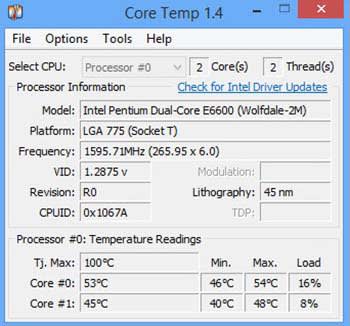
The first method we recommend to find the CPU temperature is by using the free Core Temp program.

Core Temp Download now ►
7

IMPORTANT: Be sure to uncheck any box that invites you to install any other program during the installation of Core Temp.

Core Temp

With Core Temp installed, open the application. From the main window, you can see the temperature of your computer’s CPU.

Find out with HWiNFO32

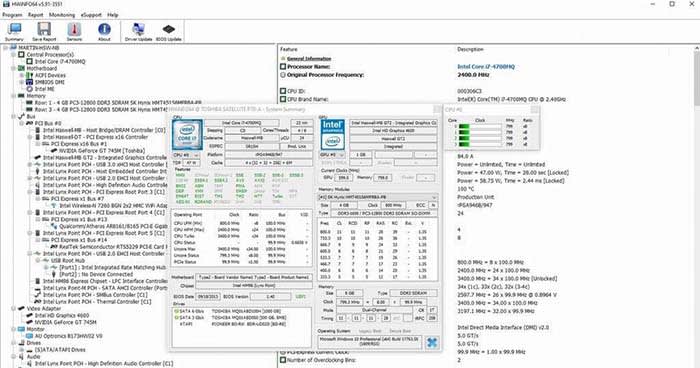
If you’d like another option, we have another really useful free program. HWiNFO32 is a powerful and light application that will let you know the temperature of each component with just one click.

HWiNFO32 Download now ►
8

With HWiNFO32 installed on your computer, open it up. Compared with Core Temp, HWiNFO32 offers much more info. It not only offers info on the CPU temperature but also on the graphics card, hard drive, RAM, and even the fans.

HWiNFLO

What temperatures are normal?

Now that we know the temperature of the processor of our PC, it’s time to know if it is in the danger zone.

  • Below 60º: Everything is in order; your equipment works correctly.
  • Between 60º and 70º: The temperature is still between the acceptable ranges, but keep an eye on it.
  • Between 70º and 80º: Your computer is overheating. Check to see if your fans are working.
  • More than 80º: Your equipment is in a dangerous temperature range.

What do I do if the temperature is too high?

If the temperature of your processor exceeds the normal range, it is best that you take action as soon as possible.

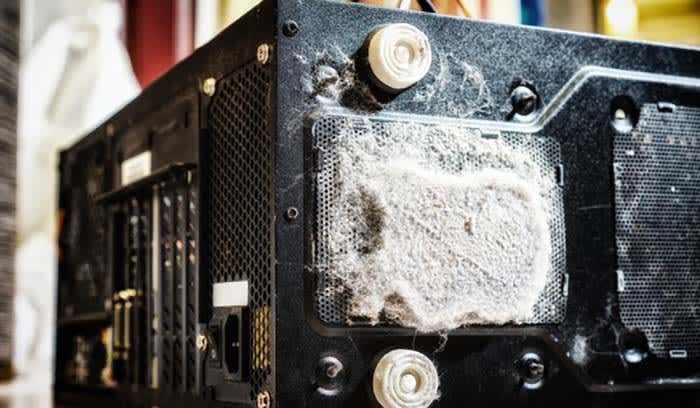
One of the most common recommendations to lower the temperature of a computer is to clean its components and fans. The accumulated dust and dirt tend to increase the temperature.

CPU fan

If you are a laptop user, in addition to cleaning the fans of your computer, you should buy a base so that it cools more efficiently.

If your computer only seems to overheat when you use a certain program, stop using that program. Your processor is not powerful enough to support the application, and it is advisable to stop using it and not risk ending up with unused equipment.

What is God Mode in Windows and how do you activate it?

Find out what God Mode is and how it can make Windows even better.

If you spend as much time clacking away at a keyboard as we do, then you’ll be glad to learn any tricks of the trade to speed up your work. A fast operating system is one thing, and there are several ways you can speed up your actual computer, but speed is also user-dependent, and there’s nothing quite like wielding the might of Windows God Mode.

Windows 10 Download Windows 10
8
The latest and greatest version of Microsoft's operating system.

What is Windows God Mode?

“God Mode” is one of the lesser-known quirks of the Windows OS, and no, it doesn’t give your operating system super powers or unlock any hidden features. Rather it’s a way to super easily lump a ton of commonly-used processes into one convenient window.

The window will let you quickly access all manner of backup and restore options, administrative privileges, and other handy management settings. With God Mode, you won’t have to search beneath a dozen default folders and windows settings just to find a simple function like “connect to a network” or “uninstall a program.”

Here’s how to set it up in 3 extremely easy steps:

Enabling god mode in Windows

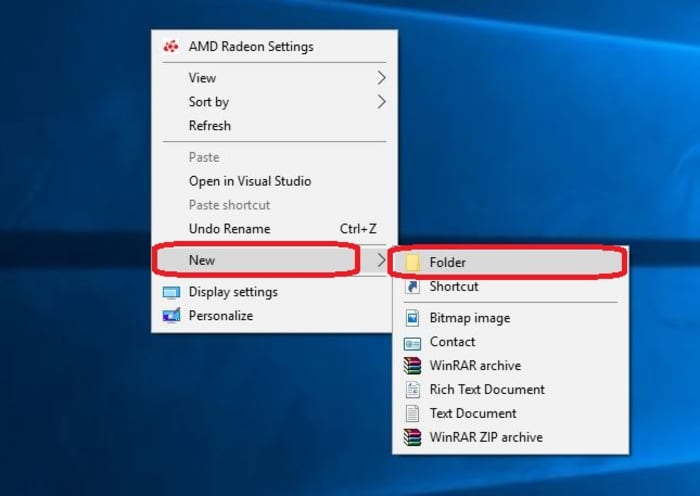
1. Create a new folder

For a function called “God Mode” it sure has humble beginnings. To start, create a new folder. Right-click on your desktop and select ‘folder‘ under ‘new‘ and an unnamed folder will pop right into view.

Create new folder Windows 10

2. Name the folder

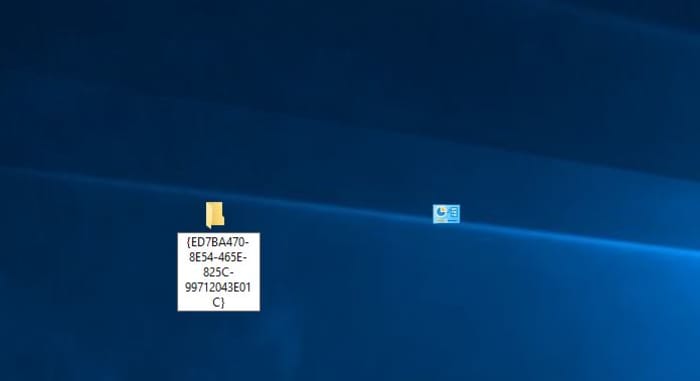
The key to creating God Mode is simply in the naming of the folder. Copy and paste the following right into the folder name:

GodMode.{ED7BA470-8E54-465E-825C-99712043E01C}

Once you’ve renamed the folder you should notice that the folder icon will change to a control panel icon immediately. You can place this new windows master control panel shortcut wherever you like.

Windows 10 God Mode icon change
Rename your folder and the icon will immediately change

3. Open the folder

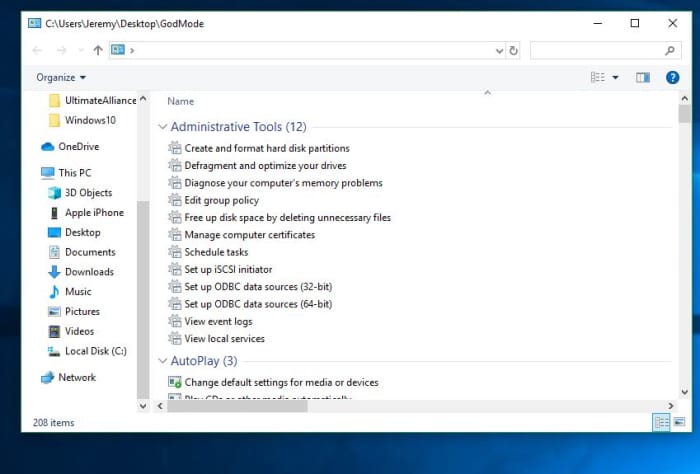
Double-click the god mode folder and it’ll open a window with a ton of utility tools. The categories are all listed in alphabetical order, so it should be easy to find whatever you’re looking for.

Windows 10 God Mode window
A new omniscient view

Congrats! You now have a special folder that serves as an incredibly useful shortcut for accessing all manner of tools and programs within your version of Windows. You can also drag-and-drop any of the shortcuts from the list right onto your desktop. This lets you access your most-used programs on the fly. Enjoy your new streamlined Windows 10 experience!

Let us know in the comments below whether you’ve found God Mode as useful of a feature as we have, and stick with Softonic for the latest in Windows tips and tricks!

Microsoft forces Windows 10 users to version 1903

Like it or not, you’re going to have to change to a version with some problems…

Windows 10

Windows 10 updates are like fast food: There’s waiting involved, there’s miscommunication, there’s trepidation, and you already know going in that there’s going to be issues with it. Oh, and when you open the lid it never looks as good as it did in the picture.

Windows 10 Download Windows 10
8
The latest and greatest version of Microsoft's operating system.

It’s been a rocky year for Windows 10, and updates that sound great before you install them turn out to be yet another minefield. It’s no surprise that many users don’t want to update at all, or choose to hold off until the last minute out of mistrust. You can only get burned so many times. Microsoft’s also gotten a lot of flack for being annoyingly insistent when pushing their updates (even when users opted out of receiving them). The company has recently acquiesced and made updates starting with 1903 optional (unless a version you’re on stops being supported), but surprise, surprise – this build has issues, too.

Good-bye, 1803

A Windows 10 version wouldn’t be complete without some kind of roadblock, but that’s not the red flag today. It’s that Microsoft has begun pushing its 1803 users on to the troublesome 1903. Starting on November 12, 1803 will no longer be supported, so 1903 will be the only way to go from that point on. This forced update is hitting Pro and Home editions already “to help ensure adequate time for a smooth update process,” the company claimed in a support document.

Why Microsoft is pushing 1903

As for why the company is making such an aggravating decision, they’re presenting the same argument as usual: “Keeping these devices both supported and receiving monthly updates is critical to device security and ecosystem health.” In other words, if you’re not on the latest patch, you’re not receiving the latest protection. It sounds logical until you consider the new problems that 1903 brings with it.

The problem with 1903

There’s a litany of issues with the 1903 build that are still being investigated, such as:

  • An unresponsive display brightness
  • Graphic issues with some of its apps and games
  • A black screen that pops up when you initiate Remote Desktop connection
  • A literal error message that pops up when you try to start up the Windows Sandbox

For a full list of problems you might run into, check out Microsoft’s bug list here. According to Microsoft’s own news site, there are more than 800 million devices that use Windows 10, an estimated half of which will be affected by the aforementioned flaws.

We see what you did

The switch to 1903 won’t become mandatory until November, but it’s the principle of it that bothers us: For a hot minute there, we thought Microsoft was listening to its users. Not having to update until your current version isn’t supported anymore? Very cool. But it won’t matter if they start cutting support for older versions earlier! Nice loophole, guys.

Stay tuned with Softonic for more info about 1903 as it’s made available, and learn what steps you can take to keep your OS healthy.