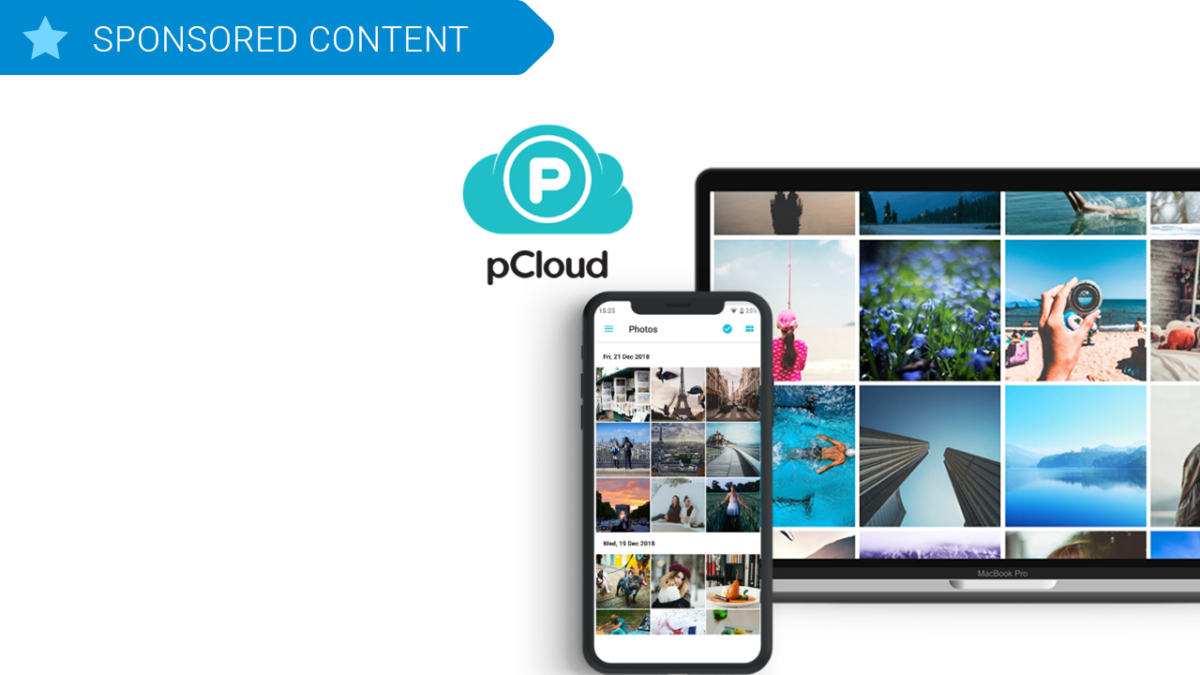
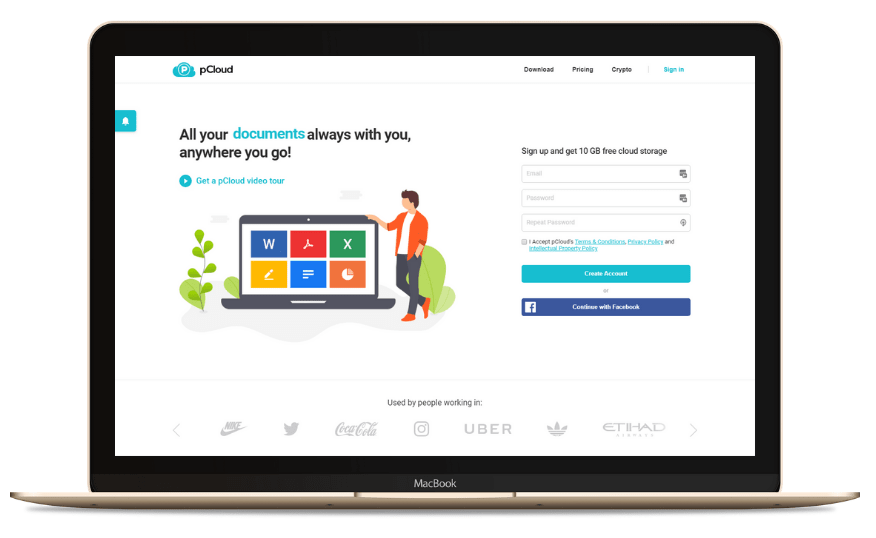
pCloud is a cloud storage platform for all your files and folders, available through mobile, desktop and web client. Get 2TB of memories in the cloud with pCloud.
The cloud helps millions of us work, study, and play. How often do you use it? I bet almost every day. From sharing photos to collaborating with friends and colleagues, without the cloud, life would be that little bit harder for all of us.
Familiar cloud storage names like Dropbox, OneDrive, and Google Drive are pretty good at what they do, but here at Softonic, we’re always looking for the best. We love new and innovative ways of tackling old problems, and that’s where pCloud shines.
2TB of memories in the cloud for a lifetime with pCloud
GET IT NOW!
Founded in 2013, pCloud is making huge strides despite a saturated market. They have over 9 million users, including employees of Coca Cola, Uber, and Nike – an impressive roster that reflects the platform’s enormous benefits.
So let’s find out what makes pCloud so special. You might even want to make the switch yourself…
Your files whenever you need them
pCloud is a cloud storage platform for all your files and folders, available through three different applications:
- The web client
- The mobile app
- The desktop app
While you can use pCloud with all of your devices through the web client alone, I recommend you also download the mobile and desktop apps for their additional features.
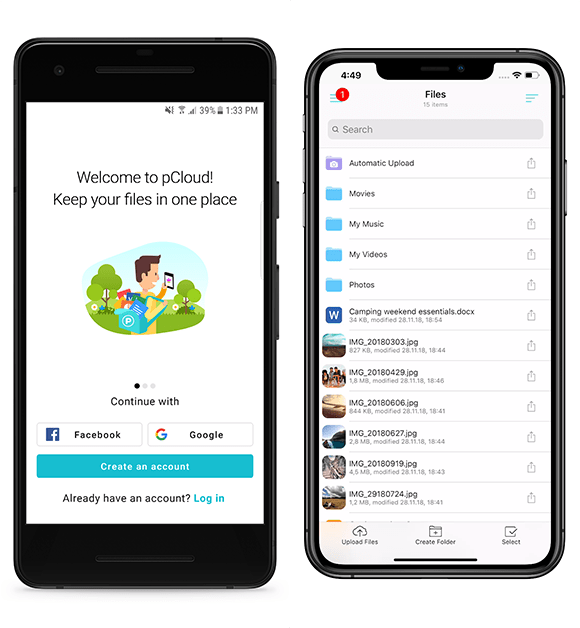
The mobile app, for example, includes offline file access, letting you select files you want to store locally on your device so you can access them without an internet connection or mobile data signal. Great for watching movies or listening to music on-the-move.
The desktop app seamlessly integrates into your workflow by creating a virtual hard drive on your machine. You can then use pCloud just like an additional hard drive with full synchronization between your computer and the cloud.
Upload from absolutely anywhere
One of pCloud’s greatest strengths is its upload system, which is faster than Dropbox (watch the video here), easy, and convenient.
As well as being able to upload from any device, you can also backup files from other cloud storage platforms. So if you’re making the switch from Dropbox or another storage platform, you can do it all quickly within pCloud.
2TB of memories in the cloud for a lifetime with pCloud
GET IT NOW!
pCloud can also create an upload link for others to send you files. Don’t download from their cloud account and then upload to pCloud, instead, send them a link to your pCloud account and they can upload the file directly. This makes sharing content much faster and easier to organize, since you cut out a redundant process.
Best of all, you can even upload files direct from other internet servers with Remote Upload. If you want to upload a photo hosted on Flickr, for example, simply enter the file URL and it will upload directly from the server to your pCloud account. There is even a browser extension for uploading webpage content.
Share and collaborate with anyone
Gone are the days when email attachment limits prevented you from sharing large files. Today, we share download links so others can enjoy our content, and pCloud does this really well.
First, you can password-protect download links so only the right people can access your files. You can even set an expiration date so that after a certain amount of time, specified by you, the link won’t work anymore. Privacy is a sacred thing, nowadays, and pCloud has got your back.
Once someone receives your download link, they don’t need a pCloud account to view or download the content. They can stream videos, listen to music, or edit files with the pCloud link alone. Since pCloud doesn’t force you or anyone else to download the application to access content, it’s ideal for sharing with large groups of people.
Finally, If you’re a social media influencer or have a business audience you’d like to share content with, branded links through pCloud are easy and free to make. Add your personal brand to download links by including a heading, title, and image. Adding a professional edge to your links could result in more clicks (which you can also track in pCloud).
Protection from theft, damage, or accidental deletion
If you want best-in-class security protection for your files, add pCloud Crypto to any pCloud plan. This feature encrypts files on your device and then uploads the encrypted versions to pCloud servers. You alone can decrypt your data using your Crypto Pass, which protects your files from prying eyes. Not even pCloud can see your content.
For those of you worried about losing data or making unintentional changes, pCloud Rewind allows you to revert your files to a previous state within 15 days on the free plan and up to 30 days on the paid plans. You can also extend this further with the Extend File History paid-for add-on. Think of it like a massive “undo” button for your files that could save you from making costly mistakes.
How much does pCloud cost?
If, by now, you’re realizing how useful pCloud can be, then you’re probably wondering about pricing. Well, you’ve got three main options:
- Get pCloud FREE and enjoy 10GB of FREE storage. This is a nice introduction to pCloud, but that storage space will be eaten up in no time.
- Get pCloud Premium and enjoy 500GB of storage FOR LIFE for a one-off payment of $175. A flexible storage buffer for life, but is 500GB really enough for you?
- Get pCloud Premium Plus and enjoy 2TB of storage FOR LIFE for a one-off payment of $350. A huge virtual drive with enough space for thousands of pictures, movies, and hours of music – you might never run out of space again.
pCloud Premium Plus is our easiest recommendation yet. 2TB for just $350 is incredibly good value for 99 years of storage – you’d spend more than that in two years on Dropbox’s monthly plan (99 years on the Dropbox 2TB monthly plan works out at almost $20,000!).
So if you’re looking for the best value cloud storage platform, with all the flexibility and features required of our digital age, get the pCloud Premium Plus 2TB lifetime plan today.
2TB of memories in the cloud for a lifetime with pCloud
GET IT NOW!