Google Drive improves its search filters on iOS

Google Drive, the well-known Google service that stores and manages files and content through cloud services, has announced new improvements focused on iOS users. To be more specific, these improvements will allow users to use higher quality search filters.

This improvement may not be revolutionary, but it is still the type of update that many users appreciate, as it implies an improvement in the quality of life in a service that, on a daily basis, handles a large amount of traffic.

Google Drive Download

Drive takes a step on iOS

As Google has recently revealed on their blog, Google Drive has improved the service it offers to iOS users by providing them with a significantly noticeable enhancement for file management through search filters. With this improvement, Google’s service will make it easier for users who wish to search for specific files stored in their Google Drive account.

In addition to that, Google has also improved the speed of the service, allowing for a more comfortable and seamless use that, even if it’s just a few seconds, usually represents a great leap in quality in the user experience. That, combined with services like scanning, and many others that the application has, makes Google Drive one of the most attractive free options for cloud services in the market.

Drive and cloud service

It has been more than a decade since cloud-based services started to become popular. Companies like Apple, in fact, made an intense campaign to advertise their cloud services in the past, and Google Drive did the same, offering a high-quality storage service completely for free.

However, cloud service also had other popular players, such as the case of Dropbox, an independent system that you could use without having to rely on Google and Apple services, and offering a useful alternative to synchronize files without the need to transfer them through cards, USB drives, and other storage-focused peripherals.

Google Drive Download

Meet Microsoft Loop: The Next Big Thing in Productivity That Could Replace Notion

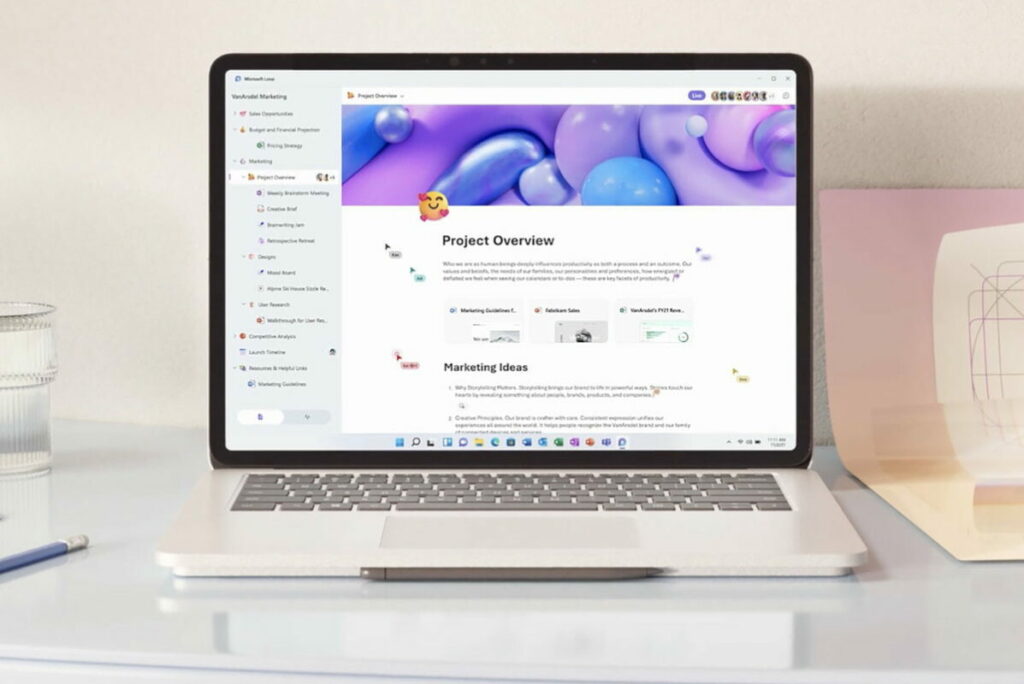
Loop is like the evolved version of Google Docs: it is a collaborative work tool in which up to 50 people can act at the same time.

After the success of Notion, it was only a matter of time before Microsoft wanted to come up with its own version: conceptualized in the midst of the worst of the pandemic to streamline remote work, Loop has finally been released in a trial version so that we can familiarize ourselves with this new way of understanding teamwork, the different functions and the differentiation between environments. Not clear on what Loop is? Don’t worry: we’ll explain it to you.

Going round and round

Loop is like an evolved version of Google Docs: it is a collaborative work tool in which up to 50 people can work at the same time (although it is recommended for groups of between 2 and 12 people so as not to cause chaos). The best thing is that you can create as many different environments as you want… And divide them among the different groups.

Microsoft Loop DOWNLOAD

You could, for example, set up an environment for brainstorming with the creative team, another to make business decisions with the shareholders and another to see what meal you order on Friday with all the employees. Each one divided by users, but all in the same workspace, so you can switch between them with a simple click: you will have the possibility to manage as many projects as you can handle in the same space, with different people and in real time.

Some examples of things you can create in Loop with just two clicks: voting tables where you can add the pros and cons of each decision, track the progress of different areas, reward the best ideas with emojis, add multimedia material or, of course, write lists of all kinds. All this using Copilot, customized to your needs and totally free of charge. And the best part: this is just the beginning, and it will most likely grow even more by adding templates from outside Microsoft. The possibilities are endless.

The idea is that you have everything in one place, without the need to rummage through Google Drive or your files: in a single space you can find everything you need for your day-to-day life. Not only work documents, but also, for example, lists of your collections, travel plans or scripts for podcasts. All at the same time, in the same place.

Please note, however, that the app is not yet available on Android and iOS only via Test Flight until the trial period is over. In the meantime, all you need is a Microsoft account to start experiencing the future for yourself.

32 Google Document Templates

Having a good word processor at hand at all times is essential both in the workplace and in education. While Microsoft Word is the undisputed king of the industry, the high price of the Office or Microsoft 365 office suite makes many opt for an equally good and free option: Google Docs. Google Docs includes all the necessary tools so that you can create professional documents in just a few seconds without spending a penny.

In today’s article we are going to offer you a selection of the best free templates for Google Docs. To help you find them easily, we have divided them according to the type of document you are looking for. You will be able to download free templates for resumes, reports, invoices, quotes… In addition, we will also show you how to install the templates so that you can start using them in a few seconds. Here we go!

Google Docs DOWNLOAD
9

What do I need to use Google Docs?

Accessing Google Docs is very simple. As we have already mentioned, Google’s word processor is completely free and to make use of this tool you only need to have a Gmail account. If you are already a Gmail user, you can start using Google Docs from Google Drive or directly from its website.

Don’t have a Gmail account yet? Don’t worry, creating one is totally free and very simple. All you have to do is access its official website and follow the steps that appear on the screen.

Página oficial de Google Drive

How to use the list templates

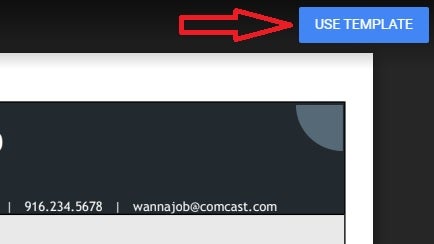
Using our collection of Google Docs templates is very simple. There are two types of template in our selection. The first one will show you the template in preview mode and, after clicking the blue “Use Template” button, a copy will be created in your Google documents.

Utilizar plantilla en Google Docs

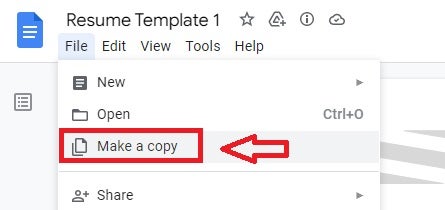
The second one will show the template in protected mode and in order to edit it we will need to copy it to our account. To do this click on “File” followed by “Make a copy”. After that a duplicate of the template will be generated in your Google account so you can edit it as you wish.

Utilizar plantilla de Google Docs

Free Resume (CV) Templates

No matter how well prepared we are, getting a job is always a challenge. There are usually hundreds of applicants for the same position. Our best weapon? Undoubtedly a good CV. These are our letter of introduction when it comes to getting a job and an effective method to stand out from our competitors.

Below these lines you will find a great selection of free templates to make resumes.

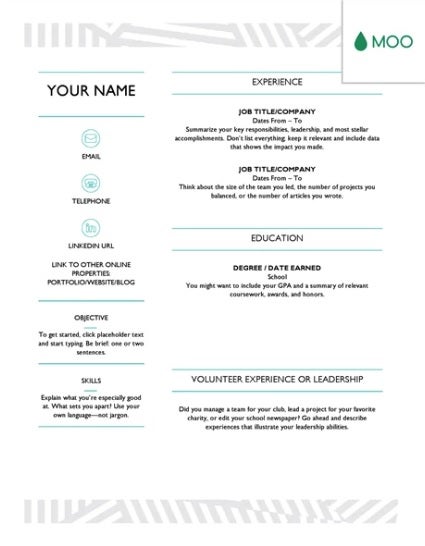
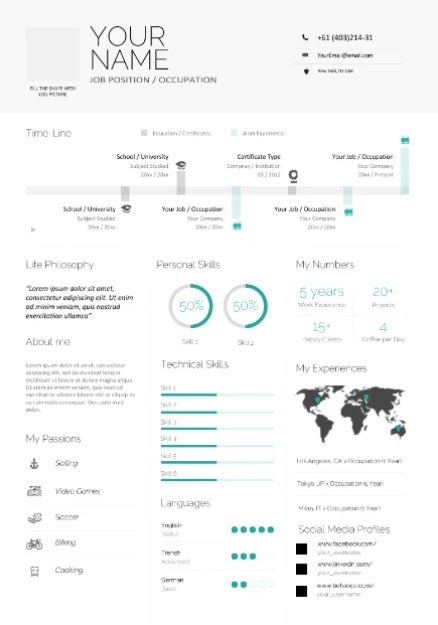
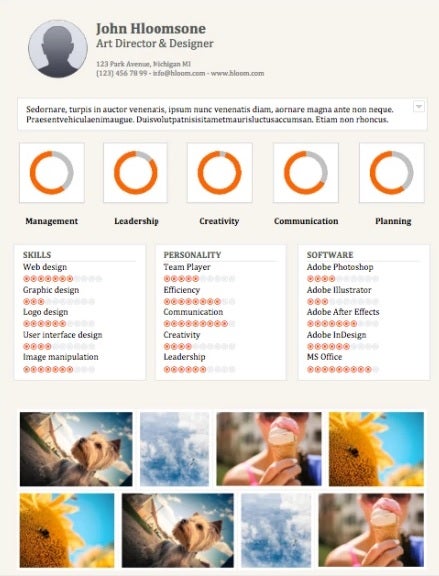
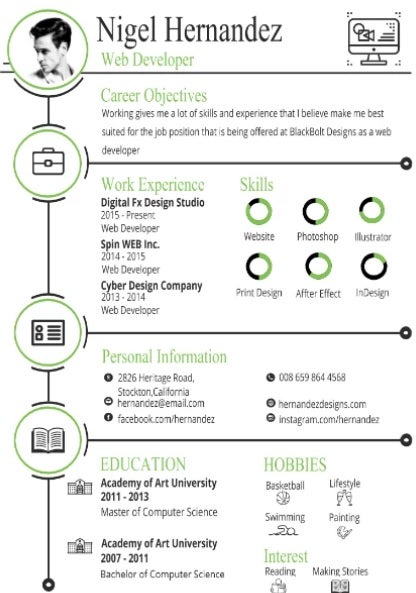
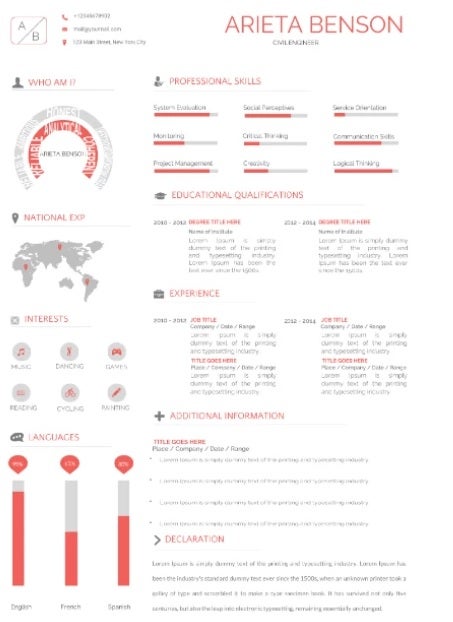
1. Moo Resume

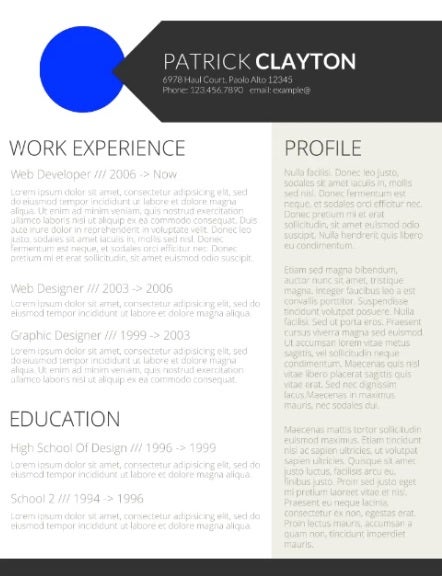
2. Smart and professional resume

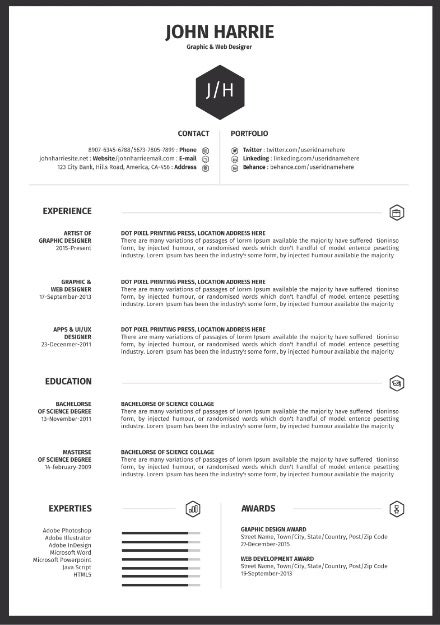
3. The Clean CV

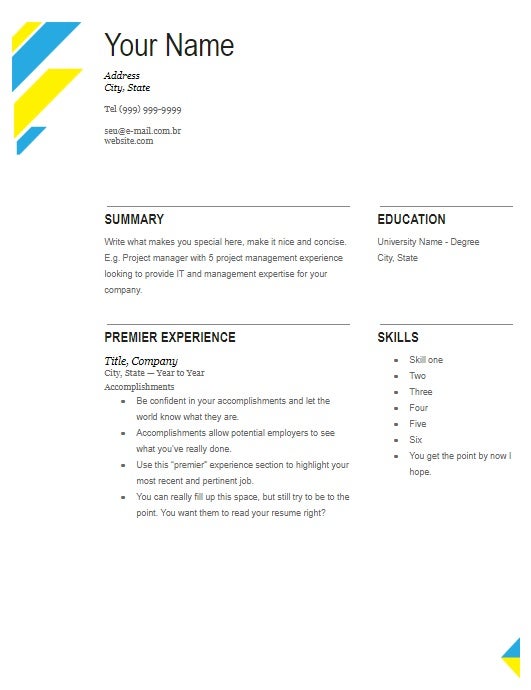
4. Creative Two Page Resume

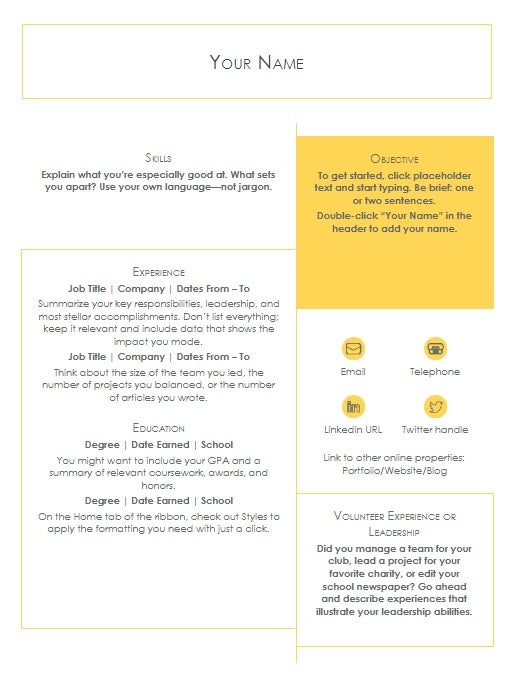
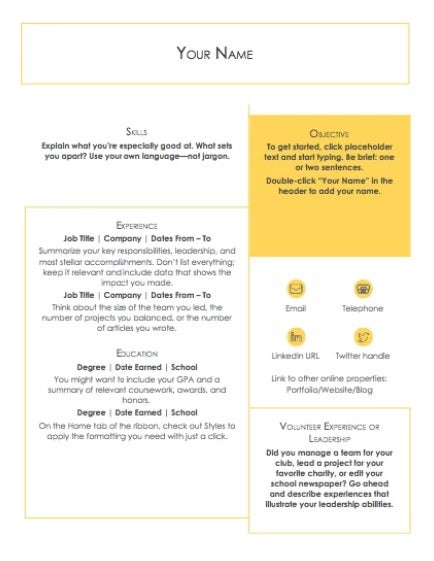
5. Resume with Boxes

6. Infographic Resume

7. Circles Resume

8. Minimalistic Infographic Resume

9. Professional visual resume

Free cover letter templates

Another decisive factor when it comes to getting a job is to accompany your resume with a cover letter. It demonstrates not only interest in the job but also conveys professionalism. A good cover letter will undoubtedly attract the attention of the HR team and tip the balance in your favor.

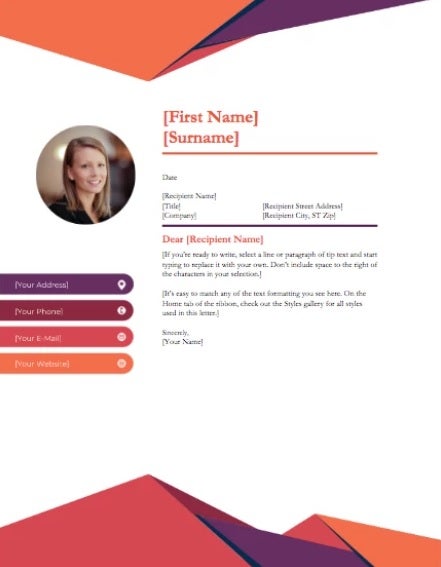
1. Contemporary cover letter

2. Crisp and clean cover letter

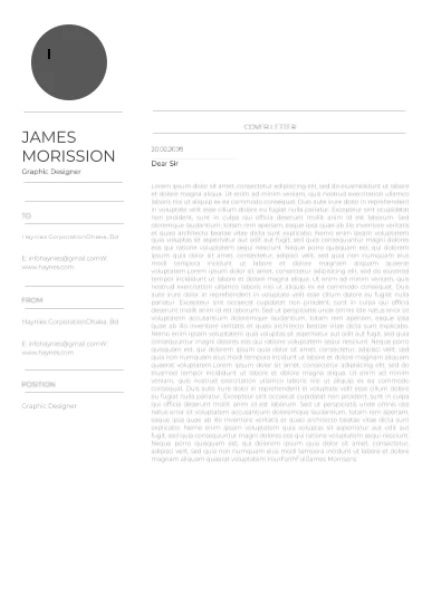
3. Minimalist cover letter

Plantilla Minimalist Cover Letter

Free templates to make advertising brochures

The best way to promote a product, idea or project is through brochures. Google Docs is a perfect tool to create all kinds of advertising in the blink of an eye. Don’t have the time or equipment to design your own brochure? Don’t worry, here are some free templates that will help you succeed.

1. Purple tri fold brochure

Plantilla Purple Tri Fold Brochure

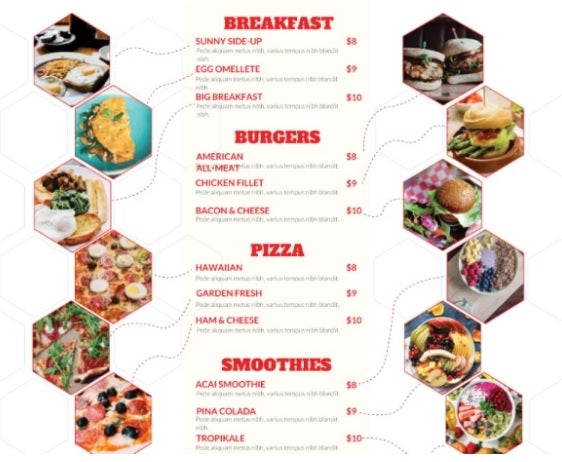
2. Food Menu Brochure

Plantilla Food Menu Brochure

3. Business Tri Fold Brochure

Business Tri Fold Brochure

4. Business Conference Brochure

Business Conference Brochure

5. Digital marketing

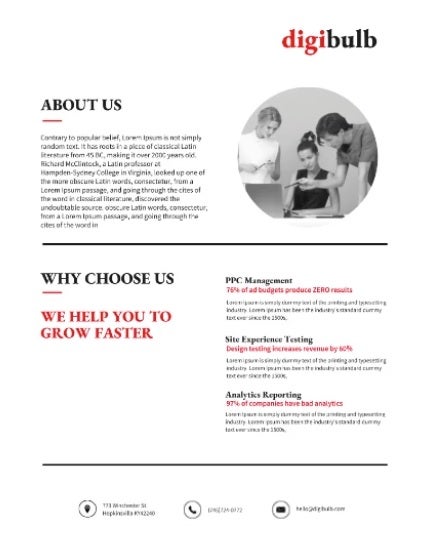
Plantilla Digital Marketing

6. Book launch

Plantilla Book Launch

7. Simple marketing

Plantilla Simple Marketing

Free invoice templates

If you run a business or are self-employed, you will know the importance of generating invoices. Invoices need to be clear, minimalist and clearly show the customer both the price and the service provided. While at first glance this may seem like an easy task, it’s not. To make your life easier, here is a selection of invoice templates.

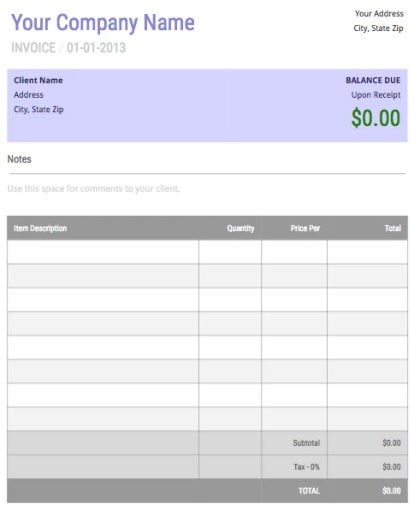
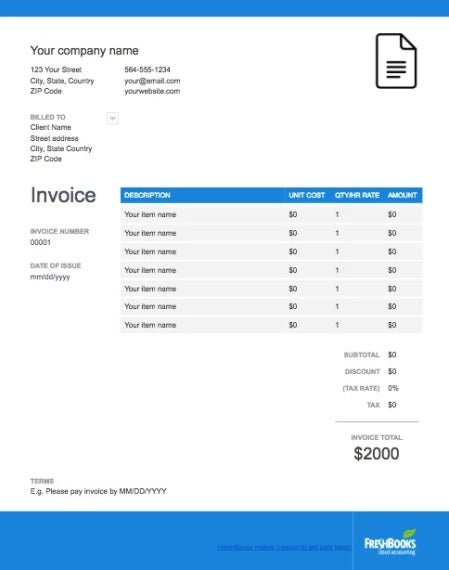
1. Basic Invoice

Plantilla Basic Invoice

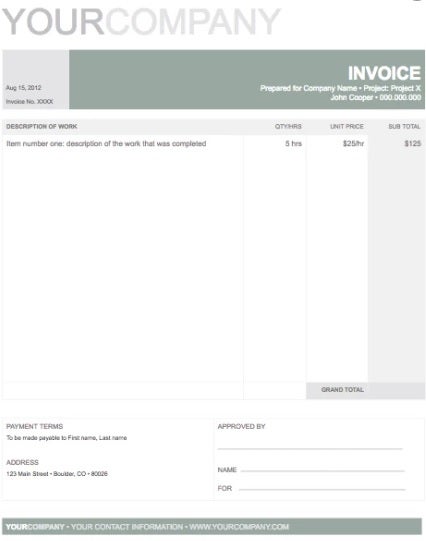
2. Professional Invoice

Plantilla Professional Invoice

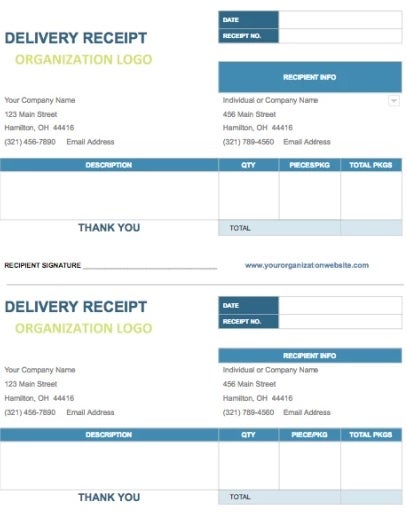
3. Delivery Invoice

Plantilla Delivery Invoice

4. White Blue Invoice

Plantilla White Blue Invoice

Free business card templates

A business card is an essential tool to publicize your services and attract future clients. They must be eye-catching and clear, as well as elegant. Remember that a bad business card translates as a lost client, so it is not a factor that you should take lightly. If you want to make a good impression, don’t hesitate to use one of these templates.

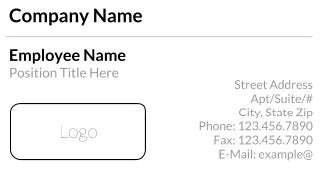
1. Corporate business card

Plantilla Corporate Business Card

2. Transparent business card

Plantilla Transparent Business Card

3. Minimalistic business card

Plantilla Minimalistic Business Card

4. Basic business card

Plantilla Basic Business Card

Free templates for newsletters and bulletins

Newsletters and bulletins are a fun way to share information with your customers, employees, colleagues or members of the same group. A good newsletter is especially useful if you have an ever-changing business or work in publishing. This way you can easily share your latest products and publications with your users. If you don’t want to spend hours designing your own newsletter, we recommend downloading one of these free templates.

1. Newsletter executive

Plantilla Newsletter Executive

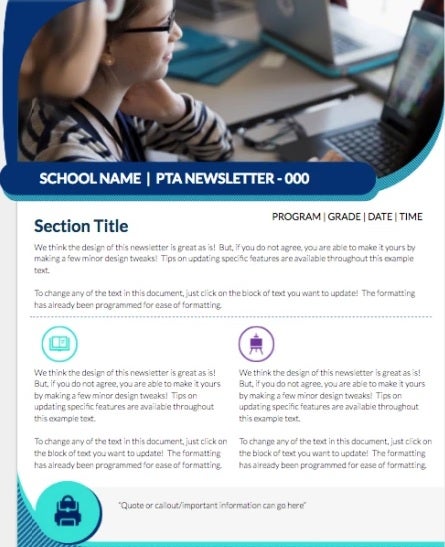
2. School newsletter

Plantilla School Newsletter

3. Retail newsletter

Plantilla Retail Newsletter

Free templates to make publications and magazines

If you’re the editor of a local newspaper or magazine, you’ll need your publication to be attractive enough at first glance to attract new readers. Not sure where to start? Don’t worry, here are some useful templates.

1. Creative magazine

Plantilla Creative Magazine

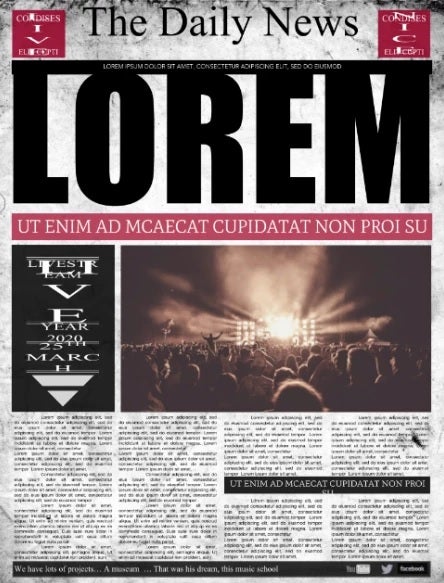
2. Daily News

Plantilla Daily News

Free templates for students and teachers

Whether you are a student or a teacher, you will need all the help you can get to complete all your tasks. Since word processing is the bread and butter of the education sector, there are a number of templates specially designed to make your life much easier. Here is a selection of templates specially designed for students and teachers.

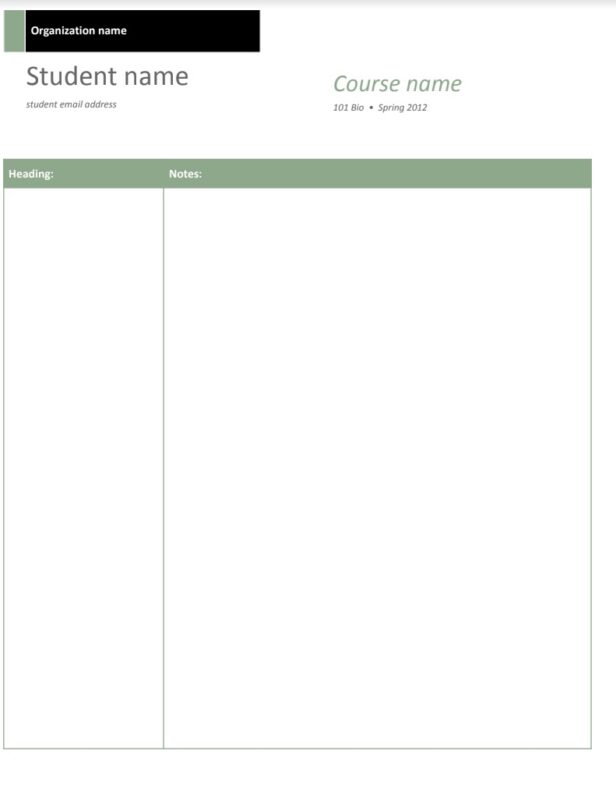
1. Class notes

As the name suggests, to establish the grades of each student. Two columns appear to indicate the grade and a short text. In addition, the name and course can be placed at the top.

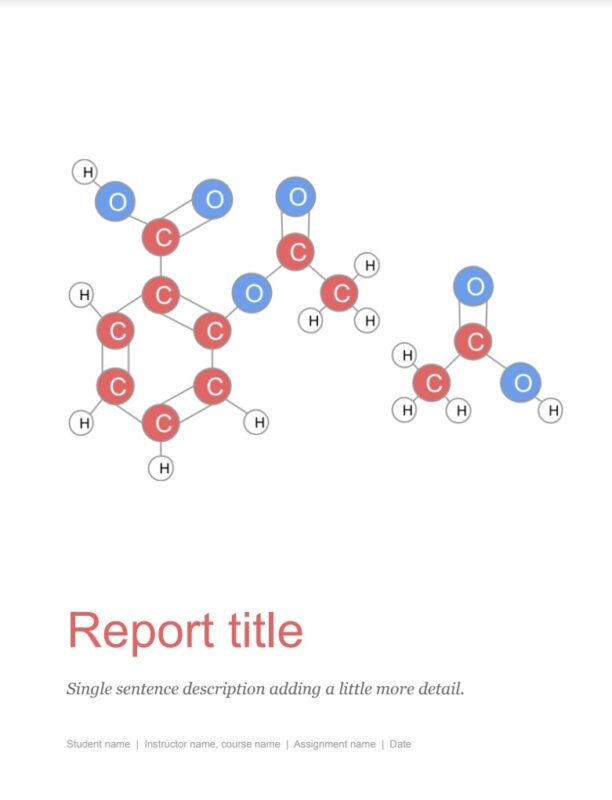
2. Template with bibliography

A perfect template for creating academic papers. Everything appears structured by chapters and even with the introduction of bibliography. Highly recommended.

Need more free templates?

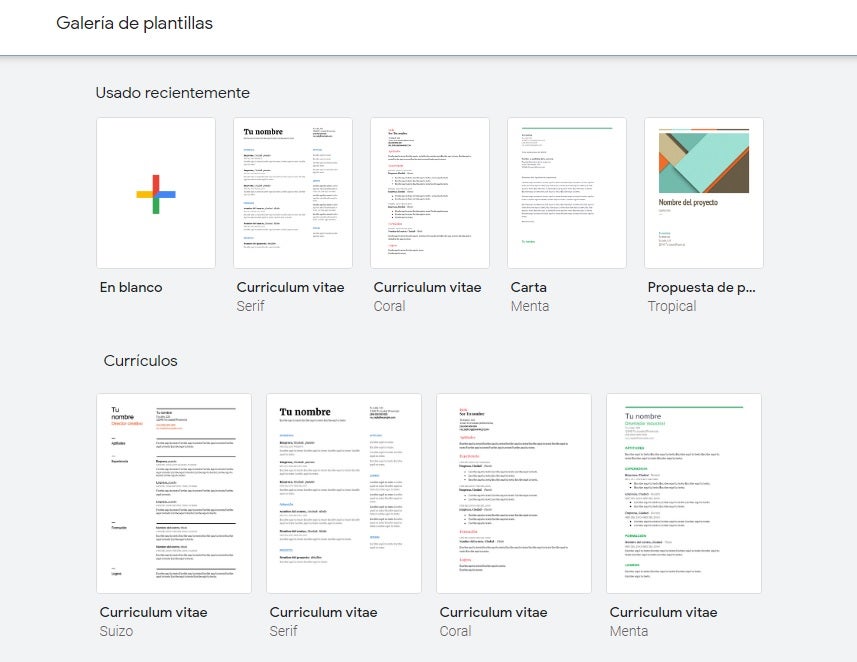
If you haven’t found the template you were looking for in our list, don’t worry. Google Docs has an enviable selection of free templates designed to make your life much easier. Don’t know how to find them? Just follow these steps:

  1. Go to Google Documents
  2. In the “Create a new document” section, select “Template Gallery”.
  3. Once the drop-down menu opens, select the template you want to use.

All the templates in the Google Docs gallery are fully customizable, making them perfect for creating any type of project. If you are not convinced you can also choose to visit sites like Template.net, where you will find a wide selection of free templates.

template gallery de Google Docs

Can I create my own template from Google Docs?

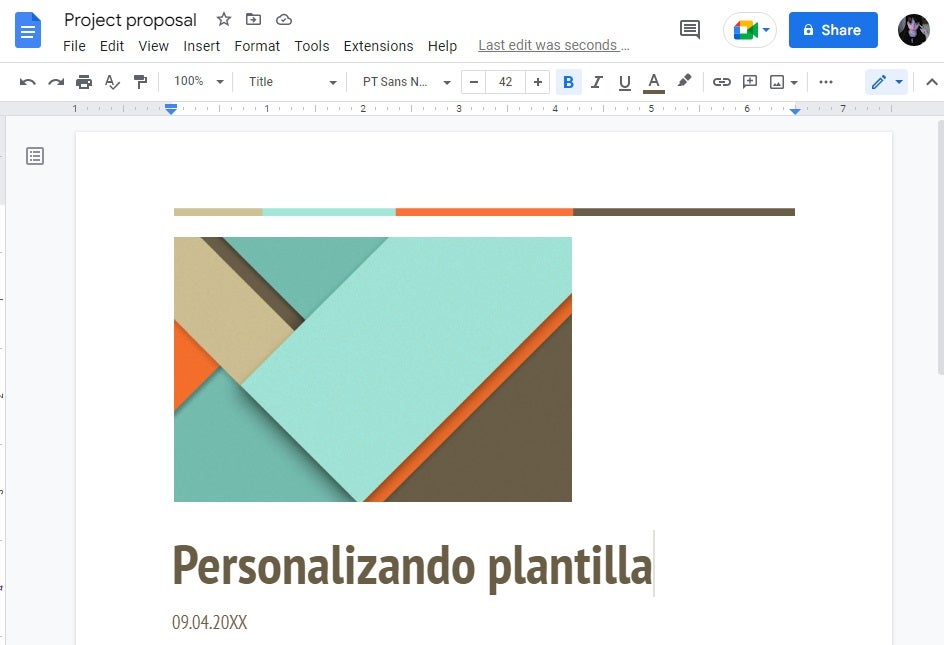
Yes, the free version of Google Docs allows you to create your own custom templates. To do this you will need to open one of the already created templates from the Docs gallery (see the previous point) and then edit it to your liking. Once done, rename the template and save it as a new one. It’s as simple as that!

Creando una plantilla personalizada

Get the most out of Docs with these templates

We hope our selection of free templates for Google Docs has helped you. Now you just have to try them all and see which one best suits your business or projects.

How to clean up your Google storage

Is your Google account overflowing? Here’s how to cut down the clutter.

Google Drive

Modern life revolves more and more around data and data storage: with rapidly growing files for movies, video games, photos, and all the high-quality digital programs we know, love, and live on, the question becomes: how do we make everything stack together? How can we not send some of it to the trash folder and even worse delete forever when we empty trash! We all have a storage limit on our devices.

If you’re like us, Google provided a solid answer with Google Drive storage, our favorite online storage database. Once you have a Google account, Drive gives you access to all sorts of cool features like Google Docs, Google Sheets, and more. It’s the free space your Google Drive account gives you that we love the most, though, but…

There is a limit!

Specifically, a 15 Gigabyte limit, which can be seen at the bottom left corner of your Google Drive page:
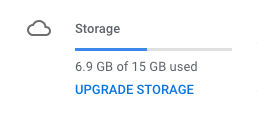
If you’re like us, it seems like only yesterday the bar showed just megabytes taken up. Now it’s 6.9 gigabytes! Where did all of that data come from? Where did all your Google Drive Space go?

We’re going to answer that crucial question, and help you manage this cloud space easier and free up space you need.

How to take care of your Google storage

What Makes Up Google’s Storage?

First things first; what is Google Drive made of? The simple answer is that it is comprised of just three things:

  1. Google Drive
  2. Gmail
  3. Google Photos

Looking at storage in Google Drive alone, you may have been surprised at the amount of data you use! Alternatively, in Gmail, you may suddenly run up against an unexpected data limit. If that’s the case…

First, let us help you get a better visual. Head into My Drive and right-click and then click “UPGRADE STORAGE” on the data graphic:

You’ll be shown a far more useful graph:
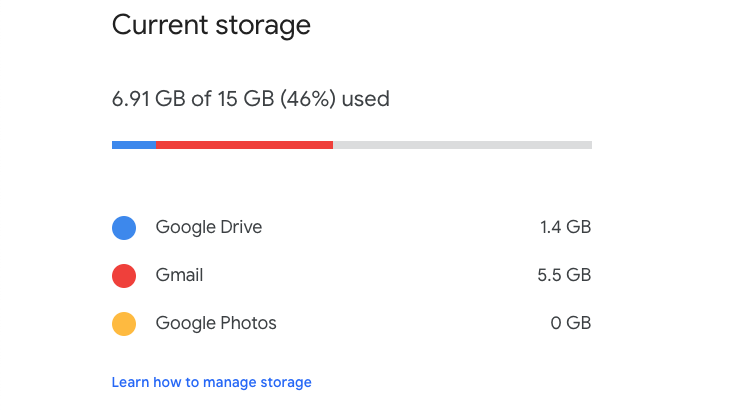
Doesn’t that make more sense?

There are now two options: manage storage, or upgrade storage. We’ll first focus on how to manage Drive, Gmail, and Photos in the coming section. Then, just in case, we’ll quickly mention the possibility of a storage subscription!

If you really want to make your computer run faster, we would recommend MacPaw. Don’t be fooled by the name, MacPaw products are available for both Mac and PC. 

Google Drive

Manually check through Drive to see which things you want to get rid of. If you’re not sure how to start, we have a few suggestions:

1. By date used: on the main Google Drive page, within any folder, you can arrange files by their “Last modified” date. There’s a general rule that older files are often less important! (On the other hand, if you don’t want to throw away your copy of 2014 tax returns, there are other ways…)
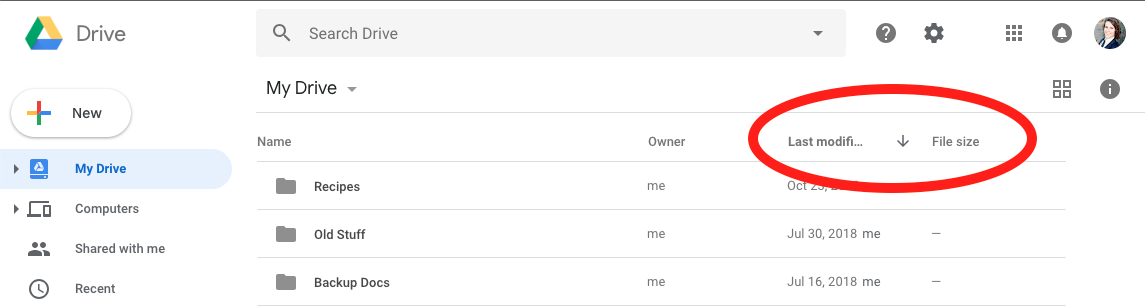
2. File size: an even better option, located right next to the Last-Modified button! While some files may be more important, you may not want to clear up Google storage kilobytes at a time… so organize them by size, and see if there’s anything you no longer need!

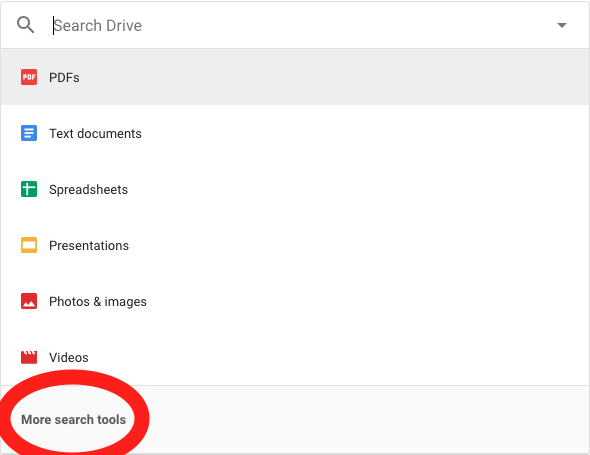
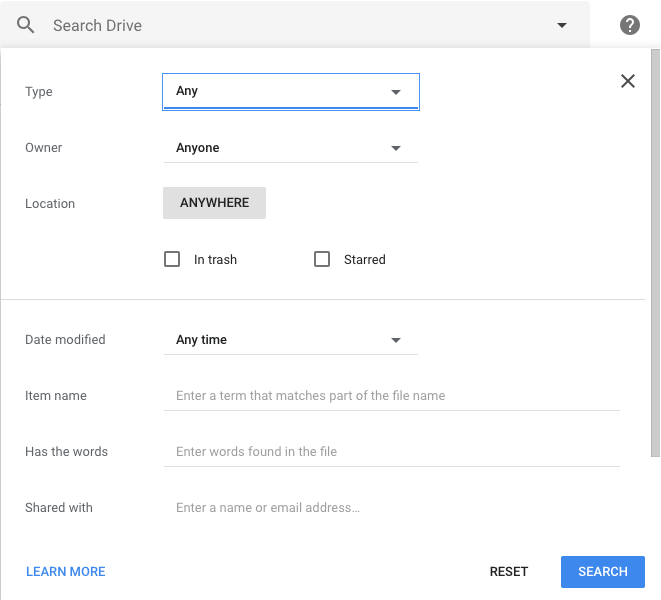
3. The Search Bar: if you’re looking for something more specific – perhaps documents shared with certain people, or keyword specific – the search bar has some cool stuff!

7

For the full experience, make sure to check out “More search tools” at the bottom of the drop-down menu:
Gmail

Gmail has fewer tools to find files for a number of reasons. For example it’s hard to tell what emails will become important later, and they generally are small messages that take up little space.

However, emails pile up quickly!

If you need to keep the storage down, there are functions called search operators, which help you look through the Gmail inbox by altering the results of a Gmail search. For an extensive list of search operators, visit this page.

However, we recommend this one:

In the Gmail search, enter “size:” and then a number. Gmail brings up all messages larger than that number, in bytes! Now, you can search for files of any size, and get rid of the most cumbersome emails.

(And if you need an easy conversion calculator, try this!)

Finally, Gmail storage management can be a defensive rather than an offensive act. Proactively create a system to stop your inbox from overflowing with unnecessary mail:

1. Block spam, and periodically empty the folder completely. While “spam” blocks certain messages from reaching your inbox, they still take up storage space.

2. If you think an email will be important in the future, mark it as “important” or “flagged”. This will ensure you don’t erase it in the future, leaving you free to delete less pressing messages.

The key here is to make sure you block unnecessary emails ahead of time. If they pile up into the thousands, it will be time-consuming to go through everything and sort the good from the bad!

Google Photos

Ah, finally! Google photos…

Frankly, it’s better that you organize photos however you see fit. Pictures are often precious to people: look at each image individually and decide if you should throw it out. A picture of family? Probably keep. An old recipe screenshot? Probably throw away.

Google Photos Download Google Photos
7

In the end, the decision’s yours.

If your storage reaches the 15-gigabyte limit due to photos and other documents you can’t part with, you may want to upgrade your cloud storage, our final option.

Upgrade Storage

While we’re still scraping the underside of Google’s copious 15-gigabyte allowance in the “Free” category, the upgrade to 100 gigs doesn’t cost too much, possibly just $20 a year.
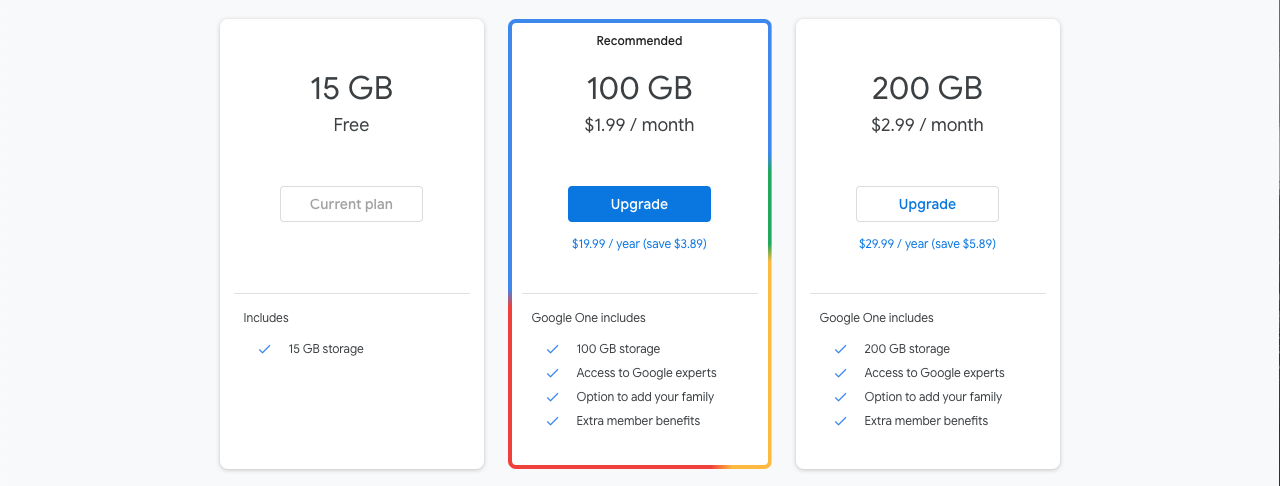
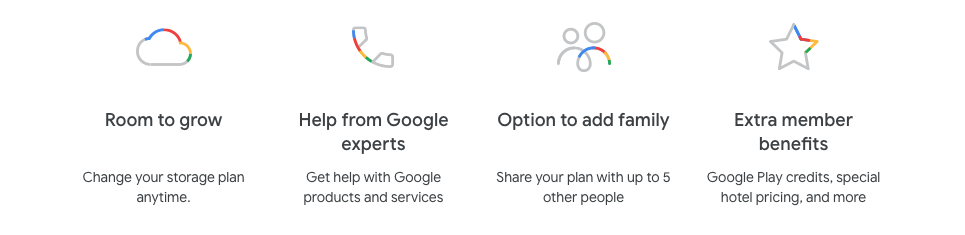
If that sounds good, there are additional benefits to the subscriptions beyond storage! Get advice from Google professionals, add family members that can share your cloud data, and more!
Thanks for reading!

Google’s new feature makes life easier for anybody with multiple accounts on Android devices

Google has introduced a swipe to switch account feature to Google Maps, Google Drive, and Gmail

Google’s search engine helped the Mountain View-based internet giant quickly rise to the ascendancy in the early days of the internet. Google was quicker than other search engines and always served up more reliable answers to queries. It wasn’t long though, before Google started branching out from web searches and the result now is a bunch of core products, which are among the most popular pieces of software ever developed.

Google programs like Gmail, Chrome, and Maps all have literally billions of users and other core products like Google Drive aren’t far behind them. At the heart of all these products, including the search engine that started it all, lies our Google accounts. Our accounts give us access to personalized versions of each core product. Yes, they do allow Google to collect data on our web usage, which is worth billions to the web giant, but our accounts also allow to have our own Google Drive allocation, individual Gmail inboxes, and keep a record of all the places we’ve searched for and been to while using Google Maps.

Most of us have reached the point now where we have more than one Google account too. Whether it be for work and personal use or more compartmentalized use of the Google products, like shopping accounts and travel accounts etc. it is becoming more and more common for Google users to have multiple accounts. It is good news for an awful lot of us then that Google is making it much easier for us to switch between accounts.

Google has introduced a swipe to switch account feature to Google Maps, Google Drive, and Gmail

Gesture control has been creeping in on Android for quite some time now. Google has been adding different gesture controls to try and replace the standard search and menu system. Although there are many more, my favorite and most used gesture control on my Pixel is the double tap of the power button to launch my camera app. It is easy, saves time, and means I take more pictures.

As always with most big tech innovations gesture control is supposed to shave precious seconds off our digital processes. The time we save searching through menus, can theoretically be used to do something else. The new swipe to change account feature does this quite well.

Switching between accounts is now easier on three of the core Google apps

The idea behind the new features is that rather than having to click on the account button in the top-right of your Google apps and then select the account you want to work with, you can simply swipe your finger up or down across it. This will move you between all the different accounts you have linked to your Android phone.

The new swipe to switch account feature will save you the grand total of two clicks every time you use it. That is reduced to one click though, if you count the swipe itself as a click. This might not sound like a lot but as is so often the case with these incremental feature upgrades soon you’ll be so used to using the new swipe feature that you’ll barely remember having to click through the account’s menu in the first place.

google maps
The swipe to change account feature landed on Google Maps first

Multiple reports have noted this new feature on Google Maps, Google Drive, and now most recently on Gmail too. The feature landed on Google Maps midway through August and then on Google Drive a week later. This means if you’re using the latest version of both apps, you’ll be able to swipe to switch accounts right now. The feature is much newer on Gmail, however, so you’ll have to wait until you’ve downloaded Gmail v2019.08.18 before you’ll have it on your email app.

5 free alternatives to Word on Mac

Got a Mac? Need some word processing software? Try these 5 programs.

writing with a mac

In 2019, Microsoft Word is as much of a household name as Verizon FiOS, Sony PlayStation, or Colgate toothpaste. Everyone writes with Word, and it’s a staple for practically everyone with a computer.

Unless you use a Mac.

Is it possible to get Microsoft Office on a Mac? It is, but it’s probably not worth it since it’s really the only enticing program in the suite. Office is expensive, and it takes up 2.5 GB of space. Luckily, there is a selection of free and highly accomplished alternative word processing apps for Mac, some of which not only handle Word documents but that you may even find improve on Word itself.

5 free alternatives to Word on Mac

5. Celtx

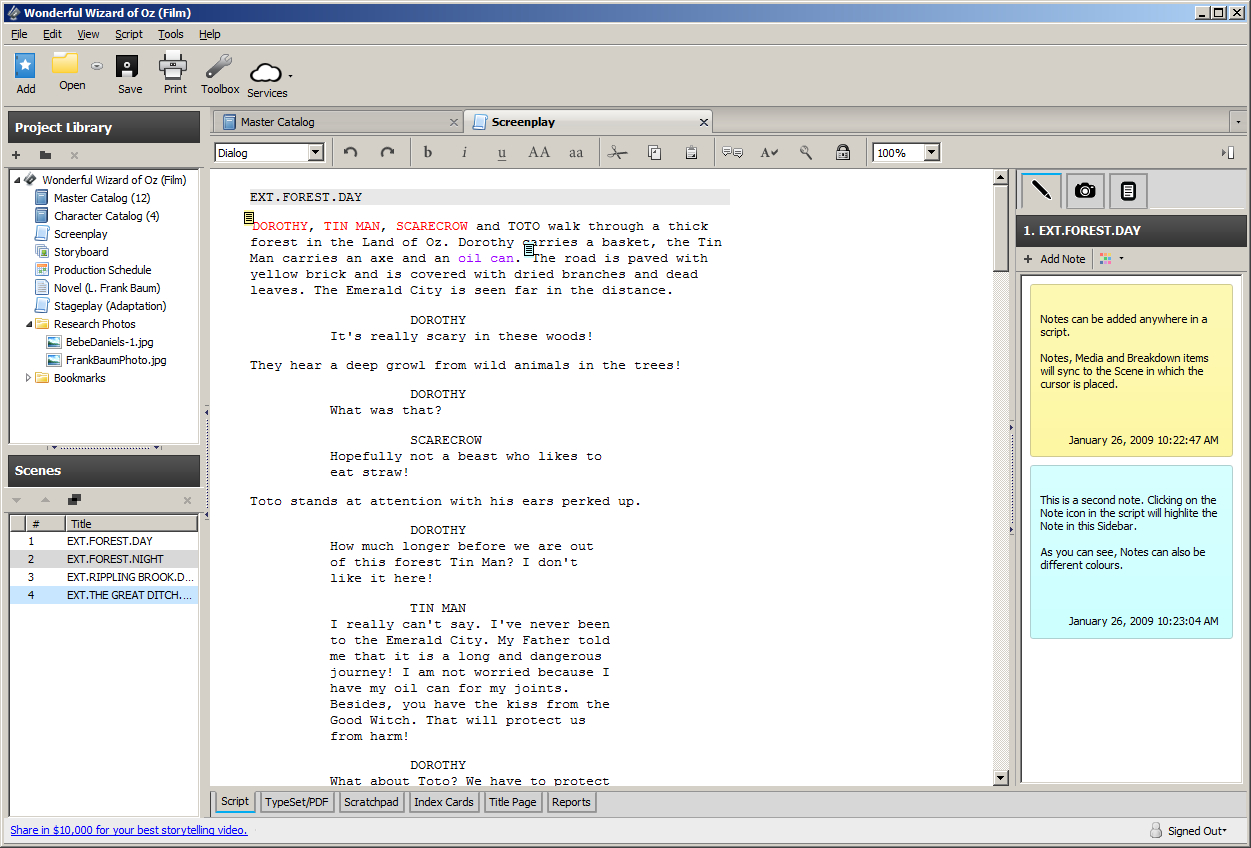
Tend to doubt Wizard of Oz was actually written with this software though.
Celtx is primarily geared towards screenwriting and TV production

Celtx is a free writing tool that’s geared mostly towards screenwriting, storyboarding, and organizing call sheets. Making an account is 100% free and all your work is saved on a cloud until you decide to download it (at which point it’s a .pdf). Available on Mac here, Celtx allows you to create properly formatted video scripts and screenplays, stageplays, audioplays, and comics. Not only that, it’ll sync up with your online studio so you can write anywhere, anytime and even share scripts with collaborators.

Celtx Script for Mac Download FREE ►
6

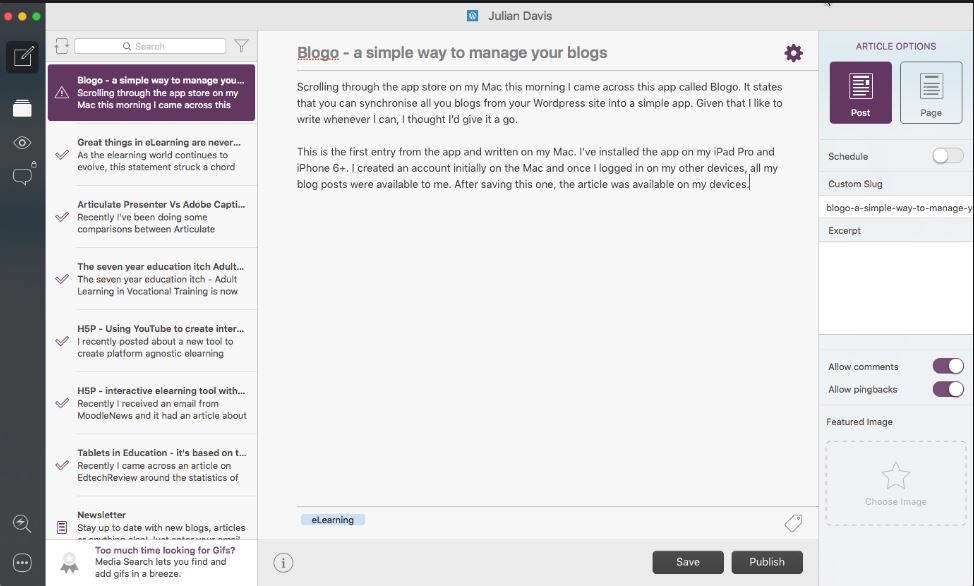
4. Blogo

Makes sense considering its name, huh?
Blogo is an easy, free way to blog on the go.

Blogo is a clever app which allows users to blog right from your Mac desktop. It’s simple, distraction-free, and allows you to write even when not connected to the internet. You can use Blogo with self-hosted or WordPress blogs and the platform supports writing, editing, and rich text, but still allows for inline HTML. Blogo has a paid version which includes extra features such as Multiple blog management, integration with Evernote, enhanced social sharing functionality, and comment moderation, but odds are all you’ll really need is the free version.

Blogo for Mac Download now ►
8

3. Pages

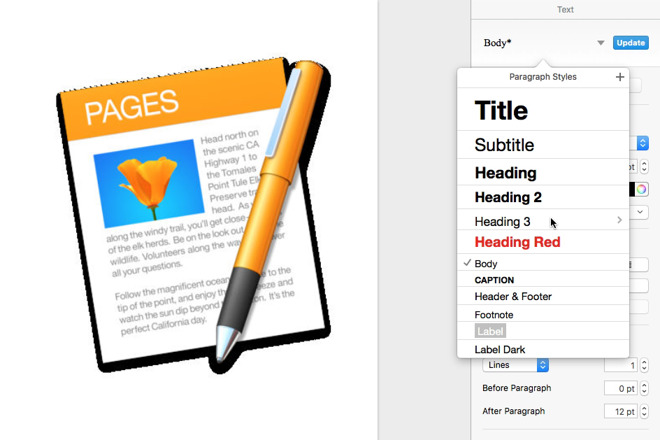
Pick different headings, subtitles - even footnotes
Create documents easily with a strong selection of slick templates

Pages is another free word processor for Mac that lets you create really beautiful documents. On top of that, the more recent versions have improved the typographical tools and are more integrated than ever with iOS and the iCloud. Users are even able to use Apple Pencil to add comments via iPad, or pen in illustrations – something that’s always been wonky on Microsoft Word. As always, Pages does a spectacular job of providing templates for easy document creation, and Placeholders also provide seamless integration with the Photos app for adding images.

Pages for Mac Download free ►
6

2. Google Docs

The best tool for collaborative writing.
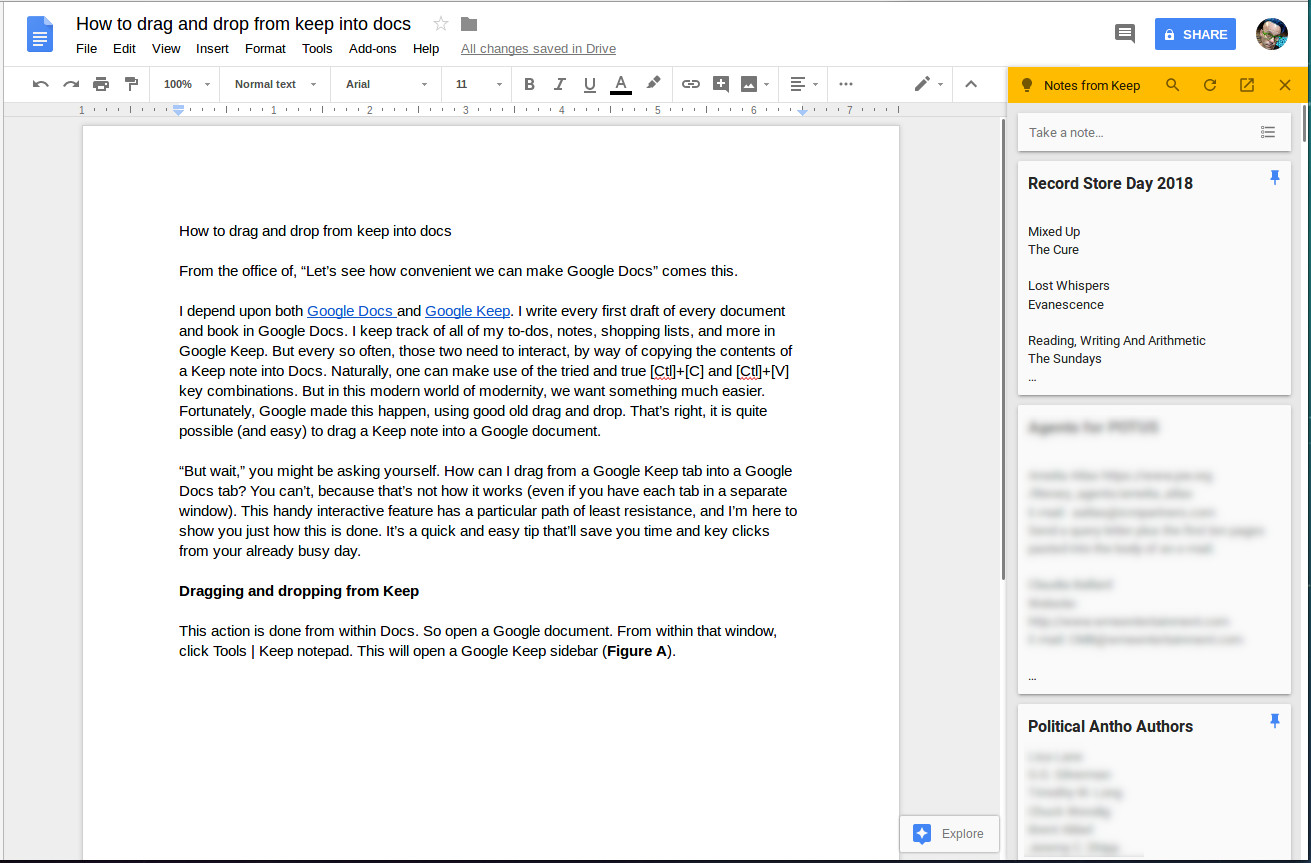
Google Docs are free, accessible on any device, and allow for multiple users at once.

Google Docs are a professional option for virtually anybody in the world. All you need is a computer (Windows and Mac both work equally well) and you’re good to go.

You don’t even need a Google account to be able to access another person’s doc; you’ll simply appear as an anonymous author with a hovering cursor. That’s one of the coolest things about Google Docs – multiple users can work on the same piece at once, meaning that it’s both a collaborative document and a chat at the same time.

You can also add comments, embed media, insert hyperlinks, and alter the settings to allow for other readers to view, comment, or edit.

Google Docs Free Download ►
8

1. LibreOffice Writer

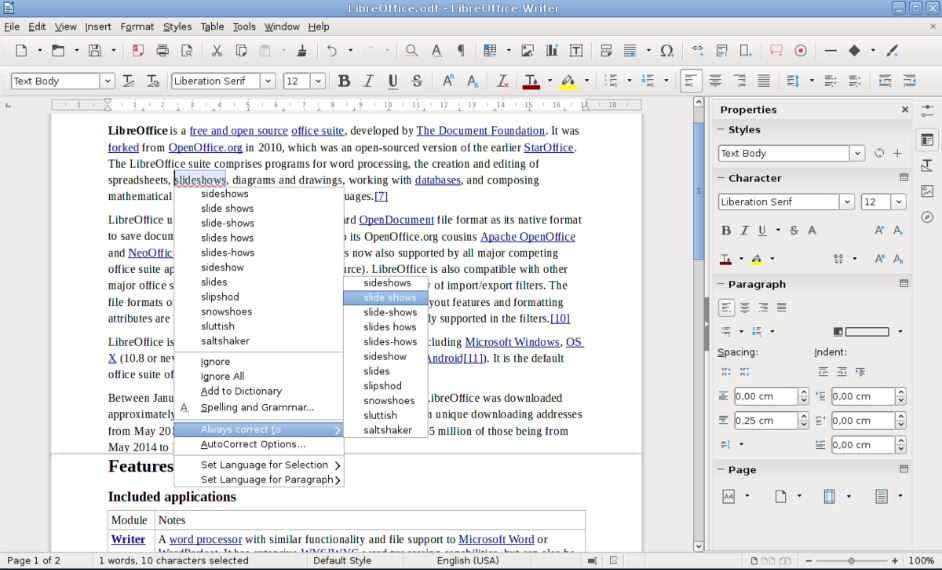
The program allows for pretty much everything Word does too.
LIbreOffice is pretty much a free version of Word, so it’ll make all your Windows friends jealous.

If you’re trying to mimic the experience of Microsoft Word then your best bet is LibreOffice Writer. It’s a 100% free office suite that looks and feels about as close to Word as you can get, and supports multiple formats, covering all the basics and then some.

Wizards allow for easy set-up of memos, letters, and even mail-merge documents, and the suite comes with a variety of useful tools for formatting and styling.

LibreOffice Writer also has additional tools for creating tables of contents and indexes for longer documents, with more available for download on their website.

LibreOffice Free Download ►
7

Agree with our list? Let us know in the comments below, and if you’re looking for more methods to open Word Documents on Mac, check out this simple way to do it.

Google is changing how you move photos from Google Drive to Google Photos: This is all you need to know

Everything you need to know about the new relationship between Google Drive and Google Photos

Google Drive, and its composite parts like Docs and Sheets, has revolutionized office teamwork. Google Photos has made it easier than ever before to back up your photos. These two programs have always been interchangeable, with photos in Drive showing in Google Photos and vice versa. This is all about to change, however.

sync between Google Photos and Google Drive

Google has announced that both apps will no longer automatically sync with each other. Now you have to move photos from Google Drive to Google Photos yourself.

Let’s have a look in greater detail at what this means.

Why is Google changing the relationship between Drive and Photos?

Google is saying that user feedback is the main reason it is making the change. Apparently, users have said that the link between the two services is confusing, so it is moving to simplify the relationship between Drive and Photos.

What does the change mean?

Starting in July, new photos and videos added to Google Photos will not show up automatically in Google Drive and new Drive photos and videos will not show up automatically in Google Photos.

Instead of auto-syncing between the two apps, Google is introducing a new feature to Google Photos called “Upload from Drive,” which will give users the chance to select photos from their Google Drive to be added to their Google Photos collection. Google has also pointed out that this will include “Shared with Me” photos.

The big thing you need to note about this change is that as these photos won’t automatically sync with your Google Photos account, they’ll count towards your storage quotas on BOTH apps if you choose to sync them.

What about photos and videos already synced?

Google has pointed out that all photos and videos synced before this change is implemented will remain so. Your Drive photos will stay in Google Photos and if you have a “Google Photos” folder in Drive, it will stay there but won’t update automatically.

Photos folder in Google Drive

Has anything stayed the same?

Yes, Backup and Sync for Windows and Mac will work the same as it always has and if used to upload photos to both services in Original Quality, the space will only count once towards your storage quota.

Google claims confusion is behind the big change. This makes some sense when you consider Photos as a chronological feed showing all the pictures you’ve taken using your smartphone camera or uploaded manually. Any photos automatically added through synchronization with Drive could cause confusion. Now, however, users will know when Drive photos will have been added to Photos as they’ll have imported them themselves.

This Dropbox alternative will make you love the cloud again

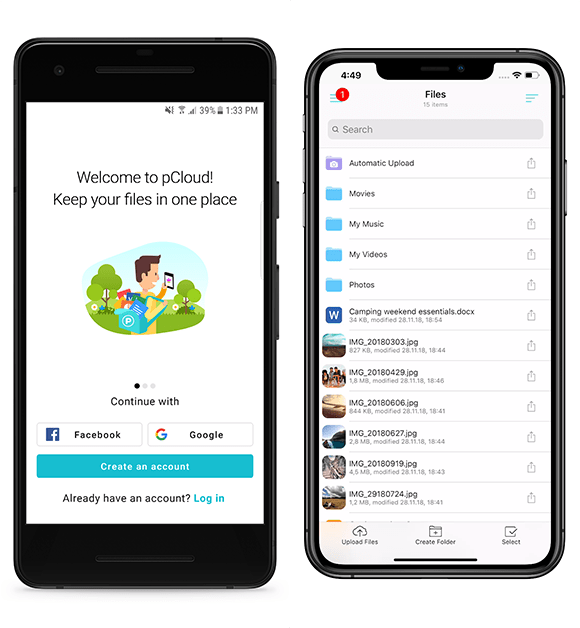
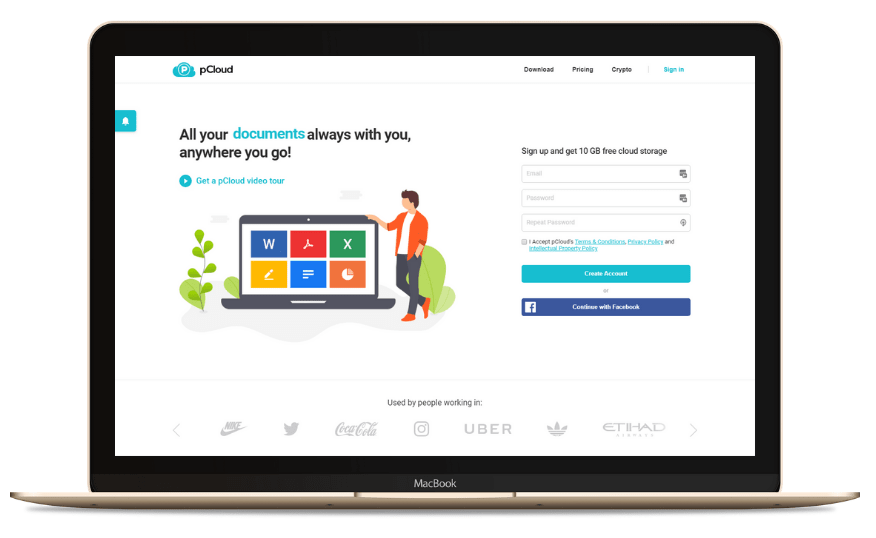
pCloud is a cloud storage platform for all your files and folders, available through mobile, desktop and web client. Get 2TB of memories in the cloud with pCloud.

The cloud helps millions of us work, study, and play. How often do you use it? I bet almost every day. From sharing photos to collaborating with friends and colleagues, without the cloud, life would be that little bit harder for all of us.

Familiar cloud storage names like Dropbox, OneDrive, and Google Drive are pretty good at what they do, but here at Softonic, we’re always looking for the best. We love new and innovative ways of tackling old problems, and that’s where pCloud shines.

Founded in 2013, pCloud is making huge strides despite a saturated market. They have over 9 million users, including employees of Coca Cola, Uber, and Nike – an impressive roster that reflects the platform’s enormous benefits.

So let’s find out what makes pCloud so special. You might even want to make the switch yourself…

Your files whenever you need them

pCloud is a cloud storage platform for all your files and folders, available through three different applications:

  1. The web client
  2. The mobile app
  3. The desktop app

While you can use pCloud with all of your devices through the web client alone, I recommend you also download the mobile and desktop apps for their additional features.

The mobile app, for example, includes offline file access, letting you select files you want to store locally on your device so you can access them without an internet connection or mobile data signal. Great for watching movies or listening to music on-the-move.

The desktop app seamlessly integrates into your workflow by creating a virtual hard drive on your machine. You can then use pCloud just like an additional hard drive with full synchronization between your computer and the cloud.

Upload from absolutely anywhere

One of pCloud’s greatest strengths is its upload system, which is faster than Dropbox (watch the video here), easy, and convenient.

As well as being able to upload from any device, you can also backup files from other cloud storage platforms. So if you’re making the switch from Dropbox or another storage platform, you can do it all quickly within pCloud.

pCloud can also create an upload link for others to send you files. Don’t download from their cloud account and then upload to pCloud, instead, send them a link to your pCloud account and they can upload the file directly. This makes sharing content much faster and easier to organize, since you cut out a redundant process.

Best of all, you can even upload files direct from other internet servers with Remote Upload. If you want to upload a photo hosted on Flickr, for example, simply enter the file URL and it will upload directly from the server to your pCloud account. There is even a browser extension for uploading webpage content.

Share and collaborate with anyone

Gone are the days when email attachment limits prevented you from sharing large files. Today, we share download links so others can enjoy our content, and pCloud does this really well.

First, you can password-protect download links so only the right people can access your files. You can even set an expiration date so that after a certain amount of time, specified by you, the link won’t work anymore. Privacy is a sacred thing, nowadays, and pCloud has got your back.

Once someone receives your download link, they don’t need a pCloud account to view or download the content. They can stream videos, listen to music, or edit files with the pCloud link alone. Since pCloud doesn’t force you or anyone else to download the application to access content, it’s ideal for sharing with large groups of people.

Finally, If you’re a social media influencer or have a business audience you’d like to share content with, branded links through pCloud are easy and free to make. Add your personal brand to download links by including a heading, title, and image. Adding a professional edge to your links could result in more clicks (which you can also track in pCloud).

Protection from theft, damage, or accidental deletion

If you want best-in-class security protection for your files, add pCloud Crypto to any pCloud plan. This feature encrypts files on your device and then uploads the encrypted versions to pCloud servers. You alone can decrypt your data using your Crypto Pass, which protects your files from prying eyes. Not even pCloud can see your content.

For those of you worried about losing data or making unintentional changes, pCloud Rewind allows you to revert your files to a previous state within 15 days on the free plan and up to 30 days on the paid plans. You can also extend this further with the Extend File History paid-for add-on. Think of it like a massive “undo” button for your files that could save you from making costly mistakes.

How much does pCloud cost?

If, by now, you’re realizing how useful pCloud can be, then you’re probably wondering about pricing. Well, you’ve got three main options:

  1. Get pCloud FREE and enjoy 10GB of FREE storage. This is a nice introduction to pCloud, but that storage space will be eaten up in no time.
  2. Get pCloud Premium and enjoy 500GB of storage FOR LIFE for a one-off payment of $175. A flexible storage buffer for life, but is 500GB really enough for you?
  3. Get pCloud Premium Plus and enjoy 2TB of storage FOR LIFE for a one-off payment of $350. A huge virtual drive with enough space for thousands of pictures, movies, and hours of music – you might never run out of space again.

pCloud Premium Plus is our easiest recommendation yet. 2TB for just $350 is incredibly good value for 99 years of storage – you’d spend more than that in two years on Dropbox’s monthly plan (99 years on the Dropbox 2TB monthly plan works out at almost $20,000!).

So if you’re looking for the best value cloud storage platform, with all the flexibility and features required of our digital age, get the pCloud Premium Plus 2TB lifetime plan today.

4 incredibly useful templates in Google Sheets

These are our favorite Google Sheets templates to be more productive.

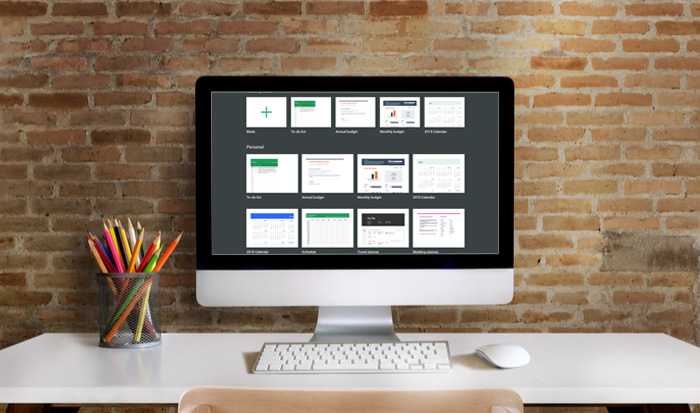
google sheets templates

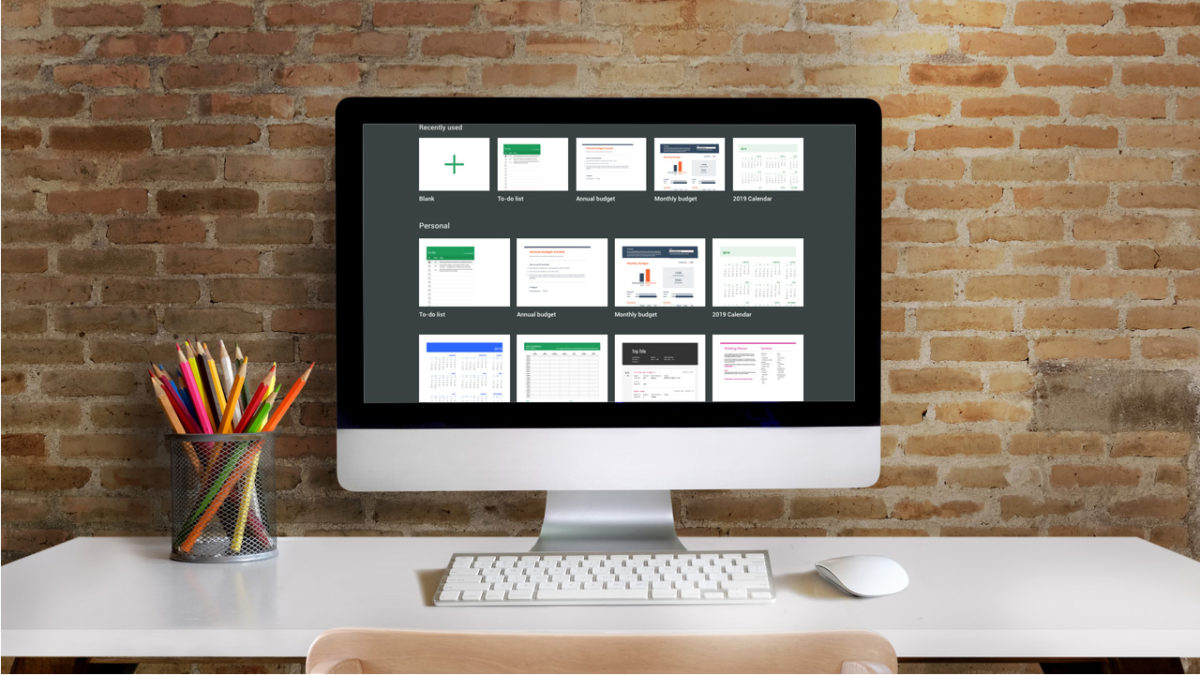
No matter how you use Google Sheets, at home or at work, it’s important for the spreadsheet program to be as efficient and user-friendly as possible. One of the many benefits of the program comes in the form of Google Sheets templates. Below, learn about the different templates available at your fingertips. These four handy tools can boost productivity and make life easier for all G-Suite users.

4 incredibly useful templates in Google Sheets

1. Invoice

If you own a small business or operate as a freelancer, the invoice template is a lifesaver. It’s a completely customizable template that looks way more professional than a run-of-the-mill spreadsheet. That way, you can impress clients without very much backend work.

7

2. Project timeline

Project management can be tough, which is why this template is so thoughtful and useful. The timeline helps you organize and implement different steps of any large-scale project. A lot of users appreciate its visual separation of larger tasks, which makes it easier to delegate (and is a lot less stressful to look at).

3. Employee shift schedule

This is another template that simplifies the lives of business owners. The shift schedule template makes it easy to track who is working what hours, at what rates, and even calculating paychecks.

4. Financial statements

Anyone who’s in charge of reconciling the finances for a business knows what a daunting task it can be. By helping to track business transactions, P&Ls, and assets and liabilities, this template makes the process much easier. It is even broken up into different tabs that automatically summarize certain information, along with a dashboard where you can calculate YTD growth with minimum data-inputting effort. This template significantly helps minimize the chance of human error when calculating important information for any business or organization.

All of these templates make it much more possible to be efficient and productive when using Google Sheets. And let’s face it, that’s the reason most users turn to the program in the first place.

How to download documents from Google Drive for offline use

No Wi-Fi? No problem. Here’s how to download your Google Drive files.

google drive

Google Drive is heaven for the person who wants to make and organize documents. The ability to create a spreadsheet and allow other people to view and edit it by sending them a unique link helped boost productivity in the workplace and for personal projects. Making a shopping list or writing a letter as a Google Drive document is easy, but what if you want to download the document for offline use? Keep reading for a quick how-to so you can have a copy on your computer and mobile device.

Google Drive Download Google Drive
7

On your computer

Once in your Google Drive, open the document that you’d like to download.

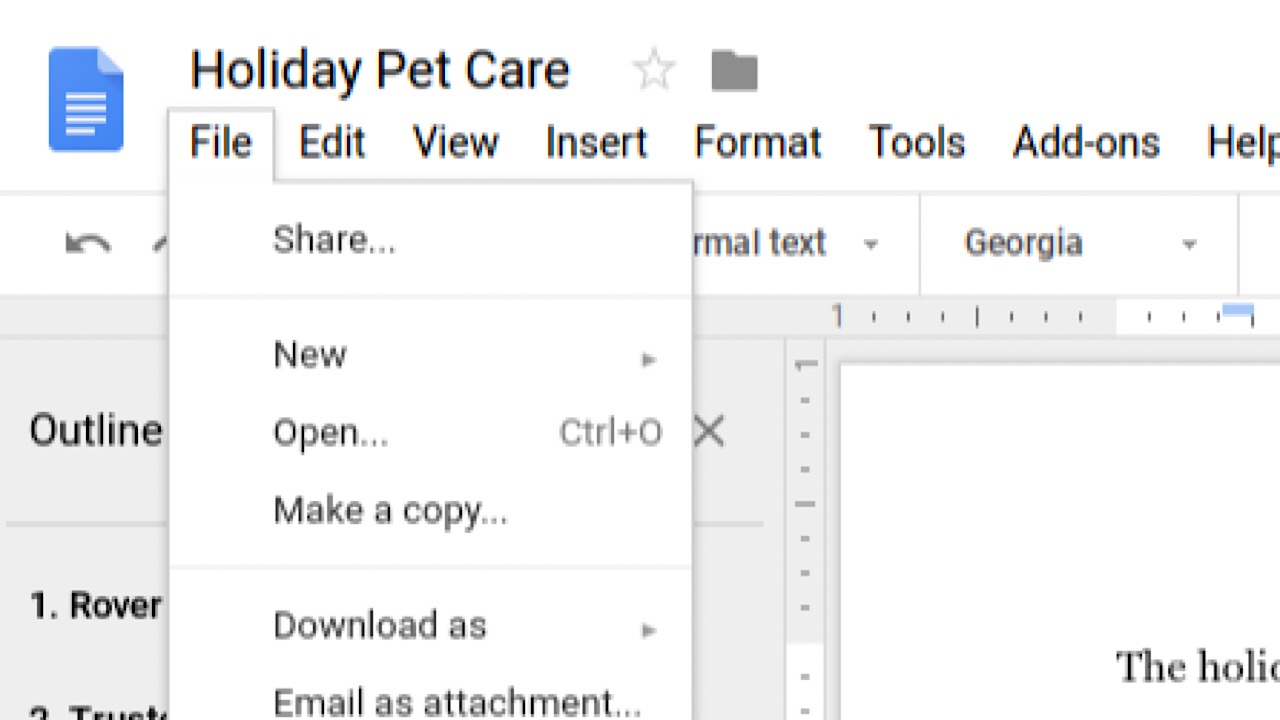
In the top left corner of your screen, click the “File” tab in the task bar. Drive screenshot

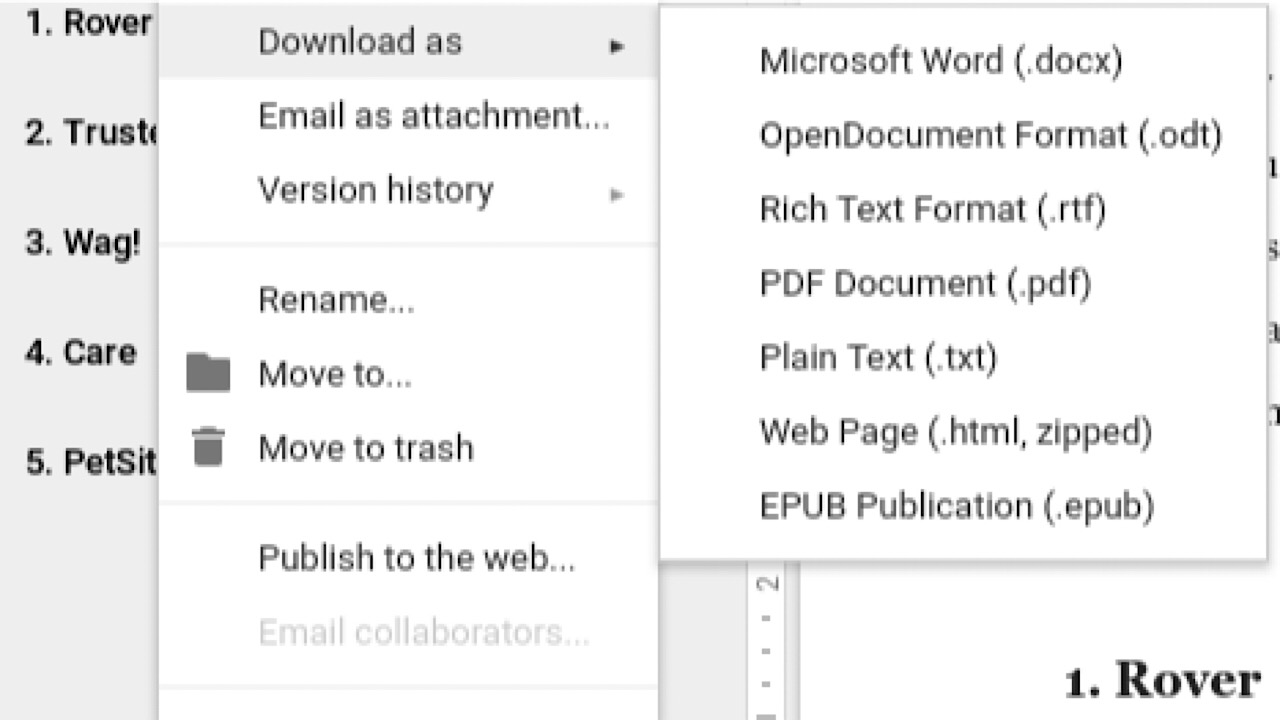
In the drop-down menu, hover over “Download as.” Choose which format that you’d like your document to be in, like a PDF or Microsoft Word document.

Google Drive screenshot

Once selected, you’re all done!
On your mobile device

In your Google Drive app, open the document that you’d like to download. Tap the three horizontal dots in the top right corner.

Drive mobile screenshot

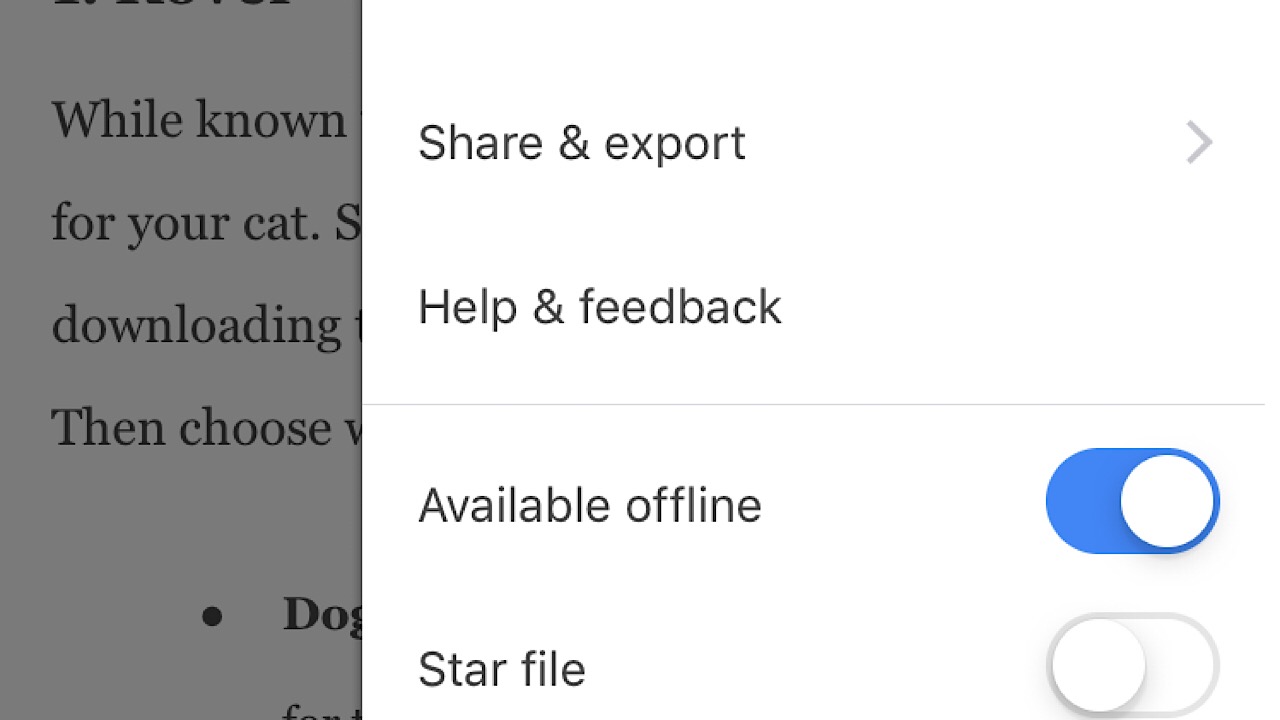
In the drop-down menu, scroll down to “Available offline” and toggle it on.

Drive mobile offline screenshot

You can view it in the app now even if you’re out of Wi-Fi range or if you’ve run out of data. In the drop-down menu, you can also save as a Word document and email to anyone who needs to see it without allowing them editing privileges.

In just a few simple moves, you’re all set to view files on the go.