Recent warnings from the FIDO Alliance and Yubico have highlighted the insecurity of implementing synchronized passkeys in organizational environments. Although these credentials offer convenience for the user through synchronization via cloud services like iCloud or Google Cloud, they also significantly expand the attack surface, increasing vulnerability to man-in-the-middle attacks and phishing techniques. Passkeys: the double-edged sword Researchers have demonstrated that compromised browser environments can manipulate WebAuthn records and accesses without compromising the cryptography of the passkeys. This […]
Recent warnings from the FIDO Alliance and Yubico have highlighted the insecurity of implementing synchronized passkeys in organizational environments. Although these credentials offer convenience for the user through synchronization via cloud services like iCloud or Google Cloud, they also significantly expand the attack surface, increasing vulnerability to man-in-the-middle attacks and phishing techniques.
Passkeys: the double-edged sword
Researchers have demonstrated that compromised browser environments can manipulate WebAuthn logs and accesses without compromising the cryptography of passkeys. This is achieved through malicious extensions or by exploiting existing vulnerabilities, allowing attackers to perform actions such as code injection or hijacking authentication processes. The security of the implementation is compromised, particularly when users are induced to select weaker authentication methods, such as SMS or OTP, by a malicious proxy that intercepts communication.
In contrast, device-linked passkeys, which generally require secure hardware components for their generation and use, offer more robust control over device signals and lifecycle management. This approach not only enhances security but also allows organizations to conduct more effective audits of their authentication systems.
Therefore, both the FIDO Alliance and Yubico recommend that companies reconsider the implementation of synchronized passkeys, opting instead for solutions that are tied to devices to ensure greater protection. The convenience offered by synchronized passkeys should not compromise the integrity of access security in business environments.
Let’s see how to review the security of all our passwords using simply our iPhone.
Starting with iOS 14 and iPadOS 14 the keychain of our iPhone or iPad, where we store the passwords, can warn us when some of them are not secure. The system is even able to check if the password has appeared in a leak and warn us about it. Let’s see how to review the security of our passwords simply using our iPhone.
The locked files and folders are those that do not allow changes, not even in the name, but there is much more.
The different files on our Mac have different levels of importance. There are some that, surely, we have backed up in three or even four places to make sure they never disappear, In the same vein there is a most useful resource: lock files or folders. Let’s see how to do it and what we gain from it.
A very simple function that allows anyone without our permission to see our most sensitive content. Simple and efficient.
We take a lot of photos and videos with our iPhone. Over time this generates a lot of personal and valuable images. And some of them need extra protection. A protection that can come in the form of a password in the Photos app that would prevent anyone with access to the phone from viewing them.
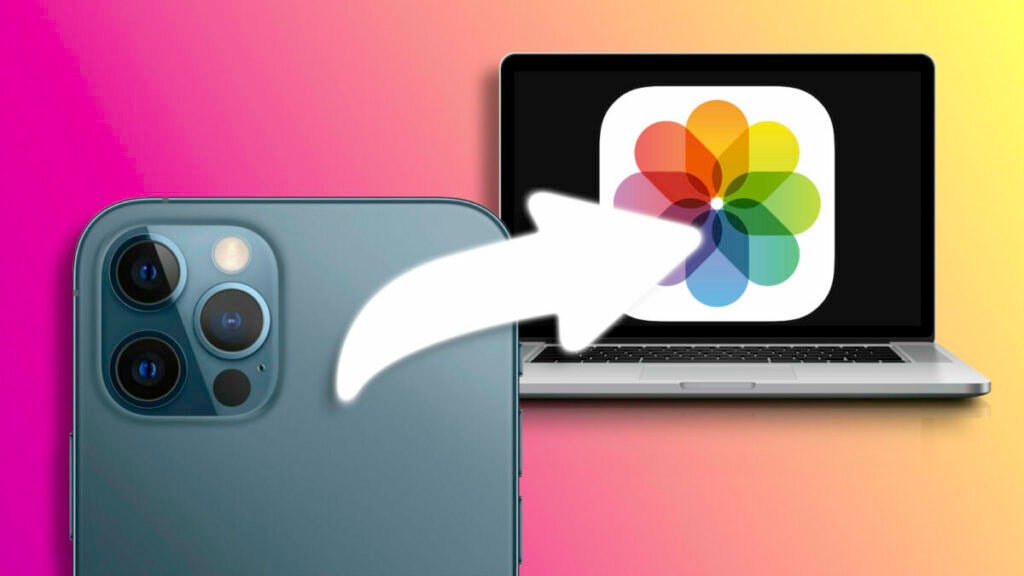
The easiest option is to use iCloud, but there are also other alternatives such as transferring them directly to the Mac or using third-party services. In a few clicks we will have all the content available wherever we need it.
iPhones have become an essential tool for capturing the environment around us through photos and videos. Whether we are talking about the most recent vacations, using them to customize the home screen of our iPhone and make it unique, recording the screen or being able to take a picture of an advertisement or address that we will later want to consult, the ubiquity of the iPhone camera is more than considerable.
The photos stop appearing on any iPhone or iPad that we use. There may be more than one cause of this situation, let’s see what we can do to fix it.
Photo synchronization through iCloud is a marvel. Without us having to do anything all the photos in our photo library are kept up to date on all our devices. However, this simplicity becomes less desirable when, for some unknown reason, photos stop appearing on any iPhone or iPad we use. There may be more than one cause of this situation, let’s see what we can do to fix it.
Solutions: from the easiest to the most elaborated ones
The Photos photo library sync is, just like these 10 amazing iOS 16 features, automatic, so we don’t have to do anything specific to make it happen. That said, there may be several situations that prevent its proper functioning, let’s review them in order starting with those that have a simpler solution to the most complex.
Do we have internet connection?
This one is easy. We just need to visit a website, for example www.softonic.com to check if the connection of our iPhone or iPad is correct. It is important that we also check the internet connection of the device that has the photo, so if a photo we just took with our iPhone does not appear on our iPad we must check both, since the photo must be uploaded from the iPhone to then be downloaded to the iPad.
Do we have the low consumption mode activated?
When the low power mode is enabled the system stops the synchronization of photos. This is one of the many measures to lower battery consumption, so we must make sure that this mode is disabled on our iPhone.
The easiest way to do this is to ask Siri: “Hey Siri, turn off low power mode”.
What is the status of Apple’s systems?
Although it is rare, sometimes the systems that Apple uses to synchronize photos have some temporary error that prevents them from providing the service correctly. This is something we should check on Apple’s website.
Let’s restart our iPhone or iPad
This is always a good resource. Sometimes some systems or processes can stop responding correctly. A reboot of our iPhone or iPad should fix this and is something to keep in mind when trying to fix this or other errors that may come up on a day to day basis.
Do I have space on my device?
Another important question. We need space to be able to store the images. We can check the available space in Settings > General > iPhone/iPad Storage. Let’s make sure that we have at least three to four GB free.
What about turning iCloud photo library on and off?
We move on to somewhat more forceful solutions. In Settings > Photos we can disable and enable Photos in iCloud. With this we should be able to force the sync to resume.
Sign out and sign in to iCloud account
Last resort. In Settings > [Our name] we can Sign out of the iCloud account. We then sign back in and, for the most part, the sync will be restored.
It is important to emphasize that when we sign back in to iCloud we may need to review some specific settings on our iPhone or iPad.
What if the synchronization still fails? My personal recommendation is to wait several days before moving on to more drastic solutions such as restoring devices, for example. Often everything works again without further ado and we can continue to implement the ultimate trick to take the best photos with your phone. If not, the best thing to do is to contact Apple Care for help.
Some of the links added in the article are part of affiliate campaigns and may represent benefits for Softonic.
The key to having 4TB in iCloud is to combine the storage available in iCloud+ and that of Apple One.
The amount of data we store in iCloud is increasing. Between photos, videos, documents and files, it is common that the available space is progressively reduced. For this reason, after deleting some backups, we scroll to the iCloud options on our devices to buy more space. However, what happens if we already have the maximum 2TB?
Backups can take up a lot of space in iCloud. Therefore, it is a good idea that we check if there are some that we can eliminate.
Our iPhone and iPad are able to make backups automatically through iCloud. A very useful feature, since, at any given time, it would allow us to restore our device to its previous state. A resource with which to fix any errors or with which to transfer all our information to a new iPhone (maybe yellow) or iPad in a matter of minutes.
How to delete old copies that no longer need to be saved
Over time, however, too many backups may accumulate in iCloud, taking up considerable space. We are not talking about several copies of the same iPhone, we speak, above all, copies of devices that we are no longer using. In this case, it is best to do a little cleaning, the steps to follow are as follows:
We open the Settings app on our iPhone or iPad.
Tap on our name at the top.
Go to iCloud.
Tap on Manage account space.
In the list at the bottom, tap on Backups.
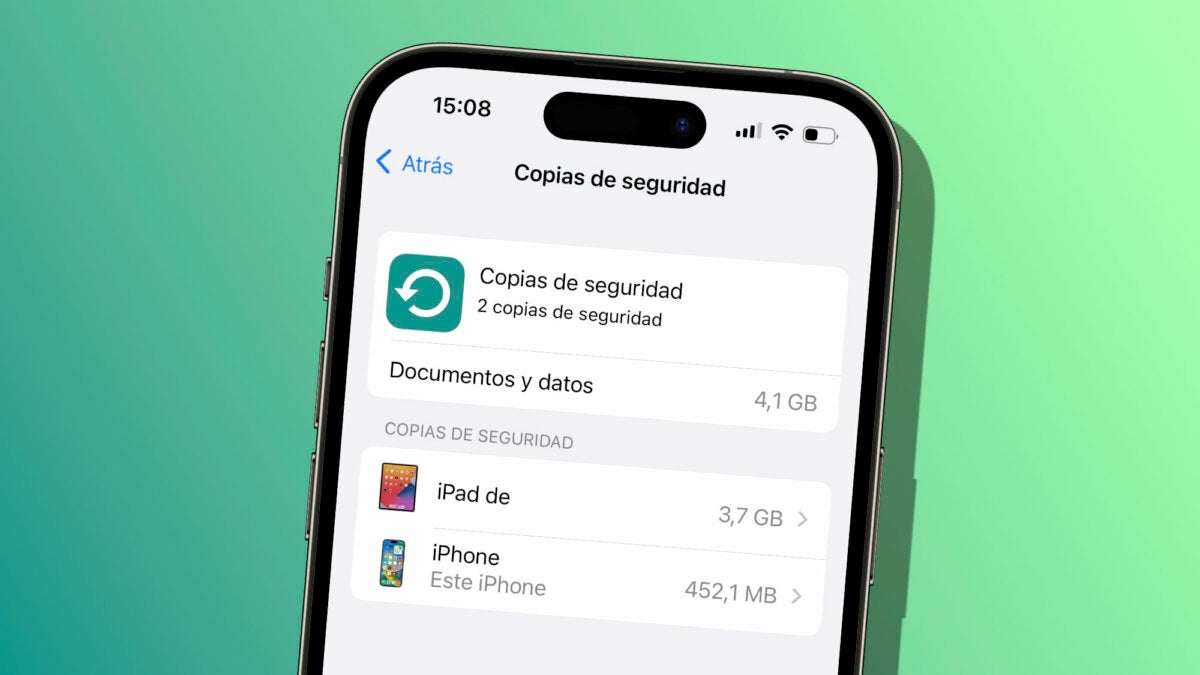
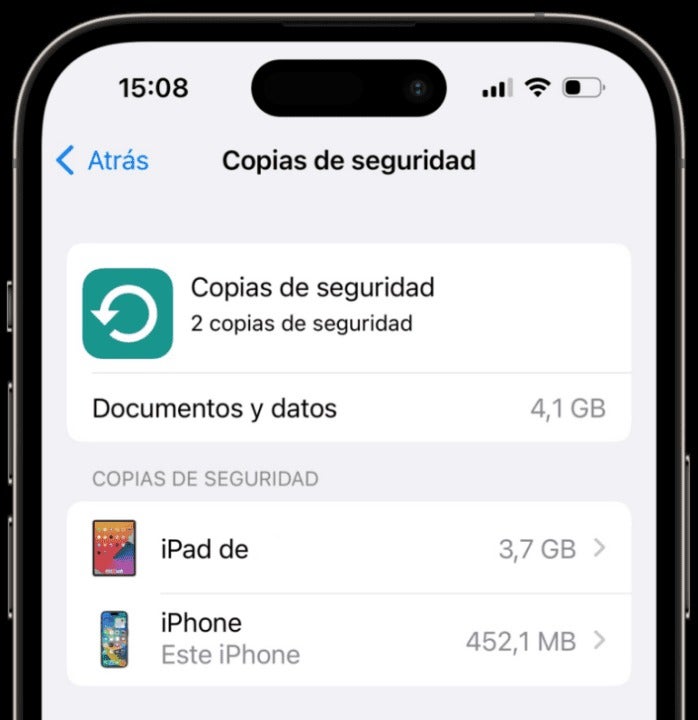
List of backups on an iPhone.
Here we will see a list of all the backups stored in iCloud. If there are several copies of the same device, we must make sure to keep the one with the subtitle “This iPad” or “This iPhone”, which indicates that it belongs to the current device. For the other copies, all we have to do is delete them.
How? Very easy, by touching them and then choosing Delete copy at the bottom. Note also that the date on which the copy was last made is shown here. This information can also help us to confirm that this copy is indeed no longer in use.
Alternatively, when in doubt about which copies to delete, another option is to simply delete them all. Then we go to Settings > Our name > iCloud and in iCloud Backup we make sure that it is activated with Back up this iPhone/iPad. A process we will follow on all our devices to re-enable the copy after wiping.
Along with 10 other amazing features of iOS 16, thanks to this, we will ensure that we are not taking up extra space in iCloud with copies that we will not use. A simple resource to recover space in which to save photos, videos, documents and information that we do need to be available in the Apple cloud.
Users of iCloud for Windows have discovered an alarming and potentially damaging bug. iCloud for Windows is a simple user client that enables Windows users to sync their photos, videos, contacts, and more with the Apple ecosystem. However, in the last week, there have been multiple user reports stating corrupted files with scan lines and even strangers’ photos in their feeds.
The issue was first brought up on the MacRumors forum, and soon other users responded that they were experiencing the same issue. Users have reported that after recording a video on iPhone 13 Pro and iPhone 14 Pro and downloading it through the iCloud for Windows client, they’ve received corrupted files with scan lines. Some users have even reported seeing other users’ photos in their feeds or, even worse, in their videos.
Some users have reported seeing images of other families, children, soccer games, and similar images in their feeds and videos. This is extremely alarming and could indicate a major privacy bug within the iCloud system.
“I’ve been shown photos of other people’s families I’ve never seen in my life, soccer games, and other random photos. Obviously, this is extremely concerning and does not exactly make me feel safe using iCloud,” one of the affected users explained.
At the moment, it seems very likely that these images are pulled from other users’ iCloud accounts, which means your photos could end up in another user’s feed or even their videos. What a scary thought, especially if you have private photos stored in your iCloud account. If you have any personal or private photos on iCloud, now might be a good time to remove them and store them in another way.
Deleting the iCloud for Windows app also doesn’t solve the problem, meaning that this issue is based on the server side. At the moment, both Windows 10 and 11 are affected. It also appears to only happen on recordings taken on Apple devices with certain settings like HDR and HEVC enabled.
Multiple users have reported the issue to Apple, but at the moment, they are struggling to recreate the issue on their side. As such, they haven’t released any statements on the issue yet, and we are waiting for any news of a solution. This is not the first Apple privacy concern being raised this week. Earlier today, we also received word that Apple is collecting user data even without permission. Apple users should take steps to protect their privacy, as these issues can be a major privacy breach.