Best templates for Microsoft Office

This is where to find all the best Microsoft Office templates for Microsoft Office.

Microsoft Office templates

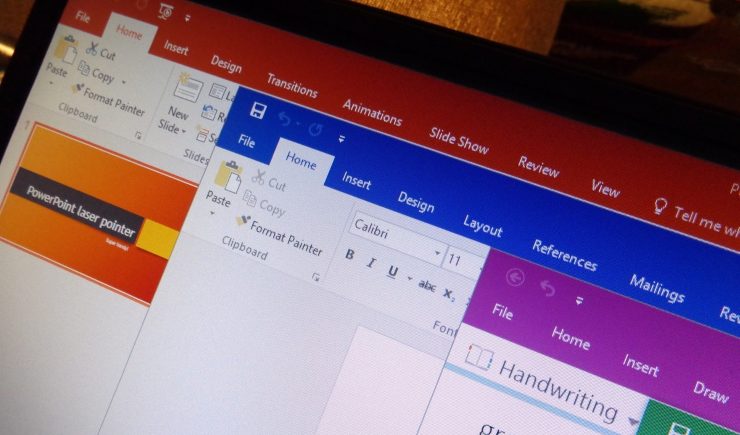
We don’t need to get into how good Microsoft Office is. It is by far the most popular productivity suite for Windows and Mac and has been for quite some time. Did you know though, that Office can be even better than it is when you first install it? Well, Office templates are pre-formatted documents that allow you to quickly add your particulars and create all manner of impressive documents from flyers, to posters, to resumes in a matter of mere minutes.

Now sure, Microsoft Office does come with some pre-installed templates but there are a lot more out there, you just have to find them. No matter what type of project you’re working on, we’ll walk you through some of the best sources of Office templates on the internet. When you’re done reading this guide, you’ll be able to do so much more with your Office 365 subscription.

6

Microsoft Office templates

Microsoft Office Online templates
Office online templates

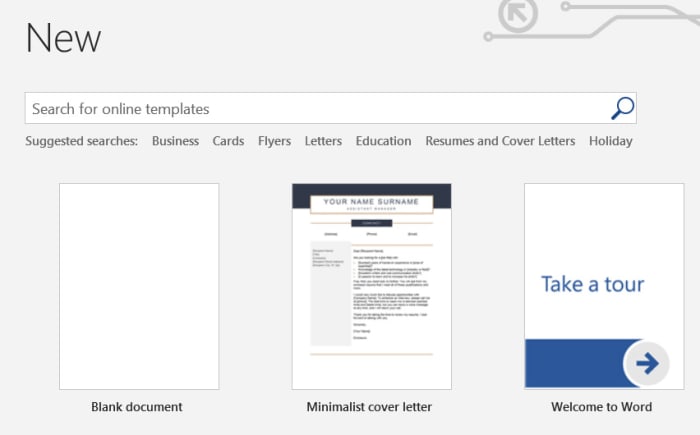
The first source of Office templates you should know about can be found right there within the Office apps themselves. You simply open up the particular Office app, if you’re looking for a Microsoft Office Template for Word then open Word or if you’re looking for Excel templates open Excel. Then you simply click New and you’ll see a search bar at the top, which says “Search for online templates”. From there you’ll be able to search for official Microsoft Office templates for resumes, cover letters, business cards, etc. simply by typing what you’re looking for.

Office Online Download now
7

Microsoft Office templates for Word

Without a doubt, Microsoft Word is the Microsoft Office program that people use templates with the most. On Word, you can get new templates for resumes, cover letters, calendars, invoices, newsletters, brochures, business cards, flyers, certificates, and more.
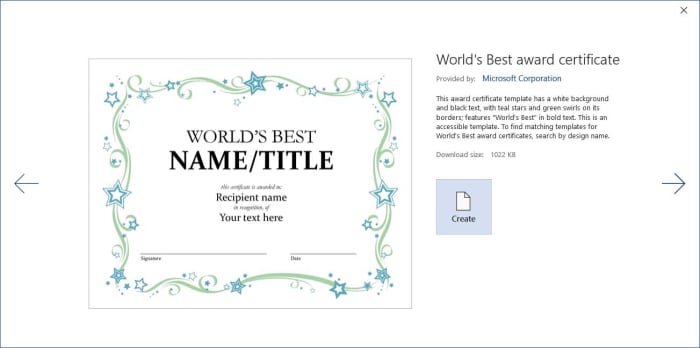
Microsoft Word templates

Unsurprisingly, with there being so many different types of Office templates available, there are lots of different places you can find them. Below you’ll find links to some excellent sources of Microsoft Word templates we’ve found online:

Template.Net has a wide variety of different types of Word templates including templates for newsletters, templates for cover letters and letterheads, templates for budgets, and even less common Word templates like for tracking baby growth or speciality brochures.

Layout Ready is another excellent source of Microsoft Word templates covering everything from Postcard templates to Business Card templates.
Microsoft Word 2016 Download Now
9

Microsoft Office Templates for PowerPoint

As if giving presentations weren’t hard enough already, creating edgy and eye-catching presentations on Microsoft PowerPoint comes with its own set of technical difficulties. PowerPoint templates, however, can take the sting out of building your presentations so that you can concentrate on your public speaking.
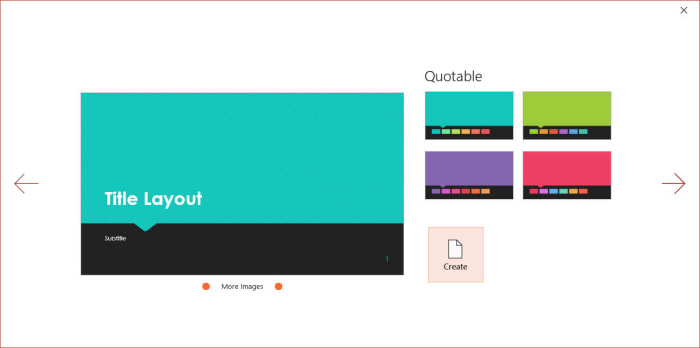
PowerPoint templates

Smart Sheet is a great place to download free Microsoft Office templates for PowerPoint. You’ll find Office temples for marketing plans, SWOT analysis templates, finance templates, marketing plan templates, and more. Downloads are free and couldn’t be simpler. You just find the PowerPoint template you want and hit download.

Microsoft PowerPoint for Android Download now
8

Microsoft Office templates for Excel

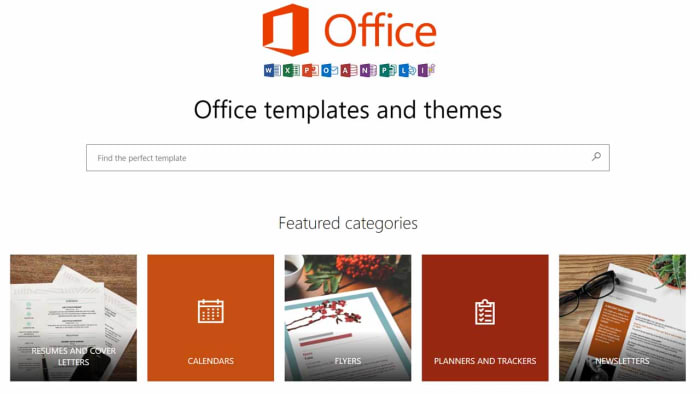
Although you’ll find a lot of the official Microsoft Office templates using the in-app method we laid out earlier, you’ll also be able to find more Office templates over at office.com. If you go to the Excel page at templates.office.com, you’ll find some excellent options that might not show up using the in-app method. No doubt you’ll have already seen a lot of the search results that come up, but you’ll find the odd hidden gem too.
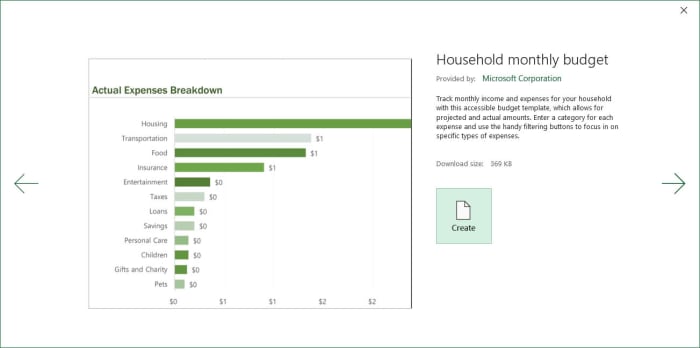
Excel templates

Microsoft Excel Download now ►
7

Microsoft Office resume templates 2019

Now that we’ve gone through the main app-specific sources of Microsoft Office templates, let’s look at some of the particular types of template that you might need, and start with resumes.
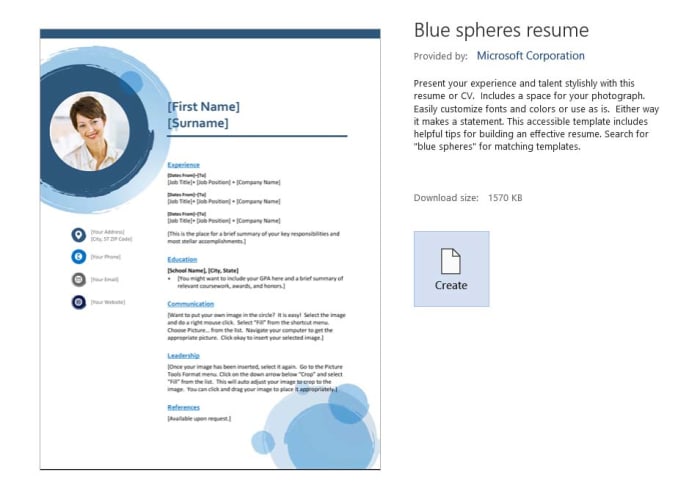
Resume office templates

Resume templates are among the most useful. A good resume will help you stand out from the crowd whenever you’re applying for jobs. This is more important than ever these days as HR managers and recruiters often have to go through hundreds of applications for every position. This means they may only get to look at your resume for a few seconds at most.

The best resume templates are for Microsoft Word and you’ll find some excellent examples at Template Monster.

Microsoft Office templates for invoices

Invoices are another type of tricky document that you could save a lot of time on if you simply download free templates first and then fill in all the appropriate information correctly. You can create invoices easily enough using Microsoft Word or Microsoft Excel.
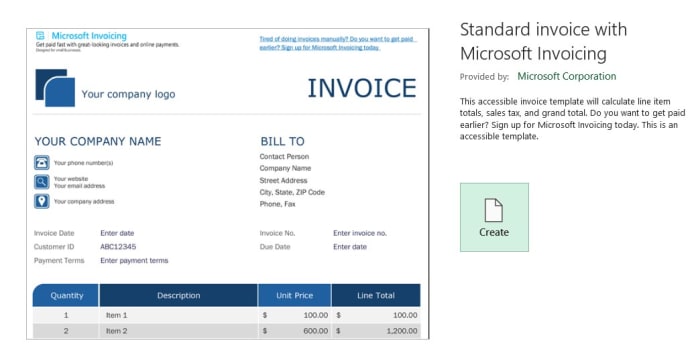
Invoice templates for office

For a good source of Microsoft Word templates for invoices check out Hloom, where you’ll find many different types of invoice templates. If you’d prefer to create your invoices in Excel, taking advantage of the more dynamic data capabilities offered by a spreadsheet, you ‘ll find some great options at Spreadsheet 123.

How to make your own Microsoft Office templates

You might not know this, but it isn’t that difficult to make your own Microsoft Office templates if you’re comfortable enough with design to think you can give it a go yourself. The process is a little different between each program but mostly the same.

To create templates in Microsoft Word, Microsoft Excel, or Microsoft PowerPoint all you need to do is layout the template in each program as you’d like it to be saved. It is important to remember here that you don’t want to save any text in your templates that you may forget to change later on. It is a good idea to use text like “Insert… here” for example.

When you’ve finished designing your template, instead of saving your work as a Word document, Excel document, or PowerPoint document you save it as a Word template that has a file type of .dotx instead of .docx, Excel template, or PowerPoint template. These will then be available to use next time you launch Microsoft Office.

Wrapping up

We’ve walked you through where to find the best Microsoft Office templates for the main apps and we’ve also looked at the places to find particular types of templates like invoice templates and resume templates. If you made it all the way through this guide, you’ll also know how to save your own templates for future use too. If you do end up making your own templates, we’d love to see the results. Share them with us in the comments below.
Microsoft Office for free? Try these great alternatives

You don’t need to pay premium prices to gain access to the premium features you expect from Microsoft Office. These are the best free alternatives to Microsoft Office.

Free Microsoft Office apps

If you’ve ever used your PC to do anything even remotely productive, chances are you’ve used Microsoft Office. The Microsoft productivity suite has always been the most popular suite of programs built to help you write documents, draw up spreadsheets, prepare presentations, and more. Microsoft Office is an institution.

As with most other established institutions, however, the Microsoft Office suite comes with a hefty price tag. The reliability that you get from an established productivity suite comes at a premium. If you balk at the idea of paying out for your productivity programs, then you’ll be glad to know that it doesn’t have to be that way. Let’s go through some of the best alternatives to Microsoft Office that you can use for free.

6

Microsoft Office alternatives for free

Google Docs, Google Sheets, and Google Slides

Google’s own productivity suite, linked to Google Drive, hasn’t been around as long as the Microsoft offering. It has, however, quickly gained a strong reputation for reliability and ease of use across multiple devices. Docs is a cloud-based suite of apps that uses the powers of modern web browsers to do all the heavy lifting. Although the programs are all online-first pieces of software they can all be made available for offline use too, so that you don’t have to worry about being connected to the internet before you start work.

You do need an account but once you have a Google account, which will give you access to Gmail and Google Drive’s cloud storage you’ll also then be free to use the Google Docs suite as you wish. Although many IT departments still rely heavily on the likes of Microsoft Word and Excel, Google Docs and Google Sheets offer amazing real-time collaborative capabilities making them perfect for team-based projects. This means Google Docs is the best free alternative to Microsoft Office for teams and IT managers should look into the enterprise level G Suite offering of the service.

Google Docs download free ►
8

SoftMaker Free Office

Free Office alternatives SoftMaker
Image via: SoftMaker

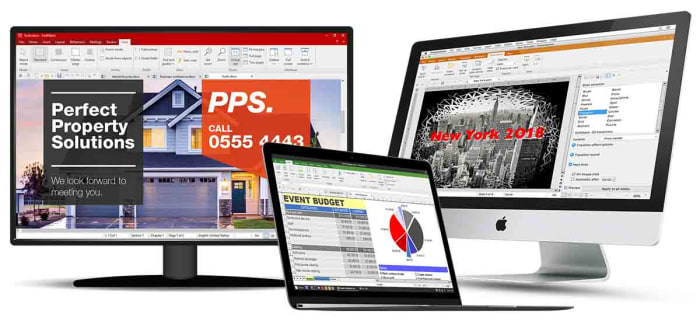
Free Office is the original free alternative to MS Office. The program has been around since 1987 and not only looks very similar to the Microsoft productivity suite, thanks to a recent update, it is also fully compatible with all Microsoft office files like DOCX and XLSX as well as many other file formats.

As the name suggests, Free Office is completely free to use, although you will have to register an account with the developer SoftMaker before you’ll receive your download link. It is available across multiple operating systems for Windows, Mac, and Linux users.

We recommend Free Office as the best free Microsoft Office alternative for anybody who is already used to Microsoft Office but no longer wants to pay for it.

SoftMaker FreeOffice Download now
7

Microsoft Office Online

Office Online

Another great option for former Microsoft Office users looking to take the strain off their wallets is Microsoft’s new online versions of the major Office programs. All are free to use. Microsoft Office Online gives access to cloud-based versions of Word, Excel, PowerPoint, OneNote and more. Although not as fully featured as the apps associated with an Office 365 subscription, this is still a great online office suite. It should be more than enough for most casual users who simply want a way to edit documents.

Office Online can be used across multiple operating systems using different web browsers like Microsoft Edge and Google Chrome. It can run with files stored locally on your PC as well as those stored on your Microsoft OneDrive. You will, however, need a Microsoft account before you can use Office Online.

Office Online Download now
7

Libre Office

Libre Office has been around in its current form since 2010 when it split from Free Office and has never failed to impress. Stemming from The Document Foundation, Libre Office is free and open-source software meaning it is worked on by a global community of collaborating developers.

With Libre Office, you’ll find comparable programs to Microsoft Word, Microsoft Excel, Microsoft PowerPoint, and more. You’ll also be able to run Libre Office on Microsoft Windows devices as well as Apple devices running Mac OS. Libre Office works on Linux machines too. There is also a Libre Office app for viewing your PDF files on Android devices and a plethora of add-ons to play around with too.

The only real downside associated with Libre Office is regarding compatibility with Libre files often experiencing formatting irregularities when viewed and edited in other programs.

LibreOffice Download LibreOffice
7

Open Office

Open Office by The Apache Software Foundation is another Microsoft Office alternative you can get for free that has a long history behind it. Open Office first appeared over 20 years ago and ever since, Apache has been updating, tweaking, and refining it. It is a great free office suite, offers strong alternatives to all of the core Microsoft Office programs, and can be installed on Windows, MacOS, and Linux.

Apache Open Office is similar to Libre Office in that it is open-source software, but it also shares Libre Office’s compatibility issues. Both use the open-source Open Document Format, which means you’ll be able to open versions of your Open Office documents on other programs but you might experience a few inconsistencies with the fonts and formatting.

Apache OpenOffice Download now
8

OfficeSuite

OfficeSuite apps

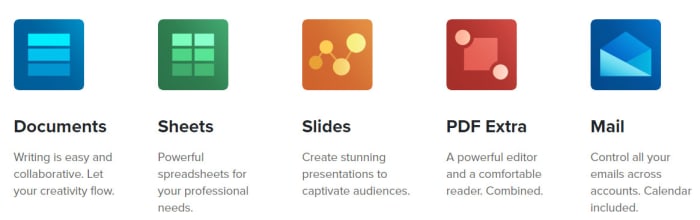
If you’ve owned an Amazon Kindle Fire or a Toshiba, Sony, or Alcatel device you might already be familiar with OfficeSuite by MobiSystems. All those devices come with OfficeSuite pre-installed. If you’ve never owned one of those devices before, and you’re looking for a free alternative to Microsoft Office or free word processing capabilities, it might be worth your time familiarizing yourself with what OfficeSuite has to offer.

OfficeSuite comes in a number of payment tiers with the basic offering being the free version, which gives access to a number of features. These include the ability to view and edit Word, Excel, and PowerPoint documents as well as being able to view PDF files. Admittedly, this is a very basic offering indeed, but it does meet the needs of many users and it’ll also give access to sharing platforms like Dropbox and iCloud. The main issue, however, is that basic users will be pushed heavily into taking out a paid subscription that will allow them to use OfficeSuite across their desktop, tablet, and smartphone.

OfficeSuite Download now
8
Final recommendations

We’ve been through quite a few free Microsoft Office alternatives for you to consider. As we’ve already pointed out we think that using Google’s online programs, like the word processor Docs and spreadsheet builder Sheets, offers the best experience for teams.

For anybody already used to the Microsoft Office layout, we’d recommend Free Office as developer SoftMaker has worked hard to make the experience as similar to that offered by Microsoft Office as is possible.

If you’re new to the game, however, and you’re looking for your first productivity suite, we’d recommend Libre Office. You can install it on your device for free and as well as offering reliable alternatives to the Microsoft Office programs, it also offers added apps like Math and Draw.

Other programs worth considering are WPS Office and Apple’s iWork.

How to update Microsoft Office with an Office 365 subscription

Make sure you’re running the latest version of all your Office products.

microsoft office 365

Office 365 is a cloud-based subscription service that gives users access to a suite of MS programs. This includes, of course, Microsoft Office. Office is the big dog in the world of productivity software, and it includes Word, Excel, PowerPoint, Outlook, Access, and Publisher, among many others. Microsoft offers new versions of Office every few years (with various updates and fixes in between). It can get expensive keeping up with the Joneses in terms of software. Office 365 allows you access to the most recent iteration of Microsoft programs without the need to buy each new version that comes along. You just pay for the subscription.

Ideally, your Office 365 subscription settings will be set to provide automatic software updates so you have the latest versions of your office programs as soon as they become available. If need be, however, you can manually install Microsoft Office updates. Here’s how.

How to update Microsoft Office with an Office 365 subscription

Updating from Office

These instructions are for updating MS Office from one of your Office programs (2013 or later).

  • Open up any Office app (such as Word, Excel, PowerPoint, and so on). Click on File, and then select Account (or Office Account in Outlook).
  • Go to Product Information and choose Update Options, and then select Update Now. If Update Now doesn’t show up, you may need to select Enable Updates from the same menu.

Office will check for and install any new updates and let you know when it’s finished via a “You’re up to date!” pop-up window.

6

Updating from the Microsoft Store

If you purchased Office 365 from the Microsoft Store, you can use the store to install updates to your Office programs.

  • First, exit any Office apps you have open on your device.
  • Enter Microsoft Store into the taskbar search, and then press Enter.
  • Click on the profile icon and ensure that you’re logged in to the account you want to update.
  • Click the ellipses (…) icon and choose Downloads and Updates.
  • Select Get Updates.

You will either be prompted to download the latest updates or you’ll get a “You’re good to go” message from the Microsoft Store to let you know there are no new updates available.

If you are using your company’s Office 365 account, the settings may block you from being able to install updates or change updates settings. Don’t be afraid to reach out to the tech support people at work if you’re having trouble with your company’s Office software. Similarly, get in touch with Microsoft’s support department if you are having update issues on your personal 365 account.