Apple users got the short end of a paradoxically long stick when it comes to artistic capabilities.
The Apple Pencil represents one of the most sophisticated digital art tools and ProCreate on the iPad works like a dream. However, using computer-bound programs for animation and design (ToonBoom, Photoshop, etc.) can become a nightmare experience on the Mac.
The simple fact is this: almost no professional artistic programs are available for use on the iPad in their full form. Sadly, while the device has many aspects of a personal computer, they are still considered by the Apple store as portable devices. To make matters worse, there is no way to use an iPad as a second screen for your Macbook!
That all changed when Astropad came along.

Turn your iPad into a graphics tablet with Astropad
What is it?
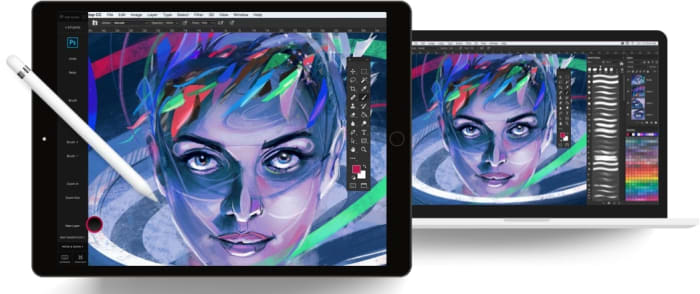
Astropad is an application that turns your iPad into a fully-functioning graphics tablet by allowing the iPad to control a Macbook’s screen, whether by using a finger or a stylus.
You may now be asking: what is a graphics tablet?
Graphics tablets are electronic pads that connect – whether wired or wireless – to a laptop so the user can draw with a stylus as if they were using a sketch pad or painting on a canvas. While graphics tablets come with their own technical difficulties, the versatility of digital artwork provides large benefits: the ability to export artwork with ease, the availability of a huge range of artistic tools.
Admittedly, a decent graphics tablet of similar size may cost less than $100. Also, a graphics tablet complete with a monitor (screen) may only cost a few hundred dollars more.
However, we’re willing to bet many Apple users already purchased an iPad for everything else it can do: take excellent photos, play music through powerful speakers, connect to a keyboard for easy, portable typing.
If this is the case, for Astropad’s cost of $30, you can add all the capabilities of a graphics tablet. We think that’s worth the cost!
How to Connect
So, let’s say you’re sold. You now have Astropad and you want to set it up. What does that look like? How do the devices connect?
The Easy Way
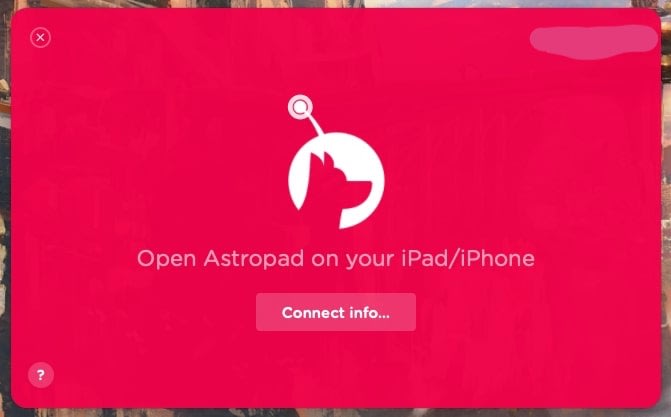
Before anything else, you’ll need to download AstroPad on your mobile device and buy it on your laptop.
When that’s finished…
Open your laptop and iPad. If they’re both connected to the same Wi-Fi, the program will instantly bring them together. Congratulations! You’re already set to go.
The Hard Way
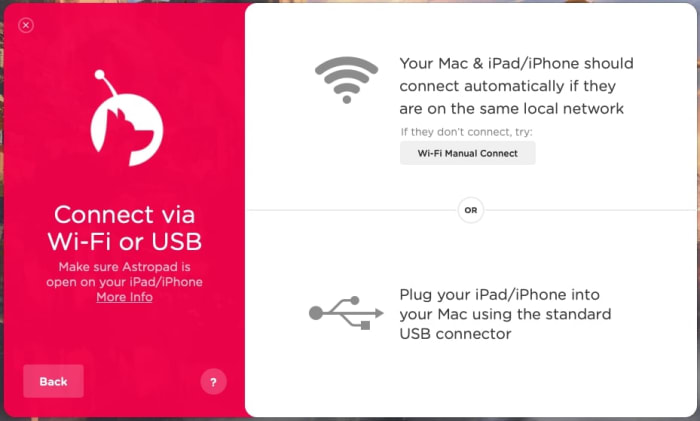
Occasionally, you will be unable to connect your iPad and laptop to Wi-Fi at the same time. When that’s the case, there are two options:
- Wired connection. Like a wired graphics tablet, simply use your USB-to- lightning connector and link the two devices. You may need to keep them connected thereon, but your graphics tablet will be complete!
- Manually connect with a QR code. Please note: your tablet must be able to connect to the same Wi-Fi source as your laptop in order for this to work. It’s one way to tie them together quickly if they’re not on the same internet connection but will be useless if the device isn’t allowed to join.

Using AstroPad
 Once your devices connect, you’ll have a window that looks something like the picture above. If it seems weird, don’t panic! You can use your computer cursor to manipulate everything around and inside the viewing window as usual… except, you will need to move the handles if they’re in the way.
On your device, you’ll see what’s inside the selector box on your laptop, with a few more options on the side. Let’s talk about those tools:
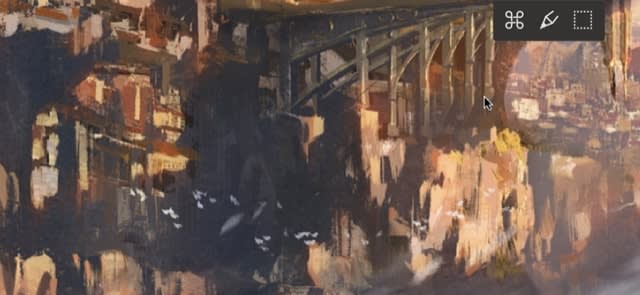 The left button gives you the ability to use shift-control/option/command at any time. These buttons are used often in writing programs, and thanks to Astropad’s design, you won’t be missing them here!
The second option allows for the connection of many types of Bluetooth styluses. This may be a huge relief to those who prefer other options to the Apple pencil, which can be pricey:
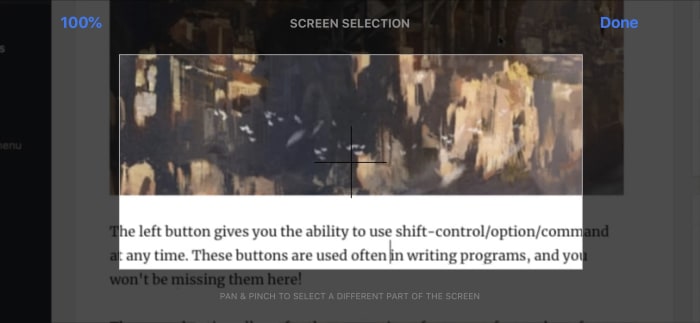
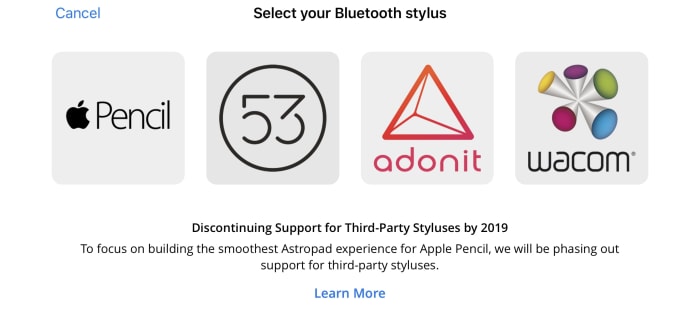 Finally, the third option, the “window” option, allows you to change the AstroPad viewing window from the graphic tablet. On your device, click this button to open a new set of options, allowing you to drag, expand, or reduce the viewing window with ease:
 Together, all these things create an easy environment where you can use dedicated artistic styluses on the iPad in conjunction with the powerful creation programs available on a Mac.
In fact, there are even peculiar benefits to this route! While the viewing window for normal graphics tablets may be hard to control, AstroPad gives you an easy way to focus on the artistic window of a creative program and focus on the many surrounding animation tools with your laptop. You can kill two birds with one stone!
Wrapping up
Astropad works great, so our one complaint would be tracking: as you can expect, the connection between a laptop screen and your tablet won’t be as fast as drawing on the iPad itself. Still, the delay isn’t too bad, even by modern day standards. You may not notice whatsoever.
That being said, we hope Astropad can help you on your journey through the digital arts.