What’s the best BitTorrent client for Mac? On Softonic it seems the favorite is still Azureus. I like Azureus, especially because it has so much statistics and features that you can go and tweak for hours. Still, I think it’s pretty resource intensive and probably not the friendliest torrent client for somebody who’s new to downloading. You can go with the basic BitTorrent client, but why when there are better ones around? Two highly popular alternatives are Tomato Torrent and Transmission. Let’s see how they compare to each other.
 First up, Tomato Torrent. On start up this client doesn’t look like your usual BitTorrent client, as it shows a starting point window, where you get to choose different actions depending on whether you’re downloading or serving torrents. Even after you’ve launched a torrent you’ll have to get accustomed to it, as Tomato Torrent only displays the selected torrent with its own options and status.
You can adjust the different settings, like the number of incoming connections and upload maximums and minimums individually. Once a download is started you’ll see a progress bar, including percentage and status detail, like the download rate or the number of peers and seeds. From the preferences menu you can set how Tomato Torrent automatically stops completed torrents: according to time, percentage or amount of data. You can also choose the default maximum upload rate and have it automatically changed when finished.
 Transmission has a more common interface, similar to most download managers, which shows all your torrents in a list. Torrents can be viewed in five different ways: all, active, downloading, seeding and paused. Transmission automatically shows upload and download rates and it includes a search box to find torrents more quickly. You can pause and resume downloads any time and add colored labels to them.
In the preferences you’ll see you can set download and upload limits. Even better is the speed limit mode, which overrides total bandwidth limits. This comes in handy if you don’t want Transmission hogging your connection. Speed limit can be scheduled during the day. Similarly you can set limits to the number of global connections and connections for new transfers. Even better, Transmission lets you prefer encrypted peers and block bad ones.
My personal preference goes to Transmission, as I find it very easy to use, yet fitted with just the right set of features, like encryption or speed limit. It’s simple yet complete. Tomato Torrent is a bit more basic, but it has a step through feel that makes a good choice for first time downloaders. Nothing can really go wrong with Tomato Torrent, as the application takes you through the downloading process all the way. After that, the choice is yours.
 If you’ve ever fancied yourself as the next big thing when it comes to song writing, then your PC can help get those creative juices flowing and launch yourself onto the world stage. I can’t guarantee the following selection will help you make a number one single – or even get into the Eurovision Song Contest for that mater – but they may give you a helping hand on your way to making sweet music.
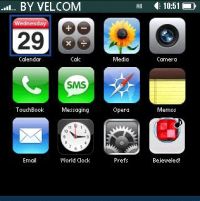 If you’re a Palm user then you’re probably fed up of people hammering onto you that it’s a dead platform and that it’s time to switch to another handset. True, competitors like HTC and Apple have hijacked the PDA market of late and they may be considered ‘cooler’, but Palm remains a
  I remember when I first used Windows XP. As a poor student in 2001, I wasn’t likely to upgrade to the new OS and instead had the glorious Windows 98 SE installed on my laptop, a device with the physical characteristics of a London telephone directory made of black lead. So it wasn’t for a few months that I actually got to grips with XP, on a new machine at the company I’d started working for between classes.
 SofaControl’s interface is very similar to that of Front Row, and it even includes a link to the application from its menu. However Sofa Control isn’t limited to media files. The program lets you reach any file or application on your Mac. Call it a Finder with style, or a Finder for the lazy, because in the end it means you’ll only need your Apple Remote to reach anything. You can also execute all sorts of specific actions in applications, like adding ratings or creating playlists in iTunes.
 Maybe a bit more powerful and customizable than SofaControl, XHub Media Center gives you access to all your media, including DVDs . You can tweak its appearance, choosing from one of 21 different skins or setting the sound effects. The application is easy to set up and browsing through albums in iTunes has a cool Front Row-like feel. On the downside, you won’t be able to access other files, like with Sofa Control, and the application sometimes chooses the wrong display ratio for videos. Still, a nice alternative to Front Row, with a bit more customization. Once installed XHUb is accessible from your Preferences.
 This one is the oldest of the three applications. Although it might not have such a sleek interface as Front Row, it still gives you quick access to all your media. iTheater recognizes DVDs as soon as you pop them in your drive and it will read Video_TS files stored on your Mac. You can control iTheater from your Apple Remote or simply using your keyboard. Type a letter to show all the media files who’s name start with it. An added plus is the little widgets that come with iTheater, to control playback of media from your Dashboard.
 If you are hard of hearing or are writing a letter, article or any other kind of Microsoft Word document for someone who has reading difficulties, then what you need is the
 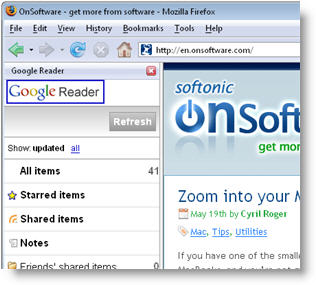 Google Reader has recently launched a revamped version of their iPhone interface in an attempt to make iPhone users’ experience in Reader much easier and far more comfortable. But what they probably didn’t think of is that this mobile-friendly version can also be loaded in the Firefox sidebar, just like we learned last week from the guys over at
  If you have one of the smaller Macs, like the 12″ MacBooks, and you’re not graced with perfect 20/20 vision it’s not always easy to see what’s on your screen. There are ways to change that though. First off, and this is a never-ending debate among Mac fans, is the issue of which screen you have chosen for your new Mac. I personally recommend getting a matte screen. Although the glossy one looks nicer, it also tends to reflect light more, making it harder to see.
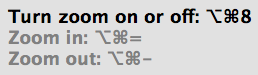 If you’re still not satisfied with these little tricks you can turn to alternative applications. One of them is
  Thunderbird 3 Alpha 1, code named Shredder, is