How to: Merge several Gmail accounts into one

As of this morning, I’m the lucky owner of an Android-powered HTC Magic, and though I still haven’t had time to start twiddling with it, I’ve already done some of the necessary arrangements to make the most out of this great device, like merging my three currently active Gmail accounts into one – which will the one I use with the HTC.

If, like me, you have various different Gmail addresses for diverse purposes (webware registrations, work, personal and so on) but need to centralize them all into a single one, don’t worry. Merging several Gmail accounts into one is easier than it seems and takes only a few minutes, as well as a bunch of logins and logouts.

The first and most important step is deciding which of your accounts is going to be the primary email address. Once you’ve done that, all you have to do is login to your secondary account and go to Settings > Forwarding and POP/IMAP. Once there, activate the Forwarding option and enter your primary email address. You can also choose whether you want to keep a copy of those messages in the original inbox, archive them or trash them.
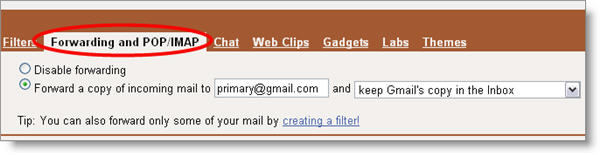
How to merge several Gmail accounts into one

Log out of this Gmail account and repeat this step with any other secondary email addresses you may have. When they’re all forwarded to your main account, login to it and go to Settings > Accounts. Click on Add another email address you own and enter the name and address of your secondary account. Gmail will then send an email to that secondary account with a code, in order to verify you really own it. Luckily as you’ve already forwarded those emails to the main one, simply check the inbox of the account you’re currently logged in, copy the code and paste it into the window. Continue reading “How to: Merge several Gmail accounts into one”
How to: Add custom searches to Firefox

There’s nothing more time consuming and tedious as cutting and pasting words into search engines. If you have the Google Toolbar installed in Firefox, do you know that you can create your own custom searches simply by right clicking on a word and selecting the site you’d like to search? Here’s how to:

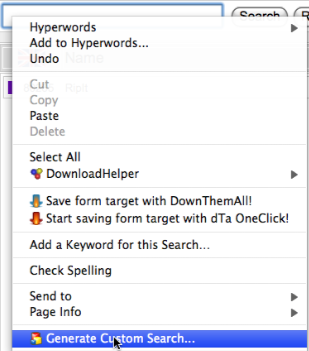
1. Right click on a search box that you’d like to integrate with Firefox. This could be absolutely any search-box on any webpage of your choosing.

shot1.png

2. Go to the bottom of the context menu and select Generate Custom Search…

3. In the Add Search Button dialog that appears, add the name of the search site (in this case “Softonic”) and add the URL of the site. Click Add. Continue reading “How to: Add custom searches to Firefox”

How to: tag MP3 files automatically in Winamp

I admit it: I’m a bit picky when it comes to organization… and this applies to computer files too, especially my MP3s. I like to have my entire music collection organized in folders, one for each album, and with all files perfectly named according to artist and song title. Of course, this means they must be all properly tagged, a task that can be very time consuming regardless of what software you use. This is why I was happy to find a very simple trick in Winamp to have all your MP3 automatically tagged for you.

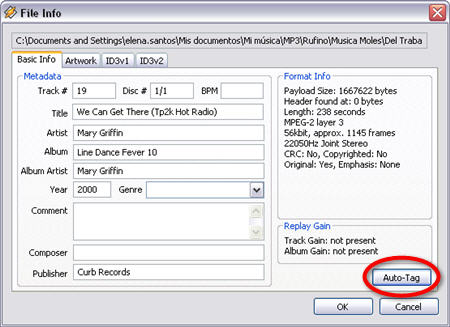
Whenever you see a file on your playlist that’s not properly named or is displayed simply as “track01”, do the following: right click on the playlist entry and select View file info. Then click on the Auto-Tag button and believe it or not, all tags will be magically completed in just a few seconds.

Auto-Tag MP3 files in Winamp

I must say this trick has worked for me every single time I’ve used it, no matter how the file was named or how much information was already included in the tags. Even in those cases when the tags were completely empty, Winamp was able to fill them in for me.

One last hint: if you want to tag several files at the same time, select all of them on your playlist with Ctrl+click, then right-click on the selection and go to Send to > Auto-Tag. They’ll be all tagged one after the other.

Ask OnSoftware: Effortlessly open PDF files in Firefox

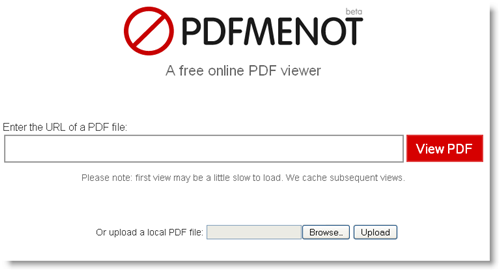
Open PDF files in Firefox without hassle

We’ve received quite a few emails in our Ask OnSoftware inbox, but when it’s time to turn any of them into a post, we try to select the ones that are more useful for our readers – and for us as well. This is the case of one of the latest emails we got, where Alicia complained about opening PDF files in Firefox. Here’s what she wrote:

I’d like to take advantage of this great service to ask about something that makes my life a bit more complicated. I switched to Firefox a while ago, I love it and I find plug-ins really useful. However I have a big problem with it: PDF files.

Firefox is not always able to open them, as IE normally does. Sometimes the browser just goes nuts, as if the PDF plug-in was not working properly.Then I have to manually download the PDF document and open it from the hard drive with my standard viewer.

I have the Adobe plug-in installed and have configured Firefox to use it for PDF files. I’ve also tested the PDF Download plug-in, but that didn’t solve the problem either. Sometimes it worked, sometimes it didn’t so I ended up uninstalling it in case it created conflicts with the other Firefox extensions. Is there anything else I can configure, load, test or check?

Opening PDF documents in Firefox is quite a common action but it’s also surprisingly problematic. Clicking on a PDF file link sometimes means ending up with a never-loading tab, a suddenly slow system or even worse, a frozen browser that cries out to be restarted. Here’s a few tips that can help you solve this situation. Continue reading “Ask OnSoftware: Effortlessly open PDF files in Firefox”

How to: Make your own Series 60 theme

We’ve all met those people who think they’re pretty cool just because they’ve installed a funny ringtone, a sexy background wallpaper, or a stupid animation on their mobile. More often than not they will have paid a small fortune to download it from a premium rate service, too. However, the smartest of smartphone users turn to theme-creation software to customize their phones for free.

Nokia’s Series 60 Theme Studio is perhaps the most powerful product of this kind. It’s free, and with a bit of creativity, you can produce much better designs than those crappy themes you see advertised on TV and in the back of magazines. Although the software is very powerful, it does have a reputation for being a bit of a beast to use. I’ve taken the opportunity to provide a quick guide to using Series 60 Theme Studio. It’s by no means a comprehensive walkthrough (that would take you about three months to read) but it should help you get started and give you a grounding in this somewhat daunting application.

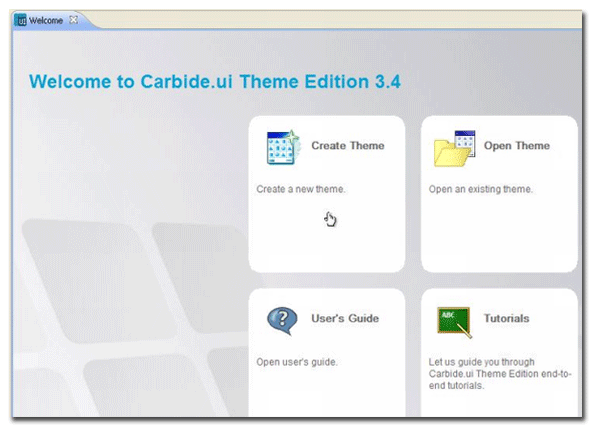
1. Start by downloading Series 60 Theme Studio Carbide. Once installed, run the program and select a folder to save your work to, when prompted. Click OK then select the Create Theme option from the Welcome screen.

Create Theme

2. Give your theme a name in the New Theme menu and make sure the default S60 Theme template is selected. Now to change the background wallpaper. It’s best if the image you use is already sized to the dimensions of 360 x 640 px. The image I used here came from VectorStock (it was free). To apply the image as a background, click the Idle preview window in the Gallery. Highlight the image in the main window then look for the Image icon in the Layers window. Right-click on this and choose Select File. Browse to the folder containing the image, select the one you want to use and hit OK. In the Background option inside the Resources panel, highlight Active Background and repeat the above procedure. Continue reading “How to: Make your own Series 60 theme”

Twitter isn’t dangerous – lack of information is

huffpo-swine-flu-unthinkable.png

It has become something of a mantra over the last few months: as soon as a major event happens somewhere (or everywhere) in the world, bloggers and then journalists are quick to point to the speed at which news of the event spread on Twitter. For many people (including myself), the so-called microblogging tool has turned from being a slightly self-conscious way of publishing one’s current status, into a vital means of communication and a first contact point for interesting links, breaking news and the birth of memes.

But this week seems to have seen almost totally enthusiastic coverage of the tool (except from people who didn’t understand it), turn into a qualified criticism and the warning that though useful, Twitter can also be dangerous.

The reason behind these warning is simple: swine flu and the multiple rumours about it that have been disseminated through Twitter. Evgeny Morozov at Foreign Policy wrote:

Despite all the recent Twitter-enthusiasm about this platform’s unique power to alert millions of people in decentralized and previously unavailable ways, there are quite a few reasons to be concerned about Twitter’s role in facilitating an unnecessary global panic about swine flu.

Now, it’s this last bit that interests me. Perhaps I’m not the power-tweeter that I could be but I know where I first learned about the threat of a swine flu pandemic. Not on Twitter, but on the BBC news, and the Catalan TV news here in Barcelona, and the BBC website, and the Guardian’s website, and then CNN, the Spanish news, and more on the BBC again. A few hours later, I was updating Twitter and saw the first message from a contact referring to the outbreak. A former colleague who lives in Mexico City was relating the steps he and his fiancée were taking to stay safe amid the growing concern in that city. Continue reading “Twitter isn’t dangerous – lack of information is”

What’s in the Windows 7 Release Candidate?

The Windows 7 team made it official a couple of days ago: the first Release Candidate of Windows 7 will be available for downloading and testing on May 5th. That’s only a few days away, so it’s time to take a deeper look and see what this RC may include and if there are any changes comparing to the previous Beta.

 Windows 7 Release Candidate

According to the developers working on Windows 7, the beta period and all the testers involved in it have been a great help for fixing bugs and improving the overall performance in Microsoft’s new operating system. At some point during this period, they were receiving a new feedback report every 15 seconds! All these suggestions have contributed to tweak and fine tune the Windows 7 taskbar and desktop, the Aero Peek function and the new version of Windows Media Player, among others. You can read more about all these changes in these two posts published on the Engineering Windows 7 blog.

Another interesting feature in Windows 7 RC we heard about is the so called Windows XP mode. In Paul Thurrott‘s words, this Windows XP mode is a virtualized version of Windows XP SP3 that will run inside Microsoft’s Virtual PC framework and which will allow Windows 7 users to keep on using XP-only apps. This functionality won’t be built in the Windows 7 Release Candidate, but rather be offered as a separate download for RC users and eventually, Windows 7 Professional and Ultimate users. The idea sounds fine to me, but I’d need to see how smoothly this virtual XP can run inside another operating system.

Now, what about expiration dates? The Beta version was available for download for a whole month, which makes me think that this RC is likely to be available until June 2009 and will last for a few months. Rumor has it that the final version of Windows 7 will be released in October. In any case don’t wait until the last day and be sure to get your copy on May 5th. We are looking forward to hearing your impressions!

Indie games roundup

The stream of indie games seams to increase by the minute, from big and lengthy developments, to games created in hours. Much of this output is also free, and without commercial marketing constraints there are some truly bizarre experiences out there.

A combination of money and resources mean the 2D scene is alive and well, from the beautiful Braid to short and tough mini developments like Sword Calibre. Some of these bring something new to 2D gaming, and many are resolutely retro in style and gameplay. Either way, what’s on offer is very different to most commercial releases.

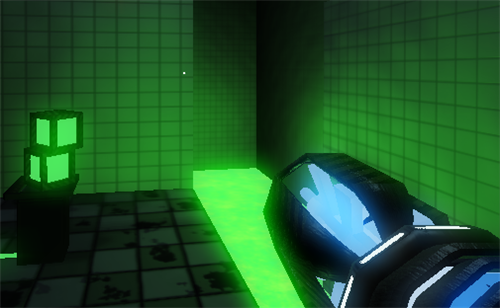
There are 3D games too.  Classic 1990s 3D engines, like Wolfenstein, Doom and Quake (the standard bearers for their respective generations) are still producing fun today: Bizarre story telling from cult developers with Judith, joyful uber street violence like Urban Brawl, and probably my favourite experience of the last year: Gravity Bone.  If you want something that looks a bit more modern, college creation Glasshouse is an interesting 3D puzzle game, with presentation and graphics that are incredible for a free game.

Another genre that’s produced a plethora of indie releases is the “physics based game” (which generally mean your success involves using gravity in some way). Crayon Physics is the most obvious example, but there are others like FlickerStrings, Numpty Physics and the excellent And Yet it Moves.

Disable annoying features in Windows XP

Disable annoying features in Windows XPA while ago I wrote a post about three of the most annoying features Windows activated by default after installation, and how you could disable them: hiding known file types, grouping similar tasks in the taskbar and cleaning up unused icons on Desktop.

However it seems that the list of annoying Windows features doesn’t finish here. As you keep on using the operating system you find more and more functions that are not really that necessary. What’s more, instead of being helpful, they can end up being a real nuisance.

Here’s a list with three more of those not so useful Windows features, and how to disable them:

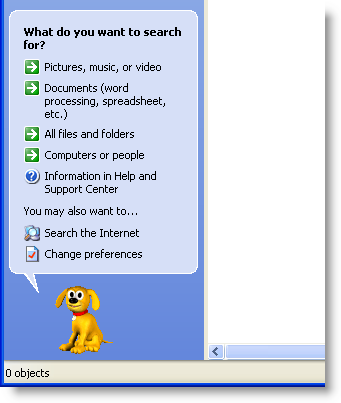
Get rid of the animated character in Windows Search. When you’re desperately looking for a file the last thing you need is some dog pestering you with annoying suggestions. No thanks, I think I can manage by myself. You can deactivate this character (or change to Merlin, Courtney or Earl, the three other animated characters you can choose from) by clicking on the “Change Preferences” option, right on the interface of the Search window. But if you want to take one step ahead and go back to the classic Windows 2000 search interface, here’s the trick: open any Registry editor (regedit.exe in the Run command will do) and browse to this key: HKEY_CURRENT_USER\Software\Microsoft\Windows\CurrentVersion\Explorer\CabinetState. Then right click on the interface and select New > String value. Name this string as “Use Search Asst” (without inverted commas), double click on it and set “no” as the value.

Show hidden folders and files. I understand that newbies should have restricted access to those areas that, if modified, can seriously affect the system’s performance and stability. But once you take your first steps in the learning curve and know a bit more, you’ll want to be in control. And part of that control is having complete clearance to see everything that’s happening on your system, including hidden folders and files. So if you want to get access to them, simply go to Tools > Folder Options and click on the View tab. Then mark the option “Show hidden files and folders”.

Disable the confirmation dialog when deleting a file. Deleting a file in Windows takes a couple of steps: one, send the file to the Recycle Bin, either by dragging and dropping it on the icon or using the Del key; second, empty the Recycle Bin by clicking “Yes” on the confirmation dialog. But if you’re always sure of what you’re deleting and don’t need to be confirming your actions all the time, here’s the trick to disable this dialog: right click on the Recycle Bin icon, select Properties and disable the “Display delete confirmation dialog”. Like I said, you need to be sure of this, because once you delete a file there’s no way back – unless you use any of these file recovery tools.