Twitter for BlackBerry updated with handy new features

The official Twitter app for BlackBerry has been beefed up with some new neat new features designed to enhance your mobile tweeting  experience.

Twitter for Blackberry

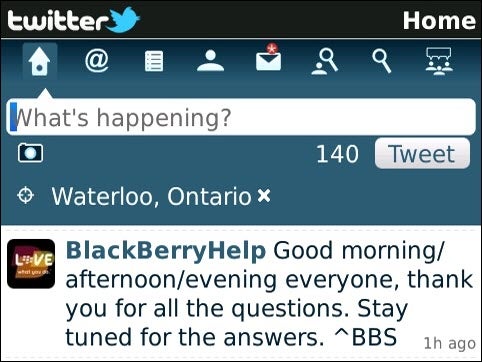
The latest Beta version of Twitter for BlackBerry, version 1.1, includes geotagging, allowing you to automatically add your current location to your tweets. Chat-style messages are another addition to the new version, offering a more familiar chat interface to Twitter’s Direct Messages feature.

Twitter version 1.1 also adds push mentions for alerting you when people are talking about you, and topic autocomplete, which suggests keywords based on previously hashtagged words in tweets. Twitter 1.1 for BlackBerry is available through BlackBerry Beta Zone.

Free Browser Game: Man in Gap

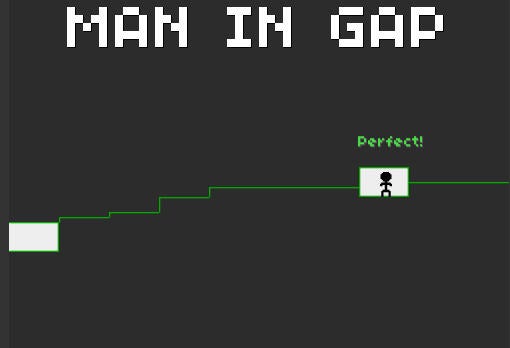
When looking for a good browser game, one asks only for a few characteristics: easy to control, addictive gameplay and quick fun – and Man in Gap includes all those features. This game won’t stand out for its graphics, that’s for sure. But it’s an addictive little pastime, perfect for a short break.

Man in Gap is, as you might expect, a descriptive title for the game. Each level presents a man trapped between a floor and a ceiling that close quite abruptly after just two or three seconds, crashing anything on their way. If you want to save your life – and move on to the next level – you must find one of the only two spots where the floor and the ceiling don’t interlock, therefore leaving some vital space for survivors.

So you see: no plot, no complicated gameplay and no weird keyboard combinations. It’s just a question of analysis and speed: the sooner you find the safe spot and move to it, the more chances you have to live!

Android Widgets for Google Reader

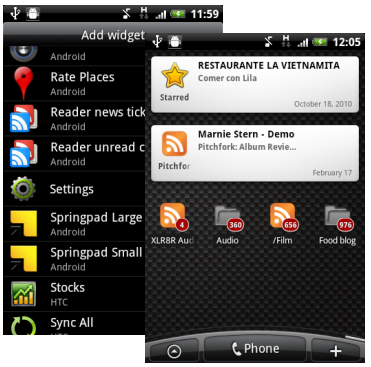
Google Reader for Android has been updated. At first look, the update doesn’t seem too interesting, fixing a Flash issue and the boring, but standard “other bugfixes”. Something cool that it does seem to have added – without actually telling us, though – are some new homescreen widgets.

You’ll find them under the Add Widget feature on your phone. There are two, Reader News Ticker and Reader Unread Count. The first one will let you link to any Reader feed, such as unread items, people you are following, labels you have created or even individual feeds. The widget is a ticker, so it will scroll through the items on a regular basis.

The second widget, Reader Unread Count, will do pretty much what it says on the box – instead of providing a preview, it will tell you how many unread items you have in your Reader account – handy for knowing when you have new feeds, but depressing when you have as many as me!

Download Google Reader here.

Instantly translate web pages in iOS Safari

Tap Translate iconThe excellent Google Translate app for iOS is a great tool for translating words and phrases on the go. However, you always need to use it as a standalone app, so it’s not ideal for translating from web pages, because you constantly have to copy and paste the text between Safari and Google Translate.

An interesting solution is to use Tap-Translate. This is a JavaScript tool that integrates with Safari for iOS to allow you to translate web pages on the fly – without leaving the browser! It works by installing a script into Safari’s bookmarks bar. When you click this bookmark, the script runs, and gives you the option to translate any text on the page into your own language. You can choose to translate individual words or whole sentences, and there’s even a button to get the text spoken back to you.

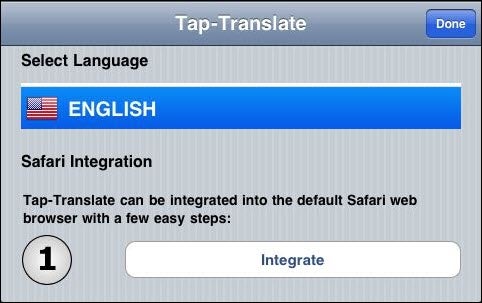
1. Launch the program and select your language (i.e. what you want to translate pages to).  Click the Integrate button and Tap-Translate will add itself to Safari.

Tap Translate 1

Continue reading “Instantly translate web pages in iOS Safari”

Call iPhones for free from Facebook

Ever wished you could call your Facebook contacts for free from within the app rather than send instant messages? Facebook Messenger is a new app by CrispApp that promises exactly that from iPhones or iPod Touch devices to the web.

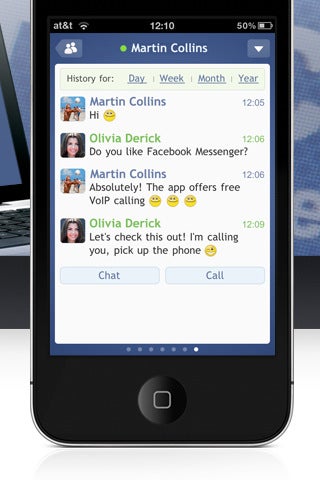
Voice chat is something notably absent from Facebook and Facebook Messenger fills the void with a simple $2.99 app from the Apple AppStore. Once installed, when you start chatting on your mobile device, you’ll also be offered the option to call the person you’re chatting with:

If your chat contact is using Facebook on their computer on the web, they will receive a link asking them to accept your call which will transfer them to a separate web page to conduct the call. As long as you have a microphone and speaker, it doesn’t matter whether you are using a PC or Mac.

Its encouraging that Facebook have opened up their API to allow third-party applications to enable voice calling within it and Facebook Messenger will definitely have Skype watching with interest, To see Facebook Messenger in action, check out the demonstration video.

watch?v=Rn5zeUYRbrE

EverNote vs. Springpad – battle of the note taking apps!

One of the hardest programs to track down is a good note-taking app. This seems weird, as there are a bunch of them out there. Even so, some just don’t make the grade – they’re ugly, awkward and sometimes really make it hard to jot down information when you’re on the go.

EverNote and Springpad are considered by many to be two of the best. Both have smartphone and online versions, so we’re evaluating them on their performance across devices and platforms, since accessibility is a major concern when it comes to note-taking apps.

Both score really highly in their Softonic reviews, so it’s not surprising that you might be finding it hard to choose. The best way is to install both and test them, but if you’re short on time – or motivation – we’re here to do it for you!

Registration and sign-up

In the sign-up stakes, these apps are almost neck and neck. The sign ups are pretty much as painless as you get – email address, password and you’re in. SpringPad does slightly better than EverNote – you don’t need a username and there’s no security CAPCHA, cutting out two steps and winning it this round.

Result – Springpad, but only just!

Available platforms

The availability of platforms is crucial for a note taking application. The aim is that no matter where you are or what you’re doing, adding a note is as easy and fast as possible. Looking at our two applications, it’s pretty obvious that Evernote comes out on top.

This application is available for pretty much anything you can imagine – Online, Windows, Mac, iPad, iPhone, iPod Touch, Android, BlackBerry, Palm Pre, Palm Pixi, Windows Mobile and even a Windows, Mac and Linux compatible Firefox extension, for including online information in the click of a mouse button.

Springpad doesn’t skimp, but it’s not quite as impressive. It’s available online and for Android, iPhone and iPad. There’s no desktop version, and if you have any smartphone other than Android/iPhone, you’ll miss out.

Result – Evernote, by a mile!

Continue reading “EverNote vs. Springpad – battle of the note taking apps!”

12 new file formats for the Google Docs Viewer

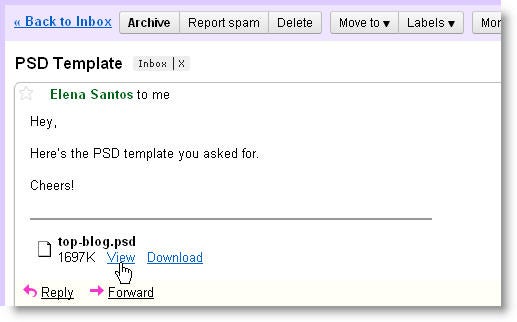
I’m a big fan of Google Docs, to such an extent that I don’t have any productivity suite installed on my Mac at home – I just use Google Docs for everything. This is why I was happy to read that Google is adding 12 new file types to Google Docs Viewer, the tool you’ve been using so far to open PDF files that you found online or were attached to an email message.

The 12 new file types supported by Google Docs Viewer are the following:

  • Microsoft Excel (.XLS and .XLSX)
  • Microsoft PowerPoint 2007 / 2010 (.PPTX)
  • Apple Pages (.PAGES)
  • Adobe Illustrator (.AI)
  • Adobe Photoshop (.PSD)
  • Autodesk AutoCad (.DXF)
  • Scalable Vector Graphics (.SVG)
  • PostScript (.EPS, .PS)
  • TrueType (.TTF)
  • XML Paper Specification (.XPS)

Thanks to the support for these types, from now on you’ll be able to open all the major Microsoft Office formats (DOC, DOCX, PPT, PPTX, XLS and XLSX) plus a bunch of important document and image formats like PSD and AI right in Google Docs Viewer – a faster and safer option that downloading them to your hard drive and opening them on your computer.

First screenshots of Firefox 5 emerge

Mozilla may not have even finished the final version of Firefox 4, but are clearly already hard at work on Firefox 5 judging by screenshots and mockups that have recently emerged.

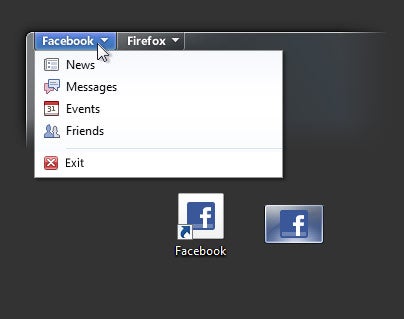
Firefox 5 looks like its gone beyond a mere ‘chromification’ of the interface according to ConceivablyTech with a more responsive interface, bigger and better URL bar and a new way of handling tabs. This latter change is perhaps the most interesting as it will introduce “site-specific browsing” to tabs by dedicating them to handling specific sites. Effectively, this means that tabs will become the apps that they’re browsing. ConceivablyTech explain with a mock-up shot of how they expect it to work:

For example, a visit to Twitter would automatically integrate features such as new tweet, search or direct messages within the site tab. This is the first example where we see Mozilla attempting to deal with web applications, where it actually turns websites into apps, while the web browser remains the dominant access and visualization platform.

Clearly then, it looks like Mozilla are attempting to try and keep people using their browser to access and use web apps such as Twitter rather than a third party client. This is something that Mozilla have been working on for a while via the Prism Project. It sounds like an ambitious move and one that will surely increase even further Firefox’s CPU footprint.

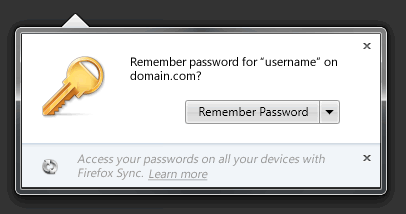
Meanwhile, TechnologyToolz reports that Password Sync will be more actively promoted in Firefox 5:

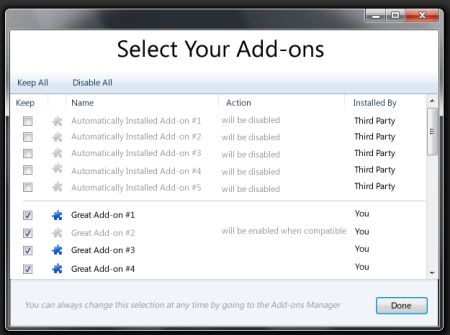
And a more detailed Add-On Manager helps identify more clearly where Add-Ons came from:

For more mockups and screenshots from the Mozilla team, check out here and here.

6 great smartphone apps for kids

If you’ve got kids, you’ll know that they’re as interested in your phone as you are. Not everything out there is suitable, though, and it can be hard to tell which apps will catch – and keep – their attention. Keep them happy when boredom strikes by installing a few of these kid-friendly apps.

Plants vs. Zombies (iPhone, iPad) is the ultimate crowd-pleaser. Adults love it, so you won’t mind having it on your phone, and I’ve seen kids as young as 5 gets to grips with it immediately. It’s got great graphics, requires plenty of brain power and has some really funny dialog. Best of all, you can create as many player accounts as you need, so someone else’s badly-placed sunflower won’t destroy weeks of your zombie-fighting work!

Color Me (iPhone, iPad) is a great drawing app, and there are few kids out there who aren’t partial to a bit of coloring. There are lots of similar apps available these days for both iPhone and Android, but when it comes to getting the right one, it’s really worth paying for a full version. Your dollar will buy you a whole lot in usability and accessibility, especially for younger kids.

Talking Tom Cat (Android) is one of those apps that I just don’t get, but kids seem to love . It’s basically a digital pet cat that you can stroke, feed, play with and even talk to. You can also make him fall over if you tap him hard enough, but that’s probably not something you want to encourage the kids to do. You can make Talking Tom Cat say anything you want, and even record videos to play back later, guaranteeing minutes, if not quite hours, of fun.

Buka (Android) doesn’t score so highly on the educational front, but you can’t expect kids to be serious all thee time. This blob-exploding adventure focuses on getting Buka safely to The Happy Place, avoiding intruders as you go. The gameplay is leisurely and the graphics are mesmerizing, which makes it perfect for younger gamers, but the slow pace and childish baby-talk in between levels might not make Buka your game of choice.

Glow Puzzle (Android) is another one of those apps that at first glance looks like it’s all style and no substance, but a little bit of investigation reveals something that gives the brain a workout too. The aim here is to trace the shapes with your finger, but without lifting it from the screen. As you trace, the shapes light up in glowing fluorescents, and the shapes get harder as you go on. Every level shows you an encouraging message, and there’s help in case you can’t figure it out.

Trace (iPhone, iPad) is a fascinating games for everybody, adults and kids alike. This game sees you helping your character get from one side of the screen to the other, drawing to help him as he goes. It’s probably not great for very young kids, but the plinky plonk music and interactive nature of the game are sure to keep the older ones – and you – busy for a while.

Post updated 05-06-14
How to: Backup your Flickr photos

A couple of weeks ago blogs all over the Web covered a story about a huge mistake made by a Flickr staff member: Apparently the guy pressed the wrong button and accidentally deleted an account – a 5-year-old profile with more than 4,000 pictures stored in it – instead of an account that was violating Flickr’s terms of use.

Though the story ended happily (the deleted account was restored and the user got 25 years of Flickr Pro for free), it made us all think that it could happen to us! That’s why I immediately started looking for a way to backup my Flickr photos, and I found FlickrEdit – a simple, efficient tool to backup all your images in Flickr.

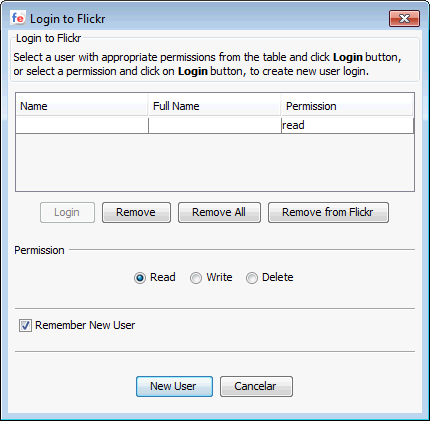
Using FlickrEdit is piece of cake. The program is based on Java and doesn’t require installation. All you need to do when launching it for the first time is configure a new user by clicking the New User button and authorize the app from your Flickr account.

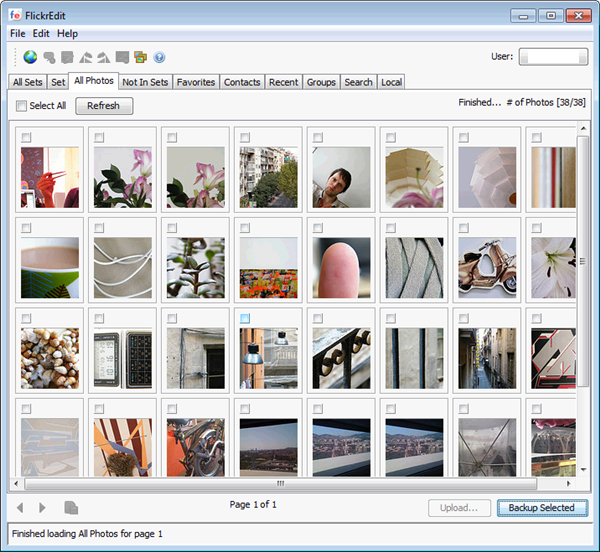
The program features a tabbed interface from which you can browse the contents of your Flickr account, either by sets or simply by listing all your images. You can also see the images you’ve marked as Favorites, and check the most recent uploads from your contacts.

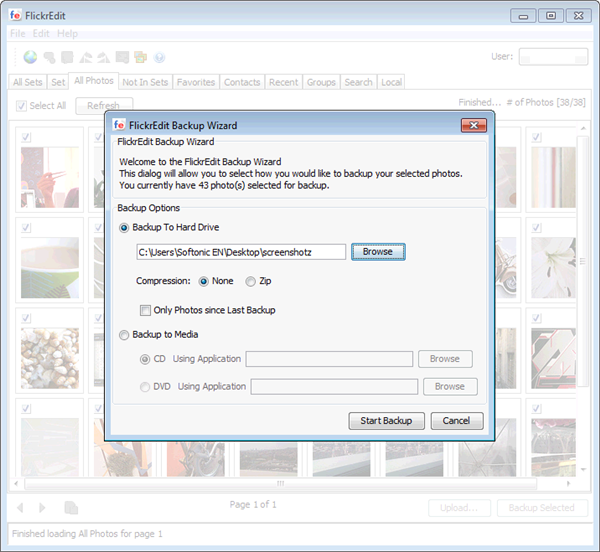
To backup your Flickr photos, simply select the sets – or the individual images – you’d like to include in the backup copy and click the Backup Selected button. The FlickrEdit backup wizard will ask for a location for the backup. It also includes other options such as ZIP compression, backing up to removable media and backing up only new photos that were added after the last backup.

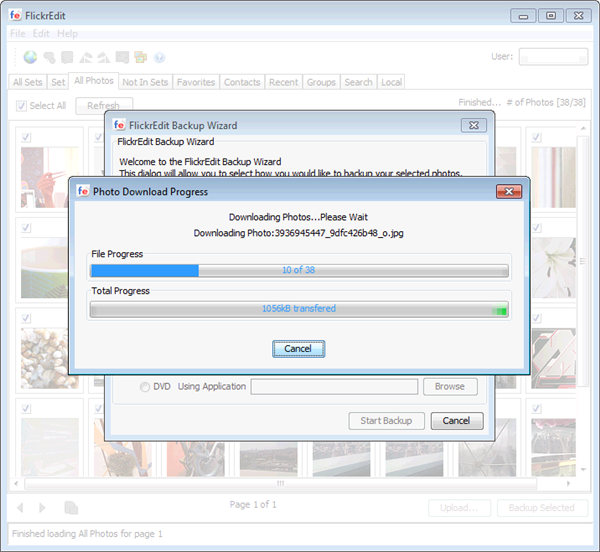
Take into account that the backup process may take a while, especially if you have lots of pictures on your Flickr account – and also because FlickrEdit downloads the largest size available for each of your images.