Google kills malware, promises to do better in future

As you may have heard, Android users had a bit of a scare when malicious apps made it into the Market and onto user’s phones. The media was alive with reports of the security breach, with many pointing out that the unregulated nature of the Android Market was precisely the kind of weakness you can avoid by choosing iPhone over Google’s open-source alternative.

Wherever you stand in the debate, however, you’ll be glad to know that Google has taken steps to fix the problem and make sure it’s less likely to happen again. The internet giant has remotely killed the apps in question (although judging from the app names reported last week, that’s not much of a loss to anyone!) and emailed users affected.

Part 4 of the release also details (but not very explicitly) what Android are doing to help prevent anything like this from happening again: “we are adding a number of measures to help prevent additional malicious applications using similar exploits from being distributed through Android Market and are working with our partners to provide the fix for the underlying security issues.”

Crucially, the release also tells users how to find out if your phone has been infected by the malware. Just go to the list of running applications under your Settings menu, and look for “DownloadManageService” in the applications. If it’s there, you’ve been infected, but don’t worry, Android’s got it under control.



LibreOffice: an excellent open source productivity suite

The selection of available open-source alternatives to Microsoft Office just got wider with the arrival of a new option: LibreOffice.

Just like the well-known OpenOffice, LibreOffice offers a complete, feature-rich open source suite that includes all the tools you may need for your daily tasks, from the classic word processor and spreadsheet to presentation and database utilities. LibreOffice is fully compatible with Microsoft Office formats, and it also supports PDF natively.

The interface in LibreOffice is very similar to that of OpenOffice – not surprising at all, since the suite has been created by a group of developers who had previously worked for OpenOffice and later on decided to launch their own project. It’s quite different to the Ribbon interface that’s currently being used in Microsoft Office, but it won’t take long to come to grips with if you’ve already used productivity suites for a few years.

There are many clear advantages to LibreOffice: it’s free, so there are no license costs or periodic fees; it’s open source, meaning you can customize and hack it without any problems and with the support from a large user and developer community; it’s available in more than 30 languages, with new ones being constantly added; and there are versions for all major operating systems: Windows, Mac and Linux.

While it may be a bit more difficult for companies to switch from Microsoft Office to an open-source productivity suite like LibreOffice, there’s really no reason why you should at least give it a try. I’m sure it’s going to cause such a positive impression that you may consider ditching Microsoft and adopting LibreOffice as your new professional suite at home.

Microsoft begs you to stop using Internet Explorer 6

Microsoft’s positively ancient browser, Internet Explorer 6, has been in the firing line for quite some time. Although it was first released in 2001, which is centuries ago in internet years, it’s still used by a surprising amount of people, especially in China and India. Lots of people complained about the browser, claiming it was outdated, slow and, in certain cases, downright dangerous. Until now, however,  Microsoft didn’t do much to kill it off, even releasing regular security patches for it!

Well, it looks like the giant corporation has come to its senses – it has formally asked users to upgrade to a newer version, preferably Internet Explorer 8 or 9. This is an encouraging change from Microsoft, and it’s true that compared to IE6, most things can be considered an improvement. Even so, we really think that if you are making the jump to a newer, better browser, try something like Chrome or Firefox instead. You’ll be surprised at the difference it makes.

Coming soon: Avoid traffic with Google Maps Navigation

One of the most frustrating parts of most peoples’ daily commutes is running into traffic jams. Sometimes your tried and true route works fine. Other days there’s an inexplicable bottleneck with no accident in sight. Maybe it’s an unavoidable part of working life. Google doesn’t think so however.


Today, Google announced that you can now automatically be routed around traffic while driving with the beta version of the Google Maps Navigation app for Android users. Google Maps for Android is already an incredibly popular app to help you find where you want to go. In fact, Google estimates approximately 35 million miles are driven by Navigation users daily. What it adds up to is quite a bit of time saved overall by missing all the roughest traffic jams.

Google Maps Navigation routes users around traffic and uses real-time traffic conditions to do so. It does this by applying knowledge of current traffic on the roads, as well as employing information about routes that historically have had heavy traffic at specific times of the day. The end result has the potential to save you time and fuel. Google Maps Navigation is currently available for Android users in North America and Europe, with expectations to extend to other locations in the future.

The Top Twitter Clients for Android

If you’re looking for a Twitter client for Android, you’re spoiled for choice. There’s a ton out there, and lots of them are very, very good. We’ve taken a look at some of the most popular, breaking them down by Appearance, Advanced Features and whether or not they are Power-User Friendly. Which one came out on top? Read on to find out!

Just a note: even though we looked at 9 apps, not all of them were included in the test. There’s a limit to how many you can thoroughly test for one article, so I cut the field down to size subjectively – I cut the ones I don’t like!

Two of the apps I didn’t test came as pre-installed clients on the test phone – Swift and Peep. Both of them are good, but not great, covering the basics, but not much else. I also looked at Twidroyd, but didn’t like the interface and found it a little buggy. HootSuite was also looked at, but again, I didn’t like the interface or the two-step process for managing messages. Last, but not least, we checked out Seesmic. I’m not a fan of this app, but gave it a fair test anyway. Again, the two-step message process annoyed me, as well as the fact that feels a lot like the official Twitter app – but less intuitive.

In the end, we were left with four apps: Plume, Twitter, TweetCaster and Twicca

Continue reading “The Top Twitter Clients for Android”

Celebrate Mardi Gras in style with these fun apps

So you’re taking a trip to New Orleans to get your Mardi Gras groove on. Lucky you! The Big Easy has some spectacular parades and events leading up to Fat Tuesday that you’re not going to want to miss. How do you make sure you hit all the sites you’re interested in with so little time, come March 8? There’s an app for that. Several, actually.

Here are three apps that will help you make the most of your Mardi Gras experience. From parade schedules to live-streaming jazz tunes, they’ll be having you say “laissez les bons temps rouler” like a NOLA native before you know it!

Mardi Gras Party & Parade Guide: This iPhone app makes me sad I’ll be 2,000 miles away from New Orleans next Tuesday. With a gorgeous interface and oodles of neatly categorized Mardi Gras events and participating venues, sleeping might not be a viable option on your long weekend getaway. This app also has a lot of interactive features, like a wall where you can comment and post pictures. If you’re only going to download one app for Mardi Gras, this should be it.

Experience Mardi Gras: If you only want to search for well-known parades and just create a schedule for weekend festivities and the big day itself, this app will help you quickly get the job done. The Experience Mardi Gras app has accurate and up-to-date parade start times, as well as detailed maps and directions to get you from one event to another. For people who plan on using apps like Facebook for iPhone or Tumblr to upload pictures, this app is the perfect compliment.

90.7 WWOZ FM: If you’re unable to make the trek down to New Orleans, you can still get your music groove on back home. This app provides live-streaming music from the Big Easy itself. 90.7 WWOZ FM is a New Orleans Jazz and Heritage Station that is listener-supported and volunteer-programmed to bring you the best jazz music around. With the ability to continue playing music in the background while you browse the web on  your mobile device, this app is also fantastic for Mardi Gras fans who like to multi-task.

There you have it.  Whether you’re heading to New Orleans or celebrating closer to home, these apps will enrich your Mardi Gras experience. For even more fun facts about the celebration, as well as a countdown clock, event picture uploader, and other regularly updated information, you can visit the City of New Orleans’ official Mardi Gras site here.

How to: insert an image into text

We’ve done lots of Photoshop tutorials on OnSoftware, but most of them are photo effects. That’s why I thought it was the right time to write a tutorial about a nice text effect, like this one I used some time ago to create a greeting card for a friend. The idea is to place an image inside a word – or a sentence – so that it shows up through the letters. It’s easy and looks great!

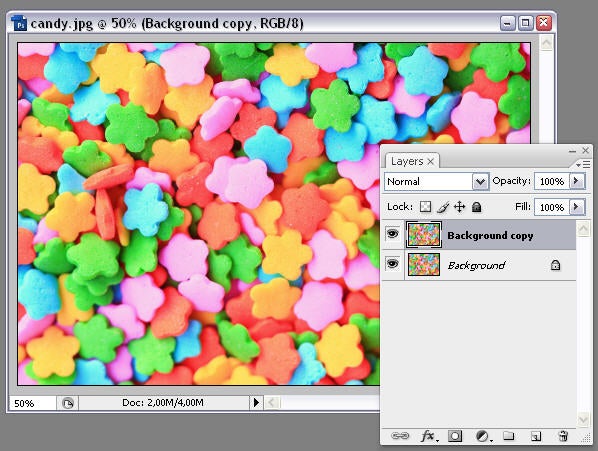
1. First of all, open the image you want to use and duplicate the main layer.

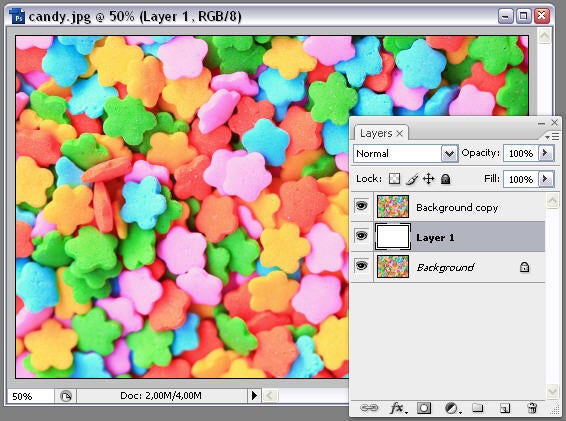
2. Then create a new layer, fill it with white and place it between the other two layers.

Continue reading “How to: insert an image into text”

Twitter for iPhone 3.3 Updated with ‘Quick Bar’

Twitter’s own iPhone app, formerly Tweetie, has been updated to 3.3, but that minor-looking upgrade brings some pretty major changes:

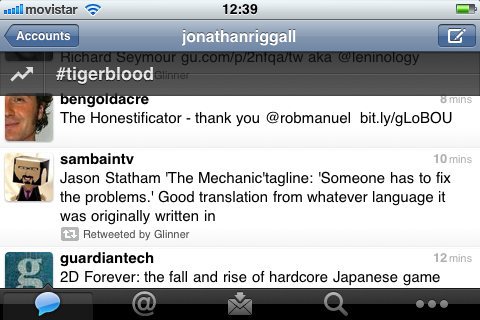
Some of these are pretty neat, like auto-complete for @usernames and the ability to search your phone contacts for friends on Twitter. However, like on the website, Twitter is pushing trends on the iPhone app. Now a translucent trending topic or ‘Quick Bar‘ will float on top of your timeline. You can swipe it to rotate through trending topics, and you can choose to view location-based trends if you want.

What you can’t do is turn the Quick Bar off, and it’s quite intrusive. Unlike the search bar, it doesn’t sit at the top, but appears over your timeline, apparently whenever it wants. I think trends are useful sometimes, but they aren’t Twitter’s top feature, and the inclusion of promoted trends just makes things worse! The people I follow are who I want to hear from; too often trends can be annoying (or even slightly offensive).

Hopefully the Quick Bar will become optional in version 3.4, but for the time being I’m going back to Echofon.

How to restore color to iTunes side bar

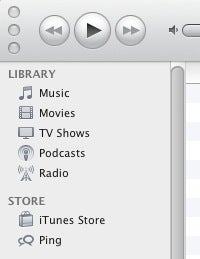
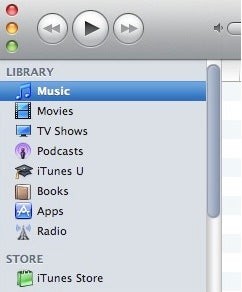
The latest update to iTunes for Mac improves support for iOS 4.3 but one thing it doesn’t do is give users the option to revert back to the color left hand side bar scheme from older versions of iTunes. The decision to change the side bar from color to gray in iTunes 10 has been quite an unpopular one with many Mac users but there is a way to change it.

iTunes 10 UI Overhaul restores color to your iTunes sidebar and other aspect of the UI that have been turned chrome or grey:

iTunes 10 UI Overhaul requires you to perform a 3 step process.

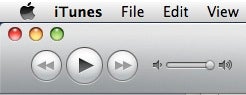
When you open the DMG file, you have to CMD-click two files (iTunes.rsrc and iTunes.icns). Secondly you have to drag the two files to the Folder provided. Finally, you have to double click on a script which gives you the option of restoring the iTunes windows controls (the red, yellow and green buttons at the top of the interface) back into their original horizontal position:

The entire installation process is clearly explained once you execute the DMG file. iTunes 10 UI Overhaul restores several other changes including the old iTunes 9 icon, the iTunes 9 iPod Sync Usage Meter and iTunes 8 style media controls.

However, iTunes 10 UI Overhaul should be used with care. It’s not clear how you uninstall the changes after they’ve been made so you need to be really sure you want to restore color to iTunes before executing the files. If all else fails however, you could always reinstall the latest version of iTunes and it should restore the original chrome and gray interface.

Video: Upgrading from Windows 1.0 to Windows 7

I couldn’t even try to guess how many hours I’ve spent waiting patiently, and sometimes not so patiently, for a Microsoft Windows installation to complete. Those familiar screens represent times of rebirth and renewal. The installation process is either the final step step towards a whole new world of Windows features and options, or a last resort rescue mission on a machine ravaged by trojans, viruses and miscellaneous mysterious system processes.

But what would happen if you tried to upgrade all the way from Windows 1.0 to Windows 7? YouTube user TheRasteri set out to explore this frankly unlikely situation and recorded it all on video. The result is part-weepy nostalgia fest, part-OS humor classic (if you like that sort of thing… which you should), part-interesting look at how Microsoft’s attitude to backward compatibility and preservation of user settings has fluctuated through the years.

Enjoy!

[Via: The Next Web]