How to update Flash Player

Adobe Flash is an essential component to watch video on the web. It’s not perfect – it can cause browser crashes and sometimes leave your computer vulnerable to attack – but one particularly common problem is with updating it or knowing which version of Flash you are currently running.

Here is a simple step-by-step guide to check which version of Flash you are using, how to update it, and how to change your update settings if necessary.

1. Firstly, if you’re having problems installing Flash Player, make sure you read Adobe’s comprehensive guide to installing Flash whichever browser you are using. This guide will automatically detect which version of Flash you are currently using and display it dynamically:

Update info

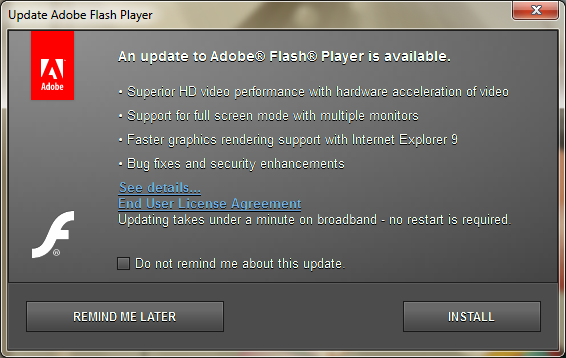
2. If your version of Adobe Flash is out of date, you should receive the message below. Clicking “Install” will automatically update you to the latest version.
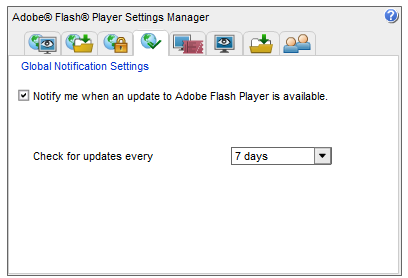
3. If you don’t receive the above message, it’s because you haven’t got auto-updating activated. You can activate it by changing your Flash settings (note that the settings panel you see when you click this link is not a screenshot – it’s a dynamically updated window of the Flash settings on your computer which you can adjust accordingly).
If you have any further doubts or problems updating Adobe Flash, check the Adobe Flash Update page.

Related Stories

The Webs favorite animation and video player – Flash Player review

3 Easy ways to make Flash animations for beginners

How to: Download Flash games and play them offline

5 free alternatives to Nero Burning ROM

Nero Burning ROM is widely-regarded as the most complete disk burning software around. However, the program is becoming increasingly bloated and given that most normal users won’t use all of its advanced features, it makes sense to try out a free CD/DVD burning application first.

If you just need to quickly burn a disk with data, music or a movie, there are plenty of free solutions that will do the job with no nonsense. Check out the five free alternatives to Nero Burning ROM below, which are all reliable ways to burn disks for free.

Continue reading “5 free alternatives to Nero Burning ROM”

How to mute audio in Windows Live Movie Maker

Making personal movies is fun and gratifying after you’ve finished taking raw footage and editing it into a personal story.  Windows Live Movie Maker allows you to create movies from footage with a simple interface that is mostly easy to learn.

All movies need a soundtrack and when you import your files, they already have audio recorded. What happens when you just want to mute existing audio to add your own music?

Here’s the simple solution:
Continue reading “How to mute audio in Windows Live Movie Maker”

How to block website tracking

Ever wondered how some websites seem to know so much about you as soon as you arrive? Or are you concerned about the amount of tracking that some websites do nowadays?

Until I installed Do Not Track Plus, I had no idea of the extent that sites go to to track you on the internet. Within seconds of logging onto MSN’s site for example, it revealed six different companies that wanted to track my profile and surfing habits on the net:

Continue reading “How to block website tracking”

Create and share Valentine’s photos with PicsArt

Valentine’s Day tends to be a hit-or-miss holiday for most people. You either go all out or bemoan it as an example of consumerism at its worst. There are ways to acknowledge the holiday without breaking the bank though – PicsArt – Photo Studio is a great way to show people you care in a completely personalized way, and it’s entirely free!

The PicsArt app for Android will let you create and edit photos for any occasion, but Valentine’s Day is as good a day as any to give it a try.

Here are three steps to impress friends and family for Valentine’s Day and make the most out of PicsArt – Photo Studio. Continue reading “Create and share Valentine’s photos with PicsArt”

Angry Birds comes to Facebook

Angry Birds is a popular multi-platform game that has already generated over 700 million downloads as a mobile app since it’s release in December 2009.

Now you can now play it as an an app on Facebook.

If you’re an avid Facebook user, as well as a fan of those famously militant birds and their egg-stealing swine opponents, now you can combine the best of both worlds. In addition, you now get to enjoy the social interaction of Facebook with your Angry Birds gameplay, as well as some really cool new features.

Continue reading “Angry Birds comes to Facebook”

How to delete photos in Picasa

Picasa is a great free program for organizing and editing your photos.The addition of sharing photos to Google+ and tagging Google+ friends is a great way to connect memories with others.

While Picasa may not be a comprehensive editing suite when compared to paid software like Adobe Photoshop, it contains more than enough options to edit and create collages and presentations.

Picasa doesn’t have a dedicated delete button, so how do you delete images?

It’s easier than you think!

Continue reading “How to delete photos in Picasa”

How to: Blend images in Photoscape

Photoscape is an excellent free alternative to commercial photo editing programs like Photoshop. It includes a wide variety of filters, tools and special effects that help you touch up and edit your digital images.

Blending one image over another to create a combined image is a great way to add an artistic effect to some of your photos. It’s also convenient for people who take multiple photos in quick succession and want to add certain objects in one photo to another with a similar backdrop. With Photoscape, this is quite simple to do, once you learn the process… Continue reading “How to: Blend images in Photoscape”

How to use Google Talk

Even though it’s an old app, Google Talk continues to be a really popular app. It’s no wonder – it’s reliable, easy to use and much simpler than some of the more flashy IMs out there. If you’re just getting started with the app, or you have a few doubts, we’ve answered the top questions about Google Talk below. Take a look…

How to sign up

This couldn’t be easier. You need a Google Account, which you can get here. If you have an email address that ends with gmail.com, googlemail.com or you’ve got a personalized Google domain, then you don’t need to do anything – your login details are also your Google Talk login information.

Then, download and install the Google Talk desktop client. The installation process is very easy, and when you see the login screen appear, just enter the login details mentioned above. That’s it! As soon as you see the main interface appear, you’re free to start chatting!
Continue reading “How to use Google Talk”