App of the Week: Vhoto

Softonic’s App of the Week highlights some of the coolest, most unique, and most interesting mobile apps for iOS and Android. If you’ve ever wanted to convert your video into a photo, look no further than this week’s App of the Week, Vhoto for iOS.

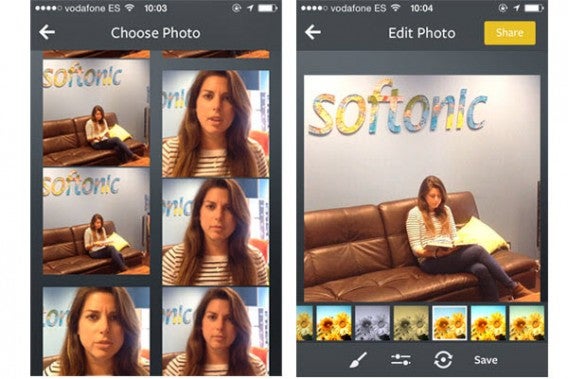
Vhoto turns your “v”ideos into p”hoto”s by scanning a video file from your camera roll, searching for the best frames, and giving you a gallery of images to choose from, edit, and save to your phone.

Vhoto App

It’s a fairly straightforward concept, but it works surprisingly well. The scanning feature looks for faces and still shots with good composition, only showing the best photos results, but still giving you a wide variety of images to choose from. The editing features aren’t extensive, but a few standard options and filters are definitely a nice addition.

While there’s a Vhoto social network integrated within the app, it’s not very useful (or necessary), because you can save your newly created image directly to the camera roll, without posting to Vhoto or Facebook. You can also take photos and videos within the app itself, which again, is a complimentary feature, but probably not necessary. The beauty of Vhoto lies in its namesake function.

So, if you’ve ever created a video that you wish would have been a photo, Vhoto will be your new best friend.

Make sure to check out all of our other App of the Week features.

9 tricks that will change the way you use YouTube

Are you making the most of YouTube? With these nine tricks, you might just be able to transform YouTube into a TV.

YouTube’s already kind of the TV of the 21st century, but it’s not always as easy to figure out how to work your way around a video. What you might not know is that YouTube offers some cool features that’ll bring you steps closer to a TV-like experience.

If you’re among the millions that spend hours a day on YouTube, the nine tricks below will you make the most out of the video streaming site.

Watch YouTube as if it were a TV

If you go to https://www.youtube.com/tv, YouTube will take care of everything. With YouTube TV you get videos played full screen, in a loop or randomly, and all just using your keyboard. It’s ideal for evenings when you don’t know what to do or when you just want to sit back and discover new stuff.

YouTube TV

YouTube TV can be controlled easily with the keyboard (even better if it’s wireless)

Hide all comments

Some people enjoy reading YouTube comments. Others find them annoying (to say the least!). If you want to experience YouTube without comments, there’s an extension for Chrome that’ll be very helpful: Hide YouTube Comments. For Firefox, try No YouTube Comments.
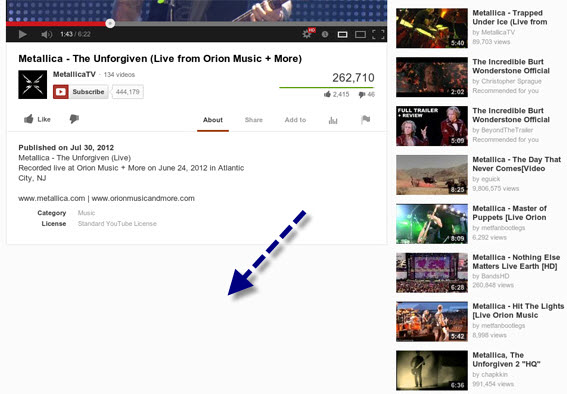
Hide YouTube Comments

No YouTube comments. Isn’t it wonderful?

Be the first to try new features with TestTube

YouTube is in constant development, and you can be one of the first ones to test the latest features if you go to the TestTube section. There you’ll find developments such as YouTube Feather, ideal for slow connections, or a music discovery tool. But don’t forget, these features could disappear as easily as they appeared.
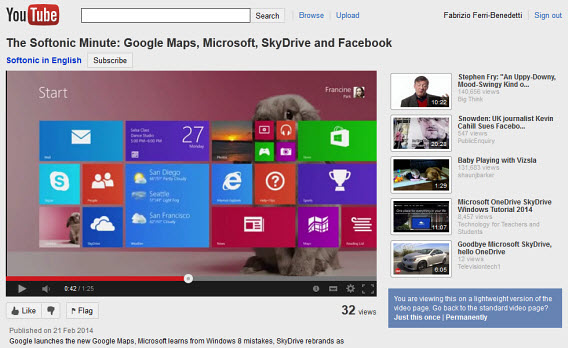
YouTube test features

YouTube Feather is an alternative version for slow connections

Change video playback speed (HTML5)

You can watch a video at a slower speed if you have problems understanding some of it or to help you grasp details that you would otherwise miss. YouTube can play videos faster or slower from the options menu.

To do this, first change the default player by clicking here. On that page, request the HTML5 player. This will mean you’re no longer using Flash on YouTube. You can go back to the page if you want to change to the old player again.

YouTube HTML5

After activating HTML5, you can change the speed of any video by clicking the gear icon and selecting the speed.
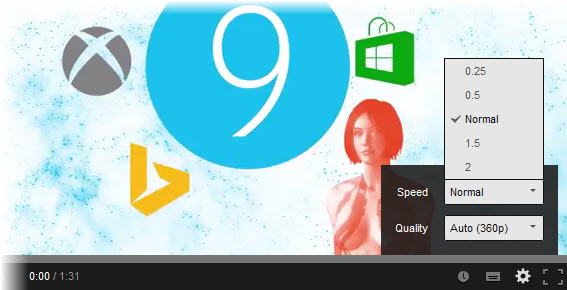
YouTube video playback speed

Want to have a laugh? Double the speed

Stop videos playing automatically

One of the most annoying things about YouTube, especially for those of use who open a bunch of videos in different tabs, is how videos start playing automatically. Luckily, there isn’t a YouTube problem that can’t be fixed with a browser extension: Stop Autoplay for YouTube (Chrome) and Stop Tube (Firefox).
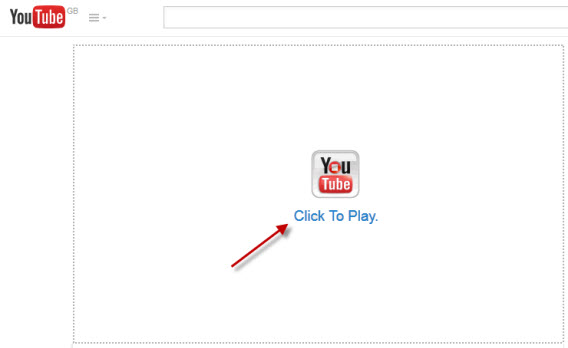
Stop Tube on Firefox

With Stop Tube you’ll have to click to play the video you have opened.

Replay videos as much as you want

Can you imagine being able to play that song you love over and over again? Or leave a rain background track on overnight. With YouTube you can’t do this yet, but there are browser extensions that add this valuable extra feature. In Chrome you can use Auto Replay for YouTube, and YouTube Auto Replay for Firefox .

YouTube Auto Replay

With YouTube Auto Replay you can repeat the whole video or just a section.

Add videos to the useful Watch later list

I often get sent a video but don’t have time to see it. Don’t let it get lost and forgotten! One of the most useful features of YouTube is the Watch later function, that button shaped liked a clock that lets you add the video to a list.

YouTube Watch Later

You’ll find the list of videos to watch later on YouTube’s main menu.
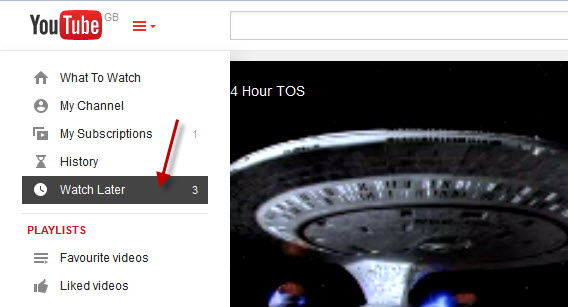
YouTube Watch Later

Change the settings

It’s worth taking a look at the YouTube playback settings. You can choose if you want videos to always play in high or low quality, disable annotations on videos, or display automatic captions (which are generated by speech recognition).
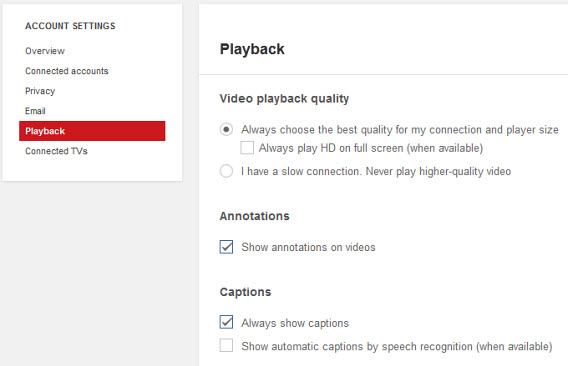
YouTube Auto Settings

Play YouTube videos with no distractions

QuietTube is a website that loads a YouTube video on a blank page, without comments, advertising, or other features. It can be installed as a bookmark button, but there’s also an extension for Chrome that loads your videos in this no-distraction environment.
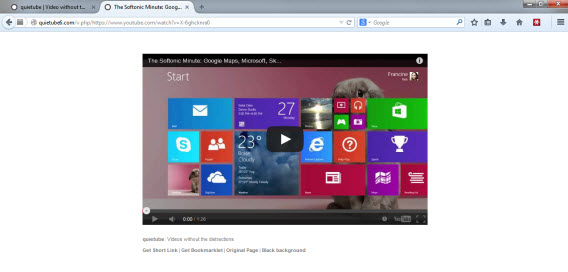
QuietTube

“I’ll just watch one last video”

Stay tuned, there will be more tips…

As YouTube evolves, some of these tricks may no longer exist, so use them while you can. We’ll keep a close eye on YouTube and update this article as soon as we see any new features pop up.

Check out another handy tip for YouTube: How to skip YouTube ads by playing videos in VLC.
Beats Music for Android and Windows Phone will still work after Apple purchase

After news of Apple’s purchase of Beats Electronics today, some users were worried that the Beats Music would be an iOS exclusive. Apple has a history of shutting down apps and companies it buys, but has promised to leave Beats Music alone.

The music streaming service is available on Android, iOS, and Windows Phone and will remain on all three platforms. This is a watershed moment for Apple, as it’s the first time the company has made a first-party application available on other platforms.

In an interview with the Financial Times, Apple CEO Tim Cook said that the Android and Windows Phone versions of Beats Music will still exist after the acquisition. It’s all about the music,” said Cook.

Still, this doesn’t mean that iOS users won’t get exclusive features or prioritized updates. This would be a bad move as there are plenty of alternatives to Beats Music like Spotify for users to jump to. Apple will have to please customers on all platforms if it wants more Beats Music subscribers.

Source: Tim Bradshaw (Financial Times)

Via: The Verge

Follow Lewis on Twitter @lewisleong

RELATED STORIES

Apple officially buys Beats for $3 billion

After weeks of rumors and speculation, Apple finally confirmed it will buy Beats Electronics for $3 billion. With this purchase, Apple will finally have a streaming music service it sorely lacked. With the two companies combined, Apple can finally catch up to competitors like Spotify.

Apple’s official press statements talk about music being an “important part of Apple’s DNA” and indeed, music has been a huge part of Apple’s success. The company revolutionized digital downloads of music with its iTunes store. The company even waged war against digital rights management for music in 2007.

But Apple has stopped innovating in the music space for quite a while now. The last music product it released was iTunes Radio, which allows users to listen to customized radio stations. Still, it wasn’t a music subscription service, which Apple needs in the wake of declining iTunes sales.

Beats, however, does have a music streaming service called Beats Music. Although Beats Music is struggling to find subscribers, Apple could turn the service into a strong competitor to Spotify.

Immediately after news of the acquisition, Beats Music lowered its annual subscription price and extended its trial period. New users now have a 14 day trial, versus the 7 days available previously. The annual subscription will cost $99.99 per year instead of $119.88.

Apple’s press release implies that iTunes Radio and Beats Music will remain different products but that could change in the future.

Source: Apple

Via: TechCrunch

Follow Lewis on Twitter @lewisleong

RELATED STORIES

Skype demos live voice translations, coming to Windows 8 this year

Skype is about to be infinitely more useful for international users. The company showed off its live voice translation tool inside Skype. Called Skype Translator, the tool will debut in Windows 8 “before the end of 2014.”

Default player


brightcove.createExperiences();

The video above shows two people, one speaking German and one speaking English, conversing seamlessly with live translations. The technology is advanced enough to translate sentences with proper grammar.

I can see Skype Translator being extremely useful for international teams that have members speaking different languages.

Android Police speculates that Skype Translator may not be a free service when it launches. You can expect to see the feature debut on Microsoft’s platforms first.

Source: Microsoft | Microsoft Research

Follow Lewis on Twitter @lewisleong

RELATED STORIES

Battlefield Hardline trailer leaked, shows cops vs robbers (updated)

Electronic Arts announced Battlefield Hardline yesterday, the company’s brand new series coming out this fall. There were few details about the game, other than a teaser image showing a SWAT vehicle and armed robbers. Today, a trailer for Hardline’s (codenamed “Omaha”) was leaked, giving us a sneak preview of the game.

Battlefield Hardline bears a striking resmblance to PAYDAY, another heist game. Players can choose to play as law enforcement or as a criminal.

EA DICE is partnering up with Dead Space developer Visceral Games to create Battlefield Hardline. EA DICE will develop the multiplayer mode while Visceral will focus on creating a story-driven single player campaign. The single player game is influenced by “popular television cop dramas. Expect to see crooked cops, deranged drug dealers, and real television actors in the game.

We also get a glimpse at the Levolution effects that were introduced in Battlefield 4. Levolution allows players to destroy parts of the environment to change gameplay.

Electronic Arts will reveal more about Battlefield Hardline at this year’s E3 in June. The game will be available for the PlayStation 3, PlayStation 4, Xbox 360, Xbox One, and PC according to Better Battlelog.

UPDATE: Game Informer reports the leaked trailer is actually 6 months old, and that much progress has been made since then. Visceral Games general manager Steve Papoutsis took to Twitter to clear up details about the leaked footage.

Source: Electronic Arts | Polygon

Follow Lewis on Twitter @lewisleong

RELATED STORIES

Google Play Music for iOS can replace the Music app

Since I buy a lot of my music on sites other than iTunes, I don’t want to use the stock Music app on iOS. Additionally, one of the biggest annoyances with an iOS device is that music is always stored locally. Even iTunes Match requires tracks to be downloaded before they can be played on a device.

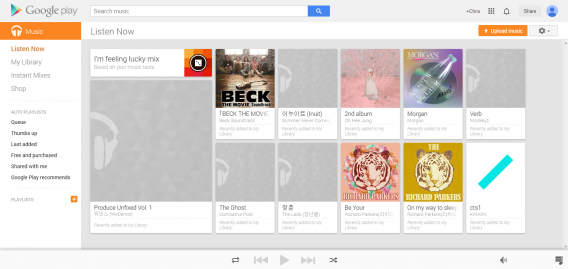
Google Play Music web

I’m a huge fan of Google Play Music, though, and Google Play Music’s 20,000 free track upload limit for free accounts can hold most people’s collections. When Google released Google Play Music for iOS, I was skeptical if it would work as well as the Android app. Surprisingly, the app works decently with iOS. Since it requires iOS 6.0 and above, older devices will be unable to use the app. This is unfortunate, because even though I’ve got an old phone, I’d much rather use Google Play Music than the stock Music app on iOS.

After you upload your music to Google Play Music through Music Manager or the browser upload in Chrome, you need to download the Google Play Music app for iOS. It only supports iPhone or iPod Touch natively and on iPad it’s a blown up iPhone interface. It still works, but it’s obvious that it wasn’t designed for iPad.

Google Play Music for iOS

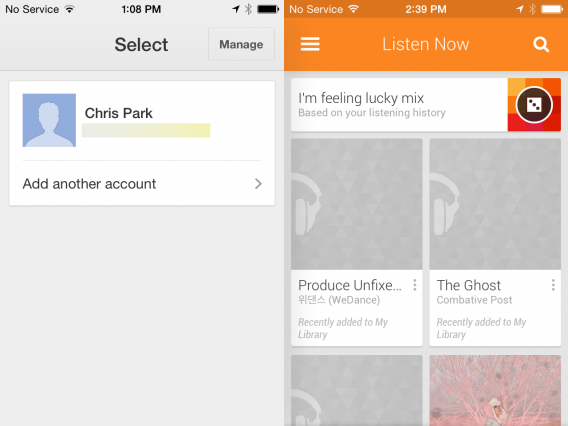
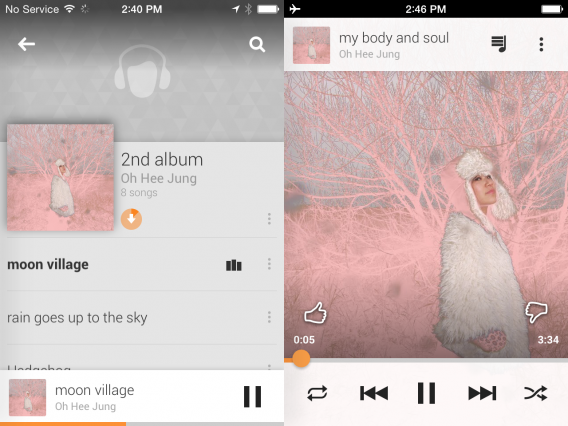
Once you start the app for the first time, you need to choose your account with your library. The interface of Google Play Music for iOS is similar to the Android and web version. The app opens in Listen Now which contains the most recent music along with the auto-generated playlist option.

Depending on how much music you have in Google Play Music, the initial loading of music might take a couple minutes. There is a small issue with music purchased from iTunes and uploaded to Google Play Music whereby it won’t recognize the album artwork. It’s a small annoyance, which can be solved by uploading the album artwork in Google Play Music on the web.

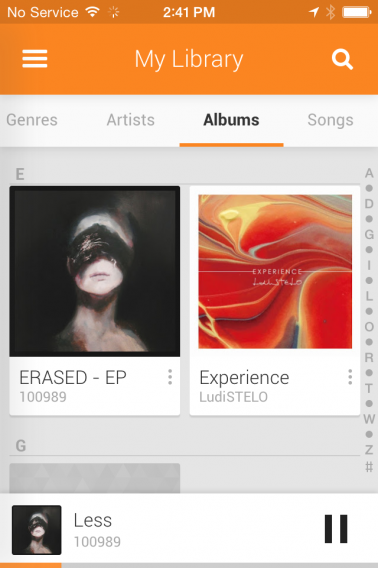
Google Play Music for iOS

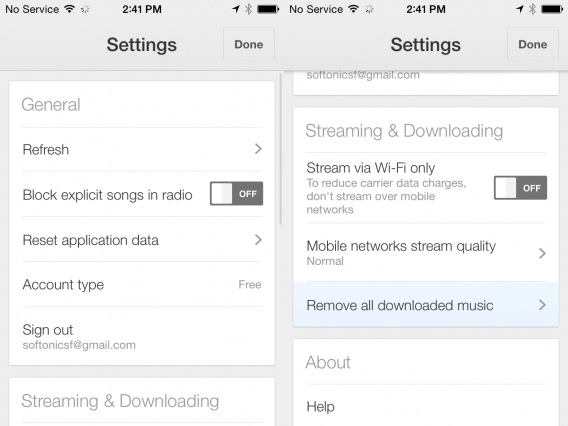
Tap on an album to open the track list. Click on the song you want to play and Google Play Music will start streaming the song. If you’re worried about data usage, you can set the option to only allow the app to Stream via Wi-Fi only or change the streaming quality when using cell data.

Google Play Music for iOS settings

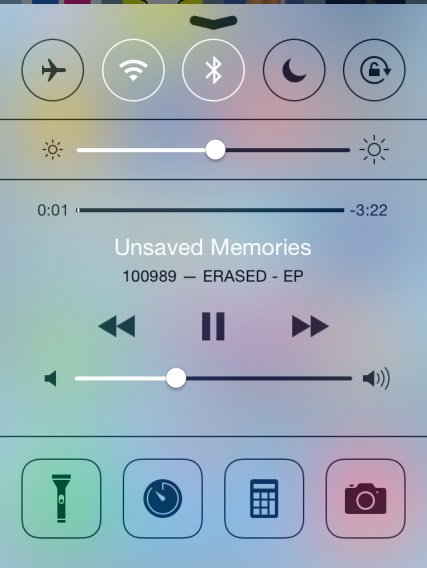
Integration with Control Center is great too because you can skip tracks and scrub through the track very easily.

iOS Control Center Google Play Music

I thought that Google Play Music for iOS would only allow streaming, but you can also download tracks for offline play just like the Android app. If you want to download an album, tap on the circle with the arrow pointing down and Google Play Music will download the album. I did a quick test with an iPhone 4s in Airplane mode and the album played with no problem.

Google Play Music for iOS offline play

With music prioritizing streaming more than local playback, having access to your library all the time is really convenient. With iOS, you can’t stream music from your purchased iTunes library. Even though you can’t purchase music from Google Play Music for iOS, the fact that it will let you stream up to 20,000 songs gives it a huge advantage.

If you want an alternative option, Spotify is still the most popular. If you want access to your personal library, however, Google Play Music for iOS should be your first choice.

Related Articles

Nero 2014 is the ultimate multimedia suite for your PC

Nero has long been a major player in the world of CD burning, and it’s perhaps the biggest brand in that particular sector of the software industry. Over the years, however, Nero has expanded into an entire multimedia suite, with the ability to not only burn CDs, DVDs, and Blu-Rays, but also to edit photos, videos, and audio, as well as backup data.

Let’s take a look at some of the main functions of Nero 2014, the latest version of Nero’s multimedia suite. If you don’t need all of the apps offered in Nero 2014, most are available as standalone apps too.

Burning discs

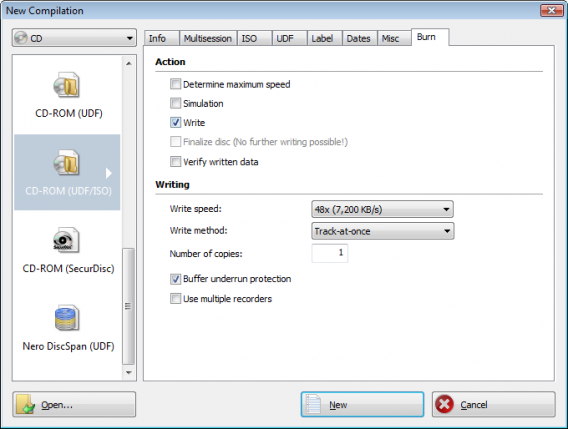
As the cornerstone of the Nero suite of software, the Nero Burning ROM app is there to help you burn CDs, DVDs, and Blu-Ray discs. It’s got a lot of configurable options that let you choose burning speed, or split large files to be stored on multiple discs. One of the best features is SecurDisc, which lets you password protect your discs, as well as read them if they’ve suffered from  some scratches.

Nero Burning ROM

Video editing

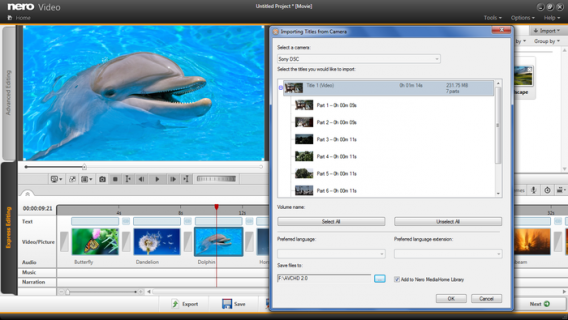
Burning discs goes hand in hand with editing videos, and the Nero Video utility in Nero 2014 helps you do just that. As far as video editing software goes, it’s not the most advanced on the market, but it’s definitely a good option for the average user. After you import videos, you can choose either the quick edit or advanced mode, depending on your level of experience. The Nero Video function lets you add a ton of different types of video files, create transitions, and add text, with resulting videos of a surprisingly good quality.  The video editing function even integrates with your iTunes media library.

Nero Video

Media streaming and photo editing

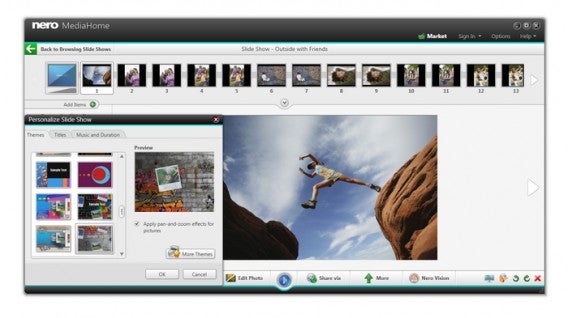
After you’ve created your videos, you probably want to watch them; with the Nero MediaHome utility, you can do just that. Whether it’s audio or video, DVD or Blu-Ray, Nero 2014 includes a player that lets you stream all your media. Even better, the app lets you organize your multimedia files across devices. This is especially useful when it comes to photos: the Smart Albums option will automatically organize your photos into albums using face detection and keywords. Editing options are basic but include some effects, filters, and red-eye removal.

Nero MediaHome

Data back-up

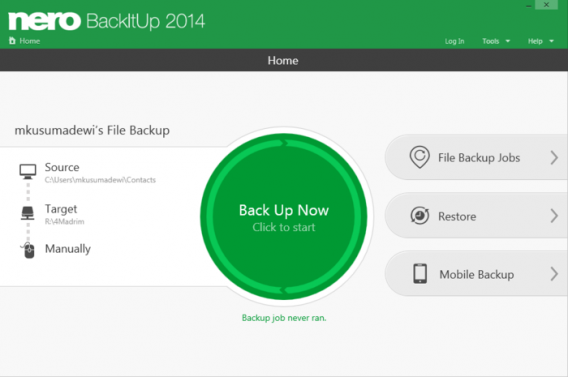
Nero 2014 include Nero BackItUp, which lets you backup your audio, video and photo files either locally to your computer, to an external drive or disc, or to a remote server. It even lets you back up your mobile phone data to your PC. Once you’ve selected the files for backup, there’s an option that’ll automatically let you backup the files on a daily, weekly, or monthly basis. While the BackItUp function doesn’t include many advanced options, it’s really handy for the average user.

Nero BackItUp

Everything you need in one suite

If you’re looking for a multimedia suite with a ton of functions, Nero 2014 is your best bet. Although the interface is still a bit dated, all the apps perform their functions relatively well. The biggest downside of Nero 2014 is that because it offers so many functions, it can be high on resource consumption. Regardless, it’s a very complete software that can help with all your multimedia needs.

Have you tried Nero 2014?

*Note: Original article published Jan 31, 2007 outlined Nero 7.

Official Telegram App for Windows Phone now available in beta

Telegram Messenger has finally received an official app for Windows Phone. While there were already plenty of unofficial Telegram apps for Windows Phone endorsed by Telegram itself, it was Ngram who beat other unofficial app developers to become the official Windows Phone app for the secure messaging service. The app is currently in beta, but is already available free in the Windows Phone Store.

WhatsApp for Windows Phone has been down for weeks, and with the arrival of Telegram for Windows Phone, users now have a very legitimate replacement. Along with an eerily similar interface, Telegram offers a lot of the same functions as WhatsApp, including group chats, photo and video sharing, and the same range of emoticons.

Default player


brightcove.createExperiences();

Aside from its extensive similarities to WhatsApp, Telegram’s unique features include the ability to send encrypted messages, and now, in secret chats, gives the option of deleting sent messages from both your own and the other user’s device.

Apart from official apps for Android, iOS and, now, Windows Phone, Telegram Messenger also has some third-party solutions, including a desktop version for Windows, Mac, and Linux. Check out Telegram’s website for all of the unofficial Telegram clients supported by the company.

Follow me on Twitter @suzieblaszQwicz

Related articles:

Is your iPhone memory full? Find and delete the guilty apps

Run out of space on your iPhone or iPad? There’s an easy way to free some up – and you’ll be back up and running at top speed in no time.

The iTunes Store is full of great quality free apps, and it can be easy to fall into the trap of installing and testing new ones all the time.

Some of them you’ll use every day, but most of them you’ll forget about forever. And before you know it they’ve stacked up, occupying memory (and when we’re talking about games, that can be a lot).

Here’s how to find out which apps are eating up the most memory on your iPhone, iPad, or iPod touch, and how to get rid of them.

Search for and delete useless apps

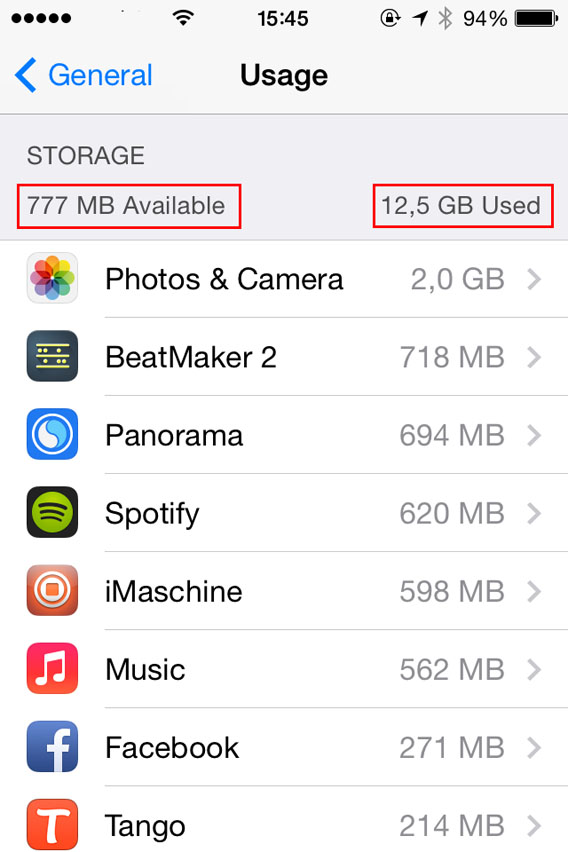
1. Go to Settings> General> Usage. The first bit of information you’ll see is the amount of free memory and what’s already in use.

Space available and in use 02

Immediately below this, you’ll find the full list of apps and services that are taking up memory on your iOS 7 device – they’ll be ordered from the “biggest” to the smallest in terms of memory. If the memory is particularly full, it may take a minute before the list appears.

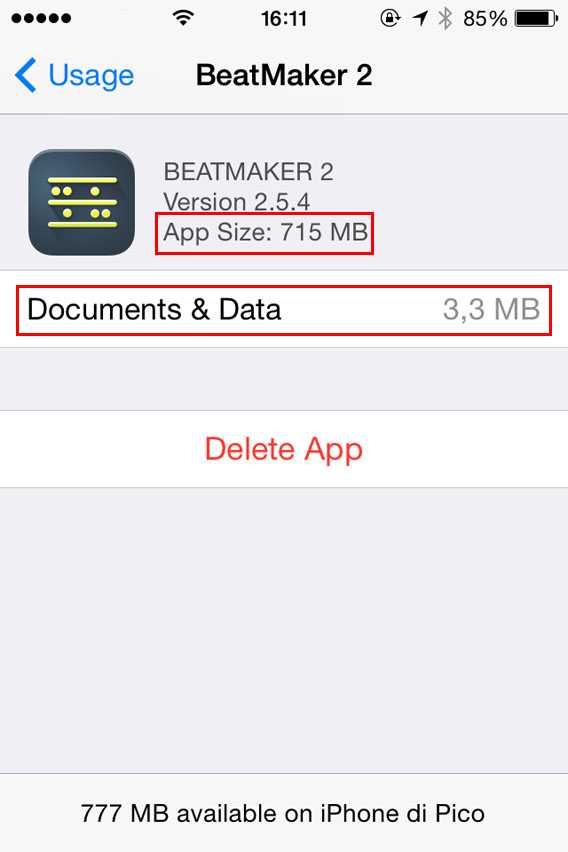
2. Select the app you wish to uninstall from the list. You’ll be shown in detail how much memory is occupied by the app and how much the documents and data related to the app itself occupy too.

Docs and date 03

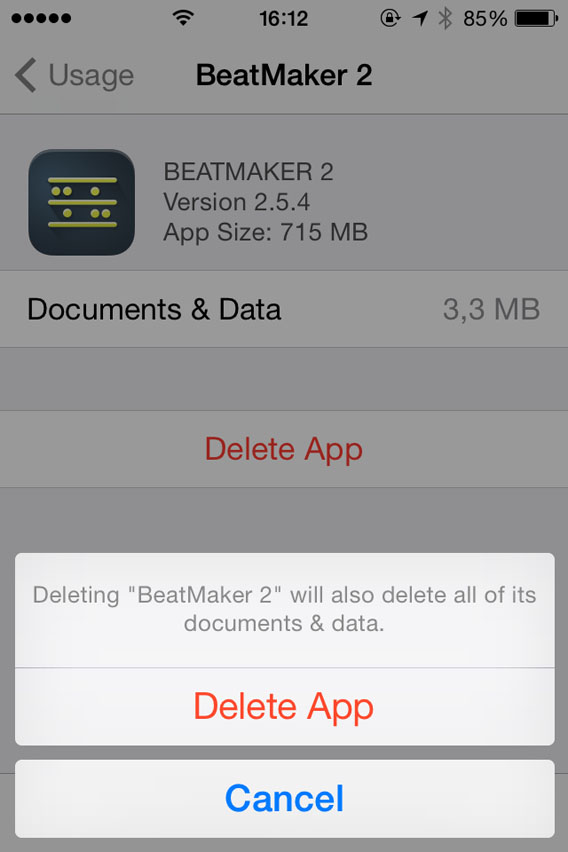
3. To delete, tap Delete App and then confirm the deletion of the application and its data and documents.

Confirm delete app

Repeat this process until you’ve deleted all the programs that you don’t need any more…then listen as your iPhone breathes a sigh of relief!

Sometimes you don’t need to delete the app

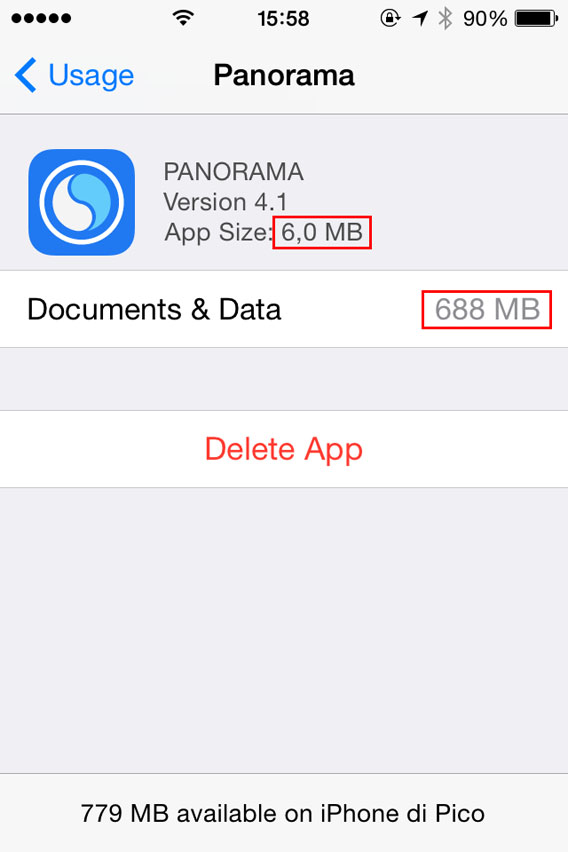
In some cases, you won’t need to delete an app that seems to occupy a lot of memory, you’ll just need to delete the files or documents created with it.

In the example below, the app itself only takes up 6.0 MB, but the pictures with it take up 688 MB.

Panorama - documents storage space is huge

This means that, to free up space, you could simply delete the photos taken with Panorama (you can do so by opening the app), and save the application to re-use it in the future.

More memory and your iPhone’s back on form

If you want your iPhone or iPad to run as fast as it should, always make sure you’re not filling up the memory. As a rule of thumb, bear in mind that it’s a good idea to keep about 10% of the total memory free. For example, if you have an iPhone 16 GB, you should leave 1.5 GB unused.

And remember: often the most effective way to free memory is to transfer your photos to the cloud with an app like Dropbox.