The official 2048 released on Android and iOS

The developer of 2048, Gabriele Cirulli has released the official version of his hit game for iOS and Android. The game, which was originally open source and openly influenced by two other games, 1024 and Threes!, has been played by 23 million people worldwide.

2048 by Gabriele Cirulli is free, although you can pay a minimal amount to remove ads from the game if you want. It plays and looks just like the original version. In a very long blog post, Cirulli explained his decision to release his own mobile version of 2048. He originally decided against this, as he felt his game owed a lot to Threes! and 1024, and it would be unfair to profit from it. However, as he saw mobile clones appear and top App Store charts, he decided to release his own ‘official’ versions.

The creators of Threes! have expressed their dismay at 2048’s popularity, and all the other games they feel are clones. This clearly affected Gabriele Cirulli, and stopped him from making a mobile version for some time.

The question of clones is a hot topic in mobile gaming especially, but it’s also pretty subtle. It’s always been the case that developers have taken ideas from other games – from Tetris, to Mario Kart and Doom, any successful ‘new’ idea has been copied or cloned by others. With games as simple as Threes! or Flappy Bird, and the ease of getting games on mobile app stores, the problem is much more acute today.

Download 2048 by Gabriele Cirulli for iOS and Android.

Download Threes! for iOS and Android.

Play the original 2048 in your browser.

Source: Gabriele Cirulli

RELATED STORIES

EA will show six new games at E3

EA has announced it will show six new games at E3 this year in June. While we can predict what five of them will be, the sixth is so far a mystery.

FIFA 15, The Sims 4, Dragon Age: Inquisition, a new UFC game, and the hotly anticipated Star Wars: Battlefront are certainties, but we don’t know what else.

Star Wars: Battlefront is being developed by DICE, which means there isn’t likely to be a new Battlefield game this year. According to EA, the new Star Wars: Battlefront is ‘coming along very, very well’.

The next game will be the third proper Battlefront in the series. DICE is an ideal developer for the game, as previous titles had a lot in common with the Battlefield series in terms of gameplay. The next Star Wars: Battlefront was announced at last year’s E3, so we’re hoping to be able to play the game this year.

EA have said that no Battlefield means they have to release something impressive to fill the gap. There are rumors of a new Mirror’s Edge game, or the next in the Mass Efffect series, but there’s also the possibility of something completely new.

We’ll be there to see exactly what EA announces on June 9th in Los Angeles

RELATED STORIES

Facebook: How to disable video auto-play

As you might have noticed, Facebook’s latest update includes video auto-play. Here’s how to turn that option off, both for the site and your smartphone app when you’re not using wifi.

We should have guessed after we read the rumors about Facebook looking into video advertising, because that goes hand in hand with the video auto-play feature. And sure enough, after a few weeks, we got confirmation with the mobile app update.

Some people might find this useful, not having to press play on the video in order to watch it, but that doesn’t mean that everyone wants videos and adverts to play automatically since, and especially for mobile apps, this feature uses more data.

Luckily, there’s a way to stop videos from playing automatically. On the website, you can stop it from happening all the time, while on the mobile apps (Android, iPhone and iPad) you can only turn this feature off when you are not using WiFi. Let’s see how to do it.

Turn auto-play off on the Facebook site

1. To stop videos from playing automatically on your timeline, simply log in, click on the arrow on the top right corner and click Settings. Alternatively, you can click on this link.

Facebook settings

2. On the menu on the left, click the last item: Videos.

Facebook video settings

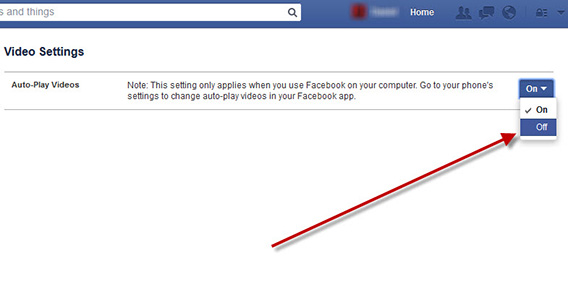
3. On the next screen, you’ll see the Auto-play Videos item. Select Off from the drop-down menu on the right.

Turn auto-play off

Android: enable auto-play on WiFi only

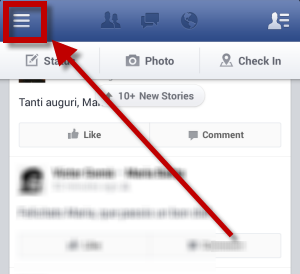
1. Open the Facebook app on Android and click on the icon with the three lines on the top left corner.

Facebook for Android

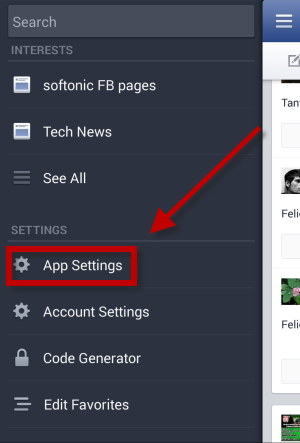
2. On the side menu that opens, scroll down to App Settings.

Facebook settings

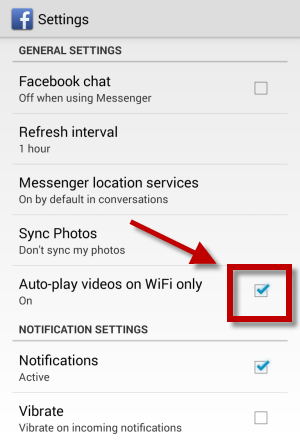
3. Under General Settings you’ll find Auto-play videos on WiFi only, make sure the box is checked and that you can see the word ‘On’.

Make sure the feature is "on"

iPhone and iPad: enable auto-play on WiFi only

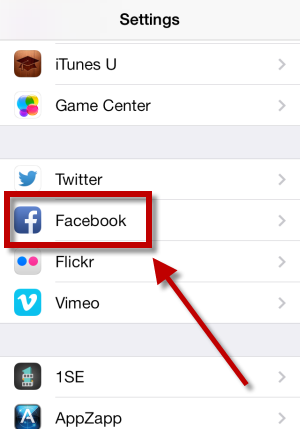
1. Go to Settings on your home screen, and then scroll down until you find Facebook.

Find the Facebook setings

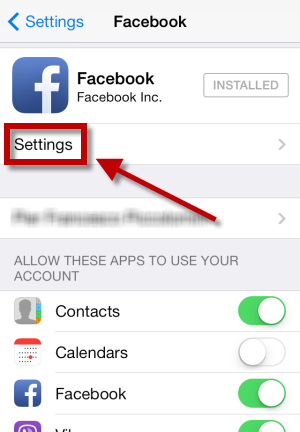
2. Open the menu and tap on Facebook Settings.

Open Facebook settings

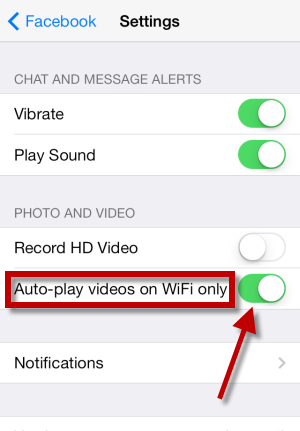
3. Under the Photo and Video section you’ll find Auto-play videos on WiFi only. Make sure that the button is on the right and that it’s green, as in the picture.

Enable this setting

Facebook has declared that even video ads will play automatically. We’ll have to wait and see if, when these ads are introduced, we’ll still be able to disable this feature, or if Facebook decides to sacrifice it in order to increase their revenues.

Follow me on Twitter @zoltan__v

Could the video auto-play feature become another reason to quit Facebook forever?

6 embarrassing things your mom probably does on Facebook

If like me, you were among the first set of college kids to join Facebook, you’ve seen its evolution over the past 10 years. Your mom, on the other hand, is probably relatively new to Facebook, let alone any type of social media, and sadly, its pretty obvious.

The way moms use social media can be hilarious, especially when it’s not your mom. If it is your mom, however, it can be cringe-worthy enough to make you wish you never friended her in the first place.

So, what better way to celebrate the forthcoming Mother’s Day than to recount all her embarrassing social media moments? But, because it is Mother’s Day, we also have the perfect gift: essential tips to help your mom use Facebook like its 2014 (or at least 2012).

1. Posts on your wall like it’s private

It’s not uncommon to see someone’s mom posting on their wall as if they were sending a private message. Usually, it’s pretty harmless, with nothing more than a ‘Love, Mom’ sign off to make you roll your eyes, but sometimes, it can get a little too personal, calling you out or going into far too much detail about a situation.

Advice 1

(Source)

Tip: Facebook walls are public. Send a private message if you’re sharing anything other than a quick comment.

2. Posts embarrassing photos of you

There’s nothing mothers love more than pulling out the baby pictures, and with Facebook being a huge hub for photos, it’s inevitable that she’ll pull something out at one point or another.

Chubby Baby

Tip: Unless your kid is a baby, try to keep the photos to moments when we’re at least fully clothed.

3. Gives unsolicited advice

Parents love giving advice, and when they see you’re in trouble (or not really at all), they’ll jump at the first chance to put their parenting skills in action.

Advice(Source)

Tip: Sometimes we forget when we’re posting that you are, indeed, our Facebook friend. Cut us a little slack and don’t go into parental overdrive at every chance you get.

4. Brags about you

Proud mom that she is, along with posting flatteringly embarrassing comments on photos of you along the lines of “I can’t believe what a beautiful woman you’ve grown into”, she may also gloat about how smart, successful, or beautiful you are on her own profile.

Proud Moms

Tip: All moms are guilty of bragging about their kids, especially to friends, and it may be hard to curb that glowing pride. That being said, avoid tagging your son or daughter in the post so that they’re safe from most of their friends seeing it and giving them a hard time.

5. Recounts daily activities like its a personal blog

I have a friend whose mom insists on going into detail about her daily activities, meals, vacations, and even unusually thrilling trips to the grocery store, all as status updates.

Ranting Mom

Tip: Once again, less is more. There’s nothing more convenient than sharing things with all your friends instantly, but the truth is, Facebook isn’t the place to share that much detail. You may have better luck with a little thing we like to call email.

6. Uses acronyms the wrong way

Between LOL, MILF, and TMI, acronyms can be pretty confusing, and often vulgar. While we think we may be protecting our mom by telling her that MILF means Mother I’ll Love Forever, it can lead to some pretty awkward Facebook threads.

MILF(Source)

Tip: It’s probably best to stay away from acronyms all together. If you really insist on using them, check their meaning using Urban Dictionary first.

Even despite her social media shortcomings and her penchant for embarrassment, we still love our moms. If nothing else, you can celebrate Mother’s Day by laughing with her at the difficulties of figuring out social media.

What embarrassing things does your mom do on Facebook?

Syncing Mac and Android is easier than you think

You don’t need to have an iOS device to sync with Mac OS X 10.9 Mavericks. It may be hard to believe, but Android and Apple can work together. Let’s see how to make them communicate.

Ok, it’s true – it’s simple to sync an iOS device to your Mac. We’re thinking of iCloud (which, remember, is also available for PC).

But I want to talk about Android. This doesn’t mean I don’t love Apple! Synchronizing OS X Mavericks and Android is a piece of cake. All it takes is a couple of tools and a few minutes to prepare everything.

Synchronize photos, videos and music

doubleTwist (for Mac & Android) is the most efficient tool for syncing music, photos, and videos between Apple computers and Android devices.

There are two options: sync via AirSync (the computer and the phone must be connected to the same Wi-Fi network, and the Android device must install AirSync ) or via USB cable.

For syncing through USB to work, you need to enable USB mass storage MSC mode on your phone. This means that (at least at the time of writing) phones that only support USB MTP mode can only sync wirelessly.

Phones that support USB MSC mode are the Samsung Galaxy S2 (excluding the Sprint version), Google Nexus S, HTC One X with Android 4.0 (except for the Sprint version), and the Motorola Razr and Razr MAXX .

Recent devices (like Samsung Galaxy S4 and Nexus 5) only support MTP mode, as well as tablets with Android 3.0 (Honeycomb) and devices without an SD card that run on Android 4.0 (Ice Cream Sandwich).

doubleTwist is very similar to iTunes. Connect your phone and select it in the left column under Devices. In the three available tabs (Music, Videos, and Photos) choose the type of synchronization you want to perform, and then press the Sync button.
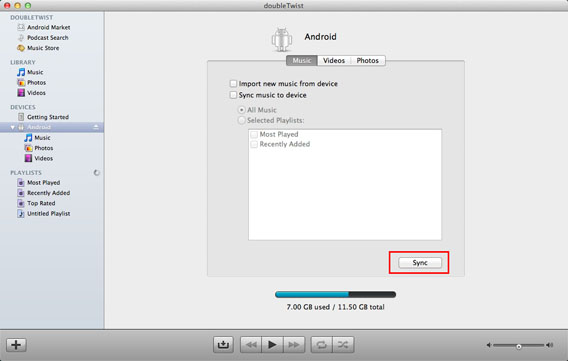
doubleTwist Mac Sync

This may also be one-way (phone to Mac or Mac to phone). This is pretty handy, as it’s unlikely that you’ll want to upload the entire photo library on your computer to your cell phone. It’s more likely that you’ll want to free up Android storage by offloading some photos and videos.

The Mac doubleTwist library requires iTunes and iPhoto to be in sync, so unfortunately you can’t add custom folders.

Synchronize your contacts

This is done using your Google account.

Open the Phone app, choose the Contacts tab, tap the three dots in the lower right corner to access the options and select Accounts.
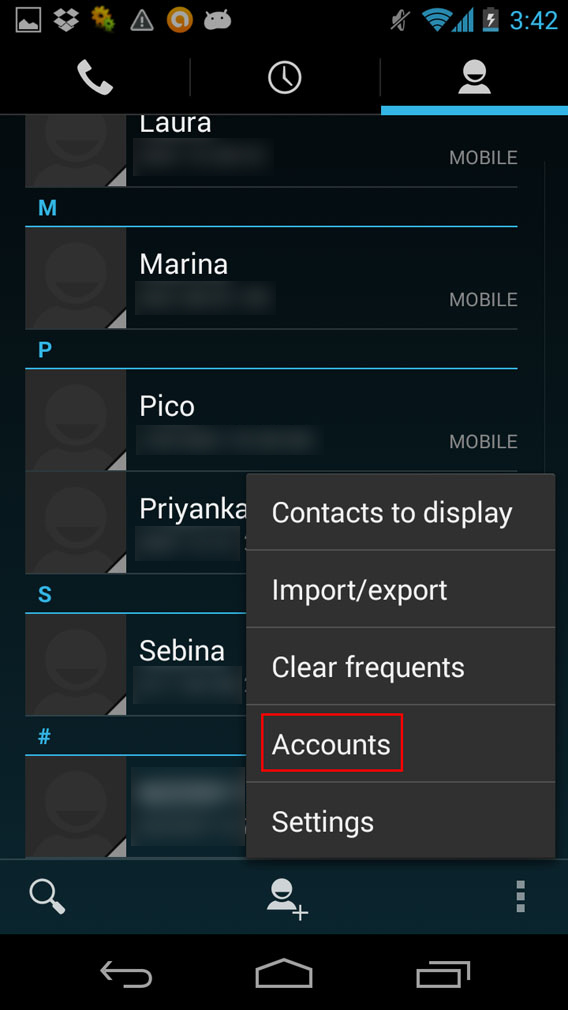
Contacts - menu Accounts

Check ​​Auto-sync app data. By now, the details of the accounts listed will be synced online.
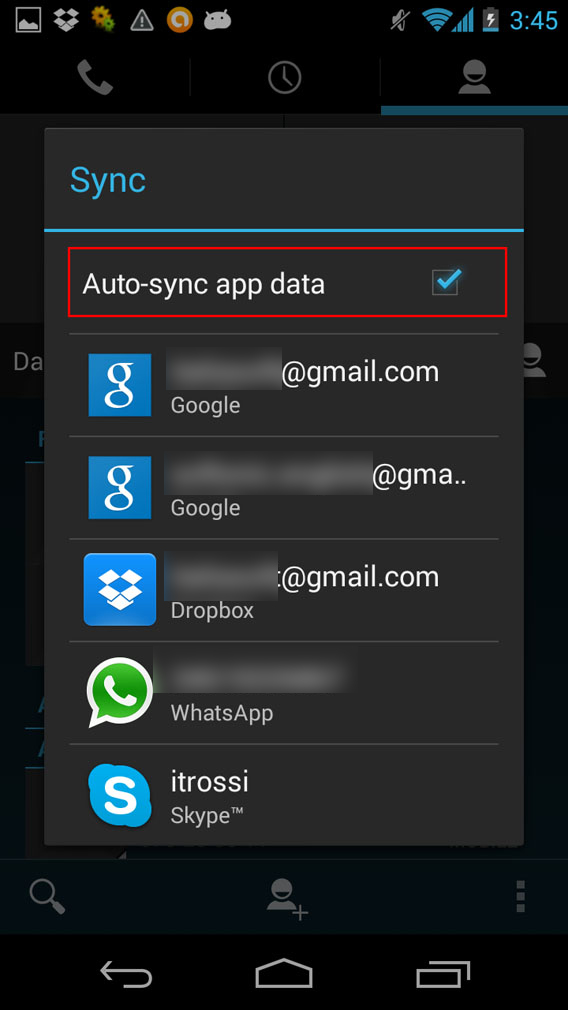
Contacts autosync app data

To set up your Mac. Open the address book, go to Preferences > Accounts and click on the “+” button at the bottom left.

Select Google, click Continue, and fill in your name, email, and password.

In the next step select Contacts and then click on Done.
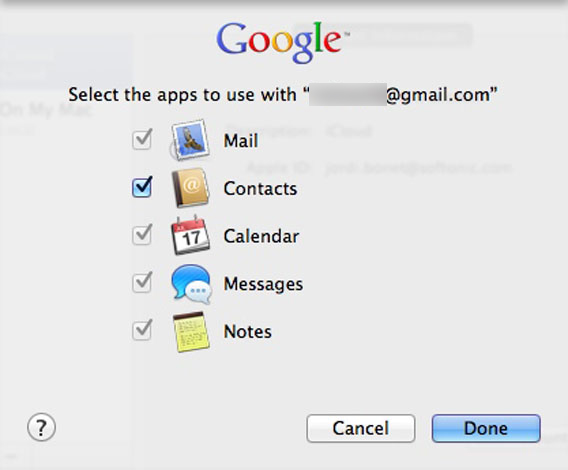
Google Contacts on Mac

When you’re connected to the internet your contacts on Mac and Android will automatically sync.

Synchronize your calendar

For this task, you also use your Google Account.

Open the Google Calendar app on your Android (or download it on your device if it’s not available by default, for example if it’s an HTC phone).

In the menu with the three dots select Settings, and then tap Add Account, choose Google > Existing, and follow the steps.

And now to your Mac. To synchronize your iCal calendars with your Google calendars follow the same steps to sync your contacts: Open iCal, go to Preferences > Accounts, click on the “+” button, choose Google, enter your login details, and select Calendars.
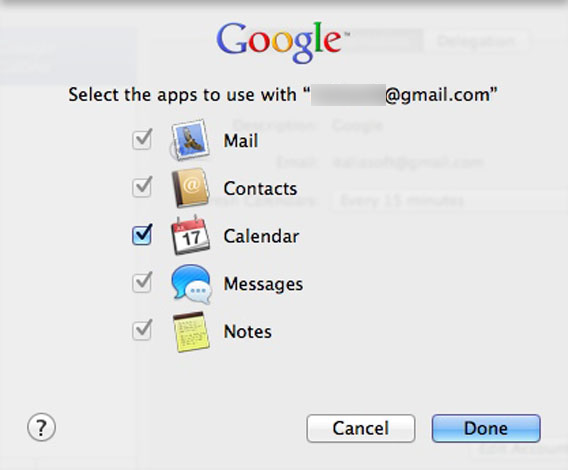
Google Calendar on Mac

In the drop-down menu in the Account Information tab you can set the refresh intervals for calendars.
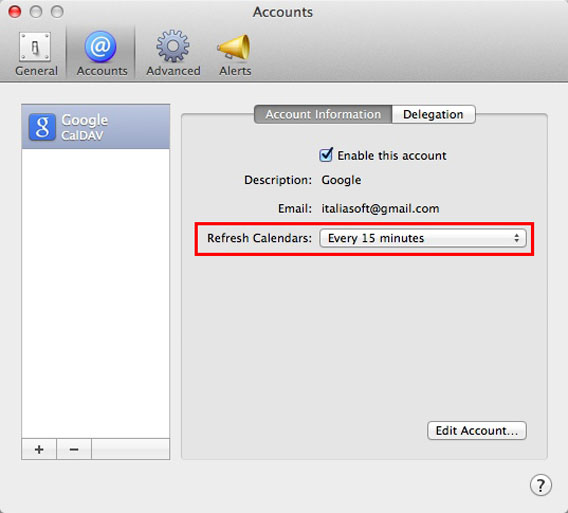
Calendar refresh

Now your Mac and Android calendars will always be perfectly synchronized.

Synchronize other files

There are various options to keep your documents up to date on Mac and Android. The easiest and most effective way is to use a service like Dropbox.

Download the app for Mac and Android, and create an account or, if you already have one, sign in with your credentials.

All of your Dropbox folders and documents will be accessible. To add new files to Android, just go to the folder where you want to upload, then click on the menu with three dots, and tap Upload here.
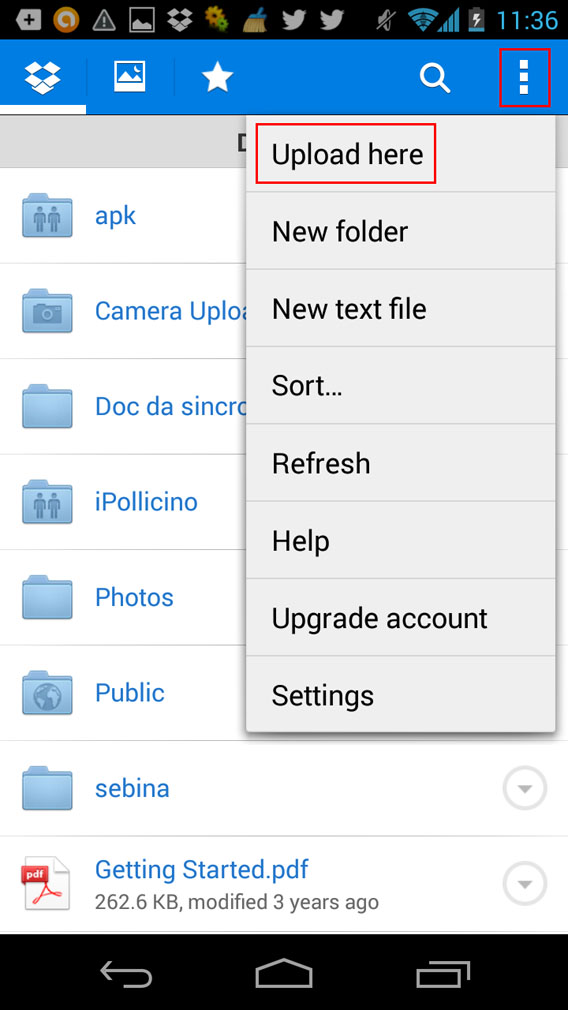
Upload here Dropbox Android

Dropbox is available through the Menu bar on OS X, and manage it exactly as if it were a normal folder.
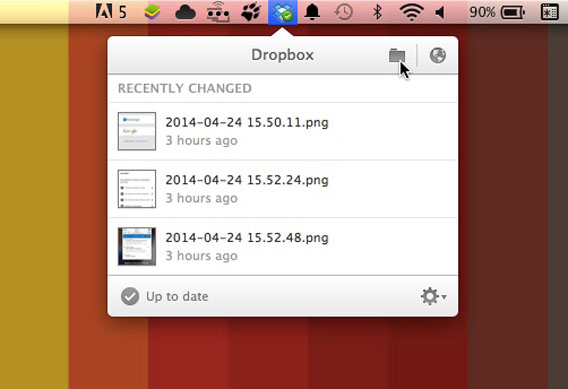
Dropbox on Mac

All the files that you upload to your device will synchronize when added to Dropbox, and will always be available on other devices.

Synchronize bookmarks

Having all your browser bookmarks is essential for those (isn’t that all of us?!) who use the internet on a daily basis.

An easy solution is to use the Chrome browser, which is available for Mac and Android.

Log in to both with your Google account. To do this on Android you have to tap the Sign In button.
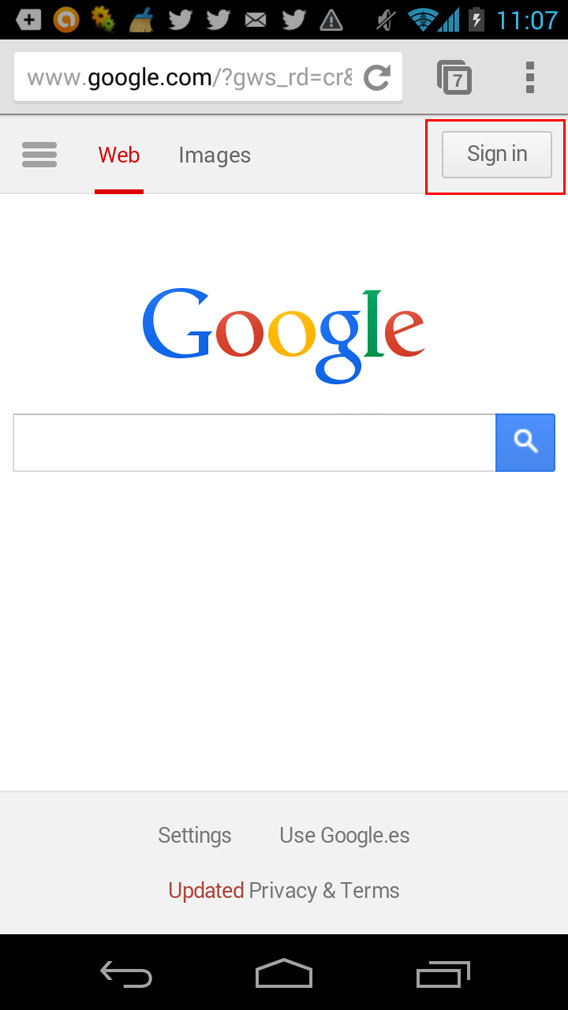
Chrome Android sign in

Enter Settings, then Accounts, choose Google, and then verify that Chrome is selected.
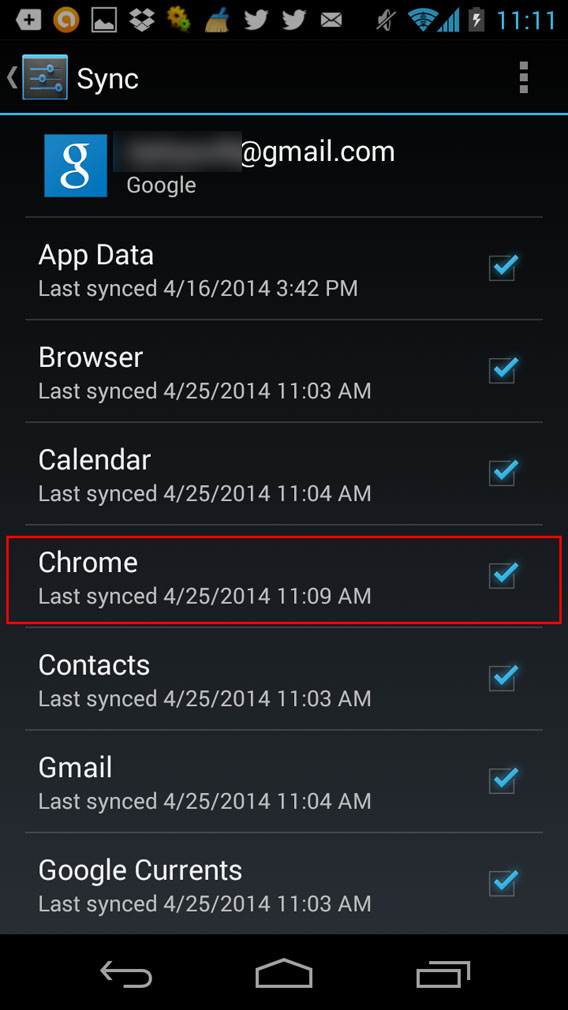
Chrome Android sync

On the Mac, access Sign in to Chrome.

Chrome Mac sign in

Enter your Google account information and, if you like, check the Choose what to sync box. If you do this, on the next screen you can decide what to sync by checking the relevant boxes.
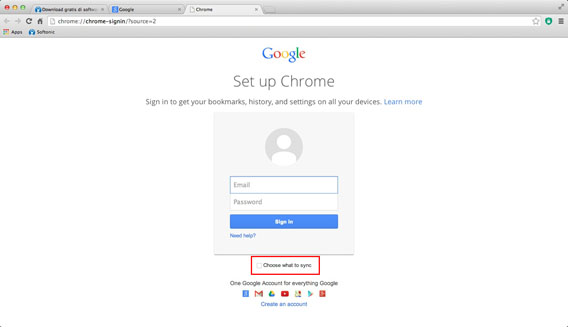
Chrome Mac choose what to sync

Easy, huh?

As you can see, synchronizing your digital life doesn’t mean you need to be 100% Apple. If you love your Mac, but also love Android, then you’ve got all the necessary tools to get them to communicate.

This tutorial has been designed specifically for those using a Mac running OS X 10.9 Mavericks.

RELATED ARTICLES

Shaq-Fu production starts after reaching crowdfunding goal

Shaq-Fu: A Legend Reborn is officially happening after exceeding its crowdfunding goal of $450,000. Over 1,300 fans got together and managed committed $473,884 to the creation of the game. The game was expected to be a PC-only release but will now be coming to the PS3, PS4, Xbox 360, Xbox One, and Wii U as well.

Default player


brightcove.createExperiences();

If you’re not familiar with the original Shaq-Fu, it was 16-bit fighting game released on the Super Nintendo in 1995. Reviews of the game were mixed and it eventually grew into a cult-classic.

One superfan ponied up $35,000 for Shaq to fly to his or her house and perform a DJ set. Another fan paid $20,000 to have dinner with Shaq and six of his friends.

Make sure to visit Indiegogo to stay up to date with Shaq-Fu’s development.

Source: Indiegogo

Via: The Verge

RELATED STORIES

Opera 21 now uses hardware acceleration, brings back full URLs

Opera 21 is now out for Mac and Windows, bringing with it performance improvements and full URLs. The Windows version of Opera 21 now supports hardware acceleration across the entire browser. This means the browser should render quicker and feel snappier. The Mac version will use Core Animation instead of hardware acceleration.

While most users won’t care about full URLs, power users will be glad to see that full URLs are back. Opera simplified the URL in previous versions to make easy to identify which site you’re on without clutter. “It makes it a lot harder for the bad guys to trick you,” writes Opera in a blog post.

Opera 21 full URLs

Advanced users can switch on full URLs in Settings > Advanced > Show always full URL in address field.

Additional updates include 200% DPI scaling for high resolution screens and an updated Chromium engine.

Download Opera 21 for Mac

Download Opera 21 for Windows

Source: Opera

RELATED STORIES

Siri exploit lets anyone text or call your contacts from the lockscreen

Another security vulnerability has been discovered within iOS. Siri is to blame this time, allowing anyone to call or text your contacts in just a few steps.

Neurosurgeon and “part-time hacker” Sheriff Hashim discovered the Siri bug in iOS 7.1.1. The trick involves activating Siri from the lock screen and asking her to “Call” or “Text.” A dialog will appear at the top right of the screen that allows users to edit the voice command. Add a random letter or name into the field and hit enter. With any luck, Siri will ask you to clarify who you want to reach with an option to view other contacts. And with that, you have access to a person’s full contact list without his or her password.

I was able to replicate the bug using an iPhone 5 running iOS 7.1.1. My first attempts were stopped when I failed to use a letter that was contained in my victim’s contact list. I entered her last name and Siri asked me to clarify who to call, allowing me access to her entire contacts list.

It’s unlikely this exploit will be used since it requires physical access to your phone and knowing a bit about your victim. But if you have friends who like playing pranks, this exploit is extremely simple to use.

Apple has not responded about this exploit. Lockscreen security flaws are nothing new for the company and are usually patched quickly. In the meantime, you can disable Siri on the lockscreen to protect yourself from this bug. To disable Siri in the lock screen, launch the Settings app and tap on “Passcode.” Toggle “ALLOW ACCESS WHEN LOCKED” to disable the feature.

Source: NBC News

Via: Gizmodo

RELATED STORIES

Huge Google Maps update improves turn-by-turn navigation, adds Uber integration

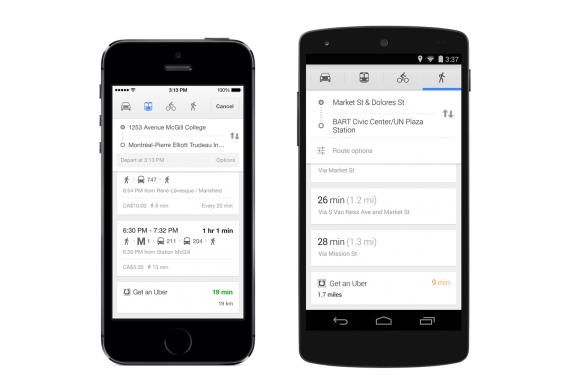
Google Maps for Android and iOS is receiving a huge update today. Turn-by-turn navigation is improved with quick access to alternative routes and lane guidance. Uber is also integrated into the app, allowing you to compare travel times with Uber. If you have the Uber app installed, you can launch it within Google Maps with one click.

Google maps Uber

Offline mode makes its debut on iOS and is now easily accessible within the menu on Android. Select “Save map to use offline” to save the selected area. You can give the map a custom name to search for it later. Previously, Google Maps hid the offline function by requiring users to tap on the mic and saying, “OK, Maps.”

Public transit directions have been improved with departure times for the next bus or train. The update also adds more business information making Maps a useful tool for finding nearby restaurants and shops.

For a full list of changes, check out the source link below.

Download Google Maps for Android

Download Google Maps for iOS

Source: Google Maps

RELATED STORIES

iPad apps for your kids: understanding routine, coloring and making stories

Your kids can’t keep their hands off your iPad? Don’t worry, it’s not all bad: there are safe apps that are suitable for all ages that will help them learn – and have fun – in total safety.

Although iPads aren’t exactly toys, kids aren’t always so sure. They grab them at any opportunity and spend hours and hours playing with your apps. But this early taste for technology isn’t necessarily bad: the App Store is full of apps that are perfect for your children, appropriate for their age and, as well as teaching them something, boost their creative streak.

Here, we’ll show you 4 apps that manage to encourage creativity while learning about less-than-exciting (but very necessary) daily routines.

Tico Timer: the time in Technicolor [up to 4 years]

When your children are young, it’s always better to play with them on the iPad – you never know when they’ll be overcome with the urge to throw it on the floor, and you’d be surprised at how quickly little fingers can find their way to forbidden territory. Apps that you and child can play together are perfect. One such app is Tico Timer.
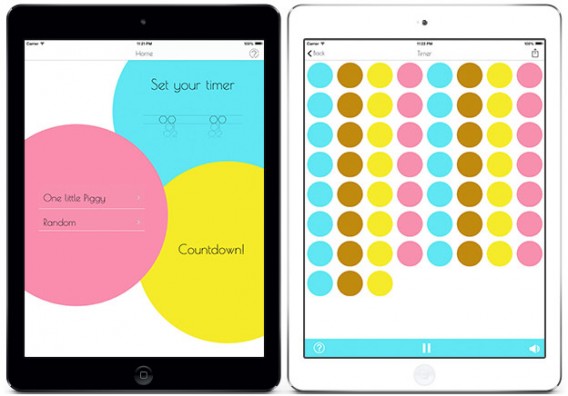

This app fills two roles – it catches children’s attention with bright sounds and colors, while also familiarizing them with the concept of time. It’s a really visual way of teaching them to understand how long they have to wait for dinner, when they need to go to bed, or how much longer they need to brush their teeth.

Tico Timer helps your child understand daily routines, and the time you need to spend on them, in a really natural way, and marks the end of boring explanations about watches and clocks that he or she doesn’t really understand.

Tico Timer

PicoToons Coloring Book: the definitive coloring book [4 to 6 years]

Most kids love coloring books, which is what makes PicoToons Coloring Book a sure bet. It’s a really good example of an interactive coloring app.
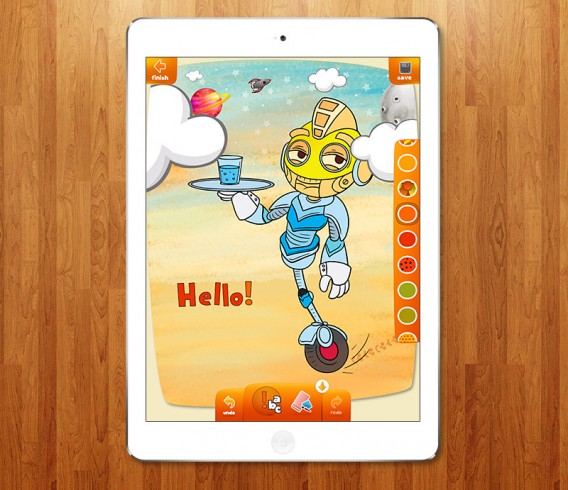
The artistic possibilities of PicoToons are practically unlimited. Your children can choose from a huge variety of pictures categorized thematically (monsters, fairies, the sea, etc.), as well as 80 different colors and 40 textures. Finally, they can decorate their drawings with stickers.

Even though we’ve recommended PicoToons Coloring Book for children between 4 and 6, it’s really an app that a child of almost any age can use. There are different tasks and difficulty levels, more than enough to keep boredom at bay.

PicoToons

Albert: a story for curious children [6 to 8 years]

Albert is the perfect app for children who love stories and reading. The story accompanies the protagonist during one day in his life. It’s not any old day though – it’s packed with adventures, starting out at his house, and ending up on board a hot-air balloon, high in the sky.


Albert is more than just an interactive book, because it also gives your child mini-games that make the most of the iPad. So, for example, he or she might have to make the wind blow with the camera, or move the iPad to get around obstacles.

The great thing about Albert is that although it’s technically a kids game, its lovely collage-style graphics make it enjoyable for adults too.

Albert

Shadow Puppet: kid-sized presentations [from 8 years]

Once they hit about 8 years old, lots of kids are already convinced they’re adults, so don’t be afraid to offer them apps that look a little more grown up. Take the example of Shadow Puppet, a sound and image editor that creative children will love.
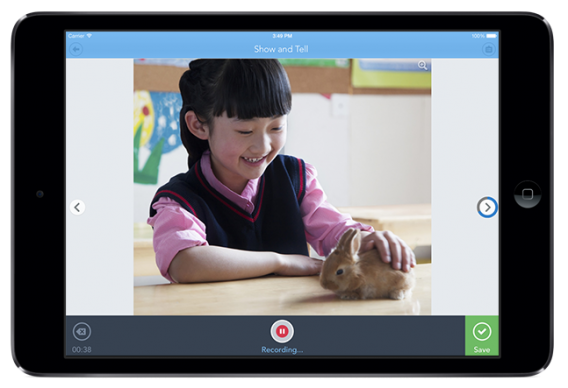
Shadow Puppet has a very simple interface: your child selects the images they want to use (importing them from the gallery, getting them from the internet, or taking a photo with the iPad), and once they have them in presentation form, they narrate them in real time while the iPad microphone records it all. They can re-do the recording or add or remove images at any time.

Shadow Puppet is the perfect way for your child to share their best memories. They could, for example, make a presentation with photos from their last birthday party, describe the best parts of the day, and send it to friends and family who couldn’t come.

Shadow Puppet

Want to up the security?

All the apps we’ve mentioned have been developed especially for children: the content is appropriate for their age, and making in-app purchases is impossible, because the apps don’t support it.

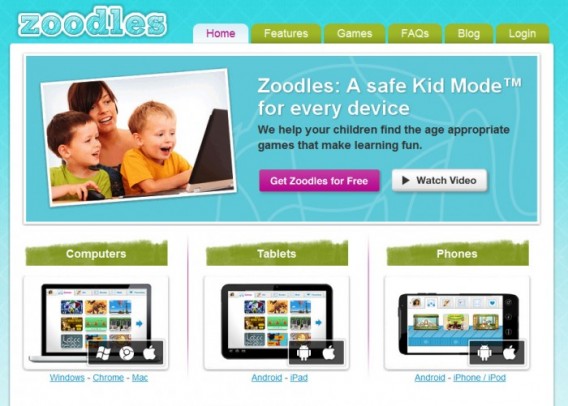
If you’re still worried about the safety of your iPad, however, you can install Zoodles. This app provides a safe mode that prevents your children from seeing age-inappropriate material, and even lets you limit the amount of time they spend playing with the iPad.

Zoodles

RELATED ARTICLES