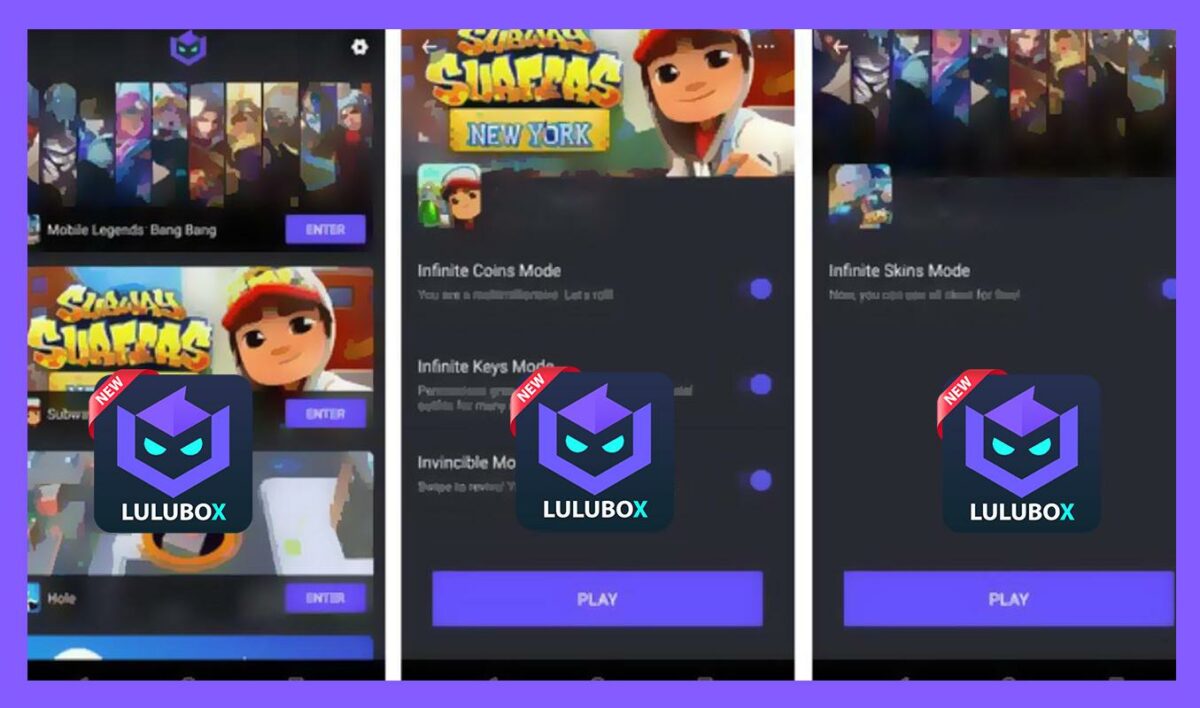
How to Hack Free Fire With Lulubox in 5 Simple Steps

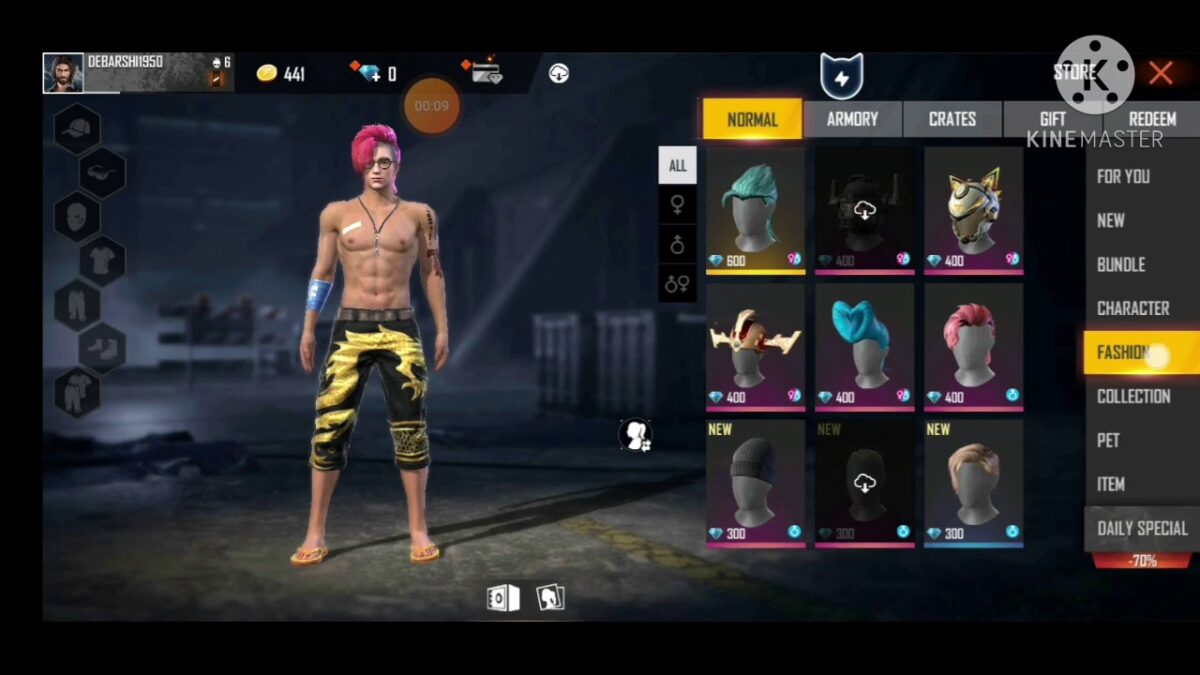
One of the games that is available for free on the Lulubox game plugin box is the popular mobile game Free Fire. If you’ve enjoyed playing the game on the Lulubox app for Android devices, you may be wondering what you can do to freshen up the game and bring in some new life. Or perhaps you want access to all the different skins without having to buy them? Fear not, Lulubox has you covered by offering simple ways to hack the game. 

How to Hack Free Fire With Lulubox

Step 1: Open Lulubox

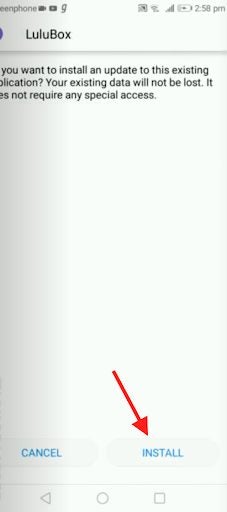
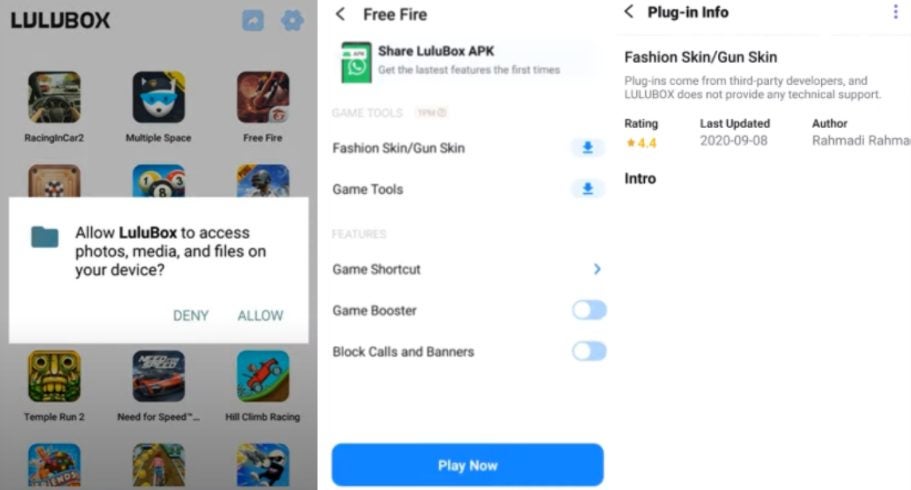
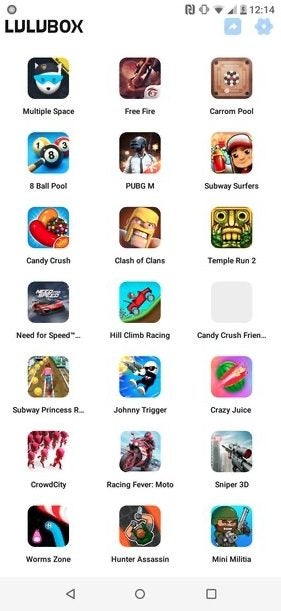
Launch Lulubox on your Android device by tapping on the app icon in your app menu.

How to Hack Free Fire With Lulubox in 5 Simple Steps

Step 2: Tap on Free Fire and Install It

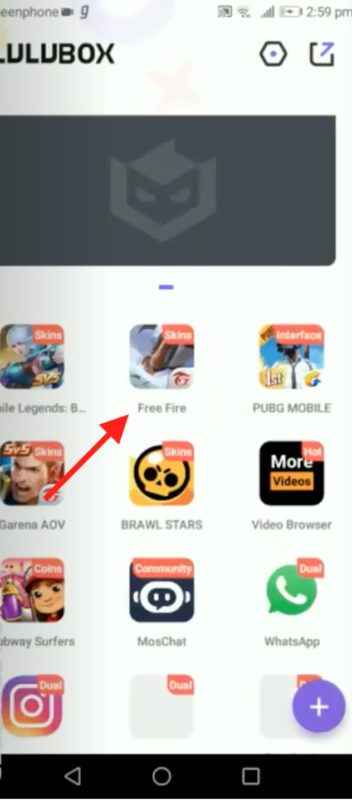
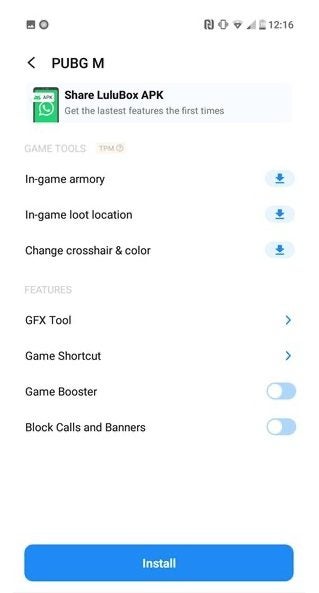
Tap on the game from the app’s home screen and then tap on the install option at the bottom of the screen.

How to Hack Free Fire With Lulubox in 5 Simple Steps

Step 3: Open the Game on Lulubox

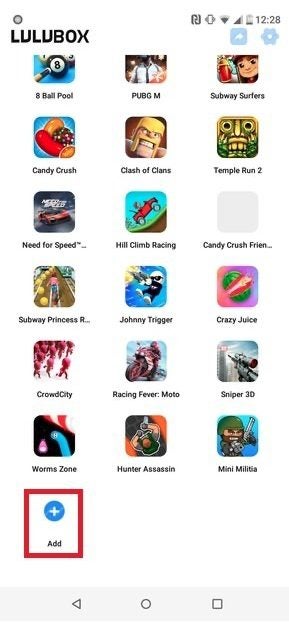
Once the game has finished installing, tap the game icon from the Lulubox home screen.

How to Hack Free Fire With Lulubox in 5 Simple Steps

Step 4: Download the Plugins

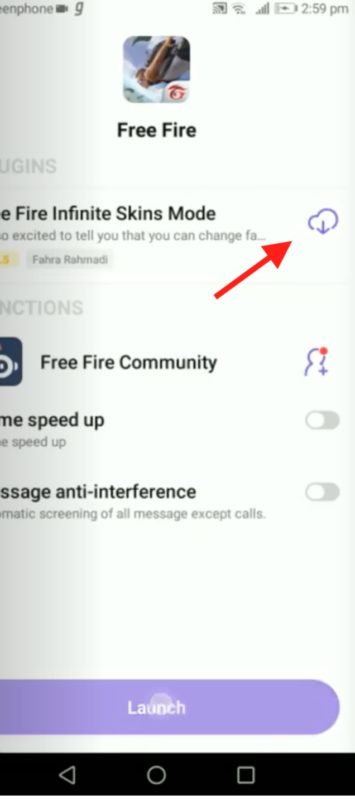
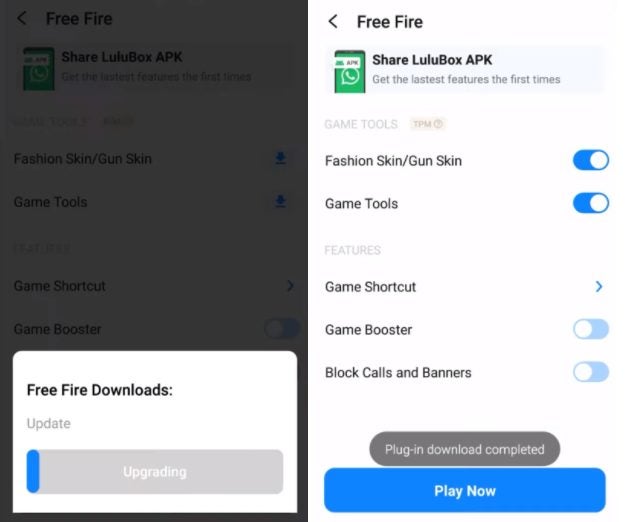
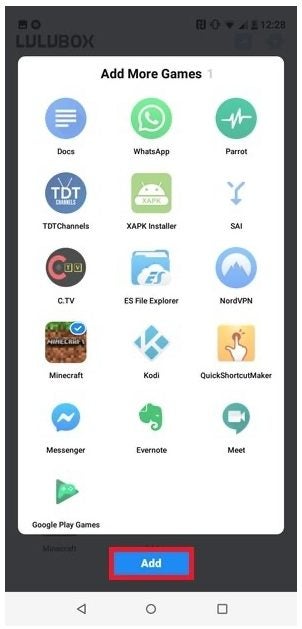
Download all the available plugins by tapping on the cloud with the down arrow icon. A message will pop up to ask if you want to download the plugins and accept the message.

How to Hack Free Fire With Lulubox in 5 Simple Steps

Step 5: Launch Free Fire from Lulubox

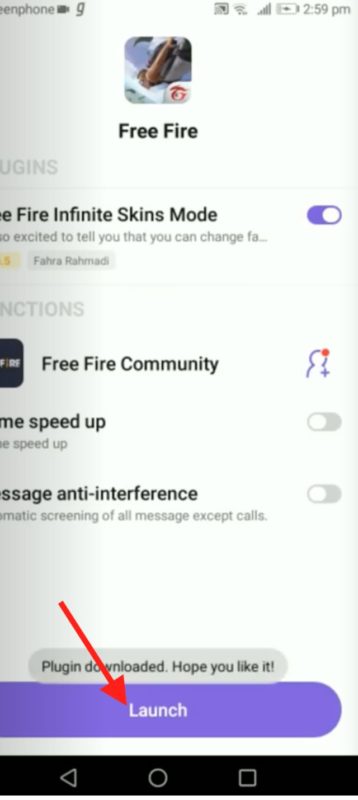
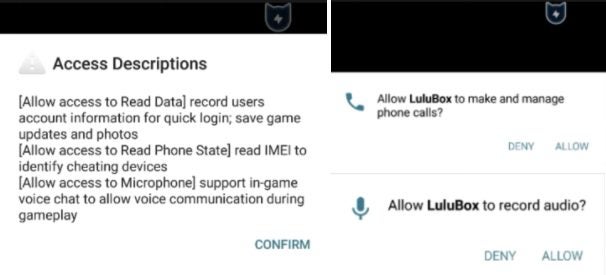
Once the plugins have been downloaded, launch the game by tapping ‘Launch’ at the bottom of your screen. Your game will now open with all the available hacks, such as ‘Infinite Skin Mode,’ which gives you access to all the skins without having to buy them.

How to Hack Free Fire With Lulubox in 5 Simple Steps

Get Access to More on Free Fire by Using Lulubox

Using Lulubox to play Free Fire gives you access to other plugins and hacks to keep the game fresh and exciting. You can also use Lulubox to download and install mods and additional content for other games as well. Enjoy playing your favorite mobile games with these fun extras on Lulubox.

Spotify Introduces a New Timestamp Tool For Easier Sharing

You Can Now Share Specific Part of Podcast With Spotify’s New Timestamp Feature

Two weeks ago, music entertainment giant Spotify mentioned its new podcast subscription model that would rival the likes of Apple. It’s intent on pushing the new tool with the latest features and content, making it stand out as the ultimate solution for podcasters worldwide. And now, it’s showcasing a new Timestamp function where you can share a specific section of your recording.

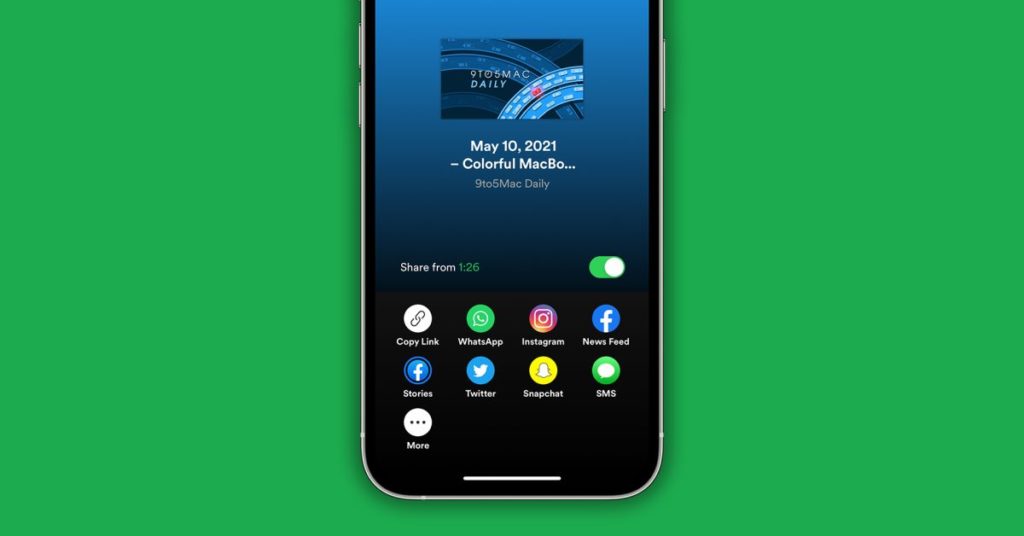
This new feature means you can send a portion of a podcast to your friends and family so that they can hear the relevant part instead of the whole recording. When you find the part you want to send, you simply tap “Switch to Share”, and it’ll save that Timestamp. Your contacts will hear the podcast begin at that point.

Spotify Introduces a New Timestamp Tool For Easier Sharing

Spotify also indicated two other updates. The one revolves around Canvas, where you can alter any static songs into video art. While you could share these to Instagram before, it’s added Snapchat to the list of social media exchanges. It creates a new experience that you can enjoy with your followers.

Finally, Spotify has made the sharing menu visually more pleasing and clearer. This feature comes from several user complaints that the developer wanted to address. While these latest two updates are exciting, we’re sure more members will make use of the Timestamp tool.

How Do I Download My11Circle in 3 Easy Steps?

Fantasy sports have been on the rise during past years. Cricket isn’t an exception. If you want to play fantasy cricket and show off your knowledge about the sport, downloading My11Circle for Android is what you need to do.

How Do I Download My11Circle?

The download process is straightforward. However, you won’t find the app in Play Store. It contains real-money gameplay elements, which contradicts Google policies.

Step 1: Download the .apk file

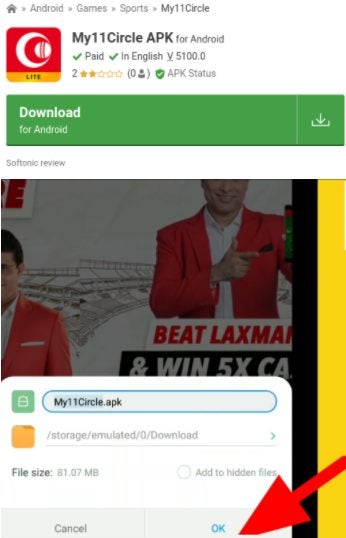
To find the apk, search it on the internet or just click this link. Once you tap “Download,” the app will be on your phone in a few minutes. The program needs Android 4.1 or above to operate.

How Do I Download My11Circle in 3 Easy Steps?

Step 2: Allow “Unknown sources”

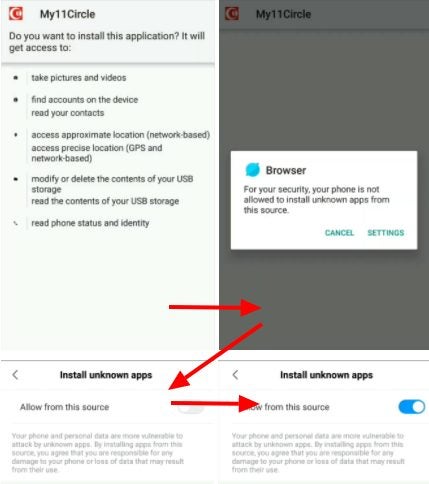
As you’re downloading this fantasy cricket application from a third-party source, the phone or tablet will ask you to enable apps from “Unknown sources” to make changes on the device. Access Settings > Applications and allow the option.

How Do I Download My11Circle in 3 Easy Steps?

Step 3: Login and play

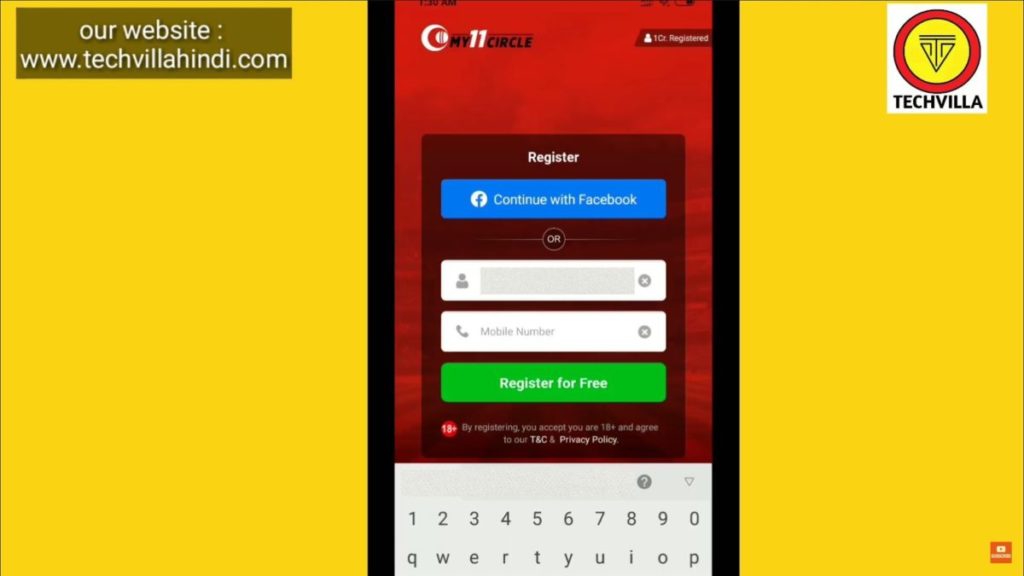
While My11Circle is installing, you can go to the app’s web version and register an account. If you already have one, wait until the program initiates and log in. Now you’ll be able to build a team and enjoy the game.

How Do I Download My11Circle in 3 Easy Steps?

Fantasy team – real prizes!

Fantasy sports are an excellent way to hone your skills and display your knowledge about the players, teams, and the game itself. With My11Circle, you’ll be able to put your cricket know-how to action and even get some real monetary value if you’re good enough.

How to Play Fantasy Cricket on Dream11 in 3 Fast Steps

The ICC is back in full swing, and cricket fans are gearing up to watch live streams of the World T20 matches starting within the next month. As such, many are looking for ways to make predictions and win in fantasy cricket, which is a trend that usually hits up when the tournaments are about to begin.

In this article, we’ll show you how to play on Dream11 and provide some tips on how to win in fantasy cricket.

Dream11 FREE DOWNLOAD

How to Play Dream11

While Dream11 is free to download, you’ll need funds in your account to play against others. The app makes it easy to deposit and remove money once you set up your payment details. Once you have a balance in your account, you can start playing Fantasy Cricket using the following steps.

  1. Select a match

    Firstly, look at the available match listings. You don’t need to aim for your favorite games, as you can play Fantasy Cricket with any of the selections. The list will contain real matches you can watch on your television or on a streaming app.

  2. Create your team

    Now, you can start selecting team members. Dream11 gives you the option to create several teams if you’d like to make a few predictions. However, you’ll pay for each selection, so make sure you have the right strategy.

  3. Join competitions

    Tips on How to Win Fantasy Cricket

    There are Dream11 contests you can join, giving you more chances at winning some money. You’ll need to become familiar with the competition rules so that you don’t forfeit your predictions. Each one has a different entry requirement, and you’ll need to make sure you have adequate funds to participate.

Tips on How to Win Fantasy Cricket

Now that you know how to play fantasy cricket on Dream11, it’s time to read some tips on how you can win. We have a few guidelines here below that you should pay attention to.

Player Performance

We all have favorite players in our cricket teams, be they batsmen or bowlers. However, just because they performed exceptionally well the previous season doesn’t mean they’ll repeat the performance. You should always keep an eye out on how well they are currently doing before adding players to your fantasy cricket team.

Weather Reports

The weather can have a detrimental effect on any match, but there are some cricket players that perform well in these conditions. For example, spinners are excellent for dry pitches, while you should take note of who is incredible at knocking the ball away in wet conditions.

Pitch Conditions

The same rule mentioned in the weather section applies to pitch conditions. If you know the stadiums well enough, you can easily tell when you need spinners or power hitters. There are also bowlers and batsmen that have a good track record for getting high scores in specific locations.

Selecting Captains

One of the most significant choices you’ll make is who your captain and vice-captain will be. The former gets 2 points while the latter receives 1.5. You’ll need the best performers for these positions if you want to be unbeatable, and it can make the difference between winning and losing.

Multiple Teams

If you want to improve your chances of winning in fantasy cricket, you should select multiple teams. Just because you lose one competition doesn’t mean you’ll lose the other one. Just don’t create conflicting teams where victory in the one results in a loss in the other.

Latest Updates

Another vital element is watching for the latest updates. If a team player is replaced due to an injury, it has a massive effect on your fantasy cricket selection. Ensure you have a news app like Cricbuzz that feeds you the latest news via notifications.

Take a chance on the fantasy field

Dream11 is an excellent opportunity for cricket fans who want to make predictions on a match for a chance to win some money. However, you should play responsibly and not make poor judgments. You’ll need to learn the game and watch how the seasons unfold, giving you a better idea of what choices to make. 
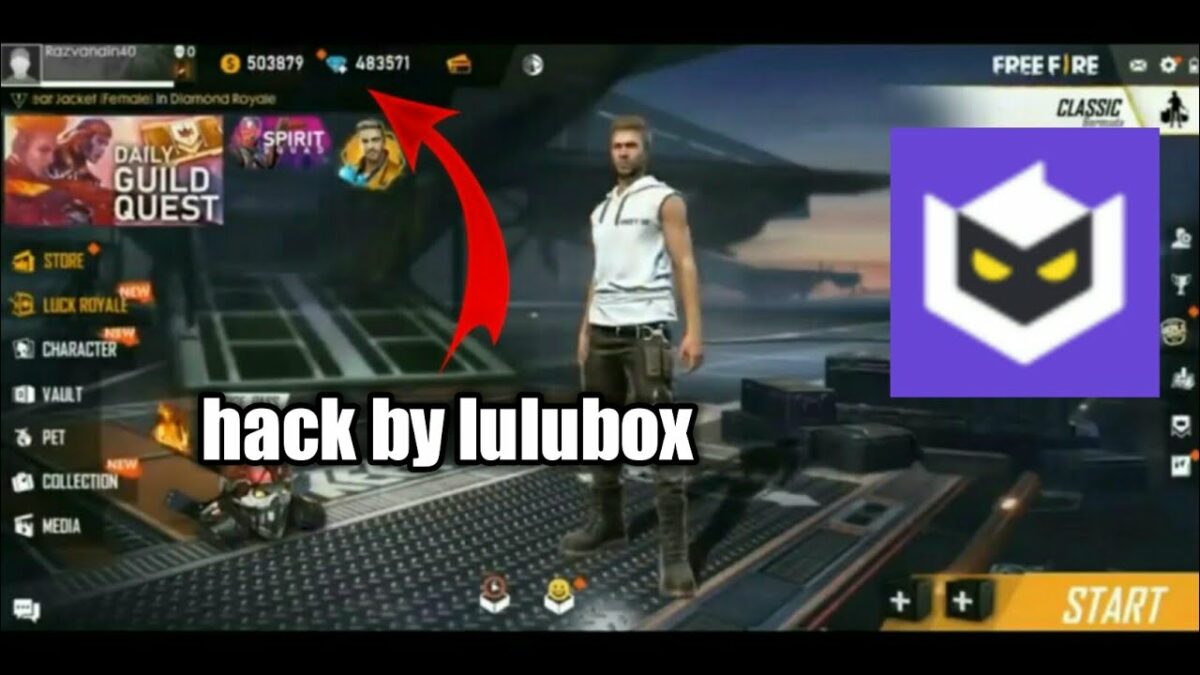
How to Use Lulubox in PUBG Mobile in 3 Easy Steps

Are you a PUBG player who wants all the possible modifications in the game? There’s a fantastic solution to your problem from the third-party application, Lulubox, which hacks the complete pack of skins and other gameplay features in your PUBG mobile.
How to use Lulubox in PUBG mobile

Before reading this guide, ensure that you have PUBG and Lulubox apk files installed on your Android device. If you need help with the latter, read our Lulubox installation article.

Step 1: Find PUBG in your Lulubox app

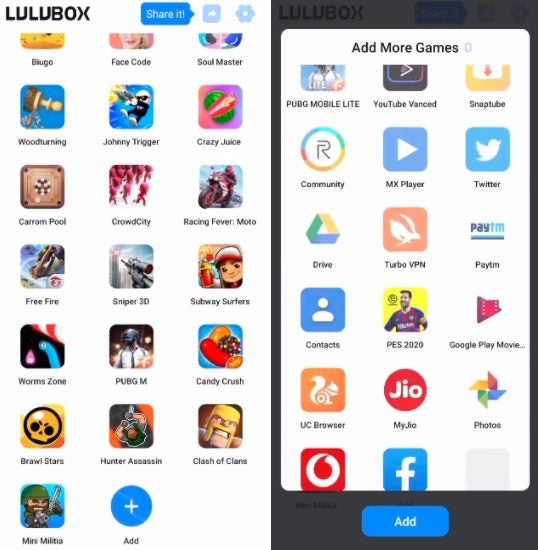
Once you find the installed Lulubox app and open it on your Android device, the PUBG icon should be among the available apps and games. If the shortcut isn’t there, you can tap “Add” on the bottom of the screen and search for the program.

How to Use Lulubox in PUBG Mobile in 3 Easy Steps

Step 2: Open PUBG settings and download the necessary plugins

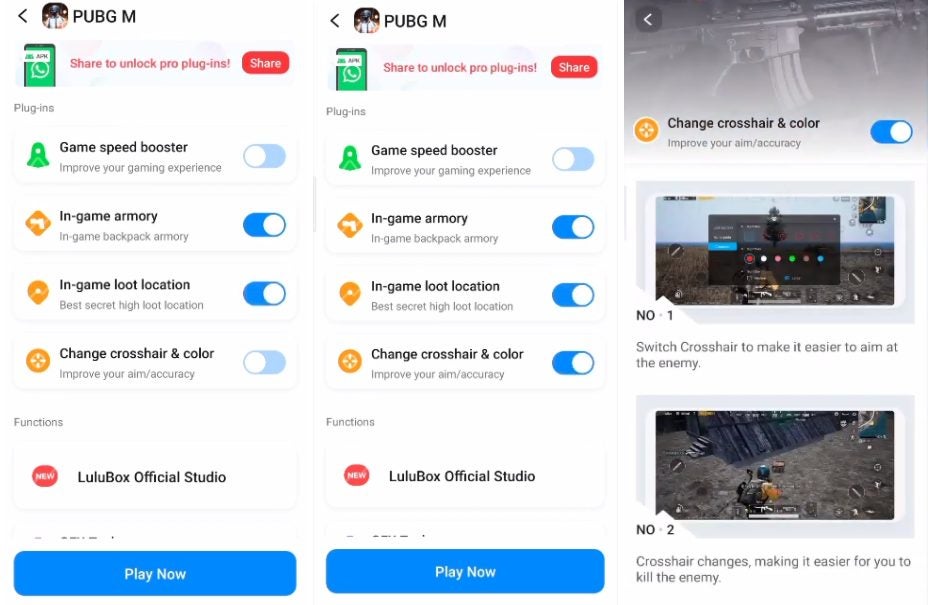
Now that you have the game added to the lot click on the icon to open the settings screen. All the options Lulubox gives you should be on display. Click on the plugins and toggle them on. Each of them has a description, where you’ll be able to see the exact modifications it makes.

How to Use Lulubox in PUBG Mobile in 3 Easy Steps

Step 3: Tap “Play Now” and enjoy

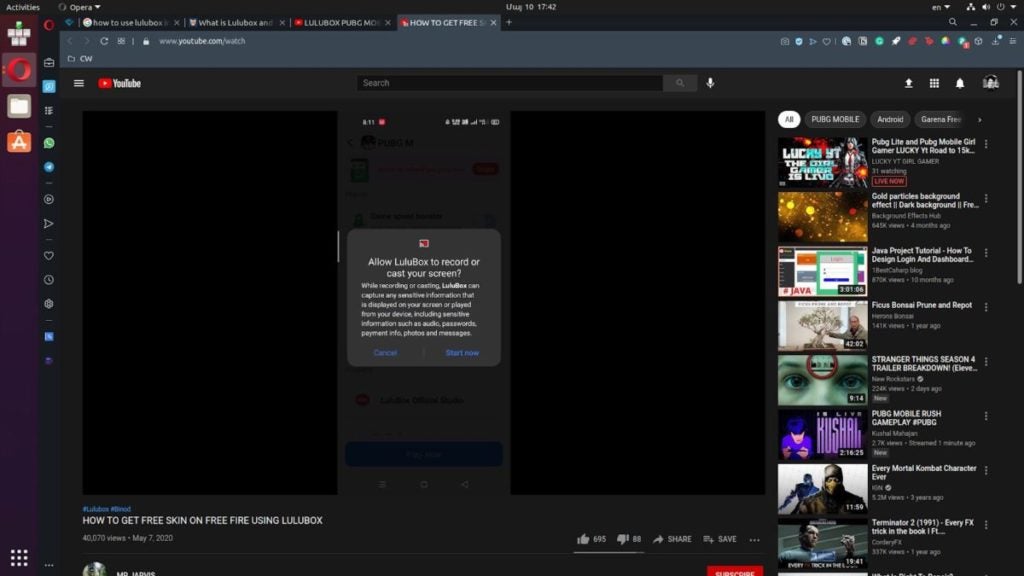
The final and most delightful action is to press the “Play Now” button and initiate the game. However, you might have to allow a few permission requests here if you haven’t done so before.

How to Use Lulubox in PUBG Mobile in 3 Easy Steps

Permissions, Beware!

PUBG is a fun experience, and it can be an immense joy to play, but remember, you need to ensure your safety on the internet. Third-party applications can sometimes be dangerous for your device. Although Lulubox is a credible app, being careful is never “extra.”

How to Use Lulubox in Free Fire in 3 Fast Ways

Playing Battle Royale games on your phone can be a fun adventure, but what if you want the extra features and fashion choices in the game all at once? While some players might be more fixated on experiencing the game, others like choosing from a wide variety of skins. Let’s see how you can reach your goal of unlocking all of them in Free Fire using Lulubox.

How to use Lulubox in Free Fire

This guide is for those who already have the Lulubox app installed on their Android device. For more information about how to download and install the .apk file, click here.

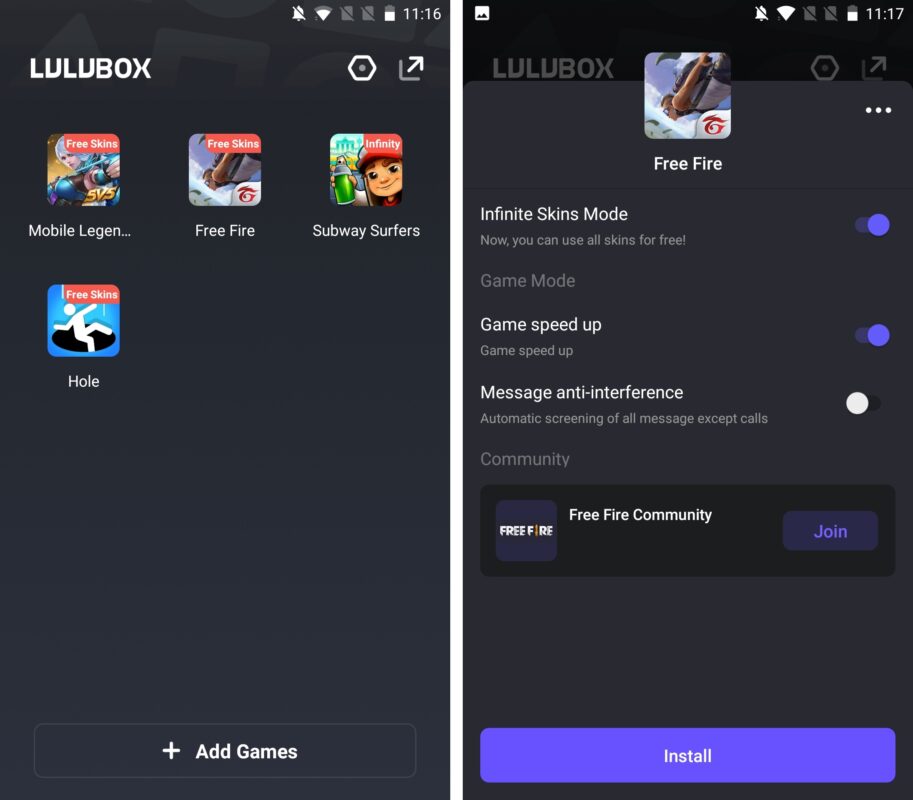
Step 1: Open Lulubox and access Free Fire from the list

Find Lulubox in your home screen or the folder you hid it in and tap to open it. You’ll see all the games available with the booster. Tap the Free Fire icon to open its info page. A bunch of options will be available on the screen, including the plugin names and details (when you tap on each).

How to Use Lulubox in Free Fire in 3 Fast Ways

Step 2: Download the plugins you need

Click on the available plugins as needed and wait until they install. Once they’re available, the “Download” button on each line will turn into a toggle that you can turn on or off before playing.

How to Use Lulubox in Free Fire in 3 Fast Ways

Step 3: Tap “Play Now”

Once the plugins are in, you can start playing instantly. Tap the blue “Play Now” button and wait until the game begins. While it’s loading in the background, you’ll see the Lulubox floating icon on the screen. Then the app will ask for a few permissions. Tap “Allow” if you agree.

How to Use Lulubox in Free Fire in 3 Fast Ways

Ensure that you stay safe while playing

Lulubox asks permission to manage your phone storage, make phone calls, and record audio. While it might be a fantastic solution for getting extra boosts in-game, the permissions are a bit more than you’d want to give out to a third-party app. Make sure that you read the app’s privacy policy before starting to enjoy Free Fire with Lulubox.

How to Download Lulubox in 3 Simple Steps

Lulubox is a very useful game plugin box for Android devices. The app can be downloaded and installed on your phone in a few simple steps, and then you can use it to manage your games, including installing new features such as skins and other mods. Lulubox is not available on the Playstore, so you will need to download the apk from another source to be able to install it. This might make some people nervous, so we will guide you through the steps of downloading Lulubox.

How to Download Lulubox

It is essential to remember only to download files from safe, reputable sources to keep your computer and personal information secure from any malware.

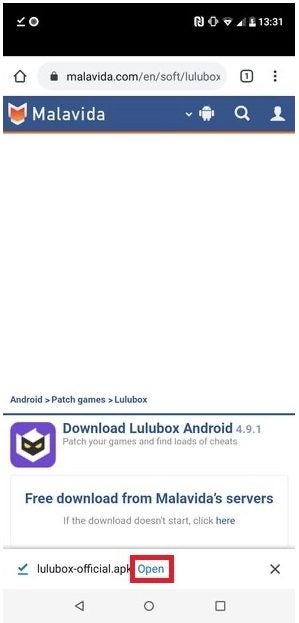
Step 1: Go to the Download Website

Go to a reputable site to download the Lulubox apk (Android Application Package).

How to Download Lulubox in 3 Simple Steps

Step 2: Click on Download

Click on the Download button to start downloading the apk file. Wait for the download to finish before moving on to step 3.

How to Download Lulubox in 3 Simple Steps

Step 3: Open and Install Lulubox

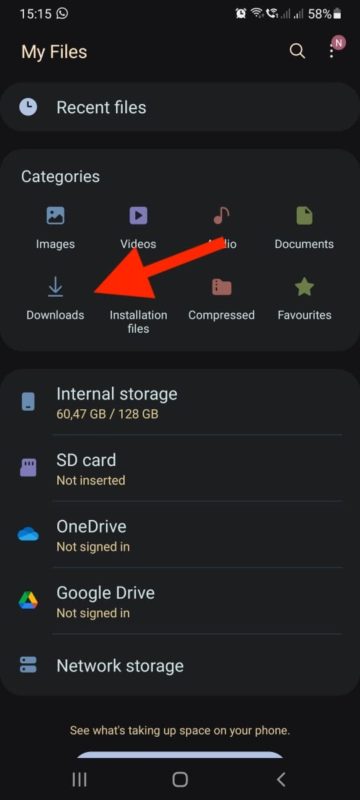
On your mobile device, head to your ‘Downloads’ folder, sometimes located in your ‘Files’ folder. In this folder will be your recently downloaded Lulubox apk. Open the file to start with the installation process. During the installation process, the app will request access to the games on your Android device but will not ask for permission to access any other personal details. This is one of the bonuses of using this app.

How to Download Lulubox in 3 Simple Steps

Downloading Lulubox Is as Easy as One, Two, Three

If you follow our steps above, you will see just how easy it is to download and install Lulubox. As long as you remember to stay safe when downloading, you should be able to download the app and enjoy all the new features of managing your games from a single app.

How to Install Lulubox in 3 Simple Steps

This free game plugin box allows you to manage all your Android games from a single app. Within the Lulubox app, you can easily run, manage and update all of your favorite mobile games on your Android device. But how do you install the application? For those not used to working with apk (Android application package) files, we have set up these instructions to help you install the app on your phone.

How to Install Lulubox

You will need to have the Lulubox apk file downloaded before you can install the app. When downloading apps, make sure you use one reputable source. You can refer to our guide on how to download Lulubox for more information.

Step 1: Find and Open the Lulubox APK File

Once you have downloaded the Lulubox apk file, you need to open it to start installing the application. If you kept an eye on the download process, you could open the file from the process bar. Alternatively, you will find the apk file in the ‘Downloads’ folder on your device.

How to Install Lulubox in 3 Simple Steps

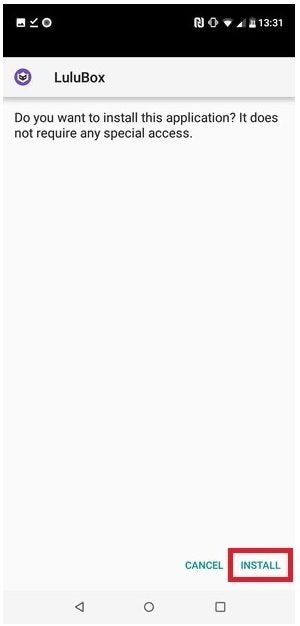
Step 2: Tap on ‘Install’

An installation window will open asking if you want to install the application. Tap on ‘Install’ in the bottom right of the screen.

How to Install Lulubox in 3 Simple Steps

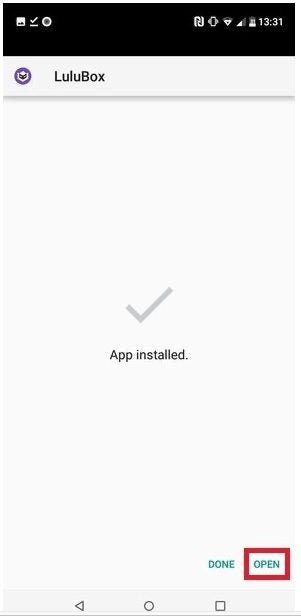
Step 3: Wait for the App to Finish Installing

Wait a few seconds while the app installs on your mobile device. Once the application has finished installing, you can open it from the last window in the installation process by tapping on ‘Open.’ Or you can tap on the Lulubox icon from your app menu.

How to Install Lulubox in 3 Simple Steps

Bear in mind that when you launch Lulubox for the first time, you will have to accept their terms of service before you are able to continue to the home screen of the app.

All of Your Games Conveniently in One Location

With Lulubox, you can enjoy all your favorite games from one convenient app on your Android device. It is so simple to install Lulubox that there really isn’t any reason why you shouldn’t start using it now. 

How to Play Lulubox in 5 Easy Steps

Lulubox is a free app for Android that allows users to manage and play their games from one convenient program. Not only can you organize your games, but you can easily update them and once there is additional content available for the game, such as skins or unique locations you can add them from the app. You may be wondering how you can play games from Lulubox? We will cover those steps so that you can start enjoying your favorite Android games on Lulubox.

How to Play Games on Lulubox

Step 1: Open the Lulubox App

Open the application on your mobile device. Once opened, you will be on the Lulubox home screen, where you will see a list of compatible games.

How to Play Lulubox in 5 Easy Steps

Step 2: Tap on Any Game

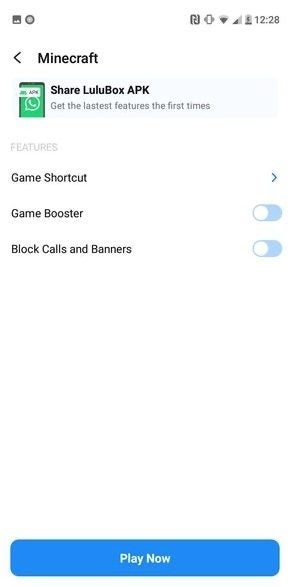
You can tap on any game to see more options such as game boosters, shortcut creators, and any additional content that may be available for the game on the app’s home screen. 

How to Play Lulubox in 5 Easy Steps

Step 3: Add Games

If the game you want to play is not listed on the home screen, you can add it. At the bottom of the home screen, tap on the ‘+’ icon to add another game.

How to Play Lulubox in 5 Easy Steps

Step 4: Choose the Game to Add

A list with all your installed games will open. Choose which game or app you would like to add to Lulubox.

How to Play Lulubox in 5 Easy Steps

Step 5: Play the Game

Once you have the game that you want to play, tap on it. Right at the bottom, tap on the ‘Play Now’ button to start playing the game. If you’ve chosen another app, then tapping on ‘Play Now’ will launch the app.

How to Play Lulubox in 5 Easy Steps

Bear in mind, games you add may not have all the additional features that the base games that come with Lulubox. Also, keep in mind that playing modded and patched games online might get you banned from certain games if you misuse them. 

Choose Your Game and Start Playing

Playing and adding new games is a simple and intuitive process. So, start playing games on Lulubox now.

Clubhouse Android App Has Its Official Launch

After a Long Wait, The Clubhouse Android App Is Finally Available

Last week, Notion released a beta version of the Clubhouse Android app to eagerly awaiting fans. The developer had mentioned that official roll-out would occur soon, but no date was visible for the launch. Well, it seems the wait is over as many users start to experience the initial release.

If you’re living in the United States, you’ll be the first to experience the Android version of Clubhouse. Those with iOS devices have had the pleasure for a while now while Notion got the counterpart ready for release. However, it’s hoping the Android version will help regain the falling popularity of the application.

Clubhouse Android App Has Its Official Launch

Of course, the current Clubhouse system of receiving an invitation before you can join seems to keep people away from joining. Notion indicated that it may be changing a few features, such as the payment system and club creation. It’s waiting for more community feedback so they can understand what the users would like to see in the new app.

Clubhouse will also have to deal with Twitter’s clone of its features, called Spaces. Notion will be opening up the gateway to the iOS waiting list while expanding the same functions for Android. This is all in a largescale effort to win back the numbers from one of its largest competitors. 

We look forward to seeing how this battle for the masses plays out.