Facebook Will Make You Read A News Article Before Sharing

Facebook Is Testing A New Feature To Ensure You Read Articles Before Sharing

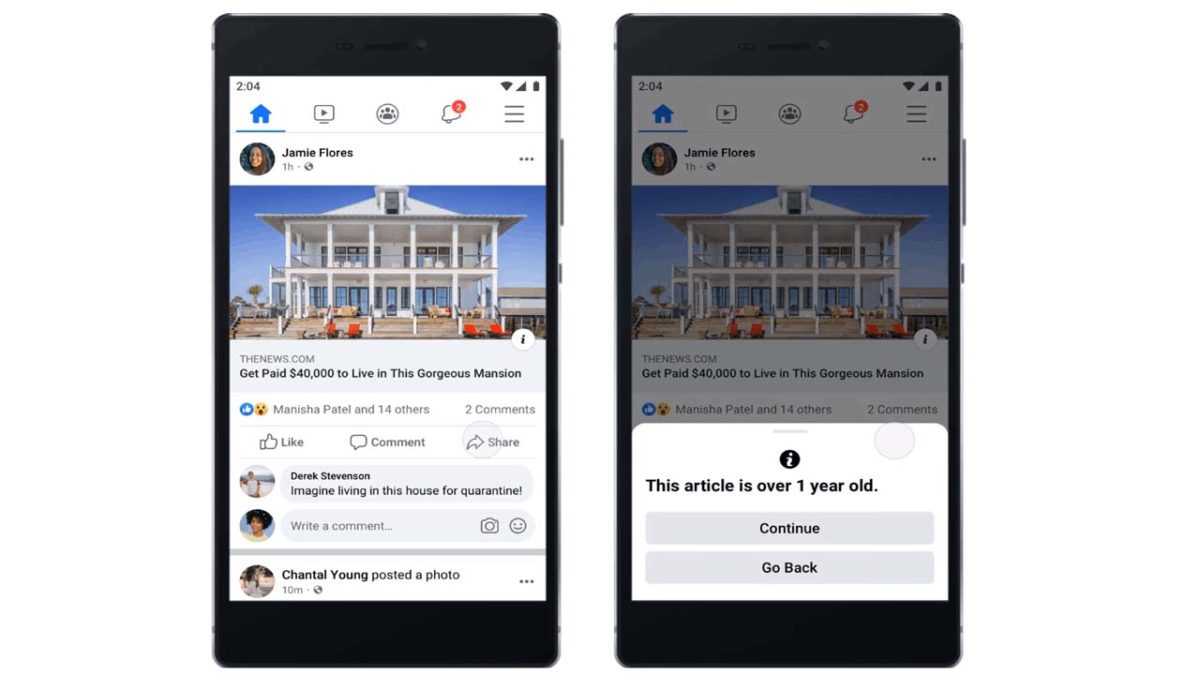
Do you usually share news articles on Facebook that look interesting without actually reading them? Unfortunately, many of these pieces are fake or contain the wrong information, created merely to engage clicks and site traffic. Well, the social media giant has announced a feature that will tell you to check it first.

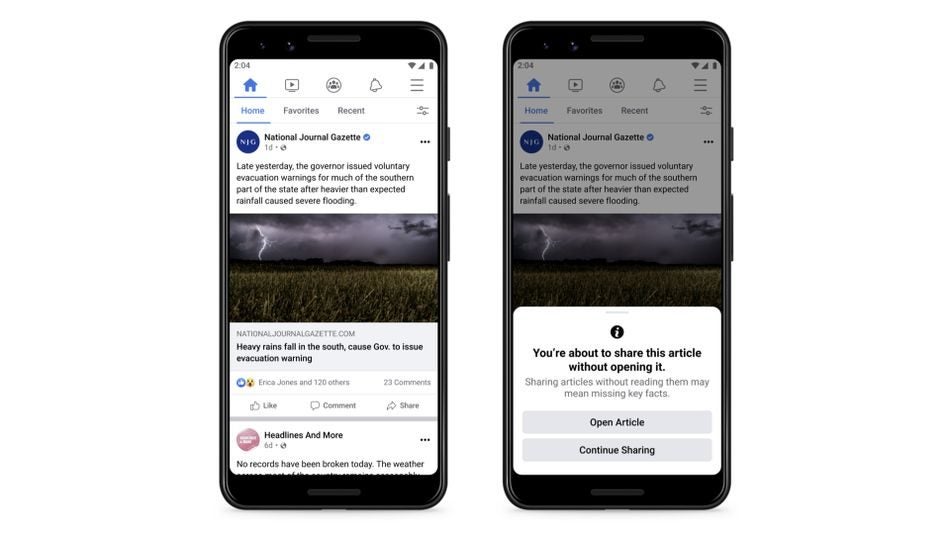
You will receive a gentle nudge on your device when you attempt to share any news article with your followers. As soon as you click the share button, the app will prompt you to open the site and actually read the contents. After you’ve spent some time on the site, you can return and freely share it on your timeline.
Facebook Will Make You Read A News Article Before Sharing

Strangely, nothing stops you from sharing it anyway. You’ll have the option to “Continue Sharing” without reading the article’s contents. We’re not sure how many people will be persuaded to follow the action of opening the site if you have the choice to ignore it.

Perhaps its competitor Twitter has some answers for us. When it performed a similar test in 2020, the results showed that 33% of users opened the articles more often before retweeting. After reading the contents and realizing how fake most of them were, the retweeting numbers dropped significantly. 

It will be interesting to see what Facebook’s results will be after a few months.
How to Send Xender Through Bluetooth in 3 Easy Steps

Sharing files can be a pain in your back, especially if the files are too large. Xender solves that problem with its fast transfers. However, how do you get the app itself? While there are a few ways you can get it, including a QR code, Wi-Fi hotspot, WhatsApp, and the good old message, you might prefer Bluetooth. 
How to send Xender through Bluetooth

We have one of the most straightforward ways of sharing the sharing app with other Android devices in this article. Follow the steps below, and you’ll get it in no time.

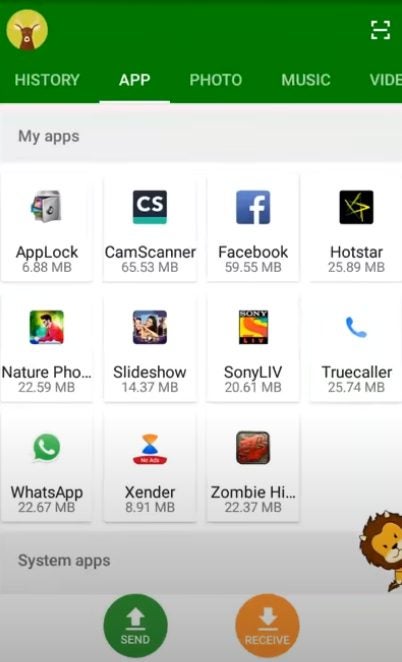
Step 1: Open Xender and go to user settings

From your home screen or whatever folder you have Xender in, tap to open the application. Click the user icon and tap the “More” button. Under the list, you should see several options.

How to Send Xender Through Bluetooth in 3 Easy Steps

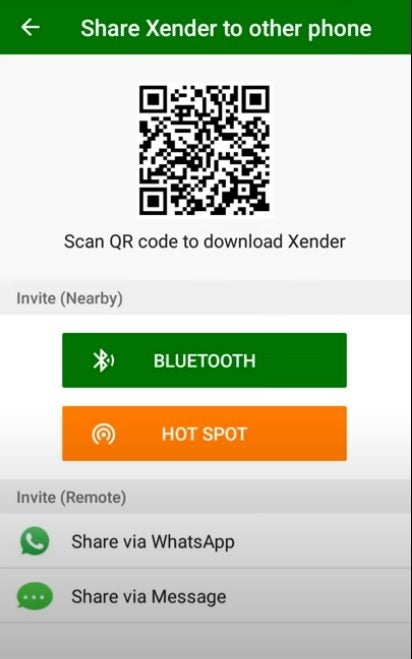
Step 2: Select “Share Xender to other phones”

Find the “Share Xender to other phones” and click it. The screen you’ll see should contain a few options, including “Hot Spot” and “Bluetooth.”

How to Send Xender Through Bluetooth in 3 Easy Steps

Step 3: Tap “Bluetooth”

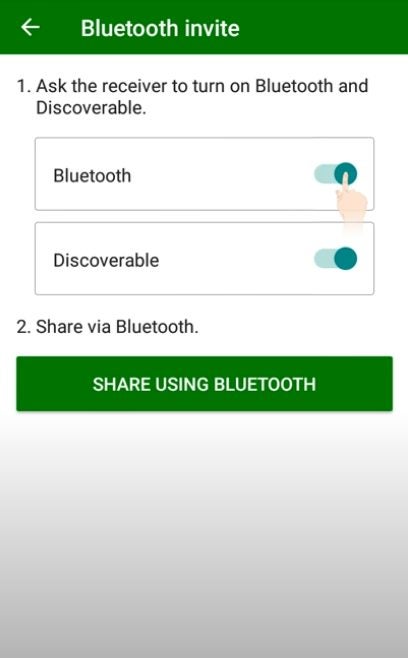
Once you click the “Bluetooth” button, the app will prompt you to select the receiving device from the list. If the Bluetooth isn’t working, you’ll need to turn it on and proceed like you would during the usual pairing.

How to Send Xender Through Bluetooth in 3 Easy Steps

Receive and roll with the Xender app!

During this process, the sender’s phone is as important as the settings on the receiver’s. Check the paired Android device and turn on the Bluetooth if it’s off. This will ensure that it’s visible to everyone nearby. Once the file is received, your friend will be able to download the app, install it and share apps and send files further.

How to Do Green Screen on Tiktok in 5 Simple Steps

With the growing use of video calls in recent months, using virtual backgrounds has increased in popularity. Now it’s easier than ever before to enhance your videos with a different, more entertaining background. TikTok has embraced this trend and offers a green screen effect on their app for Android and iPhone

How to Do Green Screen in TikTok

Don’t get panicked when you hear the word green screen. You do not need specialized equipment or advanced technical knowledge to use TikTok’s green screen effect. We’ll show you just how easy it is. 

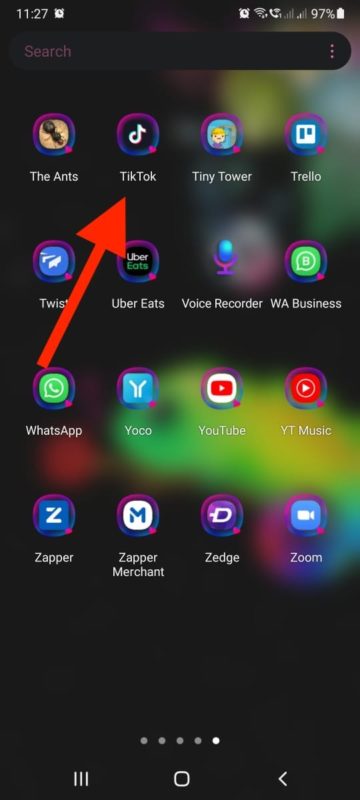
Step 1: Open Tiktok

Launch the app on your mobile device. If you don’t have the app, you will need to download it first.

How to Do Green Screen on Tiktok in 5 Simple Steps

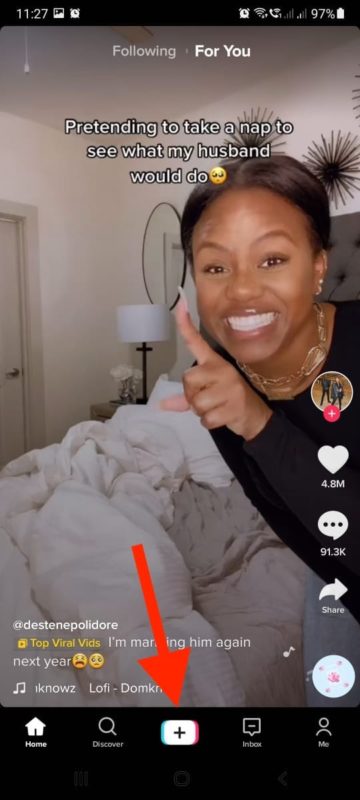
Step 2: Start a New Video

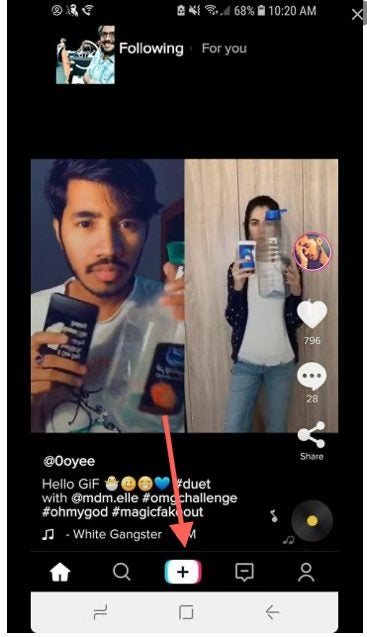
Start creating a new video by tapping on the ‘+’ sign at the bottom of the screen. 

How to Do Green Screen on Tiktok in 5 Simple Steps

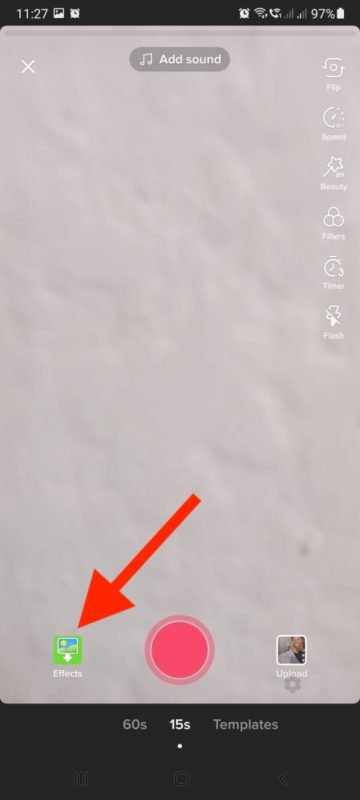
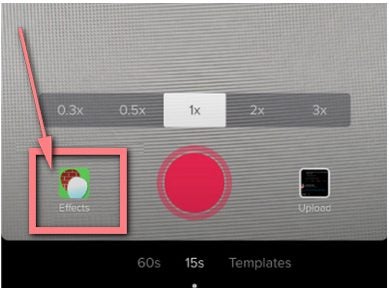
Step 3: Choose ‘Effects’

Tap on ‘Effects’ to the left of the record button at the bottom of your screen.

How to Do Green Screen on Tiktok in 5 Simple Steps

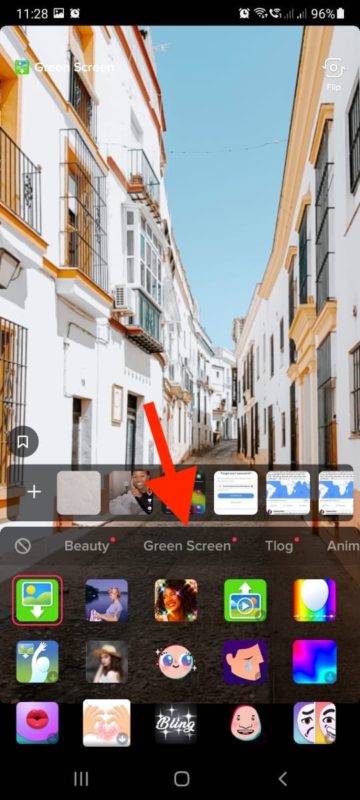
Step 4: Tap on ‘Green Screen’

Scroll through the available effects until you see the ‘Green Screen’ option; tap on it.

How to Do Green Screen on Tiktok in 5 Simple Steps

Step 5: Choose Your Background

Now you can choose what image or video you want to use as your background. You can tap on the ‘+’ button to upload an image or video from your device or choose from any of the available TikTok backgrounds.

There are many different backgrounds for you to choose from, including tiles and augmented reality. The possibilities are endless, so we recommend experimenting with the different options so that you can get a better idea of what is possible with this feature.

How to Do Green Screen on Tiktok in 5 Simple Steps

Use a Background Effect to Enhance Your Videos

TikTok makes it easy for users to create great quality videos and enhance them even further by using a wide range of effects such as the green screen option. In your next video, why not make your followers jealous by posting yourself in front of a beautiful, tropical beach background? Or perhaps entertain them with an underwater background and theme?

How to Make Money With TikTok in 4 Easy Ways

TikTok is a fast-growing social media platform, and with growth comes opportunity. This video-sharing app is available on Android and iPhone devices and allows users to create and share short videos. As the app is snowballing, it is becoming possible for creators to start earning money. It doesn’t yet have an established way of making money on the platform, but we will share four ways you can start monetizing your TikTok account.

How to Make Money With TikTok

Option 1: Sell Your Own Merchandise or Products

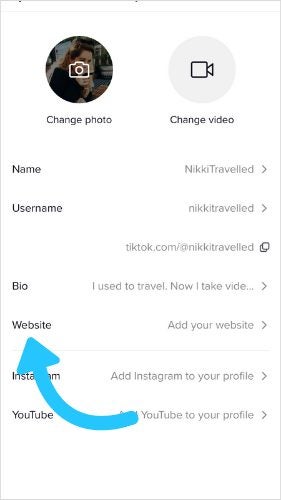
This is probably one of the easiest ways that you can monetize your TikTok account. The best part is you don’t need 1000s of followers, so this is ideal to set up if you’re just getting started. All you need to do is add a link in your bio to your shop, and at the end of your videos, have a little referral to your shop. 

How to Make Money With TikTok in 4 Easy Ways

Option 2: Publish Sponsored Post

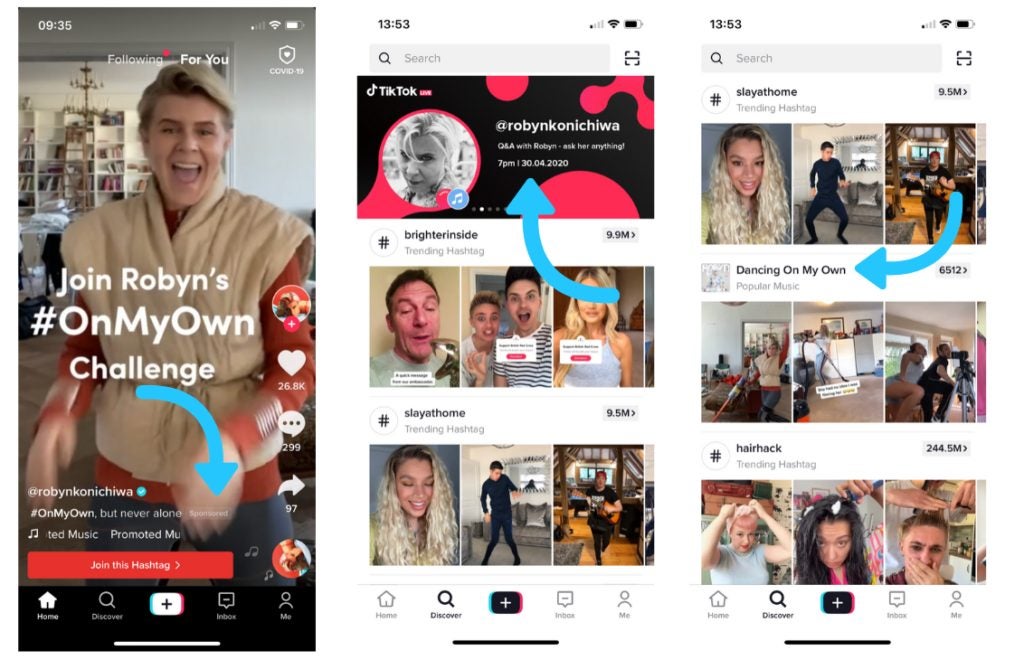
This is an excellent option once you have established a solid following on TikTok. Once you have a few 1000 engaged followers, you can start reaching out to brands and offering your services. If you are still new on TikTok, try reaching out to smaller brands first to help build your presence and portfolio. 

How to Make Money With TikTok in 4 Easy Ways

Option 3: Influencer Marketing

Influencer Marketing is more complicated as you need to have a large dedicated following and engagement rating. Brands will pay you to use and mention their products in a video. 

How to Make Money With TikTok in 4 Easy Ways

Option 4: Become a TikTok Consultant

If you feel confident that you know TikTok and grow TikTok accounts and followers, you can start offering consultations to help other businesses and brands grow their accounts. 

How to Make Money With TikTok in 4 Easy Ways

Easy Ways to Make Money With Your Videos

Start implementing these options on your TikTok account today to start earning money from your videos and content.

How to Install VPN on Gameloop in 3 Easy Ways

Gameloop gives you access to Android games on your PC, but you can only install and play them if it’s available in your country. However, you can also install a VPN on Gameloop that will let you connect to a server overseas, letting you play the title as if you’re living there. Fortunately, performing this task is as easy a placing a new game on the emulator.

How to Install VPN on Gameloop

You’ll need to keep in mind that you need an Android VPN application for it to work on Gameloop. Furthermore, it will ask you to create a free or paid account before you can use the virtual private network. If you have all this at hand, you can start the following steps.

Step 1: Open Local Installation on Gameloop

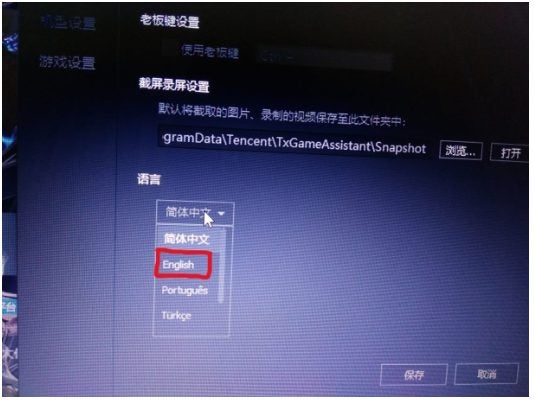
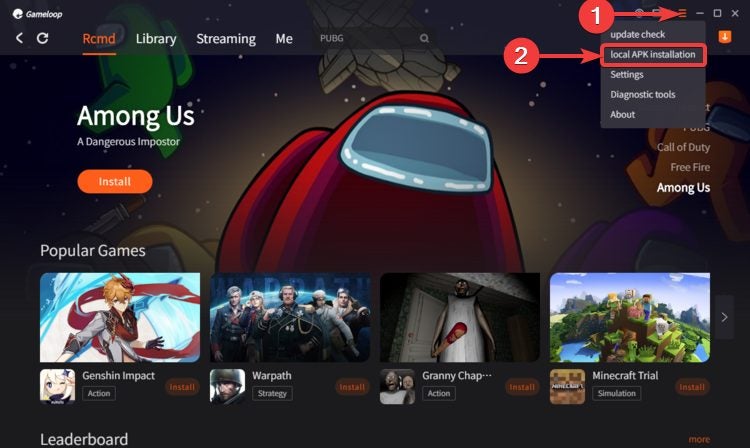
Firstly, open Gameloop as soon as you’ve chosen which VPN you want. Click on the menu icon, and select local APK installation. You’ll need the APK file saved on your computer for this step to work.

How to Install VPN on Gameloop in 3 Easy Ways

Step 2: Find your VPN

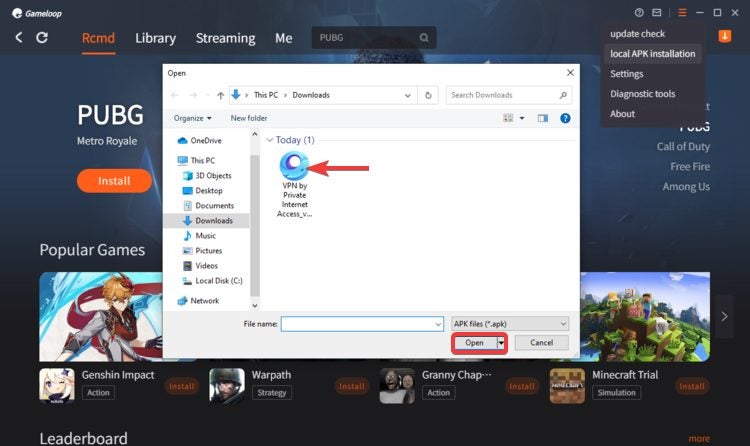
A new window will open asking you for the file location. Browse to where you saved it, or to Downloads as the default save point. You can double-click on the file to begin the installation.

How to Install VPN on Gameloop in 3 Easy Ways

Step 3: Open VPN

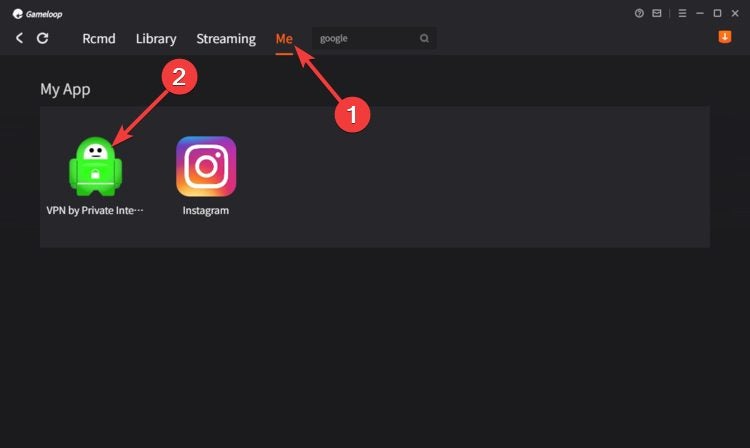
If you want to make sure it installed properly, click on the ‘Me’ tab. This space is reserved for all the apps you placed on Gameloop using this method. Whenever you want to use a VPN, you can access it here and open it to connect to a new server. Remember, you’ll need to create an account first.

How to Install VPN on Gameloop in 3 Easy Ways

Play games in a different country

Using a VPN on Gameloop isn’t excellent if you want to access game servers in a different country. You’ll experience less lag, there’ll be more fun, and you can play titles you don’t have available in your region. You can even stream content on Netflix that’s not available by you, enhancing your experience on this emulator.

How to Update CoD Mobile on Gameloop in 3 Fast Steps

As you’re enjoying your Call of Duty experience mid-season, the creators behind the game are always hard at work to roll out the update to its players. All CoD mobile players, including the ones that use Gameloop, want to get their hands on the update first. Let’s see how you can do it in a few clicks.

How to Update CoD Mobile on Gameloop

This guide is the most straightforward way to update the game for all the players with Gameloop and CoD mobile apk installed on their PC.

Step 1: Open Gameloop 

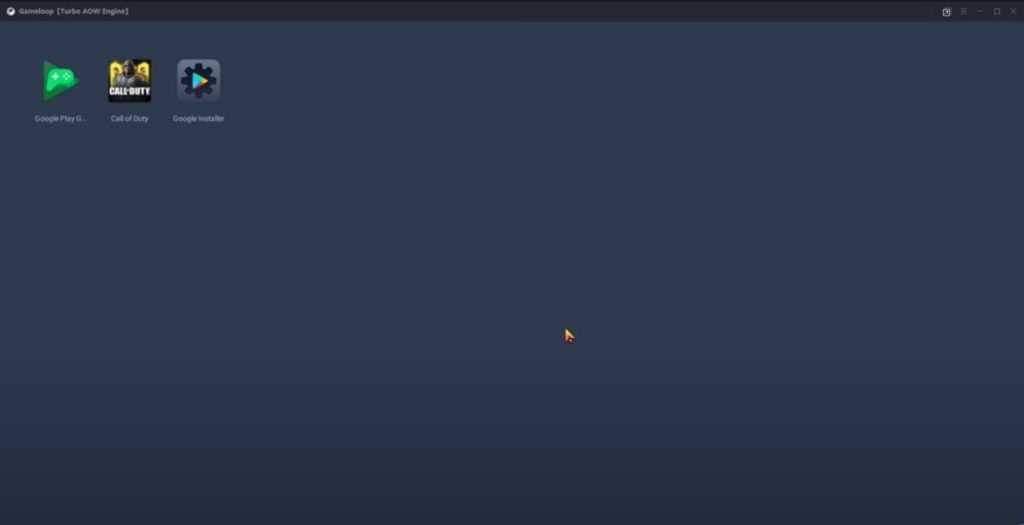
Usually, everything you play through Gameloop will get the updates right in the emulator. If CoD is installed, you should see the screen we have below. Google Installer and Google Play are crucial in the list of programs for running the game.

How to Update CoD Mobile on Gameloop in 3 Fast Steps

Step 2: Open CoD

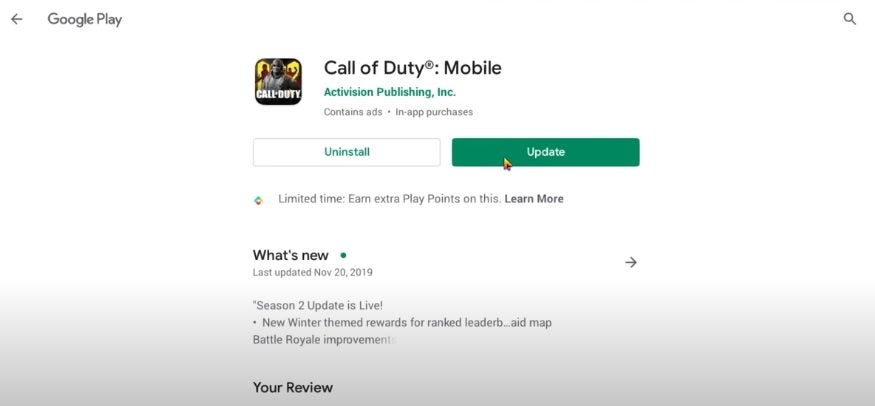
To access the update, open the Call of Duty page in Google Play, and you’ll see two buttons: “Uninstall” and “Play.” If there’s an update, the “Play” button will turn into “Update.” Click it and wait. Usually, after updating, you’ll be able to play the game right away, but if it registers problems, restart the emulator. 

How to Update CoD Mobile on Gameloop in 3 Fast Steps

Step 3: Optional troubleshooting

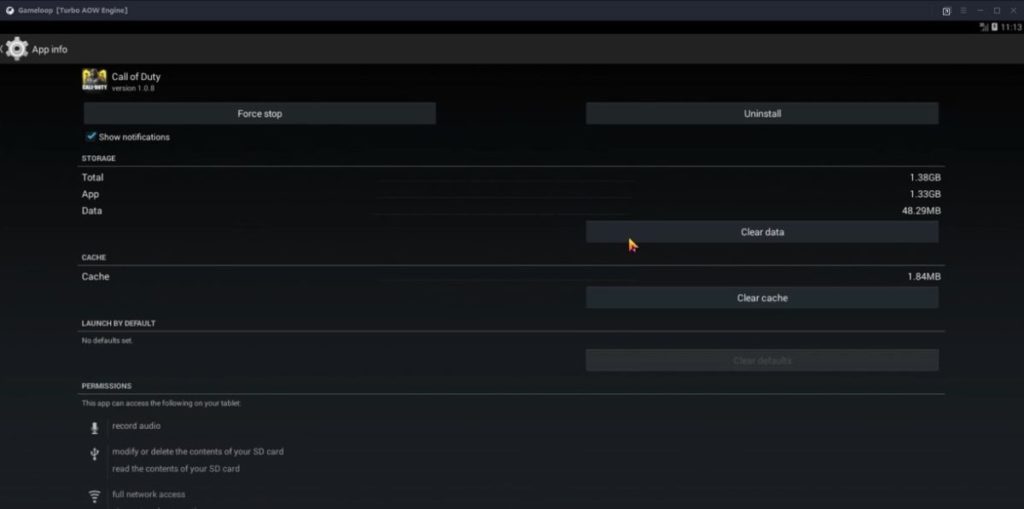
If you encounter problems during the update, we recommend you clear the Gameloop cache first. Open the drop-down menu at the upper right corner and click “Clear Cache.” If it doesn’t work, go to the individual program settings (Google Installer, Google Play, and Call of Duty) and clear the program data from there. Once you’ve done all the steps, update the game as we described above.

How to Update CoD Mobile on Gameloop in 3 Fast Steps

Get the latest content and protect your computer

Keeping your games and programs up to date will give you the latest content and strengthen your protection against malware risks. While game designers bring the best expansions and storylines to you, programmers patch the weak points in the code, securing it against hacks and viruses. Update your CoD and protect yourself both in-game and in the real world.

How to Use PS4 Controller on Gameloop in 3 Easy Ways

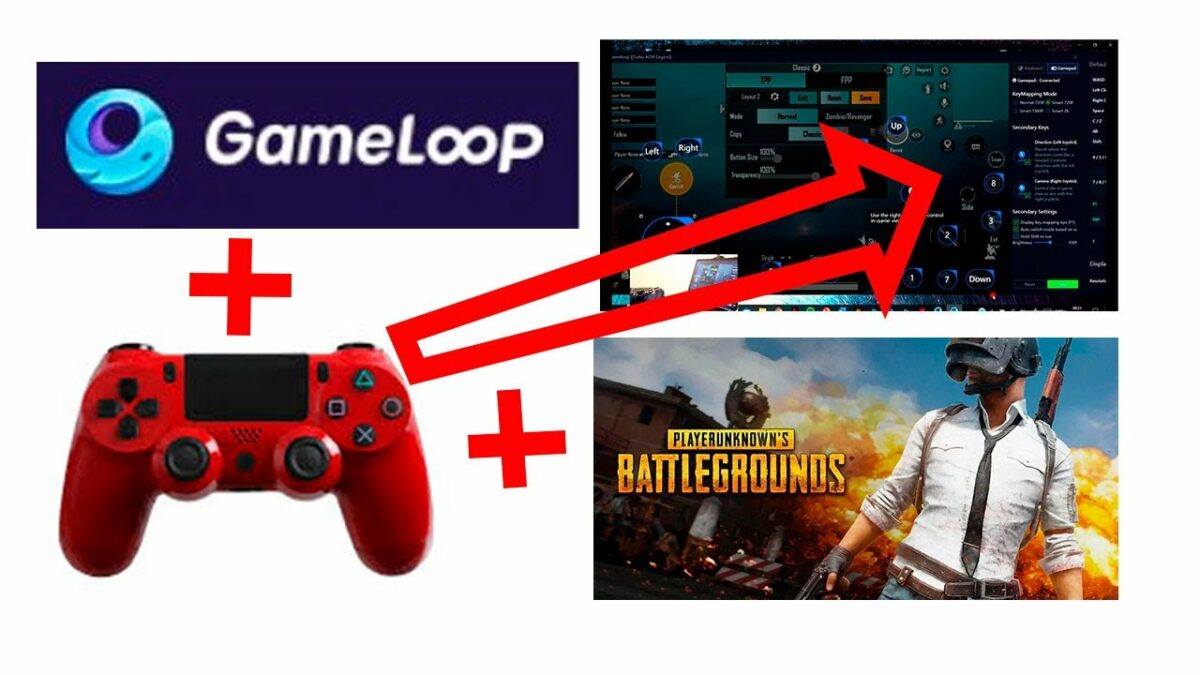
Gameloop may be an excellent Android emulator for PC, but you might want to play Call of Duty: Mobile or PUBG Mobile with a controller instead of a keyboard. Even if you insert your PS4 controller in your controller, it won’t work with any of the games properly until you set it up.

How to Use PS4 Controller on Gameloop

The steps we’re about to show you for how to use a PS4 controller on Gameloop works for an Xbox 360 control too. If you’re using a wireless connector, ensure that your PC recognizes the device first. There’s usually a driver installed on Windows 10 for it already.

Step 1: Insert PS4 Controller

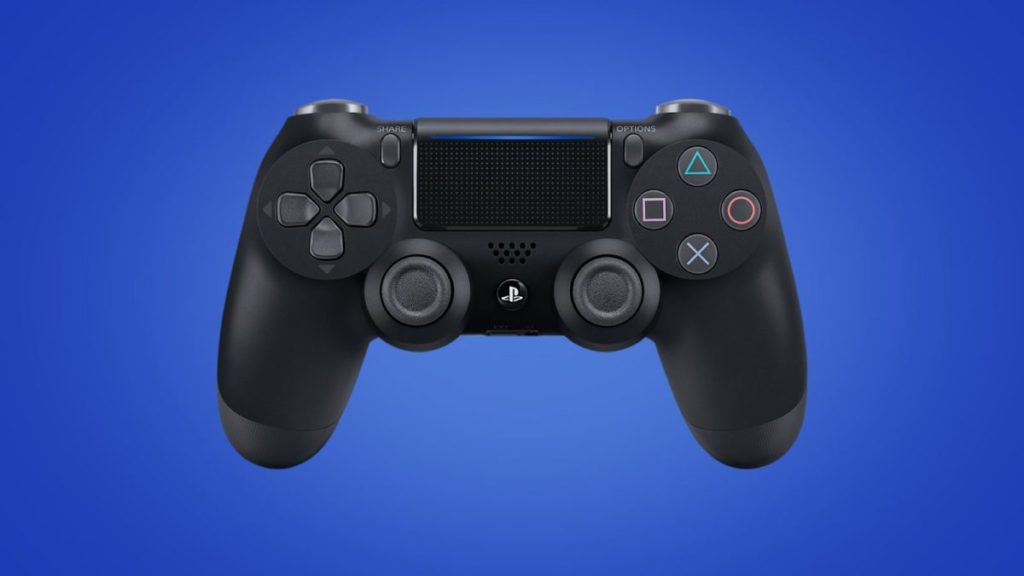
Firstly, insert your PS4 controller using the USB cable. Wait for your computer to recognize it first before you open Gameloop. 

How to Use PS4 Controller on Gameloop in 3 Easy Ways

Step 2: Select the Gamepad

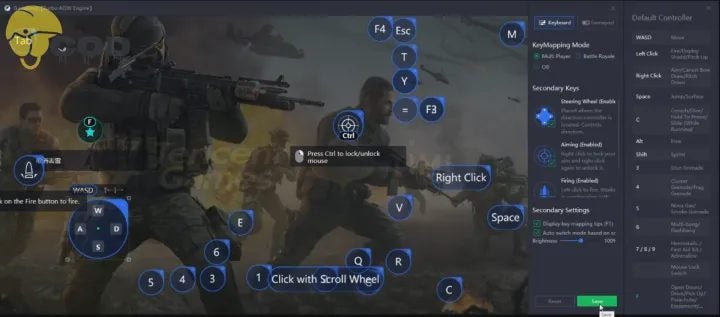
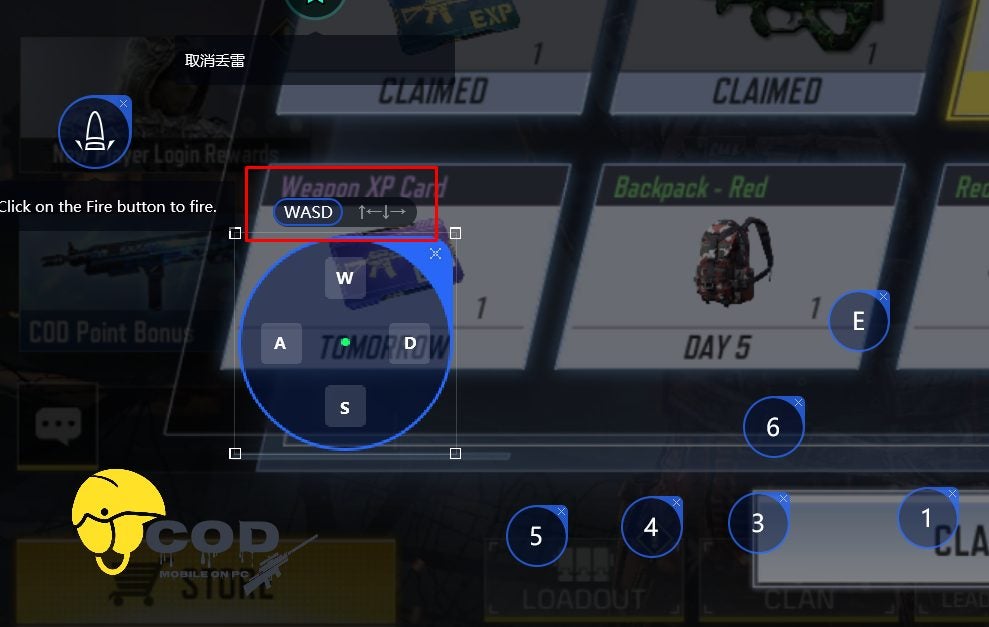
Within Gameloop, you’ll see there’s a keyboard symbol on the right-hand side. When you click on it, you’ll have the option to open the Gamepad. It hosts all the settings for your controller on the right panel with the relevant actions.

How to Use PS4 Controller on Gameloop in 3 Easy Ways

Step 3: Configure the buttons

Now, you’ll need to map the keys to your controller. You can assign them as you wish, but try to make it as easy as possible for you to play the game. You may need to keep some actions assigned to your keyboard if you can’t assign them all to your controller. Once done, save all the changes and head to your game. Open the controller settings and make sure the buttons are correctly assigned. 

How to Use PS4 Controller on Gameloop in 3 Easy Ways

Victory is in your hands!

With your PS4 controller assigned, you can now use it to play games on Gameloop. It may provide an advantage over other mobile players, especially when you rack up the kills. You enjoy gaming on the PC emulator than on your mobile phone, specifically when your phone doesn’t have enough battery or data.

How to Install PUBG in Gameloop in 3 Easy Ways

PUBG has been an internet sensation and a player favorite since its release. Although you might think you’re a little late to the party, an easy start through the Gameloop emulator is guaranteed. What are you waiting for? You’re just a few clicks away from being in the center of the battle! 

How to Install PUBG in Gameloop

The guide below will give you the steps to install the game for players who already have the Gameloop on their PC.

Step 1: Access Gameloop’s Browser

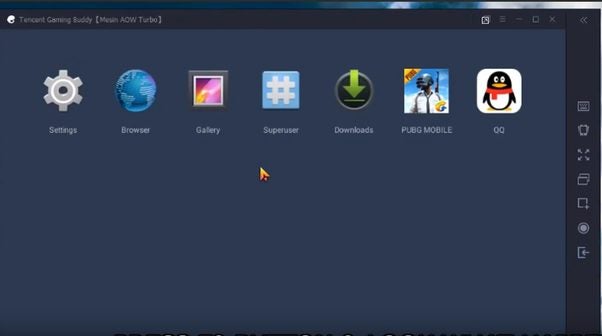
Find the Android emulator on your PC and double-click to open it. Find the Browser (second from the left on the screenshot below) and open it. Search for the ES File Explorer and download the apk file. The latter will help you locate the PUBG file in your system. But before that… 

How to Install PUBG in Gameloop in 3 Easy Ways

Step 2: Download your PUBG Mobile APK file

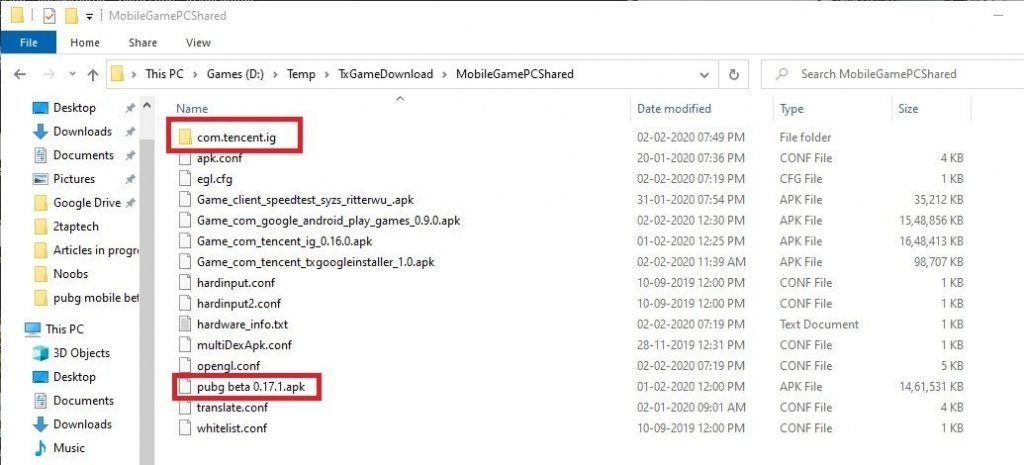
Find the PUBG file from your preferred source, click “Download,” and wait until it’s on your computer. Go back to the Gameloop screen you left and use the file explorer to locate the downloaded apk. Click it and install, following the prompts.

How to Install PUBG in Gameloop in 3 Easy Ways

Step 3: Restart Gameloop

Sure, you can start playing right away. However, to make sure that everything works correctly, close the emulator and start it again. Restarting will help the settings set to default.

How to Install PUBG in Gameloop in 3 Easy Ways

Get your guns blazing!

Playing survival shooters is exciting, and PUBG is on top. Now with Gameloop, you don’t even have to own an Android device to enjoy the action-packed adventure. Get shooting, and don’t get killed!

How to Fix Lag in Gameloop in 3 Easy Ways

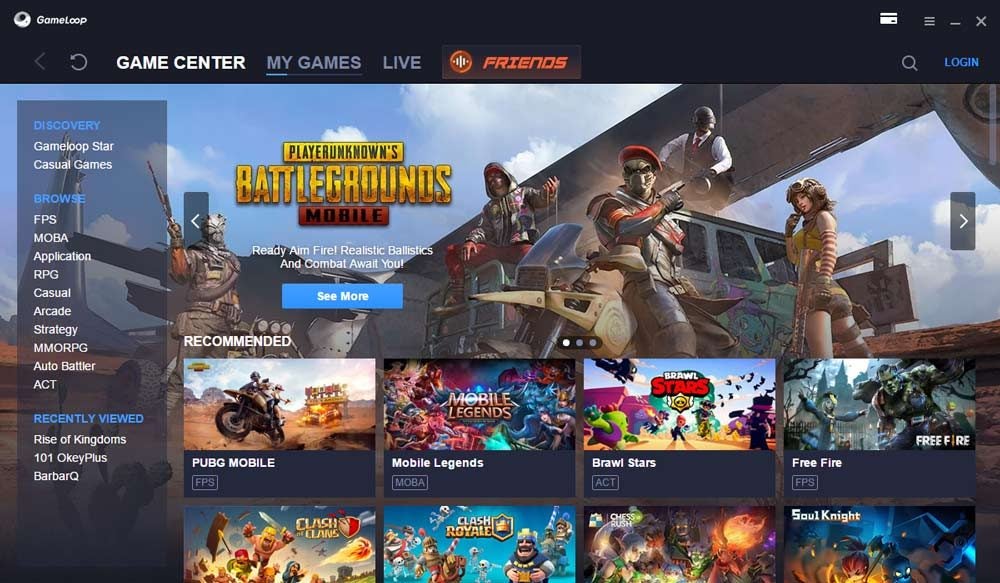
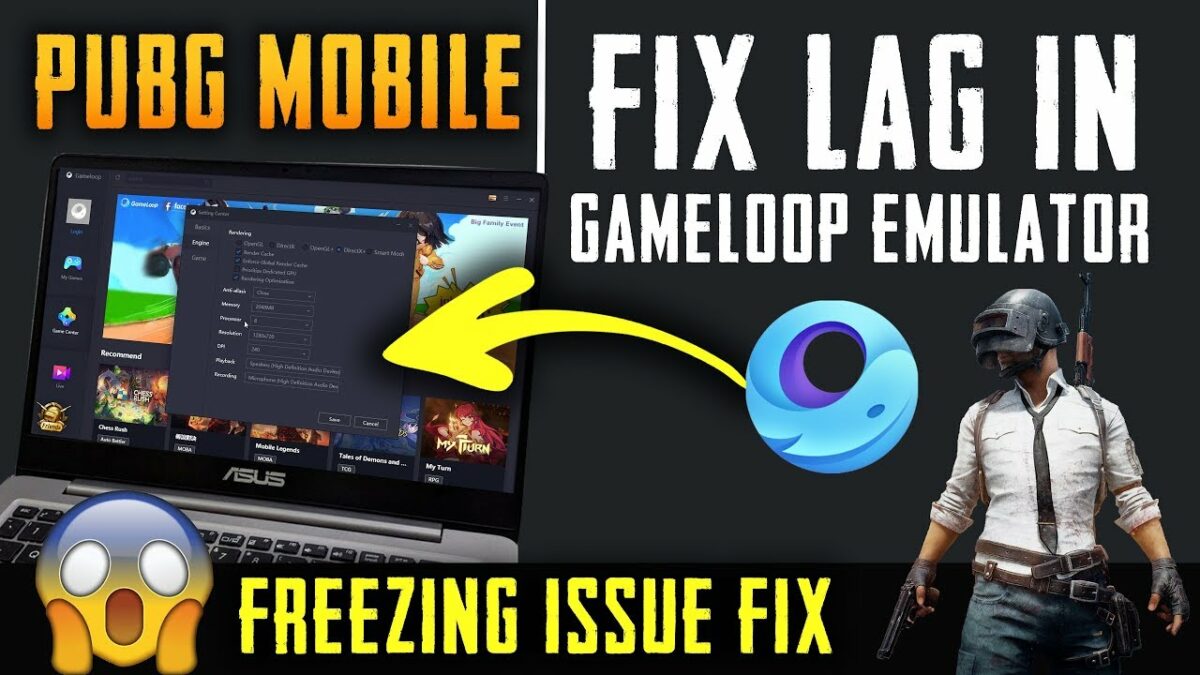
While Gameloop is an excellent way to play Android games on your PC, you may experience some lag when playing high-end games like PUBG Mobile. You may be able to ignore it the first few times, but we find it completely frustrating, especially when we’re dying to get that legendary kill. There are a few ways you can fix lag in Gameloop, and we’re going to show you how.

How to Fix Lag in Gameloop

Some of the methods below entail making changes to your PC or laptop settings, while others deal with Gameloop itself. Ensure your running both at optimal performance if you want to avoid any lag. You might want to also check your internet connection speed.

Method 1: Apply the best PC performance settings

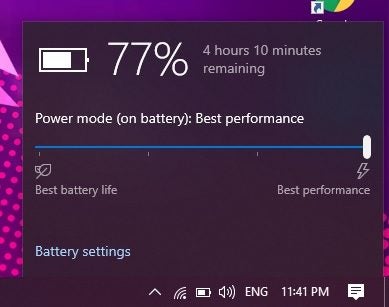
Some computers have a battery-saving mode, which drops some of the resources like CPU speed and memory. Select your battery in the Task Bar and check that it’s set at “Best Performance.” If you’re running NVidia GeForce on your PC, ensure that all settings are at their highest.

How to Fix Lag in Gameloop in 3 Easy Ways

Method 2: Change Gameloop settings

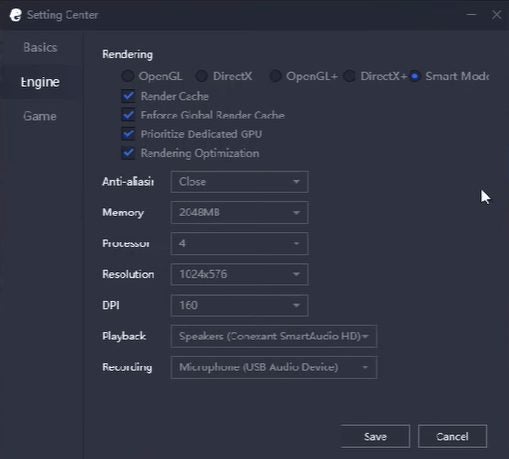
If the first method doesn’t work, it’s time to look at Gameloop. Head into the Setting Center, and ensure you have the following selected:

  • Render Cache: Enabled
  • Graphics Rendering: Smart Mode
  • Global Render Cache: Enabled
  • Close Anti-aliasing mode
  • Rendering Optimization: Enabled
  • Prioritize Dedicated GPU: Enabled (if possible)
  • Memory: Half of available memory
  • Processor: indicate which one you have
  • Alter the resolution to default 
  • Dot Per Inch: 160
  • Game Tab/Gaming Resolution: SD 720P
  • Game Tab/Display: Smooth
How to Fix Lag in Gameloop in 3 Easy Ways

Method 3: Alter game settings

Finally, you’ll have to look at the game settings. Look at which options are available, and change some selections to a low performance if necessary. If your computer can handle it, set it higher.

How to Fix Lag in Gameloop in 3 Easy Ways

Don’t let your finger lag on the trigger

Now that you know how to fix lag in Gameloop, you can go on the hunt and start killing in PUBG Mobile. Remember, it also depends on your ping rate and internet speed, so changing these settings might not help if that’s an issue.

How to Get Bling Effect on TikTok in 4 Fast Steps

If you use TikTok on Android and iPhone devices, you have no doubt seen videos with the bling or sparkle filter? These videos have a lovely added sparkle that draws the eye. You may be wondering how you can add that bling effect to your video.

Let’s look at how to add a bling effect to your video.

How to Get Bling Effect on TikTok

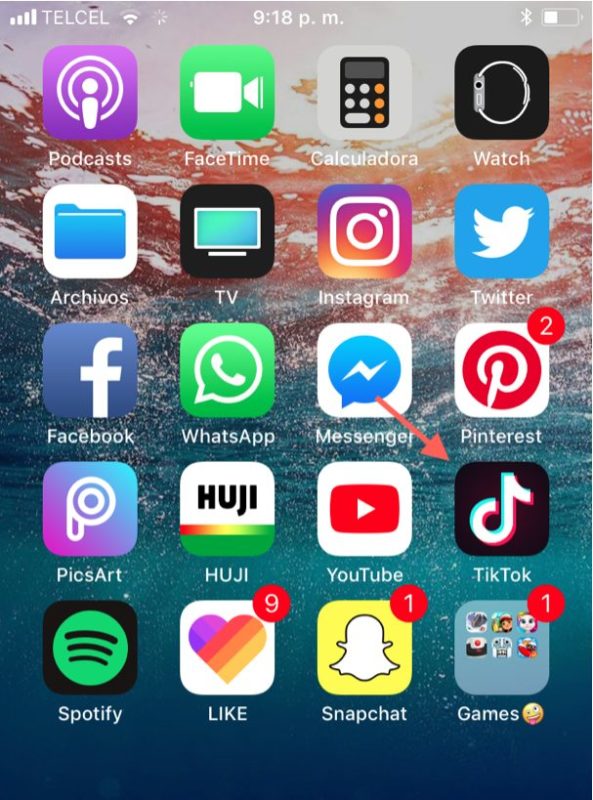
Step 1: Open TikTok 

Open the TikTok app on your Android or iPhone.

How to Get Bling Effect on TikTok in 4 Fast Steps

Step 2: Start Recording Your Video

On the app’s main screen, tap on the + icon at the bottom of the screen to start recording a new video.

How to Get Bling Effect on TikTok in 4 Fast Steps

Step 3: Tap of ‘Effects’

Tap on the ‘Effects’ option located at the bottom left of your screen. This will open up a menu with many different filters.

How to Get Bling Effect on TikTok in 4 Fast Steps

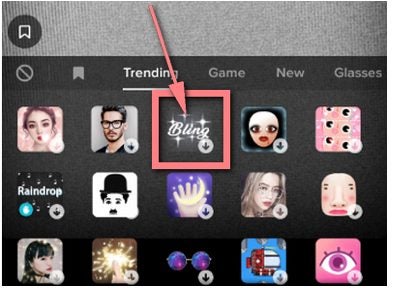
Step 4: Choose ‘Bling’ Filter

Tap on the bling Filter to have it applied to your video. If you choose the bling filter while recording a video, you will see the sparkle effect in real-time. 

How to Get Bling Effect on TikTok in 4 Fast Steps

You can also apply the filter to pre-recorded videos by importing these videos into your TikTok app and then using the effect. It is also worth noting that this filter works best if there are some shiny, mirror, or reflective surfaces in your video.

Add Some Sparkle to Your Videos

TikTok has many different features and filters to help you create great video content. The bling filter is just one of many other options you can use in your videos. If you want to learn how to make videos on TikTok, you can refer to this simple guide. Why don’t you try using the bling filter on your next TikTok video?