How to paint stunningly realistic watercolors with the Procreate app

While it’s arguable that there is no replacement for the rich and dynamic results an artist can achieve with real paint on canvas, the Procreate application certainly comes close. The strongest upside of any digital illustration app is that you can create your artwork on the go. And Procreate is an excellent choice for tablet and iPad users who want to make realistic watercolors from scratch without the burden of a messy paintbrush and easel.

Procreate DOWNLOAD

In this Procreate tutorial, we’ll look at a few techniques for creating authentic-looking digital watercolors within the app. We’ll show you how to make the best use of the tools and digital paintbrushes in Procreate to achieve stunningly realistic watercolors. To get started, all you need is a tablet, stylus, and the latest version of Procreate.

  1. Select your watercolor brush kit

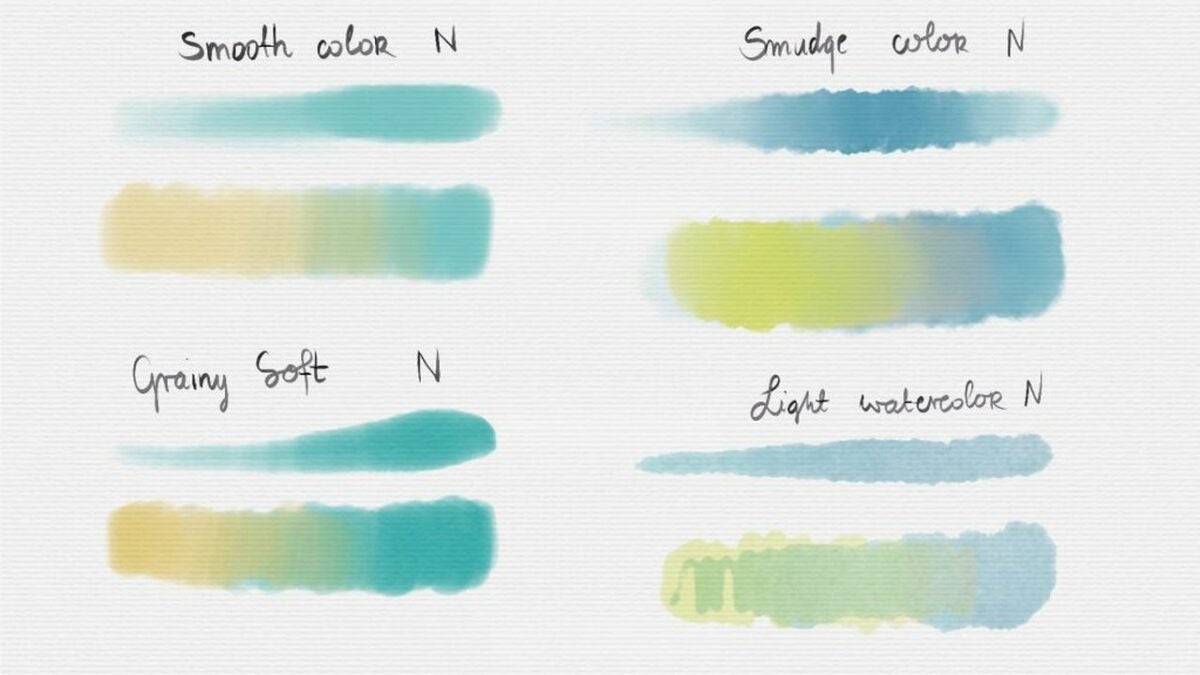
    A selection of Procreate watercolor brush options.

    If you want to create a realistic-looking watercolor in Procreate, your final product should appear dry. To accomplish this, brush selection is crucial. Several brushes in Procreate will leave your finished piece looking wet, thus, hampering your ability to replicate a true watercolor painting.

    Whenever you generate a watercolor with paint, the canvas dries, producing the abstract and imperfect look that most of us immediately recognize. The best way to accomplish this in Procreate is by choosing painting and blending brushes that give your digital watercolor the perfect finish. Procreate offers a range of free and premium digital brush bundles and kits to help you find the precise look you’re after. The brushes by Rowwenic and BasicX are both excellent free options for blending gorgeous, true-to-life digital watercolors.

  2. Choose a light base color

    A selection of light base colors in Procreate.

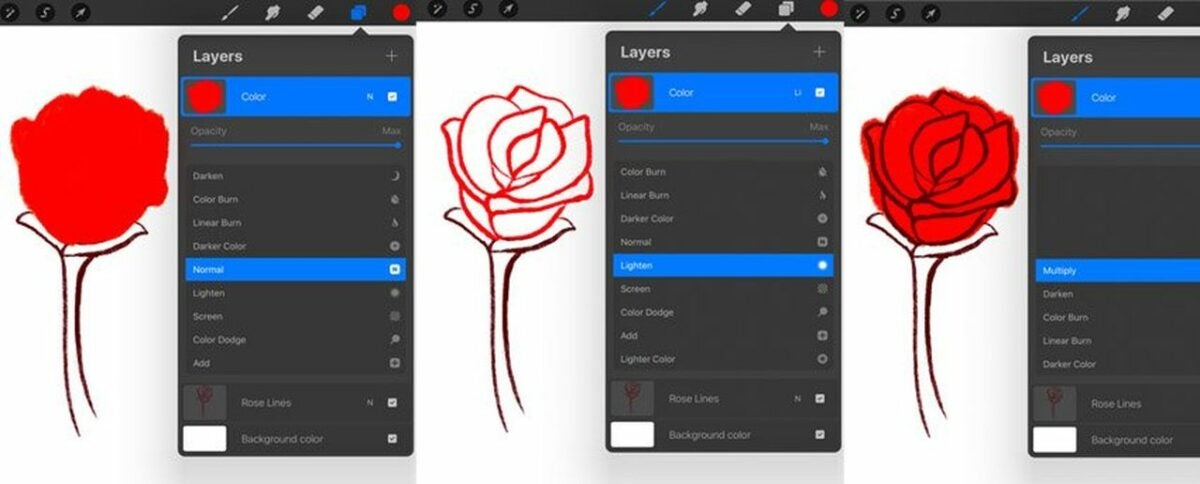
    If you’re familiar with watercolor painting, you know the process requires the heavy use of a stamp brush. There’s a similar method in Procreate. Once you’ve selected your ideal brush kit, begin by layering your chosen base color with your stamp brush. The process requires Procreate’s clipping masks and blending modes for optimal results.

    You can also experiment with the Multiply in Procreate feature, which amplifies the luminosity of the base color by the blend color. The effect helps you render a darker, more intense-looking image as it multiplies the various levels of darkening on the blend layer’s luminosity. Multiply similarly helps with creating splatters and shadows for more image depth. Minimizing your color palette selection will also produce the dry look of a real watercolor painting.

    You ideally want to select a light base color at the outset. When you deploy the stamp brush tool to add stamps, your base color only gets darker. A light base color helps to avoid a wet-looking finished piece and gives you the intense color variation of an actual watercolor painting. The nice thing about watercolors is that they allow for imperfection. Don’t be afraid to get creative with your Stamp and Smudge tools. Use them generously to add more shadows and contrast to your digital painting.

  3. Sketch in your subject

    A sketched image in Procreate.

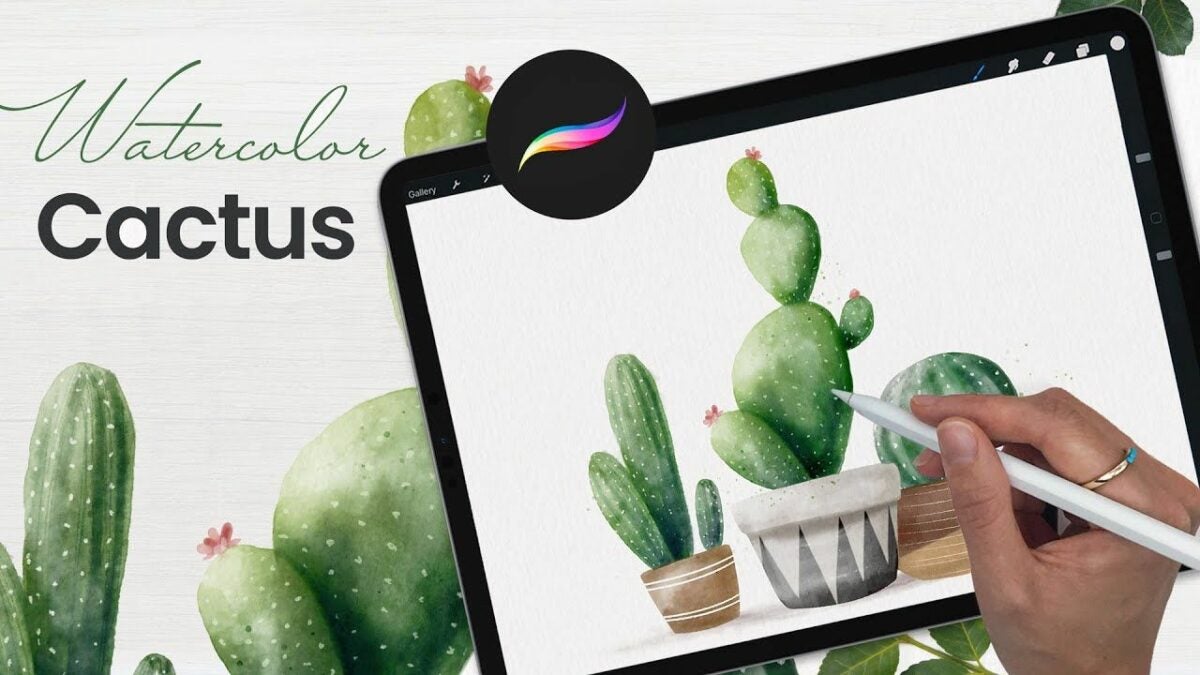
    Procreate isn’t a template-based app, so you can create whatever you want. Watercolors don’t have to be symmetrical. The medium allows for a considerable degree of abstraction. For example, if you wish to paint a cactus, gradually ease the figure into your painting by drawing a centerline with your pencil or stylus, rendering loose curves along both sides.

    Now, access the Liquify tool to continue rendering the stems and additional shapes. Once you have the cactus roughed in, use the All-Rounder Shape to complete your desired contour. Next, use your selected watercolor brushes in Procreate to continue the piece without lifting the stylus. Access your brushes to start filling in the cactus with a natural green color, keeping it roughly within the lines of your initial sketch.

  4. Add a new layer

    A red rose with blended colors in Procreate.

    The final step, which you’ll repeat successively to complete your image, is to add a New Layer and choose a clipping mask. Set this layer to Multiply, and select a large sketchy stamp from your digital paintbrush bundle. Use this tool and a smudger to start fleshing out your cactus figure. Continue with the blending modes, and select a darker color to add depth to the image.

    Consider placing shadows off to the sides of your cactus to establish mood and the time of day. Procreate lets you rotate and resize your figure as much as you like. Now, stamp around your cactus with the Blooms Stamp Brush while adjusting the scale until it fits the perfect dimensions. Finally, go back to your base layer, and access the Smudge tool to make your watercolor look as authentic as possible.

    Continue adding in details as desired, and lower your brush size to blend in abstract spines within the cactus. Use Bloom Effect to introduce more dynamic color to your figure. Next, access the stamping brush to blend the image. This step allows the most vibrant elements of the pigment to bleed out like an authentic watercolor.

Continue experimenting in Procreate

Painting digital watercolors with the Procreate app can be tremendously rewarding for amateurs and professionals alike, especially after familiarizing yourself with the impressive tool suite. Want to learn more about the Procreate basics? Check out our guide to taking your first artistic steps in Procreate.


How to use Tor to browse the web like a pro

The dark web has developed a reputation as a frightening space to carry out serious criminal activity. While that’s a fair assessment, this subsection of the deep web also provides a way for activists and journalists in autocratic nations to share information anonymously. To safely access the deepest subsegments of the internet, you’ll need a special browser such as Tor. And while Tor is a great solution for online privacy, understanding how to use it in a way that protects your sensitive information is critical.

Tor Browser Download

As an online privacy tool, Tor is entirely legitimate, with plenty of upsides, but using the Tor browser does carry risks. The dark web remains a haven for cybercriminal behavior and malware. Following the wrong link can expose your personal data and potentially result in a significant IT disaster. The best approach to securely browsing Tor is to connect to a virtual private network (VPN). This article discusses how the Tor browser works and how you can safely leverage it to stay anonymous online.

What are the surface web, deep web, and dark web?

The surface web, aka the regular World Wide Web that we use every day, makes up only about .03% of the internet. This includes all the websites, social media, e-commerce pages, blogs, and anything else indexed by Google. The rest of the internet falls within the deep web, which is anything not indexed by web crawlers. These sites include everything from your personal email and payment portals to private forums and hidden backend web pages. The dark web is a small segment of websites on the deep web with hidden IP addresses that can only be accessed by special browsers like Tor. While the surface and deep web contain mostly benign sites, dark web sites use encryption software to keep their users and locations concealed.

What is Tor?

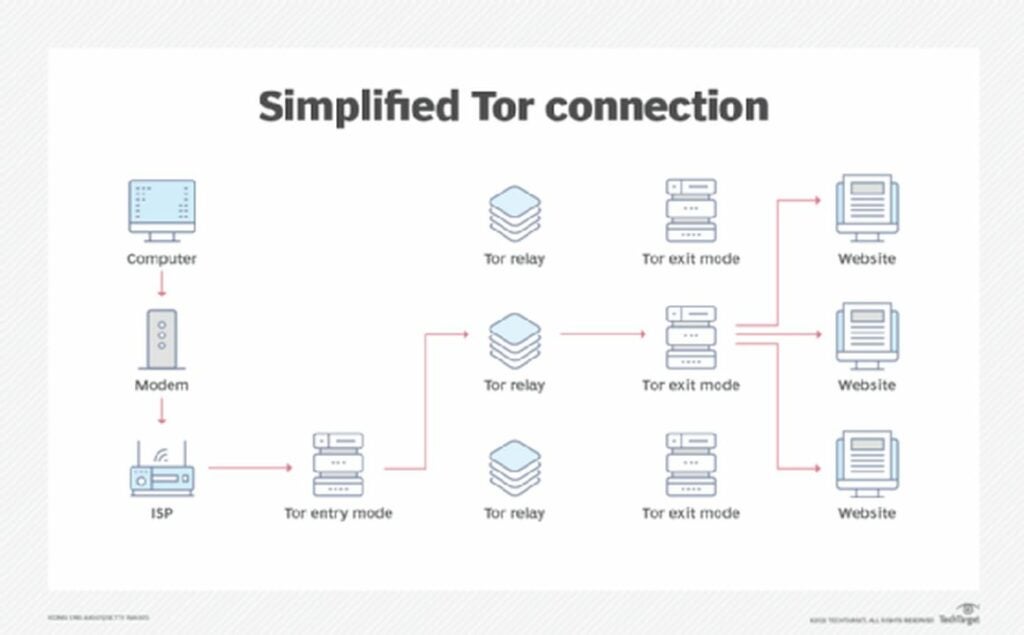
Short for The Onion Router, Tor is a free, open-source software that lets you browse the internet anonymously. The Tor browser relies on encryption layers to anonymize your traffic through a random relay. This process repeats itself three times across a decentralized network of nodes or a circuit, maintained and operated by volunteers and online privacy advocates. In short, this browsing method makes your information difficult to track. And, generally speaking, Tor prevents sites from determining the location of your IP address.

As your encrypted traffic passes through these randomized nodes, Tor eliminates your browsing history by removing cookies after each browsing session. Likewise, Tor deploys several other mechanisms to block and reduce your exposure to trackers. The browser identifies surveillance trackers that follow web users across different sites and introduces an additional circuit that tricks surveillance trackers into interpreting the connections as two distinct users. This means that questionable websites can’t trace your activity or identify you when you log in to another site.

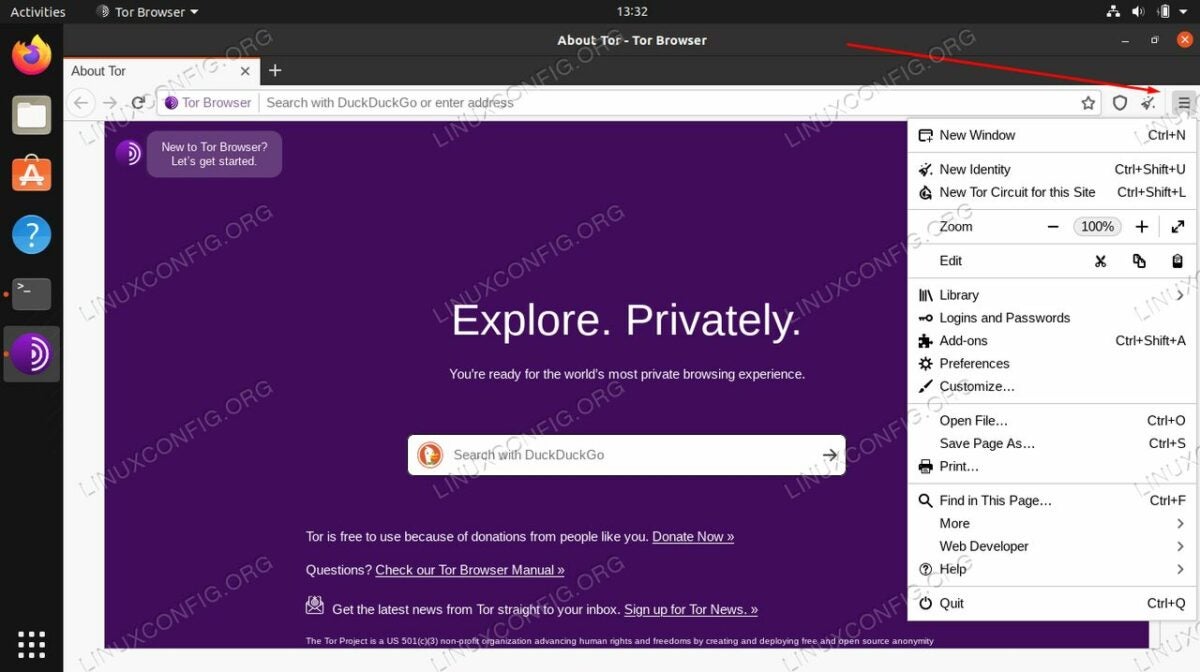
Tor is a web browser that allows you to surf the web anonymously while protecting against traffic analysis
  1. Downloading and using Tor

    Tor is easy to download and works like any browser with a few caveats

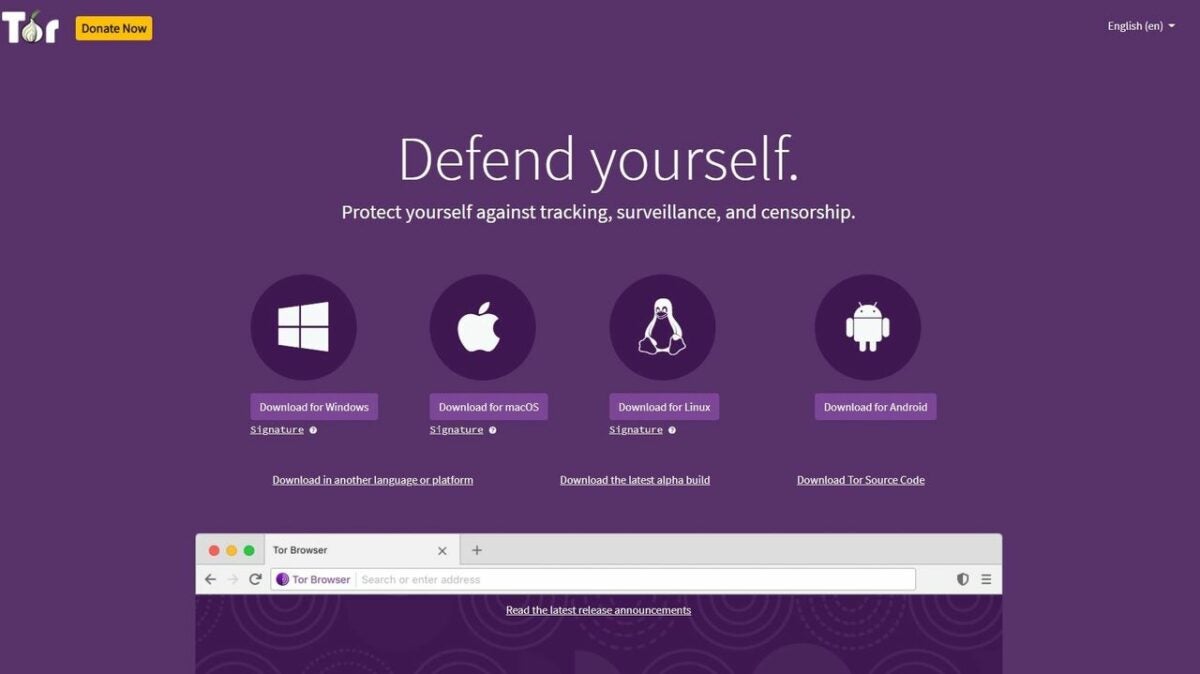
    Downloading Tor is simple and fast, and you can access the software at your preferred application discovery site. Versions for your desktop PC and Android devices are available. You’ll also find an unsupported onion browsing edition for iOS. It is worth noting that Tor is blocked in several countries, and you may not be able to use it on specific networks, such as those controlled by corporations and universities where Tor is often banned for security reasons.

    Upon initiating a Tor session, the browser presents the option to Connect or Configure. If you must access the Tor browser where the network is prohibited, you need to choose Configure. This option allows you to circumvent the blocked access through an array of custom browser configurations. Configuring the browser lets you occlude your traffic through pluggable transports that randomize Tor traffic and, instead of connecting to the onion network, make it appear as if your traffic is diverting to major sites such as Amazon. In the event that you cannot access the Tor browser, you can try one of the recommended configurations to bypass any blocks on the network.

    As previously discussed, security is a big issue with Tor. The browser offers various security settings that you can review by selecting the onion icon at the top left of your screen. Click on Security settings to display an intensity slider that allows you to adjust your security settings from standard to safest. The medium safer setting disables JavaScript on HTTP sites and prevents you from using some fonts, while audio and video will never play automatically. In other words, you have to manually press play to run audio and video in safer mode. The safest security setting disables JavaScript completely.

  2. Accessing the dark web with Tor

    Tor is an invaluable tool for your online browsing habits

    Tor works like any other browser, but launching it is slightly more involved. In theory, you could do all your browsing in Tor, but it is far too slow to do this with any reasonable efficiency. You are more likely to encounter more CAPTCHAs than usual because the browsing behavior is considerably different from your other conventional options.

    The use of VPNs when browsing the dark web with Tor can’t be stressed enough. However, the downside to virtual private networks is that they create security bottlenecks. All your traffic must necessarily run through the VPN. This means you have to trust the provider to act as a new ISP, whereas Tor is an inherently private decentralized network.

Tor and your online privacy

While Tor is an effective tool for browsing anonymously online, it is far from perfect. Even though pinging via Tor nodes is a challenge, it’s still possible. Furthermore, the dark web remains a haven for criminal hackers, spies, and other bad actors. Tor may not be a foolproof solution, but it is the best choice as of now for safeguarding your sensitive information online while navigating the dark web. Interested in improving your network security? Consider downloading these free antivirus and VPN software solutions.

Top 8 ShareMe features and functions for PC users

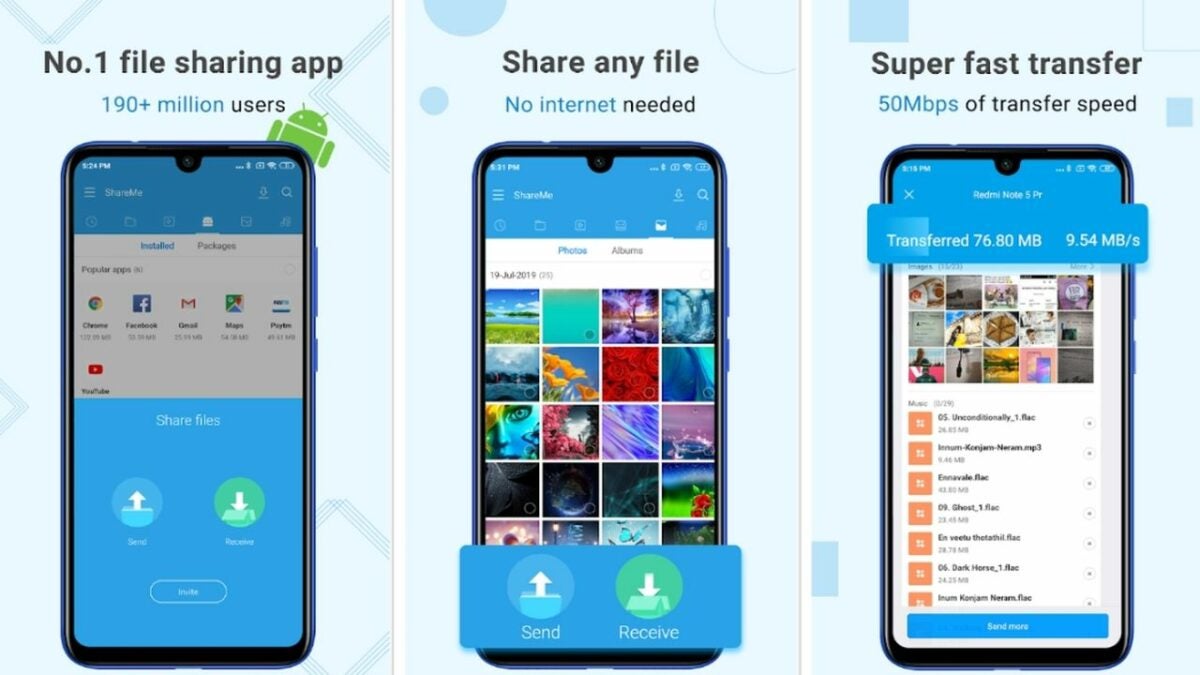
The ShareMe wireless file sharing tool is a rebranded version of Mi Drop, the original sharing application from Xiaomi. During the redesign, developers introduced several operating and interface updates that significantly changed how users experience the file-sharing app. If you need to transfer data between your smartphone and PC quickly, without using cables or an internet connection, ShareMe is one of the best solutions available.

The following list of eight key features covers everything PC users should know about ShareMe. The application deploys File Transfer Protocol (FTP) technology to link two separate devices to allow a high-speed data transfer that, according to Xiaomi, is nearly 200 times faster than Bluetooth connectivity. Here are the 10 leading functions and attributes of Xiaomi’s ShareMe app (formerly Mi Drop), one of the most popular file-sharing applications in the Play Store.

ShareMe for PC Download

Wi-Fi Direct

ShareMe uses certified Wi-Fi Direct technology to enable wireless file sharing between mobile devices and PCs without a standard internet connection. Wi-Fi Direct allows two interlinked devices to communicate, streamlining tasks such as printing and file sharing without the need to connect to a traditional office, home, or public network.

ShareMe uses WiFi Direct to allow its users to transmit files between devices

Multibranded file sharing capabilities

ShareMe lets you transmit files between your tablets, phones, and computers. Perhaps even more convenient is that you don’t need a Xiaomi phone to accomplish this. ShareMe users can quickly copy and transfer files between iPhone and Android devices along with any compatible Mac or PC connected to the localized network.

ShareMe doesn't require a Xiaomi phone, allowing you to transmit files to any device with a compatible operating system

A simplified user interface

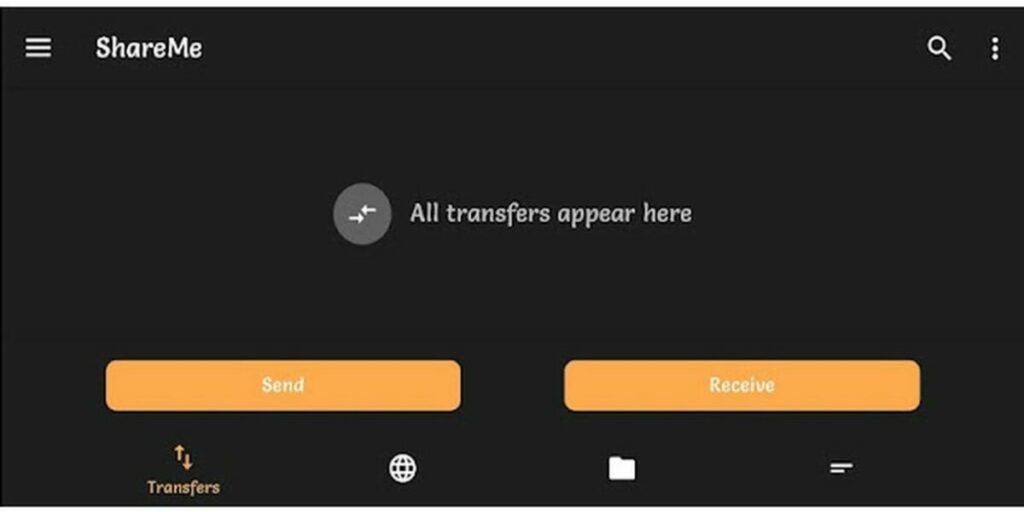
When Xiaomi redesigned Mi Drop, they did so with a clean, minimalist user interface in mind. All your options are displayed directly on the home page, so you never have to waste time digging for hidden features and files. The search box expedites all your inquiries, allowing you to type in the names of files and any application tools you need to access directly.

The ShareMe redesign of Mi Drop adopted a cleaner and more minimalistic interface to simplify the user experience

Personalized account settings

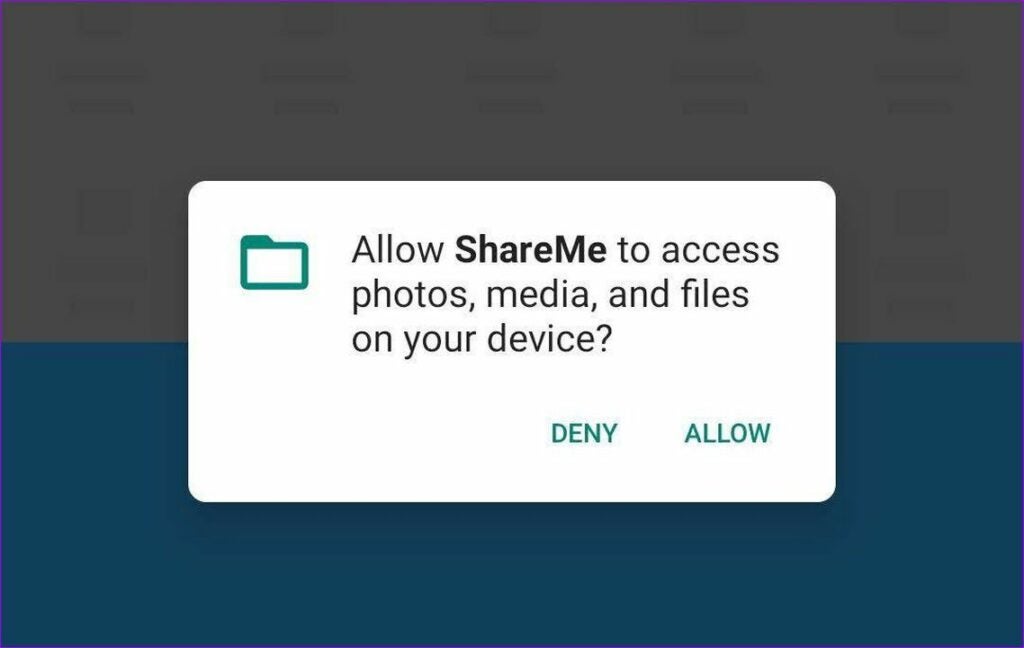
When you register to use ShareMe, the application assigns a name to your device by default. However, you can change this setting to personalize your ShareMe account and simplify the process of locating a given device later. After you grant the application access to your photos, media, and files, ShareMe will prompt you to select a unique avatar and name for your profile.

Allow ShareMe to access the data on your device before personalizing your account

The send button

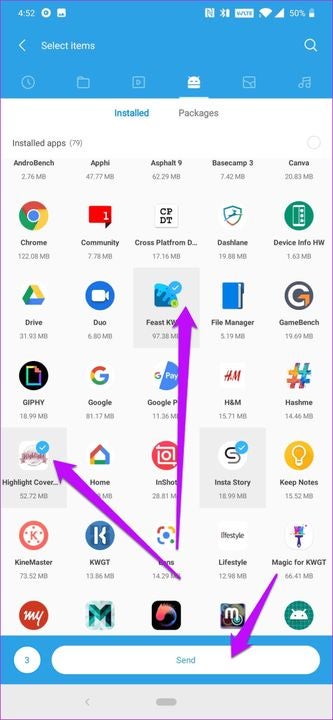
After setting your permissions, you can access the Send button to choose and deliver the files you want to be transferred. While ShareMe’s default settings display the installed applications only, remember that you can send songs, photos, scratch audio files, and just about any document by tapping the ribbon at the top of your screen. Locate the files you want to transfer, select them, and click the Send button. For the receiving device, follow the same setup procedure and adjust the mode to Receive before completing the transfer process.

Select your files and tap the send button to transmit your data to the receiving device

The scan QR code button

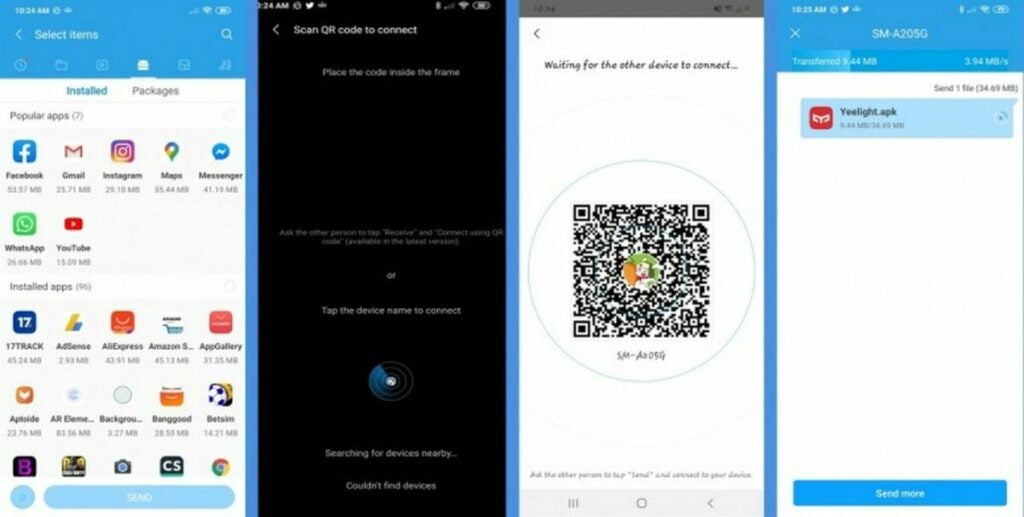
Quick Response (QR) codes consist of a special type of machine-readable “matrix” barcodes that are two-dimensional and typically used for storing URLs and links to other information. ShareMe lets you scan a unique QR code to quickly set up a local hotspot and transfer data between files. Upon instigating a transfer session by scanning the code with your smartphone camera, the ShareMe app displays the avatars of any nearby receiving devices. To start the high-speed transmission, simply select the device you want to link.

Start a transfer session quickly by using QR codes to link your device

Mobile to PC file sharing

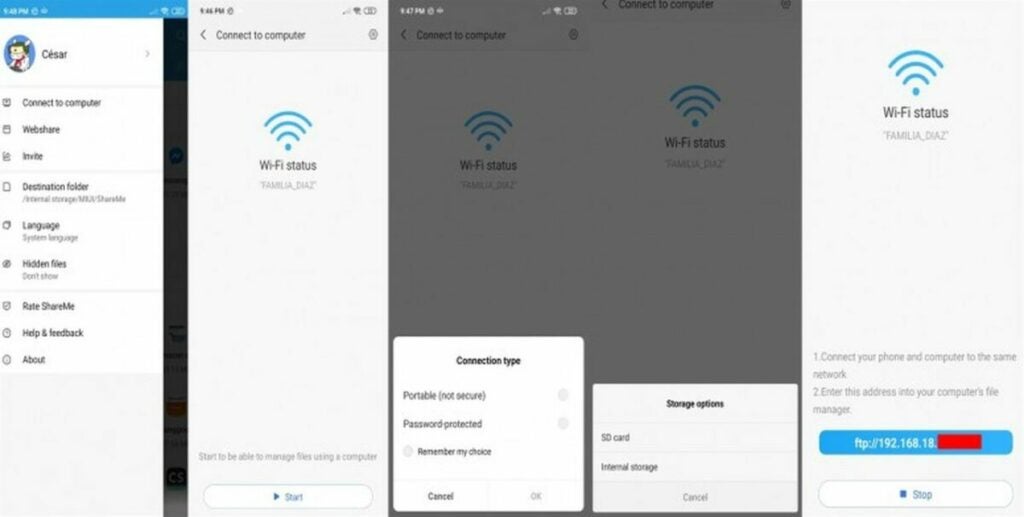
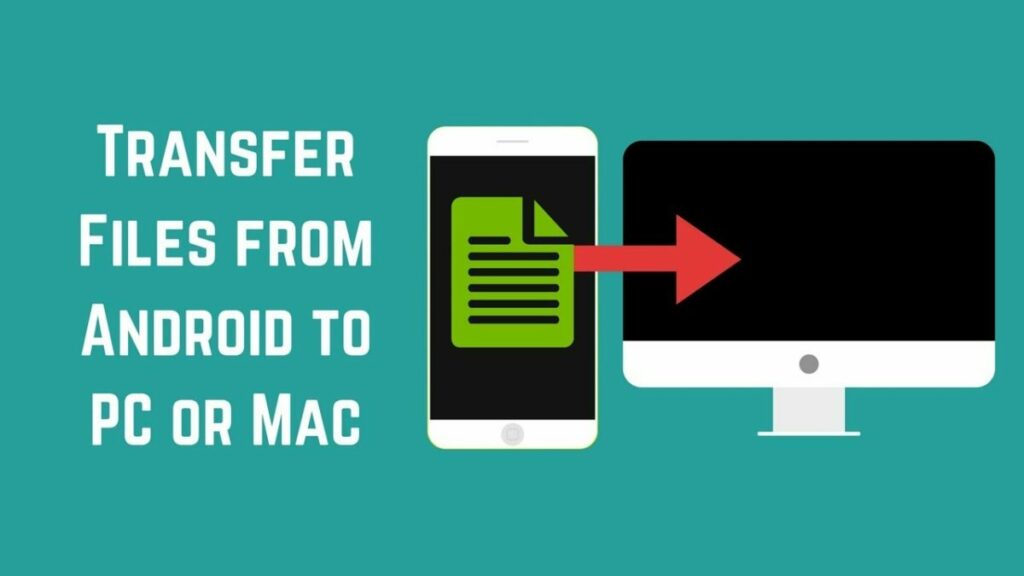
You can also share files to a PC, not just between two mobile devices. To send files from your smartphone to a PC, start by connecting your computer to the same localized network. Navigate to the dropdown menu options on the left, and find Connect to computer. You’ll see a Wi-Fi strength indicator and the option to create a local hotspot. Click Start and select Portable from the options list. At the bottom of the screen, you’ll notice the FTP server. To access the files on your mobile phone, open File Explorer on your PC, type the FTP address and tap Enter.

The ShareMe application is one of the best ways to move files from a mobile phone to your PC without an internet connection

iOS file sharing

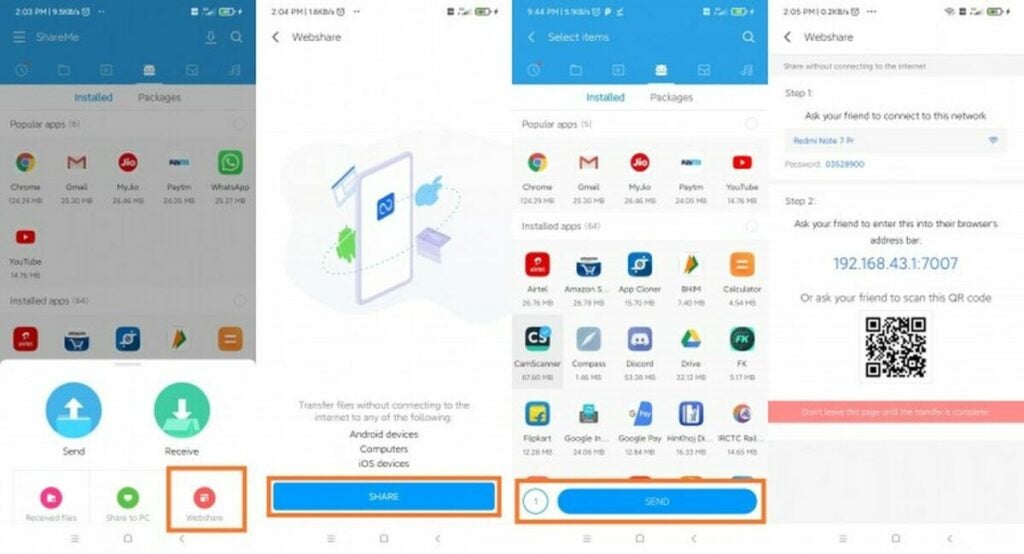
While the ShareMe application doesn’t limit sharing between devices, it won’t restrict the transfer of files from one operating system to another either. If you need to move data from an Android to an iPhone without accessing the internet, the WebShare module makes this process easy. Set the username and password for your hotspot, and ShareMe gives you an FTP address or QR code to complete the transfer.

ShareMe enables you to transfer files across various operating system including Android to iOS

Faster file transfers

While Bluetooth undeniably revolutionized wireless data exchanging, the File Transfer Protocol technology used by ShareMe has elevated this concept to new levels. A fast, adaptive, and secure protocol means that the ShareMe software from Xiaomi gives you access to one of the most protected high-speed transfer technologies available today. Check out more information about file-sharing apps here.

File Transfer Protocol technology means that ShareMe users can transfer their data at lightening speeds without ever connecting to the internet

How to create and send customized screen captures with LightShot

LightShot is a free screenshot tool for Windows, macOS, and Ubuntu users. The program lets you create, customize, and quickly deliver your screenshot files to users in a swift and fluid series of steps. After just one click, LightShot will upload your screenshot to the cloud before returning an original, sharable URL.

LightShot Download

Over the past few decades, virtually every new operating system arrives equipped with at least one built-in screenshot tool. However, the primary upside of LightShot is that the application lets you share photos, images, portions of a webpage, and any other visible content on your screen with a unique URL. In this tutorial, we’ll show you how simple it is to create and send screenshots with this free software application from LightShot.

  1. Download the LightShot program

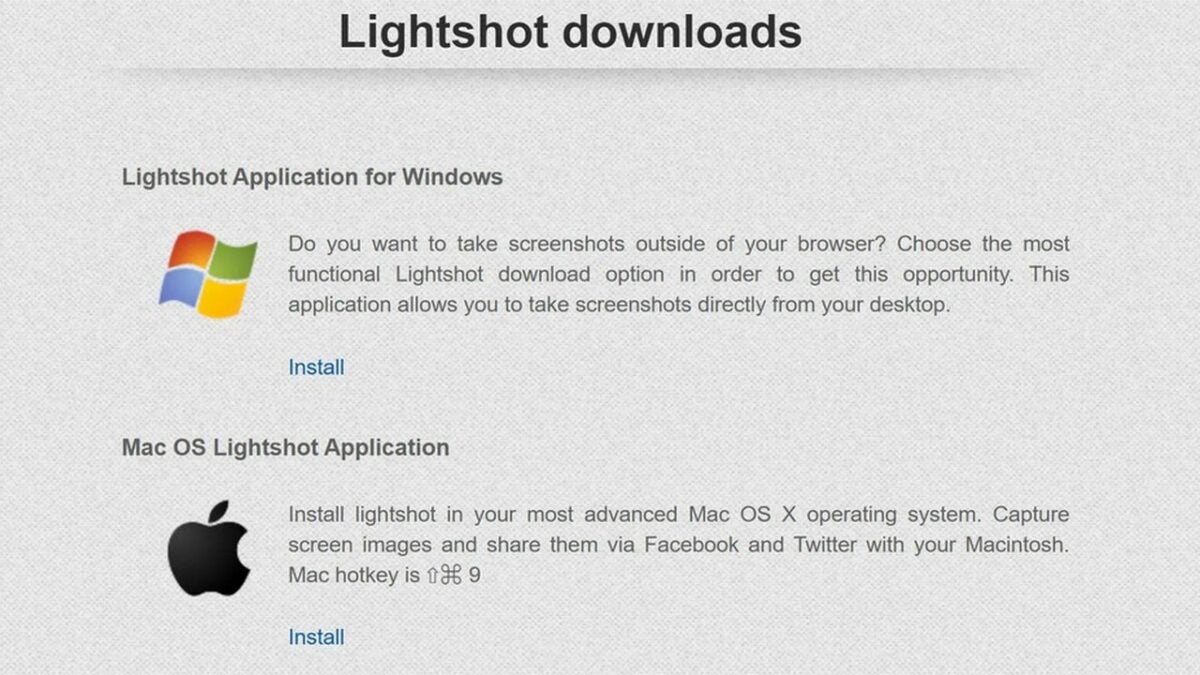
    Start by downloading a version of the LightShot application that works with your preferred browser

    LightShot is a fantastic, no-cost screenshot tool that helps users create screen captures and deliver them to the cloud. This streamlined access to the cloud simplifies the process of sharing your screen grabs with friends and colleagues online. This solution is ideal for students and professionals who need to record a lot of valuable information quickly from their desktop screens.

    To get started, download the program that enables LightShot on your preferred browser. For example, you can add LightShot as an extension on Chrome. The app also works with macOS, IE, Firefox, and Opera. And, after a prolonged and much-anticipated release date, you can finally enjoy LightShot on your Android devices now, as well. After installing LightShot, start using the Print Screen feature on your keyboard to launch and use the application on your Windows device. If you’ve downloaded LightShot on a Mac and the computer lacks the Print Screen keyboard button, press Command, Shift, and 3 simultaneously to perform the same function.

  2. Start taking screenshots

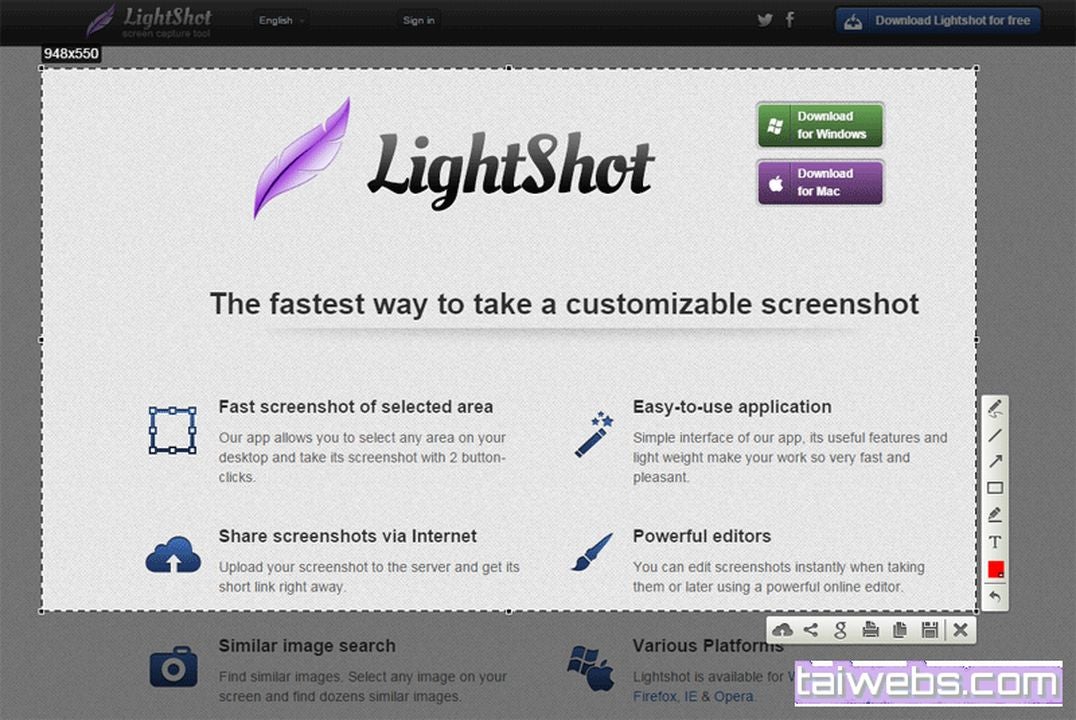
    Lightshot is easy-to-use and lets you begin taking and sharing your screenshots immediately after installing the software

    Once you’ve installed the specific version of LightShot required by your operating system, clicked through the setup file, and chosen your preferred language, you’re ready to start taking screenshots. To launch the LightShot program, press the Function button and PrntScr/PrtSC, or press Command, Shift, and 3 all at once on macOS.

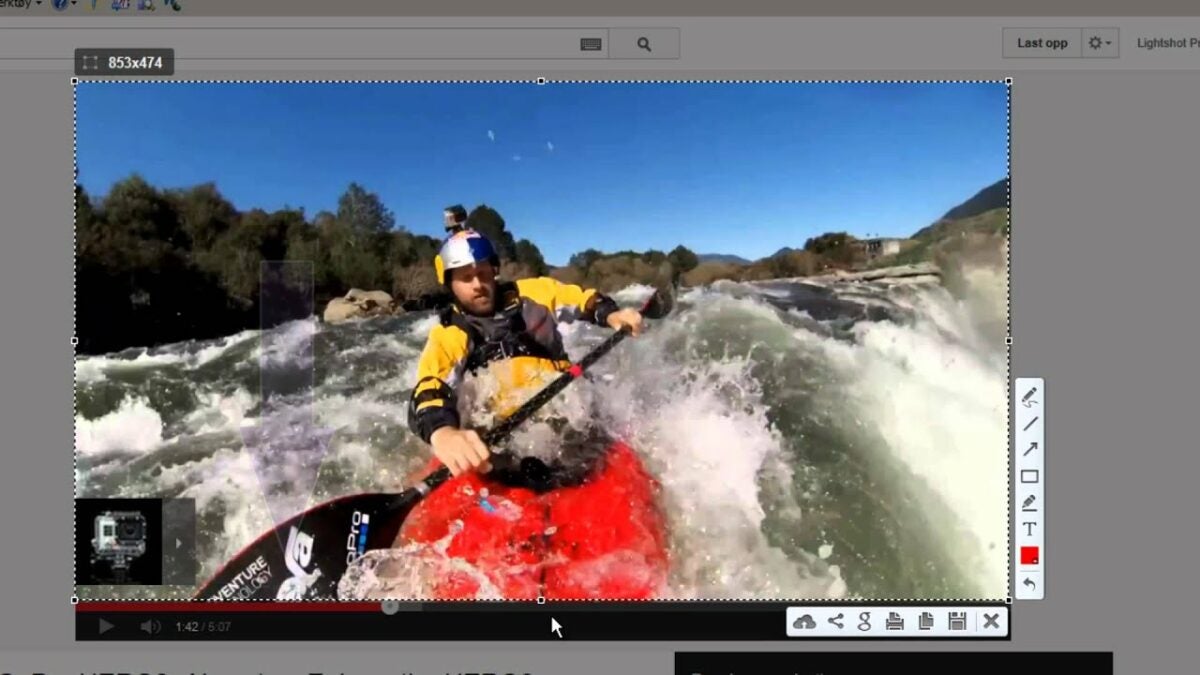
    You’ll notice the screen turn dark, whereby the LightShot application prompts your mouse to select a portion of the screen you wish to capture. When you drag your mouse to choose the screen section you want to capture, these areas brighten and preview your final screenshot. You’ll also find a sizable list of menu options along the bottom and right-hand sides of your frame. These icons represent LightShot’s various tools and features, each giving you several useful options, including saving your file, printing the screenshot image, and uploading it to the cloud.

    LightShot offers several free tools that allow you to highlight specific text or mark up other elements within a screen. Here are the basic editing tools and features you’ll discover in LightShot:

    • Pen
    • Text
    • Marker
    • Arrow
    • Rectangle
    • Line

    After you’ve made your screenshot selection, a floating menu appears. This prompt invites you to perform additional actions like inserting an arrow, drawing a straight line, and overlaying texts to highlight specific areas of the screen capture. When you’re ready to save, click the floppy disk icon at the bottom of your frame.

    JPG is the default file format for saving LightShot screen captures. Desktop users can copy and paste it into another platform like Microsoft Paint to continue editing the file and then print it directly from the same secondary application. You can also print from LightShot itself by clicking the Printer icon. Alternately, try locating the saved JPG, usually found under My Documents by default, and right-click on Print to open your printer settings and print the JPG file.

  3. Upload your LightShot screen grabs

    To upload your images to the cloud and generate a clickable URL, press the cloud icon. Share your images to popular sharing sites by choosing the share symbol to the right of of the cloud icon

    Every screenshot you take with the LightShot app can be uploaded online or to the cloud. If you want to share your screenshots instantly, ensure that you’re logged in to the appropriate app. LightShot lets you sign in via your Facebook or Google accounts. When you select the Upload icon from the menu, you’ll be presented with a few screenshot sharing options like Facebook, Twitter, VK, and Pinterest.

    The LightShot screen capture tool offers seamless integration with the major social sharing platforms and can even give you samples of similar-looking images found across Google. Once you upload your screenshots to the cloud, the program provides a shareable link. However, from a security perspective, remember that every image is public. The application does not require authentication or a LightShot account to view your uploads. While the app is a fast and convenient solution suitable for most purposes, exercise the appropriate caution when using LightShot to handle confidential materials.

LightShot makes screen capture sharing easy

LightShot is a simple, easy-to-use screenshot tool that makes sharing your images as simple as pressing a hotkey. LightShot gives you a few different options for image-sharing, either through a clickable link or a direct channel to your preferred social sharing platforms. The application is free and intuitive enough for anyone to start using it right away. For a comprehensive review of Snagit, another free screenshot tool, have a look at this recent article.

A beginner’s guide to using Alight Motion for Android and Windows

Alight Motion is a powerful editing and graphic design app that works with iPhones but has grown widely popular among Android and Windows users. As a top video editor and animation design solution, perhaps the best thing about Alight Motion is that it is completely free. Here’s a look at how to download and get started with Alight Motion.

Alight Motion APK Download
  1. Download the Alight Motion software to your PC or mobile device

    Start by downloading the Alight APK app for Android

    A robust and highly capable app, Alight Motion produces surprisingly professional results, handling everything from video splicing and animation design to color correction and bold visual effects. To start using Alight Motion for free, simply download the pro-motion graphics app to your Android phone or Windows-based PC.

    While Android, iOS, and iPhone users can access software from all major mobile app stores, developers have not released an official edition of Alight Motion for computers. However, if you want to run the program on a laptop or PC, you can accomplish this by deploying an Android emulator. Nox App Player and Blue Stacks are suitable emulators that let you run a .apk file on your PC to enable the Alight Motion on your laptop or computer. Just remember that, when you launch the program, you must open it inside the Android emulator before it can work.

    Once you’ve downloaded the Alight Motion software, you’ll have access to several impressive editing and design features entirely free of charge. Of course, if you want access to the more advanced design and editing features, you can always purchase a VIP membership at a low monthly subscription fee.

  2. Create a new project in Alight Motion

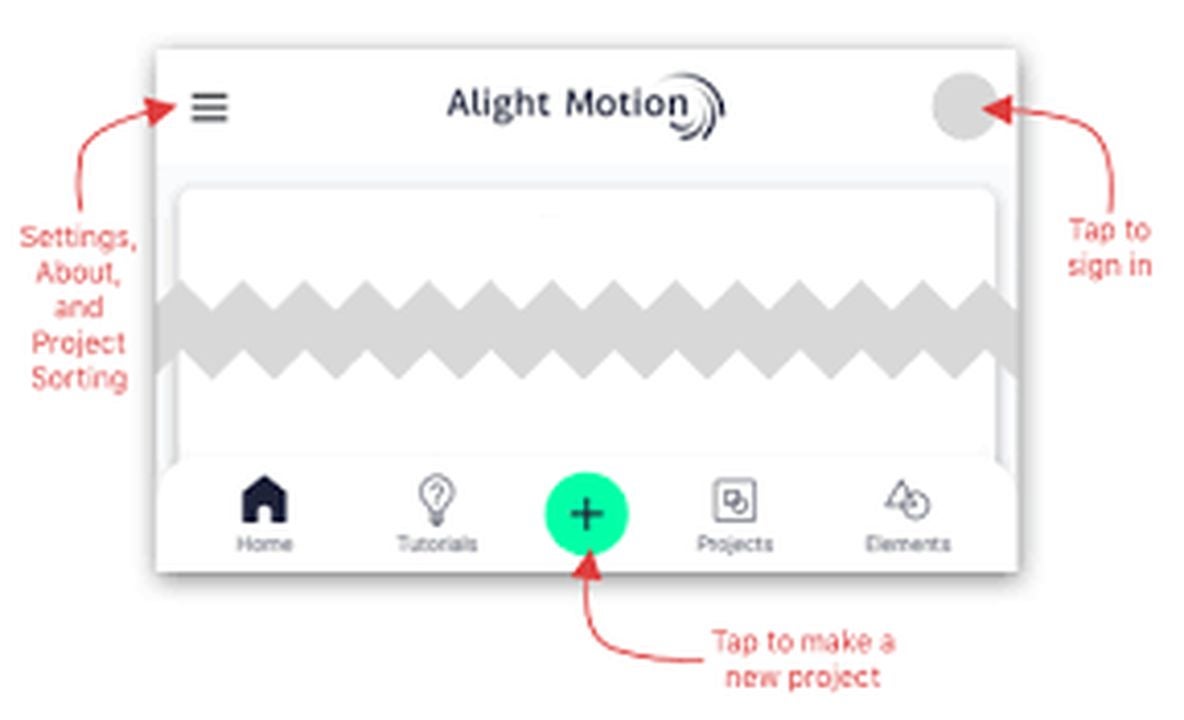
    Tap the green button in the lower center of your screen to start a new project

    If you’re new to Alight Motion and graphic editing software in general, starting a new project is simple. To launch an initial session with the videos and photos from your device, you’ll need to create a New Project in Alight Motion. The program lets you export videos in several formats like HD video, GIF files, and Image Sequence. Alight Motion also supports project package and PNG images.

    To initiate a New Project, open the Alight Motion app, and locate the green plus button at the bottom of your device. It is just above the home button on your Android phone and at the lower center of your laptop or PC screen. The next step is to select the display ratio. Choose from 16:9, 9:16, 4:3, 1:1, or the customized view setting.

    Next, adjust your resolution and frame rate. While these settings are similarly customizable, the best practice is to ensure that they match the properties of the scratch media you captured. If you recorded your video in 1080p at 30 frames per second, ensure the resolution and frame rate are the same in the Alight Motion app. Below the frame rate and resolution settings, you’ll find an option to set your background tones. Pick your desired background color, and click the Create Project button, just beneath the background settings to the right side of your display.

  3. Start photos and videos in the Alight Motion app

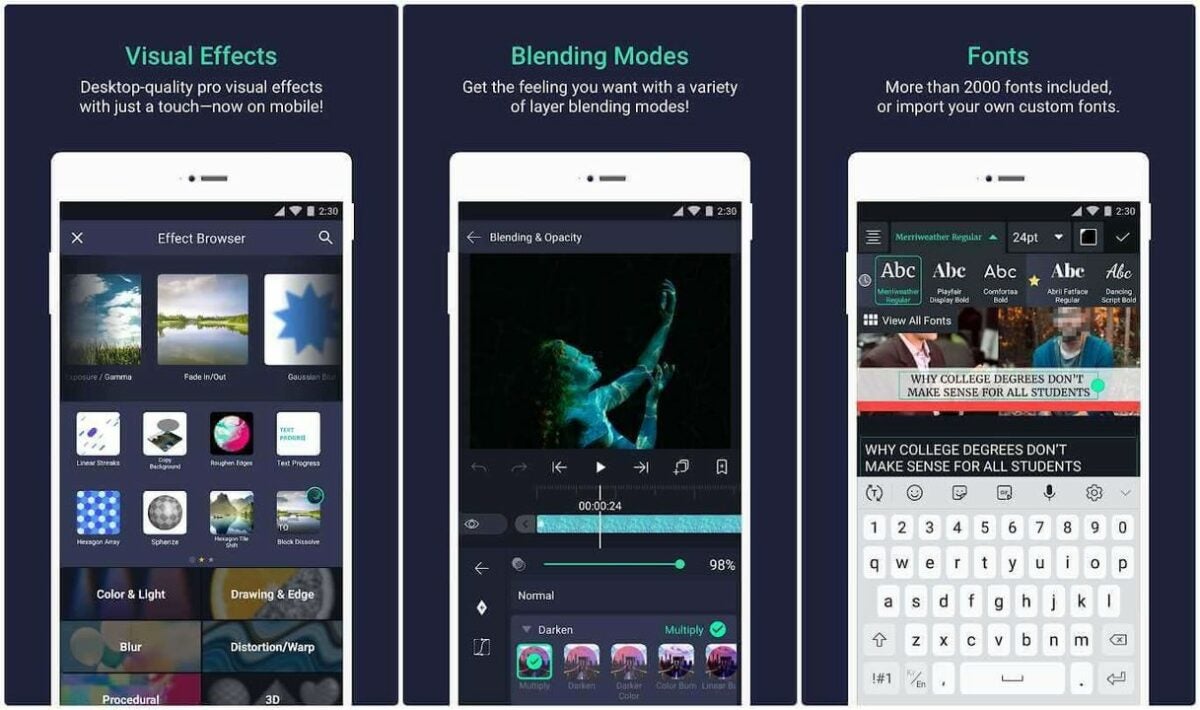
    After importing your media you can start editing your files with over 100 editing tools and filters.

    Now, upload your favorite photos and videos by clicking on the Choose files button. The application lets you select your files individually or import them in groups. You can also apply the same edit to multiple images simultaneously. After uploading your photos and videos, you can begin using the editing tools in Alight Motion to crop your files and apply filters from an exceptional library of options.

    Alight Motion lets you add overlaid text and objects to your pictures and video clips, including various stickers, emojis, shapes, and other graphics incorporated into the software. You can even create your own elements with Alight Motion with an Edit Shape tool that allows you to hone and adjust the properties of a shape. The program allows you to easily share your creations online with others while providing over 100 high-quality tools and powerful visual effects.

Start using Alight Motion today with no experience

Alight Motion was engineered with the beginning user in mind. The software makes it easy to immediately start editing videos and images on your Android device or PC. The program uses automated technology, providing users with more than 100 options for rendering quality visual effects, motion graphics, and gorgeous image filters after just a few clicks. Curious to learn more about photos filter and image editing software? Check out this list of the 10 most popular filter options for Photoshop.

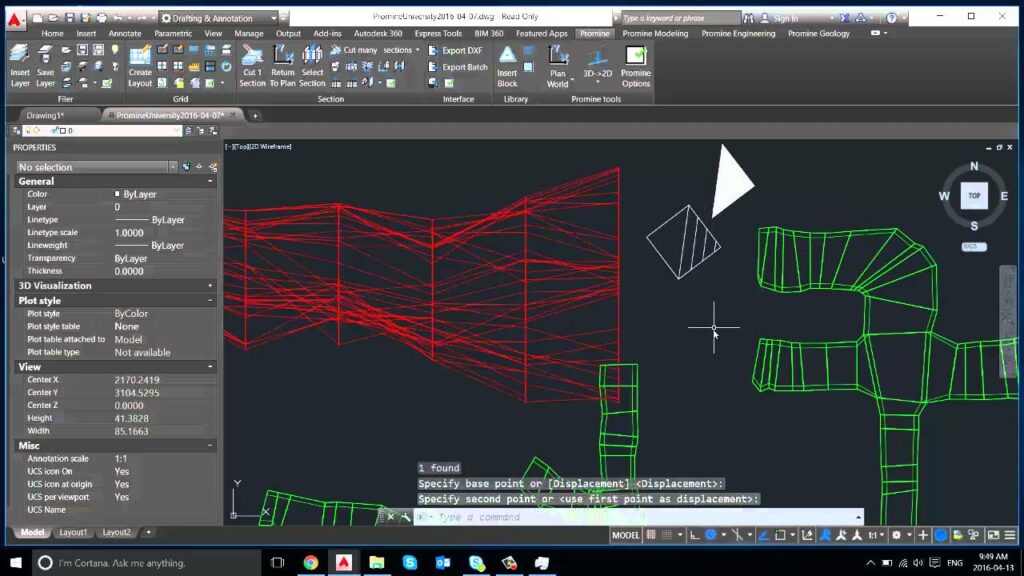
9 vital AutoCAD tips and tools for new users

If you work in any professional design field, it’s likely that you’ve heard of AutoCAD. A leading computer-aided design and drafting application, AutoCAD software from Autodesk lets users create accurate two- and three-dimensional representations to develop infrastructure and plan commercial and residential buildings.

AutoCAD DOWNLOAD

For those just getting started with AutoCAD, here are nine essential tips and tools to remember as you begin familiarizing yourself with this powerful CAD modeling program.

The Content Explorer tool

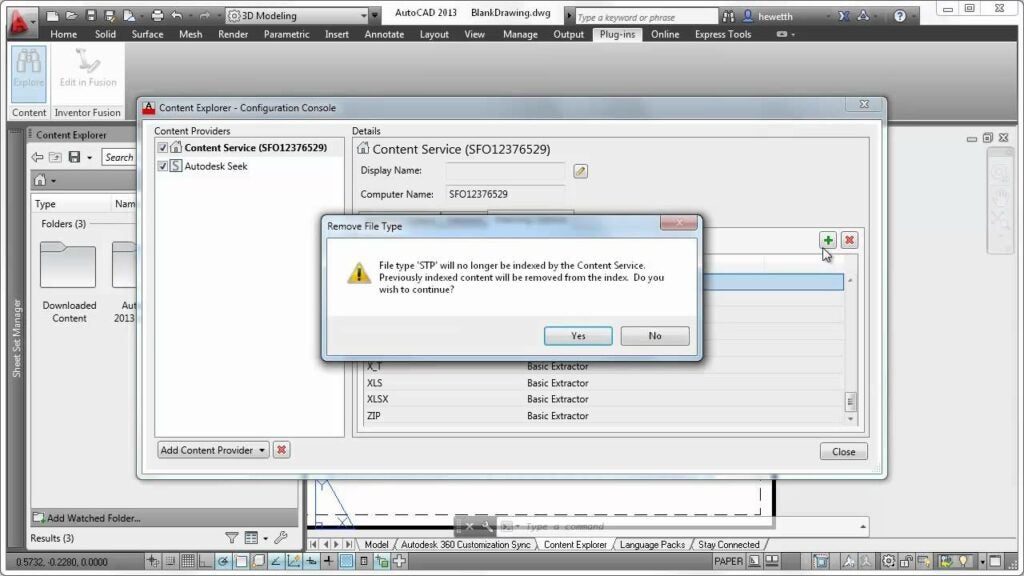
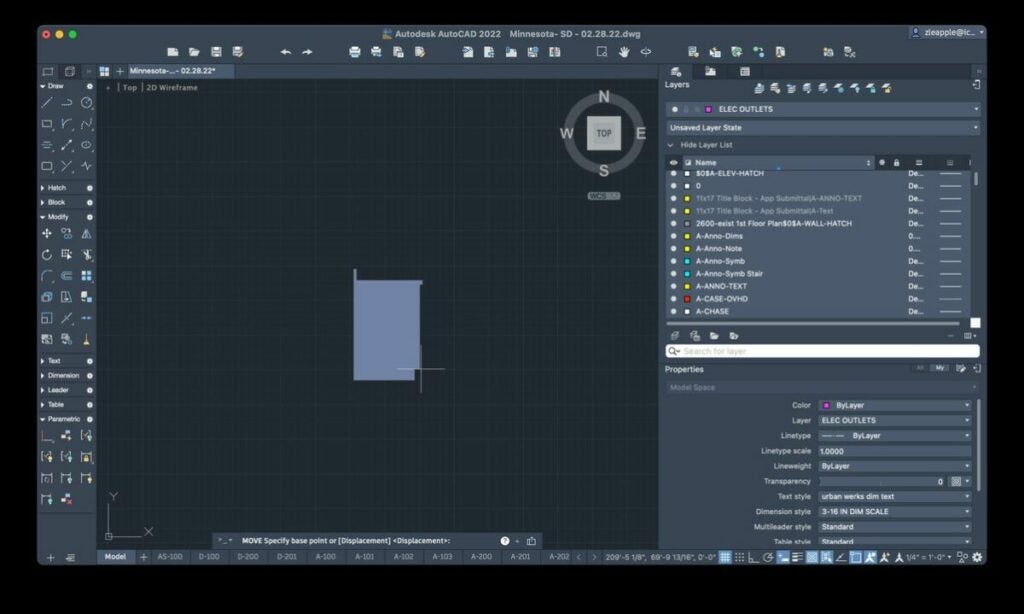
After you’ve created an Autodesk account and downloaded AutoCAD, start by getting acquainted with the Control panel, where you’ll find the Content Explorer tool. To search for anything relevant to your current project, click on the Content Explorer and enter your key terms into the search bar. This tool is the quickest way to find the exact content you’re looking for and navigate directly to it. The Content Explorer tool is particularly effective at helping you distinguish between the various layers in your drawings while enabling you to locate any text you’ve embedded therein.

Find any content associated with your AutoCAD drawing with the Content Explorer

The Saveall command

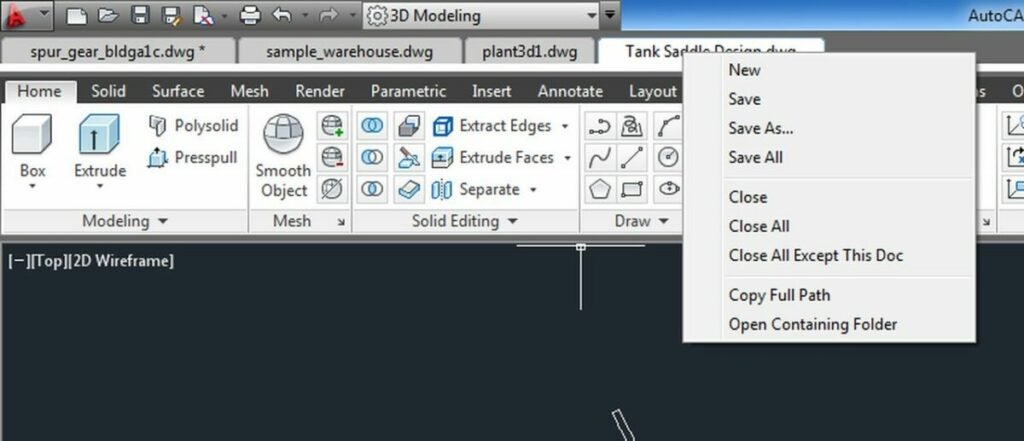
When you’re in the command prompt, you never want to inadvertently lose any of your drawings by closing the application without saving an open project. AutoCAD provides you with a Saveall function to preserve every model you currently have open. This command helps out in a hurry, but it’s also the best way to safeguard your valuable works in progress.

Save each of your open projects at once with AutoCAD's Saveall feature

The Align tool

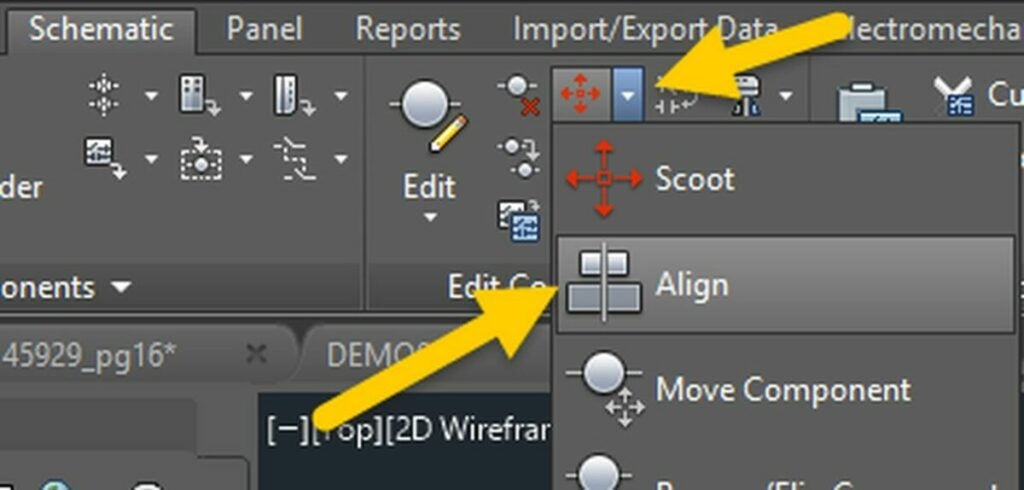
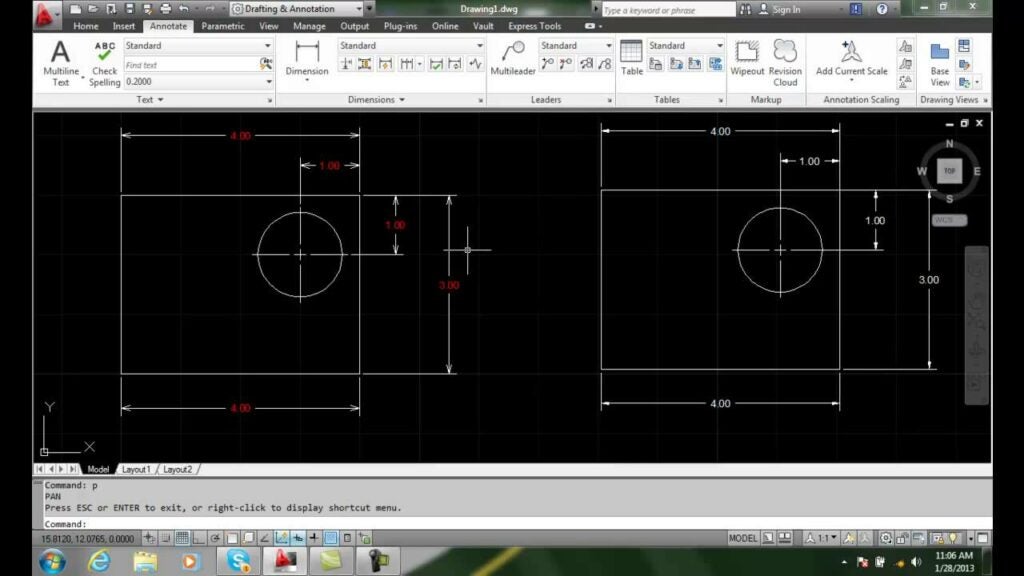
As you start working with AutoCAD and similar programs, you’ll quickly realize how difficult it is to align your drawings correctly. The mere process of scaling, rotating, and repositioning your model sends it out of alignment. Fortunately, AutoCAD provides a convenient Align tool that instantly brings your drawings back into alignment. Align is a reliable time-saving feature that many experienced AutoCAD users commonly forget about.

The Align tool lets you align your drawing automatically after making various adjustments to your 2 and 3D models

The Lasso Selection tool

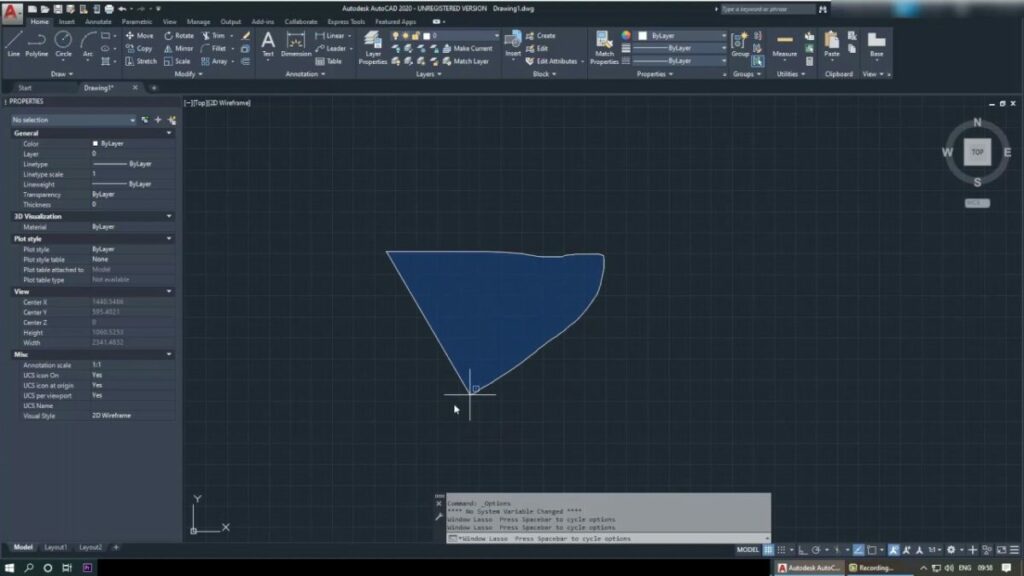
AutoCAD took cues from other top graphic design applications at the introduction of its Lasso Selection tool in 2015. Since the software is over 40 years old, many longtime users may not even know this function exists. To activate the Lasso Selection tool, click and hold the left mouse button. Create your lasso by dragging the cursor over the desired selection. You can repeat this process multiple times until you’ve selected all the required objects in your model.

Since 2015, AutoCAD users can activate a lasso selection feature by left clicking the mouse

The Burst Command tool

If you need to separate elements of an object or block, use the Burst Command tool. This feature is the fastest route to separating select elements of your object while keeping the original attributes intact. To use Burst Command, type “burst” into the command prompt. This command will separate each element of the selected object while preserving its original attributes.

Use AutoCAD's Burst Command to separate a block into its components while retaining its original attributes

The Snap to Hatch tool

Previous editions of AutoCAD let you “snap to a hatch.” To the dismay of many experienced AutoCAD users, this feature was eliminated in subsequent releases of the software — only to be reintroduced in the most recent version. To use the Snap to Hatch tool, go to Draft Settings, and click on the Option tab. Navigate to Object Snap Options, and deselect Ignore hatch objects to restore the original “snap to a hatch” function.

Snap lines to existing hatch boundaries by enabling the Snap to Hatch feature from AutoCAD

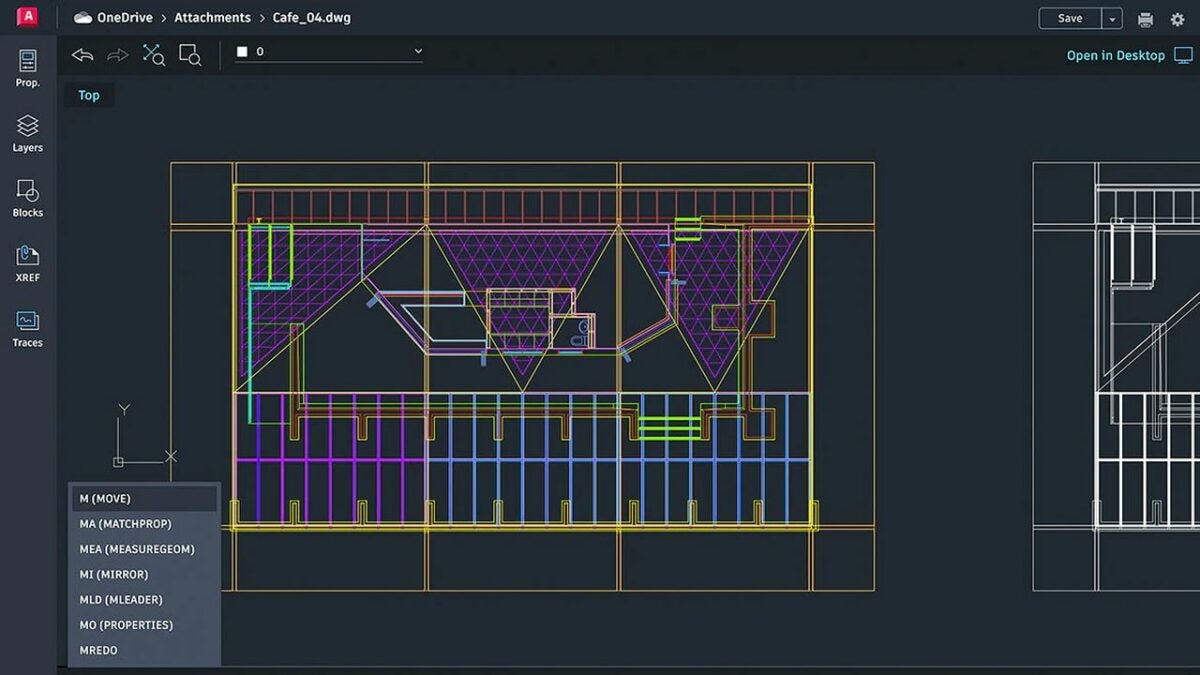
The MATCHPROP tool

When you create multiple drawings to different specs, matching the relevant attributes of your various models is crucial. One way to go about this is to match the specific properties after you complete each individual drawing. For a more efficient workflow, however, the MATCHPROP tool allows you to choose the properties of each representation you want to match in one place.

Use the MATCHPROP tool to match selected objects to other objects in AutoCAD

PDF Creation

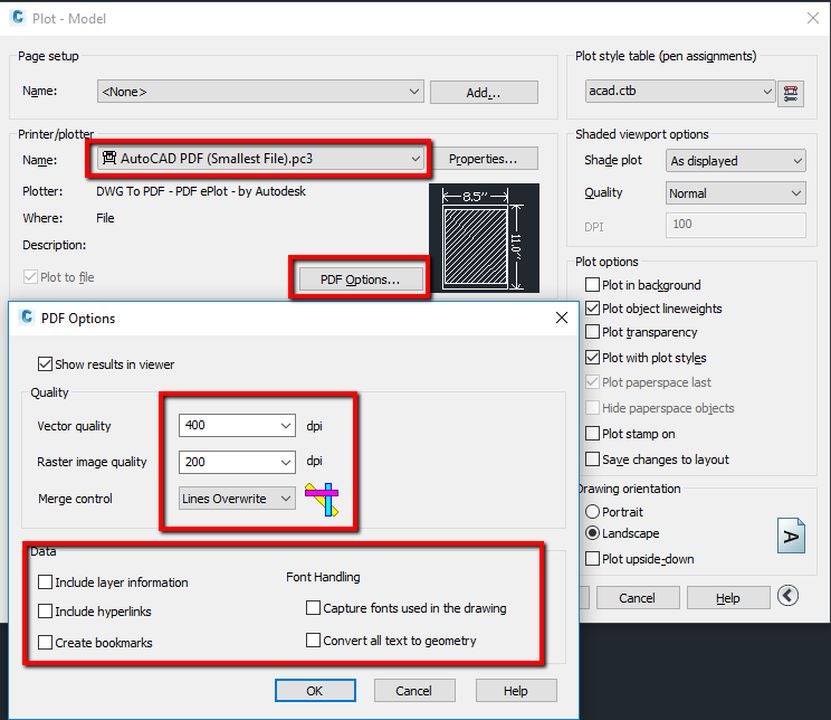
From time to time, you may need to create a PDF copy of your AutoCAD drawings. The program’s default settings allow you to create PDF files easily. To change the original settings, select Plot, choose DWG to PDF from the drop-down menu, and alter the file properties as desired.

Convert files to PDF format directly in AutoCAD

The Closeall command

Like the Saveall option, the Closeall feature lets you close out all the drawings you have open at once. Before using the command, verify that you’ve saved all your open models to avoid losing progress. If you’re working on several drawings at once, the ability to close your projects simultaneously saves time and lets you move on to your next task more efficiently.

Type Closeall in the command prompt and all your drawings close simultaneously

Model your next project with AutoCAD

Getting started with AutoCAD is simple. All you need to do is download the software, create a New project in AutoCAD, and click Start drawing. AutoCAD is a robust computer-aided design and drafting program with one of the best toolkits for generating 2D and 3D drawings. Learn more about an alternative easy-to-use design solution in this recent expert review of Adobe Express.

How to sync videos to musical beats in Premier Pro while saving hours of editing time

The use of music in videos is one of the most effective approaches for linking different clips recorded across multiple locations and times to produce a logical and cohesive outcome. Music gives otherwise dull footage a sense of mood and atmosphere that no other editing effect can achieve on its own.

Adobe Premiere Pro Download

Whether you are making a music video, personal vlog, or corporate industrial video, these tips will simplify your musical synch edits in Adobe Premiere Pro.

  1. Import your video and audio

    Start by importing the footage from your recording device

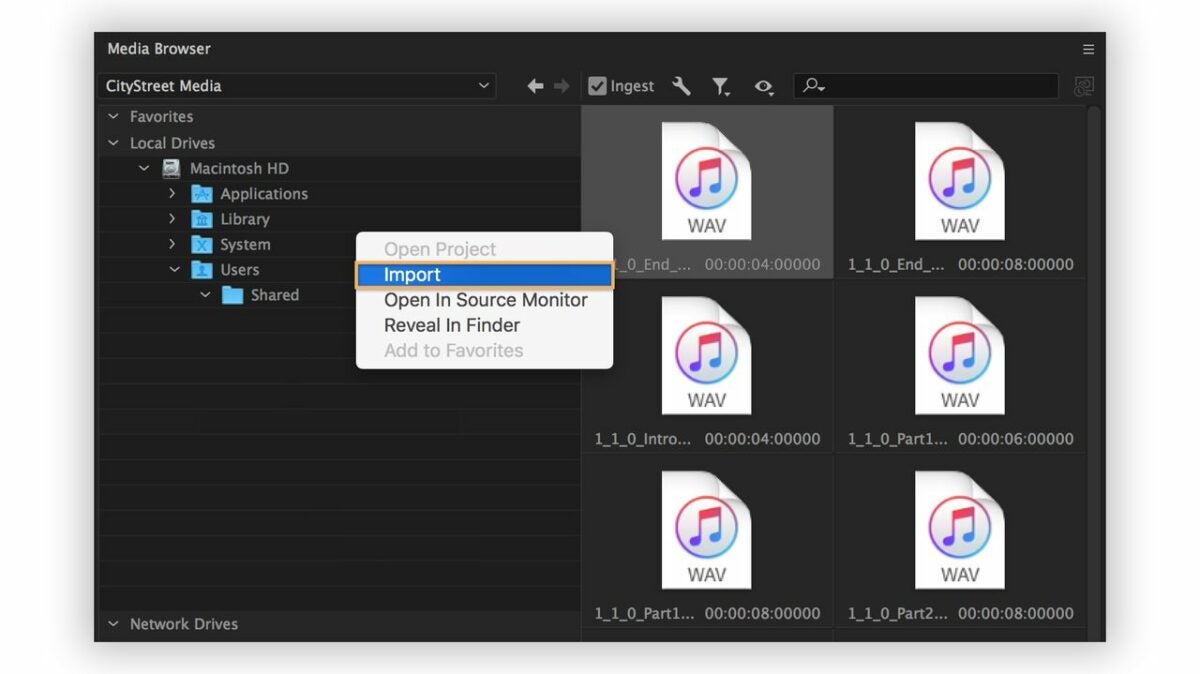
    Begin by importing the previously recorded video onto your device and creating a new project in Adobe Premiere Pro. Locate your preferred audio file and listen to the track a few times. To start a new project, find the desired footage and sound in the Media Bin and select the File menu.

    Your video will typically include scratch audio. The soundtrack is a separate audio file, ultimately replacing the original audio, assuming you choose not to mix it into the clip. Since you are assembling the entire clip around the music, select your track carefully. Ensure that the audio file has distinct beats for synchronizing your cuts. To add the audio file to your sequence, import or drag and drop it from the Media Bin to replace the scratch audio.

  2. Add markers

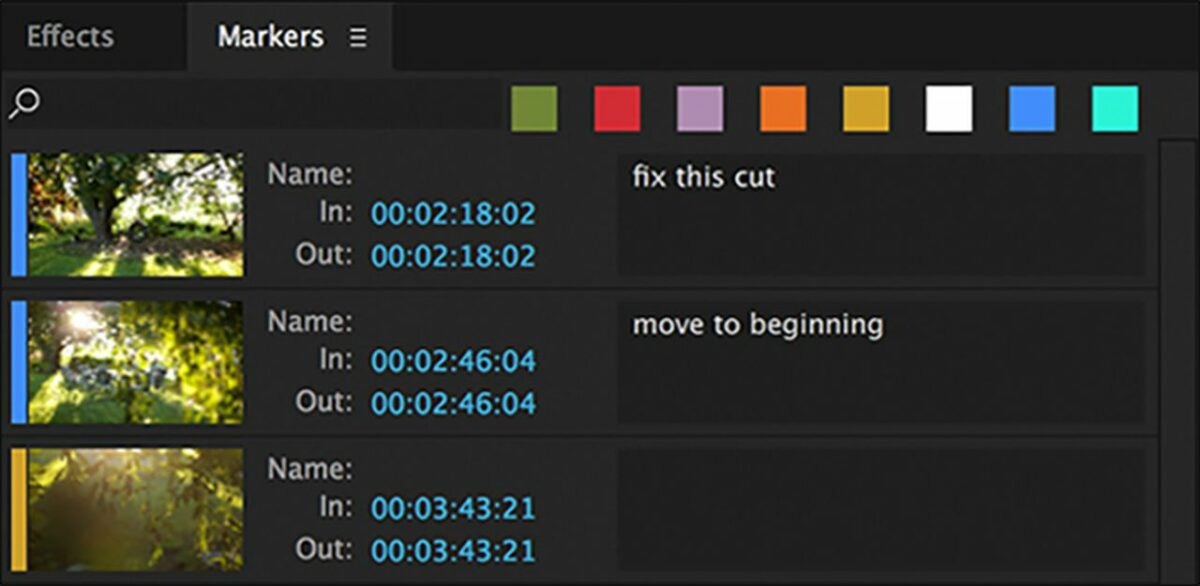
    Set markers at the beats in your audio file to start creating your sequence

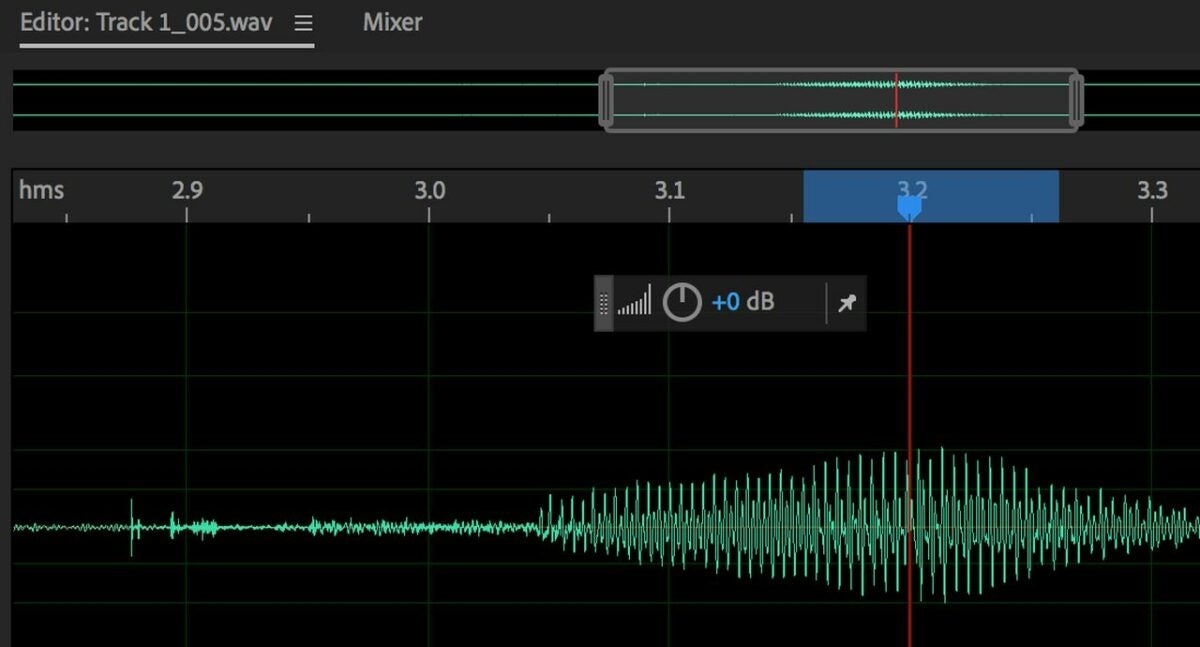
    Once you’ve gathered your media and created a new project in Adobe Premiere Pro, you’re ready to start adding markers to the sequence. Locate the Wrench icon above your timeline and click on it to display the dropdown menu. Select the Show Audio Waveform. The waveform graphic shows you where the beats are in your selected audio file.

    Now add markers to the sequence using the M on your keyboard as a shortcut. Using the waveform, locate the beats within the song to make your cuts on and apply markers to them throughout. This process involves an element of precision. Those who are less than musically inclined can rely on the waveform.

  3. Insert your in and out points

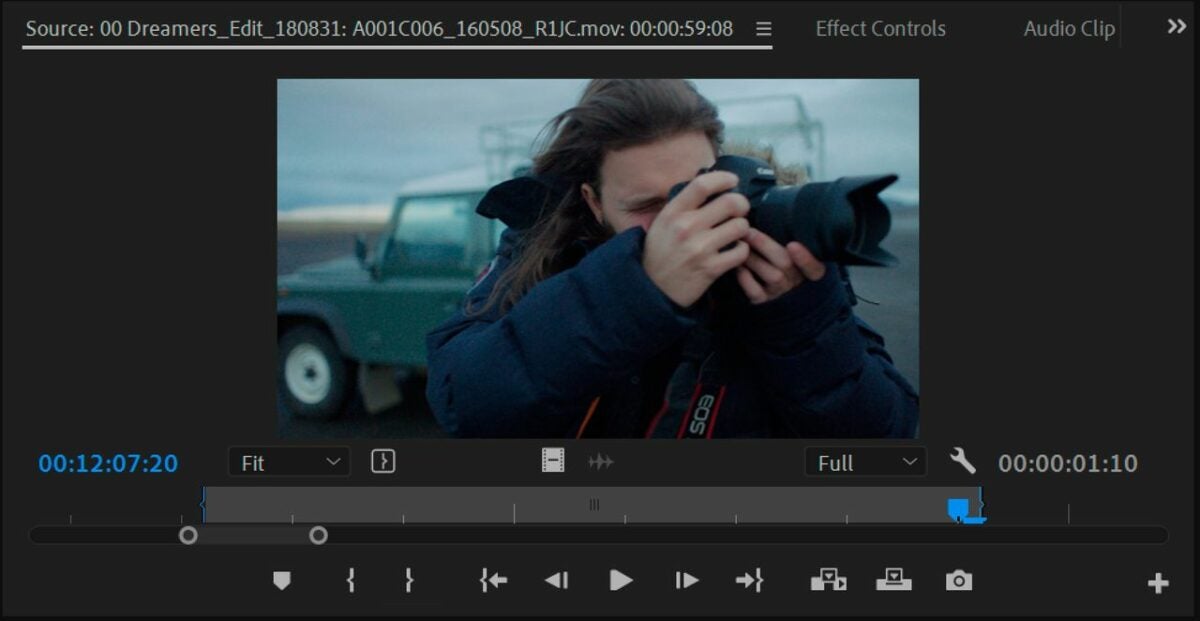
    Adding In an Out points trims unwanted footage and lets you automatically sync your edits later on

    From the Media Bin, start adding the In and Out points. You can either click on their respective icons or use the I and O keys as shortcuts. Set the In and Out points to each clip you want synchronized to the beat. This informs the editing software of where you want your cuts.

    After identifying all the clips to be used in the sequence and setting your In and Out points in the Media Bin, proceed to select the video segments in the desired order of appearance. Choosing them in order prearranges your rough cut on the editing timeline.

  4. Automate to sequence

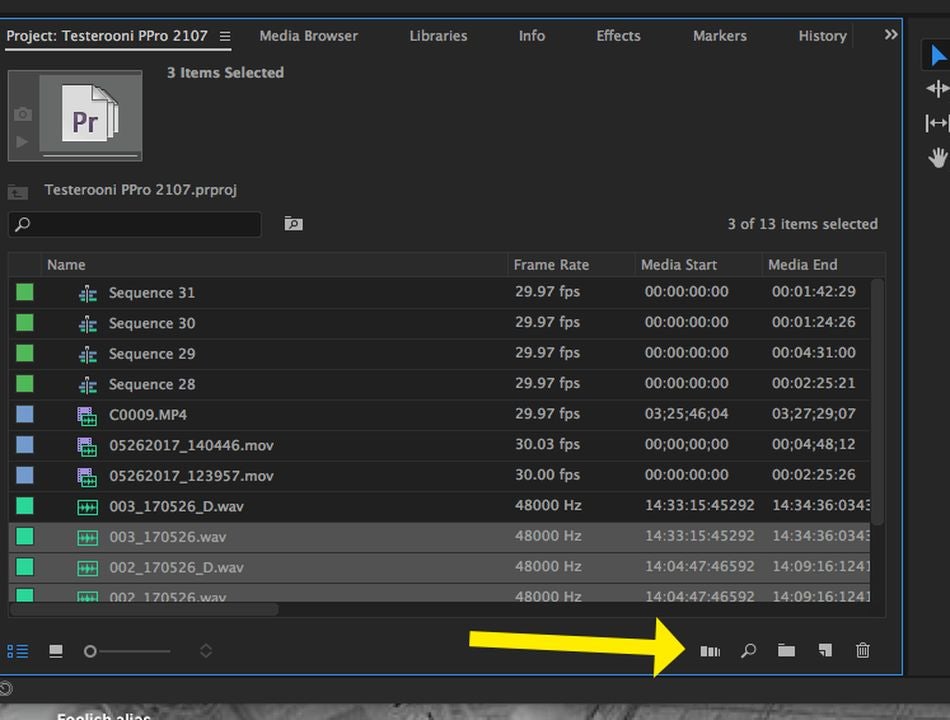
    The Automate to sequence feature interprets your markers and In and Out points to automatically generate a sequence in your timeline

    Now that you have your markers in and and your In and Out points set, select Automate to sequence from the clip menu. Veteran Premiere Pro editors may be unfamiliar with this step, but Automate to sequence is the most efficient way of adding your clips to the timeline and editing them to a musical beat. The function lets you quickly create time-lapses, eliminate audio pops, and edit jump cuts without additional time-consuming steps.

    Choosing the Automate to sequence option produces a new window on your screen. At this point, navigate to the Ordering menu and choose the Selection order. Once you’ve enable the function, find the Placement menu click on the At Unnumbered Markers. Now, change the method to Overwrite Edit.

  5. Match your footage

    Rely on the waveform to set your marker a few frames ahead of the upbeat

    Confirm that the Use In/Out Range setting is enabled. If you haven’t deleted your scratch-recorded sound, click on the Ignore Audio option to eliminate it. Select OK to enable the changes. This prompts Adobe Premiere Pro to automatically synchronize your video with the markers you previously applied to the sequence.

    While the Automate to sequence feature lends itself to a more efficient editing workflow, it is worth reiterating that your clips must be in the correct order inside your Media Bin for the feature to work. Be sure to arrange the segments sequentially and set your In and Out points before selecting the Automate to sequence button. Lastly, never place your markers directly on the beat. Instead, aim for setting them a frame or two head of it for optimal results.

Syncing footage with Adobe Premiere Pro made simple

Adobe makes editing video to music easy, but it doesn’t necessarily offer a one-click solution for making complex synch edits that once took hours to finish. Instead, the Automate to sequence option gives a reliable departure point for creating a fine cut. You’ll almost assuredly make minor adjustments to your project before it’s complete. For more on making high-quality Instagram reels in Adobe Premiere Pro, check out this recent tutorial.

How to create Instagram Reels READ MORE

15 must-try audio extensions for Google Chrome

Considering the widespread popularity of Google Chrome, it is no surprise that the browser integrates with dozens of audio and music extensions. Sound-based Chrome extensions work great for the consummate music and podcast streamer, but they also serve as valuable audio production and mixing tools.

Google Chrome DOWNLOAD

Here are 15 leading audio extensions for Chrome to help you customize your audio experience.

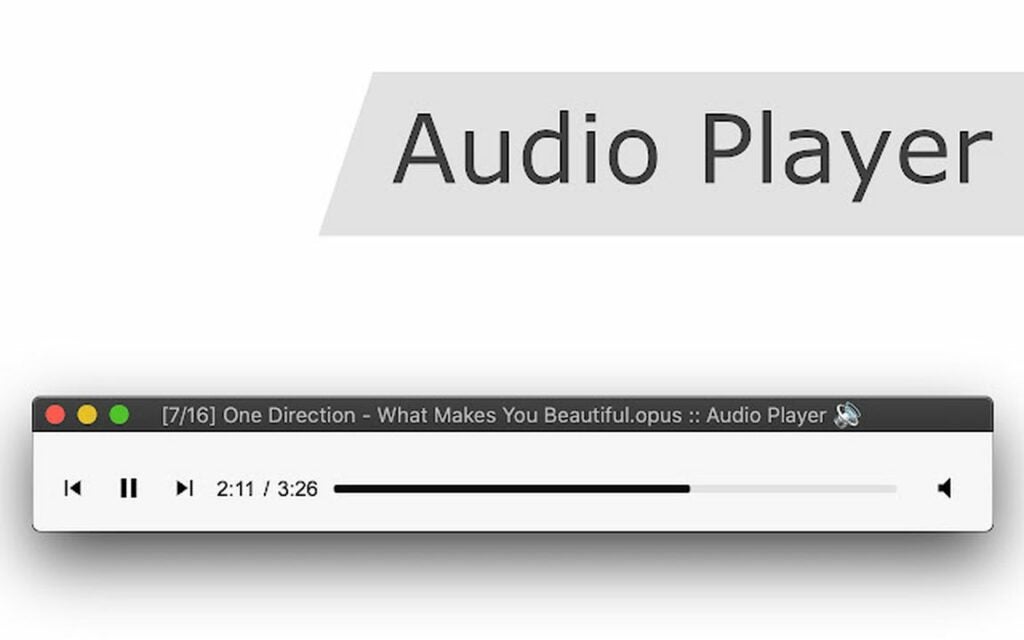
Audio Player

The Audio Player Chrome extension supports multiple audio codecs and functions as a standalone player for each. To use the extension, simply drag and drop the audio files into the interface. The player streams sound from video containers. Audio Player uses the popular FFMPEG library to decode audio information.

Audio Player DOWNLOAD
Audio player extension

AudioVisualizer

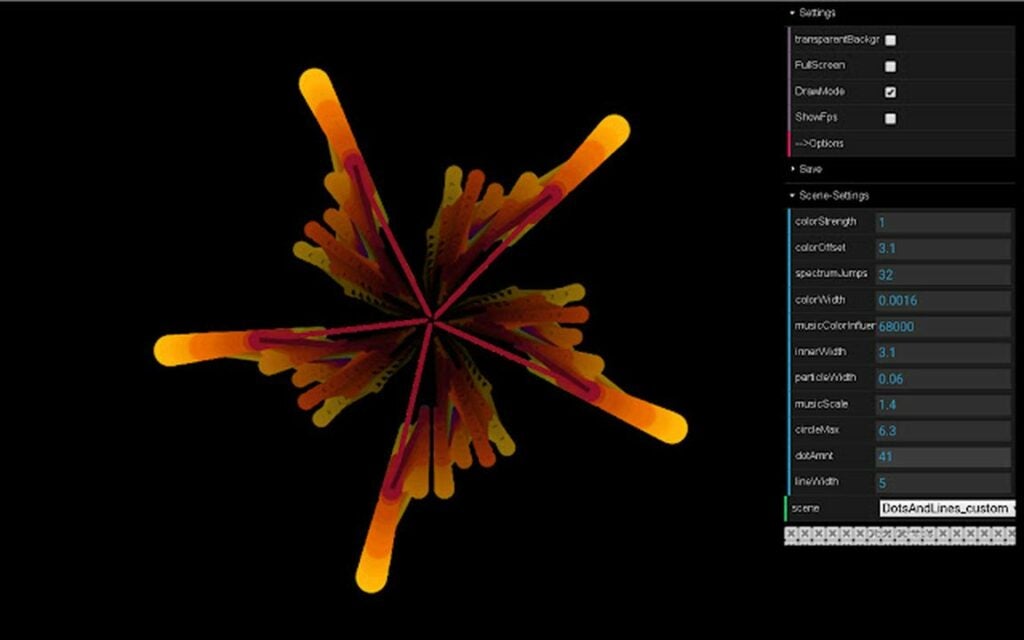
Use the AudioVisualizer Chrome extension for online streaming. Software engineers created the application to enhance the online listening experience for Chrome users by adding visual effects to audio streaming sites accessed within the browser. The extension generates a bar and line visual for any audio you have playing in your current tab.

AudioVisualizer DOWNLOAD
AudioVisualizer extension

Chrome Audio Capture

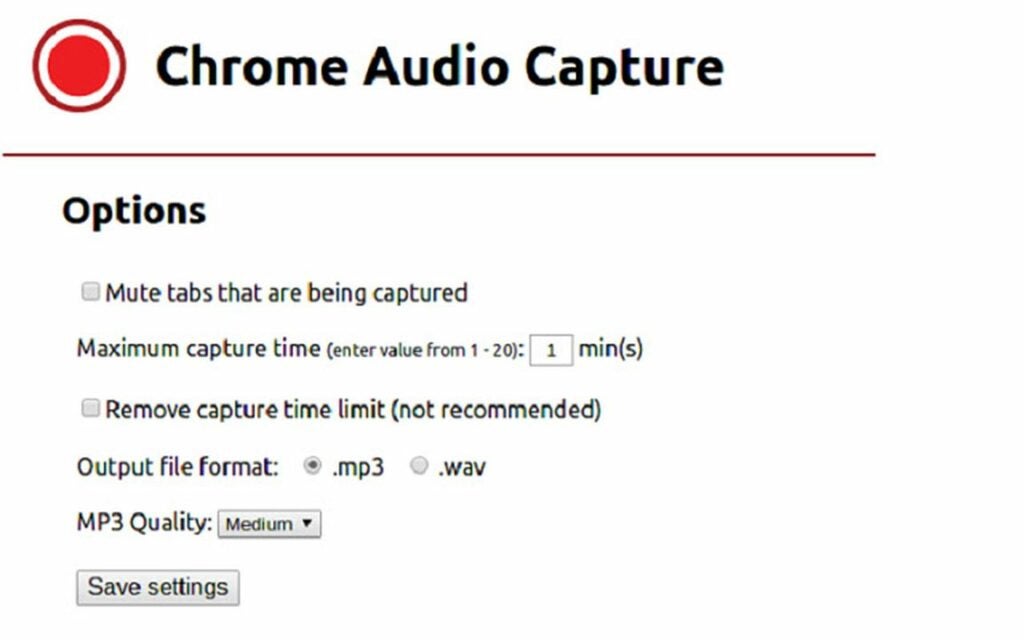
This unique Chrome extension captures streaming audio from an open tab before saving it as a playable file on your device. Chrome Audio Capture lets you record any audio from an open browser tab, and you can even capture sound from multiple tabs simultaneously. A mute feature allows you to silence audio from the tabs you’re currently recording. The extension provides convenient hot keys to control various application features.

Chrome Audio Capture DOWNLOAD
Chrome Audio Capture

Beautiful Audio Editor

While still in the experimental phase, the Beautiful Audio Editor is a unique extension for Chrome. It allows you to change the speed and pitch of selected clips, record and edit external sound, apply audio effects, and more. This app runs in both Firefox and Chrome, but its developers have remarked that Chrome may not provide sufficient memory to store the necessary audio data.

Beautiful Audio Editor DOWNLOAD
Beautiful Audio Editor extension

Audio Only Youtube

For those who like to listen to audio streams only on YouTube, the Audio Only Youtube Chrome extension comes in handy. This application lets you disable video whenever you stream YouTube on Google Chrome, saving more than half of your typical data consumption as you listen to your favorite podcasts and songs.

Audio Only Youtube DOWNLOAD
Audio Only Youtube Extension

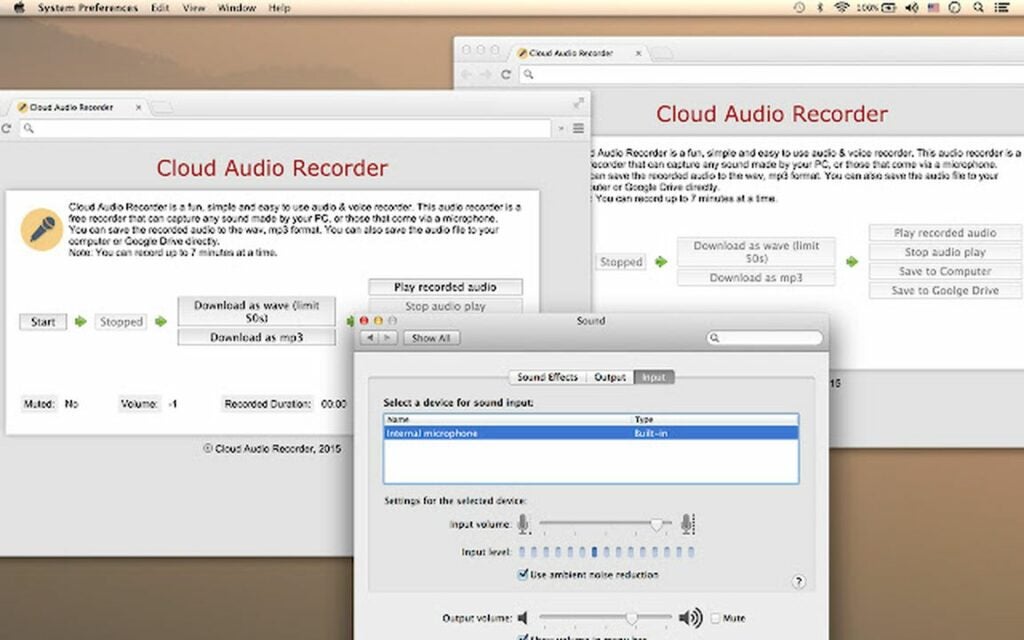
Cloud Audio Recorder

If you’re looking for a simple audio and voice recorder that’s easy to use and allows you to save audio files directly to your device or Google Drive, consider the Cloud Audio Recorder. This free resource captures any sound and voice content your computer’s microphone can record. Enjoy no time-recording limit as you capture audio files to either MP3 or WAV formats.

Cloud Audio Recorder DOWNLOAD
Cloud Audio Recorder

Audio Equalizer – EQ

True audiophiles love to customize their audio output, and the Audio Equalizer – EQ extension from Chrome is a reliable tool for accomplishing this. Ten bands and equalizer presets tailored to select genres let you adjust your sound in countless ways. Toggle the balance or boost your base for optimal control and quality sound with this browser extension.

Audio Equalizer - EQ DOWNLOAD
Audio Equalizer EQ extension

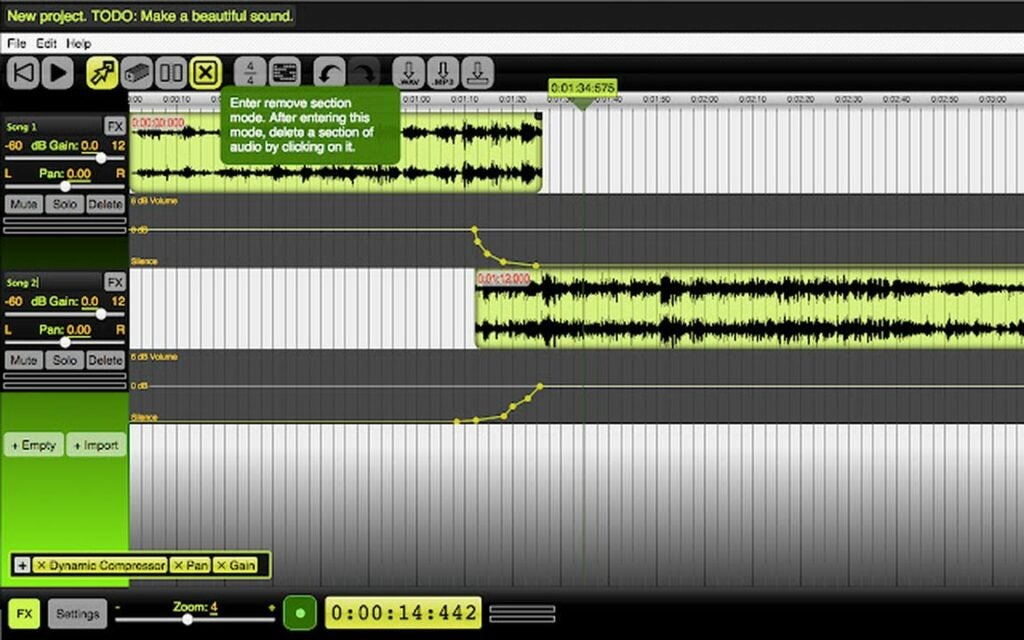
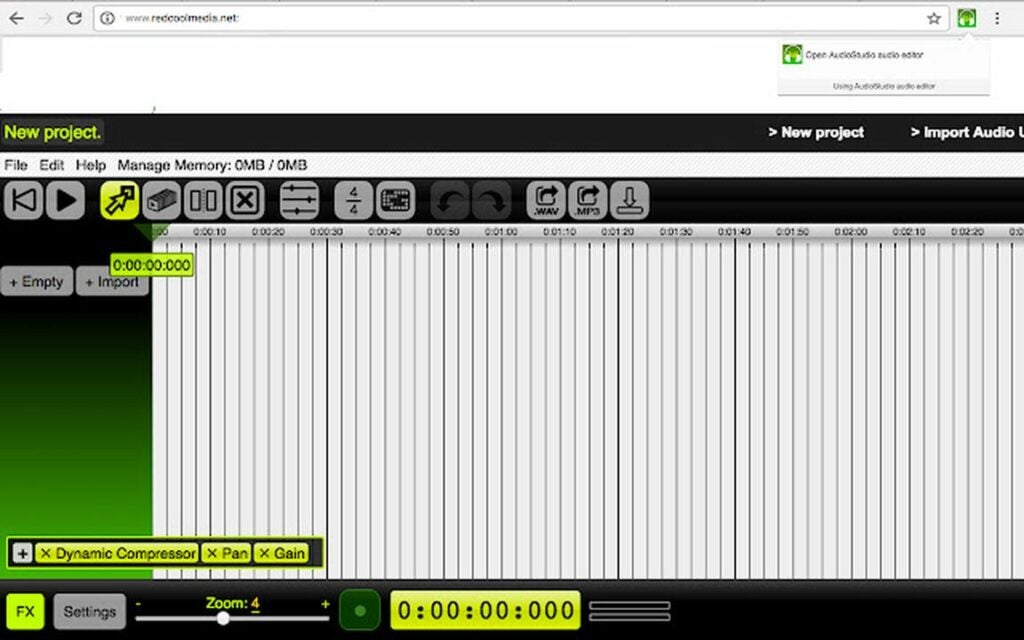
Audio editor & music editor AudioStudio

The Audio editor & music editor AudioStudio extension offers a basic sound production tool to record and modify audio files. This app integrates with the Beautify Audio Editor with the RedcoolMedia platform to produce several new features like cloud sharing along with the ability to WAV and MP3 URL links. Make edits and add effects with a range of buttons that unlock all the features and functions of this audio editor from RedcoolMedia.

Audio editor & music editor AudioStudio DOWNLOAD
Audio Editor - Music Editor AudioStudio

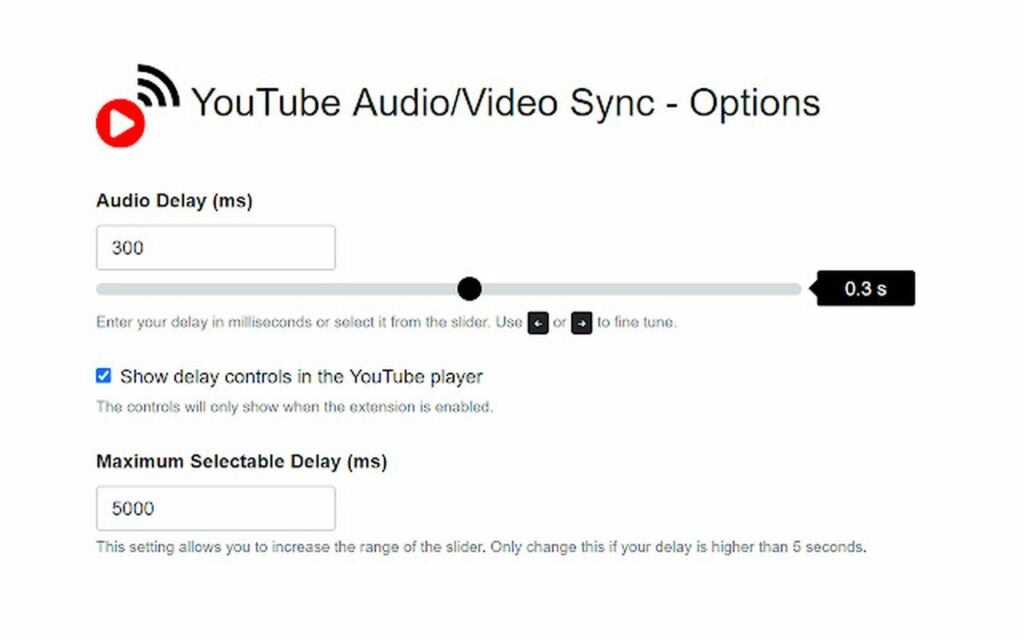
YT Audio/Video Sync

Wireless audio/video streaming is prone to lag, and the YT Audio/Video Sync resolves this issue by synchronizing delayed audio sound with wirelessly streaming video clips. The extension provides a reliable means of adjusting positive and negative delays to adjust any YouTube audio that has fallen out of sync.

YT Audio/Video Sync DOWNLOAD
YT Audio Video Synch extension

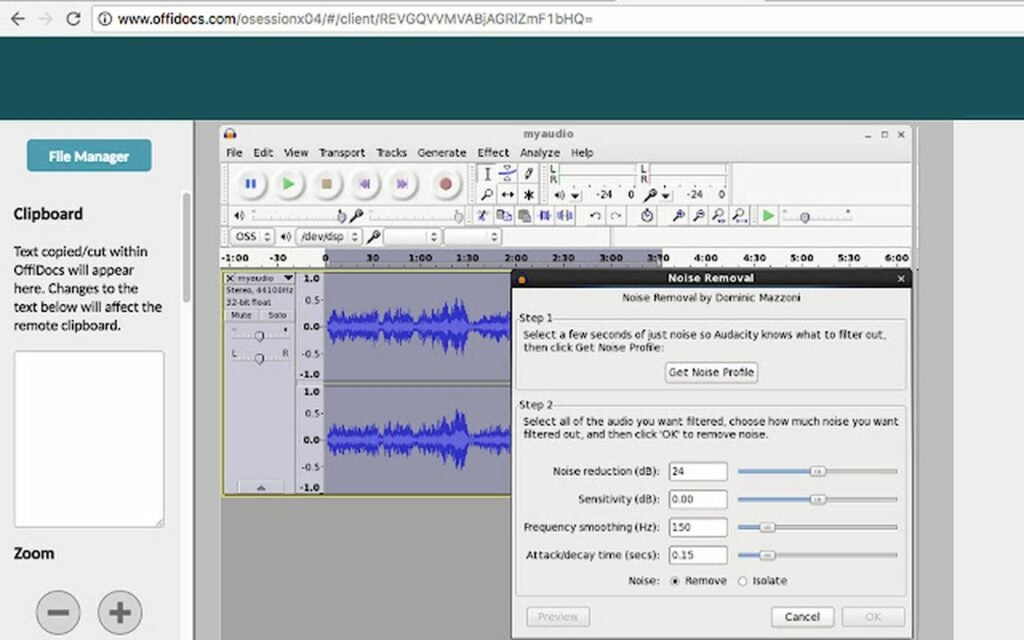
Audio editor online Audacity

Audio editor online Audacity extension for Chrome is a sound editing application that lets you import your own files into the interface. Arrange and combine audio clips, remove noise, apply effects, and more with the Audio Editor Online Audacity extension.

Audio editor online Audacity DOWNLOAD
Audio Editor Online Audacity extension

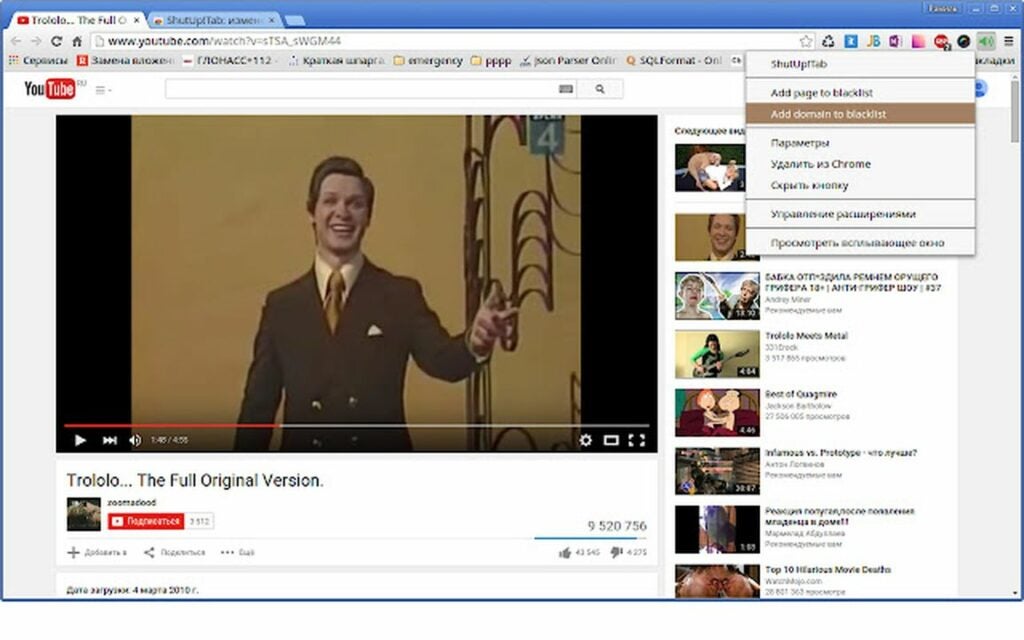
ShutUp!Tab

If you’ve identified a series of domains that you want to silence indefinitely, the ShutUp!Tab allows you to create a list of URLs that ban these sites from producing sound entirely. This app permits you to mute the active tab or automatically mute the tabs on your blacklist.

ShutUp!Tab DOWNLOAD
ShutUp!Tab extension

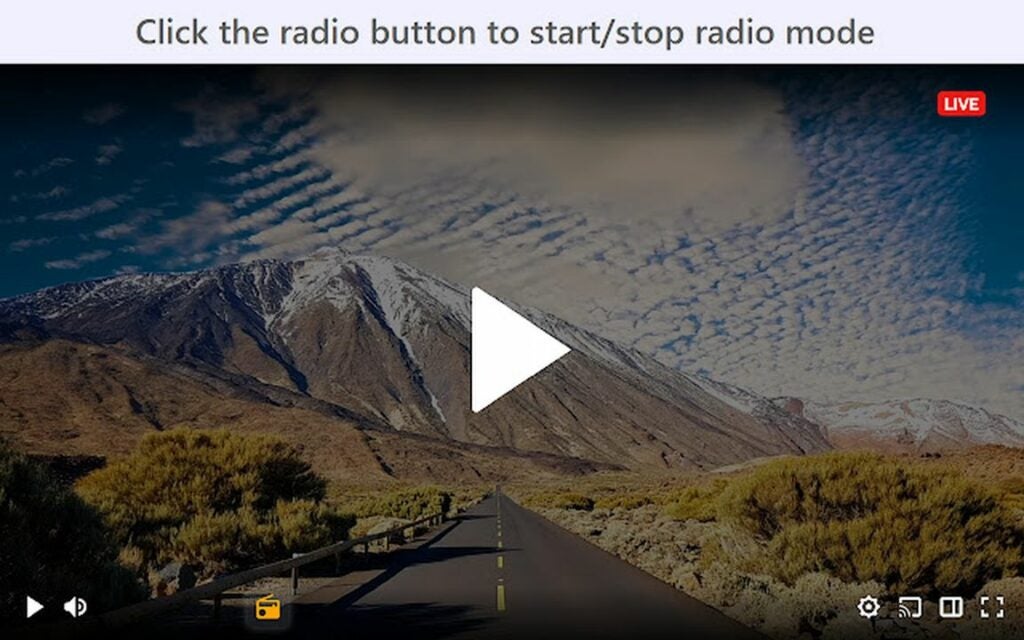
Twitch Radio Mode

Do you need to enable Twitch radio mode in your Chrome Browser? The Twitch Radio Mode extension allows you to run this mode from Twitch in Google Chrome. It helps you save bandwidth, RAM, and other computing resources. In “radio mode,” Twitch lets users play only the sound from selected streams to reduce data consumption.

Twitch Radio Mode DOWNLOAD
Twitch Radio Mode extension

AudioPick

Your device likely provides multiple options for audio output. The AudioPick extension works with HTML5 audio and video elements delivered via HTTP(S) while allowing you to pick a default audio output device. Use this extension whenever Chrome plays HTML5 sound over HTTP(S).

AudioPick DOWNLOAD
AudioPick extension

Volume Booster

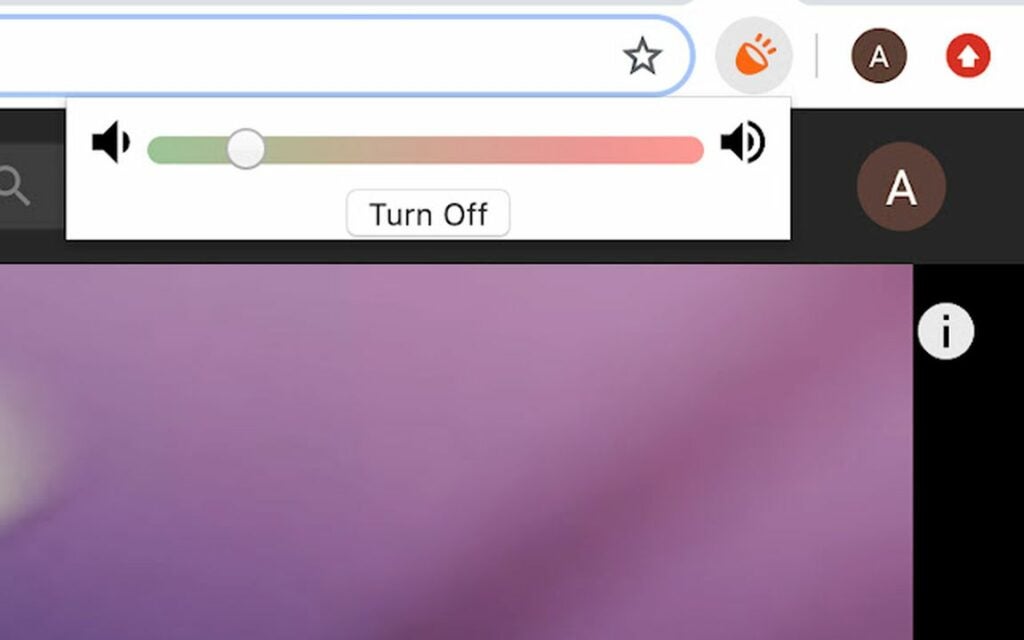
If you’re dissatisfied with the audio output levels from your device, the Volume Booster extension helps to amplify the sound. This extension works with your internal speakers or headphones for both Mac and Windows operating systems to turn your computer into an impressive portable stereo. Use this application with care to avoid overextending the volume capacity of your speakers and headphones.

Volume Booster DOWNLOAD
Volume Booster extension

SndControl: Your Audio ControlPad

The SndControl: Your Audio ControlPad Chrome extension draws from the various web players you already use to aggregate all your favorite digital audio sources under a single umbrella. Stream audio all day without jumping back and forth from various tabs, audio players, and streaming platforms with the SndControl: Your Audio ControlPad app.

SndControl: Your Audio ControlPad DOWNLOAD
SndControl Your Audio ControlPad

How to use the Co:Writer extension for Chrome in 5 steps

The Co:Writer Chrome extension is one of several text prediction applications that uses natural language processing to anticipate what users intend to write before they type the sentences out completely. Predictive writing apps like Co:Writer adapt to your writing style to accurately forecast your words to save you time and effort. Experts say that predictive writing software is an effective way to increase writing accuracy and efficiency.

Co:Writer DOWNLOAD

Let’s explore how to use the Co:Writer Chrome extension in five simple steps.

  1. Download the Co:Writer extension

    Download the CoWriter extension from the Google Web Store

    The application works with Chromebooks, Windows, macOS, iOS (iPads and iPhones), and Microsoft Edge. Ensure that you enable the correct Co:Writer Chrome extension for your device.

  2. Click on the Co:Writer extension

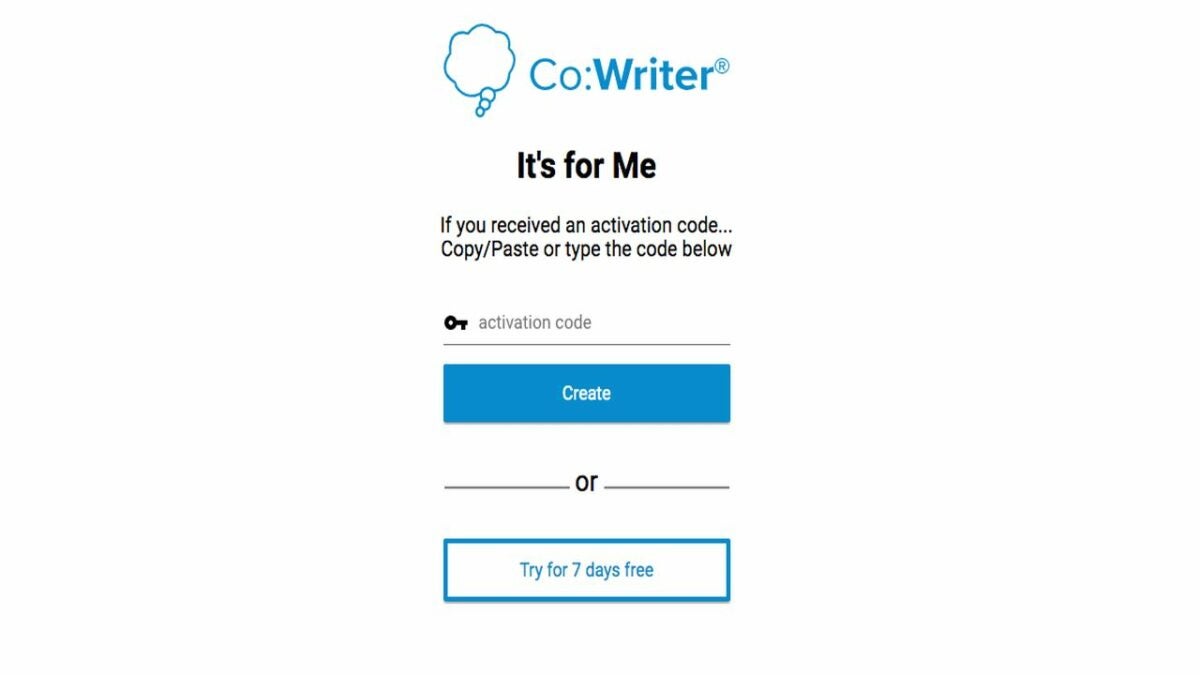
    Sign up for CoWriter and access the tool at the top right of your Chrome browser

    Find the Co:Writer extension at the top right of your Google Chrome browser. The Co:Writer icon presents as a gray thought bubble next to the search engine bar.

  3. Enable the Co:Writer Chrome extension

    Turn on the CoWriter Chrome extension

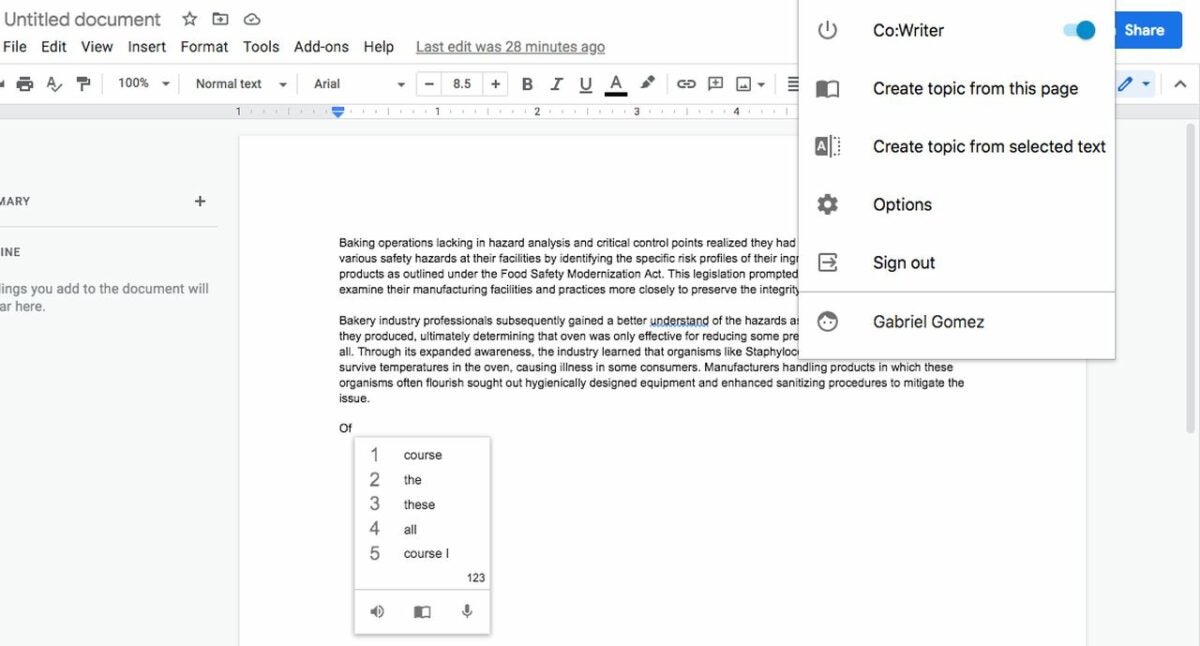
    As you click on the bubble, you will encounter a dropdown menu. Activate the switch to the right of the Co:Writer option, the first selection in the menu. This turns on the application. Confirm the extension’s active status when the toggle switch and Co:Writer icon turn blue.

  4. Create a text document in Google Docs

    Create a new text document in Google Drive

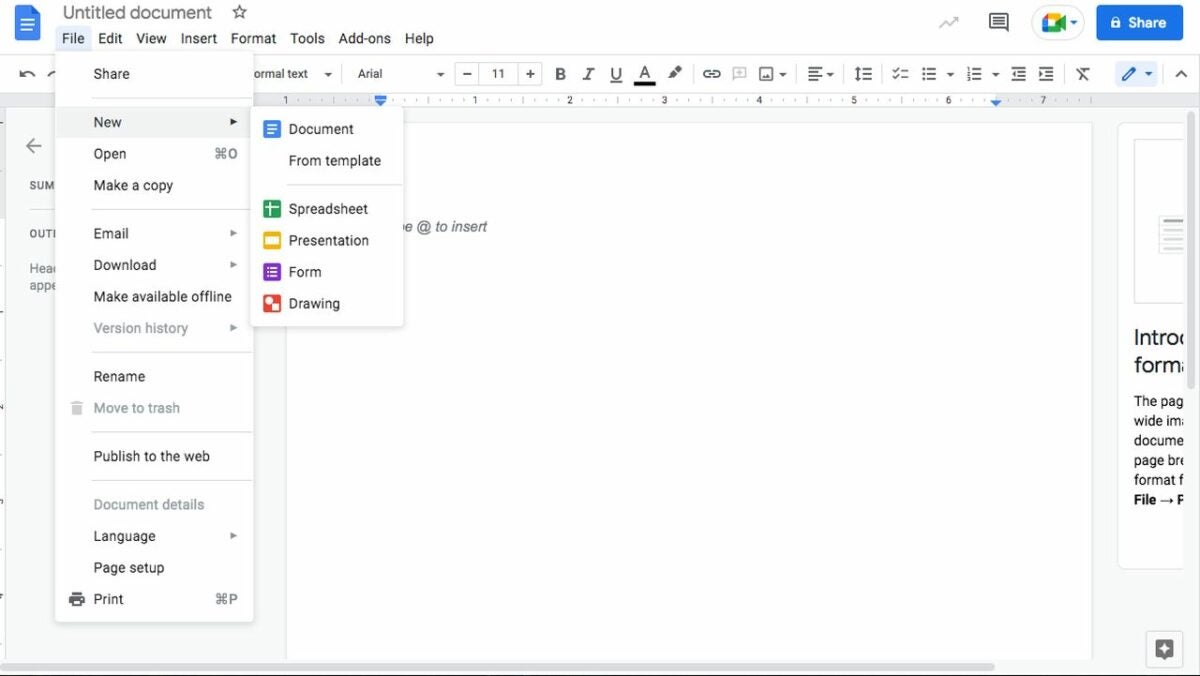
    Once you’re in the Google Drive, to create a new file navigate to the New button, and start typing the text you want to create. You can also convert a Word doc into a Google doc by clicking New and selecting File upload. Locate the document you want to upload and choose Open. After the file uploads, double-click on it, and select Open with. Now, choose Google docs.
  5. Start using the Co:Writer word prediction tool

    Test CoWriter extension and adjust the settings as desired

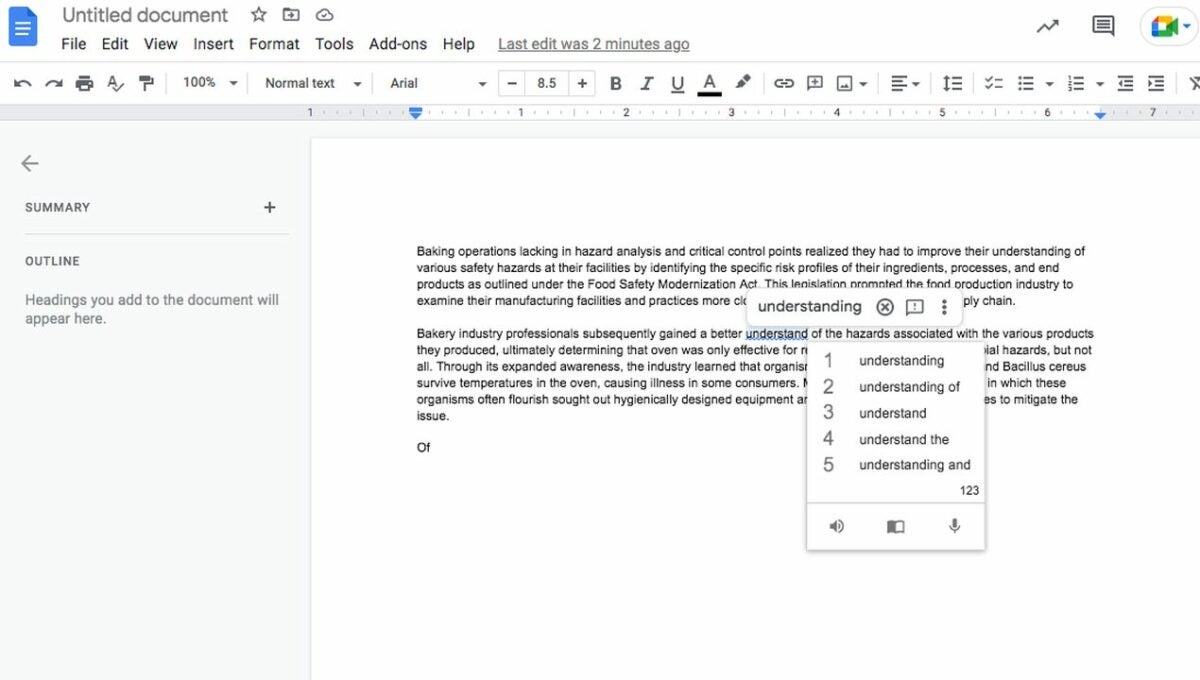
    In Google Docs, test the Co:Writer Chrome extension by typing out a new sentence. As you start composing, a purple menu option displays up to five suggested words to autocomplete the one you just began typing. You can either click on the recommended word or select the associated number.

    Change Co:Writer’s predictive text functions and what the app reads back to you by choosing the Co:Writer icon and finding Options. The Options menu lets you choose which information you want the software to predict and read back. For instance, the application anticipates letters and complete words or reads selected words and phrases back to you aloud. This ability to listen to your text spoken makes editing go more smoothly, helping you revise for clarity and accuracy at a more efficient pace.

    To select which sentences you would like to hear, simply highlight the text and right-click. Navigate to the right, and select the Speak option. The Co:Writer extension will repeat those lines back to you. Selecting Stop speak allows you to cancel the process.

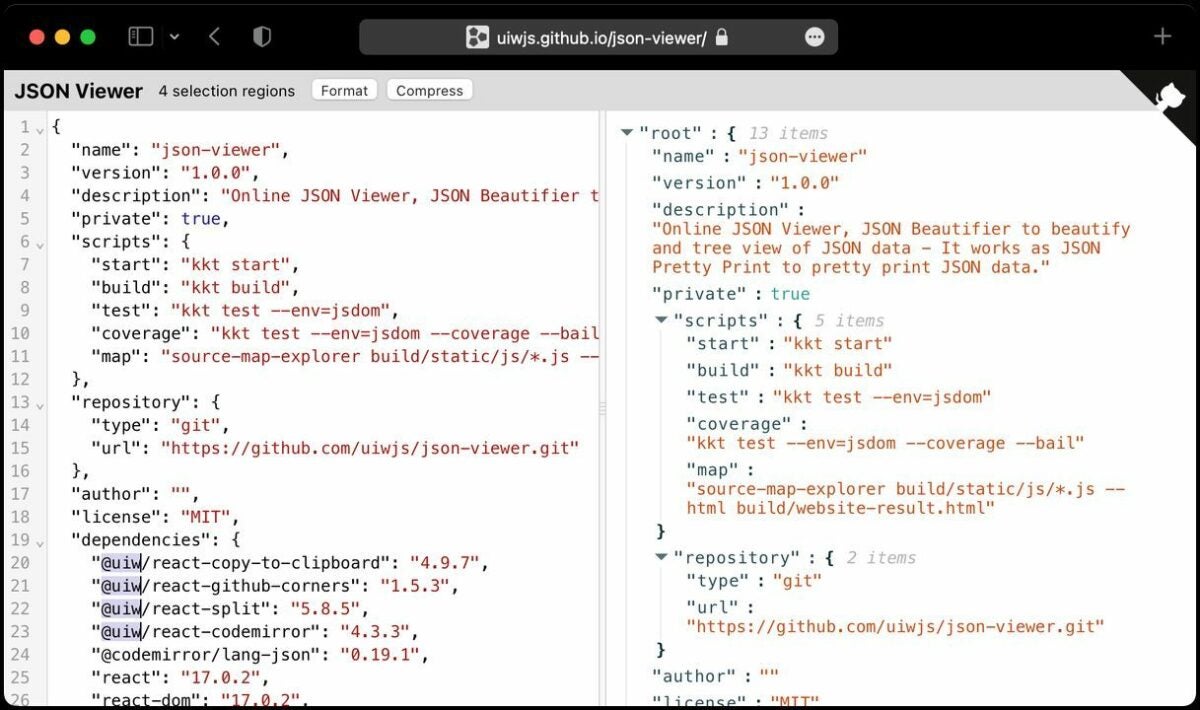
How to use the JSON Formatter extension for Chrome in 4 steps

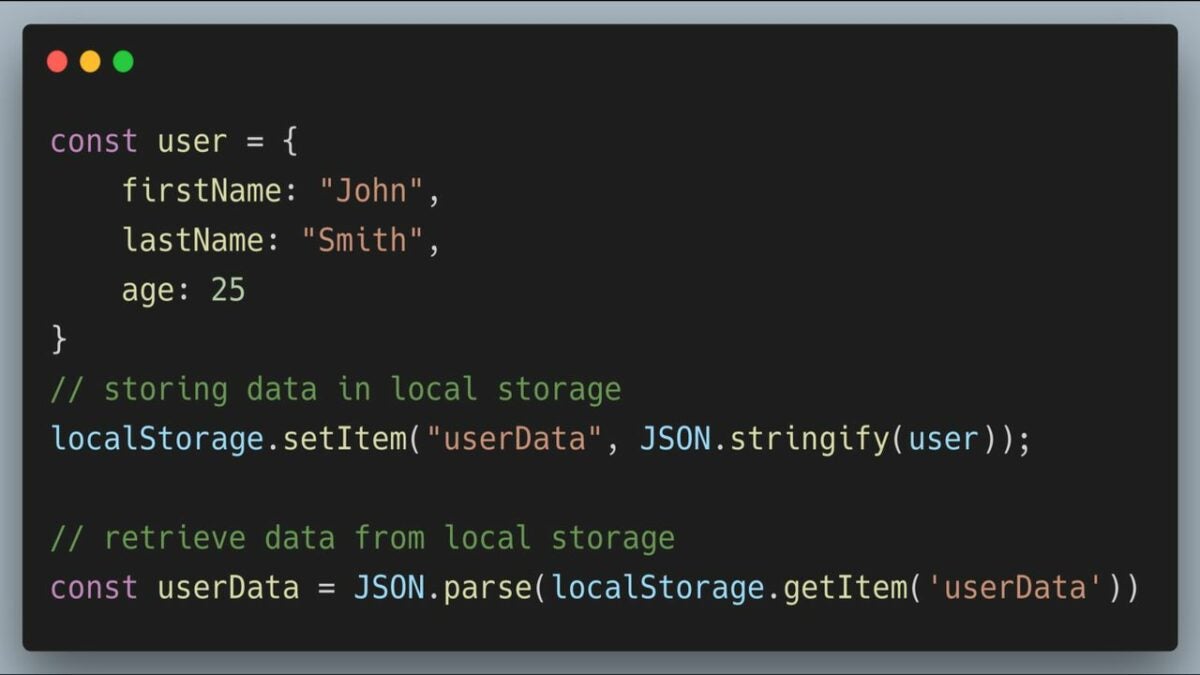
The JSON Formatter extension helps developers debug Javascript code more efficiently while making text strings more readable. JSON files consist of English language-based text strings without line breaks. Programmers use the JSON Formatter to present their code in a way that makes their computer language easier to understand.

JSON Formatter DOWNLOAD

To access and use the JSON Formatter extension for Chrome, follow these four easy steps.

  1. Install the JSON Formatter Chrome extension

    Access the JSON Formatter extension under Developer tools at the Chrome Web Store

    Start by accessing the JSON Formatter extension. You’ll need to be on the Chrome browser to install this extension.

  2. Confirm the JSON extension is valid

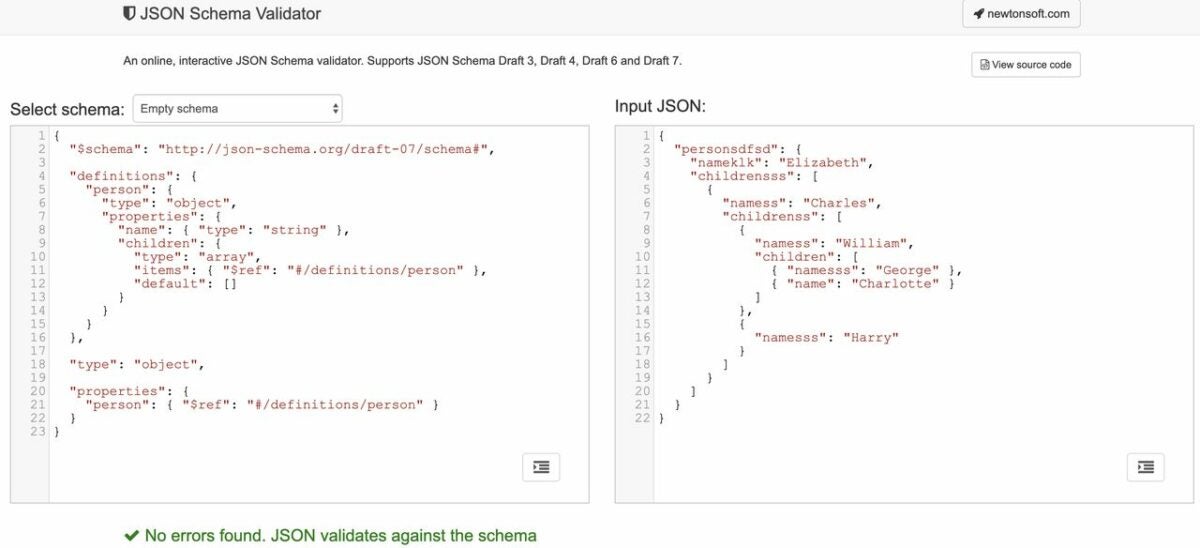
    Use the online JSON Schema validator to confirm your JSON data is valid

    Once you’ve enabled the JSON Formatter Chrome extension, use the interactive JSON Schema validator to view your source code and ensure that the JSON document you want to format is valid. JSON documents contain text, curly braces, square brackets, double quotes, commas, and potentially single quotes, depending on developer preference. Objects housed within curly braces represent multiple pairs and values.

  3. Verify the JSON text is readable online

    Use the Enterprise Explorer view to compress your text strings

    Access the Enterprise Explorer view within your Javascript development environment. This custom view displays all your current projects with Java EE extensions. Right-click on your .json file or any other text string that contains valid JSON code and choose Open With > JSON Editor. This compresses your JSON strings, displaying them on a single line while removing the white space between JSON elements.

  4. Test the JSON Formatter application

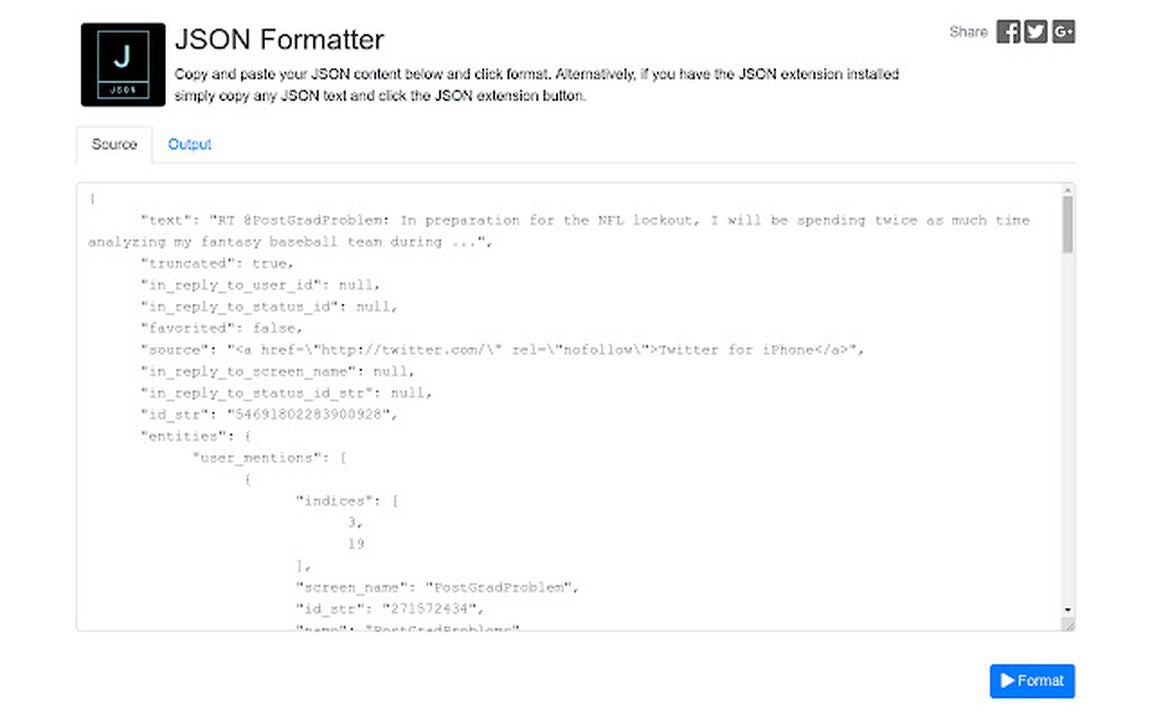
    Test the JSON Formatter app after entering your source code in the text field

    Once you’ve verified the source code is valid and properly formatted, insert the document into the visible text and the web page, and select the Format JSON button. The app will display the text in the desired format, making it easier to read. You can opt to reverse your changes and send the code back to its original space-saving form by entering it in the text field and clicking the Un-Format JSON button.

    The extension works with local files as well after your enable it in chrome://extensions. To inspect the JSON document, simply type in JSON into the console. If you want to view the formatting pane open the view dropdown and select Format current view. You’ll notice a simplified View formatting that separates List and Gallery formatting layouts for JSON. The shortcut Ctrl+Shift+I lets you format your JSON document from the context menu.

View our list of the 10 best Chrome extensions for boosting developer productivity.