Complete Guide to Amazon Prime Video

The popular IT giant Amazon Prime offers many added benefits to its members. There are so many, in fact, that of the more than 175 million US subscribers, only a fraction of them use most of the benefits. 

These features include using AmazonFresh to buy tons of products with free two-day shipping. Another benefit included with your membership is access to their on-demand streaming site known as Amazon Prime Video. Prime Video has gained popularity since its launch in 2006.

What Is Amazon Prime Video?

Amazon Prime Video is an on-demand video streaming service that features thousands of popular movie and series titles in its collection. Among some of the more well-known titles, you’ll also find original Amazon Prime movies. This streaming service is very similar to HBO, Netflix, and Hulu.

With a subscription to Amazon Prime, you no longer need the services of a cable company. With your Amazon Prime subscription and access to the internet, you can stream movies and shows from anywhere on your chosen device. If you don’t have, or want, an Amazon Prime subscription, you can also sign up for Amazon Prime Video on its own.

Prime Video currently features approximately 24 000 movies and 2 100 series. You also have the option to buy or rent movies or episodes that aren’t currently listed. Among the vast library of video content, Amazon Prime Video also has a Prime Video Channels feature, which allows users to add streaming access to other popular services such as HBO or Cinemax at a small additional cost. This means you can access all of your favorite streaming content from one convenient platform.

How Much Is Amazon Prime Video?

If you have an Amazon Prime subscription, you have access to Amazon Prime Video and many other Amazon Prime benefits such as shopping, delivery, music streaming, reading, and more. The subscription is $13.00/month or $119.00/year. Alternatively, you can also buy a subscription for only Amazon Prime Video at $5.99/month. This subscription will allow you to use the on-demand movie and series streaming service without all the other additional benefits.
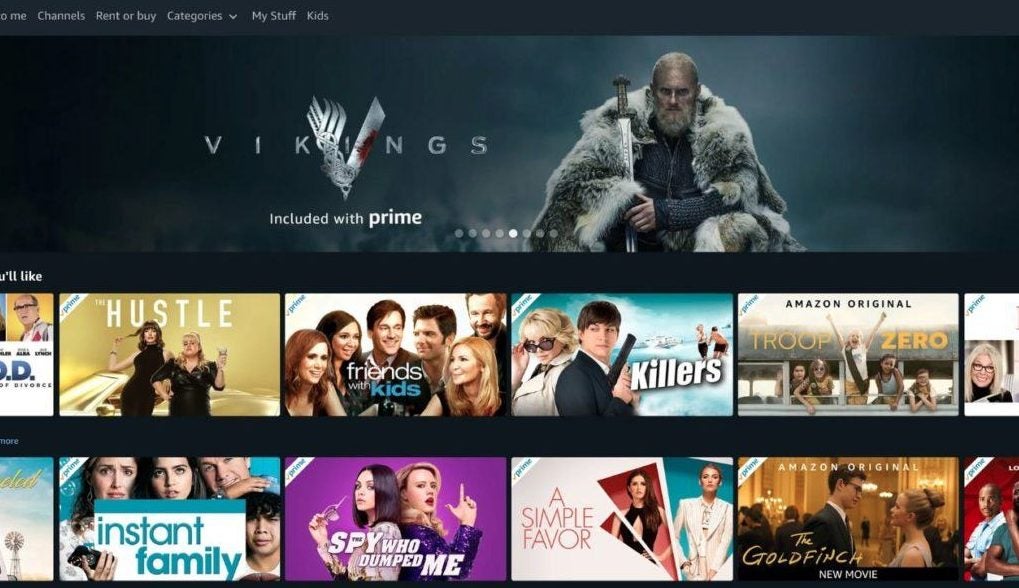
Complete Guide to Amazon Prime Video

How to Cancel Amazon Prime Video Subscription?

If you want to find out how to cancel your Amazon Prime Video Subscription, there are a few ways you can do so. You can cancel the subscription online through the website, email, or even telephone. Before canceling your subscription, make sure that you’re getting the most of your Amazon Prime Video subscription to see if it is worth the money you’re spending.

Cancel Subscription Online

To cancel your subscription online, go to the Amazon Prime Video website and sign in to your account. Navigate to the ‘Prime Video Channels’ page, and access the ‘Accounts’ page. Click on the ‘Edit’ button and find the subscriptions you want to cancel, in this case, Amazon Prime Video. Click on ‘Update Settings’ in the ‘Manage Membership’ box and wait for the drop-down list. Click on ‘End Membership’ and confirm your cancellation in the list.

Cancel Subscription Via Email

You can also cancel your membership via email by writing to cis@amazon.com. You can request that the support team cancel your account. Make sure to provide them with your account details to prevent any delays.

Cancel Subscription Via Telephone

If you prefer canceling your Amazon Prime Video subscription telephonically, you can call the support center on 1-888-2804-331 and talk to a representative. Make sure that you can provide them with all the requested details of your account and follow the instructions they provide.

How Does Amazon Prime Video Work?

Amazon Prime Video works similar to many other streaming services like Netflix. You can use it to stream movies or series through your browser or the handy app available for Windows, Android, and iPhone.

Once you’re on the Amazon Prime Video website or have the app open on your chosen device, you’ll have to sign in to your account. You will need a valid Amazon Prime or Prime Video subscription to start streaming. Once signed in, you can browse through the different movie and series titles and choose which ones you would like to start watching. To start watching, you simply click on the play button.

How to Download Amazon Prime Video?

Another benefit of using Amazon Prime Video is that you can also download series and movies to watch offline. There is a time restriction on viewing downloaded content that users should be aware of. Once downloaded, you can view the title for the next 48 hours, after which the download will be removed. If you want to watch the same title, you will have to download it again.

You will only be able to download content with the app on either Windows, Android, or iOS devices. Launch the app and find the movie or series you wish to download. Simply click the download button to save a copy of the movie to your device for movies. For series, you’ll have the option to download the entire series (remember, it will only be available for 48 hours), or you can download the episodes separately.

What to Watch on Amazon Prime?

There is a lot of great quality content on Amazon Prime Video. If you’re looking for movies, there are quite a few 2021 Oscar-nominated and winning movies such as ‘Sound of Metal’ and ‘One Night in Miami,’ among others. Aside from these, you’ll also find popular movie titles such as ‘The Girl with the Dragon Tattoo’ and ‘Zodiac.’

You’ll also be spoiled for choice if series are your thing. Amazon Prime Video has titles such as ‘I, Robot,’ ‘Alias,’ American Horror Story,’ and many more. New titles are being added all the time, so you’ll be spoiled for choice.

Stream your Favorite Shows

As you can see, there are loads of movies and series to watch with Amazon Prime Video. When you’re a subscribing member, you’ll have plenty of benefits while accessing the library of content at any time.
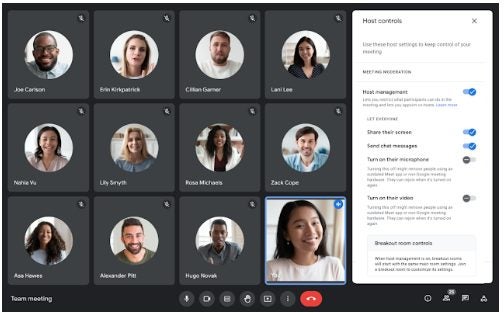
What Is Google Meet? Video Conferencing with Google Integration

The tech giant, Google, has created many great apps to streamline productivity and communication. Google Meet is another one of these apps. Google Meet used to form part of Google Hangouts but has been made a separate app for convenience.

Google Meet is available to anyone with a Google account and can be accessed from within your Google Account through any browser. You can also download the Google Meet app for web apps, iPhone, and Android devices. The most basic version of Meet is available to all Google users for free and allows you to join and participate in meetings. However, to gain access to all the features, you will need to purchase the Google Meet subscription.

What Is Google Meet?

Google Meet is a video conferencing service that allows users to connect with others virtually. Both individuals and businesses often use it to host video calls, virtual meetings, seminars, and conferences remotely. As long as you have the internet, you can use Meet to connect with hundreds (sometimes thousands) of other people virtually through the app.

How Many People Can Join Google Meet Calls?

With the free version of Google Meet, you can host a video conference for up to 60 minutes with 100 participants. Once you move to the subscription package, you’ll have access to more features, including the ability to host a meeting for up to 250 participants. If you decide only to host a live stream, you can have up to 100 000 viewers in a single domain. The subscription version also has many added features such as noise cancellation, recording meetings, breakout rooms, and more.

How Do I Use Google Meet?

Google Meet has a simple and intuitive design, making it easy to work with. It works similar to other popular video conferencing apps like Skype or Zoom. 

How to Sign up for Google Meet?

The free version of Google Meet is already included in your Google account, and you can access it simply by signing in to your account. You’ll also see the options to join or create a meeting from within your Gmail account, making setting up meetings even easier.

If you’re interested in getting a paid-for version, you’ll have to sign up for a Google Workspace account. If you already have a Workspace account, you can simply log in to your account to start using Meet. In some cases, you’ll have to enable video calling for your organization in the settings.

How to Access Google Meet?

You can download the handy app for your mobile device or tablet. Once the app is installed, you can simply access Google Meet by tapping on the Meet icon. The app will launch, and if it’s the first time, it will ask you to sign in to your Google account.

Alternatively, you can also access Google Meet from any other Google program, such as Gmail or Drive, by simply clicking on the Google Apps button, represented by six dots that form a square. By clicking on this button, you will see a drop-down list showing all the available Google Apps. From this list, simply click on Meet, which is represented by a video camera in Google colors.

How to Make Video Calls Using Meet?

Once you are inside the Google Meet platform, you can click on the ‘New Meeting’ button to set up your meeting or video call. In the window that opens, you can set all the details of your meeting or call, such as the date, time, etc. You can also add participants directly by including them from your Google address book. Alternatively, if you struggle to find them, you can also send them a link to the meeting with a code they can use to join the meeting.

With the meeting scheduled, all you need to do next is show up on the day of the meeting, log into your Google Meet account and host the video call.

What Is Google Meet

How to Join a Google Meeting?

The organizer would have sent you a link invite with a code to join a Google Meet video call. At the time of the meeting, simply click on the link and enter the code provided in the invite. This will enable you to join the video call from your chosen device or browser. Alternatively, you can also dial into the meeting using the dial-in number and pin provided in the invite.

What Is Google Meet

Who Uses Google Meet?

Google Meet is used by businesses and individuals alike. If you are a Google user who wants to connect with family or friends that live far away, you can use Google Meet to host a video call. Large companies can also benefit from using Google Meet to host meetings with remote workers or other branches/offices. Also, when you combine Meet with other Google Workspace apps, it becomes a great cloud-based solution for many businesses.

What Is Fabric API and How to Use It?

If you enjoy using mods while playing Minecraft, then you’ve probably come across the Fabric API already. Mods can make a game more enjoyable by adding new textures, new challenges, and more. In an immensely popular game like Minecraft, many different mods are available that give you different gameplay options.

However, you’ll need a mod loader to get mods to work properly. So let’s look at what Fabric API is and how to use it.

What Is Fabric API?

The Fabric API is a utility software used by Fabric mods to interact with Minecraft. Most Minecraft mods require this API, and it is worthwhile to make sure you download this API and add it to your mod folder if you want to start using Minecraft mods.

While it doesn’t offer many customization and editing tools for existing mods, you are still able to develop your own mods with this API. You will have to run the Fabric Mod Loader along with the API, and while these two programs are available separately, you’ll need both.

Fabric API

What Is Fabric API Used For?

Fabric API is a hook layer that provides common hooks and interoperability required to run Fabric mods. Fabric API is used to run Minecraft mods more effectively. While some mods might appear to work even without this, or a similar API, you might notice more lagging and a significant drain on system resources. Using Fabric API’s modular toolchain, you can port mods much faster and make game instances much leaner. 

Since Fabric API is such a lightweight mod-loader, it works faster than most others. Fabric receives updates faster, and they are faster to install. The API also loads mods faster and even increases the startup time of Minecraft.

How to Start Using Fabric API?

To start using the Fabric API effectively, there are a few steps that you’d need to follow. Let’s look at those now.

How to Download Fabric API?

To use Fabric API, you must first download the Fabric Installer. These two software packages are not bundled together and will have to be downloaded separately, but you require both to use the program. You will also need to download Fabric API. 

How to Install Fabric API?

Now that you’ve downloaded both the Fabric Installer and Fabric API, we can proceed to the installation. Here are the steps to install Fabric API.

Step 1: Run the Installer for Fabric

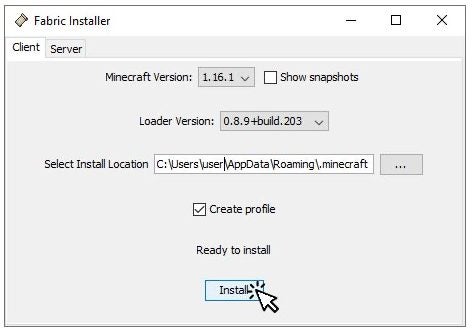
Start running the installer by double-clicking on it in your downloads folder. Next, click on the ‘Client’ tab and select the ‘Minecraft’ and ‘Loader’ versions. Using the latest versions of both should be sufficient. Check that the ‘Select Installation Location’ option points to your Minecraft launcher data folder. Now, click ‘Install’ and wait for the installation to be completed.

What Is Fabric API and How to Use It

Step 2: Edit the Game Directory (Optional)

This step is optional, and not editing the directory will mean that all mods and new game instances will all be saved in the default directory. This folder can quickly become very cluttered, which is why some prefer making a new directory folder for the use of mods. To do this, create a new folder inside your user profile. Name this folder something that is clear to understand, for example, ‘mynewfabricinstallation’.

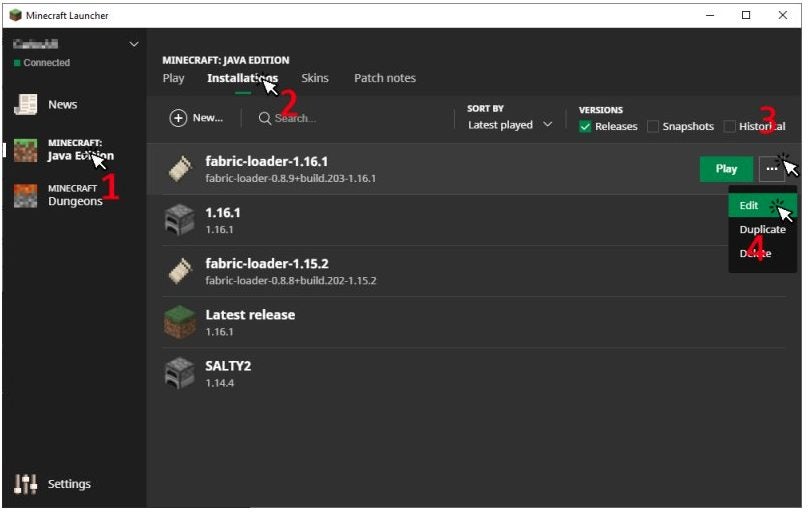
This is just half of the step. Next, you need to open the Minecraft launcher and select ‘Java Edition’ and then ‘Installations’. Click on the three horizontal dots next to Fabric Installer to see more options. In the drop-down menu, select ‘Edit. In the next window, change the game directory to the new folder you created and click ‘Save’. 

What Is Fabric API and How to Use It

Step 4: Install Fabric API

Although you’ve just installed Fabric, there are still no mods available. For this, you’ll need the Fabric API. Go to your downloads folder and move the Fabric API from there to the new directory you created in Step 2. If you did not create a new directory, you’d have to move the file to your default game directory.

Step 5: Install Fabric Mods

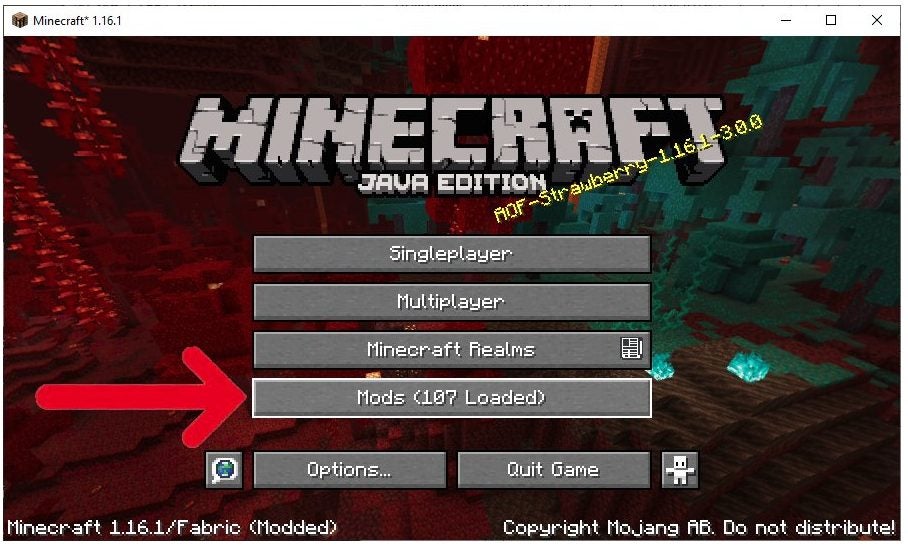
Now you can finally start installing mods. You could install the Fabric Mod Menu to make this even more convenient. This program will add a ‘Download Mods’ button directly to your Main Screen in Minecraft. You can click here to easily download Fabric mods. Alternatively, you can manually download mods from reputable sources and then move them to the same folder where your Fabric API is located.

What Is Fabric API and How to Use It

FAQ About Fabric API

Here is a handy list of the most frequently asked questions and responses if you have any more queries.

What Does Fabric API Do in Minecraft

Fabric API is a hook-layer that is required to run most Minecraft mods. It works like a mods library to add all your downloaded mods to your Minecraft game through the Fabric Installer.

How Do I Get Fabric API?

To get Fabric API, you will need to download the install file from a reputable source such as Softonic or the developers directly. Once downloaded, you will have to move this file to your game directory.

Why Should I Use Fabric Minecraft?

Fabric API is a very effective and lightweight mod-loader making it ideal for running mods in Minecraft without lags and strain on system resources.

Should I Use Fabric or Forge?

Fabric and Forge are both great options for mod-loaders. Choosing which is better is a personal choice. Forger currently has a larger selection of mods as they’ve been around for longer. However, Fabric is much easier to use and updates automatically. Also, Fabric is compatible with all versions of Minecraft and even some other Java programs, whereas Forge is not.

How Do You Put a Fabric API in Minecraft?

To add any mods to your Fabric client, you’ll have to download them from a reputable source. The file type will be JAR. Once downloaded, move the mod to your game directory, where the file for Fabric API is also located.

Alternatively, you can also download and install the Fabric Mod Menu, which will add a ‘Download Mods’ button to the main screen of your Minecraft so that you can easily download mods from here.

Adding texture and fabric to your Minecraft experience

When it comes to enhancing your Minecraft world, it’s beneficially understanding what Fabric API is and how it works. You’ll be able to use your mods more efficiently, but you’ll need to ensure you installed them correctly.

What Is Microsoft Teams? Collaborate and Communicate With Your Team

Microsoft Teams is a popular collaboration and conferencing program that forms part of the Office 365 suite of programs, alongside Microsoft Outlook, Microsoft Word, and many more. Although it was released in 2017, it only became well-known and useful in 2020 after the pandemic started. 

Microsoft Teams is available on Mac, Windows, iPhone, Android, and web apps. This makes it very useful to connect cross-platform and share files. Teams has a limited version that offers the basics for free with your Office 365 subscription. More advanced plans are available that give you more options and features for an additional fee.

What Is Microsoft Teams?

Microsoft Teams is a cloud-based collaboration and conferencing platform. The platform was designed as a way for people to communicate in the easiest ways possible. The program has features that let users host business meetings, calls, video conferences, and file sharing.

Teams allows users from remote locations to collaborate on different projects, which is why it became so popular during the pandemic as more people started working from home. While Teams was originally aimed at businesses, many other industries have found the platform useful and have started incorporating it into their daily activities. Some of these include schools and universities, freelance specialists, and even individuals.
What Is Microsoft Teams

How Does Microsoft Teams Work?

Microsoft Teams works by connecting groups of people and allowing these groups to interact, communicate and collaborate on projects. Members of the group can share files, have meetings and communicate using the program.

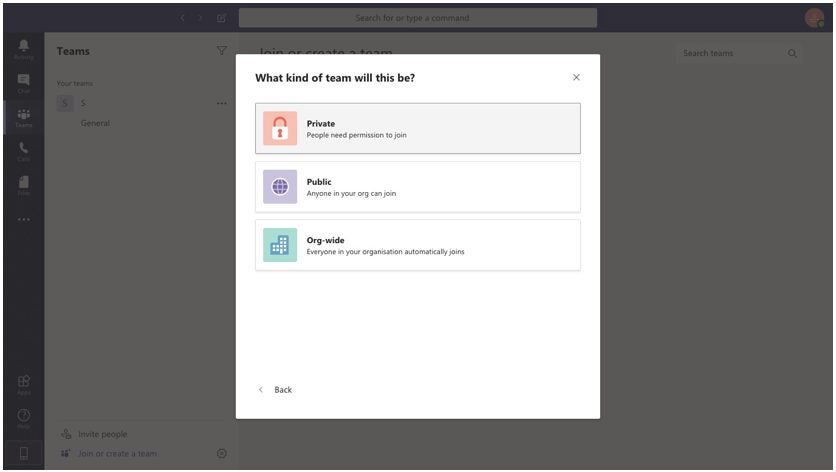
There are two types of teams or groups available on the platform. The standard team is public and visible to all, whereas a private team is only visible to members of that particular team. All teams are gathered around a topic or project, known as the channel. Channels are where you host meetings, communicate, collaborate and share files on the project you’re working on.

What Is Microsoft Teams

Getting Started With Microsoft Teams

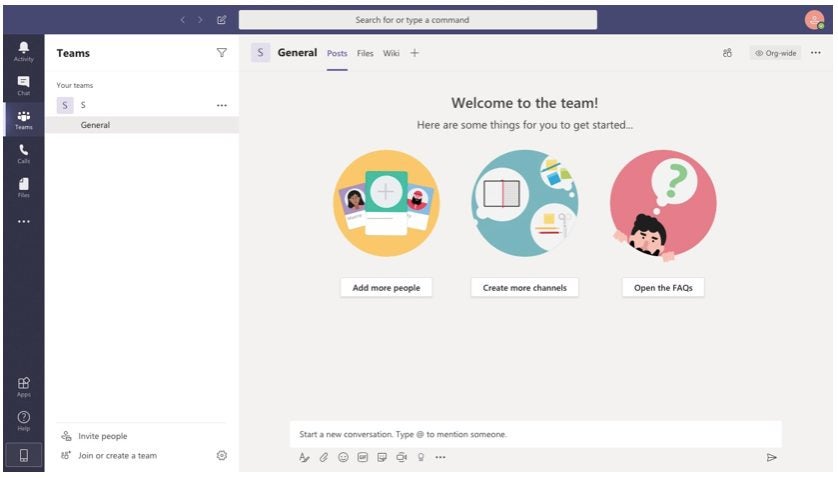
When you open Teams for the first time, you’ll be asked to sign in using your Office 365 username and password. Once you’ve signed in, you can personalize your profile and add any details you wish to share with team members. This can include your business email address, etc. Next, you’ll need to start creating a team or joining other teams. The teams you create will be known as channels. Once you have a channel set up, you can interact and collaborate with the team or individual members.

What Is Microsoft Teams

Microsoft Teams Features

Teams is known as Office 365’s collaboration hub. Therefore it offers many features that can be used to communicate and work on different projects remotely.

Chat

With Teams, you get a powerful chatting platform that enables users to chat to the entire team or individuals as they need. You also have the use of emojis and GIFs to keep the team entertained and motivated. The message history is kept in the thread to revert to previous messages easily. With Teams, you can also easily call or video calls a team member directly from the chat.

Calling

The Teams app allows users to make VoIP (voice over internet protocol) calls to their team members. To make these calls, you don’t need another third-party provider; you need Teams and a stable internet connection (on your end and the receivers). There are also other calling options available that let users connect to landlines. Other calling features include audio conferencing, 911 support, voicemail, and more.
Video Conferences

With Teams, you can also host virtual meetings, conferences, classes, and more. This feature makes it easy to connect remotely with your team and discuss projects, progress, and more. Some of the video conferencing features of MS Team include virtual backgrounds, the ability to record meetings, transcription, a whiteboard, screen sharing, and breakaway rooms.

Screen Sharing

As mentioned, screen sharing is a very useful feature offered by Teams. With this feature, users can share their desktop or mobile screens and files and folders with other users during an audio or video call. This makes demonstrating and sharing information much easier and more convenient.

Calendar

The Teams’ calendar is integrated directly with your Outlook Calendar to make sure you keep on track of your workday, week, and any upcoming events. 

File Sharing

The document management feature of Teams allows users to share, store and edit files in real-time, directly through the platform. This makes collaborating on documents easy and much faster.

Webinars

With Teams, you can host interactive webinars for up to 1000 attendees. If you host a view-only webinar, you can raise the number of attendees to 10 000. Many useful features allow the webinar host to have more control over the broadcast. This includes muting participants, disabling video or audio, recording the broadcast, and more.

External Collaborations

The Guest-Access feature and the Teams Connect feature (being released in 2022) enable users to invite other individuals outside their usual team to work and collaborate on specific projects. This facilitates business-to-business (B2B) project management.

Who Uses Microsoft Teams?

Microsoft Teams is the ideal communication software for large businesses with many individuals working together. It also works well for businesses with employees who work remotely. Recently, Teams has also been used by schools and other educational institutions as a way for teachers to present classes, connect with their students, share assignments and work in virtual teams with other students. It is easy to use and intuitive, making it a breeze to set up and get everyone started.

Microsoft Teams Tips and Tricks

We’ve covered most of the basics of what Teams is and how it works in this handy Teams guide. However, if you’re looking for some more Teams tips and tricks, here are more articles related to Teams and getting started with the platform.

How to Play Dark Souls III

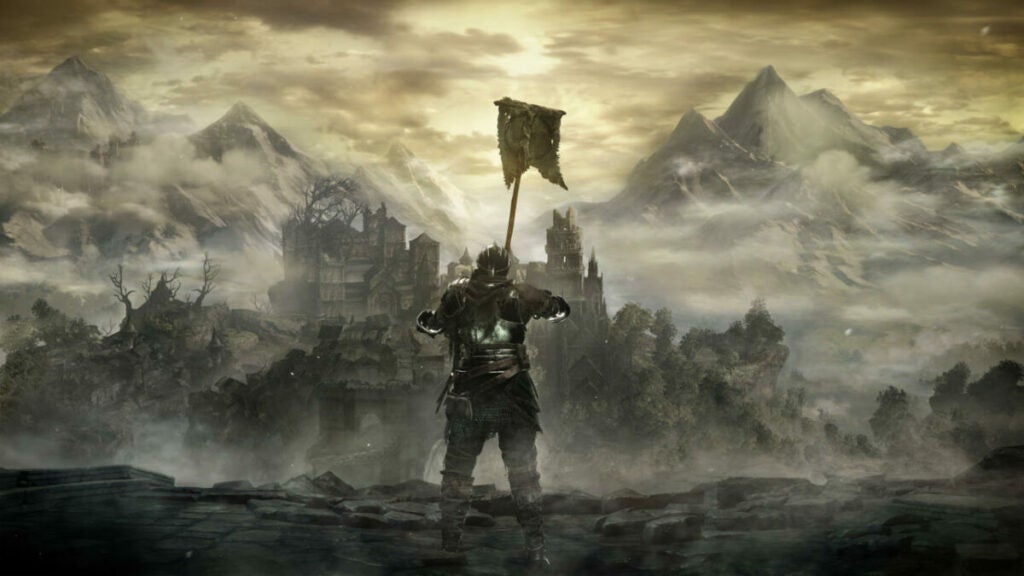
If you’re not familiar with role-playing games set in dark dystopian kingdoms during tumultuous times, what better place to start than Dark Souls III? Between bosses that seem to morph into tar-covered tentacle monsters and NPCs just hanging around looking depressed, you’re sure to wonder what’s going on and how exactly Dark Souls III works. 

On our first blind playthrough, we felt the same. Luckily, we adapted to the ashen surrounding and quickly learned how to play Dark Souls III. Get your scimitars and claymores ready because we’re about to show you the best way to start like a pro, and level up your weapons to defeat bosses the smart way. 

How to Play Dark Souls III Like a Pro

Once you get to grips with your open-world surroundings and adversaries around every corner, you’ll find it’s a pretty straightforward and enjoyable game. The trick is getting started the right way, and yes, there is one. 

How to Play Dark Souls III

Welcome to Lothric

Your first step toward victory is to press start on the initial screen. Once you do this, you’ll immediately be thrust into an exciting cinematic introducing you to the lore and backstory. So that you don’t feel lost, here are the basics: Lothric is in decline. A has tolled signaling all that the First Flame, the custodian of the Age of Fire, is dying. What approaches now is the Age of Dark, which brings with it the undead, and when has the word ‘undead’ ever meant anything good? 

Your Quest

You play as the Ashen One, part of the undead crew who failed to become a Lord of Cinder and is therefore called an Unkindled. You have risen, and now your quest is simple; Restore Prince Lothric and all the defiant Lords of Cinder to their thrones and link the fire. Prince Lothric was supposed to do this but backed out of his destiny, as Royals do, and now it’s up to you. Fair warning, these Lords are the epitome of defiance. 

Among the ranks of the Lord of Cinder are the Abyss Watchers, warriors sworn by the Old Wolf’s blood, an oath that linked all their souls together to protect the land from the horrors of the Abyss but who were locked in fearsome battle with one another; Yhorm, a giant who once conquered the people he ended up sacrificing his life for; and Aldrich.

A clever nod to Cthulhu, an Eldritch terror from the mind of H.P Lovecraft, Aldrich resembles an octopus and became a Lord of Cinder even though he had a ravenous appetite for men and gods. 

The Best Way to Start Dark Souls III

Dark Souls III gives you a choice between 10 classes to start from. The classes are knight, warrior, mercenary, herald, assassin, thief, sorcerer, cleric, pyromancer, and the fun sounding one called deprived. Most players believe that there is serious thought involved in which class to start with; There isn’t really.

Each class definitely has its perks, but they are all fairly equally matched to start with. However, if you’re into magic, start with one of the classes that give you instant access to magical abilities, like pyromancer, sorcerer, or cleric. 

The knight and warrior classes are the best for taking damage, so if you think you’re likely to be hit more than you hit other entities, take one of these as your starter. The knight class also lets you carry heavier armor and comes with a longsword that deals brutal blows. Therefore, if we were to pick a class for starting Dark Souls III from the beginning, we’d definitely go the knight route.

It’s a much more forgiving class on newcomer players. You will be able to build your character up exactly how you desire as you go, and when you get far enough, you can even reclass your character and try the others on for size. 

Here are some brilliant starter aspects to a few of the classes:

Thief: The thief has a high luck score. This is important early on in the game as you don’t have many other skills. Your primary weapon is a dagger, which beginners often find difficult to use effectively, so luck will definitely come in handy.

Cleric: As it can in most games, the cleric can heal itself. It’s a decent fighting class, but definitely not the best. As a cleric, you’ll also have a strong starting point when it comes to sorcery. 

Warrior: If all you want out of a starter character is brute force, strength, and a double-handed battleax, this is the way to go. You’ll blow through enemies like a tornado and even deal a good amount of damage to bosses. 

How to Play Dark Souls III

Dark Souls III: Tips and Tricks

Here are a few tricks we worked out when we learned how to play Dark Souls III. We hope they’ll help you too.

Exploration Holds the Key to Success

The Kingdom of Lothric hardly looks like a place anyone in their right mind would willingly explore. But we gamers are different; we run at sharp pointy objects and use chasms and cliffs as parkour; At least in-game. Exploring Lothric to its limits will certainly reveal many helpful tools and accessories, not to mention upgrade pieces.

Do things you’d never do in reality, like hitting solid walls repeatedly; Sometimes, they aren’t all that solid, and they lead down new and exciting pathways. Check around every corner, break every chest wide open, give yourself every opportunity to get the best gear. 

Sometimes Running is the Best Option

Dark Souls III isn’t like other games where areas are locked behind obvious barriers, taunting you until you reach a high enough level; It’s far more terrifying. Dark Souls III basically gives you the run of whatever part of the world you find yourself in. You will no doubt come across entities that are far above your class.

You likely won’t be able to kill creatures like the oversized crystal lizard on your first try, so it’s good to remember that it’s okay to run. More than okay, it’s practically mandatory. IF you’re facing a particularly stubborn boss that just will not die, the same logic applies; Run to safety. Once you’ve recharged and your character isn’t wetting itself anymore, you can take another crack at it a fight. 

Reading is What? Fundamental

From character class descriptions to glowing messages on the floor; Read everything you see. You’ll probably come across some cool loot and weapons by not just looking at the pictures. Item descriptions are particularly important as these can lead to a deeper understanding of Dark Souls III’s lore and gameplay and even reveal new quests. 

Talk to all the NPCs You Meet

We understand the hesitance to talk to people, and we sympathize. But in the context of Dark Souls III, it’s imperative that you exhaust every NPCs dialog. This means talking to them until they start repeating themselves. NPCs can guide you to special items, give you quests and lead you down pathways you wouldn’t have known about in the game. Some NPCs in Dark Souls III are even known to open up alternative endings if you talk to them. 

Upgrade Your Gear

There’s a blacksmith in the Fire Link Shrine who can perform wonders on your weapons. For reasons unbeknown to us, many people avoid him. Whether it’s because of the way he swings his hammer or that he looks like Santa Claus saw the darkness in the world and left the toy business for hardcore weapons, we don’t know. However, it’s a massive mistake to ignore not-so-jolly St. Nick because he can have you swinging above your weight class and attacking bosses more effectively, with the right upgrade pieces, of course. 

Don’t Overload Yourself

You’ll no doubt discover the benefits of rolling around Lothric instead of walking, especially now that we’ve mentioned that it’s an option in your controls. However, an interesting game mechanic means that if you load yourself up with too much loot, weaponry, and special objects, you won’t roll away as quickly as you’ll likely need to.

This isn’t Minecraft; Your character does not have suspiciously deep pockets and endless strength. Extra weight will slow you down considerably and make it far more difficult and dangerous to escape from anything you’re not kitted out to fight. 

How to Play Dark Souls III

All in all, A Brilliant RPG

From the beautiful graphics to the stunning gameplay and deep lore, Dark Souls III is a brilliant RPG title. It is the perfect culmination of a gripping series and expertly weaves the entire trilogy together with an intricate yet powerful story. The world’s most brilliant minds couldn’t imagine a more fitting swan song to the Dark Souls Trilogy. Simply put, Dark Souls III is a masterpiece.

What Is PowerPoint and How it Works

PowerPoint is one of the most popular programs in the Microsoft Office suite, alongside Word and Excel. This powerful presentation tool is available on Mac, Windows, Android, and iOS.

However, when opening Microsoft PowerPoint for the first time, you will see a lot of tools and settings, which can be pretty overwhelming. Don’t let the fear of a new program overcome you. With the beginner’s guide, you’ll soon be able to create striking presentations with PowerPoint quickly and easily.

What Is Microsoft PowerPoint?

Microsoft Powerpoint is a robust program for creating slideshows and presentations. If you have a big sales pitch coming up, you might want to consider adding a Powerpoint presentation to visually illustrate what you are pitching. The same goes for other business meetings, lectures, and seminars.

You can include various media into your presentation, such as graphs that display data visually, videos to add more clarification, and more. This means that you have helpful visual aids to add to your arsenal of tools.

What Is PowerPoint Used For?

Many people have asked what a PowerPoint presentation is? And what can it be used for? A PowerPoint presentation is a term given to those slideshows created in the program that can be used for presentation purposes. The software is often used by businesses, lecturers, public speakers, and even students. It is a great way to enhance any information that you present.

The Basics of Using PowerPoint

Now that you have a better idea of what Microsoft PowerPoint is let’s look at how to get started with the program.

Using the PowerPoint Ribbon

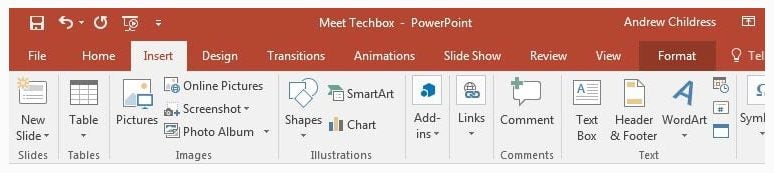
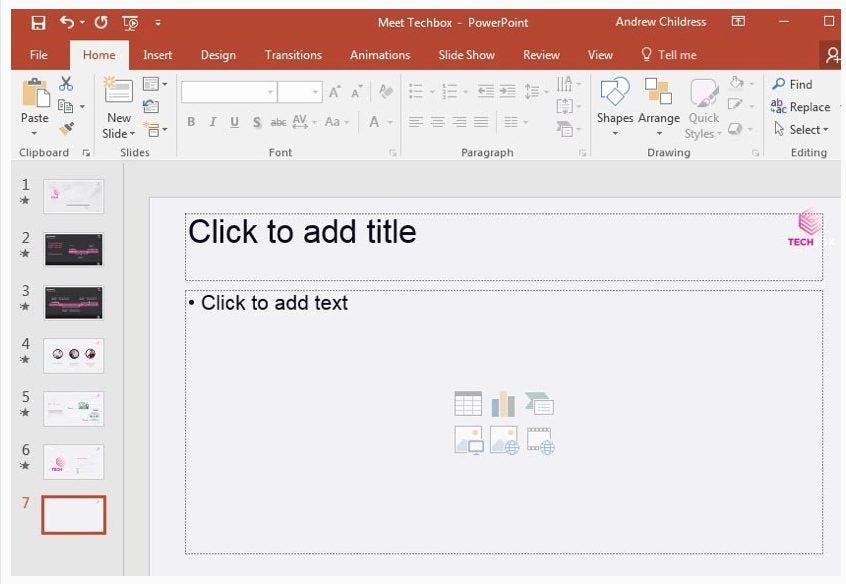
You will find the ribbon menu across all of Microsoft Office’s programs. It is located at the top of the screen, just below the main menu. It is essentially another menu that contains all the specific tools which can be used on your slides. By clicking on a different tab in the main menu, you will see different tools become available in the ribbon. The ribbon makes it faster to access specific tools such as adding slides, transitions, images, and more.

What Is PowerPoint and How it Works

Starting a Project

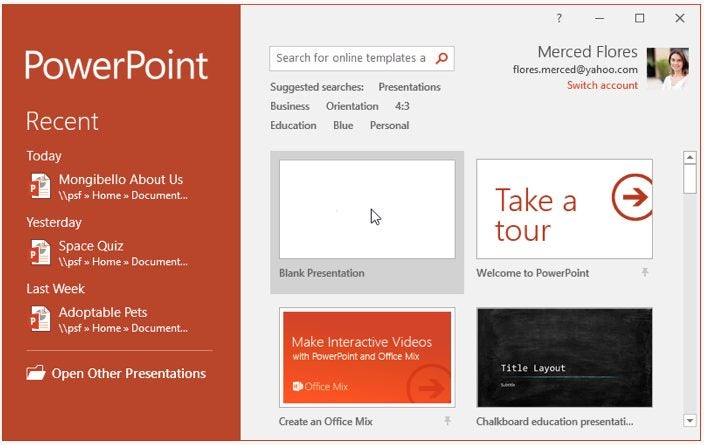
When you open PowerPoint, the first window you come across will be asking you if you want to open an existing project or start a new one. If you start a new project, you can choose a blank presentation or use one of the many templates to help you get started. There is even a helpful tour that you can take that walks you through using the program.

What Is PowerPoint and How it Works

Inserting a New Slide

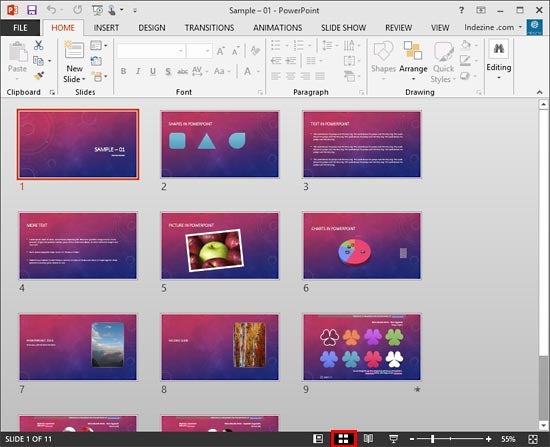
Slides are the individual sections of your presentation where you can add your content. One slide will be displayed, and then it will move on to the next one in a slideshow. You don’t want to have all your content on a single page. Instead, you want to spread the content over different slides.

You may often find that you have to add slides to your current presentation. To do this, click on ‘Home’ in the top menu, and then in the ribbon, click on ‘New Slide’. By clicking on the down arrow below the ‘New Slide,’ you will see different slide options which you can choose from.

What Is PowerPoint and How it Works

Inserting Content

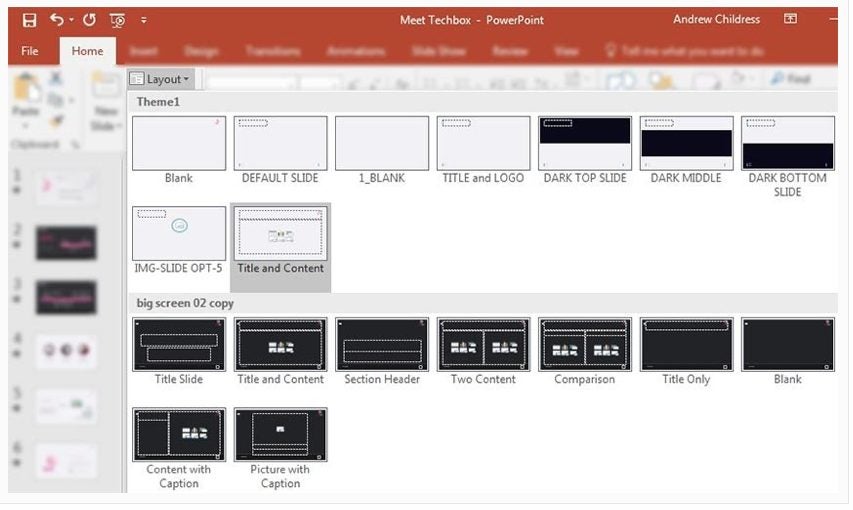
You could choose to add content manually by inserting images, text boxes, etc., from the ‘Insert’ tab. Or you can choose to click on a slide to select the one you are busy with, then click on ‘Home’ in the menu and then ‘Layout’ in the ribbon. This will give you different layout templates that already contain text and image boxes that you can use.

What Is PowerPoint and How it Works

Inserting Graphs and Diagrams

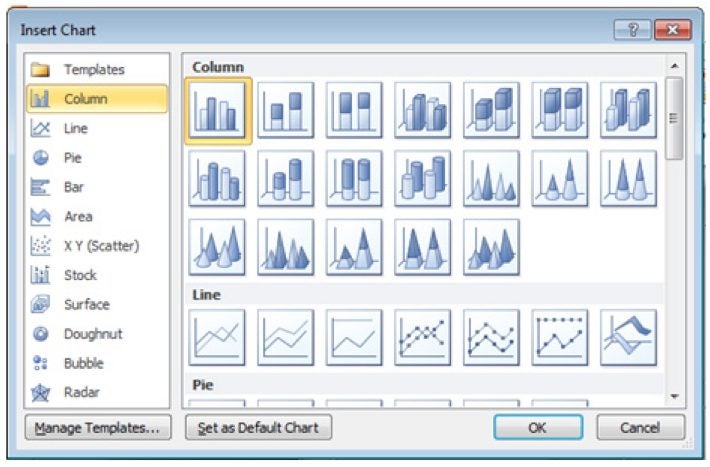
Graphs and diagrams are a great way to display a lot of data visually. To add a graph or diagram to your presentation, click on ‘Insert’ in the menu and ‘Graph’ in the ribbon. A new window will open up, asking you what type of graph you’d like to add.

Choose the option that makes the most sense for your data, and click ‘Ok’. Don’t worry; you can change the graph type later if you’re not happy with it. Now you’ll be taken to an Excel spreadsheet where you can insert the data to be used in the graph. 

What Is PowerPoint and How it Works

Inserting Audio

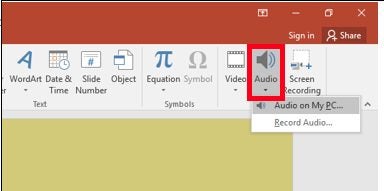
If you want to add audio such as music to your presentation, you can do so from the Insert menu. Here, you can click on ‘Audio’ in the ribbon and choose the audio file you want to add.

What Is PowerPoint and How it Works

Inserting Video

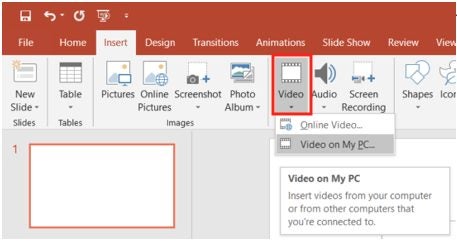
You can also add videos to your slides. You can do this from the ‘Insert’ menu as well. Here, you can click on the ‘Video’ option to add your video file to the slideshow.

What Is PowerPoint and How it Works

More Tips and Tricks for Microsoft PowerPoint

If you want to start using PowerPoint for your slideshows and presentations, here are a few more guides to get you started with the powerful software.

What Is Microsoft Office And How Does it Work?

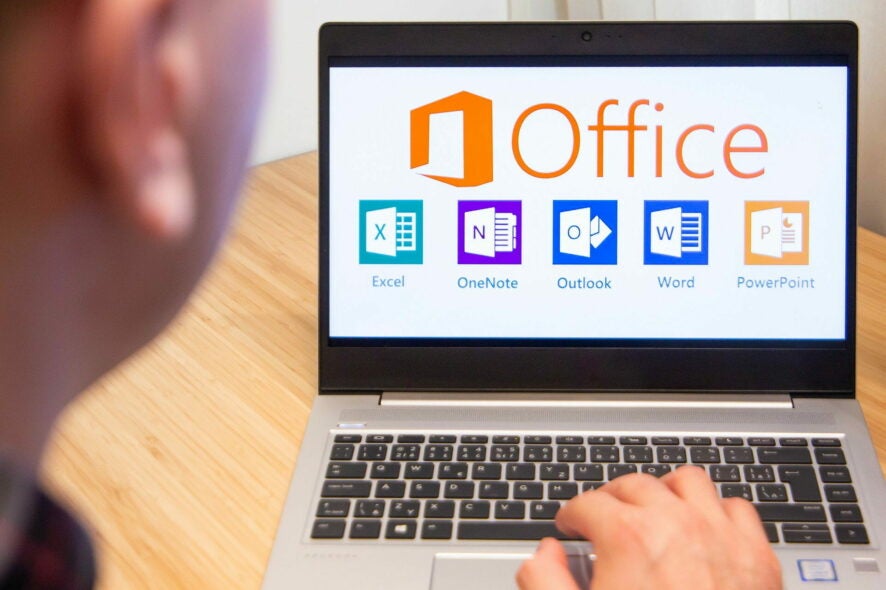
If you’ve been around computers for a bit, I don’t doubt that you’ve heard about Microsoft Office Or Office 365? You might even be using these products at the company office without even realizing it. But what is Microsoft Office?

In this guide, we’ll be looking at the difference between Microsoft Office and Office 365. We’ll also be looking at what software is included in this package.

What Is Microsoft Office?

Microsoft Office is a suite of programs specifically for business productivity. Each application included serves a specific purpose to its users. For example, MS Word is a powerful word processor that can be used to draft letters, business proposals, contracts, and more. MS Excel, on the other hand, is a spreadsheet program that can be used to set up budgets, business financial plans, and more.

Microsoft Office has been around for a long time, and the first version was released in 1990. New versions of Microsoft Office are released regularly, with the latest version being Microsoft Office 2021, which is available for Windows and Mac computers. Microsoft Office can be bought as a one-time purchase, and there are different bundles available depending on what combination of programs you need. These bundles include Student, Individual, Business, and Family.

What Is Microsoft 365?

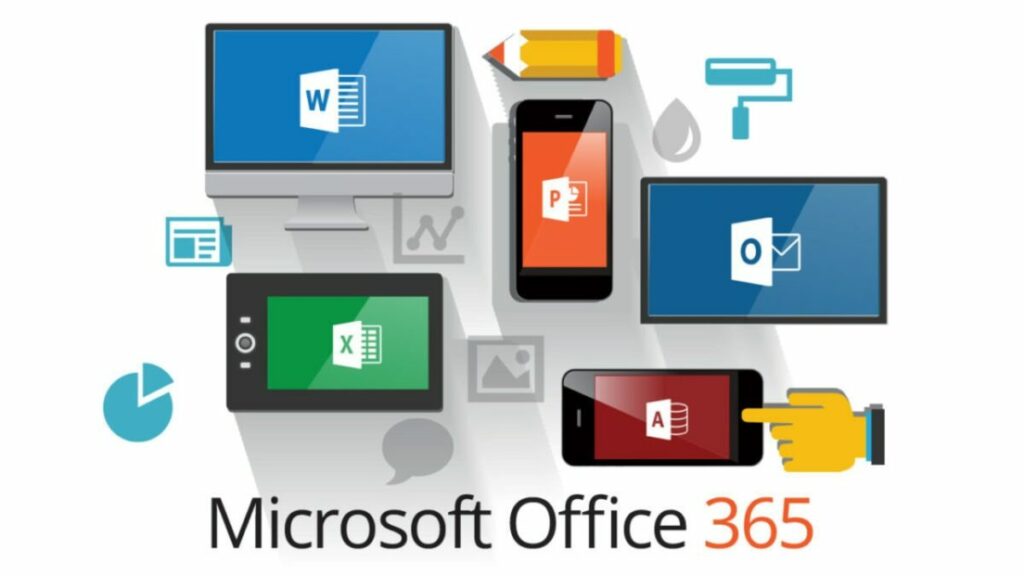
Microsoft 365, now known as Office 365, is a cloud-based subscription version of Office. This means that it includes all the same programs we love, with handy cloud solutions as well. With the subscription, users pay a monthly or yearly fee to use the products. This includes all the bug fixes and version upgrades automatically without having to pay extra. If you go for the once-off options and a new version is released, you’ll have to buy the new version in order to upgrade.

Microsoft Office

Who Uses Microsoft Office?

If you work in any type of office, chances are you might already be using some of Microsoft Office’s programs. However, it’s not just those who work in offices that use these programs. Creatives, such as writers, might also use Office. In fact, Office is used by more than a million companies worldwide.

Microsoft Office

What Is Included in Microsoft Office?

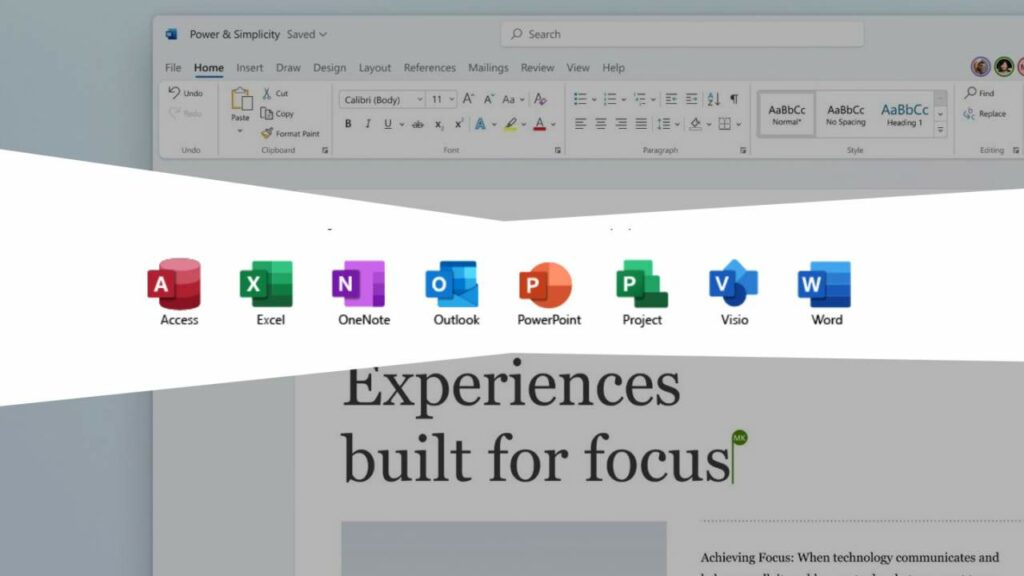
Now that we’ve covered what Office is, we can look at the different programs more closely. Remember that these programs are usually sold as bundles whether you buy once-off or go with the subscription. This means that if you need specific programs, you’ll have to check to make sure they’re included in the bundle you are buying.

What Is Microsoft Word?

As we mentioned briefly, MS Word is a powerful word processing tool. With this program, you can easily create various documents, letters, memos, tests, questionnaires, reports, business plans, proposals, and more. If you need to do anything with text, then Word should be your go-to.

What Is Microsoft Excel?

MS Excel is a spreadsheet program that can be used to store and evaluate data. This program is beneficial when it comes to evaluating and manipulating numerical data. MS Excel can be used to create budgets, invoices and quotes, business financial plans, costing evaluations, monitor payroll, and much more.

What Is Microsoft Powerpoint?

Microsoft Powerpoint is a presentation graphics program that allows users to create digital slideshows. You can use these slideshows to present data at sales pitches, informational meetings, seminars, lessons, and more.

What Is Microsoft Publisher?

MS Publisher is a desktop publishing tool that allows users to create documents with more complex page layouts, usually for printing. These documents include menus, brochures, magazines, newspapers, newsletters, and more.

What Is Microsoft Access?

Microsoft Access is a database management tool. It can be used to collect and store structured forms of data. Its uses include collecting and storing personnel or student data, stock and inventory, custom orders, and more.

What Is Microsoft Outlook?

Microsoft Outlook is an email and personal information management system. It allows you to send and receive emails, manage your calendar, set up meetings, create to-do lists and manage tasks, store contacts, and more.

What Is Microsoft Teams?

Microsoft Teams is primarily a communications platform that allows users to communicate with each other via text or video conferencing. It also provides file storage, file sharing, and application integration.

What Is Microsoft Onedrive?

MS OneDrive is a cloud-based storage platform. With OneDrive, you can store any data in the cloud and access it from anywhere, and keep it protected even if something happens to your computer.

What Is Microsoft Sharepoint?

Microsoft SharePoint is a collaborative platform that allows Office users to share and collaborate on different projects created in any of the other Office programs. It is ideal for company teams that need to work together on projects. However, many companies also use it for a range of other uses.

Microsoft Office

Helpful Guides and Tutorials

If you need more help in understanding Office and its various uses, here are a few more helpful guides.

How to play MASS EFFECT

Mass Effect is an action role-playing game developed by BioWare and later EA Games as well. It’s based in a universe populated by many different species. In terms of combat, Mass effect is a third-person shooter similar to Gear of War. Since Mass Effect is very story-driven, there is a lot of dialogue in the game, and the more you talk, the more you learn about the world around you.

The game is so popular that there have been three releases, Mass Effect 1, 2, 3 and Mass Effect Andromeda. Recently the developers also released a Mass Effect remastered version that encompasses all three games in one pack known as Mass Effect Legendary.

It’s available on Xbox, Playstation, Windows, iOS, Android, and Wii U. The system requirements are: 64-bit Windows 10 OS, Intel Core i5 3570, or AMD FX-8350 CPU, 8 GB RAM, 120 GB hard drive space, DirectX. Let’s take a look at how to play Mass Effect.

What is Mass Effect?

The game is based in a beautifully created sci-fi/space world where the player, Commander Sheppard, navigates through space trying to get an edge on the antagonist, Saren, and his army of Geth to save the galaxy.

As with most RPGs, your character starts off weaker and becomes stronger as you gain experience throughout the game. The storyline is driven by the dialogue as well as the players’ decisions and interactions. You can either follow the paragon route or the renegade route.

How to Play Mass Effect

Mass Effect has linear gameplay where you can select your missions or side quests to complete, and during these quests, you can interact with various characters you encounter. Let’s take a look at how to start playing the game.

Understand the Classes

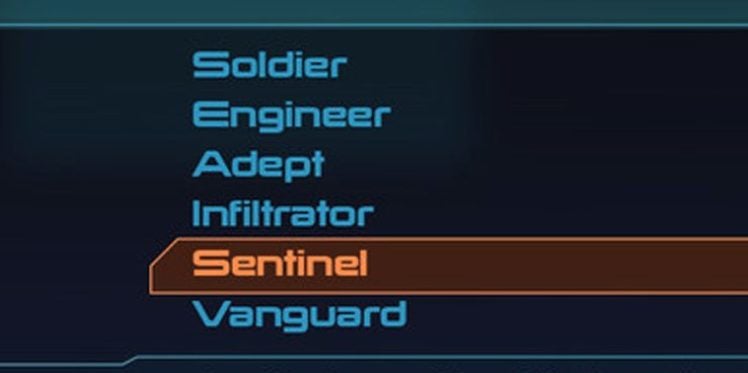
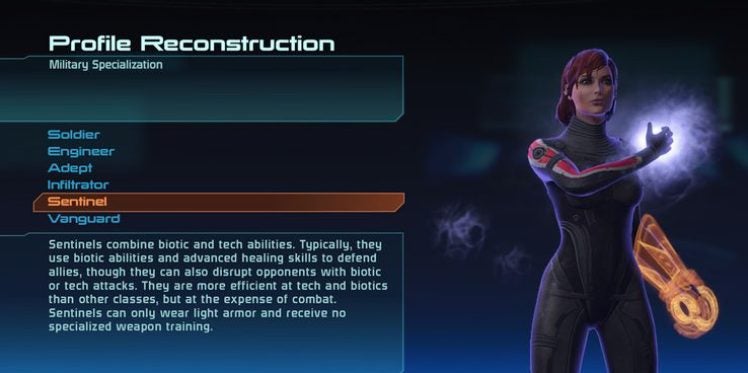
There is a range of different classes that you can choose from. The class of your character will determine your strengths, weaknesses, and specialties. The classes that are available are:

  • Soldier – Easy and straightforward class to play. A big focus on weapons and skill trees improves survivability. 
  • Engineer – This class focuses on tech powers such as hacking computers and opening locked crates. This is more of a supportive role, but you won’t have to add a tech specialist to your team. 
  • Adept – This class uses primarily biotic powers such as knocking enemies back, lifting them into the air, and even creating shields. There are more options for handling enemies than other classes, but the class requires some micromanagement. 
  • Vanguard – A combination of both soldier and adept.
  • Sentinel – A combination of both engineer and adept. 
  • Infiltrator – A combination of both soldier and engineer. 
How to play MASS EFFECT

Pick the Right Class

Make sure that you choose the character class that best suits your playing style. It is also worth noting that players who enjoy earning trophies and achievements might want to go with the Adept class (or combination of adept) as most of the trophies and achievements are awarded for using different biotic powers.

How to play MASS EFFECT

Create Your Character

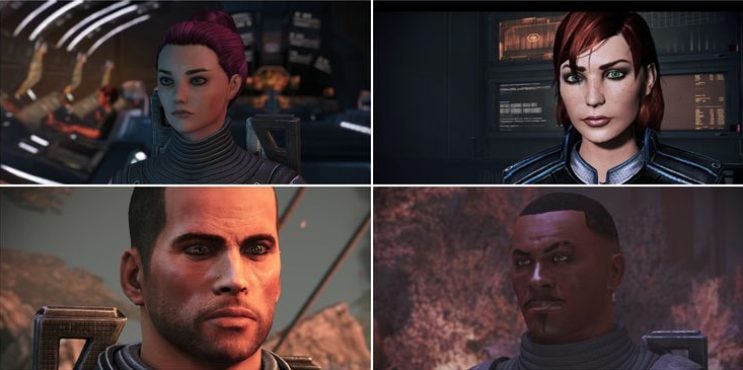
Mass Effect was one of the few games that introduced character customizations and the ability to use a female character. This came at a time when most of the main characters in RPGs were white males.

How to play MASS EFFECT

Learn the Game Lore

The game lore is an important part of the storyline. Although you can complete the game without learning all the lore, it is a much more fulfilling aspect of the game when you understand some of the history. Learning the lore also opens up more dialogue options and ways to interact with other characters.

Use All Your Dialogue Options

When interacting with characters, make sure that you use all the available dialogue options. By doing this, you learn more about the history and interactions between characters, which will open up more interactions down the line. This is also a great way to get more side quests.

Mass Effect Tips and Tricks

To get even more out of your Mass Effect gaming experience, here are some more tips and tricks that you can use.

Max Out Your Charm or Intimidation Skill

As we mentioned, talking is one of the main things in Mass Effect. There will be a lot of talking in between missions. To progress on the Paragon or Renegade path, you’ll have to become a smooth talker. The only way to earn points to max out your charm or intimidation skills is by completing dialogues with characters.

Don’t Get Caught up in the Renegade Vs. Paragon Battle

When starting the game, you might get caught up in taking either the Paragon or Renegade paths, but the moral decisions become much more complex as the game continues. As such, we recommend that you don’t focus too much on which side you’re on and go with the dialogue that makes the most sense to you. This will ensure that you enjoy the game more.

How to play MASS EFFECT

Talk to Teammates

Talking to your teammates in between missions is essential as well. By talking to teammates regularly, you will unlock more relationships and missions, and it will affect the game’s progression.

Complete as Many Side Missions as You Can

There are many different side quests, or assignments, in Mass Effect. By completing as many of these as you can earn experience points so that your character can get stronger. You will also learn more about the worlds, different characters, and organizations within the game.

How to play MASS EFFECT

Do as Many Loyalty Missions as You Can

It is very important to complete as many loyalty missions for your crew members as you can, especially if you’re attached to the crew you’ve assembled. This not only creates a sense of camaraderie but also has a significant impact on the final mission.

Get your space game on!

Mass Effect is a top-rated gaming series. This is not without reason, and the game has a very compelling storyline that’s complemented by excellent graphics, soundtrack, and voice acting.

If you enjoy action RPGs, then Mass Effect is a must-try for any gamer. And if gaming isn’t your thing but you enjoy sci-fi, there are also Mass Effect comics.

How to Crop in Illustrator in 2 Different Ways

Sometimes, when designing new images, you want to use part of an existing image but not the whole one. Adobe Illustrator is a powerful vector-creating and editing tool that quickly crops both raster and vector images.  

This heavy-duty image creating and editing program for Windows and Mac has many valuable features that make it the industry standard in vector drawing. Among the features is the ability to blur backgrounds or crop only certain parts of the image in Illustrator.

How to Crop in Illustrator

  1. Crop Using the Crop Button

    This is one of the easiest ways to crop an image and is ideal for clipping the edges or changing the image’s shape.

    – Launch Illustrator and Open or Start a Project

    To start cropping your image, you have to launch Adobe Illustrator and either open an existing project by clicking on ‘Open’ or start one by clicking on ‘New’. If you want to crop a vector file, you will first have to embed the image in a new Illustrator file. To do this, start a new project, and then click on ‘File’ in the menu and choose ‘Place’ to add your vector image.

    – Select the Image You Want to Crop

    To crop an image using the crop button, you have to have something selected first. You can do this by simply clicking on the image you want to crop.

    – Select the ‘Crop’ Tool

    You will see a’ Crop’ option in the ‘Options’ menu that appears just below the main menu. By clicking on this button, you will be able to crop your selected image.

    – Click and Drag the Crop Marks

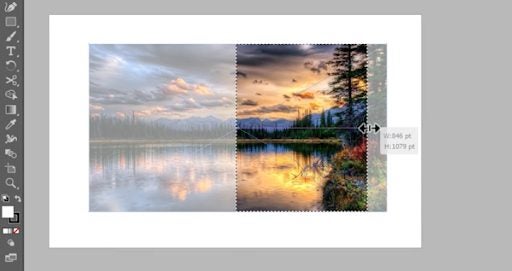
    The crop marks will be on the border of the image. You can click on the sides and drag them into your desired location. Once you drag the crop marks in, it will be shown with a dotted line and the parts outside of the crop marks will go lighter so that you can see your cropped image.

    – Click on ‘Apply’

    Once you are happy with the chosen cropped image, you can click on ‘Apply’ to make the crop final. However, it is essential to know that once you click on ‘Apply’, the rest of the image will be permanently removed, and there will be no way to see those parts again unless you upload the original image and crop it again.

  2. Crop Using a Clipping Mask

    How to crop in illustrator/

    Clip masking is a more accurate way to crop out a specific part of the image you need. This is an ideal tool if the section you need isn’t in a simple square/rectangular shape.

    – Launch Illustrator and Open or Start a Project

    Launch Adobe Illustrator and open an existing project or start a new one.

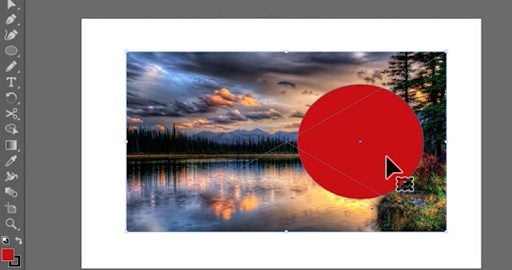
    – This is where using a clipping mask gives you more options. You can draw any object over the area you wish to crop. You can use the ‘Ellipse’ tool to draw a circle or use the ‘Rectangle’ tool for a square or rectangle. You can also use the ‘Pen’ tool to draw your own shape, which is ideal for those custom images. You will have to place the shape over the part of the image you want to keep.

    – Click on the Selection Tool

    Next, you’ll have to use the ‘Selection’ tool, which can be found in the toolbox and is represented by a black arrow.

    – Select Everything You Want to Crop

    Using the selection tool, drag over the entire image you want to select, including the clipping mask shape.

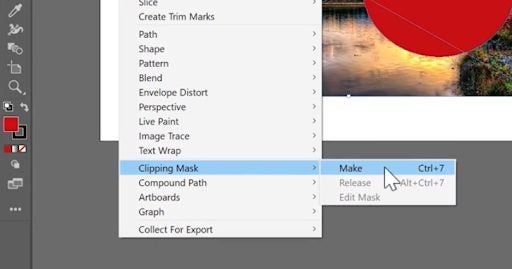
    – Make Your Clipping Mask

    Now, click on ‘Object’ in the top menu. Then, from the drop-down list, choose ‘Clipping Mask’. You will now see a side menu opening; here, you can click on ‘Make’. The clipping mask will now use the top object, i.e. the shape you drew, to crop all objects below.

Use Only What You Need

Cropping in Illustrator is a very useful feature. It enables you to select only specific parts of images for you to use to create a completely new one. Both of these cropping methods are simple enough to do and will work effectively, although a clipping mask gives you more freedom and flexibility.

If you need some more help with the basics of using Adobe Illustrator, why not take a look at our beginner’s guide?

How to Curve and Wrap Text in Illustrator in 2 Different Ways

Illustrator is another useful program from Adobe and forms part of the Creative Cloud, along with favorites like Photoshop, After Effects and Premiere. Illustrator has become the industry standard when it comes to creating vector images and designs.

Illustrator is jam-packed with many valuable features such as removing image backgrounds and curving or wrapping text around images.

How to Curve Text in Illustrator

  1. Open Your Project

    How to Curve Text in Illustrator

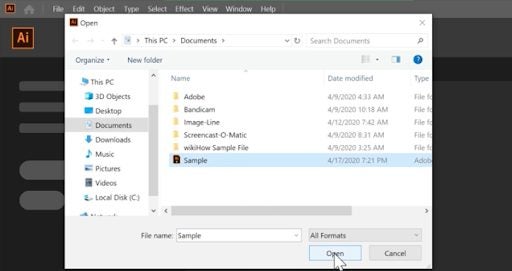
    Launch Illustrator and click on ‘File’ and then ‘Open’ to choose your project.

  2. Select or Type the Text You Want to Curve

    How to Curve Text in Illustrator

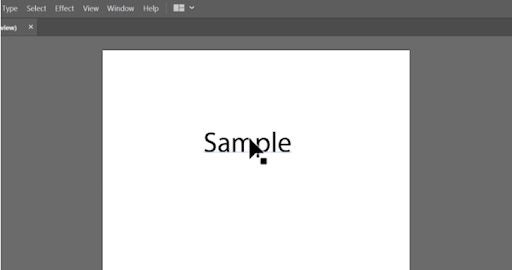
    Once you’ve opened your project, select the text you want to curve. If there is no text yet, use the ‘Text’ tool from the toolbox to create your text.

  3. Click on the ‘Effects’ Tab

    How to Curve Text in Illustrator

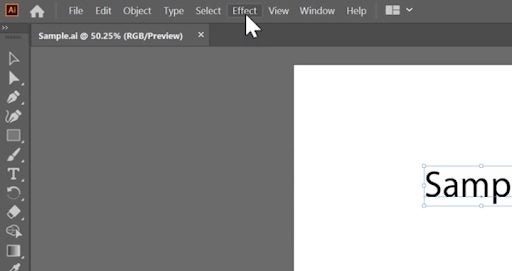
    With your text selected, click on the ‘Effects’ tab in the menu.

  4. Scroll to ‘Warp’

    How to Curve Text in Illustrator

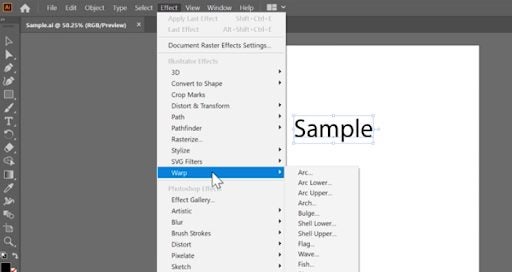
    Scroll down to the ‘Warp’ option.

  5. Choose ‘Arc’

    How to Curve Text in Illustrator

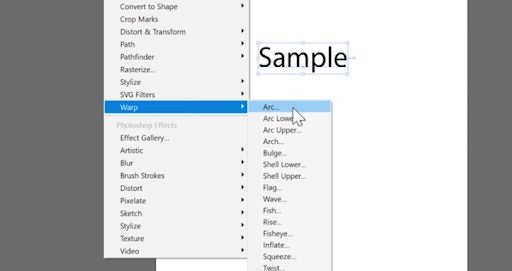
    From the range of options given, choose ‘Arc’ to curve your text. You will see there are also many other options that you can use to manipulate your text.

  6. Adjust as Needed

    How to Curve Text in Illustrator

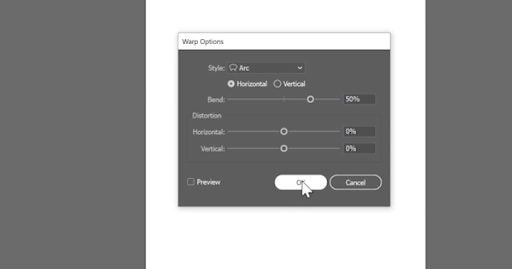
    Now you can adjust the arc of your text as needed. The default setting creates a basic arc, but you can adjust the percentages to change the shape.

How to Wrap Text in Illustrator

Now let’s take a look at how to wrap text in Illustrator around a specific shape using the ‘Type on Path’ tool.

Step 1: Open Your Project

With Illustrator open, click on ‘File’ in the menu and choose ‘Open’ and select your project.

Step 2: Draw a Circle With the Ellipse Tool

For this example, we will be using a circle, but you can do the same with any other shape. Use the ‘Ellipse’ tool from the toolbox to draw a circle that you want the text to wrap around. You will need to click and drag your mouse with the ellipse tool selected to make your circle. The exact process applies to creating other shapes.

Step 3: Click and Hold Down the Text Tool for More Options

Once you’re happy with your circle, click and hold down the mouse button on the ‘Text’ tool to see the menu with more options.

Step 4: Click ‘Type on Path’

Among the options given, click on ‘Type on Path’. This is usually the second or third option on the list.

Step 5: Click on the Circle

With this tool selected, click on the edge of the circle where you want your text to start. As you type, the text will automatically hug the perimeter of the circle. The same will happen for any other shape you’ve chosen. 

If you want to edit your text, you will have to change it back to the general selection tool by clicking on it in the toolbox.

Get Creative With Text in Illustrator

Illustrator is a great vector image designer with many useful features, such as curving and wrapping the shape and flow of your text for some customized designs. With these simple tools, you can create arcs of text as well as text that follow other shapes, which is very useful in design.

If you are still new to Illustrator, we have a beginner’s guide that can get you started.