Google wants to help us with our video call meetings: Sometimes it’s hard to look good

If you often have team video calls, something very common in all companies since remote work became popular worldwide in 2020 (a virus called Covid-19 is to blame for this), you are surely tired of looking for the best position and framing to not look terrible on screen. Well, all users of Google’s work ecosystem can be thankful that the company has released one of its most useful paid tools to all users: Google Meet’s auto-framing. The video conferencing platform has revealed that its tool […]

If you often have team video calls, something very common in all companies since remote work became popular worldwide in 2020 (a virus called Covid-19 is to blame for this), you are surely tired of searching for the best position and the best framing to not look terrible on screen.

Google Meet DOWNLOAD

Well, all users of Google’s work ecosystem can be thankful that the company has released one of its most useful paid tools to all users: the auto-framing of Google Meet.

The video conferencing platform has revealed that its automatic framing tool will be available at all levels of the Google Workspace platform, offering more users a better representation of themselves during a call.

Google Meet’s automatic framing benefits

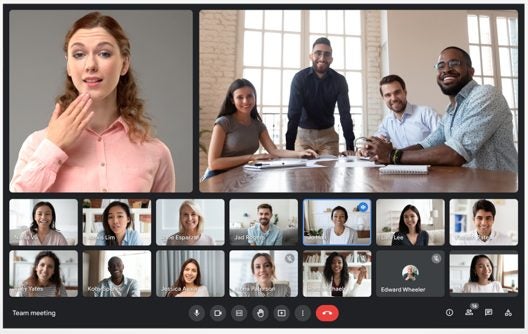
The tool automatically helps center users on the screen when they join a video call or meeting, ensuring they are properly framed and as visible as possible.

Google Workspace launched automatic framing in 2022, but until now, it was only available at certain levels. From now on, it will be enabled by default for all users and no administrative control will be necessary.

“Depending on the camera’s location, some meeting participants may be less visible than others,” the company notes in a Google Workspace update blog post. “With automatic framing, Google Meet will automatically center the video before joining a meeting to help ensure equal visibility for all participants.”

The feature is activated before the user joins the call, but the user can readjust it at any time during the meeting if they wish to refresh their appearance by hovering over the video tile and clicking on reframe.

The tool will also work better with virtual backgrounds, which previously could affect the user’s framing during a call. Google states that Meet “will continuously keep you centered when using a virtual background, ensuring that your background remains fixed and does not constantly reframe, which can be distracting.”

Google Meet DOWNLOAD

The news is the latest in a series of recent updates for Google Meet in recent weeks, as it seeks to be more useful and intuitive for users around the world.

Google wants to revolutionize video calls with this great update of Google Meet

Google has announced a major update for its video calling app, Google Meet, at its recent event Made by Google. This renovation will include a new interface that aims to improve consistency across all its software, a significant change after the integration of Duo into the platform. The update will introduce a series of new features designed to enhance the user experience in virtual meetings.

Google Meet DOWNLOAD

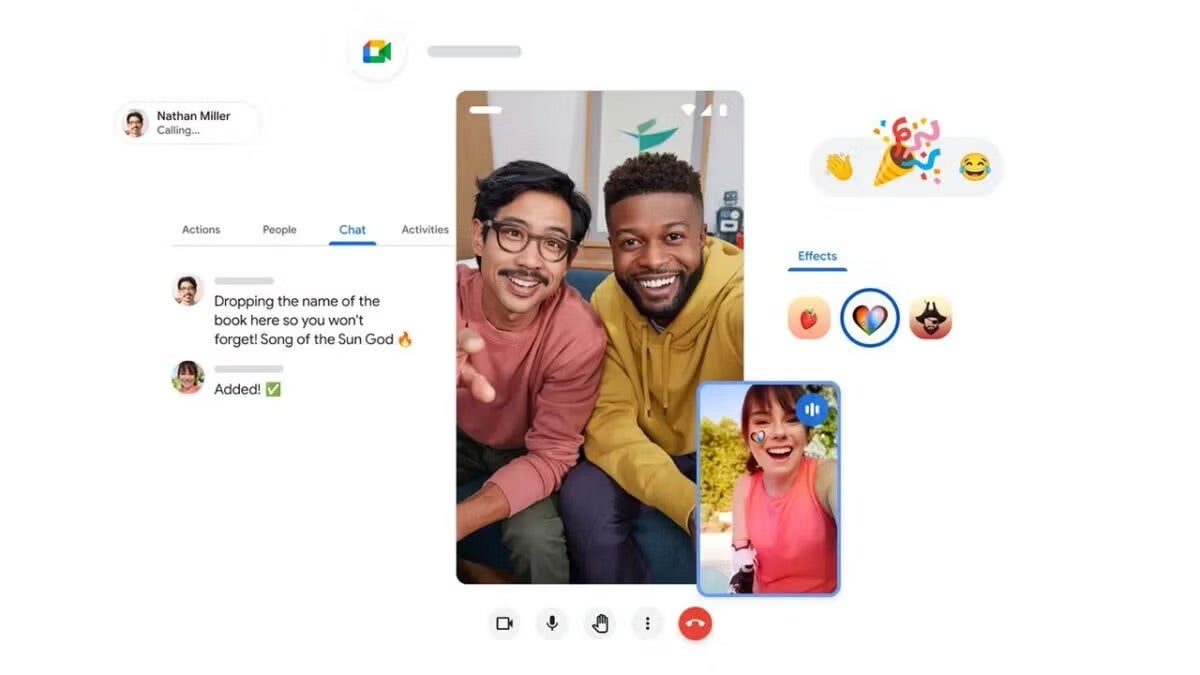
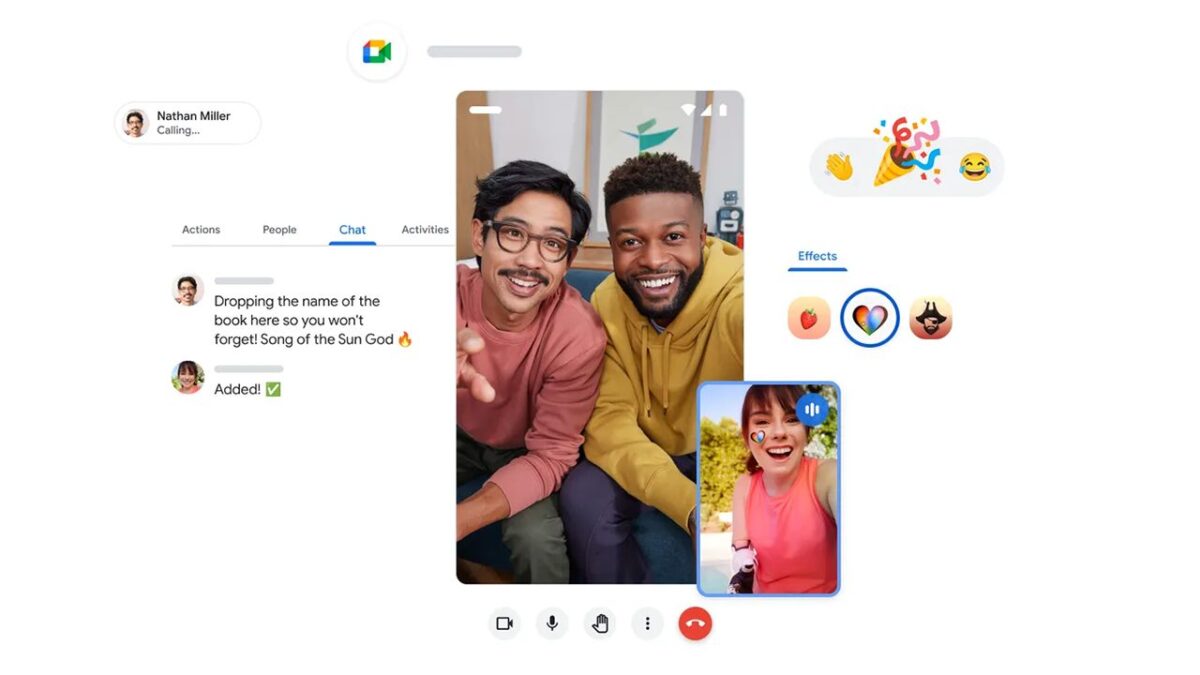
Among the improvements coming to Google Meet, one of the highlights is the ability to quickly open a chat window to share links during the video call. Tools for reacting with emojis in group calls have also been added, allowing participants to express themselves without interrupting others. Additionally, users will be able to experiment with new visual effects, allowing them to apply multiple custom backgrounds or video filters.

Another novelty is the expansion of the “on the go” mode, which now allows users to participate in meetings with audio only (without the need to show your face). Additionally, Google Meet will incorporate the option to share a screen with all participants and facilitate device switching during the call. These improvements will be rolled out in the coming months, including the addition of live captions in over 70 languages.

Google Meet DOWNLOAD

This new Google Meet feature will make you want to raise your hand

Google Meet just dropped a game-changer: hand gesture detection. It’s like your real-world moves are now part of the digital chat. Imagine this: you raise your hand IRL, and boom, everyone sees a virtual high-five.

We’re diving into the deets of this cool feature—how it works, what you can do with it, and the sweet nostalgia it adds to online hangs. Say hello to the future of digital chitchat, where your gestures matter!

Google Meet DOWNLOAD

Wave to Google Meet’s new feature

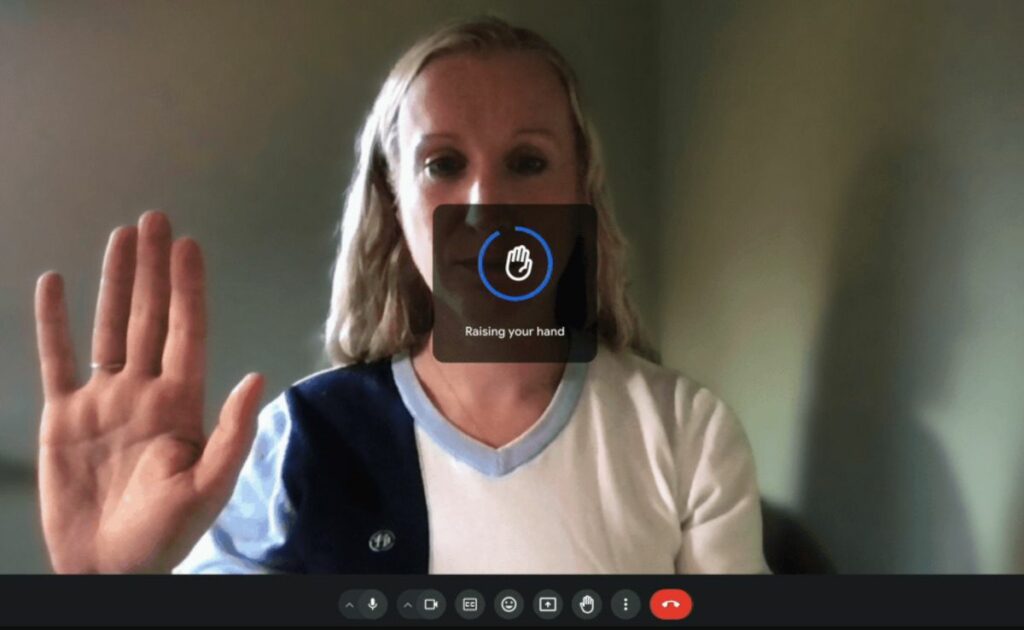
Google Meet’s latest feature, hand gesture detection, revolutionizes virtual meetings. Using artificial intelligence, it recognizes when participants physically raise their hands during video calls.

Image credit: Google

Activated by keeping the hand visible to the camera, this innovative addition provides a seamless way to signal questions or comments. The virtual hand raise icon appears, moving users to the main grid for moderators to easily identify those seeking to contribute. Exciting, right? Here is all the details you need to know about it:

  • Hand gesture detection: Google Meet introduces a hand gesture detection feature for video calls. The AI-powered system recognizes physical hand raises during virtual meetings.
  • Activation and visibility: Hand detection only works when your hand is visible to the camera. It must be away from your face and body for the system to recognize the gesture.
  • Triggering the icon: Users need to keep their hand raised for a few seconds to activate the gesture detection. Once triggered, a virtual hand raise icon appears in the user’s video window.
  • Moderator notification: The raised hand icon signals moderators that the participant has a question or comment. Users are moved to the main grid, making their requests more noticeable.
  • Integration and customization: Available across most Google Meet Workspace plans. The feature is turned off by default but can be enabled in settings.
(Credit)
  • Preventing accidental triggers: Hand gesture detection is automatically turned off for active speakers. This prevents unintended triggers during lively discussions.
  • Practical applications: Offers convenience, similar to clicking the hand raise button, with a touch of nostalgia. Useful when away from the computer mouse or when hands are not easily visible.
  • User-friendly functionality: Enhances the virtual meeting experience by introducing a physical element. Bridges the gap between traditional in-person communication and virtual interactions.
  • Continued innovation: Google Meet continues its trend of innovation, following the recent introduction of a portrait touch-up mode. These updates aim to make virtual meetings more engaging and user-friendly.

How to use Google Meet’s new hand gesture detection

Google Meet’s hand gesture feature, set to enhance the virtual meeting experience, comes with specific rollout details. For administrators, it’s important to note that there is no direct control over this feature; it cannot be toggled on or off. End users will find the feature turned OFF by default. To activate it, users can navigate to “More options > Reactions > Hand Raise Gesture” within Google Meet. Additional guidance on utilizing this feature is available in the Help Center.

Rollout

The rollout pace varies for different domains. Rapid Release domains will experience a full rollout, with feature visibility expected within 1–3 days, starting from November 21, 2023. On the other hand, Scheduled Release domains will see a more gradual rollout, extending up to 15 days, commencing on November 28, 2023.

Availability

As for availability, the Hand Raise Gesture feature is accessible across various Google Workspace plans, including Business Plus, Business Standard, Enterprise Essentials, Enterprise Plus, Enterprise Standard, Enterprise Starter, Education Plus, the Teaching and Learning Upgrade customers, and Google Workspace Individual subscribers. This inclusive availability ensures a wide range of users can leverage the benefits of this feature in their virtual meetings.

For more detailed information, click here.

Never Clean Again: How Google’s AI Keeps Your Room Spotless

Google has updated one of the most popular features of one of its services and has enhanced it thanks to artificial intelligence.

The great lockdown we all experienced in the year 2020 greatly popularized video conferencing platforms and programs.

At a time when everyone was confined to their homes, tools like Zoom or Google Meet became basically the only options to see the faces of our loved ones, attend classes, or gather with our colleagues.

Google Meet ACCESS

But, of course, having an “open window” to our homes could be problematic, so many quickly resorted to using the virtual backgrounds included in these programs, which prevent other participants in the video calls from seeing our rooms (especially if we just woke up).

With remote work already standardized in many companies, people continue to rely on this feature, and Google has taken the initiative to update Meet, offering more variety to the video call backgrounds. How? By generating our own backgrounds thanks to the power of artificial intelligence.

The AI-generated backgrounds are one of the experimental features of Google’s Workspace Labs and are being gradually rolled out to all Google Meet users.

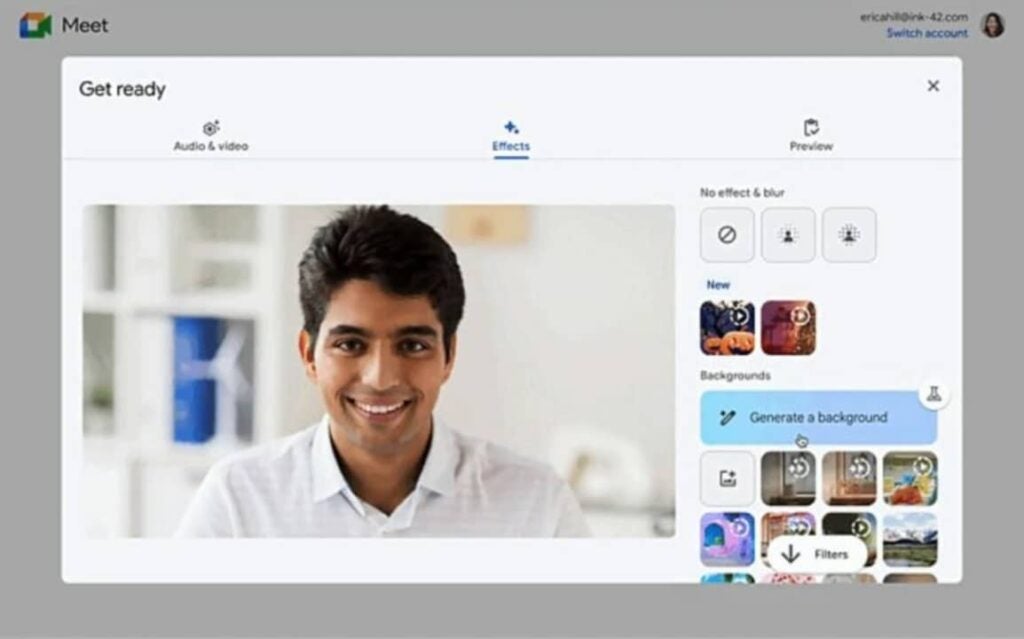
Once you have this feature enabled, you can try it before starting a Google Meet meeting by clicking on the icon in the bottom right of your preview, going to Effects, and clicking on “Generate a background.”

After that, you simply need to enter a message with what you want as your background, such as “a spaceship” or “the top of Mount Everest,” and then click on “Create samples” (you can also choose a style to further customize the result).

Google will provide us with four suggestions that we can select from, and we can also generate more sample images or even edit our message to generate other types of backgrounds.

Google Meet ACCESS

An invaluable addition to Google Meet, this feature joins other AI products from Google, such as the chatbot Bard, and a new search experience that is currently in experimental phase, potentially revolutionizing the way we search for anything on the Internet.

Some of the links added in the article are part of affiliate campaigns and may represent benefits for Softonic.

Google announces improved interoperability between Zoom and Google Meet

One of the key aspects of the battle between Google Workspace and Microsoft 365 in recent weeks has been interoperability. We have seen both productivity suites announcing a raft of features designed to make their programs able to work with third-party apps more efficiently, including even boosting interoperability between the likes of Microsoft Word and Google Docs. Today we can report on a further move in this direction as Google has announced it is partnering with Zoom to ensure Google Meet users can hold virtual meetings with more people.

Google Meet Download Now

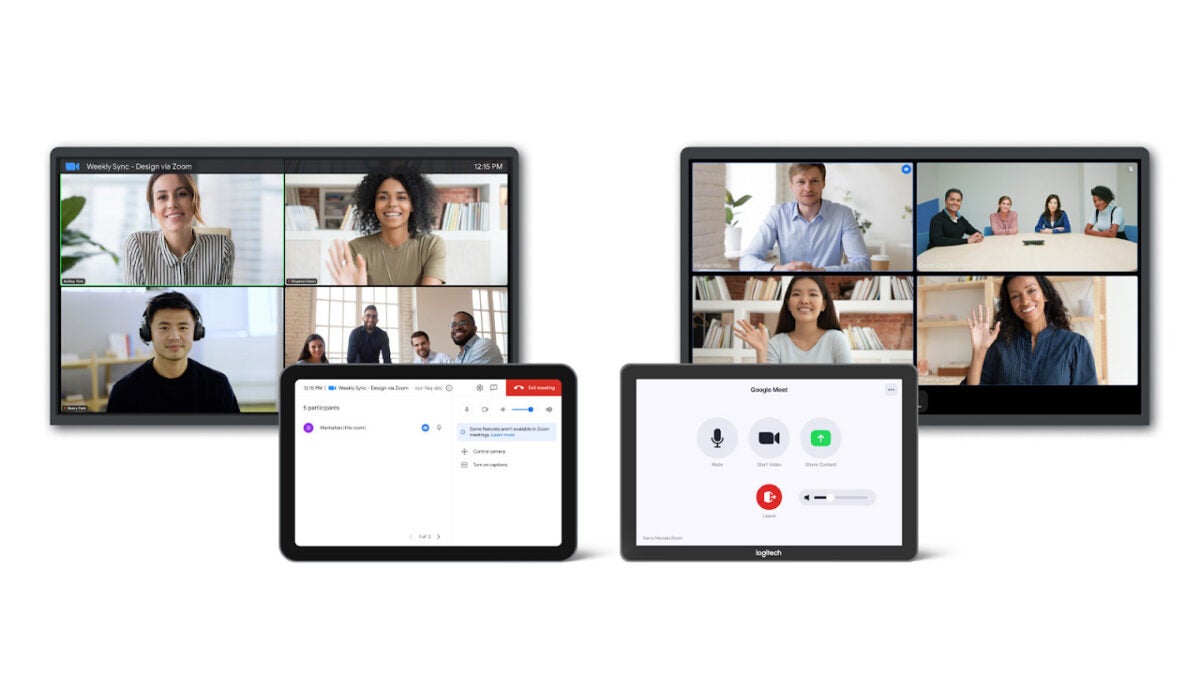
Google has announced via a Google Cloud blog post that it has finalized a partnership deal with Zoom that will enable bi-directional interoperability between the two video conferencing apps. The move means that users across both platforms will be able to meet with each other, simply by clicking on a calendar invite or entering a meeting code.

There is one interesting consideration, however, that users will need to take into account. All Zoom users will be able to seamlessly join conference calls and meeting on Google Meet but there will be limitations on which Google Meet users can join Zoom calls. Only Google Meet users who are running ChromeOS-based Meet devices will be able to join Zoom calls. There is no news about why there is this limitation but the Google Cloud blog post announcing the move did mention that it would be like this “at launch” meaning the interoperability features may roll out to all Google Meet users at some point in the future.

Traditionally, Zoom and Google Meet would be competitive apps trying to get one over on each other, but this is a smart move from Google as it opens up seamless interactions for businesses that use Google Workspace with the many businesses that use Zoom for their video communications.

In other Google Workspace news, users now have access to enhanced scheduling options when organizing meetings.

Google Meet gets a great update for users on lower-powered devices

Most of us take them for granted these days, but virtual backgrounds on apps like Zoom, Microsoft Teams, and Google Meet can cause real problems for some users. It shouldn’t be a surprise that they won’t work perfectly as, in essence, they are a form of movie-like special effects but the problems, like glitchy backgrounds and even lost body parts, are much worse for some users than for others. Google is trying to address this problem with an update it is rolling out for Meet. Here is what you need to know.

Google Meet Download Now

It takes a lot of processing power for an app to be able to determine different elements of a video for an image. For example, it can be a struggle for an app like Google Meet to differentiate between the subject of the image (you) in the foreground and all the other items in your room in the background. If this occurs while the app is trying to overlay a virtual background behind the subject, it will cause problems, particularly if you have a lower-powered device such as an older PC, smartphone, or tablet.

To fix this issue, Google is rolling out an update for Google Meet that will take the heavy lifting for this type of processing off your device by handling it with its own cloud hardware capabilities. This new cloud-assisted processing will happen automatically when necessary and will be prioritized for devices that need it the most, resulting in savings of up to 30 per cent of your device’s CPU usage.

An added bonus of this move is that reducing the strain on your device’s CPU will also have a beneficial effect on your device’s battery life too. This means that as the performance is improving the strain being placed on your battery is reduced. If you’ve ever been on a group video call while running on battery power, you will know just how big of a deal this really is. Therefore, although this update will benefit those using lower-powered devices most it will have wider benefits for all Google Meet users too.

To help you get the most out of Google Meet, we recently put together a guide to the best Google Meet Chrome extensions.

Google Meet now auto-kicks you out of meetings when you’re alone

In its latest update, Google Meet rolls out two new features. One is the “leave empty call” reminders, which prompts users to exit or stay in meetings when they’ve been alone for five minutes. The other is a new centralized location for host management controls on the desktop version.

As a popular video-conferencing web app, Google Meet aims to provide user-friendly features that not only make online meetings easier—like Google Meet’s “Companion Mode”—but also more secure. These new features aim to achieve both.

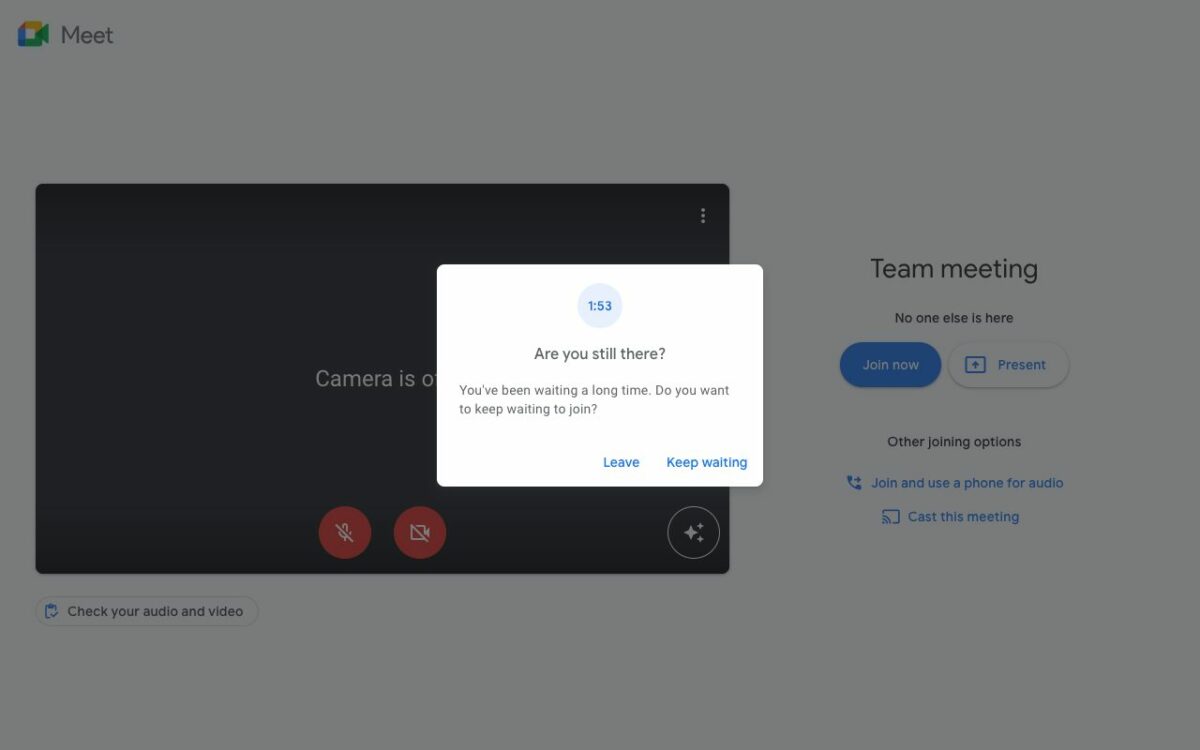
The “leave empty call” reminder feature is for privacy. When you’re the only user in a meeting for five minutes, a pop-up will ask if you’d like to stay or leave. If you don’t respond, it will automatically kick you out. This is to prevent situations wherein your audio or video is unintentionally shared, so this is enabled by default. The feature will be available on PC, Google Meet for Android, and Google Meet for iOS—and is only for Workspace, legacy G Suite, and personal Google accounts.

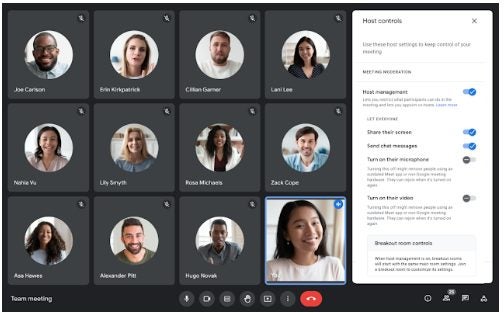
Meanwhile, the centralized host management controls feature simply gathers all host controls into one place on the screen for better accessibility. If you click on the shield-and-lock icon at the bottom-right corner, all host and co-host features will be displayed together. This feature is only for Google Meet for Desktop but is available for all users.

The new update will be rolling out over the coming weeks. It’s not as bulky as the previous ones but the improvement in how Google Meet operates is no less a welcome change for everyone who frequently uses the app. If you want to know more, here’s a handy guide on how Google Meet works.

Image credit: Google Workspace Updates / Google Blog

Meet Google Meet’s Companion Mode

There has long been a gap between people working on location and those working remotely. With most of the world’s corporations investing more in remote opportunities to keep workers safe and uphold the ‘new normal,’ corporate society is ready for a bridge in this gap. Enter Google Meet and its Companion Mode; Software designed to deliver a simplified second-screen experience to your meetings. 

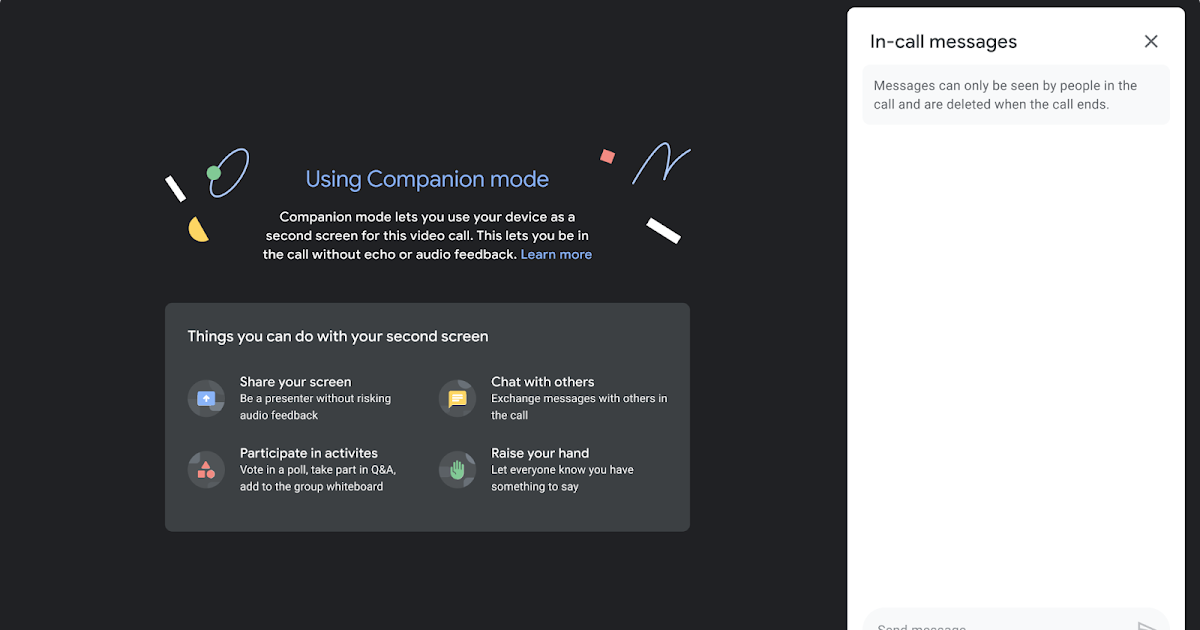
Companion Mode is designed to solve two problems. First off, Google Meet calls often become more of an annoyance than anything else when too many participants are involved. Too many faces and the chat menu having shared custody over your screen during a call is far from comfortable. Companion Mode lets you join the same meetings from a separate eligible device, letting you contribute, share and brainstorm without being in a cluttered digital workspace. 

When participants join a Google Meet call with users working remotely, the second problem comes into play. Individually, they can’t chat with participants in a Meet call, raise hands, or answer polls without the entire setup turning into anarchy. Google Meet Companion Mode delivers essential Google Meet features to all participants, resulting in flawless communication during video calls. 

All you need do to access Companion Mode is click on a Google Meet invite link, and your browser will automatically open up the ‘Ready to Join’ screen. Next, you’ll click on ‘Use Companion Mode,’ and you’re ready to participate in a more streamlined meeting experience. You can also simply visit this link, enter your meeting code or invite link into the dialogue box, and select ‘Start Companion’ to join a call. 

Google Meet Companion Mode’s noise cancellation automatically disables your mic and camera on any additional device to prevent feedback interference while you’re on your call. You can also now present either your entire screen, a selected window, or simply a tab to the rest of the participants in a Google Meet call as easily as selecting the ‘Present now’ icon at the bottom of the call. This is a square with an upward arrow. 

Google Meet Companion Mode is built to make meetings more efficient and convenient in the new cyber commerce landscape. Feel free to read more about what Google Meet is and how you can use it.

What Is Google Meet? Video Conferencing with Google Integration

The tech giant, Google, has created many great apps to streamline productivity and communication. Google Meet is another one of these apps. Google Meet used to form part of Google Hangouts but has been made a separate app for convenience.

Google Meet is available to anyone with a Google account and can be accessed from within your Google Account through any browser. You can also download the Google Meet app for web apps, iPhone, and Android devices. The most basic version of Meet is available to all Google users for free and allows you to join and participate in meetings. However, to gain access to all the features, you will need to purchase the Google Meet subscription.

What Is Google Meet?

Google Meet is a video conferencing service that allows users to connect with others virtually. Both individuals and businesses often use it to host video calls, virtual meetings, seminars, and conferences remotely. As long as you have the internet, you can use Meet to connect with hundreds (sometimes thousands) of other people virtually through the app.

How Many People Can Join Google Meet Calls?

With the free version of Google Meet, you can host a video conference for up to 60 minutes with 100 participants. Once you move to the subscription package, you’ll have access to more features, including the ability to host a meeting for up to 250 participants. If you decide only to host a live stream, you can have up to 100 000 viewers in a single domain. The subscription version also has many added features such as noise cancellation, recording meetings, breakout rooms, and more.

How Do I Use Google Meet?

Google Meet has a simple and intuitive design, making it easy to work with. It works similar to other popular video conferencing apps like Skype or Zoom. 

How to Sign up for Google Meet?

The free version of Google Meet is already included in your Google account, and you can access it simply by signing in to your account. You’ll also see the options to join or create a meeting from within your Gmail account, making setting up meetings even easier.

If you’re interested in getting a paid-for version, you’ll have to sign up for a Google Workspace account. If you already have a Workspace account, you can simply log in to your account to start using Meet. In some cases, you’ll have to enable video calling for your organization in the settings.

How to Access Google Meet?

You can download the handy app for your mobile device or tablet. Once the app is installed, you can simply access Google Meet by tapping on the Meet icon. The app will launch, and if it’s the first time, it will ask you to sign in to your Google account.

Alternatively, you can also access Google Meet from any other Google program, such as Gmail or Drive, by simply clicking on the Google Apps button, represented by six dots that form a square. By clicking on this button, you will see a drop-down list showing all the available Google Apps. From this list, simply click on Meet, which is represented by a video camera in Google colors.

How to Make Video Calls Using Meet?

Once you are inside the Google Meet platform, you can click on the ‘New Meeting’ button to set up your meeting or video call. In the window that opens, you can set all the details of your meeting or call, such as the date, time, etc. You can also add participants directly by including them from your Google address book. Alternatively, if you struggle to find them, you can also send them a link to the meeting with a code they can use to join the meeting.

With the meeting scheduled, all you need to do next is show up on the day of the meeting, log into your Google Meet account and host the video call.

What Is Google Meet

How to Join a Google Meeting?

The organizer would have sent you a link invite with a code to join a Google Meet video call. At the time of the meeting, simply click on the link and enter the code provided in the invite. This will enable you to join the video call from your chosen device or browser. Alternatively, you can also dial into the meeting using the dial-in number and pin provided in the invite.

What Is Google Meet

Who Uses Google Meet?

Google Meet is used by businesses and individuals alike. If you are a Google user who wants to connect with family or friends that live far away, you can use Google Meet to host a video call. Large companies can also benefit from using Google Meet to host meetings with remote workers or other branches/offices. Also, when you combine Meet with other Google Workspace apps, it becomes a great cloud-based solution for many businesses.

Google Meet Noise Cancellation Features

Filter Out Unnecessary Background Noise On Google Meet

One aspect that can be really annoying during an online meeting is when you hear background news from one of the attendees. Sure, they can mute their mic, but it doesn’t help when it’s their turn to speak and you hear their cat chasing a mouse in the background. Fortunately, Google Meet added noise cancellation features to assist with this issue.

Whether you’re meeting via PC, Android, or iPhone, you’ll have access to this handy function. It all depends on your location, though. While initially launched in September 2020, it’s still rolling out to various regions while testing is ongoing. If you’re in an online conference and don’t see the option, it could be that it’s not available in your country as yet.

Google Meet Noise Cancellation

Furthermore, the tool is only available to specific Google Workspace packages, such as G Suite Enterprise, Business Plus, and Education Plus, to name a few. The app turns the feature off by default, so you’ll need to set it up before or during the meeting. You’ll see a blue volume icon indicating that it’s active, revealing how much sound it blocks.

Google Meet administrators have no control over your noise control settings, so they won’t be able to cancel it or interfere in any way. With more and more remote meetings taking place worldwide, many users have already indicated how useful the noise cancellation function is. We’ve definitely used it a few times ourselves when meeting with our team members from home.