Step-by-Step Guide: How to Reset Windows 10 or 11 with Factory Reset!

If your Windows 10/ Windows 11 PC is behaving strangely, lagging, or running particularly slow, it might be time to consider a factory reset. Also known as a master reset, factory resetting your PC essentially restores it to its original system state by erasing every ounce of information.


Windows 10 DOWNLOAD
Windows 10 DOWNLOAD

Below we’ll take you through the simple steps of resetting your PC and improving its performance.

Why Factory Reset?

A factory reset is generally called for when your PC is not running as efficiently as it usually does. Your PC saves as much information as possible to make your digital experience easier. Sometimes these are settings and bits of information that we don’t need. But the more your PC does, and the more you use it, the more it will fill up with unnecessary information that can be difficult to find and remove, even if you know your directories like the back of your hand. 

The other massive culprit is bloatware. This is defined as system files and configurations that are unnecessary to the day-to-day operation of your PC. Essentially it’s a load of programs and settings that you don’t need that the system architects put in on the off chance you do need them. All these usually do is take up space and slow down your drives. 

Steps to reset Windows 10 and Windows 11 to a Factory Reset

  1. How to Reset Windows 10

    How to Reset Windows 10 and 11 using Factory Reset

    Now that we’ve tackled the why we can address the how. Factory resetting your Windows 10 PC is straightforward and won’t take much time to complete. 

    Step 1: Backup

    The first step is to ensure that your important files are backed up. You’ll be presented with an option later to keep your files in the reset process, but it’s best to have your files safely squared away somewhere else. We suggest an external hard drive.

    Step 2: Update & Security

    Once you’ve got your important stuff saved, click on the start button and head to settings. Click on ‘Update & Security and you’ll be presented with another list of options. Hit’ Recovery.’

    Step 3: Get Started

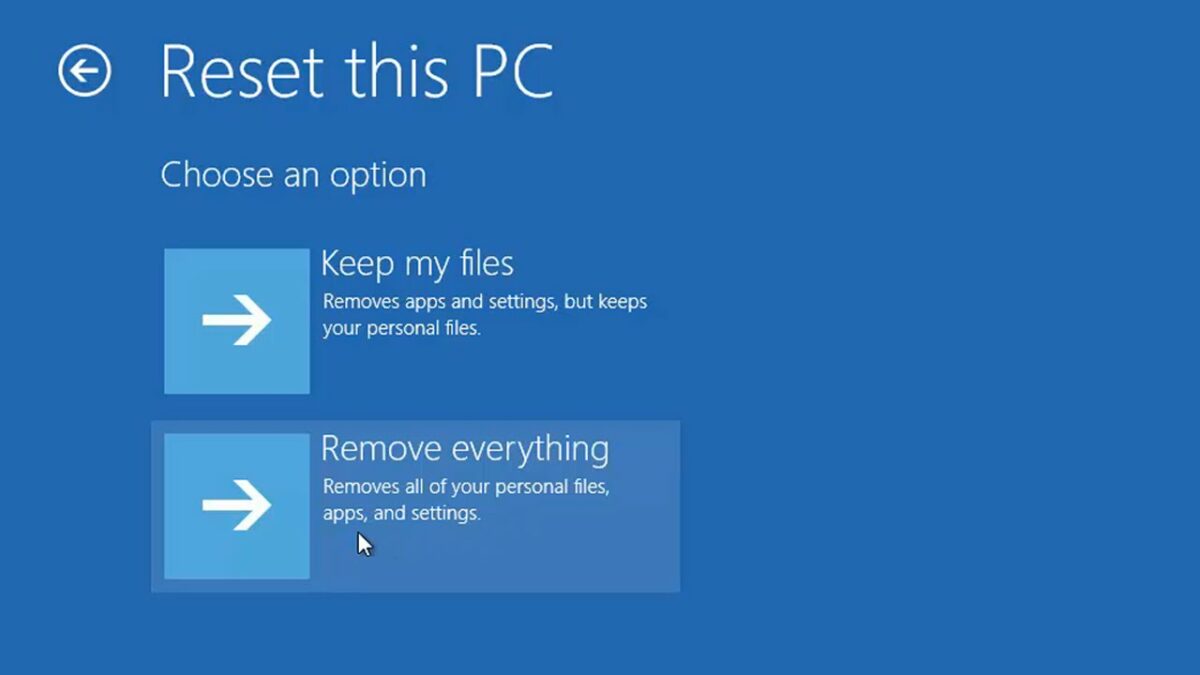
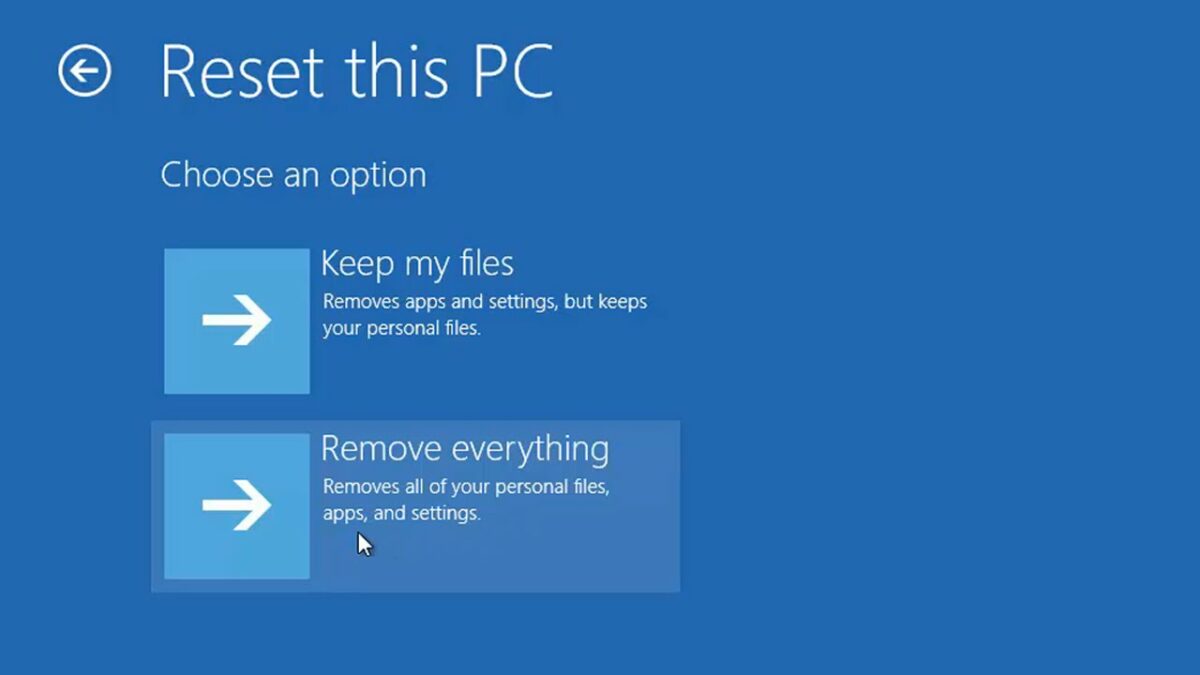
    You’ll see a ‘Reset this PC’ dialogue and a button that says ‘Get Started.’ Give in to temptation and smash it. Now, you’ll have to make a choice, ‘Keep my files’ or ‘Remove everything.’ Neither of these options is right or wrong; one simply deletes everything and wipes your PC completely clean, the other will keep your stuff but remove system apps and settings. If your PC is struggling to function, we recommend removing everything. 

    Step 4: Reset

    Once you’ve made your choice, you’ll see a new dialogue depending on what choice you’ve made. In the case of removing everything, your PC will tell you that it will remove all accounts, files, user settings, apps, and programs, and then it will restart. This is the very definition of a clean slate. When you’re ready, click ‘Reset,’ sit back, relax and let Windows 10 do its thing. 

    Step 5: A Clean Slate

    Once your PC has restarted, you’ll be able to import all your important files from your hard drive, make new system settings changes, and redownload all the stuff you actually need. Your PC should run better and smoother and, in some cases, stop sounding like it’s about to take off into the heavens if that’s what it sounded like before. 

  2. How to Reset Windows 11

    How to Reset Windows 10 and 11 using Factory Reset

    Windows 11 is an incredible operating system in terms of efficiency. Even so, sometimes your PC might be behaving differently or dragging its feet with critical processes. If so, it might be time to perform a factory reset. 

    Step 1: Backup

    We reiterate: It’s always safer to make sure you have an external backup of all your most important stuff.

    Step 2: Open Settings

    The first thing you’ll need to do is open the Settings app on your Windows 11 device. You can do this by hitting the Windows key and ‘i’ simultaneously. Once you’re in Settings, click on ‘System.’ 

    Step 3: Recovery

    On the System page, you’ll see a ‘Recovery’ option. Click on it and then hit ‘Reset PC’ next to the ‘Reset this PC’ dialogue.

    Step 4: Make a Choice

    Here you’ll have to choose between keeping your files or throwing everything to the four winds. Removing everything is preferable in most cases when your PC is acting up unless you know for a fact that it’s nothing you’ve put on your PC that’s making it slow. We all would love to believe this, but most of us have accidentally downloaded an iffy file or two. 

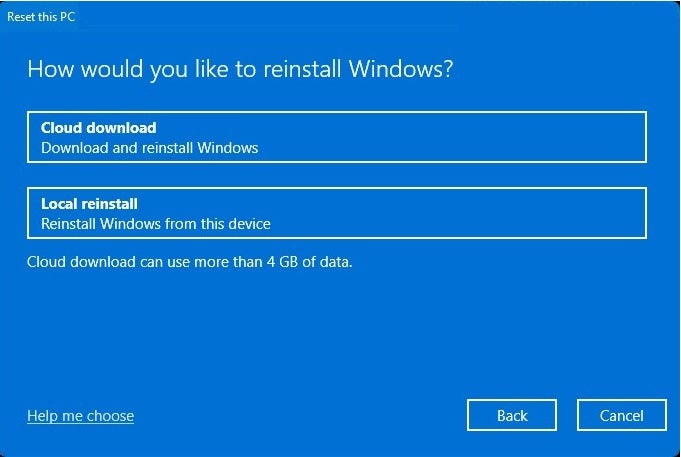
    Step 5: How Would you Like to Reinstall Windows?

    Once you’ve made the ultimate choice, you’ll see a new dialogue reading: ‘How would you like to reinstall Windows?’. You” be able to choose between cloud download or Local reinstall. Cloud download is preferable if you’ve got unlimited internet access. But you can choose to reinstall Windows from your device directly. Once you’ve chosen, your PC will do its thing and then restart. Simple as that. 

Don’t fear the Hard Reset

There is likely a minor amount of stress involved with resetting your PC the first time. But this process really does more good than harm. You could lose your files if you don’t back them up, but overall, your PC’s performance benefits greatly from a reset every once in a while.

We collect useless data every time we use our PCs, so getting into the habit of a reset once a year or more frequently would be a great way to keep your PC running better for longer

Windows 11 Taskbar changes in the KB5010414 update

Windows 11 is due for an update. Various issues currently plague Windows 11 users, including one particularly annoying niggle with the taskbar. Users report that the incorrect tooltips sometimes appear in an empty region of the taskbar after the mouse passes over other icons. The new KB5010414 update to Windows 11 makes improvements to this and other issues, and it also adds a few new features to make the taskbar more functional and convenient. 

Here is a list of some of the new additions to the taskbar with the latest Windows 11 update:

  • If users have more than one monitor connected to their devices, a clock and the date will now be a fixed feature of taskbars on all monitors. 
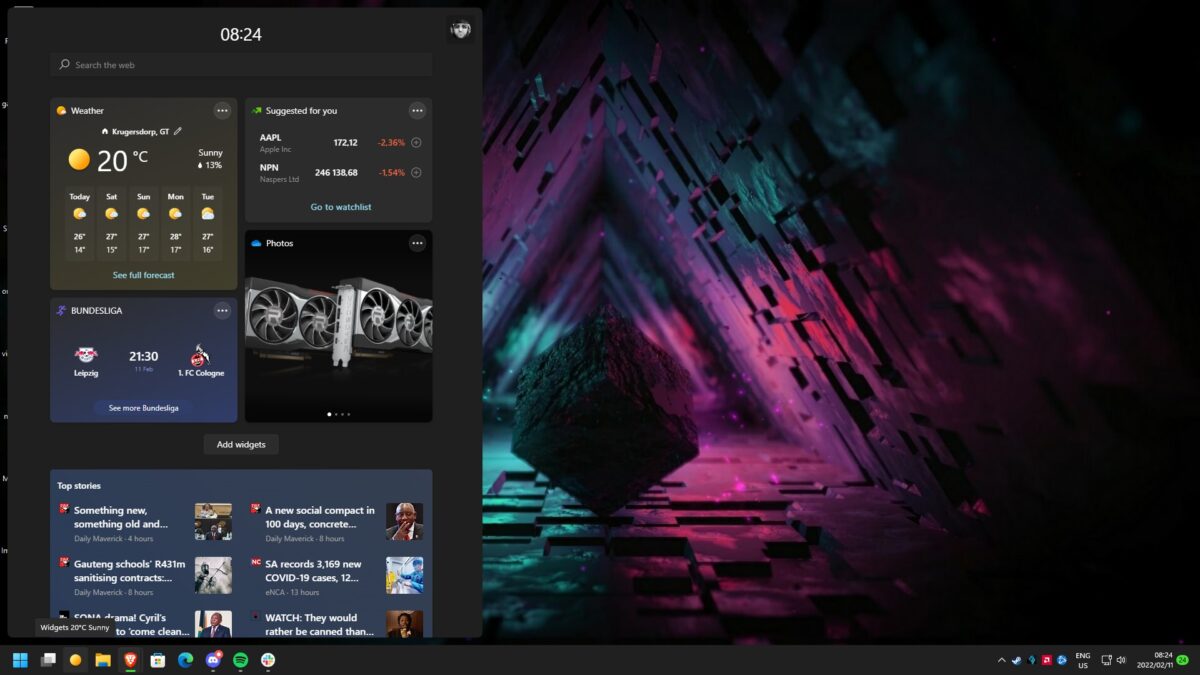
  • Weather content and updates will now appear to the left of the taskbar if the taskbar is aligned to the center of the screen. The left side of the screen will also now feature a widgets panel when users hover over the weather. This panel will disappear when users move the mouse to other areas. 
  • It is now possible to quickly share open applications to Microsoft Teams directly from the taskbar. 
  • Users are now able to instantly mute and unmute Microsoft Teams from the taskbar. An interactable active microphone icon will now appear on the taskbar so that users no longer have to return to the Microsoft Teams window to mute audio. 

You need to register for the Beta and Release Preview channels to get early access to this update, but if you are, head to Windows Update in the Settings app and download update KB5010414. While you wait for the final build of the update to release, check out our other articles, including how to perform a factory reset on Windows 11

Harry Potter: Magic Awakened heading to mobile

On Thursday, Warner Bros. Games and NetEase announced that its Hogwarts-based MMORPG Harry Potter: Magic Awakened is coming to global mobile devices after a successful rollout to Asian markets in September 2021. Even more fans of the massively popular game will now enjoy the critically acclaimed Harry Potter franchise, hopefully leading to even more success.

This news comes not long after another Harry Potter mobile game fully shut down. With the same development team as Pokemon Go, Harry Potter: Wizards Unite officially closed in January 2021 and completely disappeared from app stores by December of the same year. Wizards Unite reportedly failed to charm its audience like Magic Awakened already has and will hopefully continue to do for a long time. 

Harry Potter: Magic Awakened sets the stage 10 years into the future of the main storyline of the Harry Potter franchise. Many new faces and some of the franchise favorites will greet players, like Professor McGonagall and Rubeus Hagrid. Players will also be able to explore their favorite locations from the series of books and movies such as Hogsmeade and Diagon Alley, and engage in Harry Potter staples like Quidditch. 

Harry Potter: Magic Awakened comes to North and South America, Oceania, Europe, and the rest of the Asian markets soon. Players can already pre-register on Android from the Google Play Store and be among the first to be spellbound by this next chapter in the franchise. iOS pre-registers will follow at a later date. While we don’t know the final release dates, we do know the window for the worldwide launch is set in stone as 2022. 

We won’t know how well this game will perform until its officially released globally. However, Magic Awakened has already made an impact on the markets where released, and it should continue to do so. Check out reviews of other Harry Potter essentials and feel immersed in this delightfully magical universe once more. 

Exciting Widget inbound for Apple Music Android

The latest build of the Apple Music Android beta rolled out recently with a considerable upgrade to how widgets look and function on the Android home screen. Decompiling this latest build may also reveal the name for Apple’s proposed standalone music app for the classical genre. 

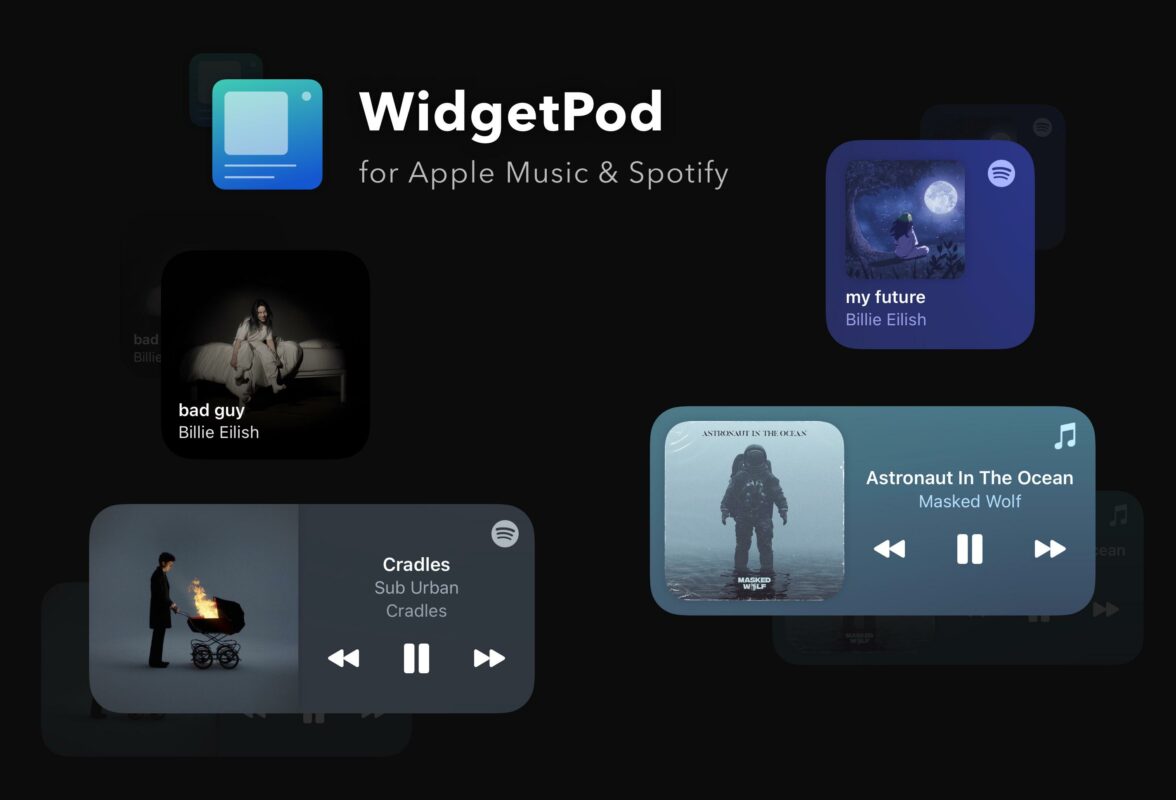
Apple Music users on Android devices will be familiar with the two widgets shipped with one of the first alpha builds of the app. These have started feeling a little stale as other music apps up their widget game. Happily, version 3.9 furnishes these staple widgets with much-needed cosmetic and functional updates. 

 The first update is that both widgets have lost their thick border padding. This means that they can now comfortably take up more space on the screen without looking out of place. The Apple Music Player widget has become wider and taller, and the Apple Music recently Played widget has more configuration options when you resize it.

Users now, therefore, have better control over the overall aesthetic of their home screens. The grid showing past tracks has had an update too and is now available in 3×2 and 3×1 configurations that seamlessly increase the size of the top half of the widgets. 

Apple acquired Primephonic last year in August in an attempt to bolster its streaming utility’s prowess when it comes to classical music, an ever-popular music genre. They subsequently shut the app down and informed users that a replacement may launch early into 2022. The lines of code you find while decompiling the Apple Music Android beta reveal that Apple Classical may be the name for this new dedicated app.

This data string supports that notion: ‘<string name=” open_in_apple_classical”>Open in Apple Classical</string>.‘ 

While only time can definitively tell what the new app’s name will be, this instance reminds us of the Apple One name revealed in 2020. Details are always subject to change, especially closer to the launch. But hopefully, we’ll have new details about the dedicated app soon.

Massive Resident Evil Easter Eggs found in Dying Light 2

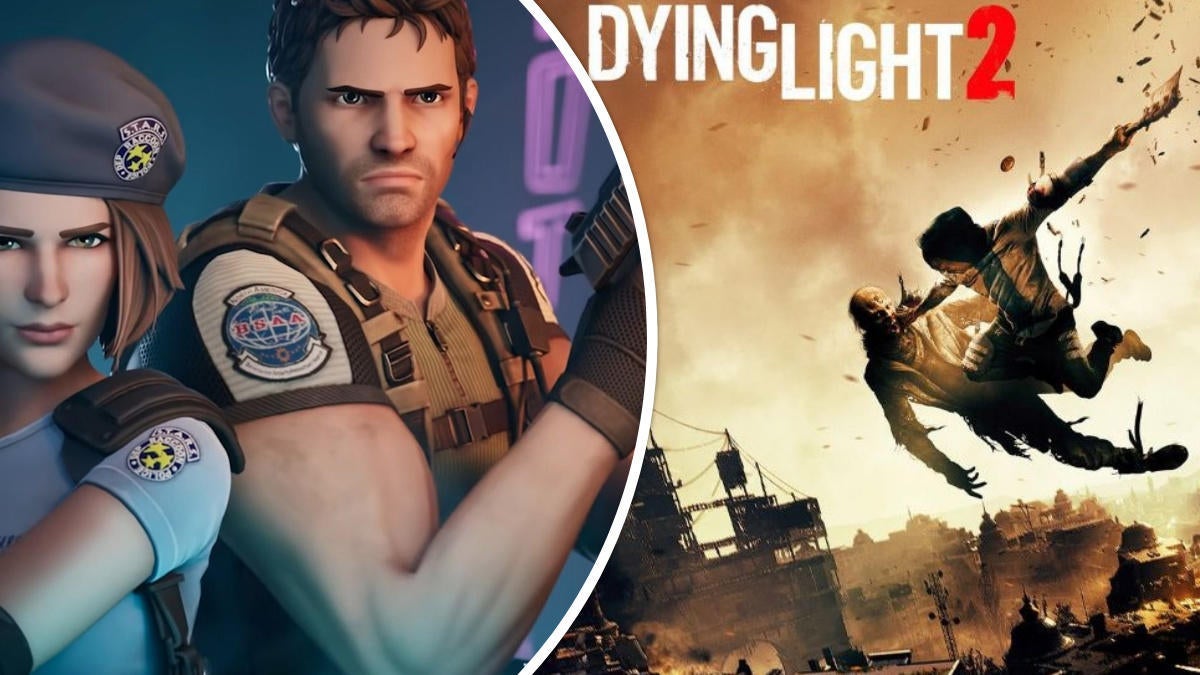
Dying Light 2 Stay Human is finally available to play. This comes after a number of crucial delays. Fans can now get right into leveling Aiden up again, exploring the dystopian world and obliterating as many zombies as they can. As is the norm in gaming these days, game references and easters eggs densely populate Dying Light 2. Still, this time Techland has decided to include references to one of the greatest zombie games in the niche’s history, Resident Evil

This next section contains spoilers if you haven’t already played the main quest, ‘Broadcast’. In this mission, Aiden receives a task with a quick power restoration quest. It’s during this activity that Aiden happens upon an injured Peacemaked named Leon. This on its own is far from enough for us to call it a Resident Evil easter egg, but the way the mission unfolds definitely will be. 

The injured Leon sends Aiden on a quest to find his partner Chris. However, Aiden is too late. By the time he reaches Chris, he’s already turned into one of the zombies in Dying Light 2. Aiden has to kill Chris to continue his mission, but players can collect the zombie’s dog tags which feature his full name; Chris Redfield. Coincidence? Likely not. 

Techland is famous for the sheer amount of easter eggs and references there you can find in its games, and Dying Light 2 is no different. Without spoiling another mission, we can confirm that the brilliant minds behind Dying Light 2 have made sure there are more than enough easter eggs to search for and encounter throughout the vast open-world that players will return for a deeper dive. 

Speaking of deep dives, check out our guide on how to breathe new life into Dying Light or dive headfirst into nostalgia with our review of Dead Island. Dying Light 2 is out now on PC, Xbox One, Xbox Series X, PS4, and PS5. 

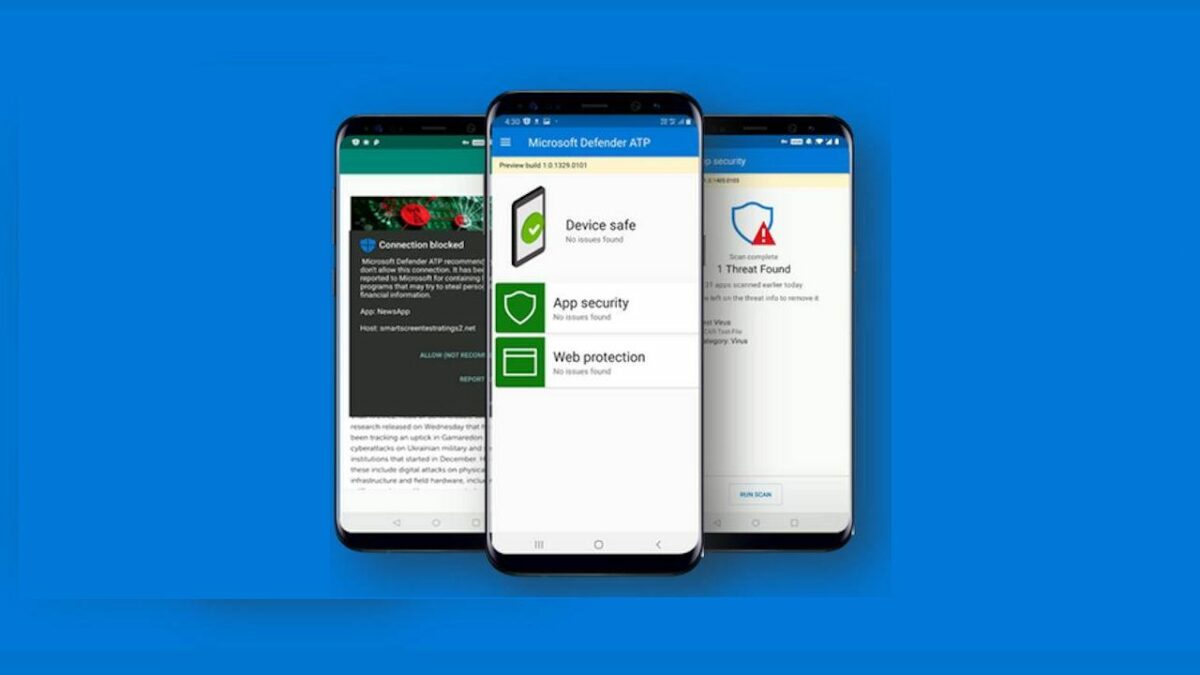
You can now use Microsoft Defender Preview on Windows and Android

If you live in the United States, you now have access to the full functionality of Microsoft Defender Preview on your Windows and Android devices. As the app undergoes more rigorous testing, we expect it to make its way to the rest of the market. 

Windows Defender has been Micorosft’s resident anti-virus since the launch of Windows 8. Defender launched in a similar capacity for use on Android devices under the name Microsoft Defender ATP, but it was mainly aimed at businesses. The new app lets you take control of digital security across your devices, provided they connect with the same Microsoft account. 

The Microsoft Defender Preview app is not a replacement for Windows Defender on PC but rather a companion app, much like the Microsoft Phone Companion. The new UI might filter into future updates of Windows Defender or eventually replace the built-in utility. However, we are still in the early days of Defender Preview being available. 

There are some functions we’d like to see on Android, but at the very least, Microsoft Defender Preview can alert you to any potentially malicious content you’ve installed. With cyber security under more of a threat than ever, it’s always preferable to have an extra layer of protection or at least better real-time access to pertinent information regarding the security of your devices. 

We expect the app to undergo minor changes, fine-tuning it to widespread use across Android devices. Check out our article on Windows Defender’s next-gen features to get up to speed with the latest news on the Microsoft productivity front.

Rewards drop as Lost Ark hits 1.2 million on Twitch

On its second day released to the European and American gaming community, Lost Ark is already the most popular game on Twitch, with GTA V and Valorant tailing close behind. As of this morning, the Smilegate RPG Inc. MMOARPG is standing on 1.2 Million viewers on Twitch and climbing. 

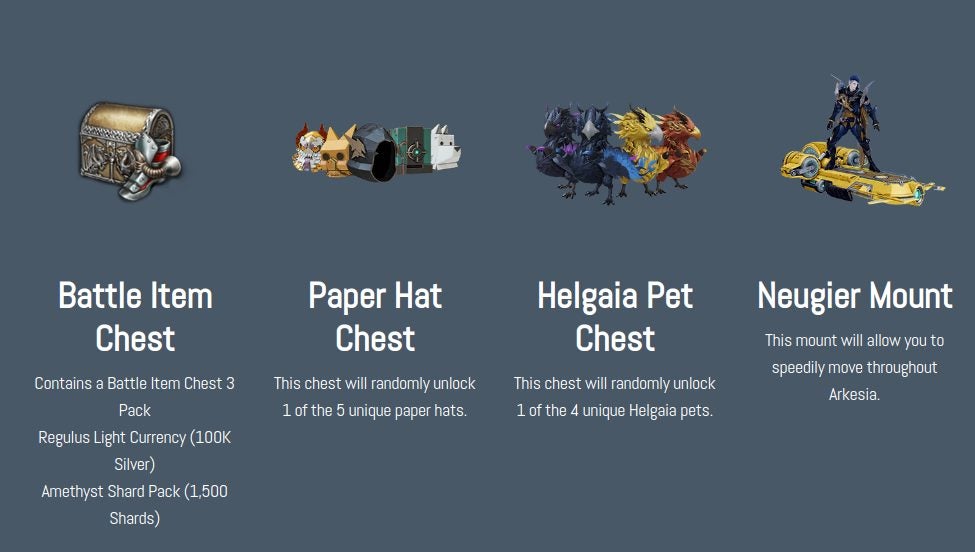
As a testament to how impressive this feat really is, you should note that gamers reached this figure while still downloading, unpacking, or waiting to play the game due to issues on Steam. While some players couldn’t play Lost Ark due to Steam and regional-specific issues, the game’s developers incentivized fans by rewarding them with incredible unlocks when they watched their favorite streamers on Twitch. Presently there are five drops available for twitch viewers:

  • LoLA Starter Item Set
  • Saphia Pet Chest
  • LoLA Helgaia Pet Chest
  • Arkesia Paper Hat Chest
  • LoLA Neugier Gold Mount

To unlock these Lost Ark Twitch Drops, you need to ensure that you activate Twitch Drops on your Lost Ark account. You can do this in a few straightforward steps:

  • Visit the Lost Ark Twitch Drops webpage
  • Sign in with your Twitch account credentials
  • Authorize your account and link it to your Steam account
  • Hit the ‘Activate’ button 
  • Drops should be yours within 24 hours of earning them

The easiest way to earn Lost Ark Twitch Drops is by watching four hours of your favorite Lost Ark streams between February 8th and March 1st, 2022. Objectives are another way to earn points towards drops, and the objectives come with their own rewards, too; Bronze Founder’s Packs. Streamers will also give these away for free, so tune and pick one up if you haven’t already. 

#SimthingToCelebrate: Weddings in The Sims 4 Change Forever

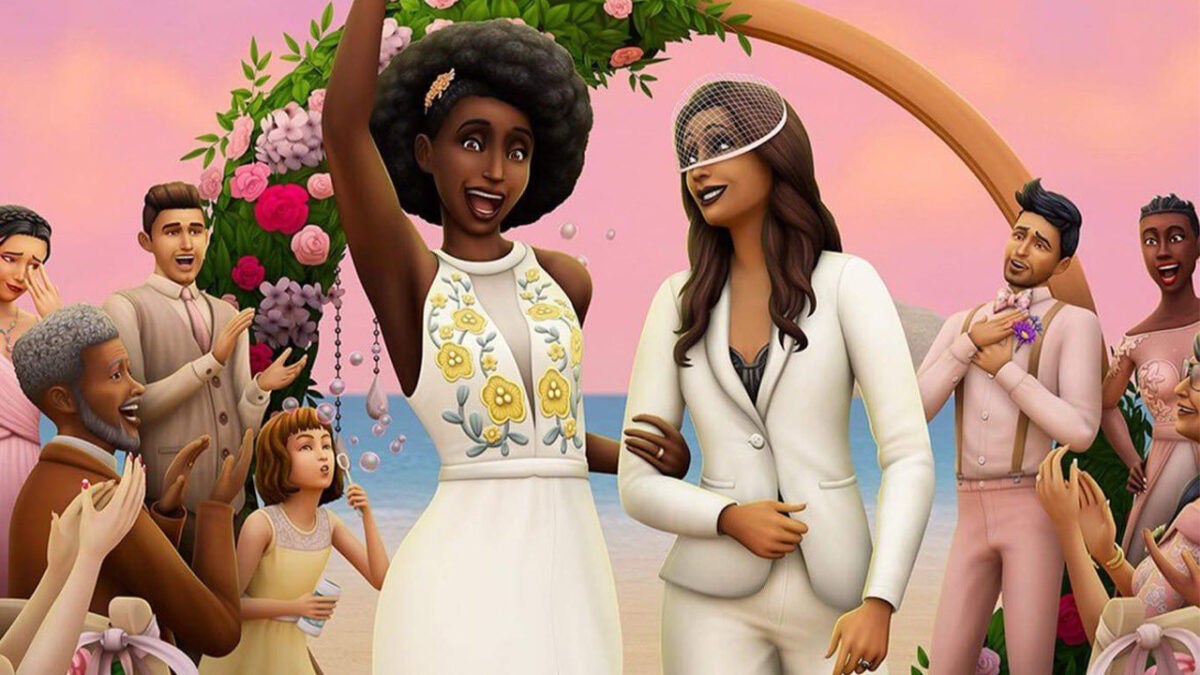
February 17th is the expected date of arrival of a new The Sims 4 game pack teased in January. The teaser came as a part of a roadmap released by EA on social media that vaguely maps out the studio’s year ahead. The devil was in the details with this roadmap; however, as fans of the franchise and diehard Simmers picked apart the graphics elements of the social media post and came to one conclusion; The Sims 4 is getting a wedding pack

Notable Sims community member and EA GameChanger @lilsimsie discussed the background of the post in a video on her YouTube channel, mentioning that details that in previous posts were simply confetti resembled all sorts of wedding paraphernalia in the latest post. Kayla, as she is known off-screen, is not alone, with other community members jumping on the wedding bandwagon

The unofficial release date and concept and assumed cover art for the new game pack, presumably titled The Sims 4 My Wedding Stories, comes courtesy of a leak by a Twitter account known for successfully leaking content pertaining to upcoming games. The account, @Alumia_Italia, leaked that the pack is expected to release on February 17th, just a few days after Valentine’s Day. The leak was corroborated by other Sims fan accounts such as @lunar_Britney, and numerous Sims YouTuber’s like @Deligracy have already commented on the leak, adding to the general feeling that it is all but confirmed as the next big game pack. 

Subsequently, Key features of the pack have been ‘leaked’ as well, with specific attention paid to the purported new wedding-themed world Tartosa. 
Only February 17th will tell how much of this is grounded in reality. Until then, however, feel free to read about the recently released collaboration with Pabllo Vittar and brush up on your Sims 4 knowledge with our in-depth review of the wildly successful life simulator by EA Games and Maxis.

Microsoft announces it’s disabling macros to protect Office apps from malware attacks

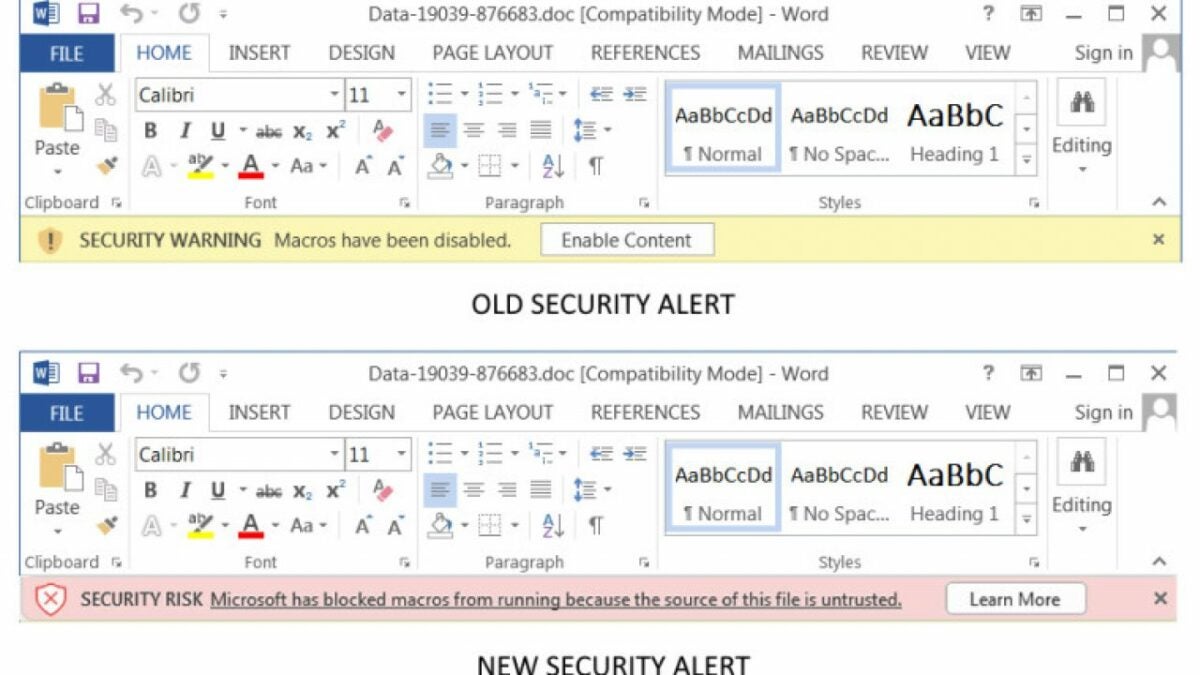
Microsoft announced steps to eliminate malware attacks across their Office productivity suite on Monday, February 7th. To this end, whenever a user opens an attachment or downloads a file from the internet, these files will be analyzed for macros. The files will then be classified as ‘untrusted’ by the entire Office productivity suite. Furthermore, a banner will be displayed altering the user to Microsoft blocking macros from running because of their untrusted file source. 

This news comes within a month from Microsoft’s announcement that it was disabling macros in Excel 4.0. This was also done to limit security threats to unsuspecting users as Excel 4.0 (XLM) macros had become synonymous with malware distribution. 

However, this feature does not give you less access to your computer or files on it. The user still has full control over their system and the information they expose it to; the new feature simply makes Office’s default setting one that protects the user’s system.

Should users wish to unblock macros for downloaded files, the process is easily executed in a few simple steps:

  • Right-click the desired downloaded file
  • Select ‘Properties’ from the menu
  • Click on the ‘General’ tab
  • Tick the ‘Unblock’ checkbox

The new changes are expected to take effect on Microsoft 365 from April 2022. Microsoft is also expected to backport the updates to Office 2021, Office LTSC, Office 2019, Office 2016, and Office 2013 at a future date yet to be announced. 

If you would like to learn how to unleash the full potential of Microsoft’s Office productivity suite, read our full guide to Microsoft Excel and our article on using Excel formulas in 3 simple steps. Mathematics has never been easier. 

Google Messages Beta teases Gmail features and expanded functionality

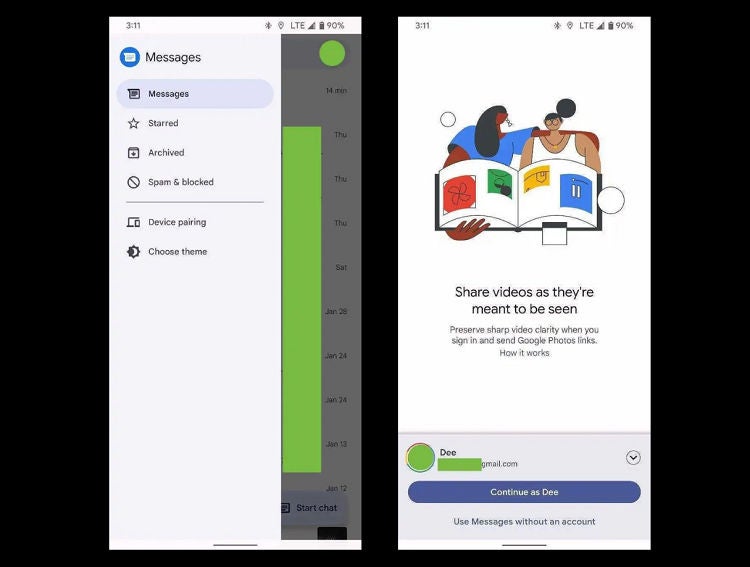
The beta release of Google Messages seems to tease a more synchronized future for Google’s resident messenger. Previous versions have been cluttered with menu options under the formerly-standard ‘three dot’ layout. The latest beta does away with these in favor of the more modern and streamlined hamburger menu. While the options within the menu have remained the same, the fresh layout breathes new life into Google Messages and brings it more in line with the rest of the Google productivity suite. 

Beta’s aren’t always anything to go by in terms of what the final release of a product will be, so it’s far too early to count our better-organized and streamlined chicken eggs. However, it is safe to assume many of the features that bring the beta closer to what Google already offers with its other products will make it into the final build. 

The beta also features better integration with Google Photos, letting users send high-quality media directly from the Messages app. Previously, users were only able to send lower-quality media via MMS functionality. While this new integration is an exciting development for Google Messages, the productivity giant is already behind, with apps like WhatsApp able to send high-quality media for years. For devout Google fans and texting aficionados, though, this is big news. 

In other developments, Google has also announced the redesign of the Google Chrome browser logo. Chrome hasn’t experienced a refresh in over eight years, so it’s high time for a redesign to remain competitive and fresh-faced amidst the recent spike in Microsoft Edge users on Windows 11. 

Both the final build of Google Messages and the redesign of the Chrome logo are expected to be widely available soon. In the meantime, why not check out our articles about the Google productivity and functionality suite and all its wonders?