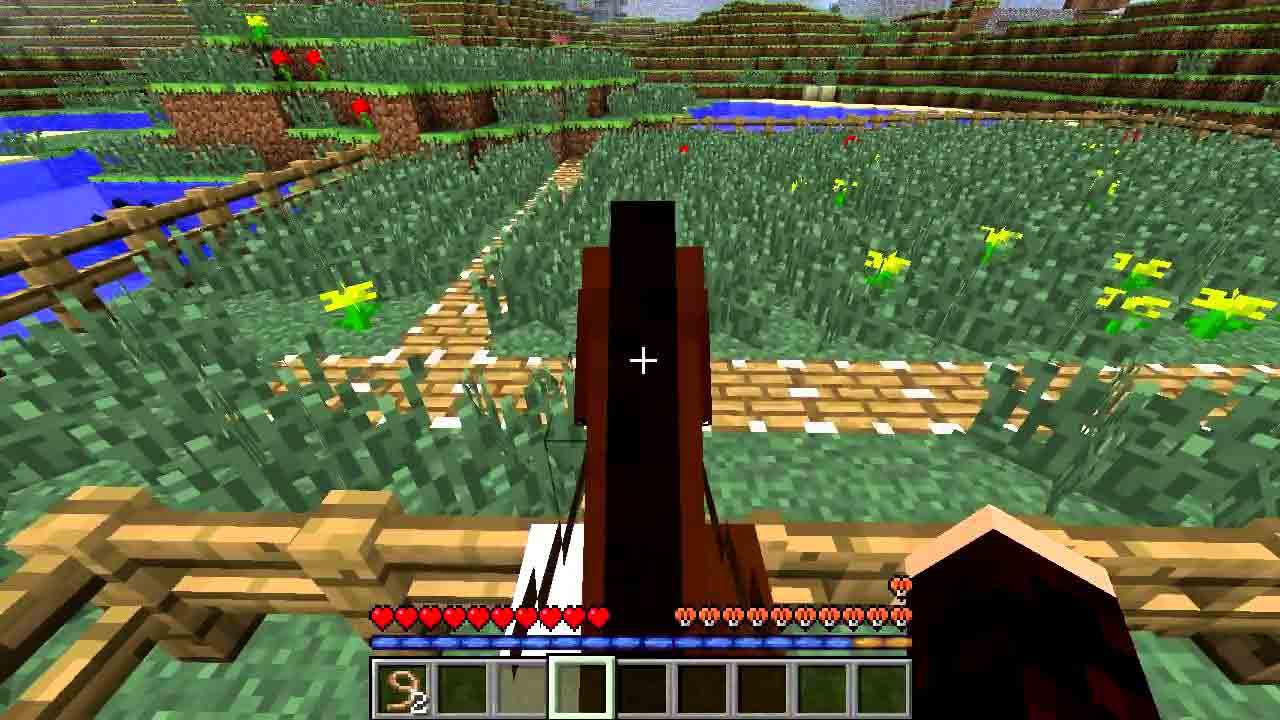
How to Install Shaders for Minecraft

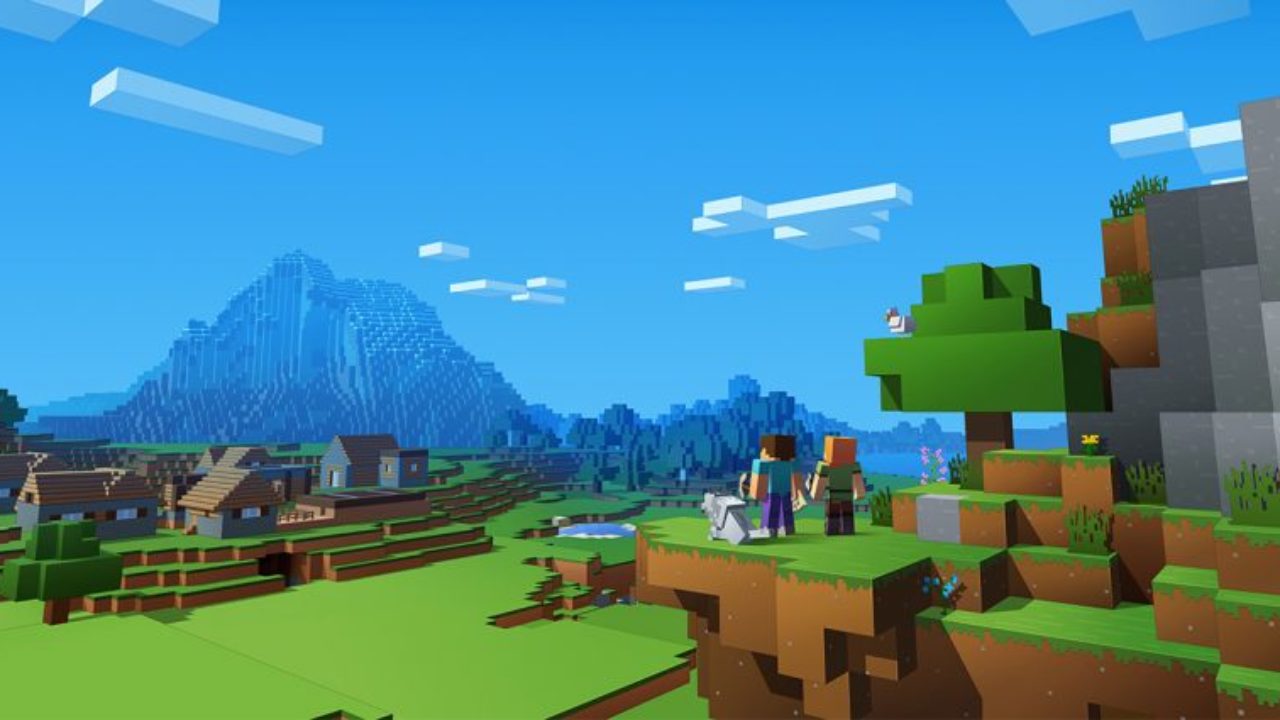
Minecraft provides an extremely enjoyable experience for casual gamers that love sandbox titles. It’s mellow, and you can choose whether you want to just be creative or survive against the nightly hordes of monsters. 

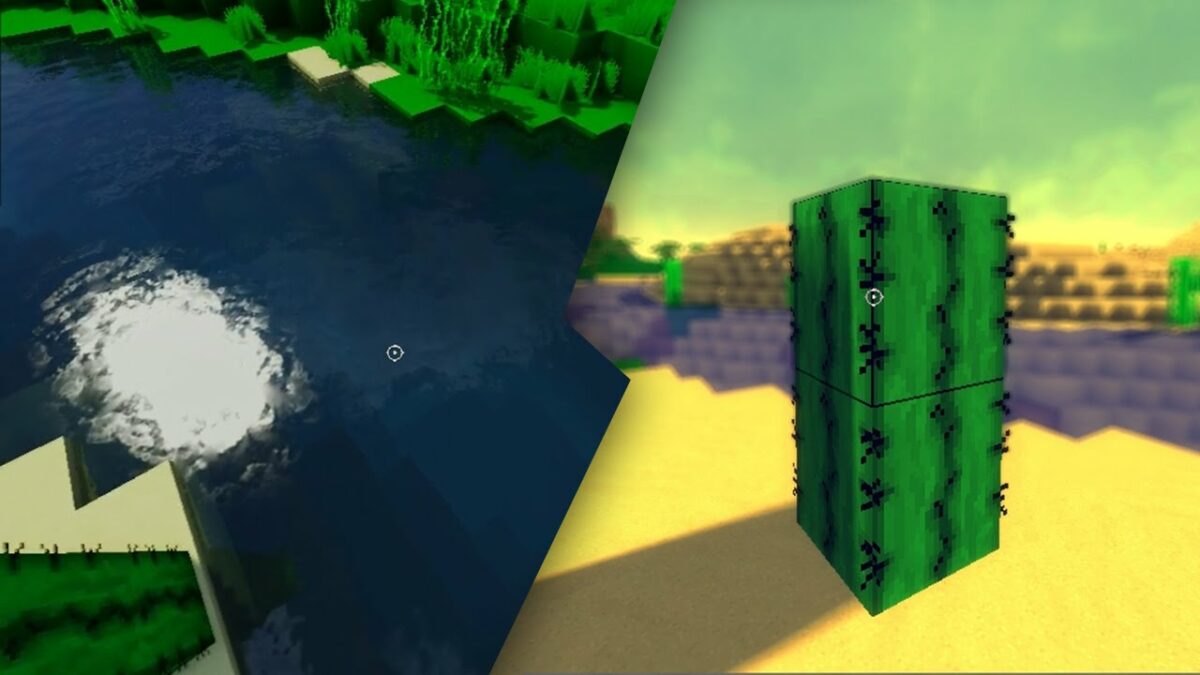
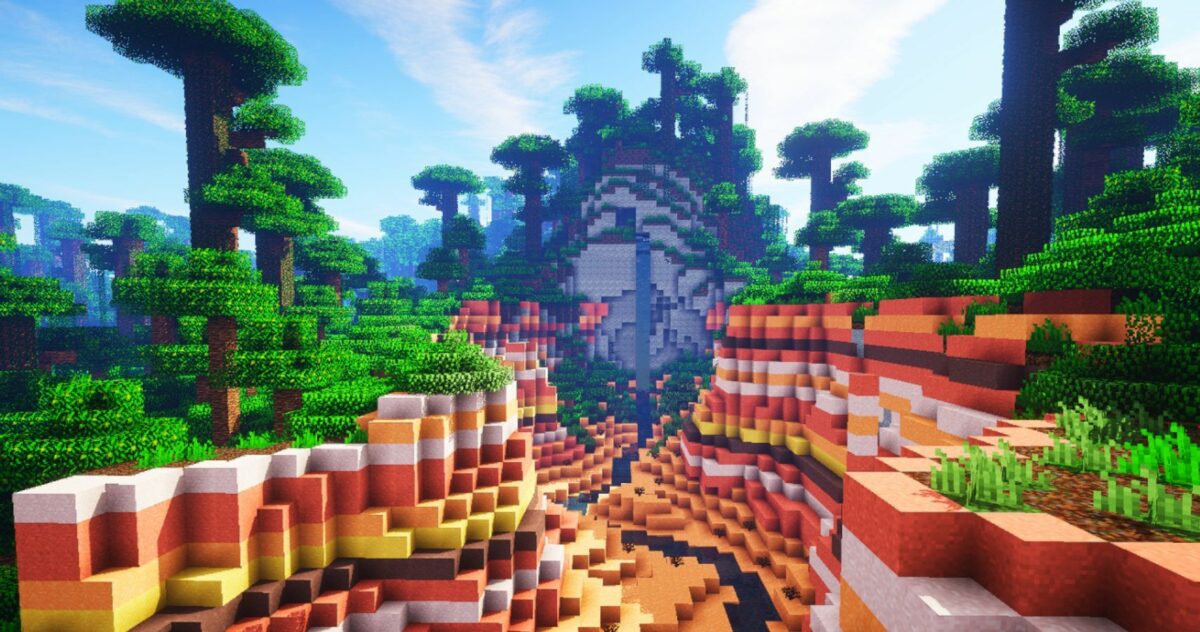
Did you know that you can also install shaders for Minecraft to change the visual aspects of the game? In essence, you’ll receive new lighting, improved graphics, unique textures, and so much more!

A quick guide for how to find, download and install these exciting elements.

Step 1: Download and install Optifine

Optifine is a free mod platform for this game that helps optimize your settings. If you’re wanting to install shaders for Minecraft, installing this program is your first step. It will assist in placing the shaders in your saved worlds without stressing you out too much.

You can read more about Optifine and find a download link in our guide.

Step 2: Find and download your favorite shaders

Now that you have Optifine, it’s time to locate your favorite shaders pack. The online world is saturated with content from gamers and developers alike. However, here’s our list of the top six shaders you can try for Minecraft:

Step 3: Open the shaders folder

Here come’s the tricky part. You’ll need to launch Minecraft with your launcher of choice before opening the Optifine version. 

  • In the main menu, select Options;
  • Click on Video Settings, and then Shaders;
  • Select Shares Folder, and wait for the new window to appear.

How to install your Minecraft shaders pack

You’ve reached the most challenging step of installing shaders for Minecraft. Everything you’ve done so far has led you to this point. Ensure that you follow this process carefully, otherwise it won’t work.

  • Once you’ve downloaded your shaders pack, move the folder to the Shares Folder window you found in the previous section;
  • Close the folder and restart Minecraft;
  • Ensure that you open the Optifine version again;
  • Follow the same steps as before, but stop when you select Shaders;
  • You’ll see you’re selected pack, which you can now run.

Behold beauty and majesty

Shaders present a new appearance to your saved world if you’re bored of the vanilla look. If you’d like to learn more about crafting, feel free to read our Minecraft guide. You can also check out how to allocate more RAM in Minecraft if you need more memory for your shaders.
How to Allocate More Ram to Minecraft

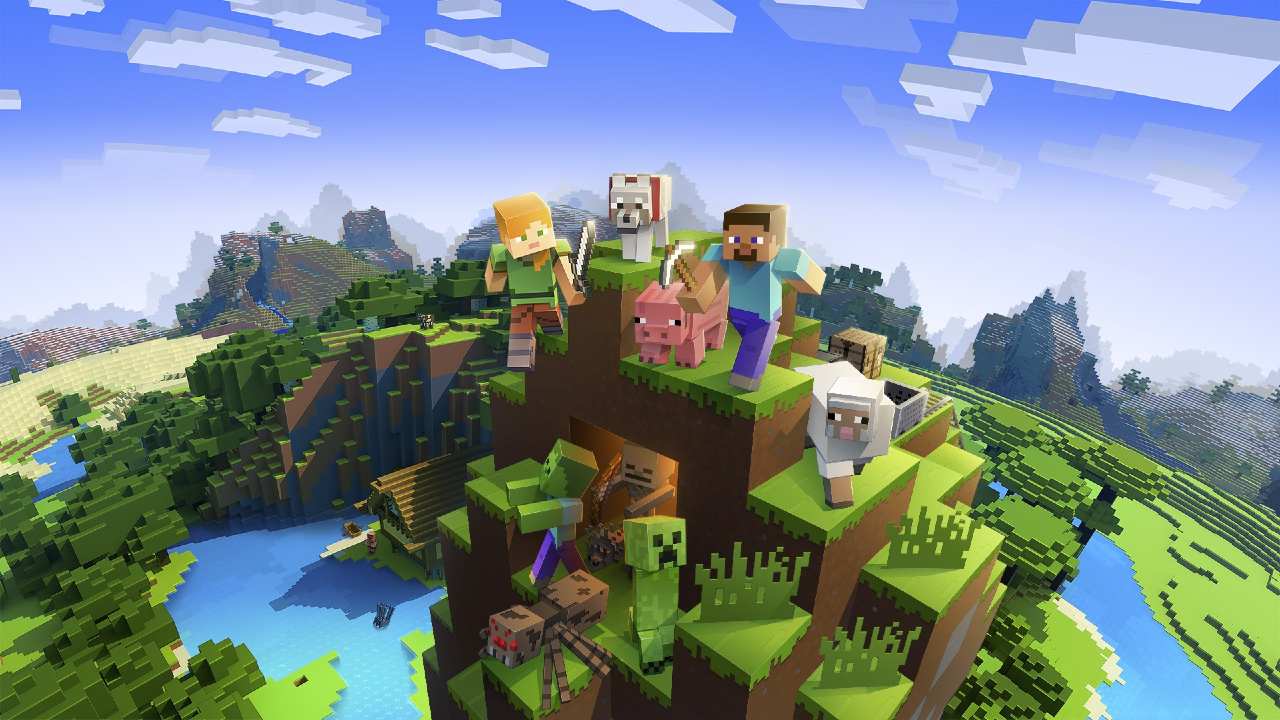
Minecraft has been bringing joy to family and friends since 2009, breaking into PC screens first before moving to consoles and finally mobile devices with the Pocket Edition. Who would have thought that destroying blocks just to reorganize them elsewhere could be so much fun? 

The primary issue with computer gaming is that you sometimes need to allocate the correct amount of memory for the title to function properly. Today, we’re going to show you how to do that with Minecraft.

How much memory should you allocate to Minecraft?

Depending on how much effort you’re going to put into this casual sandbox game, there are different RAM allocations you can try. For instance, starting out and playing randomly will need at least 2GB of memory. If you’re going to be building more advanced features or playing online with friends, you’ll need between 4GB and 6GB. 

Allocating more RAM to Minecraft 

Your computer won’t automatically assign the right amount of memory to Minecraft. In order to adjust the settings, you’ll need to access the game launcher you use to start the game. Here’s a look at the top three Minecraft launchers and how you can allocate more RAM through them.

Premium Launcher

The Premium Launcher is the default Minecraft launcher you’ll receive with the vanilla game when you purchase it for Windows. To allocate more memory, you’ll need to follow these steps:

  • Open the launcher;
  • Select Launcher options before proceeding;
  • Enable the Advanced settings;
  • Choose the version you want to change;
  • Enable the JVM Arguments;
  • Exchange “-Xmx1G” with the amount of ram need;
  • Save your settings.

Other launchers

Of course, there are other launchers you can use for optimized settings and mods. Both TLauncher and ATLauncher provide the ability to allocate more RAM to Minecraft. While you may need to head into preferences or tools, you can change the memory assignment using either one of them in the same way.

Get your craft on

Playing Minecraft is one of the most enjoyable experiences for any sandbox casual gamer, whether your a teenager or an adult. There are so many items you can craft, so be sure to check out our Minecraft guide for the latest tips.

Top 3 Photoshop Tips To Resize Images

The best thing about the internet is all the free and safe tools that came with it. Who could have imagined in the ‘90s that we wouldn’t have to buy photo film cartridges forever? If you’re from that era, you’ll know what we mean when we say that trying to protect those films was a disaster.  

In the good old days, we didn’t have the option of editing our pics with free tools like Adobe Photoshop, Pixlr, and Photoscape. On top of that, it’s free to use, and you can create magic from your favorite memories, whether you want to change your background or add your mom to your holiday pics in Rome. It’s all possible with a few easy clicks once you know how to do it. 

Adobe Photoshop TRY IT NOW
9

If you haven’t played around on a free photo editing tool yet, you’re missing loads of fun. The best ones, such as Photoshop, are free to download and get started. You don’t have to worry about messing up your favorite pics either. If you don’t like what you’ve done to a photo, you can quickly undo it and start again. You also don’t lose the original photo. You make an additional copy in Photoshop to play around with until you have the perfect image.

Tips on how to resize and flip your images using Photoshop

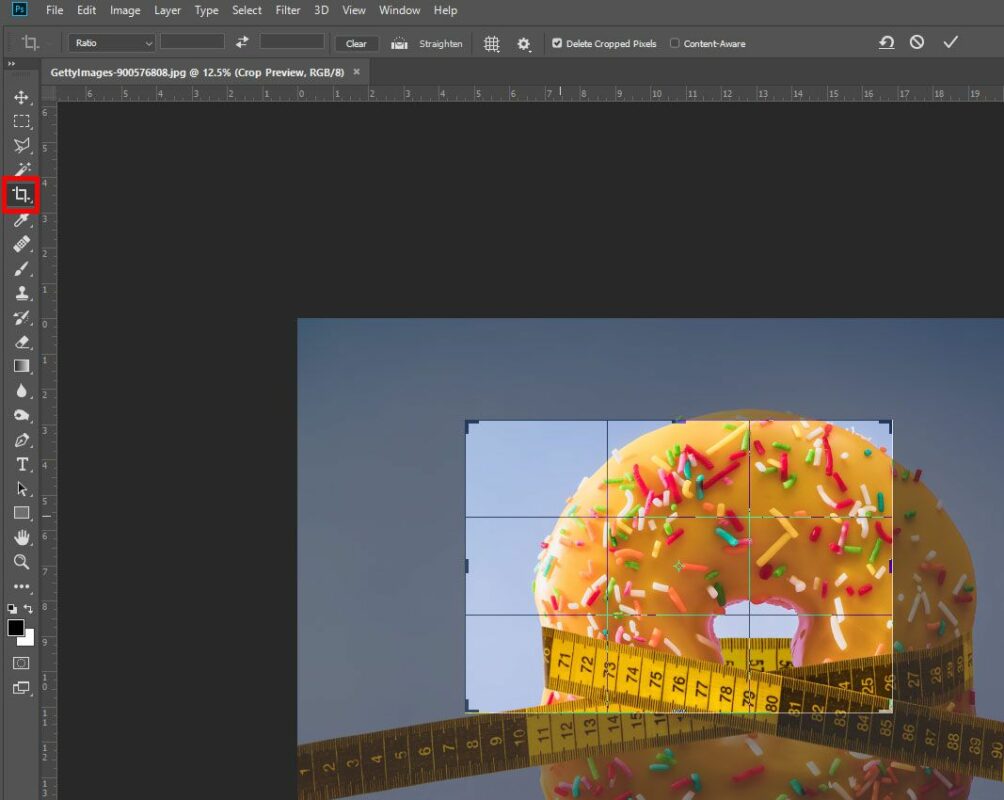
1. How to resize an image

  • Start by opening your photo in the Photoshop app.
  • Navigate to ‘Image’ that’s at the top of your screen
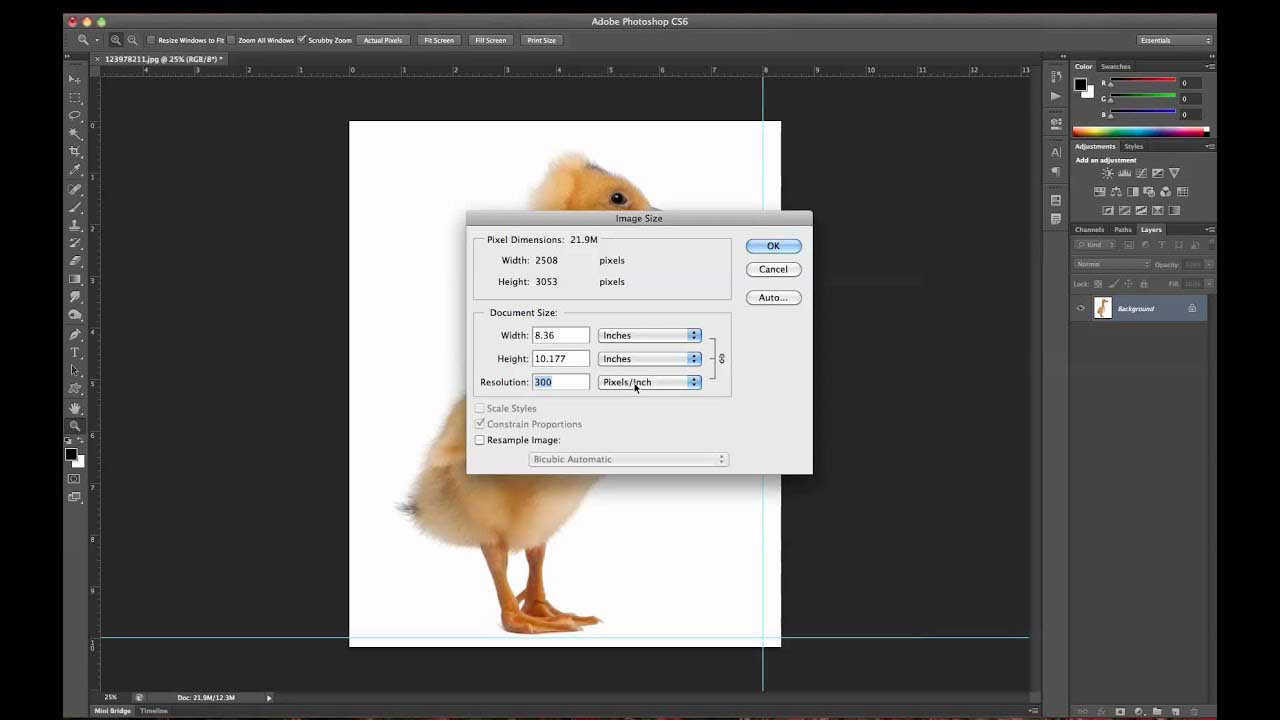
  • Click on ‘Image Size,’ which will open a new window.
  • Select the option to ‘Constrain Proportions,’ which will keep your image proportions intact.
  • Go to ‘Document Size’ and follow the next steps: Choose ‘inches’ as your preferred measurement unit and ensure that the image resolution is ‘200 pixels/inch’ or higher. If you’re planning to print the image, then opt for ‘300 pixels/inch.’ Please enter the height and width you want for the photo and crop it where necessary. If you’re happy with the result, then click on ‘Ok.’
  • You can now save your new file.

2. How to flip my images 

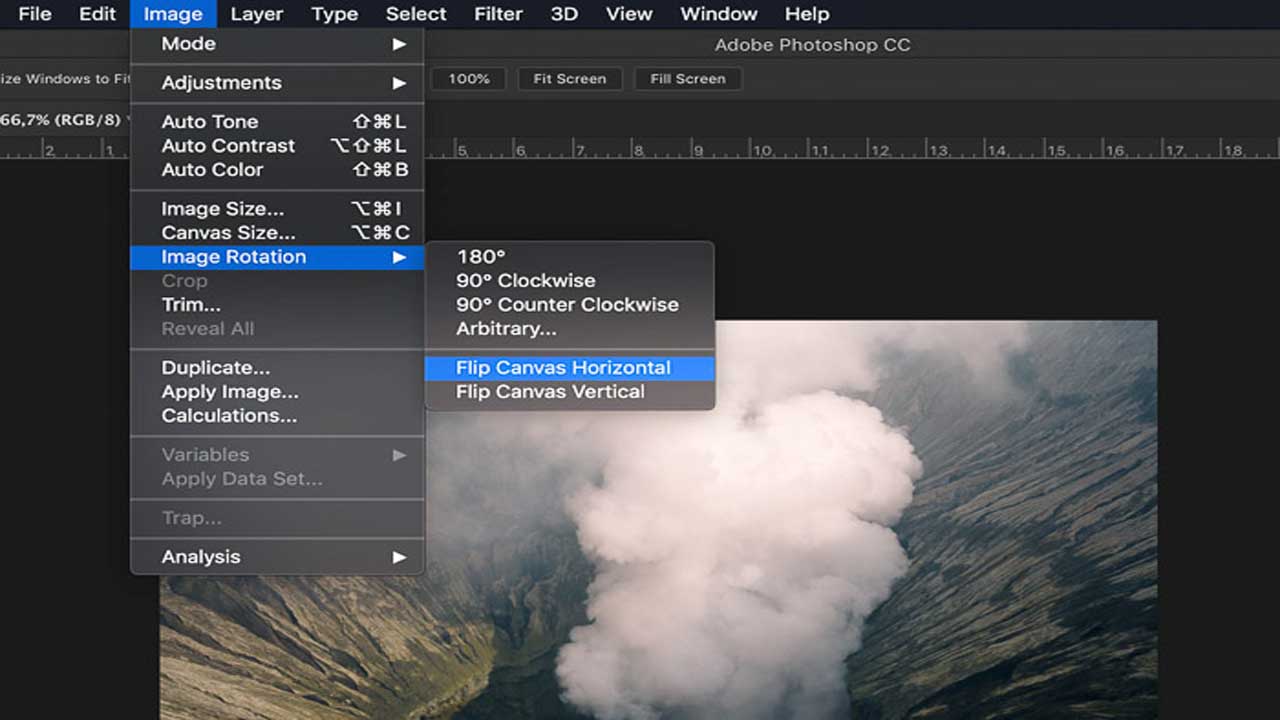
  • Open your Photoshop app and select the image you want to ‘flip,’
  • Choose ‘Image’ on the toolbar at the top of your window and select ‘Image Rotation.’ 
  • Click on ‘Flip Canvas Horizontal.’
  • Save your image in the new position.

3. How to change resolution and dimensions 

  • Open your Photoshop app and click on ‘Image’ > ‘Image Size.’
  • Here you can change the image resolution or print dimensions.
  • If you don’t want to change the image ratio of width to height, then select ‘Constrain Proportions’
  • Now you can change the image ‘Resolution’ value and save your image.

How to Add Grammarly to Word

If modern tech has done anything well, it’s made everything we create better. Think about all the ways that it has improved processes in various industries. Architects don’t have to spend months behind a drawing board any more. With the mere click of a button, they create breathtaking skyscrapers and homes. They can add life to it by adding avatars in the picture for a more realistic image of what it’ll look like when complete. 

Writers create the same magic when putting pen to paper, and once again, technology saves you many hours of searching for the right word, grammar, or punctuation. Grammarly is a writing app every writer needs if you’re serious about being published or need to impress your editors. You can download it for Microsoft Office or Chrome as an extension to your Word documents.

Even in the corporate world, it has become a tool everybody uses to remain professional and even diplomatic. Yes, Grammarly gives you suggestions when it picks up that your tone could improve, according to your pre-set requirements.

Is Grammarly free?

You can quickly sign up for the entry-level version of Grammarly that’s free and safe to use. All you need is an email address and password, and you’ll have access to the essential functions that’ll help you correct typical grammatical errors, localization, and tone of voice.

If you’re a professional writer, you’ll find tremendous value in the Premium version of Grammarly. It makes your work effortless as it takes care of localization and grammar in one quick scan.

How to add Grammarly to Word?

You can create a shortcut on your desktop and, after writing, run your entire script through Grammarly, or you can integrate the app add-in to Word and receive all suggestions as you write.

  • Close all the projects you have open in Microsoft Word and enable pop-ups in your settings.
  • Open your Grammarly app on your device.
  • Log in with your sign-up details.
  • Navigate to the dashboard on the left side of your screen and select the ‘Apps’ option.
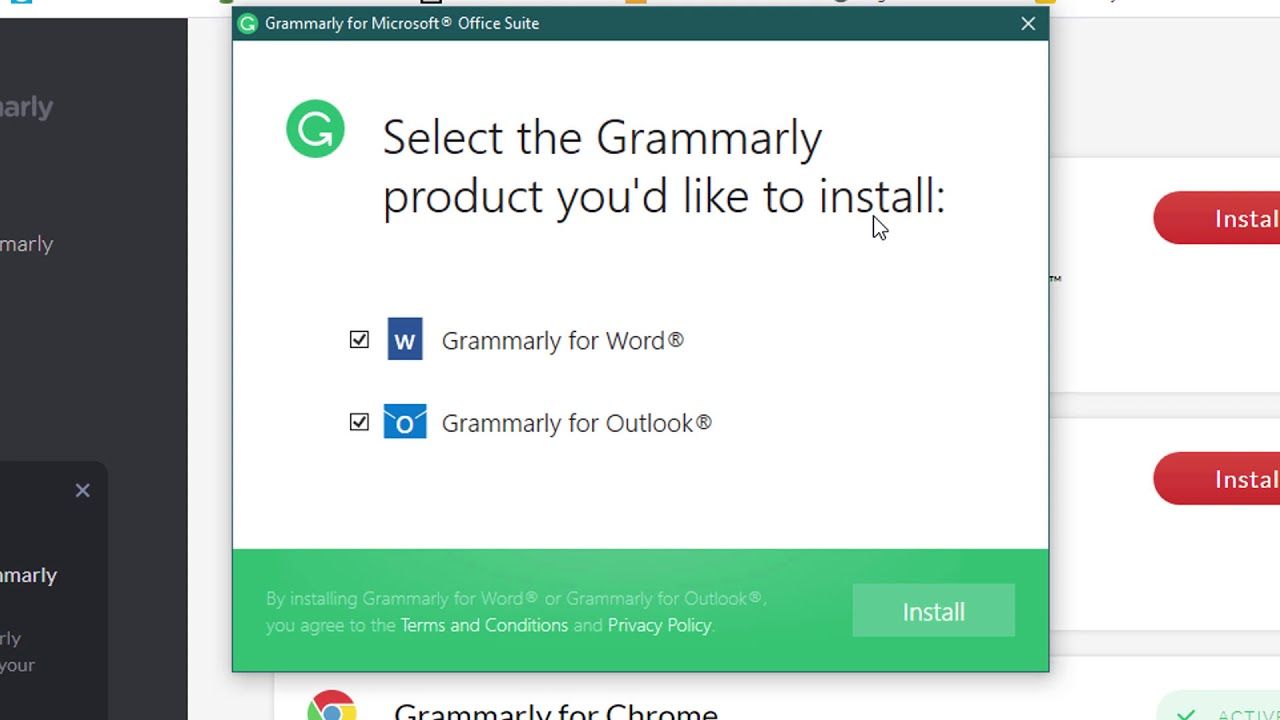
  • Scroll down to the ‘Microsoft Office’ option and click on ‘Install.’
  • Allow the ‘Add-In’ to download in your browser window and then click on ‘Open.’
  • If a pop-up window appears asking if it should run the application, you can check the ‘Run’ option. It’s safe, don’t worry about allowing this source to work in the background.
  • Make sure that you have the correct version, and then click on ‘Install.’
  • Once the installation is complete, you’ll have to restart your device.
  • You can now select ‘Finish’ to complete the installation.

Other helpful apps for writers

If you want to take it a step further in delivering top-notch writing projects to teammates or editors, consider using Grammarly in conjunction with Hemingway and Desktop Plagiarism Checker. It all integrates seamlessly with Grammarly and helps you deliver flawless work.

Rust Twitch Drops in 3 Steps

Rust is back and claiming its online popularity fast. The creator recently let slip that the game’s performance is showing mega revenue. Players are lining up to get on board. It’s also the most viewed title on Twitch currently, with more than 700,000 viewers.

Facepunch Studios, the Rust developer and publisher, confirmed that the paid game is now releasing Twitch Drops for all followers who meet the minimum viewing criteria. Yes, this multiplayer survival title just got way trendier with well-known gamers such as Shroud, Pokimane, Sykkuno, and Jacksepticeye onboard. 

Now you’ll have all the more reason to switch over to the Rust channel and start collecting some awesome Twitch Drops.

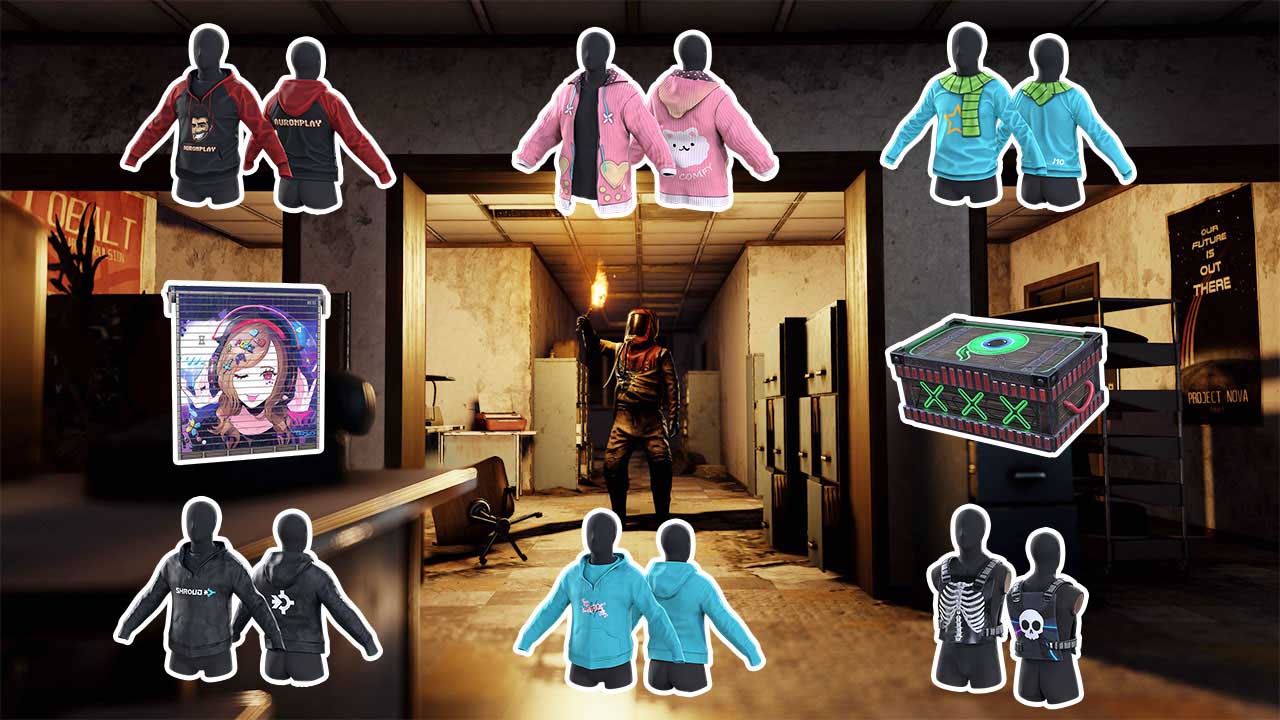
If you’re watching Rust on Twitch and spot a hoodie that you’re dying to lay your hands on, don’t worry! The chances are pretty good that you can grab it as in-game loot if you’ve linked your Twitch account to the game.

How do I activate Rust Twitch Drops?

It’s a quick and easy three-step process:

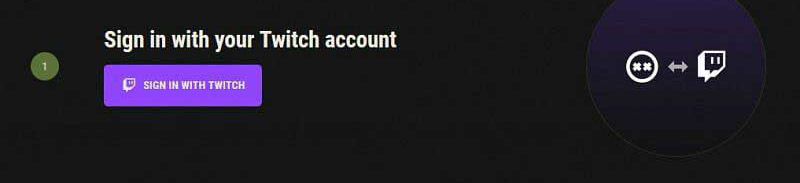
Step 1: Sign in with your Twitch account

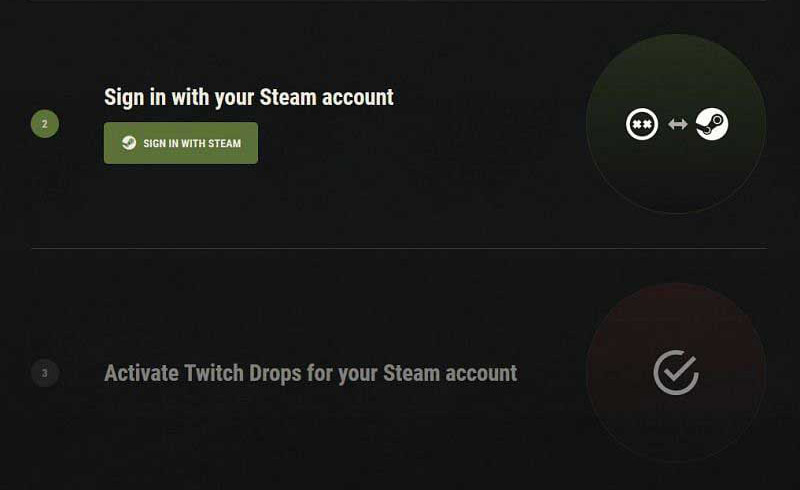
Step 2: Sign in with your Steam account

Step 3: Activate Twitch Drops in your Steam account

What are the latest Rust Twitch Drops?

When you’ve linked your Steam and Twitch accounts, you can start unlocking exclusive rewards for simply watching Rust. It doesn’t get easier to reap fun rewards. 

You have to watch specific players’ streams for four hours to be eligible for their drops. Here are some of the coolest loot drops currently on Rust:

  • xQcOW’s assault rifle
  • Myth’s chest plate
  • Jacksepticeye storage container
  • Pokimane’s garage door
  • Shroud’s hoodie
  • Lilypichu’s hoodie
  • Sykkuno’s long sleeve shirt

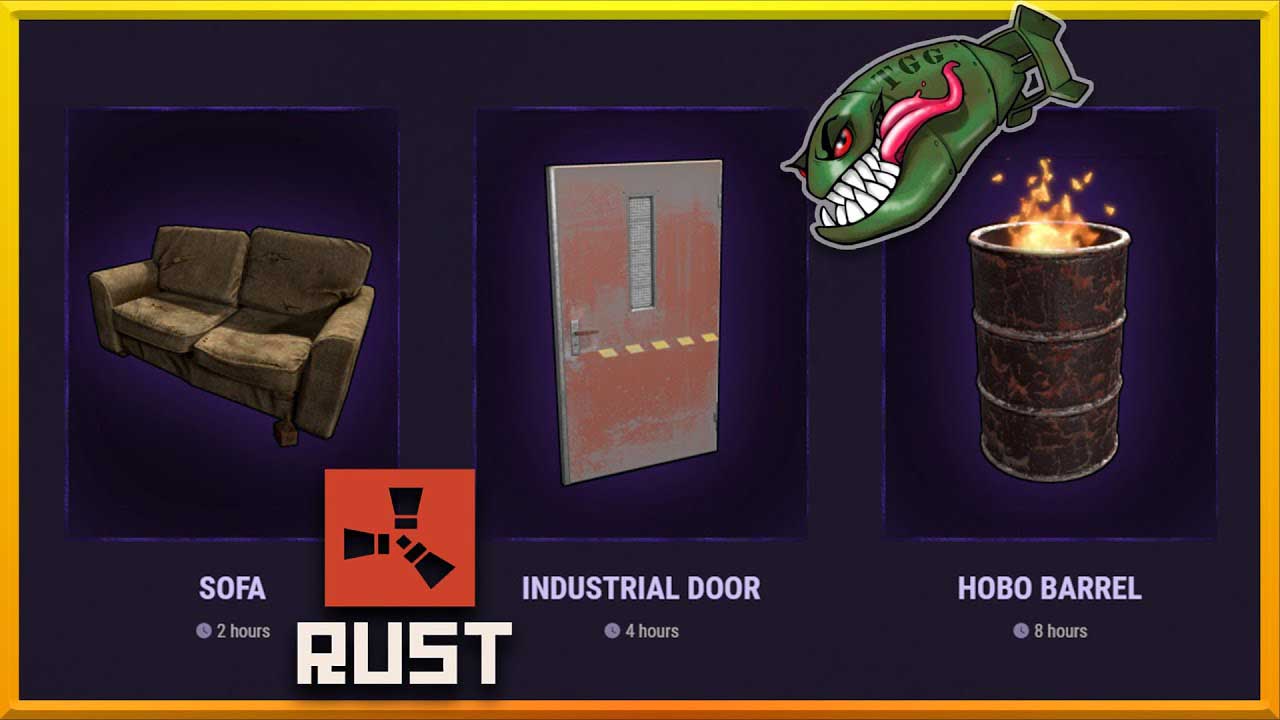
There are a few non-streamer items available for shorter viewing time requirements, and they include cool furniture and a hobo fire to keep the cold out. Watch out for these three currently available after two to eight hours of watching Rust:

  • A cool, but warn in, brown leather sofa (yours for only a mere two hours of watch time)
  • A hobo fire in a drum (eight-hour watch time for the heat)
  • A large red industrial door (four hours needed for this one)

Keep in mind that the items don’t stay available indefinitely. If you love it, you have to watch your favorite player while the drop is hot. 

Other games with Twitch Drops

If you’re a League of Legends or Minecraft enthusiast, remember to follow the players who activated their Twitch Drops icons for more exciting in-play prize drops.

Top 5 Tips for Improving in Friday Night Funkin’

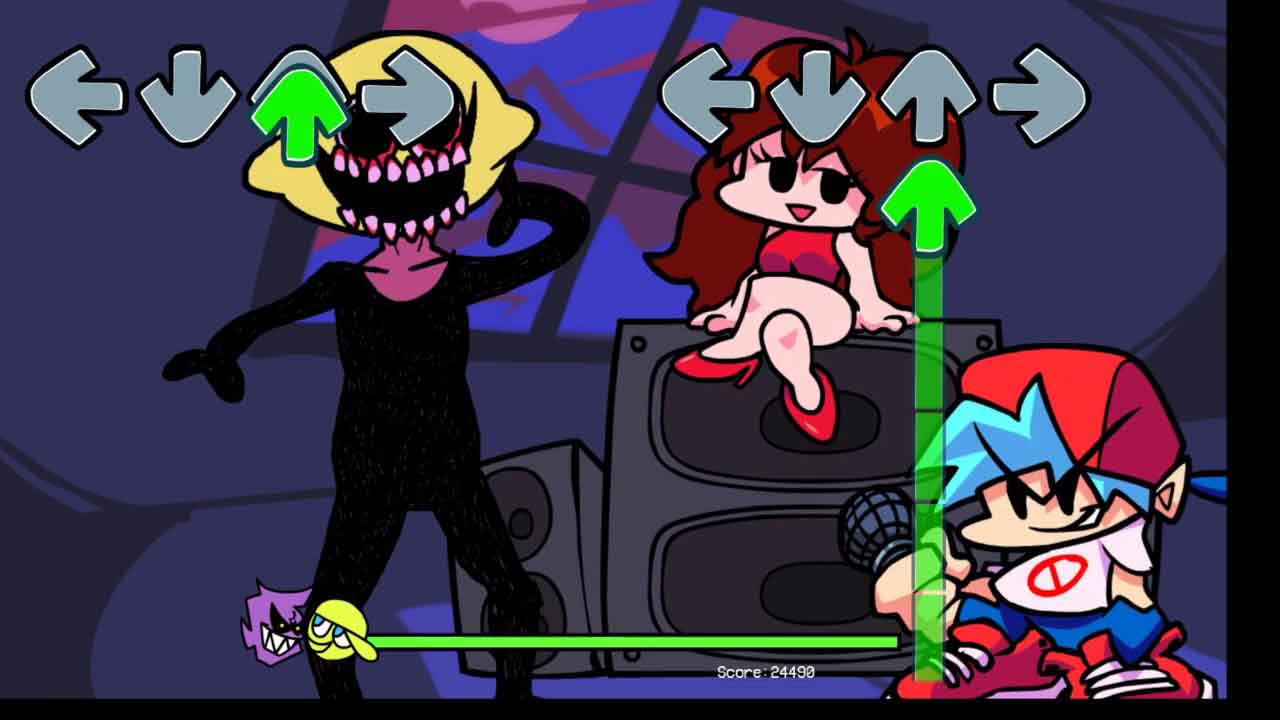
If you’re bored on the weekend, you should try Friday Night Funkin’ and have a blast as you dance and rap your way into The Girlfriend’s heart. You’ll have to rap and sing your way past Daddy dearest if you want to convince her to get down from the beatbox and join you for a romantic duo on the dancefloor. 

She’s got her eye on you, too, as she shares tips and tricks in the tutorial to help you win The Father’s favor. Look, The Mother doesn’t look any less sinister, so don’t expect any free brownie points there either.

What is Friday Night Funkin’?

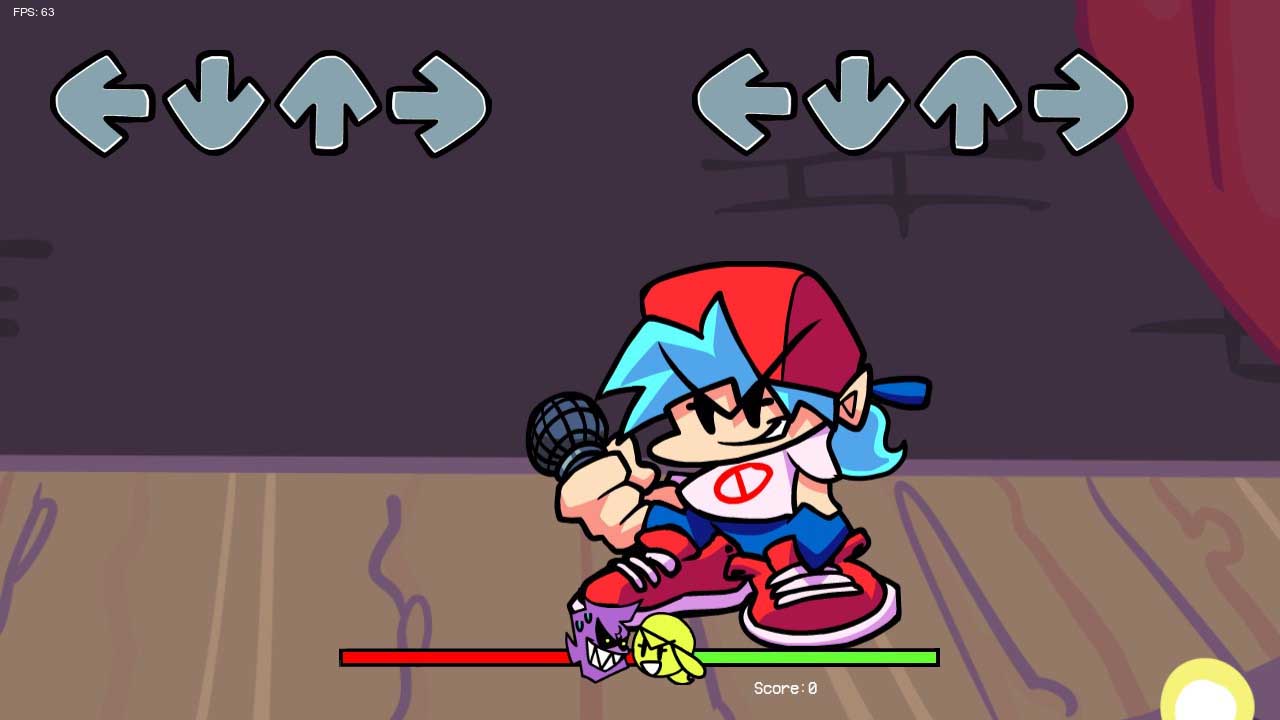
Friday Night Funkin’ from Ninjamuffin99 is a cartoon-style rhythm game with tunes from Kawai Sprite for its soundtrack, and PhantomArcade and evilsk8r are responsible for the fun graphics and animations. You can download the Friday Night Funkin’ game for Mac or Windows and play it free and safely on PC or mobile.

Try not to miss a note during a high combo, as you’ll have The Girlfriend in tears on the boombox. She’s terrified of thunder, but soothing her with some Cherry Dr. Pepper will score you some points as it’s her favorite drink.

The game is all about practicing as you work your way through the various weeks. Each week introduces new features, singing challenges against The Father, and characters that’ll either help you or block you from getting the girl.

Tips for getting better in Friday Night Funkin’

Practice makes perfect guys and gals. But let’s see what else you can do to find the courage and beat The Father at his rock and roll song.

  • Start every new week with the ‘Easy’ mode and work your way up through ‘Normal’ and then ‘Hard’ as you get better.
  • Listen and get to know the soundtrack.
  • In week two, there’s a part of Spookeez that might be difficult to get past. Focus on mastering the red arrows in that specific part.
  • To improve your hand position, try to use your left hand on L and UP and your right hand on R and DOWN.
  • You can play PaRappa the Rapper or other rhythm games as additional practice.

Other games similar to Friday Night Funkin’

Bemuse is another excellent rhythm game that you can play for free, and it’ll help you practice keystrokes for Friday Night Funkin’. Although PaRappa the Rapper is one of the oldest rhythm games and was published for PlayStation back in 1996, it still delivers hours of fun. Other interactive and fun games that hit the scene big time recently is Among Us and Night of the Dead.

How To Save Adobe Flash Files in Firefox and Chrome

Now that you know Adobe Flash will not be with us much longer, it’s a good time to start migrating all your existing Flash files to your current, or alternative, browser. Flash files are generally embedded in websites, and it can be challenging to save. You can use any preferred browser to find a web page’s source code, and that will show you the Flash file location to save it to your PC.

You’ll typically find two types of Flash files embedded, namely SWF and FLV files. The SWF files typically hold the FLV files. You’ll be surprised once you start looking for it just how many of your favorite apps, music videos, and games are indeed free Flash files. The quickest way to download flash files as and when you find them is to add a free extension to your Google Chrome browser. You can download Flash extensions for Mac and Windows that are free and safe.

How do I save a Flash file in Chrome?

  • Open Google Chrome and go to any Web Store page with a Flash extension, such as Flash Video Downloader, Sothink Flash Downloader for Chrome, or VFD Video Downloader.
  • Select ‘Add to Chrome’ and then press ‘Add.’ Chrome will install the extension. Once the installation is complete, Chrome will add a new icon to the window.
  • Open the Web page with the Flash file and click on the new icon in your Chrome window. All Flash files that can be downloaded will show in the pop-up window. Select the Flash file you want, and it will download to your hard drive.

How do I save a Flash file in Firefox?

Firefox is one of the easier browsers for downloading Flash files because each unique object on the page can be viewed and downloaded.

  • Launch Firefox.
  • Go to the specific page that has the Flash file you want to save.
  • Once you’ve found the Web page, you must right-click on it and choose ‘View Page Info.’ Keep in mind during this step that you shouldn’t right-click directly on the Flash file but rather on the background of the page.
  • Select the ‘Media’ tab to list all the files containing music, videos, and pictures.
  • Select the ‘Type’ tab to find the Flash files easier.
  • Scroll through the files and select the ‘Object’ types where the Flash objects are grouped.
  • Choose the specific Flash file you want to save.
  • Now you can ‘Save As’ the file to your preferred location.

Adobe Flash Player extensions beyond 2021

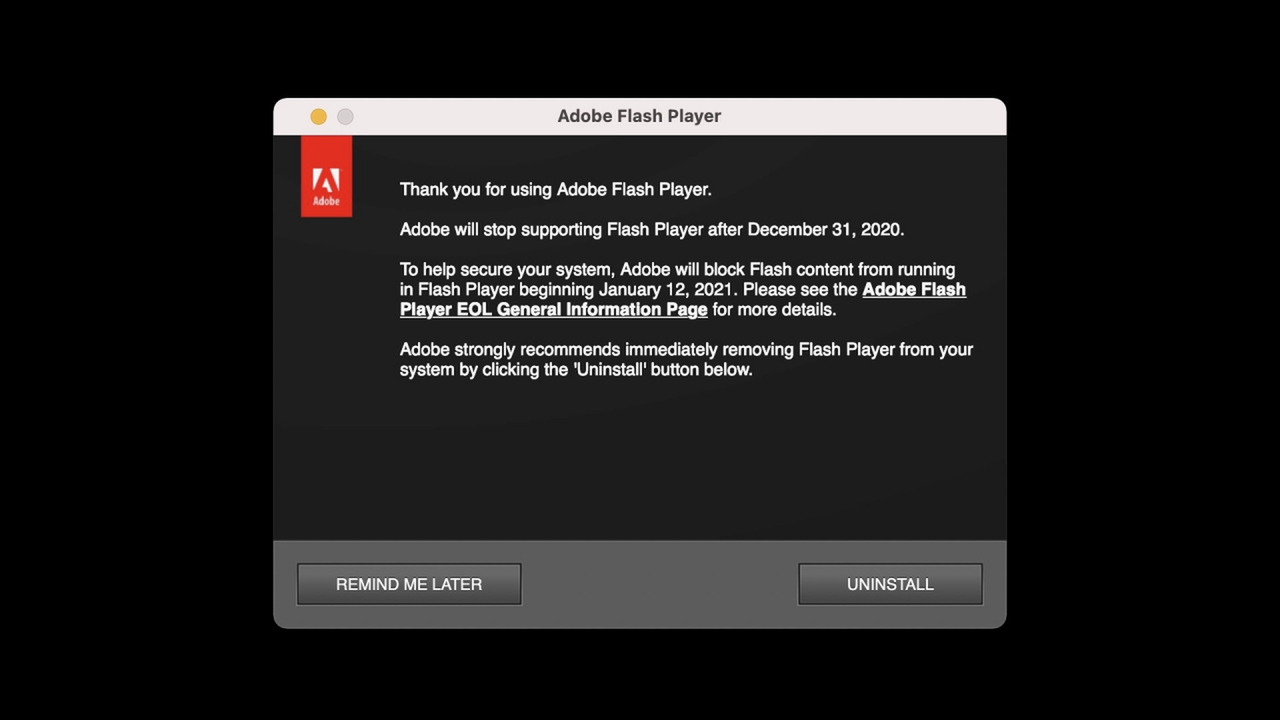
Many people are concerned about the Flash Player End of Life, as announced by Adobe recently. Even if you don’t use Flash in your regular browsers, such as Internet Explorer or Chrome, the new alternatives are excellent. Apps and videos in WebAssembly or HTML5 are built for the future, and you’ll notice how much easier it is to enjoy all your favorite apps and videos on mobile.

How to Uninstall Adobe Flash Player Now That It’s Leaving

Developers and users worldwide are all speculating about the precise reason why Adobe is considering kicking Flash to the curb. There are a few points worth discussing, which mainly revolve around the software’s overall security and the broad-spectrum attacks happening through it frequently. However,  Flashpoint remains a widely used web browser that enables many of your favorite games.

Some developers can’t help but reminisce about the unexplored and under-utilized potential welled up in Adobe Flash. Whichever way you look at it, the fact remains that, although Adobe Flash Player is still needed to run most of your apps and games, it could be something of the past. It’s time to prepare your online environment and platforms for whatever comes next to uninstall Flash without losing usability or apps.

Why are Flash websites redundant?

  • Flash websites rank very low Google PageRank;
  • Search engines can’t read websites that are 100% Flash creations;
  • You can’t optimize Flash sites for mobile use;
  • Flash websites are more expensive to develop due to the lack in the market of Flash website developers.

What comes next when Adobe Flash Player is no longer supported?

Most developers have already transitioned to platforms such as HTML5, WebAssembly, and WebGL. Adobe will in no way leave users in the dark once they finally discontinue Flash in Explorer, Chrome, or other browsers. There are countless speculations, and according to Forbes, millions of Flash websites will be left unusable, so it might be valuable to migrate your Flash website to a new browser before the Adobe Flash Player End of Life. 

The transition will be much smoother for end-users than for the developers, and you’ll most probably only have to do a software update on your already installed apps to enable other formats.

How to uninstall Adobe Flash Player

Remove flash from your windows PC:

  • Step one is to download the official Adobe uninstaller on your PC
  • Close all your apps, tabs, and browsers
  • Double-click the Uninstaller you downloaded
  • You click ‘Yes” to all the prompts
  • Restart your PC when completed
  • Hold in the Windows key while pressing ‘R’ – it’ll activate the ‘Run’ command
  • When asked what to ‘open’ type in: C:\Windows\system32\Macromed\Flash and press ‘Enter.’
  • Delete all the files in the specific Flash folder, repeat all 3 preceding steps again and this time delete all the content within the folders of:

C:\Windows\SysWOW64\Macromed\Flash
%appdata%\Adobe\Flash Player
%appdata%\Macromedia\Flash Player

Remove Flash from your Mac:

  • Download the official Adobe uninstaller for your Mac version (you can determine it by pressing the Apple icon and then select ‘About this Mac.’
  • Run the uninstaller version that you selected
  • As soon as the uninstaller starts to run, click on ‘Uninstall.’
  • Ensure that all your browsers and apps are closed
  • Once the unistaller finished its process, delete the following folders individually: 

           <home directory>/Library/Preferences/Macromedia/Flash\ Player
           <home directory>/Library/Caches/Adobe/Flash\ Player

Other browsers to consider

The most used web extensions used by web developers and end-users of late include HTML5, WebAssembly, and WebGL. These software platforms allow for seamless mobile optimization, which is vital in today’s day and age as we do most of our business, payments, and even play our games from our phones. Although it may seem like an unnecessary move, it’ll be better in the long run for developers and end-users.

Gacha Club Tips and Tricks

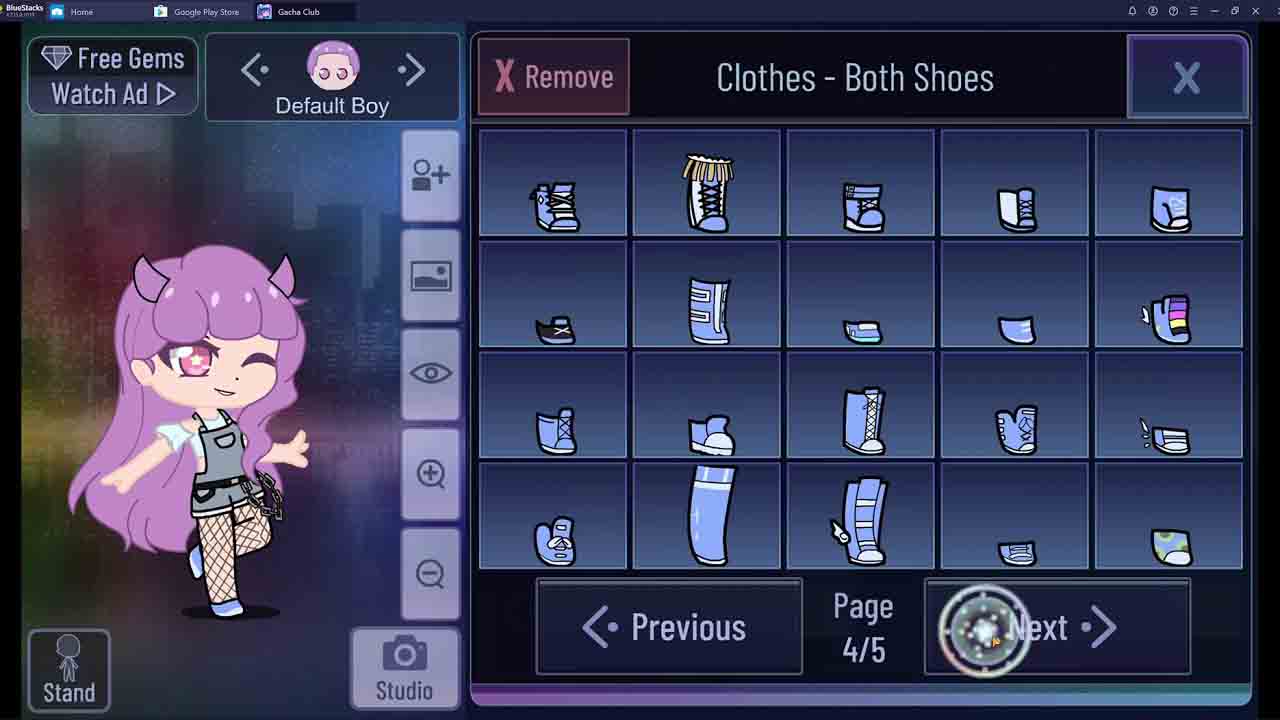
Gacha Club is a free, creative, and fun anime creator that teaches children the art of storytelling and character development. Your children can give wings to their imaginations as they create new animes, dress them up, accessorize them, and even give them weapons to fight each other.

It’s in no way only for children to enjoy, as the developer, Lunime, is known for creating casual strategy RPGs that are fun for people of all ages. The game has only two chapters at the moment, but Lunime loaded it with features and mechanics that can seem overwhelming to newbies. Today we’ll take a look at some Gacha Club tips and tricks to help you through the game faster.

You can download Gacha Club for Android, Windows, and iOS on the respective app stores. Many parents ask about the online safety of the game. It’s worth mentioning that it has in-app purchase options and a live chat feature. As with any online activity for children, parents should monitor who they interact with online. It’s also a good idea to keep your credit cards out of reach of the children if you don’t want to run up a bill for anime accessories overnight.

Let’s take a look at some tricks to work your way through the story successfully.

How to progress through the main story faster

You and the team you select build the unique storyline. You have to get stronger in each round to beat the team at the end of each level. It takes time to build up strength and accessories, and in the beginning, you might lose more battles because you haven’t earned enough gems, gold, or experience. You can skip the final fight by replaying your previous conquests continuously. It’ll strengthen your team to win more battles later on to level up.

Tip 1: Keep your team balanced

Gacha Club has eight elemental affinities that determine the outcome of a battle. It’s a simple game mechanism of which one is ranked stronger in the gamification. Much like rock, paper, scissors. Here are a few pointers to keep in mind when selecting your characters:

  • Water is stronger than fire but weaker than wind
  • Fire is fiercer than wind but weak against water
  • The wind is strong against water but weaker than fire
  • Light and dark only have advantages or disadvantages against each other
  • Heroes with a corruption element deal 1.5x damage against all other elements
  • DJ elements take only 0.9x from all other elements
  • The shadow element deals and takes 1.1x from all others

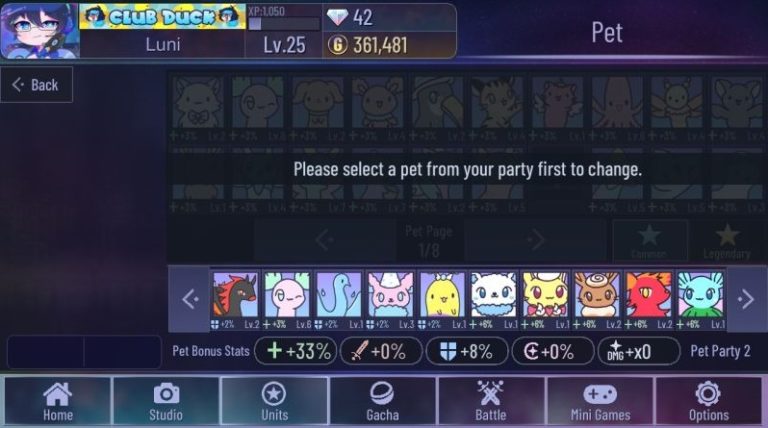
Tip 2: Bring your animal friends along

Yes, you can add some pets to your units for a bit more fun. When you head to the Gacha Club Studio, you can select pets to take with you. So, if there’s a dog you favor, feel free to place him with your gang for your next adventure. You may add up to ten pets to improve your character’s stats, such as defense or attack.

Similar games to enjoy

Lunime has another similar game for hours of immersive fun that’s worth a try named Gachaverse. It’s another Anime dress up and RPG video game for mobile devices. Gachaverse doesn’t include the battles and could be a safer alternative for children. ROBLOX is a superb fantasy creation game and is aimed at the adult market.

How to Tame a Horse in Minecraft

Mojang’s Minecraft found a home in gamers’ hearts worldwide when it officially launched in 2011. Since then, the fun, survival base-building title has become available on Windows, Mac, iPhone, Android, PlayStation, Xbox, Wii U, and Nintendo Switch. One of the most adorable mobs, or pets,  is the horse.

If you’re playing the game for the first time, you might be wondering how to tame a horse in Minecraft. It was a gratifying experience for us the first time we attempted it, and we instantly fell in love with this mechanic. Here’s a quick guide on how you can own, ride, and equip one.

Finding the perfect Minecraft horse

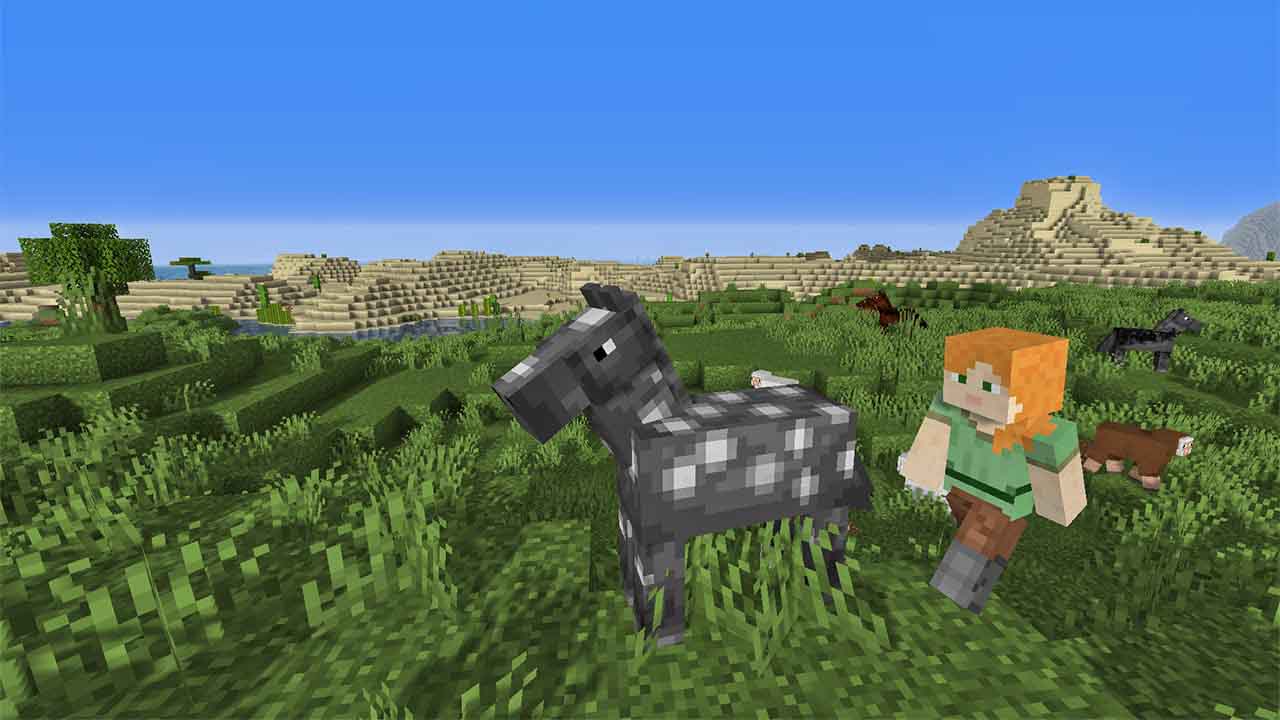
Minecraft has several biomes that procedurally generate when you start a new map. You’ll generally find in the open plains, vast expanses of land like prairies. While you’re running around collecting resources, you may find different types of standard horses grazing. You might even spot a mule or a donkey!

How to Tame a Horse in Minecraft

How to tame and ride a horse in Minecraft

Before you begin the art of taming a Minecraft horse, you’ll need to empty a slot in the hotbar. You can only mount the animal with an empty hand. Each platform has a different button for climbing on the creature’s back, generally as the alternative action button such as right-clicking or tapping on the ‘Mount’ button.

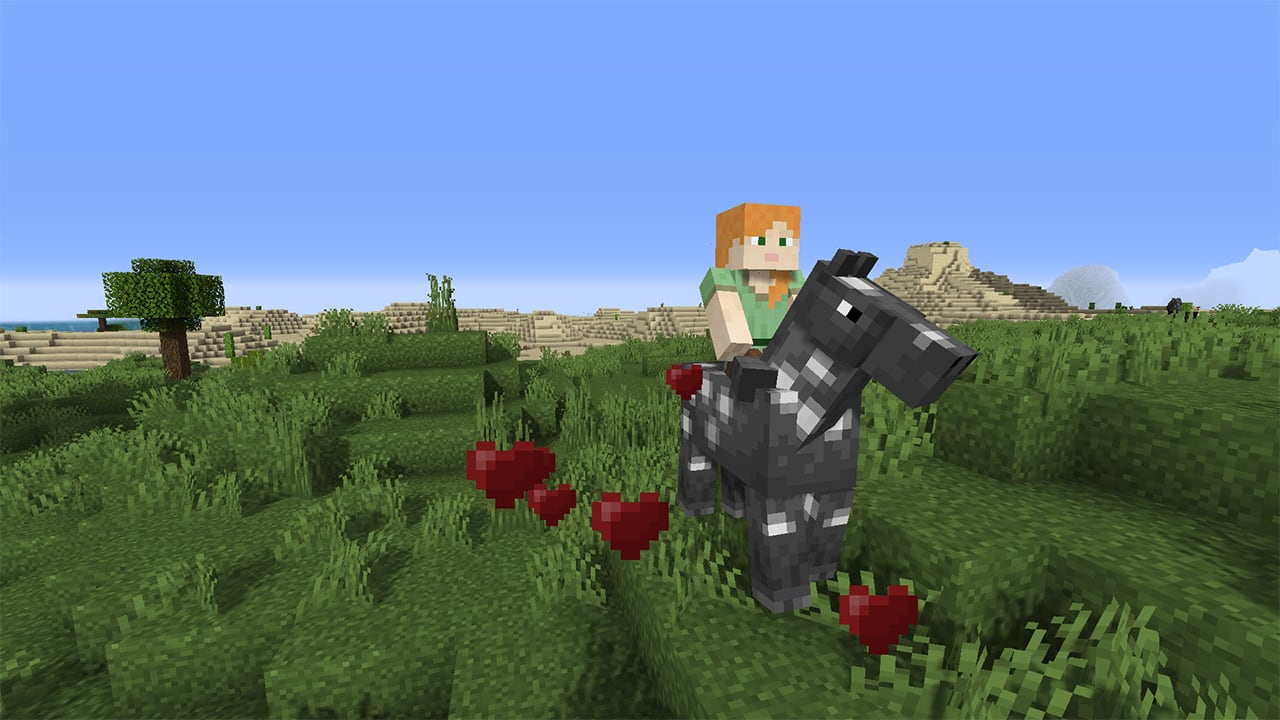
Of course, you should feed the wild animals some apples, carrots, or wheat to make them more endearing to your mounting quest. Once you’re on its back, it will walk around and attempt to buck you off. If you keep trying, a flurry of hearts will erupt to reveal your success.

How to Tame a Horse in Minecraft

How to equip your Minecraft horse

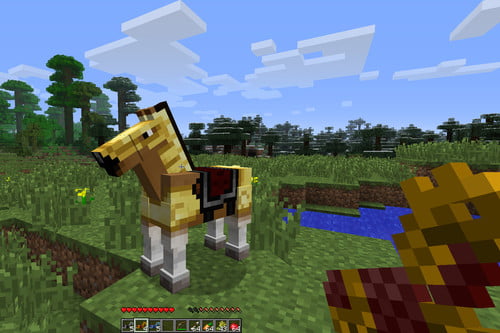
Although you’ve tamed the horse, you can’t steer it until you place a saddle on its back. By accessing its inventory, you can also insert horse armor to protect it from those zombie and skeleton hordes.

How to Tame a Horse in Minecraft

Riding into the pixel sunset

While it’s every child’s dream to own and ride a horse, we must admit that it was fun for us adults, too. Remember to look out for alternative versions of these animals in modded versions, such as the pegasus, unicorn, and Ender horse. If you’re a fan of pixel block fun, we recommend you look at Roblox for a vast array of games.