How To Create Your Own Ringtones With 3uTools

The internet is full of ready-to-download ringtones that help you customize how you receive calls, but it’s a bummer when none of them seem to hit the mark! In that case, you can create your own ringtone with ringtone software like 3uTools.

3uTools is free with a wide range of apps, books, and ringtones you can download to your iPad, iPhone, and iPod touch with just a few clicks.
3uTools DOWNLOAD

If you’re wondering, “Where do I find this software, and how does it work?” you’re in the right place. Keep reading for more information on how to use 3uTools, how to create your ringtones, and where to download 3uTools.

What is 3uTools?

3uTools is free software that allows you to manage files, download apps and ringtones, and jailbreak a device. You may think the jailbreaking process for this software will be its downside, but that’s not the case.

You can jailbreak any Apple device with just one click. Plus, the software is completely safe to download and install, even on your Microsoft Windows PC.
Windows 10, Windows 8, Windows 7, Windows Vista, and Windows XP 32-bit and 64-bit operating systems are just a few that support 3uTools. You can even read up on the app’s privacy policy if you’re curious about how the software developers handle your data.

How to use 3uTools to create your ringtones

Using 3uTools to create your ringtones is a lot easier than it may seem. Here are a few steps you must follow to make customized ringtones with the software.

  1. Download 3uTools

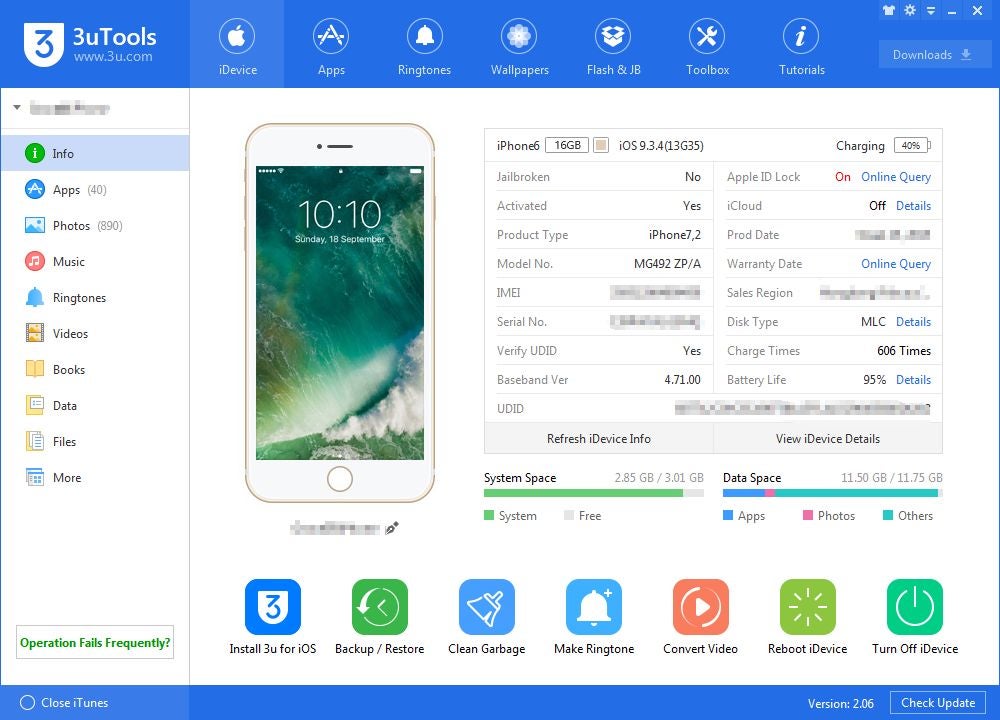
    Start by downloading the 3uTools app

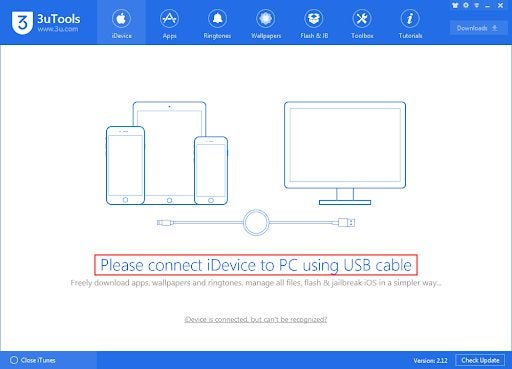
    Of course, the first step is to download and install 3uTools on your device. Then, connect your Apple device to the PC using the designated lightning cable.

  2. Make ringtone

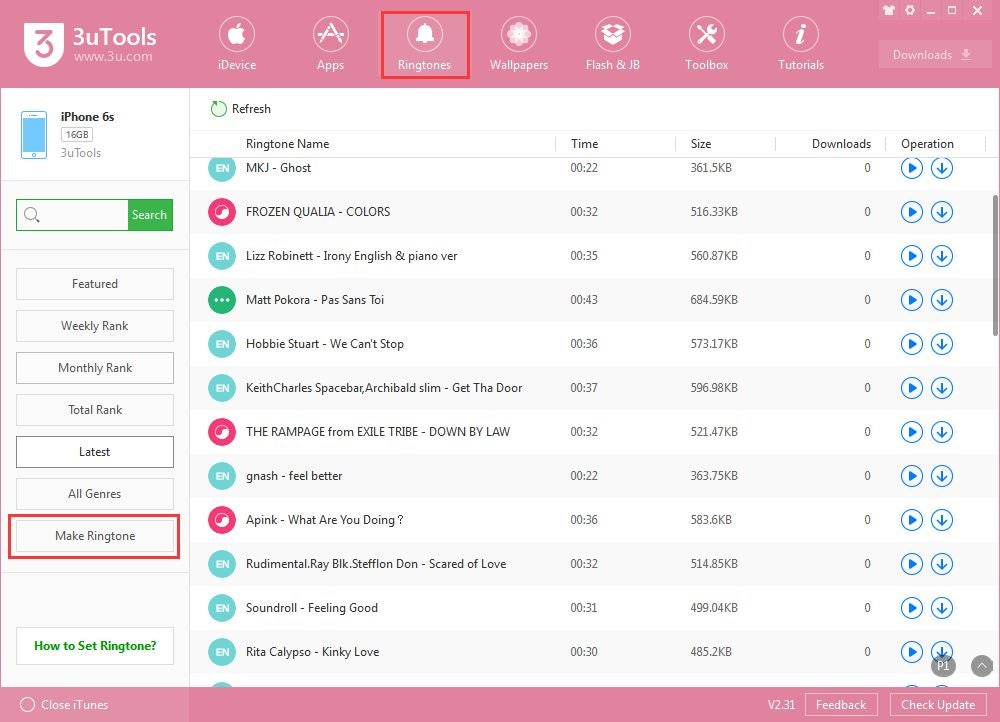
    Click the bell icon to make a ringtone

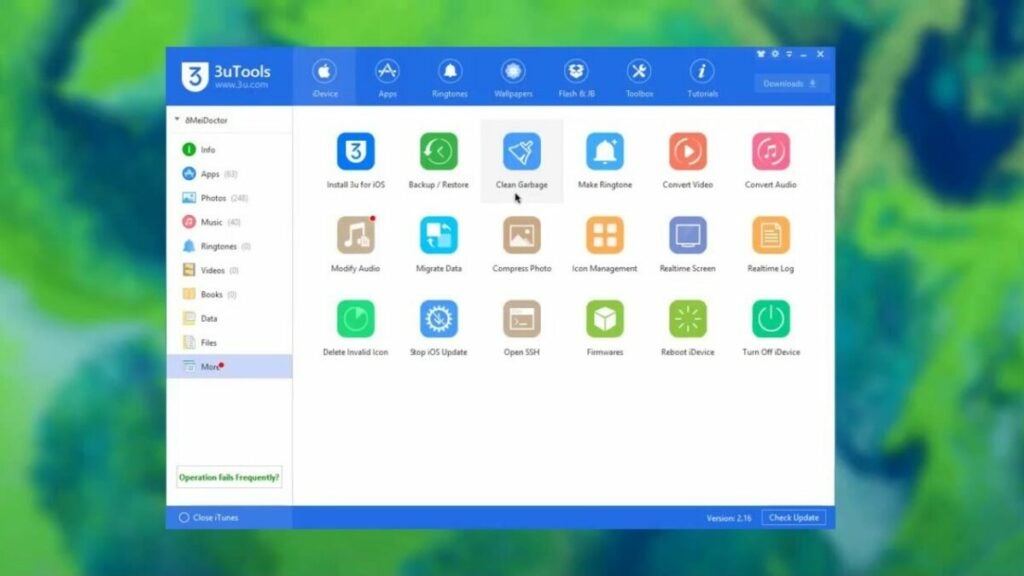
    Launch and run 3uTools. The interface is intuitive and easy to use, allowing you to navigate to the right page in just a few seconds. At the top of the page, click on “Toolbox,” the button with the wrench icon.

    Then, click on “Make Ringtone,” the button with the bell icon. Now, it’s time for the fun part!

  3. Export music file

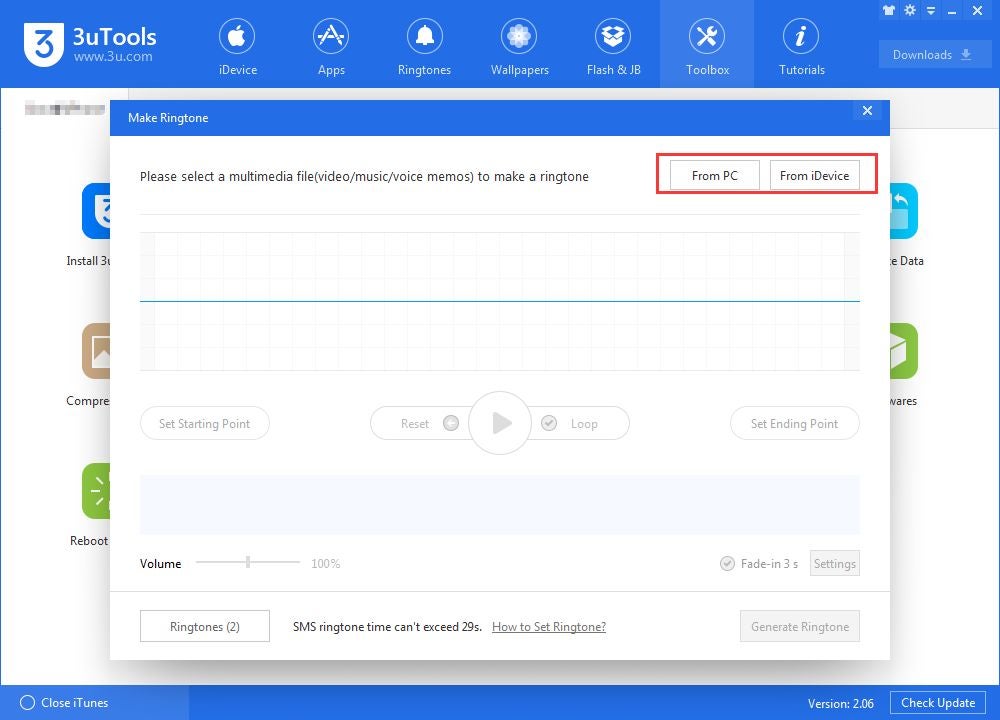
    Choose which media file you want to export

    Now, it’s time to choose and export the music file that you want to turn into a ringtone. After clicking on the bell icon, another window will pop up, giving you the option to select a music file “From PC” or “From iDevice.”

    If the music file is saved on your desktop, click the first option. If your music file is saved on your iPhone, iPad, or iPod Touch, click on the second option. Then, look through your collection to find a music file that suits your ringtone preferences best.

  4. Customize the ringtone

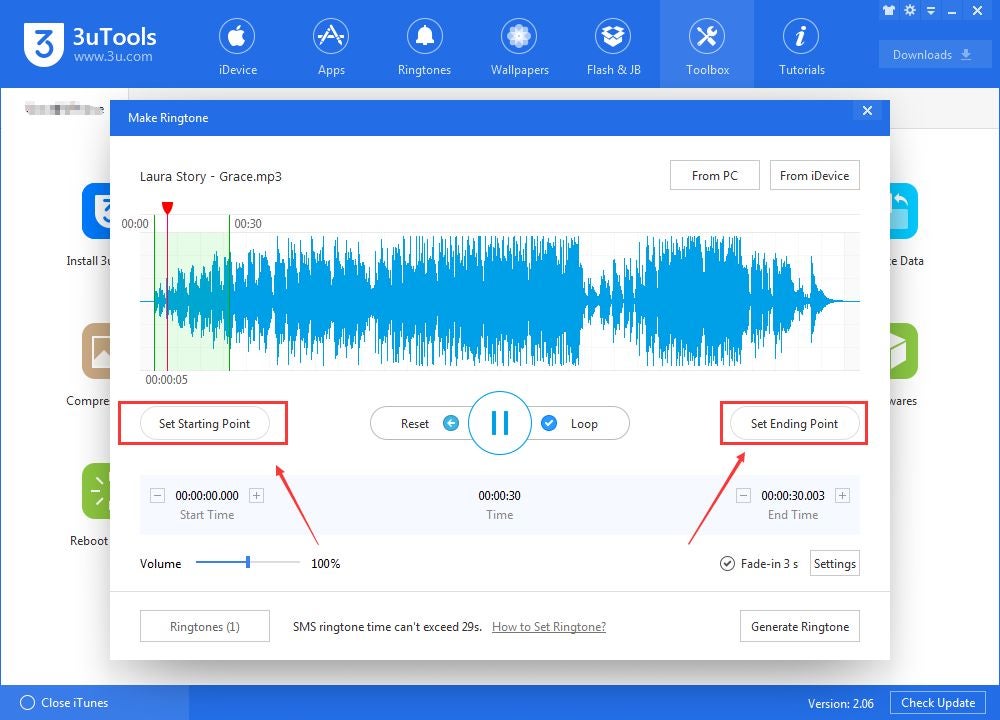
    Select which part of your sound file you want for your ringtone

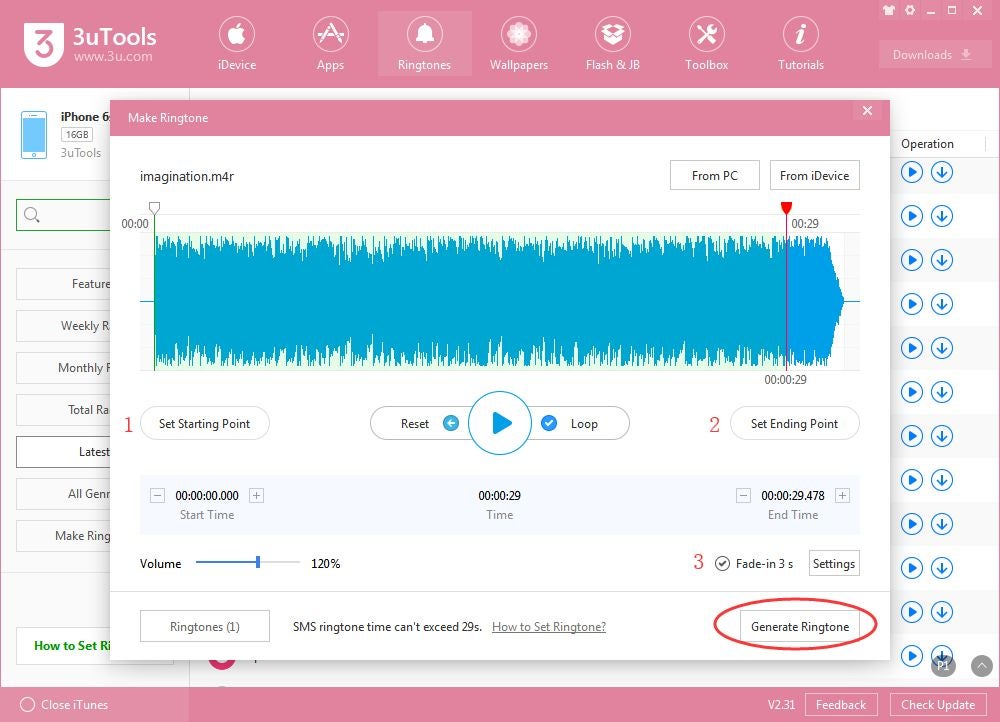
    The best part about 3uTools is that it allows you to customize your files, and you don’t get stuck with the default snippet picked out by the software, as other apps do. On 3uTools, you can cut out your favorite part by moving the given slider.

    Click on “Set Starting Point” to determine where the ringtone begins, and select “Set End Point” to determine where the ringtone ends. This makes the customization process much quicker. If you accidentally mess up, you can click on “Restart” to start over! Keep in mind that 3uTools only allows you to create 40-second long ringtones.

  5. Generate ringtone

    Generate and import your ringtone from your sound file

    Once you’ve fully customized your ringtone, it’s time to generate and download your favorite ringtone. First, click on “Generate Ringtone.” The software will display “Succeeded to generate ringtone,” after which you can select “Import to iDevice.” The software will require a few moments to download the ringtone on your iPhone, iPad, or iPod Touch.

  6. Set ringtone

    Select your new ringtone on your iDevice

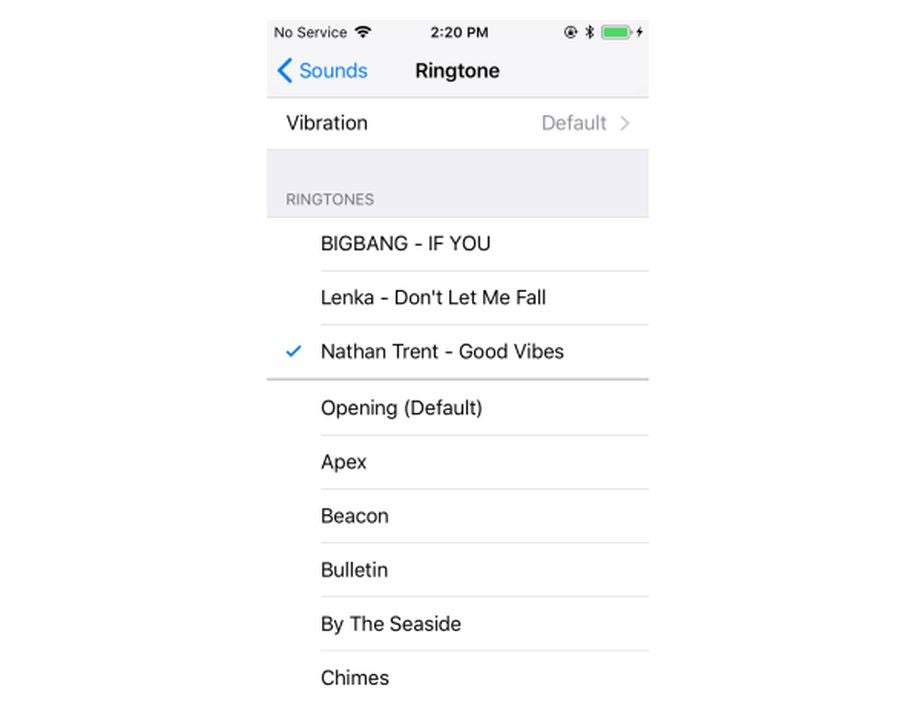
    Finally, you can access and set the ringtone. First, you must navigate to the Settings app on your Apple device and click on “Sounds.” Then, select “Ringtone” and scroll through your ringtones. Next, click on the ringtone you just downloaded from 3uTools, set it as your default ringtone, and you’re good to go!

Download 3uTools now!

3uTools is a fun software full of apps, books, and ringtones you can easily download to your iPad, iPhone, and iPod Touch. If you’re not sure how to use the app, Softonic is the perfect place to learn how!

Want to learn more about how 3uTools can benefit you? Check out this article on using 3uTools to manage your iPhone.
3utools review: free all-in-one iOS device manager

3uTools offers a free way to manage your data across iOS devices. When it comes to Mac hardware, finding high-quality third-party software that’s also compatible and free to use can be difficult. In addition, finding something that further adapts Mac’s data privacy features isn’t easy either.

If you want more control over your data or if you want to jailbreak your device, the free software program 3uTools is a great option. Let’s review it based on features, issues, and competitors.

3uTools Download Now
Download Now

What is 3uTools?

This app serves as a free iOS file manager, but it has other features, too. On top of helping you organize your data, you can make use of its virtual location service. You can even use it to back up or restore data. Thanks to its robust suite of features, it is an all-in-one iOS manager.

image of the 3uTools interface

What are 3uTools main features?

Device customization

Everyone loves to have a custom phone wallpaper of their significant other, pet, or favorite superhero, right? Instead of endlessly scrolling through images to find one or finding a ringtone, 3uTools keeps you organized. It’s also very easy to convert audio and video files, compress photos, and even make ringtones.

You can view your device’s images, apps, music, videos, ringtones, and other files using the software’s UI. Consider it an alternative to the App Store. The program also facilitates sharing of files between iOS devices like computers and iPhones, as well.

File management

Not only can 3uTools backup and restore data files on iOS devices, but it can also help you maintain your phone’s storage. Simply clean up old junk files to instantly add more space for music, TikToks, and more.

While you can customize the data backup, it does have its limitations. You cannot back up the following data types:

  • iCloud photos
  • “Health” reports
  • “Active History” information
  • iTunes media
  • touch ID settings
  • “Keychain” content
  • Apply Pay data

Connectivity and virtual location mode

This program lets you connect portable devices to your computer via WiFi network or USB cable. However, the lightning cable offers the best connection. But perhaps more exciting is the program’s virtual location mode.

It allows you to imitate a different location on your device that allows for unlocking region-specific content. It’s easy to engage the mode and then restore your true location in the UI. Just remember that you’ll need to manually type in the longitude and latitude of your virtual location.

Real-time event log

This unique feature lets users record any and all behaviors and/or operations on their devices. While this may not seem like a useful feature on the surface, however, anyone concerned about hacking can benefit from it.

Additional features

Some features don’t fall into one category but are still worth mentioning such as:

  • iCloud lock
  • SHSH backups
  • baseband upgrades and downgrades
  • DFU mode
image of the 3uTools jailbreak tab

3uTools Jailbreaking features

“Jailbreaking” an iPhone means that you modify the device in a way that removes any restrictions placed by the manufacturer, Apple. Users opt for this to use software that might not normally run on iOS devices.

3uTools offers an easy way to do this with the “Flash & JB” tab in the UI. You don’t need to be a developer to jailbreak your device anymore! It may also help you to avoid data loss or other issues when jailbreaking your iOS device.

Is 3uTools safe?

Though many third-party apps can carry suspicious or even malicious code in them, 3uTools is a tried and true software program. It is not malware, so it will not install harmful things onto your Apple products.

The company offers troubleshooting via Twitter, forums, and email. There are even many tutorials on their website on program features, as well as general Apple tutorials for their many products.

Verdict

As far as free programs go, 3uTools is an excellent bang for your non-existent buck. You get tons of features in a straightforward and easy-to-use UI from a company that provides troubleshooting and consistent updates.

PROS

  • Intuitive and no-nonsense interface
  • Normal and advanced modes
  • Jailbreak and flash activation
  • Virtual location mode
  • No in-app advertisements

CONS

  • Lacks cross-platform capabilities
  • somewhat limited data backup file types

Developer: 3uTools

Publisher: 3uTools

Top features: device management

Platform reviewed: iOS

How to use 3uTools to manage your iPhone

If you have an iPhone or other Apple device and want the advantage of ultimate control over it from your Windows PC, 3uTools is the best route to get there. It’s a great option to manage your Apple devices from a central point, and it also gives you access to many exciting features that you can’t find anywhere else. It’s very easy to download and use, and it’s free.

This download works on both the 32-bit and 64-bit versions of Windows. 3UTools has a user-friendly interface that makes it easy to use. You won’t need a subscription but must have iTunes installed to be able to run 3uTools effectively. Here’s how to manage your iPhone with 3uTools.

Use 3uTools to manage iPhone device

3uTools is only available for Windows PCs or laptops. It cannot be downloaded onto computers using the macOS operating system. The installation process is simple, quick, and easy. Just follow these steps:

  1. Download and install

    How to use 3uTools to manage your iPhone

    On your Windows PC or laptop, download 3uTools.

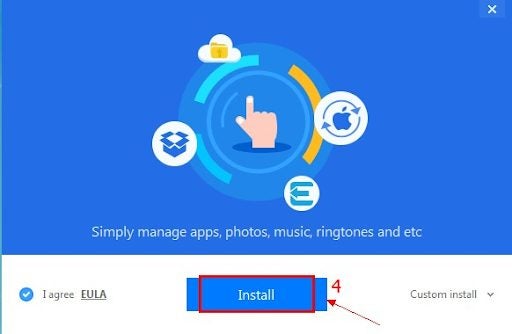
    You’ll see: Do you want to run this file? Click on Run to continue your download. Click on Install. 3UTools will install itself and tell you when it’s finished.

  2. Launch 3uTools

    How to use 3uTools to manage your iPhone

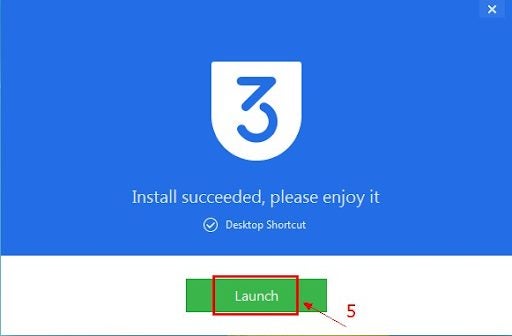
    After 3uTools has been installed, click on Launch.

  3. Connect your device

    How to use 3uTools to manage your iPhone

    Now connect your iPhone or other Apple device to your PC. The best way to connect is with a USB cable. 3uTools is only available for Windows PCs or laptops. It’s not available for computers using the macOS operating system.  You’re now up and running and can enjoy all the benefits of using 3uTools.

3uTools system requirements

3uTools can be installed on the 32-Bit and 64-Bit Windows operating systems (OS). You need 1GB of memory to run the program. You must have an internet connection and an up-to-date graphics card.

Features of 3uTools 

3uTools offers a large variety of valuable features. Here are some of them:

  • Flash and Jailbreak your iPhone;
  • reboot or turn off your Apple device;
  • import, export, and convert HEIC images and files;
  • Convert audio and video files;
  • edit audio tags;
  • compress images;
  • clean junk files off your iPhone;
  • transfer data from one device to another;
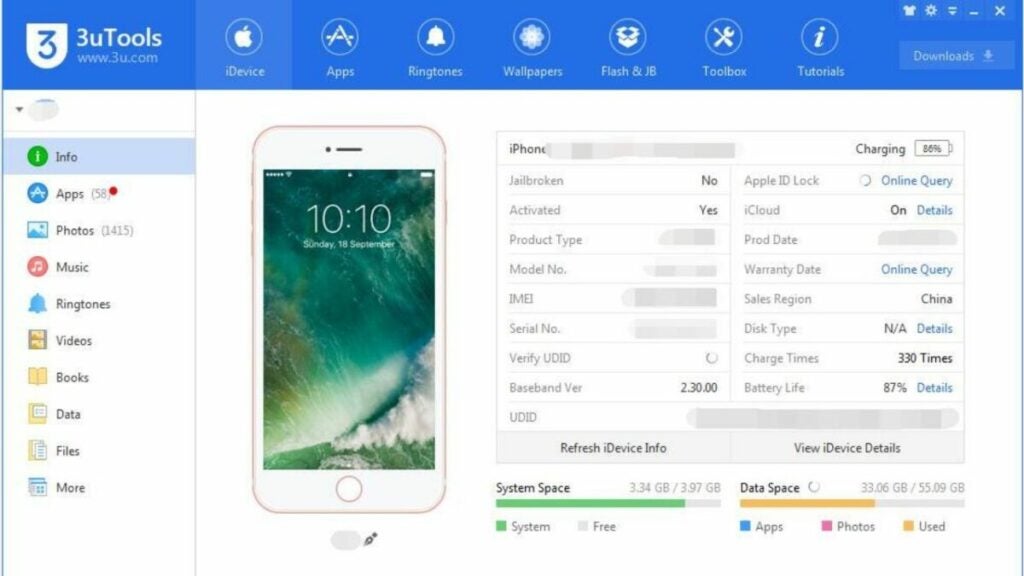
  • see detailed information about your Apple device on your PC screen;
  • backup and restore your iDevice;
  • place your iPhone into recovery mode;
  • read audiobooks in m4b format;
  • create your own exclusive ringtones;
  • open an SSH tunnel;
  • view a real-time screen and real-time log;
  • get access to many apps and tools to download for free.

Why you need 3uTools

3uTools is a highly efficient way to manage your iPhone, iPad, or iPod touch from your Windows PC or Laptop. It includes device cleanup, screen sharing, and backup/restore tools. You can use it to manage your data, apps, files, photos, ringtones, flashing tools, music, and videos. It also lets you look at detailed information, check your battery and lock statuses, jailbreak, and activate your Apple device.  

FAQs

What is 3uTools?

It’s a free program that allows you to manage your iOS device data from a Windows PC or laptop. You can manage iOS apps, ringtones, and multimedia files, to name a few. You can take a good look at your iDevice, including its activation, battery and iCloud lock status, and jailbreak your iPhone with one click.

Is 3uTools free?

Yes, it is. All its outstanding features won’t cost you a cent. 

Is 3uTools available for Mac?

There is no version for Mac operating systems on a computer. You can only use it on Windows PCs linked to portable iOS devices.

Is 3uTools safe?

It’s completely safe. The developers thoroughly tested the app before making it available to the public. You can install it on Windows PCs and laptops using Windows 10, 8, 7, Windows XP 32-bit and 64-bit operating systems, and Windows Vista. It works with Apple’s iPhone, iPod, and iPad devices.

Can you install 3u Tools directly to your iPhone?

3uTools cannot install directly onto iDevices. It has to be installed on a Windows PC or laptop and then linked to your iPhone or other Apple devices. It’s compatible with any iPhone, iPad, or iPod Touch with iOS 4 or above.

What can you download with the app?

Lots of super apps, wallpapers, ringtones, themes, games, and other programs you can’t find anywhere else. 

Can 3uTools speed up iDevices?

Yes. One way is to use 3u Tools Garbage Cleaner to remove junk and duplicates. Your iPhone will work like new.

Can you back up personal information?

Yes. 3uTools will allow you to back up everything on your Apple device and restore it when you need it. It works in the same way as iTunes & iCloud when saving your personal information.