Your Bluetooth devices could be a handy backdoor for hackers

New Bluetooth bug can target Bluetooth devices from versions between 1.0 to 5.1

A disturbing new Bluetooth vulnerability has been discovered by researchers. It could see our wireless devices leaving us vulnerable to cyber-attack. The problem relates to Bluetooth’s authentication protocols and could see a potential attacker taking up a position between two Bluetooth  devices and eavesdropping on all information shared across the connection.

The vulnerability, which is known as KNOB (Key Negotiation of Bluetooth) is so serious that the Bluetooth SIG Group has been forced to public a security warning detailing the new bug.

New Bluetooth bug can target Bluetooth devices from versions 1.0 to 5.1

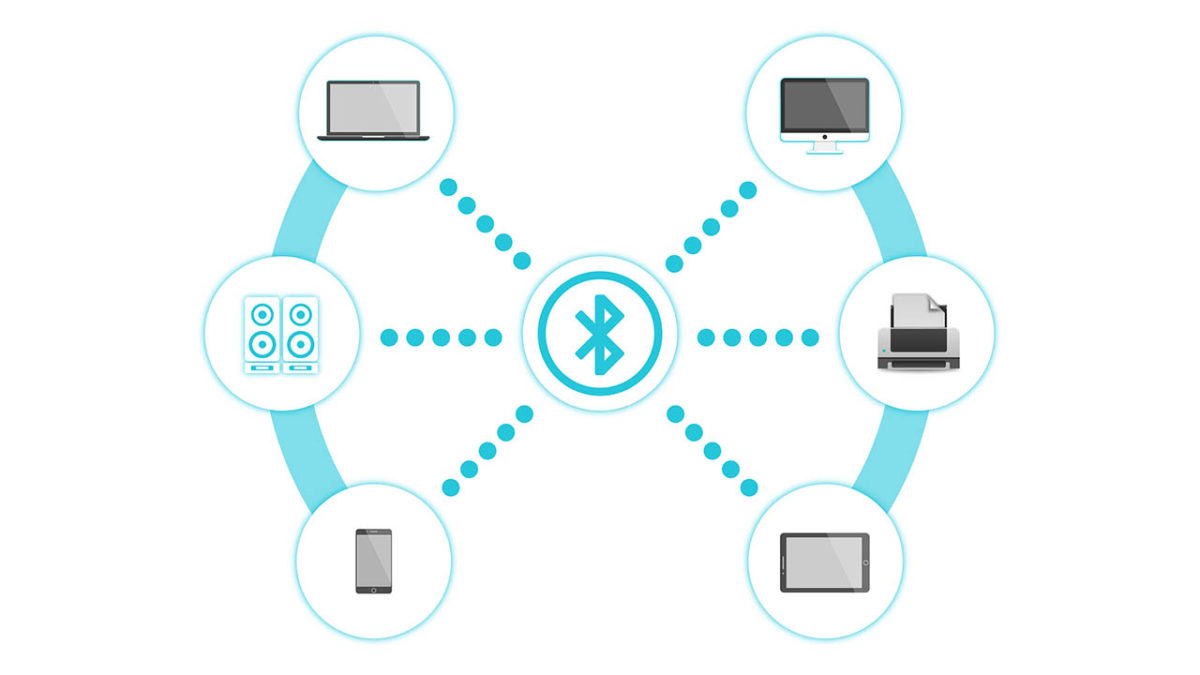
Bluetooth devices

A team of researchers from Oxford University, the Singapore University of Technology and Design, and CISPA Helmholtz Center for Information Security is responsible for the discovery. Known as a KNOB attack, the vulnerability degrades the level of security that Bluetooth connections have to such a level that a Brute Force attack, where a hacker simply cycles through all possible encryption passwords until they stumble upon the correct one, becomes possible.

Once the attacker comes to the correct encryption key, they then have ultimate access to all data being shared across the connection and could even add their own data to the connection. To give an example of what this could mean, I’m writing this report out on a keyboard and thinking about the last time I used my online banking!

Bluetooth Security notice
The Bluetooth SIG Group had to release a security notice warning about the vulnerability

The other scary thing to note about a KNOB attack is that victims don’t even know they’ve been compromised. It isn’t the easiest exploit, however, which means there is hope. The post explaining the vulnerability says, “For an attack to be successful, an attacking device would need to be within wireless range of two vulnerable Bluetooth devices that were establishing a BR/EDR connection. If one of the devices did not have the vulnerability, then the attack would not be successful.”

Fortunately, there are Bluetooth devices out there that aren’t vulnerable to this attack and the attack will only work if the attacker is in close proximity to two vulnerable devices at the same time. This means that the level of effort required to pull this off means it is likely to be businesses that will be targeted rather than individuals. Don’t worry, nobody is going to be hacking into your headphones and telling everybody that you listen Justin Bieber, and not Led Zeppelin like you’ve been telling everybody.

bluetooth logo

The other good news is that the Bluetooth SIG Group that describes itself as, “a global community of over 34,000 companies serving to unify, harmonize and drive innovation in the vast range of connected devices all around us” has already upgraded the minimum security specification that goes out to Bluetooth manufacturers to seven bytes. This means that even if the KNOB attack can degrade the security credentials of a Bluetooth connection, it won’t be able to do so to the extent that a brute force attack will be possible.

AAAANNNNDDDD Breath. Phew, it took a lot to get through all of that without making a single knob joke. Best knob jokes in the comments please.

How to turn on Bluetooth in Windows 10

A beginner’s guide to Bluetooth on Windows 10. How to find Bluetooth settings in Windows 10 and how to connect a Bluetooth device to your Windows 10 PC.

bluetooth

Bluetooth is the seemingly magical technology that has taken us from the wired past into a wireless future. Thanks to Bluetooth we can run all sorts of wireless devices on our mobile phones, tablets, Macs, and PCs. I’m writing this very guide using a Bluetooth keyboard, in fact. Bluetooth is everywhere and isn’t just limited to keyboards. You can also get your hands on Bluetooth headphones, speakers, mice, and a whole host of other devices.

With Windows 10, Microsoft has made it easier than ever to connect Bluetooth devices to your Windows PC. Let’s look at how to do it.

Windows 10 Download Windows 10
8
The latest and greatest version of Microsoft's operating system.

How to find Bluetooth settings in Windows 10

Before you can connect a Bluetooth device to your Windows 10 PC, you’ll need to turn on Bluetooth. To do this you have to:

1. Hit the Windows key and I together to open up the Windows 10 Settings menu. You can also open up Settings by clicking the Start button and hitting the Settings icon, which looks like a cog.

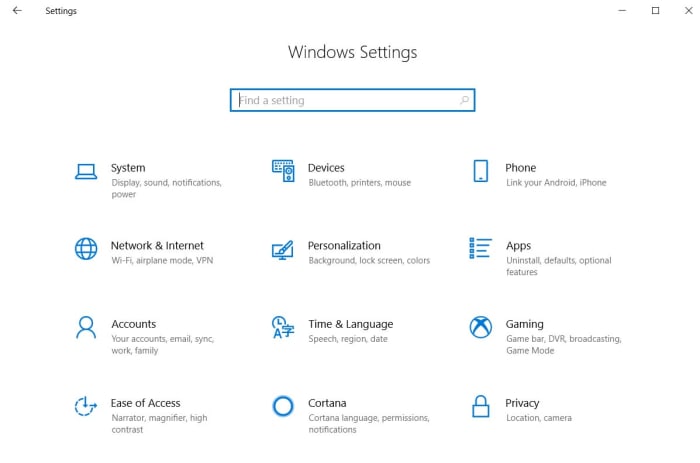
The Windows 10 Settings menu

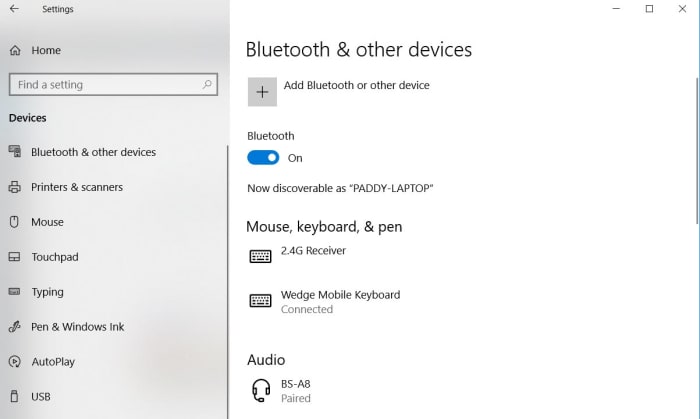
2. Once you’ve opened Settings you need to hit Devices and then Bluetooth and other devices.

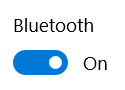
3. In the Bluetooth menu, you’ll see a toggle button. Hit this button to the on position and your Windows PC will be discoverable to other Bluetooth devices.

Bluetooth button on Windows 10

Another way to activate Bluetooth on your Windows 10 PC is to use the Action Center on the right of your screen. To do this you need to:

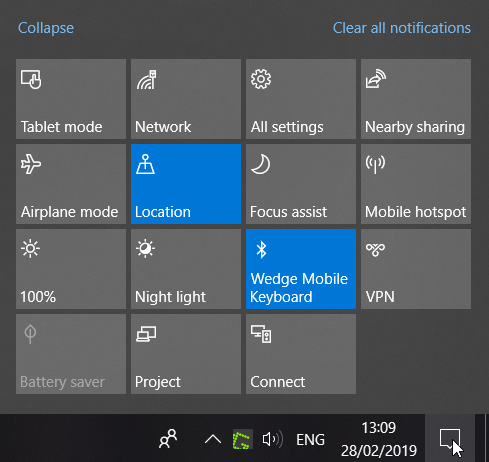
1. Move your mouse cursor to the bottom right-hand corner of your desktop and click the message icon to open up the action center.

The Windows 10 Action Panel

2. Here you’ll find many options for controlling various aspects of your PC, including a Bluetooth button.

3. Right-clicking this button will toggle Bluetooth on and off. If you left-click this button it will give you the option to open the full Bluetooth settings menu.

The bluetooth menu on Windows 10

How to connect a Bluetooth device to your Windows 10 PC

Once you’ve turned Bluetooth on, you’ll be able to connect your Windows PC to other peripheral devices. To do this you:

1. Go to the Bluetooth settings menu using one of the methods outlined above.

2. Turn on the Bluetooth device you want to connect to your PC and make sure it is discoverable to other devices.

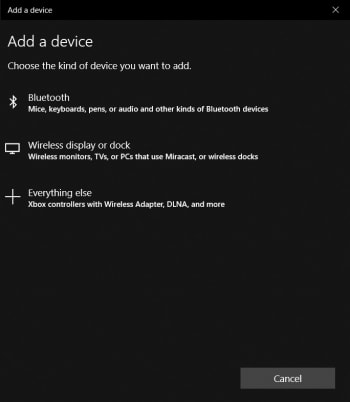
Add Bluetooth Device

3. On your Windows PC in the Bluetooth settings menu click Add Bluetooth or other device.

4. Click Bluetooth and your PC will begin searching for discoverable Bluetooth devices in the area. Once it finds your device, click on it to pair it with your PC.

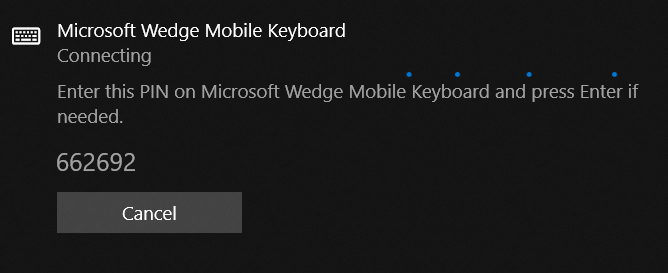
Securitry code for Windows bluetooth pairing

Depending on the device you’re pairing with your PC, you may need to carry out some sort of security procedure. For example, my Bluetooth keyboard requires that I enter a numerical code before I can pair with my PC.