This is the way you can remove Discord ads without paying for Nitro

Discord ads are still in an early phase, so there’s a long way to go. Discord may not allow us to disable them in the future.

After almost a decade of resisting to display ads, Discord has finally decided to implement paid promotions on its text, voice, and video platform used by millions of people worldwide, as we have previously reported.

Discord DOWNLOAD

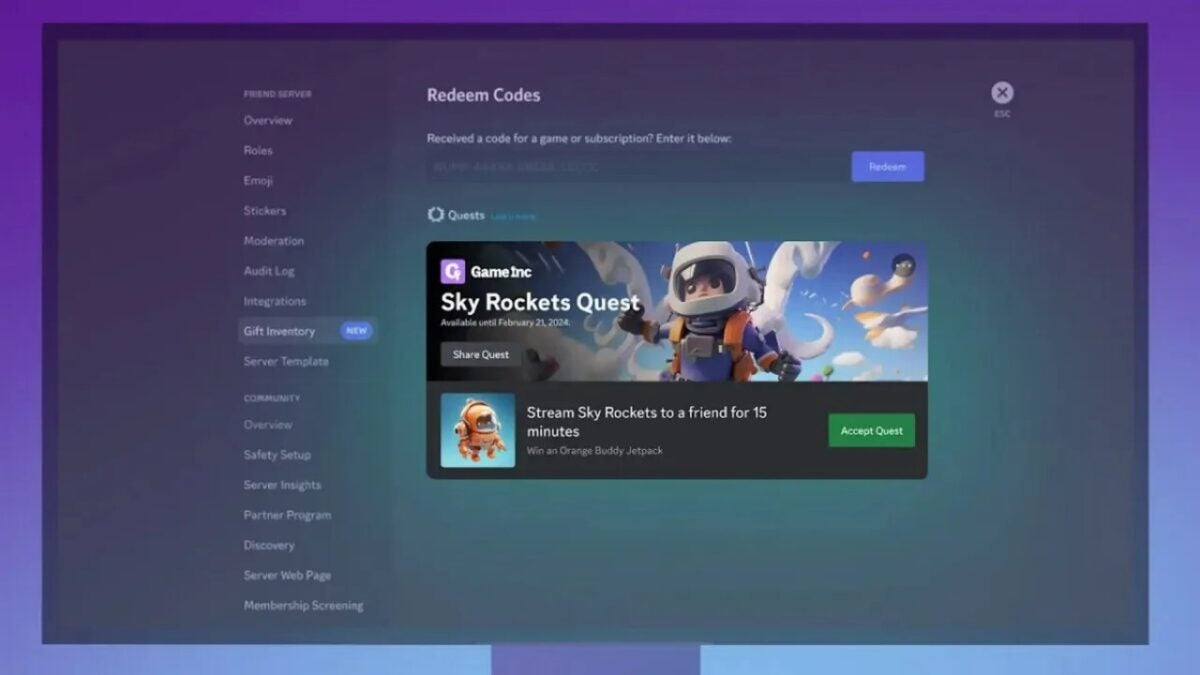
These ads take the form of what are called “missions”, which can be displayed in the bottom left corner and are based on the user’s game, age, and location.

As you probably already know, it’s not about the typical advertising banners. They are interactive promotions that motivate players to participate more in exchange for small gifts.

Rewards are given to users who complete the tasks announced in the game while at least one of their friends is watching the live stream.

However, if you still find this form of advertising annoying, the good news is that Discord allows you to disable it. This applies to all users, not just Nitro subscribers, and it’s very simple.

Here’s how you can disable Discord ads without paying

  1. Click on the gear icon in the bottom left corner of your Discord desktop/browser application to navigate to your User Settings.
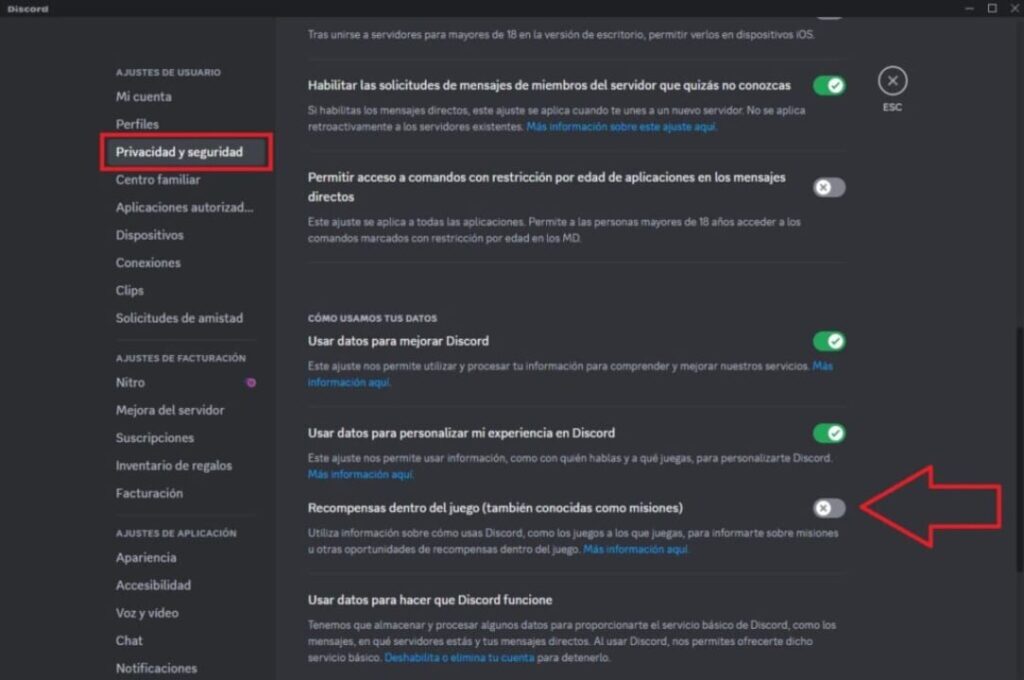
  2. Next, select the Privacy & Safety tab on the left panel and scroll down to the How We Use Your Data section.
  3. Disable in-game rewards (also known as quests) by selecting the checkbox.

After deactivating promotions, you will still be able to access missions through the gift inventory in the user settings. You will also be able to see missions shared by your friends or reflected in their activity status on Discord.

If you don’t mind the ads, but for some reason you are bothered by an individual promotion, you can also hide specific Quests:

  1. Tap the three dots on the in-app promotion of the Search (top right corner) to access the menu and then select Hide to hide this particular in-app promotion.
  2. Once you do this, you will stop receiving notifications about this particular mission in that style of promotion within the app.

If you find another promotion within the application for the same mission (for example, you can also see the mission in the Active Now section of the Discord application), you can hide it by following the same steps.

The same applies here: even after deactivating a specific promotion, you can still see and complete the mission in your gift inventory.

Discord DOWNLOAD

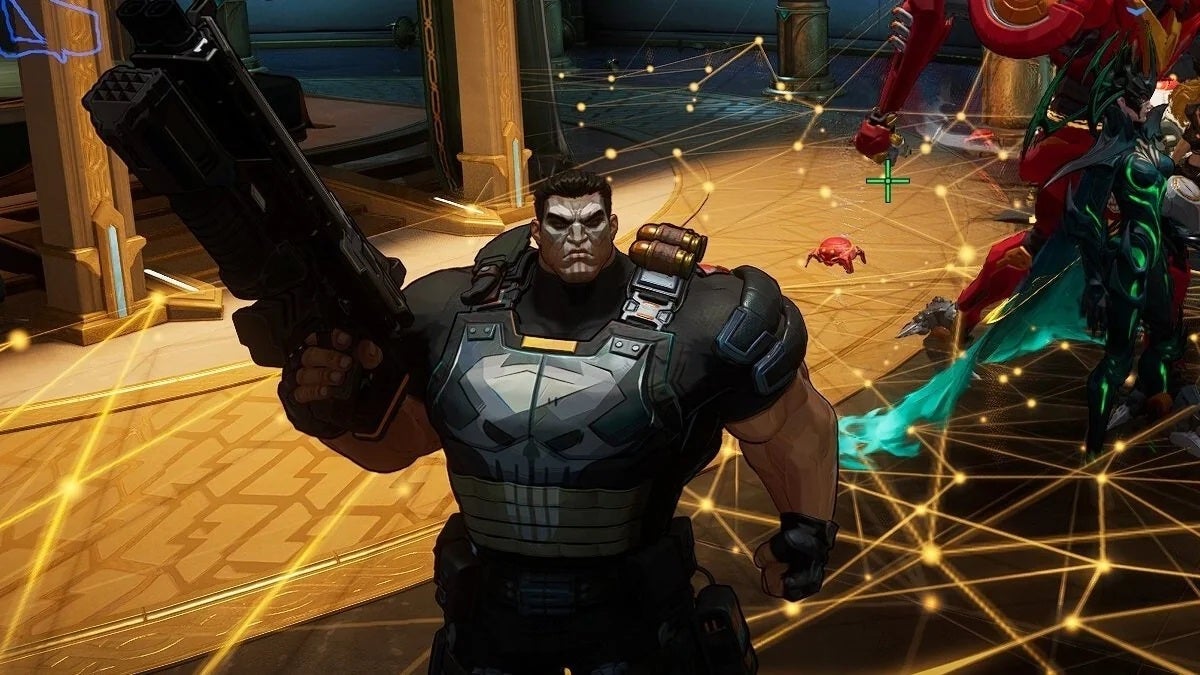
Advertisements on Discord are still in an early stage. The popular platform is currently promoting a unique in-game mission in the free combat game The Finals. Players can receive a “Skill Set” by streaming 15 minutes of The Finals using the Go Live feature.

For now, Discord missions are only available on the desktop application and in the browser. Also, they still don’t work on Linux, which is another way to legally avoid them.

Discord will curb the spread of malware by adding expiration to links

Discord has made the decision to limit the duration of links. Faced with the growing problem of malware being sent through its platform, developers have chosen to curb this harmful spread by reducing the duration of links to shared files to 24 hours.

This decision will not significantly impact the user experience, as URLs will refresh if they are safe. However, it will effectively address the problematic sending of malware-infected files within Discord. This measure will be active from mid to late November, once the change is implemented.

Discord DOWNLOAD

Cutting the problem at its root

This information, revealed by Bleepingcomputer, reflects the problematic situation that the Discord team has been forced to deal with. In fact, the Discord team had the following words with the portal so that there is awareness of what will happen with the change in URLs:

“Discord is changing its approach to URLs with attachments with the goal of creating a safer experience for users. Specifically, this will improve the work of the security team to restrict prohibited content and will also reduce the amount of distributed malware. (…) There will be no impact on Discord users when sharing content through the client. Any link will automatically refresh. If users are using Discord to manage files, we recommend looking for a more suitable service.”

Discord aims to put barriers to malware with this new measure.

Discord as a tool

It’s not the first time that Discord has faced problems of this kind, although it’s understandable considering it’s one of the most widely used communication channels in the world today. Used as a platform for leisure and marketing communication, Discord is one of those platforms that almost everyone in the digital world uses regularly or has used at least once.

Additionally, Discord usually has strict moderation measures in place that facilitate the creation of healthy environments, which is a challenge in an online landscape where the opposite tends to happen. With over 8 years of operation, if things remain the same for Discord, it still has many more years ahead as one of the preferred communication channels of the present time.

Discord DOWNLOAD

Is STALKER 2 having problems? Well now their offices are set on fire

The STALKER 2 studio continues to suffer incidents, this time, with something that does not even have to do with their game: they have suffered a fire in their studio.

Making a video game is difficult. It becomes even more challenging when the personal circumstances of those creating it are unstable. This, which may sound obvious and not surprising, painfully becomes true when things go wrong. A war is probably when things cannot get much worse. The war in Ukraine has brutally affected everyone, and particularly GSC Game World.

The developers of Stalker 2: Heart of Chornobyl have had quite tumultuous years. Due to the outbreak of the war in Ukraine, they had to relocate their headquarters to Prague, as they were previously based in Kiev. Some of their developers have lost their lives during the war. They had to ask fans not to share a preliminary version of the game, which was stolen and leaked on the internet by Russian hackers. And in addition to all of that, now, they have suffered another devastating material loss. The building where they work has caught fire.

Xbox Game Pass DOWNLOAD

As reported by the Czech media outlet Vortexto, a fire occurred last Thursday in the Prague offices of the studio. While there were no injuries, the fire destroyed one of the three floors, which will require a complete reconstruction.

Fans were able to inquire about the well-being of the studio’s staff through their Discord channel. A spokesperson from the studio confirmed the aforementioned information. The fire was successfully extinguished, and while they don’t yet know the details about the accident, an investigation is ongoing. Despite everything, and while this may potentially lead to some form of delay in the game, it will not lead to the cancellation of the game. The development of Stalker 2: Heart of Chornobyl continues.

While it’s not known if there has been any data loss or if there will be any planning issues, it’s said that the affected floor housed the studio’s backup servers, which would have been destroyed. Nevertheless, the studio’s spokesperson remains optimistic that backup copies of all the lost work might be found on the hard drives of the employees’ own computers.

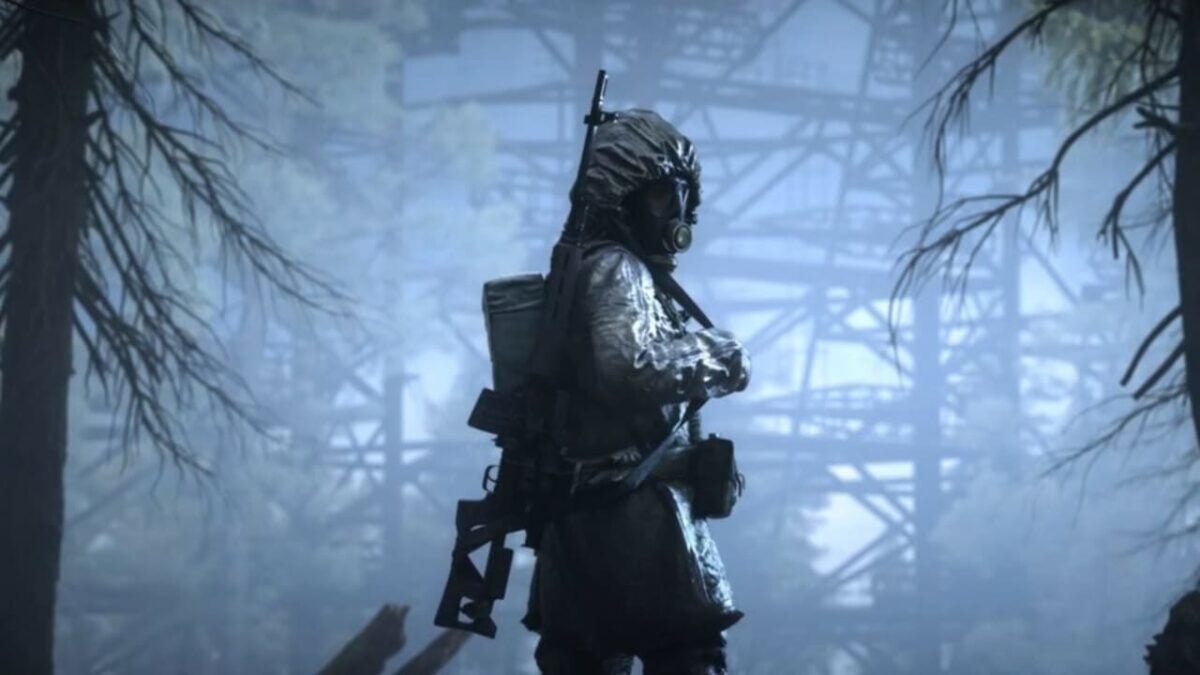
Stalker 2: Heart of Chornobyl is scheduled for release in the first quarter of 2024 exclusively for Xbox Series S, Xbox Series X, and PC.

Xbox Game Pass DOWNLOAD

Apps and Programs to Maximize Your Experience on Steam

Steam is the world’s most popular online video game store. Along with an unrivaled catalog of the hottest titles on the market, it boasts a gaming platform where gamers all over the world can connect and interact with each other. In fact, Steam is a little ecosystem where you can chat, compete and play with friends anywhere on the planet.

Logotipo de Steam

Although the Steam client is comprehensive, there may be times when you want to perform tasks that it doesn’t support. Also, you might find yourself in a situation where your PC doesn’t perform optimally while Steam is running. For these reasons, you might need to enlist different accessories to improve your gaming experience.

In today’s article, we’re going to share a roundup of apps and programs that we consider essential for any Steam user. Designed to exponentially improve your gaming experience, these options are all completely free. Want to learn more and download them?

Steam DOWNLOAD
9

Discord

Discord is a popular service for chats and video calls with the goal of uniting friends with common interests. Since its launch in 2015, Discord has become a favorite of gamers, who use it to keep in touch and chat during their games.

One of the most interesting things about Discord is that this app lets you create real communities of gamers where you can find people with similar interests. So, if you’re an Overwatch fan, you can join Discord channels dedicated to Blizzard’s shooter and chat while playing with your new teammates.

Discord is completely free, and its main features include the ability to send text and voice messages and to make video calls. What’s more, you can use it on both your PC and Android or iOS phone.

While Steam offers a similar app called Steam Chat, it lacks the huge community of gamers that Discord has amassed.

  • Discord for PC

Discord DOWNLOAD
9

  • Discord for Android

Discord (Android) DOWNLOAD
9

  • Discord for iOS

Discord (iOS) DOWNLOAD
9

LogMeIn Hamachi

LogMeIn Hamachi

If you’re a fan of multiplayer games but have concerns about the security of your computer and personal data, you’ll love LogMeIn Hamachi. This VPN lets you create completely secure virtual networks between different computers, and it’s entirely free!

Using LogMeIn Hamachi, you can create and host secure meetings with friends all over the world or record gameplay and podcasts between different players, as it connects your devices. And this VPN’s extremely secure P2P (peer-to-peer) connection is ideal for gaming sessions.

In terms of operation, LogMeIn Hamachi has a very simple interface. In fact, even if you’ve never used VPN before, you’ll be using it like a pro in no time. So, what are you waiting for? Download it today!

LogMeIn Hamachi DOWNLOAD
8

Razer Cortex Game Booster

One of a gamer’s worst enemies is a less-than-optimal device. In these cases, your PC’s performance is affected and your games slow down considerably. There are many programs that promise to optimize and revive your old computer, but not all are designed to improve video game performance. Razer Cortex Game Booster is inarguably the best program to do that.

Developed by Razer, Game Booster analyzes your computer settings to achieve better Steam performance. In just a few clicks, your gaming experience will improve significantly, ensuring faster, more fluid gameplay.

Razer Game Booster is a completely free app that works as well as the best paid program. It’s ideal for Steam users who don’t have a cutting-edge PC but still want to play video games.

Razer Cortex Game Booster DOWNLOAD
9

MSI Afterburner

MSI Afterburner

If you like to push your PC to its limits, you’ve probably heard of the term overclocking. It means bypassing the limits of your computer’s hardware to make it perform far more efficiently. But not everyone knows how to do this or is willing to pay for a program that can achieve this.

MSI Afterburner is a completely free overclocking utility that gives you control of your graphics card. Initially compatible only with its own graphics cards, today it can also be used with AMD and NVidia cards.

With an extremely simple user interface, MSI Afterburner is capable of exponentially improving the performance of your GPU. Of course, don’t forget that pushing your graphics card to its limits will cause it to overheat, so before using this program, make sure you have a good cooling system installed on your PC.

MSI Afterburner DOWNLOAD
8

OBS Studio

OBS Studio

Every self-respecting gamer wants to record their games and share them in real time with their followers on streaming platforms. But not everyone knows how to do this or has the correct software. In these situations, we recommend OBS Studio, a simple, easy solution to get your videos online in no time.

OBS Studio is a completely free program you can use to broadcast your games on the main streaming portals (Twitch, DailyMotion, etc.). It is highly customizable, and best of all, you don’t need much computer knowledge to learn how to use it in a matter of seconds. But don’t be fooled, because that doesn’t mean it’s a simple program. OBS Studio includes all the necessary features to give all your gameplay sessions a professional appearance.

If you’re looking for a good free program to broadcast your games that also lets you use HD video, don’t hesitate to download OBS Studio.

OBS Studio DOWNLOAD
9

f.lux

Interfaz de f.lux

If you’re a typical gamer, you spend hours and hours in front of your PC enjoying good multiplayer games, collecting trophies or simply relaxing with your favorite game. This certainly turns a boring day into a memorable one, but it may take a toll on your eyes in the long run. To prevent your eyesight from suffering every time you decide to play, we recommend f.lux. This useful program adjusts your monitor settings to make it less harmful to your eyes. And it’s absolutely free!

The way f.lux works is simple. The program adjusts the color temperature of your monitor depending on the time of day and the lighting in your room. This is especially useful if you often play video games at night with dim lighting, as it considerably reduces the damage that you unwittingly cause to your eyes.

In addition to being an excellent program to prevent eye problems, f.lux will improve your sleep quality. Because it has been proven that if you use screens before bed, you won’t sleep as well. To give it a try, you can download it securely and conveniently below.

f.lux DOWNLOAD
9

CPU-Z

CPU-Z

It’s any gamer’s worst nightmare to have an old or outdated computer. Poor performance can make your video games go slow, lag or even fail to load. If you play single-player titles, this can be annoying, but if you’re a fan of real-time multiplayer games, your malfunctioning PC could cause you to lose a game. To solve these types of problems, we recommend CPU-Z.

CPU-Z is a free program that will scan your PC from top to bottom to see if it’s optimized and give you options to boost its performance. Unlike other similar programs, CPU-Z is easy to use and provides all the information you need about what changes you are making to your computer. What’s more, it shows you the changes made in real time and lets you export a report about them in case a problem arises and you need an expert’s opinion.

It may not be the most entertaining program, but CPU-Z will optimize your computer and considerably improve its performance in the blink of an eye. Of course, before making any changes, be sure to create a system restore point. After all, an ounce of prevention is worth a pound of cure!

CPU-Z DOWNLOAD
8

CCleaner

CCleaner

CCleaner is a program that needs no introduction. If you have been playing video games for years, you have probably heard of it or used it at some point. And if there’s any program capable of thoroughly cleaning your PC of unnecessary files, it would be CCleaner.

As you well know, whenever you install and uninstall a video game, residual files remain on your computer. Although a few won’t affect the performance of your equipment, years of gaming can turn a fast PC into a real hunk of junk. Ultimately, the space that these residual files or broken entries occupy in your operating system’s registry ends up diminishing your computer’s performance.

CCleaner is a free app that scans your computer and identifies all the unnecessary files and incorrect registry entries that are affecting the speed of your operating system. After cleaning them, your PC will run much faster, thus improving your sessions on Steam. Don’t hesitate to try it!

CCleaner DOWNLOAD
8

We hope our roundup of apps and programs to enhance your Steam experience has been helpful to you. Are there any others that you think should be on our list? Tell us about them in the comments section!

How to stream to Discord Community in 5 easy steps

Soon you will be able to stream games on Discord, but there’s a catch!

Discord is software that allows many people to talk to each other for an unlimited amount of time. You can use it to create channels and servers to interact with friends, colleagues, or groups of family members in visual, audio, or text formats. It doesn’t matter if you do so casually or in a formal business context. The result is still excellent communication about anything.

The app was originally designed for gamers to get together online and chat about games and gaming. But before too long, the players wanted a more inclusive communication platform for social groups, businesses, schools, clubs, and more. That led to Discord opening up to other uses, including streaming. Here’s a look at how to stream on Discord.

Discord FREE DOWNLOAD
9

Accessing Discord

The app is available for Windows (11, 10, 8.1, 8, 7), iOS, Mac, Linux, and Android.

 Once you’ve downloaded it onto your device, you can start communicating with whoever you want or streaming content. An increasing number of people are live streaming videos of themselves playing games while giving commentary. You, too, can build your own community and stream games or whatever else you like to people on your channels.

How to stream on Discord

Discord has a live chat feature that allows subscribers and streamers to interact in the same room. Therefore, streamers have many opportunities to interact with their viewers and build their communities to include as many people as possible who want to hear or see what they are offering. You need a server as well as a voice channel to stream. Here’s how to do it

  1. Download and install Discord

    How to stream to Discord Community

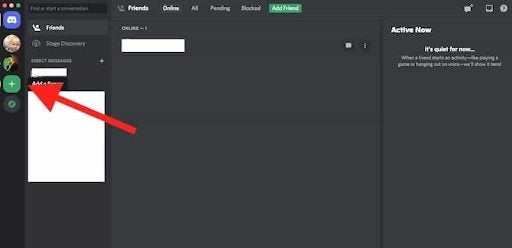
    Go to the Discord download page. Click on Download for Mac/Windows. Then install the software on your device. Open the app, register, and log in. You’ll see an invitation to go into public servers on the screen. There’s a plus icon that allows you to create your own servers. Once you’ve done so, a list of your servers will appear.

  2. Create a server

    How to stream to Discord Community

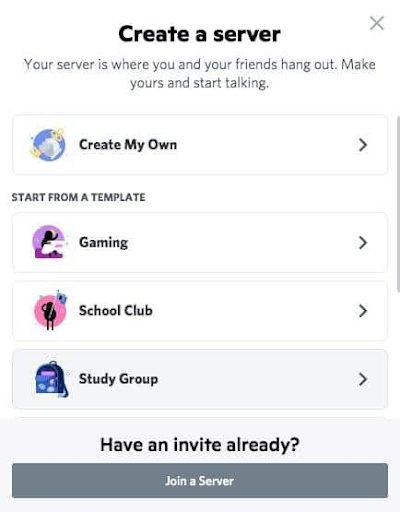
    Clicking on the Plus icon will take you to a screen where you’ll see templates for different categories of servers and an option to create your own. Once you have done so, give your server a name and an icon.

  3. Create channels

    How to stream to Discord Community

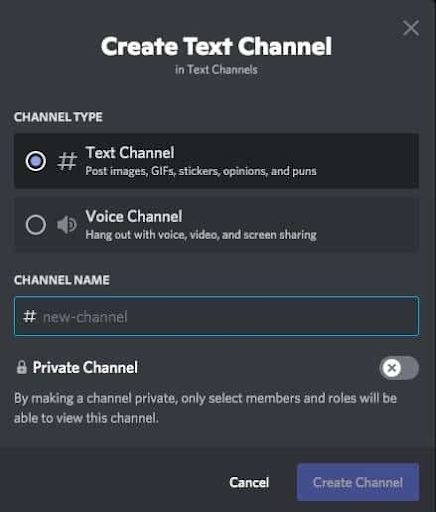
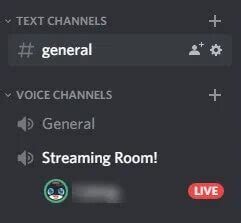
    Now you can set up different channels in your server for different topics, invite friends and contacts and start communicating. There are Voice or Text channels. To create a new channel, click the small plus icon. Pick the channel type, name your channel, and click on Create Channel. Now you can start streaming on any of your channels.

  4. Start streaming

    How to stream to Discord Community

    You can only stream on Mac or Windows, and audio sharing is only available on Windows 10 or macOS version 10.13 or later. Here’s how: Open Discord and get onto a voice channel on one of your servers. Look for the option to turn on your video. Click on the Video button to make the camera appear. You’ll then be visible on the screen, and conversation mode will be on.

  5. Share your screen

    How to stream to Discord Community

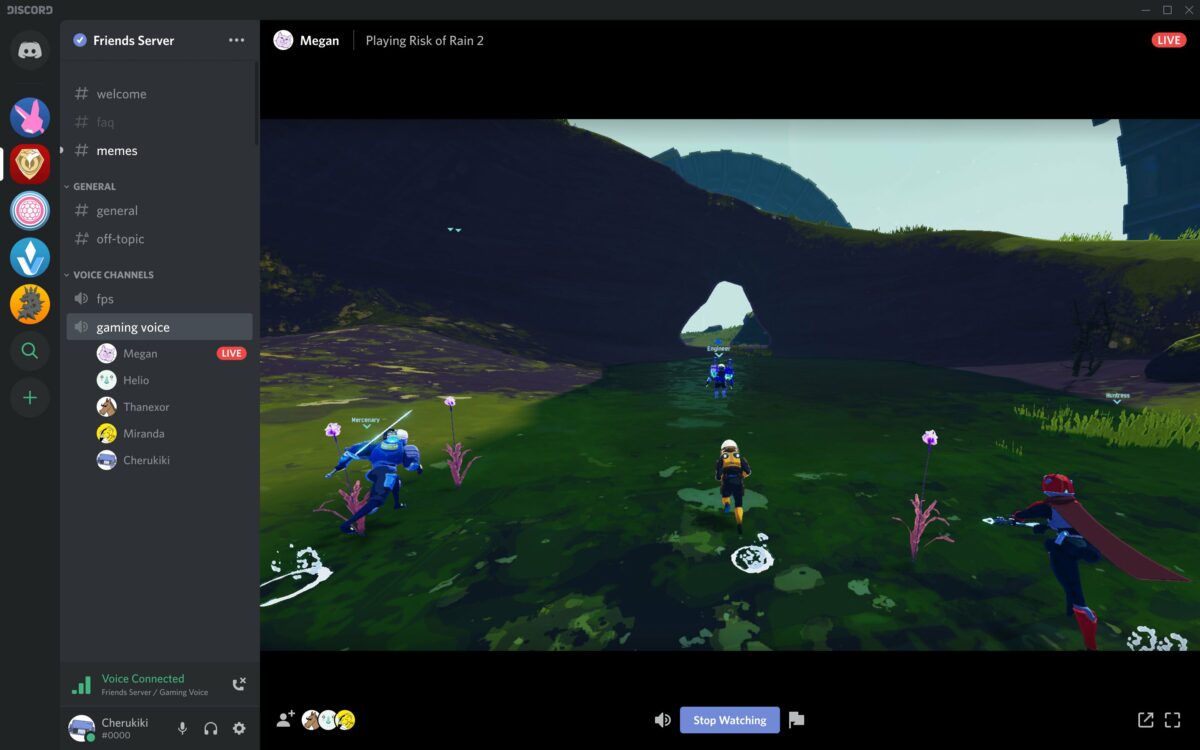
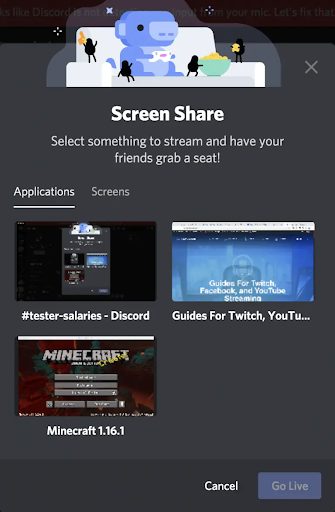
    Click on the Screen icon. A pop-up window will appear where you can choose how to share (a screen on your system or the whole screen). Then click on the Go Live button to share your screen with viewers. And you’ll be streaming!

    You can invite people to join you on our server. Click on the Invite button or send a server invite link. You can end your stream by clicking on the red Disconnect button on your Discord screen.

Watching a Stream

If you’re on a server where someone is live streaming, you can join the stream with a click.

 You can see if someone is streaming because there’ll be a Live button on the screen. Click on the server’s name in the voice channel, and a window will pop up. Click on Join Stream to watch it.

Should you stream on Discord?

Streaming is a wonderful way to reach many people live on a Discord channel. You can stream so many different things, including games, the original reason for the introduction of streaming, cooking or gardening demonstrations, music, music videos, and movies, to name a few. The best thing about streaming is that you can find new Discord friends while you’re doing so. 

You can see their messages and replies in real-time, and you can reply to them in the same way. Engaging them while streaming is a good way to get them interested in your content so that they can spread the word about your stream. If you’d like to learn more, check out our guide on what Discord is and how it works.

Beginner’s guide to Discord

Discord

If you’re an online gamer, then you’ve probably at least heard of Discord. Discord is often compared to Skype since they both let people talk to their friends online over voice or video chat. The big difference between the two are Discord’s servers. These servers are completely customizable and are completely different from how Skype calls work. Discord also features overlays for most PC games since their audience is primarily gamers. Despite its many benefits, Discord can be a bit confusing to understand at first. Here is all you need to know about getting your Discord set up, so you can play games with your friends:

8

Discord’s location and starting an account

Something unique about discord is the ability to use it through a browser. While of course the windows and mobile apps are better for direct connectivity, the browser version works practically the same. Using any of these methods, one can easily access the Discord site to create their account and get started using Discord.

Creating or joining a server

The first thing you’ll notice about Discord is that it’s primarily server-based. While you are able to have private and group chats that work similar to Skype, Discord tends to focus more on its servers. Servers can be created by anyone and joined by anyone as long as they have the server invite. Members of a Discord server can easily invite others by pressing the “invite people” button above the server rooms.

What is in a server

Within a Discord server, you will typically find a few textrooms and a few voice chat rooms. These rooms are exactly what they sound like. Textrooms work like regular online chatrooms. Except they are only accessible by the members of the server. Textrooms will usually have a specific topic that they revolve around. Some can even be locked, allowing only specific people to enter. Server hosts can also assign members to become moderators, giving them special privileges and the ability to ban other members. Voice chats work the same way as textrooms, except they are over voice communication instead of text.

Why gamers use Discord

Many gamers swear by Discord as their primary form of communication with their gamer friends. This is because Discord has special overlays for many game clients, allowing you to manage your Discord settings without needing to ALT-Tab out of your games. Along with this, Discord has connectivity with Twitch, YouTube, and Spotify, allowing for you to sync your music with your chat volume.

Discord allows for socialization over the Internet like no other program. Whether the purpose is for gaming or not, Discord is an incredibly useful tool for hanging out with your friends.