Adobe launches Spark, offers US customers big savings

Let’s face it: creating social media posts, web pages and video clips is hard work. And, if you’re a new brand, a freelancer or a small company struggling to turn a profit, it’s extra tough to focus on this critical part of your marketing program – yet hiring a firm to take care of your branding and graphics can cost a small fortune. Enter Adobe Spark, an all-in-one software suite that arms you with everything you need to create professional graphics, posts, web pages and videos with a super-simple interface loaded with impressive tools. The program is available in both a desktop and mobile version, so you can have access to the tools and graphics you need when and where you need them.

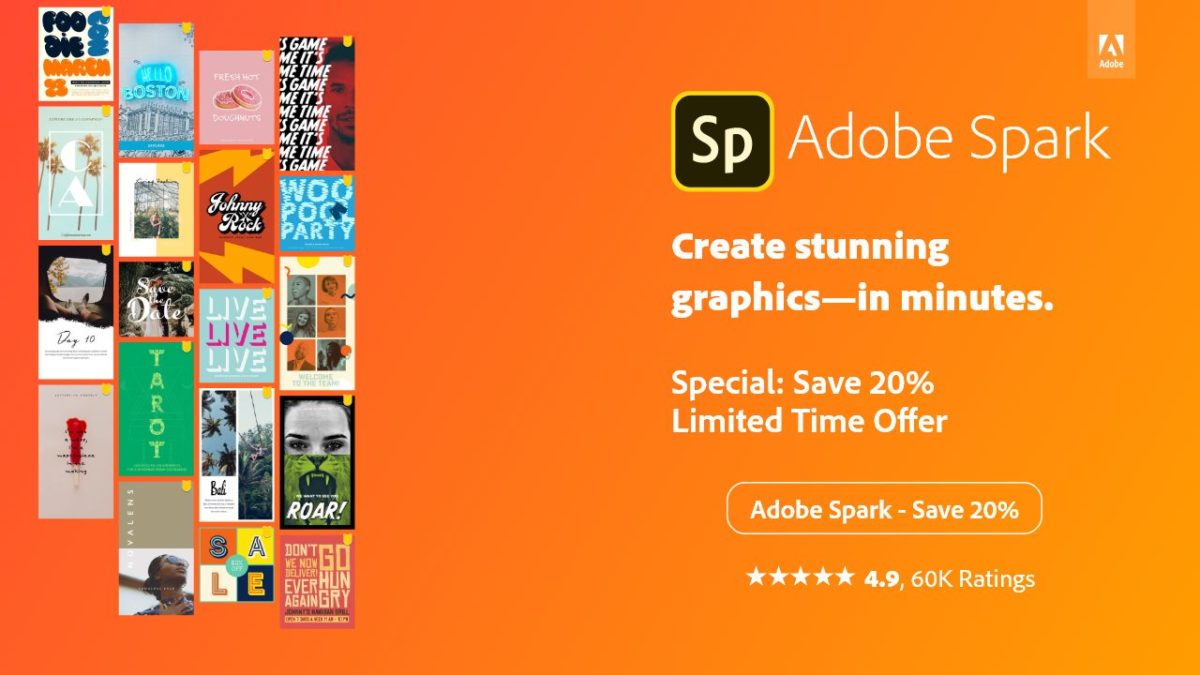
While you can play around with both the mobile and desktop versions of Adobe Spark for free, taking advantage of all the software offers requires a subscription. Fortunately, Adobe is offering new US subscribers the chance to try out an Individual premium subscription with a 20% discount on your monthly subscription.
Adobe Spark Desktop

Visit Spark’s desktop site and you’ll be given the option to create graphic content across three different verticals: web pages using Spark Page; videos using Spark Video; and graphics using Spark Post. Each category then offers a range of templates to help get you started. Choose “Graphics,” for example, and you’ll be presented with a range of options for Facebook, Twitter and Instagram posts and ads, as well as templates for print applications. 

Creation is a true pleasure, thanks to Spark’s bright, user-friendly interface with simple navigation tools. To add something to a page, for example, you simply click the “+” button and choose what it is you want to add: video, text, graphics, etc. Easy, right? Even the video creation tool is a cinch to use. The templates let you simply add some text and photos and the program whips it all up into a professional-looking clip in seconds.

What’s more, Adobe Post doesn’t stop at just helping you create logos and static posts. Once again, through some template wizardry, it’s easy to choose posts that move subtly, with text that materializes out of thin air or graphics that zoom into view in a way that is sure to catch the eye of any scroll jockey. And speaking of graphics and text, the software offers you a dizzying (in a good way) assortment of fonts, images, vector graphics, backgrounds and much, much more.


Spark Mobile

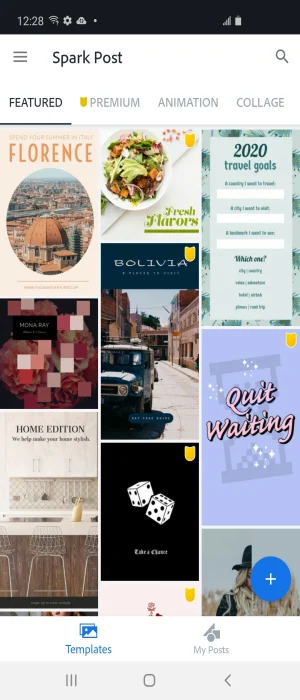
Once your Adobe Spark account is created, you can access your projects on your mobile device as well. Right now, Adobe Post is available for both Android and iOS, while Video and Page are only available for iPhones and iPads

Screenshot

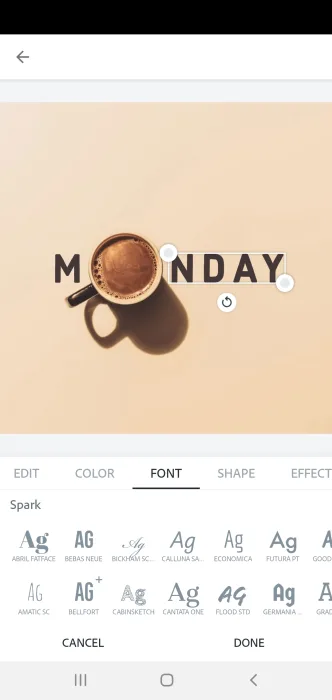
In all cases, the same ease of use carries through. Launch Adobe Post, for example, and you can sort your templates by categories including collages, animations, seasonal, lifestyle, business and more. Tap into a template, tap “Remix this template”, and you can make it your own in a few minutes, changing photos, colors, text, adding animations, dropping in your logo, and more. 
Screenshot

Pricing and features

As we mentioned, it’s possible to use Adobe Spark at no charge, but your access will be limited to just a few basic templates, and the work you create will have the Adobe Spark logo embedded in them. We think the much better deal is to try out an Individual subscription, which the company is offering free for two months. Doing so will unlock a treasure trove of templates, graphics and fonts. Here’s what you get by upgrading:

  • Create, add to, manage, and share your assets with CC Libraries in Spark
  • Invite others to work on your branded projects and easily tag-team edits
  • Create from branded templates and themes made just for you
  • Easily switch between brands while editing your project to boost your productivity
  • Remove the Adobe Spark watermark from all your projects—forever
  • Access the complete library of beautiful Adobe Fonts and premium templates


Photoshop for free? The best free alternatives

You don’t need to fork out lots of cash to get Photoshop like editing features. These are the best free alternatives to Photoshop

Best free photoshop alternatives

Adobe Photoshop’s established position as the number one image editing and photo-editing program for Windows and Mac is so strong that many people don’t even bother searching for alternative options. It is Photoshop or nothing. It doesn’t have to be that way though. Many Photoshop features are pro-level features, which means many of us will never know or understand how to use them. Furthermore, there are plenty of alternative photo editing programs out there that can do all the basic editing you need to do.

It isn’t just about getting simplified versions of Photoshop neither. There are great alternative programs out there that can offer comparable tool sets to that offered by the Adobe program. Oh yeah, we forgot to mention. A lot of these alternatives to Photoshop won’t cost you a penny. They’re completely free. Let’s not waste any more time then, these are the best free alternatives to Photoshop.

Free alternatives for Photoshop

GIMP

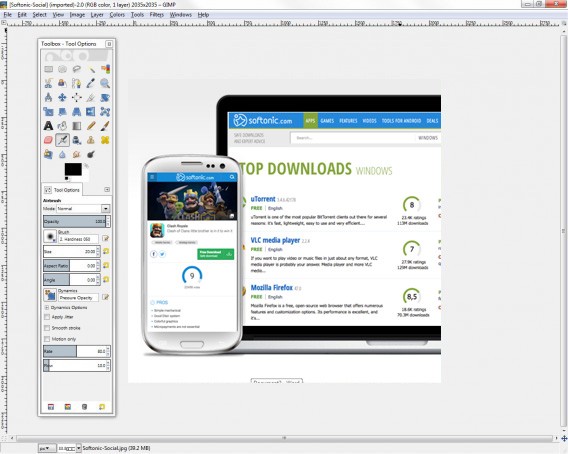
We’re starting off with a big dog here. GIMP, which stands for Gnu Image Manipulation Program is the most fully formed and arguably most well-known Photoshop alternative there is. GIMP is like an open source Photoshop developed by a global team of volunteer developers to work on Microsoft Windows, Linux, and Apple Mac. It has an extensive set of features to rival what even Photoshop has to offer and can edit a wide range of file formats including RAW files. This means GIMP is a pro-friendly alternative to Photoshop with features like layer masks and filters enabling photographers and graphic designers to get their work done. GIMP is also a customizable photo editing software as users can download add-on packs to add the extra features they need.

8

PIXLR

Pixlr

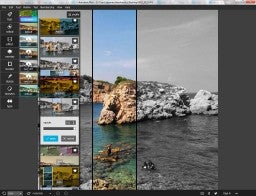
The PIXLR editor is an interesting photo editor because it is browser based, which means you can use in on all platforms via a modern web browser like Google Chrome or Mozilla Firefox. Impressively, despite this PIXLR offers a photo editing experience that rivals and indeed betters many of the downloadable alternatives. The PIXLR image editor also has a very similar layout to Photoshop meaning you’ll likely pick it up quickly, if you’re used to using the Adobe program. PIXLR also comes as a mobile app for Android and iOS iPhones and iPads.

PIXLR Download now
8

Squoosh

free photoshop alternative by Google

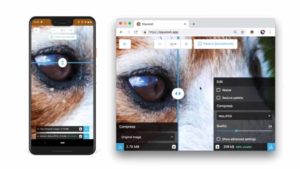
Squoosh is another browser-based photo editing program, although it offers a much more limited set of features than PIXLR or Gimp. Designed by the Google Chrome Labs team, Squoosh is designed to help you convert and optimize your images for publication across a wide variety digital platforms. If all you need to do is resize your image or make basic changes to the color palette then Squoosh is a good option that won’t intimidate you with a huge number of unknown features and buttons.

Paint.NET

Do you want the photos you share to be breathtaking - Paint.net

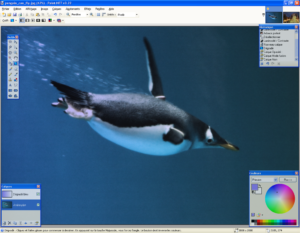
Another good free alternative to Photoshop that isn’t overly complicated is Paint.NET. If you’re an amateur photographer or if you’re looking for an image manipulation tool for a one-off project, then Paint.NET could be the option you’re looking for. That is unless you have a MAC as Paint.NET is only available on Windows. Paint.NET has a much gentler learning curve than GIMP while still offering, via plugins, access to a wide range of features including filters, masks, and layers.

Paint.NET Download now
8

Krita

The Best Free Alternatives to MS Paint krita

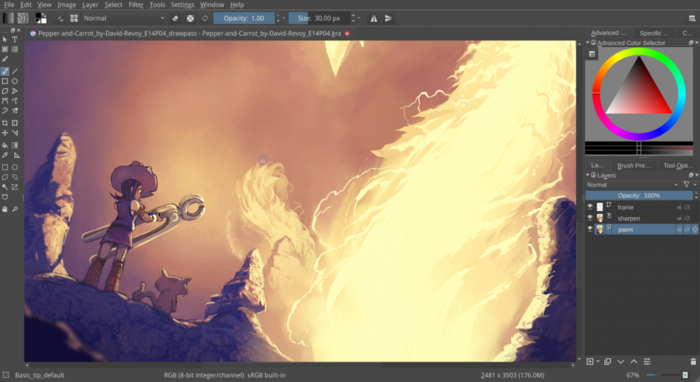
Like GIMP, Krita is another piece of open-source editing software. Krita works on Linux, Windows, and Mac but offers a lighter experience than GIMP even though it has received a lot of new features in recent years. Krita features include the ability to create and edit HDR images, which is a rather advanced feature and a wide array of brush customizations. This makes Krita a great program for digital illustrators.

Krita Download now
8

SumoPaint

Sumo Paint

SumoPaint is a very popular and very capable alternative to Photoshop. One limitation, however, is that it can’t work with the standard Photoshop PSD file. SumoPaint has all the usual features including text gradients, brushes, and whatnot and works with many different types of images including JPEG, BMP, GIF, and TIFF.

Sumo Paint Download now
9

PicMonkey

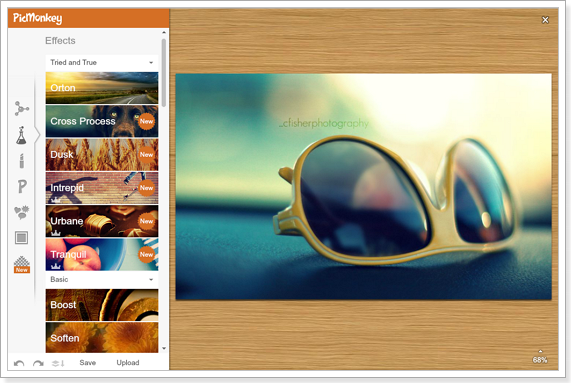
PicMonkey is another online photo editor that aims for the more socially-minded users. The interface is very simple and makes it very easy to perform basic edits and add text overlay and filters. PicMonkey isn’t going to rival Photoshop but it does offer simple editing mechanics and so isn’t too hard to get into. You can download it as an app on Android or iPhone and it also has a Google Chrome extension too.

PicMonkey Download now
8

Inkscape

Inkscape

A much more professionally minded piece of software built with graphic designers in mind is Inkscape. Inkscape is great for illustrators as it is optimized to work with vector images. Inkscape provides a great way to transform photos into vector images but it also has a range of more customary features like cropping and cutting and pasting. Technically, Inkscape is more of an alternative to Adobe Illustrator rather than Photoshop but it is still worth a mention.

Inkscape Download now
7

Photopea

Photopea

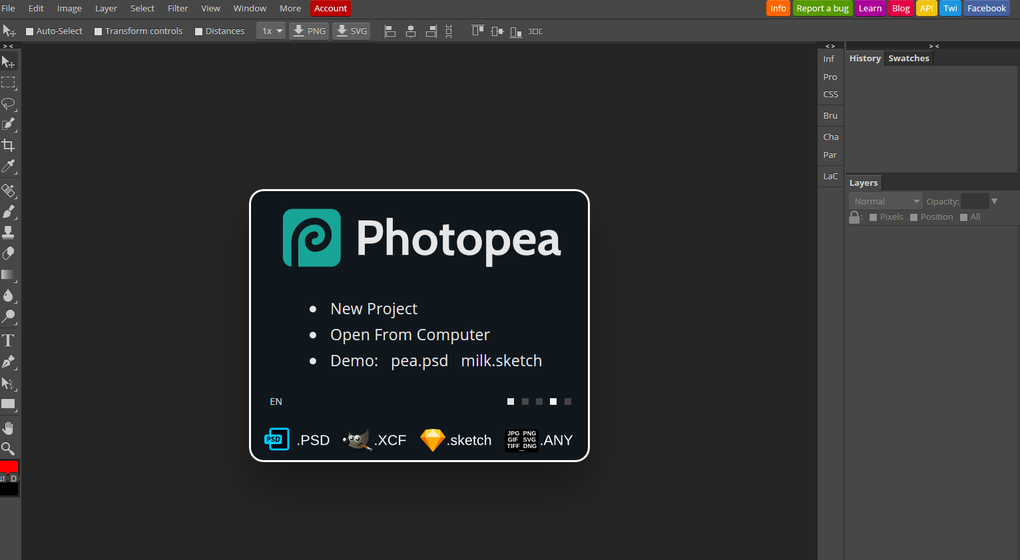
Our final entry into this list is Photopea, which is another online photo-editing tool. Photopea looks very similar to Photoshop and even works with the standard Photoshop PSD file meaning you could work across the two platforms if needs be. Photopea also has many advanced features like vector graphics support and advanced layering meaning it is a credible alternative to Adobe Photoshop. The main problem, however, is that the program is funded by ads. This means you’ll either see a lot of ads that will encroach on your work surface or you’ll have to pay a $9 per month subscription to get rid of them.

Photopea Download now
8
Wrapping up

There you have 9 great free alternatives to Photoshop. The important thing here is to consider what type of photo editing project you need to work on. If you’re looking for a program to perform basic image editing for social media then a program like Squoosh, PicMonkey, or Paint.NET could be all you need. If, however, you need a more rounded experience that you could use professionally, you should definitely look into the likes of GIMP, Krita or PIXLR.

How to choose your graphics card

From price to speed, there are so many things to consider when buying a graphics card!

GPU

When you’re building your new gaming PC, one of the most expensive single pieces you’ll end up buying is your graphics card. If you’re going to dish out a few hundred bucks for one, you better make sure that you are getting the best one for all of your needs.

We took a look at some of the best graphics cards on the market, and what you should consider before adding it to your cart. Price is far from the only thing you should consider as some of these can make all of the difference depending on your needs.

How to choose your graphics card

The main things you need to look into when choosing a graphics card are GPU/memory, cooling, noise, size, aesthetics, and extra features. We’re going to go through these features one by one to let you know why each is important.

GPU/Memory

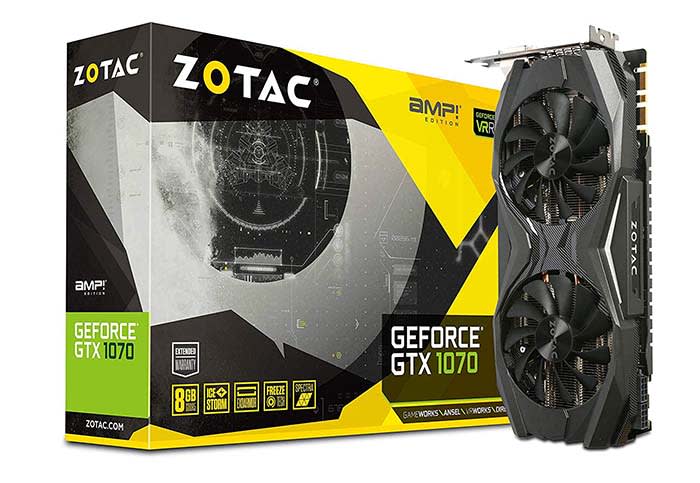
Zotac

With GPU and memory comes speed, and this can vary drastically based on what kind of graphics card you buy. On one hand, you might have a graphics card that can let you play the most heavily modded version of Skyrim you can find with no issue, or you can have one that struggles to play Tetris.

Check to see what the games you want to play require for a GPU in order to play them fluidly and fast.

If speed is the name of the game for you, we’d recommend the Zotac GeForce GTX 1070. With 1070 GPU, you get some of the highest speed you can get for the price of $350.

Cooling/Noise

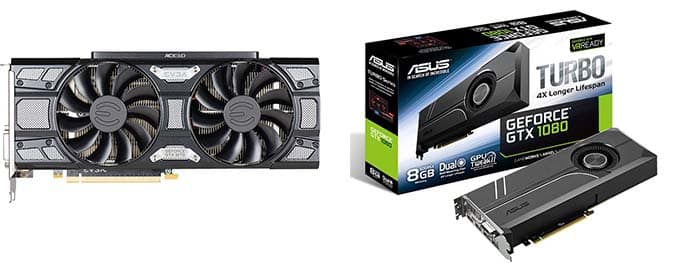
Fan comparison
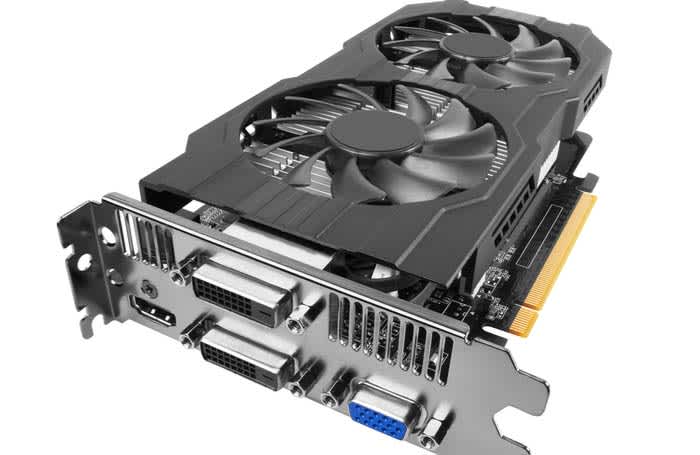
You might be able to save a few bucks if you get a graphics card with a small fan or only one fan, but you risk the GPU overheating and have to deal with a lot of noise.

When buying a graphics card, take a look a the quality of fans that go into them. Fans are what keep your graphics card from overheating, and help reduce noise. If you have good fans, then your GPU stays cool and quiet. A single fan or a small fan can mean that your PC will run hot and loud.

The Zotac GeForce GTX 1070 is still a good option in this department, but if you are willing to compromise speed and memory, the Diyeeni Colorful GTX 1060 is a solid choice. Your GPU will run nice and cool, and it will be as quiet as a church mouse. You can even pick this one up for less than $300. Don’t worry, you can still play Skyrim with this bad boy.

Size

Chassis

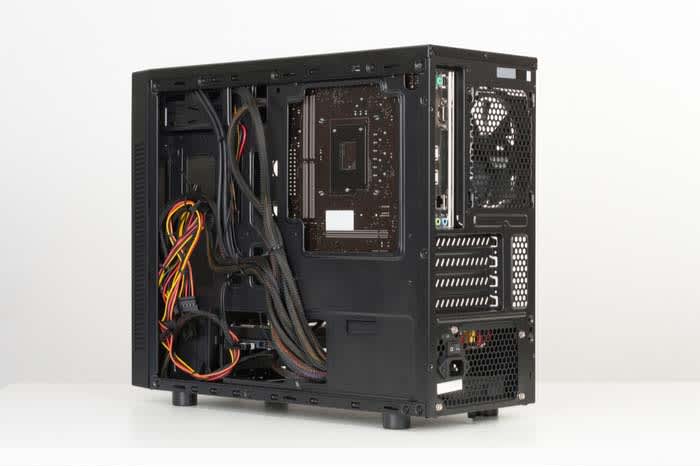
Depending on the size of your device’s chassis, you may be limited on the size of the graphics card you can buy. Just so you know, it would really stink if you bought a big, expensive, non-refundable graphics card only to find out it’s far too big. This is why many people choose their graphics card first and then build a PC around it. 

Your typical chassis for a decent gaming PC will support a graphics card as big as 12 inches by 9.63 inches. However, if you are going to get yourself a smaller chassis, you can be limited to 9.63 inches by 9.63 inches or even 6.75 inches by 6.75 inches.

The Zotac GeForce GTX 1070 and the Diyeeni Colorful GTX 1060 can fit inside the large chassis with no issue. However, if your chassis has a smaller limit, there are other options. For the 9.63 by 9.63 chassis, the Gigabyte GeForce GTX 1050 is a great option. If you have the smallest option, go with the Gigabyte GeForce GT 1030. 

Aesthetics and extra features

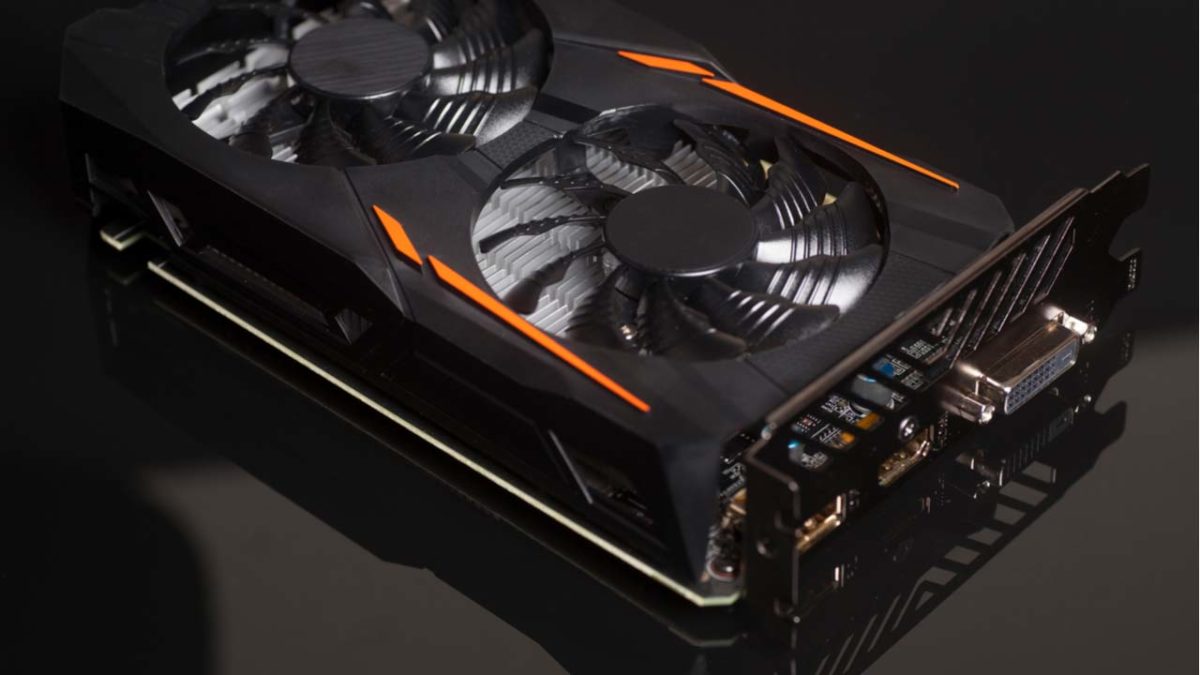
graphics card

Before you buy a graphics card, make sure you are buying one that comes with a good warranty. If your graphics card gets fried because of a faulty piece, you need to make sure that you have a warranty that will cover the damage. However, there are other features you can look into to bundle into your purchase.

GeForce typically has game bundles for some of their bigger graphics cards. Be careful though; you don’t want to spend an extra $500 just to get one or two games that cost $60 each.

Wrapping up

If we had to pick the best graphics card on the market right now, we’d have to go with the Zotac GeForce GTX 1070. For the price, there just isn’t anything else on the market that will let you play games in such high quality. You can play pretty much whatever you want in beautiful 1080p at high speeds without much risk of your PC overheating.