Best Apps to Unblur Pictures on iPhone & Android

Smartphone cameras keep getting better, which is causing the change that analysts have been predicting: traditional cameras are becoming less important to consumers, and nowadays, anyone can be a photographer because we always have a camera on us.

But that’s not to say that all our photos come out well, and people often take pictures that fail to impress. If this happens to you frequently, keep reading for some tips on how to fix blurry photos on iPhone and Android, and for recommendations on the best photo editing software available for each platform.

Why are my photos blurry?

Before we get down to business and explain how to fix a blurry photo, there’s an important question we must answer, one that might keep us from having to fix our pictures in the first place: why are my photos blurry?

There are many factors that can make a photo blurry, so it’s best to address them before you tap the shoot button. The first and perhaps most common issue is a dirty smartphone lens. Yes, you read that correctly. Having your camera lens covered in dust, dirt, etc. is enough to make a photo come out blurry. It’s that simple. To fix it, just clean the lens of your Android device or iPhone before you take a picture. But be careful: make sure to use a chamois cloth (like the kind you use to clean glasses) or a microfiber towel. Camera lenses can also be cleaned with other materials, but take care not to scratch the surface!

Another frequent mistake that leads to blurry photos is shaking the camera. The shakier your hands, the blurrier your images will be. It’s an equation that never fails. To remedy this, use a tripod when taking pictures. If you don’t have one, here’s an easy tip: hold your breath just before you snap your pic.

Finally, there is a series of other photography-related parameters to keep in mind. For example, when objects are in motion (a bird, a car, etc.), it’s harder to capture a still image of them (unless you adjust the camera settings). Likewise, lighting plays an important role: the dimmer the lighting, the likelier that your photo will come out fuzzy. So consider all these factors to determine if there’s a chance you might take blurry photos!

5 Basic Mobile Phone Photography Tips For Beginners | favbulous

How to sharpen photos

To fix a blurry photo, you don’t need a magic class at Hogwarts School of Witchcraft and Wizardry, but a good image editor. These tools, available on PCs for years, didn’t become popular on phones until recently, amid the rise of social media platforms like Instagram and Tik Tok.

Before trying to fix a blurry photo, there’s one truth to keep in mind: if a photo is extremely out of focus, no program in the world can sharpen it. There’s a saying in the audiovisual world that “you can’t polish a turd,” meaning that something inherently bad can’t be fixed. Therefore, if your photo is really blurry… it’s going to be hard to solve the problem. Now that we’ve explained this, let’s get down to brass tacks!

How to Make a Blurry Picture Clear on iPhone and iPad

While you can use iOS’s native photo correctors, the best way to make the picture clear is to use an image editing tool. These have been around for a long time on PC, for example, if you think about Photoshop. However, sometimes you need a quick and easy way to fix blurry photos on your iPhone or iPad. Enter image editing mobile apps. Although these may not be as full-featured as their PC counterparts, they are ideal for those quick fixes and touch-ups. 

Before we get into the apps and how to fix blurry pictures, it is good to remember that the less there is to fix, the easier it will be. Try to keep this in mind while taking photos and take photos that don’t need any fixing.

Best Apps That Make Pictures Clear for iOS

If you want to learn how to unblur a photo on iPhone, this section is for you. We will be looking at a few of the best apps to unblur photos on your iPhone. We will also be sharing how to use these apps step by step so that you can start to fix blurry photos.

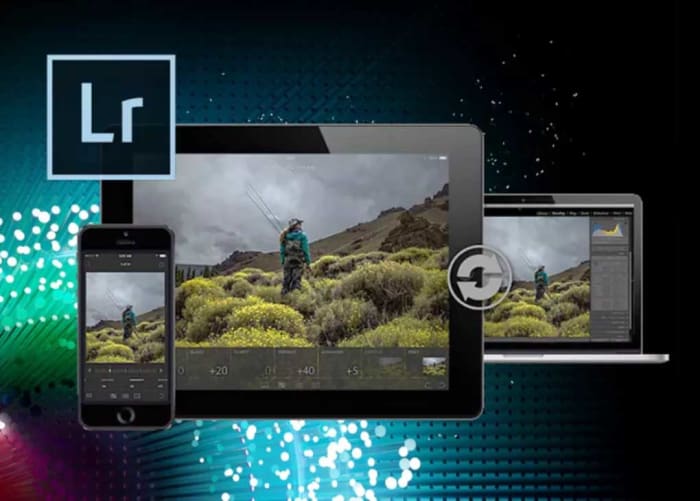
Adobe Lightroom

If you like Photoshop, be sure to check out Adobe Lightroom. This “first cousin” of the Adobe suite can also be used to retouch and edit photos. What makes it unique is the fact that it’s oriented towards photography and newbies in the field.

In terms of sharpening photos, Lightroom gets the job done, but we prefer Photoshop. Again, it’s an incredibly competent photo editor, especially since you can apply “filter” packs that make everything easier.

Adobe Photoshop Android DOWNLOAD
8

Step 1: Launch Lightroom and Open Your Image

Launch Adobe Lightroom on your iPhone and choose the image you want to sharpen/unblur from the Library Module.

Step 2: Go to the Develop Module

Next, click on ‘Develop’ in the module picker to start editing your photo.

Step 3: Adjust the Amount/Intensity Slider

With the first available slider, you will be adjusting the intensity of the sharpening. Moving the slider to the left makes it less intense, whereas adjusting to the right increases the sharpness. The easiest way to adjust this is by keeping one finger on the photo and using another finger to adjust the slider. By doing this, you can see a black and white version of your photo that will clearly show the changes made as you drag the slider. The app will also warn you if you over-sharpen your photo by displaying red in the slider. A value around 30 is usually sufficient here, but adjust it to what works best for you. You can always come back and re-adjust if needed.

Step 4: Adjust the Radius Slider

By adjusting the second slider, known as the radius slider, you will be defining how strong (in terms of pixels) the sharpness is applied to the edges. A high value will show thicker edges, whereas a lower value will show finer, more subtle lines. Again, keep one finger on the image while the other toggles the slider to see the details of the changes in black and white. 

Step 5: Adjust the Detail Slider

With the details slider, as the name suggests, you control how many details are sharpened. Keep one finger on the screen and drag the slider left and right until you get the needed detail.

Step 6: Adjust the Masking Slider

The masking slider determines if sharpness will be added to your entire photo or just the subject. The lower the sharpness mask, the more of your image will be sharpened. The higher you go, the more specific the program will get and focus more on the subject of your photo instead of the background. Hold your one finger on the image and use another finger to drag the slider left and right. 

Canva

If you’ve been on social media for a while, the name Canva will surely ring a bell. This app –or web service– stands out for its easy photo editing features. You can also create graphics, prints, presentations, layouts, backgrounds, and a long list of features. 

One of the main characteristics of Canva is that it’s designed for infographics. So, if you want to create a spectacular design without using a more complicated photo editing tool (recommendable if you want a more professional result), this application will surely get you out of a pinch.

Canvas (Android) Download now
8

Step 1: Open Canva

Open the Canva app on your iPhone

Step 2: Upload Image

Upload your image to Canva by tapping on the ‘Uploads’ tab and choosing the photo from your device. Once the image has been uploaded, drag it into the blank canvas.

Step 3: Adjust Image

Now, tap on the image and in the top menu, tap on ‘Adjust’. Once you do this, you will see a ‘Blur’ slider appear. By dragging this slider to the left, you will increase the sharpness of your image and lessen the blur.

How to Make a Blurry Picture Clear on Android

Android also has a native photo corrector that can often be enough to fix minor issues with photos. Most newer Android devices have AI-based editing features in the form of skins and features that can make minor corrections. You might have to use another third-party app with more robust features for photos that cannot be fixed with the native editing tools.

Best Apps That Make Pictures Clear for Android

This section will cover how to fix a blurry picture on Android devices using third-party apps. 

Enhance Photo Quality

Enhance Photo Quality is beneficial if you’re looking for a decent free image editing app that works well on fixing blurry photos. 

Step 1: Open the App

Open the app on your Android phone by tapping on the app icon.

Step 2: Open the Image You Want to Edit

Import the image you want to correct into the app.

Step 3: Tap on ‘Sharpness’

Tap on the ‘Sharpness’ tab at the bottom of the screen.

Step 4: Adjust the Dial

This app doesn’t have the traditional slider. Instead, it has a dial complete with sound effects and vibrations to imitate a real camera. To increase the sharpness, you turn the dial towards the ‘+’. However, we recommend you do this very slowly as this app has a powerful sharpening effect, and if you move too fast, you may miss the perfect spot.

PIXLR

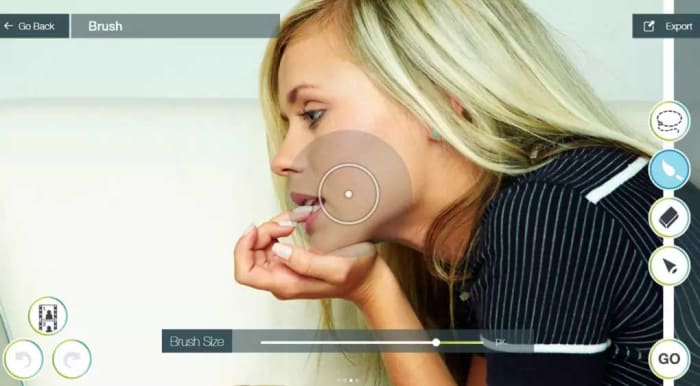
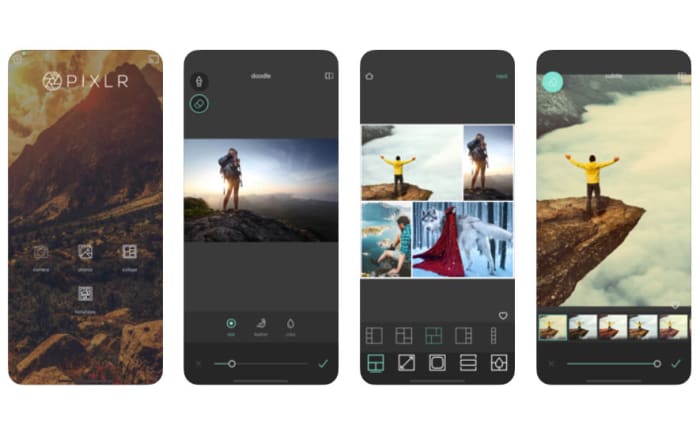
PIXLR is another excellent free photo editing tool that enables users to make various editing changes to their photos. This app comes complete with effects, overlays, filters, collages and even double exposure.

Step 1: Open the App

Open the PIXLR app by tapping on the app icon in your menu.

Step 2: Open Your Photo

On the app’s main menu, choose ‘Photo’ and upload the photo you want to edit from the gallery.

Step 3: Select the Editing Tools

Now, click on the ‘Editing Tools’ represented by a bag icon at the bottom left of your screen.

Step 4: Tap on ‘Sharpen Tool’

With the editing tools open, look for ‘Sharpen’ and tap on it.

Step 5: Adjust the Amount

The first adjustment you can make is the amount of sharpness. Adjust the slider until you reach the ideal sharpness for your image.

Get more clarity!!

Now that you know the best apps to unblur pictures on iPhone & Android, you can make your images clearer. Your followers on Facebook and Instagram will appreciate the effort! We hope these techniques have helped you.
The Best Apps for Improving your Photos this Summer

After a strange start to the year due to COVID-19, we can finally say that summer is here. The sun, the beach, the mountains, seeing the world… It doesn’t matter where you’ve decided to spend your vacation this year, the important thing is for you to relax, take a break from your routine, and of course, snap lots of photos to make all your friends green with envy on social media!

Pareja sacándose una selfie

It’s probably happened to you more than once: you take a ton of photos on your phone, but you never do anything with them because you’re too lazy to edit them on your PC. But did you know that you can improve them right on your phone? Google Play has hundreds of great apps that you can use to edit any image in a matter of seconds, and many of them are free!

To help you find the best app, in today’s article, we’re going to share a roundup of the best photo-editing apps for Android phones. We hope you find it helpful!

Adobe Photoshop Express

Imagen de Adobe Photoshop Express

When we think of photo-editing software, for many of us, Photoshop immediately comes to mind. This program has literally everything you need to turn an ordinary photo into a work of art. That said, the software is expensive, you have to use it on a desktop, and there’s a learning curve if you want to get the best results. But did you know that Photoshop has a completely free version for your phone?

Photoshop Express, a simplified version of this photo editor, maintains the basic tools of Photoshop so you can use it on your Android phone. You can do all the essential tasks to modify your photo however you want. For example, you can crop images, adjust the exposure, and even create predetermined settings to edit your photos much faster.

Photoshop Express is a useful app that achieves optimal results, and  it’s completely free, so… what are you waiting for? Download it today!

Adobe Photoshop Express DOWNLOAD
8

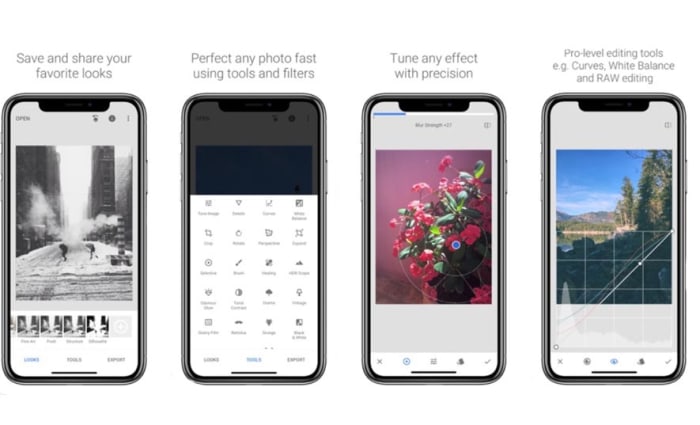
Snapseed

Imagen de Snapseed

Snapseed is a revolutionary photo-editing tool for your phone. This app, designed by Google, has a wide range of options, tools and filters that will make your summer photos the envy of all your friends on social media.

One of Snapseed’s main advantages is the fact that it was developed by Google. This guarantees not only quality, but also great performance on any Android device. It’s so easy to use: just select a photo to improve, crop it, transform it, draw on it, or use the sliding controls to make all kinds of edits. For instance, you can sharpen or blur the image, change the temperature, etc. Another cool feature lets you repair sections of your images, and there’s an interesting selection of filters to put the finishing touches on your photo.

Snapseed is an easy app to use, and the results are truly amazing. What’s more, it’s completely free, and it barely uses any of your phone’s resources. What more could you want? Download Snapseed quickly and safely below.

Snapseed DOWNLOAD
9

VSCO

Imagen de VSCO

VSCO is a professional app that will make your summer photos look magazine-worthy. Although it has integrated purchases, they are completely optional, and the app works perfectly without them.

If you check out Google Play, you’ll see that VSCO is one of the highest-rated photo-editing apps on the platform. This is because the app is user-friendly, comprehensive, and capable of achieving professional results. It has a wide range of filters to improve your photo, and you can compare them easily by using its menus.

What’s more, VSCO’s active community of users includes professional photographers who, in addition to sharing their work, will give you all kinds of tips to improve your technique. If you’re interested, you can download VSCO for free below.

VSCO DOWNLOAD
7

Adobe Lightroom

Adobe Lightroom

Lightroom is, along with Photoshop, one of today’s most popular photo-editing programs. You can use it to edit photos in RAW format en masse, adjust the exposure, add watermarks, and use a number of interesting features to achieve the perfect photo. You’re probably familiar with the desktop version of Lightroom, but not everyone is aware that it has a version for phones. What’s more, it’s free!

Adobe Lightroom for Android lets you do the same tasks as the PC version. So get ready to improve your beach photos or that cute selfie from your hiking trip. Lightroom for Android is completely free, but to use some of the features (for example, synchronize your photos), you’ll need a subscription to Adobe Creative Cloud.

Adobe Lightroom is an excellent complementary tool if you regularly use Adobe Photoshop Express. If you’re interested, you can download Adobe Lightroom below. It’s completely free.

Adobe Lightroom DOWNLOAD
9

Lens Distortions

Lens distortions

Lens Distortions is an app for anyone who wants to improve their photos by adding filters or special effects. In fact, many of these effects are used regularly by top advertising agencies and in the film industry. So, this simple yet powerful and free app is an excellent option if you want to wow your friends with the best photos.

In the mobile version of Lens Distortion, all of the program’s features have been adapted to be intuitive and easy to use on a touch screen. You’ll find a variety of overlays, shimmers and light hits to give any photo the focus or mood that you desire.

Lens Distortion is completely free to download. This version comes with five filters that you can use as much as you wish. If you want more, you can purchase the premium version, which has a total of 250. Download the free version of Lens Distortion below.

Lens Distortions DOWNLOAD
8

PicsArt

Imagen de Picsart

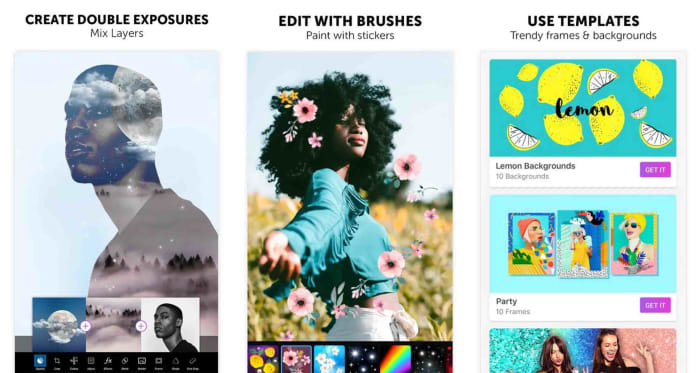
If you’re looking to do more than just improve image quality or add filters, check out PicsArt. It’s not only an excellent photo editor, similar to Photoshop, but also a tool that lets you paint, decorate, and add all kinds of cute details to your picture. And it’s completely free!

PicsArt is an easy app to use: just open your photo and make all the changes you desire. You can crop it, adjust the color, make it brighter, or add a glossy effect. Also, the app has tools such as a pencil for drawing on the photo, adding text, or adding drawings and stickers.

This app is comprehensive and fun, and it’s ideal for anyone who wants to make their summer photos light and colorful. You can download PicsArt quickly and safely below.

PicsArt DOWNLOAD
8

Hypocam

Hypocam is the perfect app for anyone who enjoys taking black and white photos. Instead of taking a photo and removing the color, you can use it to take black and white photos directly.

Hypocam adds a monochrome filter to your phone’s camera and has a good selection of photo-editing tools. They range from classics like crop and rotate image to a range of textures you can use to enhance your photo. Another interesting thing is that the app regularly shares news about the world of black and white photography so you can stay on top of the latest trends.

Hypocam is a free app that offers built-in purchases. If you find the free version too limited, you can purchase new tools to improve your photos. Download this app quickly and safely below.

Hypocam DOWNLOAD
9

I don’t like any of the above apps… Do I really need one to edit my photos? 

All Android phones have a built-in photo editor that you can use to make simple edits to your photo. Just open “Gallery” in your phone, select the photo you want to edit, and tap the pencil icon.

When you open your phone’s photo editor, you can crop the image, adjust the brightness, draw, add text, or rotate the photo. Don’t expect special effects or magazine-worthy results, but it’s a useful tool if, for example, you just want to crop your photo a bit. Then simply save the image, and you’ll find both the edited photo and the original in the Gallery on your phone. It’s that easy!

We hope you liked our roundup of apps to improve your vacation photos. Where are you going on vacation this year? Tell us about it in the comments section!

Best Mobile Apps for Enhancing Photos

These are the best apps to help you edit the photos you take on your Android smartphone or iPhone

Are you a professional photographer that needs to be able to edit images on the move or just a person who likes to add that extra zing to their personal snaps? The development of mobile technology has brought about more complex photo editing apps with features that only used to be able on the desktop. Here is a compilation of the best apps to increase your creativity and get you producing photos that will surely impress your audience.

Best mobile apps to make photos look better

Snapseed

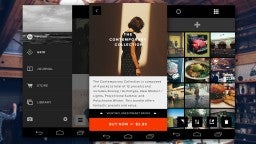
Another excellent Google app creation is Snapseed, which is a professional level app for editing your photos with a huge range of tools to spruce up your images.  It takes some knowledge of photography but a little experimentation will have you producing images that will be the envy of your friends. Being a Google app, it can also be accessed from Google Photos inside the editing options.

Key features:
  • Choose from over ten convenient styles to apply to your photo.
  • Finely tune your image with popular options such as brightness, contrast, saturation, and ambiance.
  • Rotate, crop, expand, and apply perspective to your pictures.
  • Apply HDR and other visually pleasing filters.
  • Comprehensive export options including exporting to selected folders, sharing with people of other apps, and saving copies with size/format/quality adjustments.

There are more features to play around with, just download and dive straight in.

9

Adobe Photoshop Express

Originally for desktop PCs, Adobe Photoshop has become the best photo editor on the market and the go-to image editor for the discerning professional. It offers an endless list of alterations that you can apply to images to get them to the required standard.

What this app does is take the best features of Photoshop and make them accessible for free on your mobile device. The interface is relatively easy to use, and a welcome benefit of this app is that it does not contain any annoying advertisements to interrupt your editing.

Other Key features:
  • Adjustment of contrast, brightness, exposure, hue saturation, luminance, and shadows.\
  • Rotate, flip, and perspective correcting functions.
  • A crop function that comes with pre-sets for those of us who like to upload to social media.
  • Removal of red-eye for people and animals.
  • The ability to make beautiful collages.
  • Usual sharing with links to the desktop version and Adobe cloud, but also other apps like Google Photos and Facebook.

Adobe Photoshop Express Download now
8

Adobe Lightroom CC

As with Photoshop, Adobe Lightroom CC also has a fully functional desktop version.  The mobile version of the app and in closely linked to the desktop app and if you want the full benefits of this amazing program, you really have to buy the full version. It main benefits are that it is easier to use than photoshop and enables you to work on more than one photograph at a time.

Other Key features:
  • Comprehensive feature set with similar adjustments to photoshop.
  • Great for people who like to post to social media easily and quickly.
  • Ability to edit RAW images (paid only).
  • Editing does not destroy the original image and all edits can be undone.
  • Can create and apply pre-sets even in the mobile version.
  • Available on iOS, Android, Windows, and Mac.

Adobe Lightroom CC Download now
7

VSCO

VSCO Cam for Android header

Being another of the best free editing packages in the mobile world, VSCO offers a wide range of features for editing and posting to social media. You have access to the VSCO community, where you can post your pictures and view others to gain ideas from other users.  The paid version introduces a place where you can expand your knowledge with tips and tutorials.

Other Key Features:
  • Easy use interface
  • Features comparable to other apps in this category, like light exposure, contrast, cropping, clarity, and shadow adjustments. All available without upgrading.
  • The same adjustments can also be made to videos.
  • Access to some of the best filters in the business and even more with the paid version. It will also suggest pre-sets for quick editing on the go.
  • Available on iOS, Android, Windows, and Mac.

6

Touchretouch

Remove any unwanted blemishes from your images with this handy app with just one touch or swipe of your finger. It is a paid app but at such a low price compared to the results it produces, it has become one of the most popular photography tools on the market.

Key features:

  • One-touch removal of unwanted objects in your pictures.
  • Quick repair tool.
  • Line removal tool.
  • Clone stamp to recreate selected parts of the image.

TouchRetouch Download now
8

PicsArt

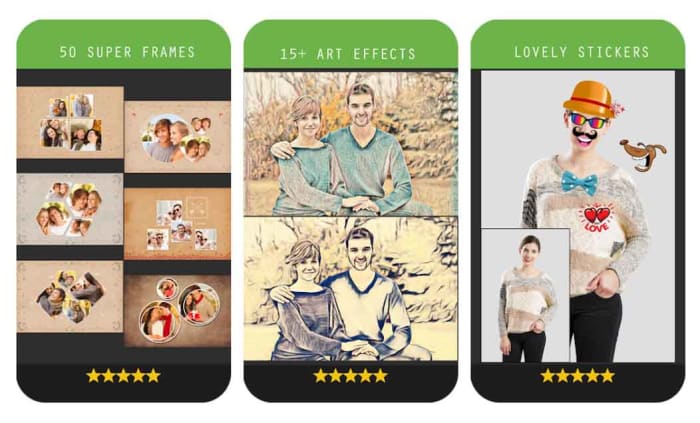
An awesome app containing the standard editing tools but also the ability to add a multitude of quality effects to your images. Like VSCO it also has it’s own community, where you can explore ideas from other users, and your photos can also be uploaded to popular social media sites like Facebook and Twitter. Believe it or not, a negative aspect of this app could be that it has too many features, but that is for you to decide.

Key features:
  • A huge amount of editing tools including the standard options provided by the other apps in this list.
  • A template gallery for quick and easy editing.
  • Several different types of effects that can be applied to your images, such as Magic, Duotone, and pixel stretch, to name but a few.
  • Ability to change picture backgrounds.
  • A great range of interesting filters.
  • A meme generator that provides templates to create some humorous memes to share.
  • Available on iOS, Android, and Windows.

PicsArt Download now
7

Best free resources for Photoshop

Check out this guide and introduction to all the best Adobe Photoshop resources available on the internet.

The best free Photoshop resources

Photoshop is the best photo editing program there is. It has so many tools and features that imagination is the only thing limiting what graphic designers and high resolution photographers can do with the Adobe program. Photoshop is a big beast though. If you don’t know what you’re doing, it is just a dark screen with lots of buttons and toolbars. It can be hard to know where to start, especially if you don’t know the difference between a PNG file and a JPG.

There are tools and resources out there though, to help you get to grips with all that Photoshop has to offer and teach you how to do whatever you need to get done. Furthermore, Photoshop is a customizable piece of software, which means you can add extra Photoshop actions to the mix by downloading plugins. Many of these are freebies too. This is why today we’re walking you through a roundup of all the best free design resources for Photoshop.

Adobe Photoshop CC Download Now ►
7

Free resources for Photoshop

Official Photoshop resources

Adobe Photoshop user guide

You don’t buy Photoshop; you subscribe to it. You pay for it each month and then use it as a service. Some people will complain about this and say it is expensive but for web designers who subscribe this gives two beneficial outcomes. The first is that Adobe will regularly update Photoshop and the second is that Adobe offers free access to a huge amount of Photoshop step-by-step guides covering every aspect of the massive image editing program.

Adobe TV

Adobe TV

As well as an extensive user guide that will walk you through how to use every tool on the program and introduce you to a number of key photo editing and graphic design techniques, Adobe will also give you access to Adobe TV. Adobe TV has plenty of videos, which will show you many different tricks and tips and also TV shows and webinars walking you through many different Adobe design products.

Best places for Photoshop tutorials

Before you do anything, you’re going to need to learn how to use Adobe Photoshop. This is where Photoshop guides and tutorials some in. You can teach yourself how to do anything on Photoshop with the right guide.

PSDFAN

PSDFAN has a wide variety of easily searchable Photoshop tutorials from the very basics all the way up to advanced photo editing techniques including light manipulation and blended multi-exposure shots. This is a very cool place to start.

Design tuts+

The envano tuts+ website offers a wide variety of different design focused tutorials. Many of these are Photoshop tutorials, including their very handy Photoshop in 60 Seconds series, which gives quick guides on many Photoshop tools. You’ll also find guides here for other Adobe programs too like Illustrator and InDesign.

Design Tuts+

PSHero

PSHero has many different Photoshop tutorials that’ll help you find your feet and then develop your skills all the way up to a professional level. The tutorials are split into four categories: Graphic Design, Photo Effects, Text Effects, and Tips & Tricks.

Best places for Photoshop tools (Brushes, Plugins, and Textures)

As well as the extensive set of design tools that come pre-loaded on Photoshop, you can download specialized tools for your particular needs. These include specialized brushes, textures, and plugins, which could be anything from tools to shave a few seconds off your workflow to more advanced versions of standard Photoshop tools.

BrushKing

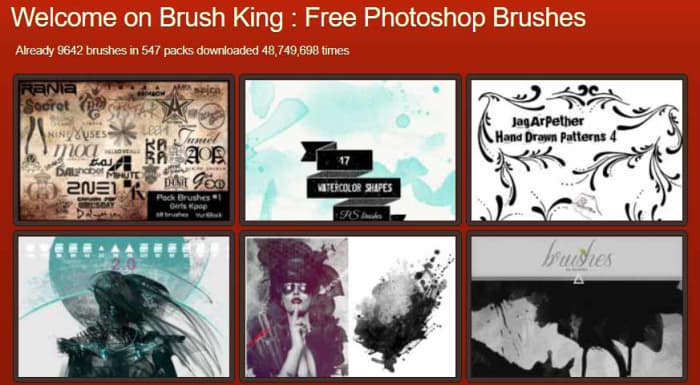
BrushKing is a Photoshop brush marketplace where you can choose between thousands of free Photoshop brushes available via hundreds of different brush sets. You will have to pay for some of these but fortunately, most are available for free.

Brush King

BrushLovers

Another excellent Photoshop brush marketplace worth your attention is BrushLovers. You’ll find all sorts of different types of high-quality Photoshop brushes here and they’ll be easy to find too, due to BrushLovers’ impressive advanced search features.

CC-Extensions

CC-Extensions have brought to the internet a variety of different plugins that add more high-end and pro-level features to Photoshop. These are mostly for experts only but if you’re at that level, they’ll add some serious swagger to your game.

Digital Anarchy

Digital Anarchy has a lot more to offer than just its Photoshop plugins but its cool list of add-ons is definitely worth a look. You’ll find tools here to help you design backdrops for your images, draw up borders, and more.

DinPattern

DinPattern

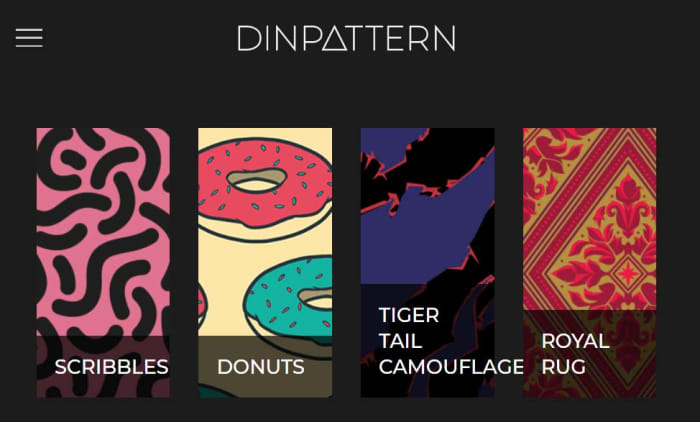
DinPattern offers Photoshop users almost endless libraries of patterns, textures, wallpapers, and backgrounds. This is your one-stop-shop for all your Photoshop patterns and texture needs.

Best place to find Free PSD files and Photoshop templates

There are a LOT of places online where you can find Photoshop templates. The best of these comes in the form of the standard Photoshop file. PSDs are the format type Adobe developed for Photoshop. They save all the composite parts of a photo editing project so you can stop what you’re doing and then pick up exactly where you left off later on. This also means that you can download PSD templates that have images already built, complete with individual layer styles that you can edit to make the overall image your own.

Freepik

Freepik

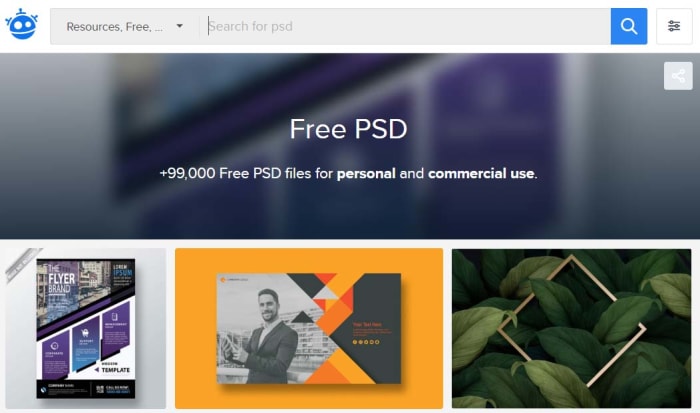
The best place to find thousands of these ready-made PSD file templates is Freepik, which has almost 100,000 files for you to browse through and then download for free. There are all sorts here too including t-shirt mock-ups, business cards, flyers, and even smartphone templates. Keep an eye out, however, as sometimes you might need to attribute the author if you’re going to use the file publicly or for commercial purposes.

Wrapping up

Adobe Photoshop really is its own world. From the first second you launch it you realize that there is a lot to get lost in. To put it bluntly, you need Adobe’s extensive tutorials and video guides and then once you’ve familiarized yourself with all the tools the design suite offers, you’ll need the more creative tutorials we’ve offered too. Once you know what you’re doing though, there is still more exploring to do with all of the potential templates, textures, brushes and plugin-free downloads available for Photoshop. We’ve shown you some of the best but if you want to go deeper, you could see this guide as just the start.

Top photo editing apps for your phone

These are the best mobile photo editing apps for Apple iPhones and iPads, and Android smartphones and tablets.

The best mobile photo editors

These days the camera on your smartphone is one of its most important features. Phone manufacturers have been falling over themselves for years now to bring us the best cameras with the most impressive bells and whistles. We’ve seen Google pumping crazy AI features into its Pixel phones and Huawei adding privacy-busting 50X zoom to its P30 Pro. Most phones now, even budget offerings, have two or sometimes even three lens camera app systems as well as a separate front-facing camera for selfies and video calls.

It isn’t just about taking photos though, oh no. These days, if you want your photos to stand out on social media, you need to optimize your photos once you’ve snapped them. That means editing them to make sure they look as good as they possibly can. Fortunately, however, just as the hardware manufacturers have been working overtime on their cameras, software developers have been working hard on photo-editing apps.

Let’s look at the best photo editing apps available for Android on the Google Play Store and iPhone on the Apple App Store.

Best photo editor apps

PIXLR

Pixlr

Pixlr is a very well-regarded browser-based photo editor that you can use on Linux, Windows, or Apple Mac via a modern browser like Google Chrome or Mozilla Firefox. Pixlr also has rather impressive mobile apps for Android devices and iOS iPhones and iPads. The mobile photo apps are designed for quick edits and retouching and make it very easy for users to get great results. There are plenty of filters and features here for you to play around with and once you’re done, the Pixlr apps make it really easy to share your creations via integrated social network connectivity.

If you try out the Pixlr mobile apps and like them, you should definitely try the browser-based app, which actually offers a fairly decent and free alternative to Adobe Photoshop.

PIXLR Download now
8

PicsArt Photo Studio

PicsArt

PicsArt has a really wide feature set that offers plenty for any budding amateur snapper and social sharer looking to edit photos. PicsArt makes it really easy to put together collages, add cool stickers to your photos, and add all manner of filters and text as well as optimizing your photos with improved lighting and color balancing tools.

The broad appeal of PicsArt is that it is a great tool for people looking to perform serious edits but also works well for those simply looking for a laugh by putting together a meme or creating an entertaining GIF. Interestingly, PicsArt also has a collaboration feature that allows you to submit work to the PicsArt community so that people can make their own edits.

PicsArt - Photo Studio Download now
8

Fotor Photo Editor

Fotor

Another excellent mobile photo editing app is Fotor. Fotor gives any budding photographer the tools they need to make a wide variety of professional-looking edits to their photos. The app has over 1,000 filters and includes other more regular features like vignettes, highlights, image temperature and saturation tweaks, exposure control, and more basic editing features like cropping, rotating and brightness and contrast control.

Although you can download a free version, Fotor includes in-app purchases and requires users to log in to use it. The app, however, also includes a very handy one-tap auto improvement feature. A simple click will put Fotor to work editing your photo, which if it doesn’t end up as exactly what you’re after, often provides a great starting point for further edits.

Fotor Photo Editor Download now
8

Snapseed

Snapseed

Although Snapseed is Google’s own photo editor, it is an excellent choice for anybody looking to edit the photos they take on their camera. You can add filters, edit the lighting effects on your photos, and also add interesting features like lens bokeh, which is the blurring effect that you get around the subject that is the focus of your image.

The best thing about Snapseed is that it is free and gives you access to almost all the editing features you’ll find in any mobile photo editing app. That being said, it can come off as a little intimidating, if you’re only looking to make simple edits.

9

Google Photos

Google Photos, formerly Picassa, is an incredible mobile app. Google Photos will automatically back up your photos to the cloud and then prompt you to clear space on your device. You can then view your photos using your internet connection whenever you want. This way you can have pretty much every photo you’ve ever taken in your smartphone’s photo gallery forever. Furthermore, Google’s AI will automatically organize your photos into easily searchable tag groupings and albums.

On top of that rather ridiculously well-executed feature, Google Photos also offers some pretty decent photo editing capabilities.  As well as filter options, contrast and saturation editing, and other basic features like cropping and rotating, Photos also has interesting AI-enabled features like auto-cropping of documents.

Google Photos Download Google Photos
7

Photos Effects Pro

Photos Effects Pro

We’re finishing our look at some of the best mobile photo editing apps with a fun entry to the list. Although Photos Effects Pro sounds like something you’d expect your photo enthusiast uncle to have on his ten-year-old MacBook, it is actually much more suited to a younger Instagram or Snapchat user.

Like most mobile photo editors, Photos Effects Pros has filters and effects, but it stands out for its fun stickers that’ll take your photos and turn them into something truly comical. You can also use your finger to paint on top of your photos and add AI-infused edits like turning your photos into painted or hand-drawn scenes. Outside of these effects’ features, Photos Effects Pro only has a few rudimentary editing tools but it is completely free to use, which means it is definitely worth a download.

Photo Effect Pro Download Free ►
8

Wrapping up

Mobile photo editors are a little different from their full-size desktop companions in that they simply can’t offer the complete editing suites your PC or Mac can. Sure, expensive subscription-based apps like Adobe Lightroom CC can give you a real taste of what your PC can do, complete with RAW file editing, but editing photos is much more difficult to do on a smartphone screen of five or six inches than it is on a 15 inch laptop or a computer with a much bigger monitor. You can still do a lot, however, with filters, basic editing techniques, effects, and stickers, which is why we’ve been able to bring you six excellent photo editing apps. Another good mobile photo editing tool worth checking out on your Android phone is VSCO.

Photoshop for free? The best free alternatives

You don’t need to fork out lots of cash to get Photoshop like editing features. These are the best free alternatives to Photoshop

Best free photoshop alternatives

Adobe Photoshop’s established position as the number one image editing and photo-editing program for Windows and Mac is so strong that many people don’t even bother searching for alternative options. It is Photoshop or nothing. It doesn’t have to be that way though. Many Photoshop features are pro-level features, which means many of us will never know or understand how to use them. Furthermore, there are plenty of alternative photo editing programs out there that can do all the basic editing you need to do.

It isn’t just about getting simplified versions of Photoshop neither. There are great alternative programs out there that can offer comparable tool sets to that offered by the Adobe program. Oh yeah, we forgot to mention. A lot of these alternatives to Photoshop won’t cost you a penny. They’re completely free. Let’s not waste any more time then, these are the best free alternatives to Photoshop.

Free alternatives for Photoshop

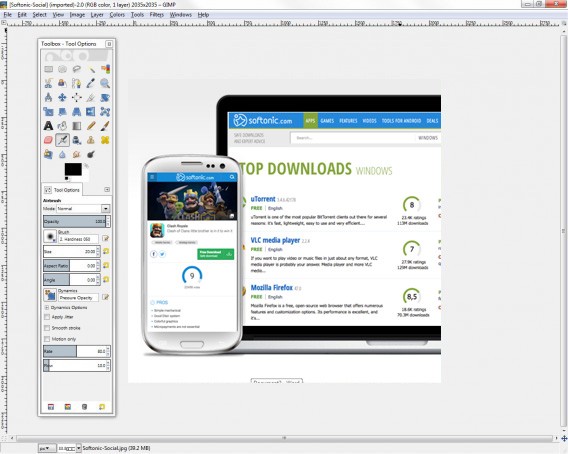
GIMP

We’re starting off with a big dog here. GIMP, which stands for Gnu Image Manipulation Program is the most fully formed and arguably most well-known Photoshop alternative there is. GIMP is like an open source Photoshop developed by a global team of volunteer developers to work on Microsoft Windows, Linux, and Apple Mac. It has an extensive set of features to rival what even Photoshop has to offer and can edit a wide range of file formats including RAW files. This means GIMP is a pro-friendly alternative to Photoshop with features like layer masks and filters enabling photographers and graphic designers to get their work done. GIMP is also a customizable photo editing software as users can download add-on packs to add the extra features they need.

8

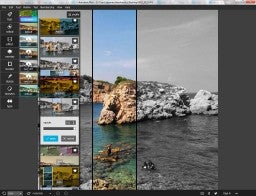
PIXLR

Pixlr

The PIXLR editor is an interesting photo editor because it is browser based, which means you can use in on all platforms via a modern web browser like Google Chrome or Mozilla Firefox. Impressively, despite this PIXLR offers a photo editing experience that rivals and indeed betters many of the downloadable alternatives. The PIXLR image editor also has a very similar layout to Photoshop meaning you’ll likely pick it up quickly, if you’re used to using the Adobe program. PIXLR also comes as a mobile app for Android and iOS iPhones and iPads.

PIXLR Download now
8

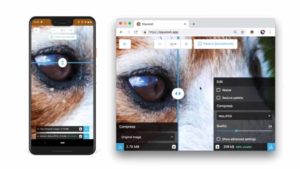
Squoosh

free photoshop alternative by Google

Squoosh is another browser-based photo editing program, although it offers a much more limited set of features than PIXLR or Gimp. Designed by the Google Chrome Labs team, Squoosh is designed to help you convert and optimize your images for publication across a wide variety digital platforms. If all you need to do is resize your image or make basic changes to the color palette then Squoosh is a good option that won’t intimidate you with a huge number of unknown features and buttons.

Paint.NET

Do you want the photos you share to be breathtaking - Paint.net

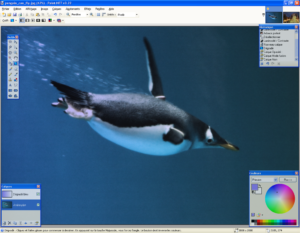
Another good free alternative to Photoshop that isn’t overly complicated is Paint.NET. If you’re an amateur photographer or if you’re looking for an image manipulation tool for a one-off project, then Paint.NET could be the option you’re looking for. That is unless you have a MAC as Paint.NET is only available on Windows. Paint.NET has a much gentler learning curve than GIMP while still offering, via plugins, access to a wide range of features including filters, masks, and layers.

Paint.NET Download now
8

Krita

The Best Free Alternatives to MS Paint krita

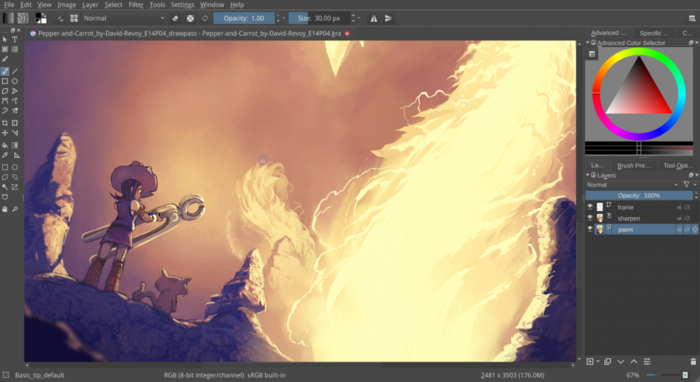
Like GIMP, Krita is another piece of open-source editing software. Krita works on Linux, Windows, and Mac but offers a lighter experience than GIMP even though it has received a lot of new features in recent years. Krita features include the ability to create and edit HDR images, which is a rather advanced feature and a wide array of brush customizations. This makes Krita a great program for digital illustrators.

Krita Download now
8

SumoPaint

Sumo Paint

SumoPaint is a very popular and very capable alternative to Photoshop. One limitation, however, is that it can’t work with the standard Photoshop PSD file. SumoPaint has all the usual features including text gradients, brushes, and whatnot and works with many different types of images including JPEG, BMP, GIF, and TIFF.

Sumo Paint Download now
9

PicMonkey

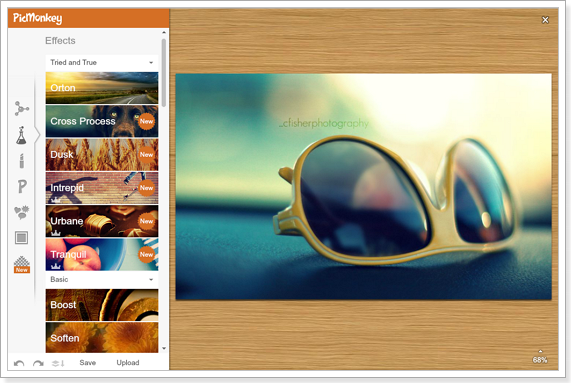
PicMonkey is another online photo editor that aims for the more socially-minded users. The interface is very simple and makes it very easy to perform basic edits and add text overlay and filters. PicMonkey isn’t going to rival Photoshop but it does offer simple editing mechanics and so isn’t too hard to get into. You can download it as an app on Android or iPhone and it also has a Google Chrome extension too.

PicMonkey Download now
8

Inkscape

Inkscape

A much more professionally minded piece of software built with graphic designers in mind is Inkscape. Inkscape is great for illustrators as it is optimized to work with vector images. Inkscape provides a great way to transform photos into vector images but it also has a range of more customary features like cropping and cutting and pasting. Technically, Inkscape is more of an alternative to Adobe Illustrator rather than Photoshop but it is still worth a mention.

Inkscape Download now
7

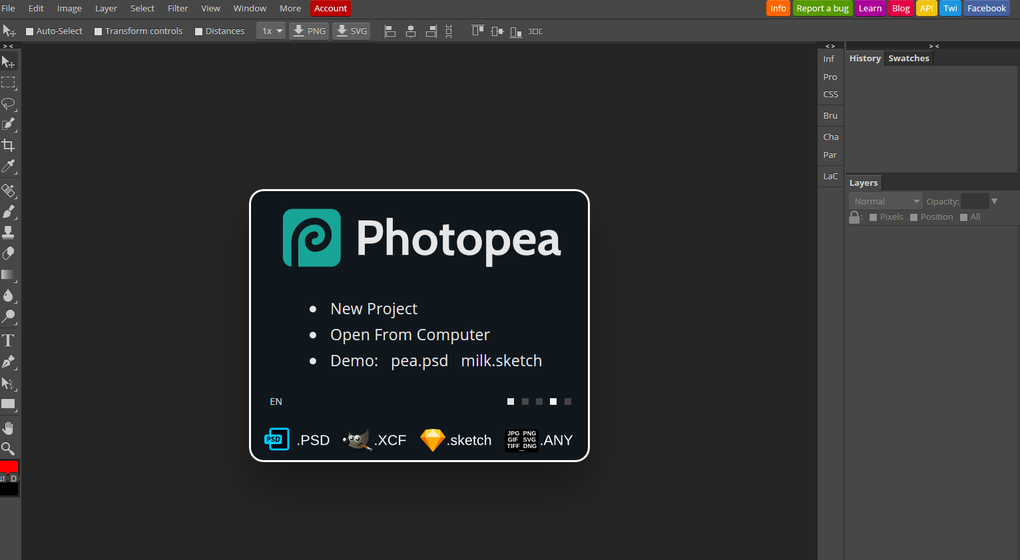
Photopea

Photopea

Our final entry into this list is Photopea, which is another online photo-editing tool. Photopea looks very similar to Photoshop and even works with the standard Photoshop PSD file meaning you could work across the two platforms if needs be. Photopea also has many advanced features like vector graphics support and advanced layering meaning it is a credible alternative to Adobe Photoshop. The main problem, however, is that the program is funded by ads. This means you’ll either see a lot of ads that will encroach on your work surface or you’ll have to pay a $9 per month subscription to get rid of them.

Photopea Download now
8

Wrapping up

There you have 9 great free alternatives to Photoshop. The important thing here is to consider what type of photo editing project you need to work on. If you’re looking for a program to perform basic image editing for social media then a program like Squoosh, PicMonkey, or Paint.NET could be all you need. If, however, you need a more rounded experience that you could use professionally, you should definitely look into the likes of GIMP, Krita or PIXLR.

Google Photos now has over 1 billion users and a new younger sibling

Photos becomes one of 9 Google apps to have over 1 billion users and the Photos team has just launched Gallery Go to offer their services to owners of more modest devices.

Google Photos is one of the best, if not the best photo organizing program out there. Add that it is free and that it comes pre-loaded on every Android device and you might think that having 1 billion users isn’t that big of a deal. It wasn’t that long ago that Google Chrome logged its 5 billionth download after all.

The truth is though, that Google Photos’ success was a given as it was originally designed to bolster Google’s ill-fated social network Google+. An unmitigated failure, that risible misstep is no more, with Google having pulled the plug earlier this year. Photos, however, is here to stay and it could be argued it has seamlessly facilitated our shift towards a world where we take photos first and ask questions later.

Photos becomes one of 9 Google apps to have over 1 billion users

Google Photos on an Android phone

Reaching one billion downloads is a big deal then but, unsurprisingly, this isn’t Google’s first rodeo. Photos is actually the ninth Google product to clock such a huge number of active users.

The other 8 Google products to make it to the 1 billion club are Android, Chrome, Gmail, Google Drive, Google Maps, the Google Play Store, YouTube, and Google Search. Even with failures like Google+ in  recent memory, clearly, Google knows a thing or two about internet success.

Despite its connection to a doomed product, however, and even in such lofty company as its Google products brothers and sisters, Photos has managed to show itself to be something quite special indeed.

Google Photos Download Google Photos
7

One marker for its success is the speed of its uptake. Photos first hit the scene around four years ago in 2015. It took only five months before Photos had 100 million users and had reached 500 million just a year and a half later.

Fast Company has pointed out just how quickly Photos has been adopted by so many people: “Gmail took a dozen years to hit a billion users; Facebook and Instagram, about eight years apiece.” Google Photos hit the 1 billion user mark in half the time it took Facebook and Instagram to do the same.

The Photos team doesn’t seem content with that rapid rate of expansion either. They want more users and they want them as quickly as possible. Photos has had and still has a fast but steady uptake of new users. It had 500 million users after two years and 1 billion after four. You’d expect 2 billion users in eight years then, but that number might rise quicker due to the latest announcement from the Photos team.

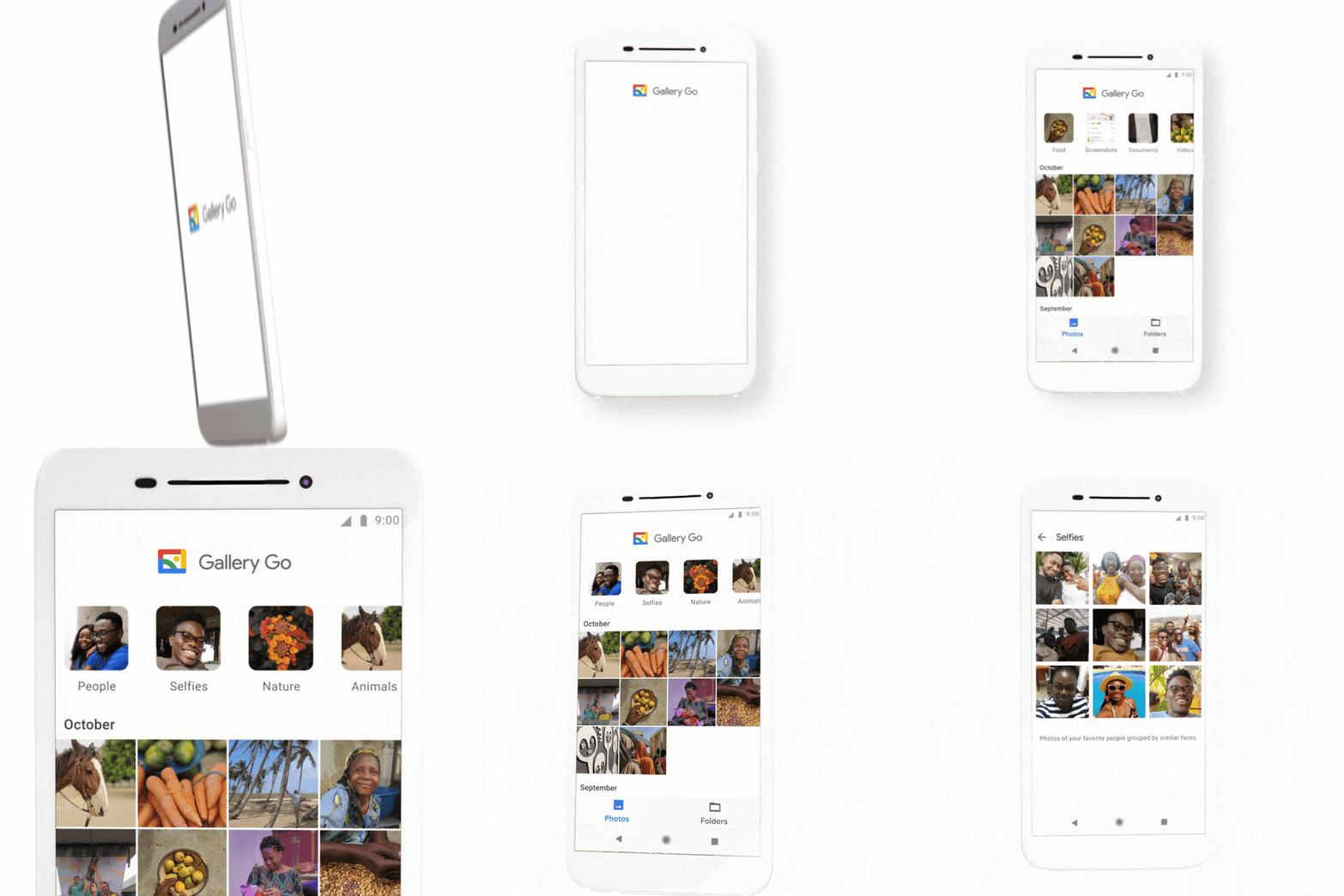
Google has launched Gallery Go, a new lightweight and offline version of Photos

Yesterday, the Google Photos team announced the release of Gallery Go. Gallery Go joins the ranks of Google other “Go” apps, designed for owners of smartphones with more modest feature sets. If your phone doesn’t have a lot of processing power or RAM, and your connection speeds or data package is limited, you’ll likely have some of Google’s Go apps on your phone.

These apps include Gmail Go, YouTube Go, Maps Go, and Files Go and there is now a Go alternative for Photos. Launched at Google for Nigeria, Gallery Go is designed to work offline meaning Gallery Go photos aren’t automatically backed up to the cloud. Gallery Go still uses Google’s machine learning algorithms, however, to automatically organize photos, but it only does so with the photos that are stored on the phone locally or on an SD card.

Image via: Google Keyword

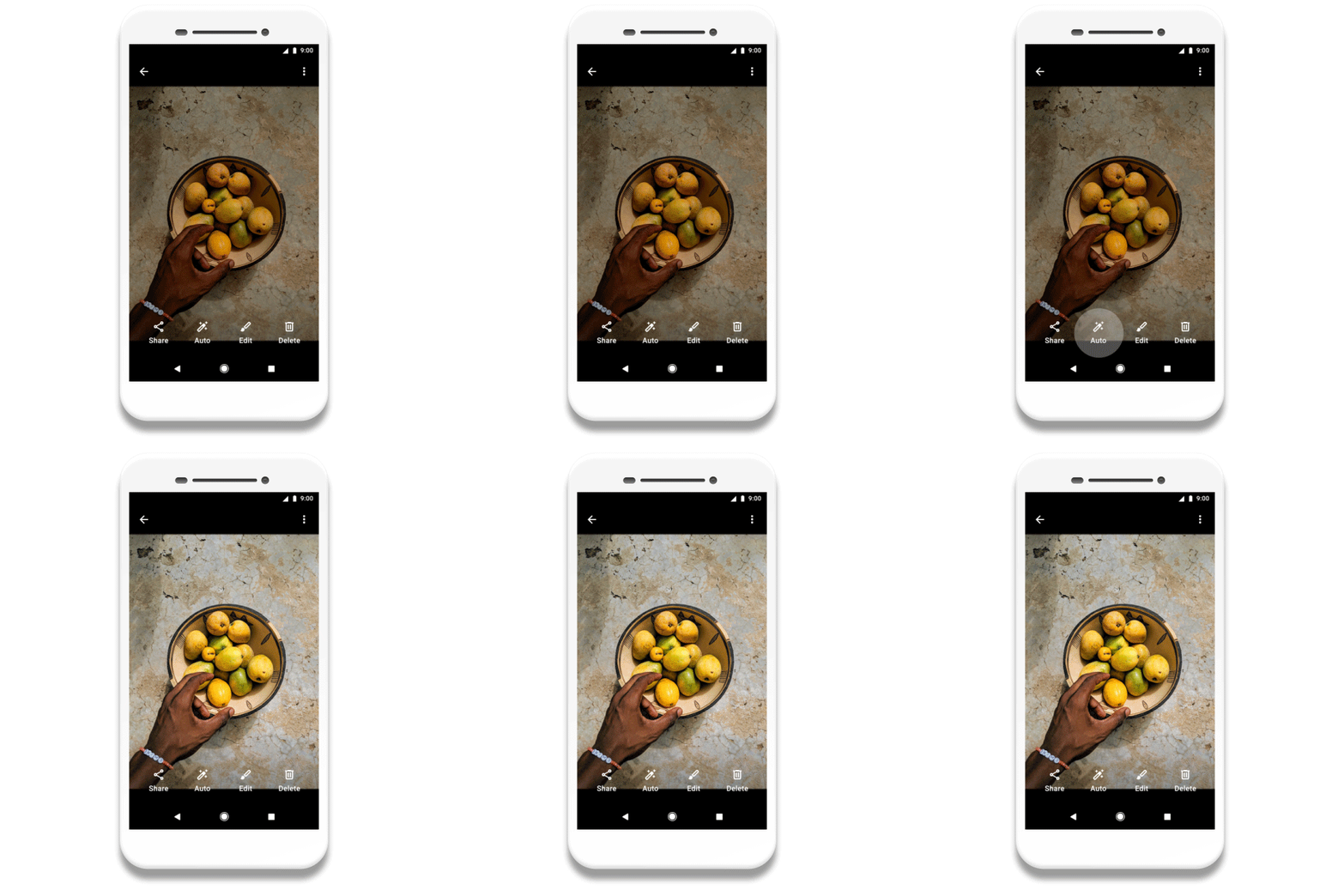
As well as offline machine learning algorithms, Gallery Go is also able to pack in some simple editing tools. The Google blog post on the launch of Gallery Go describes them like this, “With Gallery Go it’s easy to get great looking photos in just a few taps. [You can] Use auto enhance… for instant fixes. You can also choose from a variety of filters to get a new look, and easily rotate and crop, so your photo looks just right.”

Often these basic editing tools are all you need, so putting them into the lighter version of Photos means a lot more people will have access to the photo editing tools they need.

Image via: Google Keyword

Perhaps the most impressive thing about Gallery Go, and indeed all of the Google Go apps, is its size. Google has managed to squeeze in offline AI algorithms, a sleek photo library, and photo-editing tools into a package of only 10 MB.

As well as working well on less powerful smartphones, Gallery Go is also designed to not take up much hard drive space as often these less powerful phones only have 4 GB of space, if not even less. This is why it also important that Gallery Go works with photos stored on SD cards too.

Launching Gallery Go in Nigeria gives a good indication of what the Photos’ team plan is. With Photos being a powerful app that works best when it is always connected to the internet, it has alienated huge swathes of Android users around the world. Most Android users have more modest handsets and limited access to the internet. Gallery Go puts the power of Photos in their hands.

If Gallery Go can catch on in places like Nigeria, other countries in Africa, and across the continents of South America and Asia, there is a good chance the Photos team will notch up its 2 billionth user in much quicker time than it took to get to 1 billion.

Gallery Go is available now on the Google Play store and will work on all Android devices running Android 8.1 (Oreo) or higher.

FaceApp security warning: fake versions spreading

Researchers have discovered a number of different scams relating to FaceApp.

FaceApp scam

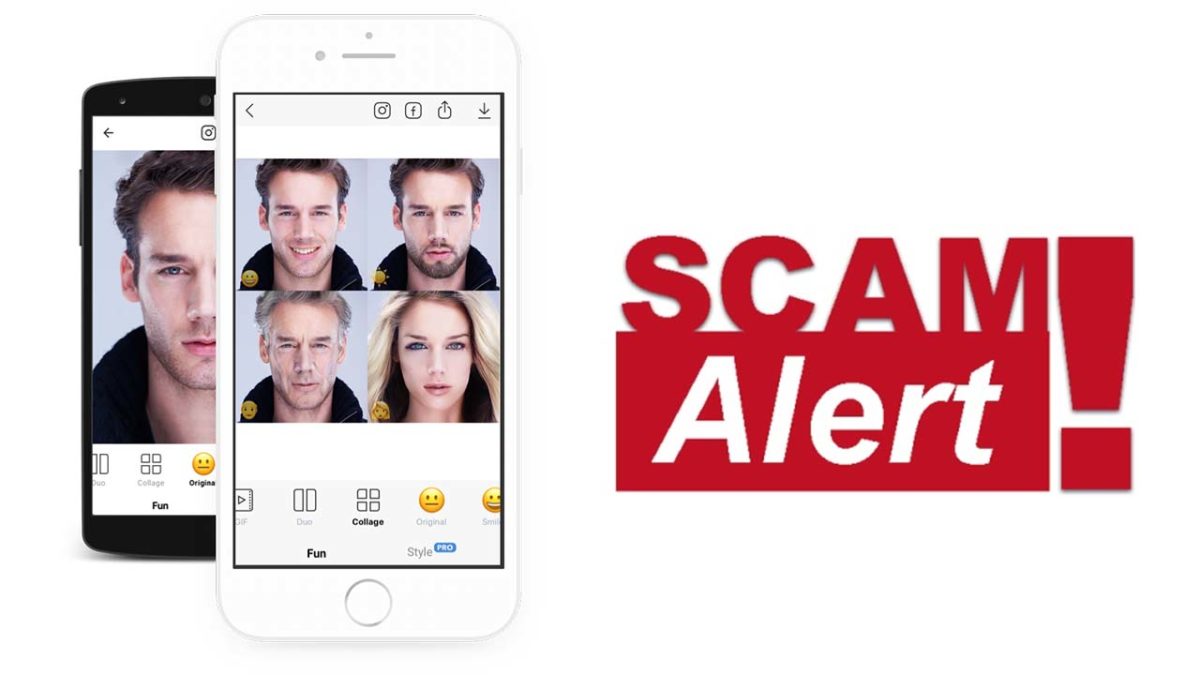
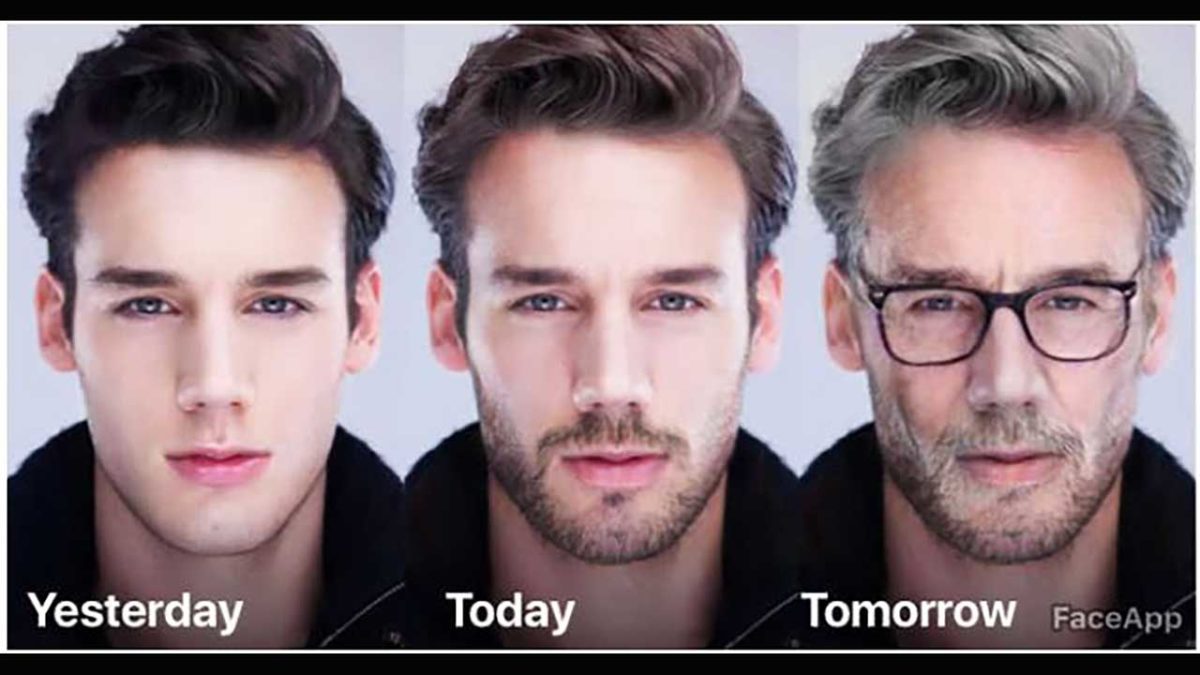
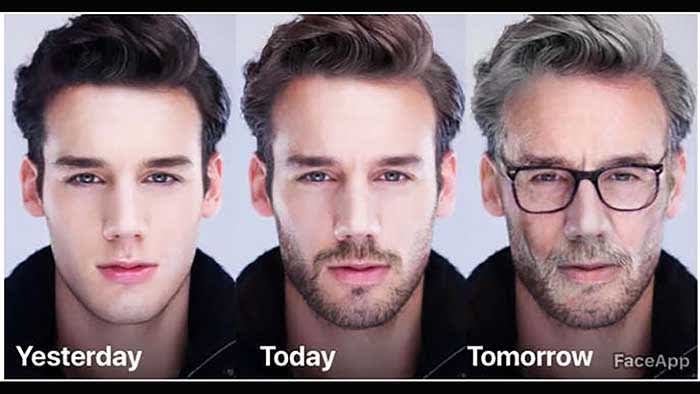
If you haven’t seen an aged version of a friend or family member recently you’ve either been living in a cave somewhere or you’ve possibly been the victim of some sort of unknown EMP-type event. FaceApp has taken the internet by storm with its realistic AI aging filter. FaceApp is an AI-powered photo manipulation app that has a few different filters, but it is the aging filter that has garnered so much popularity recently.

9

The FaceApp aging filter has become so popular that there are plenty of people out there who would be willing to pay for a premium version of the free app. If you’re one of those people or you know somebody who might be one of them remember this; there is no premium version of FaceApp. If you find a premium version of FaceApp it is a scam.

Researchers have discovered a number of different scams relating to FaceApp

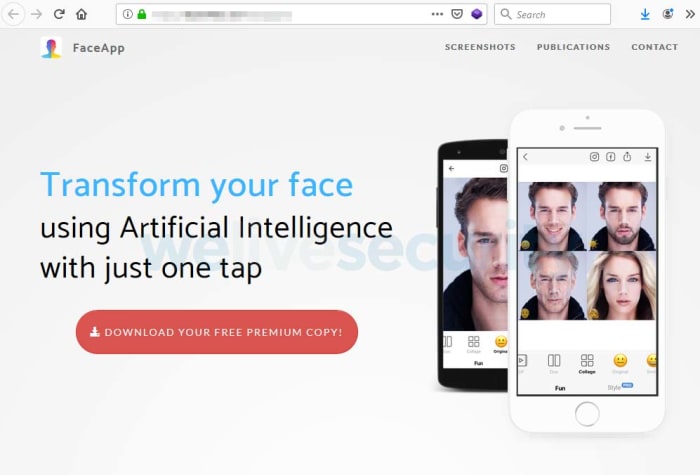
The first scam highlighted by security researcher Lukas Stefanko on the We Live Security blog relates to a fake pro version of FaceApp like the one detailed above. The “pro” version of the app is advertised on a fake website.

What’s worse, the “pro” version is advertised as a “free premium” app, which doesn’t even make any sense. All the website will do is push users to click an endless number of ads, sign up to various subscriptions, and view special offers for other paid apps.

This is a fake FaceApp pro website
Image via: We Live Security – Beware of fake FaceApp pro websites like this one

After what must have seemed like an eternity’s worth of clicks, all Stefanko and his team ended up with was the regular version FaceApp that is available on the Google Play Store.

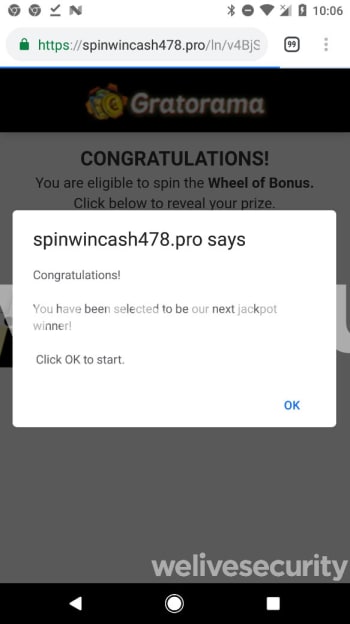
Another scam Stefanko’s team have uncovered comes via YouTube videos. Their blog post shows a YouTube video that has well over 150,000 views, which again describes a fake “pro” version of FaceApp. The YouTube videos also contain shortened links in their descriptions where users can download the fake apps. In reality, much like with the fake website scam, these only lead users to apps that are simply designed to deliver ads to the unsuspecting user.

What’s worse about these YouTube scams is that shortened links offer scammers a great way to make people go to sites that are infected with malware.

Shortened links can hide a lot of the key giveaways that we should look out for when we suspect a link could be fake or malicious. Although, this isn’t the case with any of the shortened links the We Live Security team found, relating to the fake “pro” versions of FaceApp, we still need to be careful.

Image via: We Live Security – Looking for a “pro” version of FaceApp will only ever find you spam ads like this one or something worse.

The key takeaway here is to not allow ourselves to become too carried away by viral hype and lose our senses in the process. Stefanko has this important message, that we should all remember when there is a viral app doing the rounds. “Hype attracts scammers, and the bigger the wave, the higher the risk of falling victim of a scam. Before joining the hype, users should remember to stick to basic security principles.

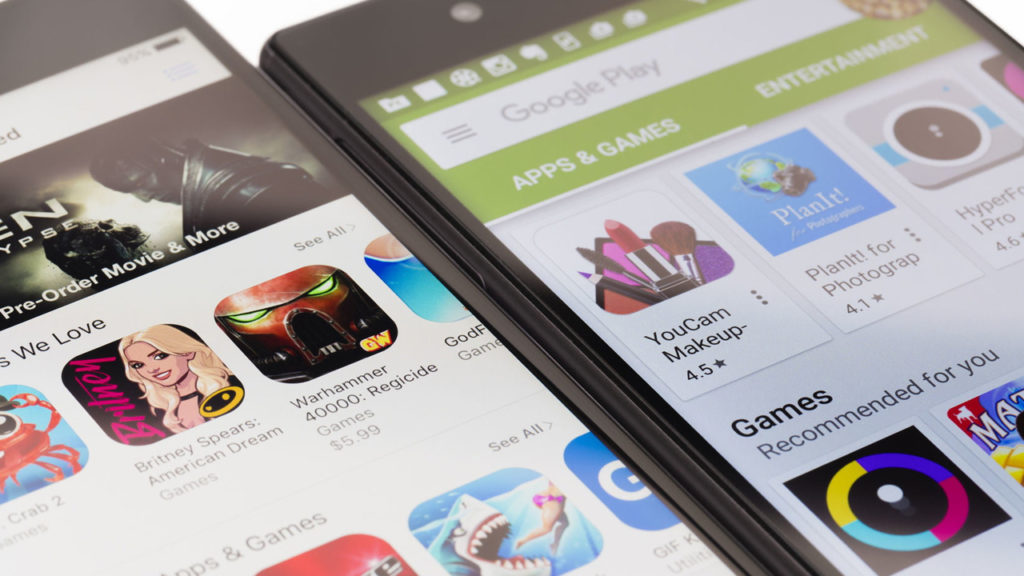
Regardless how exciting the topic is, avoid downloading apps from sources other than official app stores, and examine available information about the app (developer, rating, reviews, etc.). Especially in the Android ecosystem.” Fake apps are a common problem, but they’re particularly dangerous when everybody is talking about the newest big thing.

If you want a more detailed explanation on how to avoid fake apps in the Google Play Store check out the short guide we’ve written below.

FaceApp shows you what you’d look with an old face!

Ever wanted to see yourself bald, but were too chicken to shave your head? This app can show you!

FaceApp

Have you always wanted to know what you’re going to look like when you’re old? How about what you’d look like as a blonde? Do you struggle with growing facial hair, but want to see what you’d look like with a full beard? Well, FaceApp might just be the answer you were looking for!

FaceApp uses AR technology to take a picture of someone and change the facial features. There are also filters that can add things to your face like make-up. You can either take a new picture or give the app permission to access your photos.

9

It’s free…kinda

The app and some of the filters are free. However, there are several cool features that will cost money.

Here’s what’s currently free:

  • Make yourself smile
  • Make yourself older
  • Make yourself younger
  • Give yourself a chinstrap beard and mustache
  • Make your hair black
  • Give yourself bangs
  • Give yourself glasses
  • Several photo editing tools and background/foreground filters

Here’s what costs money:

  • Different types of smiles
  • Top-quality filters
  • 7 additional facial hair features
  • Make your hair blonde, brown, red, or tinted
  • 7 additional hairstyles including bald
  • 12 Make-up features

If the paid options sound up your alley, there are three subscription options:

  • $3.99 monthly
  • $19.99 for 1 year
  • $39.99 for forever

There’s also a free filter that can make you look like the opposite gender. As you might know, Snapchat has one too, so it’s up to you to decide which one looks better.

Privacy concerns

Privacy

A concern iOS users have with FaceApp is how the app can access your photo library without you giving it permission.

Interesting enough, this isn’t because of something the app is doing, but because of something Apple is doing. Apple allows an app to access your photos so that you (the user) can select one for editing purposes. 

Furthermore, FaceApp responded to growing concerns from users in a statement to TechCrunch.

In their statement, FaceApp developers said that the app isn’t storing photos in a database to sell them to third parties, or is sending them to Russia (the app is from Russia). At times, a single photo that a user is editing is stored in the cloud, but only to improve traffic. These photos are typically all deleted within 48 hours.

Is it worth the price?

Some of the optional filters are pretty dumb. For example, one of the premium filters puts a pair of sunglasses on you. That’s right, you can pay money to see how a pair of generic, fake-looking sunglasses looks on you.
However, seeing what you would look like with a different hair color or what you’d look like bald is pretty cool. I mean, you can see for yourself with a razor or a box of dye, but this is quicker and doesn’t come with a major risk factor.

Regardless, the free version of the app is worth a download. Fool around with it and share your favorite altered photos!

How to take the best pictures of fireworks with your phone

Learn how to snap beautiful shots of fireworks with your phone!

Fireworks

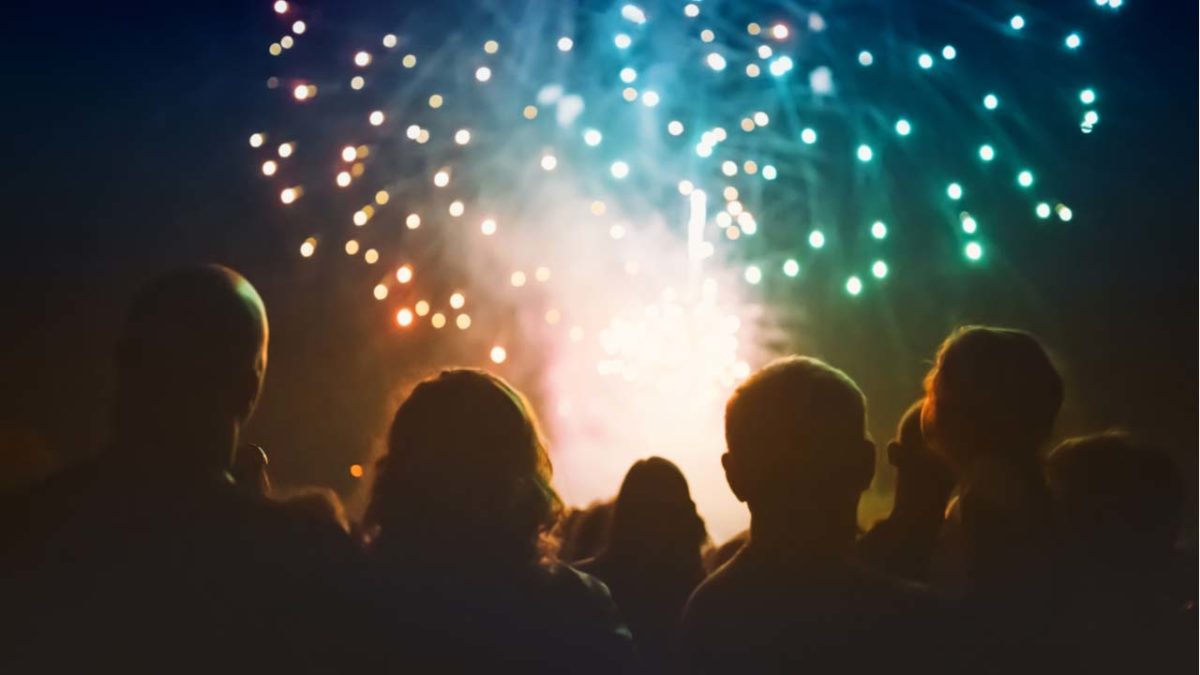
Over the Fourth of July weekend, Instagram will be flooded with pictures of fireworks. The last thing you want is to miss out on free likes, but there’s just one problem; taking pictures of fireworks is hard. 

It seems like every time you try to take a photo with your phone, you end up being too early or too late. At the end of the night when you look through your photos, all you have is pictures of a blank night sky and fizzled-out fireworks. Luckily, there are some tricks to take solid pictures of fireworks with your phone. We have compiled the best ones that are easy to pick up and use this holiday weekend.

How to take pictures of fireworks with your phone

Anticipate

Your standard firework follows a basic pattern:

  • A bang to signify liftoff
  • Shooting into the air
  • Exploding
  • A delayed explosion sound

If you can get the timing right, you can get some great shots. When you hear the initial bang of a firework about to lift off, follow the firework with your camera while keeping your finger over the capture button. Once it bursts, don’t take a picture right away as the firework is still expanding. Instead, time the capture with the delayed explosion sound. By that point, the firework is still bright and pretty, but it is also at its most expanded.

Burst photo

Both iOS and Android have a burst photo mode. Through this method, you can take multiple consecutive photos. This means that you don’t necessarily have to worry about timing. 

To take burst photos on both iOS and Android, simply hold down the capture button as your smartphone will take multiple pictures the entire time you hold down the button.

When taking burst photos, make sure that you stay still. Any movement can make your photos blurry. Also, photos taken with burst won’t be as crisp and clean as ones taken the regular way.

Don’t focus just on fireworks

Firework kid

There’s a lot more to photograph on the Fourth of July than just fireworks. If there are little kids nearby, photos of their smiling faces being lit up by fireworks can be more magical than any firework.

Remember, people can play along better than any firework. Are you going out on a boat? Shoot photos of people jet skiing, water skiing, tubing, and swimming!

Watch YouTube tutorials

Aside from the tips we taught you, there is still a wealth of knowledge on the internet for how to take photos of fireworks. USA Today released this video that teaches you about stability, accessories, and more. We’d highly recommend watching it before you start shooting.

If you are looking to shoot photos with a DSLR camera, there are also YouTube videos for that! We especially like this one from Fro Knows Photo:

Wrapping up

Have fun and be safe this Fourth of July. The most important thing you can do is to spend time with your friends and loved ones. Don’t spend all of your time worrying about taking photos. Tweet your best fireworks photos to us! We would love to see them!