Microsoft Teams adds user reviews for its applications

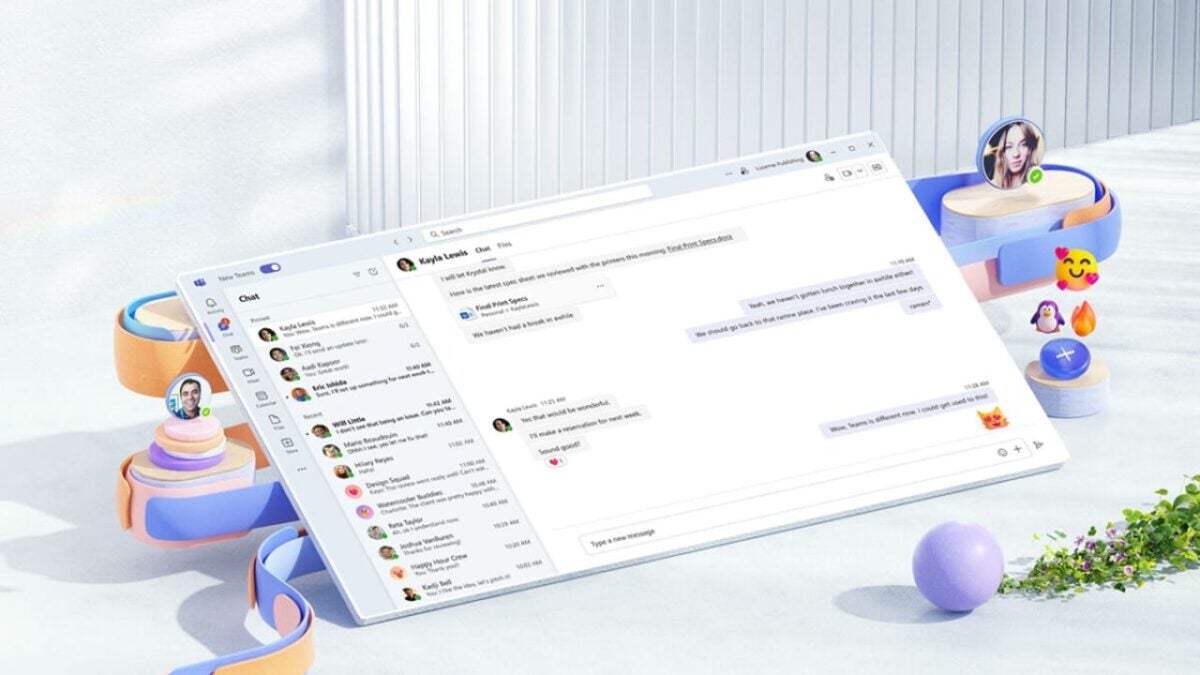
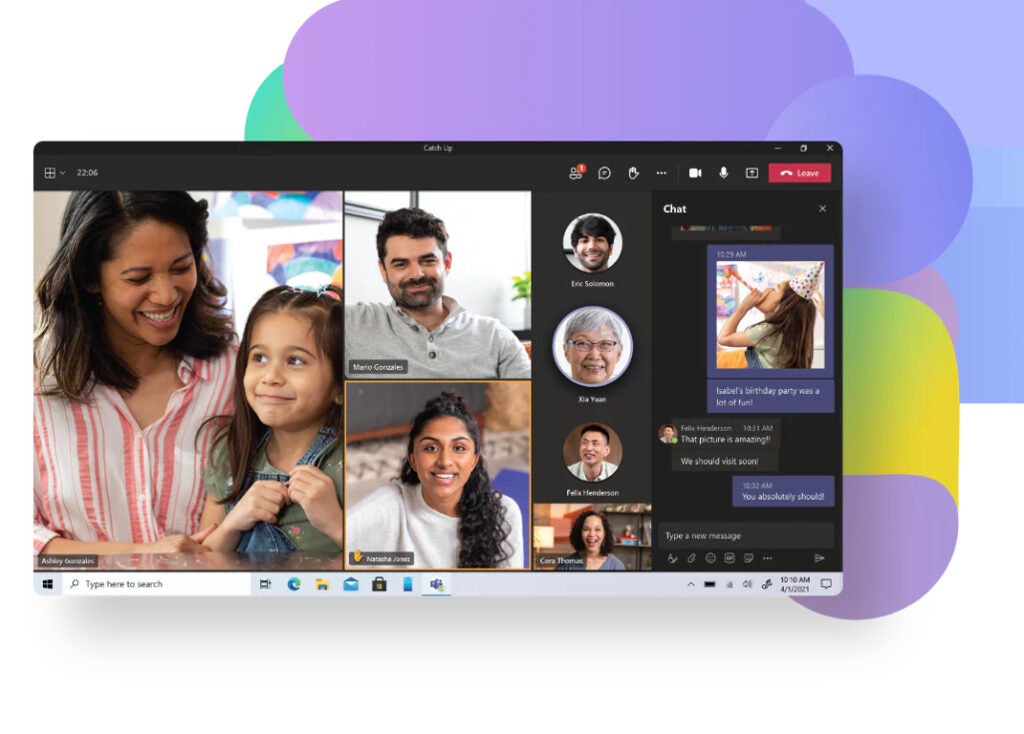
Microsoft Teams, the well-known communication and video conferencing platform geared towards the business environment, has added the option for users to rate and review various applications compatible with its ecosystem. In this way, users can get an idea of which apps are most useful within Teams.

This is another step for Microsoft Teams in strengthening its position as a platform with useful functionalities for users. Thanks to the ability to rate and review existing applications, many companies, employees, freelancers, or students can choose more thoughtfully the apps to install in Teams.

Microsoft Teams DOWNLOAD

Rating applications in Teams

As Microsoft announces, thanks to user feedback, when you search for an application with a specific function, you can choose the most appropriate one for your needs based on reviews from other users. Additionally, with their ratings, you can make a more informed decision about which application to download for carrying out your task.
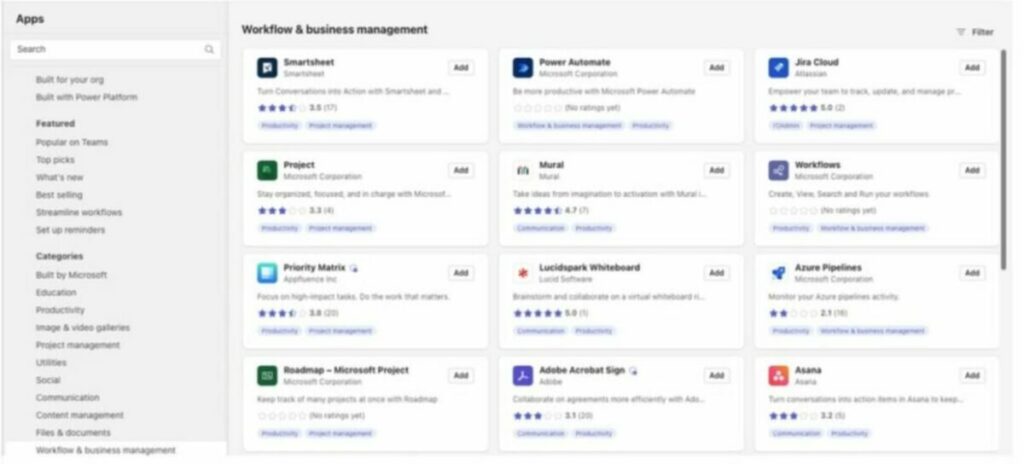
With the ability to view user ratings and reviews, the most useful applications will stand out among the sea of existing services and make finding the perfect app easier than ever. Therefore, this change will represent a significant improvement in the user experience.

The competition among workspace platforms

There are quite a few brands with services focused on remote work or computer-mediated communication. Microsoft Teams is integrated into many companies, but there are also many others that prefer Google’s workplace and Google Meet services, while other brands opt for options like Zoom or Slack.

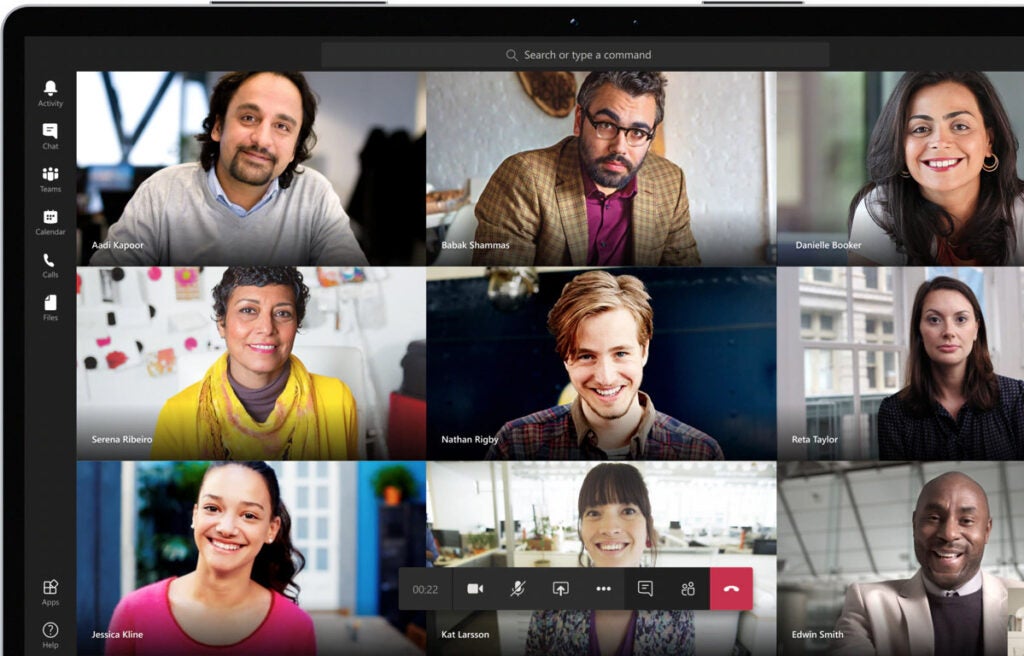
Teams is an ecosystem used by millions of users daily.

There are many interesting options within these ecosystems, and all of them are trying to evolve to continue attracting users. In the case of Teams, Microsoft is opting for improvements that come through Copilot, the AI that assists with work-related tasks and even attends meetings to synthesize their content.


Microsoft Teams DOWNLOAD

Microsoft Teams will finally allow archiving old channels

Microsoft Teams continues to enhance its functionalities. If in recent days we saw improvements like Copilot’s assistance in meetings, now users can also archive old channels without the need to delete them entirely. It’s a small change but highly useful for users who frequently utilize this feature of Microsoft’s communication platform.

This improvement aligns with the roadmap set by Microsoft 365, the premium subscription that provides users with access to all Microsoft services for professional use.

Microsoft Teams DOWNLOAD

Simpler cleaning of Teams history

The ability to archive channels will allow for a cleaner interface by putting inactive channels “in the drawer” that clutter menus. Additionally, this feature also serves to protect information that users do not want to be visible. If a channel is archived by the manager, invited users will temporarily lose access to its content, files, and spreadsheets.

Similarly, the archive of these channels can be reversed, restoring access to any previously invited user. This facilitates the manager’s work in channel administration, saving them the effort of recreating it from scratch.

Microsoft Teams is an application used worldwide in the workplace.

Teams, a cornerstone of Microsoft

Microsoft Teams has managed, through hard work and investment, to become a leading application in many professional fields. In times when remote work is becoming increasingly common, Teams has positioned itself as one of the favorite choices for companies. This achievement is noteworthy considering that Google’s Workplace is one of its competitors, and other brands like Slack also had an advantage due to the longevity of their services.

The professional environment demands high levels of loyalty, prompting Microsoft Teams to continually evolve by implementing improvements and updates that enhance users’ quality of life. This is why the previously mentioned Copilot is increasingly integrated into the Teams ecosystem, representing one of Microsoft’s significant investments in Artificial Intelligence.

Microsoft Teams DOWNLOAD

Microsoft Teams users will be able to see detailed attendance information for meetings

Microsoft announced yesterday that some Teams users can now enjoy new features that allow them to access a lot of relevant information about participation in the meetings conducted through the mentioned program. With these new measures, users can firsthand check the reactions and interactions generated during the specific meeting. However, as mentioned, this is only available to users of Microsoft Teams Public Preview and those using the Microsoft 365 version with a Premium license.

Microsoft Teams DOWNLOAD

Therefore, at this moment, only users of Teams Public Preview and the similar version of Microsoft 365 with a Premium license can use these new features. However, they can only access them through the Edge and Google Chrome browsers since they are available on the web version. But don’t worry too much, as Microsoft has confirmed that these new features will be implemented in the Windows and Mac apps “soon,” although an exact or approximate date has not been provided.

Microsoft Teams provides more details about meetings

Microsoft announced the news with the following message: “Attendance information is particularly useful for measuring interest in the topic discussed, as well as the suitability of the meeting format and structure. Meeting organizers can now collect and view participation data, such as total reactions, raised hands, cameras on, and more, in the Attendance tab after a meeting or webinar.”

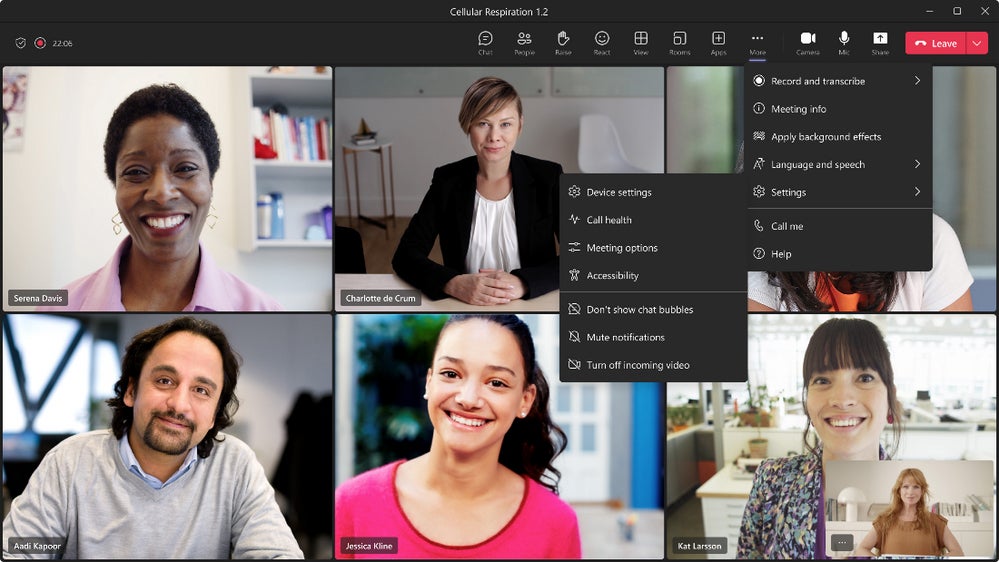
These are new features, although they all fall under one umbrella. In other words, everything can be checked by simply going to the meeting you want to review and clicking on the ‘Chat’ panel, where you can view Attendance data for the specific meeting. This includes start time, end time, and average attendance duration. Additionally, you can also review the number of reactions, raised hands, the attendees who were muted at any point, and those who turned off their cameras, all accessible from the ‘Participation’ menu.

Microsoft Teams DOWNLOAD

However, the U.S. company has stated that if any of the attendees of the Teams meeting did not set up the ‘Attendance Report’ within the service itself, their data will not be displayed once the said meeting is concluded. That being said, it appears to be a matter of time before this addition is integrated into the Windows and Mac app, although it is expected to remain exclusive to Microsoft Teams Premium customers.

Zoom likes Teams less than you do

Microsoft is often faced with recurring lawsuits for anti-competitive practices, such as when in 2022 it was denounced by Slack before the European Union or, more recently, when the European Commission forced Microsoft to uncouple Teams from its Office Suite. Now, without waiting for the company to recover from the blow, Zoom’s CEO is trying to convince the Federal Trade Commission in the United States (FTC) to follow in the footsteps of the European Union.

As reported by Bloomberg, Eric Yuan – the CEO of Zoom – has spoken out in this regard recently, as the inclusion of Teams for free in the Office suite almost killed Slack, which would have forced this move by the European Commission. In Yuan’s words, responding to a question on the subject: “you should ask this question to the FTC as well”.

A problem more serious than it seems

To many people, bundling applications into packages or suites may seem like a secondary issue, but many companies move from one program to another simply because of the synergies between programs in the same group, or even for the convenience of not having to manage multiple accounts and passwords. This is something that is also starting to happen with Google Meets as a result of Google Workspace, with which it is difficult to compete. In the case of Teams, it is even more blatant, since it comes preinstalled in Windows 11 and if you do not deactivate it, it starts automatically every time you log in to your session.

That last one is a simple example of how Microsoft constantly uses its products to get its users to use its other products. Edge is not only the default browser, but also the base reader of the operating system and the one that opens when one tries to search for a solution to a problem (even if the default browser is another one), automatically searching Bing even if Google is the preferred search engine. Microsoft’s practices are at times highly questionable and stifle its competition while greatly degrading the user experience. Perhaps, with any luck, regulations will get stricter and stricter in the face of these facts.

A Zoom le gusta Teams menos que a ti

Microsoft suele enfrentarse recurrentemente a demandas por prácticas contra la competencia, como cuando en 2022 fue denunciada por Slack ante la Unión Europea o, más recientemente, cuando la Comisión europea ha forzado a Microsoft a desvincular Teams de su Office Suite. Ahora, sin esperar a que la compañía se recupere del golpe, el CEO de Zoom trata de convencer a la Comisión Federal de Comercio en Estados Unidos (FTC) de que siga los pasos de la Unión Europea.

Tal como ha informado Bloomberg, Eric Yuan -el CEO de Zoom- se ha manifestado a este respecto recientemente, ya que la inclusión de Teams gratuitamente en la suite de Office casi acabó con Slack, lo que habría forzado este movimiento por parte de la Comisión Europea. En palabras de Yuan, respondiendo a una pregunta sobre el tema: “deberías hacer esta pregunta también a la FTC”.

Un problema más grave de lo que parece

A mucha gente puede parecerle que es un asunto secundario la agrupación de aplicaciones en paquetes o suites, pero muchas compañías se mueven de unos programas a otros sencillamente por las sinergias entre programas del mismo grupo o, incluso, por la comodidad de no tener que estar gestionando diversas cuentas y contraseñas. Esto es algo que está comenzando a suceder también con Google Meets a raíz del espacio de trabajo Google Workspace, con el que resulta complicado competir. Para el caso de Teams es incluso más sangrante, ya que viene preinstalado en Windows 11 y si no lo desactivas se inicia automáticamente cada vez que entras a tu sesión.

Ese último es un sencillo ejemplo de cómo Microsoft constantemente utiliza sus productos para conseguir que sus usuarios utilicen sus demás productos. Edge no solo es el buscador predeterminado, sino también el lector base del sistema operativo y el que se abre cuando uno intenta buscar una solución a un problema (aun si el navegador predeterminado es otro), buscando automáticamente en Bing aun si Google es el buscador favorito. Las prácticas de Microsoft son en ocasiones altamente cuestionables y ahogan a su competencia mientras degradan enormemente la experiencia de usuario. Quizá, con un poco de suerte, las regulaciones sean cada vez más estrictas de cara a estos hechos.

Microsoft separates Teams from Office, and the reason why won’t surprise you

Microsoft has been making changes to its Office suite for some time now, and it has even started adding new features based on artificial intelligence to programs like Microsoft Paint. However, the company is also making moves that might seem a bit unusual to the general public. In this instance, the announcement has come early – in October, Microsoft Teams will be removed from the Office Suite 365, at least in Europe. This decision comes after an investigation into anti-competitive practices by the European Commission.

Microsoft is not the first company to face regulatory actions. This has recently happened to Tesla in the United States, although Microsoft has been particularly cooperative with the authority. They have pledged to remove the Teams application despite stating that “these changes will affect customers of our Microsoft 365 and Office 365 suites in the European Economic Area and Switzerland.”

The consequences of Teams leaving Office

This separation means that customers, in any case, will see a reduction in the Microsoft Office 365 fee without Teams or pay an additional license to use the application for 5 euros per month, which ends up being 60 euros more per year. The Office fee, however, will not drop by 5 euros per month, but by just 2.

These new subscription prices will only affect new users and not those who already have an active subscription, although anyone can remove applications from their subscription and even switch to the Office “without Teams” option. In any case, and despite this setback, Microsoft is working on improving interoperability on rival platforms such as Zoom or Slack and will allow Office web applications to be embedded in competing applications, as it does in Teams.

In this way Microsoft hopes to calm the waters and avoid new problems with regulatory frameworks, since Slack in 2020 already filed a complaint against the IT giant. In fact, the company is confident that these two changes will balance the interest of its competitors and thus maintain a clean battle to be the first provider of this type of services.

All the new features in Microsoft Teams

Microsoft Teams regularly gets new updates and features, which is excellent for companies that incorporate collaboration tools and online communication with their work projects for teams to stay connected throughout the process.

Microsoft Teams DOWNLOAD

January 2023, Microsoft published yet another detailed changelog, as it does at the end of each month of all the new capabilities added to Teams.

All the new Features in Microsoft Teams

What’s New in Microsoft Teams 2023?

Here are all the latest features in Teams as presented by Microsoft.

Meetings

  • View video recordings and attendance reports inside LMS
  • Teachers and students will be able to access video recordings and attendance reports inside their LMS itself. 
  • The Microsoft Teams Meeting LTI app has enabled the availability of these artifacts inside LMS. This feature will be available for all the LMSs incorporating the Teams Meeting LTI app.

Paging on Video Gallery

  • When you are in Gallery view, there are more videos than can be shown at once on the meeting stage.
  • Navigation controls will appear below the Video Gallery to see other videos of the attendees. 
  • You can use these controls to view more video participants.

Meeting Toolbar Usability Improvements

  • The Meeting toolbar in Microsoft Teams just got a usability upgrade! 
  • New features include dedicated buttons for raising hands and switching between view modes, and navigating your next meeting just got a little easier.
All the new Features in Microsoft Teams

Live stream Teams meetings and webinars to Meta Workplace Live

  • Live stream your Teams meetings or webinars directly to Meta Workplace Live using the new Workplace Live app integration. 
  • Allows attendees to watch live meetings and webinars within their Workplace groups or catch up later by watching a recording on Workplace. 
  • Simply add the Workplace Live app to your Teams meeting or webinar, sign in using your Workplace account, and select the Workplace Event you’d like to live stream.

Webinars

  • Enhanced webinar management experience with customized options
  • When you select the webinar template, you’ll see a new structure and expanded opportunities to customize registration details and settings specific to each event. 
  • With the unique management experience, you’ll be able to configure your webinar with the following capabilities:

Calling – Federated group calling

  • Quickly start a group Teams call from a chat with federated colleagues outside your organization, including video and screen sharing — all over an internet connection without any PSTN usage charges.

Chat and collaboration

  • View the entire chat conversation thread after clicking on the search message results.
  • Search for a chat message in Teams and click on a message result. Search will now display the full context of the conversations related to the redevelopment regardless of the age of the messages.

Management

  • Edit and delete events support for messages in user: bot chats
  • Currently, message events can be accessed by developers. 
  • This feature allows developers to access, edit, or delete event updates on messages in user: bot chats.

Upload files to your approval request via the Power Automate portal

Files uploaded within the Power Automate portal will now show within the view details window of an approval request within Teams.

Notification granularity

Admins can use Intune to determine the types of content a user can see in a notification on their mobile lock screen.

All the new Features in Microsoft Teams

How to Stop Microsoft Teams from Popping Up & How to Disable Notifications

Social media is ruling the world at this point. If 2020 has taught us anything, it’s that not even a global pandemic can prevent us from face to face meetings and that technology rocks!

Unfortunately, the problem is that it has a way of creeping in and taking over our entire lives. If you have Facebook, Twitter, Instagram, and Microsoft Teams accounts all on one device, you’ll know what we mean. The notifications can ping your phone or PC into a frenzy if you allow it. It can make spending quality time with your family difficult if you answer each message.

Fortunately, we can control to what extent and when we receive message notifications. It’s quick and easy to stop Microsoft Teams from popping up by disabling notifications. It’ll help with the movie nights if you don’t have to deal with pop-ups on your screen.

Microsoft Teams DOWNLOAD
8

How to stop Microsoft Teams from popping up

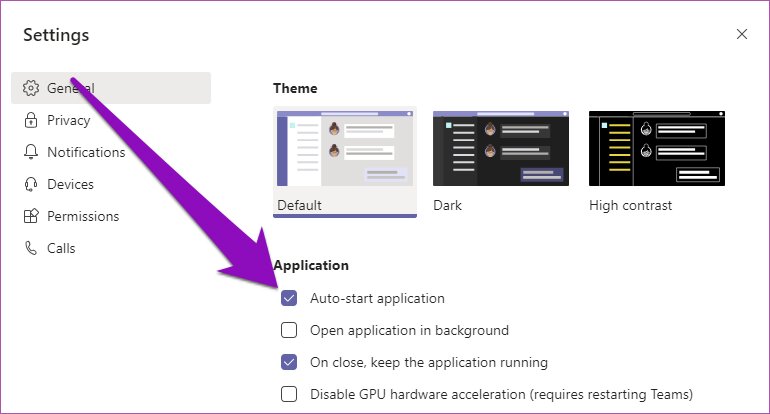
Microsoft Teams is an excellent platform for connecting a remote workforce that you can access via Android and iPhone when away from your PC. Many users are annoyed by how it relaunches itself after they’ve already closed the app. Follow these quick steps to put it back under your stern command.

  1. Open Microsoft Teams on your device
  2. Open the settings by pressing: Ctrl/Command + , (Comma)
  3. In the Settings section pop-up, click the ‘General’ tab from the left, uncheck the ‘Auto-start application’ and ‘On close, keep the application running.’

Following these simple steps will prevent the app from auto-launching and give you the control to only open it when needed. If you have some down-time planned over the holidays, you can also opt to disable notifications from Microsoft Teams for complete R&R away from work.

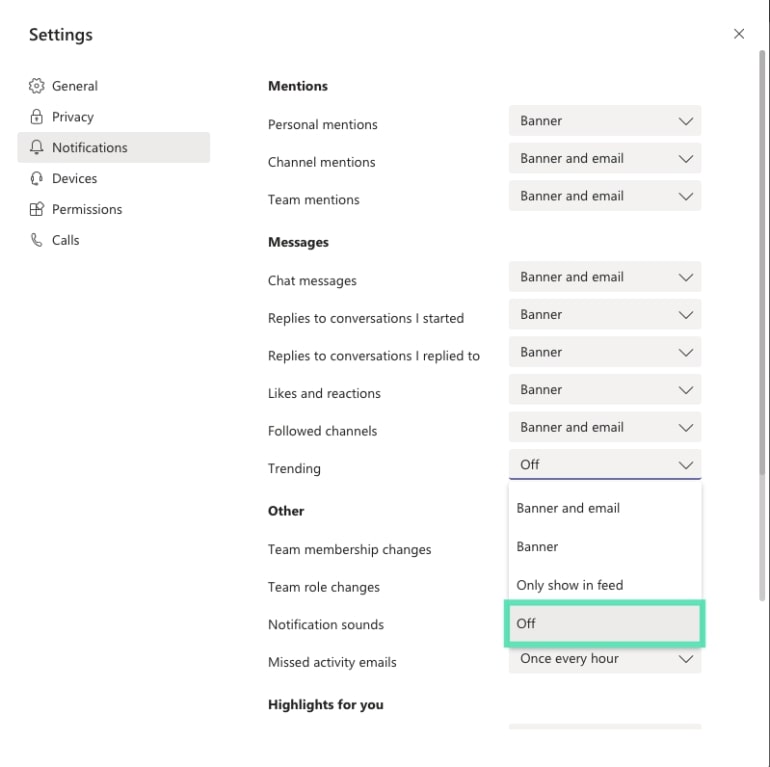
How to disable Microsoft Teams notifications

Here are the steps to follow if you need some time off from those MT notifications like we occasionally do:

  1. Open the app on your device.
  2. Open the settings by pressing: Ctrl/Command + , (Comma)
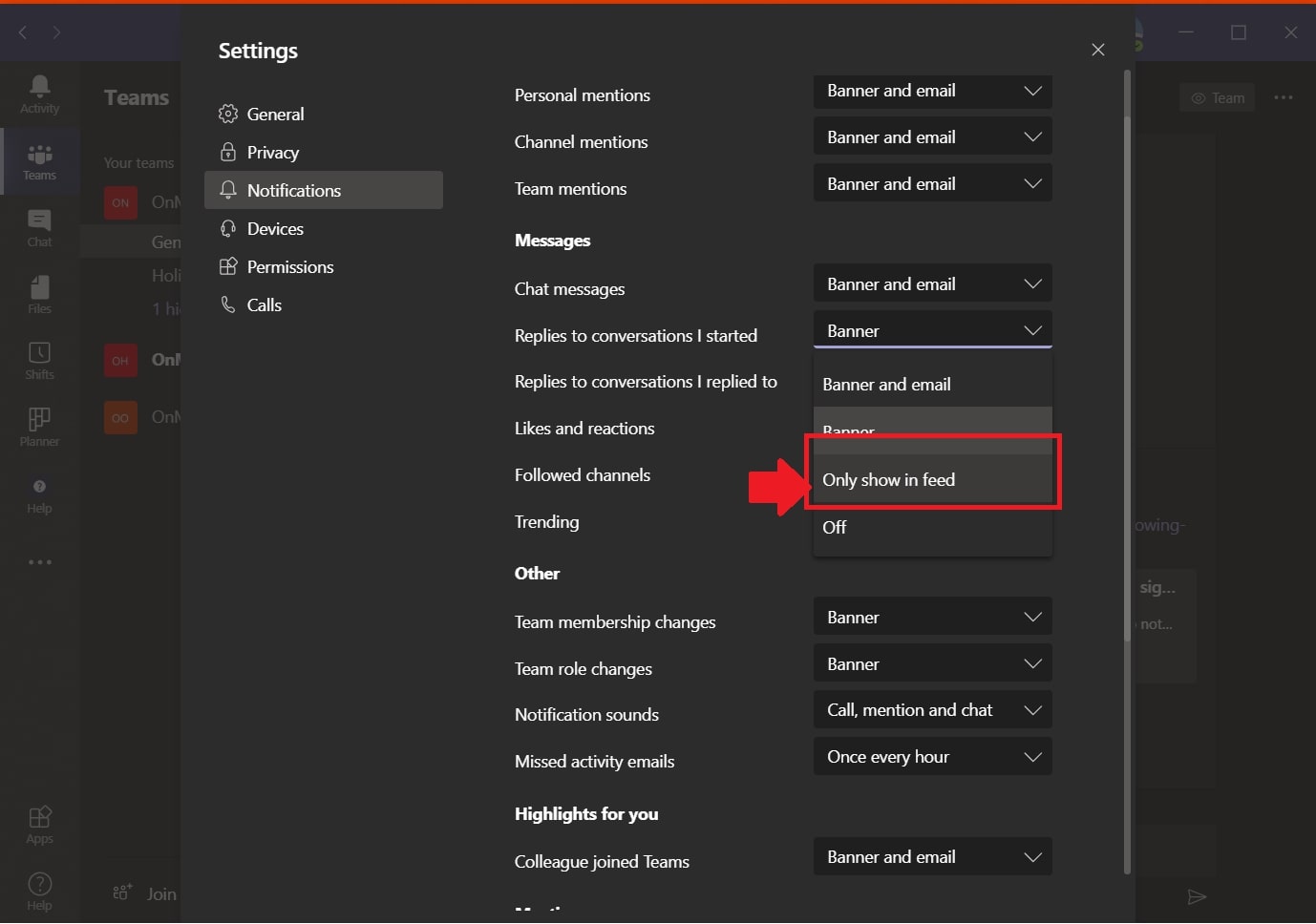
  3. Click on the ‘Notifications’ icon on the left dashboard.
  4. Now you can choose how you want to receive each type of notification. Under every category, you can switch it ‘Off’ in the drop-down menu to disable it.

What other social networking apps can we use?

Keep in mind that there are excellent apps available that can help you separate work and play. If you use Microsoft Teams for connecting with your work teams, why not use Skype or Zoom for your family and friends.

Skype DOWNLOAD
8

Zoom DOWNLOAD
8

How to Delete a Message in Microsoft Teams

Okay guys and gals, let’s be honest. We’ve all said silly things in team meetings that we wish we could erase from everybody’s long term memories, right? If it happened before the digital revolution, I hope you’ve moved on to greener pastures in the meantime. 

Fortunately, in today’s day and age there’s very little that technology can’t fix for us. Yes, even our worst bloopers can be quickly deleted before we make a spectacle of ourselves and have to move on again. Team meetings seldom still happen in boardrooms, especially after 2020. 

Free social meetings in Microsoft Teams are done via live streaming video calls or chat messages and includes audio and even screen sharing. While there’s not much you can do when making a mistake while you’re on a live video call, you can delete a chat message quickly.

Microsoft Teams DOWNLOAD
7

What is Microsoft Teams?

Microsoft Teams is the preferred Office 365 online meeting tool that allows attendees to organize and participate in group meetings via live video streaming. It has various features to help you make the best of each meeting, including blurring the background so you can stay in bed for that early a.m. team briefing. 

You don’t have to be a member to be invited and can join in by following the simple instructions that are sent with the invitation. If you’ve already downloaded Microsoft Team you can send an invitation by including the invite link to your Outlook email invitations. Just like you would do when you send Skype or Zoom invites.

Are you new to video call meetings? Microsoft Teams have an exciting ‘practice’ tool with which you can do a few pretend rounds before going live for your first official team get-together.

How to delete or edit a message in Microsoft Teams

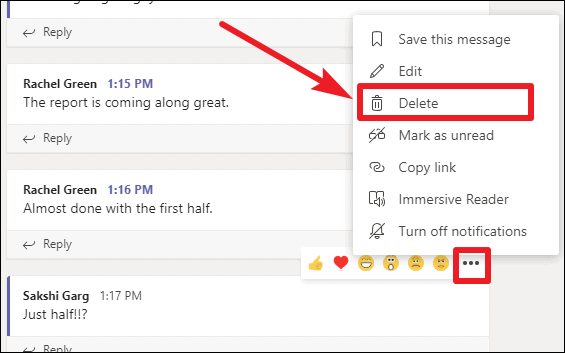
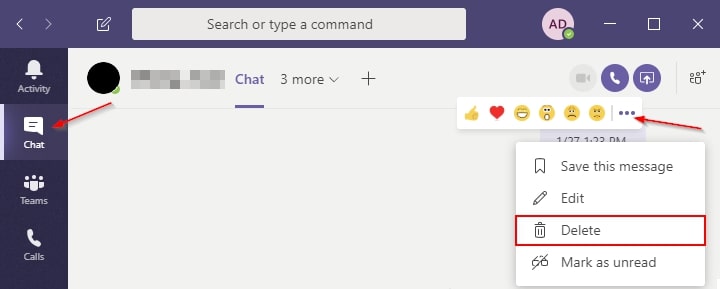
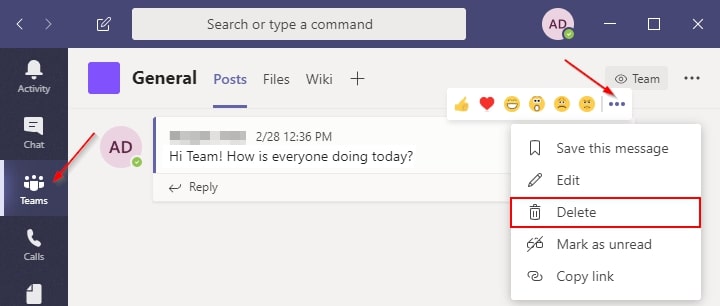
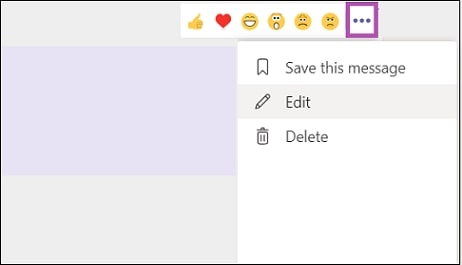
Whether you’re using Microsoft Teams on Android, iPhone, or your computer, the process is the same. You can’t delete an entire chat-thread, but you can easily delete a specific message from a chat when you need to in two easy steps.

  1. Navigate to the message you want to delete and right click on it or select it.
  2. Select ‘Delete’ from the options

How to edit a message in Microsoft Teams

You can choose to edit messages that are already sent in three easy steps.

  1. Go to the message or comment that you’d like to edit.
  2. Use your cursor to hover over the words in quotation marks “…”, and press ‘Edit.’
  3. Change the text to what you would prefer it to read and press the folded jet to save it.
  4. When the post is updated, the ‘Edited’ status will be visible to the team.

Other options for team chats

There are many online platforms that are designed to streamline remote workforce communications that are highly effective, and mostly fun. Slack is another social networking app that you can consider, as well as Discord.

Discord DOWNLOAD
7

Slack DOWNLOAD
7