There are several ways to share information online: email, IM apps, FTP clients and online file storage services. The latter have recently become quite popular, which means you have a wide choice to select from, each one of them with different features, data plans and fees. But if there’s one online file sharing and syncing tool that stands out of the crowd, that’s Dropbox.
Dropbox is a bit different from the standard file sharing service. It has a desktop client (with versions for Windows, Mac, Linux and iPhone), it’s seamlessly integrated with Windows Explorer and it’s meant not only to share files with family and friends, but also to sync data among different computers.

Using Dropbox is easy as pie. First of all, download the client and install it on your computer. The installation process will also enable you to create a Dropbox user account and select the data plan that best suits your needs – including a basic 2-GB option for free. Once the installation is finished, the computer will be linked to your online Dropbox account, and you’ll see a new folder on your system called “My Dropbox”.
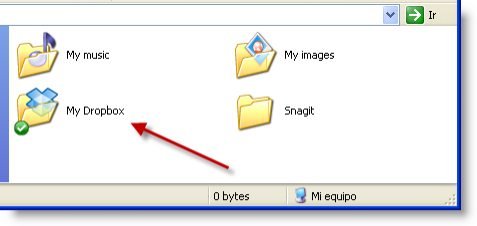
Whatever you save, create, erase, copy or move into this folder will automatically be synced with Dropbox online, and also with any other computer that you’ve linked to your Dropbox account. This ensures you’ll be able to access the same synced contents from all your computers, and always have the latest versions of your documents at hand.
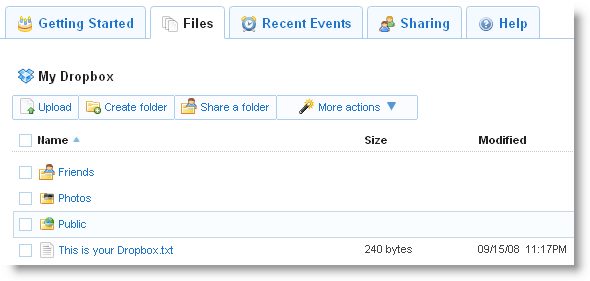
Now, what about sharing? Dead easy as well. Go to your online Dropbox account, create a new shared folder and send an invitation by email to anyone you want to share the contents of this folder with. The downside is that they’ll need to register as Dropbox users as well, but being such a handy service, they won’t regret it. From that moment on, you’ll be able to share files with those people without any hassle: simply drag and drop any file to your local folder, let Dropbox sync contents in the background and your friends will be able to access them online almost instantly.
 It’s January and the web is alive with New Year’s resolutions. If you’re stuck for ideas, let me make a suggestion: backing up your computer is essential and a great starting point. I’m going to run through your options, so if you’re new to the game, you’ll know where to start.
 One thing that’s always annoyed some people about the iTunes Store is that simply to preview a track, you have to download or open





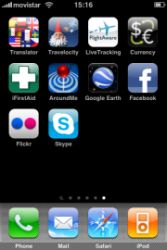 If you were lucky enough to get an iPhone or iPod Touch for Christmas then you might be wondering which apps you should be throwing onto it. Well, here’s the first in a series of posts that will show you how to use your device to improve your everyday life. Each of these ‘iPhone essentials’ articles will focus on a specific need and highlight the best apps to help you in that particular field. We kick off with a guide to the best stuff to install if you’re traveling. Whether you’re heading off on a round-the-World trip or simply a short city break, these free iPhone apps will help your travels go as smoothly as possible and ensure that you have a great time wherever go.