Despite the meteoric rise of social media, email is as popular as ever. And as with all online activities, it’s important to spend your time wisely. After all, a messy inbox isn’t just frustrating to use; it could actually increase your stress levels.
So here are three ways to organize your Yahoo! Mail account. They’re easy to learn, quick to set up, and will help prevent headaches next time you check your mail.
These days, most of us have more than one email client. Often there’s a reason – separating work and play, for example. But it means having our attention spread over more applications, interfaces, and functions (not good for our overworked brains). It’s better to combine them all in one convenient place.
Here’s how.
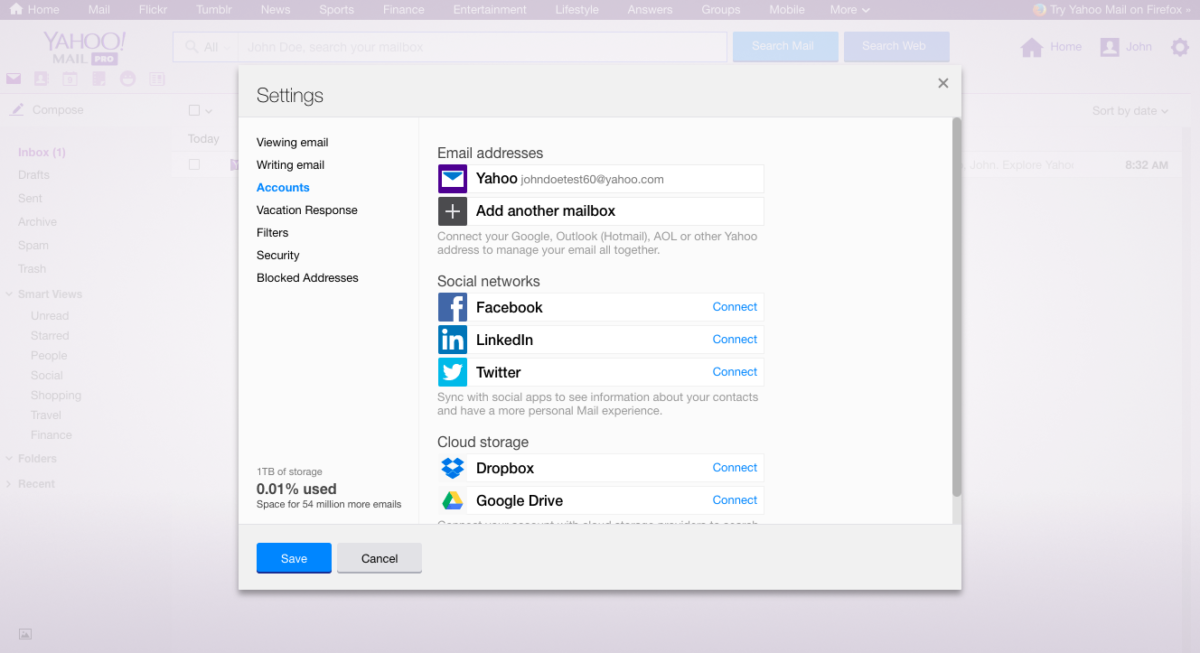
Under Settings (the little gear symbol at the top right), select Accounts.
Click Add another mailbox.
Select the client you want to add.
Enter the email address.
Log in to your other client and adjust the settings to give Yahoo! Mail access.
Create folders to organize your emails by topics or themes
Remember back in the eighties a typical office would have shelves of box files and folders? This is a digital version of that concept (and it takes up far less space). Folders give you single-click access to topics you’re interested in.
A common system might include folders for work, social, and family. But there’s no right or wrong way. Just choose the system that makes most sense to you. Once you’ve decided, create your own folders by following these steps:
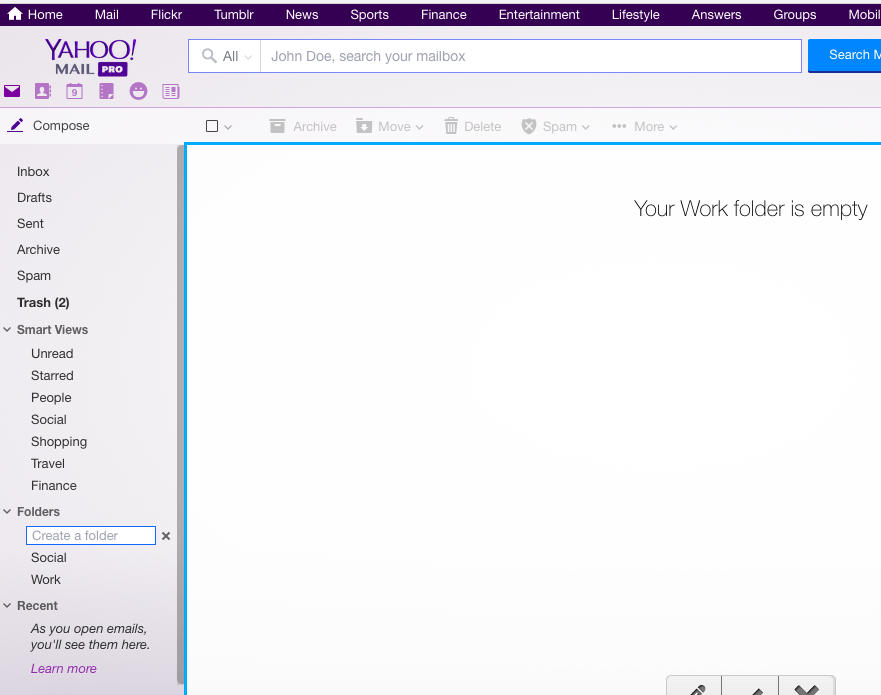
Move your cursor to the Folders section on the email menu column on the left-hand side.
You’ll see a little folder symbol appear alongside it. Click it.
Enter the folder name and hit Enter.
To add emails to your folder, simply drag and drop them from your inbox. Or, select the email and use the Move button on the horizontal selection bar on top and choose the folder you want to move it to.
Use filters to automatically sort your email into folders
It can get a little irritating having to constantly move new emails into folders, but thankfully Yahoo! Mail has a solution: filters.
Filters let you set rules that automatically folder incoming mail. All you need to do is give Yahoo! Mail the criteria to filter by, such as:
From
To/CC
Subject
Body
By asking Yahoo! Mail to filter your emails using keywords in any of the fields above, you save time doing it yourself. Just follow these instructions:
Under Settings, click Filters.
Click Add.
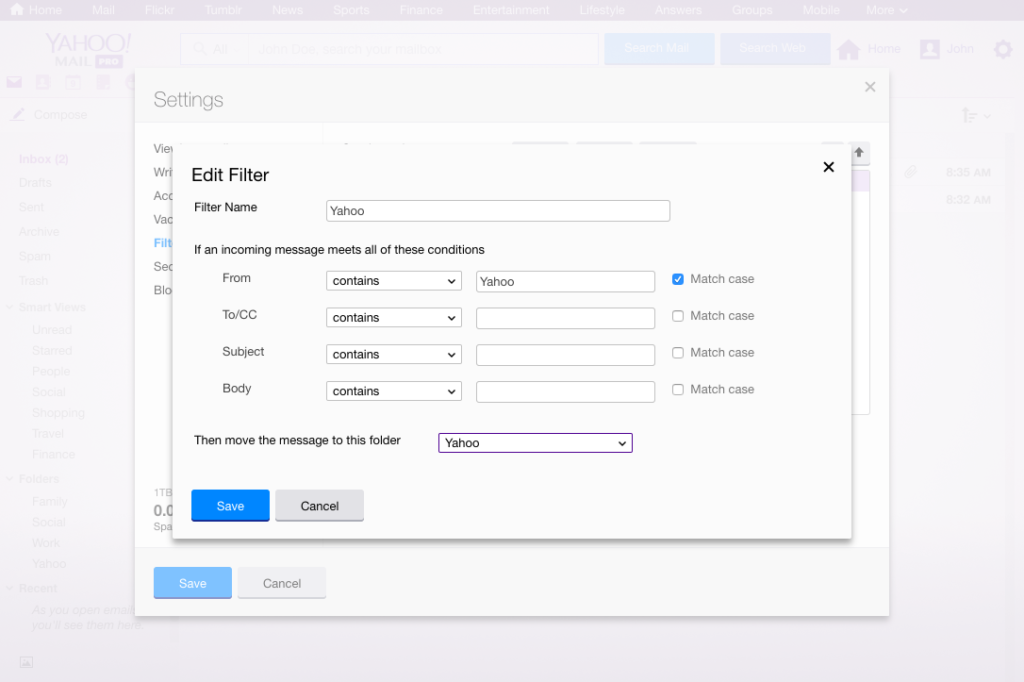
Give your filter a name. In the screenshot below, I wanted to all new emails from Yahoo to go into my Yahoo folder. So I called this filter “Yahoo.”
Select what you want to filter on. In my example, I simply filtered the “From” field using the word “Yahoo.” You can also set the filter to be case sensitive.
Select which folder you want new mail matching your filter to be sent to – this is a drop-down box next to Then move the message to this folder.
Click Save.
Click Save again when you’re back in the Settings menu.
Now, in the example below, all new emails from Yahoo will automatically go into my Yahoo folder.
Yahoo! Mail will display in bold text any folder with unread mail and give the number of unread emails in brackets. That’ll make sure you don’t miss out on anything sent straight to a folder.
And don’t forget – if you can’t find what you’re looking for, simply use the Search Mail box at the top of the page.
Google Chrome extensions are a great way to add useful features to your browser. But beware: Although most are reliable, the Chrome store has been known to have one or two false extensions that contain malware. To help you avoid these potential hazards, we’re going to show you how to differentiate between a legitimate extension and one that is garbage.
How to check if a Chrome extension is legitimate
1. Identify impostor extensions
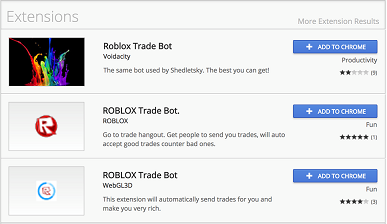
One of the most common practices of hackers is to create apps and extensions that pretend to be famous programs that people trust. This recently happened when over a million people downloaded a fake version of WhatsApp, but it also happens with other popular Chrome extensions, like ad blockers. To find out if an extension is fake, ask yourself these questions:
Does the extension have a decent rating and number of reviews?
Is the developer listed who you would expect?
If you can answer “no” to either of these questions, don’t download it.
2. Read the opinions of other users
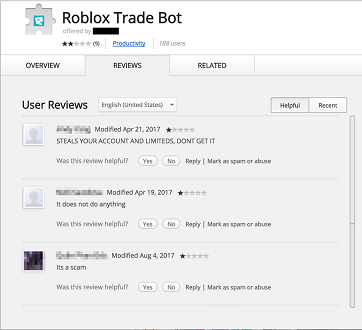
The best way to check the reliability of any extension is to look at what other people who are using it are saying. If nobody has anything good to say, or if there are people complaining that it doesn’t do what it is supposed to do, then you should think twice.
3. Check the permissions
Even if you’ve already downloaded an extension, it is not too late to determine whether or not it is legit. A good way to check is to look at the permissions it asks for as you install it. If an extension asks for too many permissions, be wary — especially if they are permissions relating to your private data, like activity tracking or file access.
4. Control automatic updates
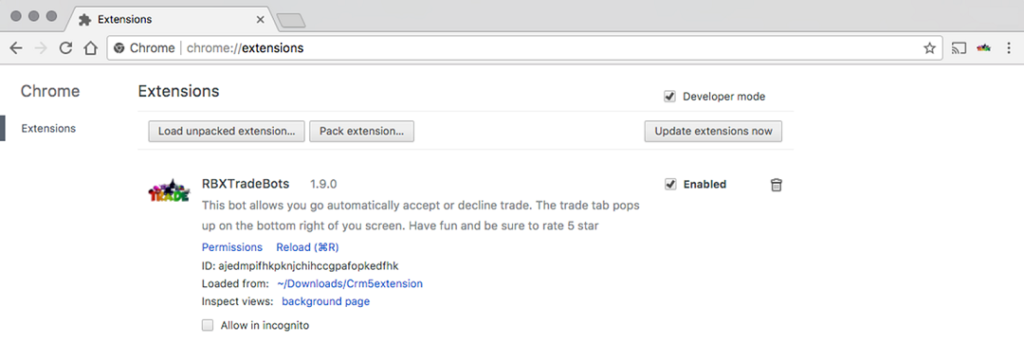
Sometimes an extension isn’t malicious to begin with, but it later gets an update that adds malicious lines of code. This new code will then act as malware and make money for the developer using your data or through displaying ads. To avoid this, keep track of which extensions are updated automatically.
We recommend that you only allow fully reliable extensions to update automatically. That way, if you see something weird, you can uninstall the suspicious extensions without further ado.
5. Beware of the “Applications” tab
Be careful when you enter the Chrome Web Store, because by default applications will show first when you search, not the extensions. Some developers take advantage of this by creating applications that mimic a specific extension. This places them in a higher position than the original extensions and can capture clueless users.
So check that what you are going to download is an extension and not an application.
Keep data thieves at bay!
All these tricks should be enough to keep you safe from the big threats out there. When in doubt, put yourself in detective mode and follow these tricks to keep clear of scams and data thieves.
Want more security tips? Check out the video below.
Prepare yourselves, people. Something big is coming and it just might take over the world! Niantic, the Augmented Reality developers behind last summer’s smash hit Pokémon Go, has unveiled details about their next game, and it is too much for this muggle to take. Yep, in 2018, we’ll all be running around as wizards and casting spells on each other as the next AR game that Niantic is releasing will be called Harry Potter: Wizards Unite.
Not many details about how the game will play have been released yet and, although we know it will come in 2018, Niantic hasn’t said when exactly the game will drop. What they have told us is that…
“Players will learn spells, explore their real world neighborhoods and cities to discover & fight legendary beasts and team up with others to take down powerful enemies.”
This news really is huge. Pokémon Go took the world by storm this year by overlaying a cult set of characters onto the real world and sending players out to find them. Incredible stories include herds of people bringing life to a standstill in cities all over Asia, people lured into ambushes and robbed by the promise of rare Pokémon… one woman even claimed a virtual Pokémon had sexually assaulted her. With the Harry Potter series having a cult following to rival that of the Pokémon universe, we can expect things to get heavy again next year.
Have you played Pokémon Go? Tell us about your best Pokémon Go story in the comments below.
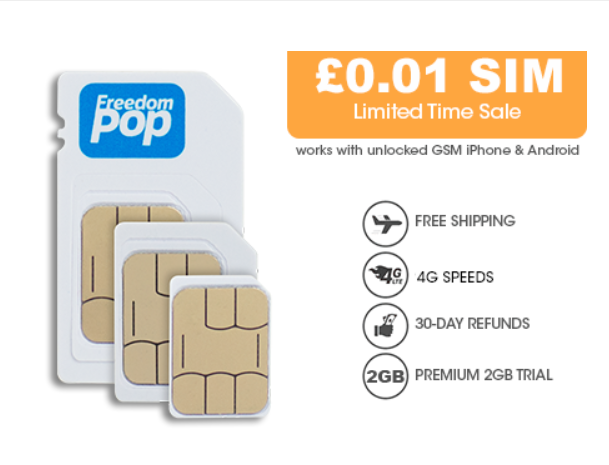
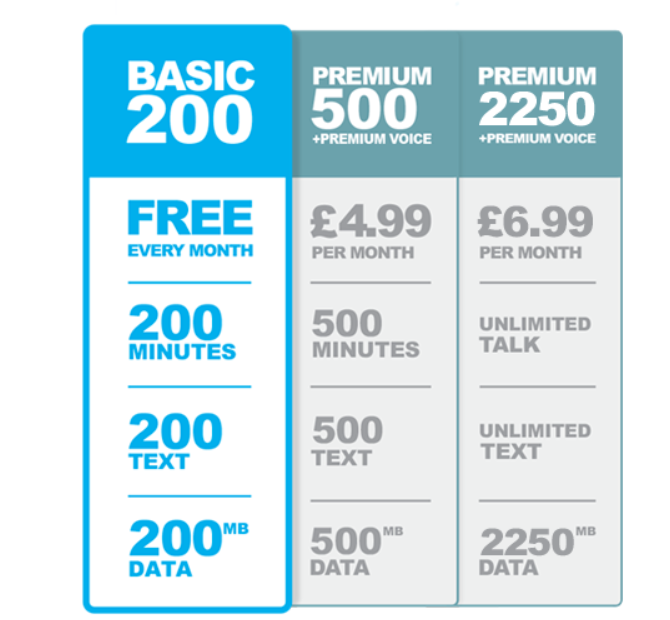
FreedomPop is kicking off Black Friday Deals early this year with a major price drop for their LTE SIM to only a £0.01 from £14.99. Plus Free Shipping!
FreedomPop, the nation’s first and only 100% FREE mobile phone service, lets you chat, text, and surf the web for free. The 4G SIM works on Three’s nationwide 4G & 3G Networks in the UK. There is no contract, no commitment, and you can cancel anytime. With a 30-day money back guarantee, they are worth giving a try.
For those of you paying for more minutes and data than you need every month, try their 100% FREE Basic plan, and you’ll be able to put some extra cash back in your pocket.
The SIM is bundled with a Free Unlimited Talk, Text, and 2GB Trial (a £24.99 value) and comes with a 30-day money back guarantee. Plus FREE Shipping!
After the free trial, do nothing and enjoy saving hundreds each year with Unlimited Talk, Text, and 2GB data monthly for £6.99/mo or downgrade anytime to their 100% FREE Basic Plan.
Don’t miss out on FreedomPop’s Early Black Friday Deal by getting their LTE SIM for only £0.01 now!
It is a distinctly satisfying feeling when an old friend comes back into your life. You’re simultaneously overcome with nostalgia for the good times, you shared in the past, and excitement of what is yet to come. Mobile game developing behemoth Zynga has inspired this feeling in millions by bringing back a game that is not only an old friend but also the perfect vehicle for connecting with old friends. Yes, Words with Friends 2 is now available for download.
Zynga has done very well with the sequel to the Scrabble-inspired smash hit. It is true to the original classic version, but it brings a few added elements to make it a good game in its own right.
New features include a new solo mode against AI versions of some of the world’s greatest minds, a collaborative team mode that puts teams of friends up against the clock, and a social dictionary with over 50,000 words. To make the transition easier, Zynga has made it so that if you upgrade to the Words with Friends 2 from the original, you’ll be able to bring all of your contacts and games with you. Even if you’ve started a game on the original, you’ll be able to finish it on the new version.
It has been a while since I handed out a beating on Word with Friends, but the sequel has more than enough to draw me back in. I’ve already started sending out invites to friends, but I’m yet to take on an AI opponent.
What do you think about Words with Friends 2? Will you be downloading the sequel or do you already have it? We’d love to hear what you’ve got to say in the comments below
While we may feel that our personal information, banking numbers, and home addresses are safe behind our usernames and passwords, you might be surprised to learn that more people have access to your data than you think.
You internet service provider, for one, has access to tons of your personal information by the very nature of their job. And, unless you have zero social networking sites, there’s a good chance Facebook, Twitter, and Instagram (to name a few) can access some of your personal information as well.
So, how can you keep your computer secure when your life is tied to so many connected services each day? These three go-to rules will help you be proactive about your online security.
Rule No. 1: Keep Everything Up-to-Date
According to AVG, more than half of all systems are running out-of-date software. For every out-of-date app or piece of software, the risk of attack doubles.
Security patches, bug fixes, and software updates are necessary for keeping a system running optimally, but it’s not just about performance. It’s also vital for security.
Windows, for instance, receives regular updates from the official dev team to fix vulnerabilities in the system.
Rule No. 2: Pay Attention to Email Addresses, Attachment Names, and Contacts
A common tactic for hackers is sending infected files via email. They can even come from a trusted contact. When you download the document, it installs malicious code.
Luckily, this is an easy thing to catch. Always vet contacts, emails, and attachments before opening them.
Gmail and many other email providers include integrated security processes to double check files and content for you. Don’t ignore these systems.
If an email landed in your spam folder or was flagged for any reason, even it came from a trusted contact, be wary.
The same is true when following outbound links. Phishing is a strategy in which attackers create a portal that is cloned or mirrored like a real site. You can usually identify them through the URL, which is not related to the official site URL.
Never follow links via your email if you can help it. Browse to a website directly to log in, especially for banking sites and personal accounts.
Rule No. 3: Use Encryption
Most systems and devices allow you to enable a form of encryption, which scrambles information and data. It cannot be decrypted or viewed without the appropriate authentication, known as an encryption key.
It’s also possible to open an encrypted connection — via SSL — for most sites when dealing with sensitive information.
You can check this by looking at the URL in your browser. If it starts with HTTPS, instead of just HTTP, and shows a green lock icon or something similar, the site is secure.
Nearly all professional sites have an encrypted variant that protects incoming and outgoing transmissions.
How to encrypt your hard drive and keep your folders and files safe
Many people are calling 2017 the year of AI, thanks in part to new tech innovations like Elon Musk’s Open AI. In 2017, we are also seeing a lot of chatbots in commercial use. In particular, Tokyo has is taking these chatbots seriously, and they’ve gone a step further when it comes to AI. They have given residency to a chatbot named Mirai.
Mirai is programmed to be a 7-year-old boy who can have text conversations with users and make small, light-hearted alterations to selfies that you send him. Its new home is in Shibuya, a Tokyo ward with a population of around 224,000 people. “His hobbies are taking pictures and watching people, but he particularly loves talking with people… Please talk to him about anything,” the ward said in a statement with Microsoft. Mirai is a part of the Line messaging app.
The main goal with Mirai is to make the Tokyo government more accessible to the locals and to give them an avenue to share opinions with officials. Its name means “Future” in Japanese.
While this all may sound like science fiction, let’s not forget that Saudi Arabia actually took the first step with granting residency to a robot named Sophia from Hanson Robotics. This robot showed off its great communication skills and facial expressions while conducting an interview.
Questions have been raised about the treatment of AI and robots. Should we treat them as humans even though they don’t possess human intelligence and aren’t self-aware? This is probably a question that we won’t be addressing in the near future, but it is definitely something worth considering as AI becomes more humanlike. What do you think?
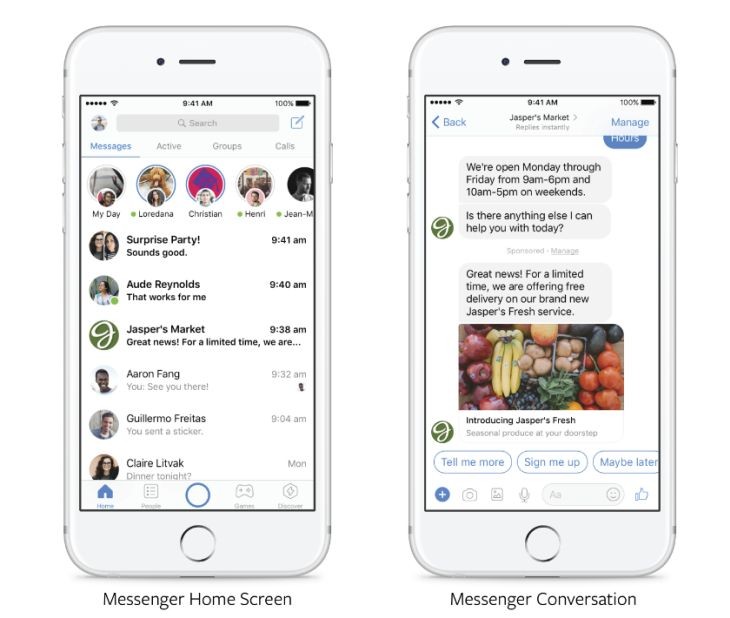
In a move that won’t shock anybody, Facebook is bringing advertising to Messenger. It has begun to test allowing companies using Facebook to send out sponsored messages from their clients. Is this another intrusion from the social network? No, and let us tell you why.
Companies can only send these sponsored messages to users with whom they’ve communicated before. For example, if you contacted a store to ask about a special deal they were offering, the store would then be able to consider you a potential customer and could send you messages including promotions and offers. Messenger will allow messages to be sent from companies no more frequently than every 24 hours.
For now, Messenger is testing this system with a small group of brands. It hopes to be able to enable a wider implementation across all businesses in the coming months.
Private messaging is the future of marketing
The first tests of these sponsored messages seem to show that rather than users being bothered by them, users are happy to receive them. According to several studies, users are much happier communicating with companies via messaging services than other means of communication.
Messenger isn’t the only service looking to get in on the action. WhatsApp, which is owned by Facebook, also recently released WA Business in beta. This will connect users with official business WhatsApp accounts when it gets its full release.
What do you think about this new feature? Tell us in the comments.
Do you have any secrets on your mobile that you don’t want anybody to know about? Or to be more specific: Do you have an app on your mobile that you don’t want anybody to know about? If you use Android, then we have the perfect tool for keeping your secret from prying eyes: Nova Launcher.
Nova Launcher is an app launcher for Android. It allows you to customize home screen, among other things. What most people don’t know about, however, is the editing function that allows you to disguise your apps. Let’s have a look step by step:
How to hide apps on your mobile
1. Download
The first step is to download Nova Launcher. Here is the link.
Nova Launcher is a speedy app launcher (which means it modifies the basic interface of your phone or tablet somewhat, changing the user interface you use to browse and launch apps in the process).
2. Find the app
Next, find the application you want to hide. Keep your finger pressed on the icon and you will see four options appear, courtesy of Nova Launcher. Choose Edit.
3. Edit the app icon
In Edit mode, you can change both the name of the application and its icon. This means that an application that could have set alarm bells ringing will go unnoticed if you “disguise” it as just another boring app.
What do you think of this trick? Do you know other ways to hide secret apps on your mobile? Let us know in the comments below.
PS. We take no responsibility for any consequences that follow the implementation of this tip!
It’s obvious that security is very important when we use our computer or smartphone. You’ll find numerous tutorials on the internet explaining at great length the security protocols that you should follow to keep yourself protected. We’ve often talked about this here at Softonic, so today we’re just going to into the most important stuff without going on and on. Lucky you!
Let’s have a look at how to keep you and your files safe from ransomware and other nasty security problems.
7 tips for a healthy security diet
1. Always use Incognito Mode on public computers
Once while traveling, I went to use the hotel’s public computer and came upon the open Facebook session of a previous guest. I’m not a troll, so I closed it without looking, but imagine if the person who’d found it had been somebody who wanted to mess around… Enough said.
How to enable private browsing mode on different browsers
Whenever you’re on a computer that is not your own, use the browser’s Incognito Mode. This includes computers at colleges or universities, libraries, hotels, or any public area and even at your friend’s houses. Even if they are trustworthy, their computer might have a virus or malware. This will also save you the trouble of having to remember to log out when you’re finished.
2. Don’t obsess over antiviruses
Yes, this point seems counterintuitive. When we buy a new computer, we tend to go overboard by downloading multiple antivirus and anti-spyware apps. But it’s generally unnecessary to have more than one antivirus app, and computers with Windows 10 already come with their own antivirus software. If you don’t like it, you can use another, but only one other!
Most current antivirus software (such as Avast, AVG, and Panda) includes protection for all kinds of threats, even in the basic or free versions. Choose one and let it do its job. If you have a specific problem, there are many programs on the internet for resolving it. If this happens, you can take action by installing specific solutions.
3. Never skip an update
Many programs often ask to be updated. This means they will take longer to start up, but is it worth the wait? Yes! Software publishers often use these updates to patch critical flaws that could leave your PC vulnerable. So keep your favorite programs up-to-date, and if they ask to be updated, don’t skip them, poor things! Besides, unless we’re talking about games, PC programs take only a few minutes to update. Get up and make yourself a coffee or get some fresh air; when you return, your software will be ready.
It’s the same with Windows updates. Updates aren’t designed to pester you, but to improve performance. The problem is that, unlike programs, when Windows updates it takes a while. To avoid losing time, program Windows 10 so that it updates when you’re not using the PC.
4. Change your passwords regularly
Yes, I know it’s annoying having to change info, but it’s not smart to use the same Gmail password that you had when you opened your account in 2004. Change passwords for the main services you use every 6 months to 1 year. In some cases, the platform itself forces you to do so, but others won’t.
If they don’t, use your favorite reminder service and calendar (Google Calendar, or a to-do list program, for example) to notify you to make these changes regularly.
Also, use a password manager so you don’t forget anything. Google Chrome has its own password manager, but if you want extra security, use an external program. To help you out, we’ve put together a selection of our top 5 password managers. Choose the one that best suits your needs.
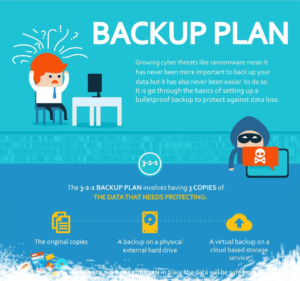
Ransomware gives the hacker power, because you are worried about losing your data and will pay to get it back. When you have backups of all your data then you’ll have a lot less to worry about if somebody asks you for money to access the files to which they’ve blocked access.
Security experts agree that the 3-2-1 rule is the only guarantee that your data will be truly protected. The 3-2-1 rule involves having three copies of all the data you want to back up: the original copy, a physical back up on an external hard-drive, and a virtual backup on a cloud-based service. With such backups in place, you would be able to get your data back even if somebody holds the original copies ransom.
We’ve put together a handy infographic on the 3-2-1 backup plan:
Click to see how to implement the 3-2-1 Backup Plan
6. Be wary of how you pay for things
How many times a month do you shop online? I shop online a little too often. If you’re like me, you have to be careful about how you pay for things online. Never use dubious methods for payment and always choose PayPal or Google Wallet when they’re available. If you’re paying with a credit card, ensure that the vendor uses a “payment gateway,” an intermediary between your card and the vendor, which makes sure your info can’t be directly accessed. Avoid paying by bank transfer if possible, since if there’s an issue with your purchase it could be difficult to get your money back.
Are you buying from an individual and the seller is insisting that you pay by banking transfer? If the amount is small and the person is trustworthy (for example, there is positive feedback on the website where you’re buying it), it might be okay to risk it; otherwise, you should encourage them to use PayPal, since it’s free between individuals, and setting up an account is very simple: you only have to add your bank account.
7. Slam the door on Facebook, WhatsApp or email rumors
We’ve all seen unfounded rumors spread like wildfire across social media. There is a term for it in the modern vernacular: Fake News. Don’t contribute to the spread of fake news; at the very least it creates noise and confusion, but it can also have much more serious consequences. For example, sometimes photos of so-called “criminals” shared on social media are just normal people. Their photos had the bad luck of falling into the hands of bad people. Would you want that to happen to you?
Before sharing any status, post, or image on Facebook or WhatsApp from an unfamiliar website, briefly confirm it using news sources you know to be legitimate and, above all, use common sense. For example, before sharing the photo of a missing person, click the original link and do a little research. Has the person already been found? Is the info coming from an official organization? If it looks fishy, think twice before posting it.
Your daily security diet
The security advice in this article is like a healthy diet: It’s ok to skip a day, but if every day you slip up and eat junk food, you’ll be nourished by only by pizza and pastries. So, try not to skip your daily security diet; with a little effort, you and your devices will stay safe.
The original version of this article was published on June 27th 2017