How to Get a Background on Microsoft Teams

With many businesses working remotely worldwide, you’ve no doubt had several online meetings with colleagues and employers. Do you ever spend way too much time rearranging your workspace before accepting that Microsoft Teams video conference request? Well, you can change your background image so that the others don’t see any offensive or messy items behind you.

Microsoft Teams DOWNLOAD
8

Here are a few tricks to improving the view for your audience.

Changing your Microsoft Teams background

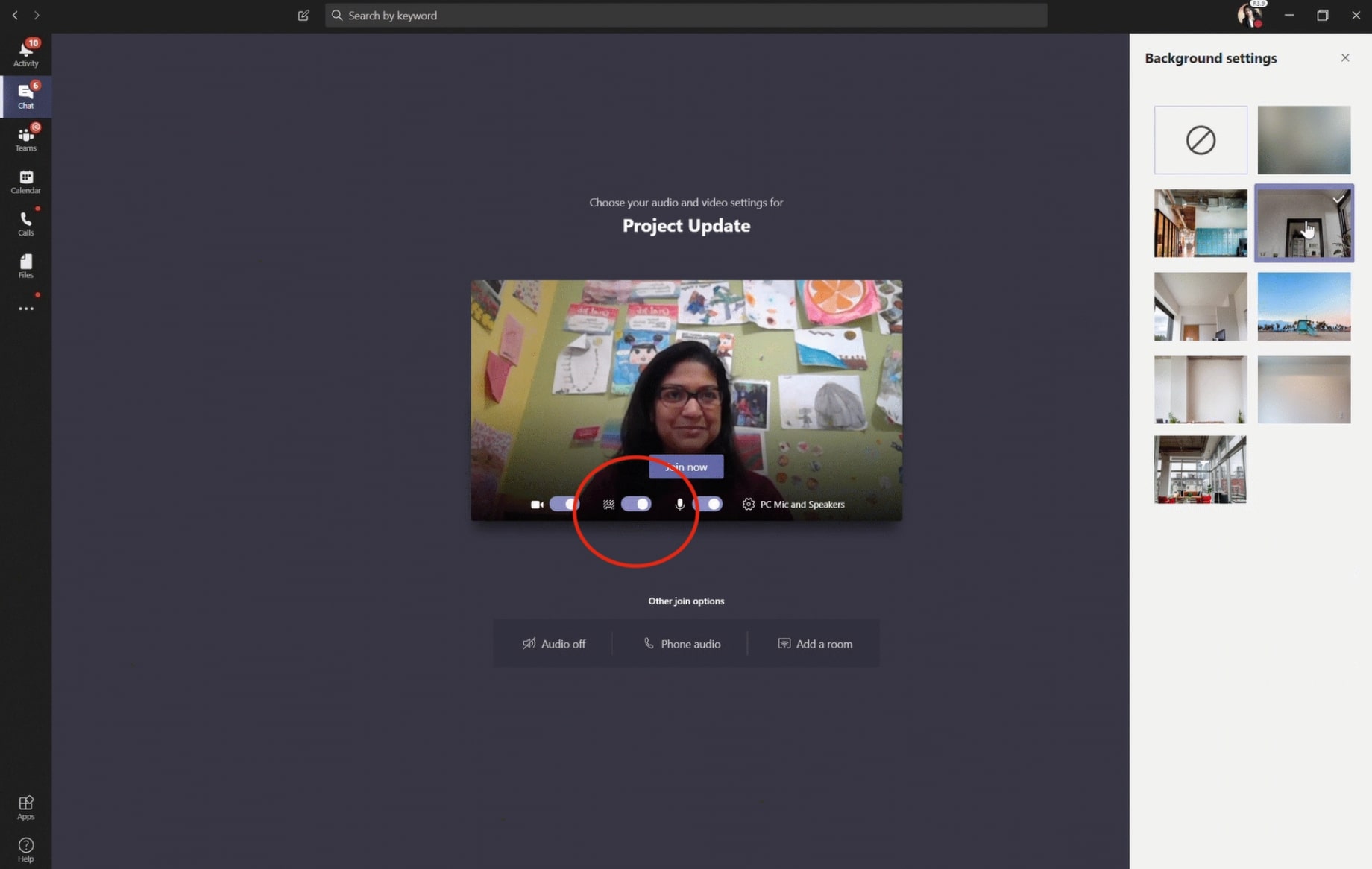
If you’re running the meeting app from your PC, you can quickly set up the background before the session begins. The option ‘Background Effects’ appears next to the mic switch. The primary feature you’ll want to try is Blur, which hazes out the area around and behind you.

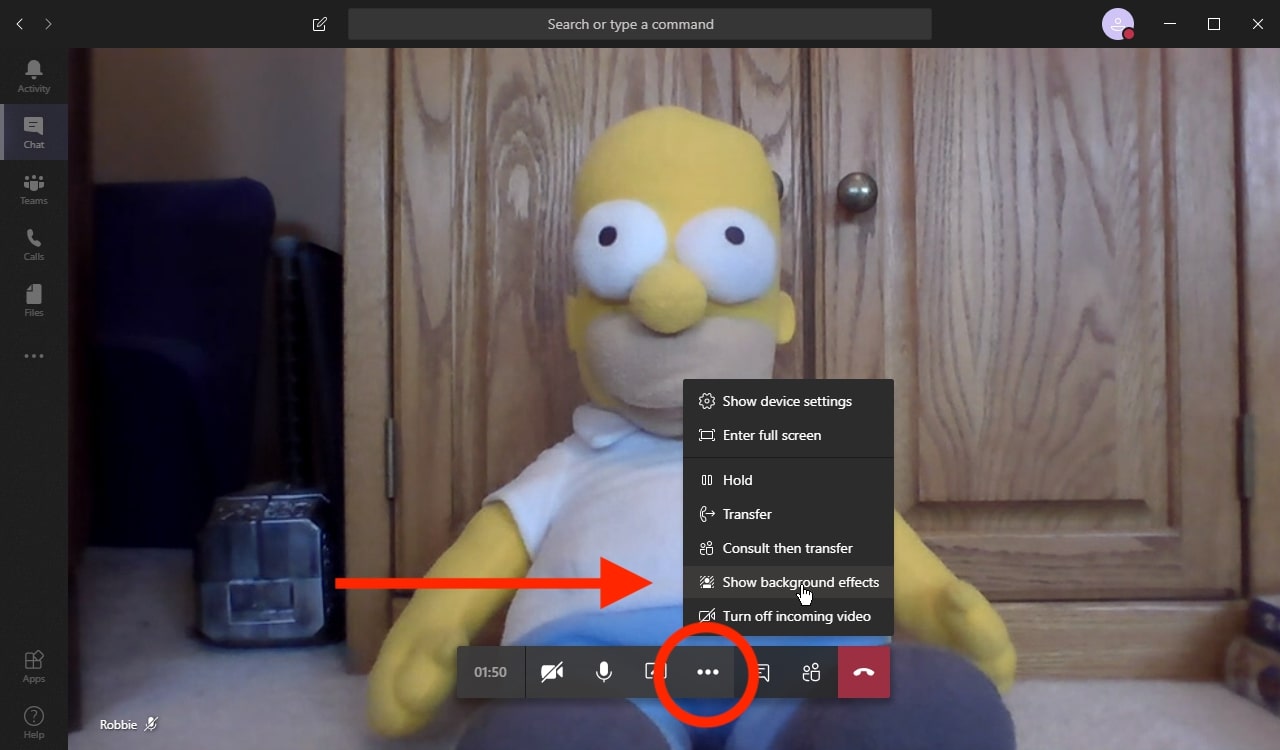
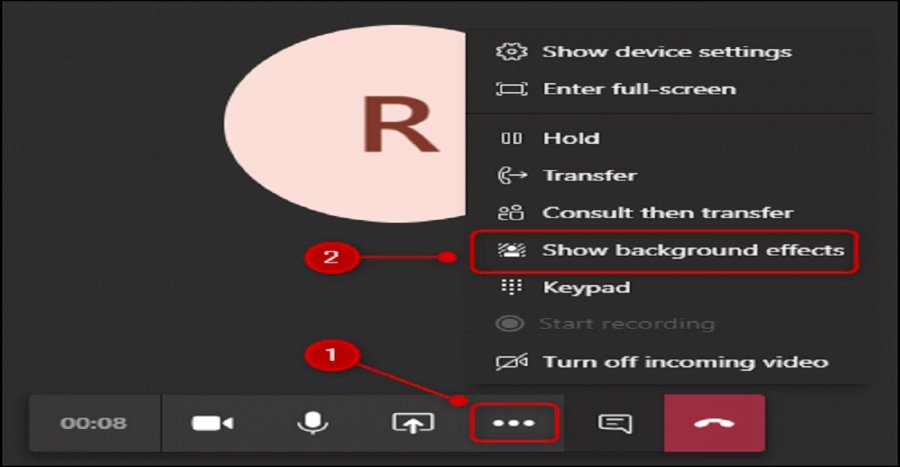
Of course, you may have already entered the meeting and realized you’ve forgotten to adjust the background. You’ll need to select ‘More Options’ and ‘Show Background Effects’ to access the same menu controls in this situation. The update will happen instantly, saving you any embarrassment for when you’ve forgotten to make your bed or clean the windows.

Can you tell we have experience with these moments?

The most beneficial use of this feature is on mobile devices. You may be in a coffee shop or internet cafe with headphones. Fortunately, you can follow the same steps above for changing your Microsoft Teams background on phones.

Adding your own custom background

Not happy with having a blurred background? We wouldn’t be, either. We’re sure you’d like to impress clients and colleagues by making them believe you’re in a real working environment or sipping cocktails on a yacht. Microsoft Teams introduced virtual backgrounds in April 2020, granting you the power of illusion.

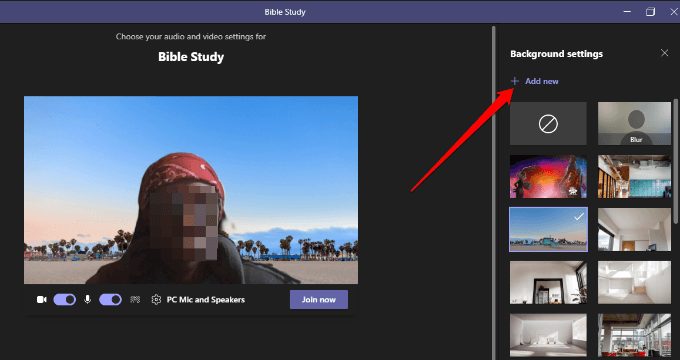
To take advantage of this setting, you can open the meeting settings and select ‘Show Background Effects.’ It will let you choose one of the generic templates already available on the app. If you want to add your own custom background, you can click on ‘Add New’ and pick an image from your PC or mobile device.

Look professional in any location

Microsoft Teams has more advanced features than other similar meeting platforms, such as Slack and Zoom. With the festive season upon us, be sure to share the jingles and merry moments by lighting up your background. If you’ve had some fun with these settings, please let us know, as we’ll certainly enjoy a good laugh.

Slack DOWNLOAD
8
Zoom DOWNLOAD
9

How to play Roblox

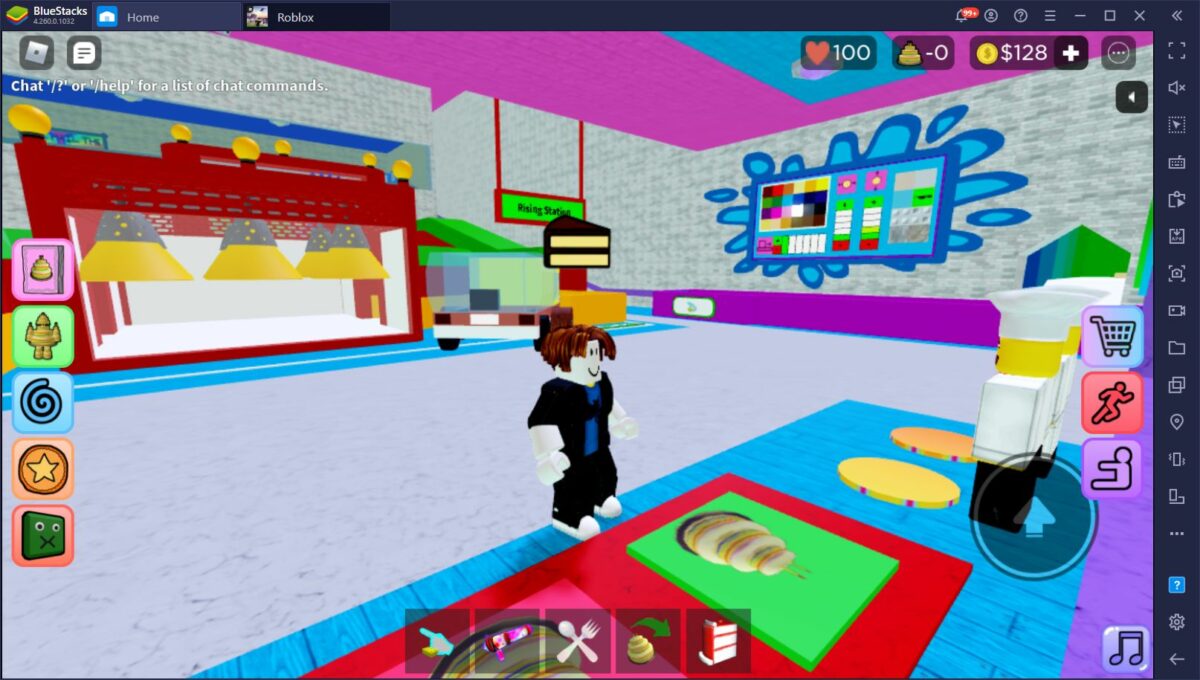
Roblox has been the highlight for adults and children in the world over the last few years. There are so many servers and games you can enjoy, the fun never ends.

If you’re new to this gaming platform, we’ll show you how to play Roblox by creating an account and avatar before joining any of the available rooms.

What is Roblox

Roblox is a real paradise for both avid gamers and novice developers who want to create their first video game. This free multiplayer platform has everything it needs to please both kinds of users: an unlimited catalog of free video games and all the tools you need to create your own game.

If you’ve never used this platform, you’re probably itching to check it out. And it’s no wonder that you’re curious, seeing as how Roblox has more than 150 million active users every month. In the end, with apologies to Fortnite, this is the most popular video game platform to hit the market in recent years. But… do you know how to use Roblox?

Today’s article is a basic guide that will walk you through all the steps to play a game or create your own title on Roblox. We hope you find it helpful!

First steps to use Roblox

Before you can learn how to play Roblox, there are a few things you need to do first. You won’t be able to enter any of the game servers without these initial steps.

Download and install the Roblox client

Whether you want to play or create a video game on Roblox, the first thing you need to do is download and install the client on the device you want to use. It barely takes up space, just 2 MB, so you’ll have it on your PC in no time.

You download the Roblox client quickly and easily below.

Roblox is also available for Mac and Xbox One consoles. You can download the client from the console’s online store.

Sign up on the official website

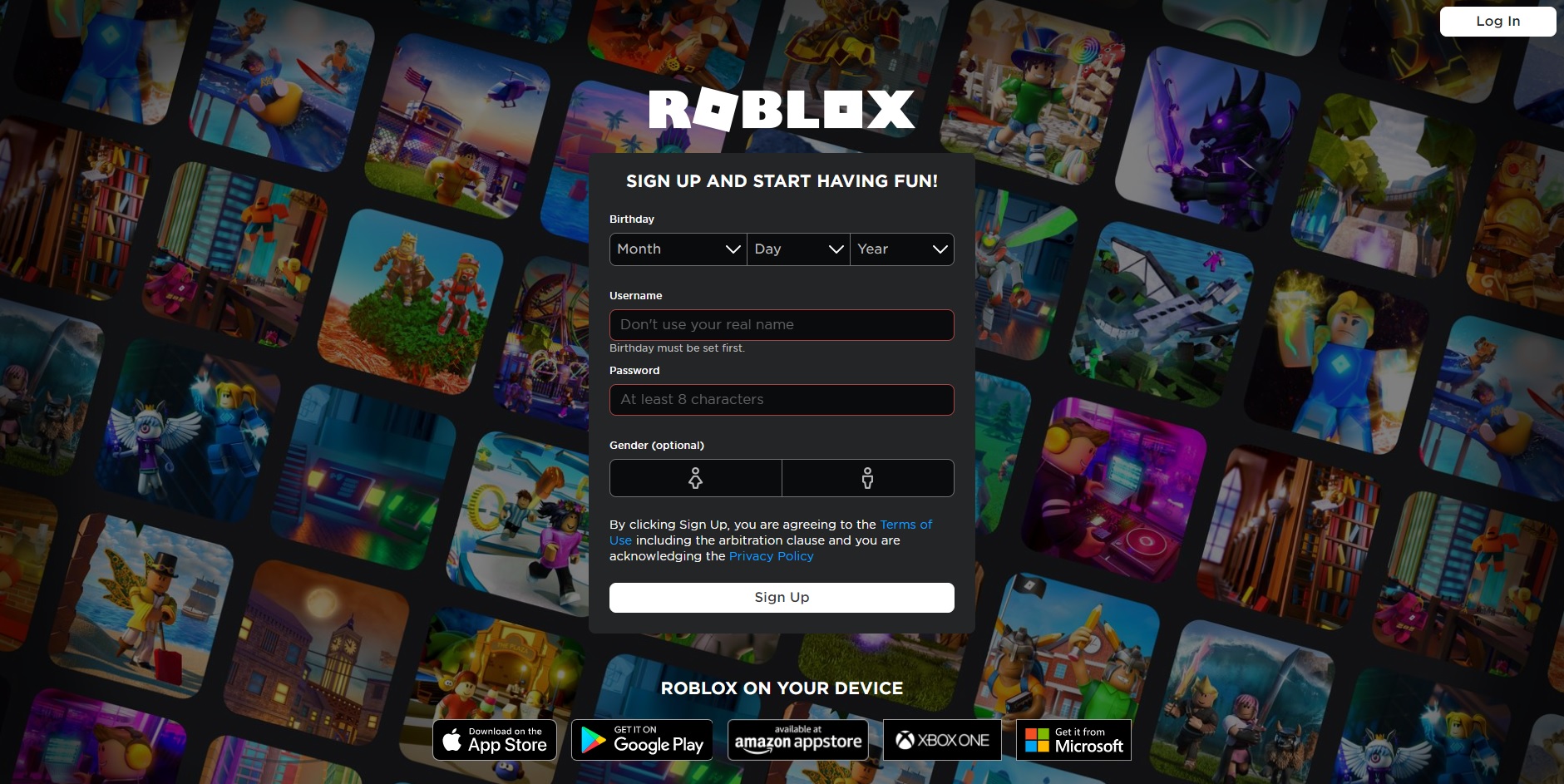
Now that you have the Roblox client installed on your computer, you need to register on Roblox official website in order to use the platform.

On the site, just fill in the form that appears on the screen. You’ll need to enter your date of birth and choose a username and password for your account. You can also select your gender, although this is completely optional.

Now that you have your Roblox account, you can log into your session on the platform. After you do this, it’s a good idea to go into your account settings and add an email address in case you forget your password in the future.

How to play Roblox games

Now that you have a Roblox account and the client installed on your computer, you can play all the free games you want on this platform. To do so, follow these steps:

1. Create your avatar

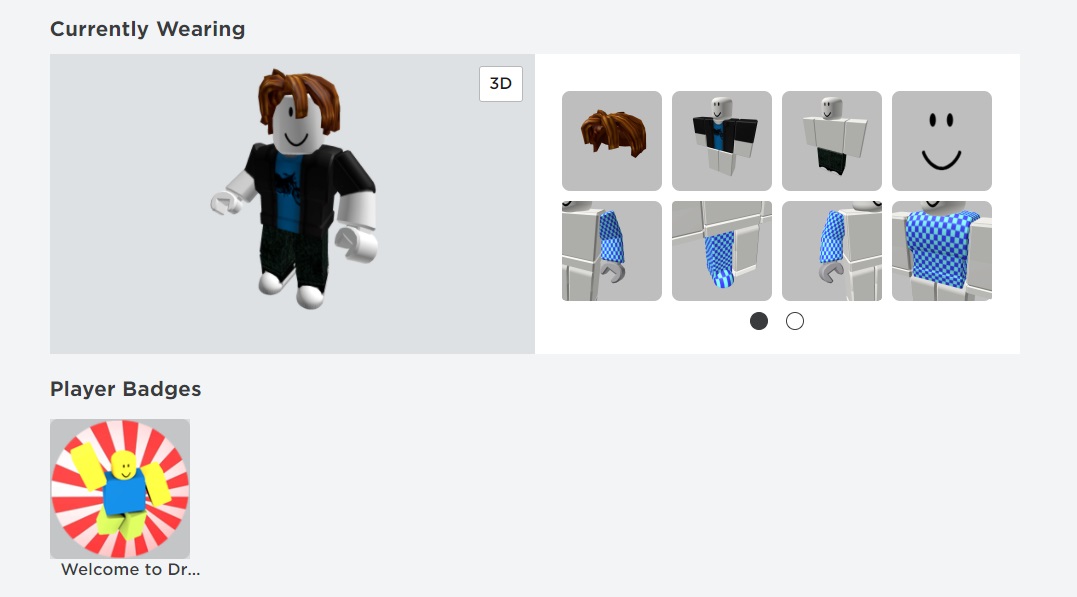
Step one is to create your avatar on Roblox. This will be your character in all the games you play on the platform, so make sure that you like the way that you look!

To edit your avatar, simply click on the icon with three horizontal bars in the upper right corner of your screen. Once the drop-down menu opens, select the “Avatar” option.

On the next screen, you’ll have hundreds of options to customize your character. You can choose their gender, body type, clothing, hair, face, animations and a host of other options. If you can’t find anything you like, don’t worry! Just click on the “Get more” option in the upper right corner of the editor.

At a later stage, you can change your display name in Roblox if you need to.

2. Choose a game to play

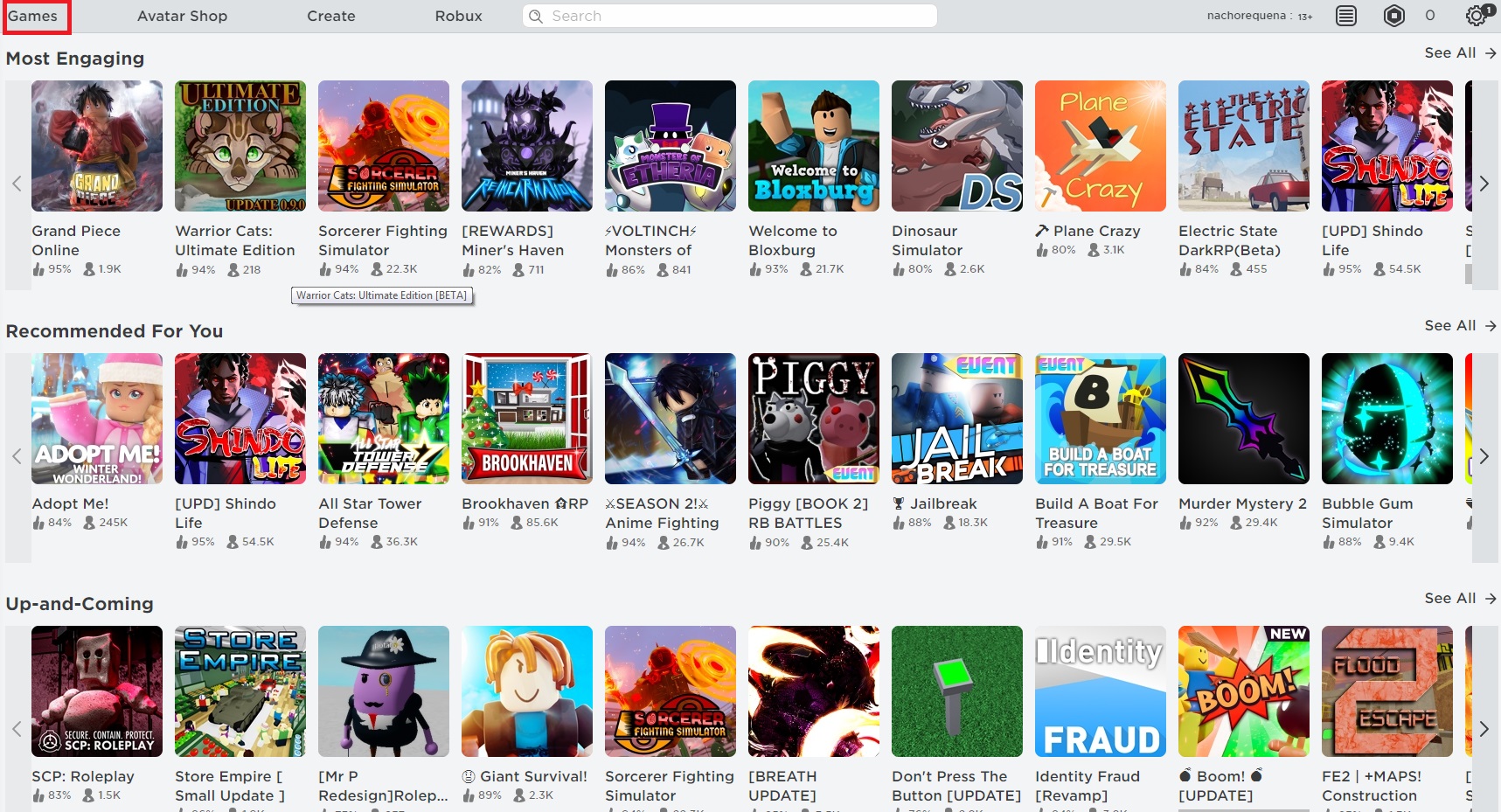
Now that you’ve created your avatar, it’s time to play. To do this, click on the “Games” option in the top menu on your screen. Then the extensive Roblox catalog will be displayed with different categories.

Browsing the Roblox catalog can be frustrating at first, as there are so many games available. If you know the name of the game, just type it into the search bar at the top of the screen. Once you find the game, click on it.

If you’re not really sure what to play, we suggest checking out the article below, which features a roundup of the best games on Roblox in 2020.

Here are some guides on which games to look at:

3. Have fun playing on Roblox

When you click on the title you want to play, a new window will open with a description of the game. Normally each title has several screenshots and even promotional videos so you can be sure it’s what you’re looking for.

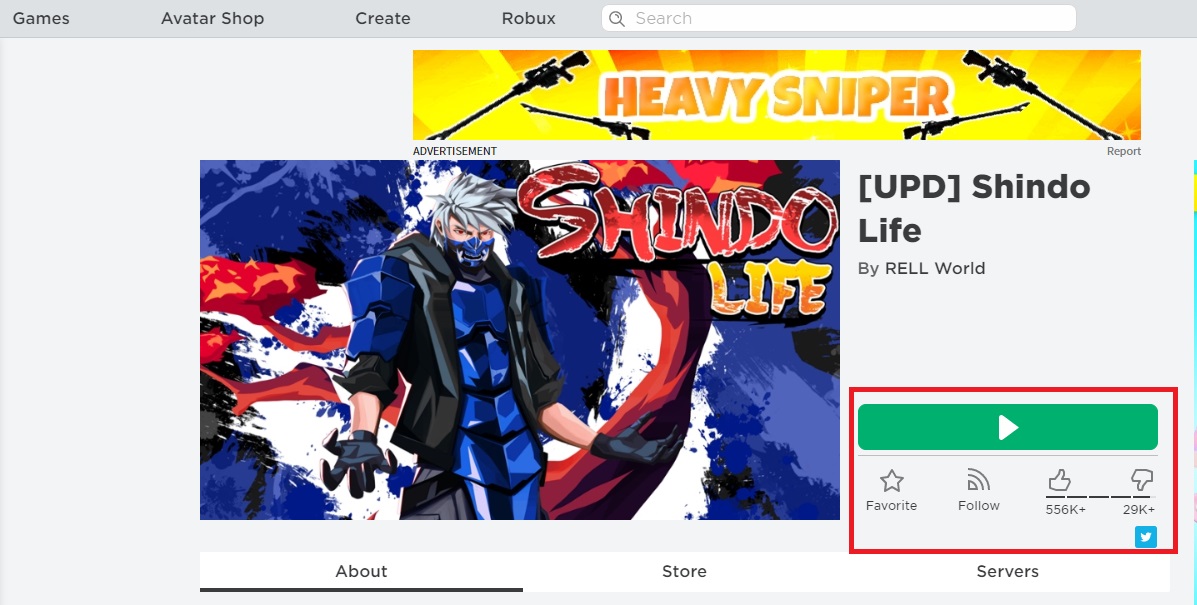
If you’ve found the game you want to play and installed the Roblox client, just click on the green button with the “Play” symbol on your screen. In a matter of seconds, you’ll have loaded the game and will be ready for some fun on Roblox. It’s as simple as that!

Here are some handy tips for learning how to play Roblox:

Roblox Tips and Tricks

Now that you know how to play Roblox, it’s time to check out some tips and tricks we have for you. These pointers will aid you when it comes to joining friends on multiplayer or spending some Robux.

How to add friends on Roblox

Don’t forget that Roblox is a multiplayer platform, so it’s important to know how to connect with your friends. Fortunately, it’s easy to add friends on Roblox with the following steps.

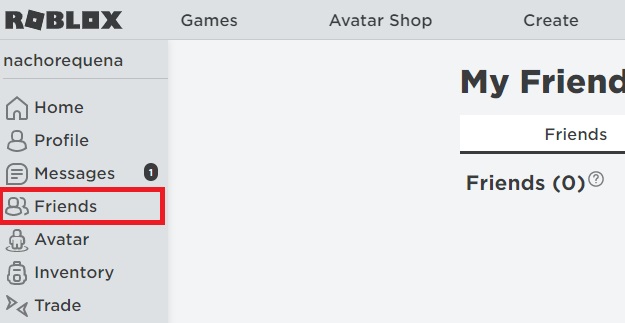
First, click on the icon with the three horizontal bars in the upper left corner of the screen. Then select the “Friends” option. In the new window, add your friend’s username in the search bar at the top of the screen. Make sure the search bar says “Find username in Players.”

Then you’ll see a list of players who are an exact match or similar to the username you entered. Select the “Add friend” option to send a friend request and wait for your friend to accept it. Done!

How to buy Robux

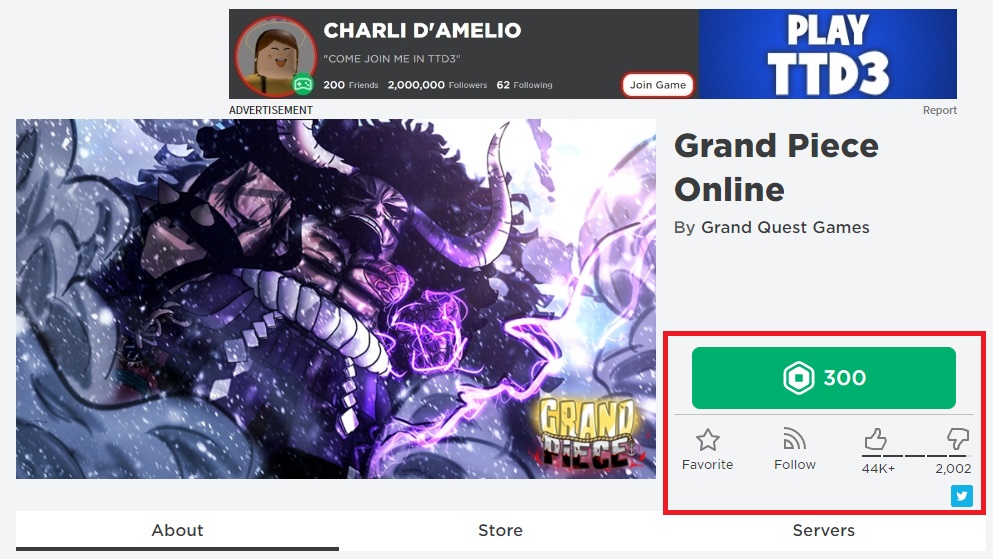
While browsing the Roblox catalog, you’ve probably come across some games that, instead of the “Play” button, display a hexagon symbol with a number beside it. These are the so-called “Robux,” the Roblox currency that lets you access premium services, such as the beta versions of certain games.

To buy Robux, just click on the hexagon-shaped icon in the upper right corner of your screen or the “Robux” button. Then choose how many Robux you want to buy.

Once you’ve selected your chosen amount, it’s time to pay real money to get your Robux.

Dealing with errors in Roblox

As with all games, you’ll come across several errors when playing Roblox. It shouldn’t happen regularly, but technology can be funny sometimes. We’ve compiled a list of articles to help you resolve any of these issues:

How to create a game on Roblox

What has caught your eye about Roblox, rather than its vast catalog of free games, is probably the fact that it lets you create your own worlds. Keep reading for some tips on how to do that.

1. Download Roblox Studio

The Roblox client will be useful to test the games you have created, but to make them, you’ll need to have “Roblox Studio” installed.

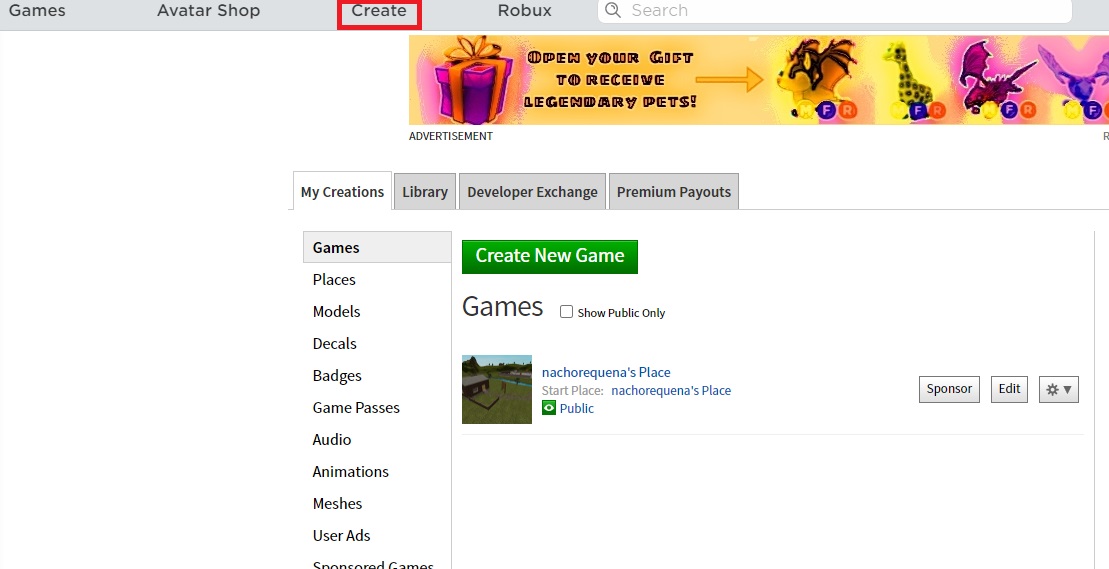
To get this tool, simply click the “Create” button at the top of the screen followed by “Start Creating.” Then you can download the program from the official website.

If you prefer to speed up the process and have Roblox Studio installed from the get-go, you can download it quickly and securely from Softonic below.

After you install the tool, the video game creation environment will start automatically.

2. Create your own game with a template

When you open Roblox Studio, you’ll see an interface very similar to the one in the photo. There you’ll have access to a selection of templates where you can choose your game environment. The options include templates of cities, towns, pirate ports, etc. Just choose the one you want.

Depending on the type of template you’ve chosen, it will display different game mechanics. For example, if you choose a race template, you’ll see the race start and finish points by default for you to edit.

In each of the columns on the left and right sides of the screen, you can edit the game however you want. For example, by clicking on the lighting option in the right column, you can change the environment’s lighting by indicating the time of day you want it to represent.

Since it’s a template, we recommend exploring and testing the different options on the tool to become familiar with them. Once you have finished creating your game, simply click on “File” and “Publish to Roblox” so that your game goes live.

3. Create your own game from scratch

We’re not going to lie to you: creating a Roblox game from scratch isn’t easy, and you’ll need to put in hours of work before it takes shape. Of course, it’s entirely possible and far simpler and more intuitive than using the usual programming methods.

If you don’t feel like using a Roblox template and want to create a totally innovative game from scratch, we recommend checking out the Roblox Studio tutorials as your starting point. They’re truly comprehensive and cover all the topics and questions that Roblox developers should know about.

If you need more guides on making a Roblox game, check these out:

Have fun gaming!

We hope our basic guide for how to play Roblox has been helpful to you. Do you have any questions about concepts on Roblox that we might help you with? Tell us about them in the comments section!

Steam Definitive Guide: What It Is and How to Use It

Steam is the world’s most famous and popular online video game platform. Since it was launched by Valve in 2003, it has grown non-stop, amassing the largest selection of digital games on the internet. Gone are the days when you had to go to a store to buy that game you’d been dying to play for so long. Now you can just go to Steam and download it to your PC instantly.

If you still don’t have a Steam account or you’ve never used the platform before, you may not be sure where to begin. Keep in mind that when you open a Steam account, you can do far more than just download games. From the Steam client, you can connect with friends, play games with them online, chat, discover new titles, get all kinds of juicy deals, trade titles, sell video game items for real cash, get refunds, and an endless list of other options… Want to know how?

Today’s article is a basic guide on what Steam is and how it works to help familiarize you with the main features of this excellent platform in the blink of an eye. So what are you waiting for? Let’s play!

What Is Steam Gaming?

Steam is an online video-gaming platform where users can buy, play, create and discuss various PC games. The platform has thousands of games, ranging from big brand names to smaller indie games. There are even free-to-play games available for serious gamers to try out.

Steam not only has games that you can play and buy but there are also many different DLC and bonus content, multiplayer games and even a few hidden gems to discover. At last count in 2020, there were approximately 10 263 games available on the platform.

How Does Steam Work?

Steam is also known as a cloud-based gaming library. This means that once you’ve created an account and started buying/playing games from the platform, your games and progress will also be saved in the cloud. This also means that you’ll have access to the games you own, saved files, etc., from any computer by logging into your Steam account. 

The cloud function also means that players can have an extensive library of games without having each one take up valuable memory on your computer. Gone are the days of having to uninstall a game just to free up disk space and memory for a new one.

First steps: What you need to do to start using Steam

It’s easy to start using Steam. There are just two things you need to do: create a Steam user account and download and install the client on your PC.

How to create a Steam account

Downloading Steam and creating an account is easy and completely free. Enter a valid email address and confirm that you are 13 years of age or older. Then you’ll receive an email to verify and activate your account on the platform. Finally, you need to fill out your profile with a username and protect your account with a password. Your Steam account is ready to go!

How to download the Steam client

Now that you’ve opened your Steam account, you need to download the platform’s client. There you can make purchases, play games, connect with friends, and basically use Steam.

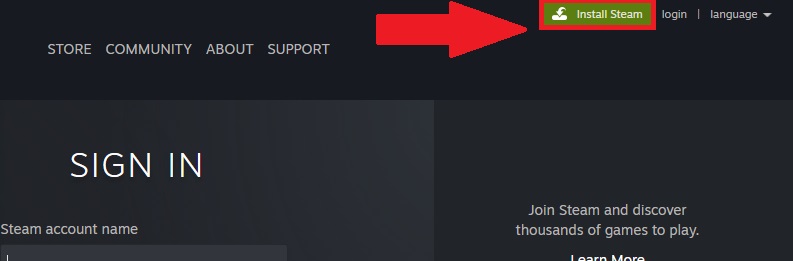
To download and install the Steam client, you have two options. The first is to visit the platform’s website and click the green “Install Steam” button. Then the client will be downloaded to your PC. Once the installation is finished, you can log into Steam with your username and password. Your second option is to download the Steam client quickly and securely from our website. You’ll find the download button below.

How to buy a game on Steam

Step 1: Log into your Steam account

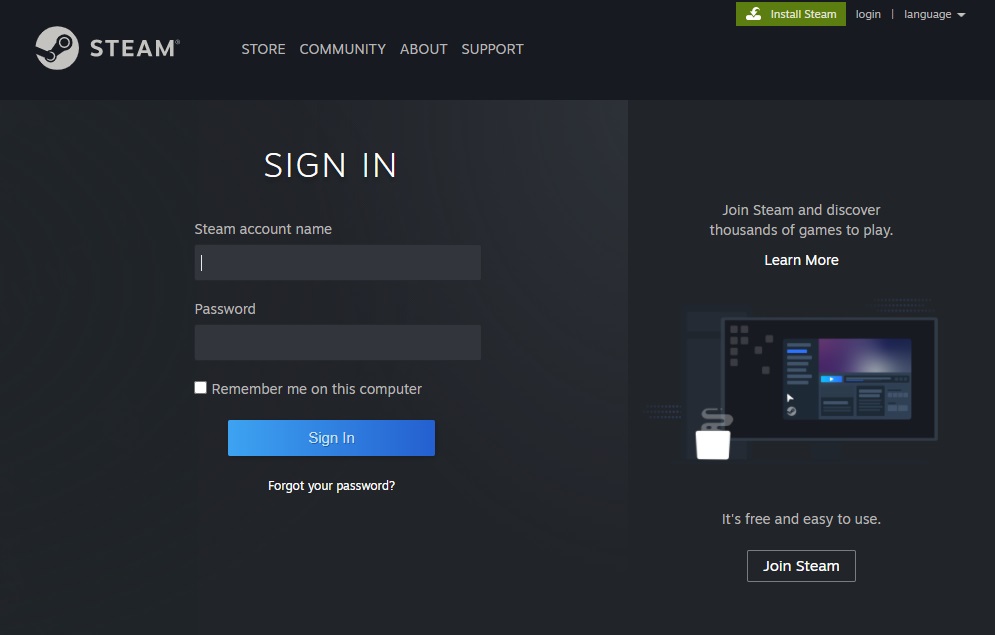
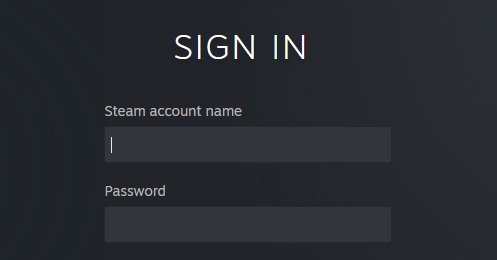
Buying a game on Steam is a piece of cake. The first step is to visit the platform and make sure you’re logged into your account. To do that, click the “Login” button in the top right corner of your screen and enter your account name and password.

Step 2: Find the game you want to buy

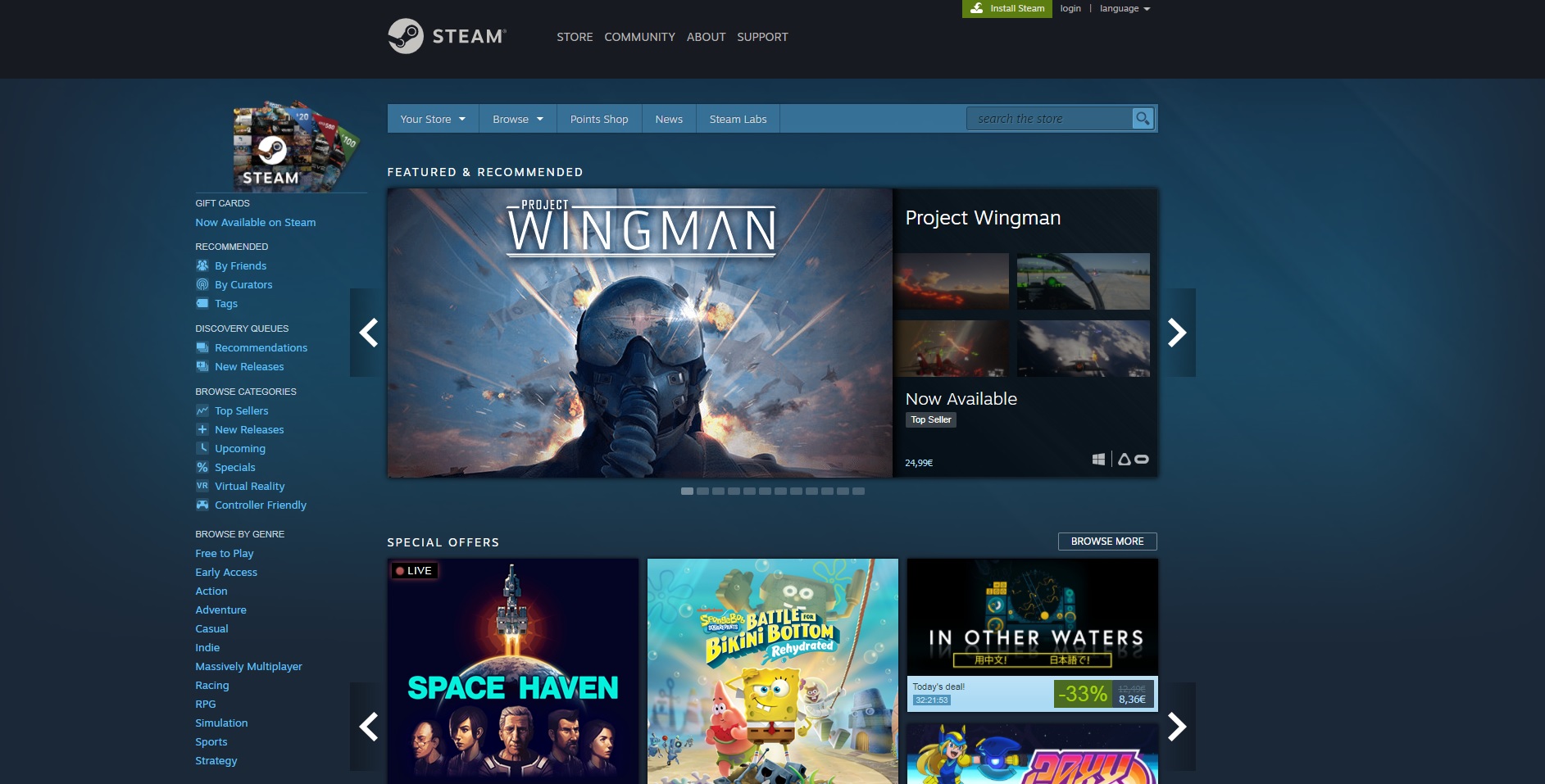
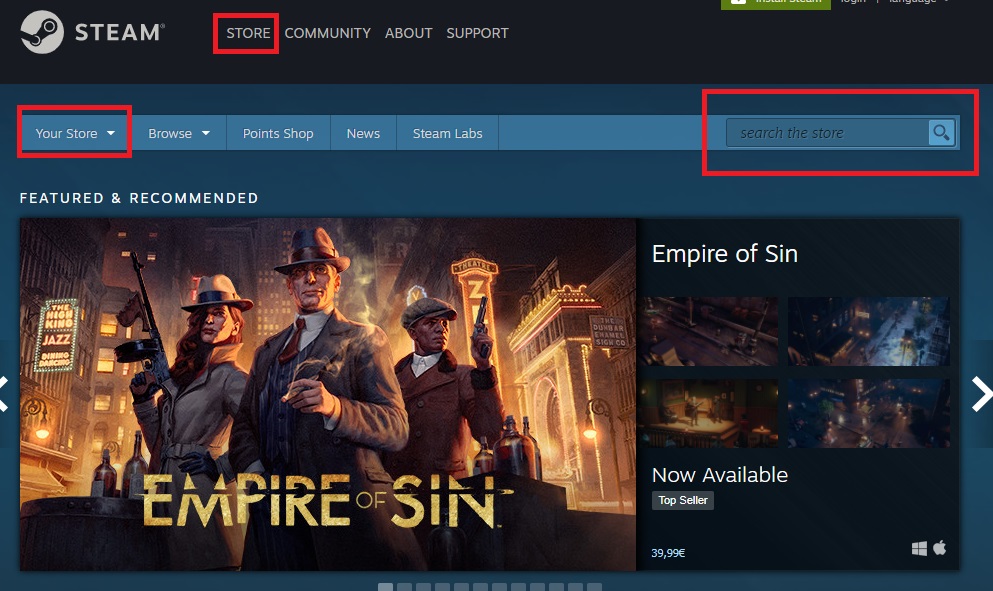
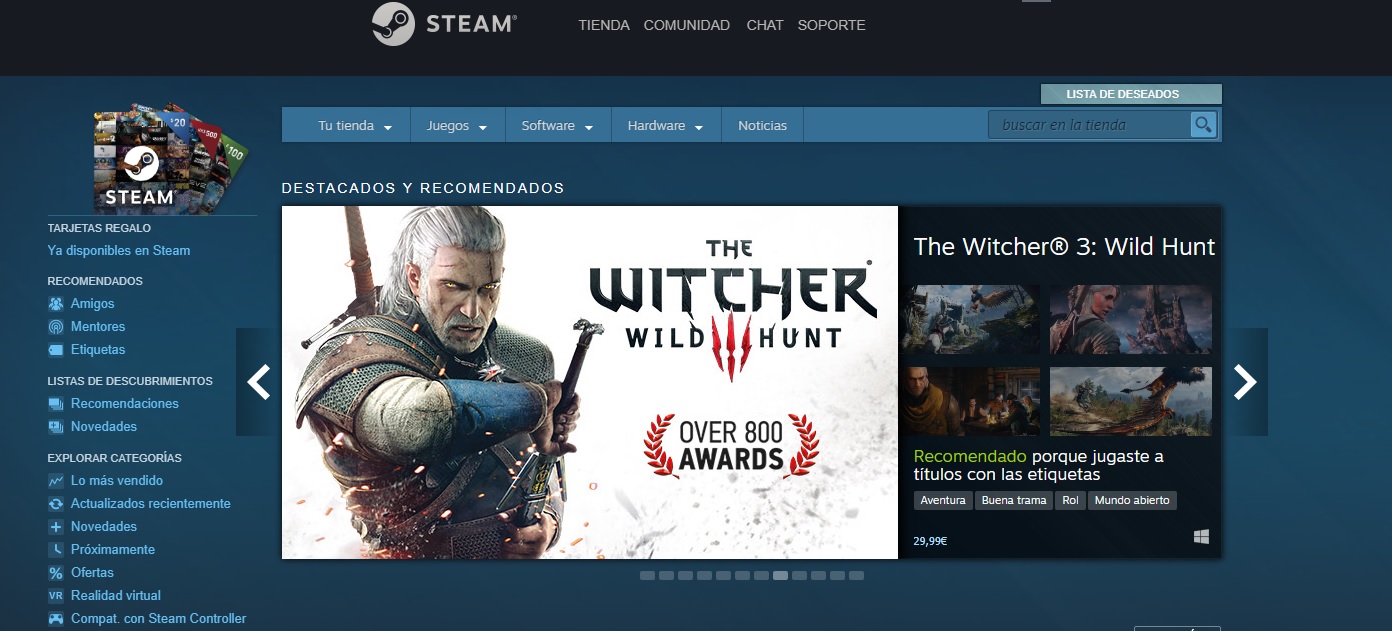
Now that you’ve logged into your Steam account, it’s time to find that title you’re looking for. To do that, type the name of the game you want to buy in the “Search the store” bar. If you haven’t decided what to buy yet, you can check out the catalog by selecting “Browse” and, once the dropdown menu opens, choosing a game genre.

Step 3: Make sure your PC meets the system’s minimum requirements 

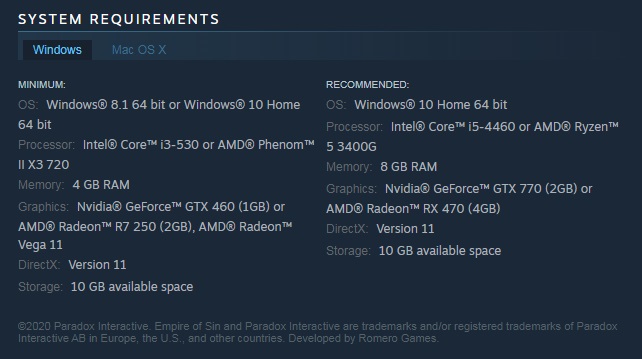
It happens a lot: you see a game you want to play, get excited and buy it immediately. But if you do this, you could be in for an unpleasant surprise if, after downloading it, you find that your PC is unable to load your game. That’s why we strongly suggest that you check the minimum requirements for each game, which you’ll find in its file.

Step 4: Purchase and download your game

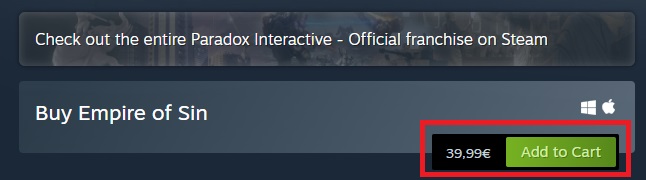
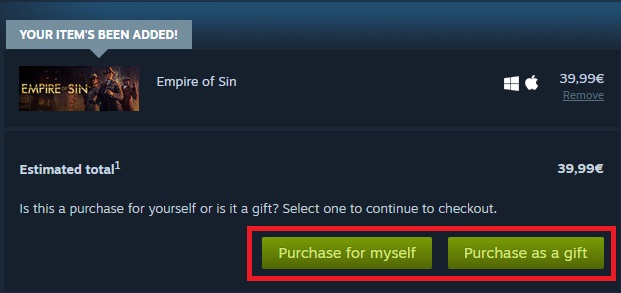
If your PC meets the minimum requirements and you’ve decided to buy the game, just click the green “Add to cart” button. Next Steam will ask you if the game you’re buying is a purchase for yourself, or a purchase as a gift.

Select the “Purchase for myself” option and pay for your item. Done! Now you’ve bought your first game on Steam, and you can download it from the “Library” section.

How to play a game on Steam

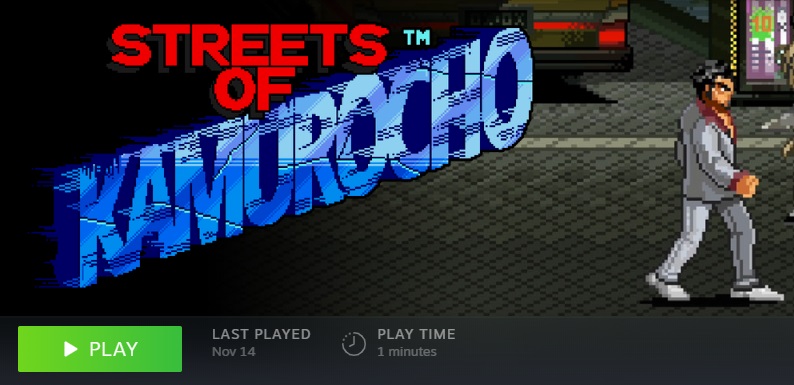
Playing a game on Steam is really easy. After purchasing and downloading the game, click the “Library” option. On the left side menu of the Steam client, you’ll see all of the games linked to your account. Click on the downloaded game and then the green “Play” button. It’s that simple!

How to find a good game on Steam

Now you know the basics about buying, downloading and playing that title you’re after on Steam. But what if you don’t know which game you want to play? In that case, it’s a bit more complicated. And Steam has a huge catalog of video games, so it can be hard to find what you want without help.

Fortunately, there are tools that make this task a lot easier: Curators, filters and Discovery Queues. Keep reading to find out how they can help you.

What are Curators on Steam?

Curators are members of the Steam community who have been recognized by the platform for the consistency and quality of their reviews. They have written a large number of reviews, and their recommendations have been praised by other users. That’s why Steam grants these players “Curator” status, giving visibility to their recommendations and reviews, as they are considered to be valid opinions that are useful to others.

One way to find good games on Steam is through Curator recommendations. To start following a Curator, we recommend finding a genre that interests you in the Steam categories. Next start reading the Curator reviews that come up, and if you like their style, start to follow them. That way you can always read their game reviews and find out which titles might interest you.

What are filters on Steam?

Another way you can find a game on Steam without knowing its name is through the filter system. Because even though the platform has a decent game search engine, filters help to narrow down your results and make it easier to find the perfect title.

Using filters on Steam is very easy. First, you have to run a search on the platform, so click “Browse” and then select the kind of video game you’re after. On the results page, you’ll spot the “Narrow by tag” option in the menu on the right side of your screen. Then choose the one that’s the best match for the title you’re searching for.

Then you can narrow down your results even further by using the new filters that will appear in the right-side menu. You’ll find filters by price, language, etc. It’s the perfect way to find the perfect game!

What’s the Discovery Queue?

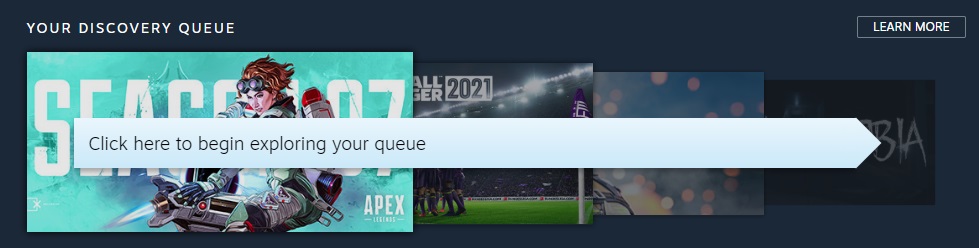
The Discovery Queue is a great way to find new titles that might interest you on Steam. To access it, first you’ll need to log into the platform. Then Steam will search its catalog for a selection of new and top-selling games that are similar to the other titles in your library. That way, you can quickly find great games that you’ll definitely love.

How to get your Steam games for the lowest price: Special offers

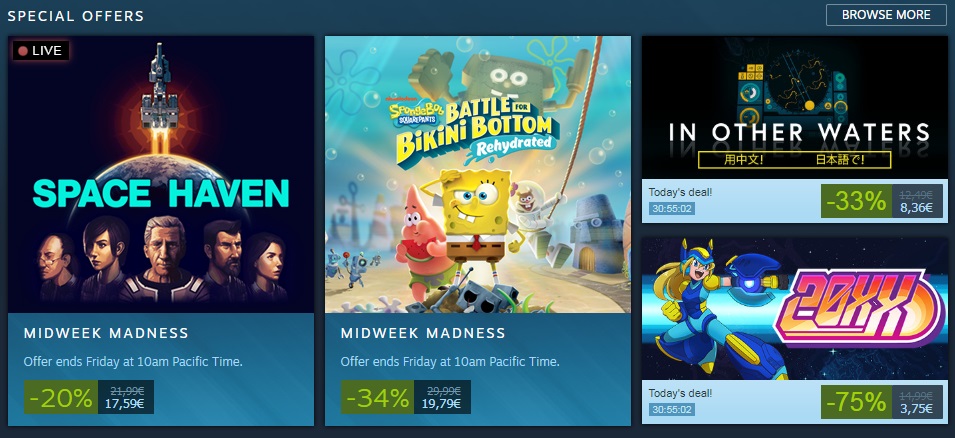
Steam has a fantastic selection of special offers so you can buy your favorite video games on sale. They include seasonal offers, such as Steam’s Christmas sales, and the usual selection of daily or weekend offers.

To view the latest Steam deals, click here. To make sure you never miss any offers on a game you want, we recommend adding it to your Wishlist. That way, when there’s a special deal, Steam will send you an email alert about the price drop.

How to get a refund on Steam 

It’s happened to everyone at least once: right after buying a new game, you realize that it isn’t what you expected. If you’re in this situation, you’ll be pleased to know that if you don’t like a game you purchased on Steam, you can return it for a refund.

To get a refund on Steam, you’ll need to meet the following two requirements:

  • You must request your refund within 14 days of purchase
  • You can’t have played the game for more than two hours.

If you meet both requirements, you can get a refund on Steam without a problem. To do this, visit Steam through the client or the website and click on “Support”. Now find the game you want to return and select it to visit its support page.

On the game page, select “It’s not what I expected” and then “I would like to request a refund.” Then Steam will ask how you want to receive your refund, through the method of payment you used or as credit in your Steam wallet. Select the option you prefer and send your request. Now you just have to wait for Steam to review your request and process your refund.

We hope our basic Steam guide helps you to use Valve’s platform. What’s your favorite game on Steam? Tell us about it in the comments section!

FAQ About Steam

Here are some more frequently asked questions that may help you use the Steam platform.

What Is a Steam Card?

A steam card is like a gift card that can be redeemed for credit on the Steam platform. These cards are usually issued to players for playing games, fulfilling tasks, or just randomly.

What Is My Steam ID?

Your Steam ID is a unique ID given to you upon registration. This ID is linked to your profile and thus very important. Your Steam ID can be found in your profile tab and consists of 17 digits. You can use this ID for various actions, such as linking other people to your account.

How to Use a Steam Gift Card?

Upon receiving a Steam gift card, there will be a unique code that you can redeem to your Steam account to receive the credit from the gift card.

What Is a Steam Link and How to Use It?

The steam link was explicitly designed to take control of all the different devices you have in your home. With the Steam link, you can link your steam account with your smart television and even stream your gameplay through the TV. You can use the Steam link by enabling remote play from the settings menu within your Steam account.

How Does Steam Remote Play Work?

Steam Remote Play allows you to play co-op games online with friends. Only one player has to own and run the game in this scenario, while the other players can just join in. To start Remote Play, you can copy a link for ‘Remote Play Together’ and send this link to your friends.

Your friends can then join you by using the link. This link can also be sent to any device, meaning your friends can join the game from Mac, Windows, iPhone, Android, and more.

How Does Steam Family Sharing Work?

Family sharing is ideal as it allows families to share access to the same library of games and purchased games, while each member still has their own account. This means that family members can play the same games but keep their own saved files, achievements, and more.

More Guides to Using Steam

If you need some more help to start using Steam, here are some more guides to get you started.

10 Google Mail Tips and Tricks To Catapult Your Work Productivity in 2022

The new year is the ideal time for improvement and to make new resolutions. Everything and everyone can get a fresh beginning, including you. A popular resolution or goal for many people in the new year is to improve their work productivity by not wasting time and getting more things done in less time. 

Just making goals won’t work; you need to work on your goals to make them productive. Here are some easy Gmail tips that you can try and give your work the necessary boost in the right direction. So, clean up your mailbox and get back on track this year. Check out these awesome Gmail hacks that can undoubtedly boost your productivity in 2022.

Undo a sent email

Ever happened that you wrote a message in a hurry and hit the send button and suddenly realized there were some mistakes in the mail. Either you have sent it to the wrong person or missed something to include in the mail. Gmail has a setting that can prevent this mishap from happening. Go to Settings>> Labs>>Undo Button>> Enable. It helps you undo a sent mail quickly so you can get back to focusing on your work. 

Utilizing read & unread message functionality

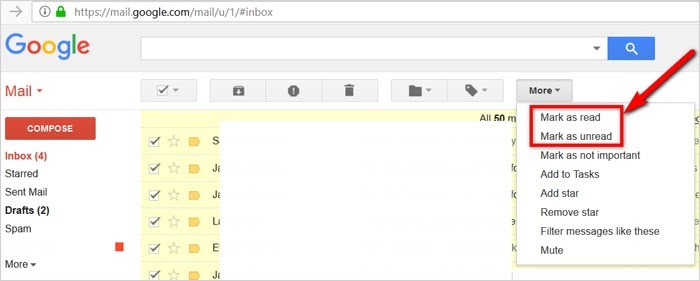
For any user, the read and unread messages are distinctions when a new message arrives in Gmail. But, it’s an opportunity for Gmail power. Click the More category, and you can mark the emails as “read” or “unread” based on your choice. In this way, you can highlight the messages you haven’t gotten yet or curtail the email priority that’s not worth reading so you don’t waste valuable time. 

10 Google Mail Tips and Tricks

Bring priority emails to the top

All Gmail messages are displayed chronologically by default. Browsing through a handful of marketing emails to arrive at an important mail from your boss might not increase your productivity. The Priority Inbox feature of Gmail will filter messages based on your priority. You can activate it by going to Settings>>Inbox Tab>>Inbox Type>>Priority.

10 Google Mail Tips and Tricks

Creating canned responses

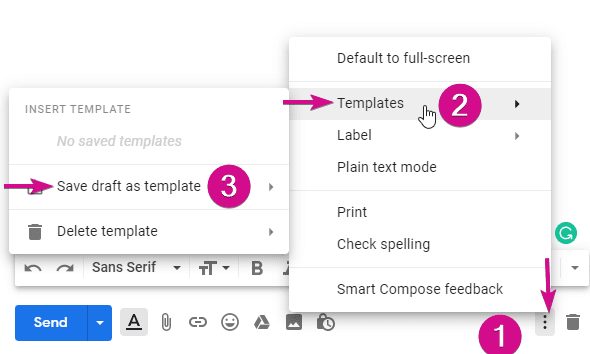
Another huge time saver is making email templates. These templates are canned or saved replies that you can easily send to any of your senders. To create a canned response, type a message that you want as a canned response. Before sending, click on More Options>>Canned Responses>>New Canned Response. It will prompt you to name it.

Once you send the canned message, you can either reply to an existing message or compose a new one. Click on More options and select the response you want to use.

10 Google Mail Tips and Tricks

Check Gmail messages offline

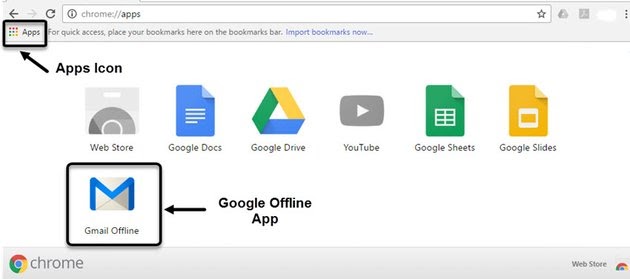
It turns out you need not get hooked with a Wi-Fi connection every time you need to check a mail. By downloading the Gmail Offline extension on Chrome, you can read, search, respond and archive messages without any internet connection. It means you don’t need to waste productive time on emails when you’re back online.

Before using this extension, you need to turn it on when connected online. To go offline, go to the top right corner and click on Settings. The extension will start syncing and downloading mails for a couple of minutes before you venture offline. 

10 Google Mail Tips and Tricks

Using multiple gmail accounts

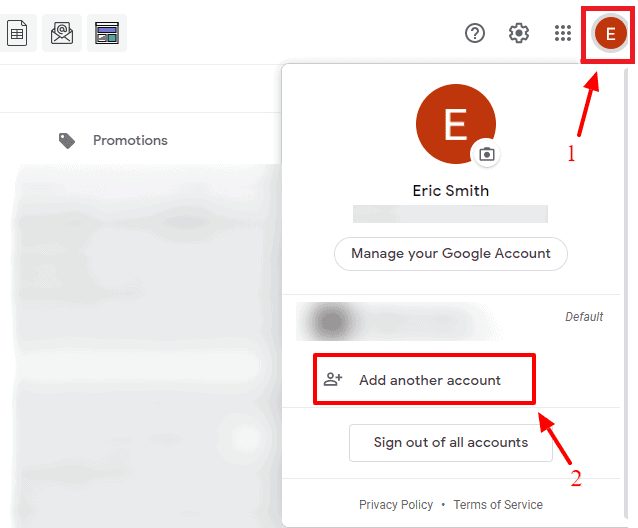
You can switch between multiple email accounts and different inboxes with complete ease as a Gmail user. It’s possible to stay logged in to other Gmail accounts and access messages from any different accounts without signing in every time. In this way, you can keep your personal and work emails separate and not let the former distract you from the latter.

Firstly, add the different Gmail account(s), and to do this, click on your Gmail gravatar on the top right corner. Once all accounts are added, click on the gravatar every time to select the Gmail account you want to use. The best part about this hack is that you don’t have to re-enter the Gmail password every time.

10 Google Mail Tips and Tricks

Scheduling emails

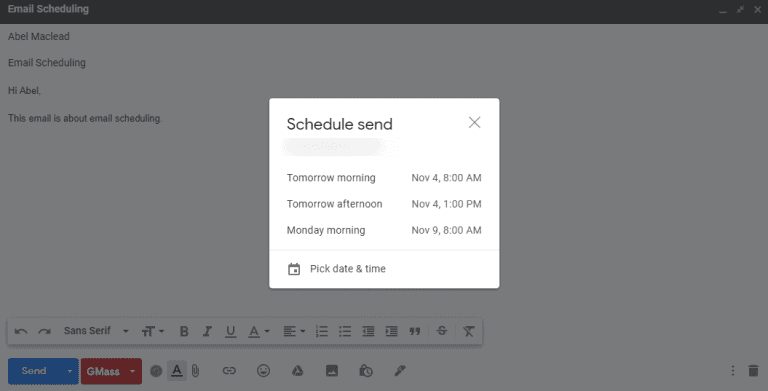
It’s impossible to stay online 24/7 to send email messages, isn’t it? That’s why there is an Email Scheduling feature that you can use to plan the outgoing messages ahead of time. Spend time doing so in the morning and at intervals so you can spend productive time in between with your work.

When you have composed an email, click on the down arrow beside Send button. Select a date and time when you wish to send that particular message, and Gmail will take care of the rest.

10 Google Mail Tips and Tricks

Customizing Inbox display

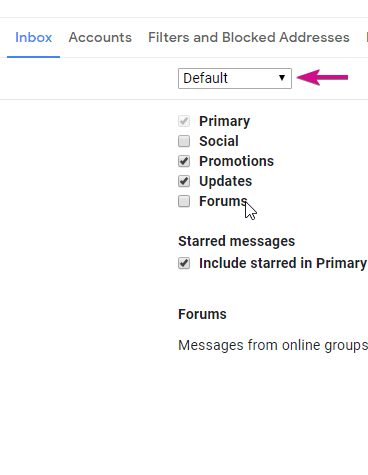
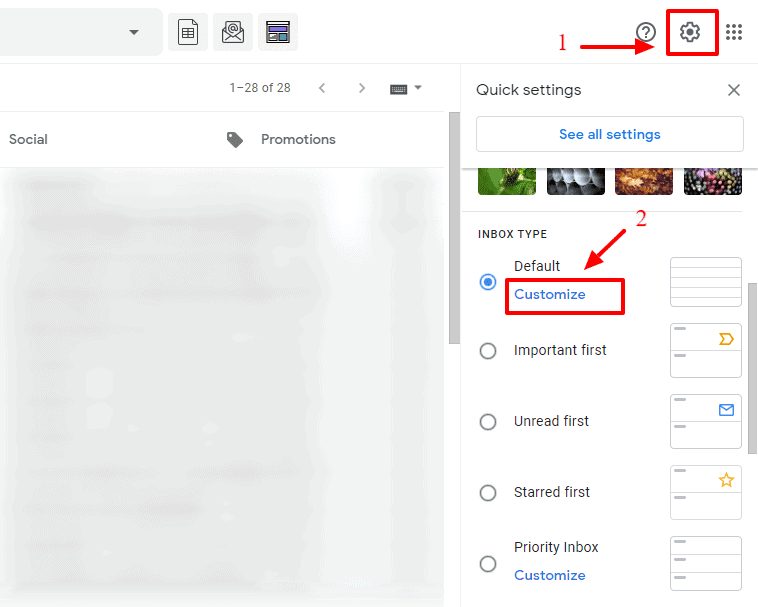
Don’t like the inbox messages split into different labels like Primary, Social, and Updates? Does it disrupt your focus and productivity? Now, it’s possible to customize the display of Gmail Inbox depending on your tastes. On the upper right corner, click on Settings, and under the Inbox Type, choose the Customize button. When the dialog box opens, you can select which messages you want in the Primary, Social, and Updates category in the Inbox tab. 

10 Google Mail Tips and Tricks

Expand and contract main Gmail menu

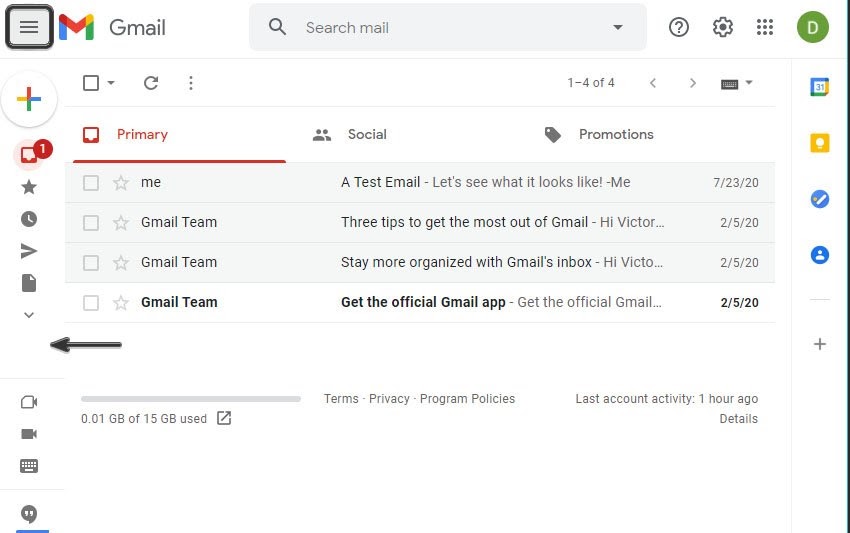
Searching for innovative ways to enhance the looks of your Gmail? Now, you can hide the main menu by clicking on the Main Menu button, which is available on top of Gmail. It is a handy way to cut back on clutter in the Gmail inbox. Now, the menu will be represented by icons instead of texts, and you can always expand the menu to its original size.

10 Google Mail Tips and Tricks

Use nudges for reply reminder

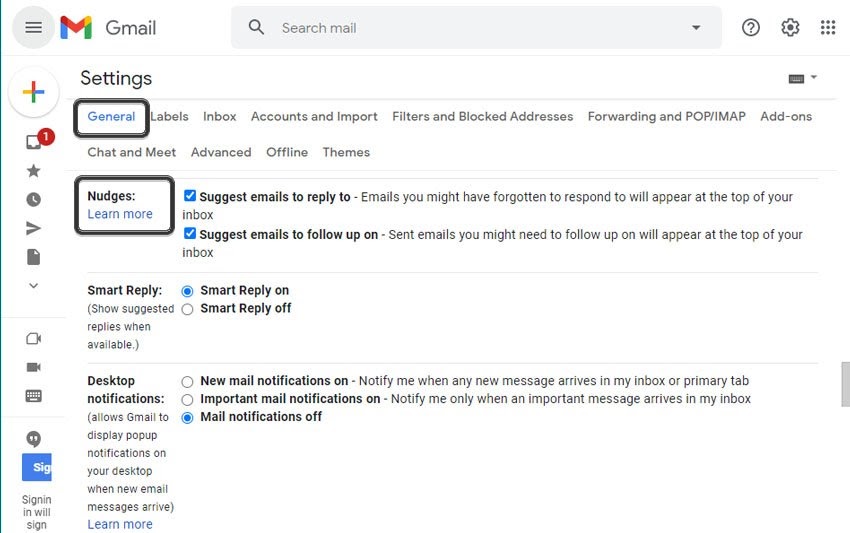
How often have you wanted to reply to an email but forgot to do so? Well, there is a Gmail hack for this situation. Use Nudges as they are handy reminders. When active, you will receive a reminder at the top of your inbox if the message needs any reply after some time. 

10 Google Mail Tips and Tricks

Focus on your productivity!

These Gmail tricks and hacks will certainly change the way you send/receive emails and enhance work productivity at the same time. These tips will certainly conquer the email and make you a power user. Try to master the above hacks and I am more than sure that you will have a great time managing emails and even show off these tricks to your colleagues and friends at the same time!

26 Tricks You Need to Know to Get the Most Out of Google Maps (Android)

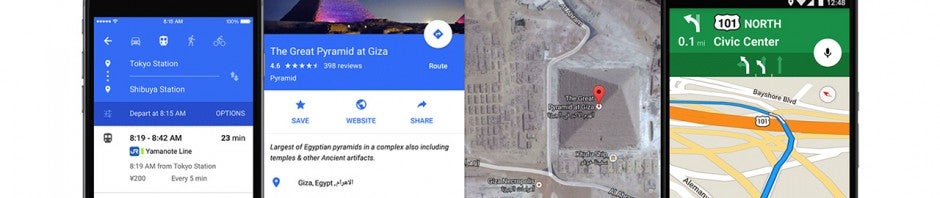
Google Maps, and its lightweight version, Google Maps Go, are a real must on any Android phone. Although Google Maps has been with us for more than 10 years, it is still a reference among GPS applications, and it gets you out of many a tight spot every time you leave home. Don’t know how to get to your destination? Is it faster by car or public transportation? Is there a restaurant nearby? The answer to any question about your route or your location is Google Maps!

In today’s article, we’re going to share the most surprising and popular Google Maps tricks with you. This app is for much more than just checking routes and creating maps. Don’t believe us? Read on to find out!

First of all: Make sure you’ve updated Google Maps 

To ensure that all the Google Maps features are available and working on your Android smartphone, you should update the app to the latest version. Open Google Play on your phone or download the latest version of Google Maps quickly and conveniently below.

Google Maps DOWNLOAD
7

The best Google Maps tricks

1. Pin the addresses you use every day

One of the tricks we recommend you start using right away is to fill in “Your places” in Google Maps. You can set your home address and work address, which is really useful for finding alternative routes from your location to work or home.
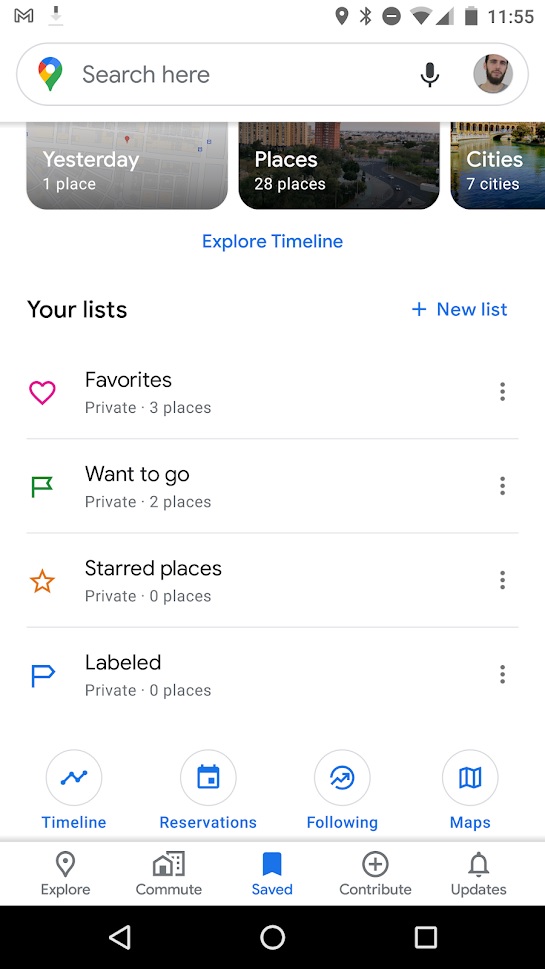
To set this information, simply open Google Maps and click the options menu (that’s the icon with the three horizontal stripes in the upper left-hand corner of the screen) or open the left side menu. Then click the “Your places” button followed by the “Labeled” tab. Now just fill in the fields for “Home” and “Work” to have quick access to routes between these two addresses.

2. Create shortcuts for your main routes

With Google Maps, you can create shortcuts to the main routes you use every day (going home or to work) so they’re ready to go on your home screen. This is especially useful to save time and always have your best route all set.

To create these shortcuts in your device’s home menu, first you need to have your address and work address set in “Your places.” If you don’t know how, check out the steps in the previous point.

Once you have that information on your phone, hold your finger on the Google Maps icon (on the Home screen) and wait for its menu to appear. You will see that under the classic options to remove from Home or uninstall an app, two icons appear: one called “Home” and another called “Work.” Drag these icons to a free space on your Home screen and, voilà, you have your shortcut!

3. Download maps offline

Before the advent of navigation apps, traveling meant buying expensive maps and knowing how to read them to avoid getting lost on the way to your destination. While this added a dash of adventure to travel, it was also cumbersome, and in the long run you spent more time getting your bearings than enjoying your vacation. With apps like Google Maps, paper maps have been rendered obsolete. You just need to connect to your phone and follow the route but… what happens when you dont have an internet connection?

Fortunately, Google Maps lets you download any of its maps for use offline. That way you don’t have to depend on the Wi-Fi network or pay expensive roaming fees to enjoy your vacation.
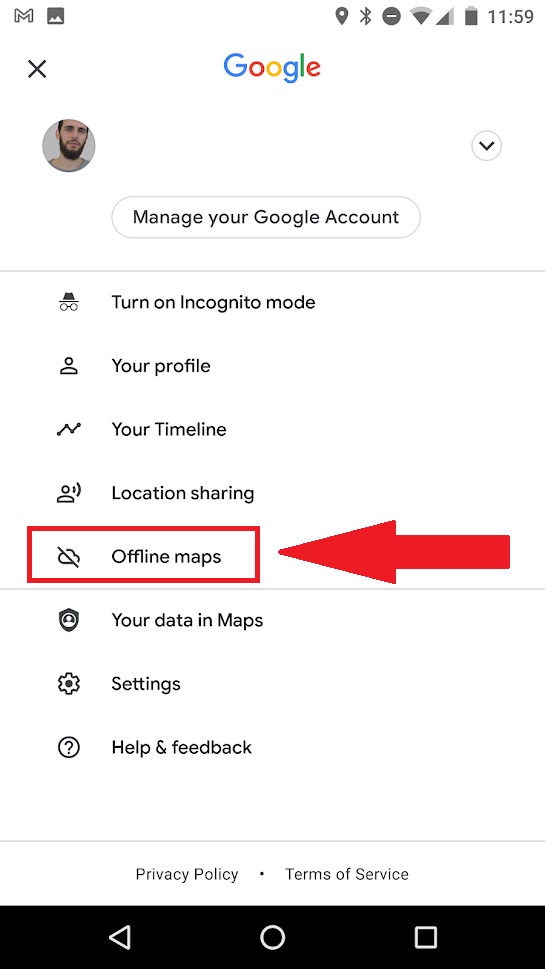
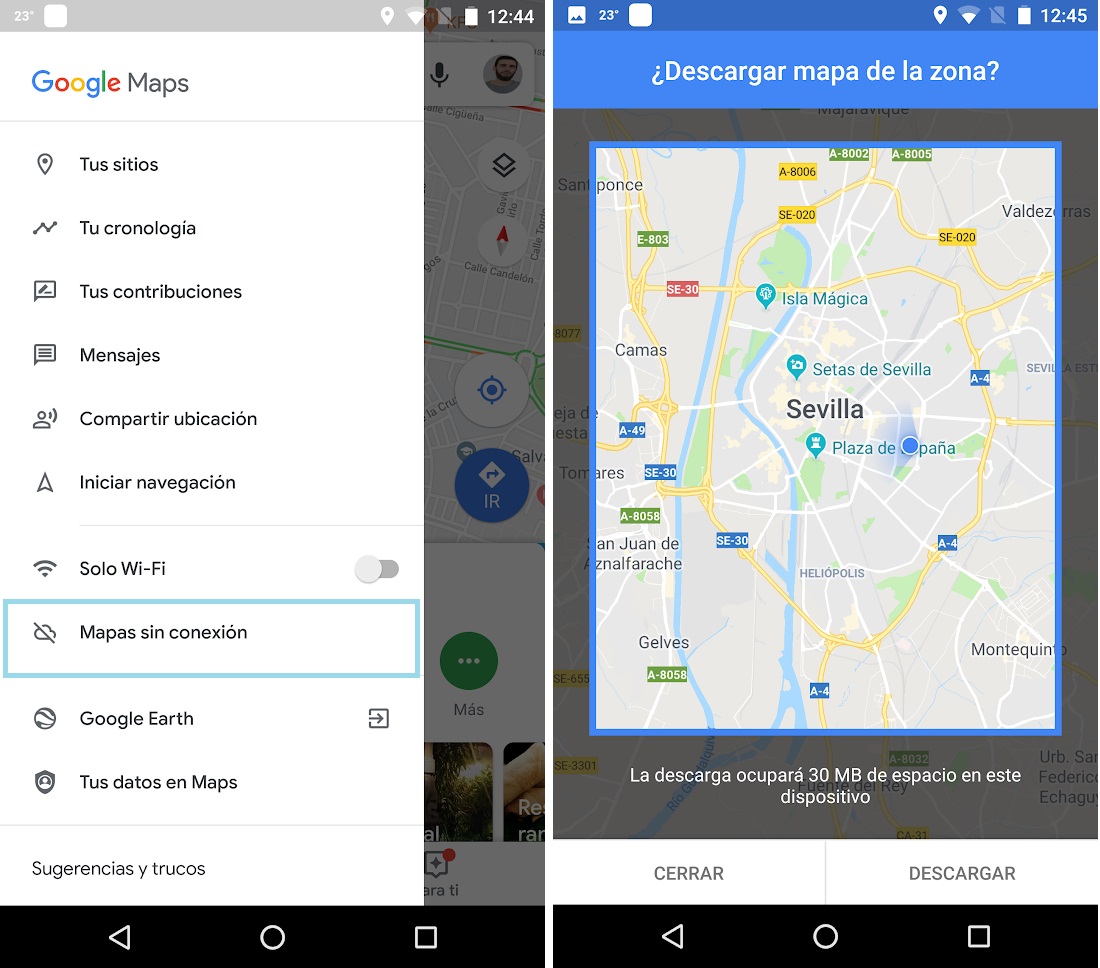
To download a map with Google Maps, just open the app and click on the main menu (the icon with the three horizontal stripes in the upper left-hand corner) or open the left side menu. Then click the “Offline Maps” option and select the area you’re interested in.

4. Create and share your own favorites lists

You know when you’re walking through a city and you see places, stores, restaurants, or views that you want to remember and visit some other time? You can keep them in your head, jot them down in a notebook, or if you’re one step ahead of the game, use Google Maps.

You can create lists of your favorite places in the city, save them, and even share them with other users from the Google app. Using this feature is incredibly simple. Just open Google Maps, go to “Saved” at the bottom of the screen, and then click “New List.

Google Maps will then ask you to name and describe your list as well as to choose whether you want to keep it private or share it. Once this is done you can select the locations you want on the map and save them.

5. Create stops on your route 

Not only does it create the fastest way to get from point A to point B, Google Maps also lets you stop between the two destinations. This is especially useful on busy days, if you are travelling and want to create your own tourist route, or if you simply need to drop the kids off at school before going to work.
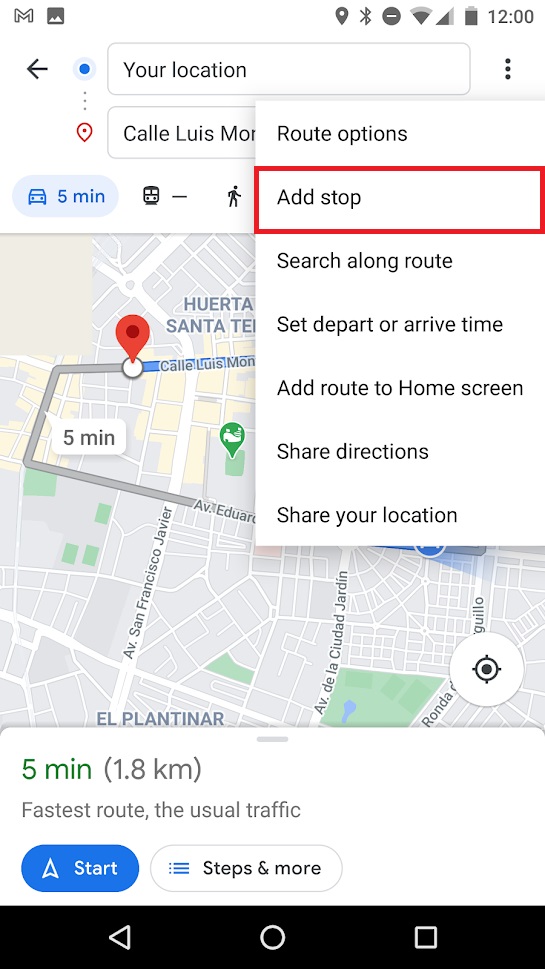
To create a route with stops on it, first create the initial route between your place of origin (A) and your final destination (B). Once Google calculates the best route, click on or tap the icon with the three dots in the upper right-hand corner of the screen and then on the option “Add stop.” Repeat this process with all the stops you need to make that day and wait for Google to recalculate the most efficient route to your destinations.

6. Add and correct information on the maps

As you explore a city, you’re likely to find places and establishments that are not marked on Google Maps. If you want to help the community and add new sites, simply hold the address on the map or choose it from your list of favorites, scroll down and click on the option “Add a missing place.” After that, Google will ask for more information about the business or location before reviewing it and adding it to the map.

The opposite can also occur: you go to a place that you discovered on Google Maps and unfortunately find it has closed, that a road has changed direction, or that it no longer exists. In these cases, you should send a comment to Google so that it can update its information and improve the app.

To correct any Google Maps information, go to its main menu (click on the icon with the three horizontal lines or slide the left side menu) and select the option “Send feedback.” Once you’ve done that, Google will ask you to provide the information to be corrected (a place is missing, the address is missing, a road is missing, some information is wrong, etc.). Fill in the necessary data and let Google take it from there.

7. Get a three-dimensional view of the map

Everyone knows that Google Maps lets you look at maps in their 2D versions as well as with Street View but… Did you know you can also look at a three-dimensional or perspective version of it?

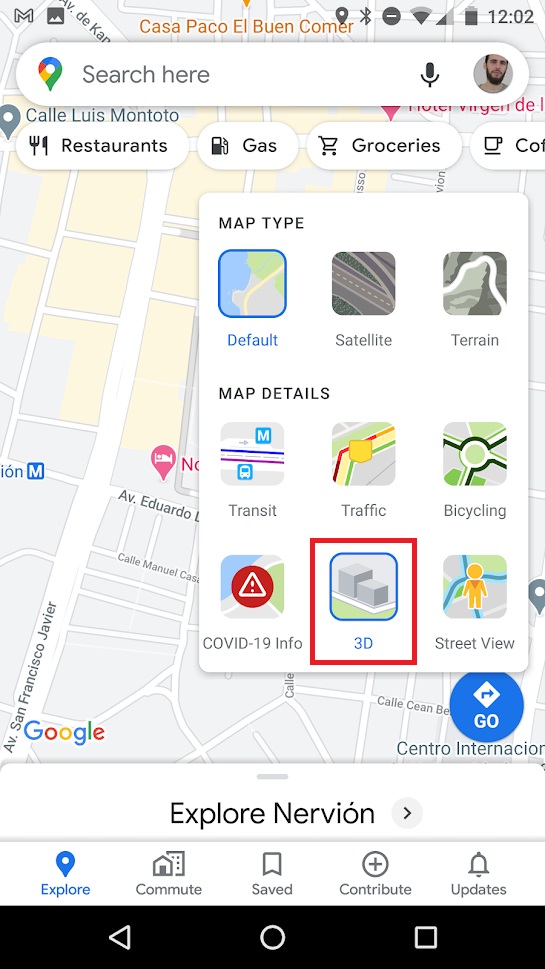
To activate Google Maps’ 3D map, all you have to do is open the app and place yourself in one of the cities where the option has been rolled out. Once there, click on the map icon (that’s the square icon on the right side of the screen) and select the “3D” option. After that, your 2D map will switch to a satellite view of the city.

To change the perspective, just press two fingers together on the screen and drag the map up or down to tilt and see the buildings in 3D.
8. Access Street View

Google Street View is undoubtedly one of Google Maps’ star features. You can get a 360º picture of the place you are going to, and it offers really useful information whether you are a virtual tourism fan or just want to know what the place you are going to looks like.

To access a Street View image from your Android phone, first you need to hold down the address on the map. Then Google Maps will show detailed information about that address. Now simply click or tap the icon with the photo of the location to access Street View.

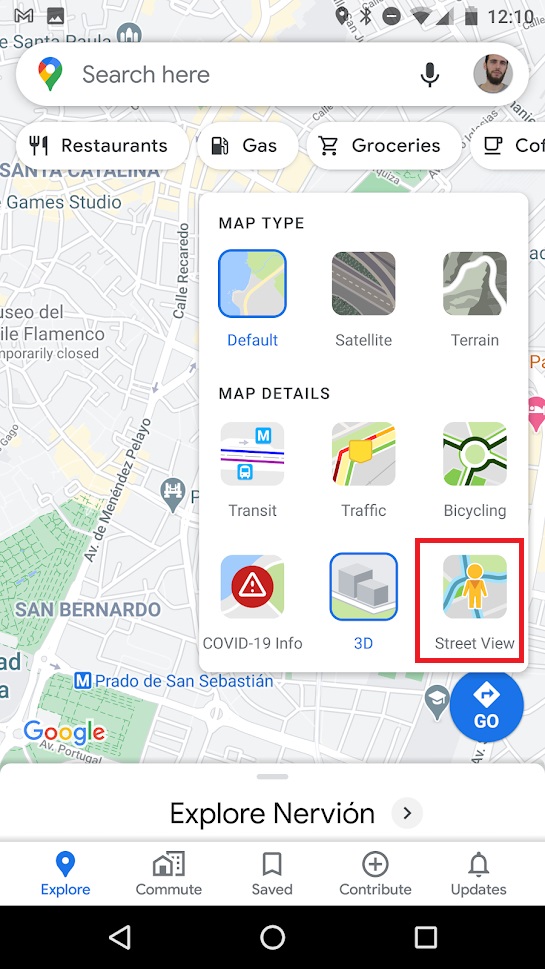
You can also click on the map icon in the top right-hand corner of the screen, select “Street View,” and then tap the place on the map that you want to check out.
9. Share a location

Google Maps offers two ways to share a location with your family and friends, depending on whether you want to share a meeting point or establishment on the map or you simply want to share your location in real time. Below we teach you how to do both.

  • How to share a location on the map

This option is perfect when meeting friends to sending the location of the restaurant, store, or café where you want to meet. All you need to do is tap on the establishment you want to share or, if it’s an unmarked location on the map, keep your finger pressed on it.

Once you’ve done that, a menu will pop up with the location where you can choose the option “Share.” You can then choose whether to share that location through your phone contacts or through apps like Facebook, WhatsApp, or Telegram.

  • How to share your real-time location

Google Maps also allows you to share your real-time location so your contact can find you easily. You’ll need to have your phone location tracking on and send a link to the person you want to share your location with.

Just open Google Maps and open the application’s main menu (click on the three horizontal lines in the upper left-hand corner of the screen or slide the left side menu). Now tap the “Share location” option and give Google Maps permission to access your contacts. Finally select how long you want to share your location and choose the contacts you want to have access to that information. They’ll receive a link that will let them know where you are.

10. Calculate the distance between different locations

Have you ever been curious about the distance from your home to downtown or to the main buildings in the area? Google Maps lets you measure distances quickly and easily with just a few taps.

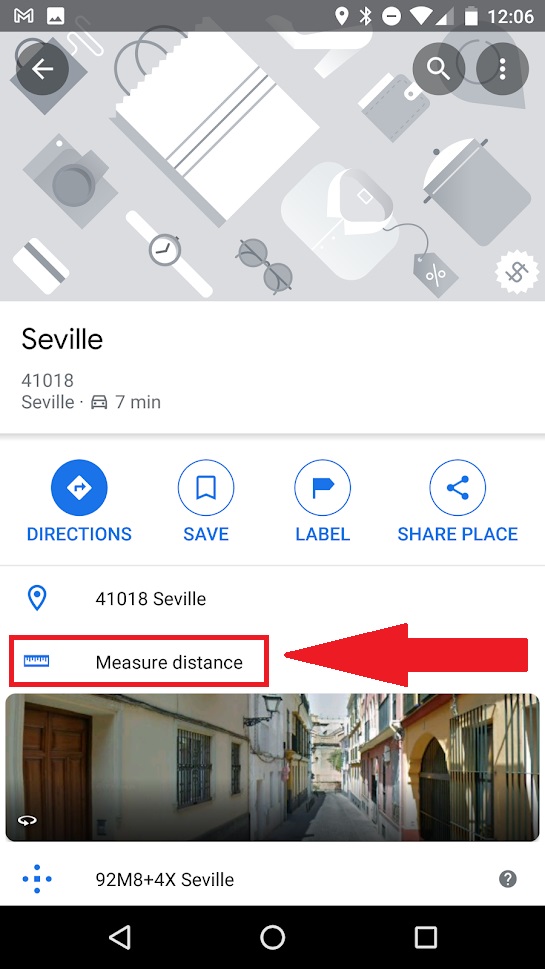
To calculate the distance from point A to point B, simply select a location on the map and the option “Measure distance.” This will take us back to the 2D map view, but this time you’ll have a dotted blue line that you can move around.

Mark the route you want to take and tap the “Add point” button every time you need to turn a corner. Once the route is finished, you’ll see the distance displayed at the bottom of the screen.
11. Save your parking spot

This is a great trick for us absent-minded people who park our cars and then forget where we left them. Google Maps gives you the option of saving the location of where you left your car so you can easily find it later. Want to know how?

For this option to be available, make sure you have your phone’s location on. Once that’s done and you’ve parked your car, click the blue dot with your location on the map. This will open a new menu where you have to press the option “Set as parking location.”

Then you’ll see that a blue icon with the letter “P” pops up on your map marking where you left your vehicle. If you click on it, you can use the “Directions” to easily return to your vehicle.

12. Find out how hard parking is at your destination

In addition to providing us with traffic information, Google Maps also indicates if it’s going to be hard to find parking at your destination. Just choose the route you want. Right below the trip distance you’ll see how hard it will be to park there.

Google Maps divides how hard it is to find parking into three degrees:

  • Easy (blue) –Lots of parking available.
  • Medium (also blue) – Not easy, although there is parking to be found.
  • Limited (red) – Very hard to find parking in this area.

13. Avoid tolls, highways, or ferries

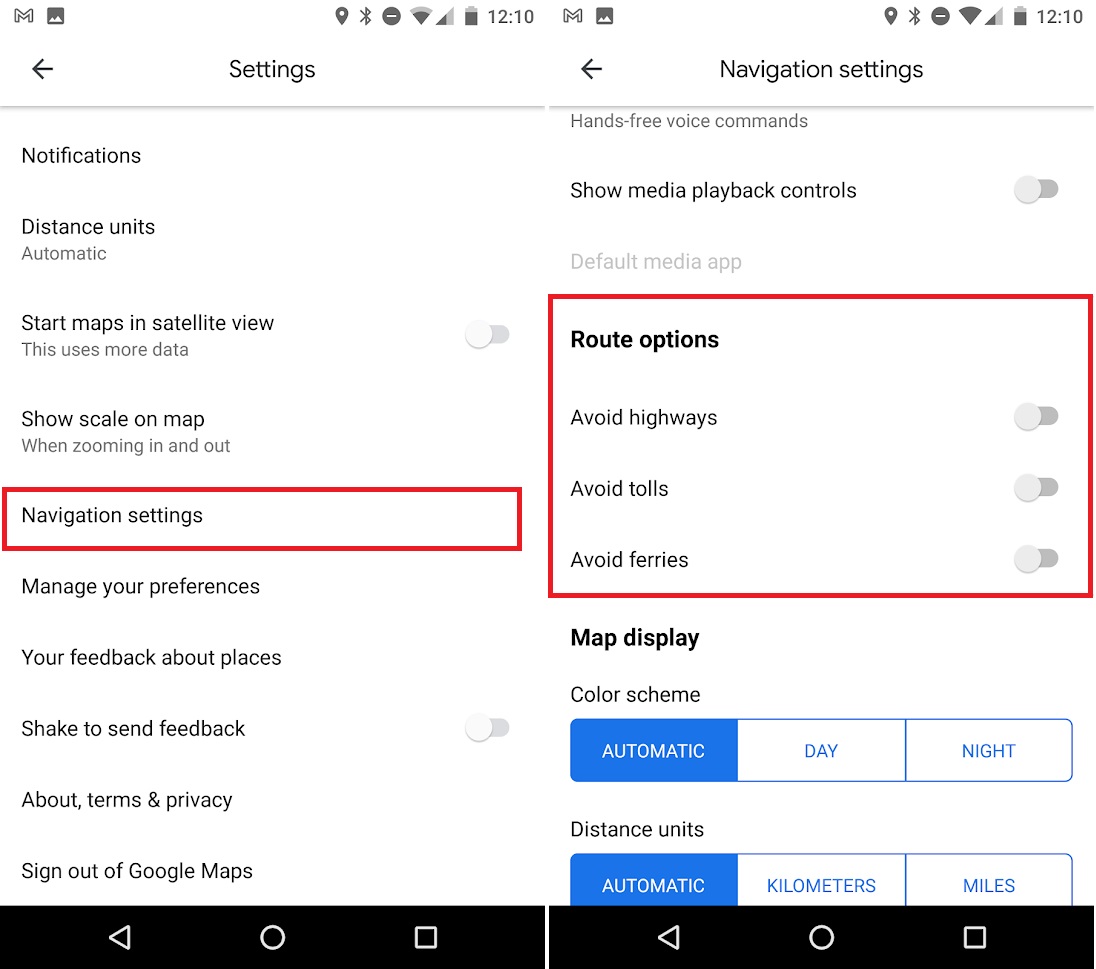
If you like to travel or take weekend trips but don’t want to spend a lot of money, Google Maps offers an interesting option in its directions settings. This allows you to avoid tolls, highways, or ferries and always look for alternative routes which won’t cost you a penny.

To access this service, first you need to input your starting and finishing points for your trip. Once you’ve done that and before starting out, access the route options by clicking the icon with the three vertical dots in the upper right-hand bar. Then select any of the three options (avoid highways, avoid tolls, or avoid ferries).
14. Locate speed cameras on your route

It’s good to have an idea of the speed cameras on your route to avoid any unpleasant experiences on your trip. First, plug in your route and, before getting behind the wheel, zoom in on the map and check the radars on the way. You’ll see that they are different colors depending on how much time has passed since they were confirmed. Click on each of them to find out if they are still active.

15. Check traffic

Traffic is definitely one of the most important aspects to keep in mind when choosing one route over another. By default, Google Maps chooses the optimal route to reach your destination, but it’s a good idea to check traffic yourself in case you want to save yourself some bumper-to-bumper time.

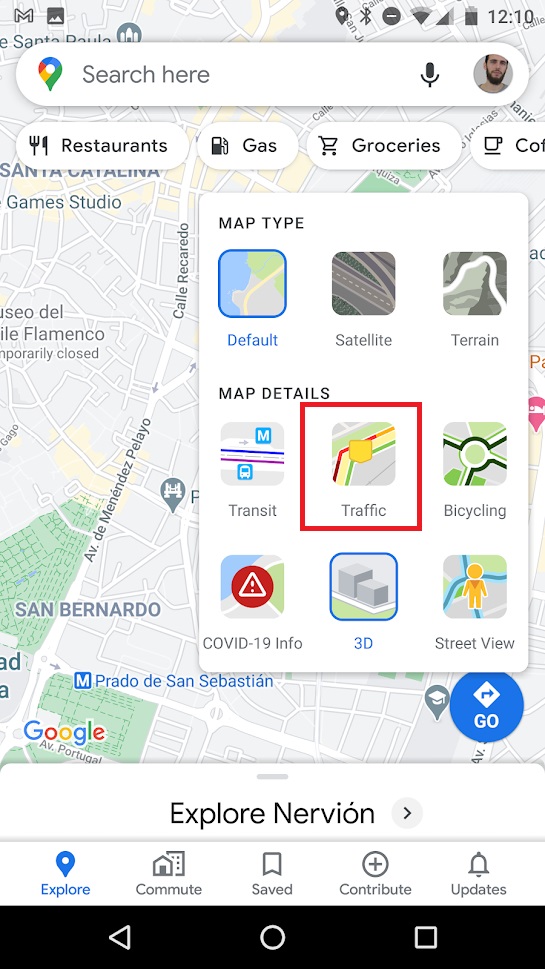
To find out about traffic using Google Maps, open the app, click on its map menu (it’s the icon with the three overlapping maps in the right-hand corner). Then select the “Traffic” option.

The map interface will change, and you’ll see colored lines on each street. Each of these lines will code traffic as follows:

  • Green – Traffic moving quickly
  • Dark red –Traffic slow

If you want, Maps can also give you the status of the traffic in real time (which appears when you activate the option) or typical traffic (if you want to plan a route in advance).
16. Find out how many places you’ve visited

Google Maps collects a ton of information about your trips, the places you visit, and how you move around the city. This data comes both if you have the location activated in your Android phone as well as from your search history.

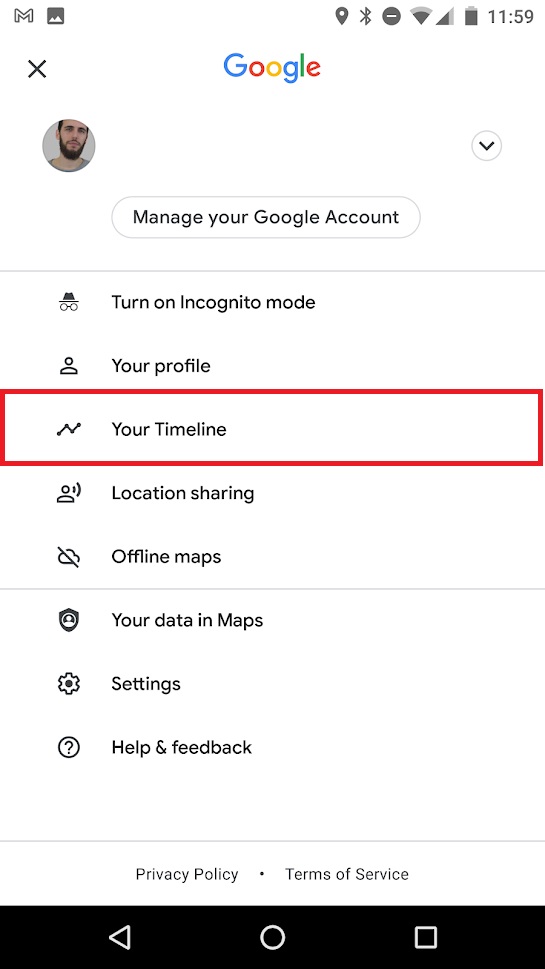
If you’re curious to relive a trip you’ve taken or just see where you’ve been throughout the year, we recommend you take a look at the “Your timeline” option. You can easily access it by opening the side menu of Google Maps.

From your timeline, you’ll have a detailed view by date of all your trips throughout the year, your stops, and the distances traveled. If you’re not all that pleased to see that Google knows so much about you, you can delete your location and search history, although be warned, it takes a while.

To do so, you’ll need to access the Google Maps menu (click on the three horizontal lines at the top left-hand side of the screen) or slide open the left side menu. Then go to the app settings and select the “Maps history” option. From this new window, you have to delete all the entries and searches you’ve made from the app one by one.
17. Listen to your favorite music while driving 

If you use Google Maps as a GPS in your car, you’re probably tired of constantly switching between apps to drive and listen to music at the same time. But you’re in luck, because Google Maps has added an option to use apps like Spotify on your phone while driving.

Spotify DOWNLOAD
7

To do so, open the Google Maps settings from the left side menu. Then click on “Navigation” and activate the option “Music playback controls.” Google will then show you the apps that can play music that you have installed on your phone. Select the one you like best and give Google Maps permission to use it.

Now  simply slide the screen up while driving to access the music controls of your chosen app without leaving Maps.

18. Use voice commands

As a user of a smartphone with an Android operating system, you can use Google Maps voice commands. These are especially useful for planning routes while driving, finding parking, or finding a gas station without having to stop driving.

To use Google Maps voice commands, simply have the application open and say “Ok, Google.” If you see that your phone is not responding, you can press the microphone icon and give the command you want. You can ask how far it is to your destination, if there are traffic jams, when the next turn is, what street you are on, etc.

19. Check out movie and show listings

Fans of moviestheater, and concerts will be happy to know that they can check out showtimes in the city right from Google Maps.

Simply click on the establishment you want, and you’ll see showtimes and upcoming events appear. This makes it uber easy to create plans with friends and organize a fun weekend.

20. Check the public transportation schedule

For many people, public transportation is the perfect way to get around the city and Google Maps know that. For that very reason, the application checks the schedules of your preferred mode of transport once you have established the route to take. All you have to do is choose your route, pick the type of public transportation you use, and Google will automatically show you the timetable.

21. Find services, establishments, and places of interest nearby 

In addition to being an excellent app to get efficiently from point A to B in the city, Google Maps is ideal for discovering new places. This is useful if you need to find a supermarket in the vicinity, a restaurant, an ATM, etc.

To start using this option, simply select where you are or your destination. Then type the type of service you want into the search bar. Then Google Maps will show you the services closest to that location.

22. Save memory and space on your phone with Google Maps Go

Google Maps Go

Google Maps is a powerful app, and if you’re one of those people who hasn’t changed your phone in years, it’s likely to start affecting your device’s performance. If your phone is slow when you have Maps open, but you don’t want to give up this excellent app, we recommend you download Google Maps Go.

This version of Google Maps is much simpler than the full version and takes up 100 times less space on your phone, so it won’t slow it down. It can handle all the basic features of Google Maps, like searching for routes, accessing traffic information and public transportation schedules, and offering directions to your destination.

Google Maps Go DOWNLOAD
9

23. Use Live View’s augmented reality

Live View en Google Maps

If you’re one of those people who gets lost even with a map, Google Maps offers an option that will get you to your destination in no time: Live View. It makes use of augmented reality to show you the way to go through your cellphone’s camera. You simply have to follow the arrows that appear superimposed on the street thanks to the magic of augmented reality.

To move through the city using Live View, first make sure you have the location services on. Then open Google Maps and click on the “Directions” button. Select your location and your destination and make sure to mark that you are going to walk there. You will see the “Live View” option appear at the bottom of the screen. Tap it and, after a short tutorial, you’ll see the route to follow through your phone’s camera.

24. Access the number of COVID-19 cases superimposed on the map 

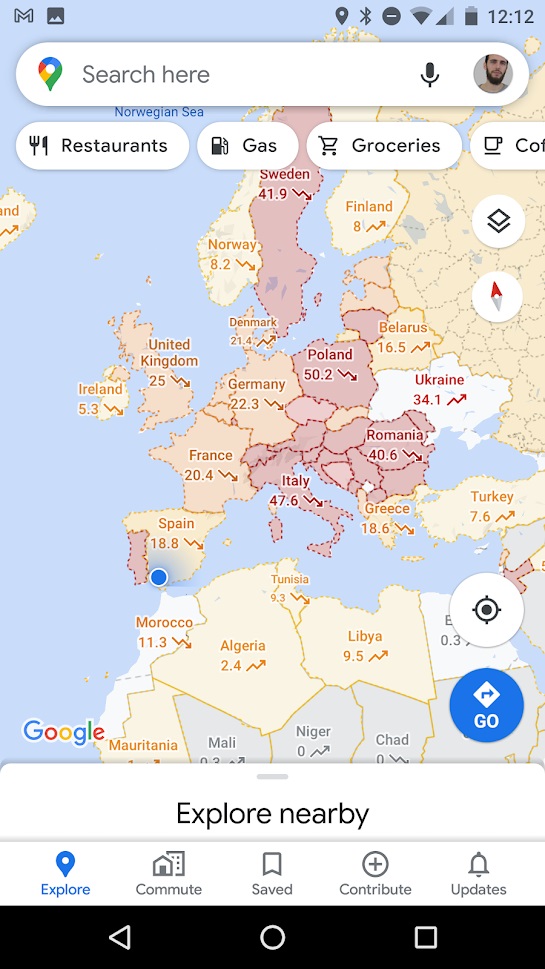
The COVID-19 pandemic has shaken the entire planet, and it is vitally important to know its status at all times. Google Maps has added an option that superimposes on the map the real time coronavirus data, showing the number of cases and whether they are growing or decreasing.

To access COVID-19 data on Google Maps, simply click the “Map Type” button on the right-hand side of the screen. This will open a menu whose options include “COVID-19 info.” After pressing this button, you’ll be able to check the coronavirus information for the cities and countries you choose.
25. Change the arrow icon to a 3D car

Icono de coche en Google Maps

If you use Google Maps a lot for car trips, you’re probably tired of seeing its famous blue arrow representing your hot rod. Did you know that you can exchange it for a nice little 3D car?

To change the appearance of the icon, simply start a driving route as you normally would and then click or tap the blue arrow. A menu will open up where you can choose the car model you want to represent yours.

26. Activate dark mode

Modo oscuro de Maps

One of the most requested features of Google Maps is to be able to change the app to dark mode. This option is gradually being rolled out among users. To turn it on, simply open up Google Maps settings and then click the “Appearance” option. Then select the dark theme to change the app’s interface.

If when you’re trying to activate the dark theme you see that this option does not appear in the app, don’t worry. As we said, Google is gradually rolling it out, and it will soon be available on your phone.

We hope our selection of tips and tricks for Google Maps has been useful. Do you know of any others that you think should be on this list? Tell us about them in the comments section!

How to Update Among Us on Mobile and PC

Among Us, the sensational social deduction game, has become somewhat of a pandemic cult title in 2020 as millions of players put on a Teletubby space shoot and took to the skies. This free app has shown up everywhere on social media as friends and foes from across the globe try to outsmart each other daily. It was precisely the right kind of distraction needed while the world came to a standstill, and it only gained popularity as everybody returned to their new normal.

Among Us DOWNLOAD
9

The latest free features and bug fixes

To remain ahead of the pack, you need to keep your game updated. It ensures you have all the necessary features to keep your identity hidden and expose the enemy in your space ship ranks. The latest update fixed a few bugs and delivered new features to enjoy. The updates are free and safe to use.

How to update Among Us on Android

You can easily update the Android version directly from the Play Store. If you have issues with the Play Store update, you can revert to manually installing the latest .Apk file now on your device.

Update from Play Store:

  1. Open Play Store on your device and select ‘Menu’ in the top left corner.
  2. Select ‘My apps & games.’
  3. Find the update for Among Us and tap on the ‘update’ icon next to it.
  4. Play Store will install the update. You can launch and play as soon as the installation is complete.

Among Us Android DOWNLOAD
9

How to update Among Us on PC with Bluestacks Android Emulator

As Android OS runs inside the BlueStacks emulator, you can follow the same steps as the routine Android update above.

  1. Open Play Store in Bluestacks
  2. Open the Among Us listing
  3. Select the ‘Update’ icon

BlueStacks DOWNLOAD
9

How to update Among Us on PC with Steam

If you’ve purchased Among Us for your PC on Steam, here’s how you can update the game:

  1. If automatic updates have been disabled, click on the update icon manually.
  2. Open Steam and go to ‘Library.’
  3. In the left sidebar, you can click on Among Us.
  4. Click on the blue ‘Update’ button.
  5. Once the update is complete, you can launch the game and play.

Steam DOWNLOAD
8

Play on!

Now that you have the latest Among Us features, you can carry on out-witting the impostors on your spaceship with deceit, betrayal, and sabotage. Remember to keep on checking for updates and following these easy steps to stay ahead in the game. You can also download Among Us for iPhone. If you want to try a few other games with the same gameplay mechanics and theme, have a look at Dark Deception and Enemy on Board. 

Among Us iPhone DOWNLOAD
9

Dark Deception DOWNLOAD
9

What Does “FYP” Mean On TikTok?

TikTok, formerly known as Musical.ly, is a fast-growing video sharing platform. Ever since the Chinese firm Bytedance took over in 2017, we can’t stop hearing about it. Now that you’re sure it’s not being banned anytime soon, we have another chance to learn about this Vine-type video app.

For non-users (and the older generation), it’s bad enough that we have to figure out how the app works. Do we have to face cryptic hashtags as soon as we log in? If you want to get to the bottom of this with us, we’ve got your back.

TikTok DOWNLOAD
8

What does “FYP” stand for?

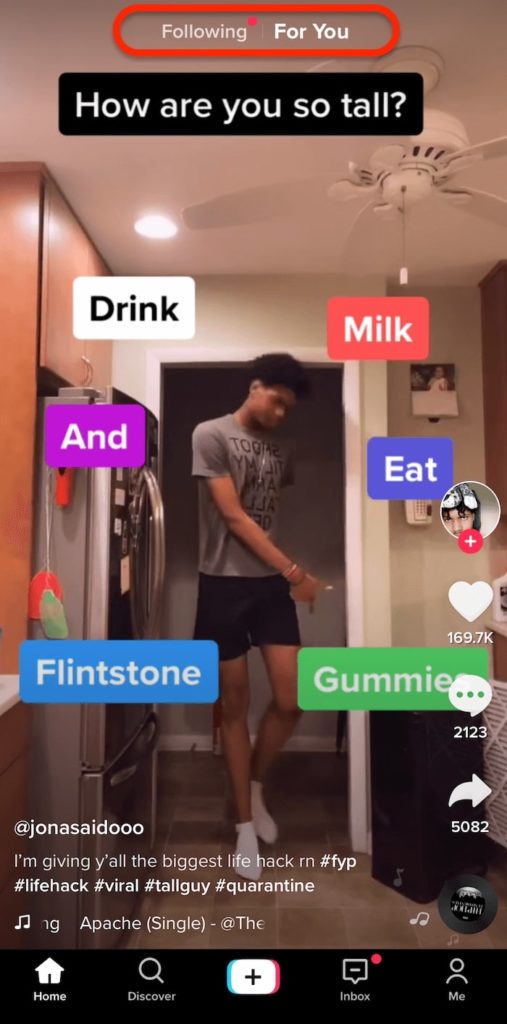
FYP is an acronym, standing for ‘For You Page’ – a page curated of videos that TikTok thinks you’ll enjoy watching. When you interact with content, the algorithm notices this action and pushes similar content to your For You Page. It’s identical to the homepage or For You Page on Instagram, YouTube, or Twitter.

Instagram DOWNLOAD
9

Youtube DOWNLOAD
8

Twitter DOWNLOAD
8

Why do people comment #FYP on TikTok?

Creators add the hashtag #FYP to their caption or comments in hopes of reaching the For You Page.  It’s a theory that content creators can use these tags to surface on the For You Page. 

Unfortunately, reaching the famous Explore Page isn’t as simple as a tag. Twitter explains that many factors influence the algorithm curation of the FYP, but adding the hashtag isn’t one of them. This method, along with other algorithm-related tips, has yet to be verified.

How do I get FYP on TikTok?

Want to become the next Charli D’Amelio? While we can’t guarantee you 100 million followers, the likelihood of your content showing on someone’s ‘For You’ page will go up depending on:

  • Level of engagement (Likes, comments, etc.) 
  • Level of interest (If users watch your videos from beginning to end or skip to the next one)
  • Demographic and location (Whether you and the user are in the same country or are from the same demographic) 

The Mystery Is Over

Now that we’ve deciphered the secret code, it’s up to you whether you want to use the FYP tag. Although there’s no proof it works, it’s still a fun trend to hop on while you create content.