Google Play Basics Part 1: Is Google Play free?

Whether you’re new to smartphones or just making the switch to Android, this is the first part of our Google Play Basics series for new Android users, meant to answer some of the most basic questions you might be afraid to ask.


Is it free to have a Google Play account and use the Google Play Store?


Google Play is an online store where you can download games and applications for Android phones and tablets. But if it’s a ‘store’, can we use it for free? The answer: YES!

Google Play does include paid for games and applications; some cost as little as .99 cents, while others can run you up $25 or more. Having said that, you don’t have to buy apps or games in Google Play!

is google play free

Google Play has thousands of great games and apps that you can download completely free!

is google play free


What makes people think that Google Play isn’t free?


Creating a Google Account, needing to register for and download Google Play, is free, and there are thousands of free games and apps in Google Play. But it’s still a common misconception that you have to pay for Google Play. Why do so many people get confused? There are a few possible reasons.

First of all, downloading games and applications to your phone or tablet can cost a lot of money, and quickly, if you haven’t purchased a data package. How do you avoid additional charges from downloading the game itself?

  • Only download apps and games using Google Play when you’re connected to WiFi, like at home, at work, or at a coffee shop with free Wi-Fi access.
  • Purchase a data package from your mobile operator or change your existing plan to one that has relatively large data capabilities included in the contract.
  • Systematically check your level of data usage. If you buy 200MB and use it up quickly, even free downloads will cost you something.

If you only download apps and games via Wi-Fi at home and don’t want to expose yourself to the costs of downloading on 3G, make sure you turn off the function that allows app updates using data. Updates will only load when you’re connected to WiFi.

To do this, enter the Google Play store and in the upper right hand corner, tap the icon with three vertical dots, then select ‘Settings’. Now, click on the second option at the top and select ‘automatically update applications over Wi-Fi only’.

Another reason for having additional charges to your account? It could be that you’ve inadvertently agreed to pay for upgrades in free games or apps in order to unlock additional features, new levels or upgrade equipment.

Take into account that when someone asks you to upgrade, it usually costs (real) money. You will always get notifications and warnings that tell you your account will be charged, and its impossible for an app to charge you without your permission, so just be diligent in how you use these apps to avoid additional fees.

Do you have any questions about payments in Google Play?

Read the other articles in our Google Play guide:

Original article written by Radek Grabarek, published on Softonic PL.
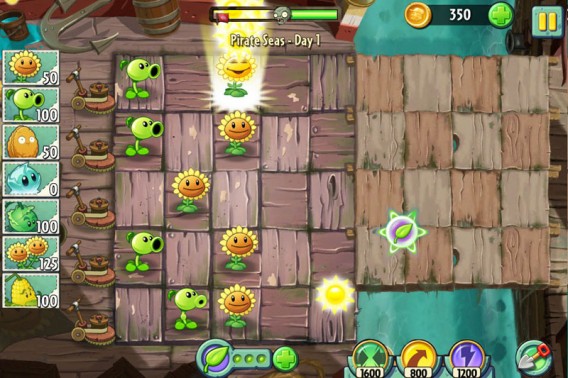
Plants vs Zombies 2: 13 essential tricks!

With over 16 million downloads in its first 5 days, Plants vs Zombies 2 has become a social phenomenon!

Here, we give you 13 tips to help you become the best gardener/zombie hunter of all time!

1. Fertilizer is perhaps the most important innovation introduced in Plants vs. Zombies. The game encourages you to use this bonus often, only giving you the ability to store a few at a time (three at the beginning of the game). Fortunately for you (but unfortunately for the zombies), fertilizer pellets are regularly awarded

Your plants are crazy about fertilizer. Be generous, and they’ll reward you in return!

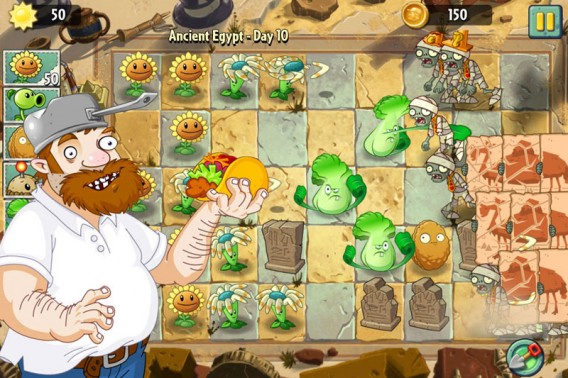
2. The Bonk-Choi is one of the new plants in Plants vs. Zombies 2. You can trust this Chinese cabbage brawler to bail you out of tricky situations. It can hit enemies from the front or behind, ideal for stopping the advance of zombies between holes in your defenses.

The Bonk-Choi at work

3. Don’t waste your time collecting suns. They may disappear if you’re not paying attention, or worse, the Ra Zombies might steal them!

4. Another new recruit, Iceberg Lettuce, is really effective in stopping the advance of faster zombies. Freeze your enemies in place and turn off the torches of the terrible Explorer Zombies. This is a plant to keep in your arsenal, but beware of its long recharge time.

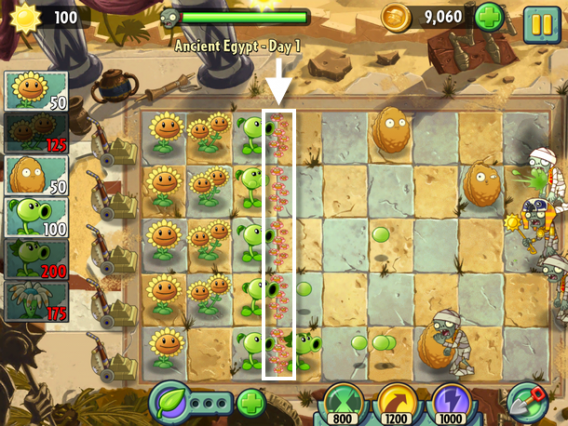
5. Pay close attention to conditions for winning stars on each level. Some details can be confusing such as the famous flowers that you’ll have to protect during some missions.

The famous flowers need protection.

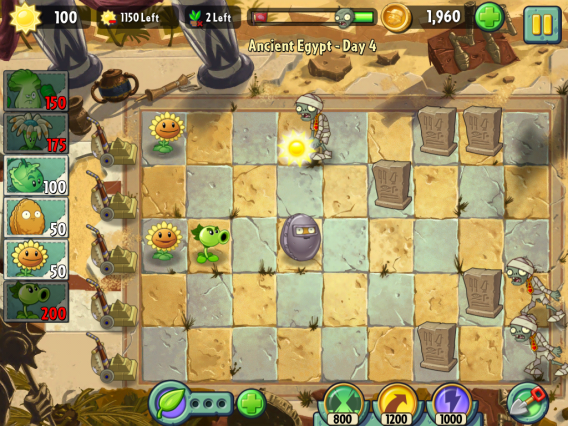
6. The shots of many plants are blocked by tombstones. Use the Cabbage-pults to catapult ammo over the tombstones.

7. Feel free to use your special powers in the case of a zombie rush! Better to lose a few pieces than lose the whole mission.

8. Be ruthless! What happens if a zombie breaks through your lines of defense and comes dangerously close to your lawn? Don’t hesitate to sacrifice some plants to gain time. Planting a Sunflower will give you precious seconds that will allow you to use special powers, plant an offensive weapon or use a fertilizer pellet!

9. Fortify your Nuts with a fertilizer pellet, perfect for strengthening weak defenses.

A fortified Nut

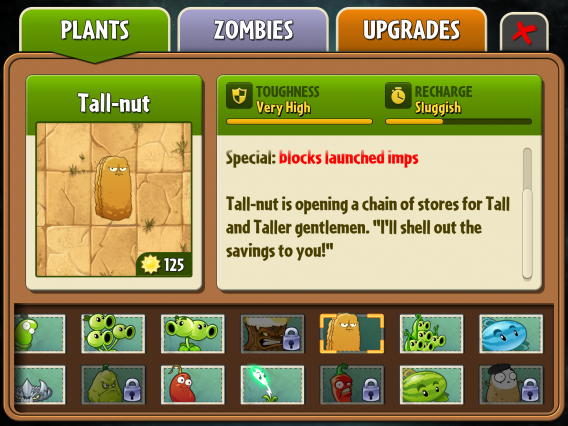
10. Consult the almanac to identify how to wisely invest your keys in improvements and plants. Some plants will be more useful than others; prioritize those that will be most useful to your playing style.

The Almanac – Plants vs Zombies 2

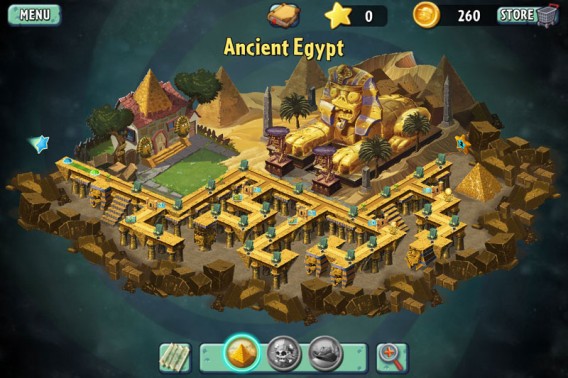
11. Having trouble finding yourself on the game map? Try taking a step back by tapping the magnifying glass. Note that you can also zoom in by pinching the screen.

It’s already looking clearer, right?

12. Any self-respecting strategist must know their troops inside out! Test the effects of fertilizer on all of the plants to boost your strategies. And who knows, you might even be surprised with the results!

13. Boxer extraordinaire, Bonk-Choi has an extension and can reach the zombies behind a nut or a tomb!

Questions about Plants vs Zombies 2? Let us know in the comments!

Download Plants vs. Zombies 2 for iPhone

Download Plants vs. Zombies 2 for Android

You might also like:

iOS vs Android: Which users are more likely to survive a zombie apocalypse

Original article written by Samuel Marc, published on Softonic FR.

Recover deleted data: software that recovers photos, music, and videos

With the right software, you can recover deleted photos, music, videos, and documents. These special programs search USB flash drives, memory cards, and hard drives to recover data and restore files as best as possible. We’ll show you the best software programs for recovering lost data.

Free software

Undelete 360 – filters and batch processing

The free Undelete 360 program recovers and restores files from hard drives, USB flash drives, floppy disks, and memory cards. Filter and preview functions help sorting the search results. A function for batch processing organizes large numbers of recovery tasks. Unfortunately, in our tests Undelete 360 couldn’t recover any of our files.

These file formats can be restored with Undelete 360: DOC, XLS, RTF, PDF, PPT, MDB, HTML, CSV, TXT, PAS, CPP, EML, AVI, MP3, WAV, WMA, MPG, MOV, ASF, JPEG, JPG, PNG, BMP, GIF, TIF, TGA, EML, RAW.

Undelete 360 can handle files deleted from these data storage types: Hard drives, SD memory cards from digital cameras, USB drives.

Undelete 360 supports these file systems: NTFS, NTFS5, FAT12, FAT16, FAT 32.

Recuva – the all-rounder

Recuva is the star among the free programs for recovering your data. This freeware recovers accidentally deleted files as well as files from formatted disks, deleted emails, and unsaved Word documents. In addition, Recuva can also work in reverse to delete data that the user wants to completely remove. The recovery software is easy to use and the results are good. Recuva Portable also supports USB flash drives.

These file formats can be restored with Recuva: JPG, PNG, RAW, GIF, JPEG, BMP, MP3, WMA, OGG, WAV, AAC, M4A, DOC, XLS, PPT, ODT, ODS, PDF, DOCX, XLSX, PPTX, AVI, MOV, MPG, MP4, FLV, WMV, ZIP, 7Z, RAR, BZIP2, GZIP, TAR, WIM, XZ, UDF and more. In addition, it can recover deleted emails from Thunderbird, Outlook Express and Windows Live Mail.

Recuva recoveres deleted files from the following data storage types: Hard drives, USB sticks, SD memory cards.

Recuva supports these file systems: NTFS, FAT, exFAT.

Paid tools

7-Data Recovery Suite – this freeware supports many file formats

With the free and complete 7-Data Recovery Suite, you can recover files the user deleted including photos, videos, music files, and office documents, from a PC. The software works fast and is easy to use. In our test, the free version of 7-Data Recovery Suite found and restored all of our deleted files. The free version only lets the user find the files. To actually restore the files from their digital grave, you have to buy the full version.

These file formats can be restored with the free version of 7-Data Recovery Suite: MAX, ANI, AI, BMP, CDR, CLK, CMX, CRW, CUR, DWG, DXG, DXF, EPS, FH11, GIF, ICO, JPG, JPEG, PNG, PSD, PSP, QPW, SHW, TIF, DOC, HLP, HTM, HTML, MOF, MPP, ONE, PDF, PPT, PUB, RTF, TTF, VSD, WPD, WPG, XLS, 3DS, CAB, CHM, CSL, GZ, LZH, RAR, TAR, ZIP, 3GP, ASF, AU, AVI, MID, MOV, MP3, MP4, SWF, WAV, WMF, DBX, PST, ADP, MDB.

The free version of 7-Data Recovery Suite supports these data storage types: DE HDD, SATA HDD, SCSI HDD, FireWire HDD, SSD, USB HDD, External HDD, Hardware RAID, Floppy drives, USB flash drives, Compact flash cards, Secure Digital cards, Memory cards/Memory sticks, Micro cards, Zip drives, iPods.

The free version of 7-Data Recovery Suite supports these file systems: exFAT, NTFS5, NTFS, FAT32, FAT16, FAT12.

RS FAT Recovery – includes a sophisticated search feature

For a large number of deleted files, RS FAT Recovery provides a sophisticated search function and a practical preview of your disk image. As your files are found, the software creates a restore list and immediately begins restoring the files. In the test, the software was able to correctly restore almost all of the files. However some image files were corrupted. The demo version has all the features of the full version, but doesn’t restore the deleted data. For the restore feature, the user has to sign up for the paid version.

These file formats can be restored with RS FAT Recovery: No information from the manufacturer.

RS FAT Recovery restores deleted files from these data storage types: No information from the manufacturer.

RS FAT Recovery supports these file systems: FAT, FAT 32.

Formatted SD Card Recovery Pro – for almost all SD cards and cameras

Formatted SD Card Recovery Pro lets you restore deleted files from a SD card, mobile phone or hard drive. The software supports all popular file types and countless SD card and camera brands such as Nikon, Canon, and Kodak. Other file types such as office documents or system files can’t be restored using Formatted SD Card Recovery Pro. It also couldn’t handle large amounts of data. The free trial version displays deleted files that have been recovered. To recover the files, you have to buy the full version of Formatted SD Card Recovery Pro.

These file formats can be restored using Formatted SD Card Recovery Pro: PNG, TIFF, INDD, JP2, PSD, Paint Shop Pro Image File (PSP), Mamiya (MOS), Picture File (PCT), DV, M4V, 3G2, M4B, AVCHD Video File (MTS), Divx Encoded Movie File (DIVX), Matroska Video File (MKV), MOI Video File, OGG Media Player (OGM), Video Object File (VOB), 3G2, ASX, M4P, RPS, AIFF, MIDI, M4A, AU, OGG, WMA, RM, Real Audio (RA), SR2, ARW, SRF, NEF, NRW, CR2, CRW, ORF, MRW, K25, KDC, DCR, RAF, PEF, X3f, ERF, RAW, MEF, MOS.

Formatted SD Card Recovery Pro can recover files from these data storage types: SD cards, SDHC cards, microSD cards, MMC cards, xD cards, miniSD cards and CF cards, hard drives, mobile phones, MP3 players.

These file systems are supported by Formatted SD Card Recovery Pro: FAT12, FAT16, FAT32, NTFS, ext2, ext3, ext4, exFAT, BeFS, BSD disklabel, CramFS, HFS, HFS+, HFSX, JFS, btrfs, LUKS, RAID, LVM, LVM2, Linux Swap, Mac partition map, NSS, ReiserFS, Sun Solaris i386 diskabel, UFS, UFS2, XFS, SGI.

All recovery tools were tested by the Softonic Editorial team. The information on file formats, file systems, and storage media was taken from the manufacturer web sites.

Original article published on Softonic DE.

FIFA 14: the pros and cons

We played the new soccer sim from Electronic Arts and share our first impressions below.

After analyzing PES 2014, it’s now time to evaluate the pros and cons of FIFA 14, the favorite again this year in the long-running battle between Pro Evolution Soccer and FIFA. Who will win the battle of the 2013/2014 season? The choice is in your hands…

Graphics and sound

If you thought that FIFA 13 was technically superior, FIFA 14 takes things to a whole new level. Unfortunately, the PC version can’t take advantage of the much-heralded new Ignite engine, which improves graphics and takes the faces, movements, and animations of the players closer and closer to reality.

The expressions of the players during celebrations, and the way they move, are faithful to their real-life counterparts. You can see the effect of Pure Shot immediately since it replaces “steps” with a smooth-looking shot.

Most of the innovations are for those who are already familiar with previous versions of the game but some of the goodies, like sound effects when you kick the ball or when it hits the post, are small details appreciated by anyone who is a fan of the sport.

EA has spoken at length about Ignite, the new graphics engine for FIFA 14 on next-gen consoles (PS4 and Xbox One). For older generation consoles and the PC, unfortunately, the decision was made to use the same graphics engine as the previous version. EA says conversion of the engine would be difficult because of the architecture of the next-gen consoles. As a result, the visual and audio improvements are pretty marginal. I would have expected something more since, their key rival, PES 2014, has just released one of its best versions yet.

Gameplay

I was impressed by the new FIFA 14 gameplay. I was expecting some improvements, but they’ve surpassed my all of my expectations. First of all, the animations have an impressive fluidity to them and direction changes are less abrupt and more harmonious. Players move in a realistic way, like the real champions they represent. The new Precision Movement feature does a great job of recreating the dynamic movement of real-world players. In short, everything seems to be modeled and animated with great care.
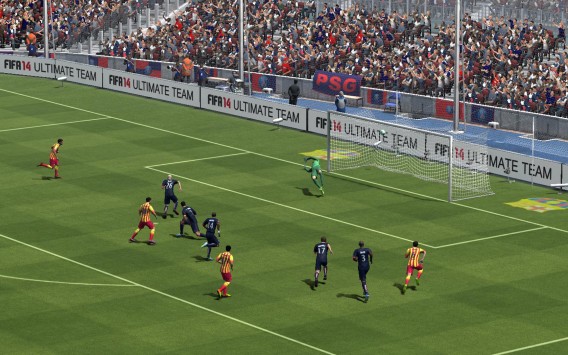
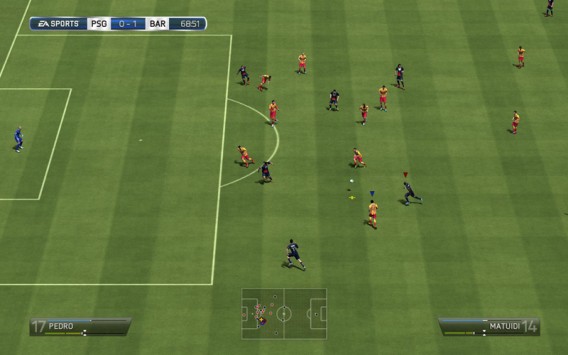
FIFA 13 was criticized by many, and rightly so, for game speed, which many found to be excessive. EA has listened to the feedback from its users and FIFA 14 imposes a slower, more reasonable pace of play which allows for better setup of plays.

The defensive side of the game is much-improved. The one-on-one play is incredibly realistic. Players have the intelligence to break down defenses by creating space for themselves and separation from defenders. You’ll see that attacking players will watch the backline to avoid being caught offside before breaking free for a pass or through ball. Attackers will now also perform checked runs to confuse defenders.

Even tactics development has improved. The slower pace of the game encourages players who like to play more with ball possession. And long passes are more precise, aided by the new ball physics that allows trajectories to appear very realistic. We haven’t even mentioned the shooting: while in FIFA 13, ways to score were more or less the same, in FIFA 14 everything has changed. Pure Shot actually allows you to set the power and direction of your shot with a precision and variety not possible in previous versions.

Not only that, but attackers are now able to better coordinate their moves, looking for the best angle or proper timing to shoot. Best of all, kicks are now bona fide spectacular.

I’m still thinking about the goal you scored a while back, Daniel – it was a beautiful kick that went just inside the post. A real treat for the eyes. I’m sure the volley will be the most appreciated feature by many gamers in this version of FIFA.

When we’re talking about gameplay changes, it’s true that the list is long and clearly the improvements are numerous and more realistic, especially when compared to FIFA 13 which was fun but gameplay was too fast.

But if we’re talking about casual players, would they give the same answer? I doubt it. In fact, I think that the gameplay improvements are finishing touches that only longtime fans can appreciate.

Do you remember the first version of the Impact Engine? Notwithstanding improvements, it seems that EA has been asleep at the wheel…or rather, on the field, given the advantage Pro Evolution Soccer 2014 has over its competitor.

Interface and menus

In previous versions, FIFA neglected usability when it came to the navigability of menus. In FIFA 14, the settings are the same as before, but are now accessible via an innovative tiled appearance, inspired by Windows 8 aesthetics.

The new Home screen is very user-friendly and it’s easy to find everything you need. Not only that, now you can find explanations in the menus that explain terminology and gameplay. This is a real breakthrough for beginners, letting them learn how to play and catch up to the more experienced players.

The new menus and design are a feast for the eyes and a masterpiece of usability. There are other things I think are worth mentioning too. For example, have you noticed the menus for settings, training, and tactics? They’re all exactly the same as before. Given the redesign, I would have expected some changes there as well. In particular, I would have modified the tactics editor, which has been unchanged for years and isn’t as good as the one in PES 2014.

The final judgment, however, is up to you. What are your impressions after trying the new FIFA 14?

Original article published on Softonic IT.

iOS 7: What can we expect from Apple’s September 10th keynote?

It’s (almost) iOS 7 time! The Apple keynote is September 10th (that’s tomorrow!) and it’s one of the most highly anticipated Apple events yet. Naturally, everyone is making assumptions about what will be revealed.

Apple events always trigger this sort of bookmaker fever. Journalists, developers and enthusiasts are always speculating, imagining, and betting on what Cupertino has in store for the World. And this time is no exception.

What everyone already assumes will be the heart of the event is the announcement of iOS 7 (which we tested for you immediately after the WWDC in July.) iOS 7 could be made ​​available for download at the same time as the event or, more likely, next week.

ios7_homescreen

Home screen of the new iOS 7

There’s a remote possibility that the version of iOS 7 for iPad will launch after the iPhone version, seeing as the new iOS beta has shown greater stability on the smartphone than on the Apple tablet.

One new element we expect to see at the event is the fingerprint reader, which will be integrated into mobile devices. It seems that, for the moment, it will only serve to unlock the screen, but it would be very convenient if it also became the central function for managing the new iCloud Keychain.

Some updates to OS X 10.9 Mavericks might also sneak their way into the keynote on Tuesday. We’ve already talked at length about the changes introduced in the new operating system for Mac, but this time an official release date will be announced, which could be in the very near future. There might even be a few other surprises.

The other major software news will cover the iWork ecosystem. The beta of iWork for iCloud has been available to developers since June, and in a few weeks everyone with an Apple ID will be able to try it out. It’s likely, therefore, that September 10th will be the official final launch.

iWork for iCloud

And that’s not all. 9to5mac.com suggests that the iWork suite for Apple’s iOS will be made free. The proof? A screenshot taken on an iPhone with iOS 7 beta 3, which shows iWork listed in the category of recommended free apps from the App Store. This would be a very interesting step for Cupertino in the battle against Microsoft and Google on the wide range of office suites.

If we add to this juicy software news the notion that the Keynote is likely to present the new iPhone (the 5S and probably the 5C, the first plastic Apple smartphone), then you have more than enough reasons for tuning into the Keynote.

Follow all the action from the Apple keynote on our News section.

Nokia Lumia: 20 essential apps

Did you just get a brand new Nokia Lumia? Congratulations! Below are the 20 best apps for making the most of your new smartphone.

Communication

Viber

Viber is an application that lets you make HD video calls and send messages to your friends using your internet connection.

Skype

The King of VoIP is available for smartphones running Windows Phone 7.5. If you’re on a budget, this is an application you’d be mad to miss.

WhatsApp Messenger

WhatsApp Messenger is a free, cross-platform smartphone application for sending and receiving text messages at no cost to you.

Facebook

Facebook, the most famous social network on the planet, lets you keep your profile page up todate, tell your friends what you’re up to, and post a picture in real time from your Windows phone.

Games

FIFA 13

FIFA 13 is a realistic, graphically detailed football game for Nokia Lumia Windows Phones. It has the same fluid gameplay of the console version and includes several of its game modes.

The Sims 3

The Sims 3 is a Windows Phone adaptation of the popular life simulation game. This game takes you on a journey where you control the lives of the virtual characters you create.

Fruit Ninja

Fruit Ninja is a great game that’s available on loads of platforms. The principle: slice the fruit – but only fruit! – that appears on the screen, using your finger as a sword.

Temple Run

Temple Run is am endless running game for Windows Phone 8 in which you control an adventurer who must run for his life after entering a cursed temple.

Music

Free Ringtones

Free Ringtones is an application for smartphones running Windows Phone 7 that lets you download thousands of free ringtones directly from your phone.

Spotify

The Spotify app for Windows Phone is already available on the Marketplace. It has a catalog of millions of songs and sound quality that’s a notch above other music streaming applications.

Shazam

This free and intelligent application lets you find the title of a song just by listening to it. Simply place the phone near the music, and when the song is identified, the title appears on the screen.

Deezer

Deezer is a free, online music streaming service that’s completely legal. With the Deezer application for Windows Phone 7, you can access all the music from your personal account on your phone.

Photo

Lomogram

Lomogram is a photo editing application on Windows Phone that was largely (ok then, completely!) inspired by Instagram.

Fhotoroom

Fhotoroom lets you edit and share your photos directly from your phone. Closely resembling Instagram in functionality, Fhotoroom sets itself apart with more powerful customization options.

Utilities

Translator

Translator is the official translation application from Microsoft for Windows Phone. With an effective translator, you will break language barriers by easily translating text in many languages.

Adobe Reader

Adobe Reader is the official version of the popular PDF reader for Windows Phone 8. It’s clearly the best way to read PDF files on your phone, and is much better than the pre-installed application.

Flashcode

Flashcode is a useful program for scanning barcodes, whether it’s in the supermarket or QR code you find on a flyer or ad.

Flashlight-X

Flashlight-X is a free application that turns your smartphone into a real flashlight.

iCoyote

iCoyote is a community-based driving assistant that warns you of speed traps, jams, and traffic hazards.

Google

Google has provided an alternative to Microsoft’s Bing, which is natively integrated into every Windows Phone.

What are your favorite Windows Phone applications?

You might also like…

5 reasons to switch to Windows Phone

8 reasons for switching to Windows Phone 8

Android 4.2 vs iOS 6 vs Windows Phone 8

Original article written by Samuel Marc for Softonic FR.

How to delete messages in WhatsApp

Anyone who uses WhatsApp knows that there are times when the chat can look completely chaotic, especially when it comes to group conversations.

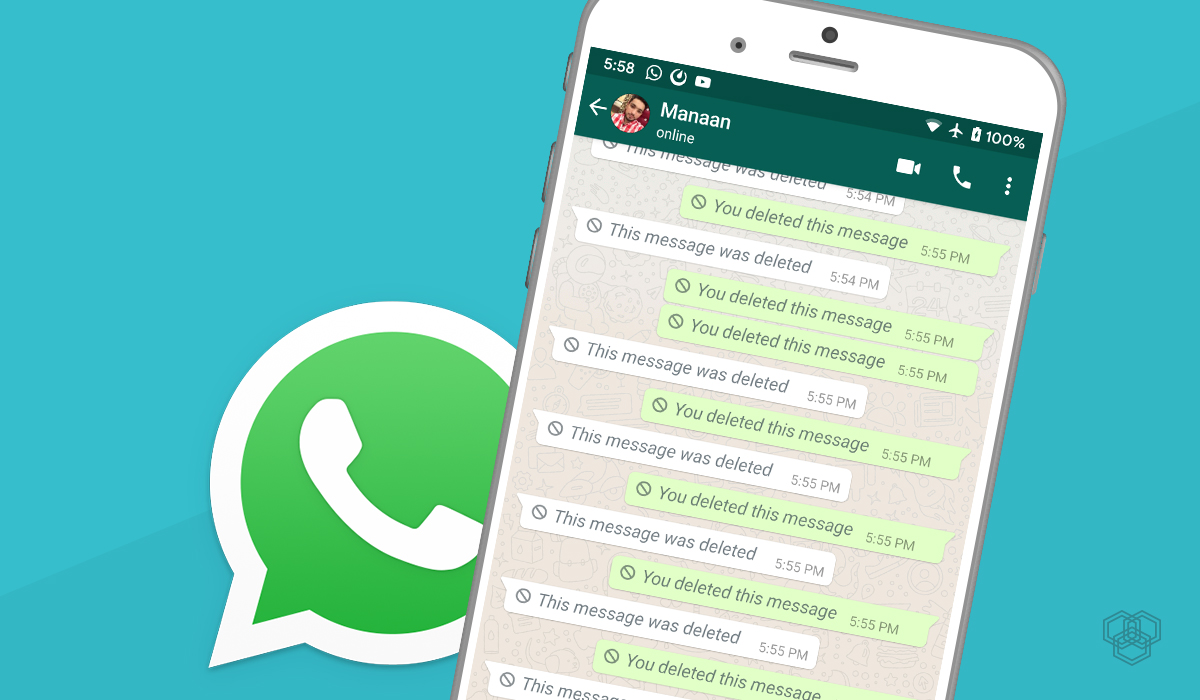
The good news is that WhatsApp allows you to delete sent messages in order to better organize your chat window. Here’s a step-by-step guide for deleting messages on WhatsApp for iPhone (the process is virtually the same for WhatsApp on Android). But remember: this function only deletes the messages that are on your device. Here’s how:

1. In WhatsApp, open the conversation and select the message you want to delete.

2. Tap and hold the message for a moment: it will be highlighted in blue. One of the options that comes up will be to delete the message.

3. Hit ‘delete’ and the message will disappear, but be careful: there is no additional confirmation asking whether you want to delete the message or not, so be certain that it’s the message you want to delete.

And it’s done! Now any stray messages will be gone and your chat can be much better organized. If you have any questions, leave a comment below.

Check out our other guides for using WhatsApp on iPhone and Android:

How to recover deleted WhatsApp chats

10 WhatsApp features you might have missed

How to send a voice message using WhatsApp

Original article, written by Felipe Pessoa originally published on Softonic BR

How to block contacts on WhatsApp

As WhatsApp‘s user base continues to grow with more and more people jumping on the bandwagon, it’s inevitable that that annoying person you probably least want to chat with has gotten the app too and won’t stop sending you messages. Many people ask if there’s a way to block contacts from one of the most popular chat programs.

The answer: yes. You can block people from contacting you on WhatsApp. We’ll take you through, step-by-step, how to block WhatsApp contacts using an Android device as as an example (but don’t worry, it’s a very similar process on most devices).

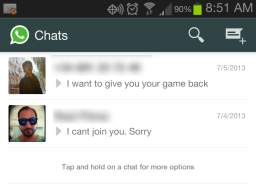
1. Open WhatsApp to the main screen and select the chat with the contact you wish to block:

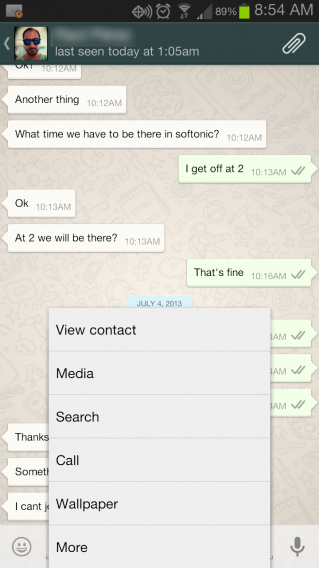
2. Tap the Menu button on your phone and select More:

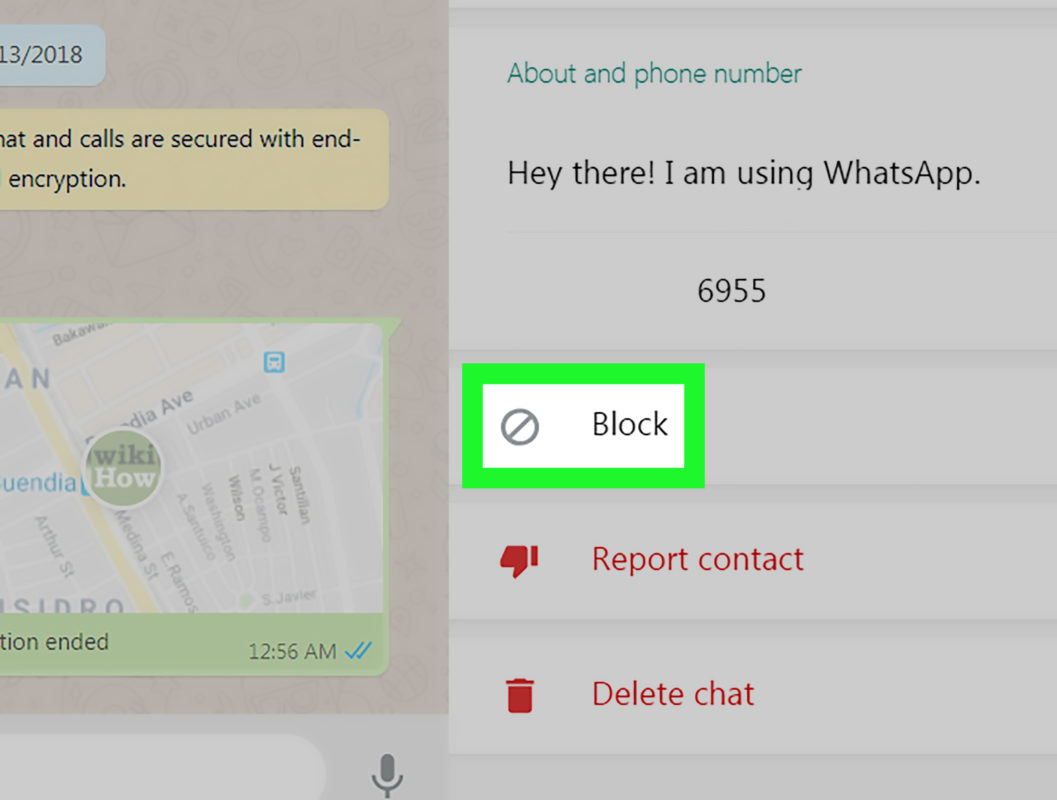
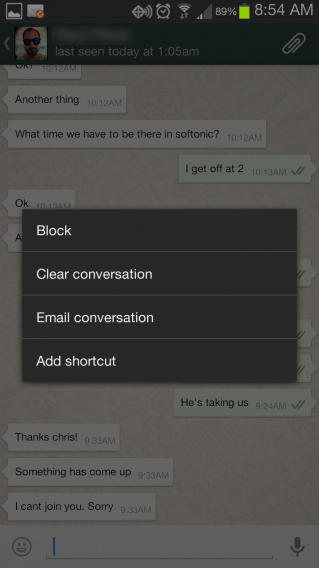
3. The first item on the list is Block. Want to get rid of that annoying contact? Simply tap Block:

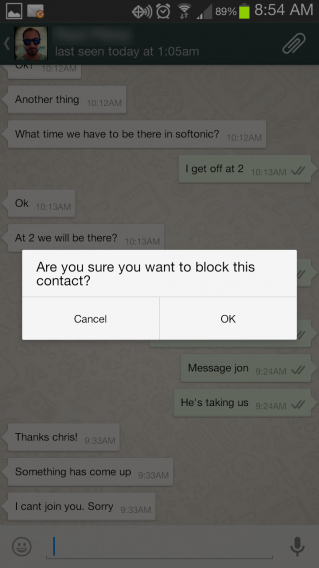
4. WhatsApp asks if you really want to block that contact. If you’re sure, then confirm the action:

And that’s it! Now you can chat without unwanted interruptions. How many contacts have you blocked using WhatsApp? Comment!

Check out some of our other guides for using WhatsApp
How to recover deleted WhatsApp chats
10 WhatsApp features you might have missed
How to send a voice message using WhatsApp

Original article written by Felipe Pessoa for Softonic BR.

How to send a voice message using WhatsApp

On top of adding voice recorded messages, WhatsApp also recently updated the service with push-to-talk style messages that let you send voice messages much like using a walkie-talkie.

Want to know how to send a push-to-talk, radio -style message using WhatsApp? Then read on with our guide, demonstrated using an Android device. Roger. (PS. Sending a WhatsApp voice message using an iPhone is just as easy!)

1.Open WhatsApp and select the contact to whom you want to send the message.

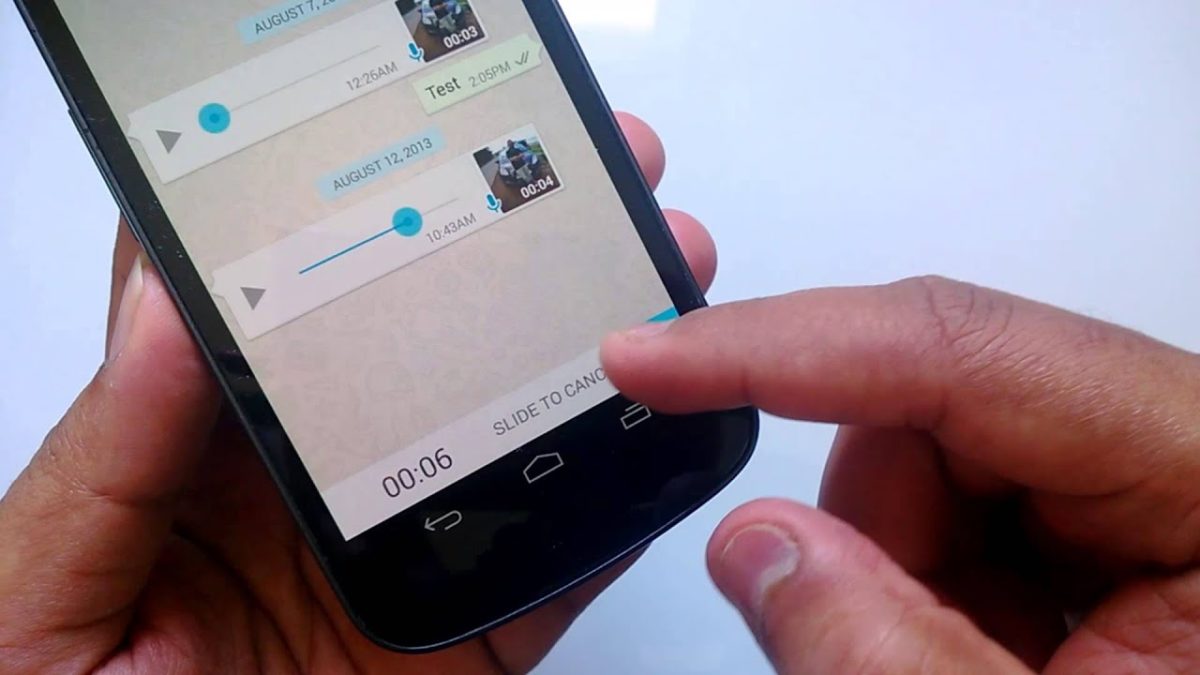
2. To start recording, tap and hold the microphone icon next to the bar where you type messages. When you finish recording the message, release the icon and the voice file will be sent immediately.

3. What if you don’t want to send the message? Here’s a little trick: You can cancel sending the message, but only while you’re in the middle of recording. To cancel sending, just slide your finger to the left.

What do you think? Have you already sent voice messages with the new walkie-talkie WhatsApp function? Tell us in the comments! Over and out!

Original article, written by Felipe Pessoa originally published on Softonic BR

How to: Control apps accessing Facebook, Twitter and Google

The other day, I received some interesting spam in my inbox. More interesting than most, because it was from a friend. My guess was that my friend had authorized a third party application with a dodgy reputation to have access to his Google account and, consequently, to his Gmail.

My suspicions were founded: as soon as I checked the list of sites for my friend’s authorized applications, I saw one with a strange name. I had a quick search on Google and found that it had a pretty fishy-looking page.

In other words, on the promise of something wonderful, my friend had given a website located in Russia access to his Google account, with all the permissions you’d expect and some you wouldn’t – including the ability to send e-mail on his behalf! I urged him to revoke permissions to the site.

What are unauthorized apps or sites?

Data stored on Google, Facebook and Twitter is invaluable. Some apps and websites access this data through special permissions given by you. But how, and what for?

Third-party apps and sites asking for access to your accounts do so for a variety of reasons. In general, the tasks they perform are very useful, and are meant to enrich the applications you already use. Some examples of apps and sites that need access to your data are:

  • Mobile versions of your favorite websites (official or not)
  • Websites where you can log in without a password
  • Accessories to better manage your email and social networks
  • Applications that connect various services such as IFTTT
  • Apps that make it possible to back up your data
  • Vanity apps: who’s following you, who’s stopped following you or who’s blocked you

It makes sense, right? At the end of the day, you’re always connected to Google or Facebook, so why not use those accounts to enter other pages? Why not allow applications to use your data for your benefit?

The problem is that not all third-party apps or sites are safe, and not all use your data appropriately. If you don’t authorize the app correctly, the consequences can be annoying…or even disastrous.

Why this licensing system?

Since 2007, the network bigwigs began to enable an identification and authorization standard called OAuth (Open Authorization). It’s the standard that’s used when you identify yourself on a page via Google or Facebook.

The reason for OAuth is simple. In the past, in order for these applications to access your data, you had to enter the password for the service, a password that could be captured or stored.

With OAuth, you no longer have to type passwords: Google user authentication is carried out using Google or Facebook. You don’t have to give your password to any third party site, but the site does ask permission from the mother site.

The dark side of authorizations sites

If you’re too quick to authorize apps without thinking about their quality or reliability, you can move into some dark territory filled with predatory apps and sites. Encouraged by the promise of extraordinary things, that’s when we encounter dangerous (or just plain annoying) malware.
Depending on the permissions that you first granted, a malicious app can do varying degrees of damage to your accounts. It can:

  • Delete e-mails, updates, contacts
  • Send non-requested advertising on your behalf
  • Post private photos in public places
  • Remove personal information (such as passwords)

These actions do not always have malicious intentions. Sometimes, an authorized site is misconfigured or poorly designed. The damage, however, is the same. But it can be prevented easily: you just need to revoke permissions.

How do I revoke or remove permissions?

All services that grant permissions must allow you to look at those permissions and revoke them at any time. But sometimes it’s not as easy as it seems, either because the necessary option is very well hidden, or because the system for revoking permissions is almost incomprehensible.

Revoking permissions on Facebook

Revoking permission on Twitter

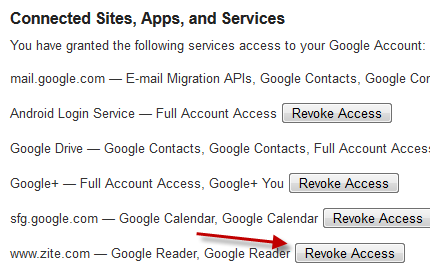
Revoking permissions in Google

For simplicity, you can use the fantastic page MyPermissions.org and its applications for iPhone and Android, which monitor your services and remind you to clean up the authorizations periodically.

Some tips before we go…

Periodically cleaning up your list of authorized apps is good for your health: it helps you avoid long-term problems when those applications are abandoned or attacked by hackers. But that’s not enough.

You must think before authorizing an app or third party site. What you are authorizing? How reliable is the site? What permissions does it want? If it smells fishy, if it looks too good to be true or looks just a bit dodgy…your mental alarms should begin to sound.

Another helpful tip is to periodically change the passwords you use for core services to ones that are strong but easy for you to remember, using a different one for each service. Using the same password for everything means that if one service fails, they all fail.

Have you had problems with unauthorized apps? Share in the comments below.

Original article written by Fabrizio Ferri-Benedetti, published on Softonic ES.