Facebook Paper turns the social network into a personalized newsroom

Facebook’s anticipated personalized news app, Paper, is out now for iOS. In a bold attempt to keep users glued to Facebook, the company has rethought how Facebook should work. Paper isn’t just a news reader, but a complete rethinking of what a mobile Facebook experience should be.

Gestures everywhere

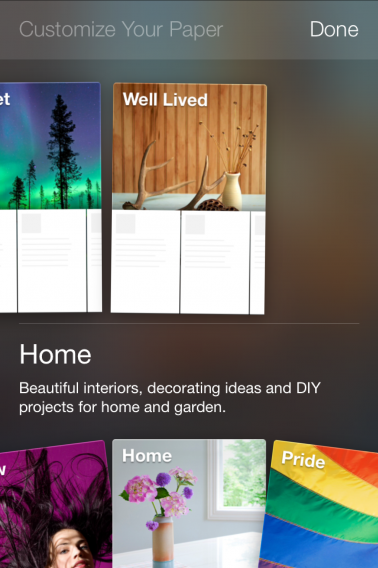
When you first launch Paper, you’re greeted to a quick teaser video of what to expect. Then there’s a complete walk through of the app’s gesture control system, which isn’t inherently intuitive. Still, nailing down all the swipes and pulling shouldn’t take more than a few minutes and you’ll begin navigating the app without a problem. Launching Paper for the first time will also give you options to choose what type of news you want update for. There’s a good number of different categories from news headlines to “LOL” for funny posts.

Facebook Paper categories

Paper draws a lot of comparison to Flipboard app and for good reason. The curation and news categorization and their respective interfaces are extremely similar. Pages are animated like folding sheets of paper and buttons for commenting, liking, and sharing are almost identical between the two apps.

However, Paper takes a more minimalist approach in designing the interface as there aren’t any virtual buttons for navigation. While Flipboard still has buttons for back, search, and settings, Facebook has cleverly replaced all navigation buttons with gestures.

Your new curated News Feed

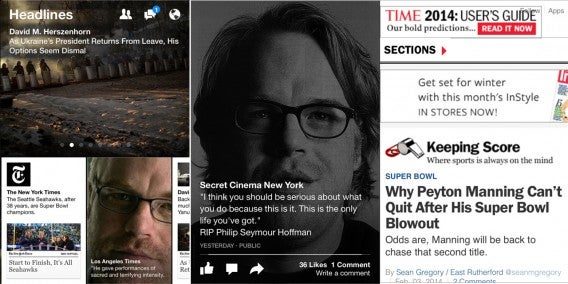
Paper strikes a nice balance between traditional Facebook features and news reader features. For example, cards for different stories are nothing more than Facebook posts, with the “Continue reading” text to expand text as well as links out to the websites where the stories can be found.

FB Paper

Herein lies the biggest difference between Flipboard and Paper: Flipboard provides a much better reading experience than Paper. Flipboard has worked with content creators to have specific Flipboard layouts for news stories while Paper simply links out to the mobile web. If a website has a terrible mobile layout, reading on Paper is painful. Flipboard is better optimized for reading, stripping away the traditional web interface and replacing it with a newspaper-like column view with beautiful images.

NYT FlipboardFlipboard is still a better reading experience

In terms of curation, both apps do a very good job of rounding up the most interesting stories for each category. However, Flipboard has a dedicated “Flipboard Picks” section where Flipboard editors choose what they think is the most important news for the day. Paper doesn’t have this human-powered section, instead offering you up news from the people you follow and from the different news categorizes you subscribe to.

Goodbye, Facebook app

If you use Facebook as a source for news, you’re going to love Paper. If you still use Facebook to keep in touch with friends, Paper’s news focus may not be optimal for you, but you should still give it a try. While the Facebook app for iOS is still plenty useful, it looks quite dated next to the impressive much more visual and gesture controlled Paper app.

Paper is a fresh take on social sharing but will it be enough to keep users glued to Facebook? Messaging apps like SnapChat and WhatsApp are still gaining ground against Facebook’s Messenger product and Paper doesn’t do much to help the company in this regard. But if Facebook can completely rethink the Facebook app experience, imagine what it could do with Messenger in the future.

Facebook Paper is out now for iOS, though there’s no iPad version as of yet. There’s no word when Android users can expect to see this app.

Download Facebook Paper for iOS

RELATED STORIES

What can I do with my tablet: read books, news, articles and magazines

Your Android tablet has a lot of potential. In this Android Guide, ‘What can I do with my tablet?’, we explain how you can fully exploit all of its functions. In this installment, we’ll go through the best applications for reading books, news and magazines on your tablet.

If you’ve recently become the proud owner of a new Android tablet, you’ve probably already been using it to surf the internet or check your email, without knowing about all the great functions you can use it for.

Your tablet actually has many different uses, some you may not even realize. If you’ve read our article explaining how to recognize your tablet’s operating system and you have an Android tablet, then you’re ready to discover how to harness the full potential of your device.

In this first installment of the guide, we’ll show you how to read on your Android tablet. Whether you like to read a good book before bed, or the morning newspaper at breakfast or during your commute, the beauty of the tablet is that you really can take easily use it anywhere.

We’ll have a look at apps that will enhance you reading experience, like saving interesting articles to read later on, others for downloading books (ebooks) and managing your library, and apps for reading the news and the most interesting articles on the web.

Pocket : Read more and read later

Reading on a tablet isn’t exactly the same as reading a physical book. The brightness of the screen can tire the eyes, and the layout of web pages isn’t always oriented to facilitate reading articles. In fact, they can sometimes be a real jumble of text, links and images that complicate reading, or are simply not well adapted to your tablet screen.

Occasionaly, you may come accross some news or an interesting articles that you don’t have time to read at the moment, but would like to save to read later on.

Luckily, there are apps which are specifically designed to improve reading on web pages, formatting them in a clean visual, taking away advertising and elements that disturb the view, and adapting it to the device screen. The same applications also let you save articles and web content to read at any time of the day.
Pocket

Pocket is one of the first (and probably best) applications with the “read it later” function. It’s also a great tool for simplifying and cleaning up web pages for easy reading on the device you’re using. Here’s how to use Pocket.

1. The first step is to download Pocket for Android on your tablet. Once you’ve installed and opened the app, you need to create an account. Enter your email, choose a username and password, and click Sign up.
Download Pocket for Android

2. Next, close the application and look for an article online that interests you. One idea is to go to your Facebook account and open a link that a friend has shared on your wall, or open the browser on your device and go to the ‘Features’ section of Softonic and click on an article that interests you.

3. Then, press the share button on your browser. The location of this varies depending on the browser you use and your version of Android. If you’re using the default, the button’s probably in the upper right corner. Tap on Share page.
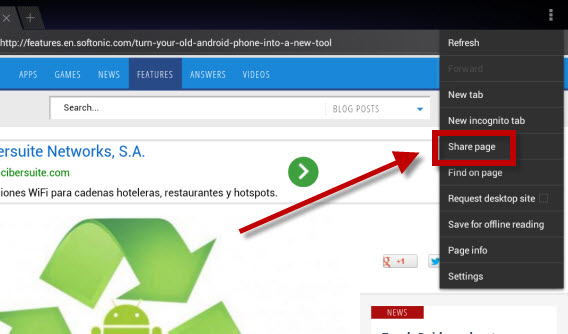
Share page on Pocket4. Pocket will be among the various applications that you can use to share the article. Tap on the icon.
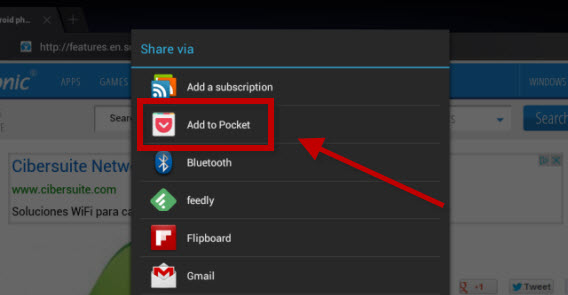
Add article to Pocket5. You’ll see the icon for Pocket in the center of the page notifying you that the item has been saved in the app. Press the icon to go directly to Pocket.
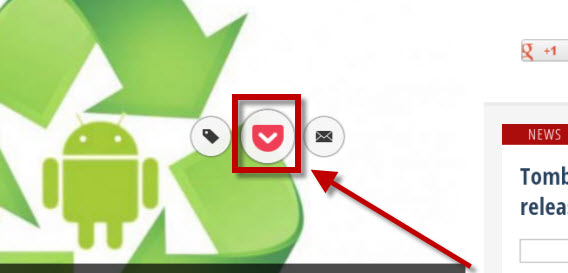
Click on the Pocket icon to access your articles6. Once you’re in the app, you’ll see a thumbnail of the article with the title and the picture. To view it, just tap above it, and voila, the item will appear for you, nice and clean.
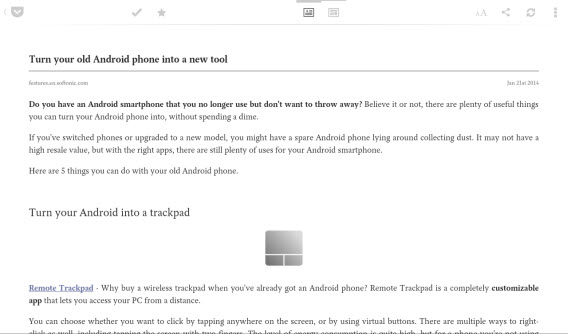
Pocket makes it much easier to read contentNow you can read the content easily, whenever you want, with a page that’s perfectly adapted to your tablet screen. In addition, pressing the button at the top right with the two “A“s will allow you to edit the reading settings (such as font size or background color).

Adjust settings as you prefer

If you tap on the icons at the top center of the screen, you can change between the original layout and the adapted layout.

To take advantage of Pocket at its best, the best idea is to install the plugin on your browser. This lets you save the articles that interest you, even when you’re using your home or work computer, and then read them on your tablet at your leisure.

There are other similar applications like Instapaper or Readability, but Pocket definitely has the edge, thanks to its organization of more structured and visual content, highlighting content, and immediately synchronizing the items you saved.
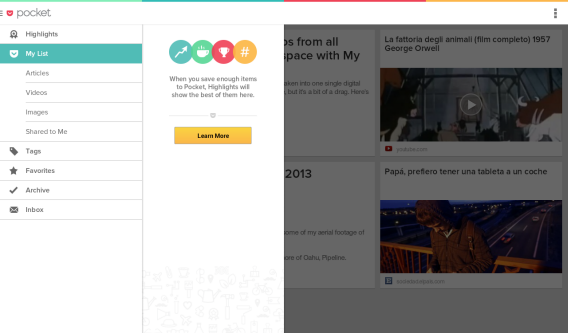
Pocket will synchronize your articles

Now you can read the articles you want at any time and in a format that’s much more pleasing to the eyes.

Download, read and organize your electronic books (ebooks)

If you’re a big fan of hard copy books, getting used to reading digitally can be a difficult task. It’s only after years of family and friends gushing over the convenience of having an entire library in a portable and lightweight format, bragging about how much money you can save, and pointing out the lack of maintenance required, can some potential nostaligic bookworms be persuaded.

If you’re someone who’s reluctant to abandon classic books in favor of electronic format, it’s good to know that there are a few apps out there that can help you change your mind, ones that let you download books (many of them free), help you organize your collection, and, most importantly perhaps, improve your reading experience on tablets.

Wattpad: the app that gives you access to thousands of books

Wattpad

Rather than being an app to improve reading, Wattpad is a huge library powered by a community of overactive readers. It has more than 10 million stories and free books to download with the aim of entertaining and helping you explore the infinite world of book, anytime and anywhere. It’s an app that’ll please both bookworms and the once-in-a-while readers among us.

N.B. Wattpad only works if you’re connected to the internet. If you want to read offline, we advise you to  skip ahead to the next section.

1. To start viewing ebooks, download Wattpad for Android on your tablet. Again, once you’ve install the app, you’ll need to create an account or, if you have one, login. If you don’t already have one, click Sign up and follow the instructions in the app.

Sign up with Wattpad2. Once you’ve chosen your favorite topics, the next thing to do is to select your language. In fact, if you don’t choose your language settings, you won’t be able to find books and stories written in your language. To do that, click on the icon on the top left-hand corner of Wattpad and press Settings.
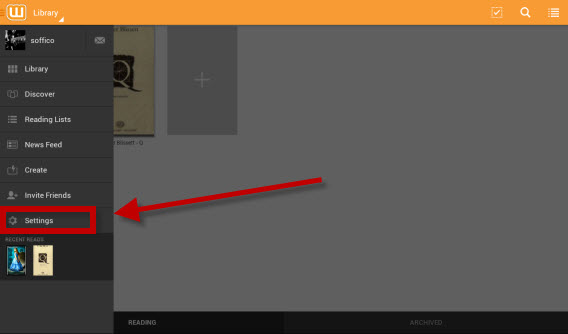
Go to settings to set your language3. Then, tap on the Language item and select your language.
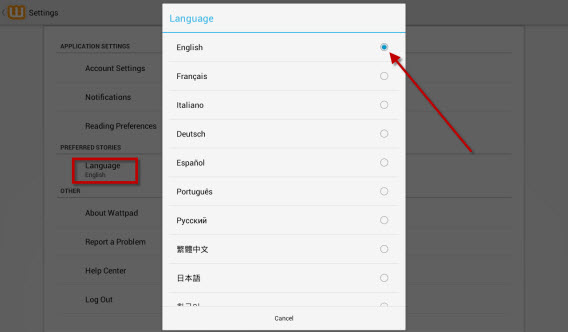
Choose language setting for Wattpad4. Now, go back and tap on the rectangle icon with the “+” in the center of the page. On the next screen, you can choose your first book. Just choose one of the ones you see on the list or explore the different categories at the bottom of the page.
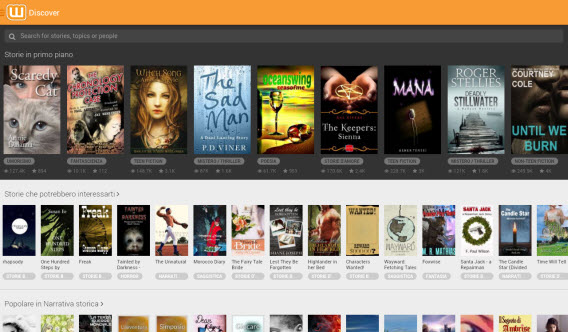
Choose a book or explore optionsIf you want to search for a specific title, just start to type the title in the address bar and then press Enter or choose one of the ones that appear in the pull-down menu.
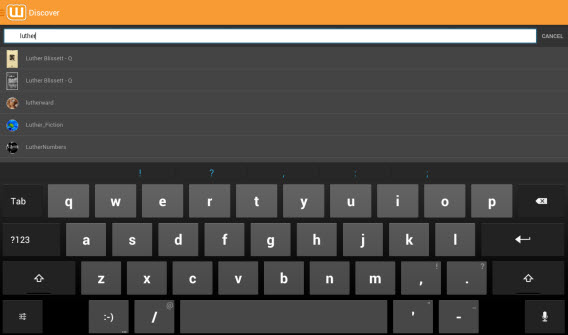
Search for specific titles in Wattpad

5. When you select the title you want to add to your digital library, just press the icon with the “+” symbol to add it to your personal collection.
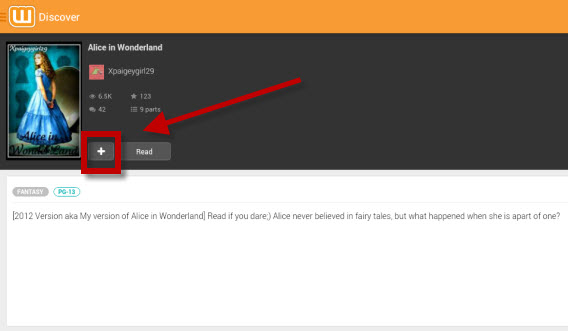
Add a title to the Wattpad digital library 6. To read the ebook, just go to your library by clicking the icon in the top left-hand corner of Wattpad and then clicking Library. In the middle of the screen, you’ll see the list all your books. Tap on one of these and start reading.

Start reading in Wattpad

Wattpad is not the best application for reading books; it only works with those downloaded using the app and only if you’re connected to the internet. To read books offline that you’ve downloaded in PDF format and ePUB, there’s an app that’s simple to use and feature rich, called Moon+ Reader.

Moon+ Reader the app for reading your ebooks like they’re books
Moon+ Reader

Moon+ Reader is an app that really enhances the reading experience on your tablet. It’s also an app to download books, but stands out as perhaps the best ereader.

Moon+ Reader has a lot of options when choosing how to display the contents of your ebook, and the details are customizable, including the color of the background and the font used for the text. It also has 10 default themes including one for night time reading, so as not to disturb those around you, and allows you to sync your books on Dropbox to make them accessible everywhere. Let’s see how to import books to read.

1. First, you need to download Moon+ Reader for Androidon your tablet. The free version does not support PDF, so if you want to read books or articles in this format, we recommend you download the paid version of Moon+ Reader Pro.

2. To read, you must first add the ebook to your library. You can do this by downloading it online (even using the same app) or by adding it directly to your device off of your PC. To get it onto your tablet, connect your tablet to your PC and transfer the file of the book into the Downloads folder of the device, as in the image.
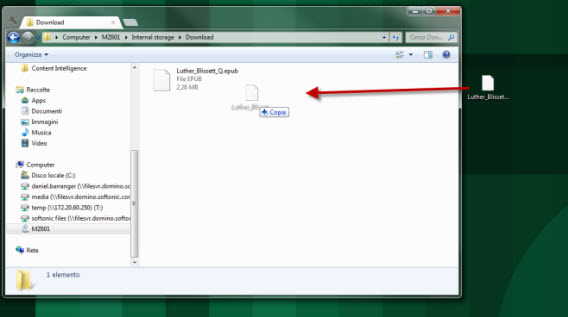
Add ebooks to your library3. Then, open Moon+ Reader on your tablet and, in the main screen of the app, press the SD card icon with the words My Files.
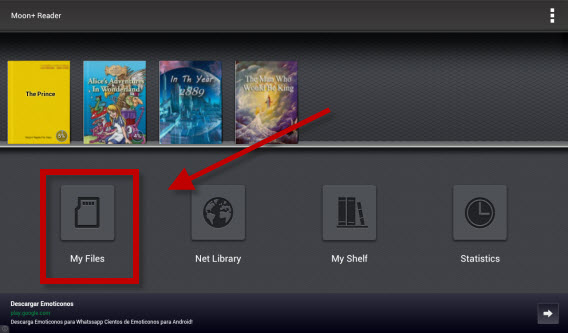
Open your ebooks in My Files4. After that, tap the arrow icon in the upper right to get to the parent folder /sdcard (step 2) and then tap on the Downloads folder.

Download ebooks from your SD Card5. Here, you’ll find the book already loaded. All that’s left to do is to add it to your library and start reading.
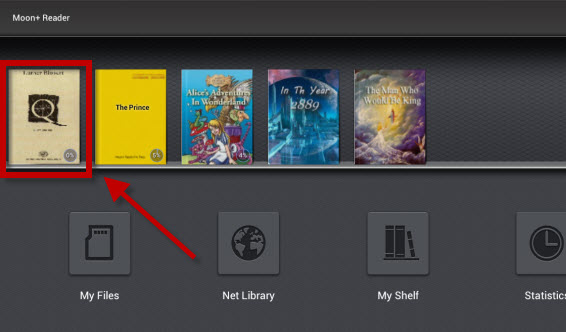
Add books to your library in Moon+ Reader

The great thing about Moon+ Reader is that it presents the book in a format that is not only easy to look at, thanks to a striped, gray background, but also has predefined modes, including several for night time reading. In addition, you can change many of the settings, like your progress through the book, to the indent at the start of a paragraph.

6. Once you’ve opened the book, you can change the settings by tapping the center of the page when you’re in reading mode, and then then on the wheel icon at the bottom right.

Change the layout by going to Settings

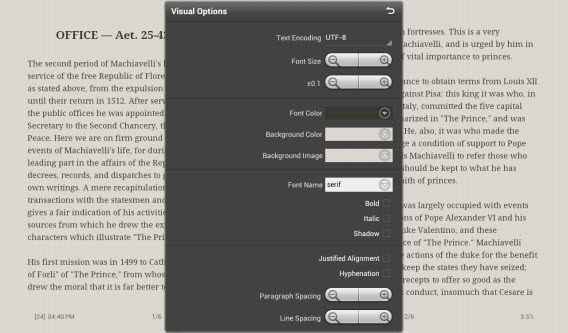
7. This will bring up a menu, where you can adjust the layout and settings as you like.Moon+ Reader lets you change reading layout
While both Wattpad and Moon+ Reader are great apps, you may prefer reading the bestsellers just recently released in bookstores. If this is the case, the Amazon Kindle app is the perfect app for you.

Kindle: For buying books on Amazon and for owners of the Kindle ereader
Amazon App for Kindle

The Amazon app for buying and reading ebooks is not the best on the market in terms of usability and comfort, but it does offer a higher level of security than other ebook stores.

The disadvantage of the app is that in order to download any content, you must have an Amazon account and then make the download via a redirect to the store, through the browser on your tablet. It also doesn’t let you import your ebooks to the app, so if you already have some, you’ll need to manage them with another app, such as Moon+ Reader.

The reading options themselves, on the other hand, are actually quite good. In fact, if you’re a fan of Amazon and you also have a Kindle e-reader, this app is perfect for you, since it also syncs with the ebook reader. But first, let’s see how to buy books.

1.Download Amazon Kindle for your Android tablet. Install the app, open it and then press the Store icon in the top right hand corner of the screen.

2. The app redirects you to your browser, specifically to the Amazon website where you can buy a book or download one for free. To do this, you’ll need to register, or log into your Amazon account.

3. Once you’ve downloaded the title, it will appear in your collection.
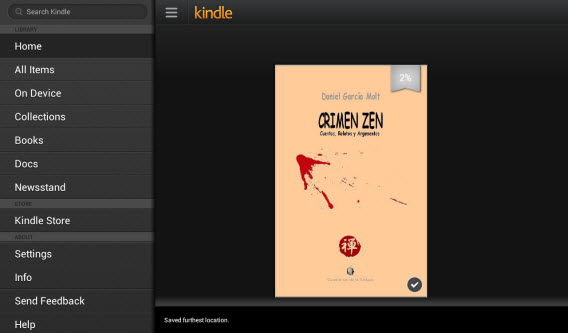
Download titles appear in your library

So, now that you know how to save articles, download books and read them on your tablet, it’s time to create your own custom magazine!

Flipboard: your tablet magazine and newspaper

The great thing about Android tablets is that they are full of reading apps of all kinds, not just for books, but for magazines and newspapers too. But it’s not only RSS feeds that will collect interesting articles for you.

There are applications that let you read news in your favorite newspapers, read stories published by your contacts on Facebook and Twitter, and even apps that will learn the types of content that interests you. A great app for this? Flipboard.

Flipboard

It’s the most famous, and perhaps the best, custom magazine on the market, according to user opinions. Select your interests using a list of tiles which are catagorized into broad topics.

Flipboard also lets you connect to Facebook and Twitter (and 10 other social networks) to present you with the news and the articles laid out elegantly in timelines, letting you read them comfortably and browse at your fingertips, without having to be catapulted between applications. Here’s how to set up the app to make it your own personalized magazine.

1. Download Flipboard for your Android tablet. Once you open the app, you’ll be asked to choose your favorite topics to begin creating the magazine. Press the thumbnail of the themes that interest you to highlight them and then tap Build Your Flipboard.
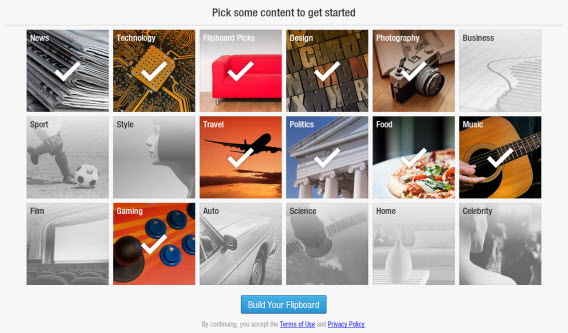
Choose the topics that interest you in Flipboard2. Choose whether to create an account. It’s not mandatory, and you can use Flipboard even without one, but in order to access your magazine using other devices and to synchronize magazines, catalogs and social network accounts, then you have to create one. To create an account, press down on Flipboard Accounts, and then click Create Account. Fill out the form and then tap on Create Account.
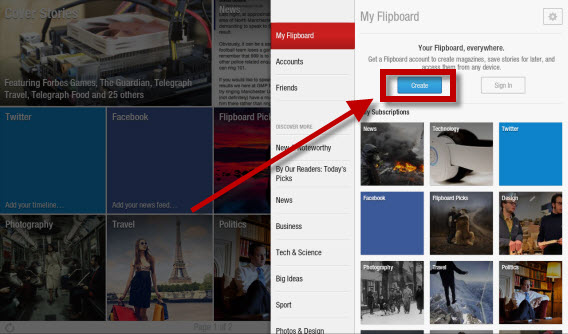
Creating a Flipboard account is recommended, but not necessary

3. Clicking on the Twitter and Facebook thumbnail lets you access the social networking timeline. If you log in using your credentials, you’ll see news posted by people that you follow, as well as your friends, directly in Flipboard in a magazine style.
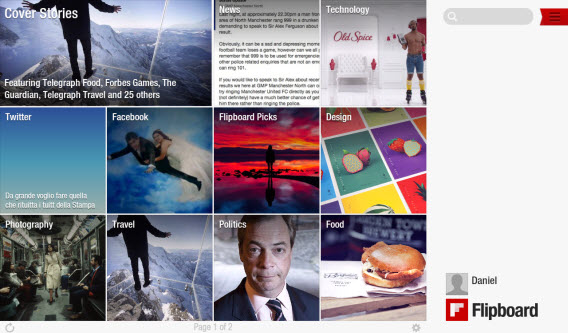
Access timeline news on Facebook or Twitter

Reading is just one of a thousand possible uses of your tablet …

In this installment of our guide to help you discover the full potential of your Android tablet, we saw how you can use it to read articles, books, magazines and news. There is no shortage of apps to do this, and through the use of one (or many) of these apps, you’ll be able to browse your favorite pages comfortably, whether lying in bed or sitting on the train.

But the possibilities offered by your Android tablet don’t stop there! In the next chapter of our Android tablet series, we’ll see how you can organize your work, sync notes, your calendar and transfer files to the cloud to make them accessible anywhere.

What do you read on your Android tablet?

NFL Now is your personalized football channel, launching this summer

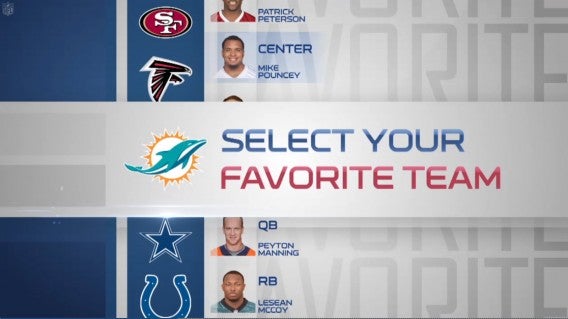
The NFL has announced its new NFL Now service, which promises to bring users a personalized football experience. Football fans will be able to pick their favorite teams for a continuous stream of related content. You will even be able to manage your fantasy football league with NFL Now.

NFL Now teams

While NFL Now will feature current footage, it also has access to historical footage so fans can learn the history of each team. Fans will even be able to stream clips but will not be able to stream live games. This is because NFL Now isn’t supposed to replace your cable subscription but serves to augment it as a second screen experience like the new tvtag app.

The NFL has also partnered with Verizon as a major launch and distribution partner for NFL Now using its 4G LTE netowrk. There’s no word whether this deal will be an exclusive, but we sure hope not. Microsoft and Yahoo! have also signed on as launch advertisers who will help keep the app free.

There will also be a premium subscription launching called NFL Now Plus, which promises to provide “access to premium content and features for a monthly fee,” though the NFL doesn’t go into detail about what those premium features are.

NFL Now will launch sometime this summer on the web, Android, iOS, and the Xbox One. Super Bowl XLVIII is this Sunday so learn how to stream the game before then.

Source: NFL

RELATED STORIES

Paper, the latest app from Facebook, launches February 3rd in US

Paper is a new app from Facebook that takes the news feed and recreates it in a similar style to Flipboard. It will be released on February 3rd for iOS in the US at first.

Paper is less about being social, and more about sharing and discovering content, whether it be photos, news articles, video and so on. It doesn’t have the familiar buttons from the Facebook app – instead you have to learn some basic gestures to navigate the app. As you can see in the video below, Paper is all about making content on Facebook look good. It’s a radical change from the traditional app, but it’s not a replacement, or at least not yet!

Default player


brightcove.createExperiences();

A new Facebook app like this is an interesting departure for the social network. It suffers a lot of criticism from the community when it makes small changes to its interface or features. In creating Paper to stand alongside the traditional app, Facebook may sidestep the possible uproar that changing the traditional app could start. If you like Paper, you can use it, if not stick with the original Facebook app.

No announcements have been made about either an Android version of Paper, or when it might be launched worldwide. Paper is the first app to come from Facebook’s Creative Labs, its innovation and ideas department.

RELATED STORIES

Opera 19 out now

Opera 19 is out now and brings a ton of bug fixes and a few new features. Opera has improved the bookmarks bar in the browser by allow users to easily drag and drop sites into the bar. This feature is currently only supported in Windows (sorry Mac users). The company has also released its bookmarks API so expect more powerful extensions to be added to the browser’s 700+ library of extensions. Opera 19 also features a new right-click menu item for easily setting any image to your desktop wallpaper. Simply right-click on an image and select “Use Image as theme.”

You can read the full changelog for Opera 19 on their website.

Download Opera 19: Mac | Windows

Source: Opera

RELATED STORIES

Pinterest previews its new interest-based homepage

Pinterest is giving users a sneak peak at an upcoming feature called “Interests.” Interests will be a new homepage that curates content around the topics you’ve pinned about the most.

Pinterest’s recommendations look and feel similarly to Flipboard’s curated “Cover Stories” feature, where it mixes your story sources as well as suggested stories from Flipboard’s staff. If you have a ton of pins about travel, expect your Interests homepage to feature more travel stories and photos.

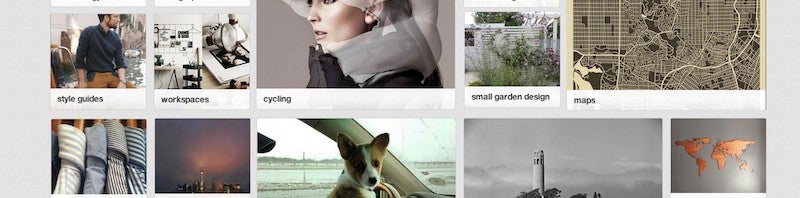
Interests pinboard

Interests is Pinterest’s attempt to make exploring content on the site easier. Currently, users have to navigate to specific sections of the site to see recommended pins for that category. With Interests, pins from all categories in which you’re active will be displayed.

To try out the new Interests homepage yourself, simply visit Pinterest and click on the “Preview! Explore Interest” button in the categories menu. The company has not provided a specific date when Interests will officially roll out.

Source: Pinterest

RELATED STORIES

Plants vs Zombies Garden Warfare: Let the battle commence!

Plants take on the most famous members of the undead family with multiplayer action in true Battlefield style. Pick your side and let the battle commence!

I’m sure you know the mechanics of Plants vs. Zombies and its sequel: protect the plants from wave after wave of imminent zombie attacks. We love this gameplay, and it’s been imitated many times, but we’ve always wanted to play on the other side: the side of the undead.

This will now be possible thanks to Garden Warfare, the first spin-off of the original franchise, which leaves the innocent puzzles aside to put you at the epicenter of a war between plants and zombies that plays like a third person action game.

A traditional shooter

Intended as an online multiplayer game, Plants vs. Zombies: Garden Warfare is a shooter battling 12 against 12, or various users against the computer. Both sides move around in urban settings that are recognizable from the original games, except that they’re now in 3D and can be fully explored.

Don’t go expecting realism, though. Instead, you’ll get a faithful representation of the universe that PopCap Games created with their first Plants vs. Zombies, along with a reminder that each character is important.

Plants vs. Zombies Garden Warfare

Two sides, eight classes

Both sides have soldiers made up of 4 classes, each with unique physical characteristics in terms of both powers and weapons.

Zombie classes

In the zombie camp, there are four classes:

Soldier –  The soldier is always in the line of fire. Equipped with two guns: a BB gun and a grenade launcher. They also have the advantage of being able to duck out of the action at any stage, thanks to their jet pack.

Engineer – An expert in creating equipment that he and his other colleagues will benefit from, the engineer is equipped with firearms and a stun grenade.

Scientist – The scientist is the only one who can heal his companions. That doesn’t mean he can’t be combative, because for weapons, he has a sticky gun and bomb, as well as the ability to teleport.

All-Star – The big-hitter in the team, the all-star is equipped with a heavy machine gun and the ability to carry out melee attacks. On the downside, he’s slower and larger, which in certain situations can make him defensively weak.

The scientist

Plant classes

The Plants aren’t lagging behind, and are also divided into 4 classes, somewhat strange classes with no real equivalent  in the more conventional zombie classes.

Peashooters – The equivalent to the soldier, the peashooter is the most offensive member of his team and has interesting weapons, like pea guns, as well as the ability to literally plant himself in the ground to generate bursts of gunfire.

Cactus – The closest thing to an engineer, the cactus’ greatest skill is throwing barbs; the key is to use it over long distances. It’s also equipped with mines that can be spread across the battlefield, and can build individual trenches.

Sunflower – The “scientist” of the plants, the sunflower can cure his friends in two ways: using a daisy, and with sunshine. In addition, its rays can also be harmful to its opponent.

Carnivorous plants – The carnivorous plant is an expert in knocking out the enemy by gobbling them up as snacks, as well as the great ability to be able to move underground, allowing him to get behind his enemies and take them by surprise. The most offensive class is equivalent to the the All-Star of the zombies.

The sunflower is a powerful ally

Customization beyond the classes

Classes aren’t the only thing that you’re able to customize in the game. All of the characters have a variety of costumes and accessories available, as well as skins for the weapons they use. Some merely provide cosmetic changes, while others slightly vary the gameplay.

Famous influences

Although the name Garden Warfare is a reference to the famous Modern Warfare, it’s certain that this new Plants vs Zombies has a more direct influence, the Battlefield series, which isn’t really surprising considering developer PopCap belongs to Electronic Arts.

Specifically, both games share modes. The mode called “Garden and Graveyards” is inspired by two famous Battlefield modes, “Rush” and “Conquer“.

Intended to support up to 24 players online, “Gardens and Graveyards” is a variation of the classic Capture the Flag, where the zombies are trying to take control of the plant’s base to turn it from a garden into a cemetery.

Another common mode in Battlefield and other games like it is Team Death, which makes an appearance in this game with “Team Vanquish“, a competitive multi-player mode where the first group to kill 50 of their rivals wins.

Another classic that has had a noticeable influence on the game is Gears of War. Not only does this saga and Garden Warfare share a third-person view, it also has a Horde mode, where you take on waves of enemies, each more complicated and numerous than the last. The further you get, the greater the reward, which you divide up with your other three teammates.

Hoard mode

Direct action, but with some strategy

Plants vs. Zombies: Garden Warfare shouldn’t face any great difficulties because it aims to capture part of the casual audience that already enjoys the original games of the franchise. It’s because of this that the gameplay is based on fast multiplayer games with no trace of a campaign mode, which is normally very common in war games.

The game, however, does include details that come together to form a challenging game in its own right. For example, it’s essential that you have a balance between the classes, and although there is infinite ammo, you’ve got to reload weapons. Finally, special powers can’t be used indefinitely, and you have to let them recharge over time.

Plants vs. Zombies Garden Warfare

You don’t have to wait until Spring to fight in the garden

Plants vs. Zombies: Garden Warfare will go on sale on the 18 of February for Xbox 360 and Xbox One. PC gamers will have to wait a little longer to play.

Taking advantage of a household name, Garden Warfare aims to break into the third person shooter sector – it’s a sector that is jam-packed with good, consolidated titles but is perhaps missing a less sophisticated game that’s suitable for the whole family.

Do you like this shift in the Plants vs. Zombies franchise?

Mac OS was launched 30 years ago today

30 years ago today Mac OS was launched, starting three decades of innovation and revolution in computing.

On January 24th 1984, Steve Jobs introduced the first Macintosh computer and its operating system Mac OS. With its windows and animations, it was a shock to people at the time. The small computer was also much sleeker and more user friendly than anything else, helping to convince people they could have one at home.

Although that first OS included Word and Excel, developed for Apple by Microsoft, as we know it was not the Mac that went on to dominate the PC market. Despite this, Mac OS, and OS X have been consistently innovative and well regarded, while Windows arguably gets more criticism. The Mac 128k also included MacWrite, an early example of a WYSIWYG (what you see is what you get) application, although its development was over a decade later.

Watch Steve Jobs unveil the first Mac below, and listen to the crowd react in amazement!

RELATED STORIES

Google Calendar Privacy flaw adds people to events without asking

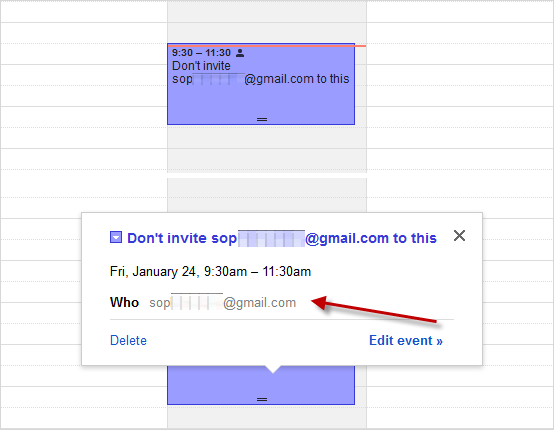
A bug in Google Calendar means you can accidentally invite people mentioned in events you create. If you put an email address in an event description or title, Google will ask you if you want to send invitations to those people, but they will be added to the event and be sent a reminder about it even if you decline.

This bug was probably a feature. Google Calendar recognizes emails, and assumes you want to include people you mention in an event. But it doesn’t give you the option of not including them. We tested the bug, first found and described by Terence Eden.

When you create an event, and mention an email address, a pop up will ask you “Would you like to send invitations to guests?“. Even if you say no, the mentioned email address will still be in the list of guests when you edit the event. Worse still, while they won’t be sent an invitation, they will get a reminder from Google about it.

You can’t turn this feature off. Terence Eden noticed the problem when his wife mentioned her boss in a Calendar event – her boss promptly replied accepting, even though she wasn’t supposed to be invited. If you use a Gmail address in a calendar event, that user will have it added to their calendar whether you want them to or not. They won’t get an email notification, but will get a reminder pop-up. This bug works on the web, but not on Android. It works with some non gmail addresses, but not all. If you delete a calendar event, the user mentioned may get a cancellation notification.

According to The Verge, Google is now looking into the problem. Until something is done, don’t write email addresses in Google Calendar Events unless you are sure you want that person to know about it!

RELATED STORIES

Tomb Raider reboot released for Mac

The latest Tomb Raider comes to Mac today. The 2013 reboot of the series sees a younger, rawer Lara Croft thrown into a terrifying adventure on an island called Yamatai.

While the earlier Tomb Raider games were mainly about exploration, puzzles and the acrobatic Lara, this reboot is different. The traditional vaulting and climbing around ancient sites was largely sidetracked, to make way for more action, survival and characterization.

Default player


brightcove.createExperiences();

While it caused some controversy, and didn’t please all Tomb Raider fans with it’s grittier portrayal of Lara Croft, we thought it was still an excellent adventure game which gives the PlayStation exclusive adventure series Uncharted a run for its money.

Tomb Raider is available in the Mac App store. Here are the minimum Mac requirements:

  • OS X 10.9.1 or later
  • Processor: 2.0GHz, RAM: 4GB, Graphics: 512MB, Free Space: 12GB.
  • Intel HD4000 series cards require an Intel i7 CPU or better.
  • The following graphics cards are not supported: ATI X1xxx series, ATI HD2xxx series, Intel GMA series, Intel HD3000, NVIDIA 3xx series, NVIDIA 7xxx series, NVIDIA 8xxx series and NVIDIA 9xxx series.

If you’re a Mac gamer and you enjoy adventure games, Tomb Raider comes highly recommended.

RELATED STORIES