How to use the best functions of Waze

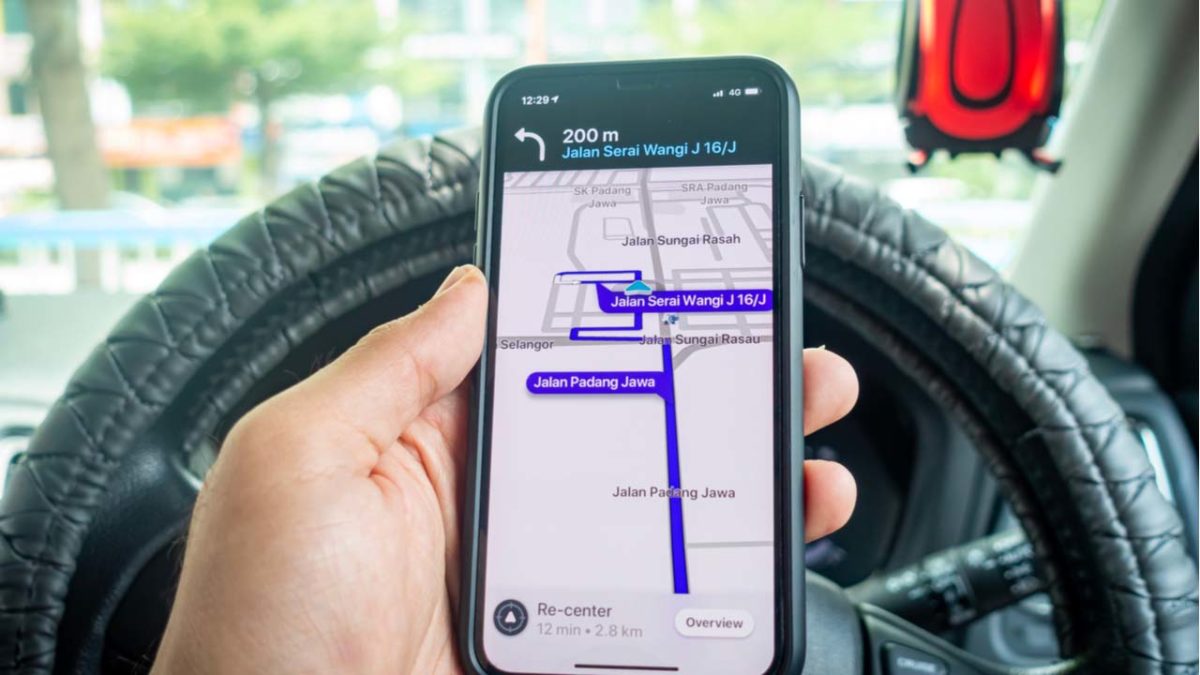
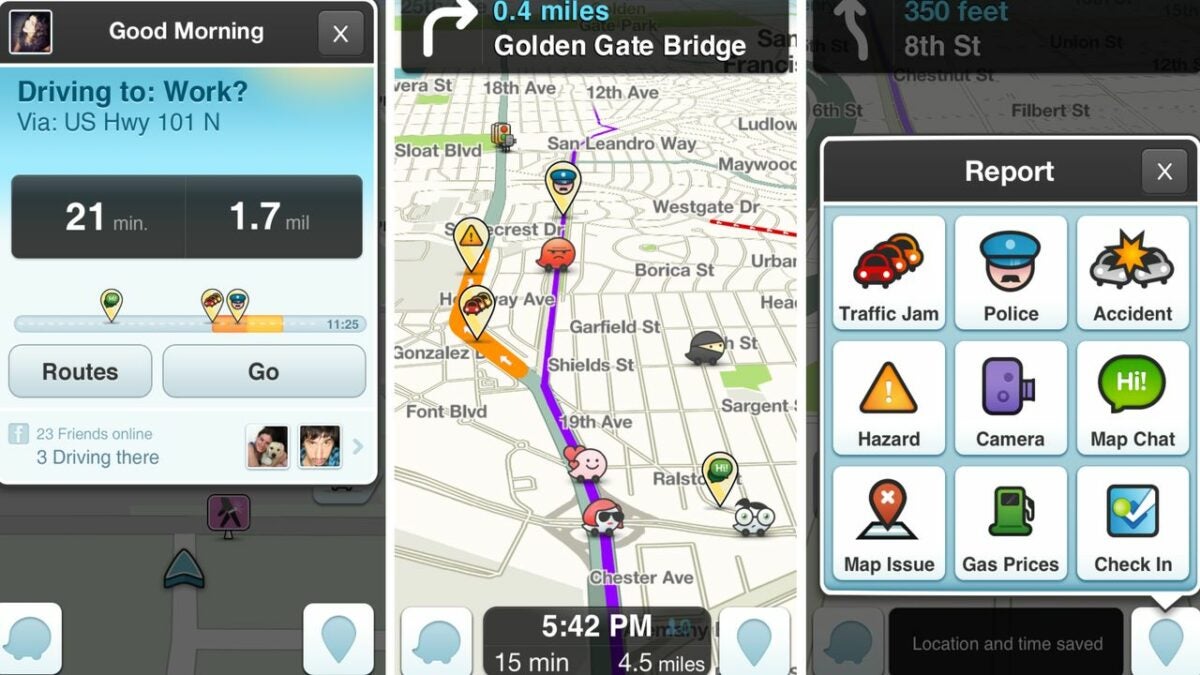
Waze has quickly become one of the most prevalent GPS navigation apps on the scene. If you are wondering why Android users choose to download Waze over the default Google Maps, it is because of the range of additional features provided by the free software.

Waze Download

By utilizing user feedback, Waze updates your driving route in real-time to take into account new traffic jams, accidents, and anything else that could delay your commute. Although you may not wish to give up the familiar layout of Google Maps, this rundown of Waze’s best functions will show why downloading the app is a better idea than you may think.

  1. Adjust your audio mid-travels with the podcast control panel
    Use the podcast controls to listen while navigation safely

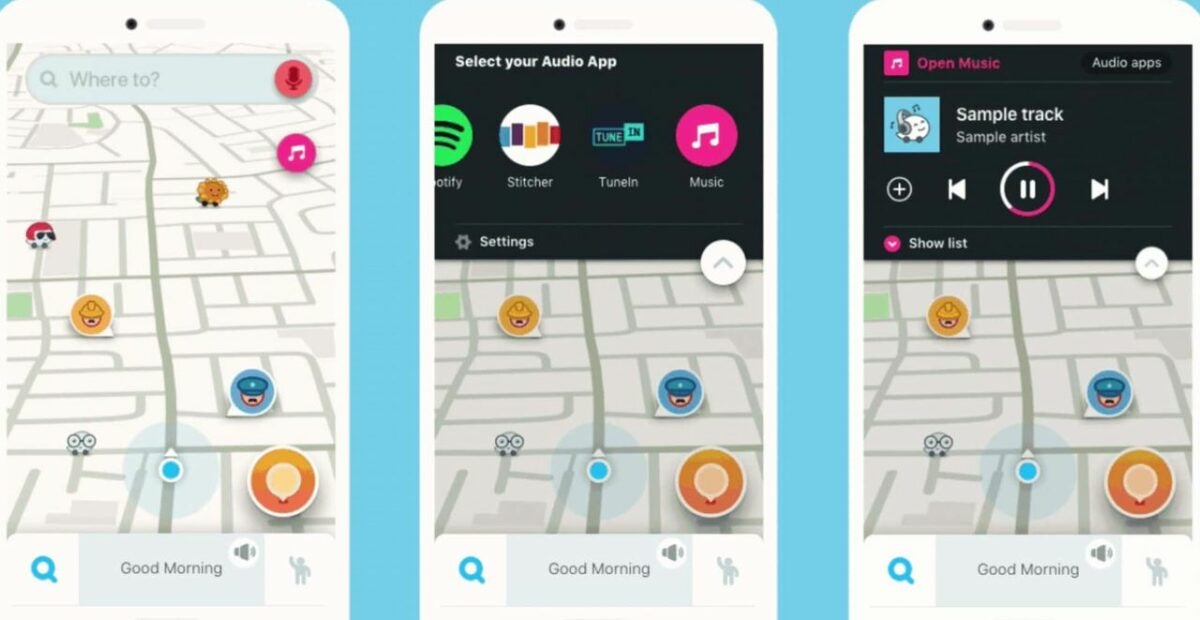
    When driving long distances, playing your own music or podcasts is an effective way of staying sane. While most GPS apps force you to minimize your map to open another audio program, Waze has podcast functionality built directly into the map interface. To access this feature, simply tap the pink button with a music note to see a list of compatible streaming services. Tap your desired app and an interface will be shown. Use your favorite streaming service as normal with the simple control integration.

  2. Quickly find the cheapest gas

    Find the best gas price in your area

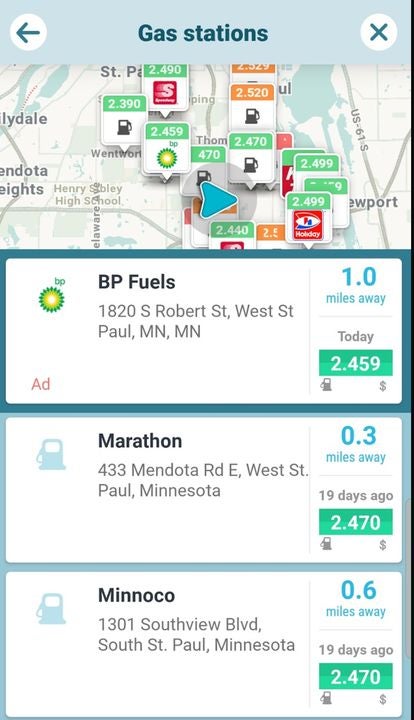
    Considering the high price of gas these days, each cent counts tremendously. Waze helps you find the cheapest gas station near you each time you need to fill up your tank. Tap the search bar and click on the gas stations button. Alternatively, you can type the word gas station if you prefer. Both methods bring up a list of gas stations in the area. The information includes the address, the distance from your current location, and the going rate of fuel at the pump. Tap on your desired gas station to get directions and head over to the best deal.

  3. Pick your own routes

    Lock in a specific route with this menu

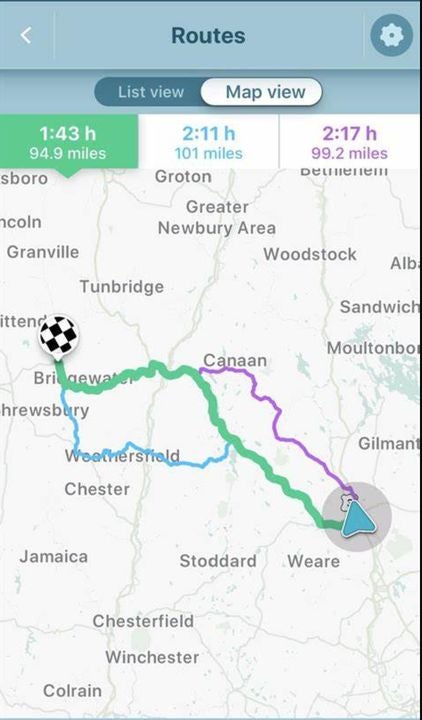
    Waze provides the innovative feature of adjusting your route on the fly in response to new user data and traffic reports. As handy as this feature can be in most instances, the influx of data can sometimes lead to odd navigational decisions. You can force Waze to stick to a particular, established route at any time. To do this, access the settings menu via the button on the top right of the app. Tap the routes tab to be given a list of reliable travel options. Tap on any route to lock it in and prevent the algorithm from making changes to your directions mid-journey.

  4. Get speeding alerts

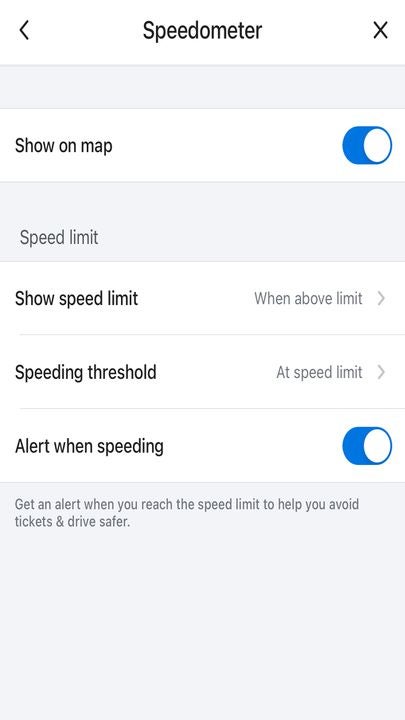
    The Speedometer settings menu in Waze.

    When driving somewhere new for the first time, it can be easy to keep your eyes glued to the map instead of on the road. You may not be paying attention to road signs or your speedometer during these moments of intense focus. Waze allows you to set up automatic speeding alerts to notify you when you are over the limit in any given zone. Use the My Waze button to open a new menu. From this menu, open the settings menu (gear icon in upper-left corner) and select Speedometer to set the parameters for your alerts. Doing so is a great way to help avoid speeding tickets or accidents.

  5. Try effortless carpooling

    Carpooling is quick and easy with the app integration

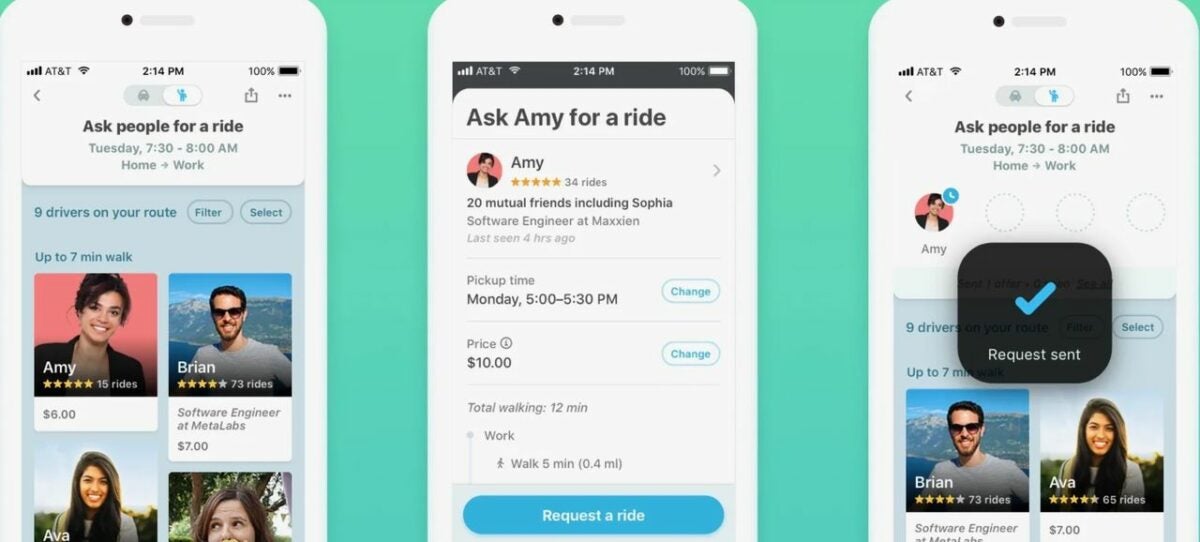
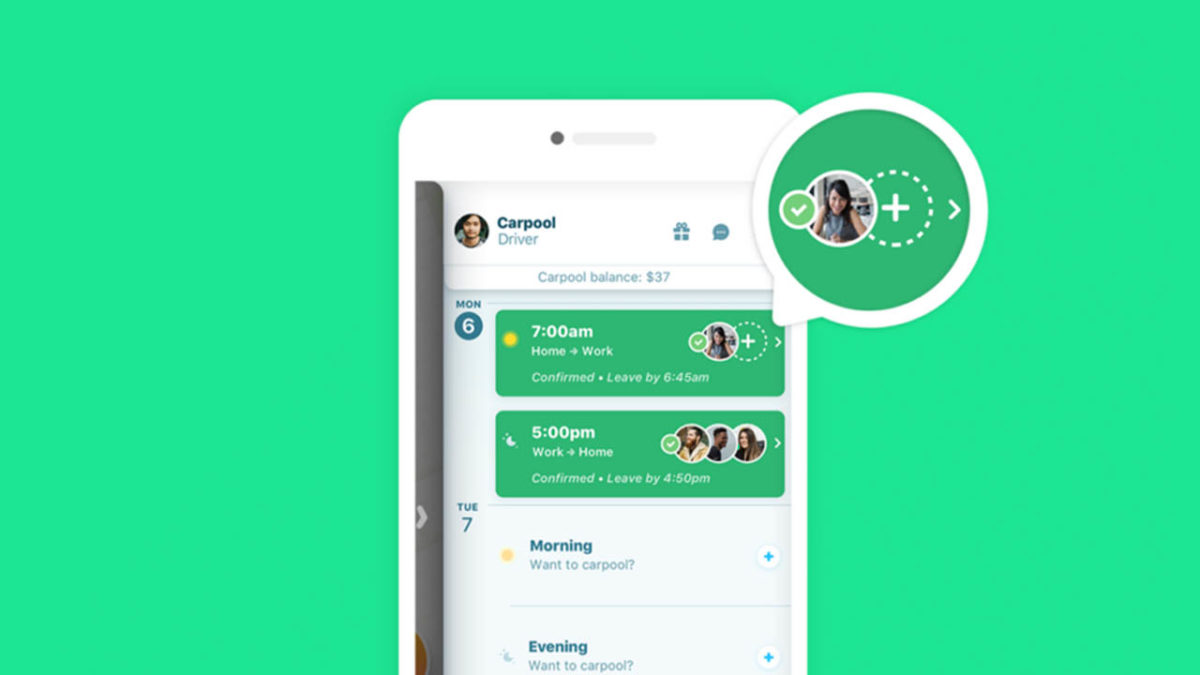
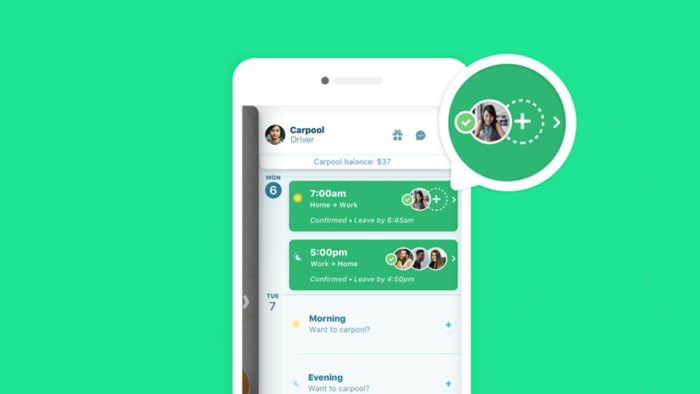
    Carpooling offers many advantages for drivers, passengers, and the environment alike. You can split the cost of a commute or bypass the traffic via express highway lanes. Waze lets you set up carpooling sessions right from the app. Doing so is as simple as clicking the carpool button on the bottom right of the screen. Drivers can pick up some extra passengers on the fly, and people looking for rides can put in requests for transport from this convenient menu.

A phone’s GPS is a powerful tool

While you may think of your phone’s GPS as only good for navigation, there are actually many clever uses for the satellite technology used in modern devices. For instance, the GPSTracker app allows you to find any phone from your PC or another mobile device. This is ideal for keeping track of your children, locating missing people, or finding your own device should you drop it somewhere.

Change the voice on Waze to Cookie Monster, Woody, and more

Ride with friends by changing the voice on Waze!

Waze

The default voice on GPS apps like Waze can get grating. If you’re on a long road trip, you might as well listen to a voice that isn’t driving you up a wall.

Well, there’s a way to do it! Soon, you will be guided down the road by Cookie Monster, Buzz Lightyear, Woody, and even DJ Khaled.

How to change the voice on Waze

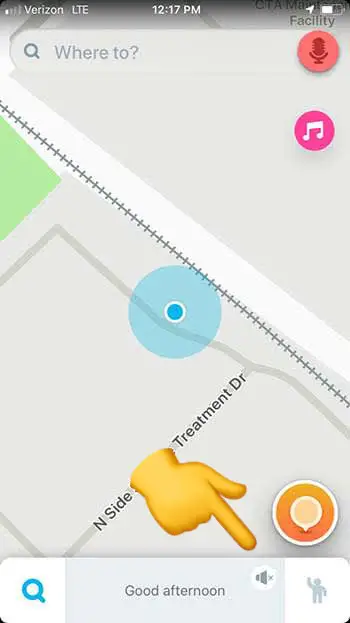
Step 1: Open Waze

Adjust Waze voice

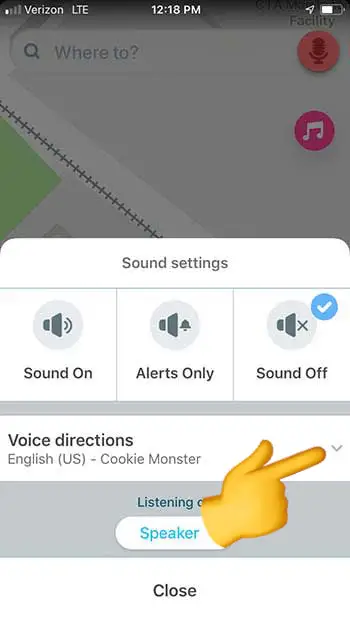
Step 2: Click on the sound settings (the speaker icon)

Waze voice selector

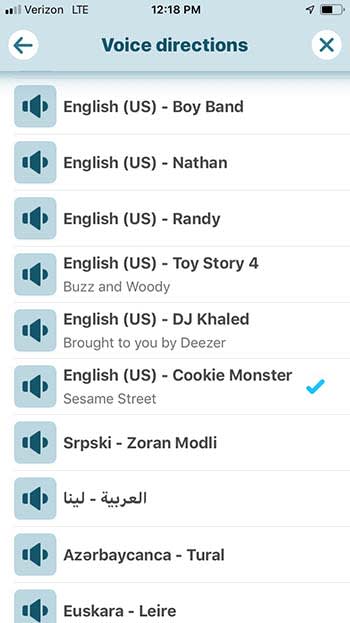
Step 3: Click on the drop-down arrow next to “voice directions”

Waze

Step 4: Choose the voice you want

You can also choose to hear your directions in a different language in this option. 

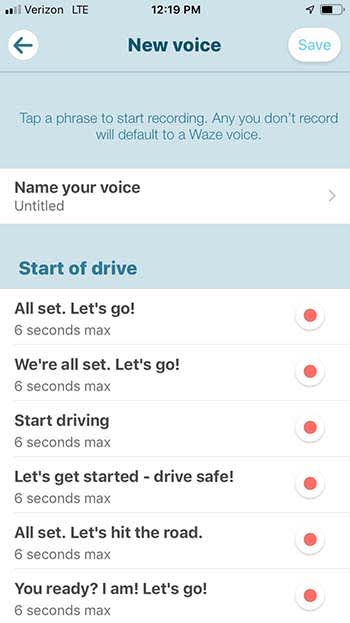
Record your own voice

Waze

If you want something done right, you have to do it yourself.

Waze also gives users the option to record their own voice for GPS directions. If you do it, it’s going to take you a bit of time to record every option Waze has available, but you could have some fun with it. Rather than recording what Waze tells you to, you can technically say whatever you want. Obviously, you should say “turn left” when it tells you too, but non-directional options are yours to mess with! You could even record your girlfriend’s voice to have her nag you the whole way to your destination!

Wrapping up

No matter which option you go with, remember to be safe on the road. Also, if you choose Cookie Monster, remember to pack a few cookies just in case he gets hungry.

Have you tried Waze Carpool? It just got better

Waze now lets you add up to four other carpool riders to your journey!

Waze carpool feature

With all the new tools that are being added to Waze, it’s about time we got a decent carpooling option!

You may know Waze as that app Google bought a while back. It has since been taking features from to bolster Google Maps. Google is clear that Google Maps is still its flagship navigation program but understands that Waze offers something different enough to Maps to warrant a spot of its own in the Google Play Store.

Waze is a community-based navigation app. The mapping data shows us where we are and where we’re going. Also, Waze asks its users to tell each other what is going on during their journeys and then uses all that data to improve the routing options it offers. It now even tells users about upcoming toll prices. When Google recently added crowd-sourced speed trap alerts to Google Maps, the feature came from Waze, which had had it for years.

With Waze being built upon its community it will probably come as no surprise that the company has been dabbling with carpools for years now. Carpools are like the ultimate form of commuting community as it can help save time, money, and the environment. The Waze Carpool app first hit the scene in Israel back in 2015 and came to the U.S. last year. It is also available in Brazil and Mexico. The app has always been a little limited, however, with potential carpools being limited to two app users. This has now finally been expanded, turning Waze Carpool into a more complete ride-sharing app.

Waze Carpool Download Now
8

Waze now lets you add up to four other carpool riders to your journey

To use the Waze carpooling feature, you need to add your daily routine and schedule to the app. This way you have a number of set routes and rides that the app knows you’re likely to make. Then, each day when you confirm the rides you’ll actually be taking that day, the app will match you up with other users who are looking to make similar journeys.

You’ll be able to see how much extra time they’ll add to your journey and how much money you’ll be able to collect off them for adding them to your carpool. You can find all the details for signing up to Waze Carpool here.

Waze carpool
Source: Waze

The carpooling feature has just been boosted from two riders to four. This means you can now add up to four riders to your pool, potentially boosting the amount of money you can take per journey and even opening up the more express HOV 3+ carpool lanes.

Waze makes it clear in the blog post announcing the bump up to four riders, however, that Waze Carpooling is not supposed to be a moneymaker. It isn’t another Uber or Lyft. All prices added to carpooling journeys are adjusted so that they don’t exceed the price of the gas the journey needs or general wear and tear to the vehicle.

If you’re looking for help with your daily gas money, a bit of company during your daily commute, or just want to do your bit for the environment Waze Carpool could be the app for you.

Waze will now show toll prices

Waze just added one of the most requested features from users!

Waze

Waze drivers rejoice! The Google-owned app will now tell drivers how much tolls will cost on their drives. 

This highly-requested feature if going to be a lifesaver. Now, drivers may elect to not take the toll road if saving 10 minutes isn’t worth $8 in tolls. On the other hand, drivers may elect to take the toll road if they can save serious time by spending a few bucks.

More importantly, drivers will know how much cash/change to bring with them to pay for tolls if they do not have an electronic pass. The new feature will be available in the U.S. and Canada.

Waze will now show drivers three different routes:

  • One with tolls (if applicable)
  • One without tolls
  • A third possible option if the first two don’t work

Not an easy task

In the U.S. alone, there are more than 5,000 toll roads, and their prices can vary based on time of day, type of car, number of people in the car, what direction you’re heading, and how long you’re on the road.

Basically, Waze had its work cut out for it. However, when there’s a will, there’s a Waze.

Waze users and volunteers sent data about tolls in order to accomplish the monumental task. 

Wrapping up

Make sure you check out the new feature! Waze only works well if its users keep it updated and accurate, so your feedback is essential to its functionality!

How to change the voice on Waze

Do you want Buzz and Woody to give you directions on your next road trip? Here’s how!

Waze

If you use GPS apps like Waze, you know how grating the default navigator’s voice can be.

As you get directions, you can’t help but wish you didn’t have to hear the navigator’s annoying voice. Wouldn’t it be nice to hear a more familiar voice rather than the stale, robotic default voice? Well, there’s a way to do it! Soon, you will be guided down the road by Cookie Monster and DJ Khaled.

How to change the voice on Waze

Step 1: Open Waze

Adjust Waze voice

Step 2: Click on the sound settings (the speaker icon)

Waze voice selector

Step 3: Click on the drop-down arrow next to “voice directions”

Waze

Step 4: Choose the voice you want

You can also choose to hear your directions in a different language in this option. 

Record your own voice

Waze

If you want something done right, you have to do it yourself.

Waze also gives users the option to record their own voice for GPS directions. If you do it, it’s going to take you a bit of time to record every option Waze has available, but you could have some fun with it. Rather than recording what Waze tells you to, you can technically say whatever you want. Obviously, you should say “turn left” when it tells you too, but non-directional options are yours to mess with! You could even record your mother’s voice to have her nag you the whole way to your destination!

Wrapping up

No matter which option you go with, remember to be safe on the road. Also, if you choose Cookie Monster, remember to pack a few Oreos just in case he gets hungry.

Waze finally arrives for Apple CarPlay

Waze finally arrives on Apple CarPlay. Here’s what you need to know.

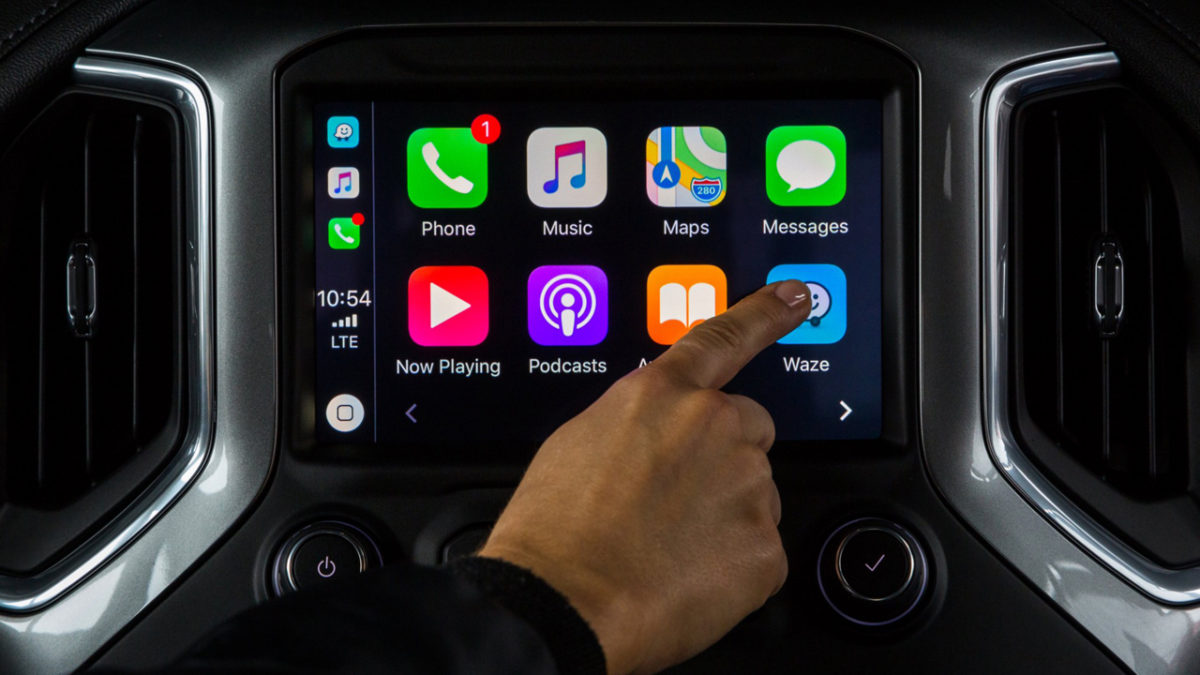
Sure, Google Maps are nice. But do they help you know when cops are lying in wait on the highway? Nope. That’s where Waze comes in. Today, everybody’s favorite speeding ticket eliminator arrives on Apple CarPlay.

If your ride has Apple CarPlay, just use Bluetooth or a USB cable to connect your iPhone. Once you click on the Waze icon, you’ll be able to use Waze as normal.

The screen will now show your home, work, and favorites as destinations. You can also see your full route overview and report on those road hazards and waiting police cars right on your screen.

If you need help setting up your iPhone with CarPlay, you can find the info right here.

Waze has been one of the most-requested CarPlay apps, so today’s news will be a major win for lead-footed drivers and anyone who enjoys Waze’s navigation over Apple or Google.

Waze 3.9 update remembers where you parked and adds ‘Places’

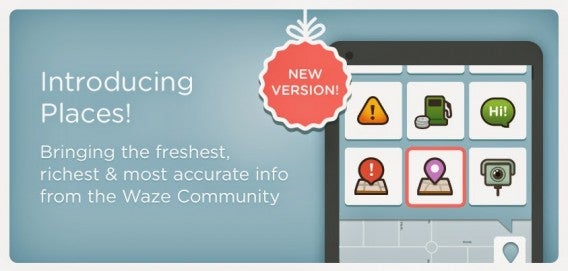
Waze is one of the best apps for directions and crowdsourced traffic information, and the latest update for Android and iOS, version 3.9, adds a feature that Google Now users might be familiar with – saving your parking location.

Waze 3.9 Places

Google Now saves your parking location by using GPS, but it doesn’t always accurately mark the location, giving more of a general idea. According to Waze, if you use the app until you park, it will save the parking location. That information will also be collected by Waze to “learn where to find parking & how much time to account.”

Another feature added is the ability to add places in the app.

Other updates in Waze 3.9 include:

– Waze Places

– Easily add or edit places, businesses, or residential areas

– Add driving related info, like if a place has a parking lot or a drive-thru

– Add arrival photos to help others find a place at any time

– The autocomplete search is now worldwide

– Bug fixes

Download Waze: Android | iOS

Source: Waze blog | Google Play

Image credit: Waze blog

Related Stories

Adobe Creative Cloud coming to Chrome OS, starting with Photoshop

Ping, a free app that wants to send you interesting information

Rumor: Windows 9 will be free for Windows 8 users

35 apps perfect for the iPhone 6 and iPhone 6 Plus

Follow me on Twitter: @chrislikesrobot

Waze navigation app updates with calendar integration

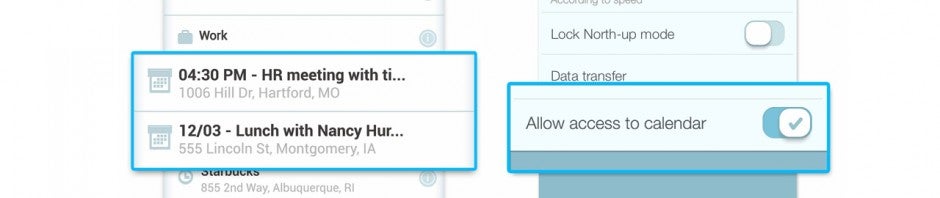
Waze for Android and iOS received an update today which allows the app access to your calendar to guide you to your next appointment. If you have calendar events with an address in the location field, Waze will be able to navigate you to your destination.

The feature can be activated from within your default calendar app when an address is tapped on. Alternatively, Waze shows you a list within its own app but limits the list to two upcoming events to prevent an overly long list of destinations.

For those who’d like to opt-out of calendar integration, there is a setting to disable the feature. On Android, the setting is located from Waze’s own settings. On iOS, the setting will be located in the main Settings app and under the Waze section.

Windows Phone users are left out for now as the company has not announced intentions to bring calendar integration to the platform.

Download Waze: Android | iOS

Source: Waze

RELATED STORIES

Waze update features redesign and auto complete

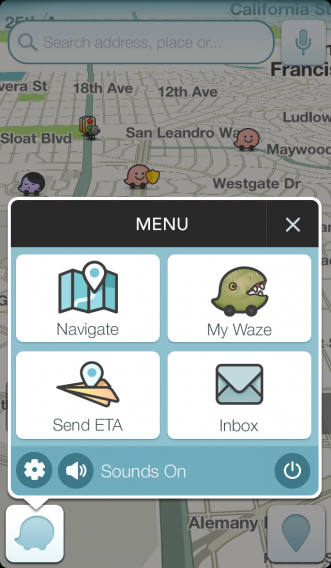
Waze for Android and iOS has been updated today with a slight redesign and auto completing search results. Visually, the app remains much the same except for the main menu, which has been simplified to just four main buttons: Navigate, My Waze, Send ETA, and Inbox. Previously, Waze featured a grid of buttons, which made finding what you wanted at a glance quite difficult.

Waze updated main menu

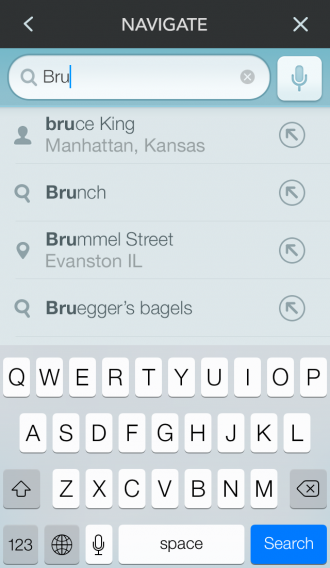
Auto completing search results should also make Waze much easier to use. Contacts, categories, businesses, address, and favorites will all show up instantly while you type. Waze is rolling out this feature slowly so it may take “a few weeks” for everyone to get the new auto complete feature.

Waze auto complete

Last but not least, Waze has made it easier to add or stop an existing route. While Waze is navigating, you can tell the app where you want to go and it will ask you whether you want to add it as a point of interest or as the final destination.

Download Waze for Android and iOS

RELATED STORIES

Source: Waze

Waze debuts celebrity voices (video)

Waze has partnered with Universal Pictures to bring the first celebrity voices for the social mapping app. Today, you’ll be able to use actor/comedian Kevin Hart’s voice as your personal navigator.

Earlier this year, Google purchased Waze for $1.3 billion and has left it alone as a separate mapping app from the company’s flagship Google Maps. Google has integrated Waze traffic alerts into Google Maps for Android and the web but hasn’t added any of Waze’s social features.

Waze is free and is supported by advertising for local businesses. This deal with Universal is another avenue for revenue for the mapping app. Kevin Hart is obviously promoting his movie, Ride Along, with a huge banner ad in the app.

To use hear Hart’s quips while you drive, head over to your Waze settings, tap on “Sound” and select “English – Ride Along” as your language.

Download Waze: Android | iOS | Windows Phone

Source: VentureBeat

RELATED STORIES