3 applications you should add to your Google sidebar

Google offers some powerful tools inside its various programs. Here’s how to make the most of them.

google suite

Maybe you didn’t notice this, but whenever you’re in a Google program like Gmail, Docs, or Sheets, there’s a little sidebar to the right with several applications to integrate the full Google suite of products. If you don’t see it, click the little arrow in the lower right corner of your screen.
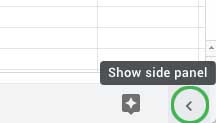
google side panelOnce you’ve clicked it, you may see these three applications on the right side of your screen: Google Calendar, Google Keep, and Tasks.
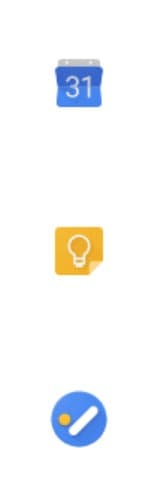
google sidebar

You can add more apps by clicking the plus button below those three.
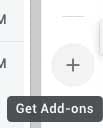
add-ons

The apps available will depend on the program you’re using. Here are the highlights of some of your options.

3 applications you should add to your Google sidebar

1. Google Duo

With just one tap, you can open a high-quality video call with any of your Google contacts. This is a great addition to your Google sidebar if you need to telecommute for work or if your family and friends live in another city. With Google Duo, you have the ease of being able to video chat any time you want. There’s even a feature called Knock-Knock that lets you see the person who’s calling you before you answer the call.

Google Duo Download Free
7

2. Google Keep

This is a great application for people who want to keep their thoughts organized. Google Keep should already be pre-installed in your Google sidebar, but if not, it’s a worthwhile add. It lets you easily create lists and notes. You can even add photos and audio clips. Need to make a grocery list? You can quickly open Google Keep and create a list of everything you want to pick up from the store.

Google Keep Download Free ►
8

3. Google Express

With Google Express, you can buy anything you need at the push of a button. With hundreds of brands and stores available to choose from, Google Express is a great way to do your online shopping. Supported brands include Target, Costco, Sephora, and many other favorites. Adding this application to your Google sidebar will let you quickly shop online for groceries, electronics, and more.
Google Shopping Express download free ►
10

Adding applications to your Google sidebar can be a great way to streamline your online activities. Add these applications now and get started today!
How to add or remove inbox tabs in Gmail

Make Gmail look the way you want. Just follow these 4 steps.

gmail

These days, it seems like Gmail is continually updating its appearance. That can make it tough to remember how to add tabs that you’re missing or remove tabs you no longer want. Thankfully, we’ve got you covered. Read on for simple step-by-step instructions.

How to add or remove inbox tabs in Gmail

1. Open Gmail

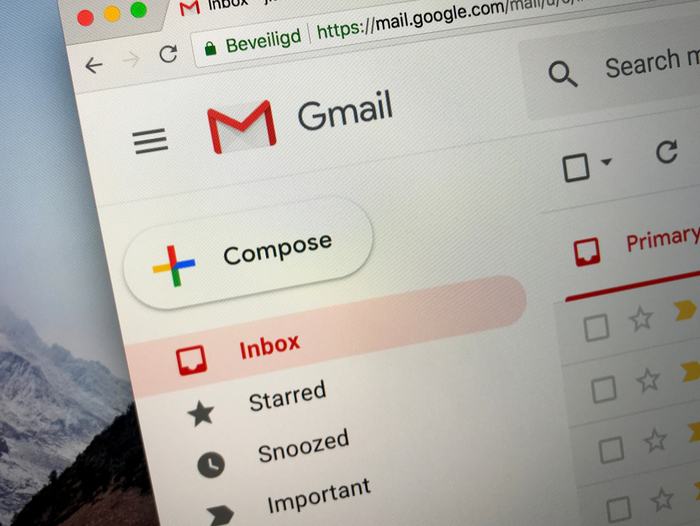
The first thing you need to do is find the Google Sidebar in the top right-hand corner of your computer. After that, click the Gmail icon to open your Gmail. (Or, log in to your Gmail account.)

Gmail Access now
8

2. Locate your settings and inbox

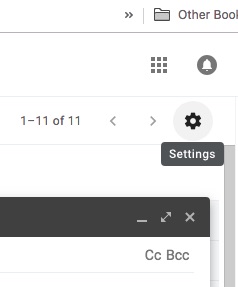
Once you have Gmail open, locate the Settings icon. This icon can be found in the top right-hand corner of your Gmail. Once you’ve found it, click settings. After that, locate the tab that is labeled Inbox.

3. Change your inbox

Once you’ve located the Inbox tab, change the “Inbox type” section. The drop-down menu contains several options, but you will need to select the “Default” option. (However, if you want to hide all the tabs, you will need to select another inbox type.)

4. Select tabs

Finally, once you have changed the Inbox type to Default you will need to go to the “Categories” section. Once you’re in the Categories section, check the boxes of tabs you want to show. This means that you can add or remove any categories. In addition, you can also hide categories that you don’t want to show but that you don’t want to delete.

After you have finished adding and removing tabs, scroll to the bottom of the page. Then, click the “Save Changes” button to finalize all of your additions and removals.

It is that simple! In four easy steps, you can add and remove any tabs from your Gmail to make it look exactly the way you want it.

4 extremely useful Google apps you probably don’t know about

Google offers more than just Maps and Gmail. Get to know these awesome free tools!

There are a lot of Google apps out there — probably more than you can keep track of. Are you curious about some of the most useful Google apps you may have missed? Check out the apps below to find your next favorite.

4 extremely useful Google apps you probably don’t know about

1. Google Keep

This is a great app for keeping track of anything you don’t want to forget. You can use it to write notes, record lists, or store photos and audio. Organize and color-code your keepsakes, too, so they’ll be easier to categorize and find. This app is with you wherever you go, so it’s always accessible when you need it most.

Google Keep also includes location-based and time-based reminders for your notes or lists. This can help with on-time task completion or reminding you to pick up everything you need from the store. You might ordinarily text a friend or family member to ask them to pick something up for you. However, now you can use Google Keep to share grocery lists or errand lists and watch in real-time as the items are checked off by the person you shared the list with.

Google Keep Download Free ►
8

2. Google Express

Rather than searching a bunch of different websites for the product you’re looking for, use Google Express. This website and app allows you to shop at all of your favorite stores — like Target, Ulta, and Costco — in one place. Google Express also works with Google Assistant and voice search.

You’ll still need to reach a specific site’s minimum delivery requirements to receive free delivery on your purchases overall. You’ll typically have 30 days to return any items you don’t want, but check a site’s specific policy or contact Google’s customer support for a definite answer. There are no membership fees for Google Express, and most items you buy will arrive within one to three days.

3. PhotoScan by Google Photos

With PhotoScan, you can use your phone’s camera to scan and save printed photos to your device. The app will scan your photos in seconds, without worrying about glare. You can crop, rotate, or enhance the photos that you take — no need for a second photo-editing app. When you’re done, your photos will be saved to Google Photos for easy access no matter where you are.

Google Photos also offers advanced editing options and tools, in addition to the ability to quickly share your old photos with others. Now you can finally upload that hard-to-capture childhood photo to Facebook!

PhotoScan - scanner by Google Photos download free ►
7
Google Photos Download free ►
7

4. Google Arts & Culture

This free app lets you explore more than 1,200 of the world’s greatest museums, galleries, and institutions. Browse top exhibits, photos, videos, manuscripts, and more. It’s easy to keep track of all your favorite discoveries for inspiration, too. And thanks to the VR option, you can explore faraway museums and galleries as if you’re really there.

Google Arts & Culture Download Now ►
8

This is a great option if you want to take advantage of the experience despite not having any money to travel. Google Arts & Culture also features advanced search options (such as finding a painting that’s from a specific time period), location-based services, translation services, and daily information bites, among others.